Dell XPS 13 9350 (Core Ultra) review – The Laptop You’ll Both Love and Hate
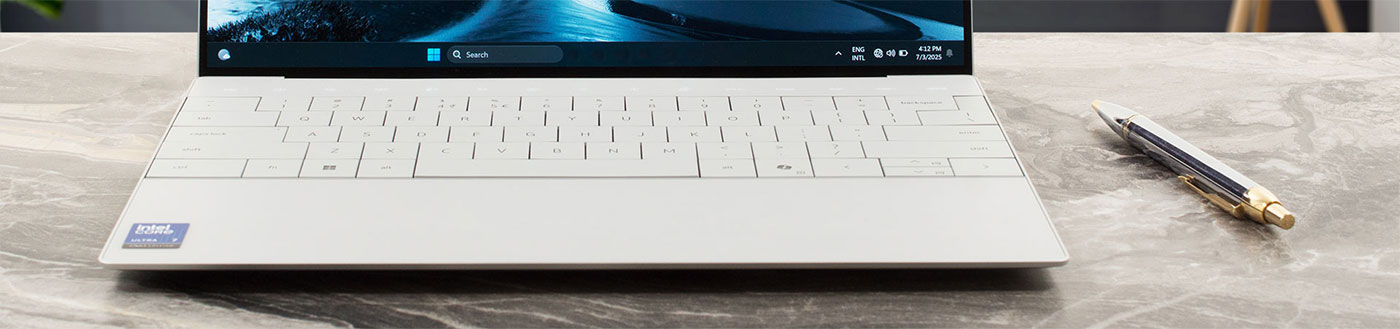
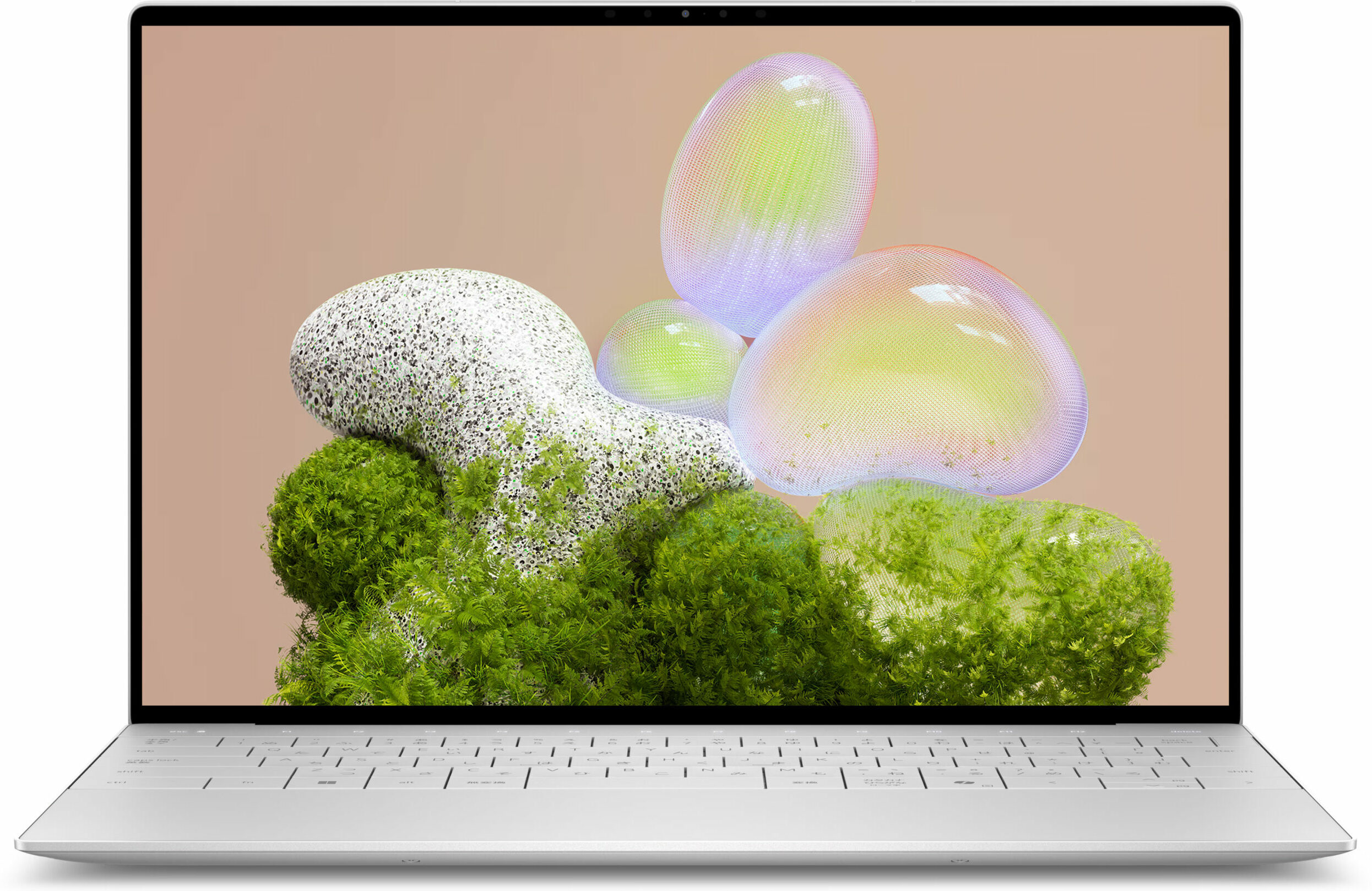
The Dell XPS 13 9350 is a bold declaration about the future of laptop design. It feels less like an iterative update and more like a concept car brought to life, with its seamless glass palm rest, invisible trackpad, and capacitive touch function row. It is, without a doubt, a stunning piece of industrial art, meticulously crafted to be as thin, light, and minimalist as possible. But this relentless pursuit of aesthetic perfection comes at a steep price, forcing major, user-hostile compromises in upgradeability and practicality. Is this a glimpse of a brilliant future, or a design experiment that asks too much of its user?
You can check the prices and configurations in our Specs System: https://laptopmedia.com/series/dell-xps-13-9350-2024/
Contents
Specs, Drivers, What’s in the box
Dell XPS 13 9350 (2024) - Specs

- HDD/SSD
- up to 4000GB SSD
- M.2 Slot
- 1x 2230 M.2 NVMe PCIe 4.0 x4 See photo
- RAM
- up to 32GB
- OS
- Windows 11 Home, Windows 11 Pro, Linux
- Battery
- 55Wh
- Weight
- 1.18 kg (2.6 lbs)
- Ports and connectivity
- 2x USB Type-C
- Thunderbolt 4, Power Delivery (PD), DisplayPort
- Card reader
- Ethernet LAN
- Wi-Fi
- Wi-Fi 7
- Bluetooth
- 5.4
- Audio jack
- Features
- Fingerprint reader
- Web camera
- FHD with Windows Hello Face Authentication
- Backlit keyboard
- optional
- Microphone
- Speakers
- 4x 2W Stereo Speakers
- Optical drive
- Security Lock slot
All Dell XPS 13 9350 (2024) configurations
Drivers
All drivers and utilities for this notebook can be found here: https://www.dell.com/support/product-details/en-us/product/xps-13-9350-intel-laptop/drivers
What’s in the box?
Despite its premium status, the Dell XPS 13 9350 keeps its unboxing experience remarkably minimalist.
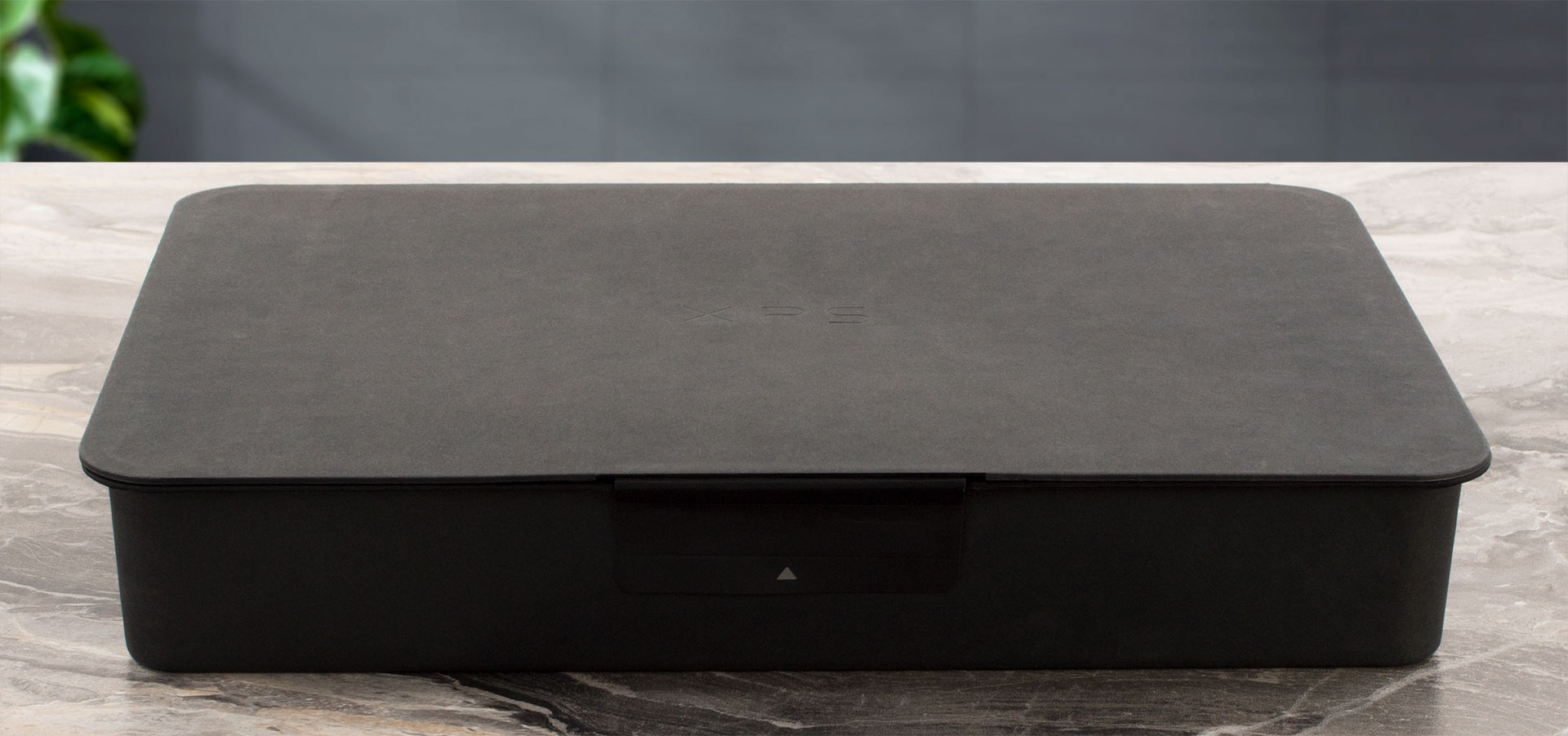
Inside, you’ll find the laptop itself accompanied by its impressively tiny 60W charger and the necessary USB-C and power cables.
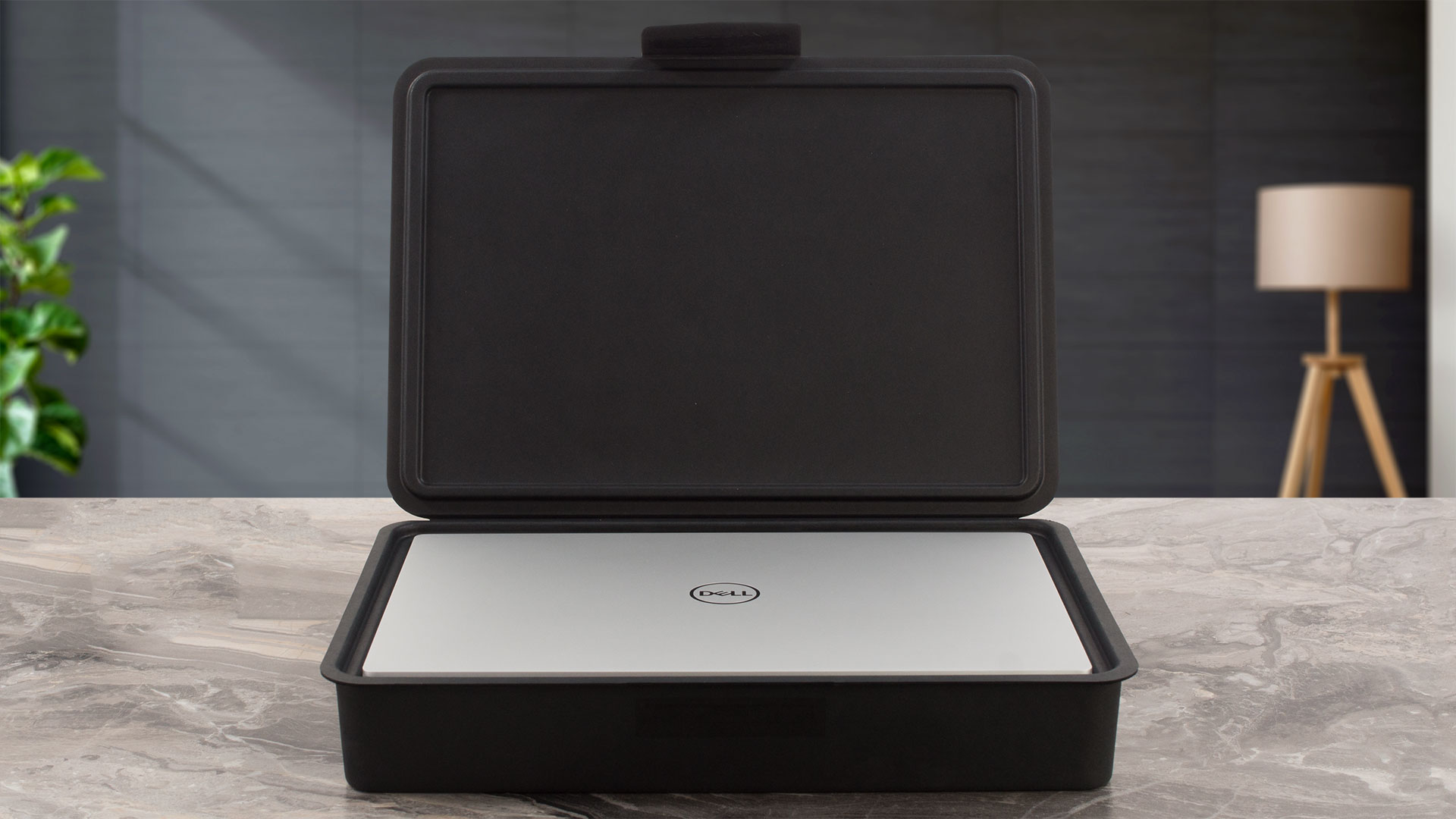
Given the laptop’s limited port selection, we feel a simple USB-C to USB-A adapter would have been a thoughtful and very welcome inclusion.
Design and construction
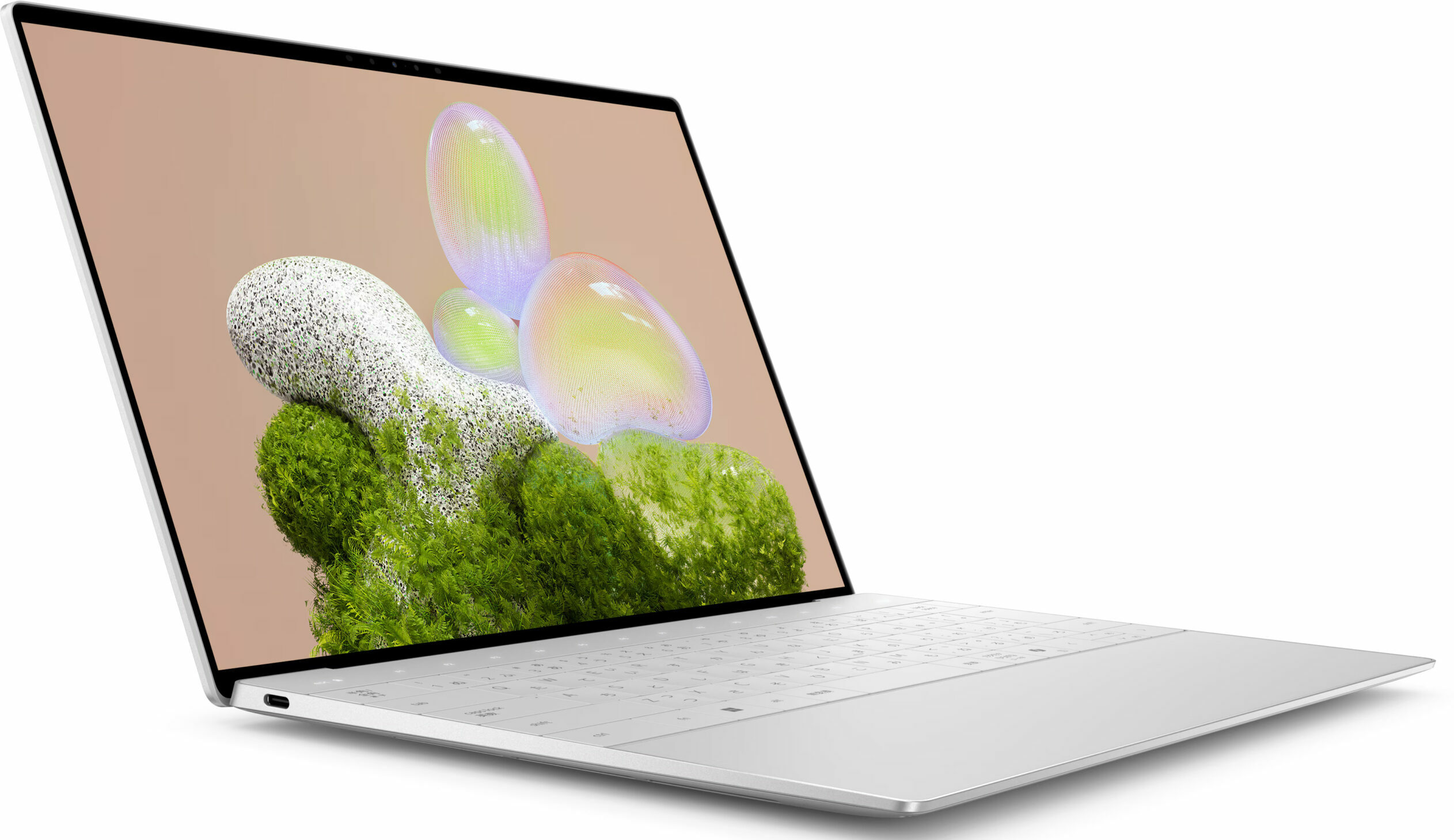
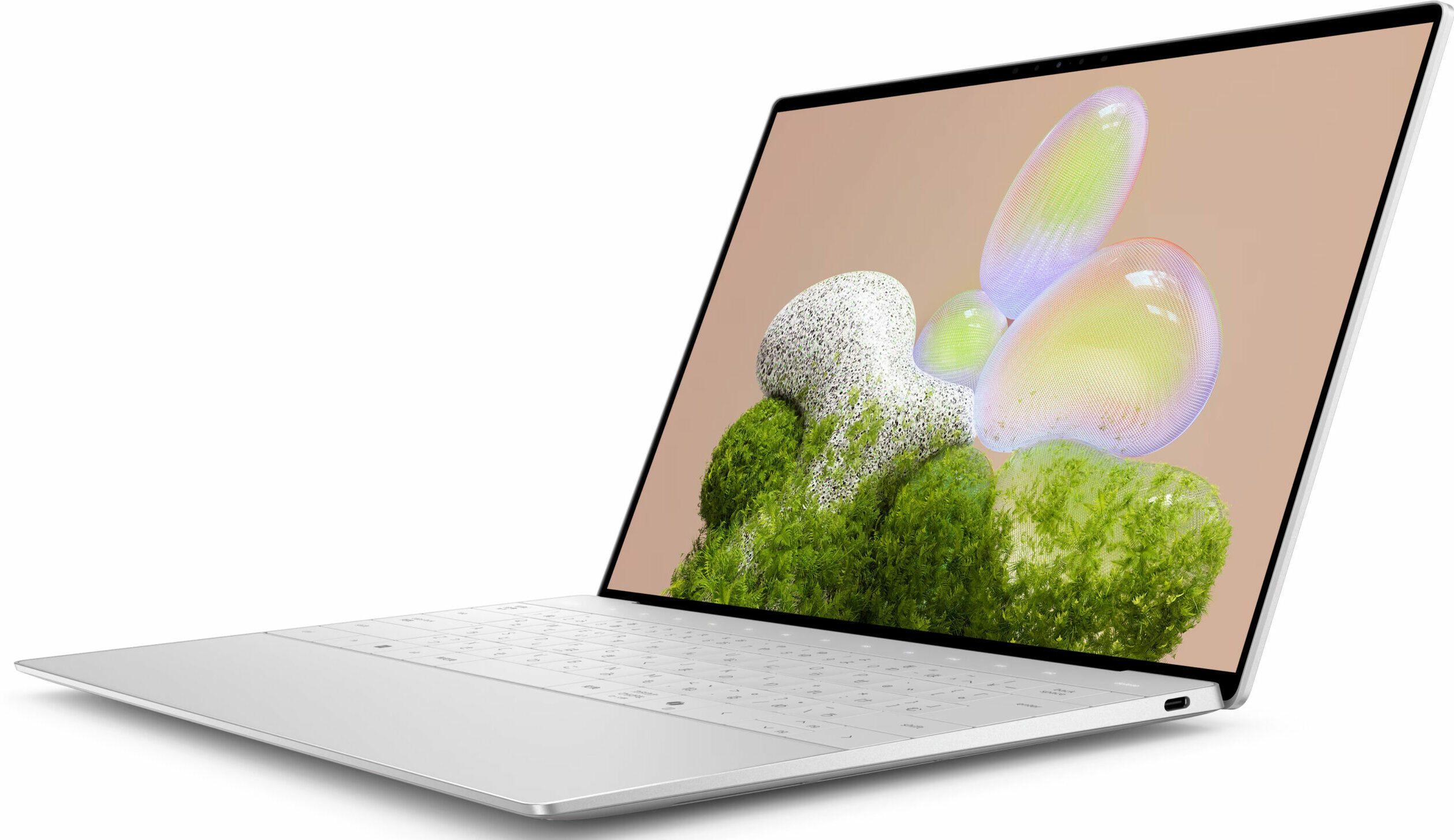
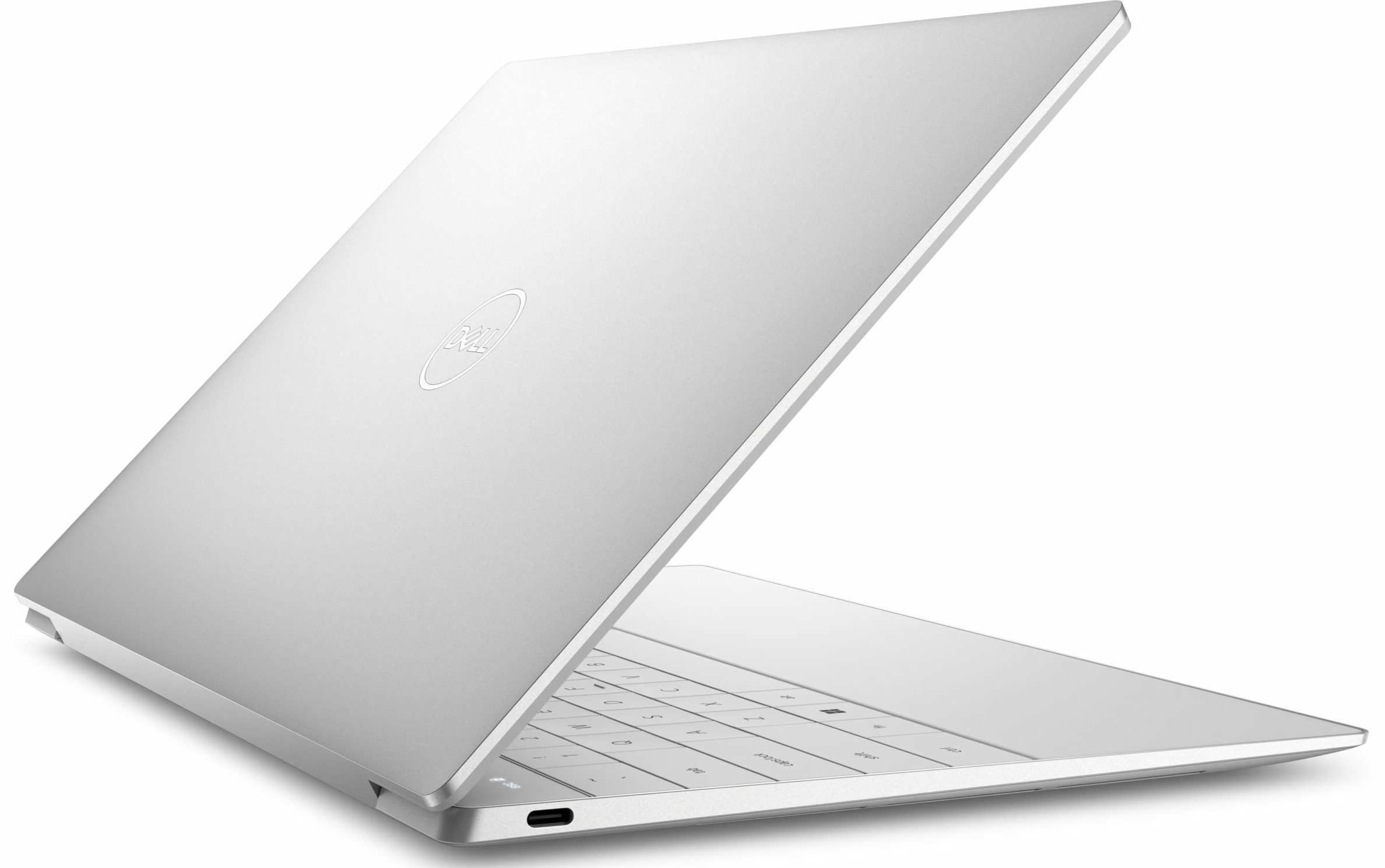
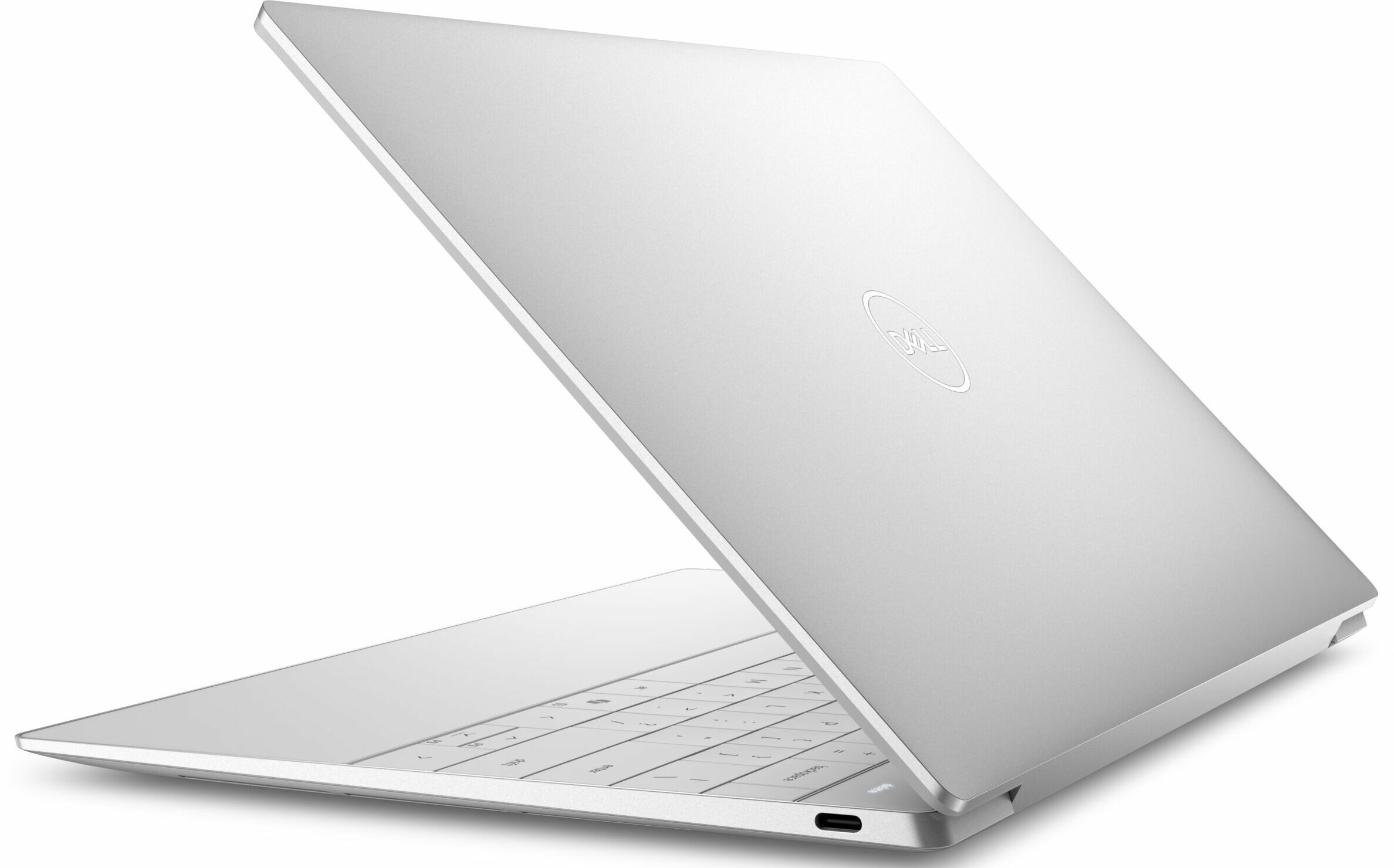
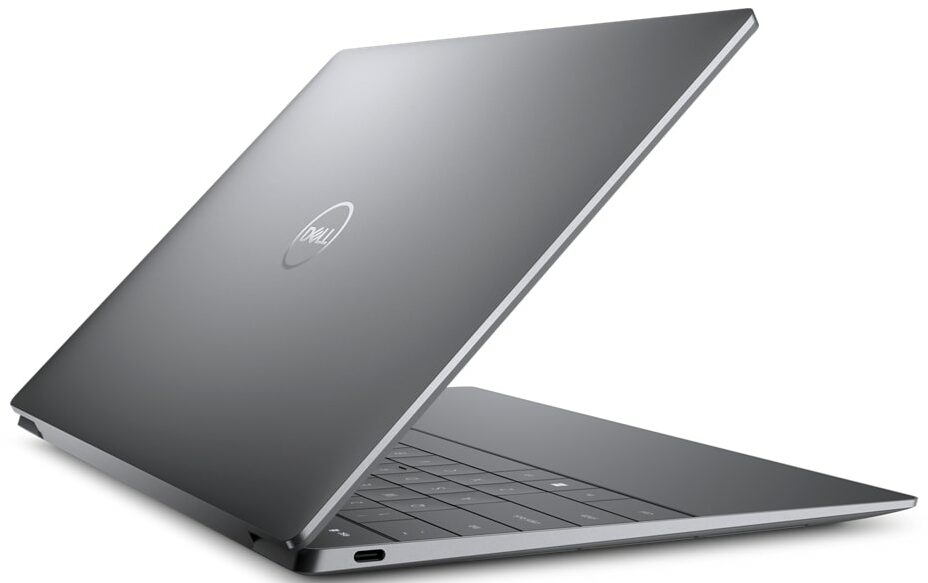
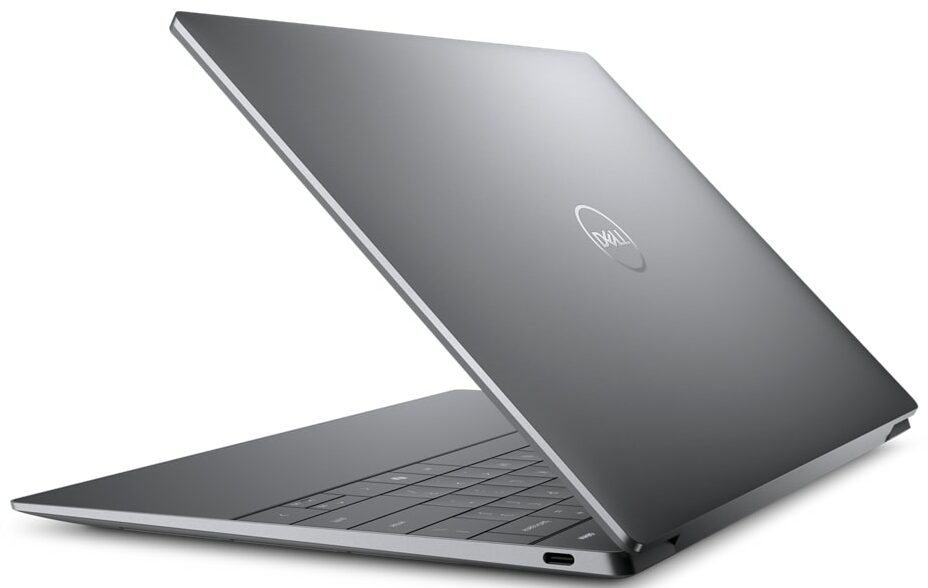
The Dell XPS 13 9350 (Core Ultra) doesn’t feel like a machine; it feels like a piece of industrial art. With the lid closed, it’s a stunningly portable, ultra-thin laptop, meticulously crafted from a single block of machined (CNC) aluminium. The design is so clean and minimalist that it’s almost devoid of ports …a point of contention we’ll touch upon later.
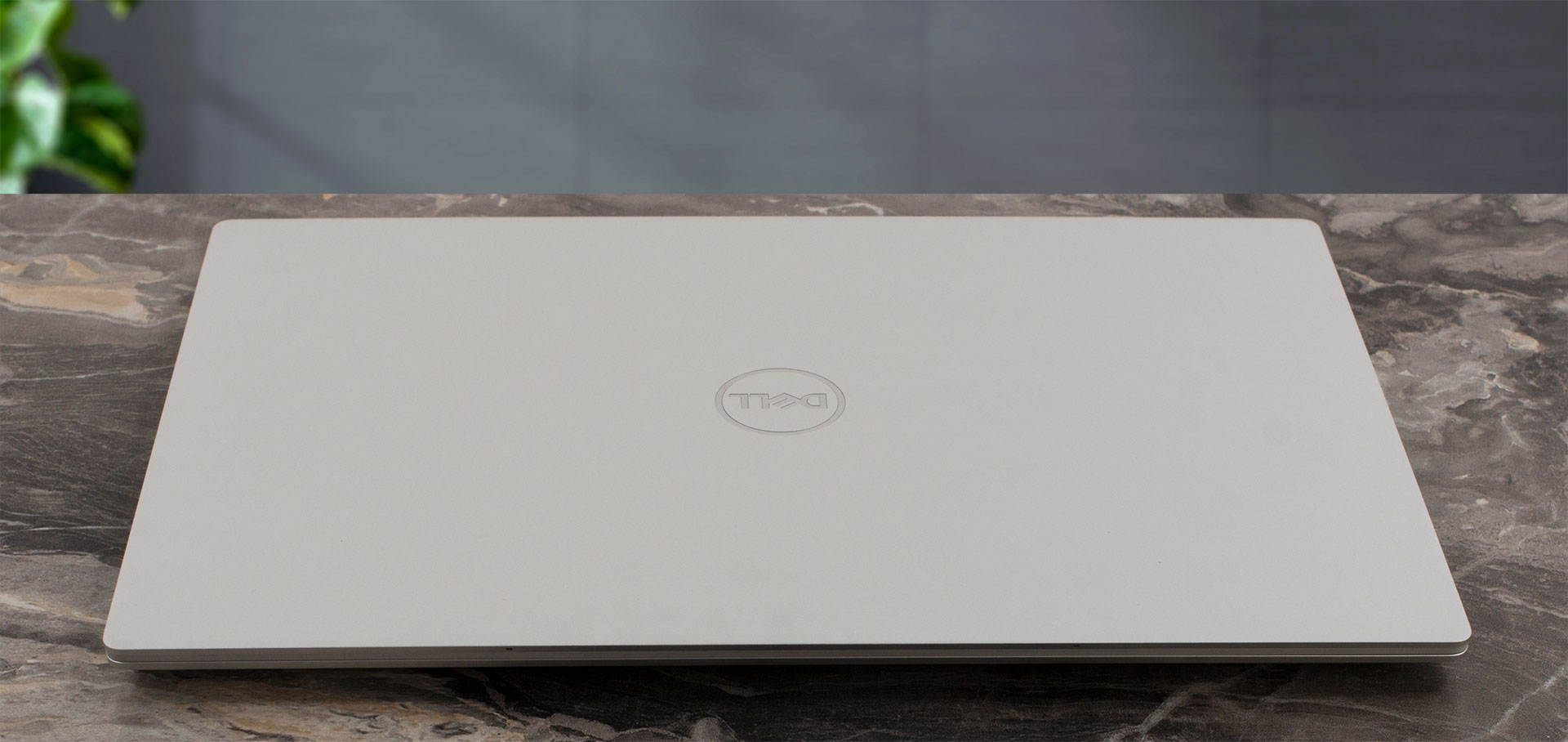
But the real magic, the truly breathtaking innovation, happens when you open the lid. Our review unit is the light “Platinum” finish (a “Graphite” option is also available), and while it can pick up some faint smudges, it’s impressively resistant to actual fingerprints.
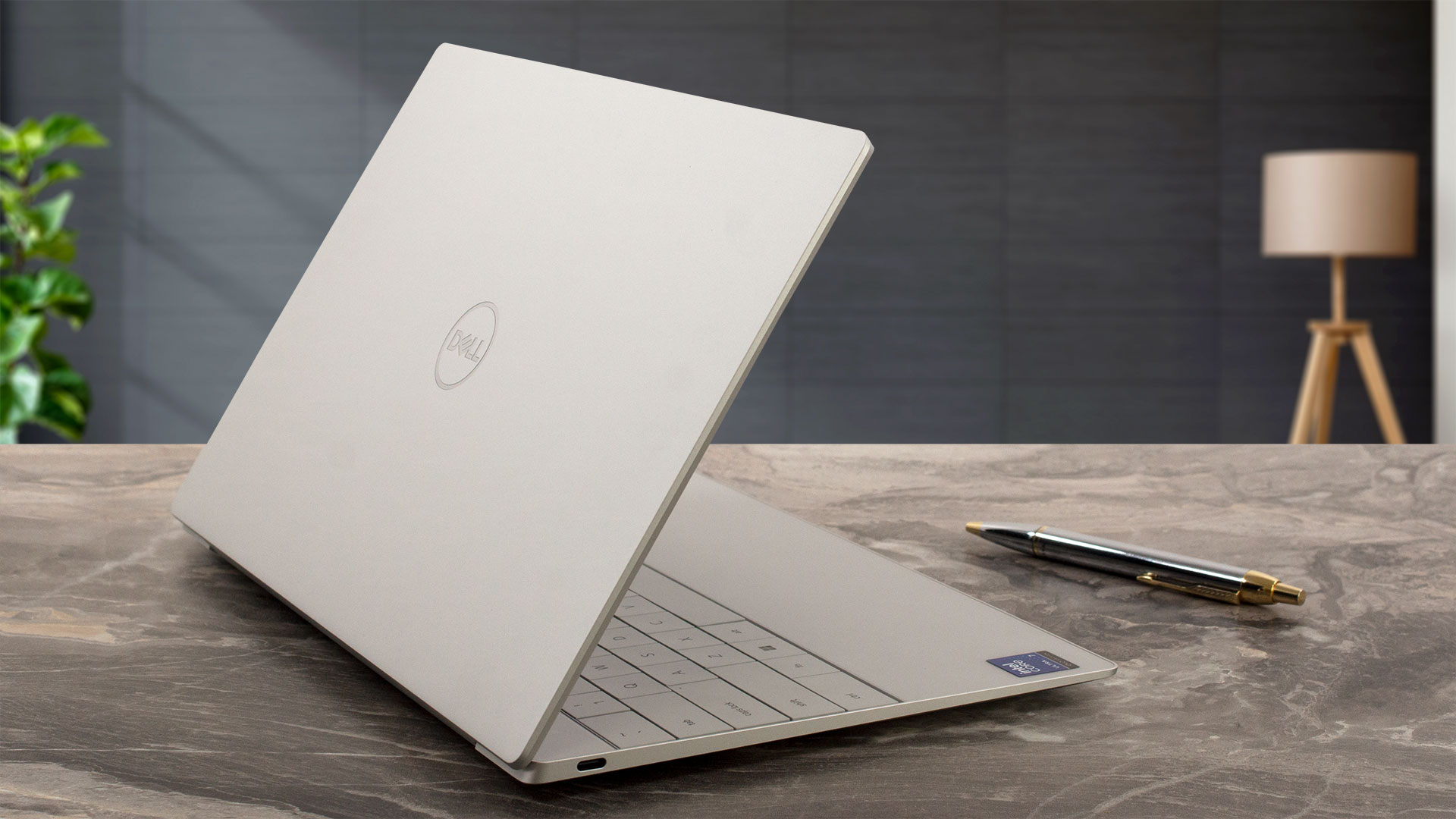
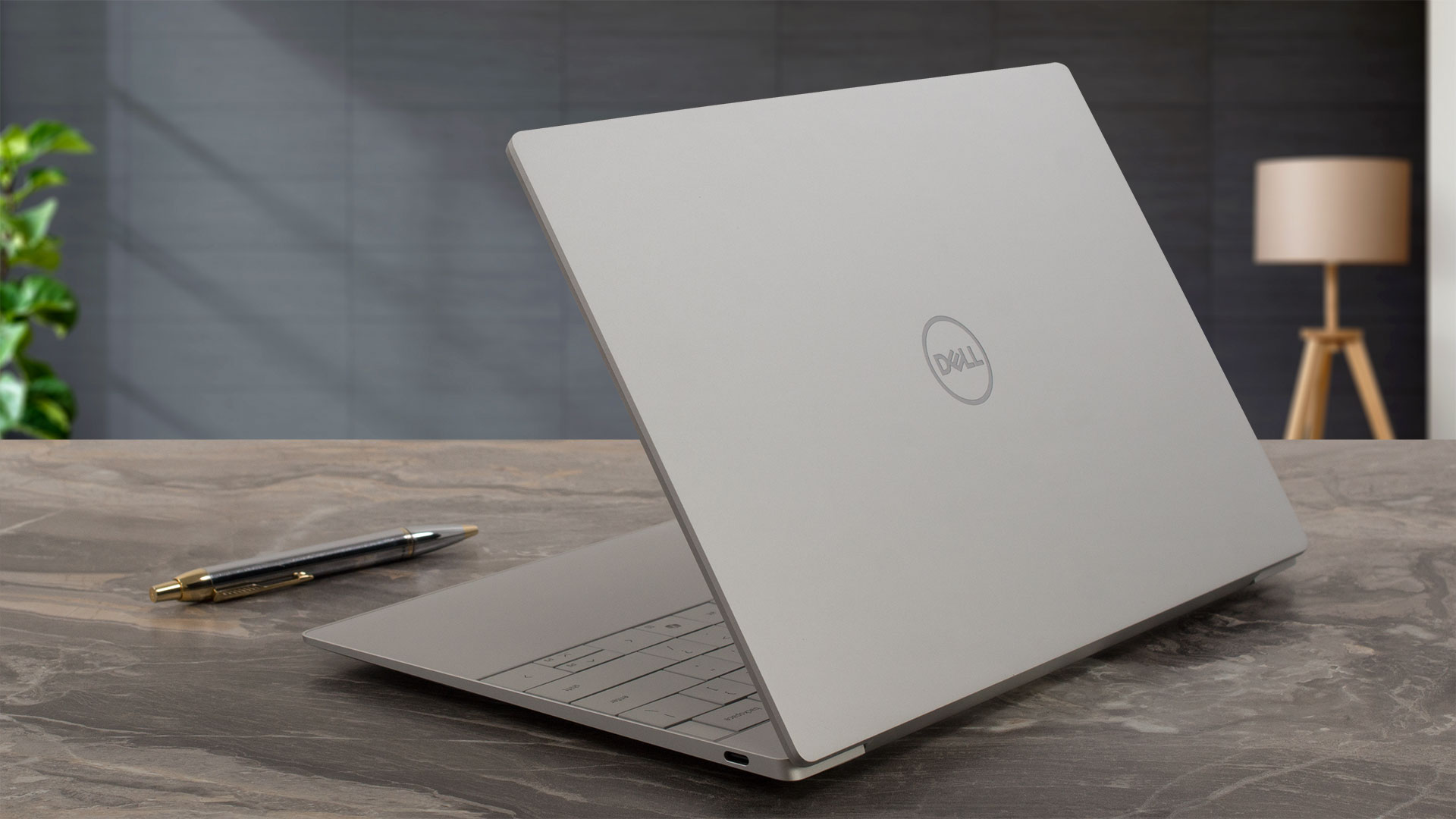
This is, by Dell’s own measure, the thinnest XPS ever created. There are slight variations depending on the screen technology, and we opted for the sleekest OLED configuration. Here’s how the different versions stack up:
| Dimensions | OLED | QHD+ | FHD+ |
| Height | 14.8 mm (0.58″) | 15.3 mm (0.60″) | 15.3 mm (0.60″) |
| Starting weight | 1.18 kg (2.6 lb) | 1.21 kg (2.7 lb) | 1.22 kg (2.7 lb) |
The all-aluminium body feels incredibly solid with no concerning flex, and the craftsmanship is pure top-tier, allowing for a smooth, one-handed open. The screen tilts back to about 130 degrees. It doesn’t lay flat, which is a slight shame given the optional touchscreen functionality, but we don’t consider this a major drawback for this type of device.
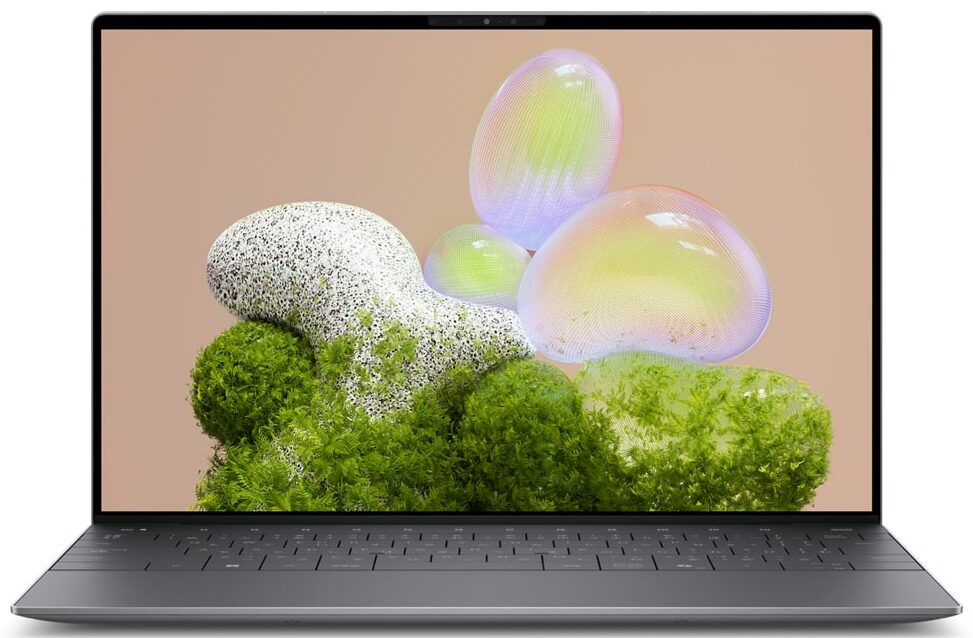
Once open, the entire front panel is a seamless sheet of Gorilla Glass Victus. When the machine is off, the bezels are practically invisible. When the screen lights up, you realize just how impossibly narrow they are – quite possibly the thinnest we’ve ever seen in LaptopMedia’s 20-year history of reviewing laptops. The side bezels measure a mere 3.5 mm (0.14 inches), while the top bezel is just 6.5 mm (0.26 inches). Despite this sliver of space, Dell has managed to pack in an FHD (1080p) webcam with Windows Hello IR, Express Sign-In, dual microphones, and an ambient light sensor. The one casualty of this pursuit of slimness is a physical privacy shutter, which is absent here.

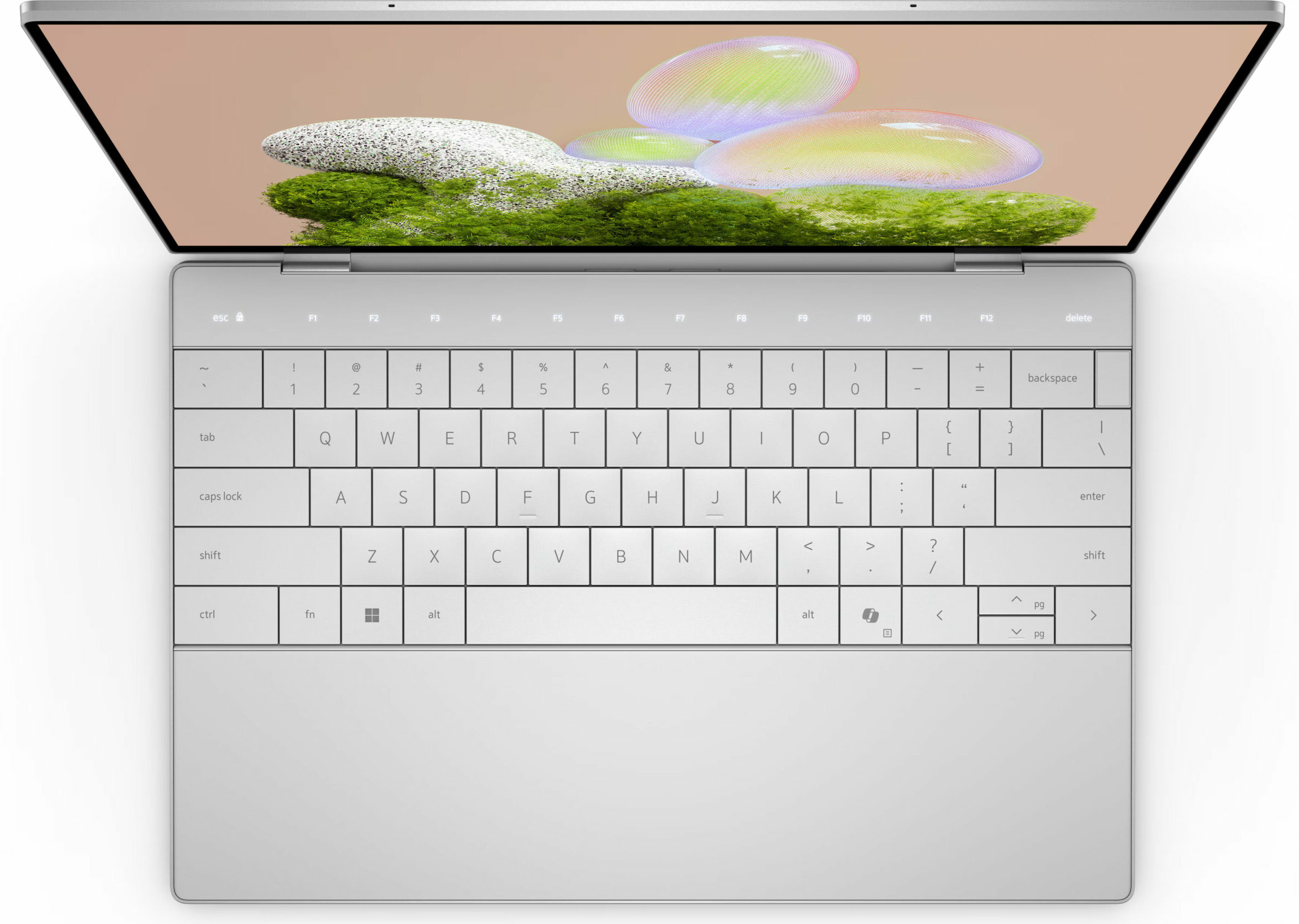
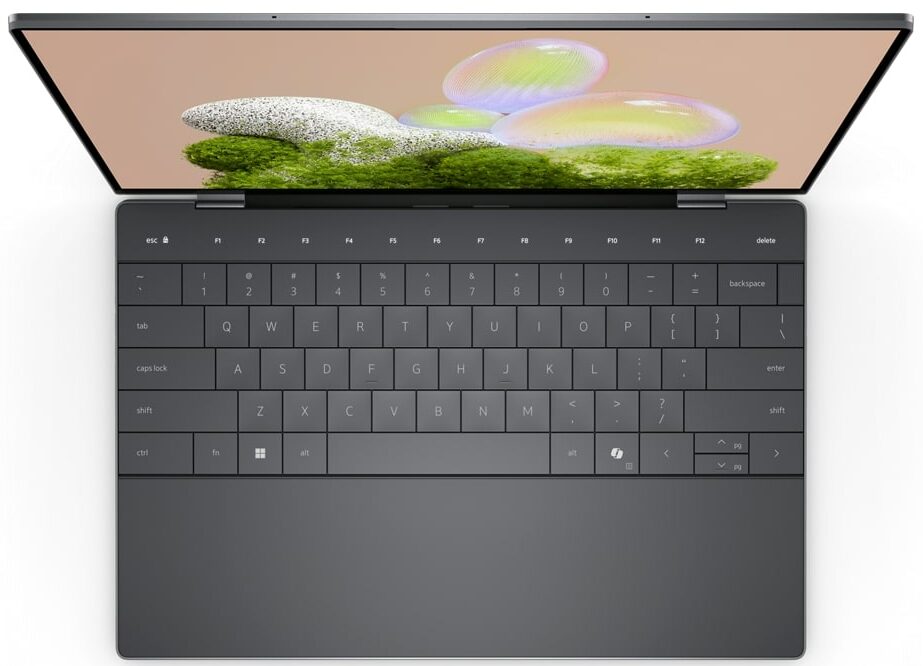
The keyboard deck is where the XPS 13 truly breaks from convention. The full-size, backlit, “zero-lattice” keyboard is comfortable to type on, with a short but crisp 1.0mm of travel. What will immediately catch your eye is the function row – it’s not made of physical keys. Instead, it’s a capacitive touch row with illuminated symbols. This takes some getting used to. For example, to execute an Alt+F4 command, you press Alt plus the Mic Mute icon. It’s a bit jarring at first, but after a few weeks, it becomes second nature. For biometric login, a fingerprint reader is cleverly hidden within the power button.
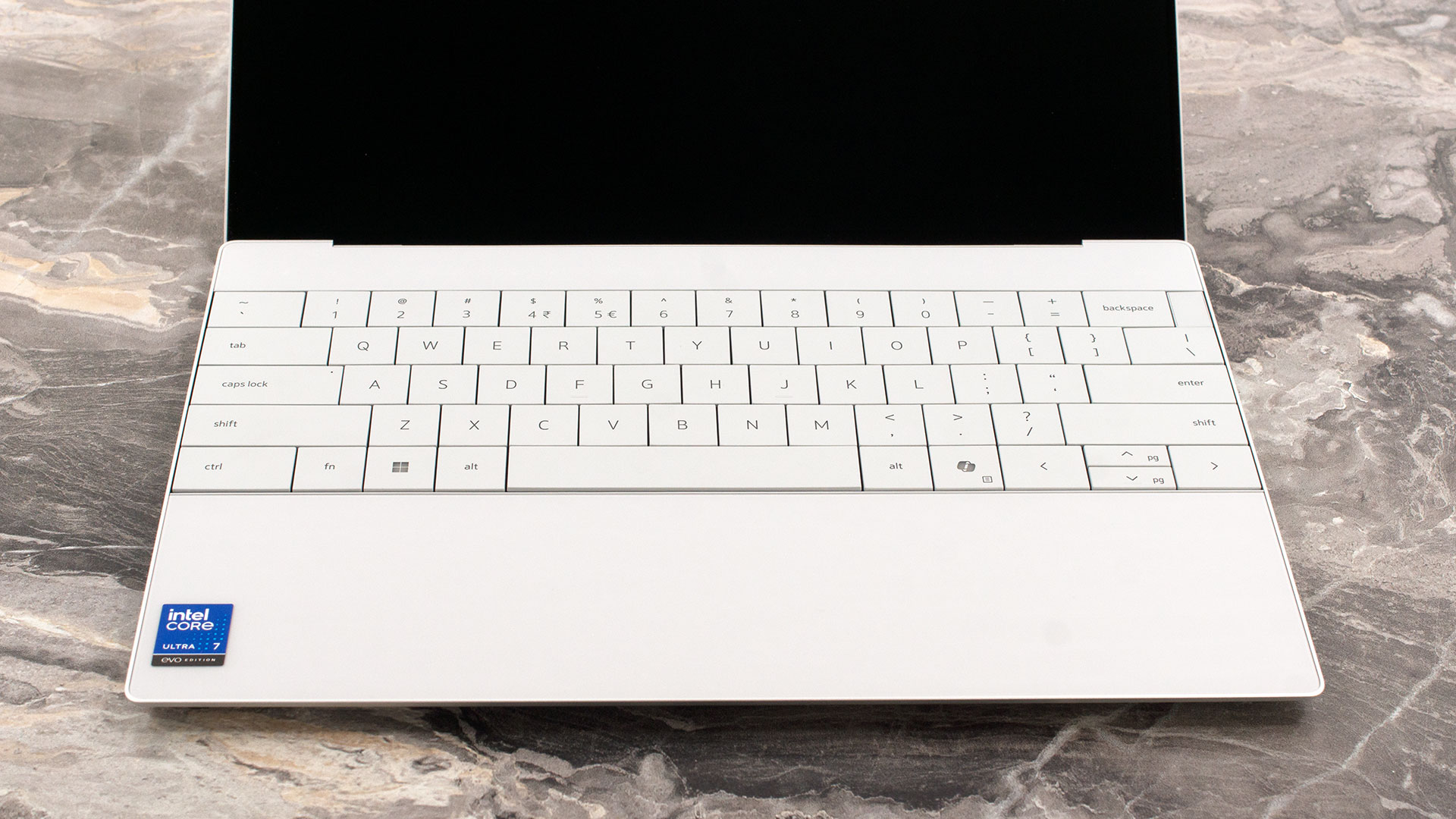
And then there is the trackpad. Or rather, the lack of a visible one. In a design move that mirrors the boundary-pushing MSI Titan 18 (detailed review), the trackpad on the XPS 13 is completely invisible, hidden beneath a single, seamless sheet of Gorilla Glass 3 that makes up the entire palm rest. We did our best to measure its active area, which we found to be approximately 115 mm wide by 70 mm deep (4.53 x 2.76 inches). It might seem bizarre to use a trackpad whose borders you can’t see, but the adjustment period is surprisingly short. You quickly develop a muscle memory for its location, and the benefit is an astonishingly clean and uninterrupted design.
Ports and Connectivity
The port selection on the Dell XPS 13 9350 is the very definition of minimalism, a core aspect of its design philosophy. On the left side, there is a single Thunderbolt 4 (USB Type-C) port, which supports both DisplayPort 2.1 for video output and Power Delivery for charging.

The right side mirrors this setup exactly, offering one additional Thunderbolt 4 port with the same capabilities. That is the complete inventory of physical ports. There are no others.

This spartan approach has significant practical implications that potential buyers must consider. With no dedicated charging port, one of these two connections will be occupied while the laptop is plugged in, leaving just a single port available for all wired peripherals, such as external drives, monitors, or adapters. Consequently, relying on Bluetooth for accessories like a mouse and keyboard is highly advisable, and a USB-C hub or docking station will be an essential purchase for anyone needing to connect more than one wired device at a time.
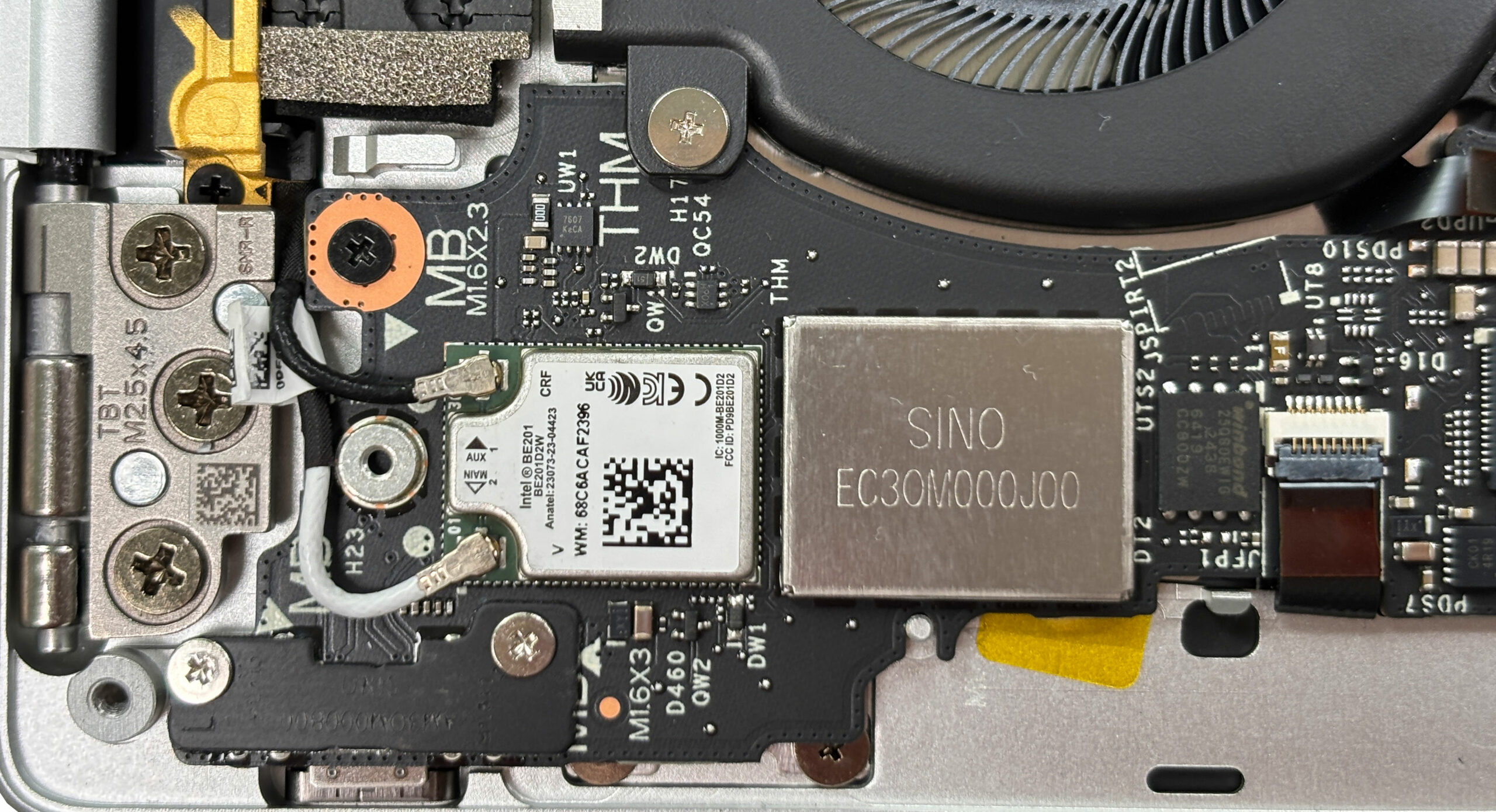
In stark contrast to the limited physical I/O, the wireless connectivity is cutting-edge. The XPS 13 9350 is equipped with an Intel Killer Wi-Fi 7 1750i (BE201) wireless card. This supports the latest 802.11be standard with a 2×2 antenna configuration, offering access to the fastest possible wireless speeds, lower latency, and improved reliability on compatible networks. The module also includes Bluetooth 5.4, ensuring a robust and efficient connection for the very wireless peripherals you’ll likely be relying on.
Display and Sound Quality, Display Profiles
We ordered the Dell XPS 13 9350 with the OLED screen option.
| Dell XPS 13 9350 | 1920 × 1200, 120 Hz, IPS | 2560 × 1600, 120 Hz, IPS | 2880 × 1800, 60 Hz, OLED |
| Panel ID | — | — | LG DH9PW-134WT1 (LGD0778) |
| Diagonal | 13.4 inches (34.0 cm) | 13.4 inches (34.0 cm) | 13.4 inches (34.0 cm) |
| Panel Type | IPS | IPS | OLED |
| Resolution | 1920 × 1200 pixels | 2560 × 1600 pixels | 2880 × 1800 pixels |
| Max Refresh Rate | 120 Hz | 120 Hz | 60 Hz |
| Aspect Ratio | 16:10 | 16:10 | 16:10 |
| Pixel Density | 169 PPI | 225 PPI | 253 PPI |
| ‘Retina’ Distance | Greater than or equal to 60 cm | Greater than or equal to 42 cm | Greater than or equal to 34 cm |
| Brightness (typical / peak) | 500 nits | 500 nits | 1000 nits (HDR peak) / 500 nits (SDR typical) |
| Surface | Anti-glare | Anti-glare | Glossy |
| Contrast Ratio | 2000:1 (typical) | 2000:1 (typical) | 1,000,000:1 |
| Color Gamut | 100% sRGB | 100% DCI-P3 | 100% DCI-P3 |
| Response Time (max) | 35 millisecond | 35 millisecond | 2 millisecond |
| Touch | No | Yes | No |
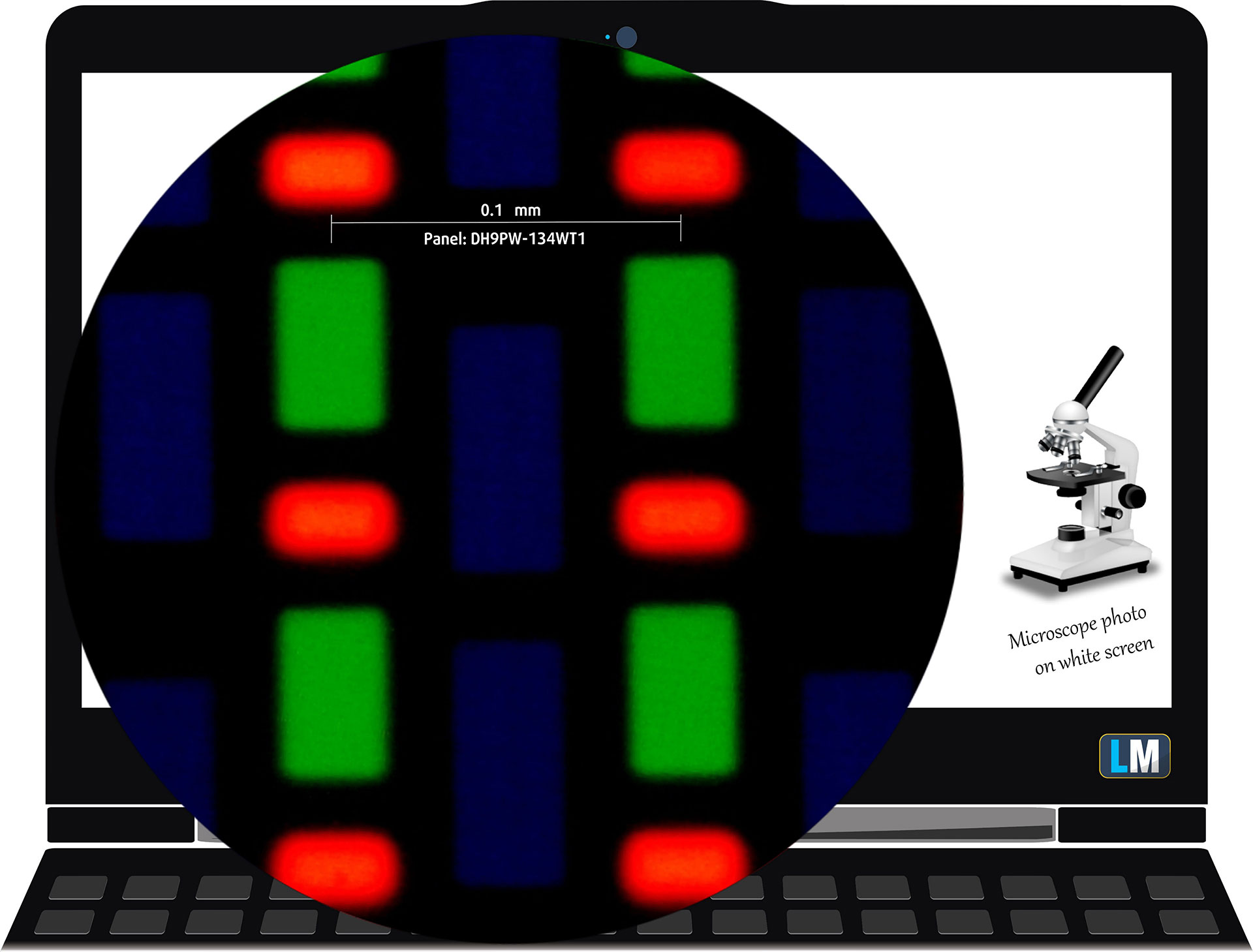 The 2880 × 1800, 60 Hz, OLED display variant under our microscope
Viewing Angles
Viewing angles are good. We take photos from different angles to evaluate the quality.
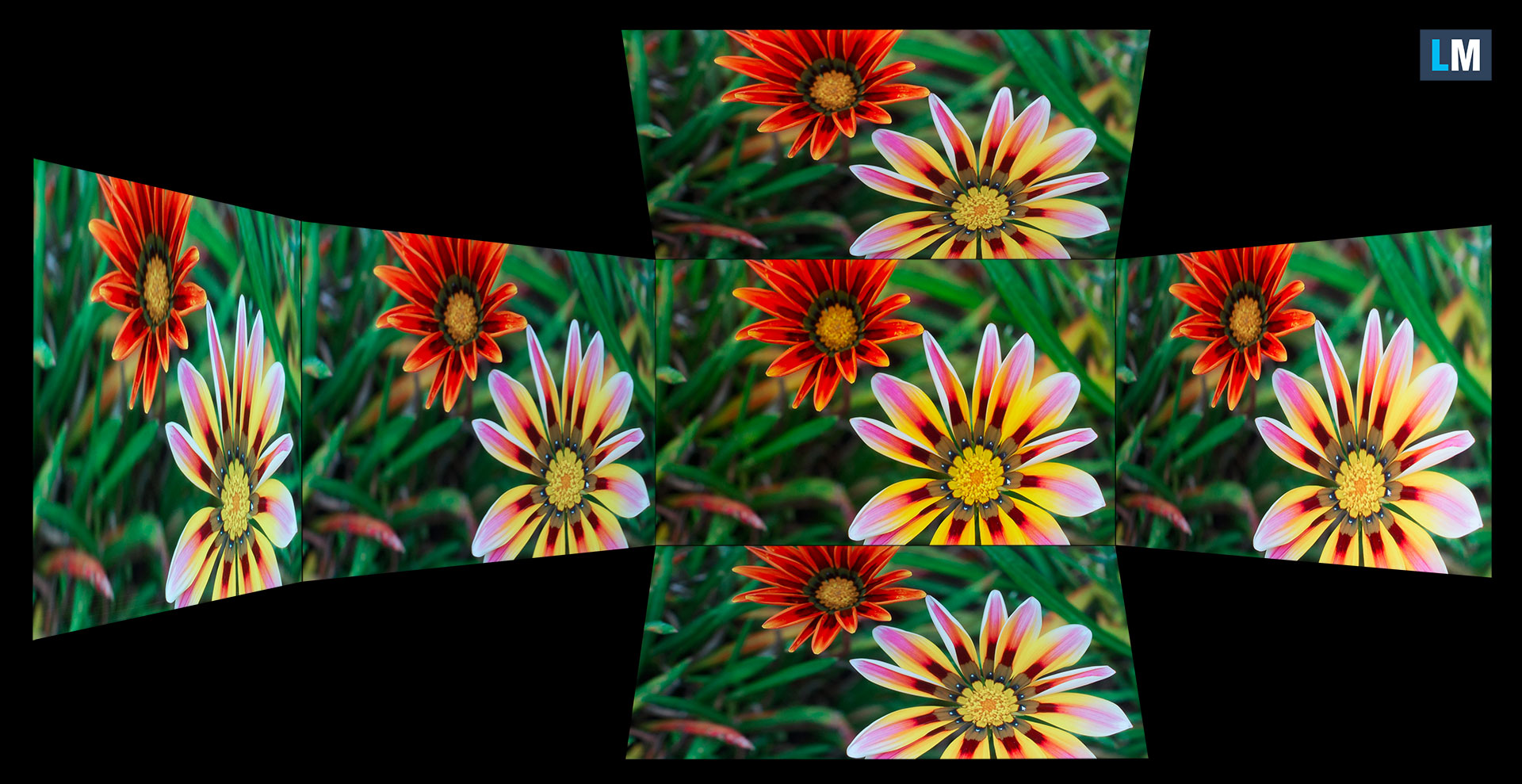
Also, a video with locked focus and exposure.
Color Coverage
The whole “sail-shaped” map below (Fig. 1) consists of all the colors we can see, while the black crooked line shows all the colors from real-world scenes and nature around us.
Then, we’ve drawn some of the most important and interesting color spaces, compared to the colors the panel of Dell XPS 13 9350 can show:
Standard/For Web: sRGB – widely used color space for most consumer devices, ideal for Web design and development
For Print: AdobeRGB – used in professional photo editing, graphic design, and print
For Photographers/Video Editors: DCI-P3 – used in high-end film production, post-production, and digital cinema
Premium HDR: Rec.2020 – the widest consumer ITU color standard, covering a massive 75.8% of the visible spectrum, a benchmark for premium HDR content
Dell XPS 13 9350: the yellow dashed triangle (– – – – – –) represents the range of colors this monitor can show.
In our tests, we calculated the total color coverage of the display at 100% of the sRGB color gamut and 100% of the DCI-P3 color gamut.
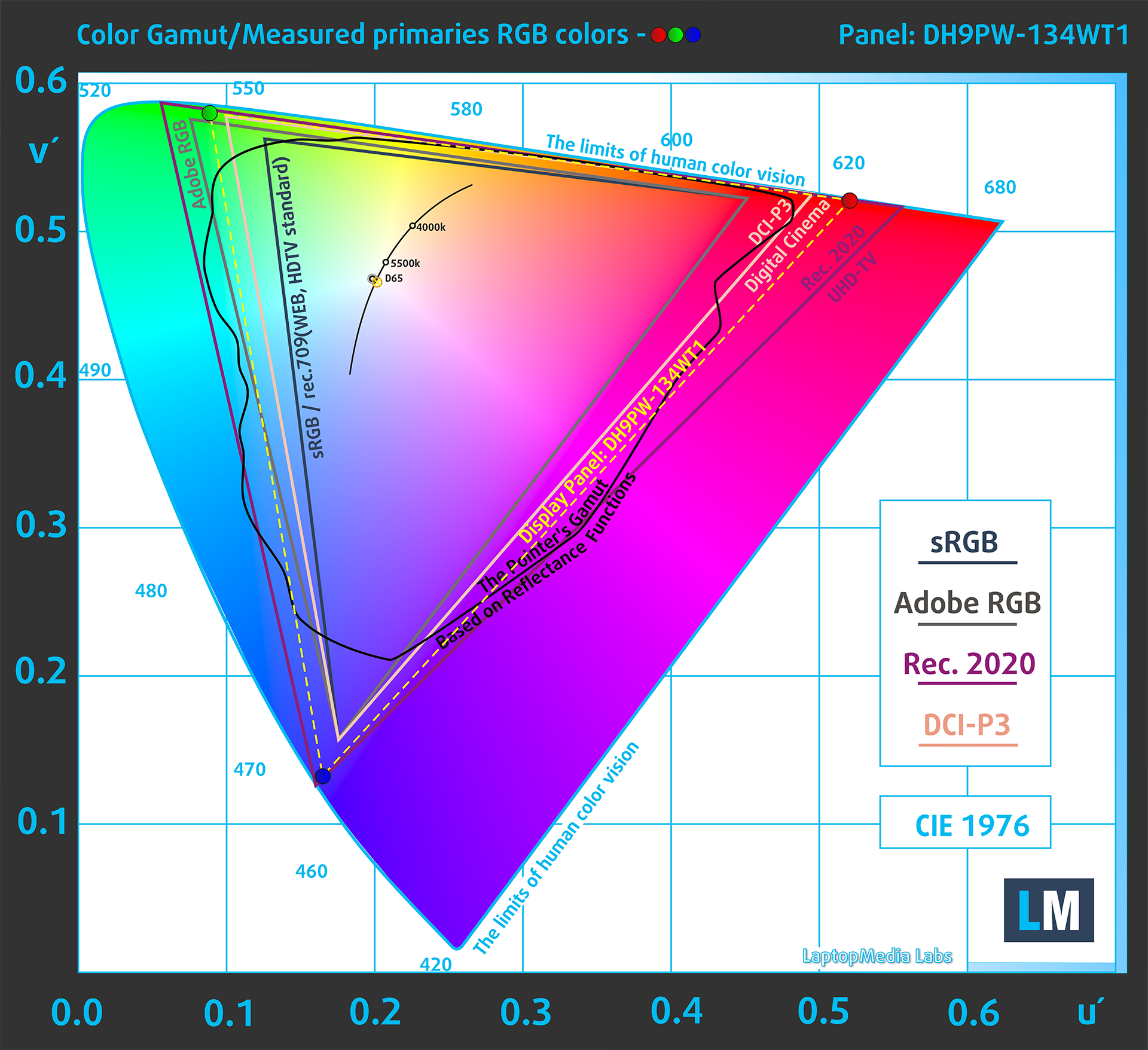
(Fig.1) Dell XPS 13 9350 covers 100% of the DCI-P3 gamut
Brightness and Contrast
The maximum brightness in HDR mode is 522 cd/m² at 8% white fill and 421 cd/m² on a full white screen.
The maximum brightness in SDR mode is 470 cd/m² in the center of the screen and 468 cd/m² averaged across the surface with a maximum deviation of 2%.
The Correlated Color Temperature (CCT) on a white screen at maximum brightness is 6420K.
The contrast ratio of OLED panels is excellent because the pixels turn off completely when displaying black.

Uniformity: Luminance, Contrast, and Color Deviation
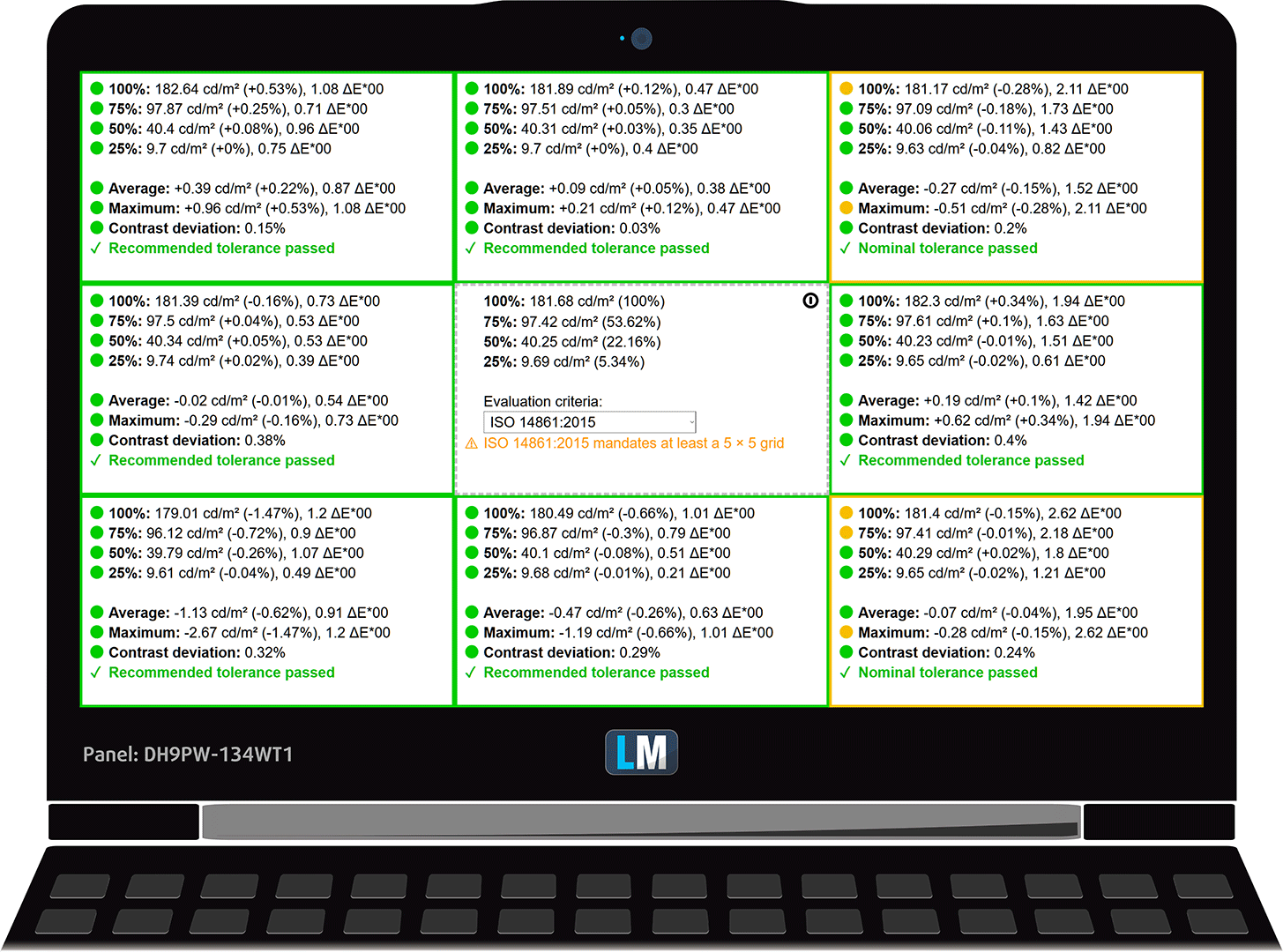
The figure below shows the results from our uniformity test across different sections of the screen. It’s measured at 182 nits (Windows slider = 64%) — a brightness level we consider typical for standard working conditions.
DeltaE values below 4.0 are acceptable for regular users. For those working with colors, screens with DeltaE values no higher than 2.0 are recommended.
Color Accuracy
Let’s check the difference between real colors and those you’ll see on the Dell XPS 13 9350. We measure that distance in DeltaE – the higher the number, the more different they look.
Values below 4.0 are acceptable for regular users, while values below 2.0 are suitable for color-sensitive work. A value below 1.0 means the difference is indistinguishable to the naked eye.
For the next graph, we’ve selected 24 common colors, including dark/light skin, blue sky, green grass, etc.
Before our calibration of the Dell XPS 13 9350, the Average color accuracy was 4.1 dE (Fig. 2), and with our Design and Gaming profile, it lowered to 1.8 dE (Fig. 3).
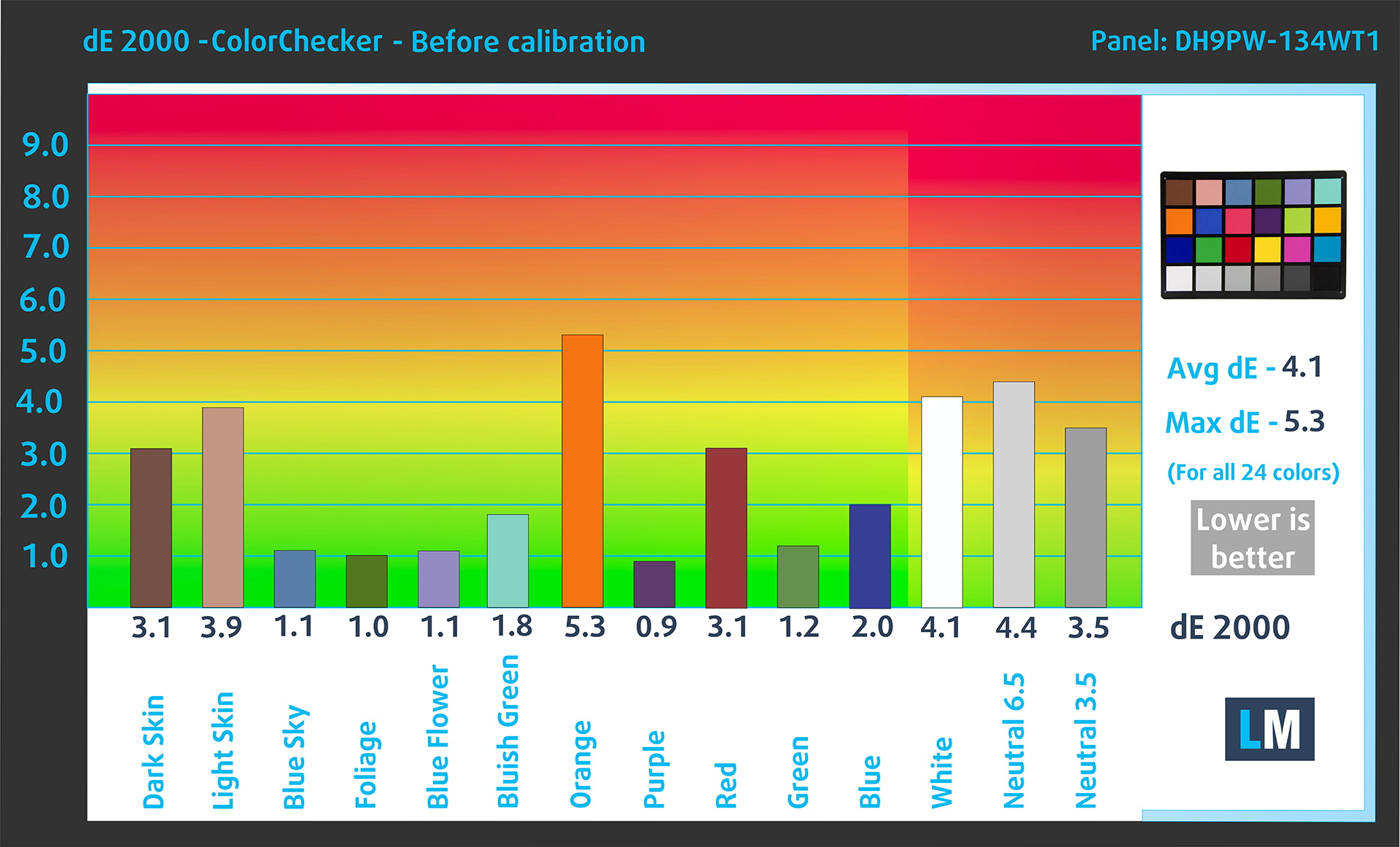
(Fig. 2) Dell XPS 13 9350 in its factory condition
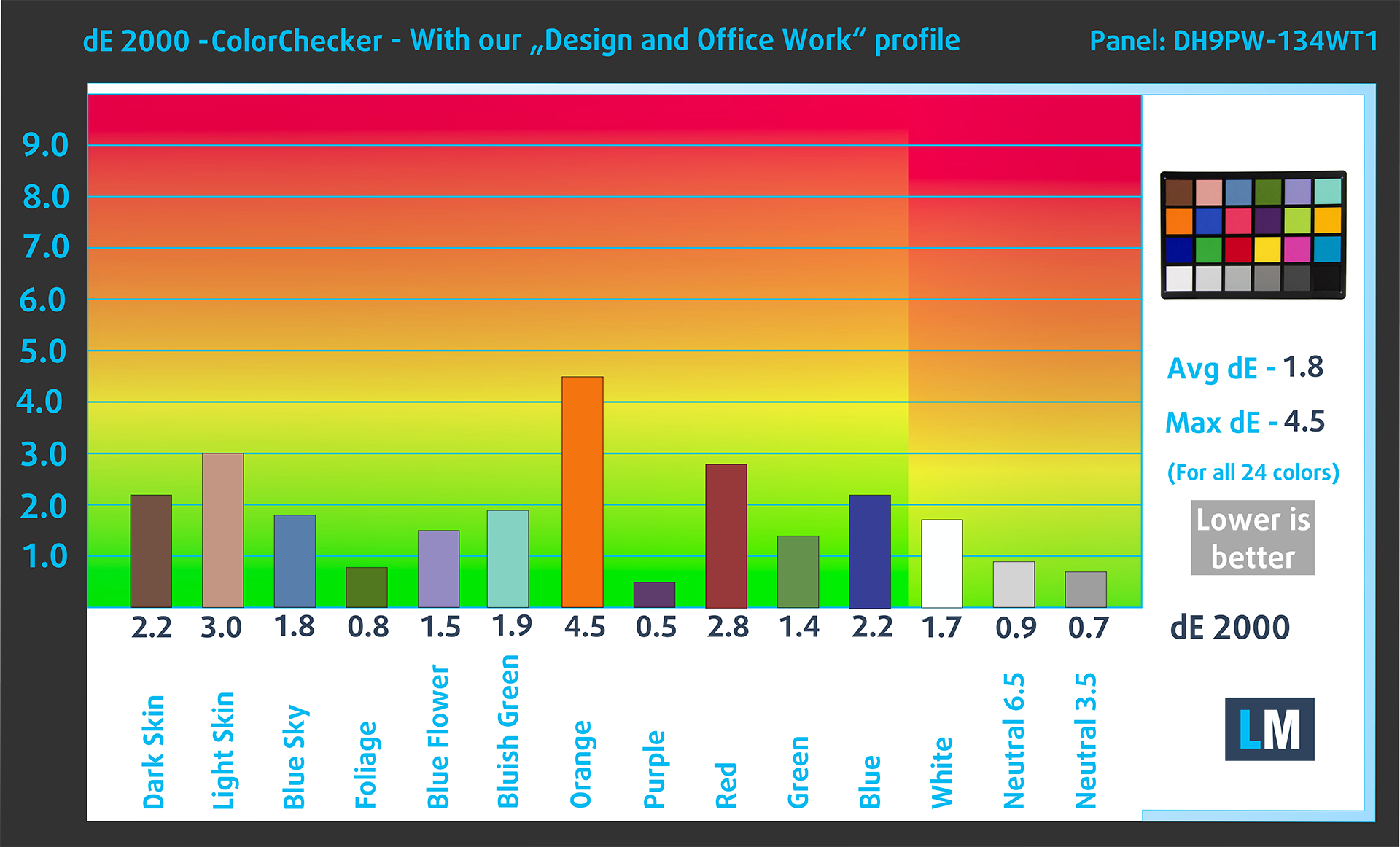
(Fig. 3) Dell XPS 13 9350 with our display profile
Comparison in the Display P3 color space.
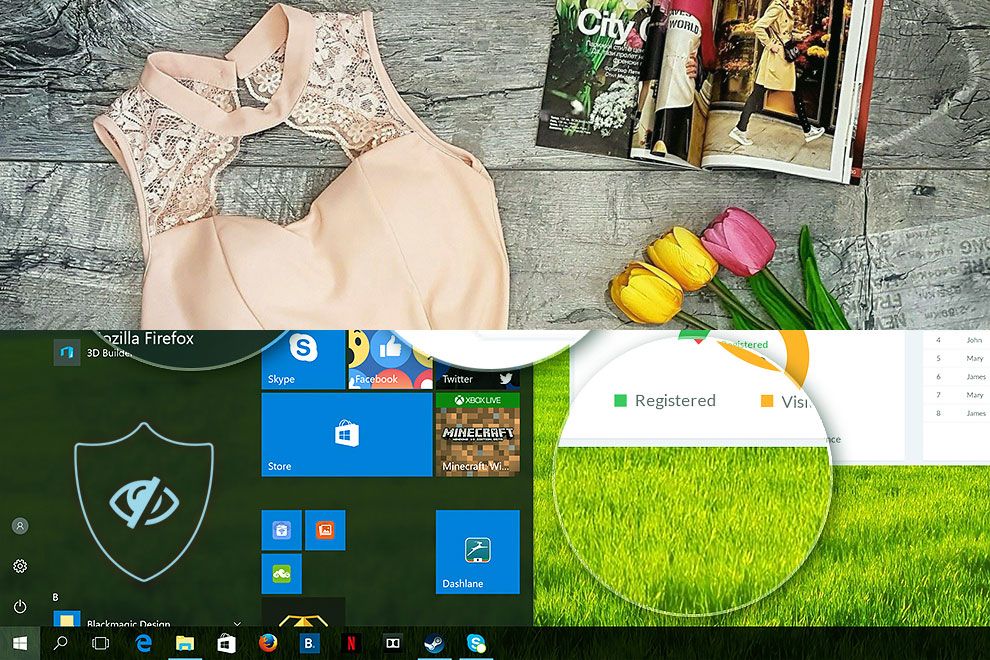
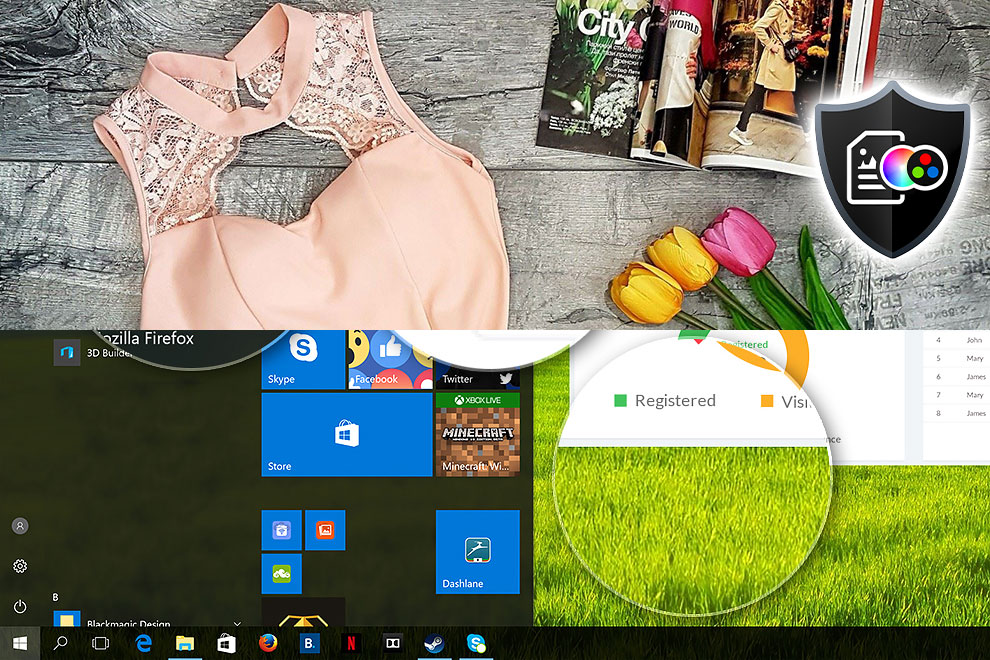
Here’s an illustration of what the Design and Office profile aims to deliver:
Left: No Profile | Drag the slider to see the difference | Right: Design & Office Profile
Visibility in dark scenes
Have you ever watched a movie with dark scenes where you could barely see anything? This often happens because many display panels struggle to differentiate the darkest nuances, making them appear the same.
The next figure illustrates how well the display reproduces these dark nuances. The left side of the image shows the display with stock settings, and the right side shows it with our Design and Gaming profile activated.
On the horizontal axis are the grayscale levels, and on the vertical axis – the corresponding display brightness.
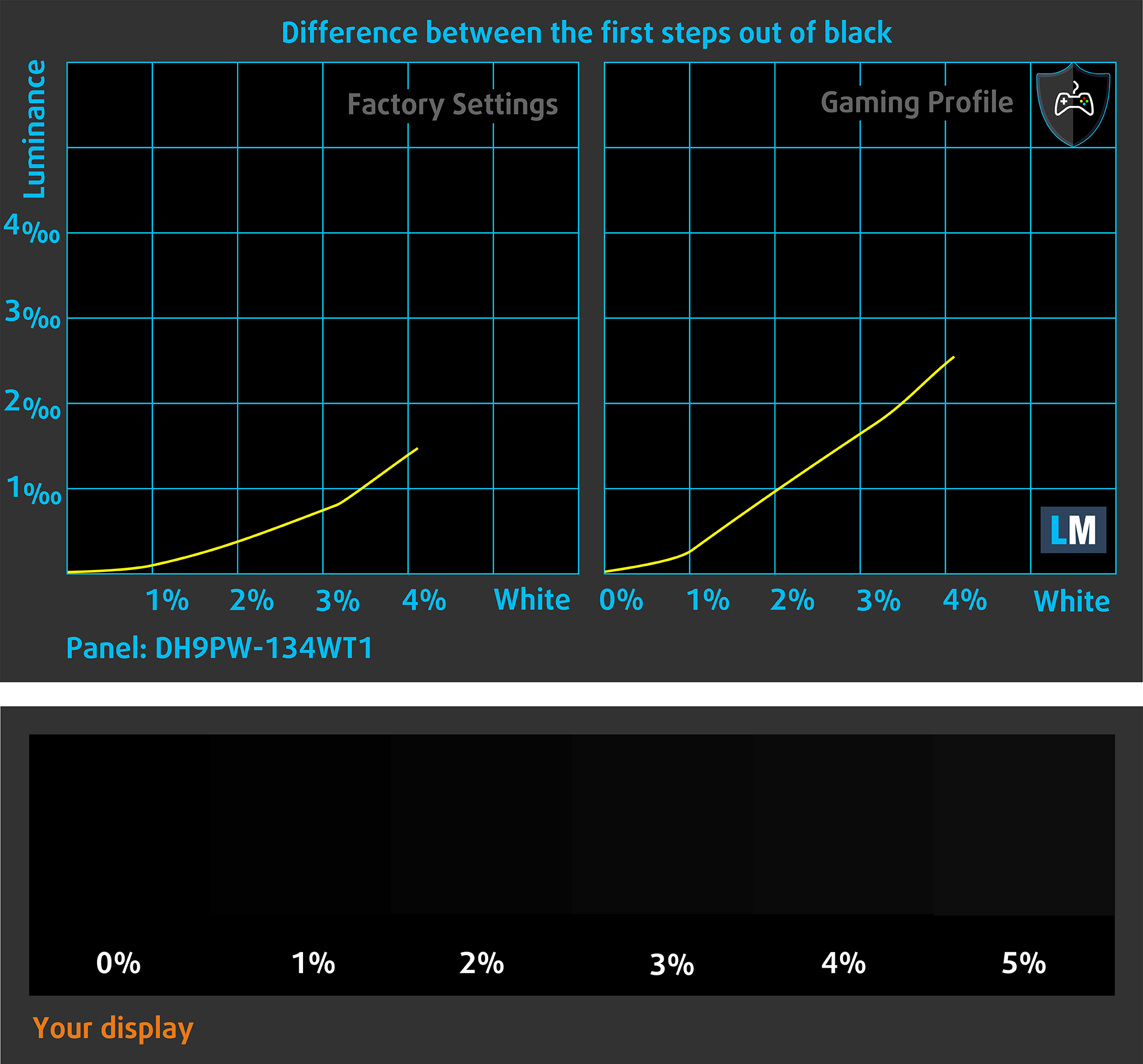
You can also check how your display handles the darkest nuances but keep in mind that this also depends on the settings of your current display and the surrounding light conditions.
Health Impact: PWM (Screen flickering)
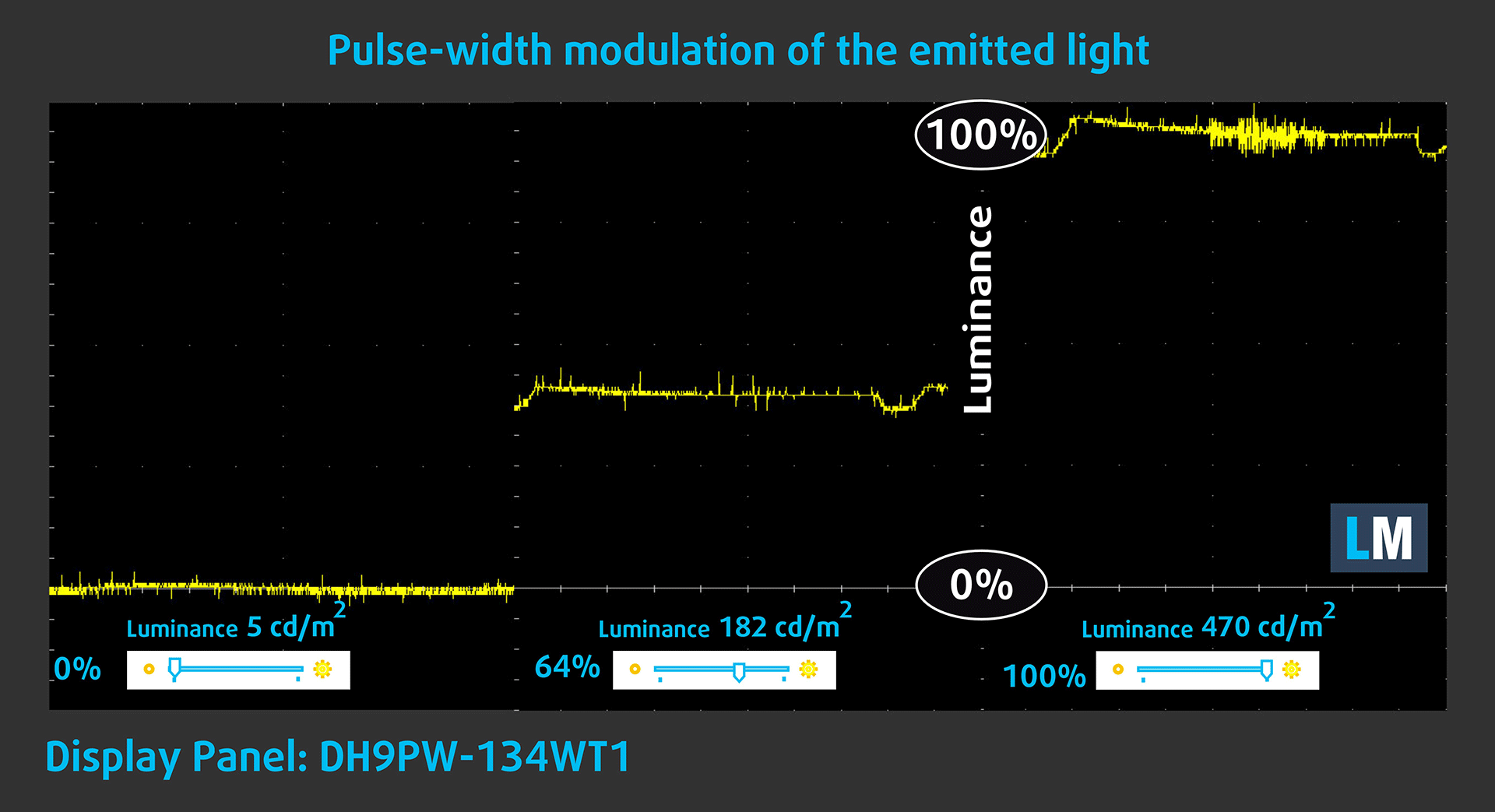
Some use PWM to regulate their brightness, which means that instead of reducing the light intensity, they pulse or flicker. Our brain merges the image, so it appears darker, but this strains both it and our vision, especially when the frequency of the pulses is low. You can read more about that in our dedicated article on PWM.
In the graph below, you see the intensity of light at different brightness levels—on the vertical axis is the brightness of the emitted light, and on the horizontal axis—time.
The luminance of the Dell XPS 13 9350 display pulsates across the entire brightness range, but with limited amplitude. We find the display relatively comfortable for vision in this regard.
Health Impact: Blue light emissions
Installing our Health-Guard profile reduces harmful Blue Light emissions while keeping the colors of the screen perceptually accurate.
If you’re not familiar with the Blue light, the TL;DR version is – emissions that negatively affect your eyes, skin, and your whole body. You can find more information about that in our dedicated article on Blue Light.
Health Impact: Screen Reflectance
Glossy-coated displays can cause eye fatigue in high ambient light conditions due to reflections. We measure the level of screen reflection with the display turned off, at a 60° angle.
The reflectance of the Dell XPS 13 9350’s screen is 52.5 GU. This is a very good result!
High Gloss: >70 GU
Medium Gloss: 30 – 70 GU
Low Gloss: <30 GU
Get our profiles
Since our profiles are tailored for each individual display model, this article and its respective profile package are meant for Dell XPS 13 9350 configurations with DH9PW-134WT1 (LGD0778), 2880 х 1800, OLED panel.
*Should you have problems with downloading the purchased file, try using a different browser to open the link you’ll receive via e-mail. If the download target is a .php file instead of an archive, change the file extension to .zip or contact us at [email protected].
Read more about the profiles HERE.
In addition to receiving efficient and health-friendly profiles, by buying LaptopMedia's products you also support the development of our labs, where we test devices in order to produce the most objective reviews possible.

Design and Office
The Design and Office profile makes display colors as close to real as possible.Ideal not only for professionals but also for everyday users, it meets sRGB standards (D65 white point, sRGB gamma) with minimal DeltaE for precise color reproduction on your panel.

Gaming and Movies
Have you ever watched a movie where, during dark scenes, you can barely see anything? Many displays fail to distinguish dark tones properly. Our Gaming and Movies profile enhances low-light performance, like HDR tech, using a gamma curve tailored to human perception — ideal for gamers seeking faster reactions and clearer visuals.

Health-Guard
Our Health-Guard profile protects your eyes by eliminating PWM flickering, reducing strain and fatigue, and minimizing harmful Blue light exposure that can disrupt sleep and health. It uses software dimming and a gamma curve tailored to human perception for comfort and safety during screen use.
Get All The Profiles With 33% Discount!

Sound
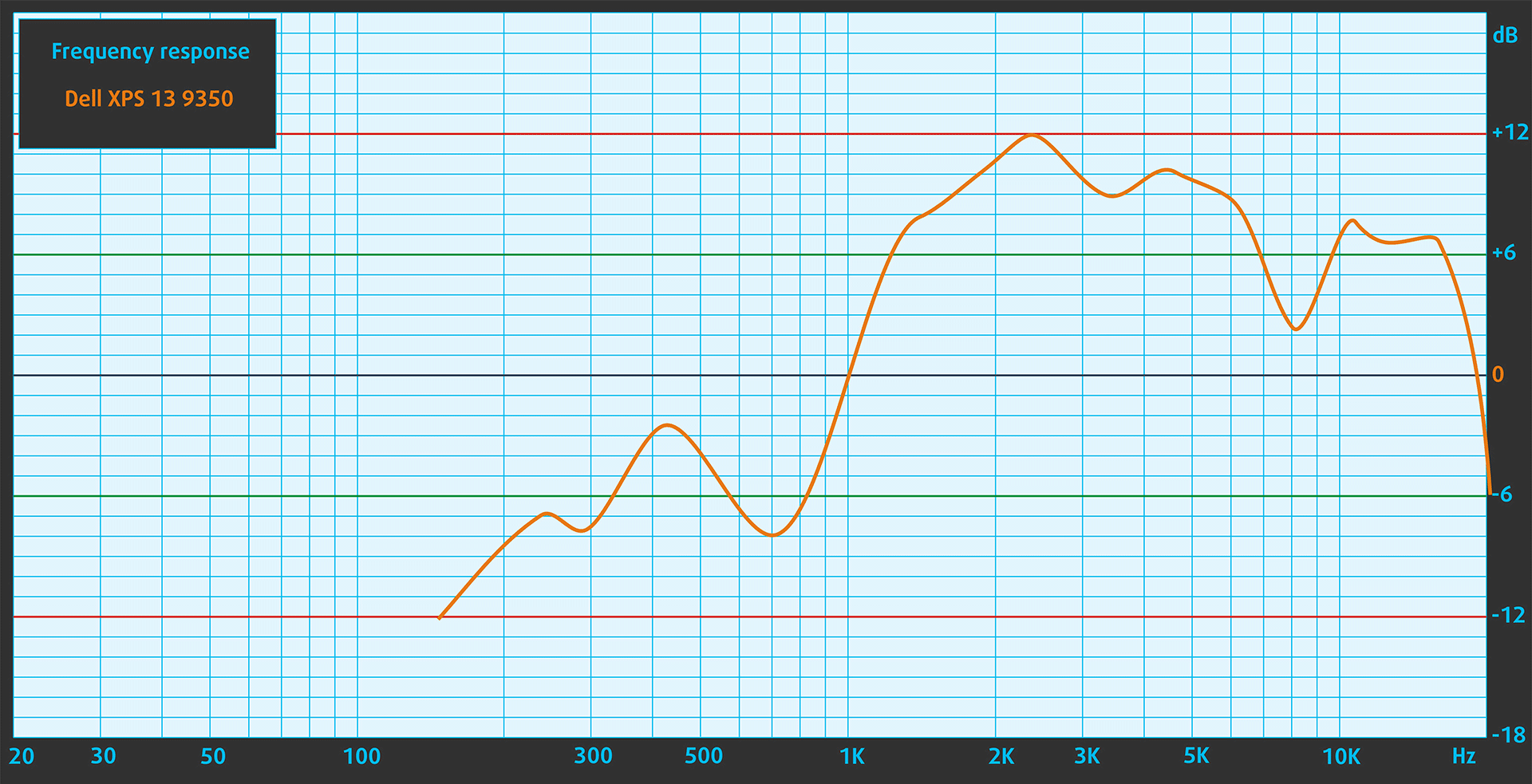
When we subjectively listen to a sound file through the built-in speakers (2 stereo speakers,positioned on the bottom sides whith 2 W average output (2.5 W peak)), the sound quality offered by Dell XPS 13 9350 is relatively good. However, the low, mid and high frequencies have slight deviations in clarity.
Work Performance: CPU, Storage, AI
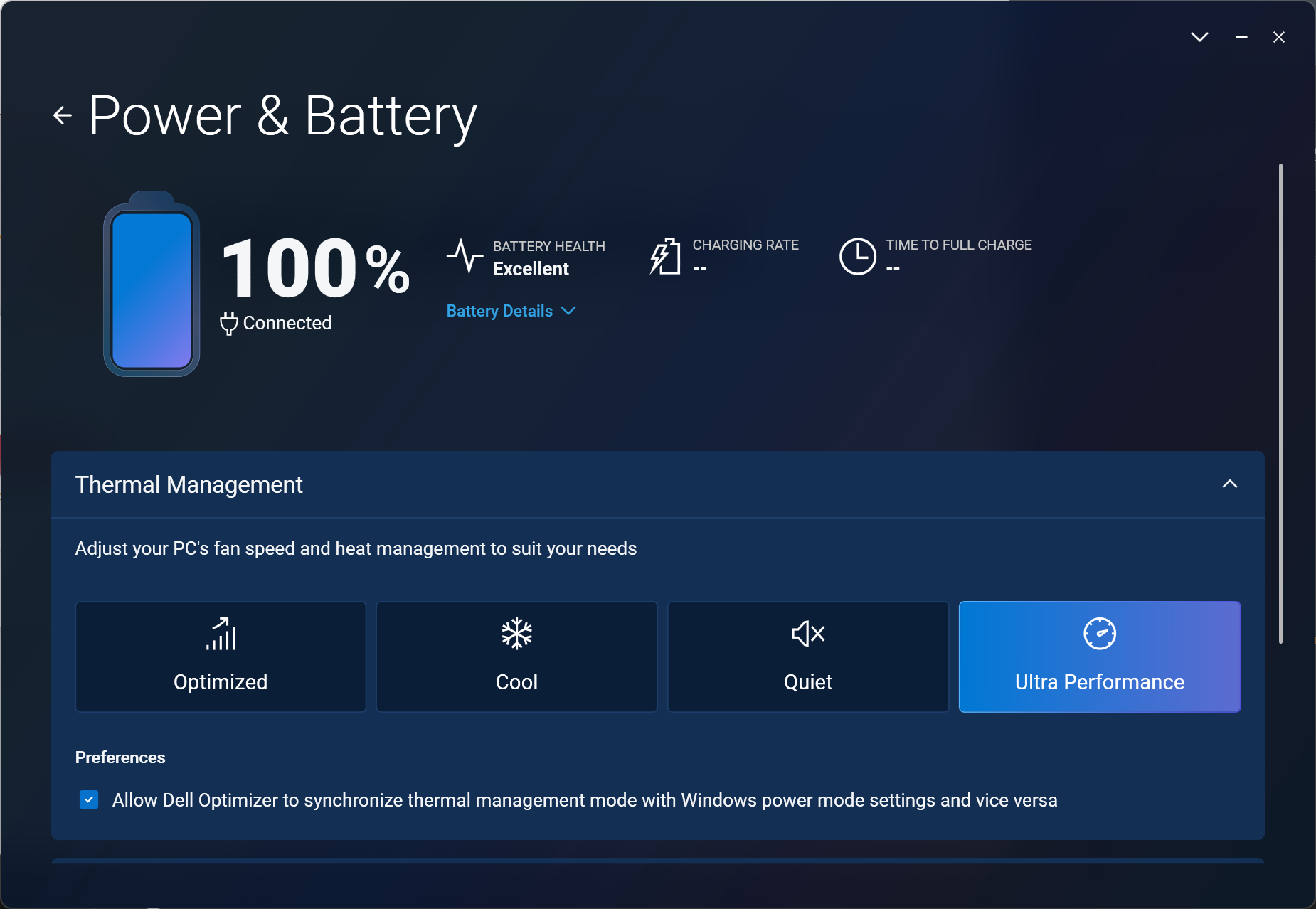
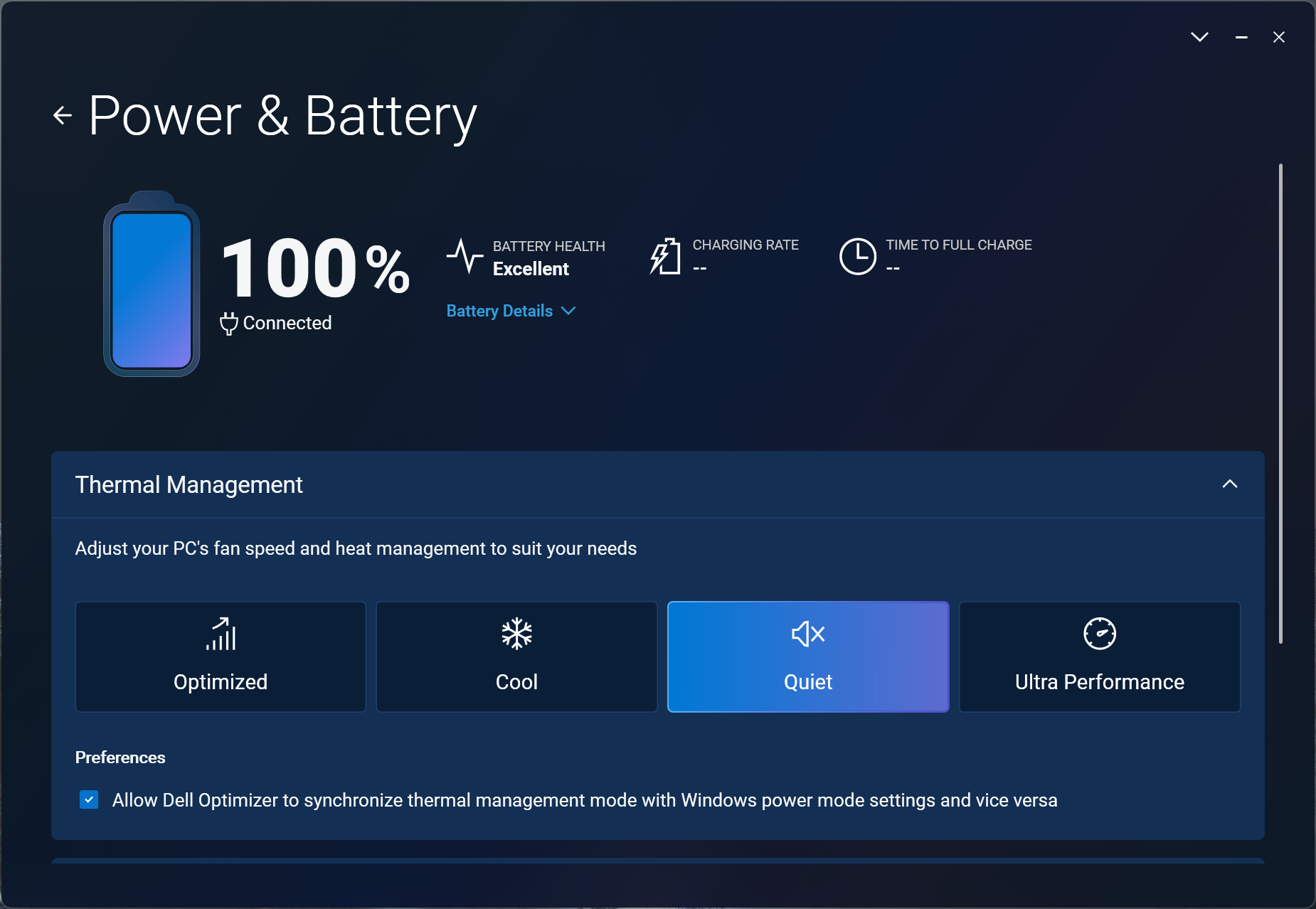
All performance and temperature tests are conducted with “Ultra Performance” mode activated in Dell Optimizer:
CPU and Work Performance
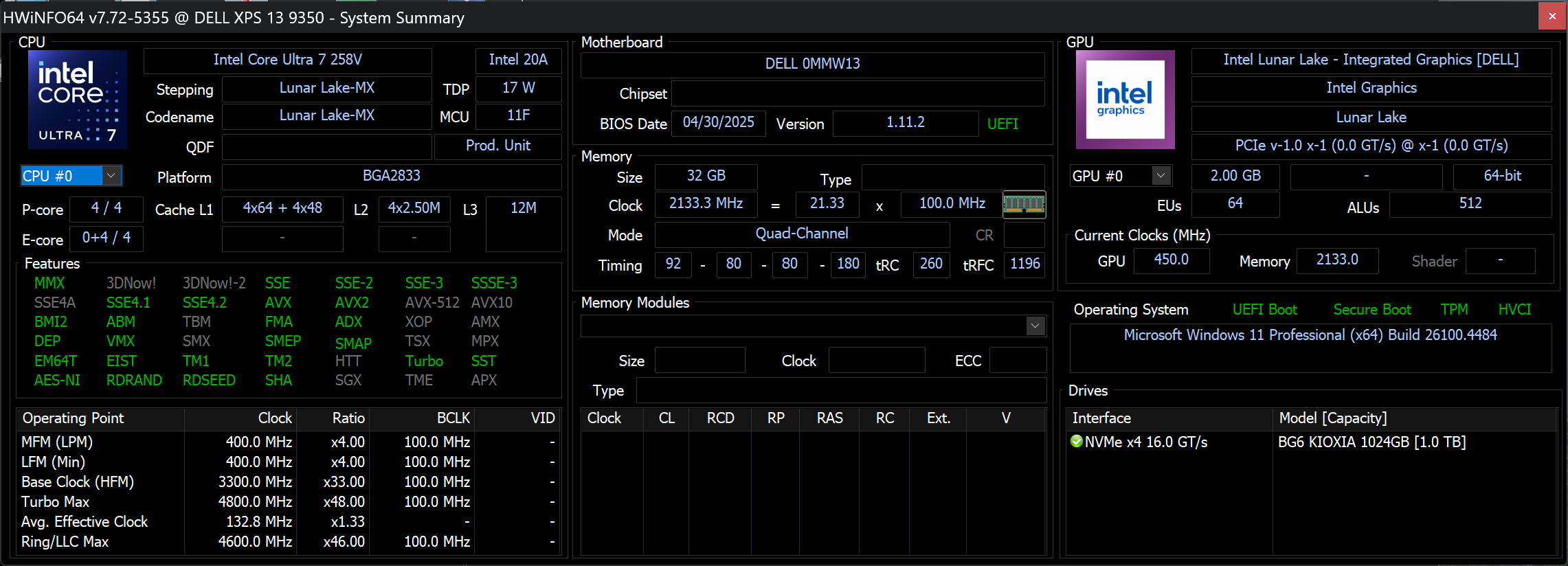
The Dell XPS 13 9350 (Core Ultra) is offered with Intel’s Lunar Lake / Core Ultra-200V series processors, including options such as the Ultra 9 288V, Ultra 7 268V, Ultra 7 258V, Ultra 7 256V, and Ultra 5 226V. These CPUs bring improved efficiency and newer architecture suited for ultrabook usage. If you want to see how they compare across the entire market, check our Top Laptop CPU Ranking.
The single-core performance is almost equal to the one of the Snapdragon XPS 9345, but the X Elite ARM processor is much faster in multi-core tests, while still lacking enough compatibility with some apps.
Single-core performance ensures smooth operation and responsiveness in operating systems, providing a better user experience.
Results are from the Geekbench 6 Single-Core test (higher is better)
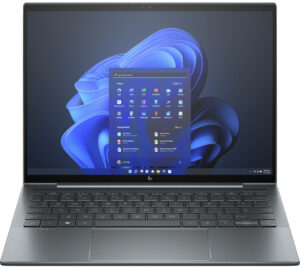

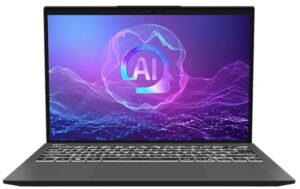
Multi-core performance is essential for handling complex and demanding tasks, such as Video editing, CAD, and Scientific simulations.
Results are from the Geekbench 6 Multi-Core test (higher is better)
Here, we evaluate the CPU's performance using a real-world 3D rendering task, assessing its ability to handle complex computations and rendering workloads efficiently.
Results are from the Cinebench 2024 Multi-Core test (higher is better)
Storage Performance
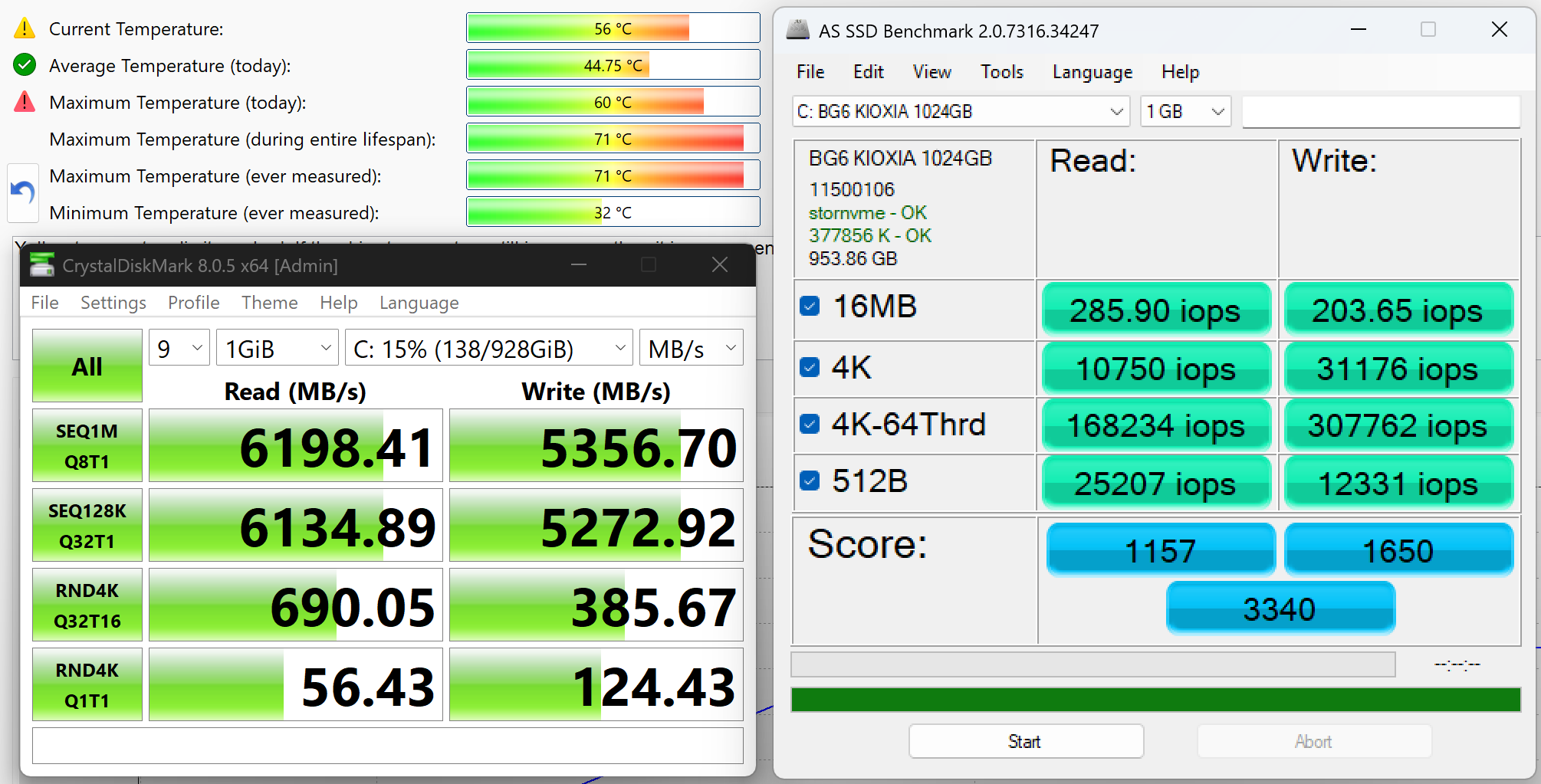
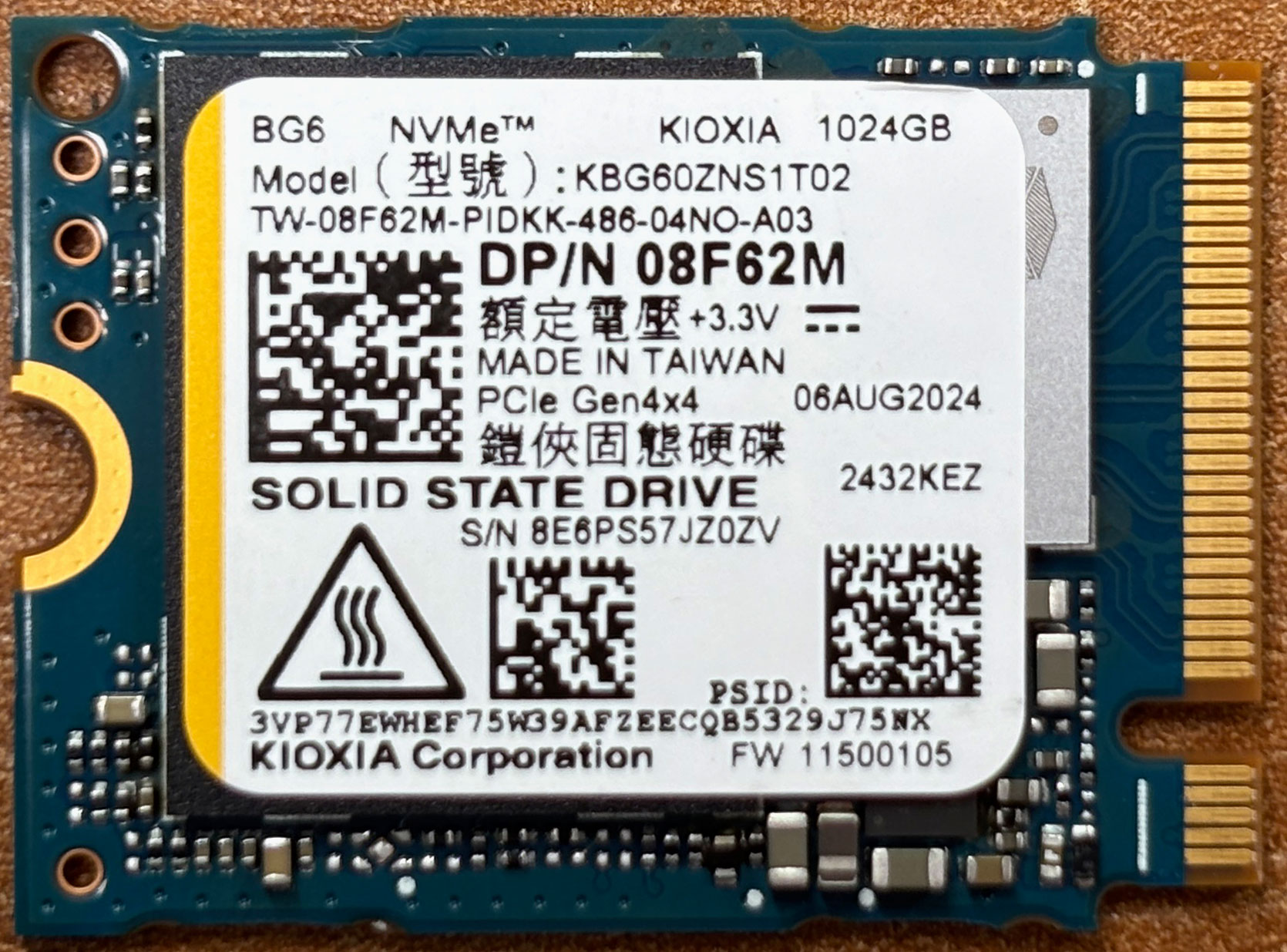
The 1-terabyte version we ordered arrived with a KIOXIA BG6. This is quite a good NVMe SSD module with sequential read and write speeds of 6.2GB/sec and 5.4GB/sec, respectively.
AI Performance
Here you can see the position of the GPUs and CPUs (NPUs) found within the Dell XPS 13 9350 (2024) in our AI Hardware Performance Rankings based on their AI processing power, measured in TOPS (Tera Operations Per Second) - a critical metric indicating the computational throughput, particularly for AI tasks.
The first column shows peak performance for INT8/FP8 precision, which is the most widespread metric for evaluating AI inference capabilities. We exclude Sparsity to provide a more accurate reflection of AI performance in dense computation scenarios where sparsity optimizations may not be applicable. The second and third columns show the performance with Sparsity, and FP4 TFLOPS, when supported.
For SoCs, the results reflect the peak performance of the integrated NPU. Additionally, it’s important to note that, according to Microsoft, a NPU must have at least 40 TOPS of AI computing power for the PC to be considered “AI-capable.”
| # | GPU / CPU (NPU) | TOPS INT8/FP8 No Sparsity | TOPS INT8/FP8 Sparsity | TFLOPS FP4 Sparsity |
|---|---|---|---|---|
| 1580. | Intel Core Ultra 7 268V | 48 | — | — |
| 1582. | Intel Core Ultra 9 288V | 48 | — | — |
| 1584. | Intel Core Ultra 7 258V | 47 | — | — |
| 1588. | Intel Core Ultra 7 256V | 47 | — | — |
| 1643. | Intel Core Ultra 5 226V | 40 | — | — |
GPU and Gaming Performance
Graphics in the XPS 13 9350 are handled exclusively by integrated Intel Arc / Intel Arc Graphics 140V or 130V, depending on the configuration. These are capable for everyday visuals, streaming, and light content creation, but aren’t intended for heavy gaming or demanding GPU workloads. For a comparison of how they stack up against other GPUs, refer to our Top Laptop Graphics Ranking.
The Intel Arc Graphics 140V is a good iGPU, much faster than both the Adreno in X Elite, and the classic Intel Iris Xe Graphics G7 (96EU).
The results are from 3DMark Time Spy (Graphics). Higher is better.
The results are from 3DMark Wild Life Extreme Unlimited. Higher is better.
Gaming tests

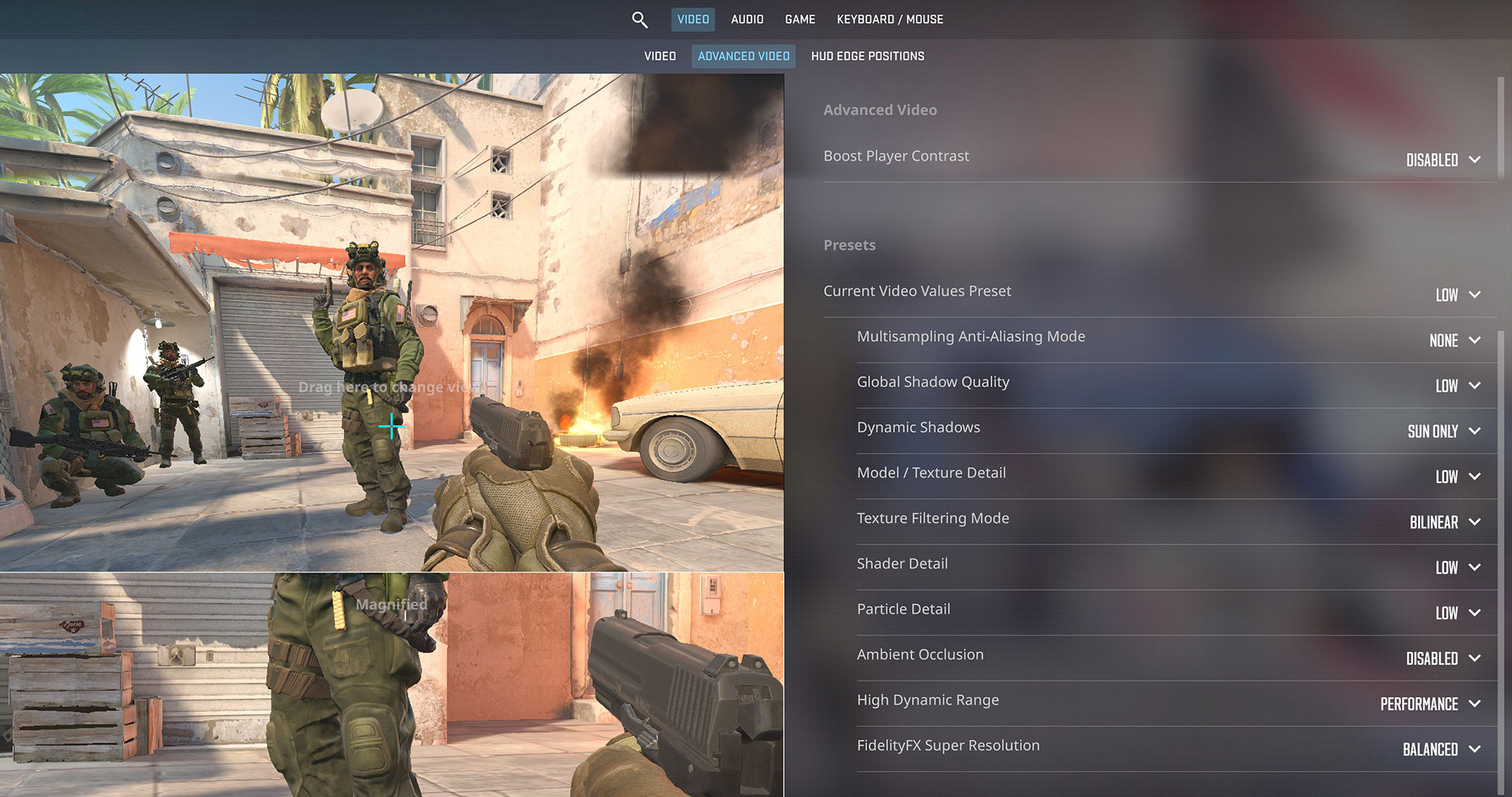
The Intel Arc graphics in the Dell XPS 13 show surprising capability for light gaming. In Counter-Strike 2, it delivers a very smooth 91 FPS at 1800p on Low settings, making it perfectly suitable for casual matches on the go.
| Counter Strike 2 | 1800p, Low (Check settings) |
| Average FPS | 91 FPS |

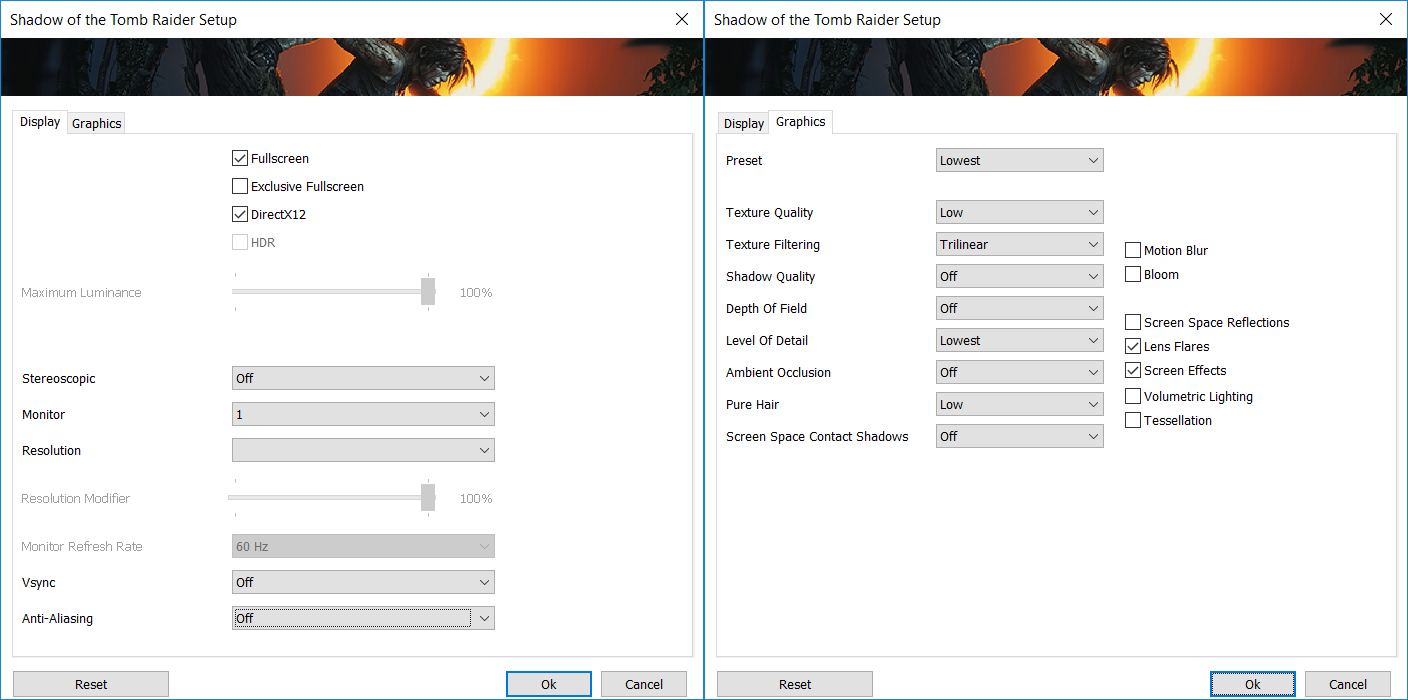
For single-player adventures, the XPS 13 can handle older titles like Shadow of the Tomb Raider at a playable 46 FPS on the Lowest settings at 1800p. This is a solid result for an integrated GPU in a thin-and-light laptop.
| Shadow of the Tomb Raider | 1800p, Lowest (Check settings) |
| Average FPS | 46 FPS |
Temperatures and Comfort, Noise, Stability
At idle, the CPU package of the Intel Core Ultra 7 258V in Dell XPS 13 9350 (Core Ultra) maintains a temperature of 44ºC, and the notebook remains completely silent.
Office Work, Web Development, Design
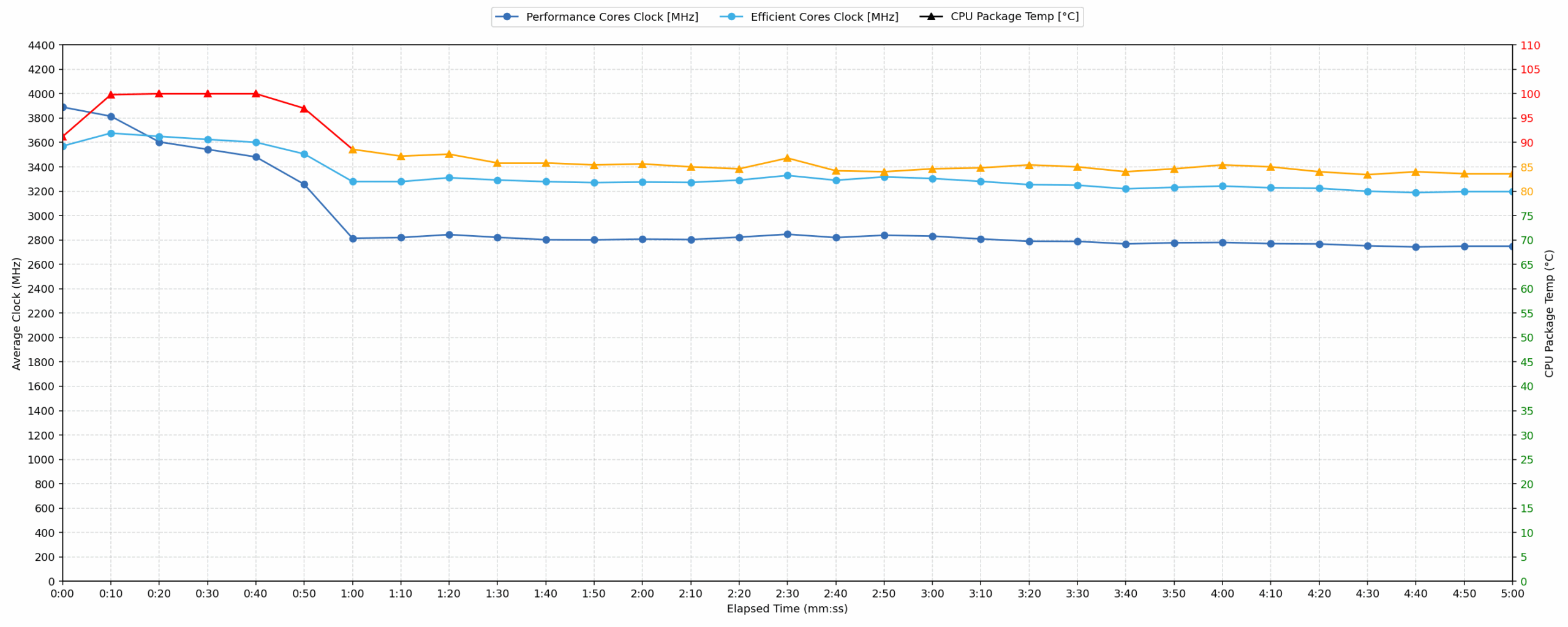
Short periods (0:00 – 0:10 s) of 100 % CPU load
This test shows the CPU behavior during short periods of serious load. It’s important for users who are looking for laptops suitable for tasks like Web Design and Programming.
| Intel Core Ultra 7 258V | Avg. P-Core Clock | Avg. CPU Temp. | Avg. CPU Power |
| Lenovo Yoga 9 2-in-1 (14ILL10) | 3897 MHz | 78 °C | 36 W |
| Dell XPS 13 9350 (Core Ultra) | 3890 MHz | 91 °C | 33 W |
| Lenovo ThinkPad X9-14 Gen 1 | 3785 MHz | 79 °C | 36 W |
| Lenovo Yoga 7i 2-in-1 (14″, Gen 10) | 3781 MHz | 78 °C | 34 W |
| Lenovo ThinkPad X9-15 Gen 1 | 3743 MHz | 77 °C | 36 W |
The Dell XPS 13 9350 achieves an average clock speed of 3890 MHz during short, intense loads, peaking at 4005 MHz with 37 W power draw. Its average CPU temperature reaches 91 °C, which is considered high, and the peak temperature hits 100 °C, also in the high range. While its clock speed is comparable to the top performer, the Lenovo Yoga 9 (3897 MHz), the Dell XPS 13 runs significantly hotter, with the Yoga 9 maintaining a much lower 78 °C. Other comparable laptops also manage lower temperatures (77-79 °C) while often drawing more power. This indicates aggressive boost performance comes with a thermal trade-off.
Video editing, Scientific computing, Software compilation, 3D rendering
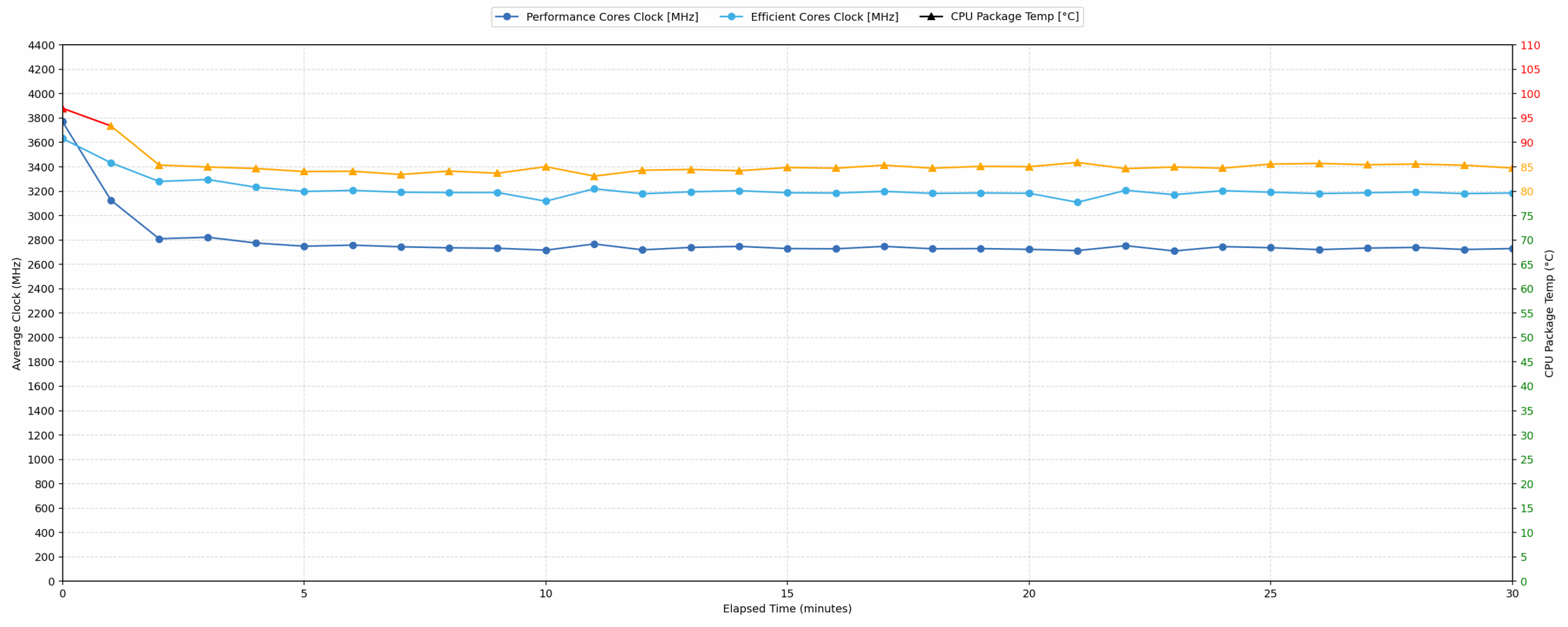
Long periods (0:00 – 30:00 min) of 100 % CPU load
This test shows the CPU behavior during long periods of serious load. It’s important for users who are looking for laptops suitable for tasks like Video Editing and 3D Rendering.
| Intel Core Ultra 7 258V | Avg. P-Core Clock | Avg. CPU Temp. | Avg. CPU Power |
| Lenovo Yoga 9 2-in-1 (14ILL10) | 3578 MHz | 74 °C | 30 W |
| Lenovo ThinkPad X9-14 Gen 1 | 3352 MHz | 94 °C | 31 W |
| Lenovo ThinkPad X9-15 Gen 1 | 3228 MHz | 74 °C | 25 W |
| Lenovo Yoga 7i 2-in-1 (14″, Gen 10) | 3149 MHz | 82 °C | 25 W |
| Dell XPS 13 9350 (Core Ultra) | 2771 MHz | 85 °C | 22 W |
Under sustained 30-minute loads, the Dell XPS 13 9350 maintains an average clock speed of 2771 MHz, with a minimum clock of 2733 MHz observed during the test, indicating a significant drop from peak. The average CPU temperature settles at 85 °C, which is considered acceptable. However, compared to other laptops with the same CPU, the XPS 13 performs at the lower end in terms of sustained clock speed. For instance, the Lenovo Yoga 9 achieves 3578 MHz at a good 74 °C, while the XPS 13’s 2771 MHz is notably lower, despite its temperature being acceptable. The power draw of 22 W is also lower than most comparable systems, suggesting a more conservative power profile influencing performance.
Battery Life
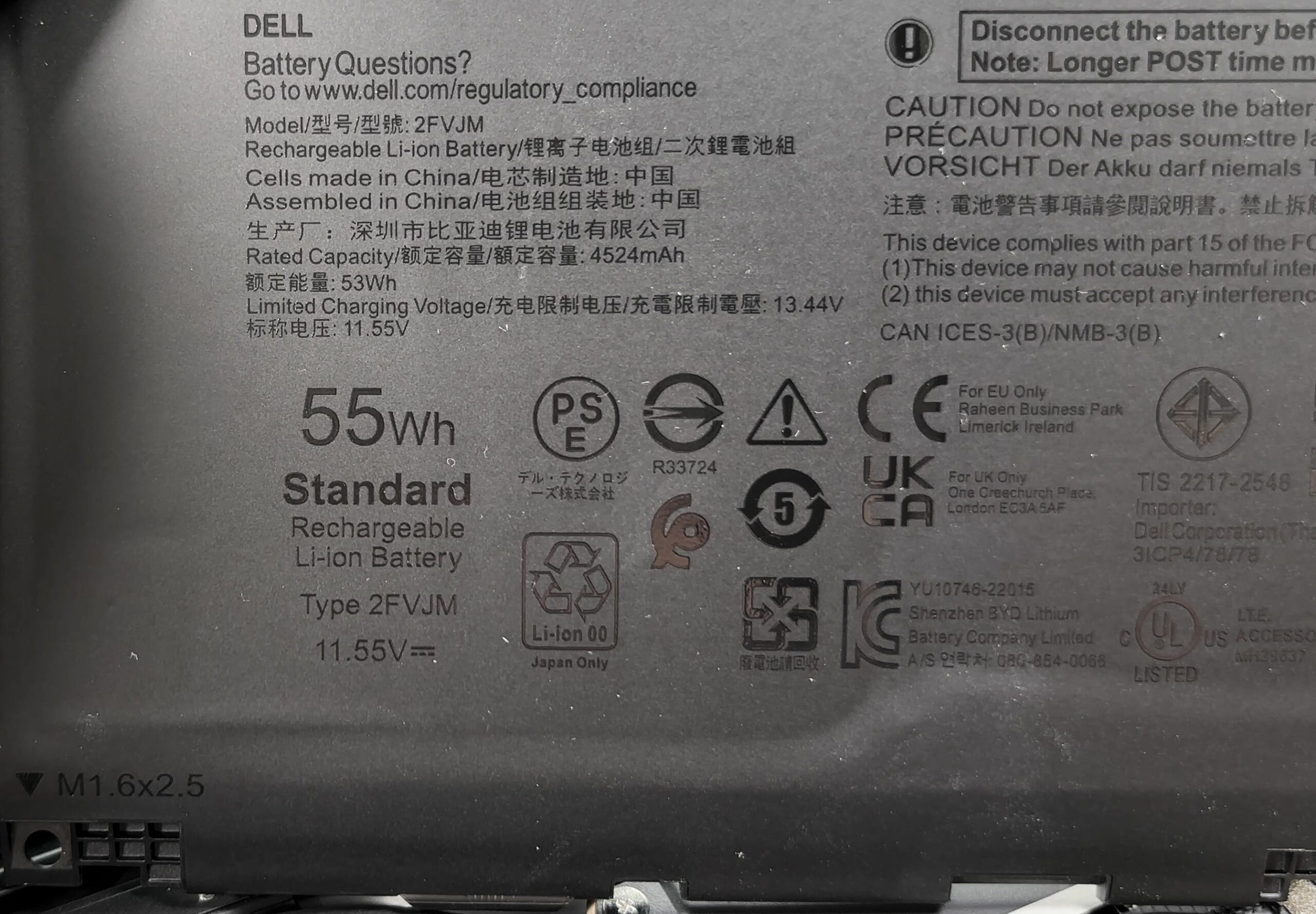
Dell XPS 13 9350 has a 55Wh battery unit on its disposal. The Core Ultra processors are exceptionally optimized so we expect long battery life which is a tradition for the XPS line.
The Quiet mode is the most energy-efficient one, despite being positioned just next to Ultra Performance.
13 hours and 25 minutes is a very good result but nothing spectacular. The ARM-based XPS has almost 50% more battery life, being the best 13-incher in that regard. If you don’t mind the bigger chassis, the Lenovo Yoga 9i 2-in-1 Aura Edition (14ILL10) is the record breaker here.
Brightness: 180 nits; Display Mode: SDR
Time to Full Discharge: Higher is Better


Disassembly, Upgrade options, and Maintenance
Accessing the internals is straightforward: undo six Torx T5 screws, pop the clips with a plastic tool, and the aluminum bottom panel lifts away without drama.
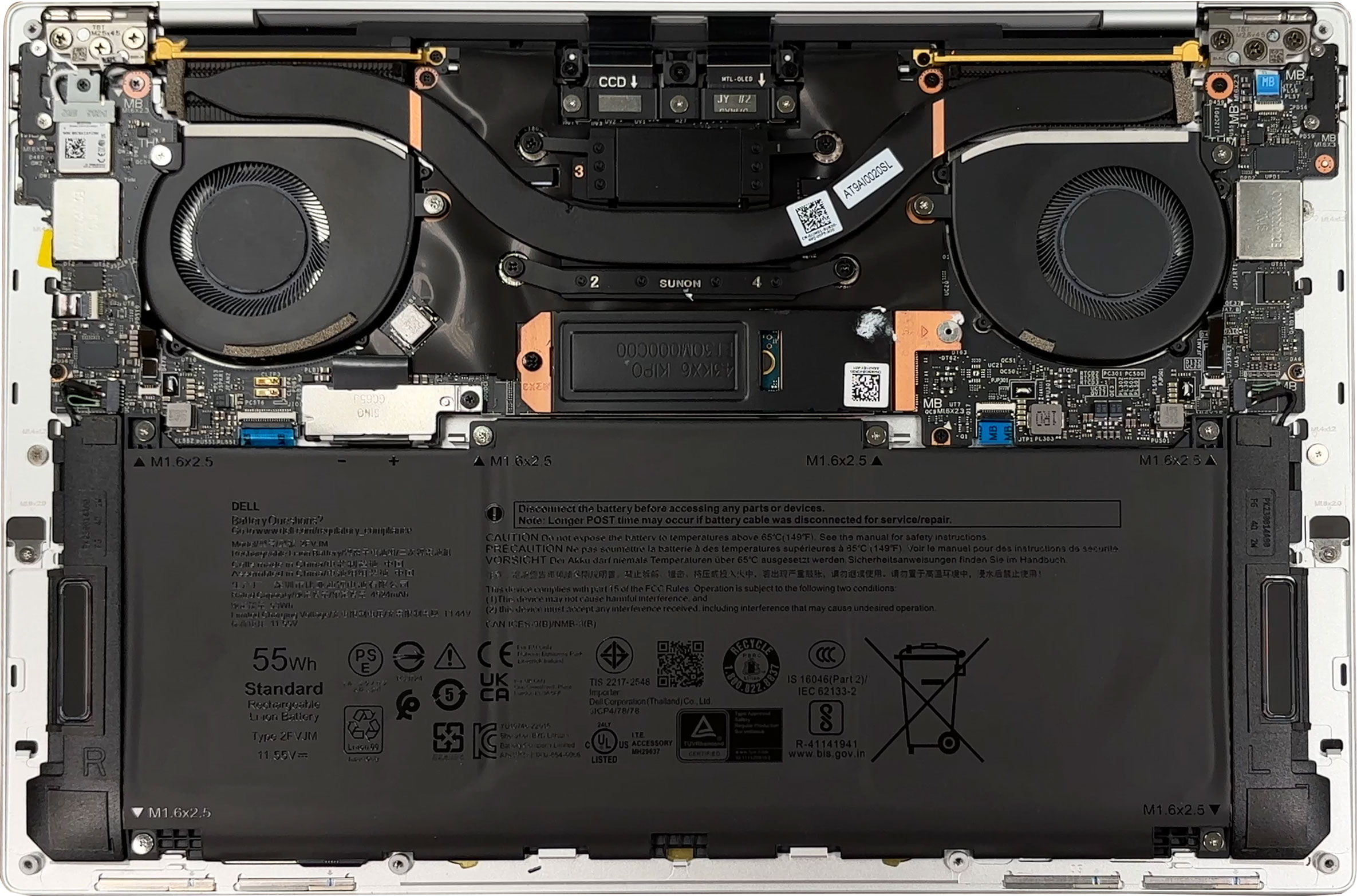
Cooling duties are handled by two fans connected via twin flattened heat pipes that curve across the CPU and disperse heat into slim fin stacks on both sides. Thermal pads bridge the gap to the VRMs and SSD, so secondary components get a bit of airflow as well.
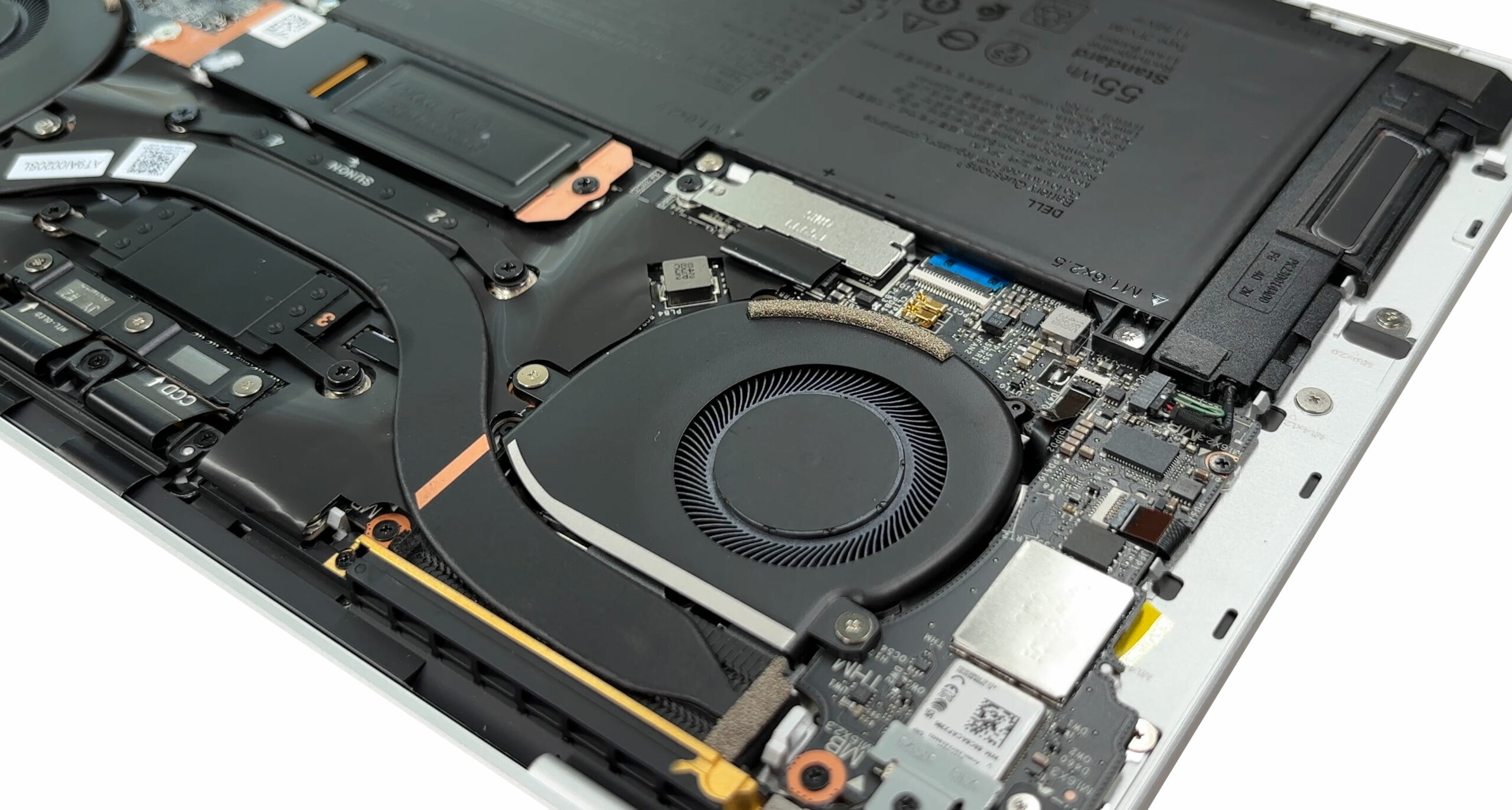
Memory is completely soldered no SO‑DIMM slots are available so the factory‑configured LPDDR5x runs at 8533 MT/s in either 16 GB or 32 GB flavors, with no way to expand later.
Dell leaves just one storage option: a single M.2 slot wired for PCI Express 4 ×4. Our unit arrived with a 1 TB Kioxia BG6 in the compact 2230 length, but the mounting standoff can slide to accept full‑size 2280 drives if you want a larger or faster replacement.
The wireless card is socketed. It’s Intel’s BE201 module supporting Wi‑Fi 7 and Bluetooth 5.4, so swapping it in the future should be as easy as removing one screw and two antenna leads.
A 55 Wh three‑cell lithium‑ion battery fills most of the lower chassis. Six Phillips screws hold it down, and the connector pulls straight up, simplifying replacement once the bottom cover is off.
Both stereo speakers flank the battery and are held by a pair of screws each, making them equally serviceable if they ever fail.
Overall, the XPS 13 9350 isn’t upgradable on the memory side, but storage, wireless, battery, and speakers are easy enough to swap, so routine maintenance scores above average for an ultra‑slim laptop.
Verdict
The Dell XPS 13 9350 is less a laptop and more a piece of industrial art, a bold statement about the future of minimalist design. It is a stunningly beautiful and exquisitely crafted machine that pushes boundaries with its invisible trackpad and capacitive touch row. This is a device designed for the user who prioritizes aesthetic purity and ultimate portability above all else.
However, this relentless pursuit of a seamless, futuristic form comes with significant and polarizing compromises. This is not a laptop for everyone; it is a beautiful, highly specific tool that demands you adapt to its vision, rather than the other way around.
✅ The Good
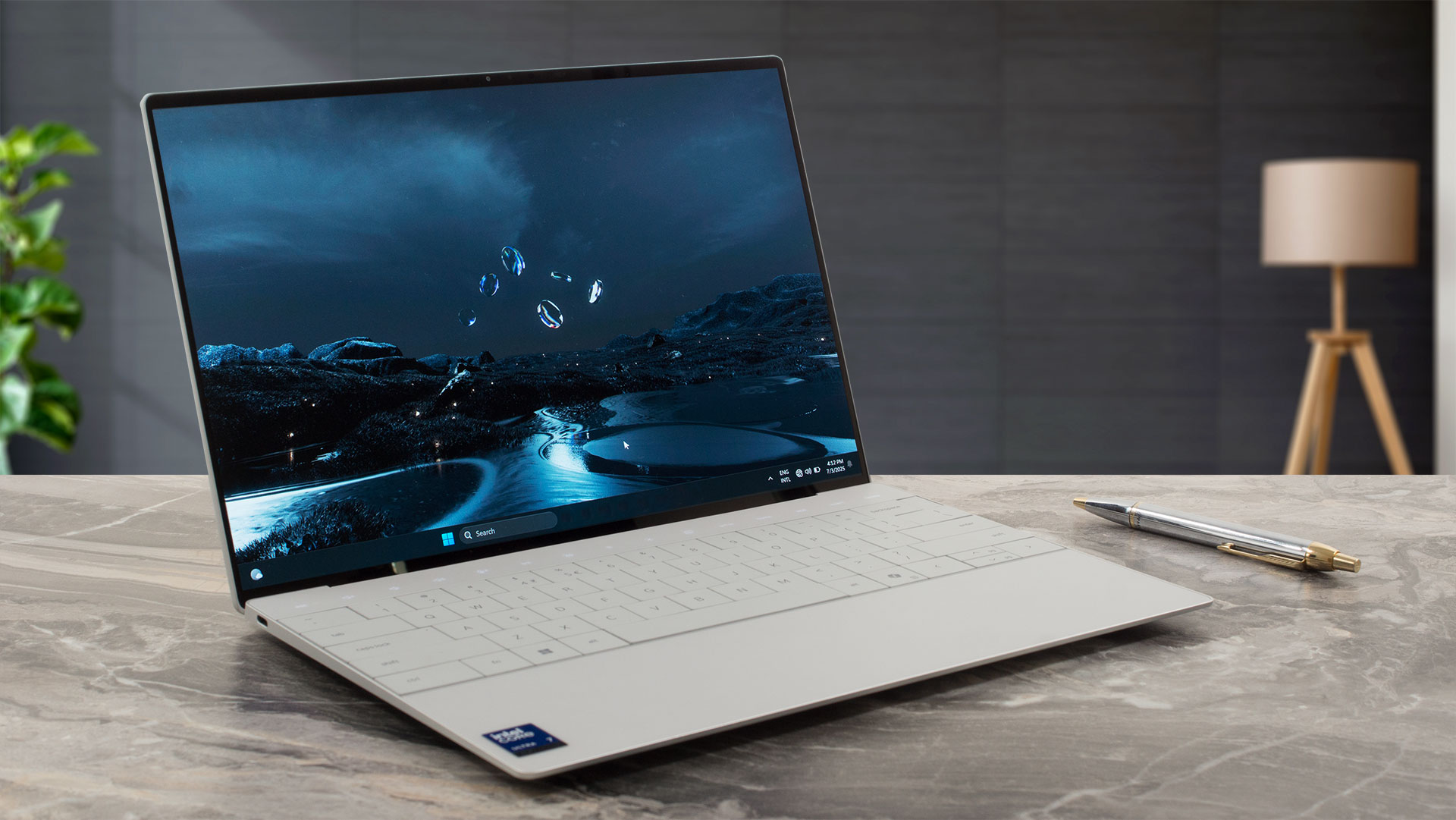 The first and most undeniable strength is the stunning and meticulously crafted design. The CNC-milled aluminium chassis is incredibly solid, exceptionally thin, and feels every bit the premium product it is. The unique design choices, like the zero-lattice keyboard and the seamless glass palm rest with its invisible haptic trackpad, create an aesthetic that is truly breathtaking and unique.
The 2.8K OLED display is an absolute visual treat, offering perfect contrast, 100% DCI-P3 color coverage, and excellent brightness. It makes photos, videos, and daily content look spectacular. Our profile further improves its color accuracy, making it suitable for professional creative work.
Despite its slim profile, the battery life is very good, easily lasting through a full workday. The connectivity is also future-proof, with Wi-Fi 7 and two powerful Thunderbolt 4 ports, ensuring you are ready for the next generation of wireless networks and peripherals.
❌ The Bad
The biggest and most user-hostile flaw is the soldered RAM. This completely eliminates any possibility of future memory upgrades, severely limiting the laptop’s long-term value and forcing you into a costly configuration at purchase. While the SSD is upgradeable, there is only a single slot.
The minimalist design leads to an extremely limited port selection. With only two Thunderbolt 4 ports, one of which will be used for charging, you are left with a single port for all your wired accessories. A “dongle life” is not optional here; it’s mandatory.

Furthermore, the CPU runs very hot under load and throttles significantly during sustained tasks. The beautiful OLED display is also only a 60Hz panel, which feels dated on a premium 2024 device, and the capacitive touch function row has a steep learning curve that will frustrate many users initially.
🆚 The Competitors
The most direct rival is its own ARM-based sibling, the Dell XPS 13 9345 (detailed review). The choice is a clear trade-off: the Snapdragon-powered 9345 offers vastly superior battery life, but this Intel-based 9350 model provides a much more capable integrated Arc GPU for better graphics performance.
When placed against external competitors like the Apple MacBook Air 13 (M4) (detailed review), the XPS 13 struggles to match its raw single-core performance and seamless ecosystem. Compared to the Lenovo Yoga 9i 2-in-1 (detailed review), it falls far short on battery life. The XPS 13’s unique selling proposition is not performance or endurance, but its boundary-pushing design for the user who values form above all else.
You can check the prices and configurations in our Specs System: https://laptopmedia.com/series/dell-xps-13-9350-2024/
Pros
- Stunning and exquisitely crafted CNC aluminium design
- Gorgeous 2.8K OLED display with 100% DCI-P3 coverage
- Very good battery life for an ultrabook
- Extremely thin, light, and portable
- Future-proof connectivity with Wi-Fi 7 and Thunderbolt 4
- Comfortable keyboard and unique invisible haptic trackpad
Cons
- Soldered RAM with no upgrade options
- Extremely limited port selection (only two USB-C)
- CPU runs hot and throttles under load
- OLED display is only a 60Hz panel
 Author: Simeon NikolovEditor-in-Chief at LaptopMedia.com with 20+ years of experience in testing and analyzing laptops and mobile devices.
 Author: eng. Kroum NikolovHead of Engineering at LaptopMedia.com, inventor and innovator with 40+ years of experience in electronics and high technology.

![[August 2026] Global Ranking of Best-Selling Laptop GPUs on Amazon – Apple Reigns Supreme, NVIDIA’s RTX 5060 Tops Dedicated Chart](https://laptopmedia.com/wp-content/uploads/2026/09/Best-Selling-GPUs-GLOBAL-Top-10-400x225.jpg)
![[August 2026] Global Ranking of Best-Selling Laptop CPUs on Amazon – Apple Dominates Both Budget and Premium: A18 Pro and M5 Crush Intel and AMD in August 2026](https://laptopmedia.com/wp-content/uploads/2026/09/Best-Selling-CPUs-GLOBAL-Top-10-400x225.jpg)
![[August 2026] Amazon Global: Top 10 Best-Selling Laptops – Apple MacBook Neo Dominates the Charts as Budget and Mid-Range Windows Portables Fight for Volume](https://laptopmedia.com/wp-content/uploads/2026/09/Best-Selling-Laptops-GLOBAL-Top-10-400x225.jpg)
![[August 2026] Best-Selling Laptop Brands on Amazon Global – Apple Dominates Revenue While HP Leads in Model Variety](https://laptopmedia.com/wp-content/uploads/2026/09/GLOBAL-Best-Brands-400x225.jpg)
![[August 2026] Amazon Global: Top 10 Best-Selling Gaming Laptops – HP Victus 15 Captures the Crown as Budget-Friendly Models Dominate the Charts](https://laptopmedia.com/wp-content/uploads/2026/09/Best-Selling-Gaming-Laptops-GLOBAL-Top-10-400x225.jpg)