How to open Acer Nitro V 16 (ANV16-72) – disassembly and upgrade options

Before you start: Power the laptop off completely, disconnect the charger and all peripherals, and hold the power button for a few seconds to discharge residual power. Work on a clean, non-conductive surface and, if possible, use an anti-static wrist strap.
Opening the bottom panel
- Place the laptop upside down with the rear vents facing away from you.
- Undo all visible screws that secure the bottom panel to the chassis, keeping track of their positions for easier reassembly.
- Insert a thin plastic pry tool between the bottom panel and the chassis near one of the side edges.
- Gently twist the tool to release the first clip, then slide along the perimeter to unlatch the clips on the sides and the front.
- Finish by popping the clips near the hinge area. Once all clips are released, lift the bottom panel away and set it aside.
Caution: Avoid using metal tools and don’t force the panel – stiff clips can crack if you bend the plastic too much.

Battery removal
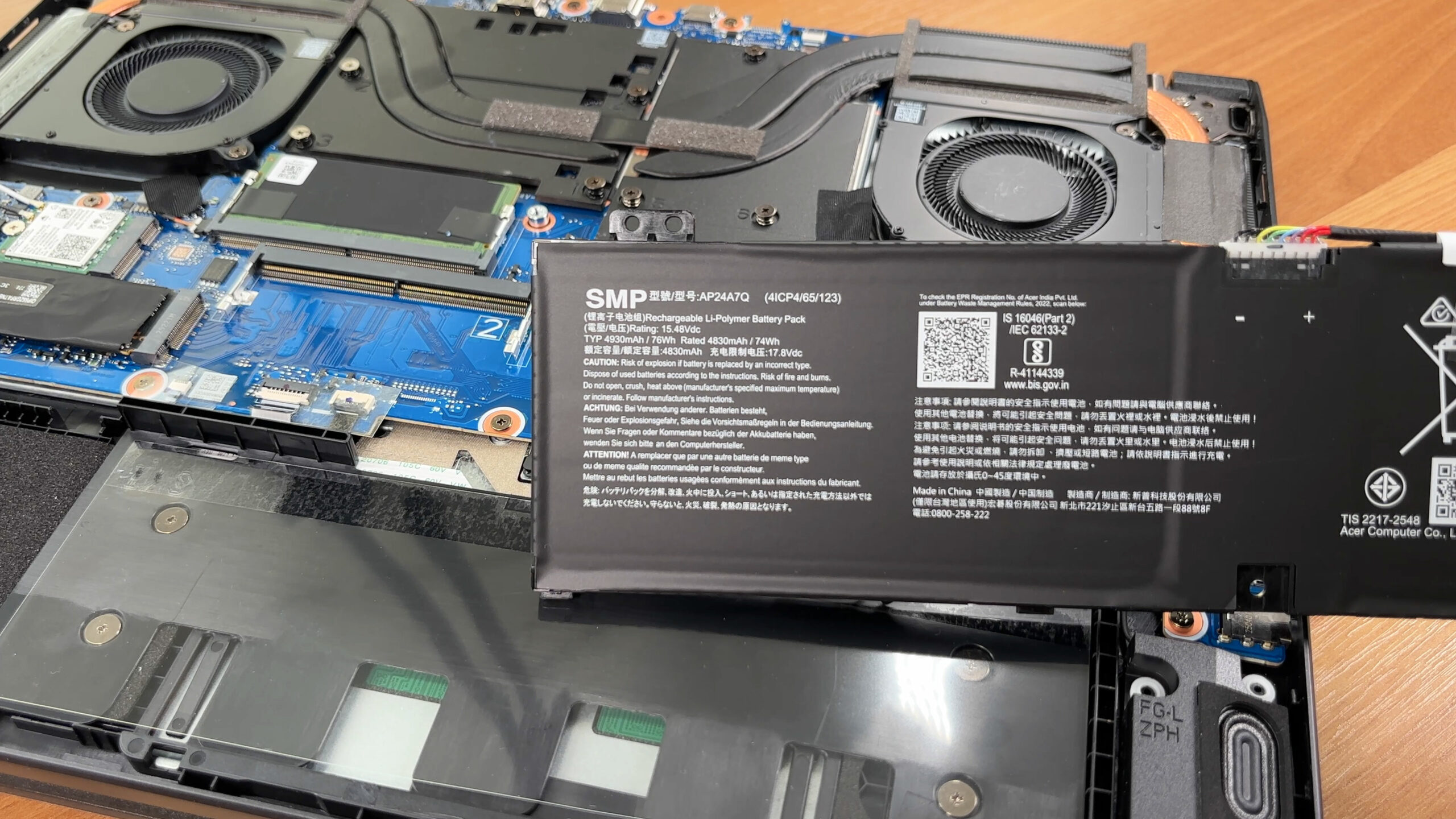
- Locate the long internal battery pack along the bottom edge of the chassis. It is an SMP AP24A7Q Li-polymer unit rated at 74–76Wh (approx. 4930mAh at 15.48V).
- Before touching other components, disconnect the battery by pulling the cable connector straight out of its socket on the motherboard. Grip the plastic housing, not the wires.
- The battery is held by plastic brackets rather than screws. Once the connector is unplugged, lift the pack evenly from its bay, making sure you don’t snag any speaker or antenna cables routed nearby.
- When reinstalling, seat the battery back into its guides and reconnect the cable firmly so it sits flush in the socket.
Memory (RAM) upgrade options
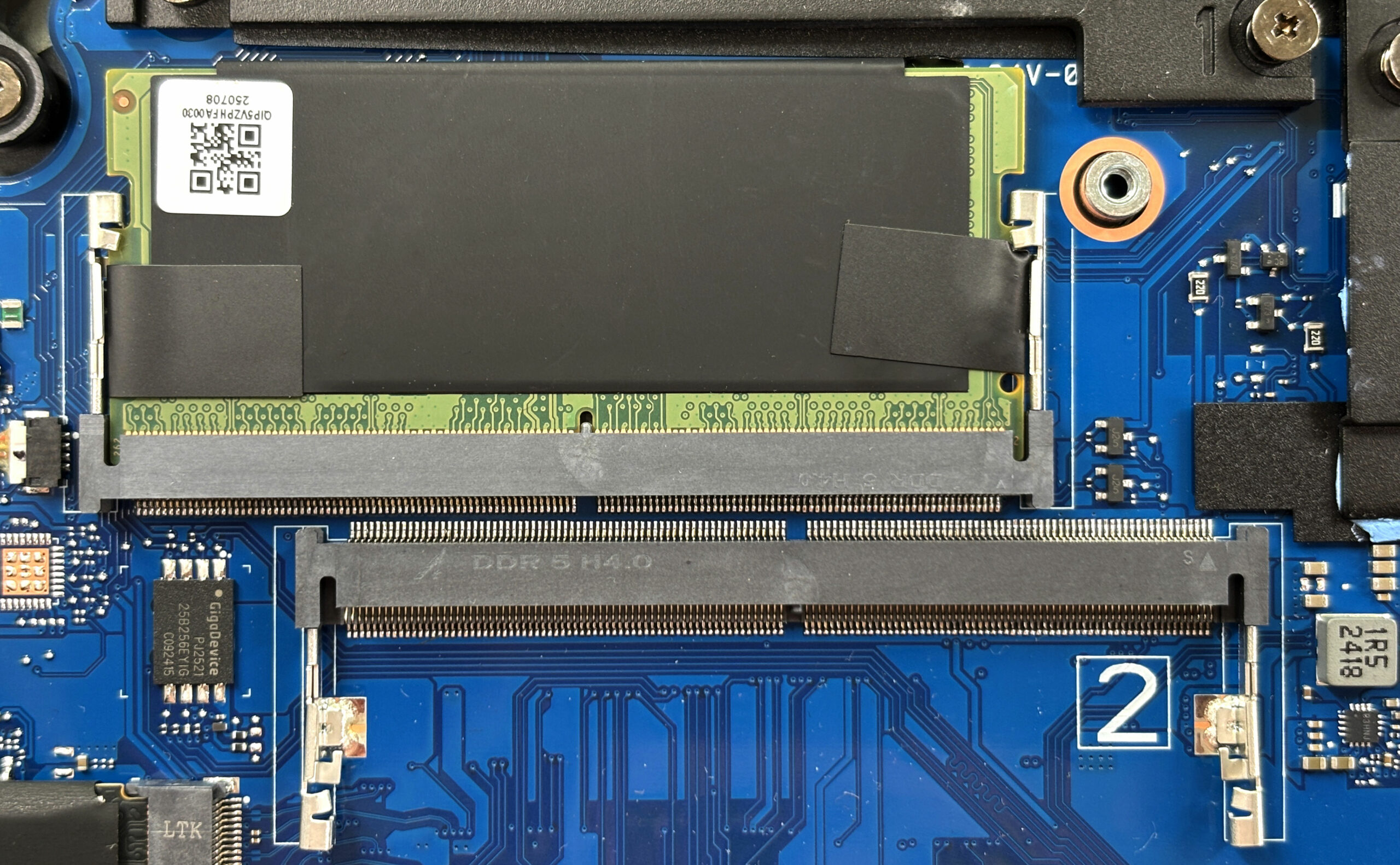
- The Nitro V 16 uses two standard DDR5 SO-DIMM slots located near the center of the motherboard.
- In most configurations, one slot is populated and the second is free for upgrades.
- According to Acer, the platform supports up to 32GB of DDR5 RAM in dual-channel mode:
- DDR5-5600 with Intel Core i9-270H or Core i7-240H CPUs.
- DDR5-5200 with Intel Core i5-210H CPUs.
- To remove a module, push both side clips outward until the SO-DIMM pops up at an angle, then slide it straight out of the slot.
- To install new memory, insert the SO-DIMM at the same angle, push it fully into the connector, and press it down until the side clips click into place and the module lies flat.
You can buy DDR5 RAM modules here: Buy from Amazon.com (#CommissionsEarned)
Storage upgrade options
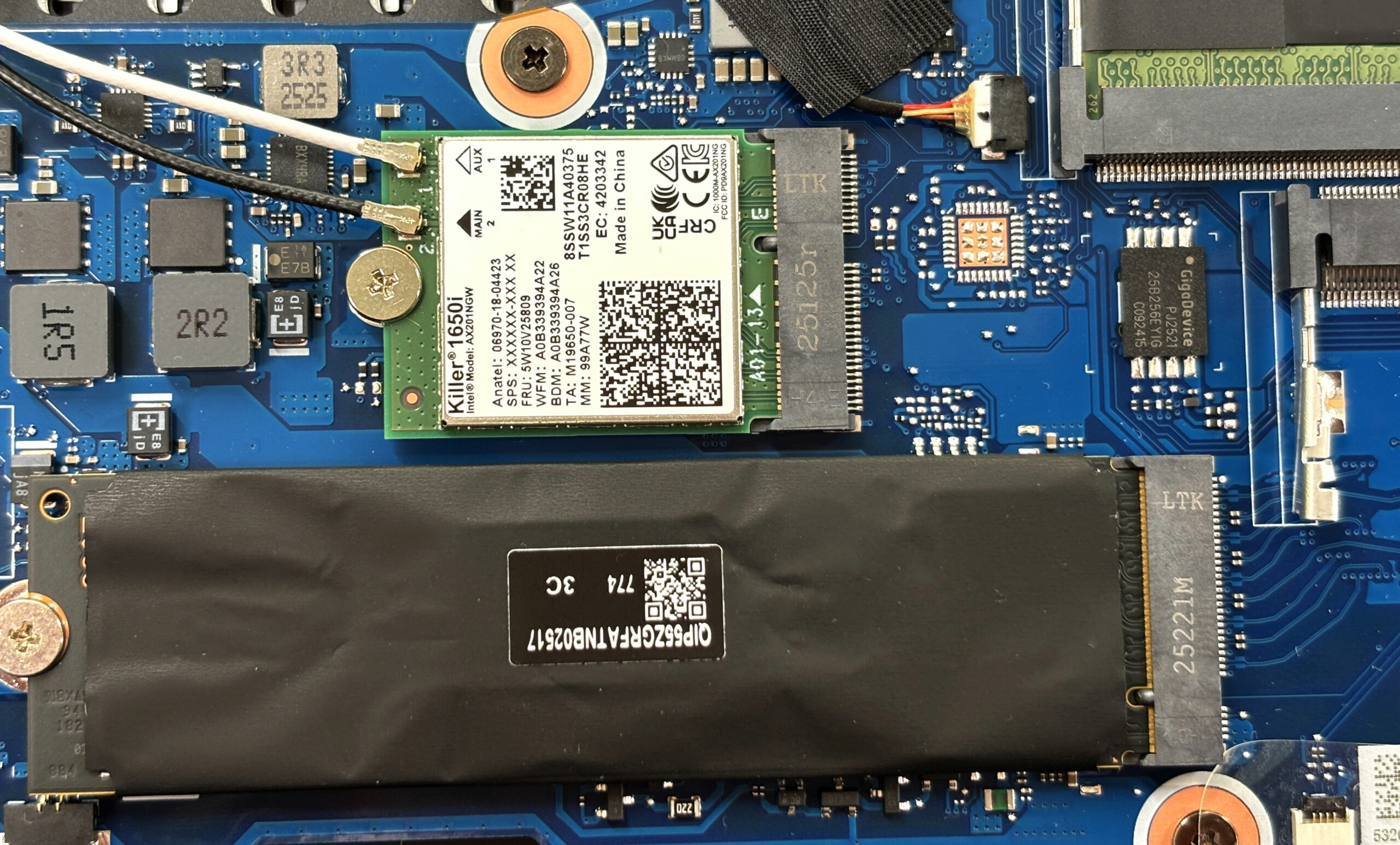
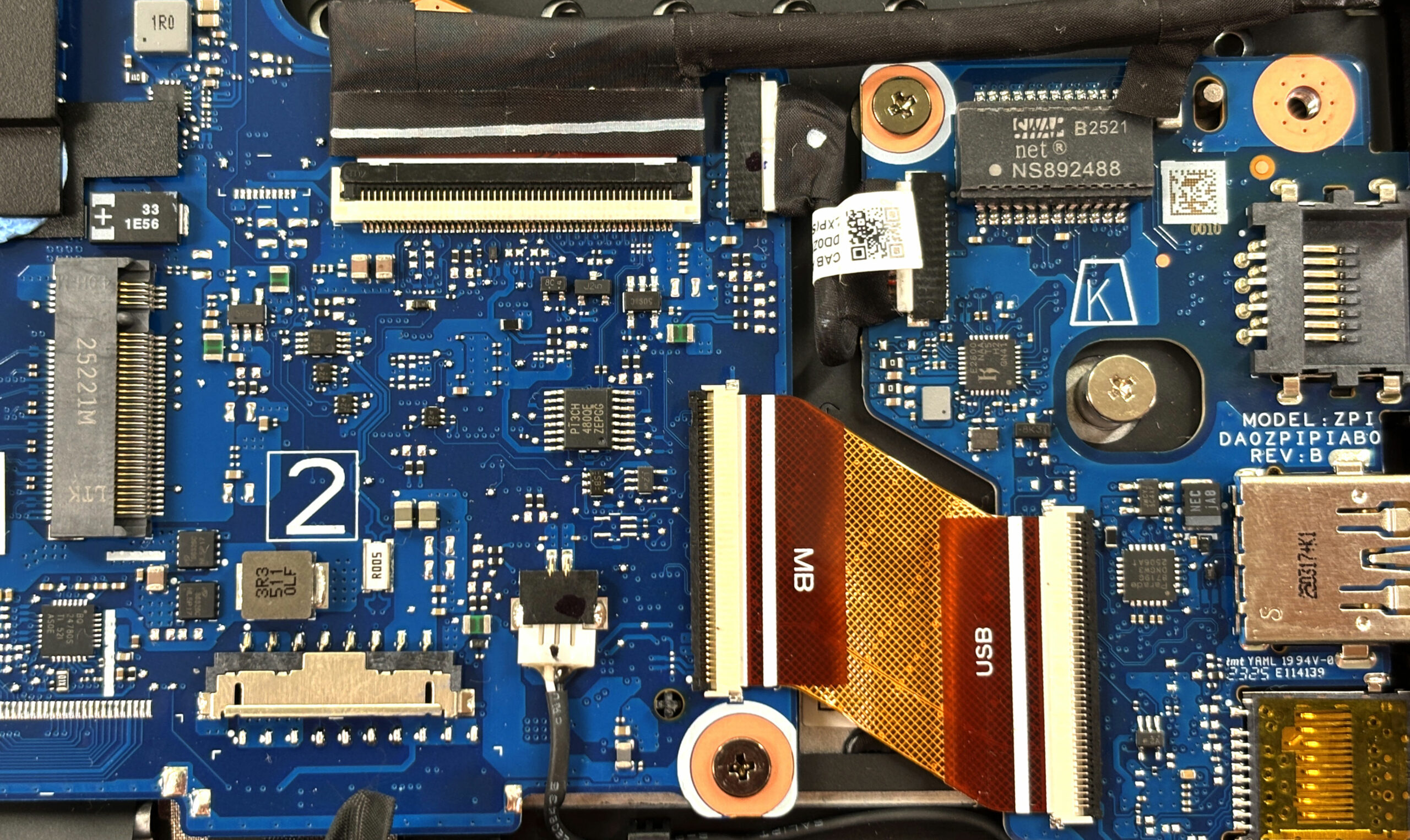
- The Nitro V 16 provides two M.2 slots for 2280 PCIe NVMe SSDs.
- The primary slot (factory-populated) uses a PCIe 4.0 drive and is covered by a thin EMI/RFI shielding foil and a thermal interface. Gently peel the foil back enough to access the mounting screw.
- Undo the SSD’s single mounting screw; the drive will spring up at a shallow angle.
- Slide the SSD out of the connector. To install a new or larger drive, insert it at the same angle, push it fully into the socket, then press it down and secure it with the screw.
- The secondary M.2 slot, also 2280 PCIe 4.0, is left empty for expansion. Install a drive there in the same way, re-using or adding a thermal pad if available.
- Acer officially lists support for up to 2TB of PCIe Gen4 NVMe storage, so plan the capacity of your upgrades accordingly.
You can buy NVMe SSDs here: Buy from Amazon.com (#CommissionsEarned)
Hint: Consider reviewing our Top M.2 SSDs Performance Rankings to select the best storage solution for your needs.
Wireless card (Wi-Fi)
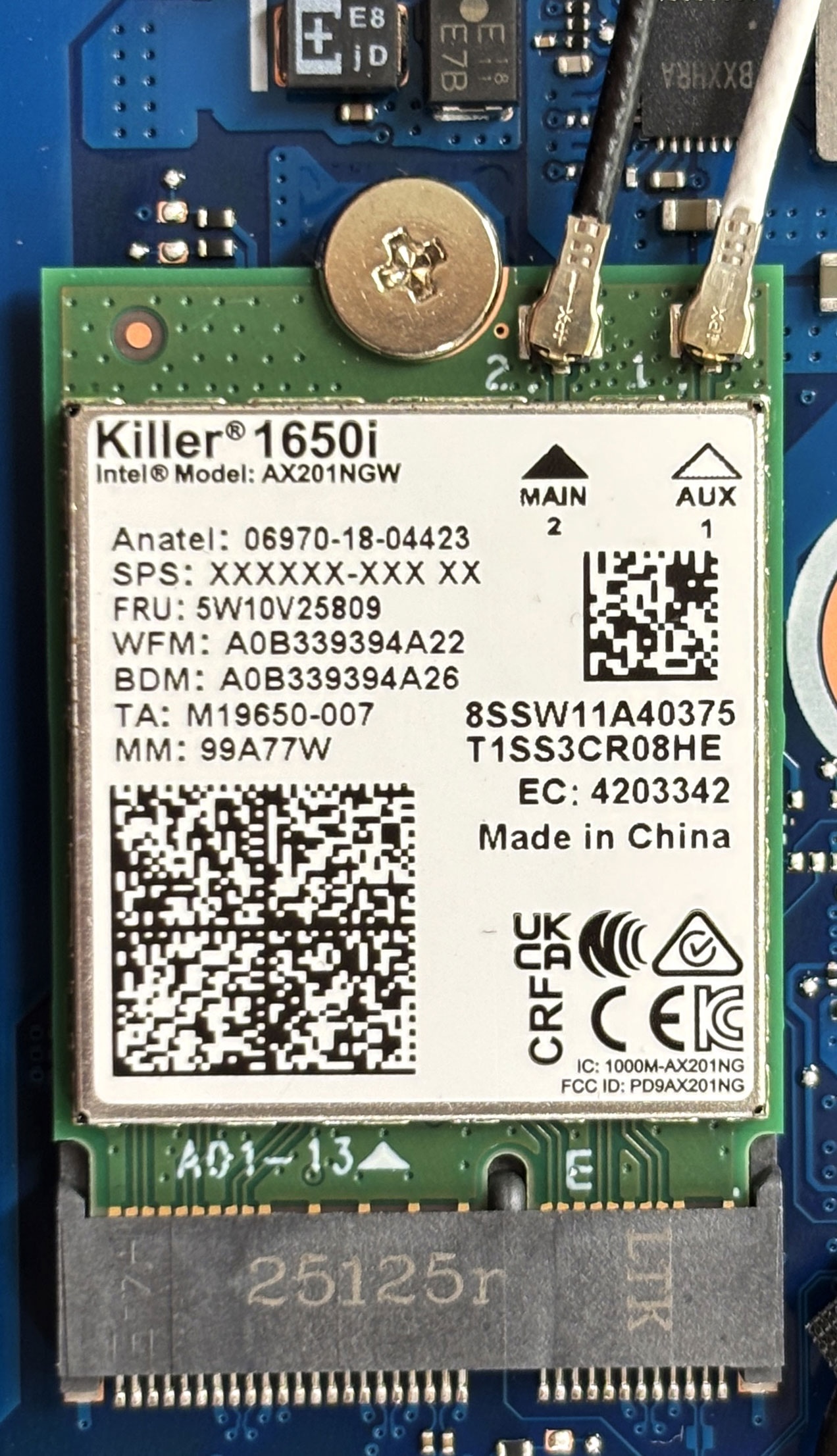
- Wireless connectivity is handled by a socketed Killer Wi-Fi 6 AX1650i card (Intel AX201-based) in its own M.2 slot near the primary SSD.
- To remove it, first disconnect the two antenna leads by lifting them straight up from the “Main” and “Aux” posts with a plastic tool.
- Undo the single screw that secures the Wi-Fi card. The module will tilt upward.
- Slide the card out of the M.2 slot. To install a replacement, insert it at an angle, press it down, and secure it with the screw.
- Reconnect the antenna wires to their matching terminals, ensuring each snaps firmly into place.
Cooling system and maintenance
- The cooling system uses two radial fans and several heat pipes that run across both the CPU and discrete GPU, with additional plates and thermal pads over the VRM and other hot components.
- The heatsinks exhaust towards the rear and side vents, so keeping these openings free of dust is important for sustained gaming performance.
- For routine cleaning, ensure the battery is disconnected. Hold each fan in place to prevent overspinning and blow short bursts of compressed air through the vents and across the fins.
- If a fan needs replacement, disconnect its cable from the motherboard, undo the mounting screws, lift the fan out, and drop in a new unit in the same orientation before reconnecting.
Reassembly tips
- Before closing the laptop, double-check that the battery is reconnected, all SO-DIMMs and SSDs are fully seated and secured, and that all ribbon cables and fan connectors are firmly plugged in.
- Place the bottom panel back on the chassis, aligning the edges and port cutouts.
- Press gently around the perimeter until all clips snap into place.
- Reinstall and tighten all bottom screws. Do not overtighten to avoid stripping threads or warping the panel.
- Power on the laptop and verify that it boots normally and that any new RAM or storage is detected in BIOS and Windows.
More info: The Acer Nitro V 16 (ANV16-72) offers a solid level of serviceability for a mid-range gaming laptop – you get two DDR5 SO-DIMM slots (up to 32GB officially), two PCIe 4.0 M.2 bays, a replaceable Killer Wi-Fi card, and a user-swappable 76Wh-class battery. The CPU and GPU are soldered, but the core upgradable components remain easy to reach for future upgrades and maintenance.
Acer Nitro V 16 (ANV16-72) in-depth review
So, the best or worst cooling of 2025? "Why not both?" - some Acer engineers, probably. On one hand, its cooling system is a triumph, keeping the powerful NVIDIA GPU running with a stability and coolness that's truly impressive, resulting in a fantastic gaming experience. On the other hand, that same cooling system seems to completely fail the Intel Core i9 processor, allowing it to run at high temperatures and forcing it to throttle back its performance. This creates a machine with a split personality: a brilliant gaming rig that's a questionable high-performance workhorse.The questio[...]

Pros
- Excellent GPU thermal management keeps the system cool and stable
- Great QHD+ 180Hz display with good colors and low glare
- Completely PWM-free screen is great for eye comfort
- Great upgradeability with two RAM and two M.2 slots
- Very good battery life for a gaming laptop
- Great port selection, including a Thunderbolt 4 port
Cons
- CPU runs extremely hot and throttles performance
- GPU performance is slightly behind competitors
- No biometric login options (fingerprint or IR camera)
- No physical privacy shutter for the webcam
 Author: Dimitar Stalev

![[June 2026] Best-Selling Laptop Brands on Amazon Global – Apple’s Unrivaled Dominance in Units and Revenue](https://laptopmedia.com/wp-content/uploads/2026/07/GLOBAL-Best-Brands-400x225.jpg)
![[June 2026] Amazon Global: Top 10 Best-Selling Laptops – Apple’s New MacBook Neo Storms to #1, Reshaping the Market with Affordability](https://laptopmedia.com/wp-content/uploads/2026/07/Best-Selling-Laptops-GLOBAL-Top-10-400x225.jpg)
![[June 2026] Amazon Global: Top 10 Best-Selling Gaming Laptops – Acer’s Nitro V 16S AI Dominates Sales, While ASUS Leads Overall Revenue](https://laptopmedia.com/wp-content/uploads/2026/07/Best-Selling-Gaming-Laptops-GLOBAL-Top-10-400x225.jpg)
![[June 2026] Global Ranking of Best-Selling Laptop GPUs on Amazon – NVIDIA RTX 5060 is the Top-Selling Dedicated GPU](https://laptopmedia.com/wp-content/uploads/2026/07/Best-Selling-GPUs-GLOBAL-Top-10-400x225.jpg)
![[June 2026] Global Ranking of Best-Selling Laptop CPUs on Amazon – Apple M5 Dominates, AMD Ryzen 7 260 Gets Solid Premium Share](https://laptopmedia.com/wp-content/uploads/2026/07/Best-Selling-CPUs-GLOBAL-Top-10-400x225.jpg)