HP Victus Gaming 15 (15-fb3000) review – Budget RTX Power
The HP Victus 15 (15-fb3000) occupies a unique space in the crowded budget gaming market. With its mature, understated “Shadow Black” design, it successfully hides its gaming DNA, making it a perfect fit for a quiet office or a minimalist dorm room. But don’t mistake its subtle looks for weakness. Beneath the chassis, it’s built to deliver solid frame rates for competitive esports and AAA titles without the “gamer tax” often found on more expensive rigs. However, our testing uncovered a significant paradox: while it excels at keeping the GPU cool and stable, the CPU is pushed to its absolute thermal limit. Is this the ultimate reliable entry-level machine, or does it run too hot for the long haul? Let’s dive into the details.
TESTED CONFIGURATION:
– AMD Ryzen 5 240
– NVIDIA GeForce RTX 5050
– 24GB RAM
– 1TB SSD NVMe
– 15.6″, 1920 x 1080 (Full HD), 144Hz IPS
You can check the prices and configurations in our Specs System: https://laptopmedia.com/series/hp-victus-15-15z-fb2000/
Contents
Specs, Drivers, What’s in the box
HP Victus 15 (15z-fb2000, fb3000) - Specs
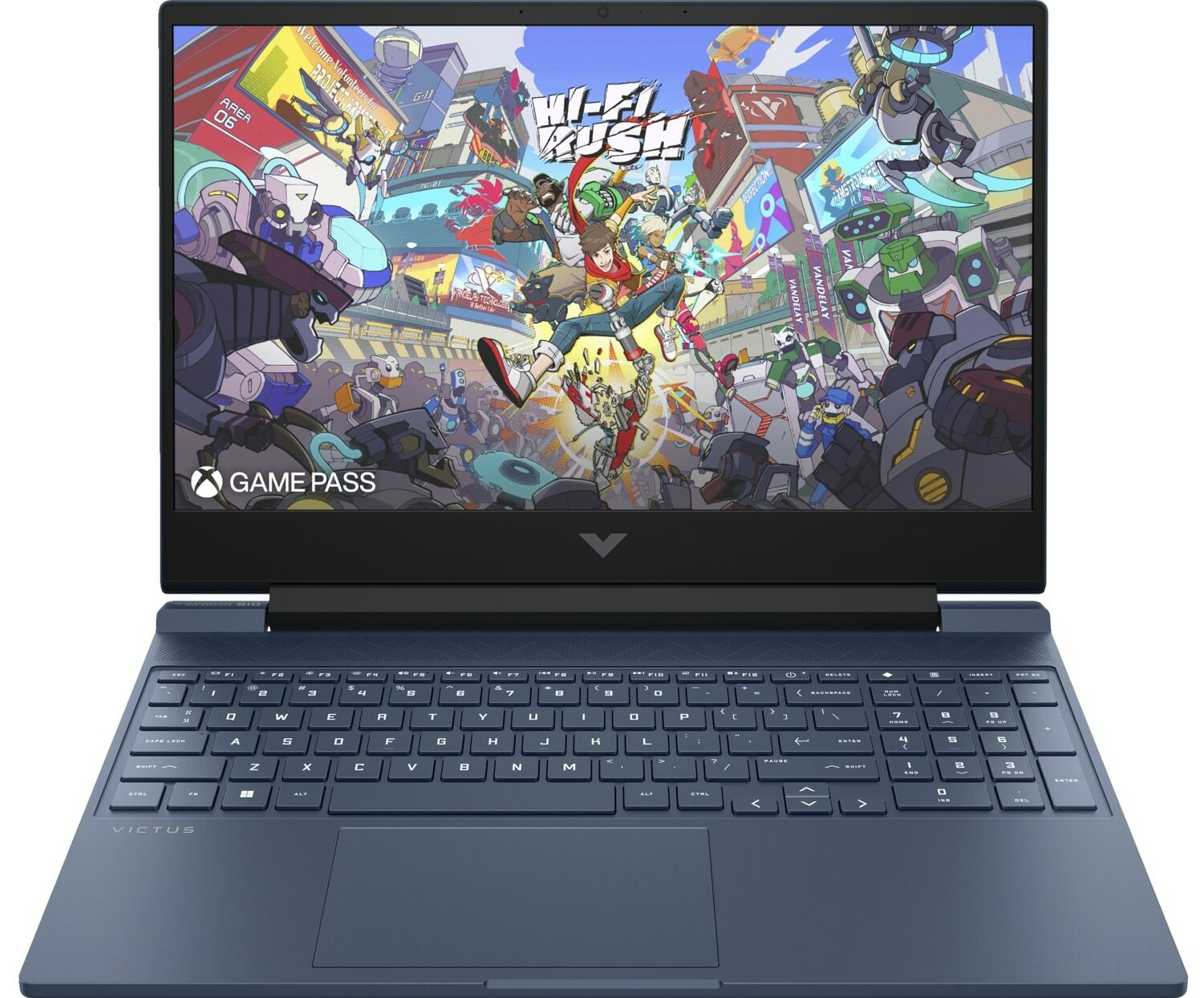
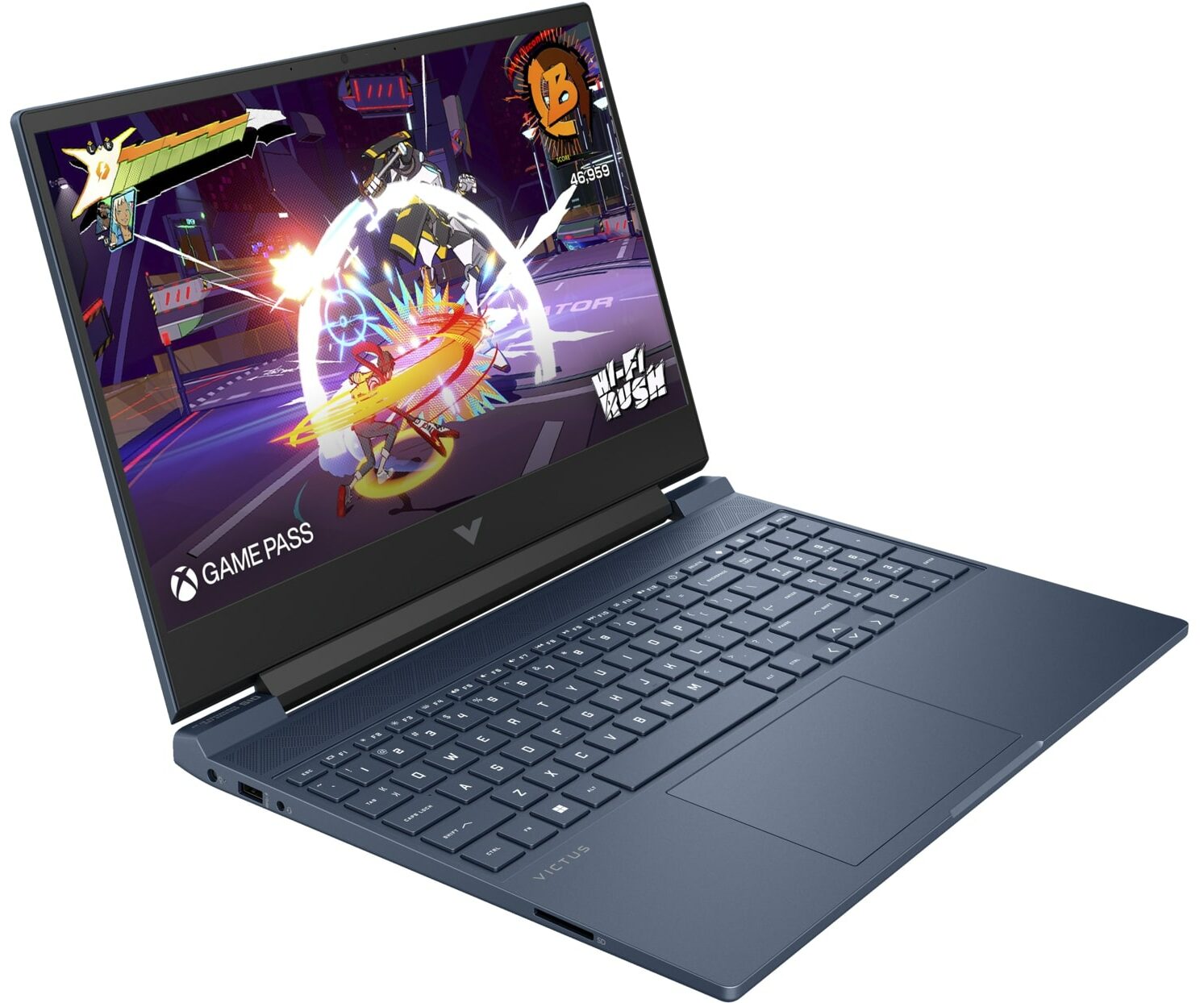
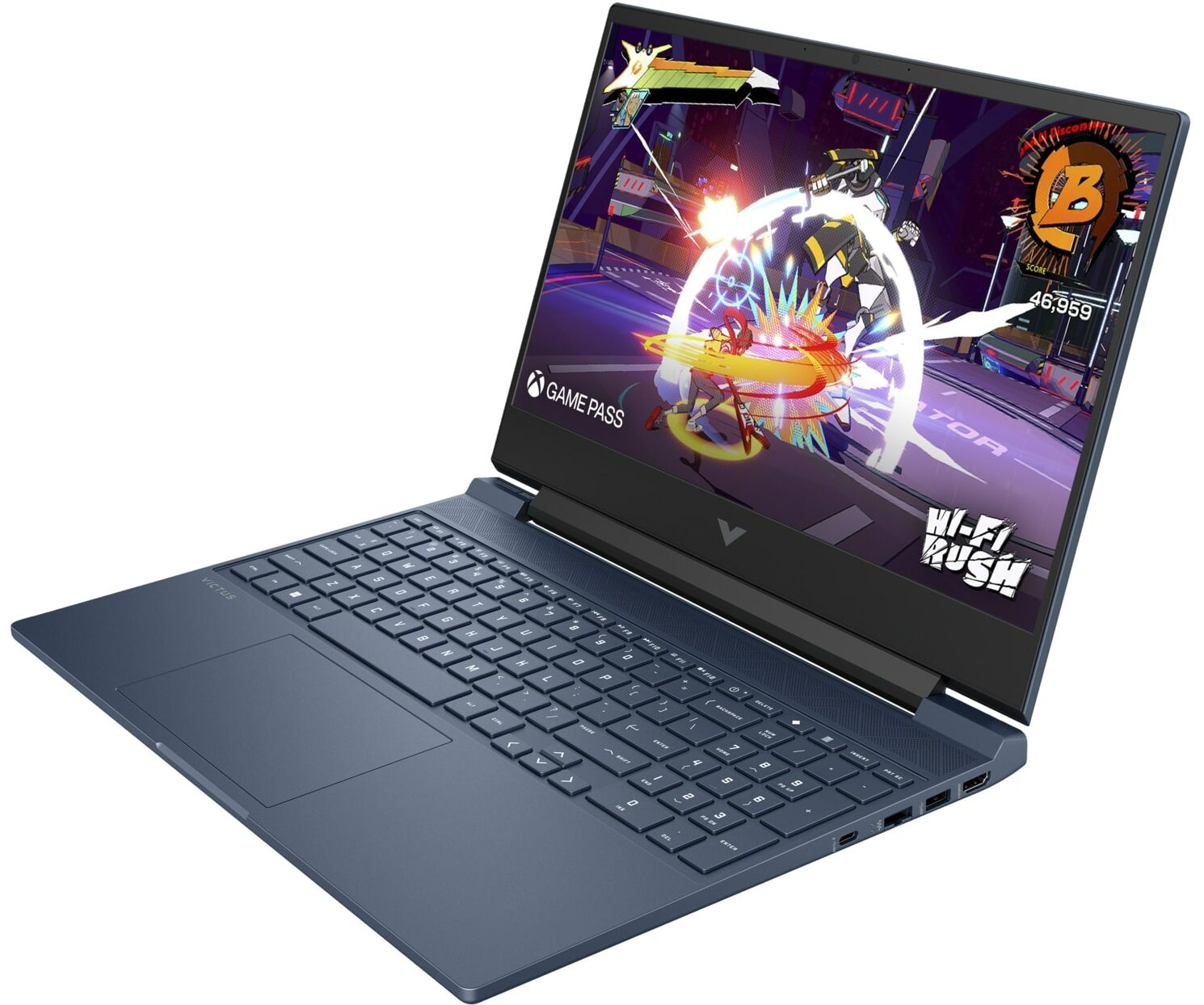
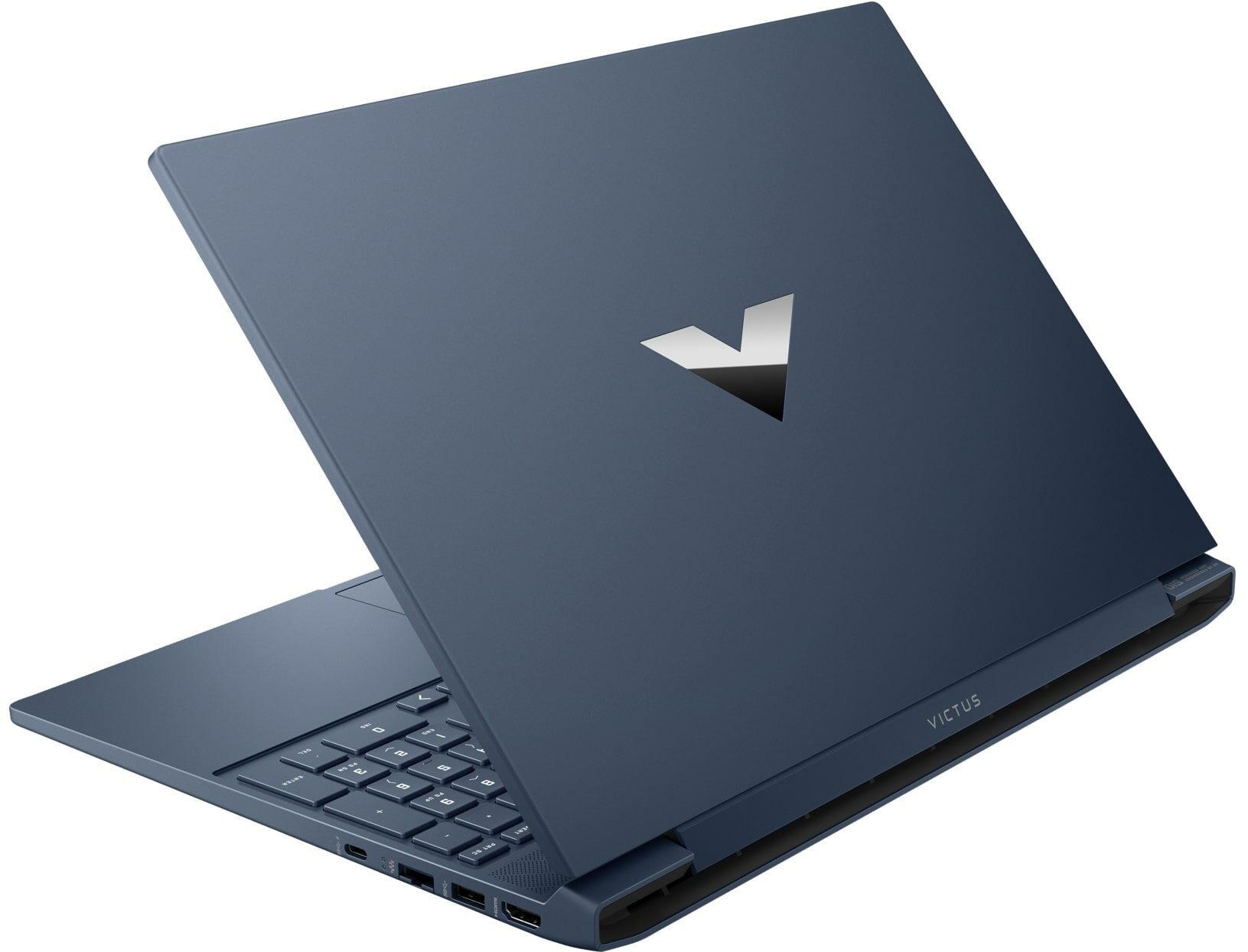
- CPU
- AMD Ryzen AI 7 350 #74 in Top CPUs AMD Ryzen AI 5 340 #113 in Top CPUs AMD Ryzen 7 8845HS #66 in Top CPUs AMD Ryzen 7 7445HS #157 in Top CPUs AMD Ryzen 7 7435HS #94 in Top CPUs AMD Ryzen 7 260 #76 in Top CPUs AMD Ryzen 5 8645HS #114 in Top CPUs AMD Ryzen 5 7535HS #162 in Top CPUs AMD Ryzen 5 240 #120 in Top CPUs
- GPU
- NVIDIA GeForce RTX 5060 (Laptop) #72 in Top GPUs NVIDIA GeForce RTX 5050 (Laptop) #126 in Top GPUs NVIDIA GeForce RTX 4060 (Laptop, 120W) #46 in Top GPUs NVIDIA GeForce RTX 4050 (Laptop, 120W) #90 in Top GPUs NVIDIA GeForce RTX 2050 (Laptop) #204 in Top GPUs AMD Radeon RX 6550M #189 in Top GPUsNVIDIA GeForce RTX 3050 (Laptop)

- HDD/SSD
- up to 4000GB SSD
- M.2 Slot
- 2x 2280 M.2 NVMe PCIe 4.0 x4 See photo
- RAM
- up to 64GB
- OS
- Windows 11 Home, Windows 11 Pro, Windows 10 Pro, Windows 10 Home, Windows 11, No OS, DOS
- Battery
- 70Wh
- Body material
- Plastic / Polycarbonate
- Dimensions
- 357.88 x 255.01 x 23.62 mm (14.09" x 10.04" x 0.93")
- Weight
- 2.29 kg (5 lbs)
- Ports and connectivity
- 1x USB Type-A
- 3.2 Gen 1 (5 Gbps)
- 1x USB Type-A
- 3.2 Gen 1 (5 Gbps), Sleep and Charge
- 1x USB Type-C
- 3.2 Gen 1 (5 Gbps), DisplayPort, Sleep and Charge
- HDMI
- 2.1
- Card reader
- SD (SD, SDHC, SDXC)
- Ethernet LAN
- 10, 100, 1000 Mbit/s
- Wi-Fi
- Wi-Fi 6E
- Bluetooth
- 5.3
- Audio jack
- 3.5mm Combo Jack
- Features
- Fingerprint reader
- Web camera
- HD with Temporal Noise Reduction
- Backlit keyboard
- optional
- Microphone
- Dual Array Digital Microphones
- Speakers
- Dual Speakers, HP Audio Boost, HyperX
- Security Lock slot
All HP Victus 15 (15z-fb2000, fb3000) configurations

Drivers
All drivers and utilities for this notebook can be found here: https://support.hp.com/us-en/drivers/victus-by-hp-15.6-inch-gaming-laptop-15-fb3000/2102671258
What’s in the box?
Unboxing the Victus Gaming 15 is a very simple, keeping the focus entirely on the machine itself.
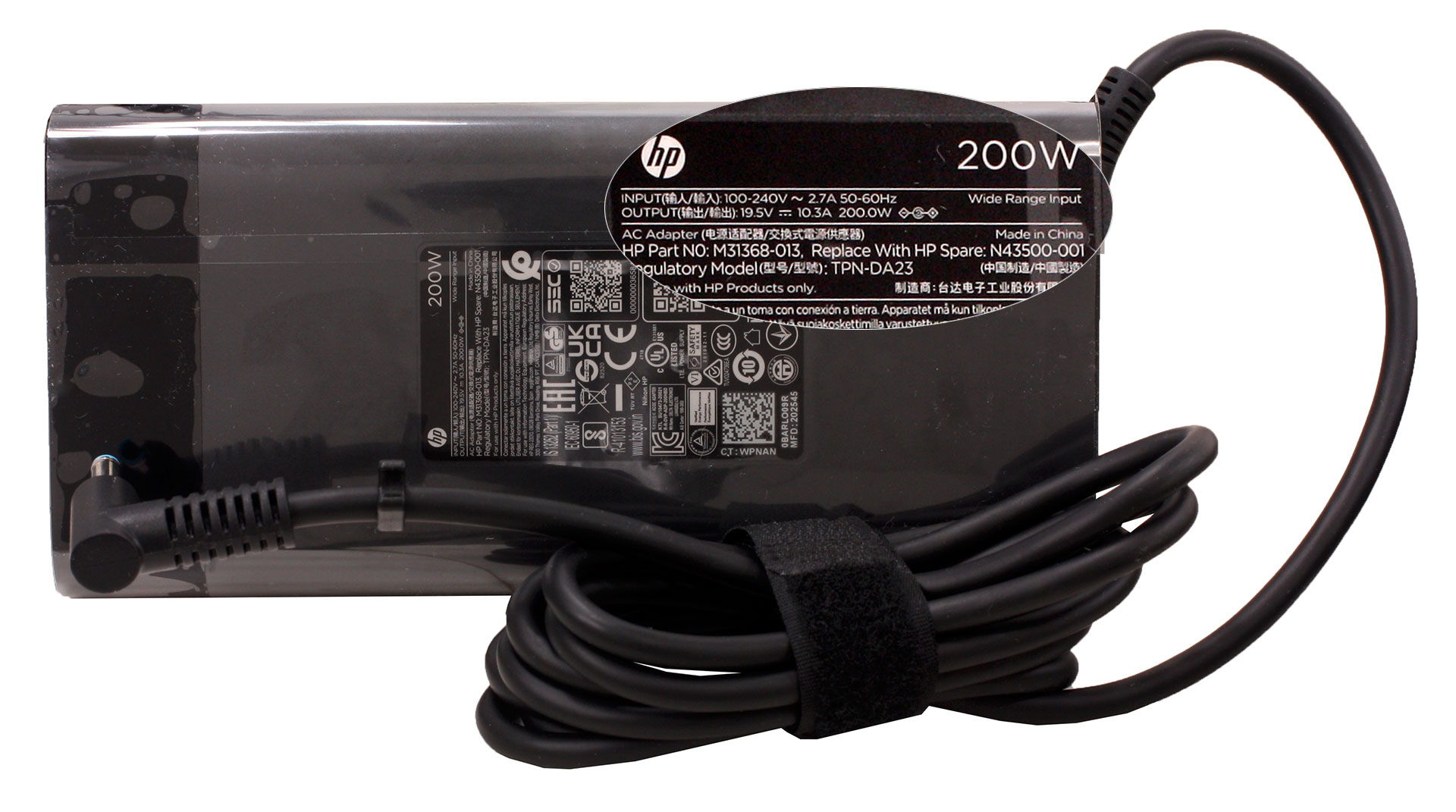
Inside, you’ll find the laptop and a power adapter ranging from 120W to 200W depending on your specs, though interestingly, HP ships this model without a charger in certain territories.
Luckily, our European unit came with the brick included, so we didn’t have to go hunting for power before our first gaming session!
Design and construction
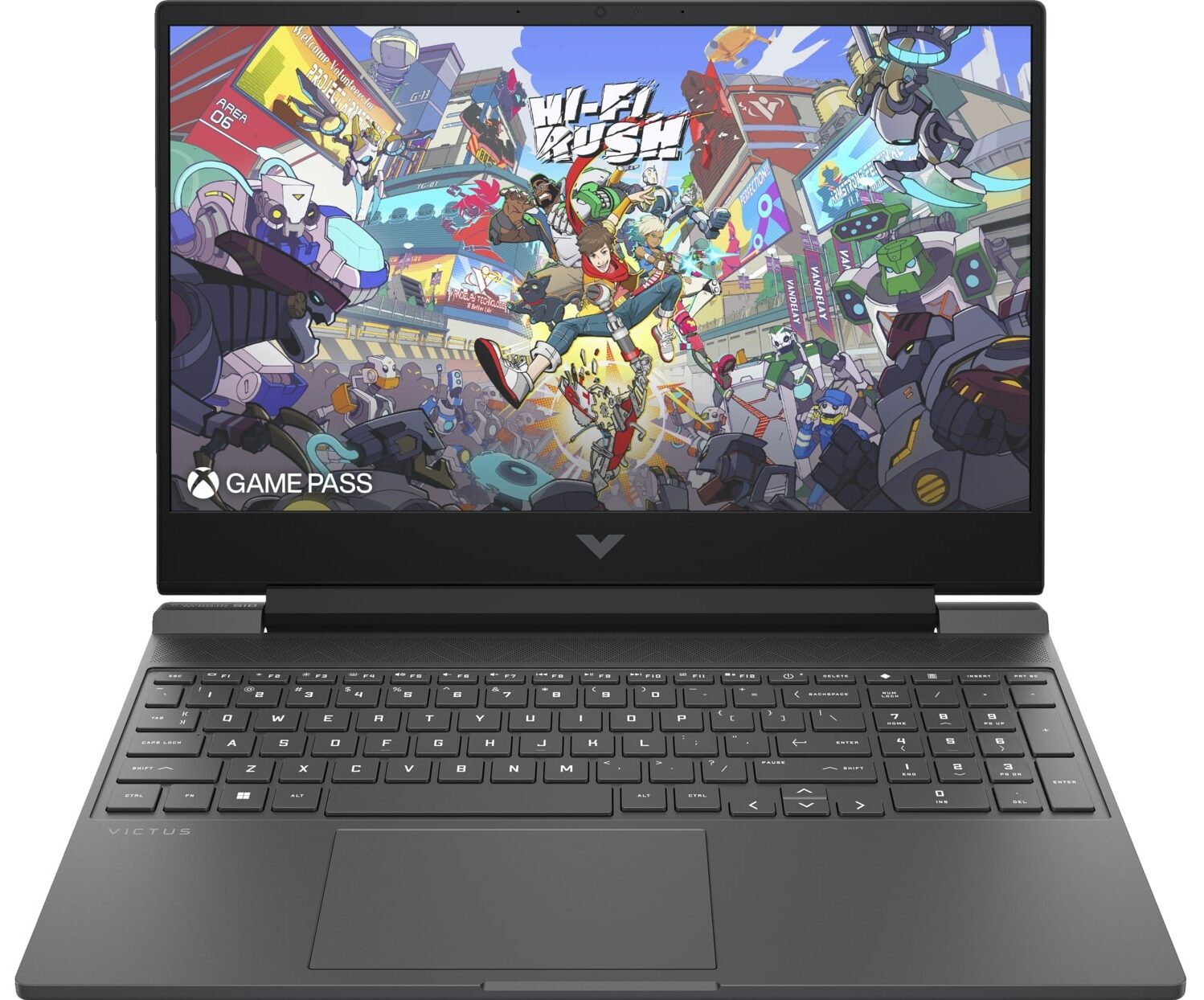
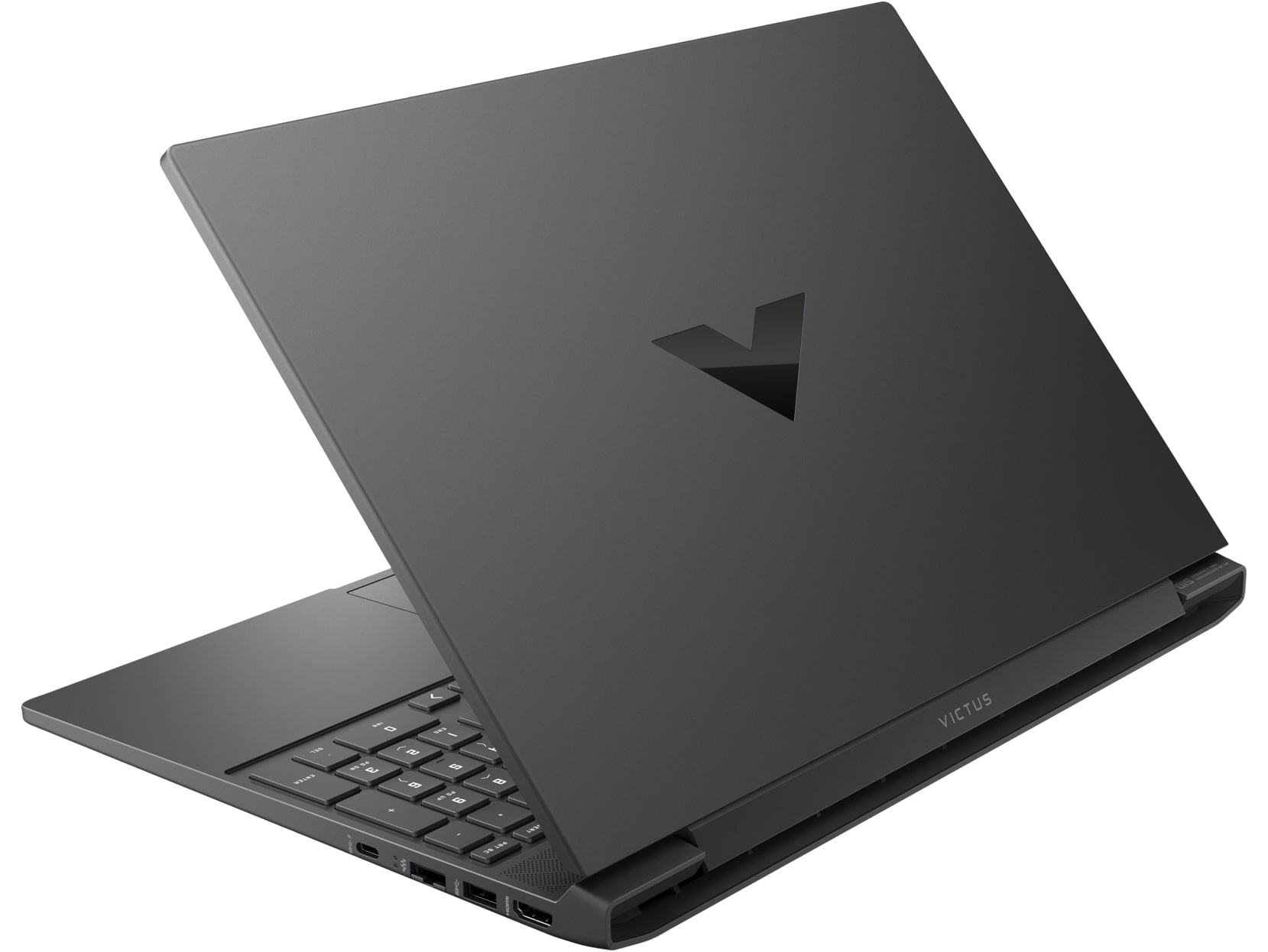
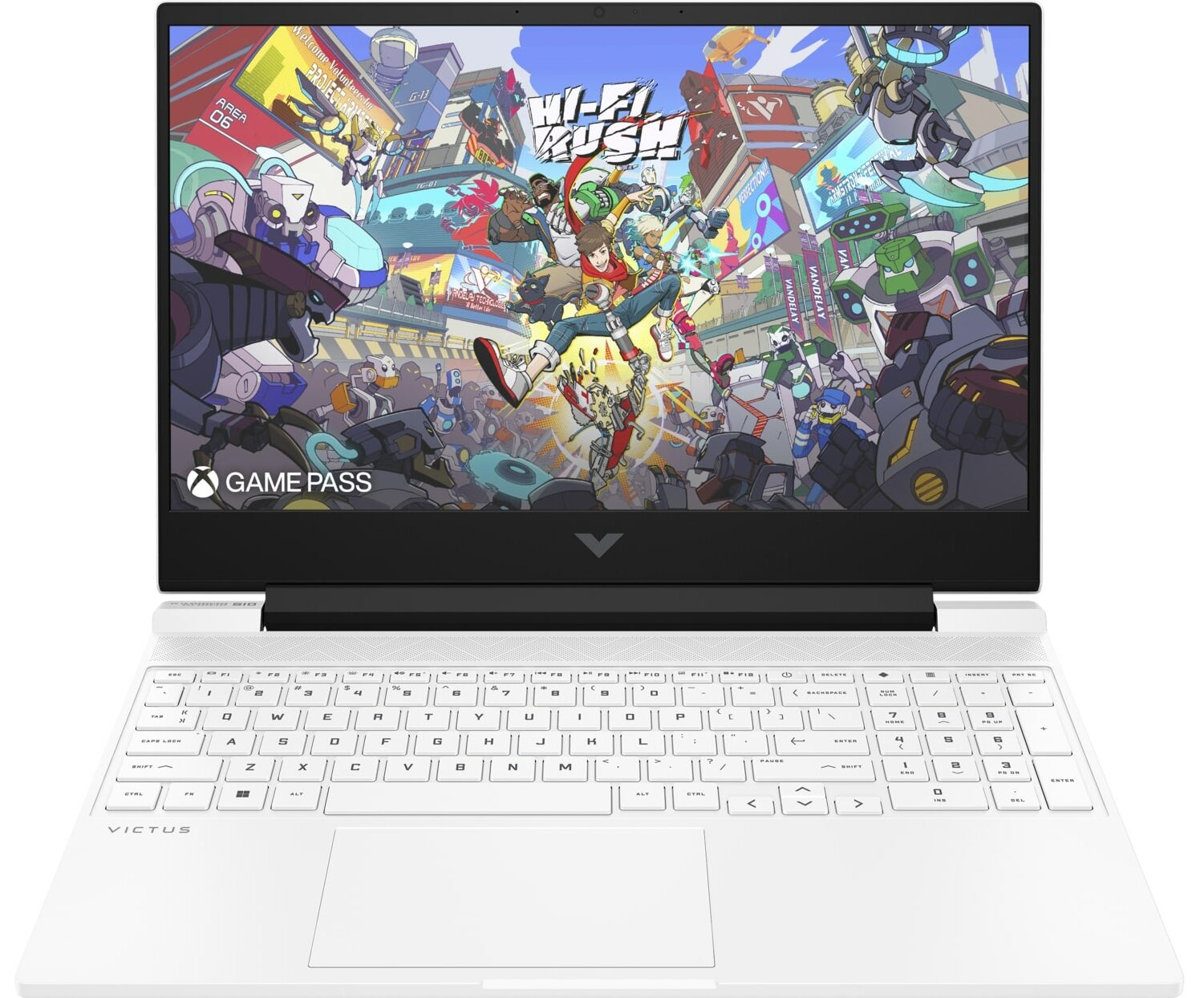
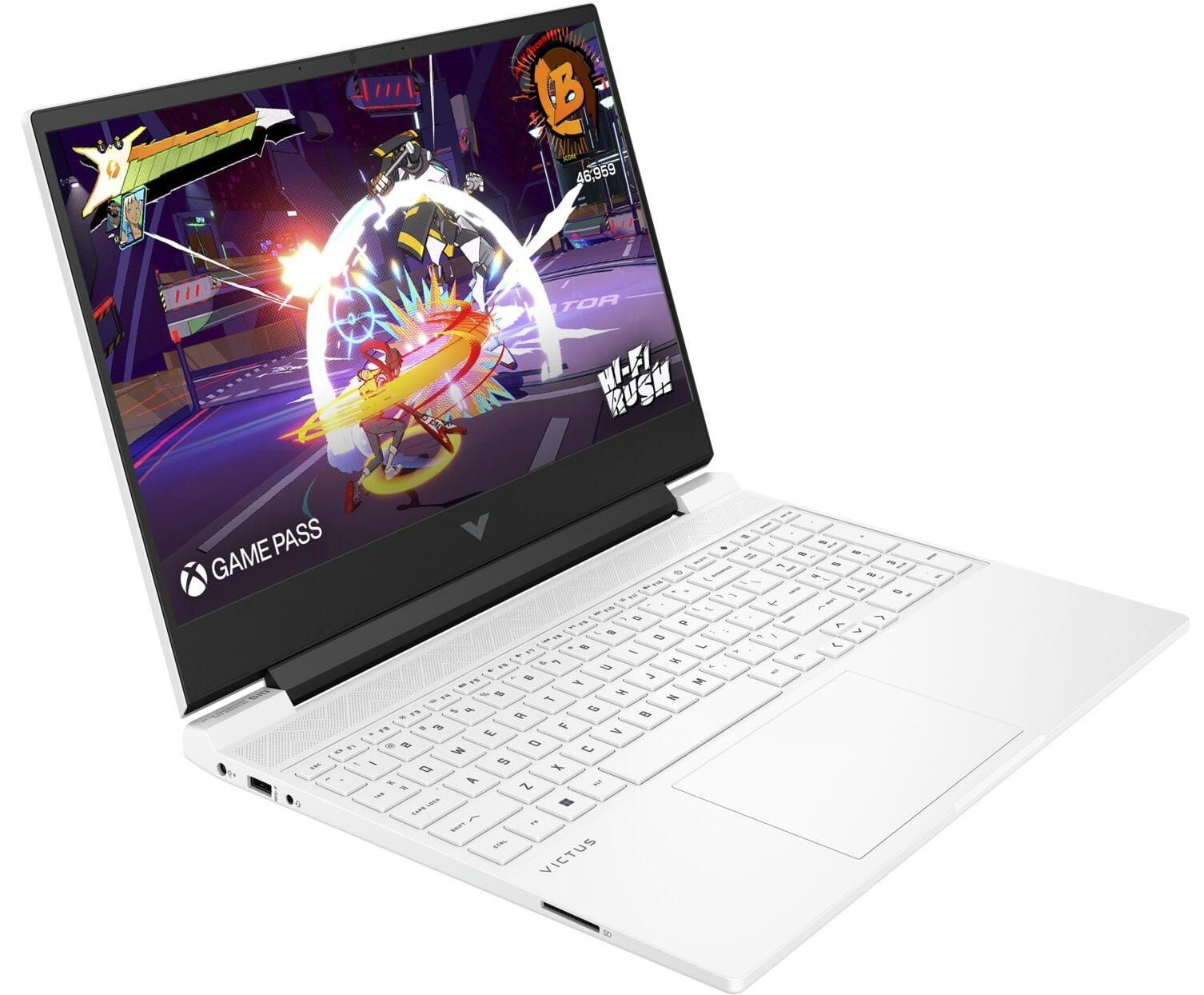
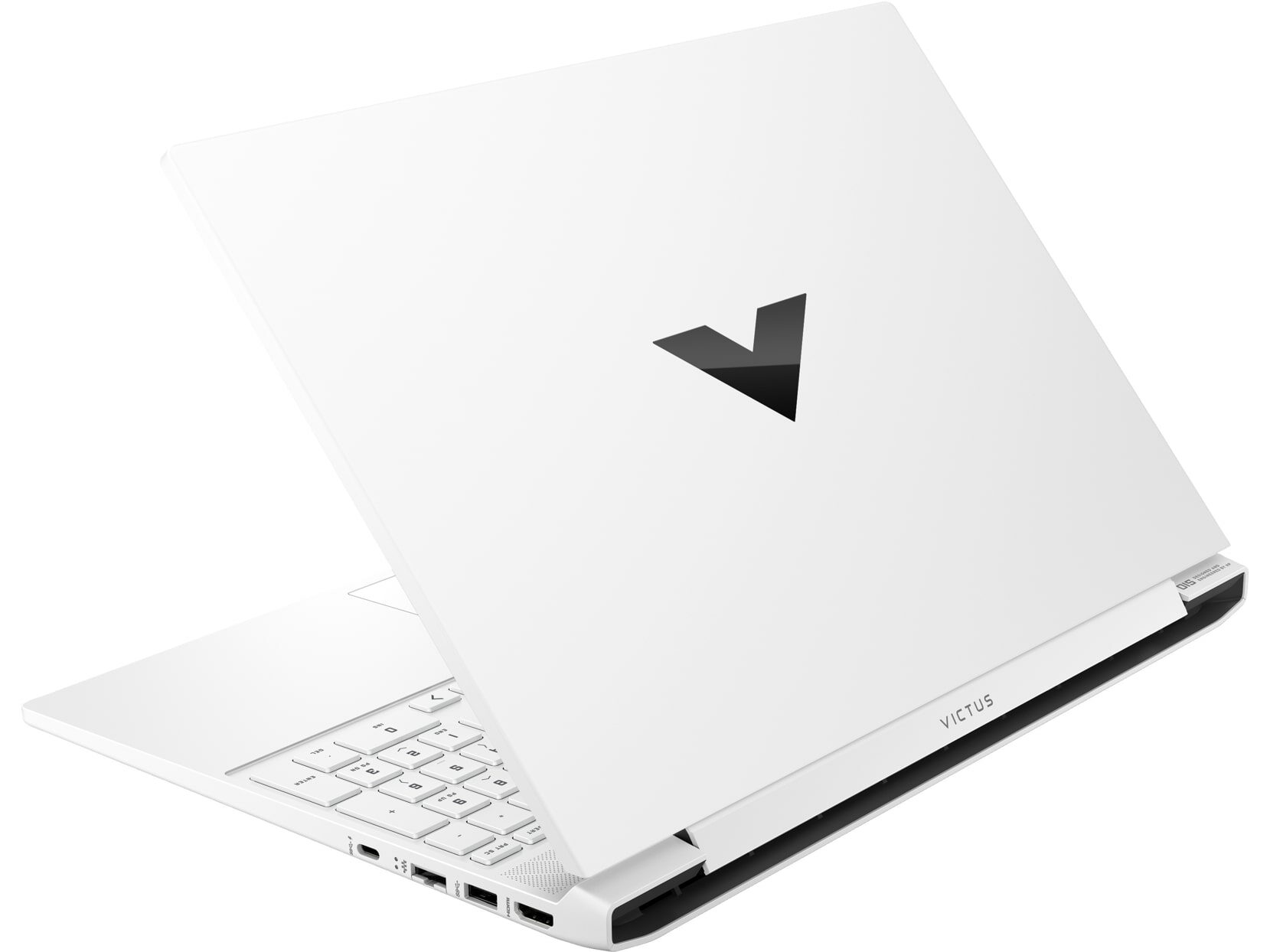
The HP Victus Gaming 15 (15-fb3000) pulls off a rather clever dual identity. When closed, it presents a surprisingly stylish and understated profile.
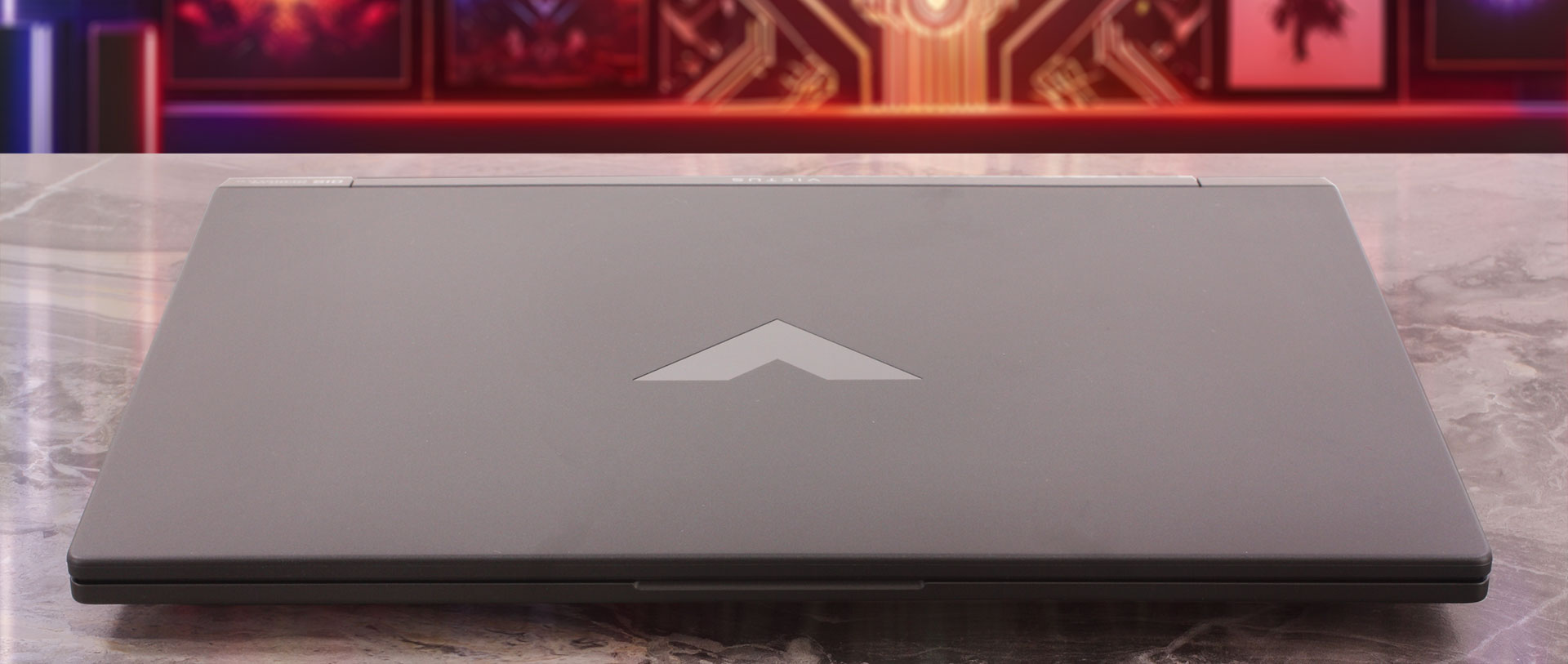
The dark grey chassis is adorned only with a slick, black reflective ‘V’ logo on the lid, giving it a sleek vibe that wouldn’t look out of place in a meeting room. However, lift that lid, and the machine reveals its true gaming DNA with sharp, aggressive lines and a much more serious posture. There is also option for White and Blue chassis colors, but this dark grey finish suits its dual-purpose nature perfectly. The entire chassis is constructed from plastic, which comes with expected physical traits: while the lid exhibits some flex when pressed from behind, the interior base feels reassuringly solid.
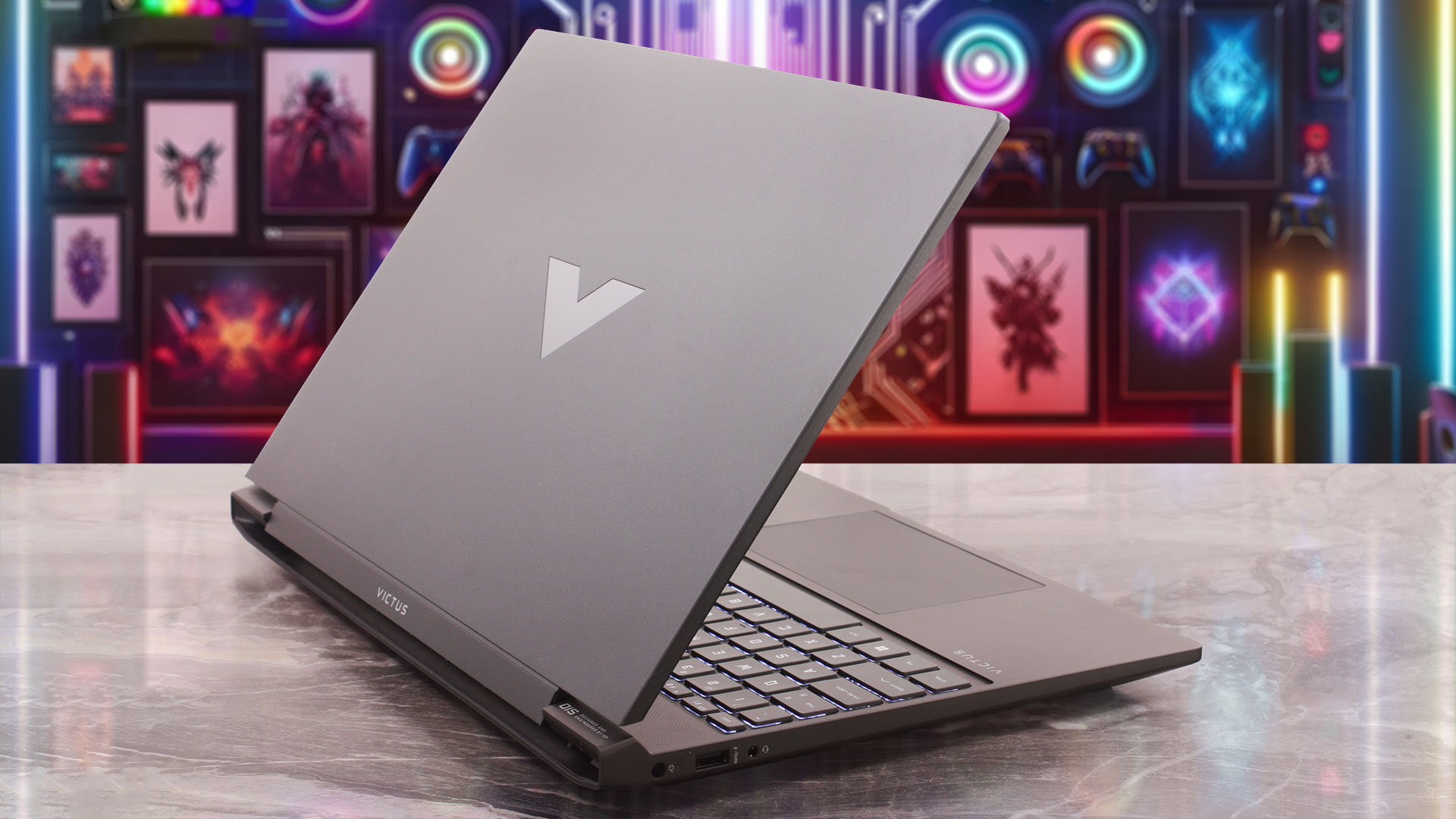
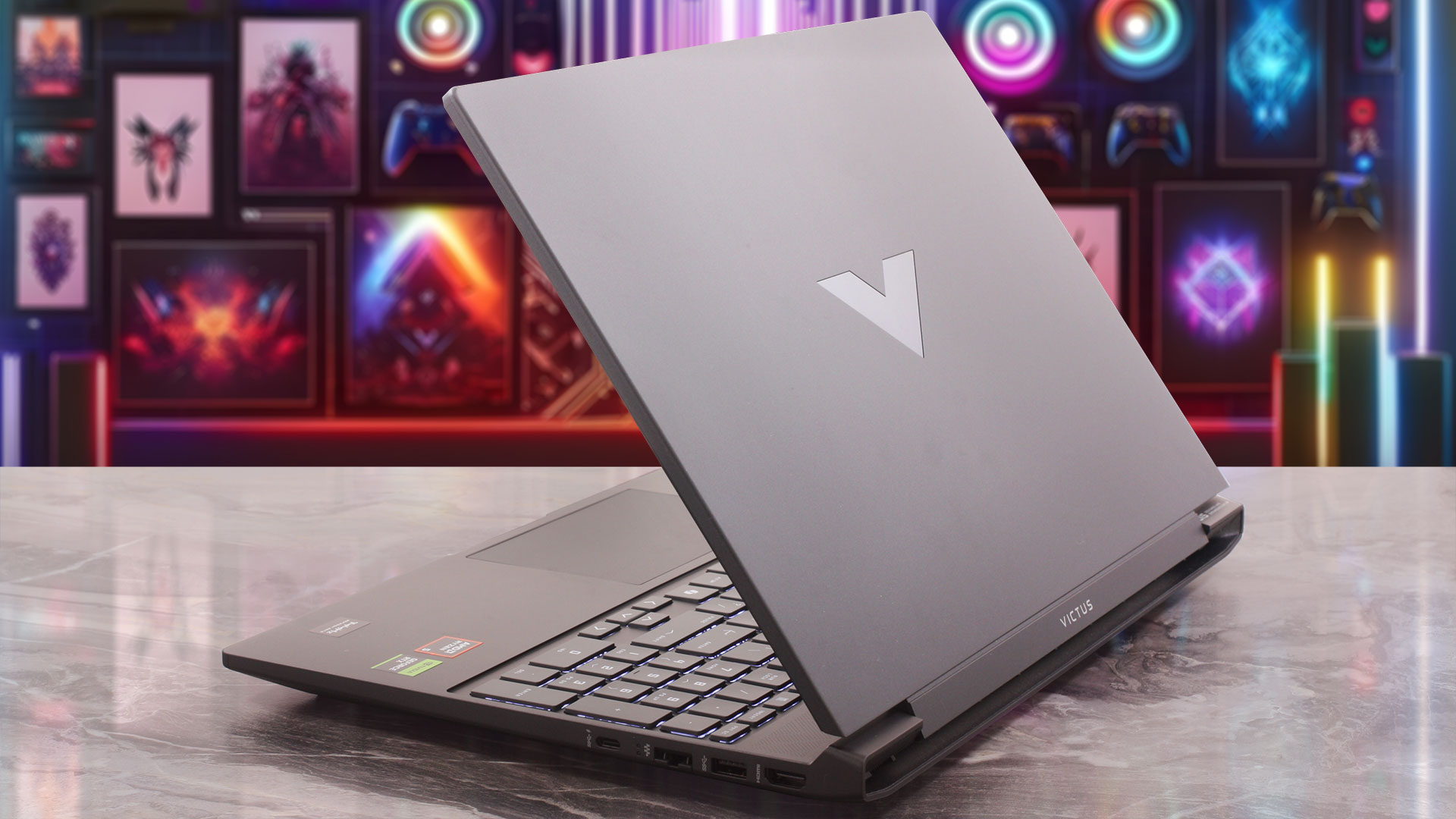
When it comes to everyday grime, the lid impressively resists fingerprints. You might notice some very faint smudges on the palm rest and slightly more on the trackpad after a long gaming session, but they remain wonderfully unobtrusive and easy to ignore.
For a 15-inch gaming laptop, its footprint is fairly standard, offering a reasonable balance between immersive screen real estate and backpack viability. Here is how it measures up:
| HP Victus Gaming 15 (15-fb3000) | Dimensions | Weight |
| Metric units | 357.9 mm x 255.0 mm x 23.5 mm | Starting at 2.29 kg |
| U.S. customary | 14.09 in x 10.04 in x 0.93 in | Starting at 5.05 lbs |
The screen hinges feel stable and allow the display to tilt back to a maximum angle of about 120 degrees. While it doesn’t lay completely flat, this range of motion is perfectly adequate for typical desk setups or lap use.
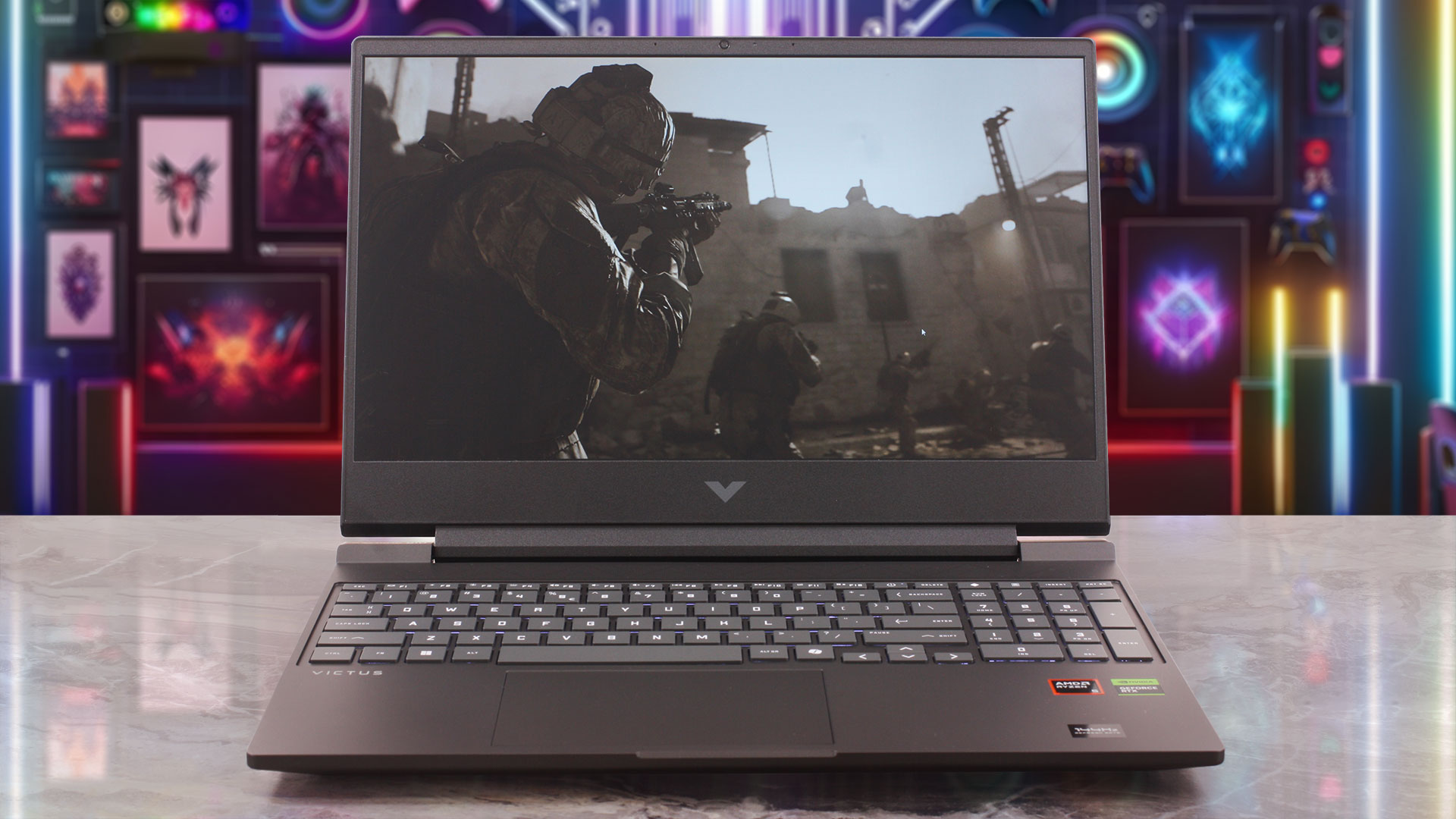
Framing the display are pleasantly thin side bezels, while the top bezel is left slightly thicker to house the webcam and integrated dual-array digital microphones. Interestingly, your camera experience depends heavily on the silicon under the hood. If you configure the laptop with an AMD Ryzen AI processor, you are treated to a crisp HP True Vision 1080p FHD IR camera, which also unlocks Windows Hello facial recognition. Standard configurations receive an HP Wide Vision 720p HD camera instead. Both options benefit from temporal noise reduction, but if biometric security is a priority, you’ll want to aim for the AI chip, as there is no fingerprint scanner located anywhere on the chassis.
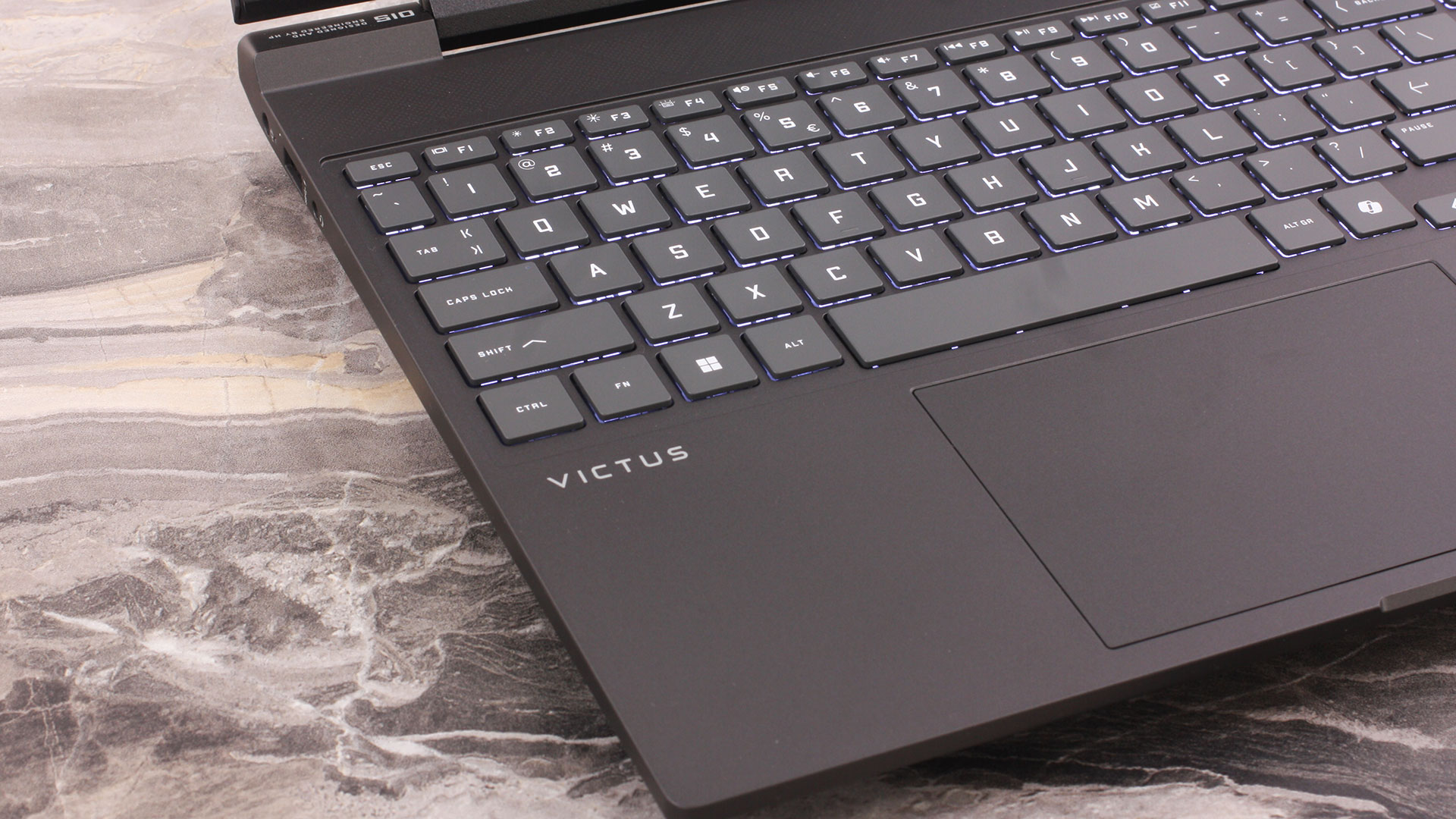
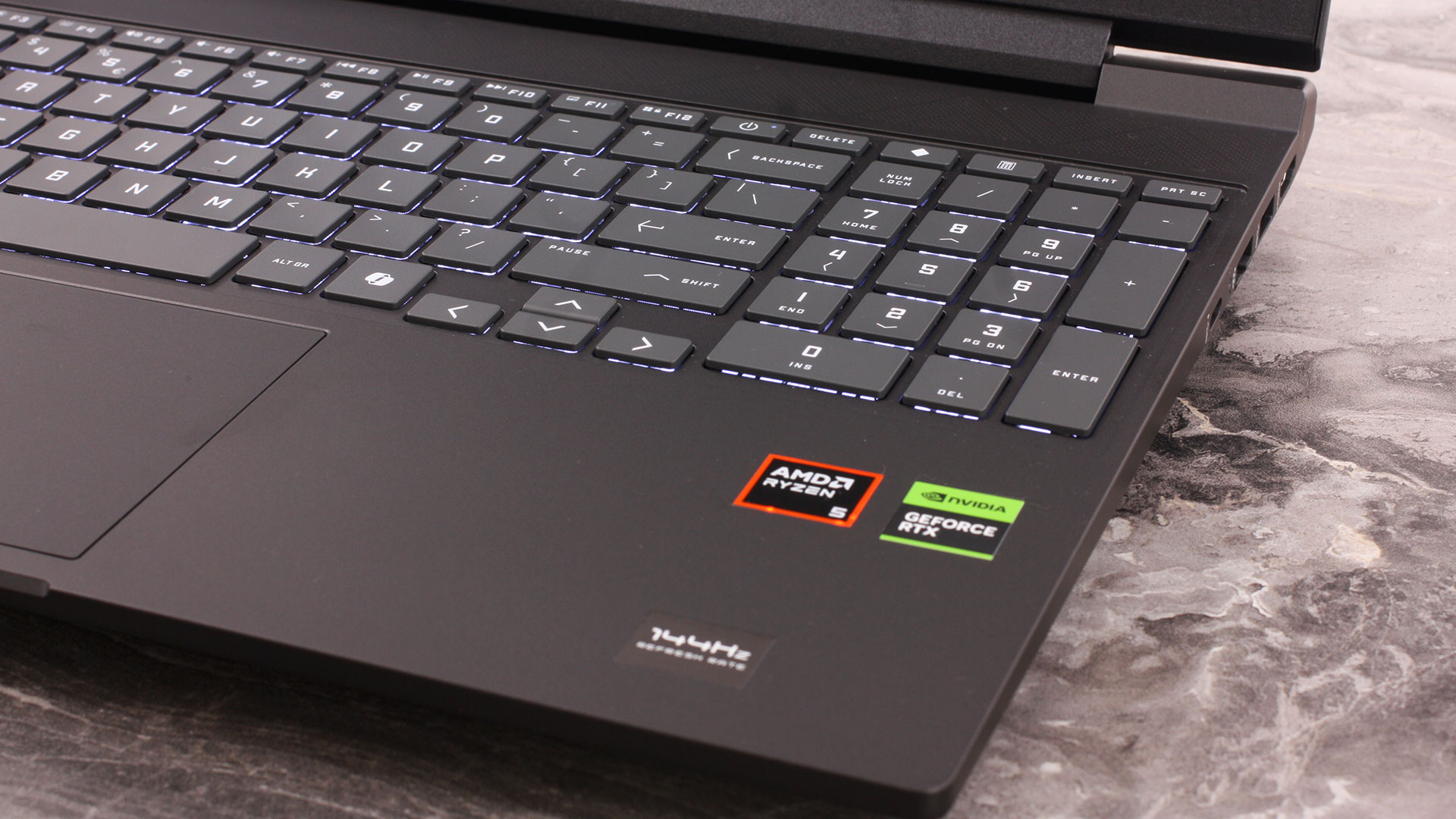
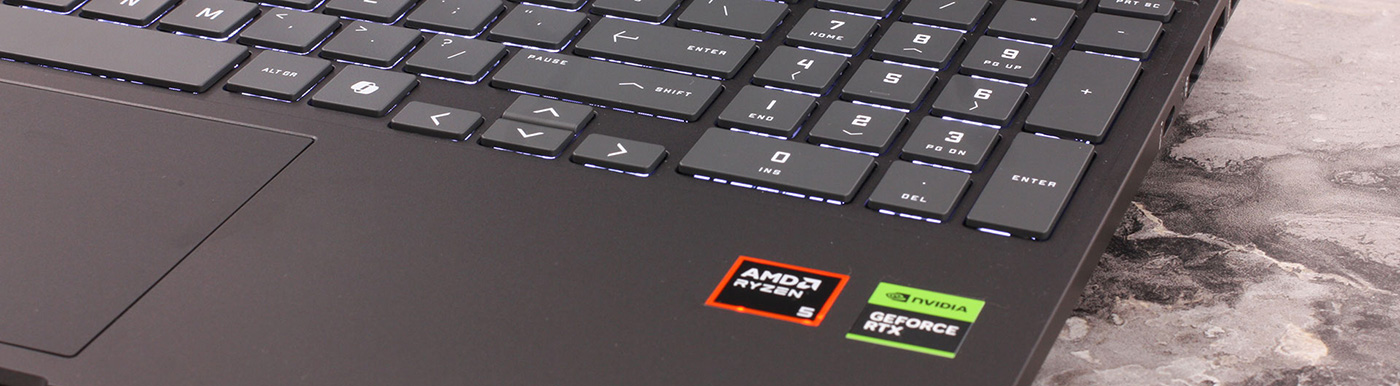
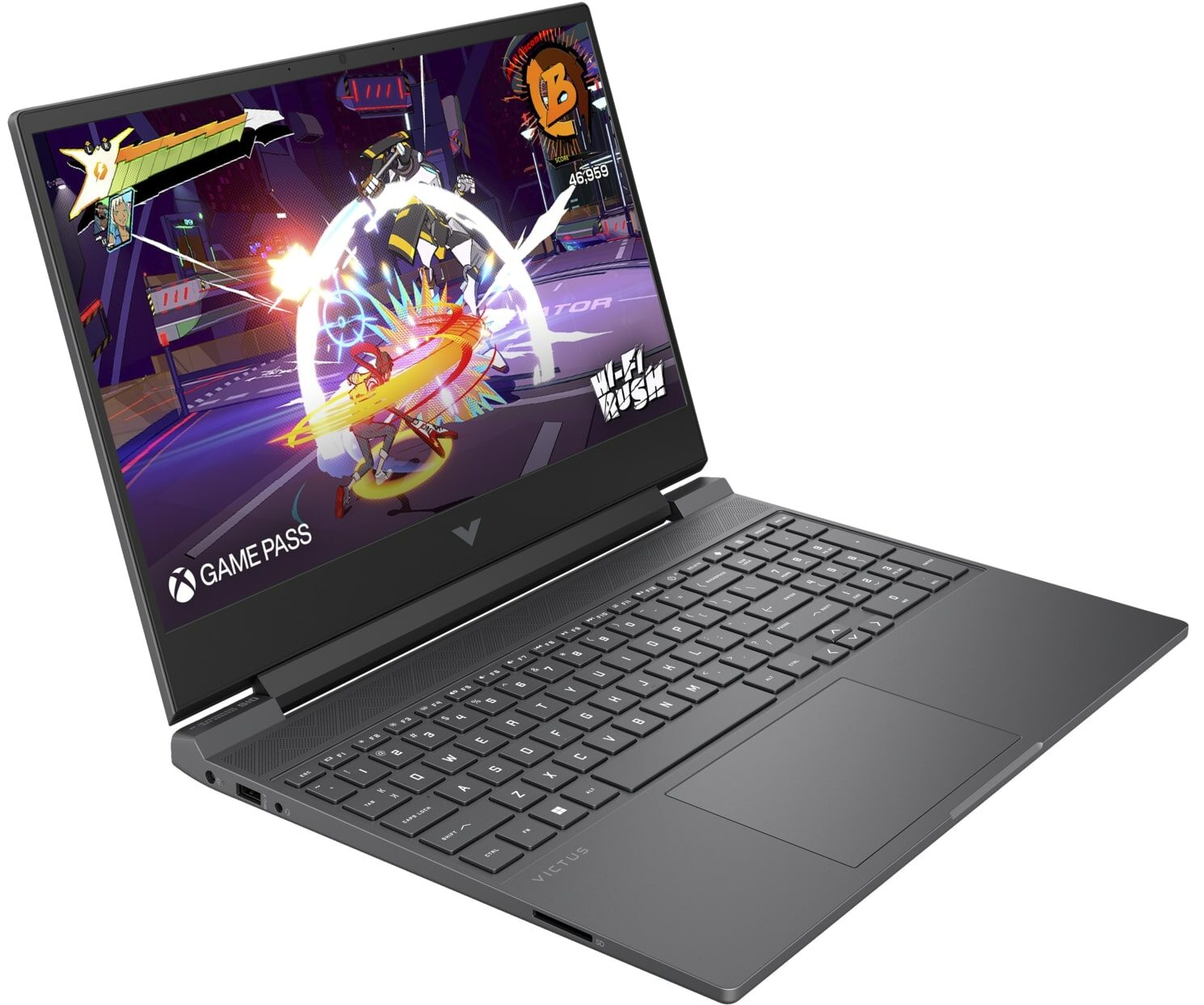
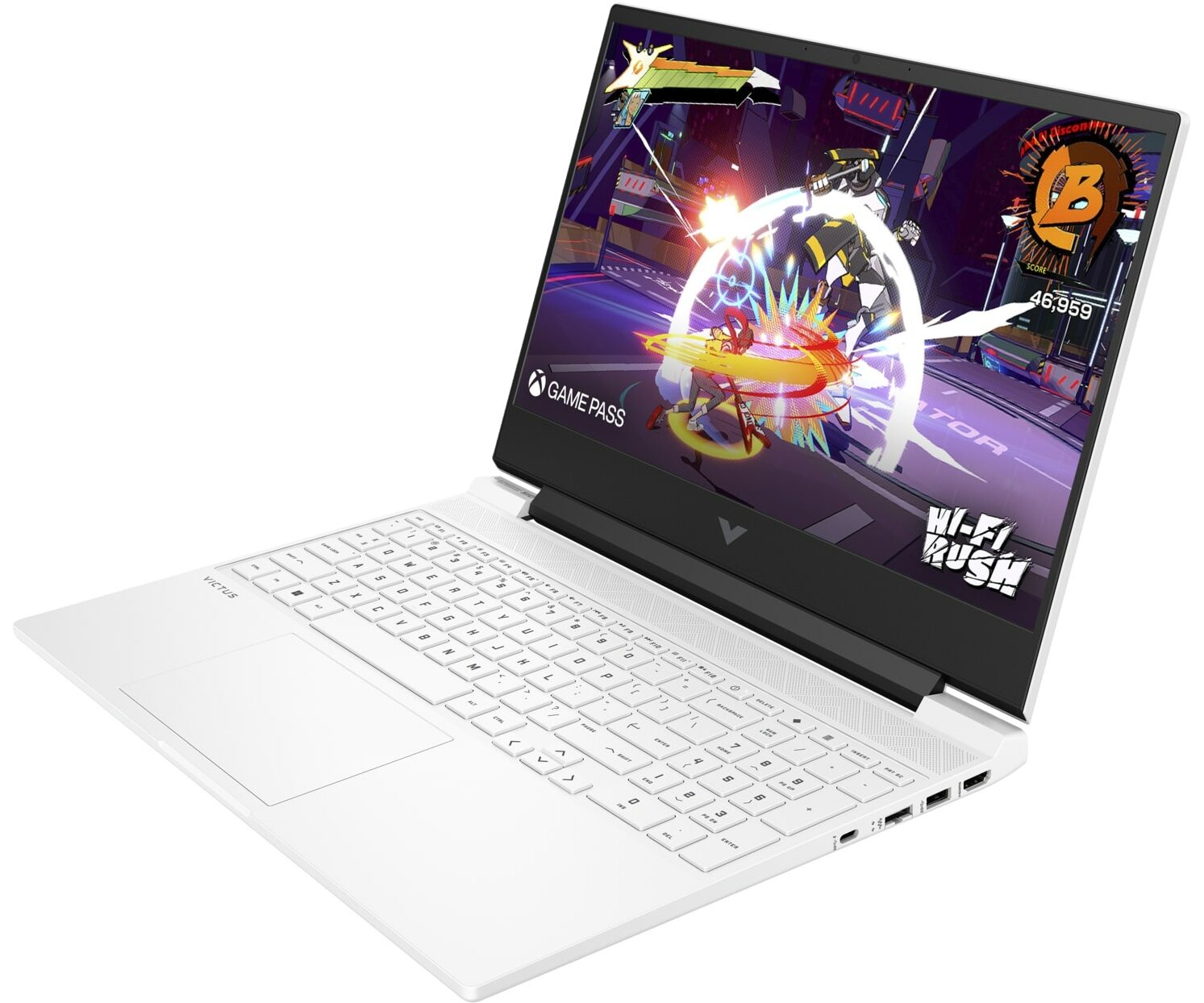
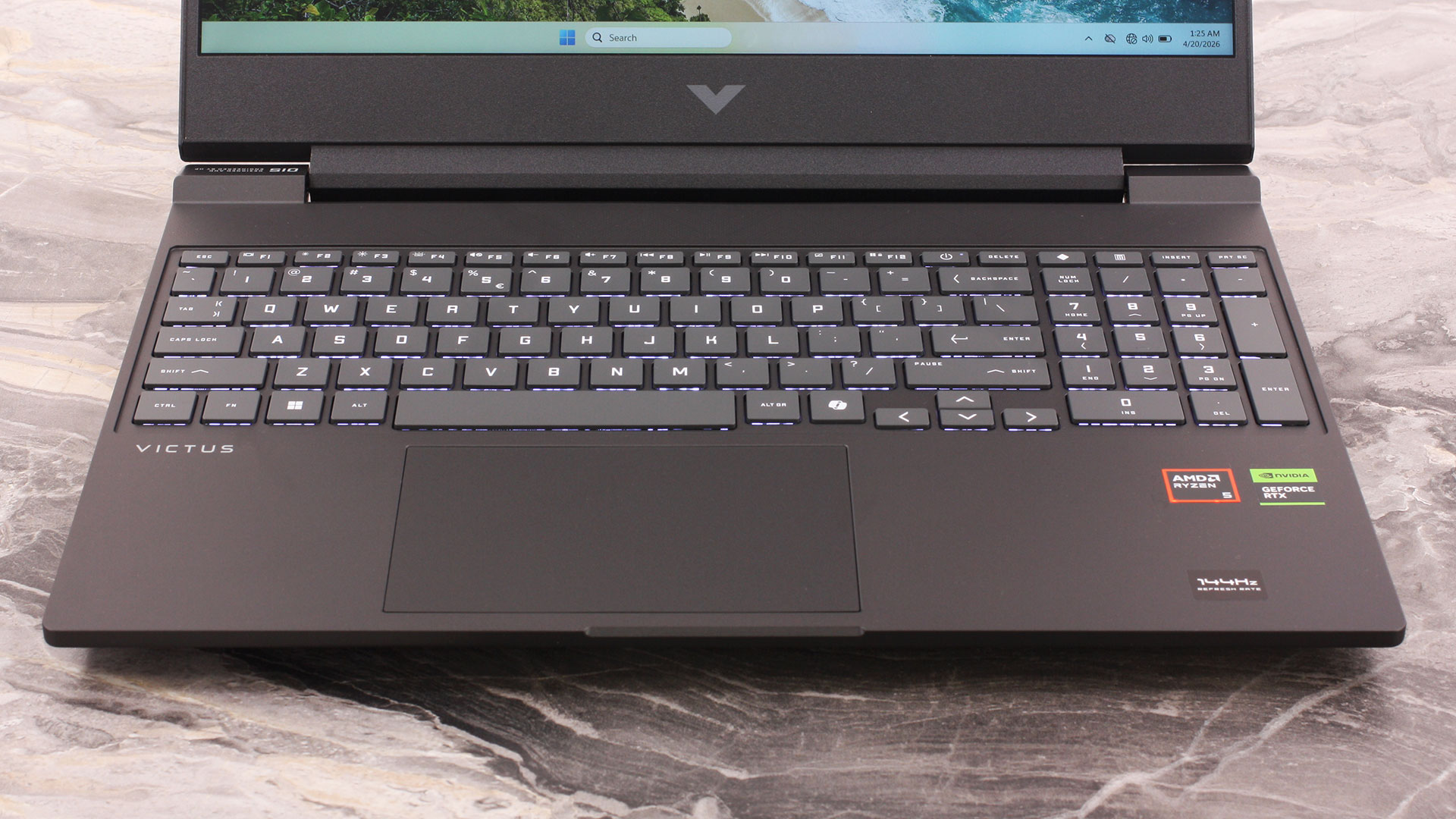
Moving down to the keyboard deck, we were thrilled to find a dedicated NumPad featuring full-sized keys – a major win for productivity tasks between gaming sessions. The typing experience is genuinely comfortable, and buyers have the choice between a 1-zone RGB or a clean white backlight. We opted for the white backlight configuration, which looks incredibly sharp against the dark grey chassis. If we have one minor gripe, it’s the arrow keys; they are cramped, half-height “halves,” which is rarely optimal for a gaming machine. Fortunately, HP did slightly offset the arrow cluster from the main keyboard, making them a bit easier to find by feel. Rounding out the input devices is a trackpad that is generously proportioned, providing plenty of smooth surface area for comfortable, everyday navigation.
Ports and Connectivity
The HP Victus Gaming 15 (15-fb3000) adopts a not very rich and somewhat asymmetrical port layout, keeping the left side relatively simple. On this flank, you will find a single USB Type-A port operating at a 5 Gbps signaling rate (USB 3.2 Gen 1), which conveniently features HP’s Sleep and Charge technology to top up accessories like your smartphone even when the laptop is powered down. A standard 3.5mm headphone and microphone combo jack is also located here, keeping your headset wire largely out of the way.

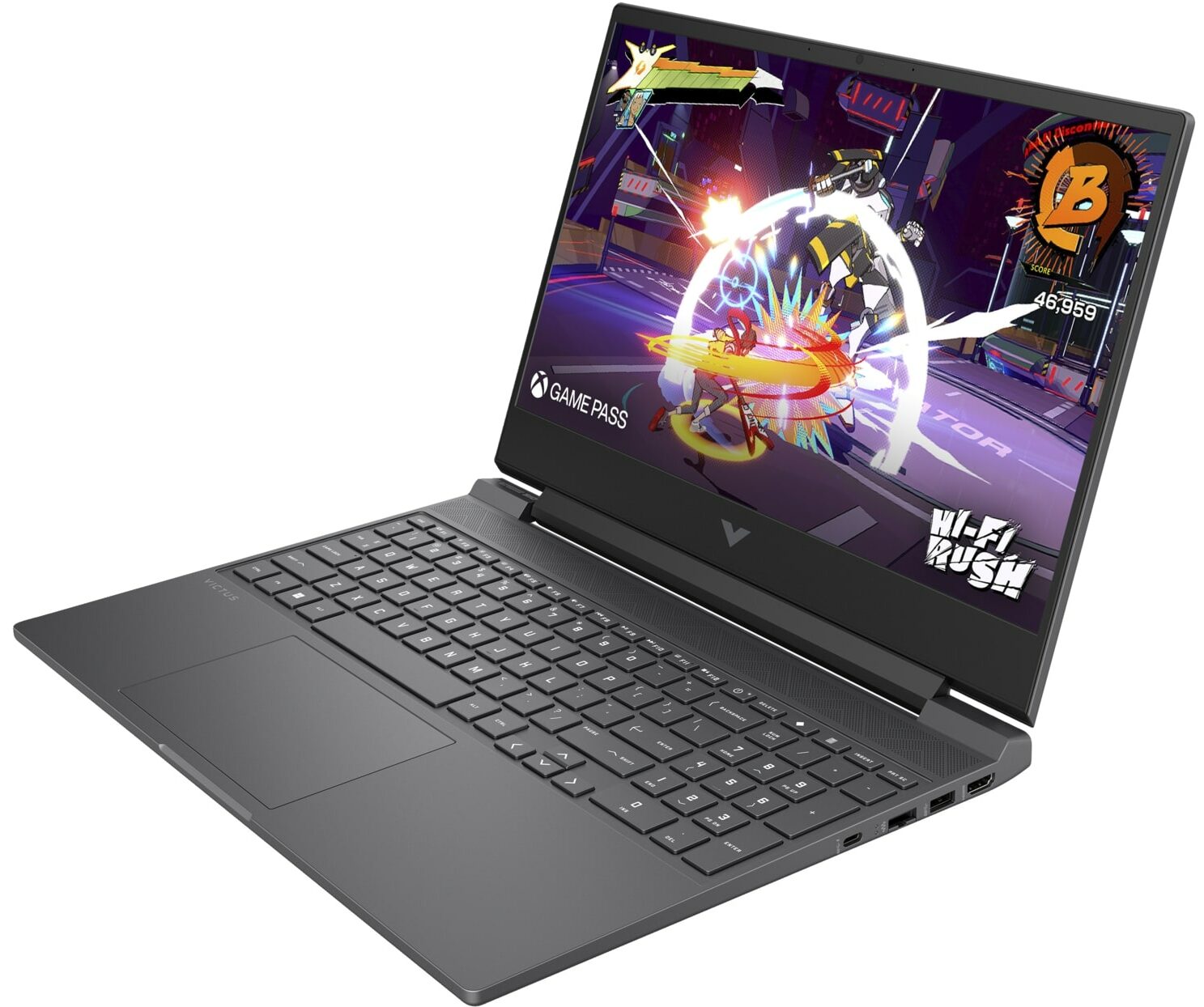
The vast majority of the connectivity is clustered on the right side of the chassis. While convenient for quick access, this can lead to cable clutter interfering with right-handed mouse movements. This side houses an HDMI 2.1 port for modern high-resolution displays, a standard Gigabit Ethernet (RJ-45) port for stable wired gaming, and a second 5 Gbps USB Type-A port. You will also find the system’s single USB Type-C port (also 5 Gbps), but potential buyers must pay close attention, as its capabilities change significantly depending on the processor under the hood. By default, it supports DisplayPort 1.4a and Sleep and Charge. However, if configured with specific processors (AMD Ryzen 7 H 255, Ryzen 7 260, or Ryzen 5 240), it gains USB Power Delivery for alternative charging. Furthermore, if your model is equipped with an AMD Ryzen AI processor, the video output is upgraded to the advanced DisplayPort 2.1 standard alongside Power Delivery support. The rear of the laptop is entirely free of I/O ports.

Wireless networking options also vary, offering two distinct configurations to be aware of. The laptop can be equipped with either a MediaTek Wi-Fi 6E card paired with Bluetooth 5.3, or a Realtek Wi-Fi 6 card accompanied by Bluetooth 5.4. Both utilize a 2×2 antenna setup, but the MediaTek option is generally more desirable as Wi-Fi 6E grants access to the much less congested 6 GHz band, which can noticeably reduce latency during online gaming. We strongly recommend checking the specific hardware details of your chosen model before purchasing to ensure you receive the networking card you prefer.
Display and Sound Quality, Display Profiles
We ordered the HP Victus 15 (15z-fb2000 / fb3000) with the more premium 15.6-inch Full HD (1920 × 1080) IPS panel at 144 Hz (CMN1560). If you want a more affordable configuration, HP also offers a standard Full HD IPS option without the higher refresh rate.
| HP Victus 15 (15z-fb2000 / fb3000) | 15.6″, Full HD (1920 x 1080), IPS | 15.6″, Full HD (1920 x 1080), 144 Hz, IPS (CMN1560) |
| Diagonal | 15.6 inches (39.6 cm) | 15.6 inches (39.6 cm) |
| Panel Type | IPS | IPS |
| Resolution | 1920 x 1080 pixels | 1920 x 1080 pixels |
| Max Refresh Rate | 60 Hz | 144 Hz |
| Aspect Ratio | 16:9 | 16:9 |
| Pixel Density | 141 PPI | 141 PPI |
| ‘Retina’ Distance | 62 cm or greater | 62 cm or greater |
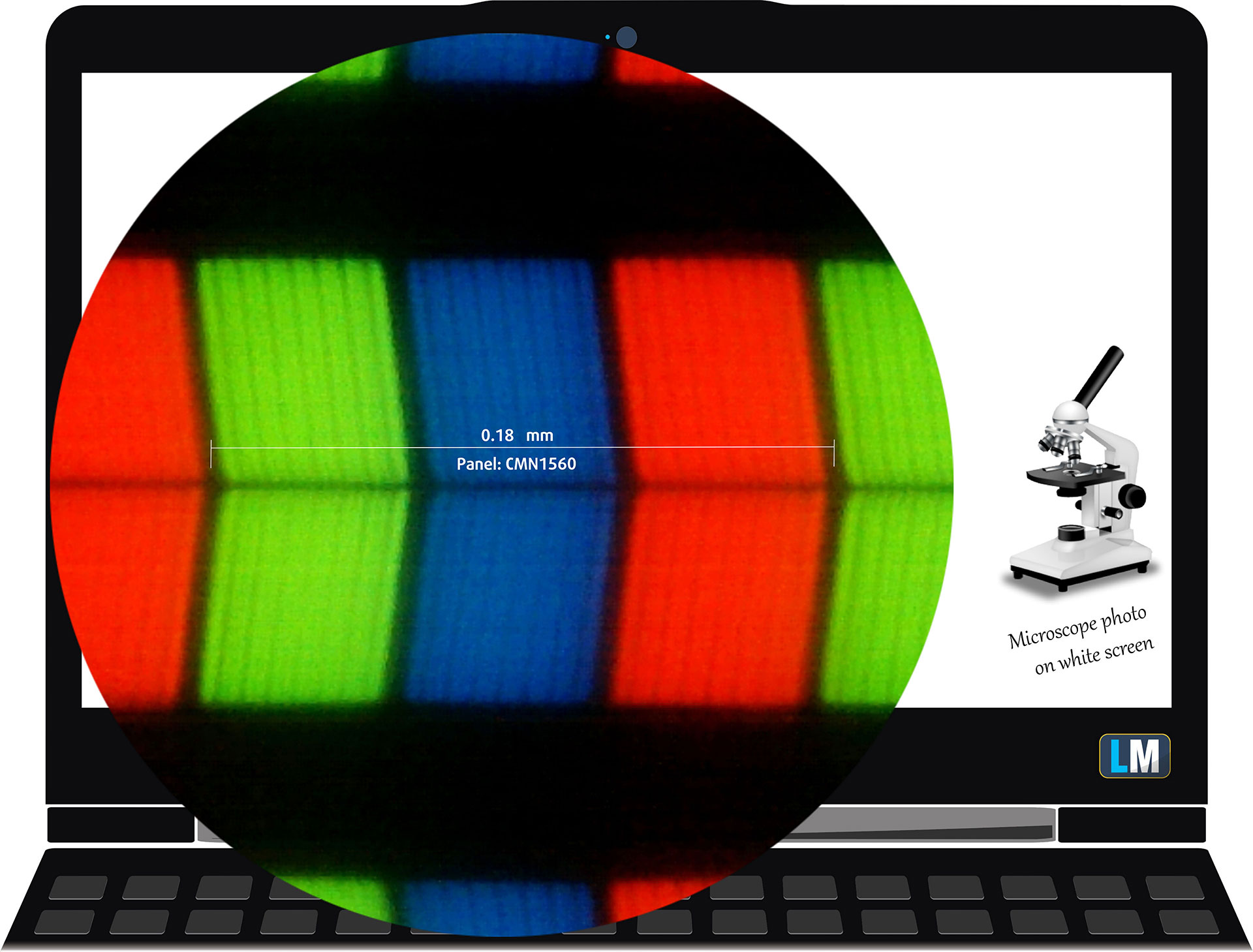 The Full HD (1920 x 1080), 144 Hz, IPS display variant under our microscope
Viewing Angles
Viewing angles are good. We take photos from different angles to evaluate the quality.

Also, a video with locked focus and exposure.
Color Coverage
The whole “sail-shaped” map below (Fig. 1) consists of all the colors we can see, while the black curved line shows all the colors from real-world scenes and nature around us.
Then, we’ve drawn some of the most important and interesting color spaces, compared to the colors the panel of HP Victus Gaming 15 (15-fb3000) can show:
Standard/For Web: sRGB – widely used color space for most consumer devices, ideal for Web design and development.
For Print: AdobeRGB – used in professional photo editing, graphic design, and print
For Photographers/Video Editors: DCI-P3 – used in high-end film production, post-production, and digital cinema
Premium HDR: Rec.2020 – one of the widest consumer color standards, covering 75.8% of the visible spectrum and serving as a benchmark for premium HDR content.
HP Victus Gaming 15 (15-fb3000): the yellow dashed triangle (– – – – – –) represents the range of colors this display can show.
In our tests, we calculated the total color coverage of the display at 57% of the sRGB color gamut and 45% of the DCI-P3 color gamut.
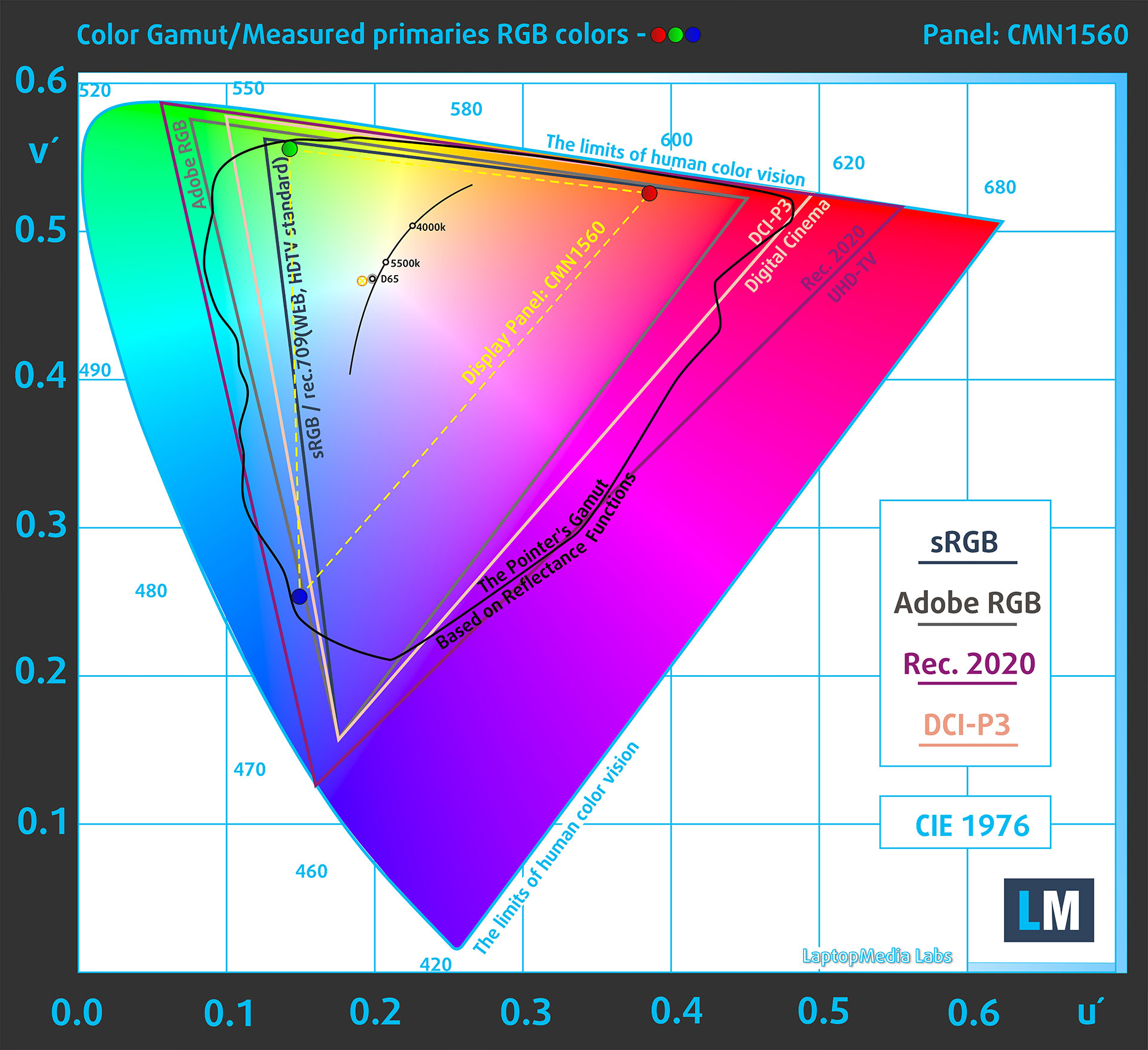
(Fig.1) HP Victus Gaming 15 (15-fb3000) covers 57% of the sRGB gamut
Brightness and Contrast
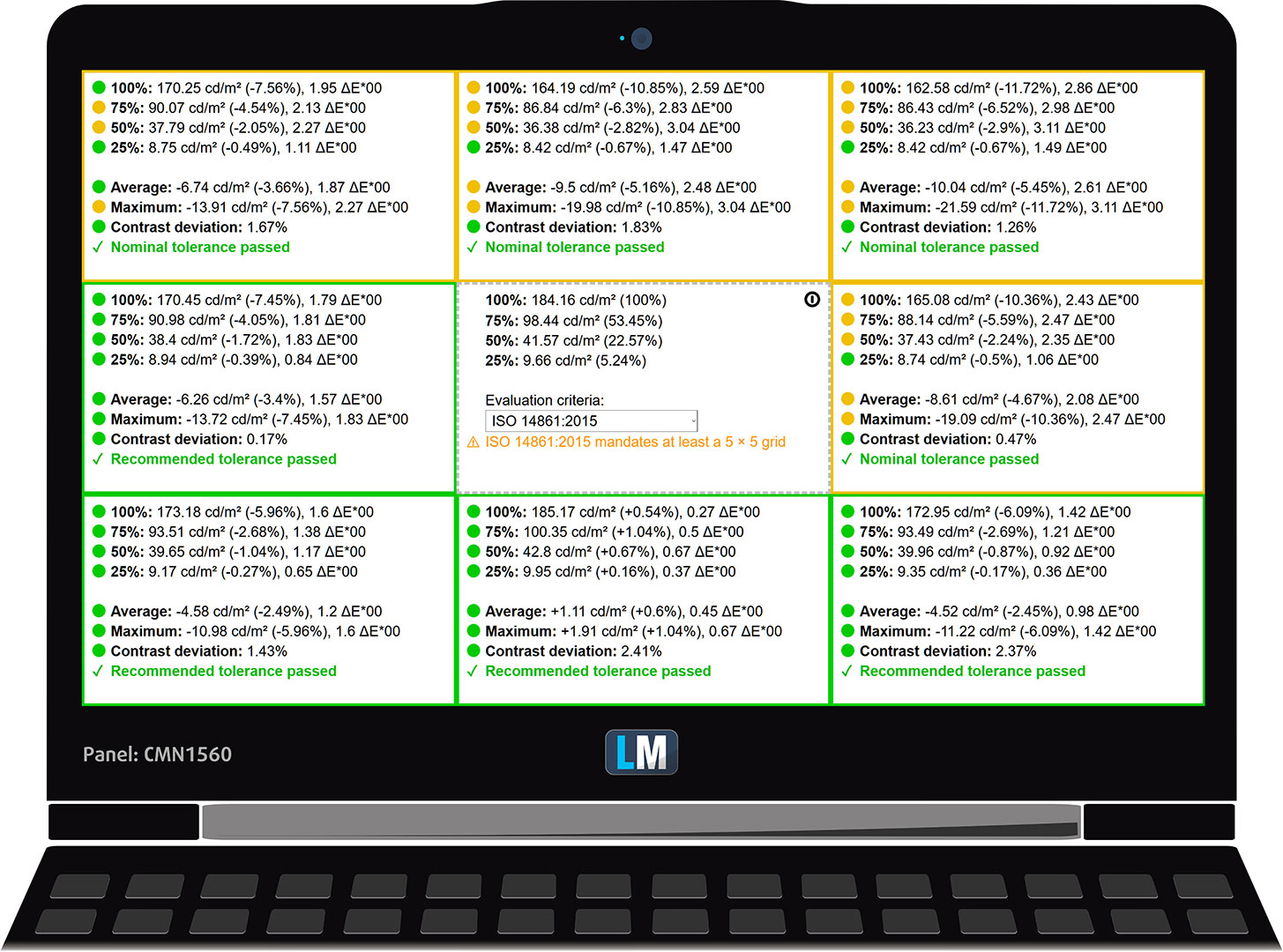
The maximum brightness in SDR mode is 329 cd/m² in the center of the screen and 309 cd/m² averaged across the surface with a maximum deviation of 11%.
The Correlated Color Temperature (CCT) on a white screen at maximum brightness is 7060K.
The contrast ratio is 1590:1.
Uniformity: Luminance, Contrast, and Color Deviation
The figure below shows the results from our uniformity test across different sections of the screen. It’s measured at 184 nits (Windows slider = 76%) – a brightness level we consider typical for standard working conditions.
DeltaE values below 4.0 are acceptable for regular users. For those working with colors, screens with DeltaE values no higher than 2.0 are recommended.
Color Accuracy
Let’s check the difference between real colors and those you’ll see on the HP Victus Gaming 15 (15-fb3000). We measure that distance in DeltaE – the higher the number, the more different they look.
Values below 4.0 are acceptable for regular users, while values below 2.0 are suitable for color-sensitive work. A value below 1.0 means the difference is indistinguishable to the naked eye.
For the next graph, we’ve selected 24 common colors, including dark/light skin, blue sky, green grass, etc.
Before our calibration of the HP Victus Gaming 15 (15-fb3000), the Average color accuracy was 4.8 dE (Fig. 2), and with our Design and Office profile, it improved to 3.5 dE (Fig. 3).
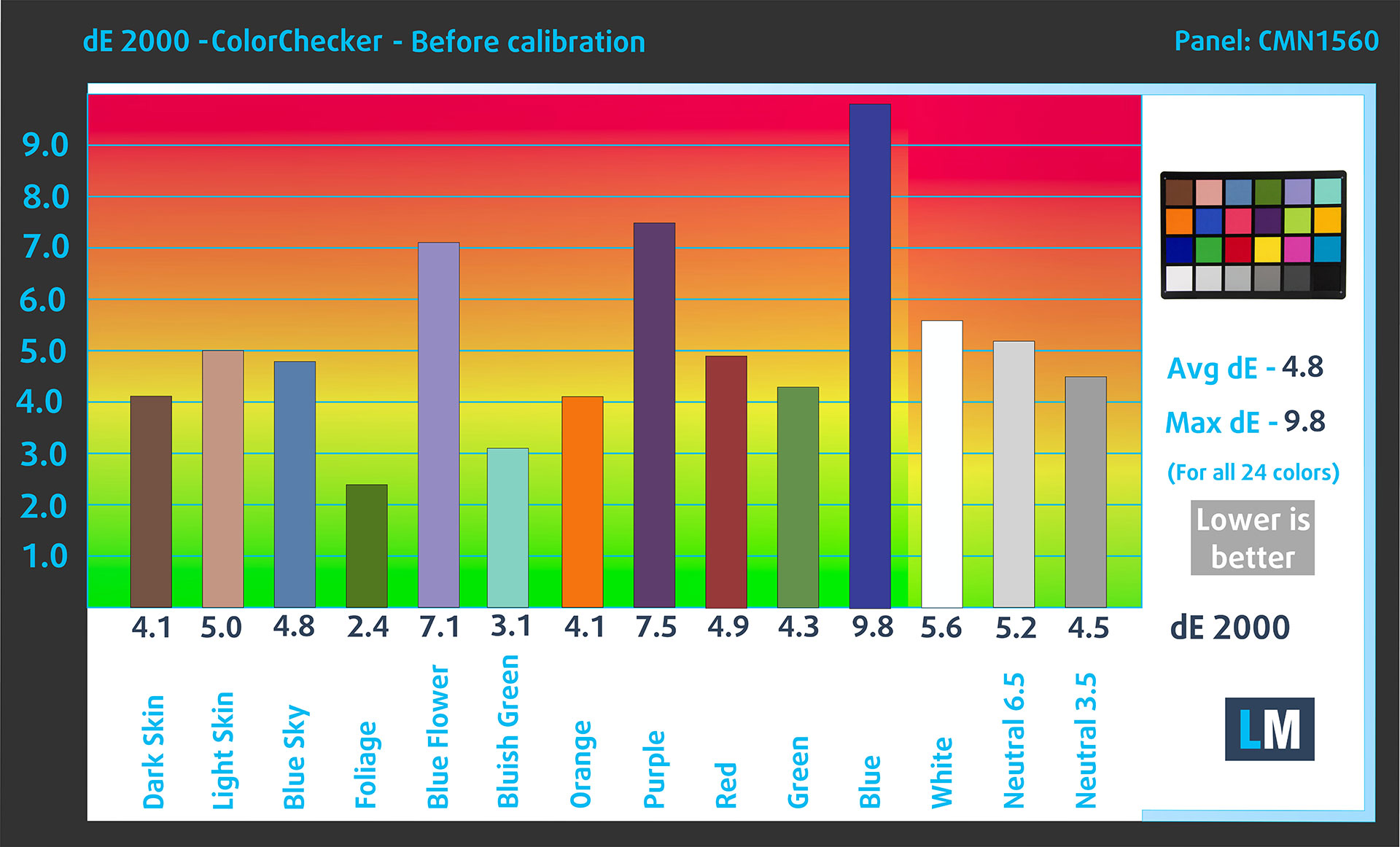
(Fig. 2) HP Victus Gaming 15 (15-fb3000) in its factory condition
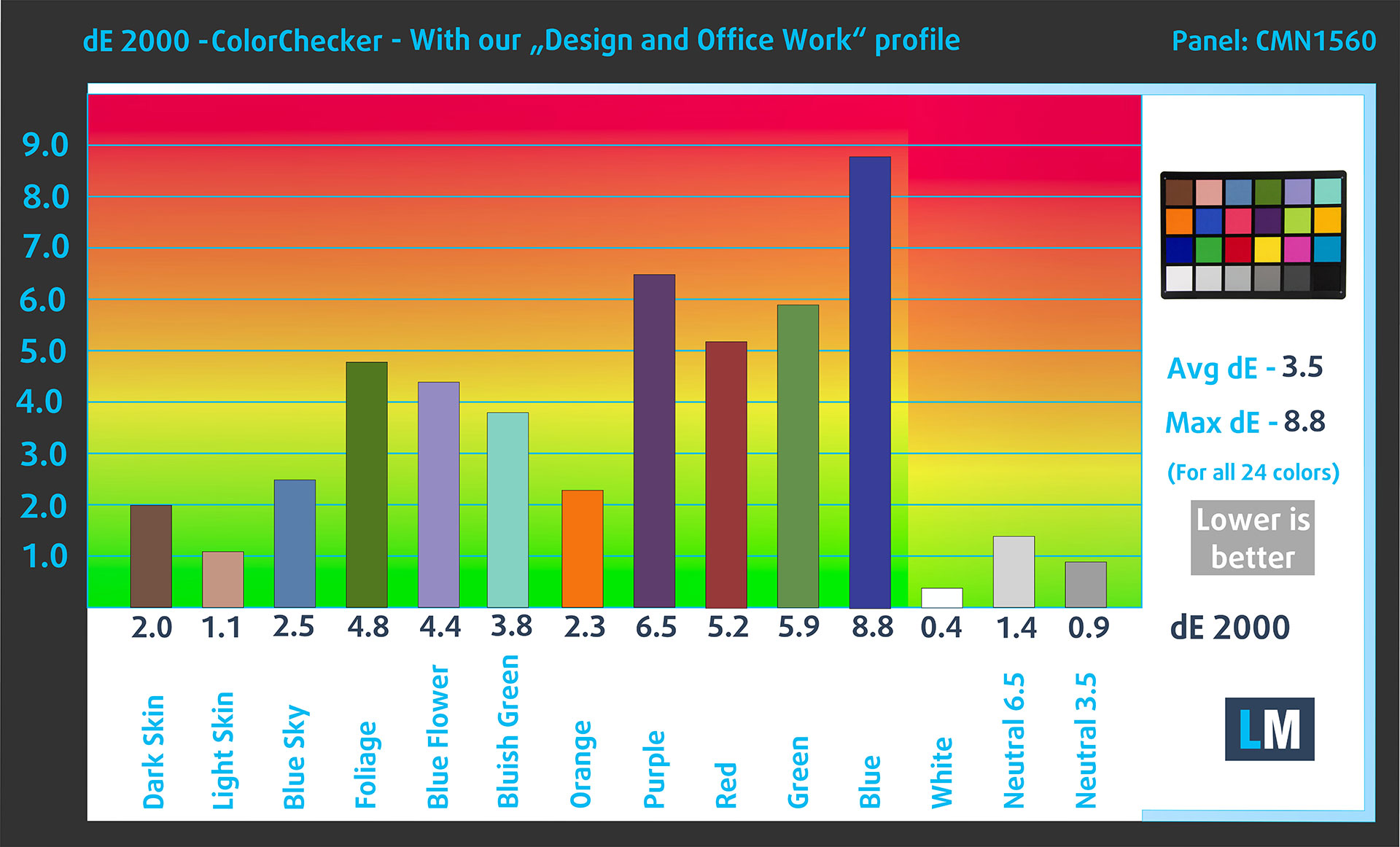
(Fig. 3) HP Victus Gaming 15 (15-fb3000) with our display profile
Comparison in the sRGB color space.
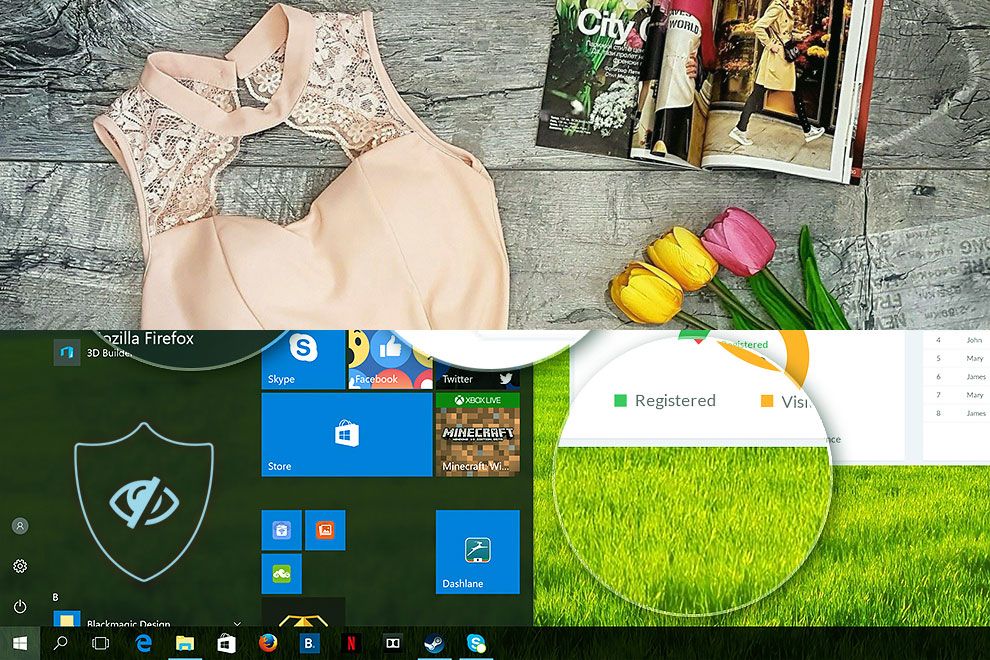
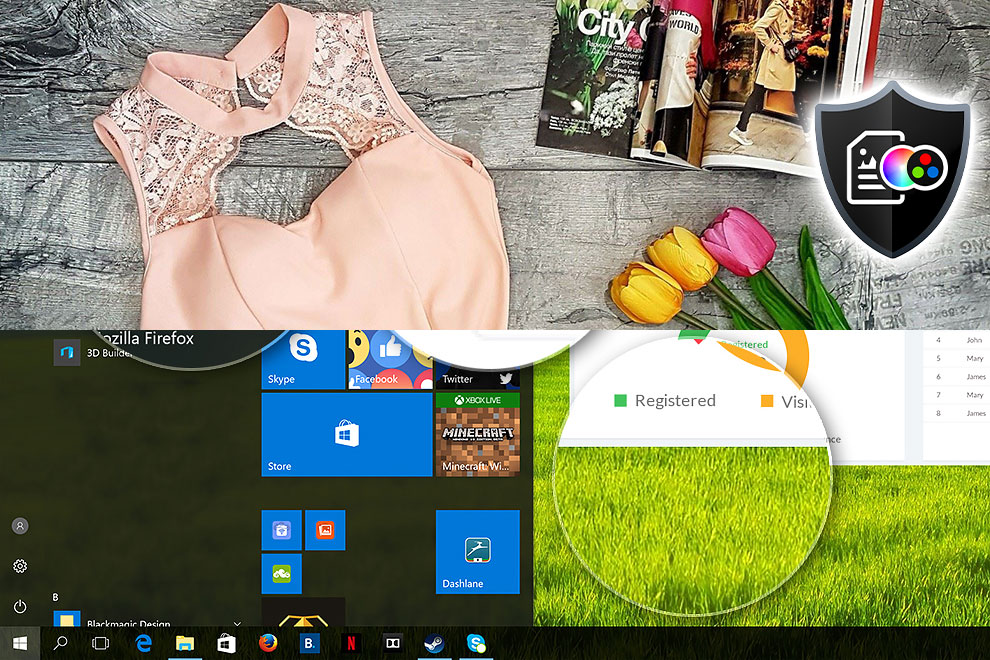
Here’s an illustration of what the Design and Office profile aims to deliver:
Left: No Profile | Drag the slider to see the difference | Right: Design & Office Profile
Visibility in dark scenes
Have you ever watched a movie with dark scenes where you could barely see anything? This often happens because many display panels struggle to differentiate the darkest nuances, making them appear the same.
The next figure illustrates how well the display reproduces these dark nuances. The left side of the image shows the display with stock settings, and the right side shows it with our Gaming and movies profile activated.
On the horizontal axis are the grayscale levels, and on the vertical axis – the corresponding display brightness.
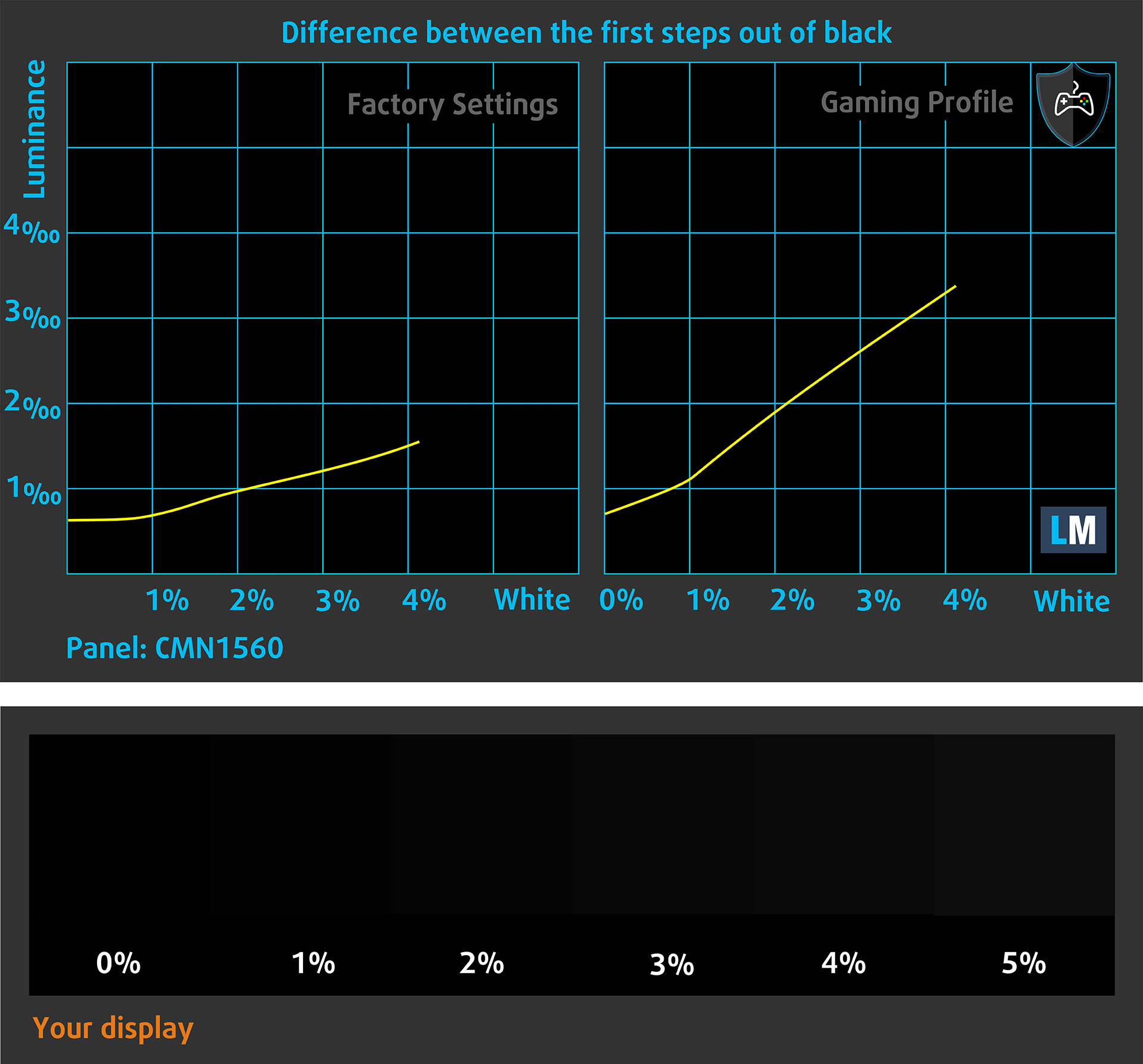
You can also check how your display handles the darkest nuances but keep in mind that this also depends on the settings of your current display and the surrounding light conditions.
Response time (Gaming capabilities)
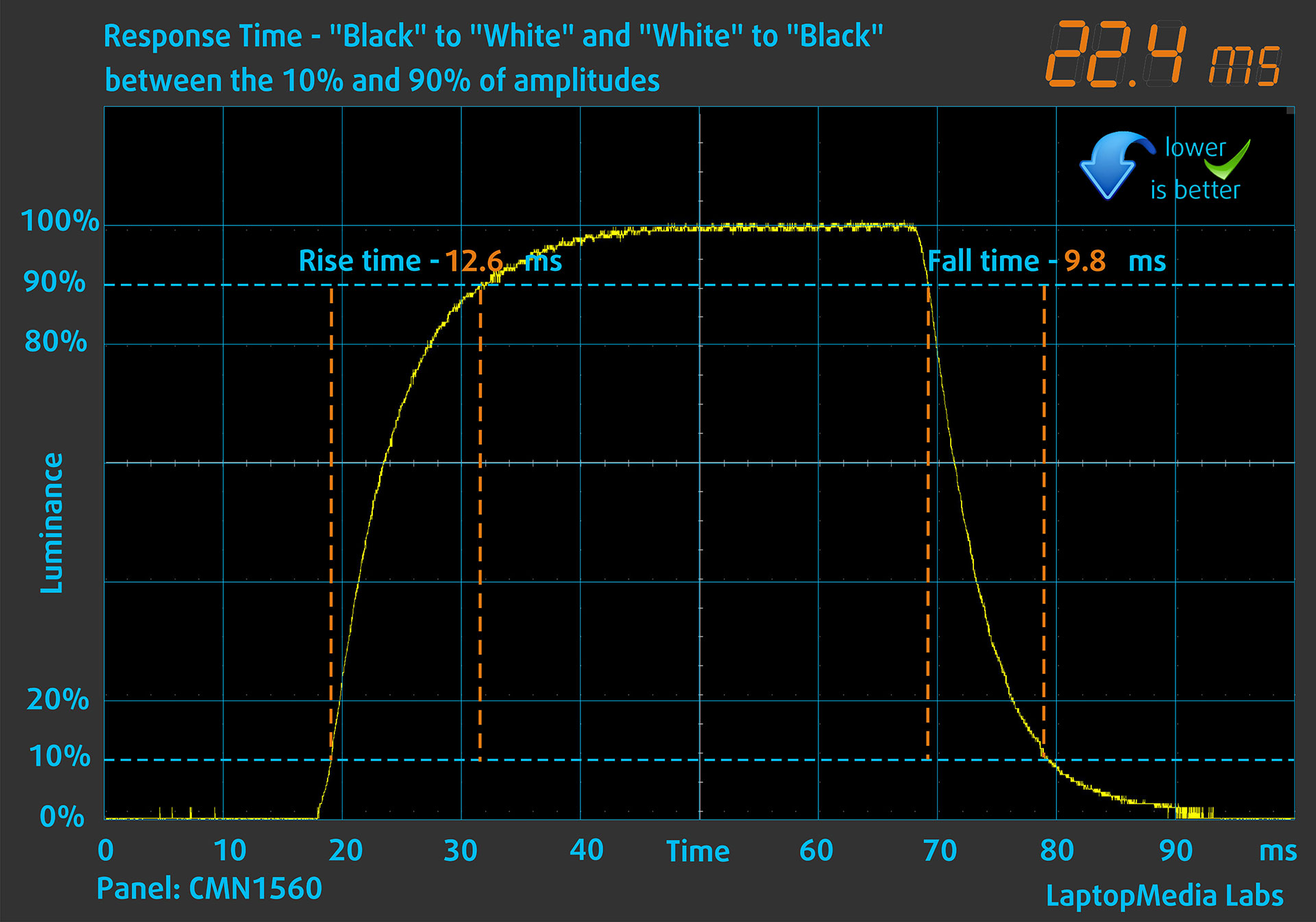
We test the reaction time of the pixels with the usual “black-to-white” and “white-to-black” method from 10% to 90% and vice versa.
We recorded Fall Time + Rise Time = 22.4 ms.
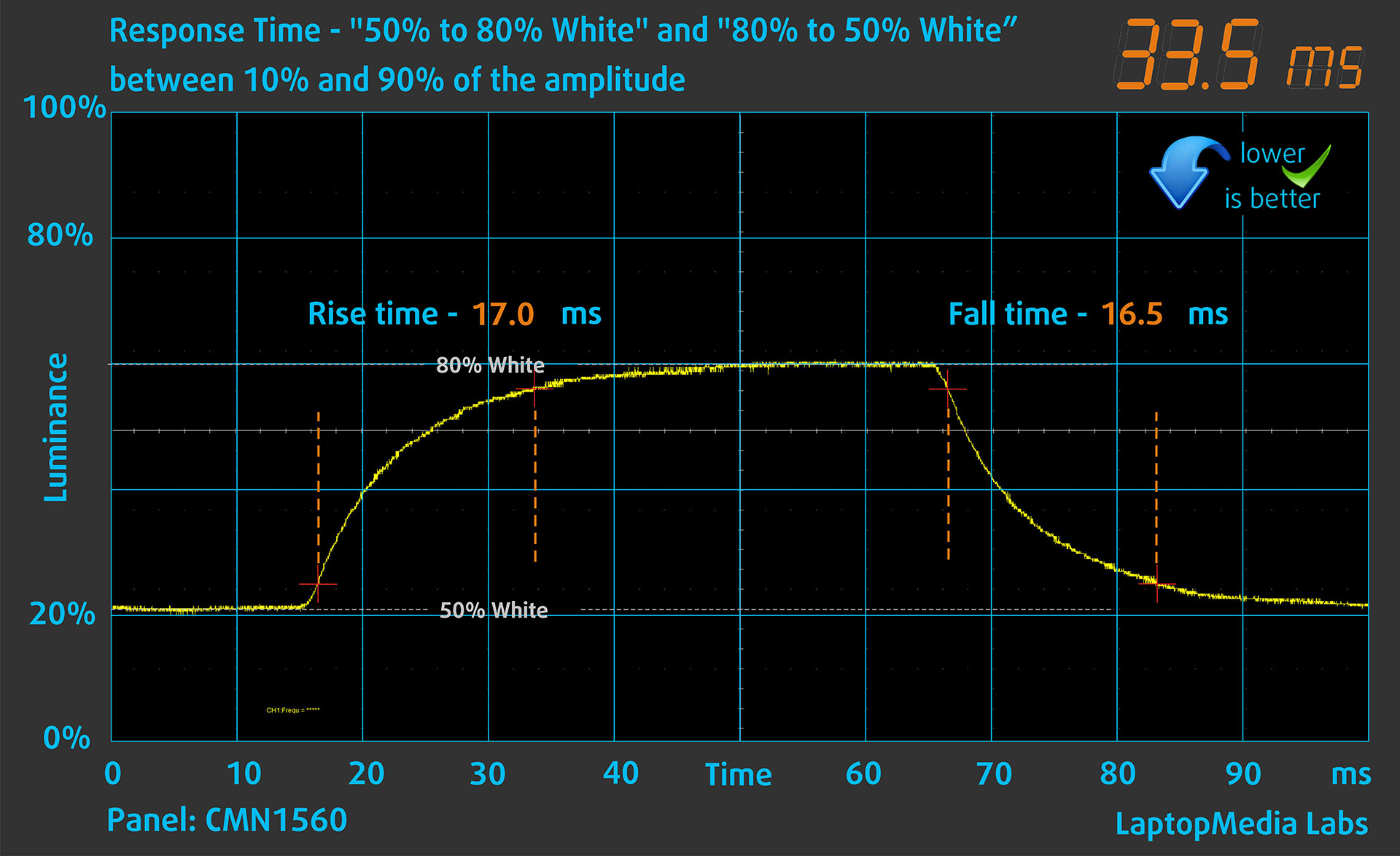
After that, we test the reaction time of the pixels with the usual “Gray-to-Gray” method from 50% White to 80% White and vice versa between 10% and 90% of the amplitude.
Health Impact: PWM (Screen flickering)
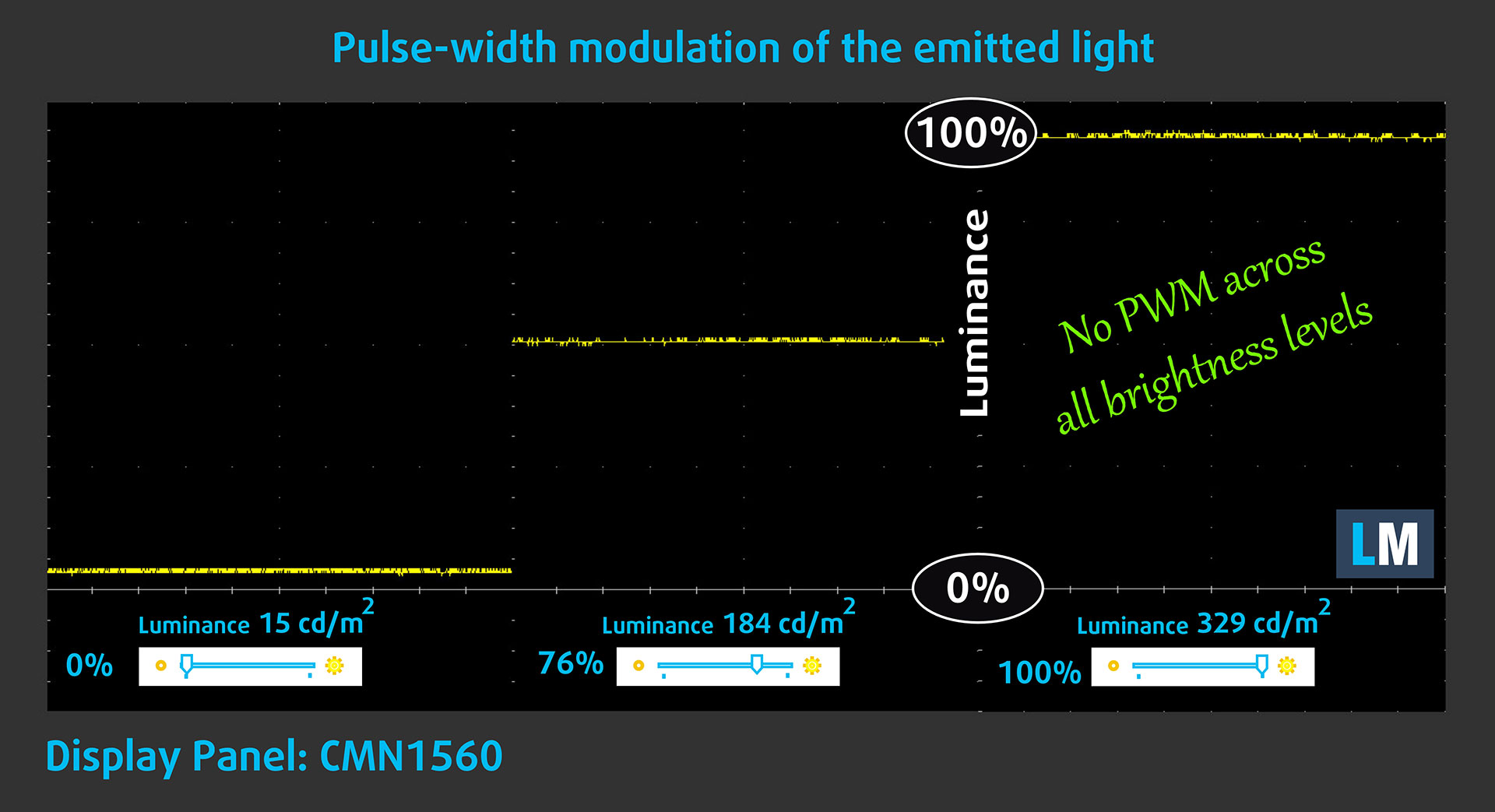
Some displays use PWM to regulate brightness , which means that instead of reducing the light intensity, they pulse or flicker. Our brain merges the image, so it appears darker, but this strains both it and our vision, especially when the frequency of the pulses is low. You can read more about that in our dedicated article on PWM.
In the graph below, you see the intensity of light at different brightness levels—on the vertical axis is the brightness of the emitted light, and on the horizontal axis—time.
The HP Victus Gaming 15 (15-fb3000)‘s display does not use PWM to regulate brightness, which makes it comfortable for prolonged use in this aspect.
Health Impact: Blue light emissions
Installing our Health-Guard profile reduces harmful Blue Light emissions while keeping the colors of the screen perceptually accurate.
If you’re not familiar with the Blue light, the TL;DR version is – emissions that negatively affect your eyes, skin, and your whole body. You can find more information about that in our dedicated article on Blue Light.
Health Impact: Screen Reflectance
Glossy-coated displays can cause eye fatigue in high ambient light conditions due to reflections. We measure the level of screen reflection with the display turned off, at a 60° angle.
The reflectance of the HP Victus Gaming 15 (15-fb3000)’s screen is 52.5 GU. Good result.
High Gloss: >70 GU
Medium Gloss: 30 – 70 GU
Low Gloss: <30 GU
Get our profiles
Since our profiles are tailored for each individual display model, this article and its respective profile package are meant for HP Victus Gaming 15 (15-fb3000) configurations with CMN1560, 1920 x 1080, IPS panel.
*Should you have problems with downloading the purchased file, try using a different browser to open the link you’ll receive via e-mail. If the download target is a .php file instead of an archive, change the file extension to .zip or contact us at [email protected].
Read more about the profiles HERE.
In addition to receiving efficient and health-friendly profiles, by buying LaptopMedia's products you also support the development of our labs, where we test devices in order to produce the most objective reviews possible.

Design and Office
The Design and Office profile makes display colors as close to real as possible.Ideal not only for professionals but also for everyday users, it meets sRGB standards (D65 white point, sRGB gamma) with minimal DeltaE for precise color reproduction on your panel.

Gaming and Movies
Have you ever watched a movie where, during dark scenes, you can barely see anything? Many displays fail to distinguish dark tones properly. Our Gaming and Movies profile enhances low-light performance, like HDR tech, using a gamma curve tailored to human perception — ideal for gamers seeking faster reactions and clearer visuals.

Health-Guard
Our Health-Guard profile protects your eyes by eliminating PWM flickering, reducing strain and fatigue, and minimizing harmful Blue light exposure that can disrupt sleep and health. It uses software dimming and a gamma curve tailored to human perception for comfort and safety during screen use.
Get All The Profiles With 33% Discount!

Sound
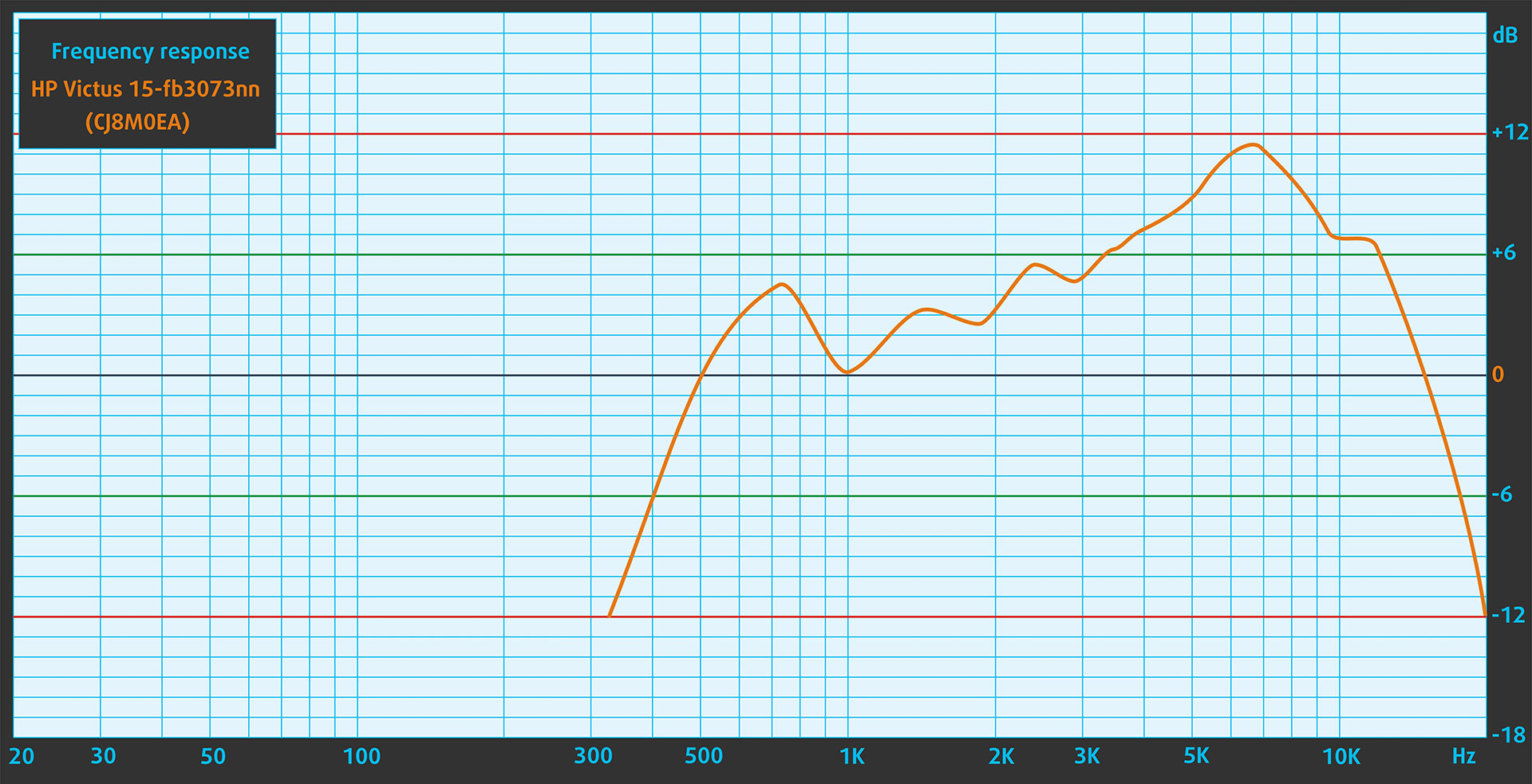
The HP Victus Gaming 15 (15-fb3000)’s sound is of good quality. The low, mid, and high frequencies are clear.
Work Performance: CPU, Storage, AI
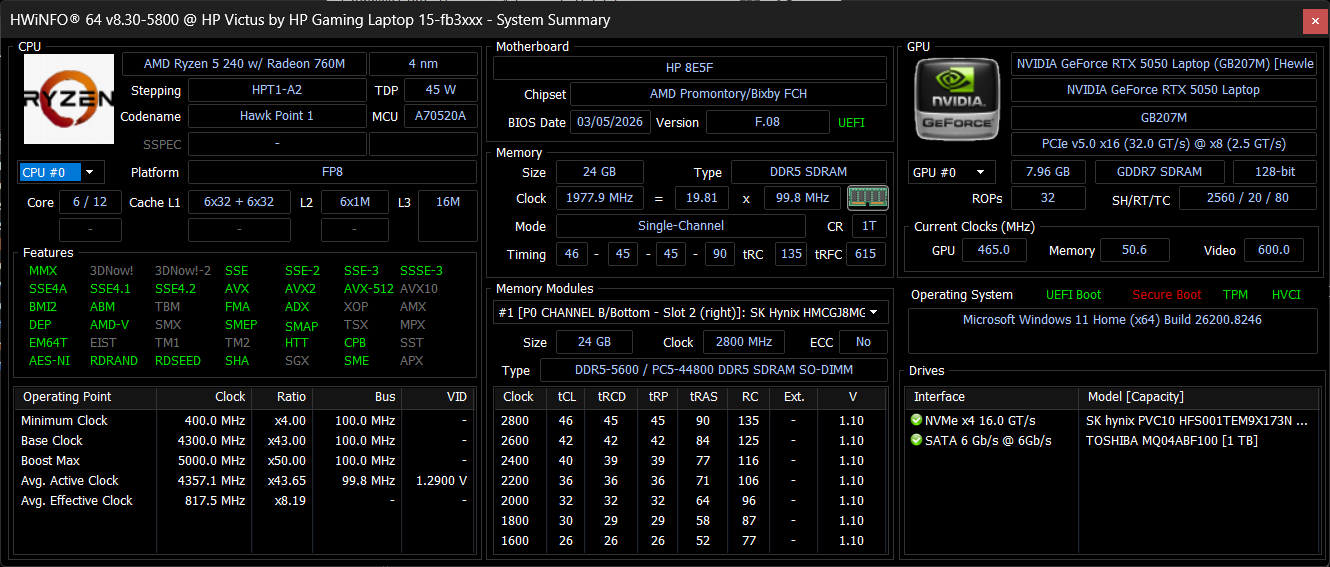
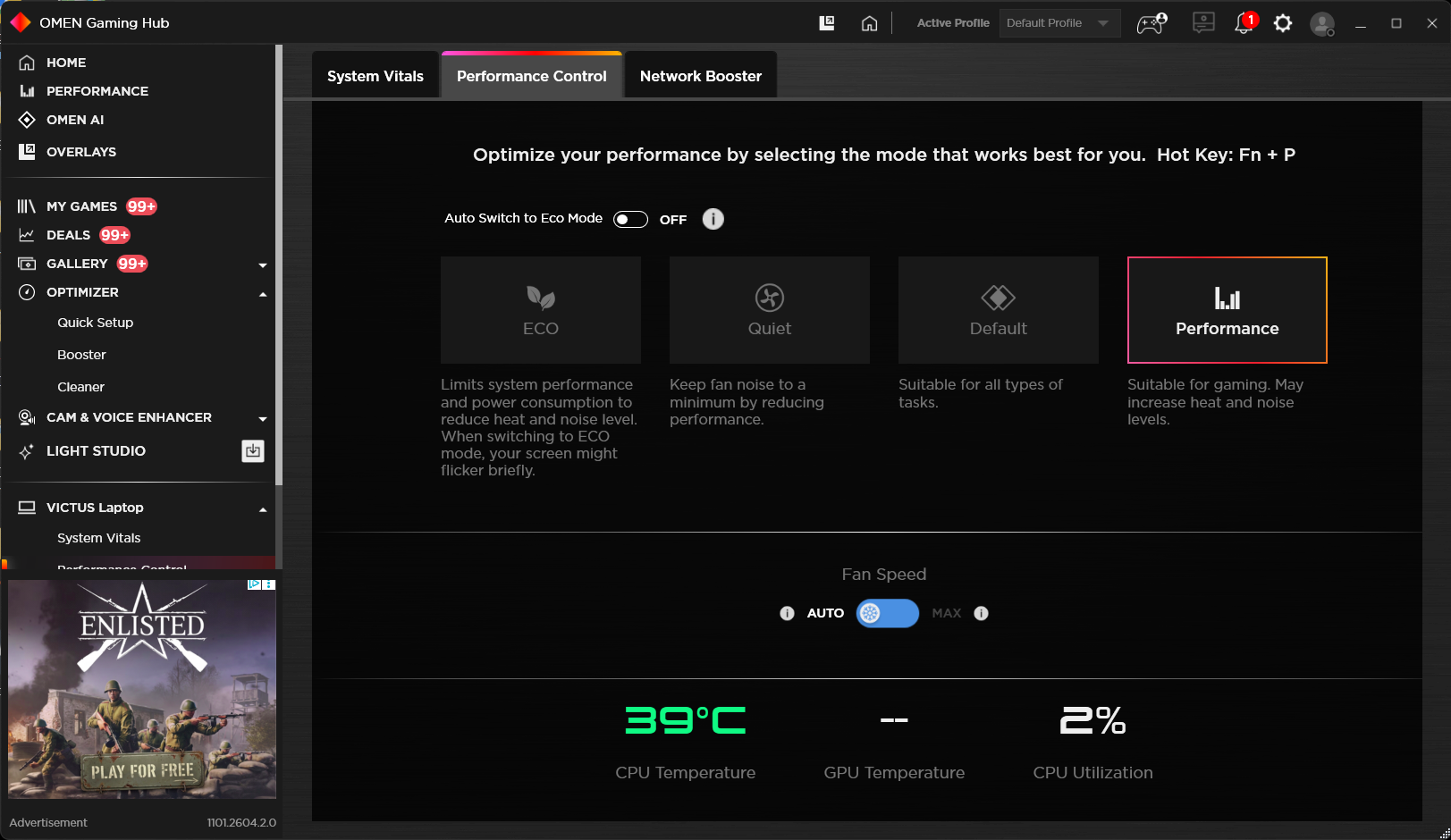
All performance and temperature tests are conducted with Performance mode activated in OMEN Gaming Hub:
CPU and Work Performance
The HP Victus Gaming 15 (15-fb3000) is available with a broad range of AMD processors, from more budget-oriented chips like the Ryzen 5 7535HS and Ryzen 5 240 to stronger options such as the Ryzen 7 8845HS and Ryzen AI 7 350. The lineup also includes several Ryzen AI models, which add newer AI-focused capabilities while still targeting mainstream gaming and productivity use. Since the performance spread between these CPUs is quite wide, it is worth checking our Top Laptop CPU Ranking before choosing a configuration.
We ordered a configuration with the Ryzen 5 240. Its performance is similar to Intel Core i5-13450HX.
Single-core performance ensures smooth operation and responsiveness in operating systems, providing a better user experience.
Results are from the Geekbench 6 Single-Core test (higher is better)
Multi-core performance is essential for handling complex and demanding tasks, such as Video editing, CAD, and Scientific simulations.
Results are from the Geekbench 6 Multi-Core test (higher is better)
Here, we evaluate the CPU's performance using a real-world 3D rendering task, assessing its ability to handle complex computations and rendering workloads efficiently.
Results are from the Cinebench 2024 Multi-Core test (higher is better)
Storage Performance
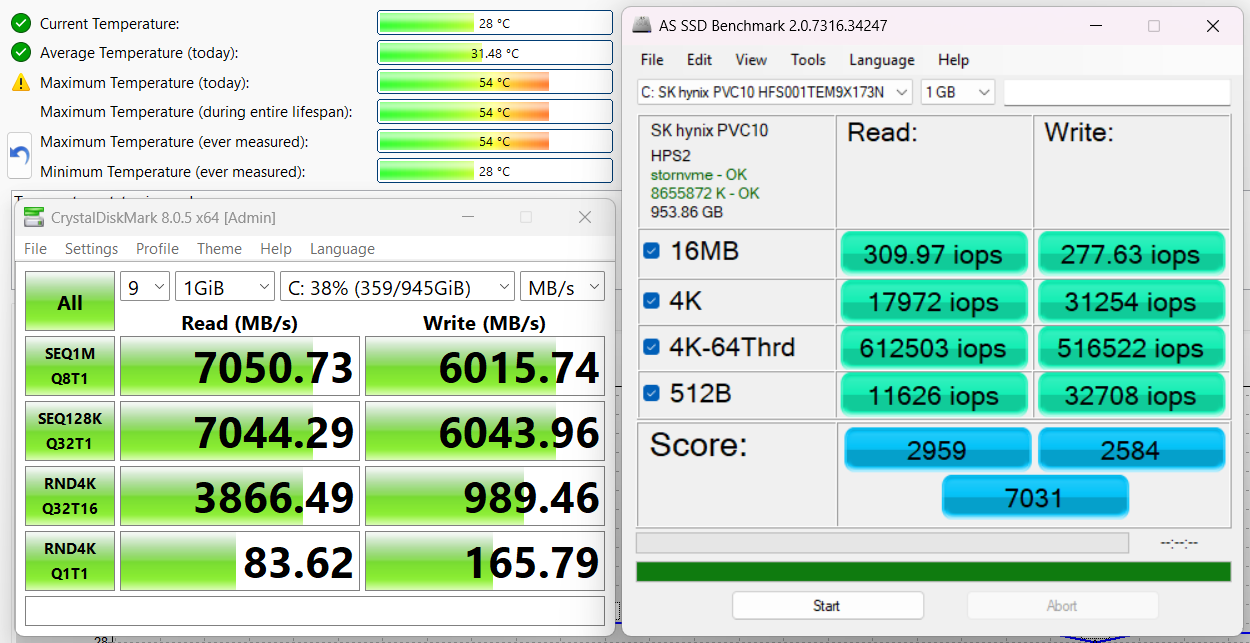
We ordered a configuration with 1TB of storage and the Victus Gaming 15 arrived with SK Hynix PVC10 (HFS001TEM9X173N).
It’s a very powerful PCIe 4.0 NVMe drive, reaching 7.1GB/sec sequential read and 6.0GB/sec sequential write speeds in our benchmark, while keeping the temperatures rather low.
AI Performance
Here you can see the position of the GPUs and CPUs (NPUs) found within the HP Victus 15 (15z-fb2000, fb3000) in our AI Hardware Performance Rankings based on their AI processing power, measured in TOPS (Tera Operations Per Second) - a critical metric indicating the computational throughput, particularly for AI tasks.
The first column shows peak performance for INT8/FP8 precision, which is the most widespread metric for evaluating AI inference capabilities. We exclude Sparsity to provide a more accurate reflection of AI performance in dense computation scenarios where sparsity optimizations may not be applicable. The second and third columns show the performance with Sparsity, and FP4 TFLOPS, when supported.
For SoCs, the results reflect the peak performance of the integrated NPU. Additionally, it’s important to note that, according to Microsoft, a NPU must have at least 40 TOPS of AI computing power for the PC to be considered “AI-capable.”
| # | GPU / CPU (NPU) | TOPS INT8/FP8 No Sparsity | TOPS INT8/FP8 Sparsity | TFLOPS FP4 Sparsity |
|---|---|---|---|---|
| 1009. | NVIDIA GeForce RTX 5060 (Laptop) | 133 | 266 | 532 |
| 1149. | NVIDIA GeForce RTX 4060 (Laptop) | 116 | 232 | — |
| 1282. | NVIDIA GeForce RTX 4050 (Laptop) | 97 | 194 | — |
| 1464. | NVIDIA GeForce RTX 3050 (Laptop) | 57 | 114 | — |
| 1544. | AMD Ryzen AI 7 350 | 50 | — | — |
| 1574. | AMD Ryzen AI 5 340 | 50 | — | — |
| 1580. | NVIDIA GeForce RTX 2050 (Laptop) | 48 | 96 | — |
| 1698. | AMD Ryzen 5 8645HS | 16 | — | — |
| 1699. | AMD Ryzen 5 240 | 16 | — | — |
| 1705. | AMD Ryzen 7 260 | 16 | — | — |
| 1706. | AMD Ryzen 7 8845HS | 16 | — | — |
| 1712. | AMD Ryzen 5 8640HS | 16 | — | — |
GPU and Gaming Performance
Just like the CPUs, Graphics options are also varied, covering entry-level and mid-range gaming GPUs. Depending on the configuration, the Victus Gaming 15 can come with the GeForce RTX 2050, RTX 3050, RTX 4050, RTX 5050, or RTX 5060, as well as the AMD Radeon RX 6550M. The RTX 5060 is the highest-ranked option listed here at #72 in our Top Laptop Graphics Ranking, while the RTX 5050 and RTX 4050 also provide more capable gaming performance than the older entry-level choices.
We ordered a configuration with an RTX 5050. Its performance in Victus 15-fb3000 is relatively high, trailing 13% behind the super powerful Lenovo Legion 5 15″, Gen 10 (detailed review), while managing to beat Acer Nitro V 15 ANV15-52 (detailed review) by 3%, and Lenovo LOQ Essential 15IRX11, Gen 11 (detailed review) by 10%.
The results are from 3DMark Time Spy (Graphics). Higher is better.
The results are from 3DMark Wild Life Extreme Unlimited. Higher is better.
HP Victus 15 (15z-fb2000, fb3000) GPU variants
Here you can see an approximate comparison between the GPUs that can be found in the HP Victus 15 (15z-fb2000, fb3000) models on the market. This way you can decide for yourself which HP Victus 15 (15z-fb2000, fb3000) model is the best bang for your buck.
Note: The chart shows the cheapest different GPU configurations so you should check what the other specifications of these laptops are by clicking on the laptop’s name / GPU.
The results are from 3DMark Time Spy (Graphics). Higher is better.
Results are from the 3DMark: Fire Strike (Graphics) benchmark (higher the score, the better)
Results are from the 3DMark: Wild Life (Graphics) benchmark (higher the score, the better)
Results are from the Unigine Superposition benchmark (higher the score, the better)
Gaming tests

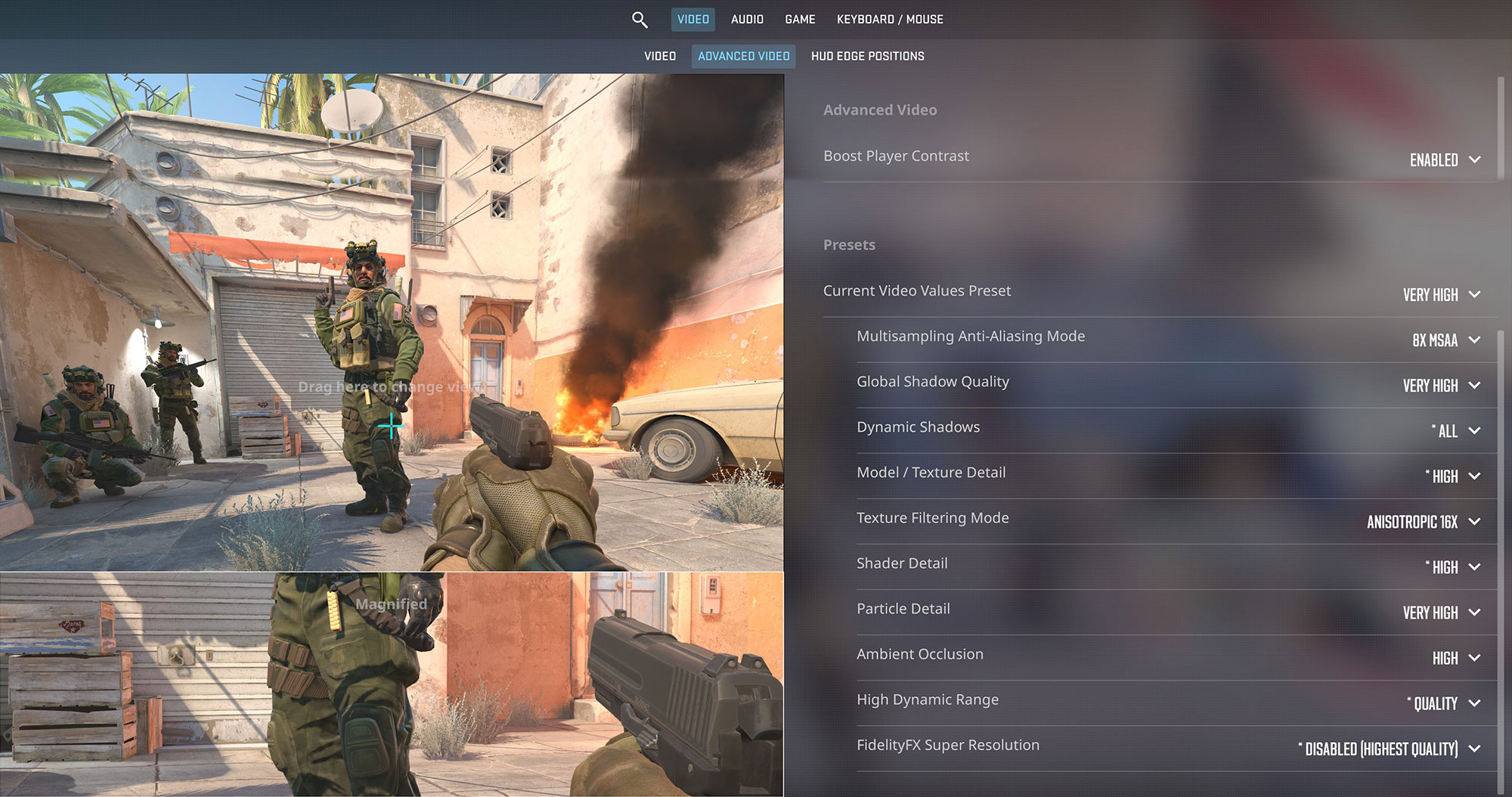
The HP Victus Gaming 15 is a solid choice for budget-conscious competitive gamers. Armed with the RTX 5050, it pushes a highly responsive 176 FPS in Counter-Strike 2 at 1080p on Very High settings, easily saturating the 144Hz display for a smooth esports experience.
| Counter Strike 2 | 1080p, Very High (Check settings) |
| Average FPS | 176 FPS |

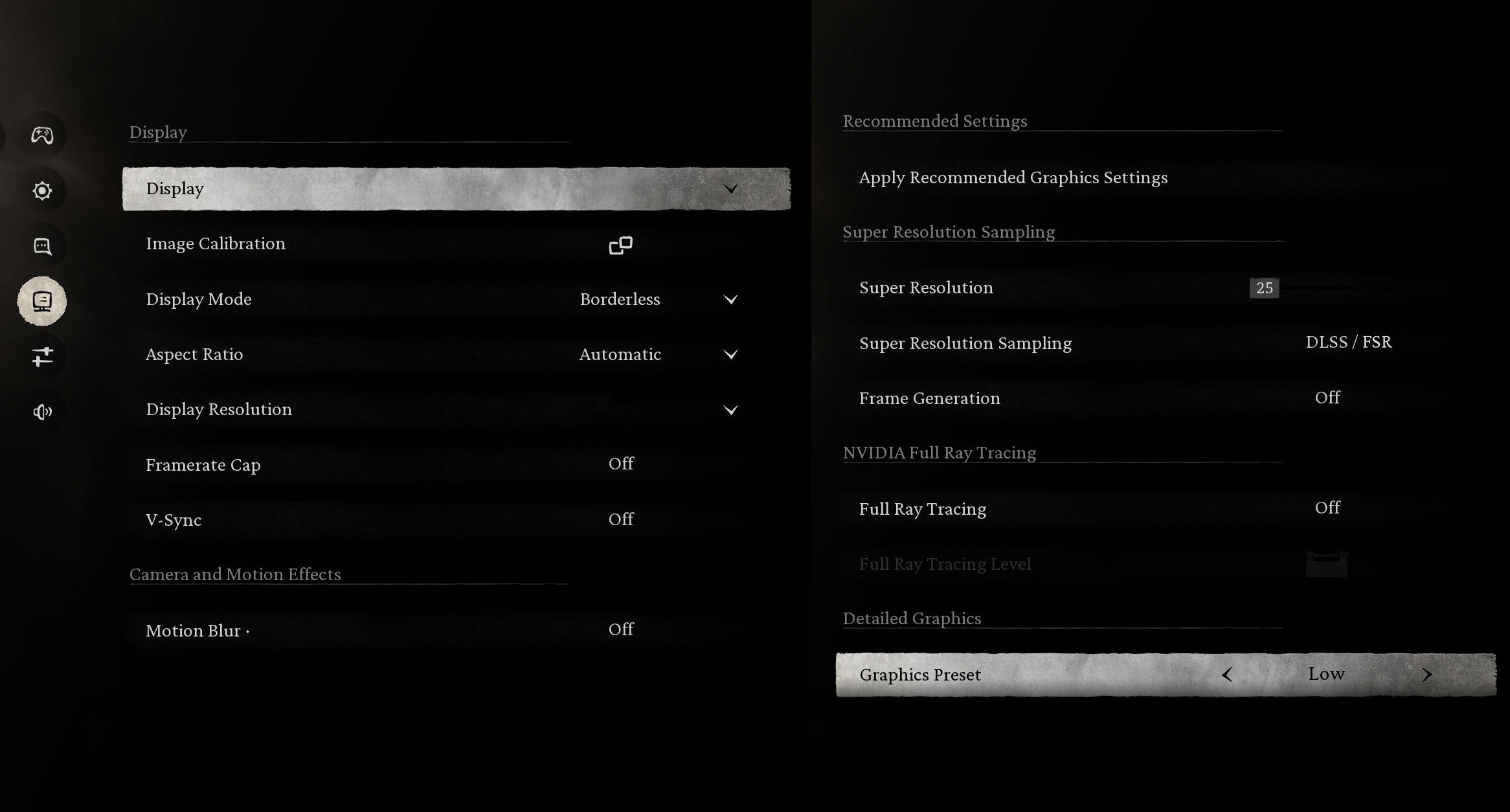
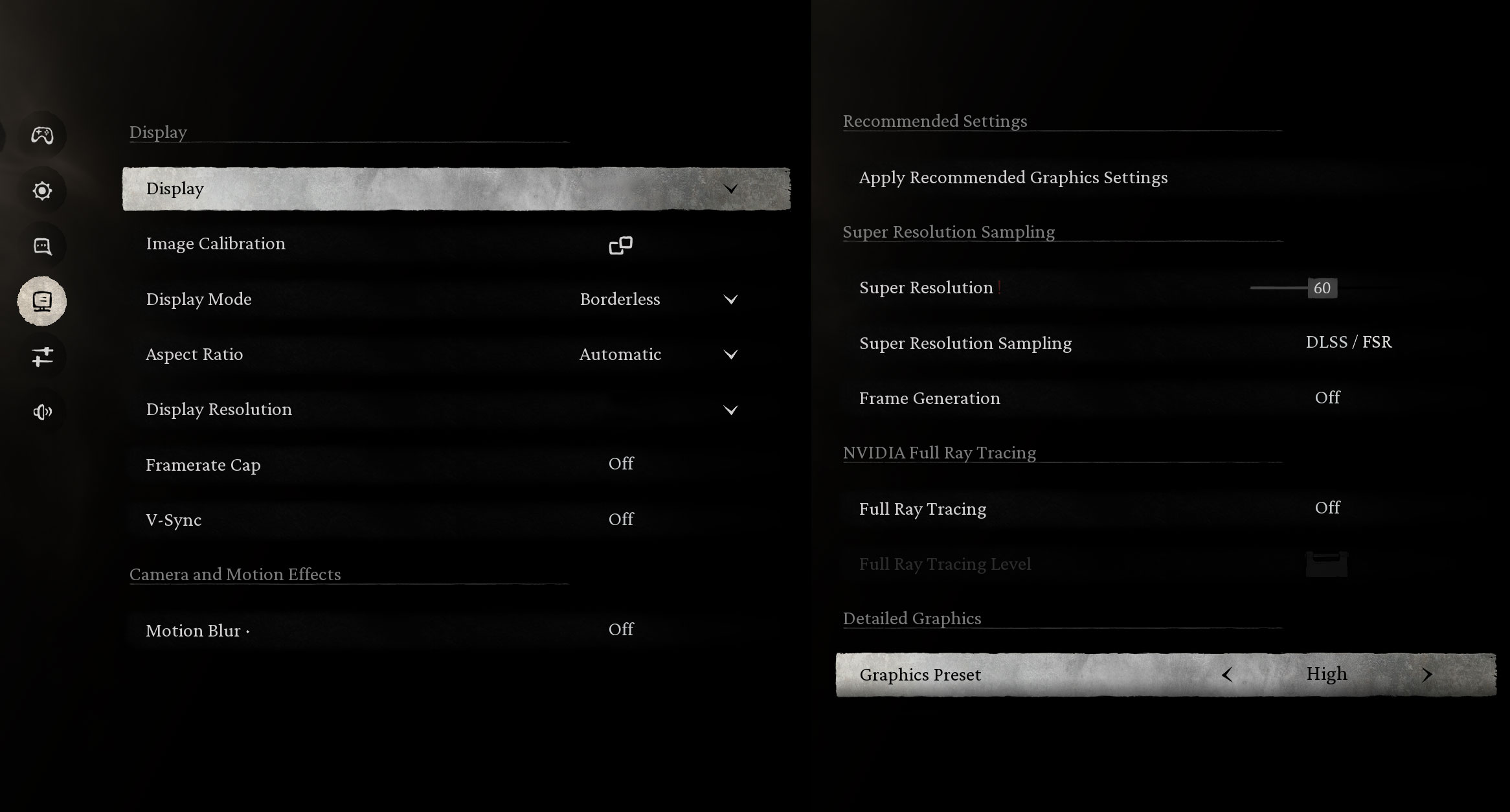
The laptop handles demanding modern titles like Black Myth: Wukong with ease. It manages an excellent 123 FPS on Low settings, and maintains a very smooth 78 FPS when bumped up to the High preset at 1080p, offering a great balance of visual fidelity and performance.
| Black Myth: Wukong | 1080p, Low (Check settings) | 1080p, High (Check settings) |
| Average FPS | 123 FPS | 78 FPS |

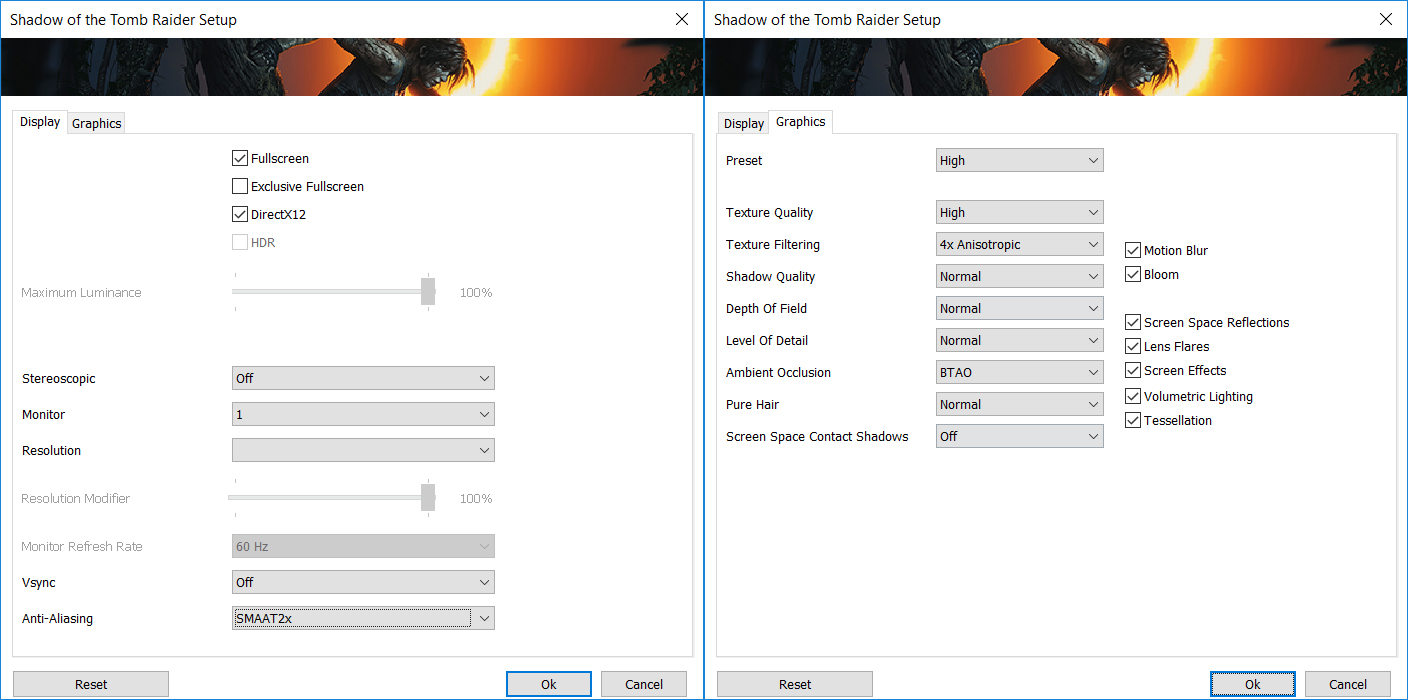
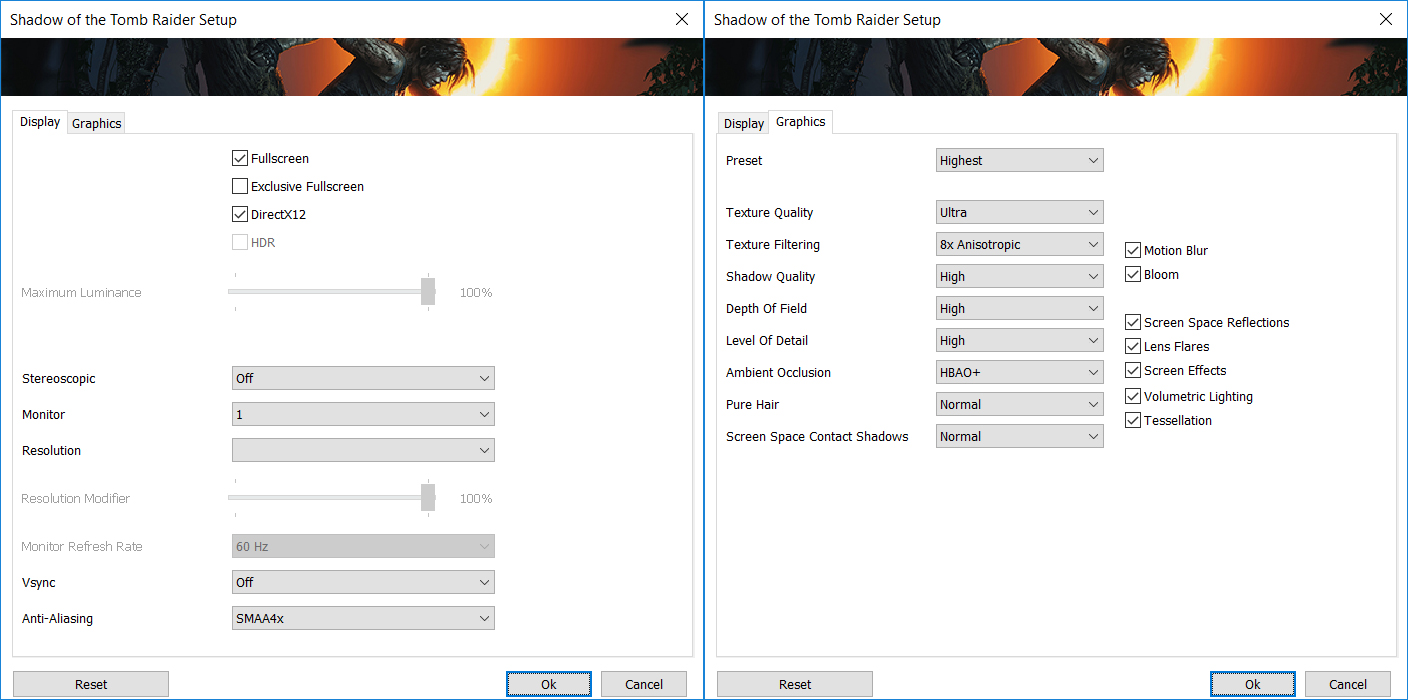
In Shadow of the Tomb Raider, the Victus 15 delivers a fantastic single-player experience. It achieves 125 FPS on High settings and keeps a fluid 94 FPS on the Highest preset at 1080p, ensuring your adventure is both beautiful and stutter-free.
| Shadow of the Tomb Raider | 1080p, High (Check settings) | 1080p, Highest (Check settings) |
| Average FPS | 125 FPS | 94 FPS |

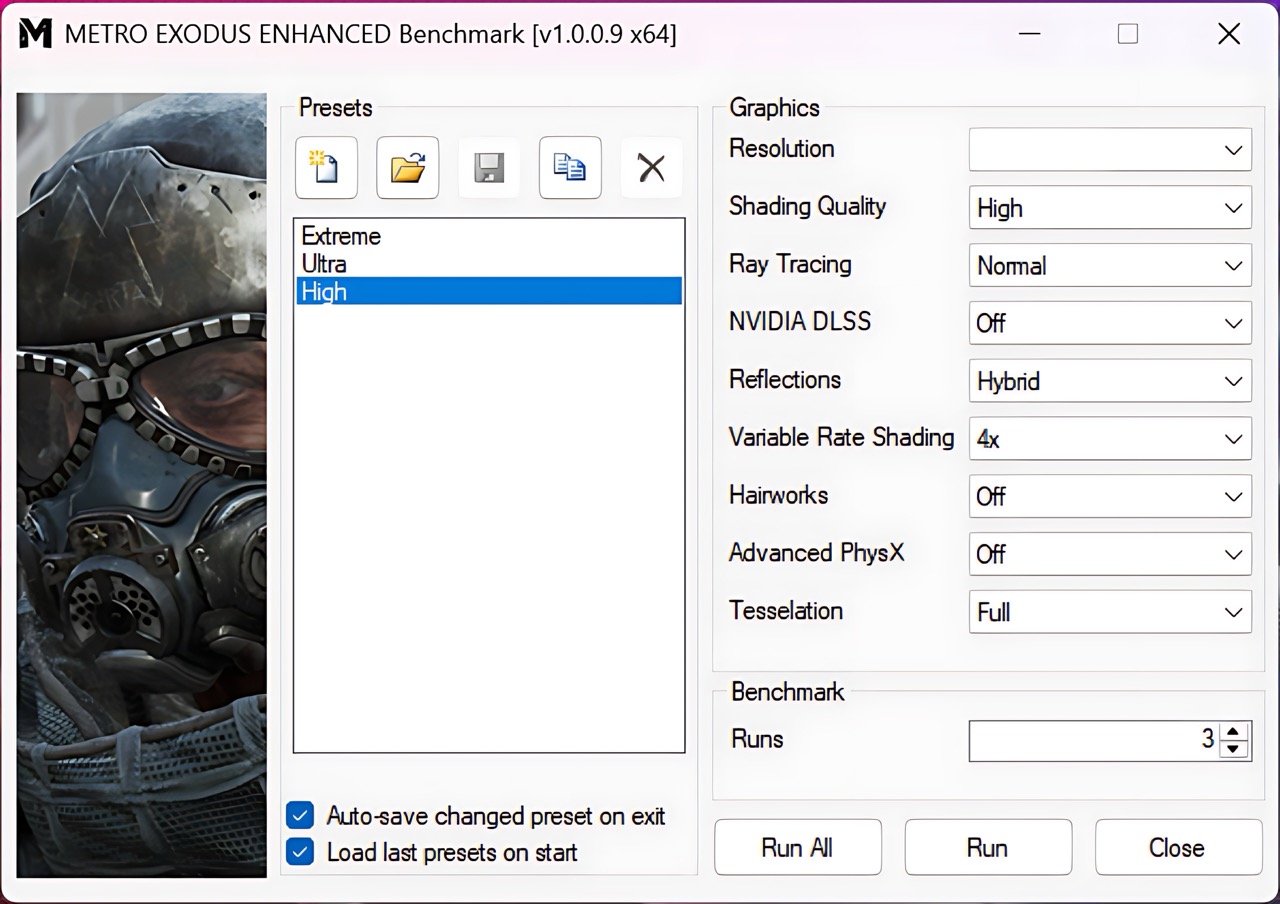
Even with heavy ray-tracing workloads in Metro Exodus Enhanced Edition, the RTX 5050 holds its ground. It comfortably clears the 60 FPS mark, delivering a stable 71 FPS on High settings at 1080p.
| Metro Exodus Enhanced Edition | 1080p, High (Check settings) |
| Average FPS | 71 FPS |
Temperatures and Comfort, Noise, Stability
At idle, the CPU package of the AMD Ryzen 5 240 maintains a temperature of 48ºC, and the notebook remains completely silent.
Office Work, Web Development, Design
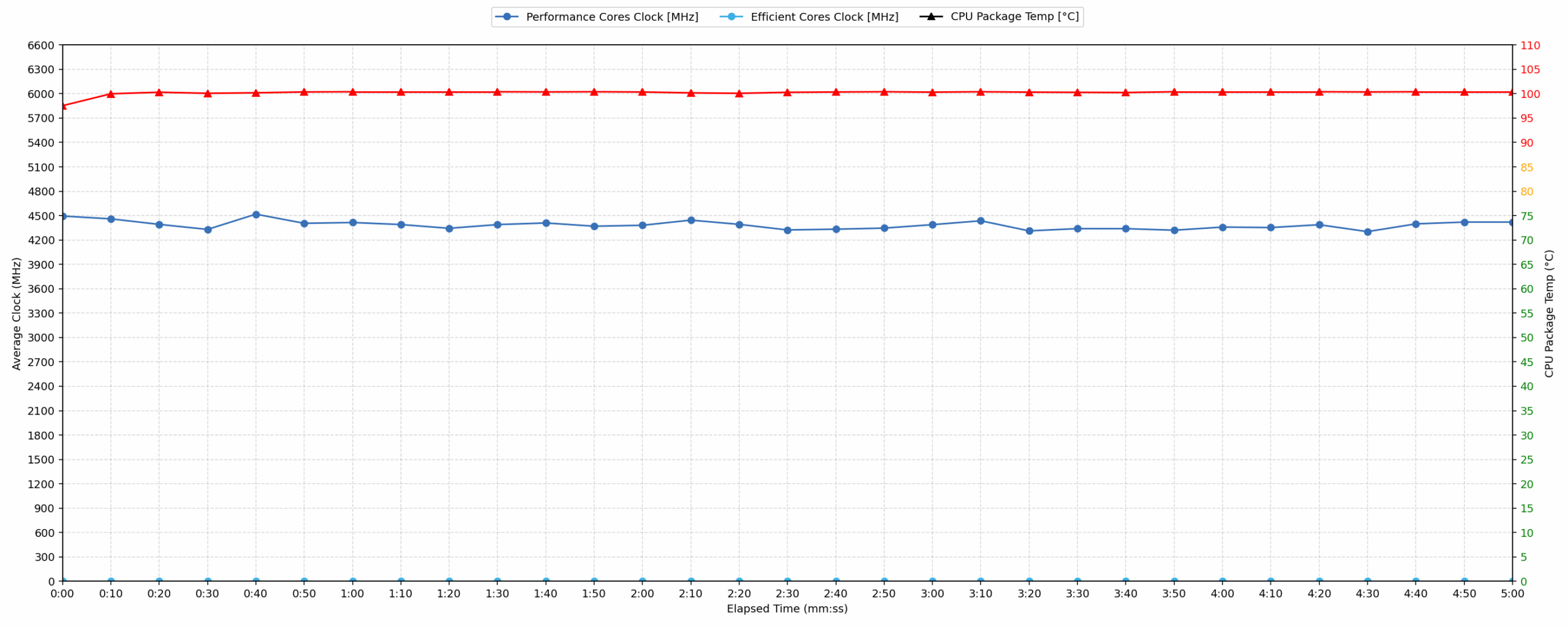
Short periods (0:00 – 0:10 s) of 100 % CPU load
This test shows the CPU behavior during short periods of serious load. It’s important for users who are looking for laptops suitable for tasks like Web Design and Programming.
| AMD Ryzen 5 240 | Avg. P-Core Clock | Avg. CPU Temp. | Avg. CPU Power |
| HP Victus Gaming 15 (15-fb3000) | 4494 MHz | 97 °C | 44 W |
The AMD Ryzen 5 240 in the HP Victus 15 reaches an average clock speed of 4494 MHz during short, intensive bursts. This ensures fast execution for programming and design tasks. However, the cooling system struggles to keep temperatures in check, as the CPU quickly hits an average of 97 °C. This is well into the high temperature range. Despite the heat, the processor maintains a power draw of 44 W, allowing it to stay near its 4575 MHz peak. Performance is high, but the thermal headroom is nonexistent from the start.
Video editing, Scientific computing, Software compilation, 3D rendering
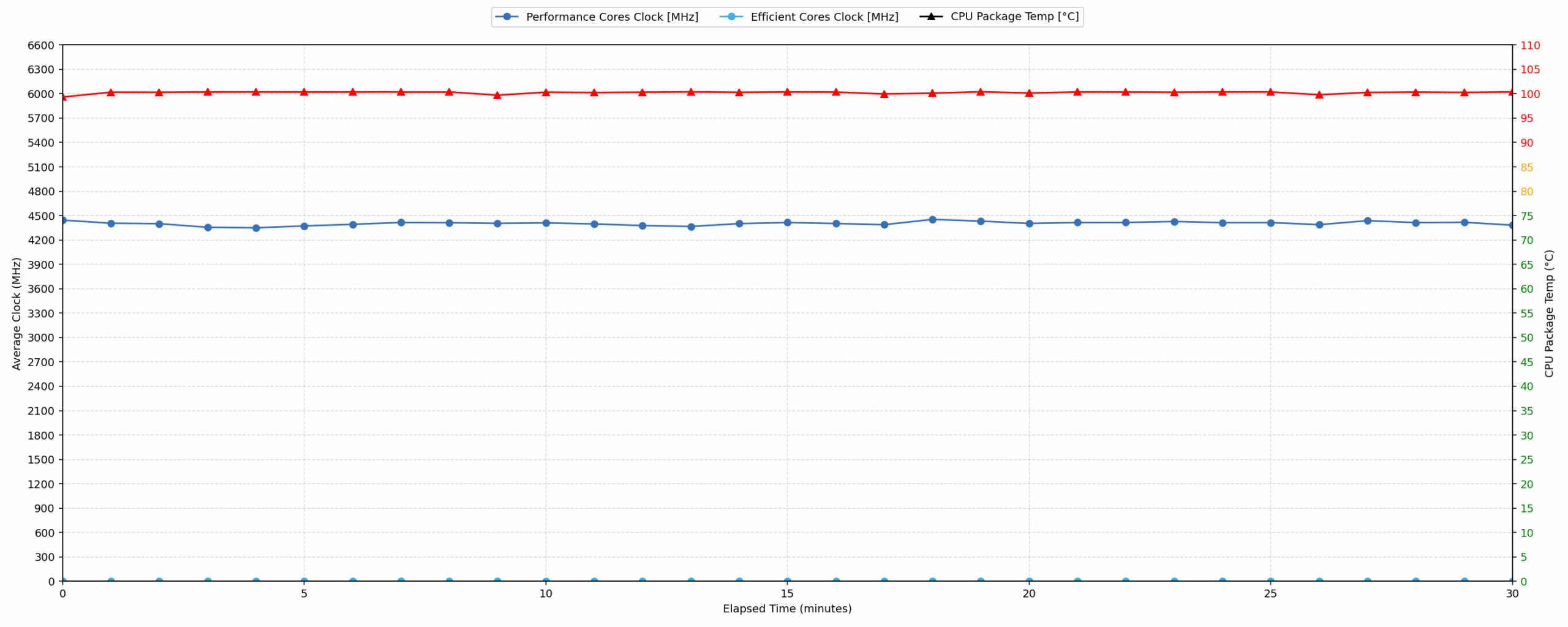
Long periods (0:00 – 30:00 min) of 100 % CPU load
This test shows the CPU behavior during long periods of serious load. It’s important for users who are looking for laptops suitable for tasks like Video Editing and 3D Rendering.
| AMD Ryzen 5 240 | Avg. P-Core Clock | Avg. CPU Temp. | Avg. CPU Power |
| HP Victus Gaming 15 (15-fb3000) | 4403 MHz | 100 °C | 42 W |
During prolonged 100% load, the CPU temperature peaks and stabilizes at a high of 100 °C. This suggests the cooling solution is pushed to its absolute limit. Nevertheless, the performance remains remarkably stable for this chassis. The average clock speed over 30 minutes is 4403 MHz, with the frequency only dipping 335 MHz below the initial peak to a minimum of 4240 MHz. With a sustained average power consumption of 42 W, the laptop provides consistent speed for demanding tasks like rendering, though the thermal readings are consistently in the high range.
Gaming Stability
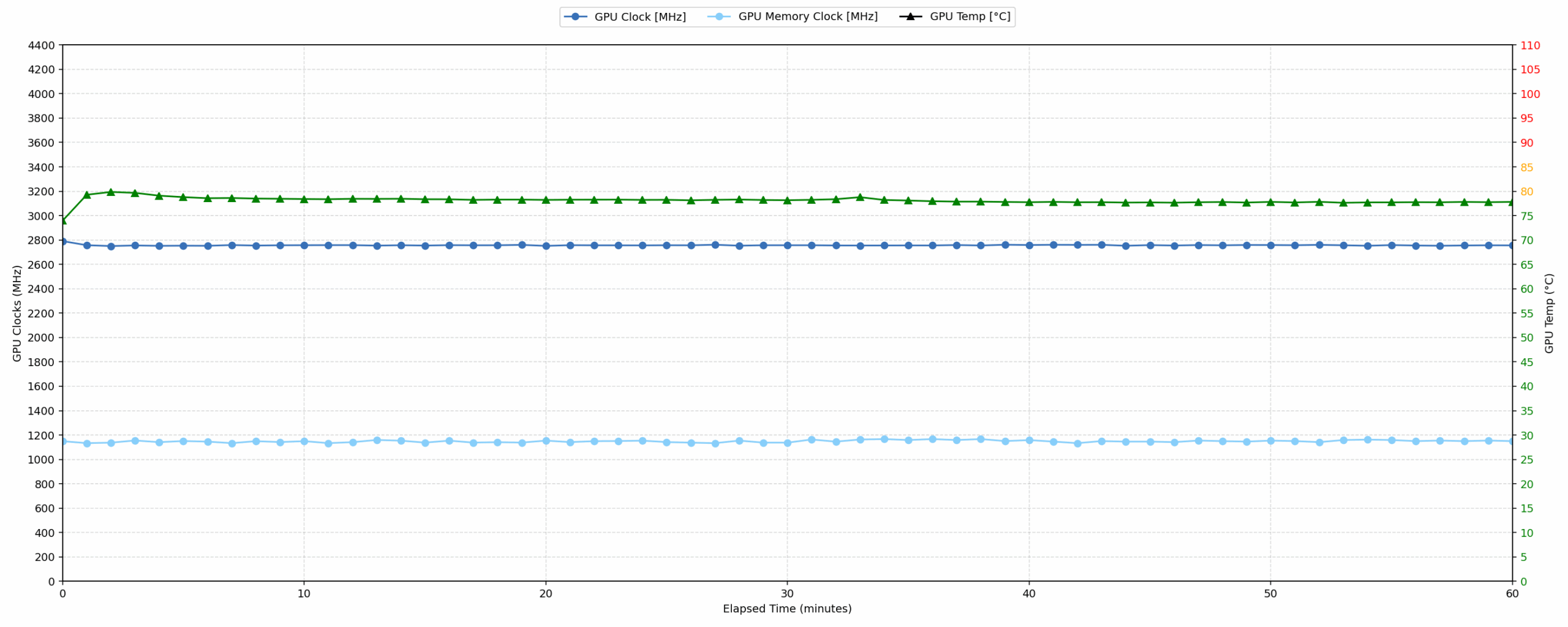
Continuous gaming (1-hour test)
This test evaluates the laptop’s performance under sustained GPU load and high CPU usage.
| NVIDIA GeForce RTX 5050 | Avg. GPU Clock | Avg. GPU Temp. | Avg. Memory Clock | Avg. GPU Mem Temp. | Avg. GPU Power |
| Lenovo Legion 5 (15″, Gen 10) | 2944 MHz | 85 °C | 1272 MHz | 77 °C | 111 W |
| HP Victus Gaming 15 (15-fb3000) | 2756 MHz | 78 °C | 1148 MHz | 72 °C | 79 W |
| Lenovo LOQ Essential (15″, Gen 11, 15IRX11) | 2371 MHz | 73 °C | 1125 MHz | 74 °C | 60 W |
The NVIDIA GeForce RTX 5050 shows solid stability over an hour of gaming, averaging 2756 MHz. Thermally, the GPU is well-managed with a core temperature of 78 °C and memory at 72 °C, both categorized as good. Compared to its peers, the Victus 15 delivers better performance than the Lenovo LOQ Essential, which averages only 2371 MHz. However, it trails the Lenovo Legion 5, which maintains a higher 2944 MHz clock. At 79 W, the Victus balances performance and heat more conservatively than the Legion 5, resulting in much lower and safer core temperatures.
Battery Life
HP Victus Gaming 15 (15-fb3000) can be ordered with 52.5Wh or 70Wh battery. We ordered a configuarion with the bigger 70Wh unit.
We tested the laptop with ECO mode selected in OMEN Gaming Hub, and Best Power Efficiency in Windows Settings.
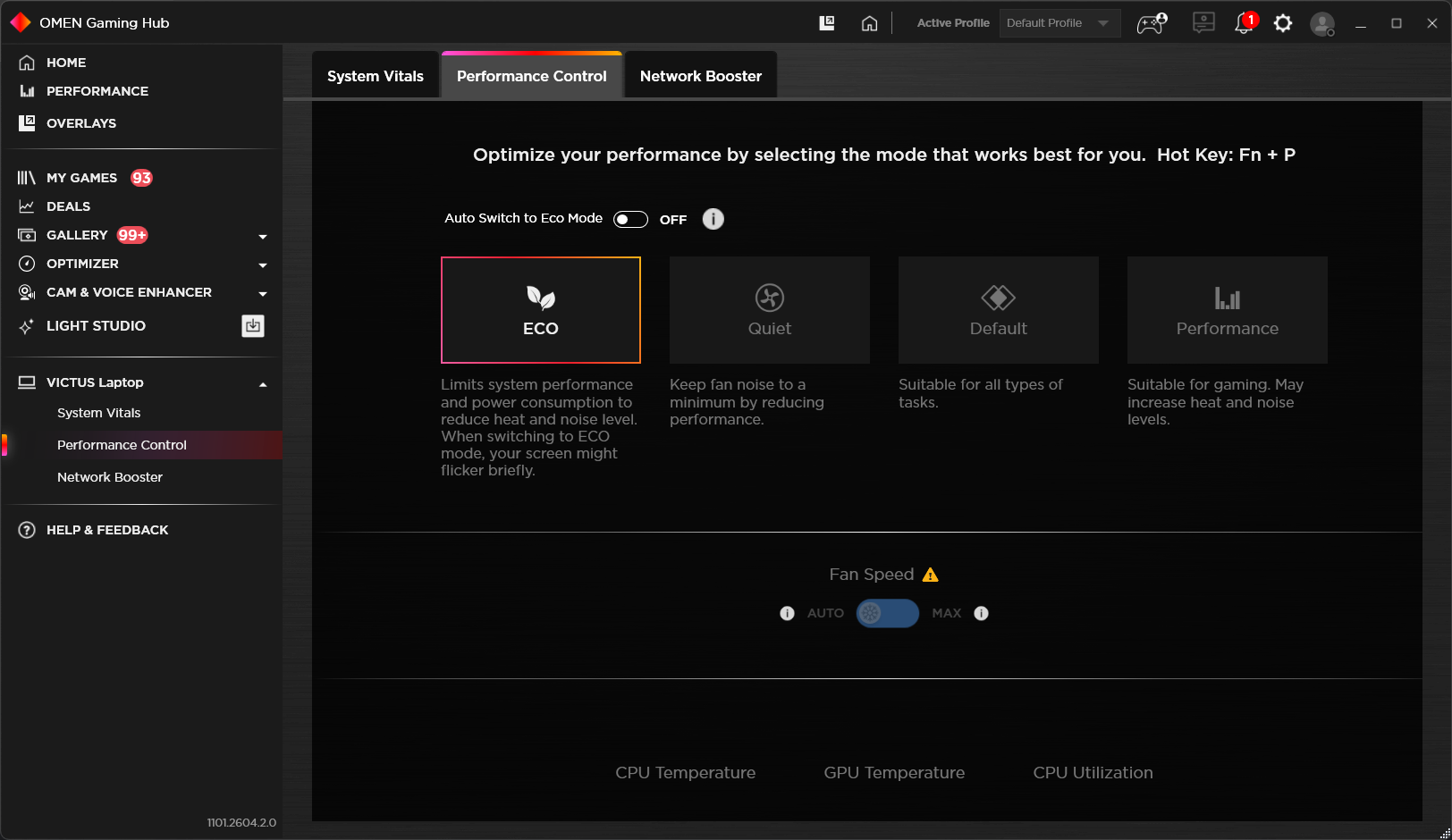
The result is good – 5 hours and 44 minutes on a single charge, more than Lenovo LOQ Essential (5:00h), but much behind Lenovo Legion 5 (15″, Gen 10) and its record of 8 hours and 39 minutes.
Brightness: 180 nits; Display Mode: SDR
Time to Full Discharge: Higher is Better
Disassembly, Upgrade options, and Maintenance
To access the internals of the Victus 15-fb3000, you need to undo seven Phillips-head screws. They are the same length, which makes reassembly easier, but the bottom panel is still held firmly by internal plastic clips. A thin plastic pry tool and a suction cup help a lot here, and it is worth working slowly so the tool does not slide too deep into the chassis and touch the motherboard or cables.
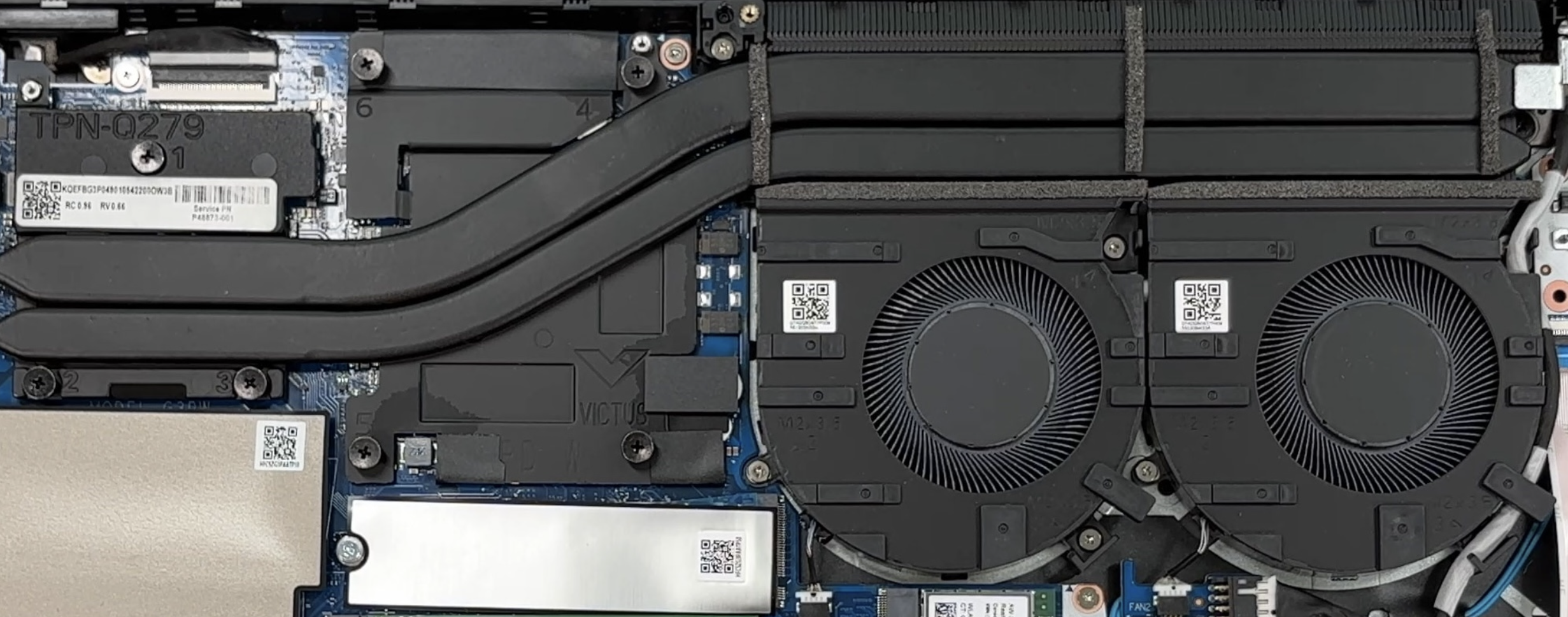
Once the bottom cover is removed, the layout is easy to understand. The cooling system occupies the upper half of the chassis, while the battery stretches across the lower section. The cooling solution uses two fans and two long heat pipes that run across the CPU and the dedicated GPU area. The processor sits under the left part of the cooling assembly, while the discrete graphics chip is positioned closer to the two fans. This is a conventional but sensible gaming-laptop layout, with the hot components grouped close to the exhaust system.
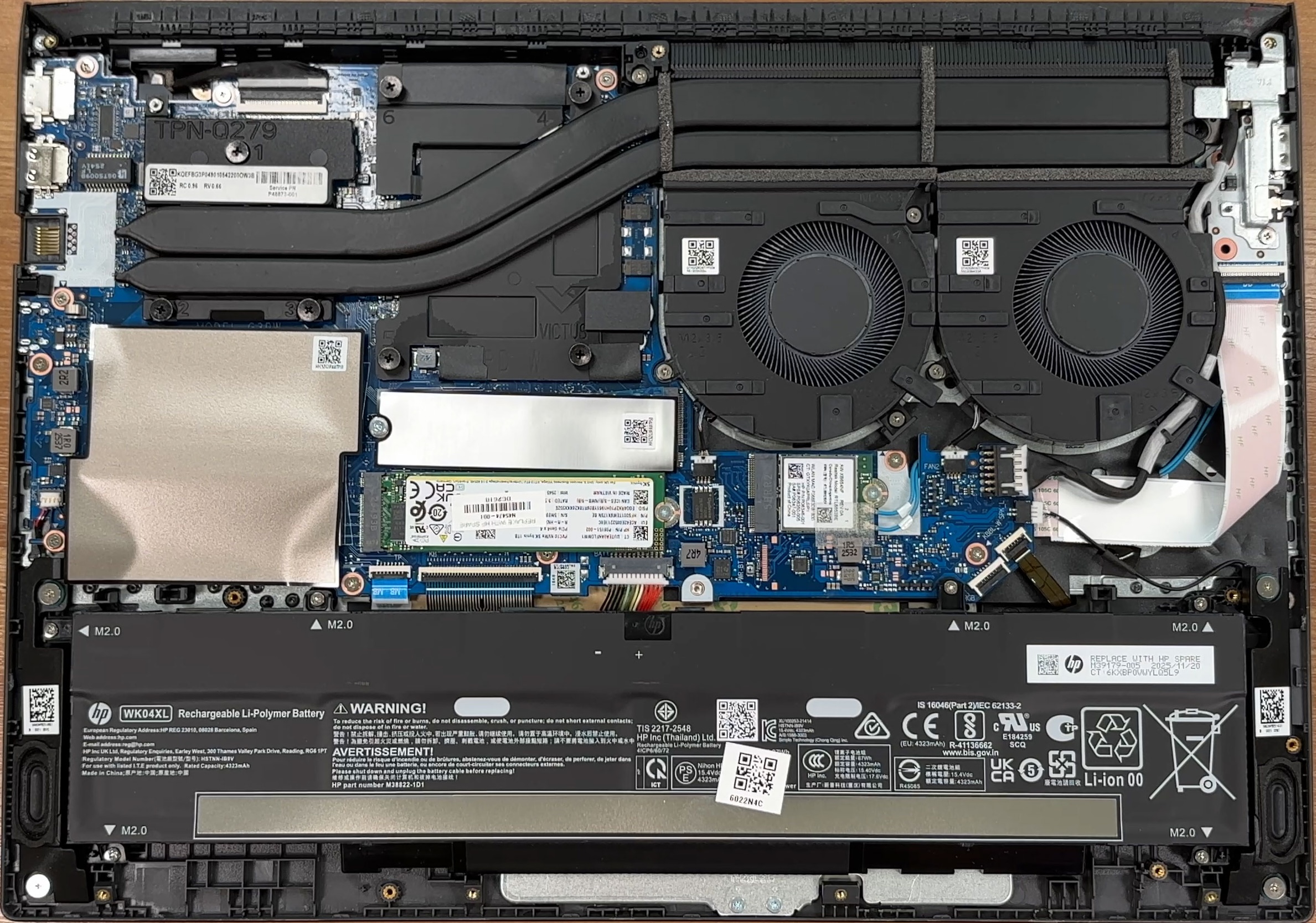
The primary SSD, the second M.2 slot, the memory area, and the Wi-Fi card are all directly accessible, so the most common upgrades and service operations do not require removing the motherboard.
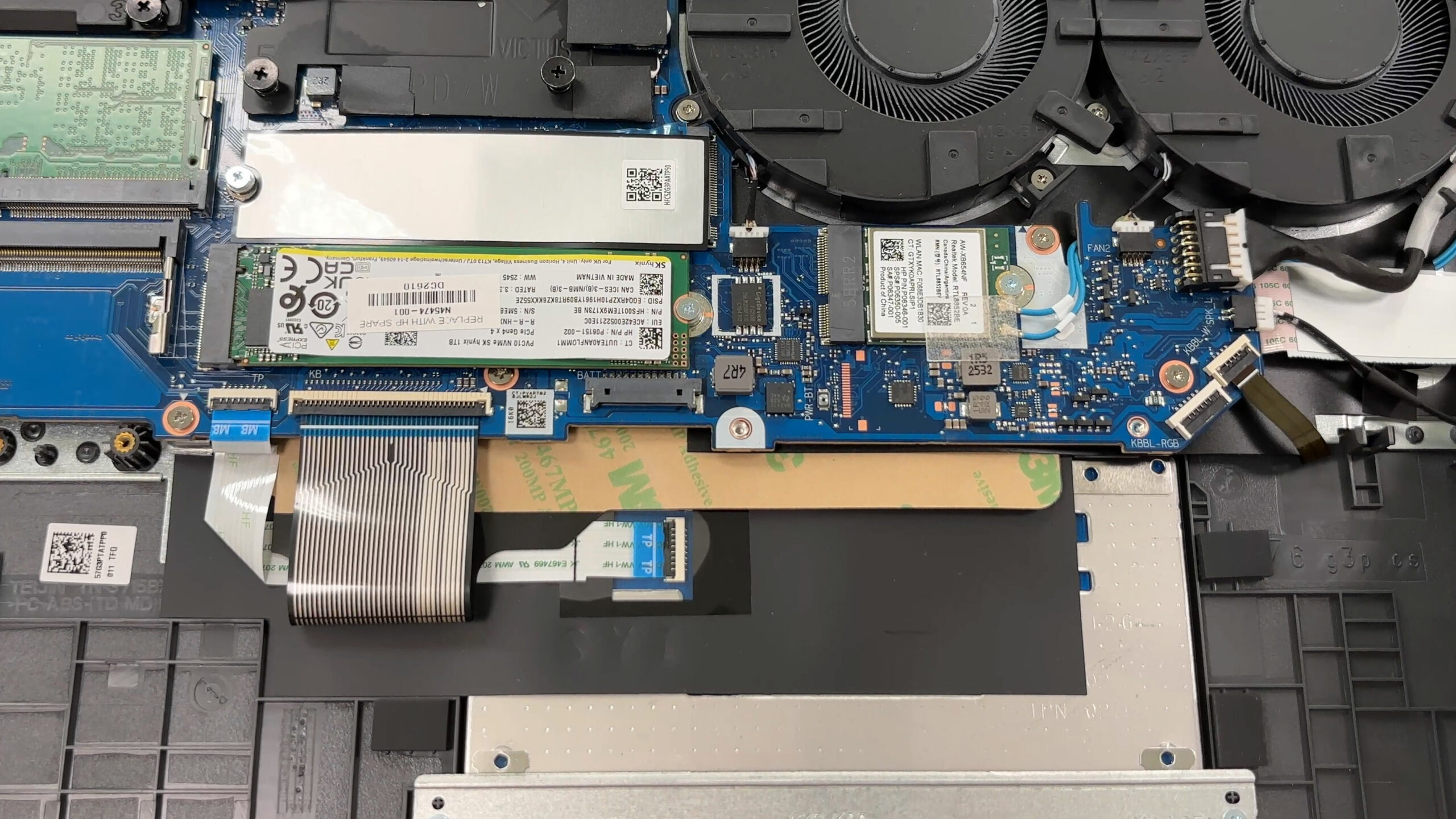
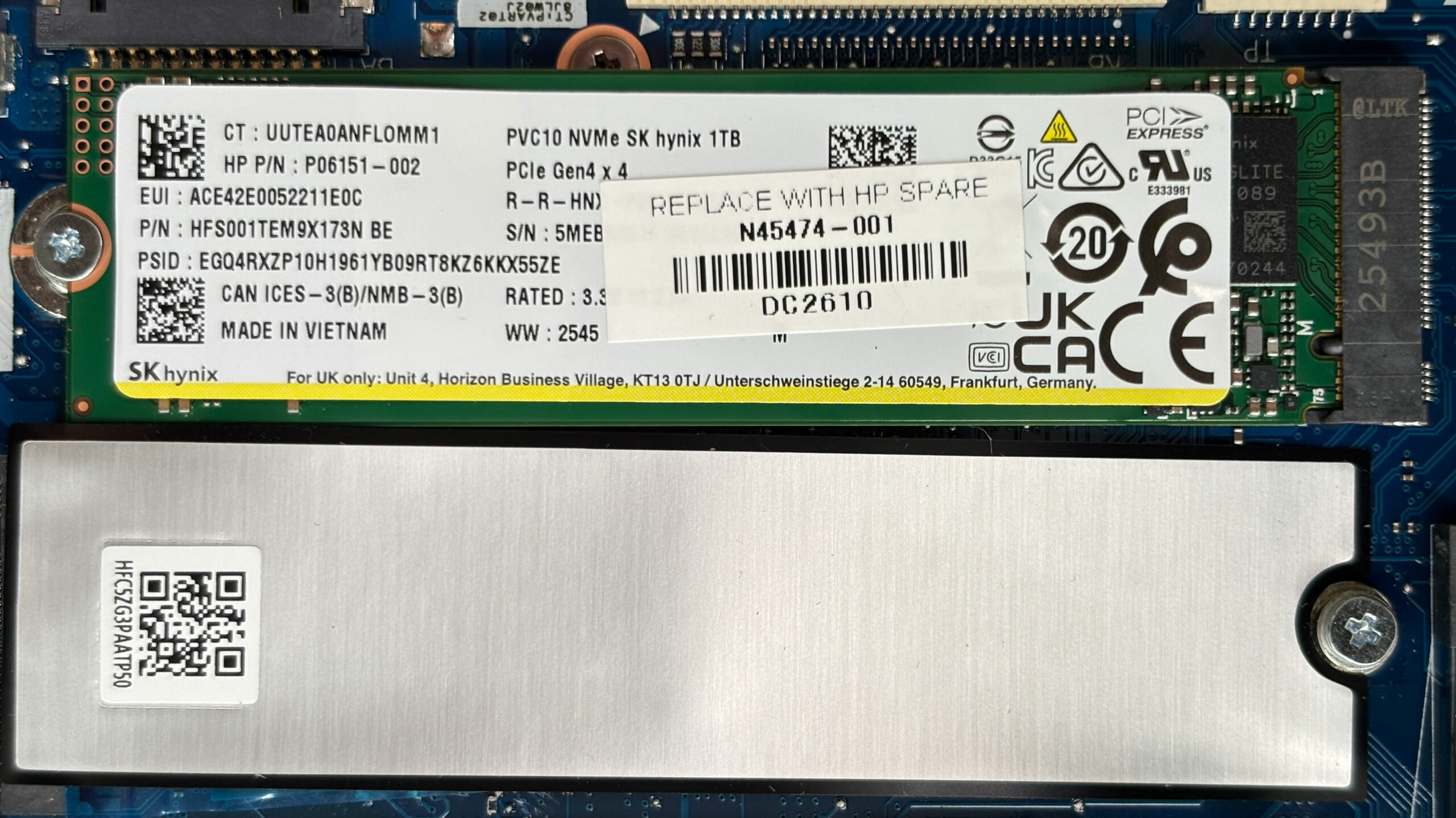
Storage is one of the stronger points of this configuration. The reviewed unit comes with a 1TB SK hynix NVMe SSD in the primary M.2 slot, and both the drive and the slot support PCIe Gen 4 x4 speeds. The installed SSD carries HP spare number N45474-001. There is also a second M.2 slot for another SSD. In our unit, this slot is empty, but HP has already placed a thermal pad in the area, which is a nice touch for a future storage upgrade. This means users can expand the storage without replacing the original drive.
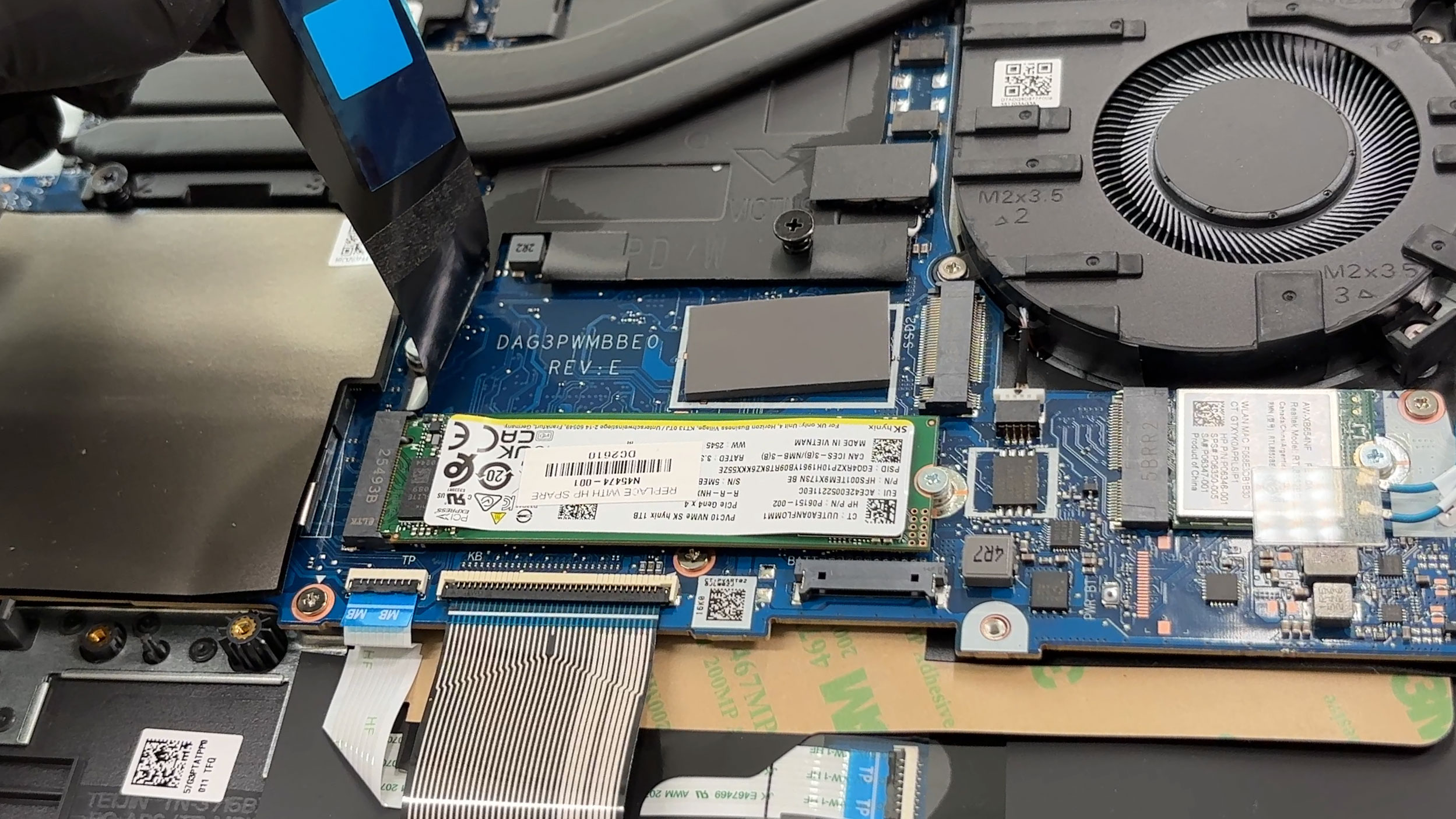
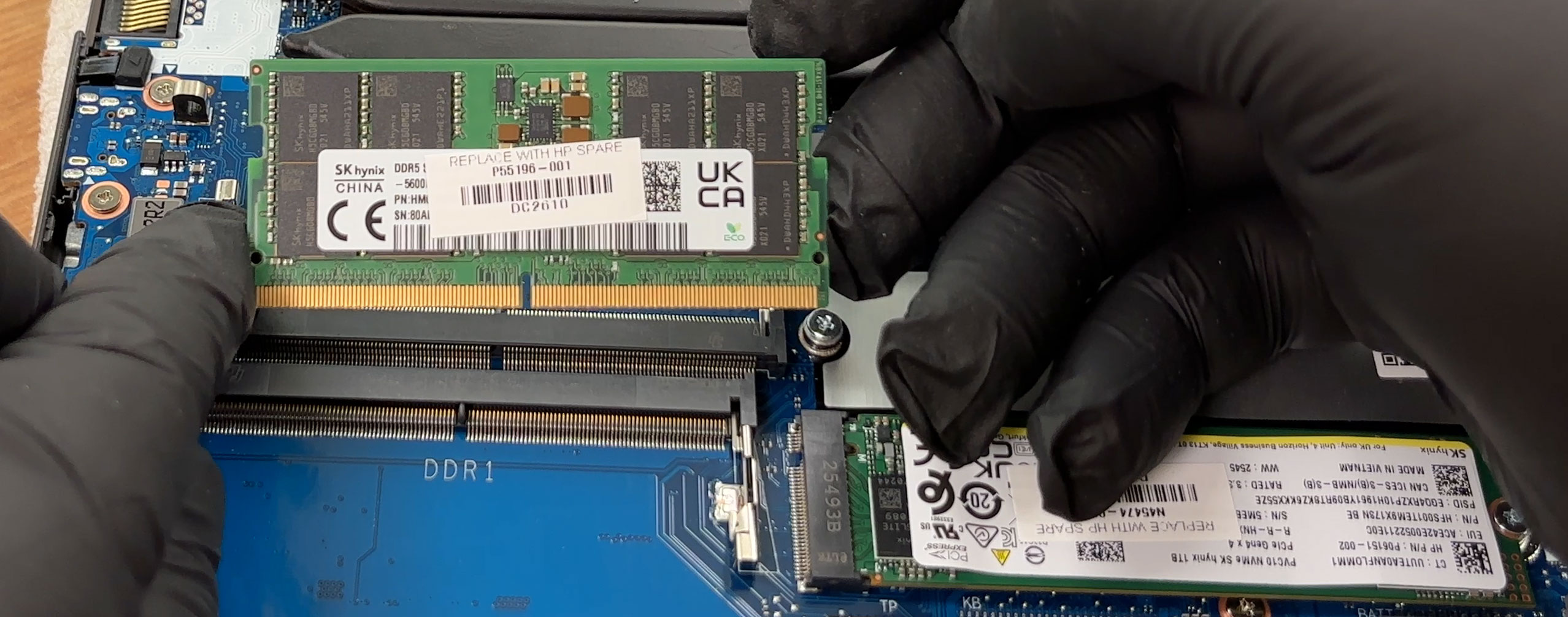
The memory is also upgradeable. Under the shielding tape are two SODIMM slots for DDR5 memory. Our configuration uses an SK hynix DDR5-5600 module. HP officially lists support for up to 24GB of memory for this model family, but the two-slot design itself is more flexible from a hardware point of view, so higher-capacity combinations may work depending on BIOS support and the exact configuration.
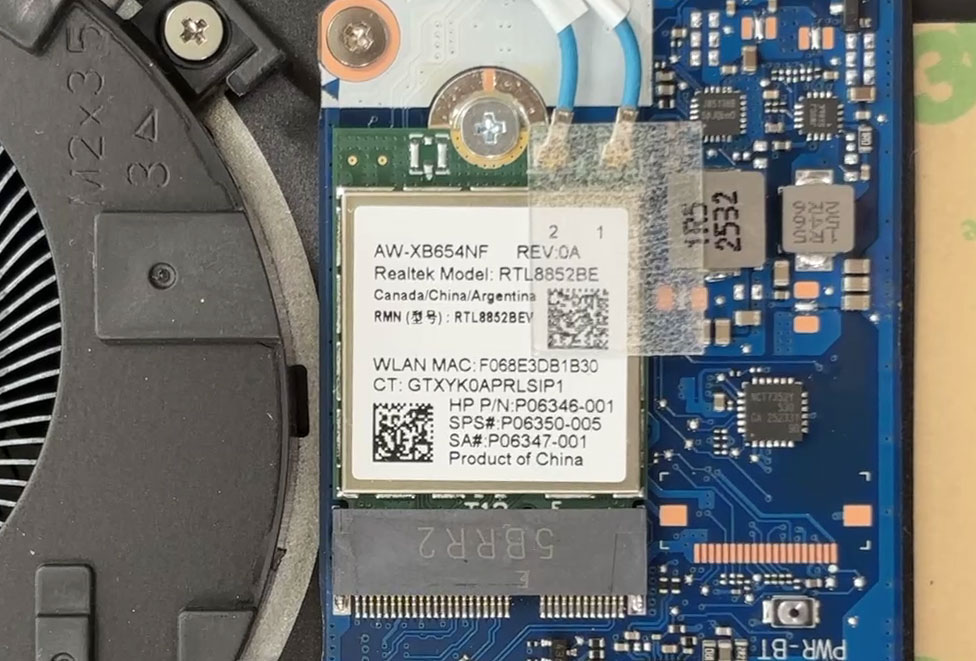
The Wi-Fi card is replaceable as well. The reviewed unit uses a Realtek RTL8852BE module, which supports Wi-Fi 6. It is mounted in a standard small M.2 wireless slot and has two antenna cables attached, so replacing it should be possible, although the antenna connectors always require a careful hand.
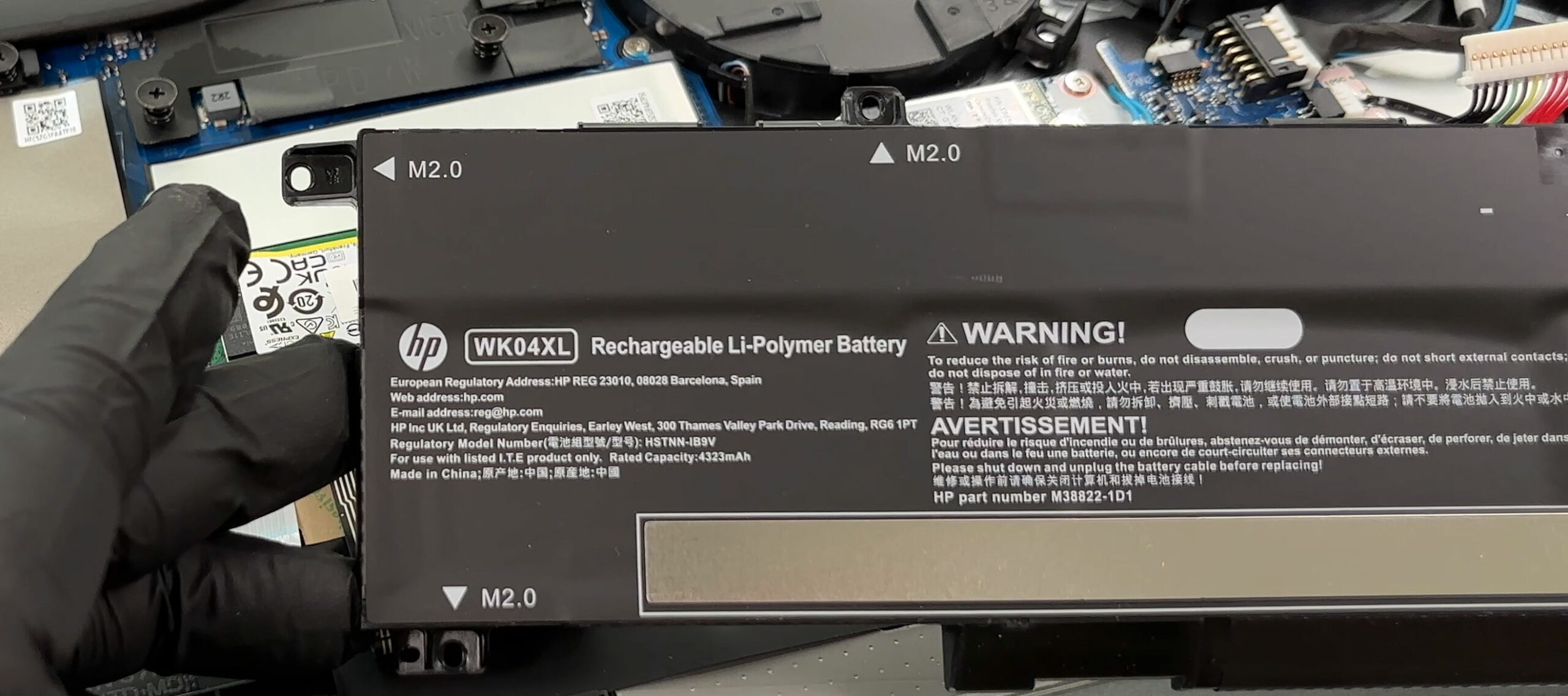
The battery is a 70Wh HP WK04XL lithium-polymer unit, model HSTNN-IB9V, with a rated capacity of 4323mAh. Before doing any work on the SSDs, memory, wireless card, or cooling system, it is best to disconnect the battery cable first. The battery itself is removable and is held by screws, so replacement is straightforward once the bottom panel is off.
The main upgrade limits are typical for this class of laptop. The CPU and GPU are soldered to the motherboard, so they cannot be upgraded. The practical user-serviceable parts are the two memory slots, the two M.2 SSD positions, the Wi-Fi card, the battery, and the cooling fans if maintenance or replacement is needed later.
Overall, the Victus by HP 15-fb3000 is quite service-friendly for a gaming laptop, with easy access to the important replaceable parts and only moderate care required when removing the bottom cover and handling the internal clips.
Verdict
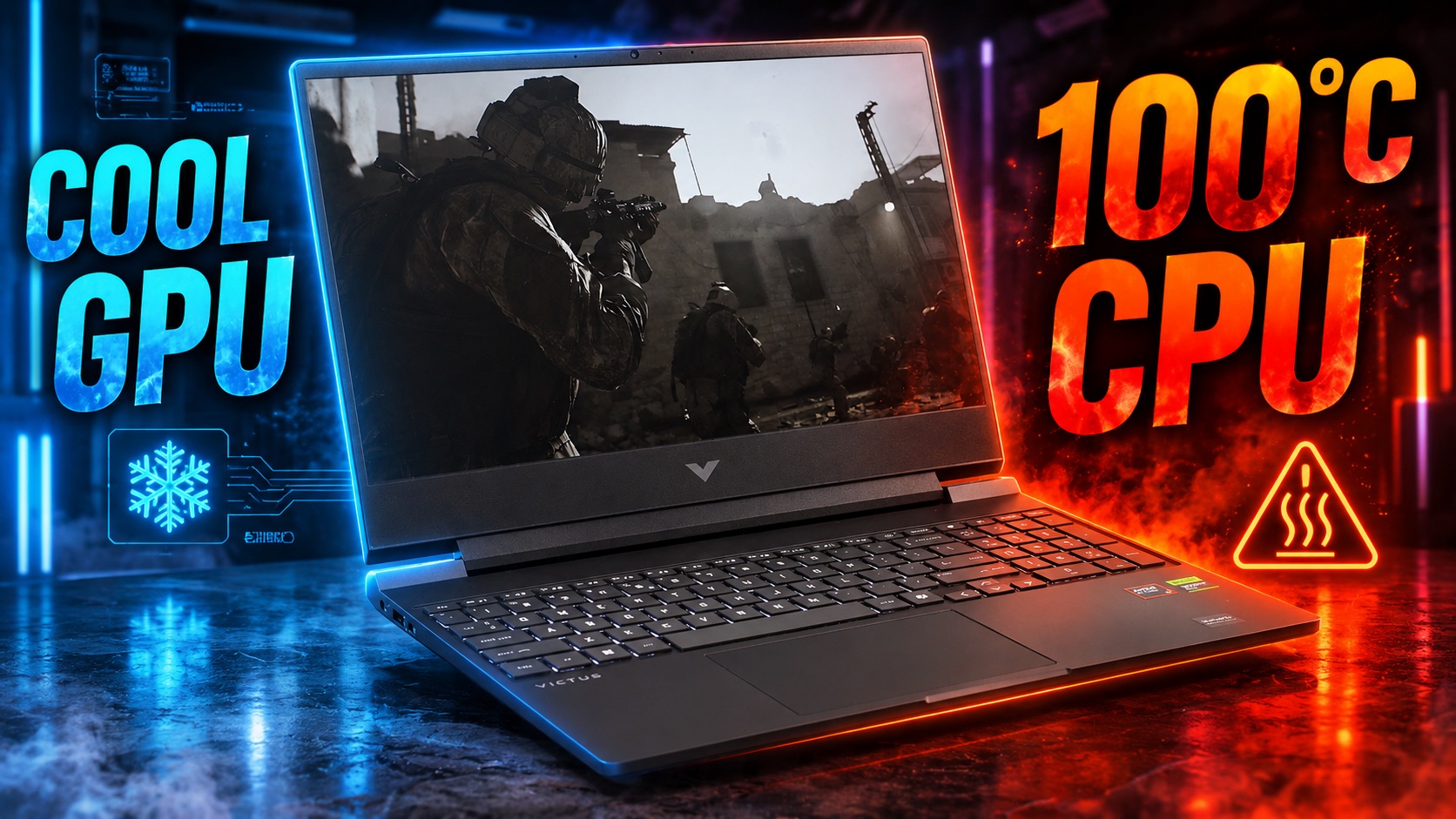 The HP Victus 15 (fb3000) is a gaming laptop that tries to wear two hats: a capable entry-level gaming machine and an unassuming, stealthy workstation that won’t look out of place in a classroom or office. It succeeds in blending these two worlds reasonably well, offering a solid core performance package without the aggressive “gamer” tax or aesthetic.
However, this dual identity and budget-friendly approach come with significant compromises. While the GPU performance is stable, the laptop struggles heavily with CPU thermals, and its display leaves a lot to be desired for anything other than basic gaming or office work.
You can check the prices and configurations in our Specs System: https://laptopmedia.com/series/hp-victus-15-15z-fb2000/
✅ The Good
The standout feature of this laptop is its excellent GPU thermal management. The cooling system keeps the RTX 5050 running at a very comfortable 78°C under sustained load, ensuring stable frame rates without graphical throttling. This makes for a reliable gaming experience in titles like Counter-Strike 2 or Shadow of the Tomb Raider.
We also appreciate the stealthy, professional design. The “Shadow Black” finish is subtle, resists fingerprints admirably, and feels sturdier than its plastic construction might suggest. The inclusion of a full-sized NumPad is a great productivity bonus, and the fact that the display is completely PWM-free is a massive win for eye comfort during long sessions.
Furthermore, the upgradeability is great for a budget machine, offering two user-accessible RAM slots and two M.2 SSD slots, providing excellent long-term flexibility.
❌ The Bad
 The most critical flaw is the severe CPU thermal performance. The processor runs hot, immediately hitting 97°C and sustaining 100°C under heavy load. While it maintains its clock speeds, operating at this thermal limit is a bit of a concern for long-term component health and stability.
The base-model display is also a significant compromise. With very poor color coverage at just 57% sRGB, the screen looks dull and washed out, making it unsuitable for any color-sensitive work. Additionally, the use of cramped, half-height arrow keys is frustrating for a gaming laptop.
🆚 The Competitors
When compared to a direct budget rival like the Lenovo LOQ Essential (15IRX11, Gen 11) (detailed review), the HP Victus 15 offers better GPU performance and more flexible storage (two full-sized M.2 slots vs. two short ones). However, the LOQ Essential manages its CPU thermals significantly better, running much cooler under load.
Against a stronger, slightly more premium competitor like the Lenovo Legion 5 (15″, Gen 10) (detailed review), the Victus 15 struggles. The Legion delivers much faster GPU clock speeds and nearly double the battery life (over 8.5 hours). The Victus is a decent entry point, but the Legion provides a vastly superior all-around experience if you can stretch your budget.
Pros
- Excellent GPU thermal management keeps gaming performance stable
- Stealthy, professional design with a fingerprint-resistant finish
- Fantastic upgradeability with two RAM and two M.2 slots
- Completely PWM-free display is great for eye comfort
- Comfortable keyboard featuring a full-sized NumPad
Cons
- CPU runs very hot (100°C) under sustained load
- Display has very poor color coverage (57% sRGB)
- Cramped, half-height arrow keys
 Author: Simeon NikolovEditor-in-Chief at LaptopMedia.com with 20+ years of experience in testing and analyzing laptops and mobile devices.
 Author: eng. Kroum NikolovHead of Engineering at LaptopMedia.com, inventor and innovator with 40+ years of experience in electronics and high technology.

![[August 2026] Amazon Italy: Top 10 Best-Selling Laptops – Apple MacBook Neo Claims the Crown as Budget and Mid-Range Windows Machines Dominate Volume](https://laptopmedia.com/wp-content/uploads/2026/09/Best-Selling-Laptops-IT-Top-10-400x225.jpg)
![[August 2026] Amazon Italy: Top 7 Best-Selling Gaming Laptops – ASUS V16 Claims the #1 Spot Amid Strong Mid-Range Demand](https://laptopmedia.com/wp-content/uploads/2026/09/Best-Selling-Gaming-Laptops-IT-Top-10-400x225.jpg)
![[August 2026] Best-Selling Laptop Brands on Amazon Italy – Lenovo Dominates Market Share and Revenue Leadership](https://laptopmedia.com/wp-content/uploads/2026/09/IT-Best-Brands-400x225.jpg)
![[August 2026] Amazon India: Top 10 Best-Selling Laptops – Apple MacBook Neo Dominates the Charts with Massive Sales Lead](https://laptopmedia.com/wp-content/uploads/2026/09/Best-Selling-Laptops-IN-Top-10-400x225.jpg)
![[August 2026] Amazon India: Top 10 Best-Selling Gaming Laptops – HP Victus 15 Dominates the Market with Massive Unit Lead](https://laptopmedia.com/wp-content/uploads/2026/09/Best-Selling-Gaming-Laptops-IN-Top-10-400x225.jpg)