How to open Alienware 16X Aurora (AC16251) – disassembly and upgrade options

Before you start: Shut the laptop down completely, unplug the charger and peripherals, and hold the power button for a few seconds to discharge residual power. Work on a clean surface and use ESD protection if available.
Opening the bottom panel
- Remove the eight bottom screws. Two are captive and can help lift the panel slightly to create a starting gap.
- Use a thin plastic pick to release the perimeter clips. Start near the area where the panel naturally lifts.
- Important: Insert the tool shallowly. Some entry points sit close to the cooling radiators, and pushing too far can bend the fins.
- Work around the sides and front, then finish near the hinge edge, and lift the cover away.
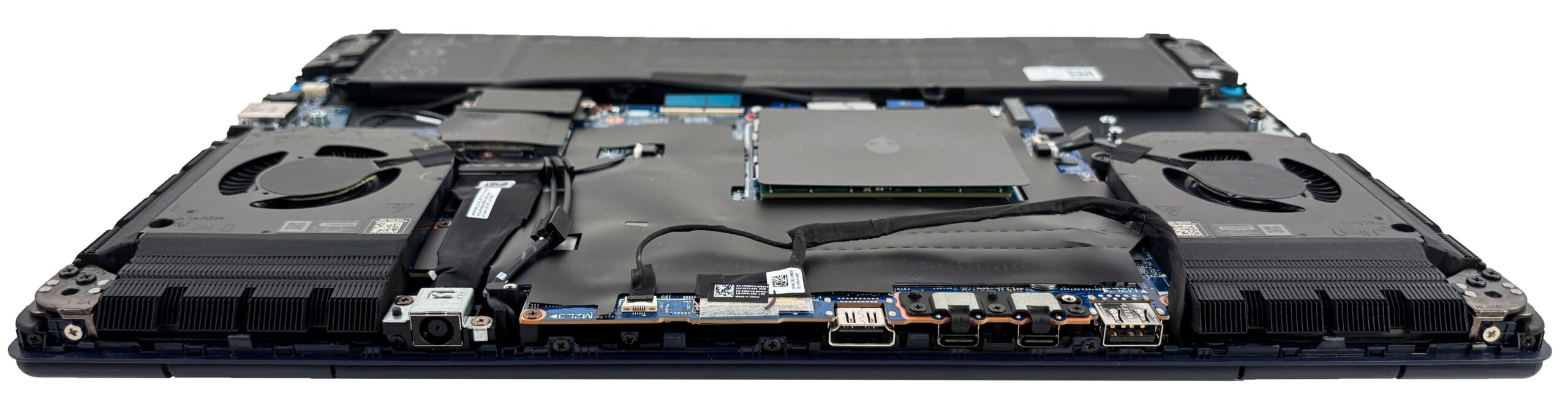
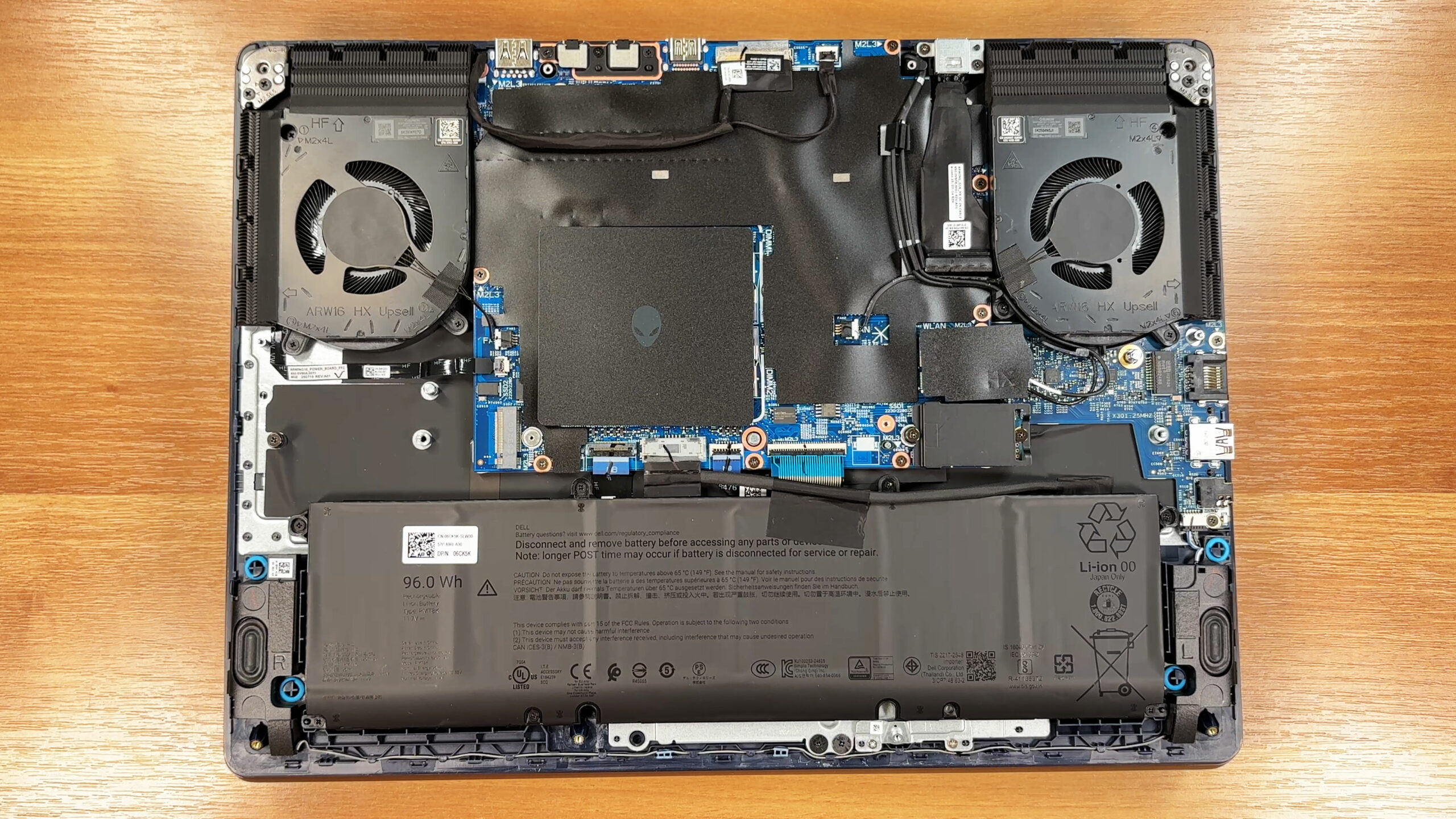
Battery and safety
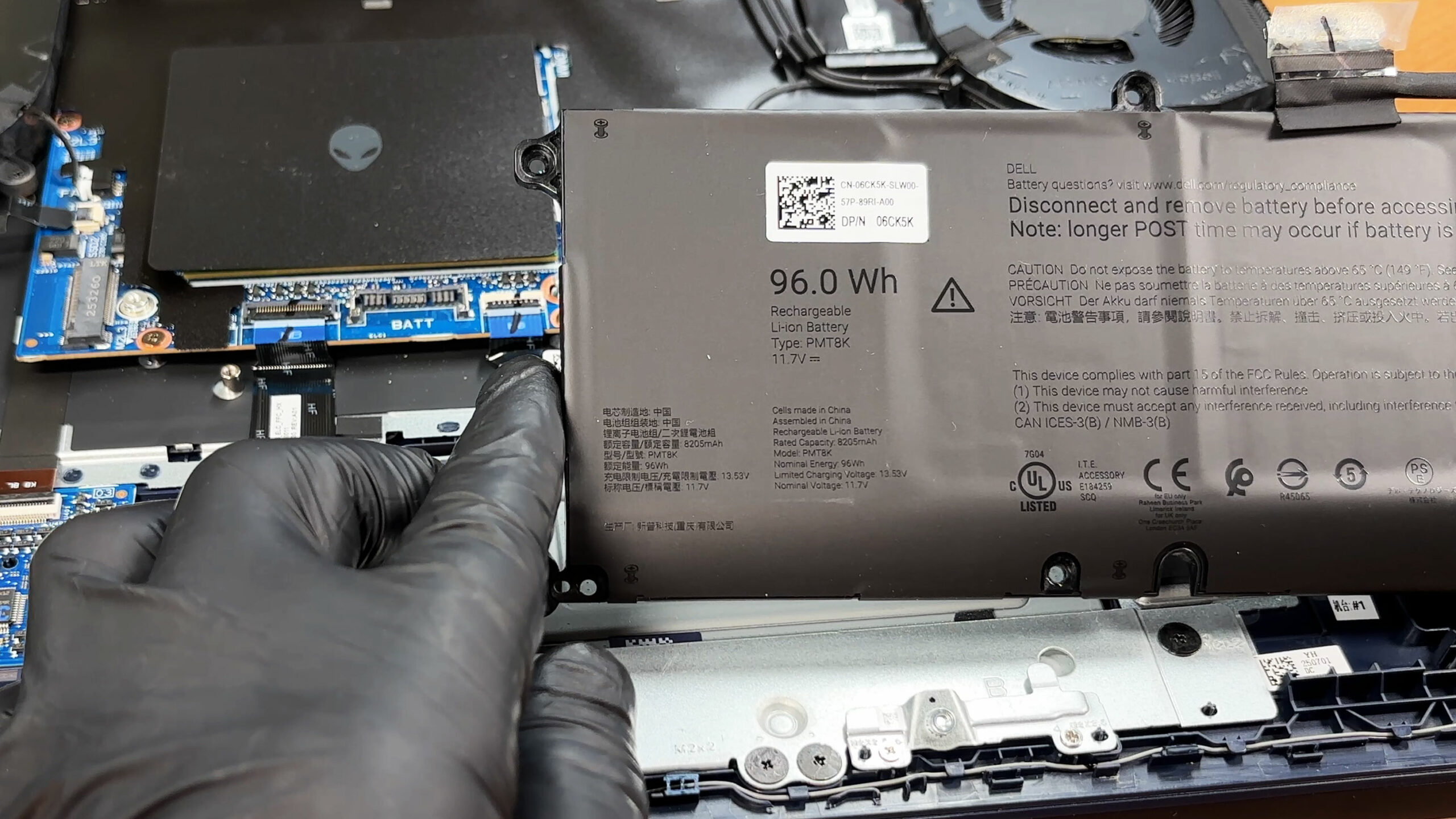
- Disconnect the battery connector before touching any other components.
- The connector is typically protected by tape and includes a small locking mechanism—make sure it is re-locked during reassembly.
- The laptop uses a large 6-cell, 96 Wh battery secured with multiple screws. Once the screws are removed, the pack lifts out without needing to remove other major assemblies.
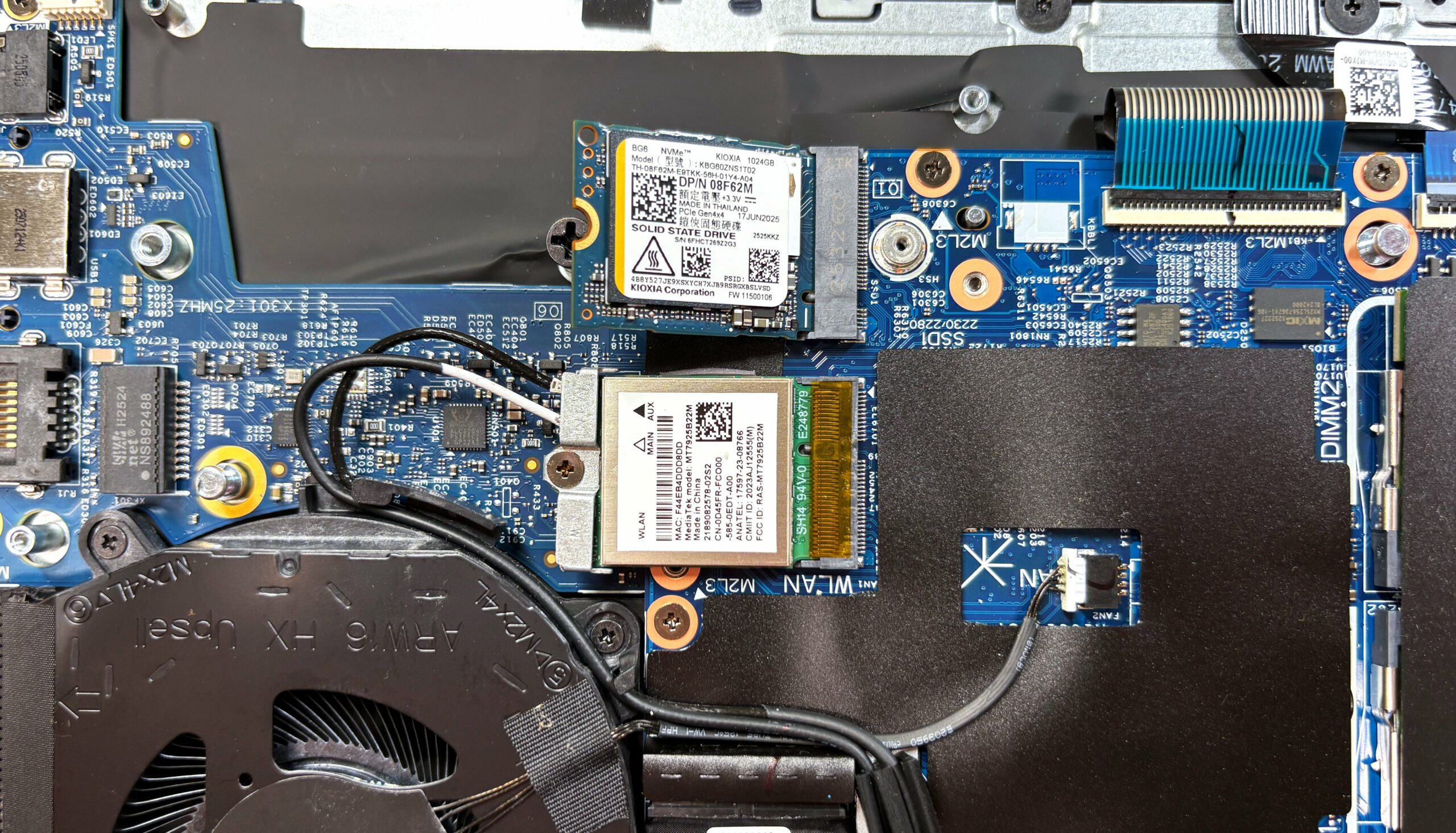
Storage upgrade
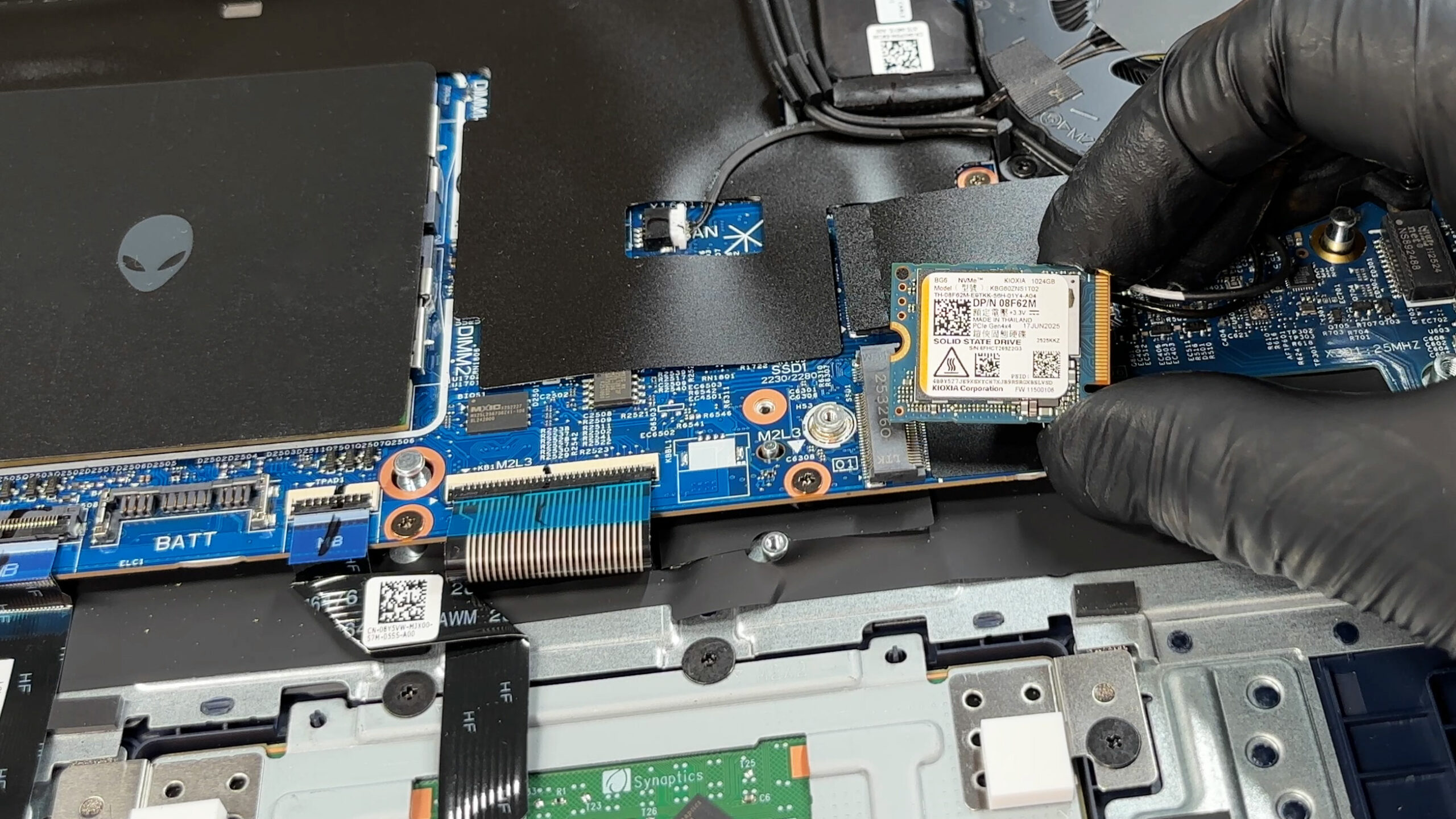
- Storage is handled by two M.2 2230 slots.
- The primary SSD sits under an EMI/RFI shield with an integrated thermal pad—reinstall the shield and pad exactly as found to maintain proper heat transfer.
- The second M.2 slot is also accessible, but note the physical limitation: this chassis is designed for 2230 drives, not the more common 2280 format.
- To swap a drive, remove the shield (if present), undo the retention screw, slide the SSD out, insert the replacement at an angle, then secure it and reinstall the thermal interface.
Hint: Consider reviewing our Top M.2 SSDs Performance Rankings to select the best storage solution for your needs.
You can buy M.2 2230 Gen4 SSDs here: Buy from Amazon.com (#CommissionsEarned)
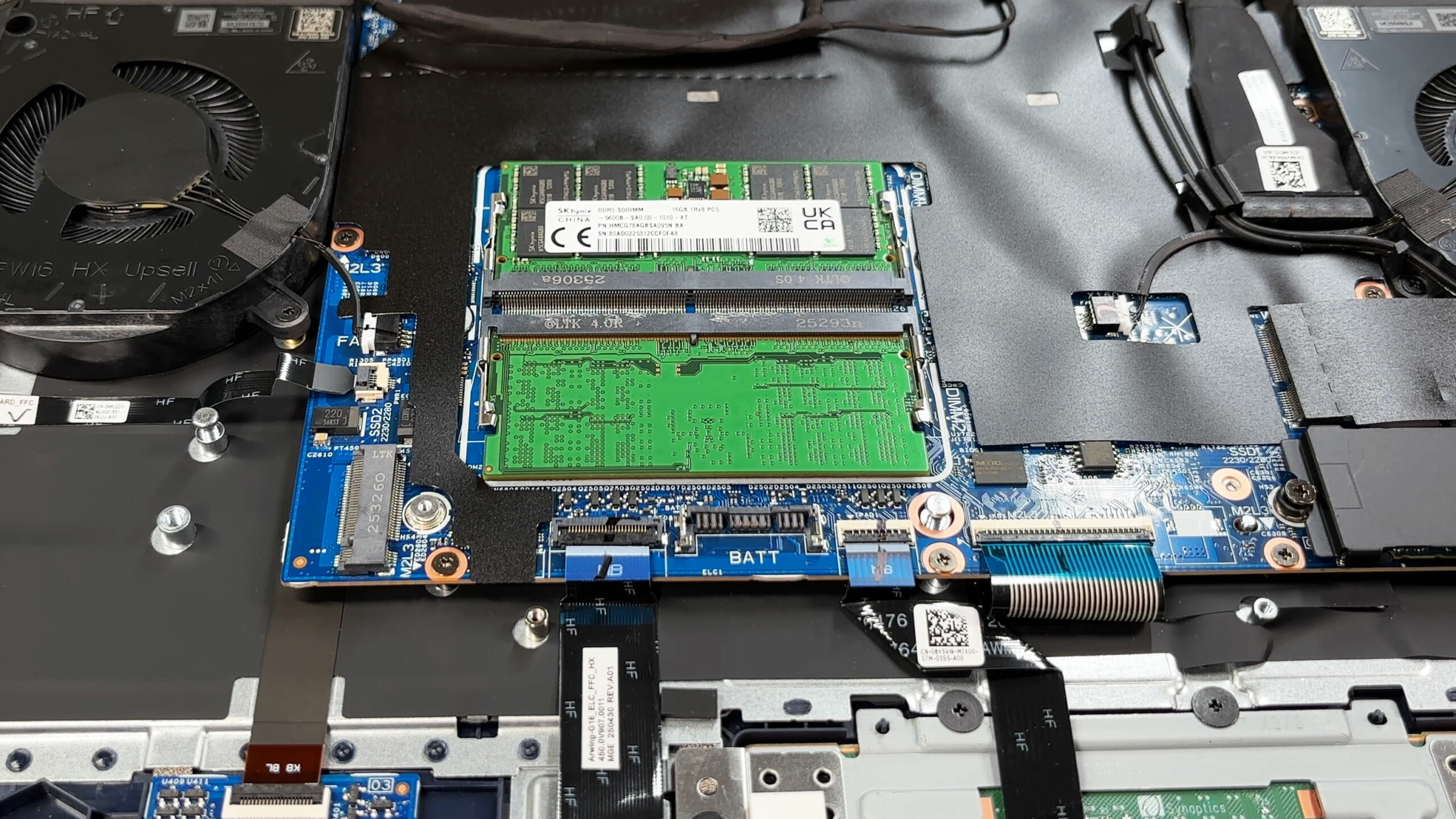
Memory upgrade
- Memory is upgradeable via two DDR5 SO-DIMM slots rated at up to 5600 MT/s.
- Dell/Alienware’s official maximum configuration is 64 GB for this platform, and the modules are standard removable sticks.
- For best results, use a matched pair to maintain dual-channel operation and stick to standard-height modules to avoid clearance issues with shields.
Wireless card
- The Wi-Fi card is replaceable; our unit uses a MediaTek MT7925B22M module in an M.2 socket.
- It is usually covered by a protective film and uses the standard two-antenna-lead setup.
- To replace it, lift the antenna leads straight up, remove the retaining screw, swap the card, then press the antennas back down until they click.
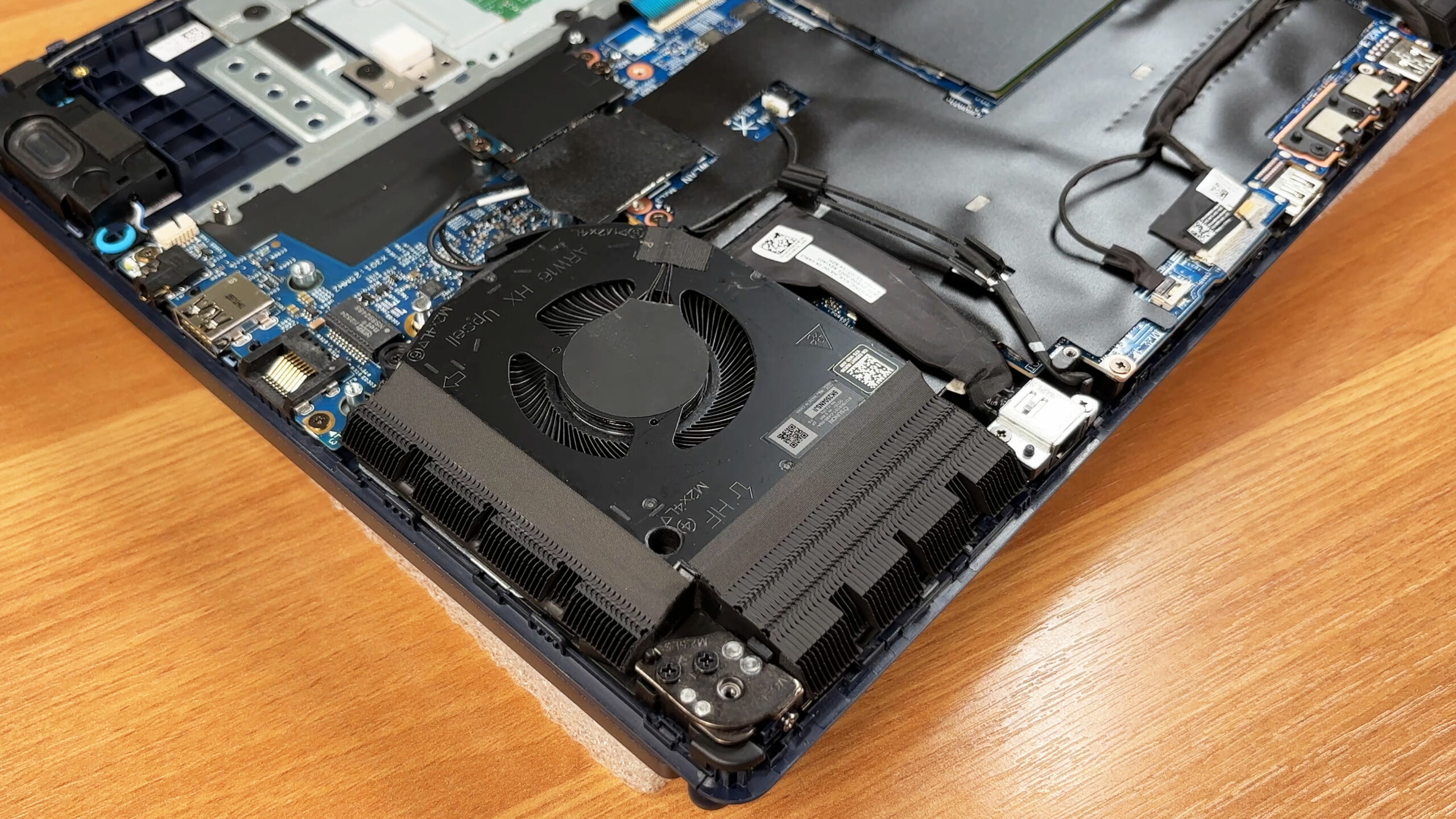
Cooling system and maintenance
- Cooling relies on a dual-fan design with heatsinks on both sides, positioned close to the chassis openings.
- Routine dust cleaning is straightforward once the bottom cover is removed; hold fan blades still while using compressed air to avoid overspin.
- Fan replacement is typically a screw-and-connector job, while deeper work (repaste / full thermal module removal) is more involved and should be done only with the correct thermal materials and procedure.
Reassembly checklist
- Confirm SSD shields and thermal pads are reinstalled with full contact.
- Confirm both SO-DIMMs are fully seated and latched.
- Confirm Wi-Fi antennas are snapped on and routed away from fan blades.
- Reconnect and lock the battery connector, then reapply any protective tape/film as originally placed.
- Press the bottom cover around the perimeter until all clips engage, then tighten the screws evenly.
Summary: The Alienware 16X Aurora (AC16251) is enthusiast-friendly: it combines a screw-mounted 96 Wh battery with upgradeable DDR5 SO-DIMM memory, two M.2 2230 SSD bays, and a replaceable Wi-Fi module, making routine maintenance and common upgrades relatively straightforward.
Alienware 16X Aurora (AC16251) in-depth review
The Alienware 16X Aurora (AC16251) arrives with the confidence of a premium contender, flaunting a sleek aluminium and magnesium chassis that feels every bit as expensive as it looks. It promises a top-tier experience with a stunning 240Hz QHD+ display and powerful internals designed to crush modern games. But as we dug deeper into our testing, a stark contrast emerged. While the exterior is cool and composed, the internal reality is a different story entirely. This is a laptop of extreme highs and lows, where exceptional build quality and display performance clash with thermal management [...]

Pros
- Premium aluminium and magnesium build with no flex
- Excellent 240Hz QHD+ display with accurate colors and no PWM
- Stable GPU gaming performance with good thermals
- Two user-accessible RAM slots for upgrades
- Modern connectivity with Thunderbolt 4 and Wi-Fi 7
- Distinctive and stylish design
Cons
- CPU runs dangerously hot (100°C+) and throttles heavily
- Storage limited to small M.2 2230 SSDs
- Very poor battery life (approx. 4 hours)
- Half-height arrow keys
- No physical privacy shutter
 Author: Dimitar Stalev

![[June 2026] Best-Selling Laptop Brands on Amazon Global – Apple’s Unrivaled Dominance in Units and Revenue](https://laptopmedia.com/wp-content/uploads/2026/07/GLOBAL-Best-Brands-400x225.jpg)
![[June 2026] Amazon Global: Top 10 Best-Selling Laptops – Apple’s New MacBook Neo Storms to #1, Reshaping the Market with Affordability](https://laptopmedia.com/wp-content/uploads/2026/07/Best-Selling-Laptops-GLOBAL-Top-10-400x225.jpg)
![[June 2026] Amazon Global: Top 10 Best-Selling Gaming Laptops – Acer’s Nitro V 16S AI Dominates Sales, While ASUS Leads Overall Revenue](https://laptopmedia.com/wp-content/uploads/2026/07/Best-Selling-Gaming-Laptops-GLOBAL-Top-10-400x225.jpg)
![[June 2026] Global Ranking of Best-Selling Laptop GPUs on Amazon – NVIDIA RTX 5060 is the Top-Selling Dedicated GPU](https://laptopmedia.com/wp-content/uploads/2026/07/Best-Selling-GPUs-GLOBAL-Top-10-400x225.jpg)
![[June 2026] Global Ranking of Best-Selling Laptop CPUs on Amazon – Apple M5 Dominates, AMD Ryzen 7 260 Gets Solid Premium Share](https://laptopmedia.com/wp-content/uploads/2026/07/Best-Selling-CPUs-GLOBAL-Top-10-400x225.jpg)