Lenovo ThinkPad X13 2-in-1 Gen 5 review – A Well-Rounded Light Business Transformer
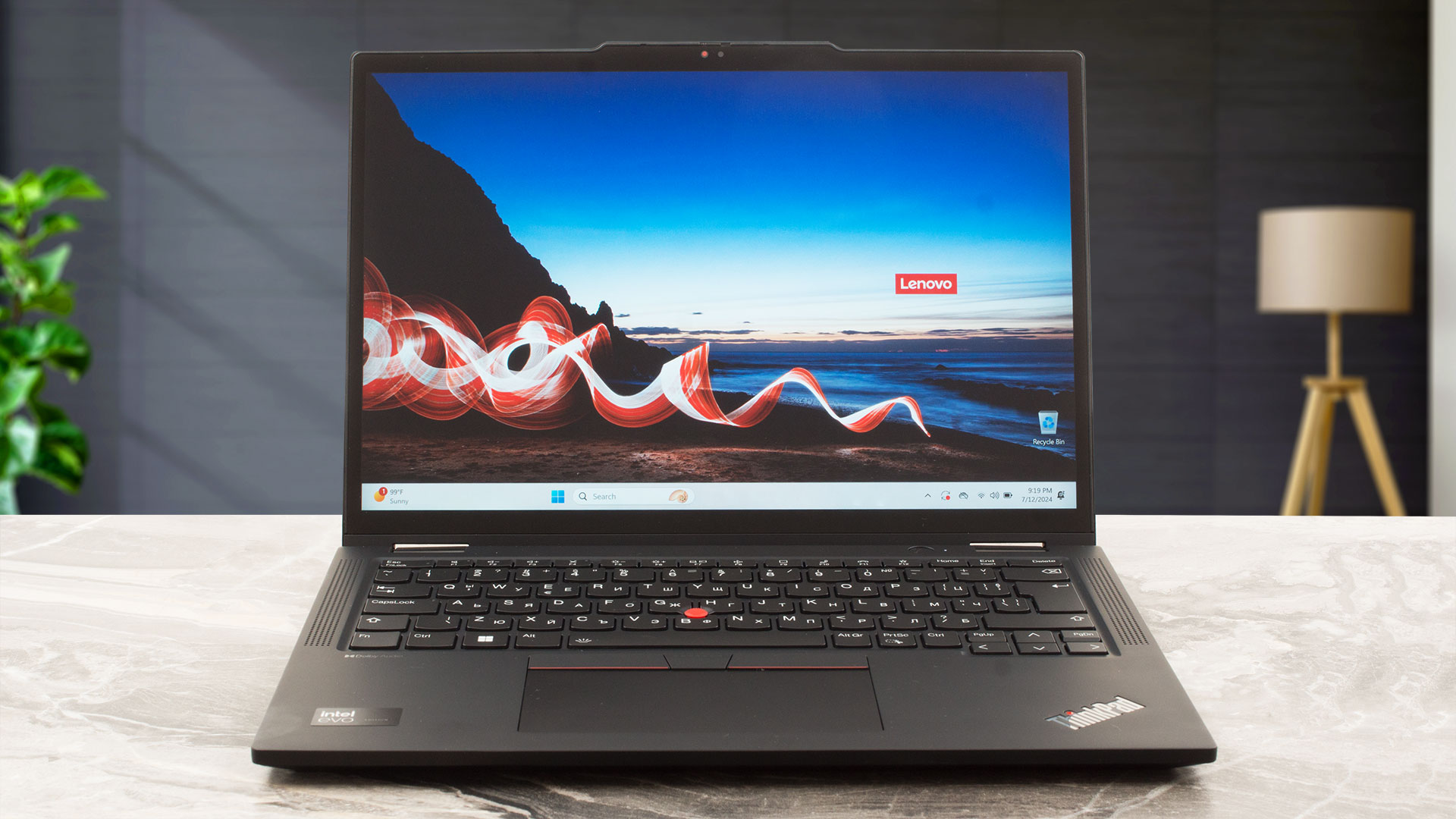 Good portability is a key feature for people who travel a lot or for hybrid workers. The Lenovo ThinkPad X13 2-in-1 Gen 5 is a device that can impress many users with its low weight and capable hardware combined with tons of security features. We are talking about a dTPM 2.0 chip, a privacy shutter, a Kensington lock slot, and a self-healing BIOS. As always, you can pay more for extras like an IR Web camera, NFC, LTE connectivity, fingerprint reader, and vPro CPUs. If you get all these goodies, the price of the laptop will be jaw-dropping.
This little machine is powered by 15W Intel Meteor Lake U-series processors. Since there are no dGPU options, you can rely on integrated Intel Graphics (4-Cores). The memory is soldered but you can order this laptop with up to 64GB RAM which should be more than enough for most people. The port selection is great for such a small notebook and we are happy to see a pair of Thunderbolt 4 ports plus Type-C charging.
The three 1200p IPS screen options support the touch function. Keep in mind that the Lenovo Digital Pen isn’t standard for all devices just like the Wi-Fi 7 connectivity. For the best possible battery life, you can pick an Intel Evo-certified machine with the optional 54.7Wh battery (just like we did).
You can check the prices and configurations in our Specs System: https://laptopmedia.com/series/lenovo-thinkpad-x13-2-in-1-gen-5/
Contents
Specs, Drivers, What’s in the box
Lenovo ThinkPad X13 2-in-1 Gen 5 - Specs
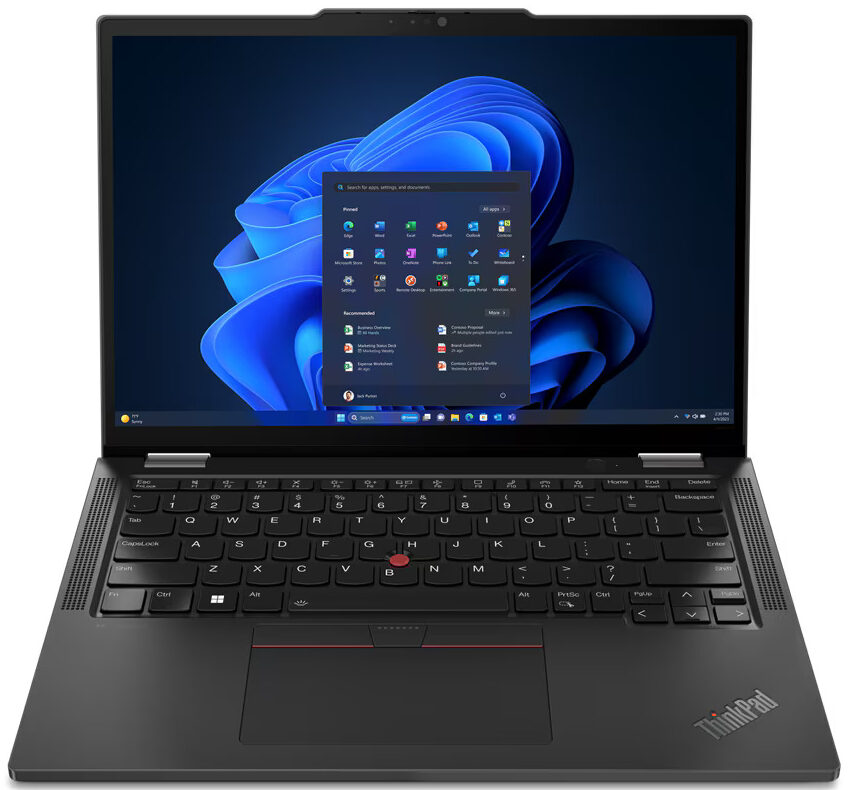
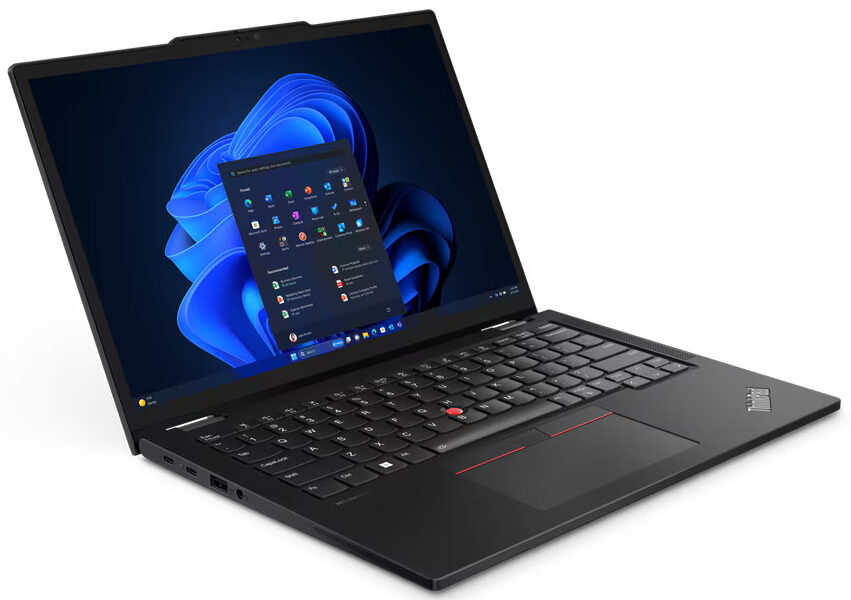
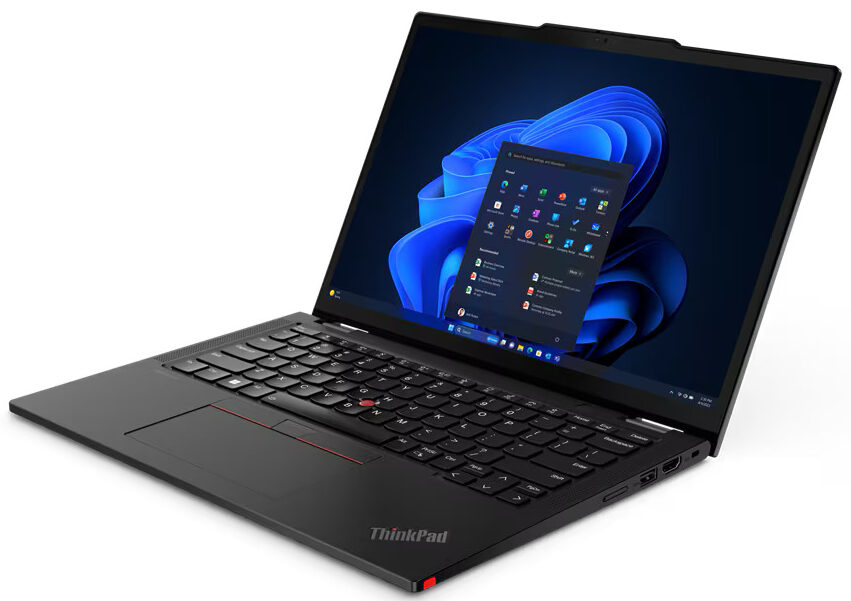
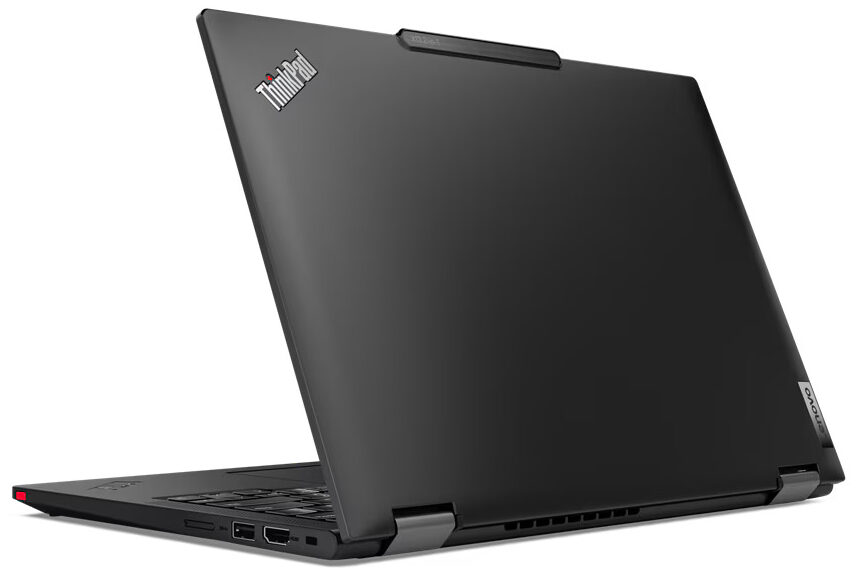
- Display
- 13.3”, WUXGA (1920 x 1200), IPS

- HDD/SSD
- up to 2000GB SSD
- M.2 Slot
- 1x 2280 M.2 NVMe PCIe 4.0 x4 See photo
- RAM
- up to 64GB
- OS
- Windows 11 Pro, Windows 11 Home
- Battery
- 54.7Wh
- Body material
- Magnesium alloy
- Dimensions
- 301.7 x 214.6 x 16.4 mm (11.88" x 8.45" x 0.65")
- Weight
- 1.20 kg (2.6 lbs)
- Ports and connectivity
- 1x USB Type-A
- 3.2 Gen 1 (5 Gbps)
- 1x USB Type-A
- 3.2 Gen 1 (5 Gbps), Sleep and Charge
- 2x USB Type-C
- 4.0, Thunderbolt 4, Power Delivery (PD), DisplayPort
- HDMI
- 2.1 (4K@60Hz)
- Card reader
- Ethernet LAN
- Wi-Fi
- 802.11be
- Bluetooth
- 5.4
- Audio jack
- 3.5mm Combo Jack
- Features
- Fingerprint reader
- optional
- Web camera
- 5.0MP + IR discrete, with privacy shutter, fixed focus
- Backlit keyboard
- Microphone
- Dual-microphone array, 360 far-field, Dolby Voice
- Speakers
- 2x 2W Stereo Speakers, Dolby Audio
- Optical drive
- Security Lock slot
- Kensington Nano Lock
All Lenovo ThinkPad X13 2-in-1 Gen 5 configurations
Drivers
All drivers and utilities for this notebook can be found here: https://pcsupport.lenovo.com/us/en/products/laptops-and-netbooks/thinkpad-x-series-laptops/thinkpad-x13-2-in-1-gen-5-type-21lw-21lx/downloads
What’s in the box?
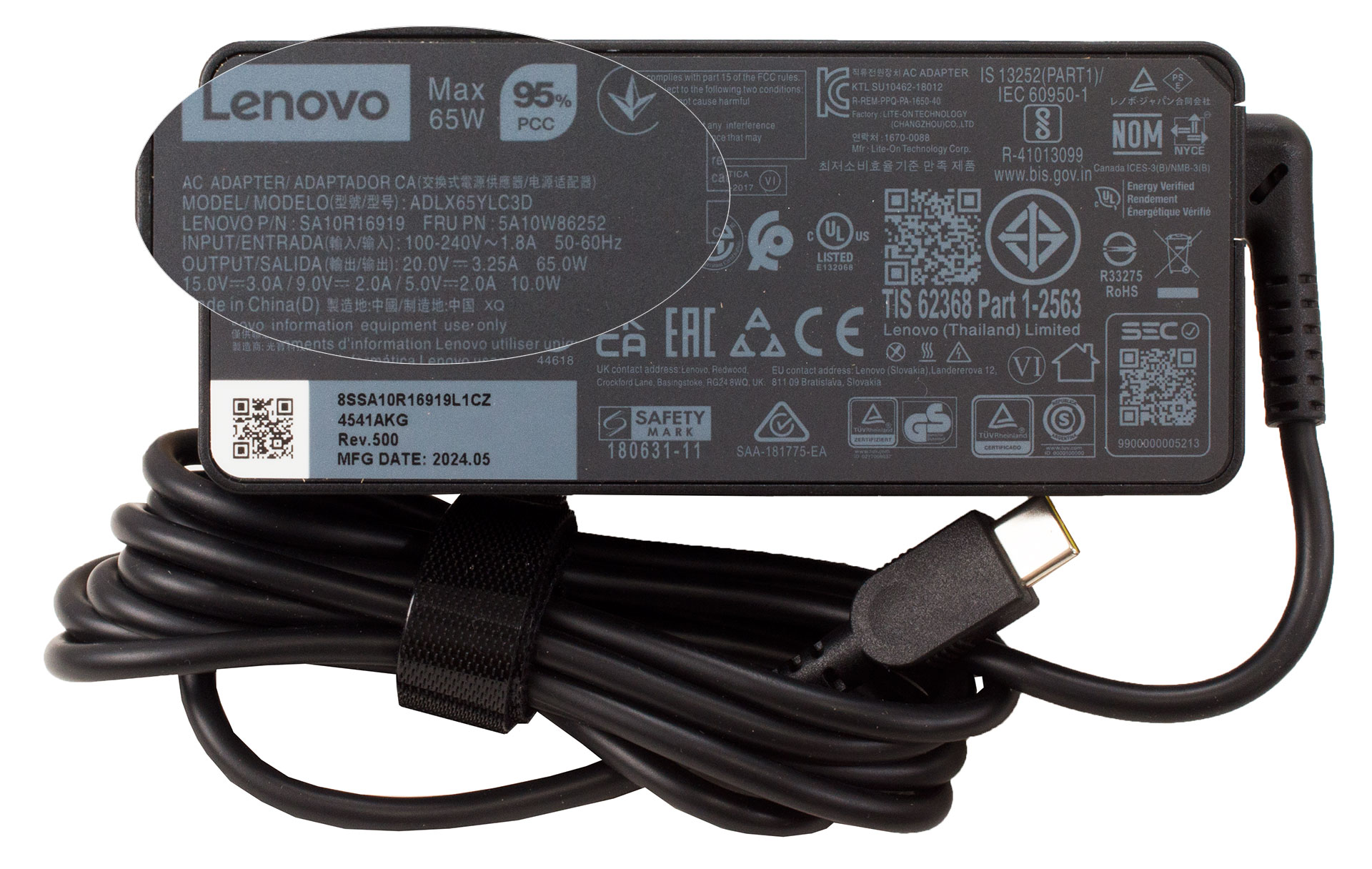
The box contains the laptop itself and a bit of manuals. Depending on the CPU model, you get a 45W or 65W USB Type-C adapter. You can also find in the package the following optional accessories – Lenovo Digital Pen, HDMI to VGA Monitor Adapter, USB-C to DisplayPort Adapter, USB-C to Ethernet Adapter, or USB-C to VGA Adapter.
Design and construction
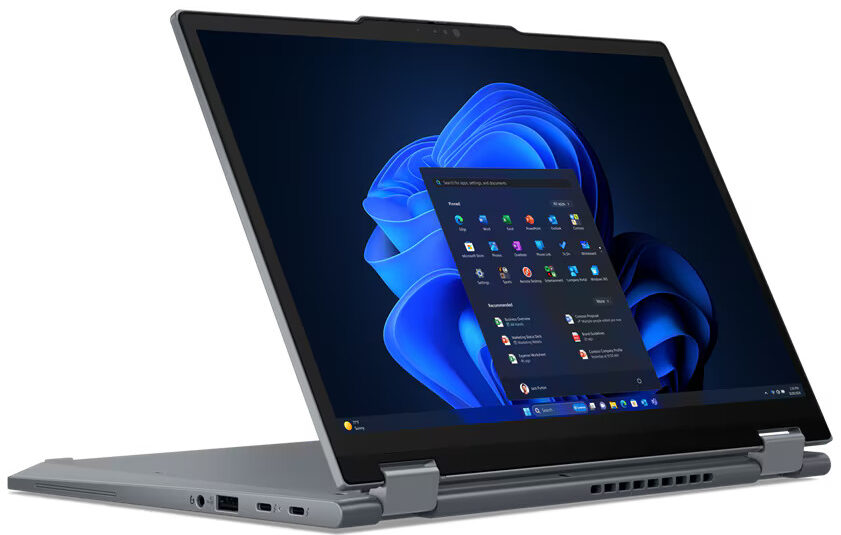
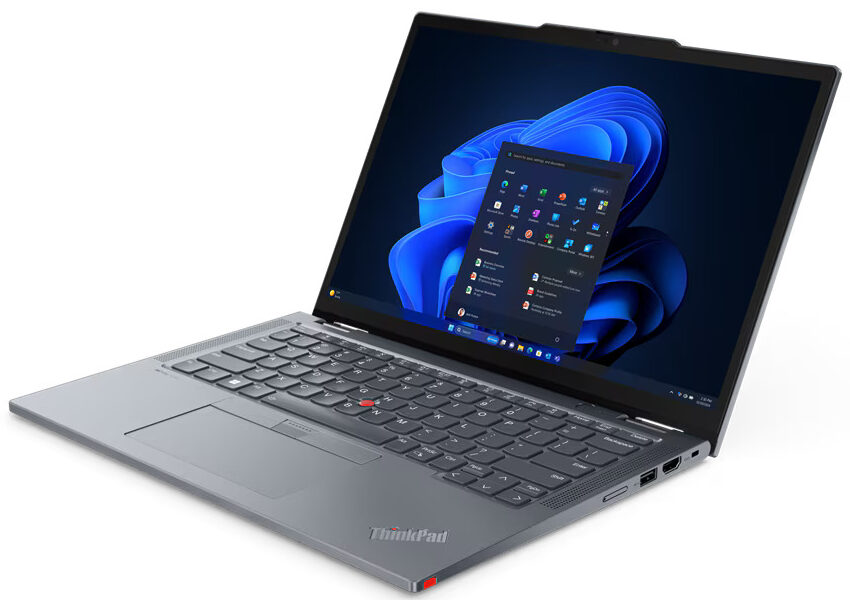
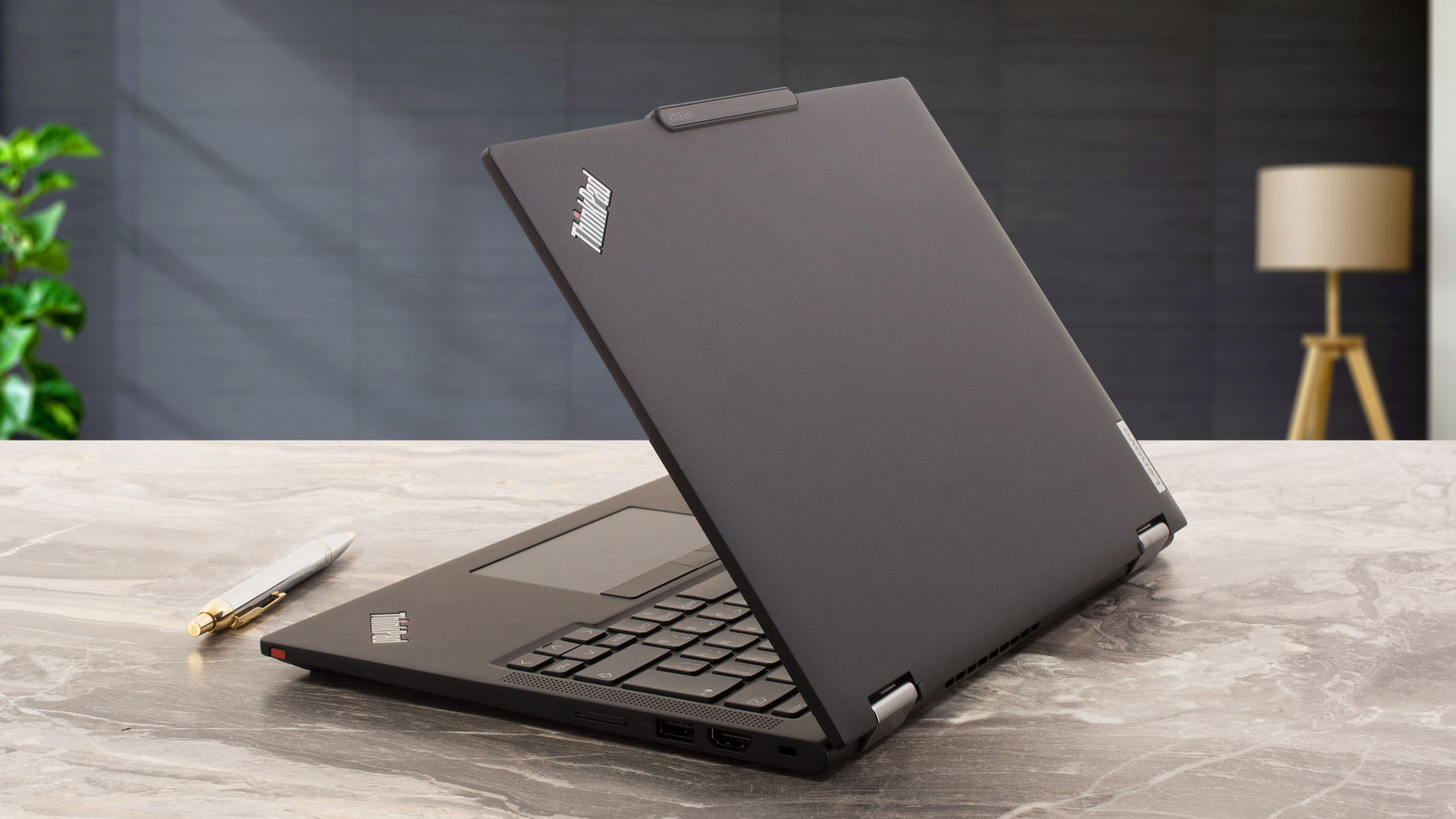
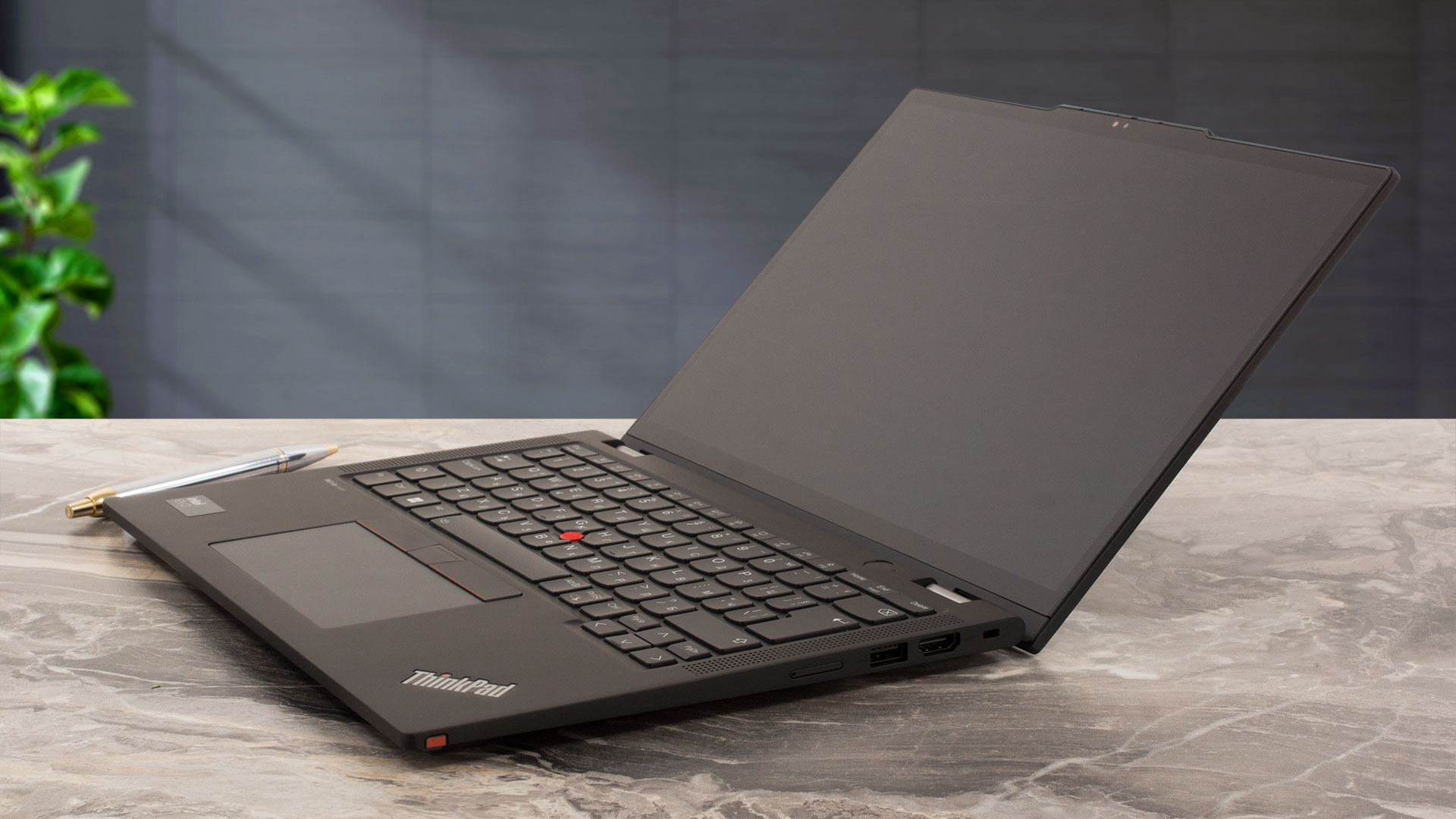
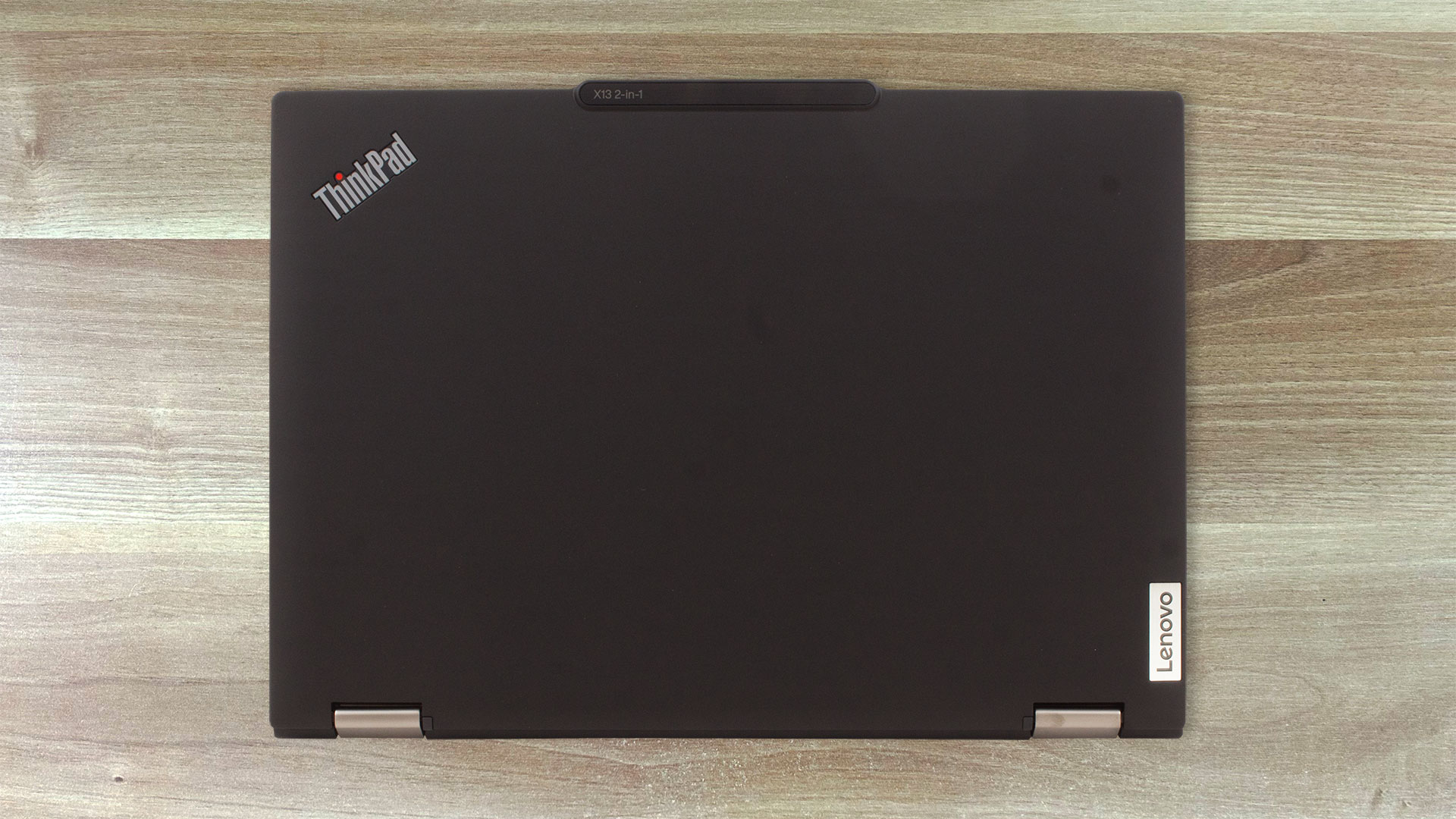
The Lenovo ThinkPad X13 2-in-1 Gen 5 looks almost identical to last year’s ThinkPad X13 Gen 4. The all-magnesium chassis is sturdy and this applies to both the lid and base. The machines in Black color and with a 41Wh battery are slightly lighter (1.20 kilos) than the models in Grey tone and 54.7Wh unit (1.26 kg). The profile thickness is 16.4 mm – yep, the portability is great!
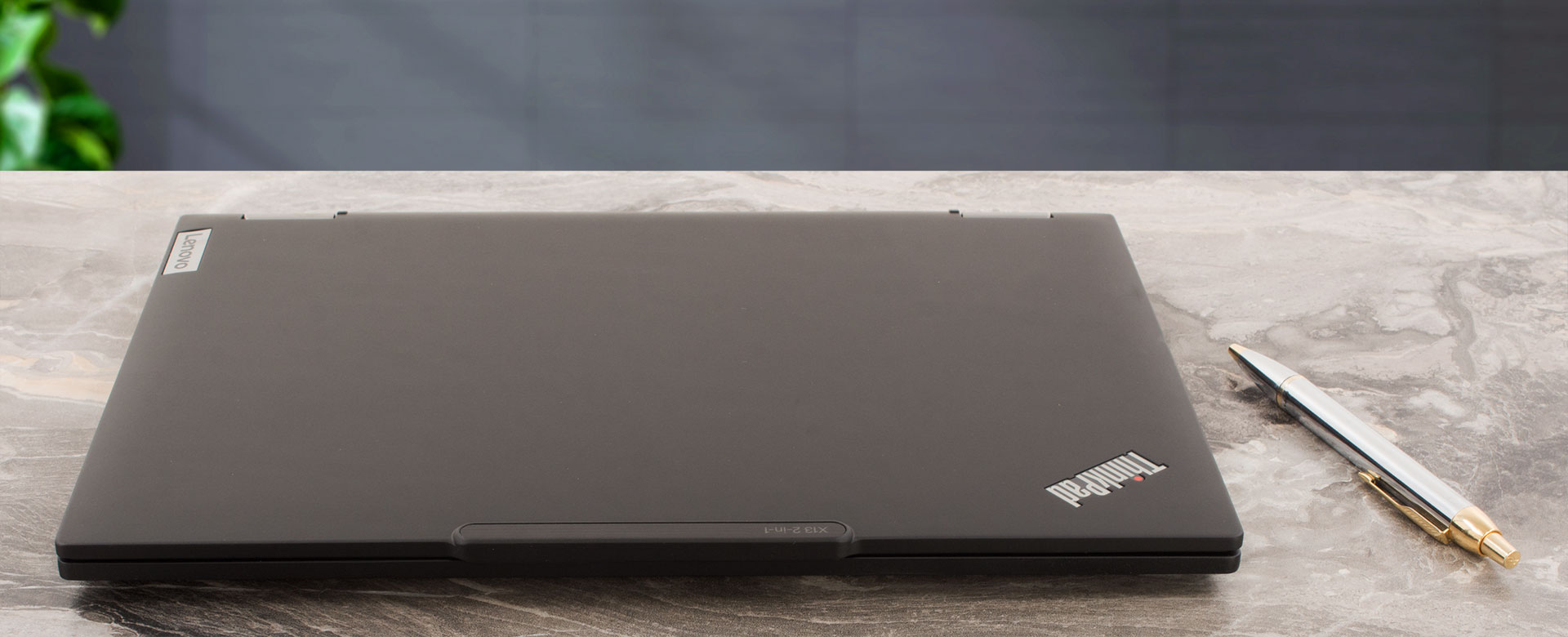
Since that’s a light transformer, you can’t open the lid with a single hand but there is a protrusion on the top of the lid that eases the whole process.
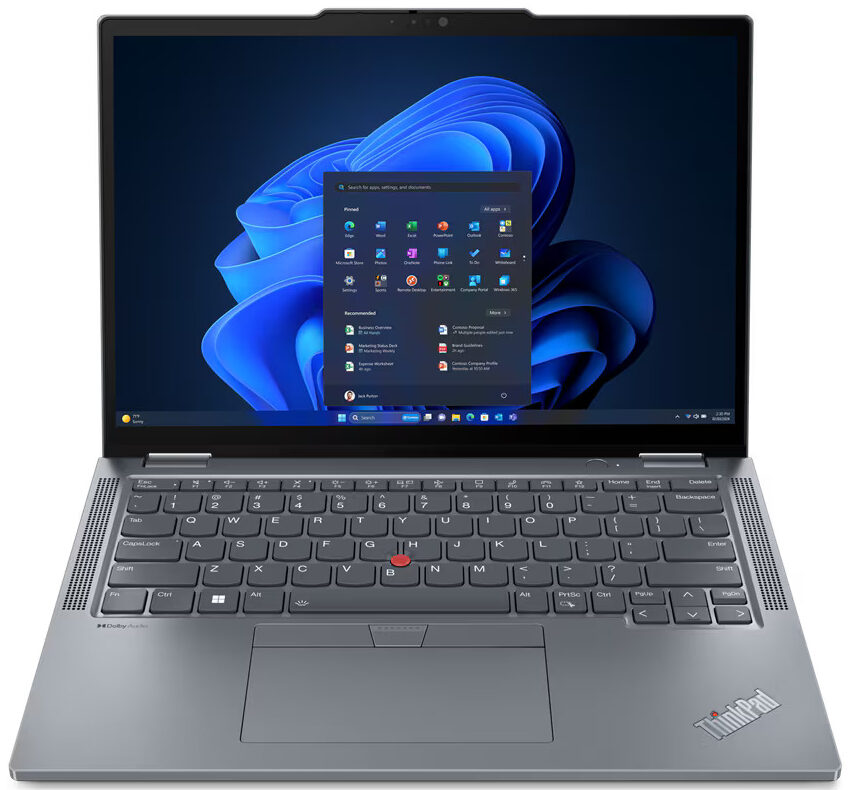
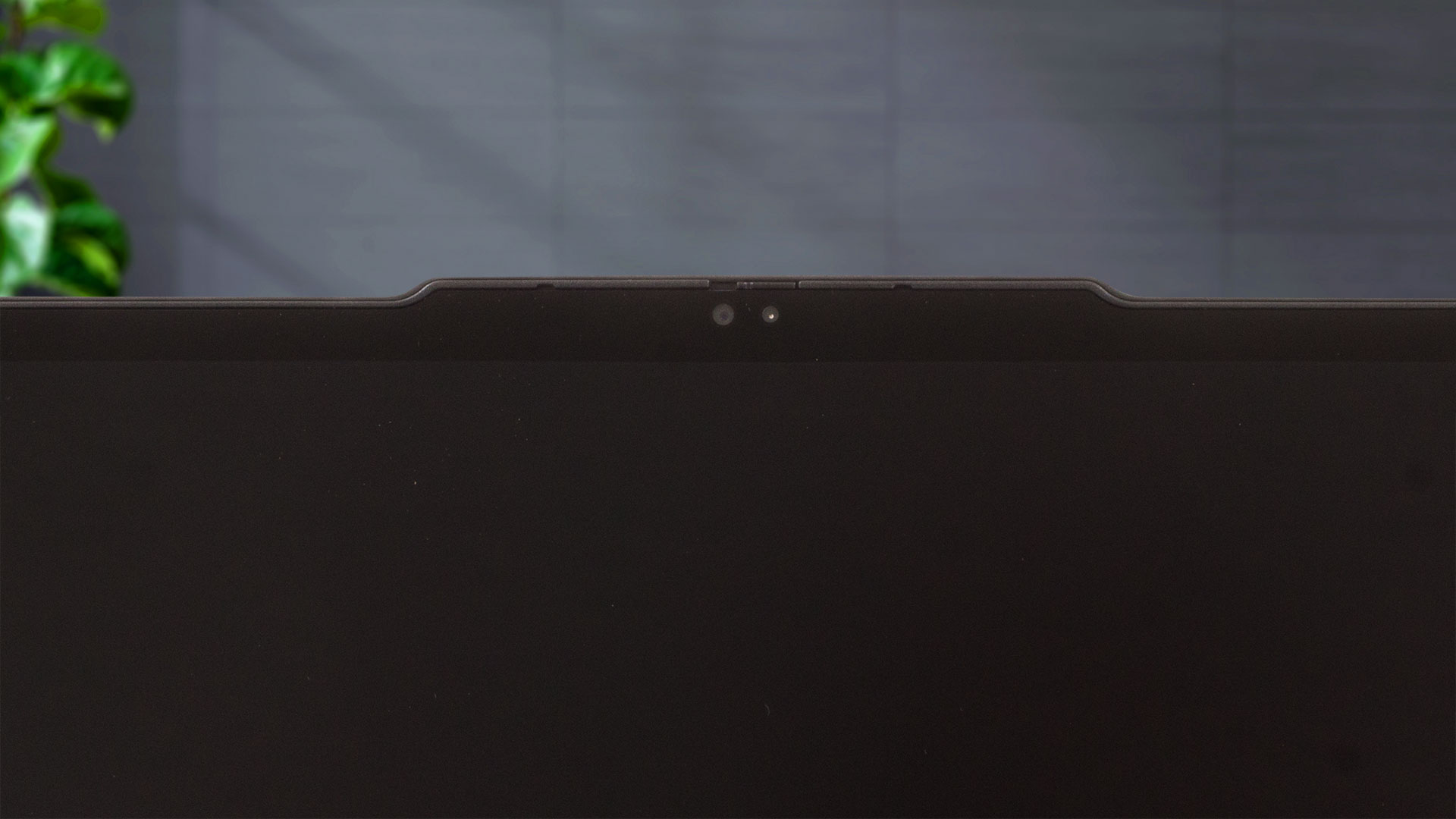
The bezels around the small display are thin.
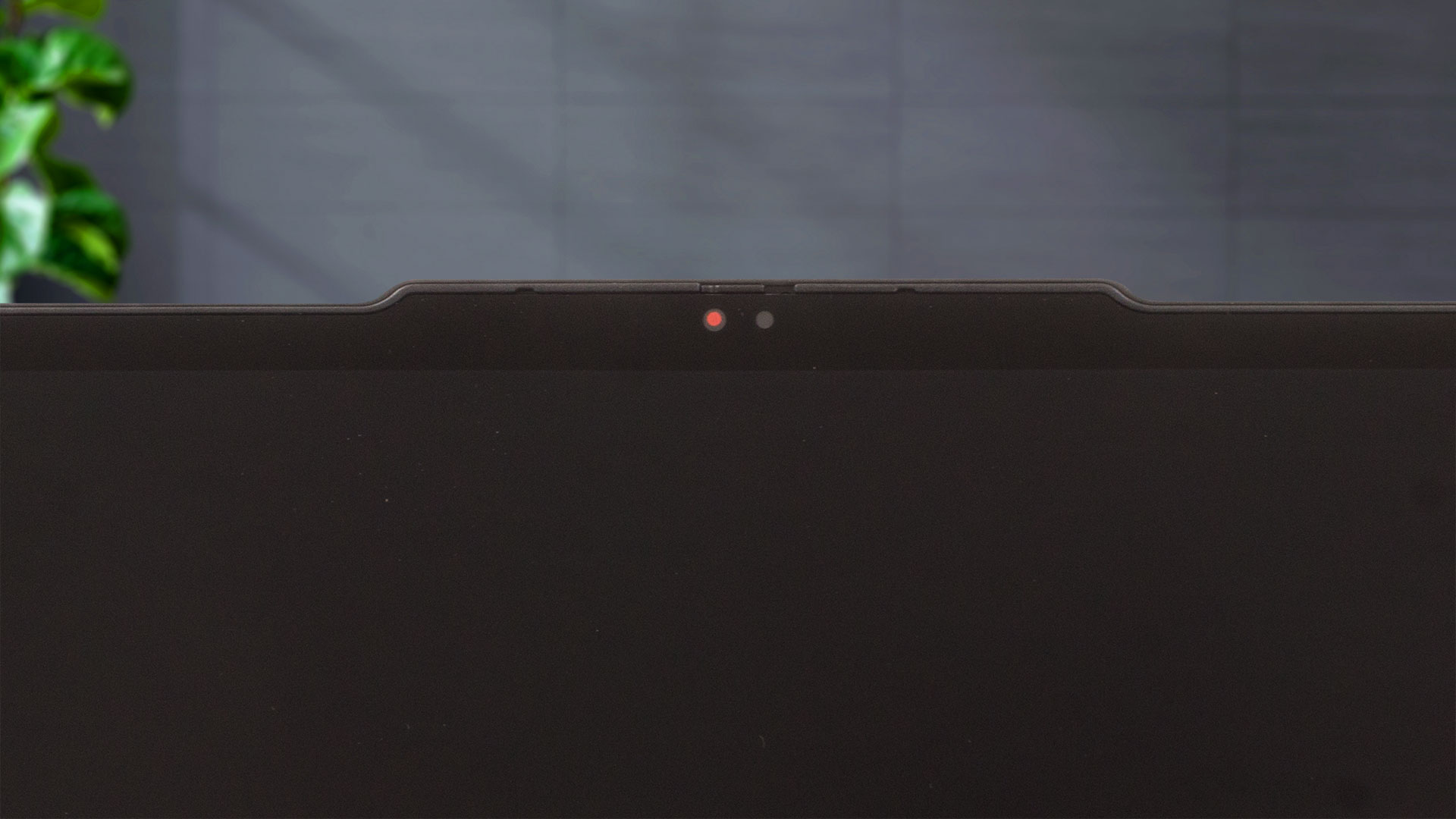
The “hump” above the screen houses a 5MP Web camera with a privacy shutter. You can get the optional IR model for Windows Hello and support for Human Presence Detection tech.
The lid with two small rubber feet on its bottom side has a lever design. This means it lifts the back of the chassis when the angle of the opening is bigger than 90 degrees. This also enhances the cooling capabilities of the modest thermal system.
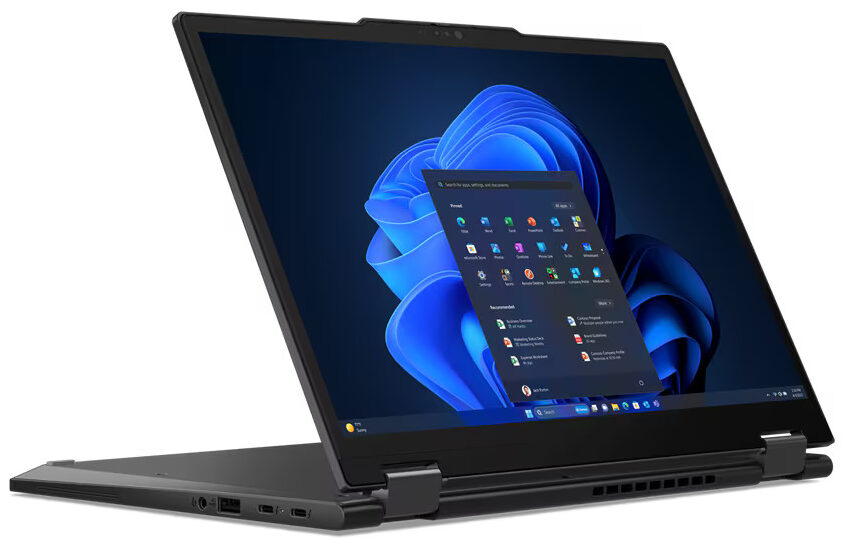
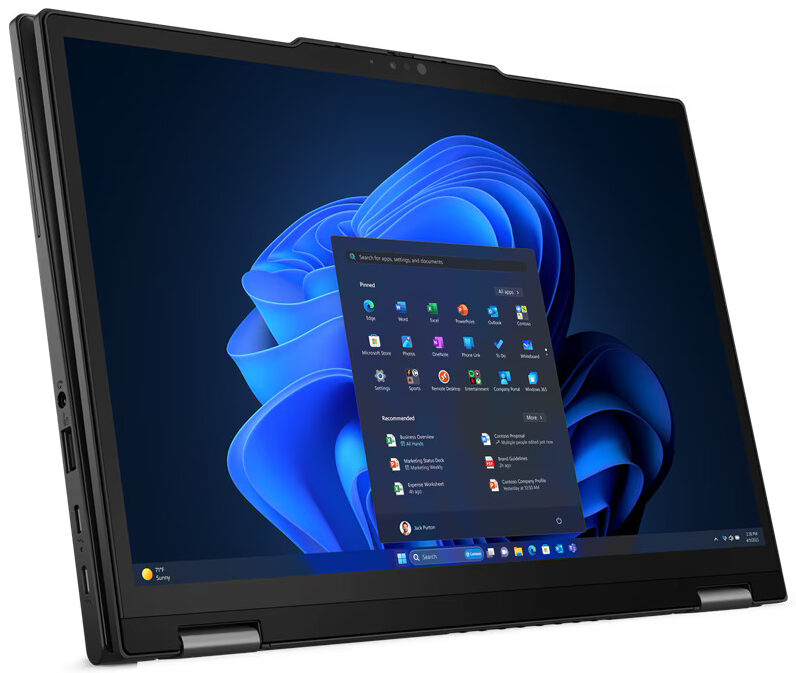
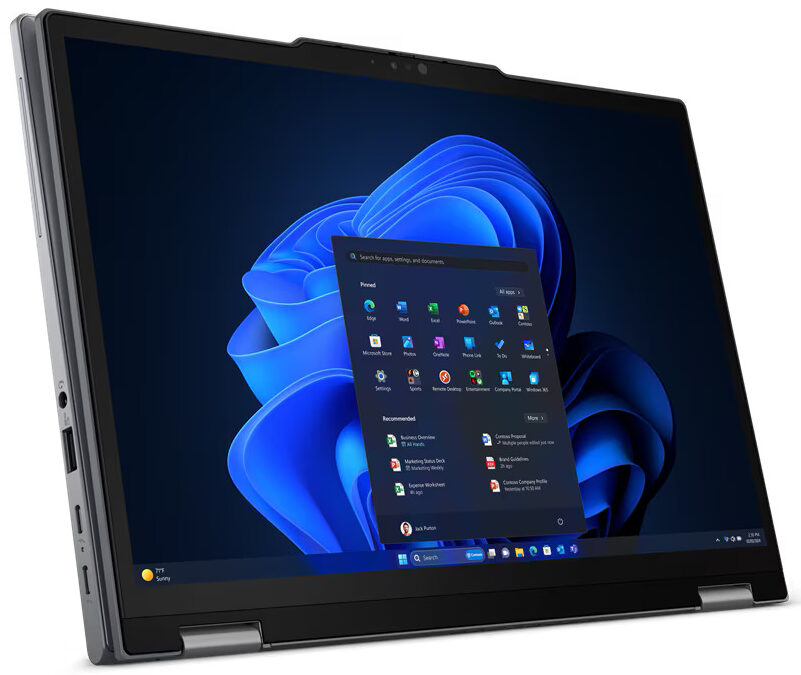
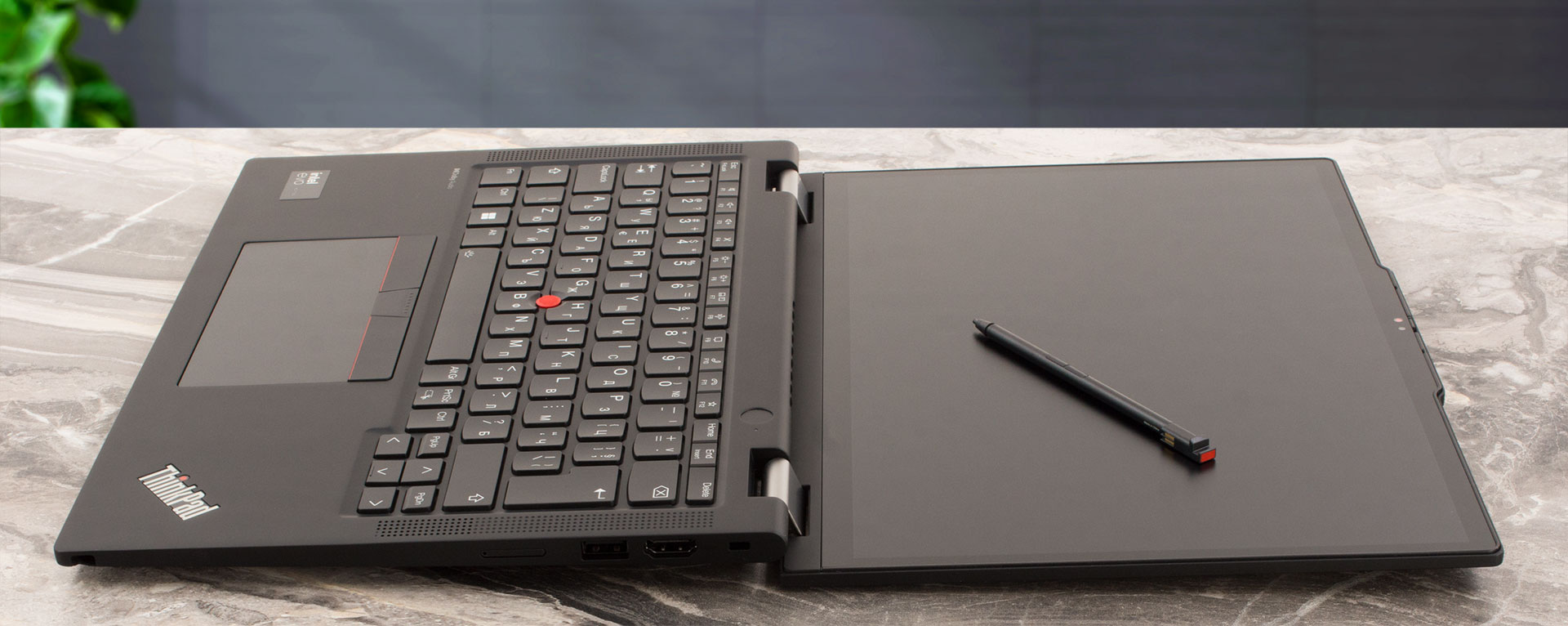
You get a 360-degree hinge and that’s why this device can be used in tablet, tent, or stand modes. All that is great for productivity tasks in the office or while you’re on the go. The optional Lenovo Pen is a nice addition to this machine, especially for sketching or for taking quick on-screen notes.

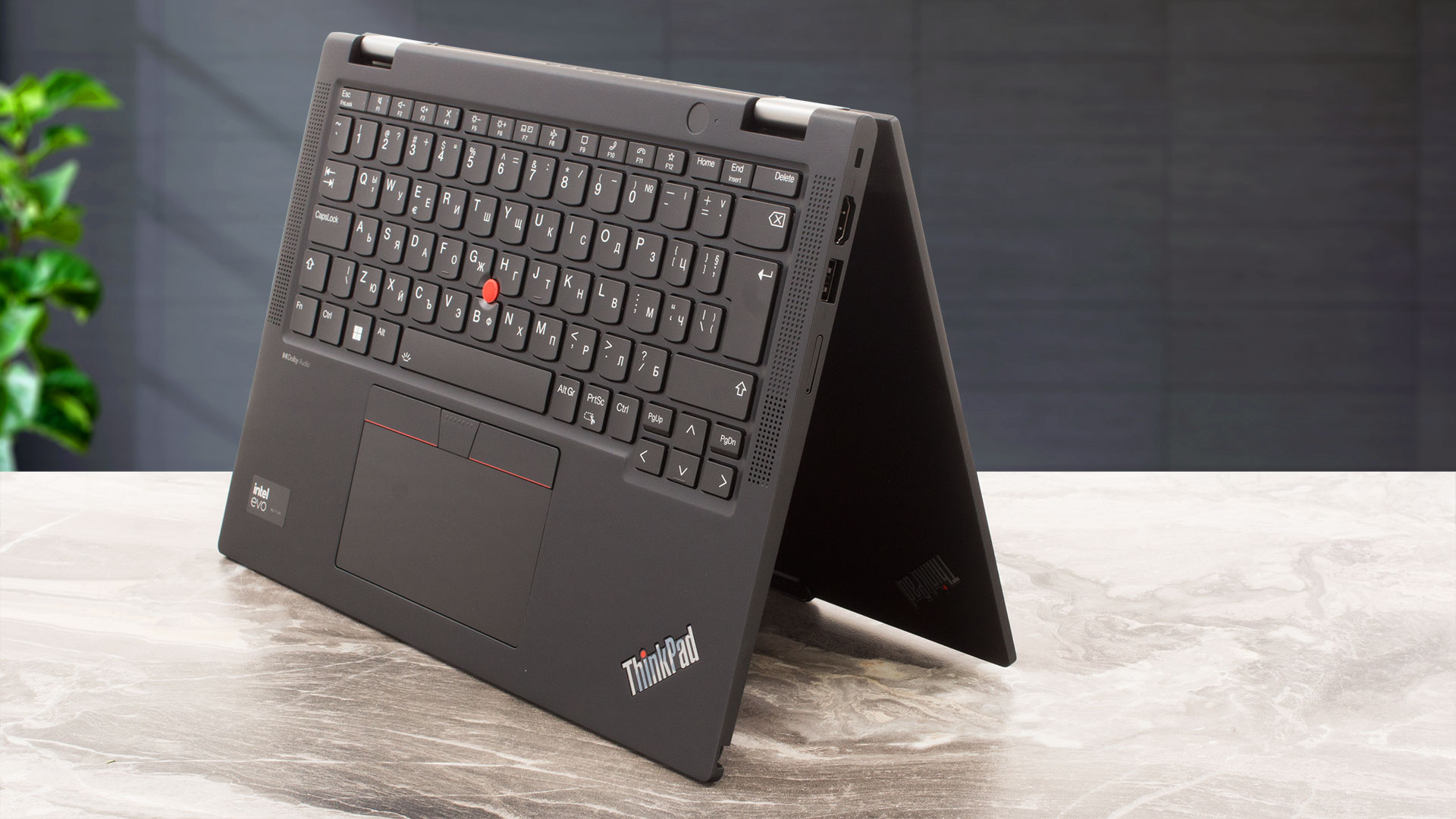
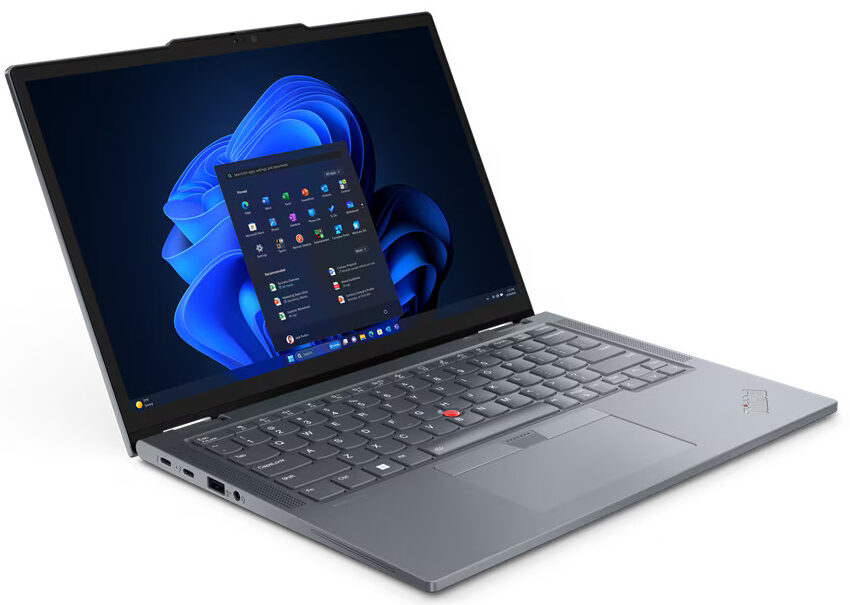
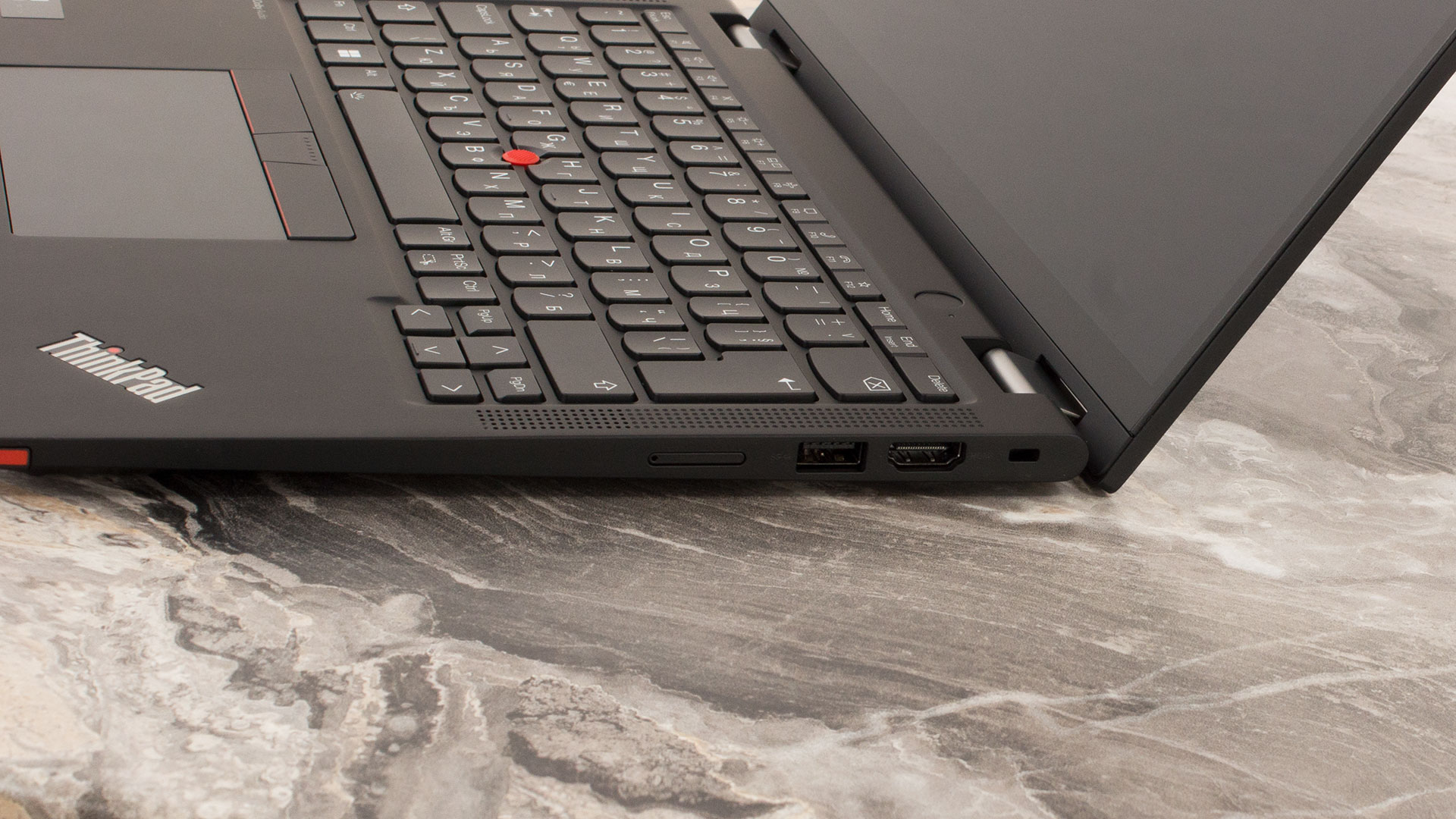
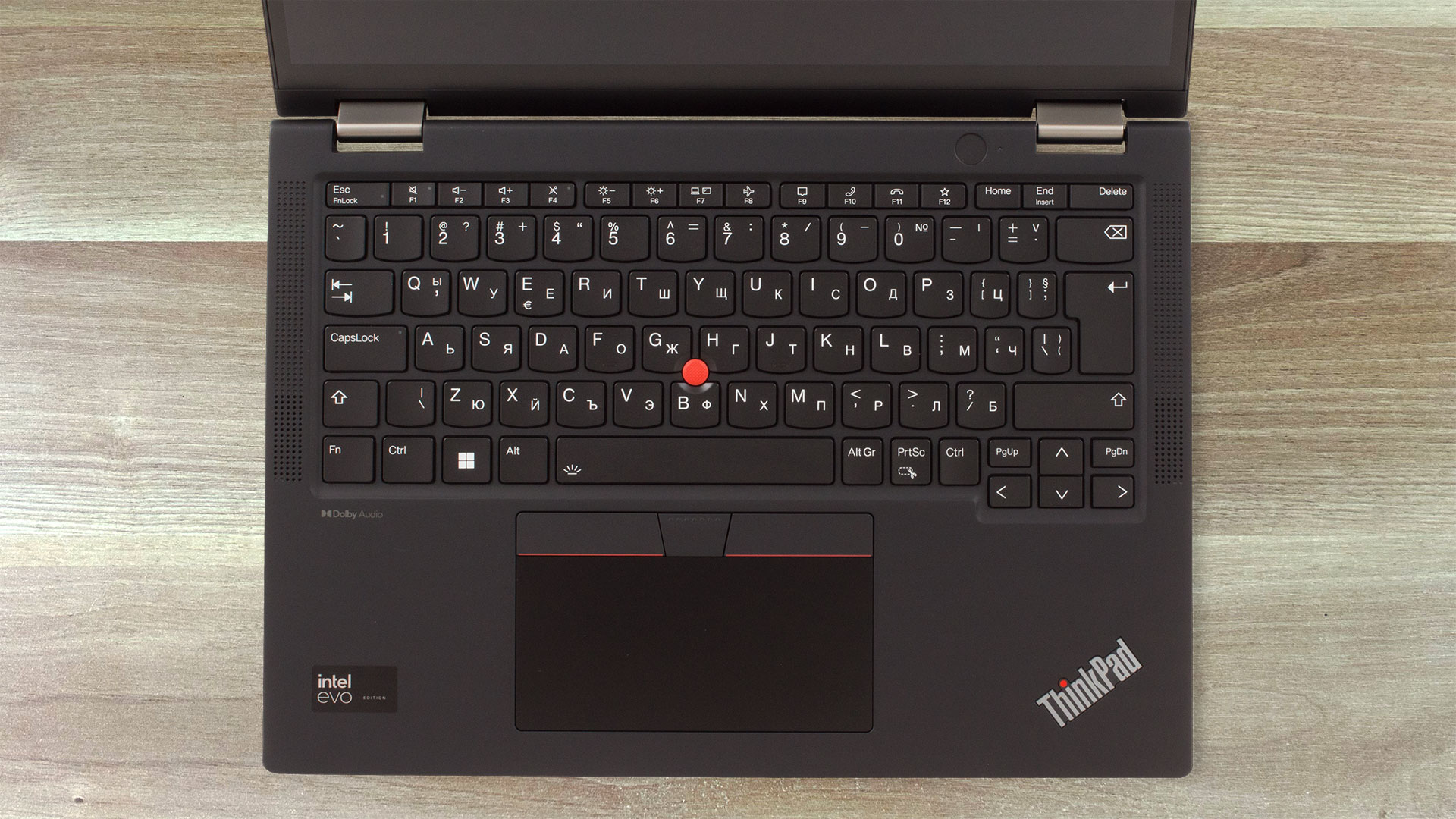
The spill-resistant backlit keyboard is surrounded by two tall grills for the front-firing 2W Dolby Audio speakers. The power button that doubles as an optional fingerprint reader is separated in the top section of the base close to the right hinge. The iconic TrackPoint is also here and it works together with the trio of buttons above the trackpad. The Arrow keys in the bottom right zone aren’t that big but we’ve seen smaller ones. The board itself is comfortable for typing – the key travel is surprisingly long for such a thin device and the feedback is on point.
The touchpad is decently big (56 x 115 mm) and it’s almost glass-like smooth. The accuracy of the unit is also great.
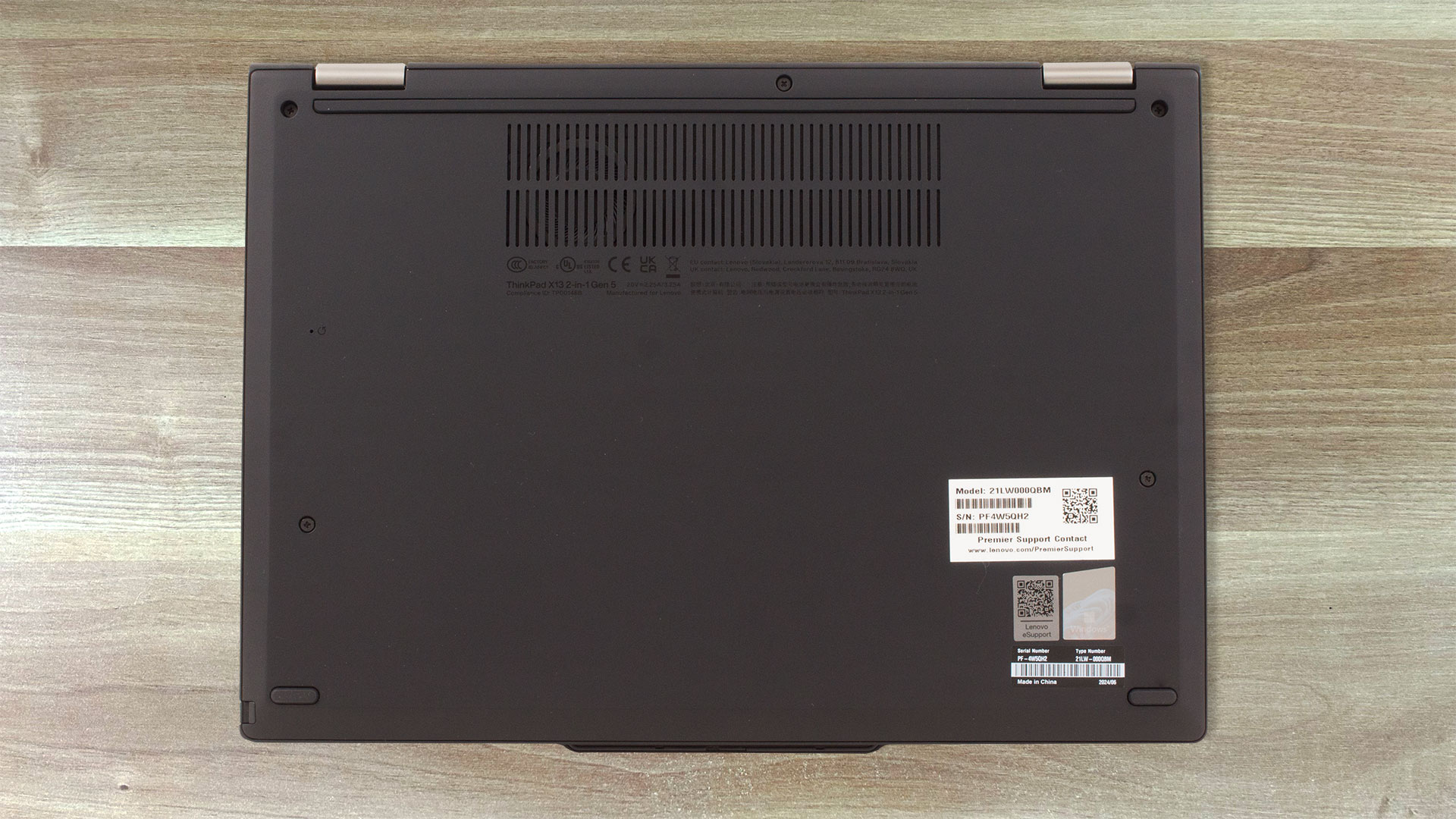
On the bottom of the device, there are three rubber feet and a small two-row ventilation grill plus an emergency reset hole. The hot air is being exhausted through a vent on the rear. Some amount of heat reaches the display during heavy CPU loads.

Ports
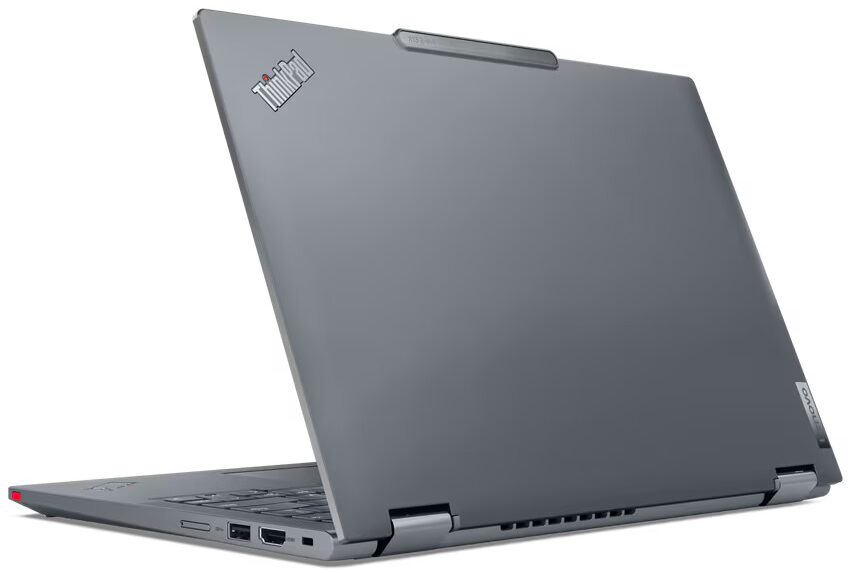
On the left, we can see two 40 Gbps Thunderbolt 4 / USB 4 ports that support PowerDelivery 3.0 and DisplayPort 2.1, followed by a 5 Gbps USB Type-A 3.2 (Gen. 1) port with an Always On function, an Audio combo jack, and an optional Smart card reader. On the right side, you get a Kensington Nano Security Slot, an HDMI 2.1 for up to 4K@60Hz external displays, another 5 Gbps USB Type-A 3.2 (Gen. 1) port, an optional Nano-SIM card slot, and a Pen slot (option).


Display and Sound Quality, Get our Profiles
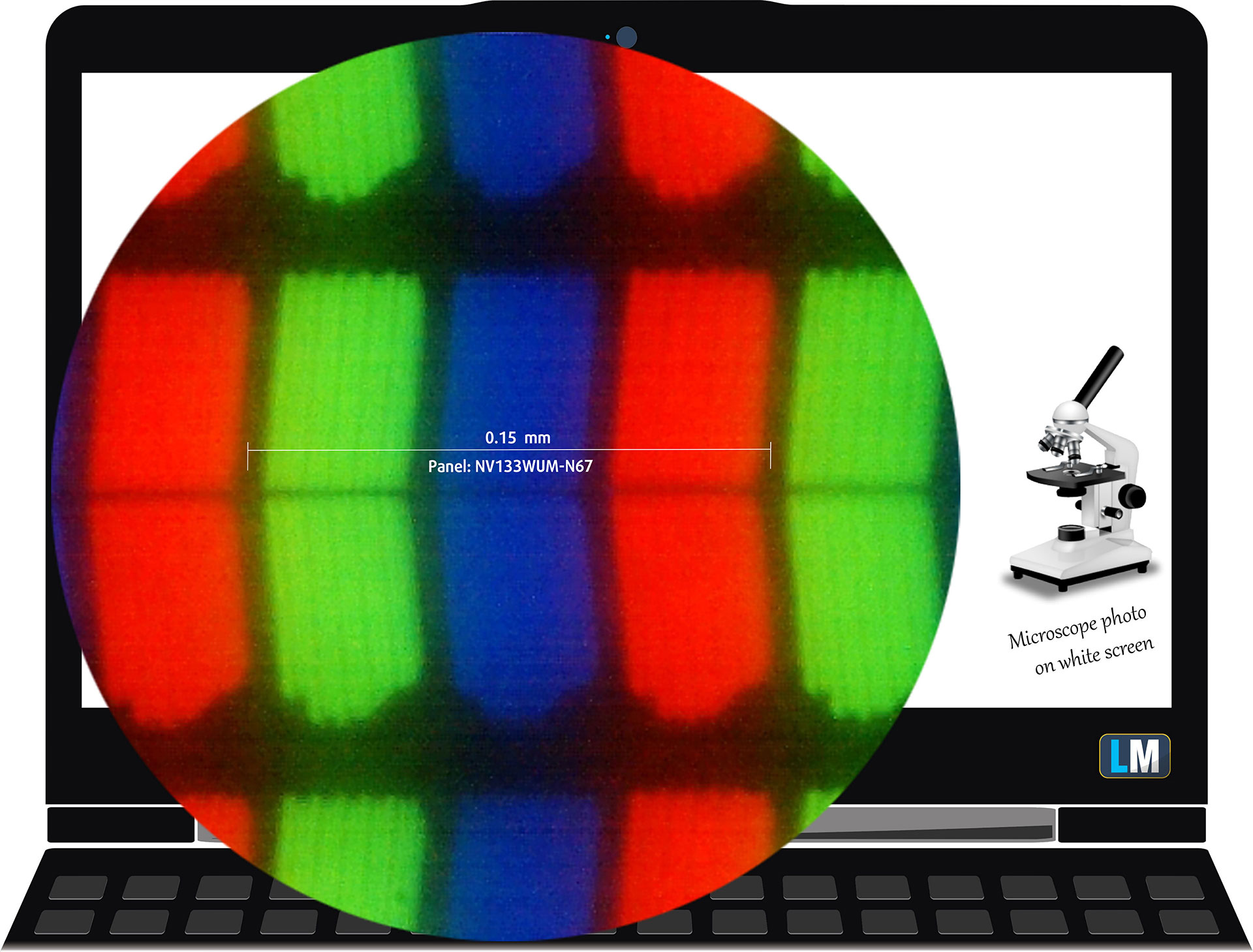
Lenovo ThinkPad X13 2-in-1 Gen 5 is equipped with a WUXGA (Widescreen Ultra Extended Graphics Array) IPS Touch panel, model number BOE NV133WUM-N67 (LEN41AE). It comes with a 60Hz refresh rate. Its diagonal is 13.3″ (33.8 cm), and the resolution – 1920 x 1200p. Additionally, the screen ratio is 16:10, the pixel density – 170 ppi, and their pitch – 0.15 x 0.15 mm. The screen can be considered Retina when viewed from at least 51 cm (this is based on the pixel density and the typical viewing distance at which individual pixels cannot be distinguished by the human eye).
Viewing angles are good. We offer images at different angles to evaluate the quality.

Also, a video with locked focus and exposure.
The maximum measured brightness is 389 nits (cd/m2) in the middle of the screen and 358 nits (cd/m2) average across the surface with a maximum deviation of 13%. The Correlated Color Temperature on a white screen and at maximum brightness is 6470K.
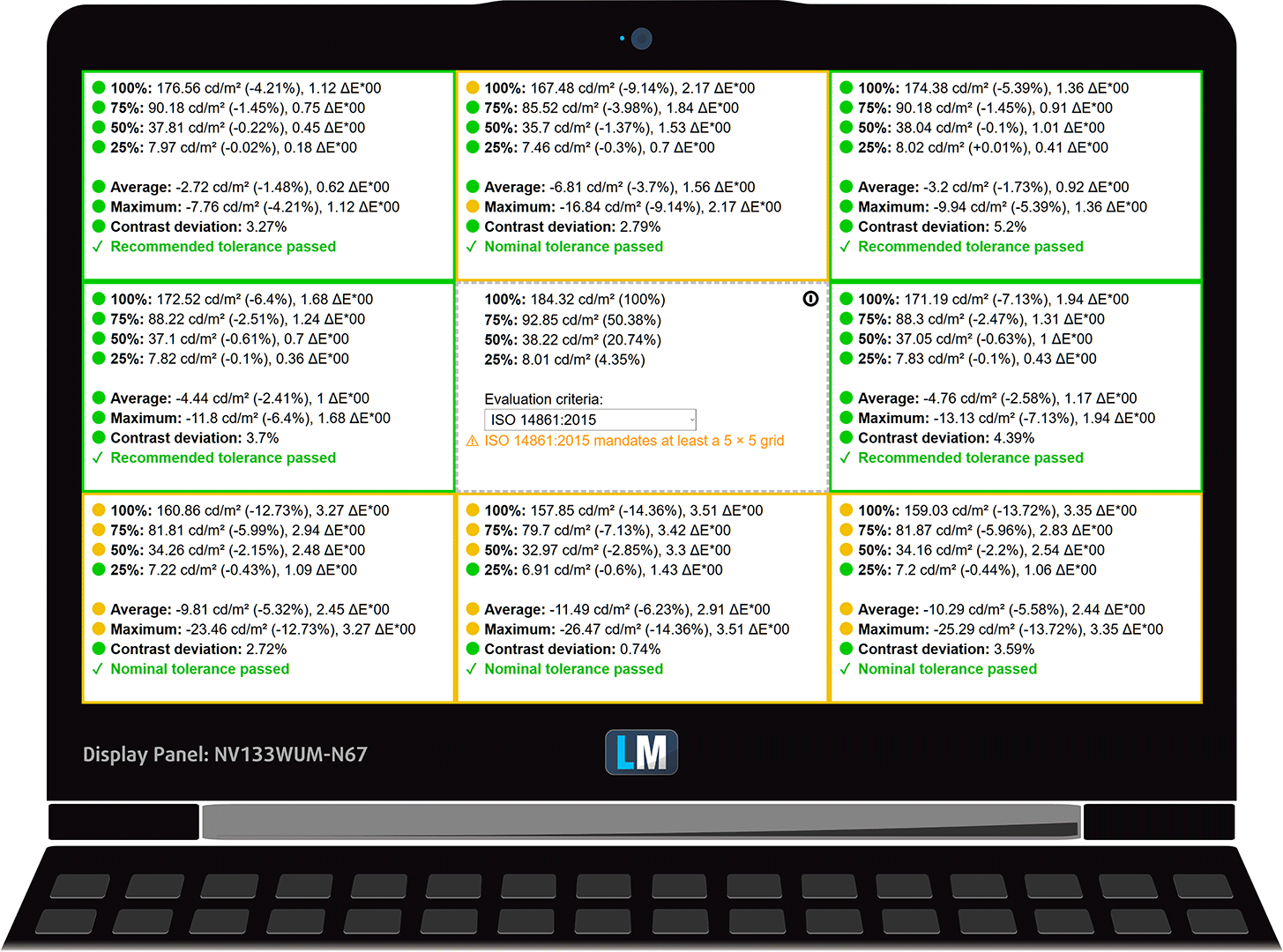
In the illustration below you can see how the display performs from a uniformity perspective. The illustration below shows how matters are for operational brightness levels (approximately 180 nits) – in this particular case at 78% Brightness (White level = 184 cd/m2, Black level = 0.13 cd/m2).
Values of dE2000 over 4.0 should not occur, and this parameter is one of the first you should check if you intend to use the laptop for color-sensitive work (a maximum tolerance of 2.0 ). The contrast ratio is good – 1390:1.
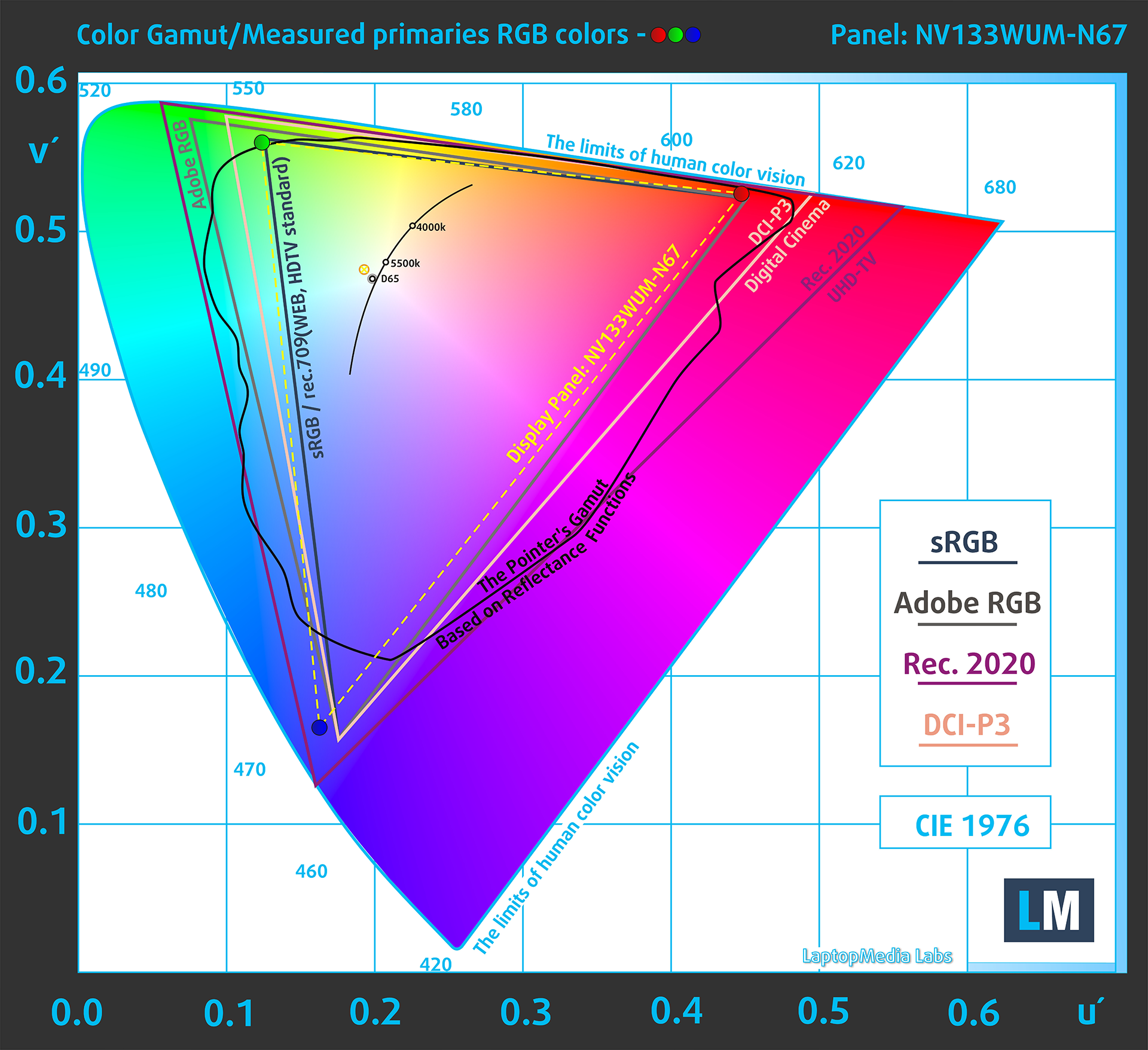
To make sure we are on the same page, we would like to give you a little introduction to the sRGB color gamut and the Adobe RGB. To start, there’s the CIE 1976 Uniform Chromaticity Diagram that represents the visible specter of colors by the human eye, giving you a better perception of the color gamut coverage and the color accuracy.
Inside the black triangle, you will see the standard color gamut (sRGB) that is being used by millions of people on HDTV and on the web. As for the Adobe RGB, this is used in professional cameras, monitors, etc for printing. Basically, colors inside the black triangle are used by everyone and this is the essential part of the color quality and color accuracy of a mainstream notebook.
Still, we’ve included other color spaces like the famous DCI-P3 standard used by movie studios, as well as the digital UHD Rec.2020 standard. Rec.2020, however, is still a thing of the future and it’s difficult for today’s displays to cover that well. We’ve also included the so-called Michael Pointer gamut, or Pointer’s gamut, which represents the colors that naturally occur around us every day.
The yellow dotted line shows Lenovo ThinkPad X13 2-in-1 Gen 5’s color gamut coverage.
Its display covers 94% of the sRGB/ITU-R BT.709 (web/HDTV standard) in CIE1976, and 77% of DCI-P3.
Our “Design and Gaming” profile delivers optimal color temperature at 180 cd/m2 luminance (Illuminant white point – D65), sRGB encoding curve.
We tested the accuracy of the display with 24 commonly used colors like light and dark human skin, blue sky, green grass, orange, etc. You can check out the results at factory condition and also, with the “Design and Gaming” profile.
Below you can compare the scores of the Lenovo ThinkPad X13 2-in-1 Gen 5 with the default settings (left), and with the “Gaming and Web design” profile (right).


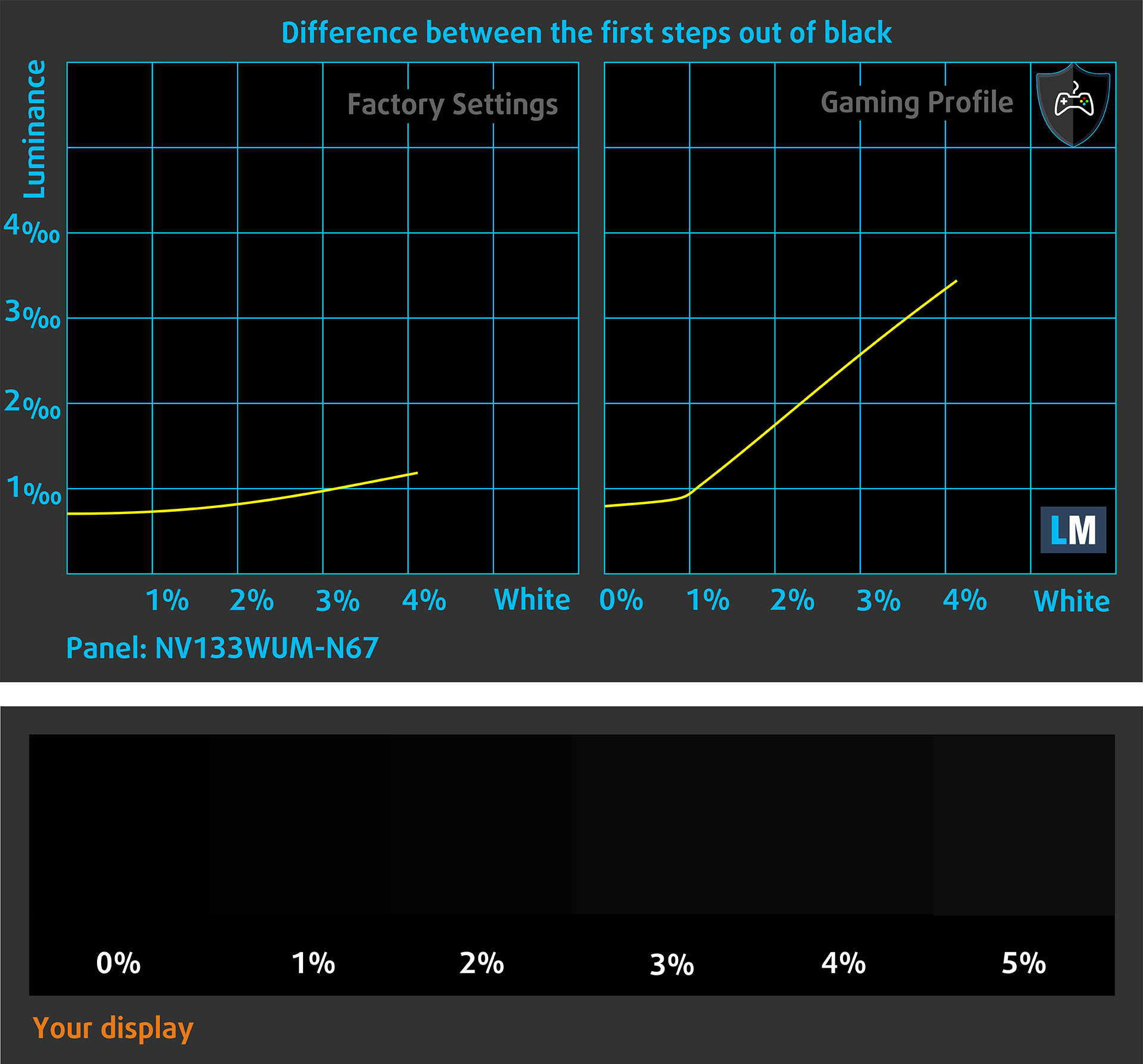
The next figure shows how well the display is able to reproduce really dark parts of an image, which is essential when watching movies or playing games in low ambient light.
The left side of the image represents the display with stock settings, while the right one is enhanced with the “Gaming and Web Design” profile activated. On the horizontal axis, you will find the grayscale, and on the vertical axis – the luminance of the display. On the two graphs below you can easily check for yourself how your display handles the darkest nuances but keep in mind that this also depends on the settings of your current display, the calibration, the viewing angle, and the surrounding light conditions.
Response time (Gaming capabilities)
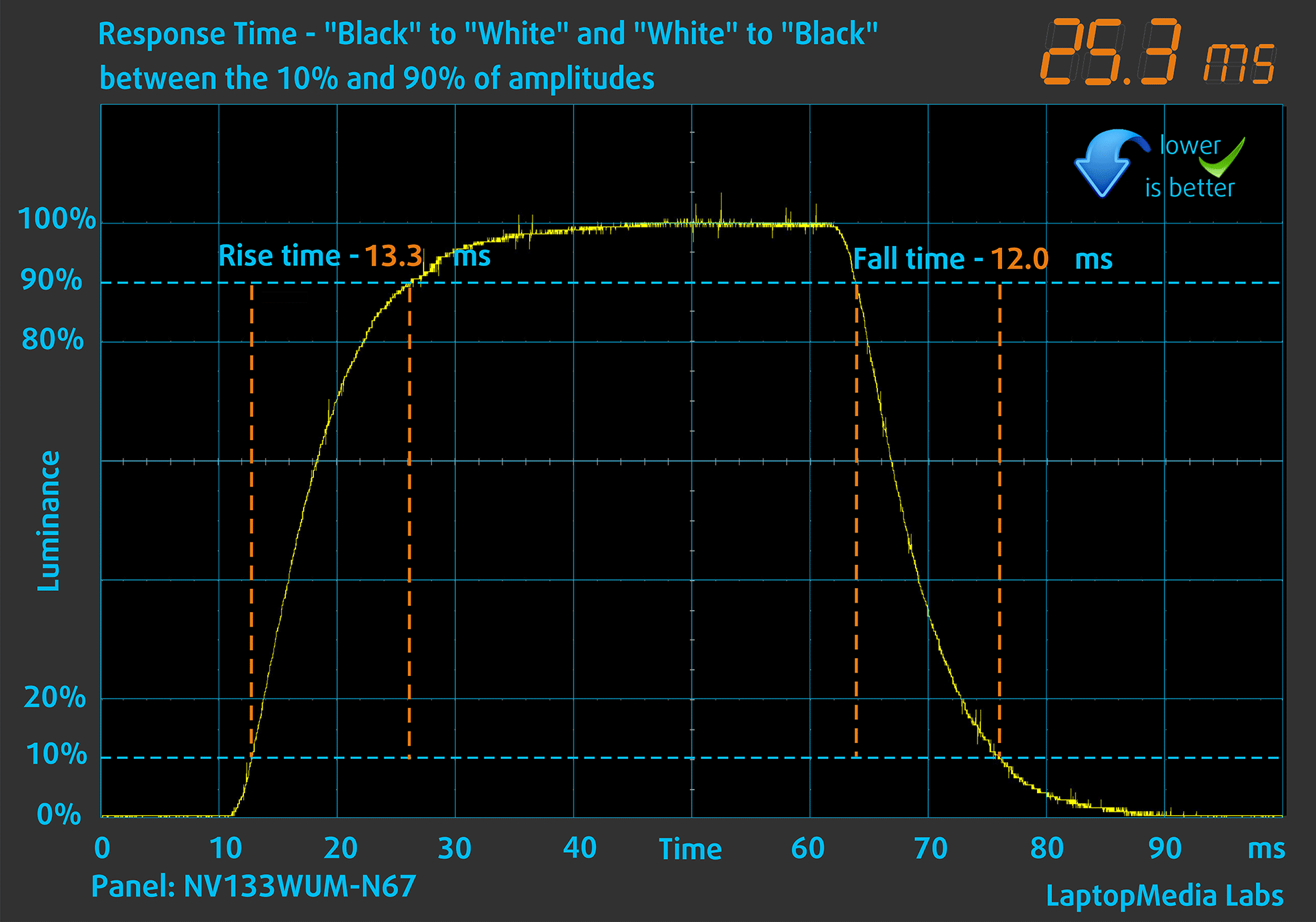
We test the reaction time of the pixels with the usual “black-to-white” and “white-to-black” method from 10% to 90% and vice versa обратно (these terms refer to the time it takes for pixels to change from one color to another (black to white and back to black in this case), a shorter time reduces picture blur with fast moving images).
We recorded Fall Time + Rise Time = 25 ms.
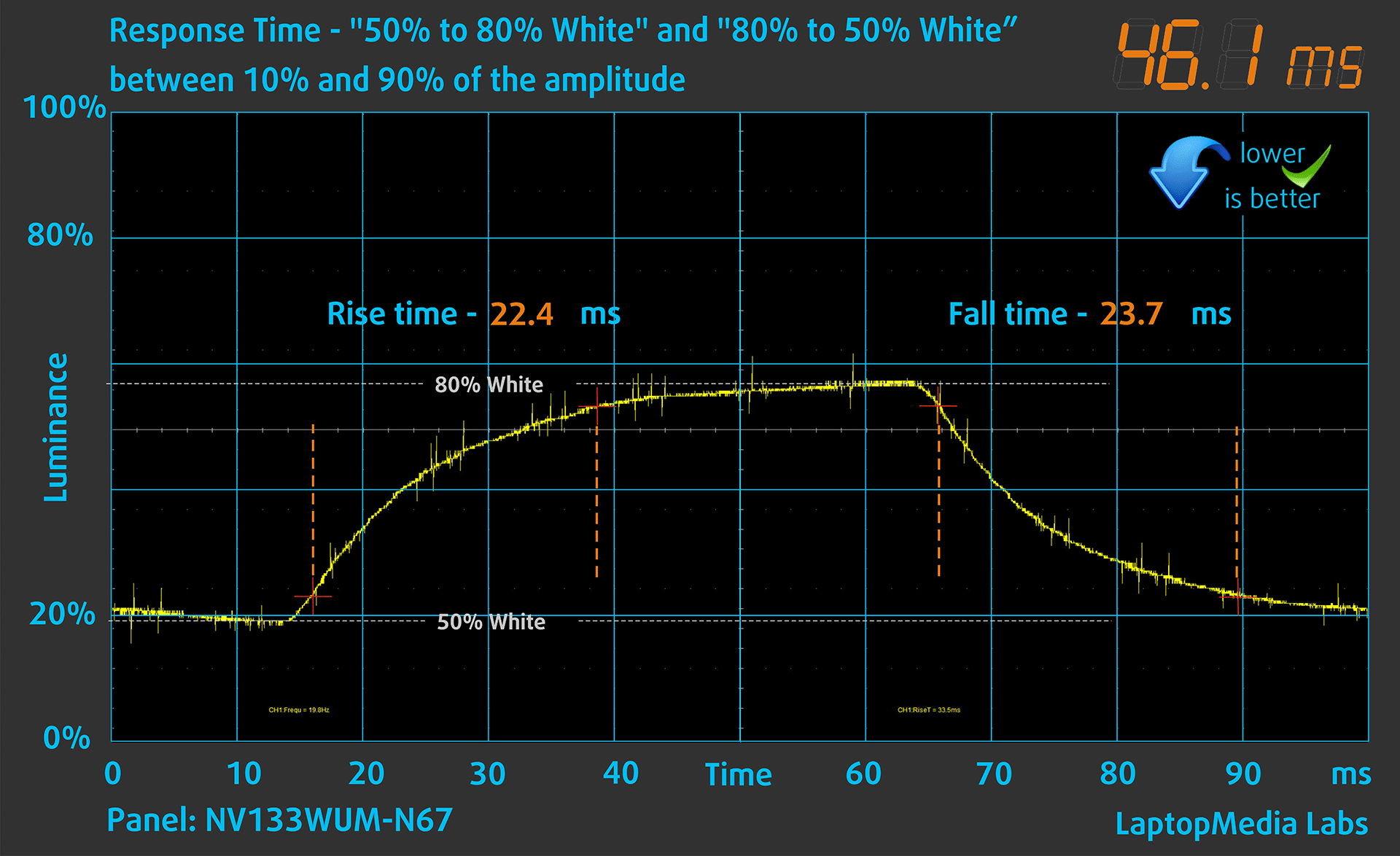
After that, we test the reaction time of the pixels with the usual “Gray-to-Gray” method from 50% White to 80% White and vice versa between 10% and 90% of the amplitude.
Health Impact: PWM (Screen flickering)
Pulse-width modulation (PWM) is an easy way to control monitor brightness. When you lower the brightness, the light intensity of the display is not lowered, but instead turned off and on by the electronics with a frequency indistinguishable to the human eye. In these light impulses, the light/no-light time ratio varies, while brightness remains unchanged, which is harmful to your eyes. You can read more about that in our dedicated article on PWM.
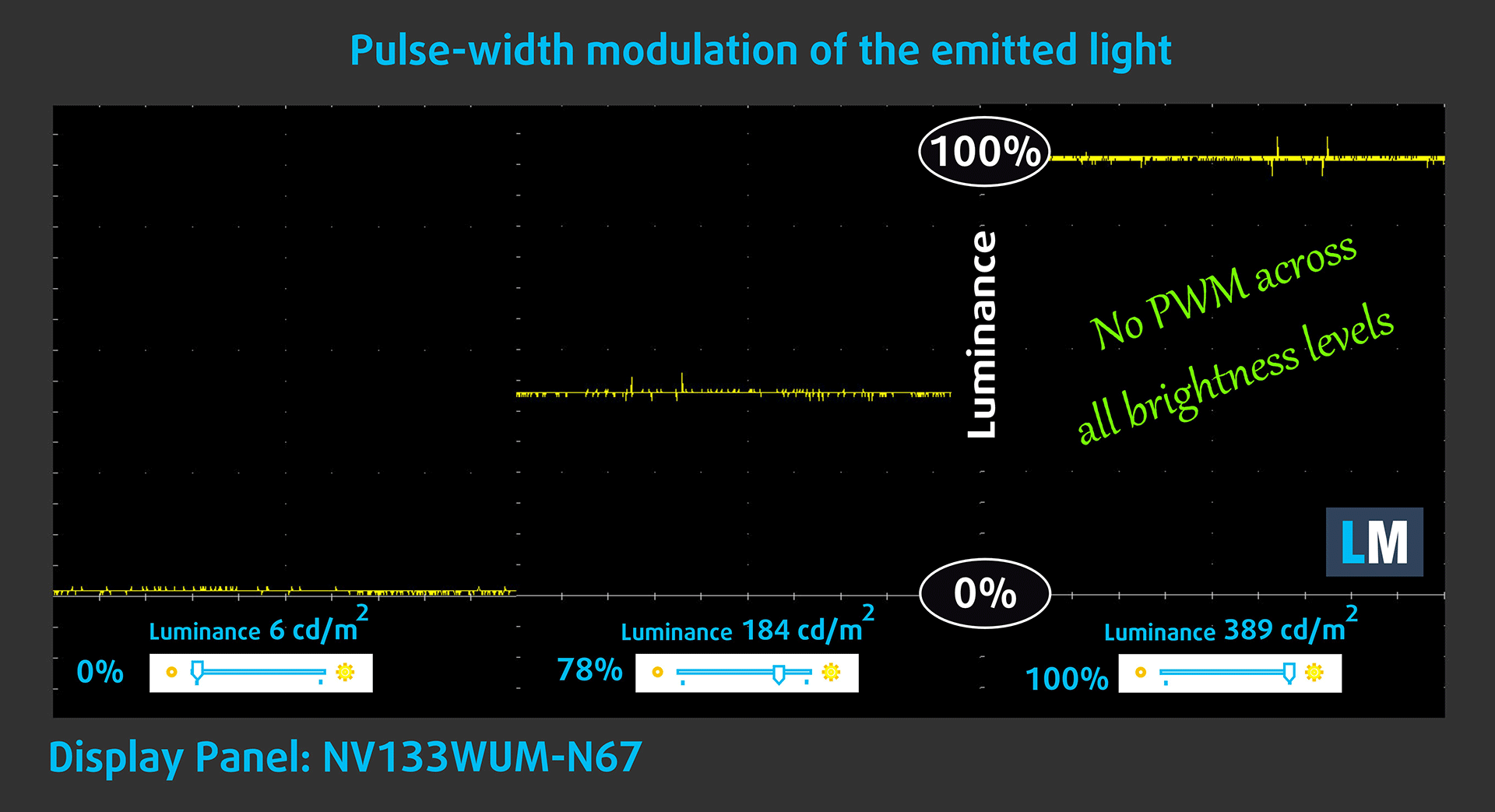
Lenovo ThinkPad X13 2-in-1 Gen 5’s display doesn’t flicker at any brightness level. This makes the screen pretty comfortable for long periods of use.
Health Impact: Blue light emissions
Installing our Health-Guard profile not only eliminates PWM but also reduces the harmful Blue Light emissions while keeping the colors of the screen perceptually accurate. If you’re not familiar with the Blue light, the TL;DR version is – emissions that negatively affect your eyes, skin, and your whole body. You can find more information about that in our dedicated article on Blue Light.
Health Impact: Screen Reflectance
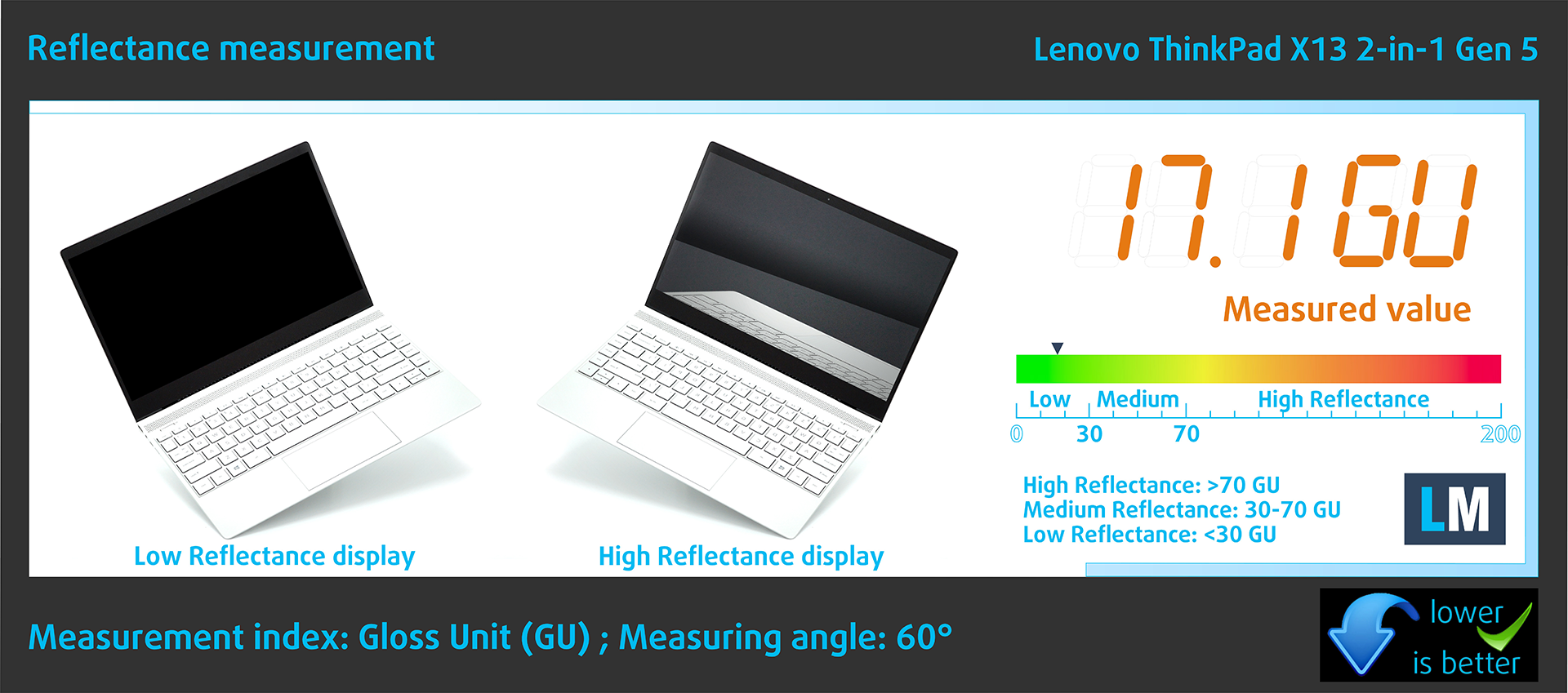
Glossy-coated displays can be inconvenient in high ambient light conditions due to reflections. We measure the screen reflection level for each laptop when the display is turned off and the measurement angle is set at 60°.
The reflectance of the Lenovo’s screen is 17.1 GU. This is an incredibly low value, especially for a touchscreen. This makes the Lenovo ThinkPad X13 2-in-1 Gen 5 one of the most comfortable laptops to work on in terms of screen glare and reflections.
High Gloss: >70 GU
Medium Gloss: 30 – 70 GU
Low Gloss: <30 GU
Sound
Lenovo ThinkPad X13 2-in-1 Gen 5’s Dolby Audio speakers produce a sound of very good quality. Its low, mid, and high tones are clear of deviations.

Buy our profiles
Since our profiles are tailored for each individual display model, this article and its respective profile package are meant for Lenovo ThinkPad X13 2-in-1 Gen 5 configurations with 13.3″ BOE NV133WUM-N67 (LEN41AE) (1920 x 1200) IPS.
*Should you have problems with downloading the purchased file, try using a different browser to open the link you’ll receive via e-mail. If the download target is a .php file instead of an archive, change the file extension to .zip or contact us at [email protected].
Read more about the profiles HERE.
In addition to receiving efficient and health-friendly profiles, by buying LaptopMedia's products you also support the development of our labs, where we test devices in order to produce the most objective reviews possible.

Office Work
Office Work should be used mostly by users who spend most of the time looking at pieces of text, tables or just surfing. This profile aims to deliver better distinctness and clarity by keeping a flat gamma curve (2.20), native color temperature and perceptually accurate colors.

Design and Gaming
This profile is aimed at designers who work with colors professionally, and for games and movies as well. Design and Gaming takes display panels to their limits, making them as accurate as possible in the sRGB IEC61966-2-1 standard for Web and HDTV, at white point D65.

Health-Guard
Health-Guard eliminates the harmful Pulse-Width Modulation (PWM) and reduces the negative Blue Light which affects our eyes and body. Since it’s custom tailored for every panel, it manages to keep the colors perceptually accurate. Health-Guard simulates paper so the pressure on the eyes is greatly reduced.
Get all 3 profiles with 33% discount

Performance: CPU, GPU, Storage
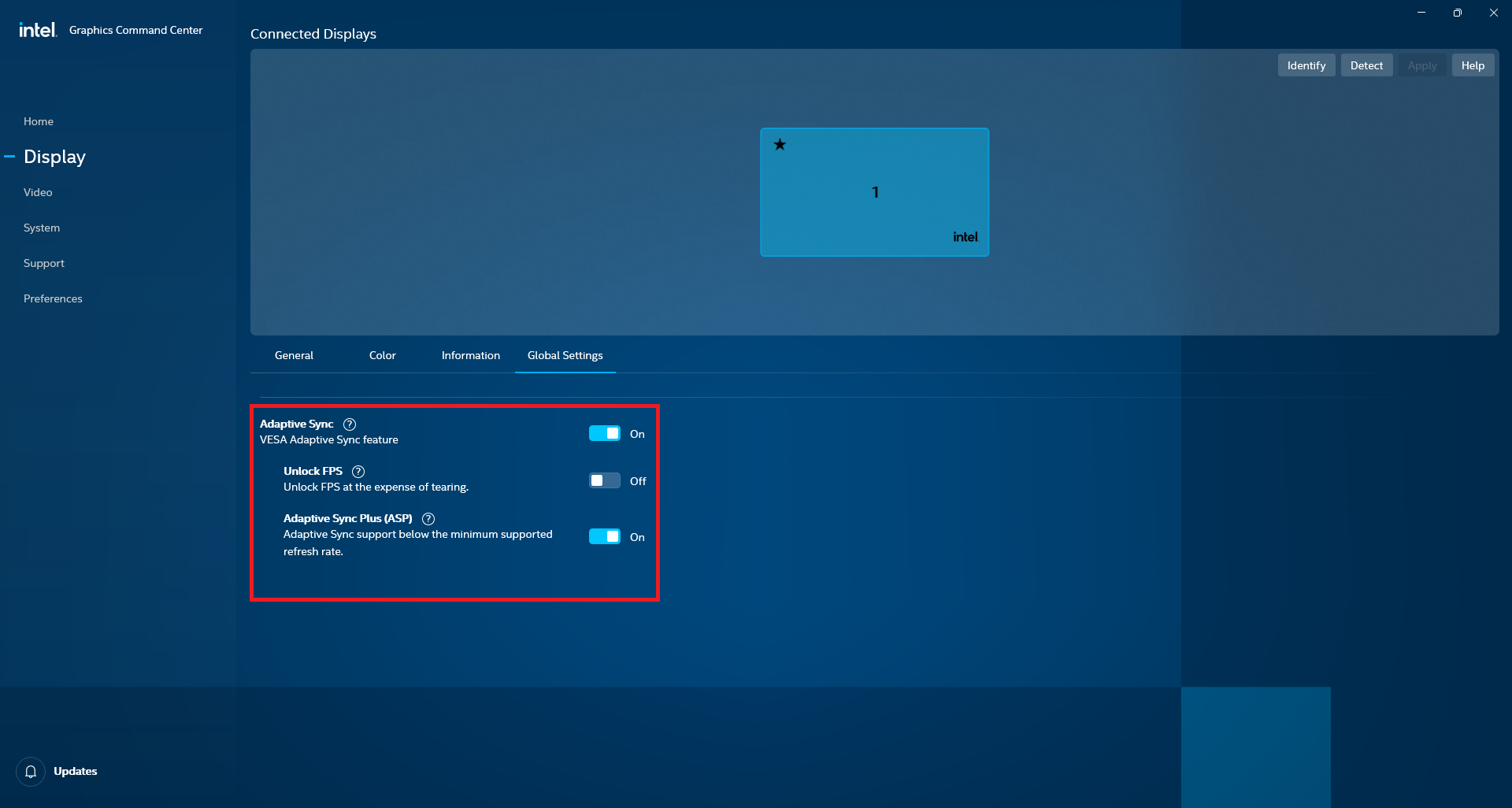
All benchmarks and tests were conducted with the “Best performance” preset activated in the Windows “Power & Battery” menu. Also, the “Scheme for AC” in the BIOS is set to “Maximize Performance”.


CPU options
This machine is offered with Intel Core Ultra 5 125U, Core Ultra 5 135U, Core Ultra 7 155U, or Core Ultra 7 165U.
The laptop that we bought has a 155U chip.
Single-core performance ensures smooth operation and responsiveness in operating systems, providing a better user experience.
Results are from the Geekbench 6 Single-Core test (higher is better)
Multi-core performance is essential for handling complex and demanding tasks, such as Video editing, CAD, and Scientific simulations.
Results are from the Geekbench 6 Multi-Core test (higher is better)
Here, we evaluate the CPU's performance using a real-world 3D rendering task, assessing its ability to handle complex computations and rendering workloads efficiently.
Results are from the Cinebench 2024 Multi-Core test (higher is better)

GPU options
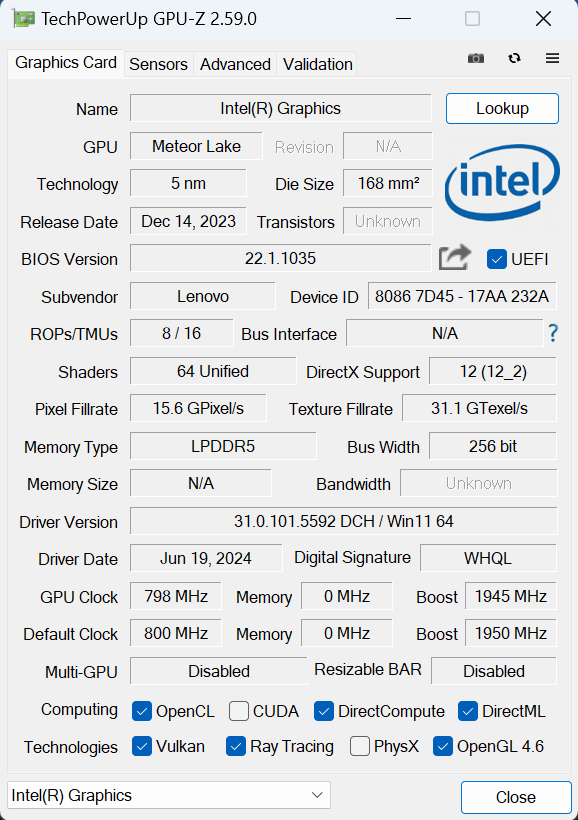
All laptops of this Lenovo series are iGPU-only notebooks.
This means all users get the Intel Graphics (4-Cores).
The results are from 3DMark Time Spy (Graphics). Higher is better.
The results are from 3DMark Wild Life Extreme Unlimited. Higher is better.
Gaming tests

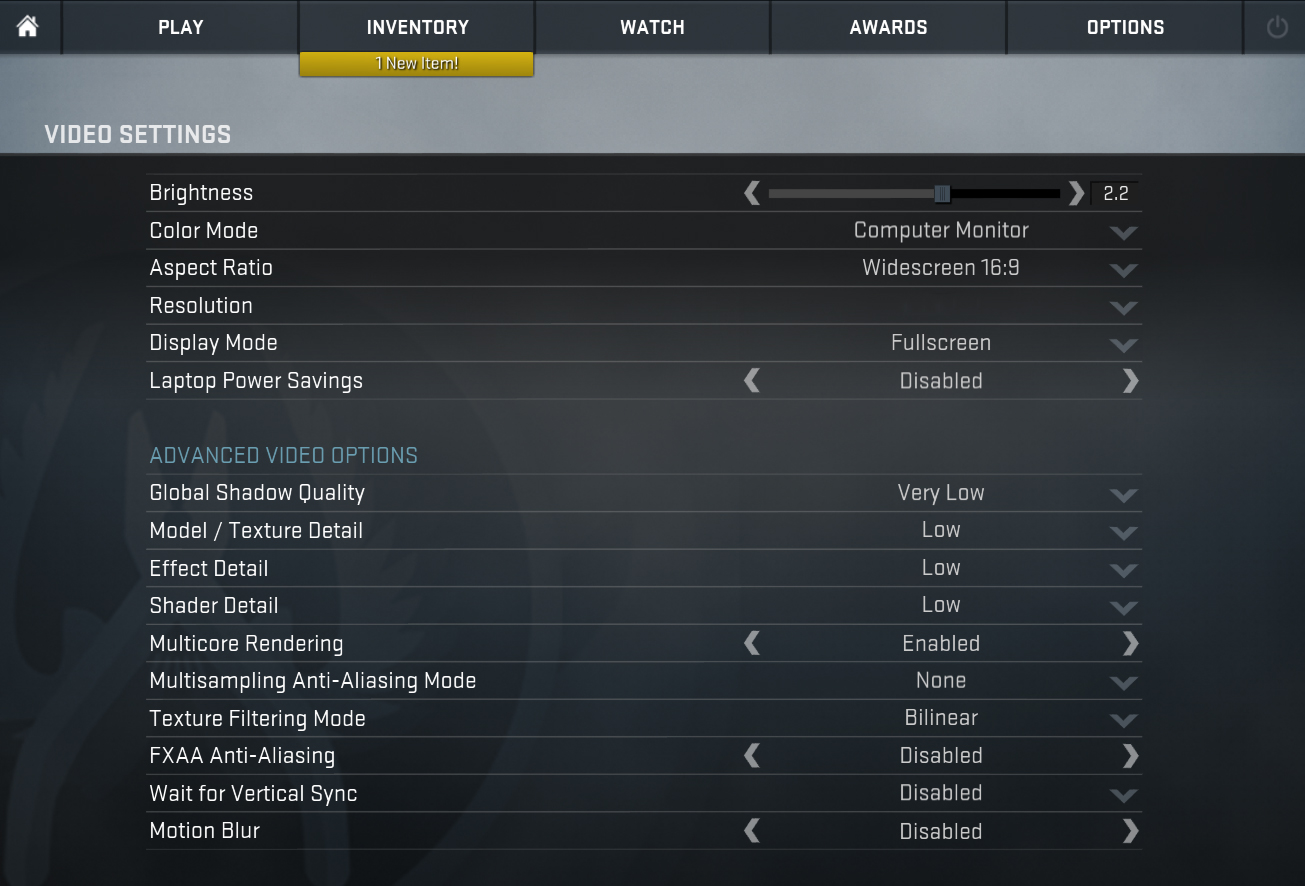
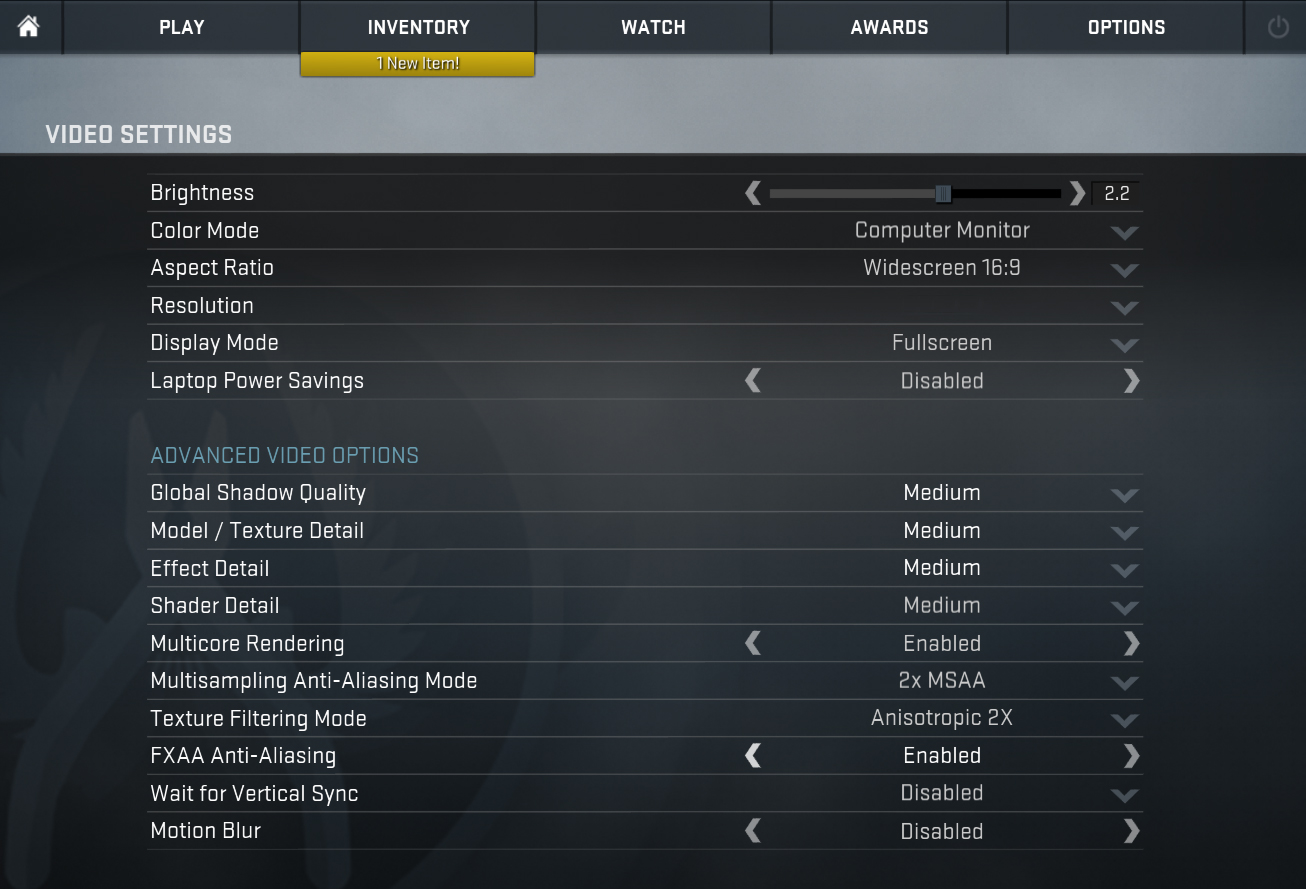
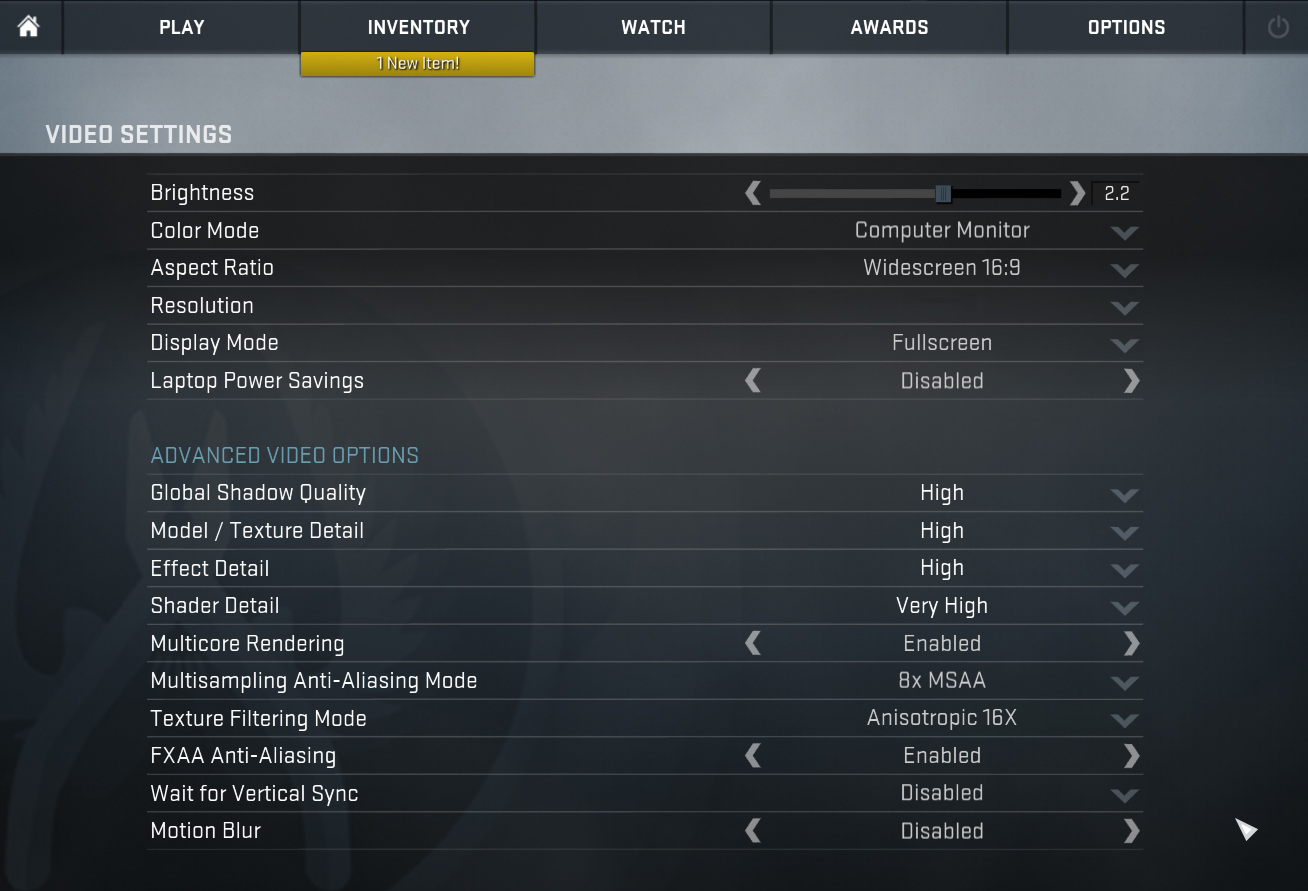
| CS:GO | HD 1080p, Low (Check settings) | HD 1080p, Medium (Check settings) | HD 1080p, MAX (Check settings) |
|---|---|---|---|
| Average FPS | 126 fps | 120 fps | 75 fps |

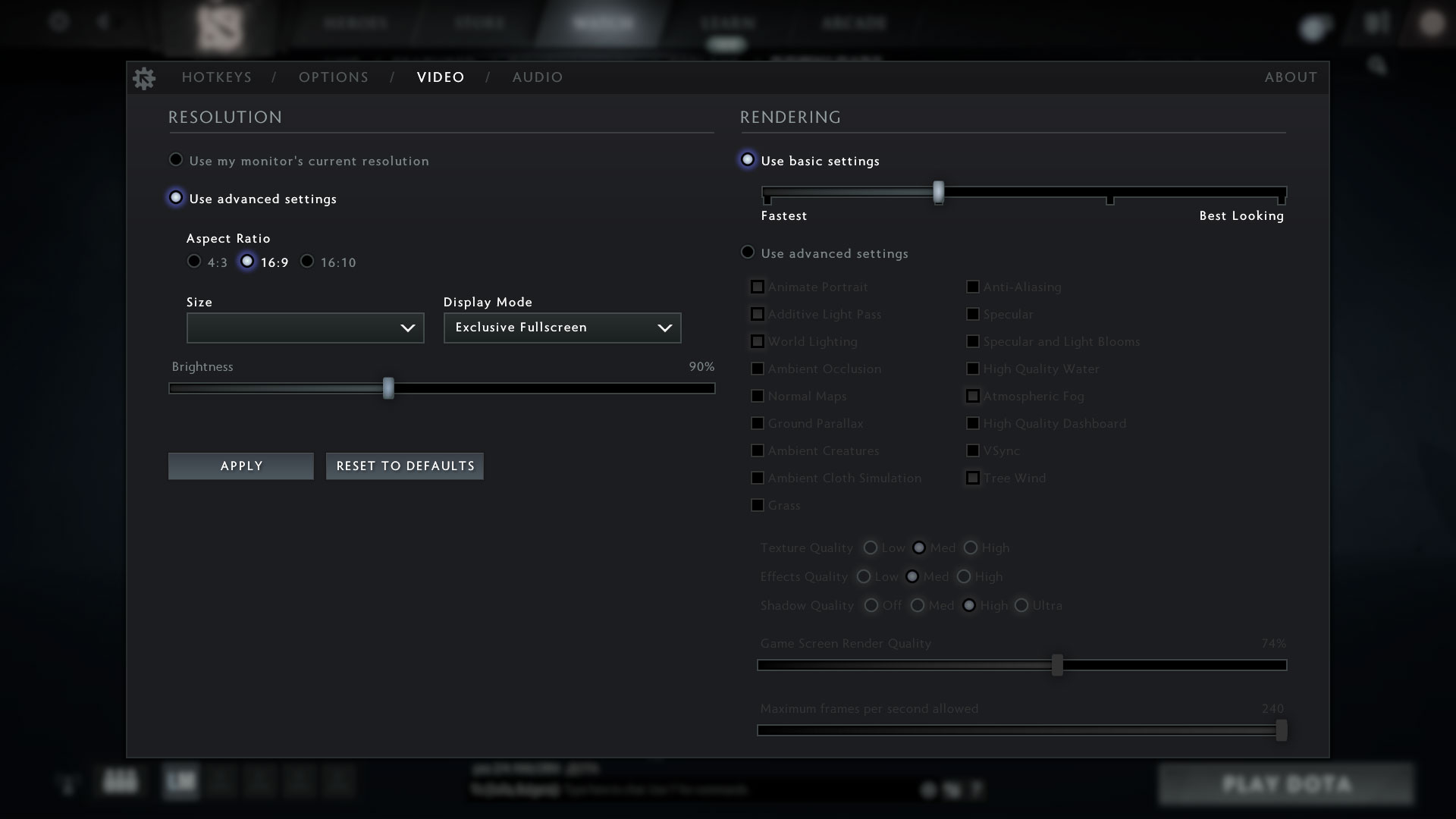
| DOTA 2 | HD 1080p, Low (Check settings) | HD 1080p, Normal (Check settings) | HD 1080p, High (Check settings) |
|---|---|---|---|
| Average FPS | 99 fps | 88 fps | 64 fps |
Storage performance
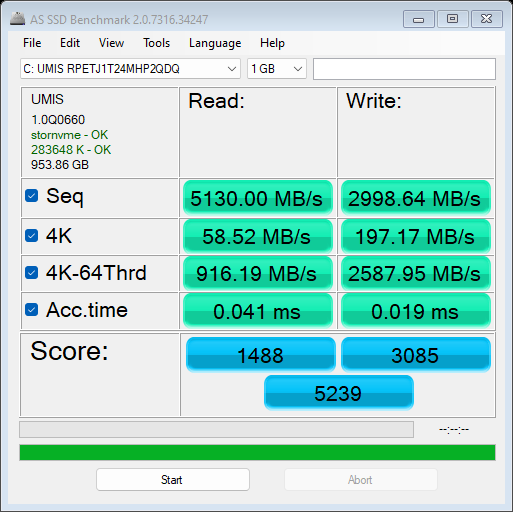
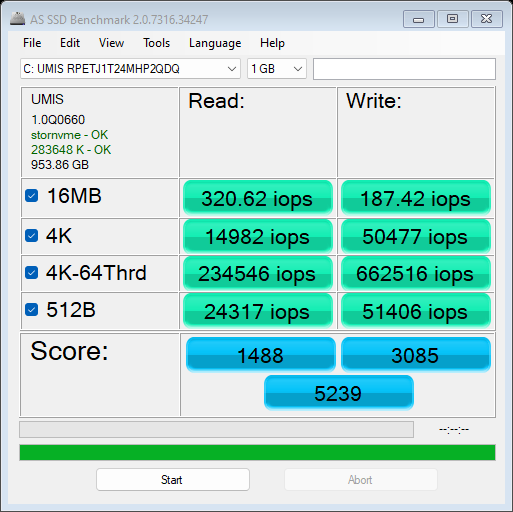
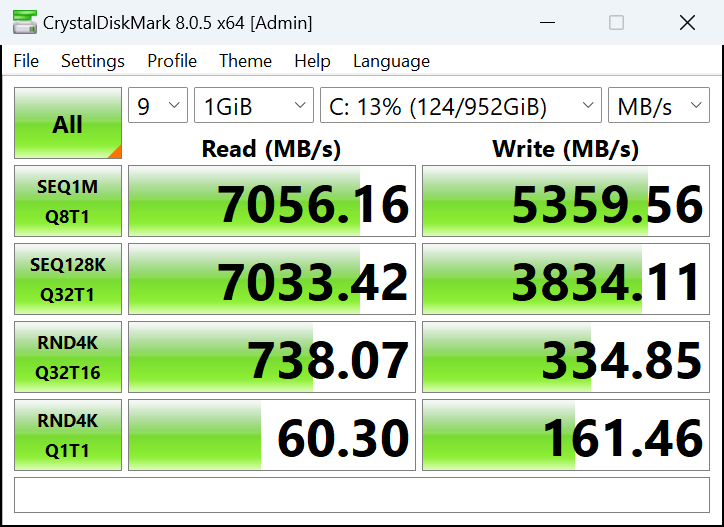
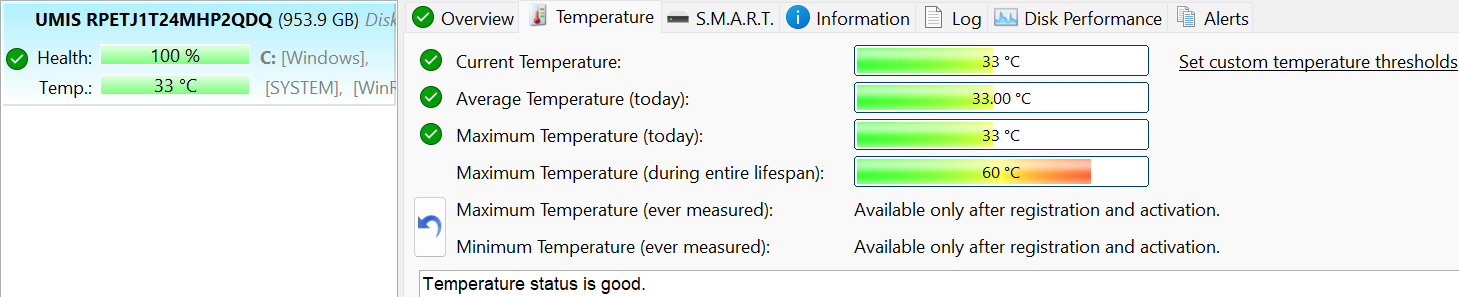
Our machine has a 1TB UMIS RPETJ1T24MHP2QDQ. The Gen 4 SSD is fast and it reaches just 60°C during benchmarking which is great given its high speeds.
[eBook Guide + Tools] How to MAX OUT Your Laptop
You can make your laptop Faster. LaptopMedia has tested thousands of models in the last 15 years, and we have yet to see a notebook that couldn't be made more powerful through modifications.
That's why we decided to bundle everything we know about how to achieve this in an Easy-to-Follow, Step-by-Step, and Laboratory-Tested, all in one project.
Read more about it here:
[eBook Guide + Tools] How to MAX OUT Your Laptop

🛠️ GPU Modifications: vBIOS, Overclocking, Undervolting
⚙️ Building Fast/Reliable RAID configuration
💻 Hardware upgrade tips for best results
🖼 Display enhancing
💾 OS Optimization for best performance
Temperatures and comfort, Battery Life
Max CPU load
In this test we use 100% on the CPU cores, monitoring their frequencies and chip temperature. The first column shows a computer’s reaction to a short load (2-10 seconds), the second column simulates a serious task (between 15 and 30 seconds), and the third column is a good indicator of how good the laptop is for long loads such as video rendering.
Average P-core frequency; Average E-core frequency; Average LP E-core frequency; CPU temp.; Package Power
| Intel Core Ultra 7 155U (15W Base Power) | 0:02 – 0:10 sec | 0:15 – 0:30 sec | 10:00 – 15:00 min |
|---|---|---|---|
| Lenovo ThinkPad X13 2-in-1 Gen 5 | 3.50 GHz @ 3.03 GHz @ 2.07 GHz @ 92°C @ 54W | 3.02 GHz @ 2.58 GHz @ 1.64 GHz @ 88°C @ 36W | 1.91 GHz @ 1.51 GHz @ 1.10 GHz @ 69°C @ 16W |
| Dell Latitude 14 5450 | 3.97 GHz @ 3.29 GHz @ 1.77 GHz @ 88°C @ 56W | 3.30 GHz @ 3.01 GHz @ 2.10 GHz @ 98°C @ 49W | 2.52 GHz @ 2.37 GHz @ 1.21 GHz @ 78°C @ 25W |
| Dell Latitude 15 5550 | 4.09 GHz @ 3.39 GHz @ 1.88 GHz @ 70°C @ 57W | 2.74 GHz @ 2.35 GHz @ 1.20 GHz @ 66°C @ 26W | 2.15 GHz @ 1.87 GHz @ 1.10 GHz @ 66°C @ 20W |
Here, the optional Core Ultra 7 155U can sustain impressively high clocks in short and medium loads (for a 13-incher). Of course, in longer loads, the clocks are hindered but also aren’t lower than the official Intel base values which is good.
Comfort during full load
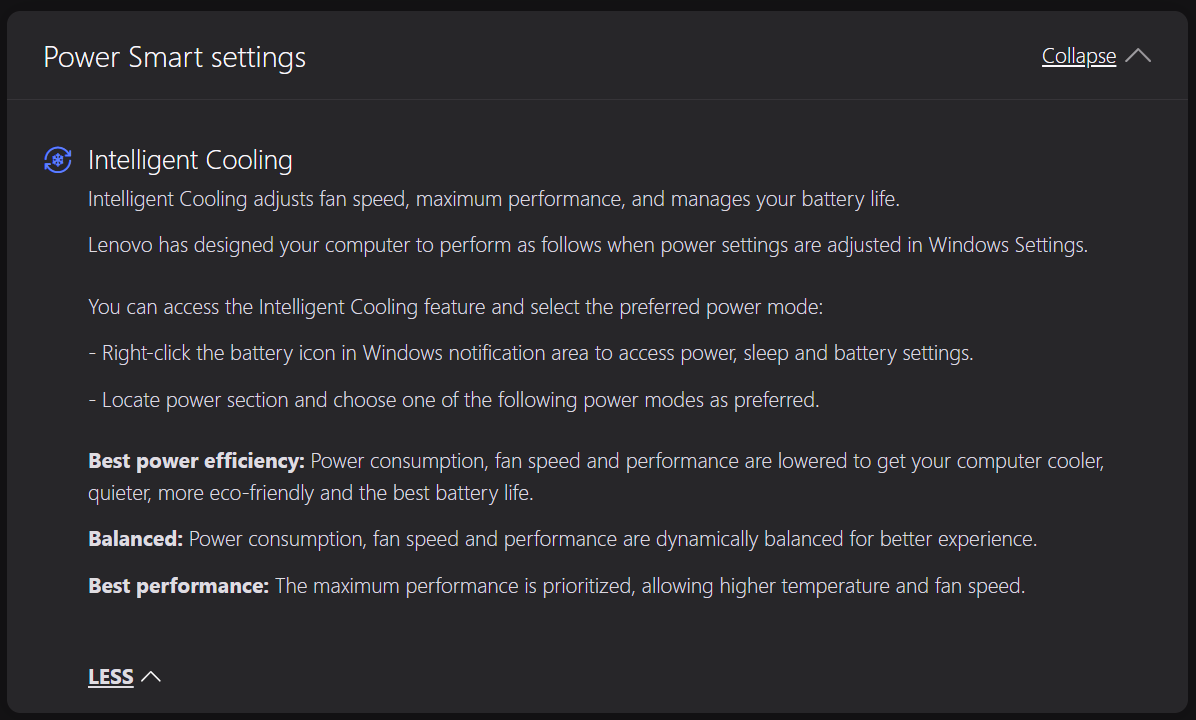
The power presets are integrated into the default Windows Power modes. The single fan is almost quiet when the processor is pushed hard in “Best Performance” mode.
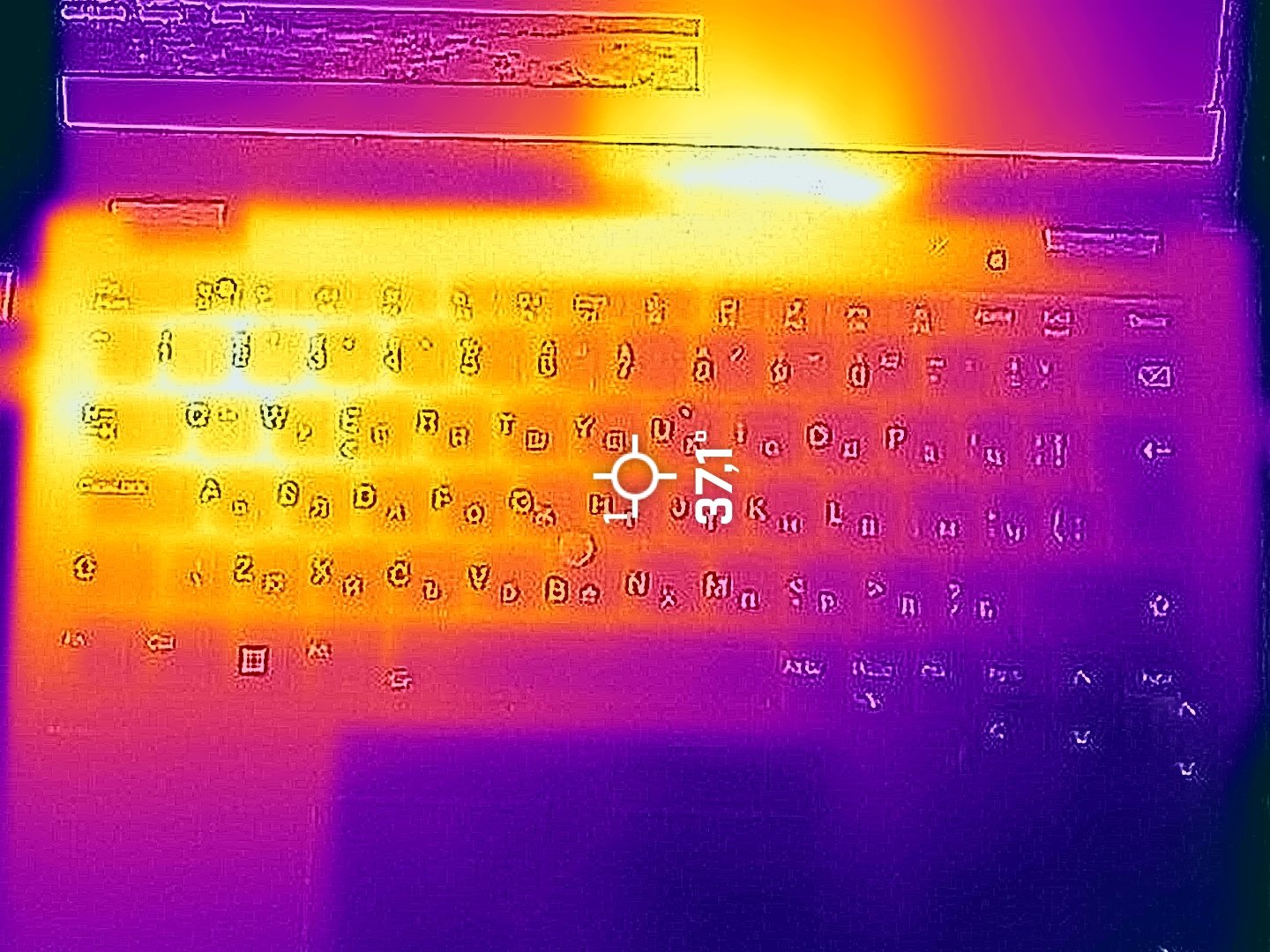
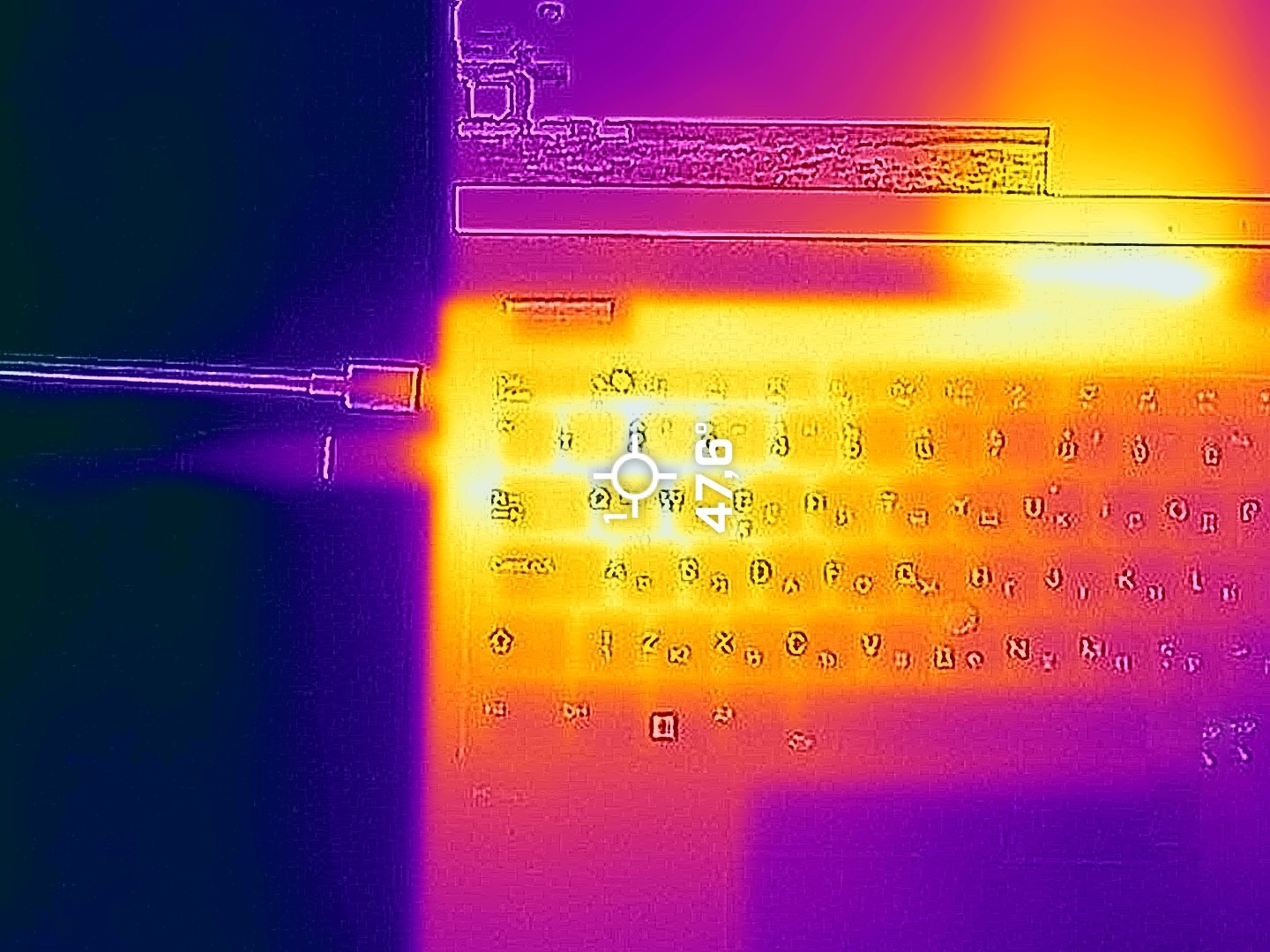
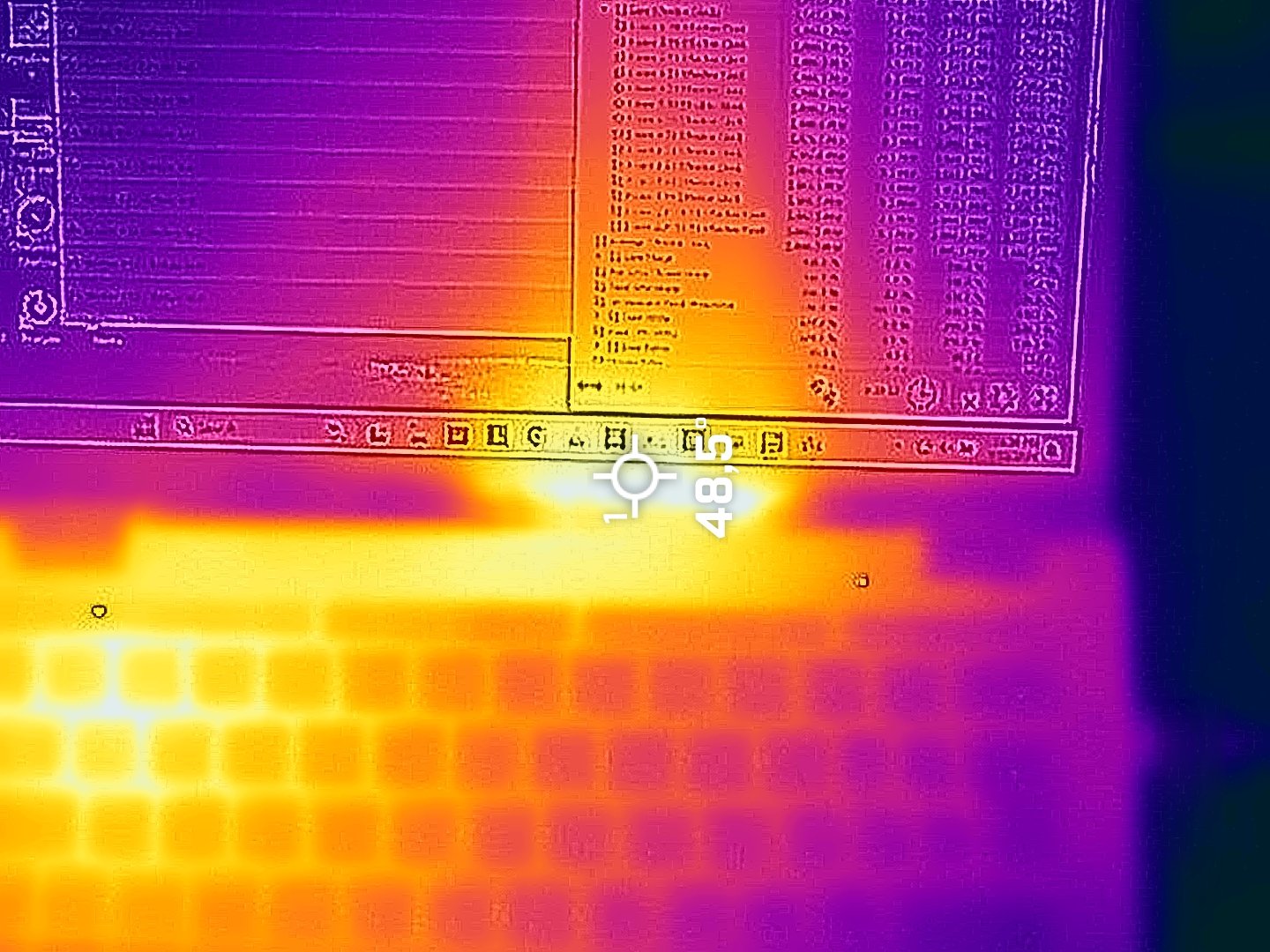
At the same time, the temperature in the middle of the keyboard is around 37°C. We also measured around 48°C in the hotspot around the WASD zone and in the zone in between the back exhaust and the display’s bottom bezel. These sections feel warm but not hot.
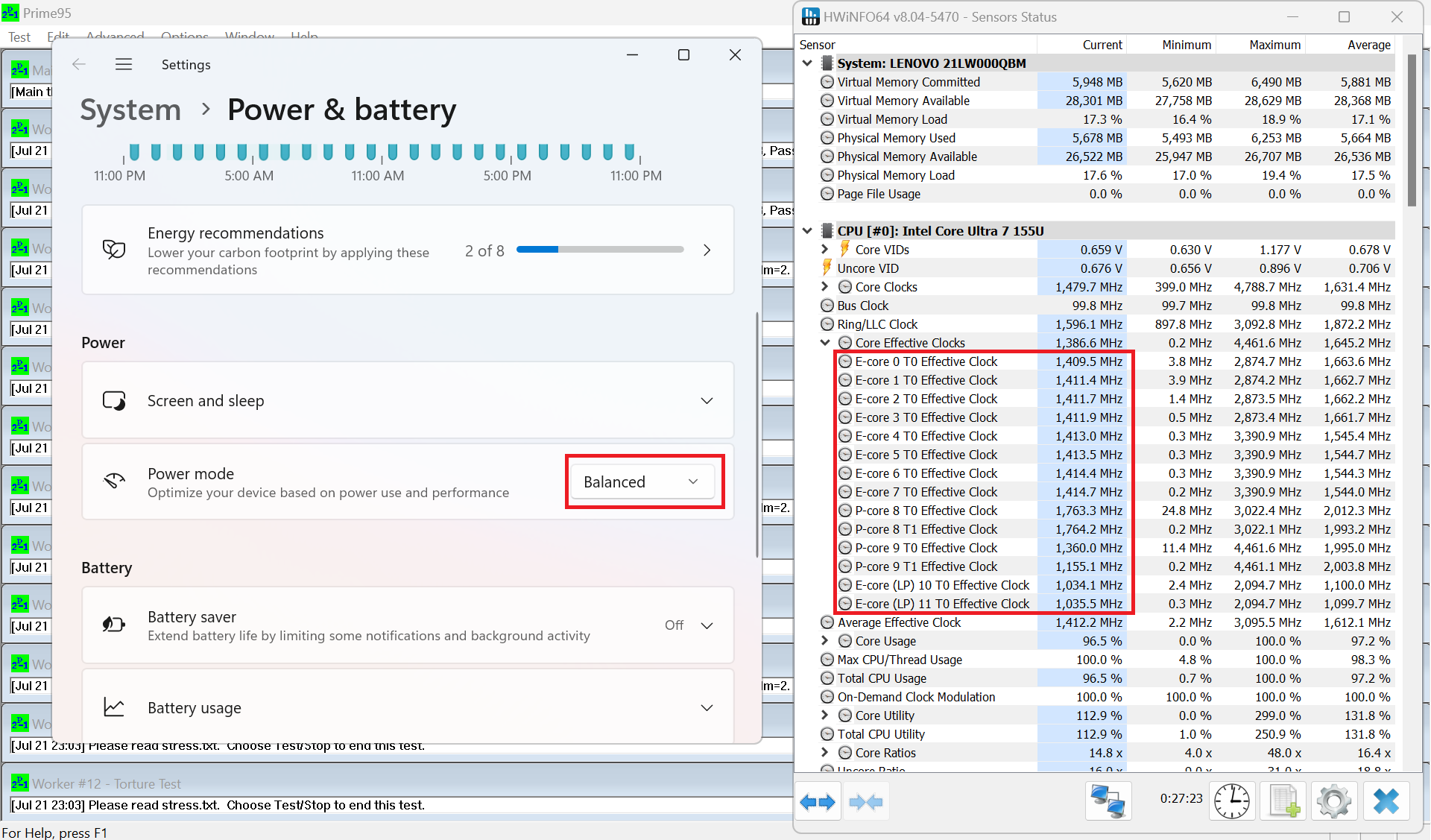
The screenshot below indicates the clocks under full CPU load in “Balanced” mode.
Interestingly, the CPU fan spins with around 5500 RPM in both “Performance” and “Balanced” modes (when the CPU is stressed at 100%).
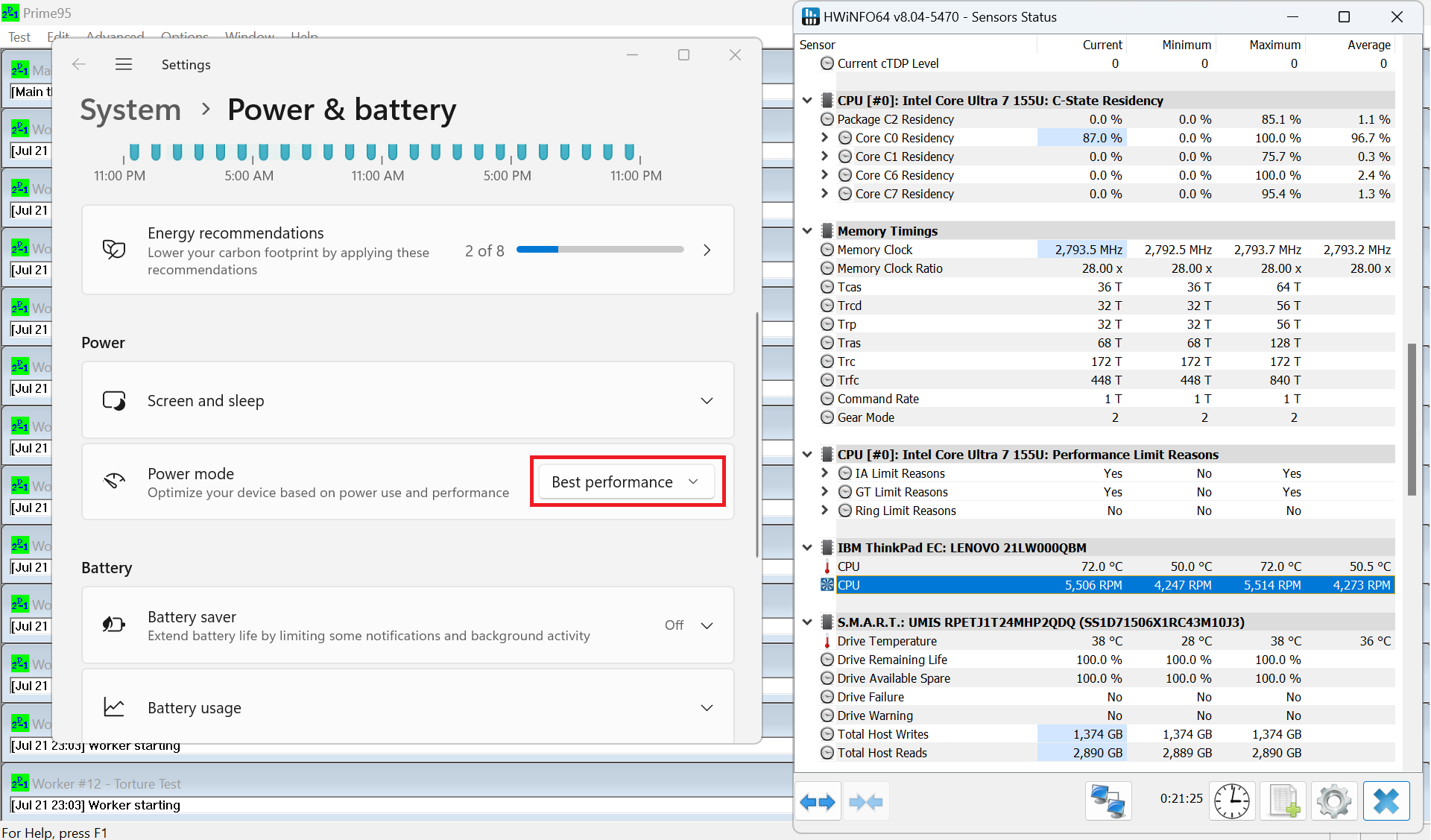 Max CPU Load “Best Performance”
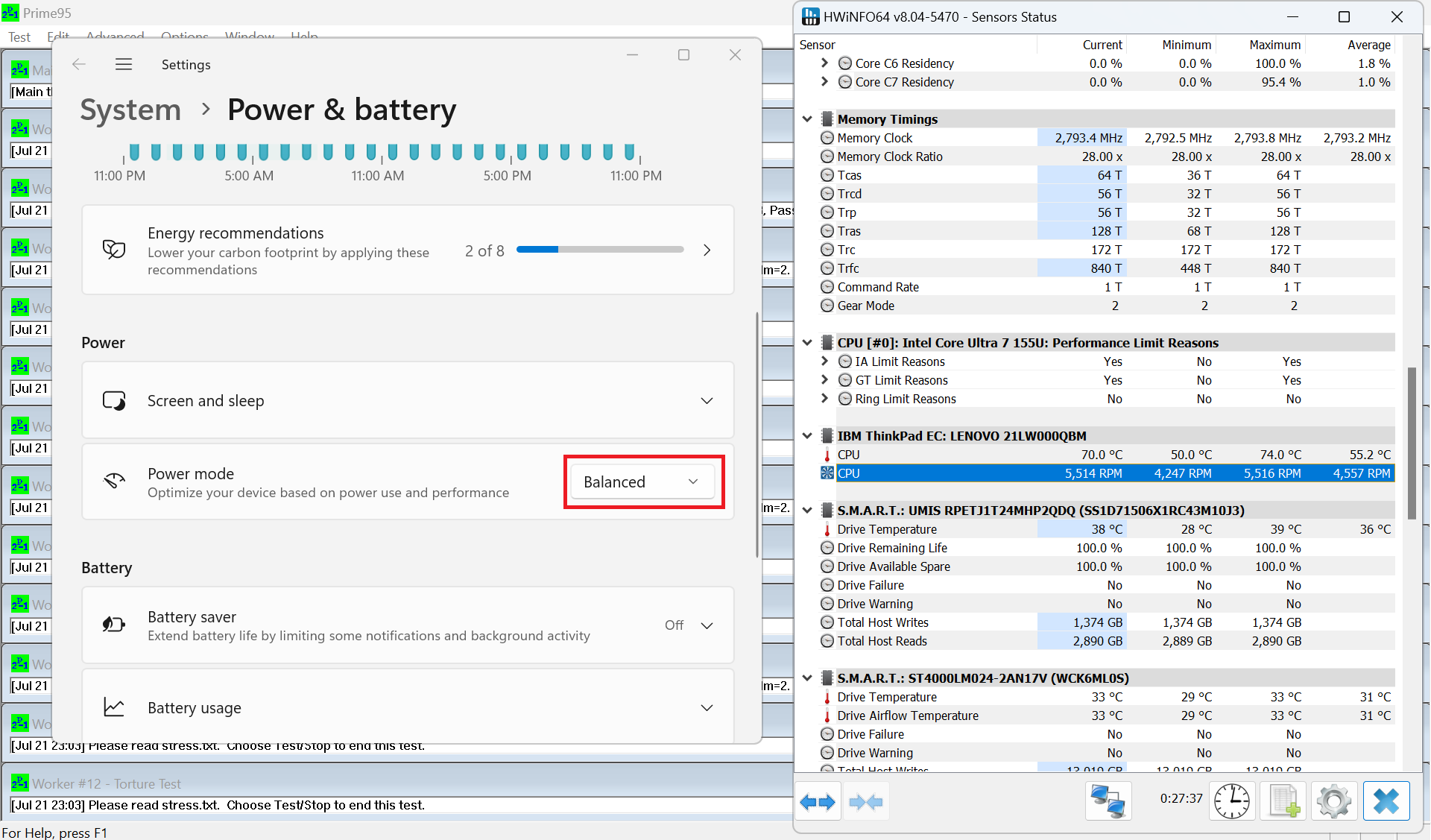 Max CPU Load “Balanced”
When the system is in an idle state, the fan doesn’t spit at all if the “Best Power Efficiency” is applied. If not, you can expect around 4200 RPM with the other two presets.
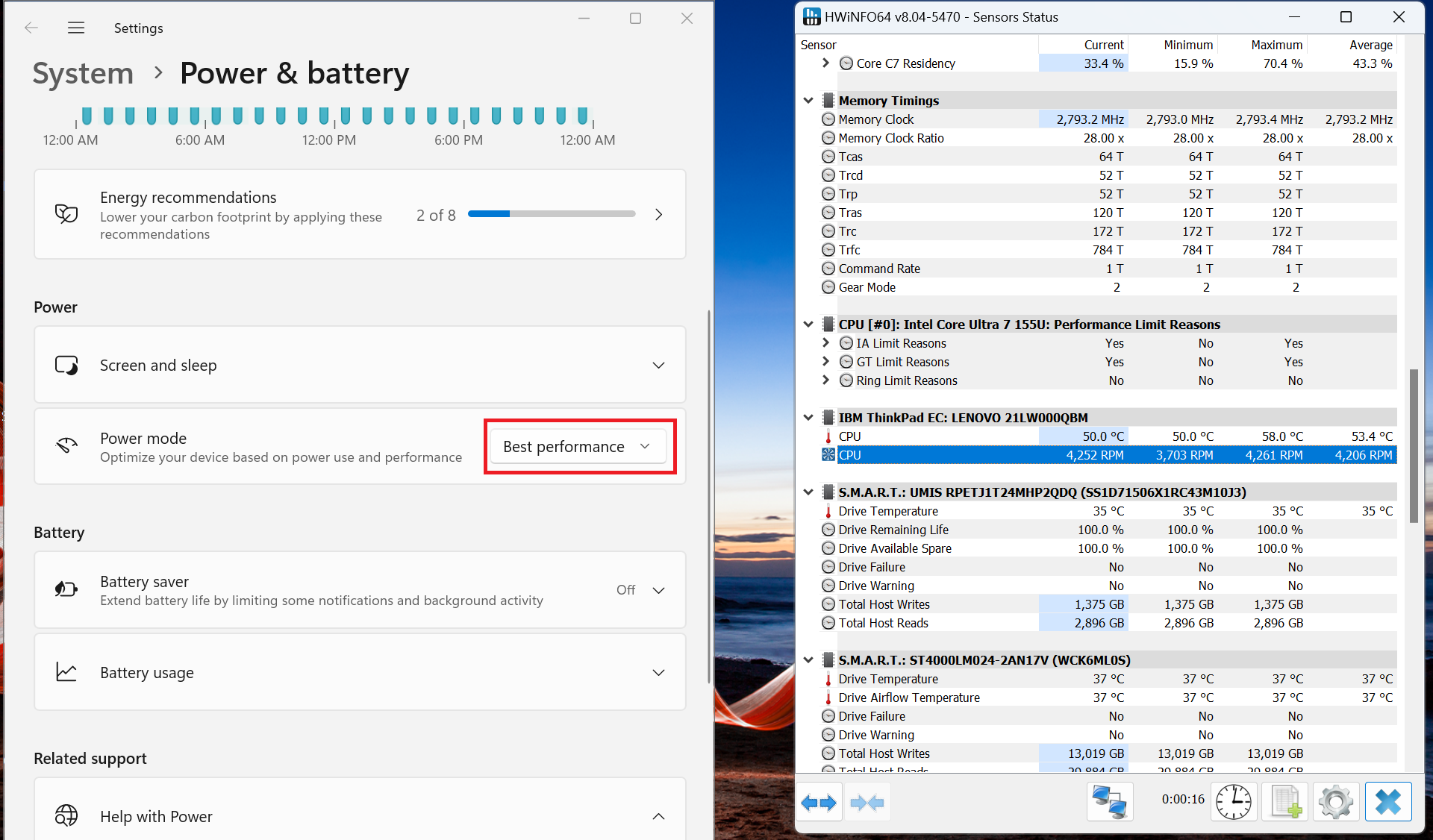 Idle RPM “Best Performance”
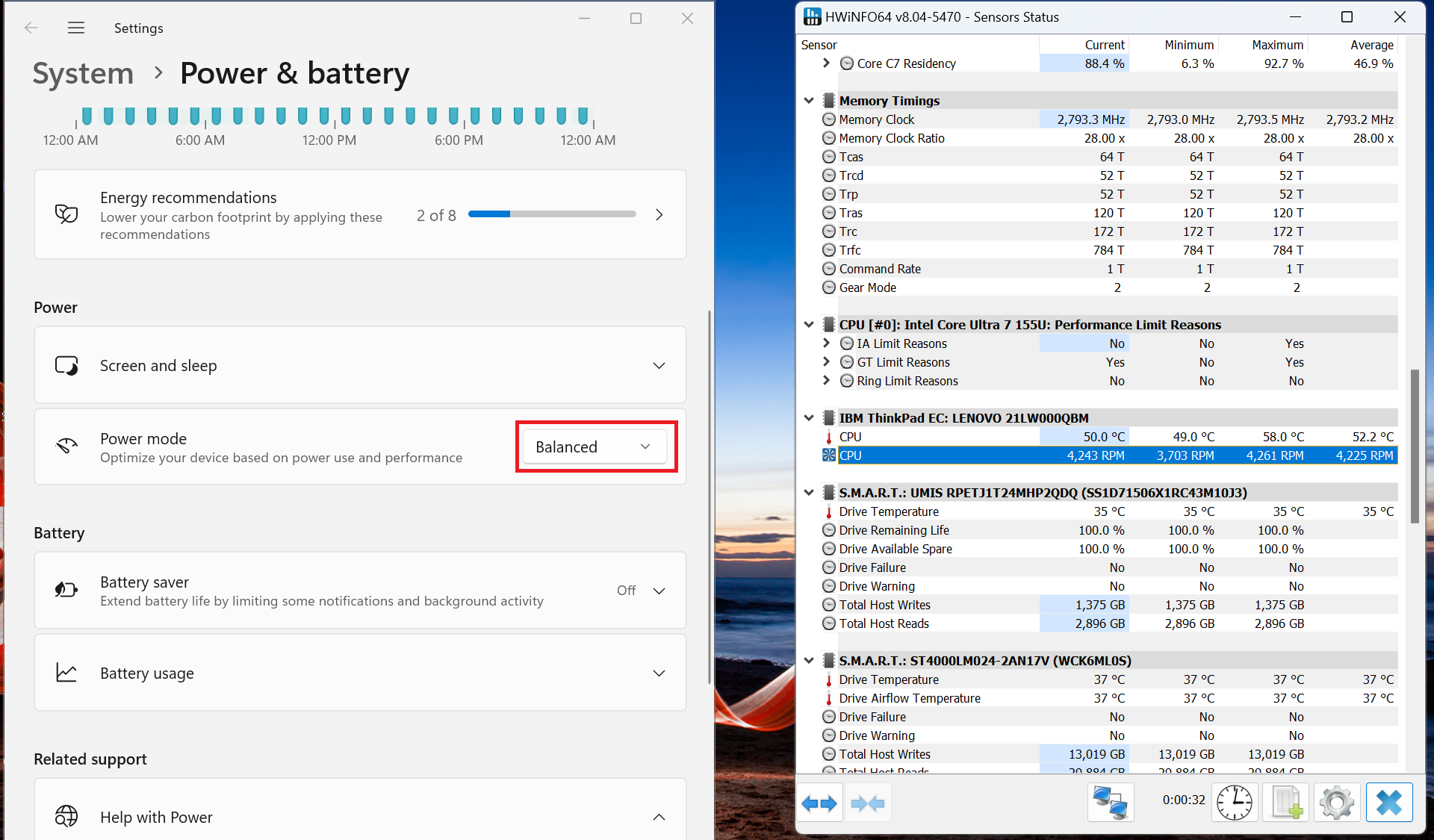 Idle RPM “Balanced”
 Idle RPM “Best Power Efficiency”
Battery
Now, we conduct the battery tests with the Windows Best Power Efficiency setting turned on, screen brightness adjusted to 180 nits and all other programs turned off except for the one we are testing the notebook with. The 54.7Wh battery pack lasts for around 17 hours and a half of video playback. The result is great! To achieve that, you have to apply the “Best Power Efficiency” preset in the Windows “Power & Battery” menu and set the “Scheme for Battery” to “Balanced” mode in the BIOS.
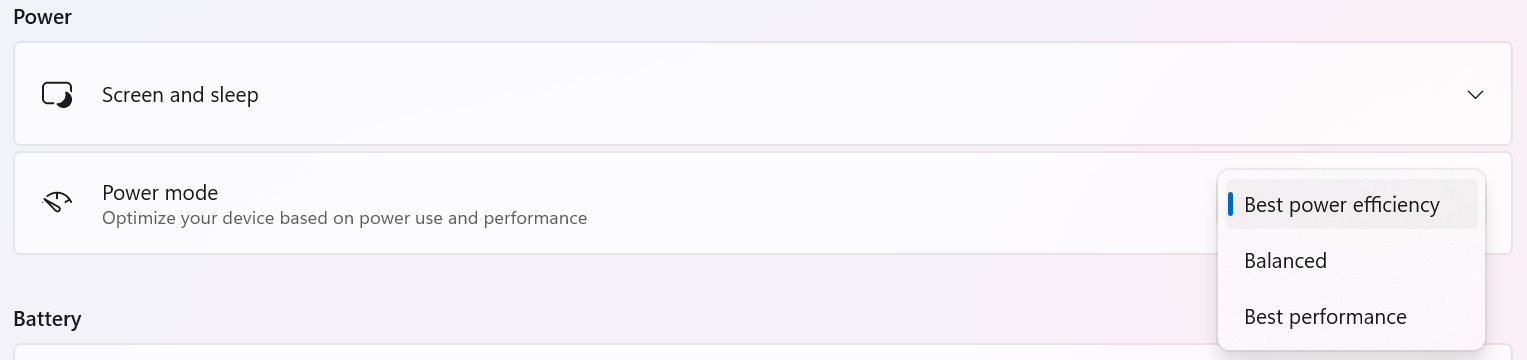

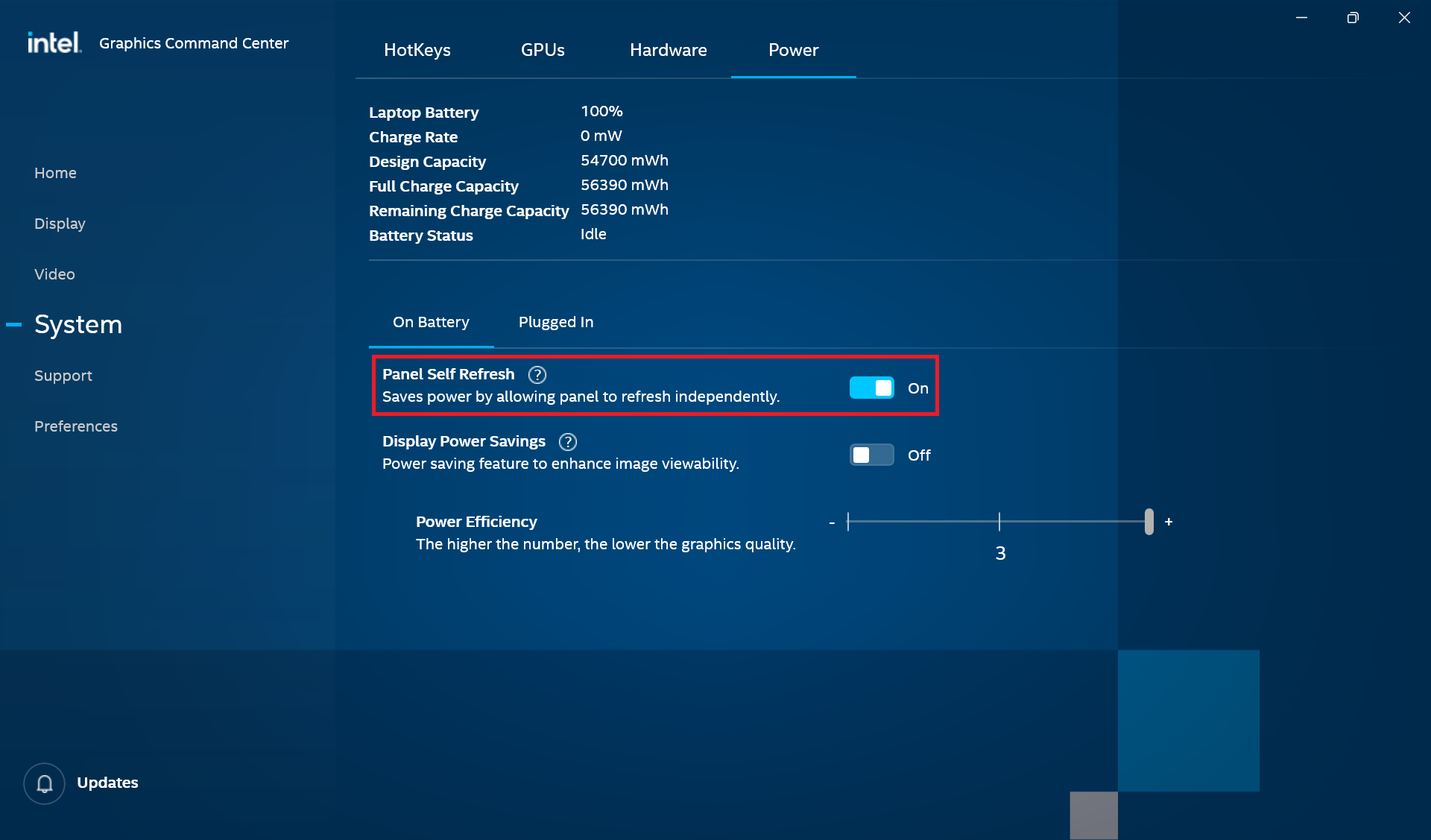
The “Adaptive Sync Plus” and “Panel Self Refresh” options are turned on in the Intel Graphics Command Center.
Brightness: 180 nits; Display Mode: SDR
Time to Full Discharge: Higher is Better

Disassembly, Upgrade options, and Maintenance
To see the internals, you have to undo five Phillips-head screws. Use a thin plastic tool to pry the panel starting from the back. Don’t pry the front. When you fully pop the sides, lift the back of the plate slightly and slide it backward to remove it.
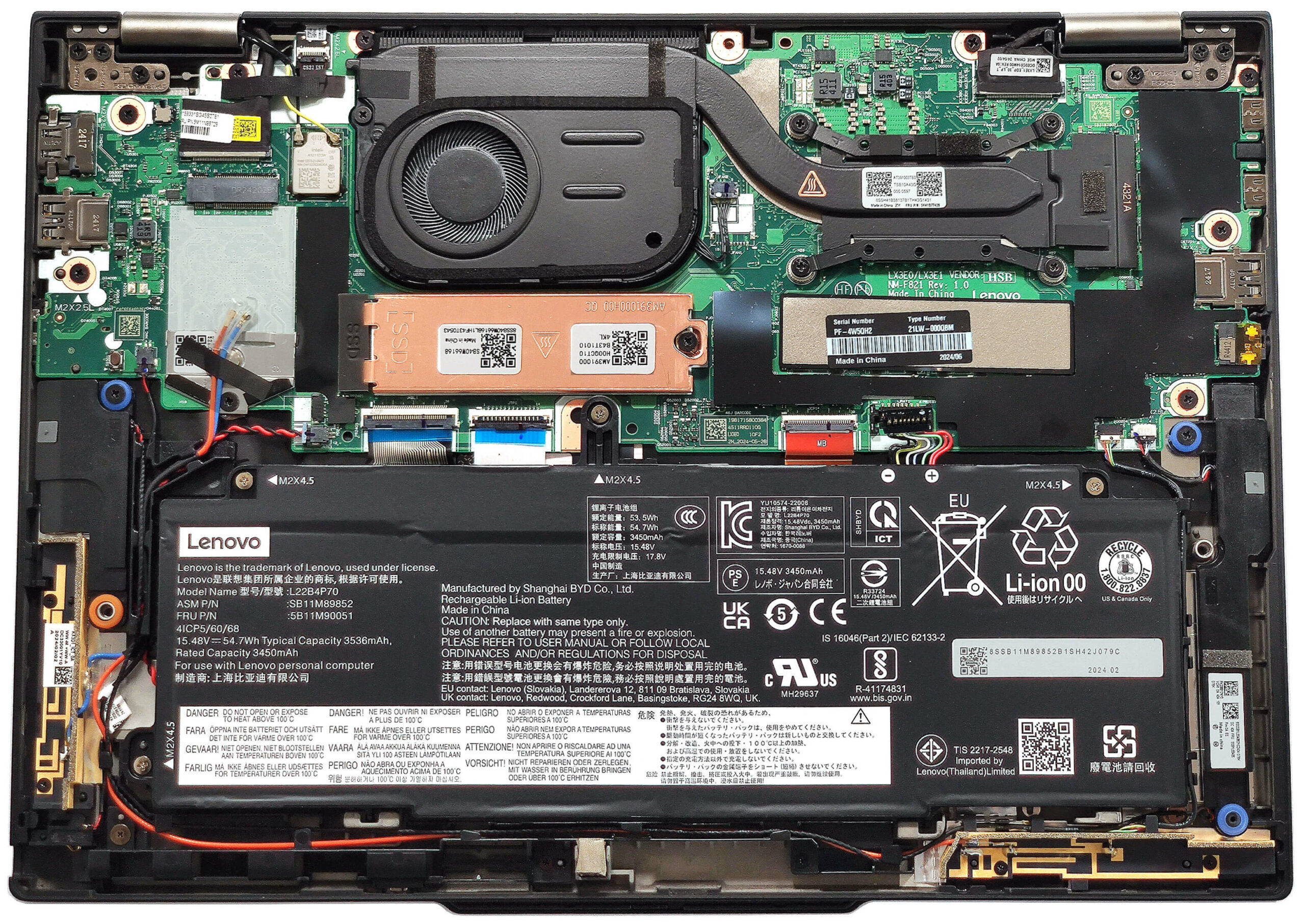
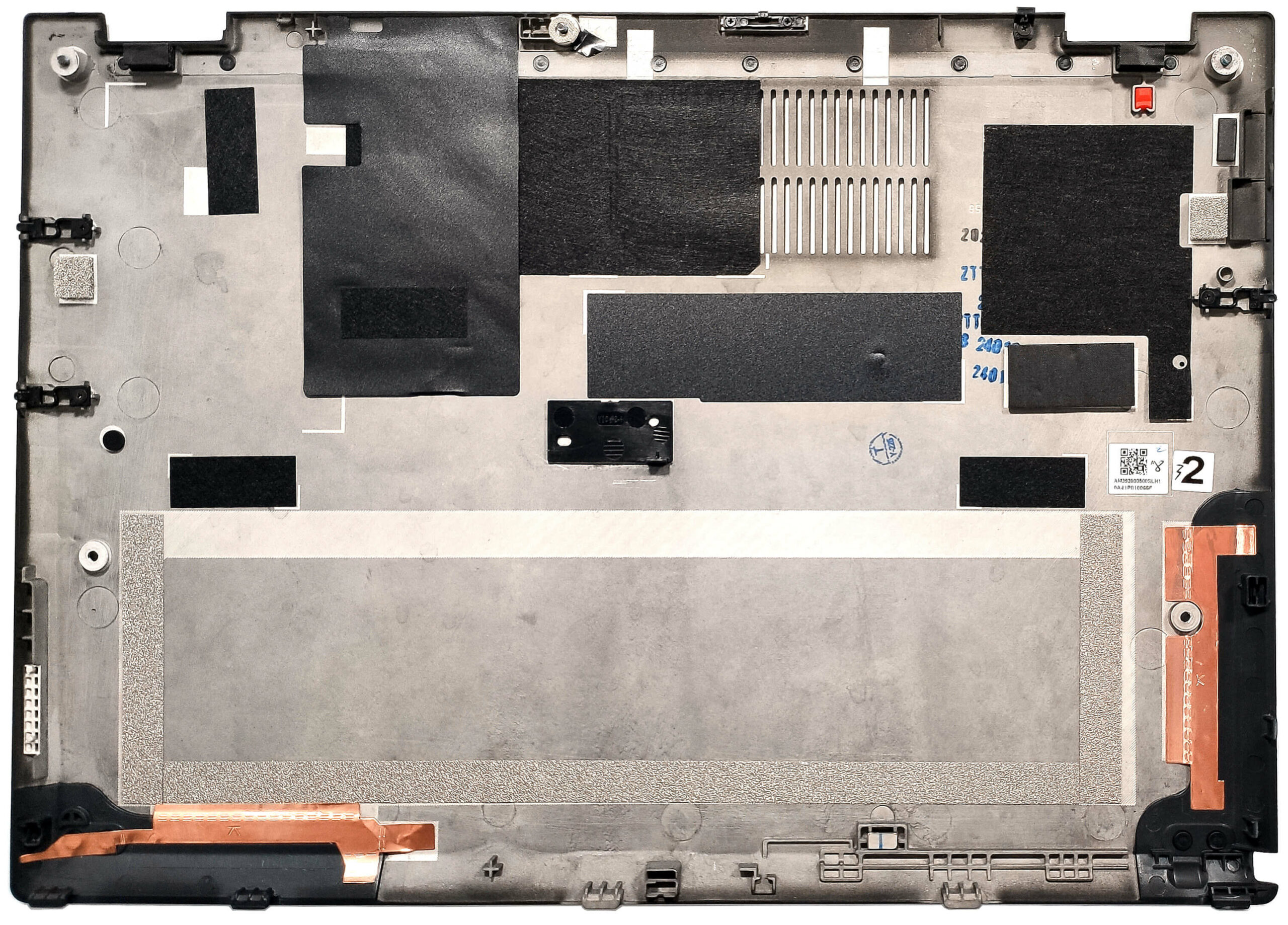
Here’s how the bottom panel looks on the inside.
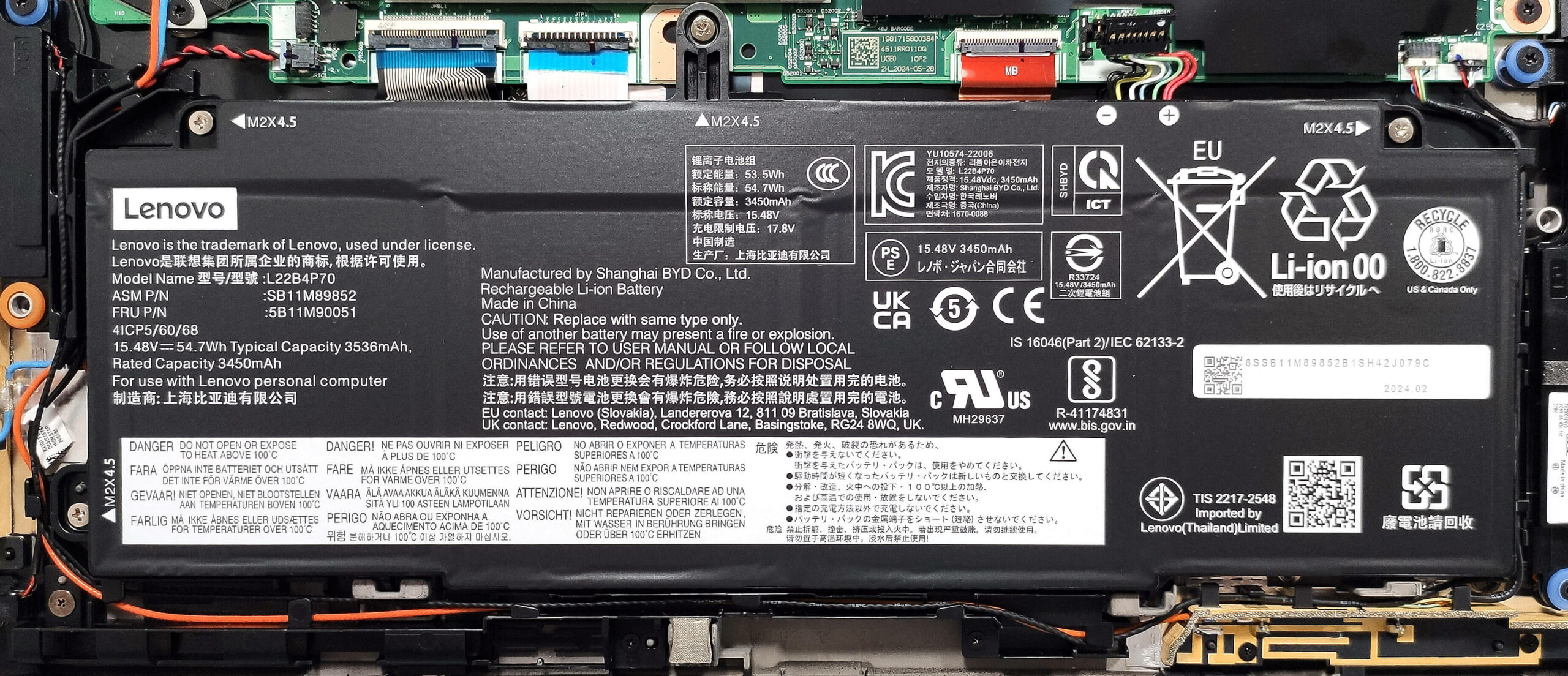
Our laptop has the optional 54.7Wh battery. The default model is a 41Wh variant. To remove it, unplug the connector from the motherboard and undo the 4 Phillips-head screws that secure the unit in place. Untangle the speaker cables around the battery housing. The capacity is enough for around 17 hours and a half of video playback.
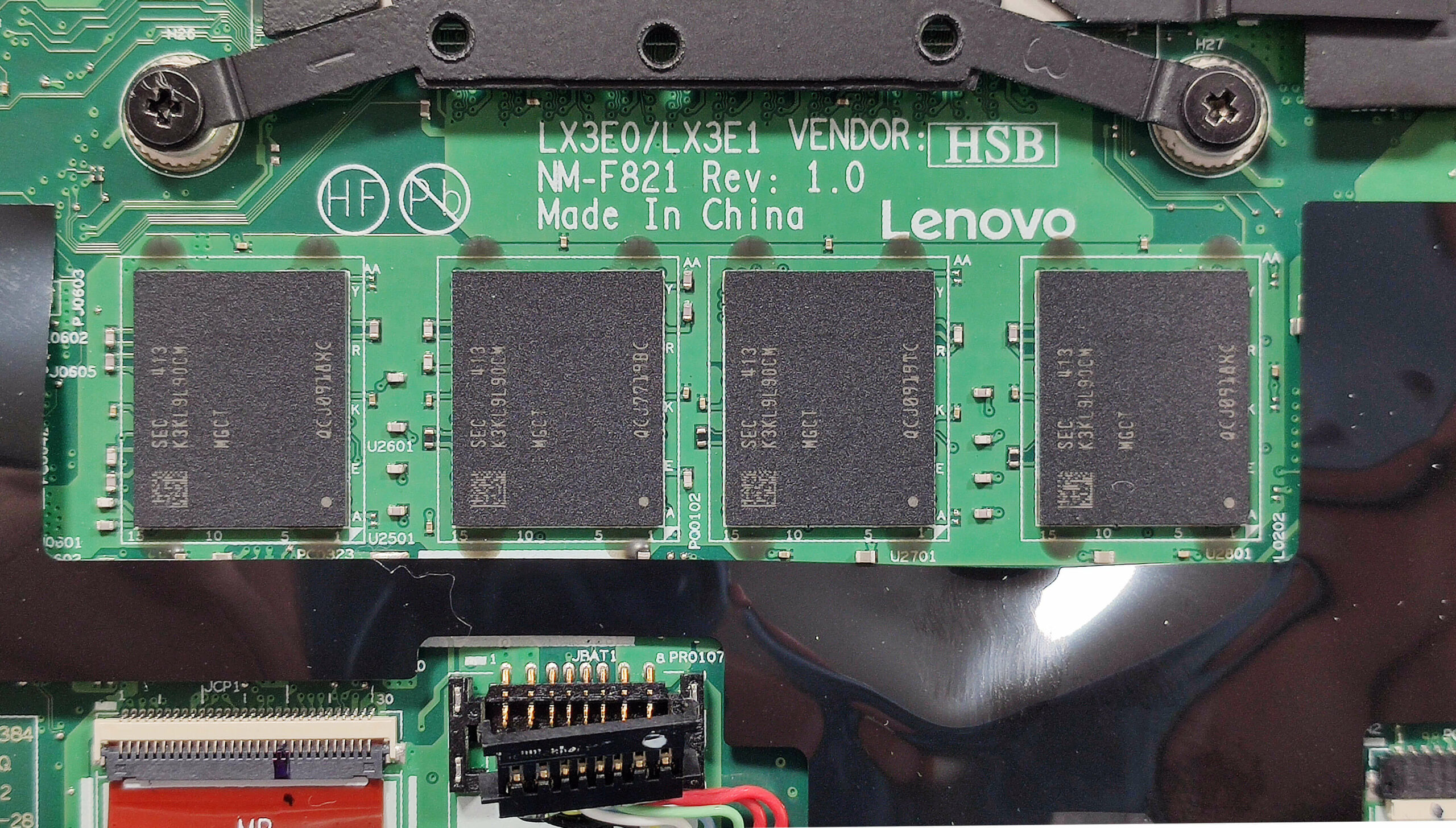
Sadly, the memory is soldered but at least it works in a dual-channel mode. You get up to 64GB of LPDDR5x-6400MHz RAM which is actually plenty. We can have a sneak peek at the memory modules by peeling the foil that covers them.
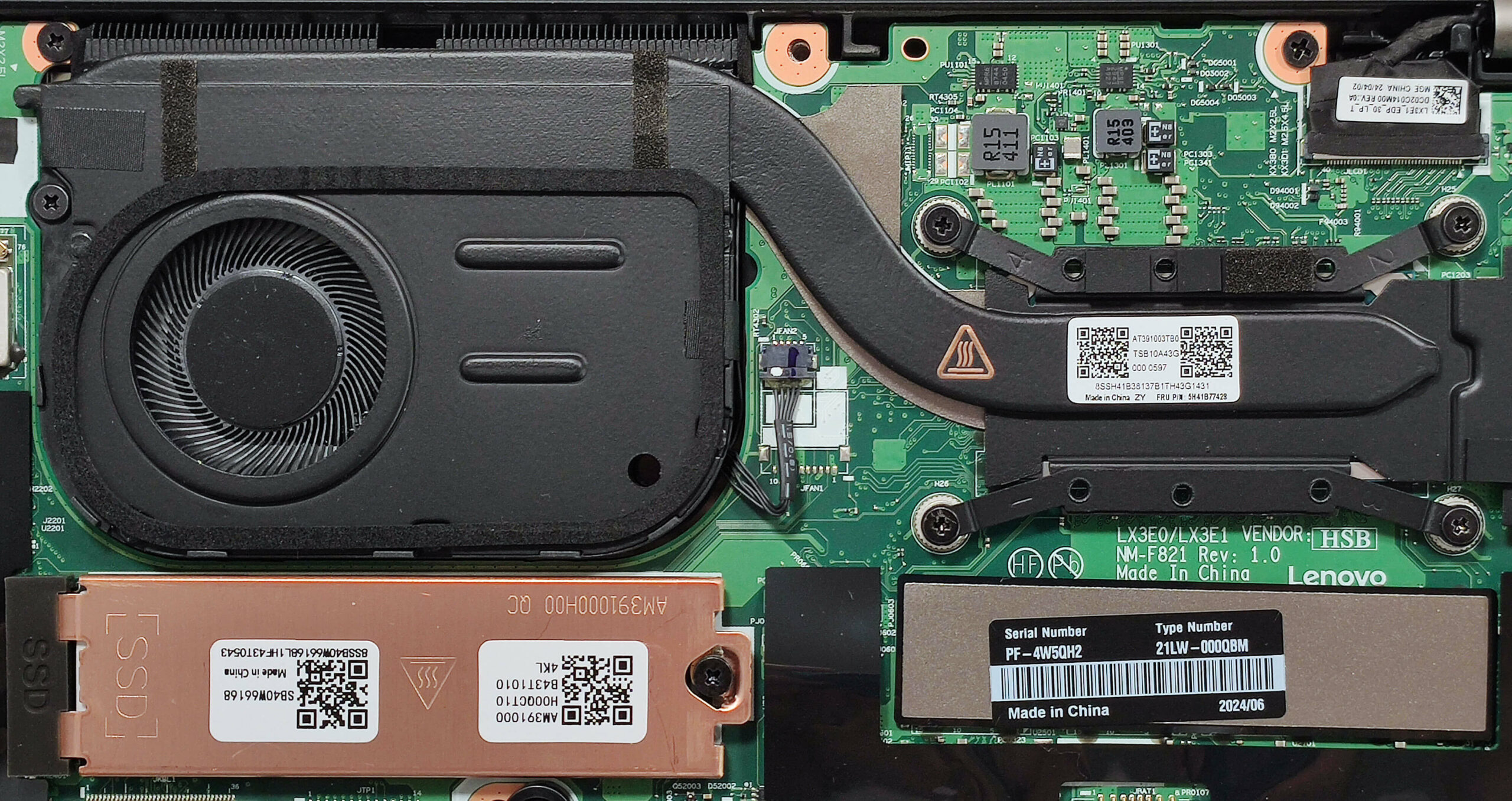
For storage, there is just one M.2 slot compatible with 2280 Gen 4 SSDs. The NVMe drive is protected by a metal plate that is held in place by a single Phillips-head screw. We found long thermal pads on the inside of the shroud and beneath the SSD.
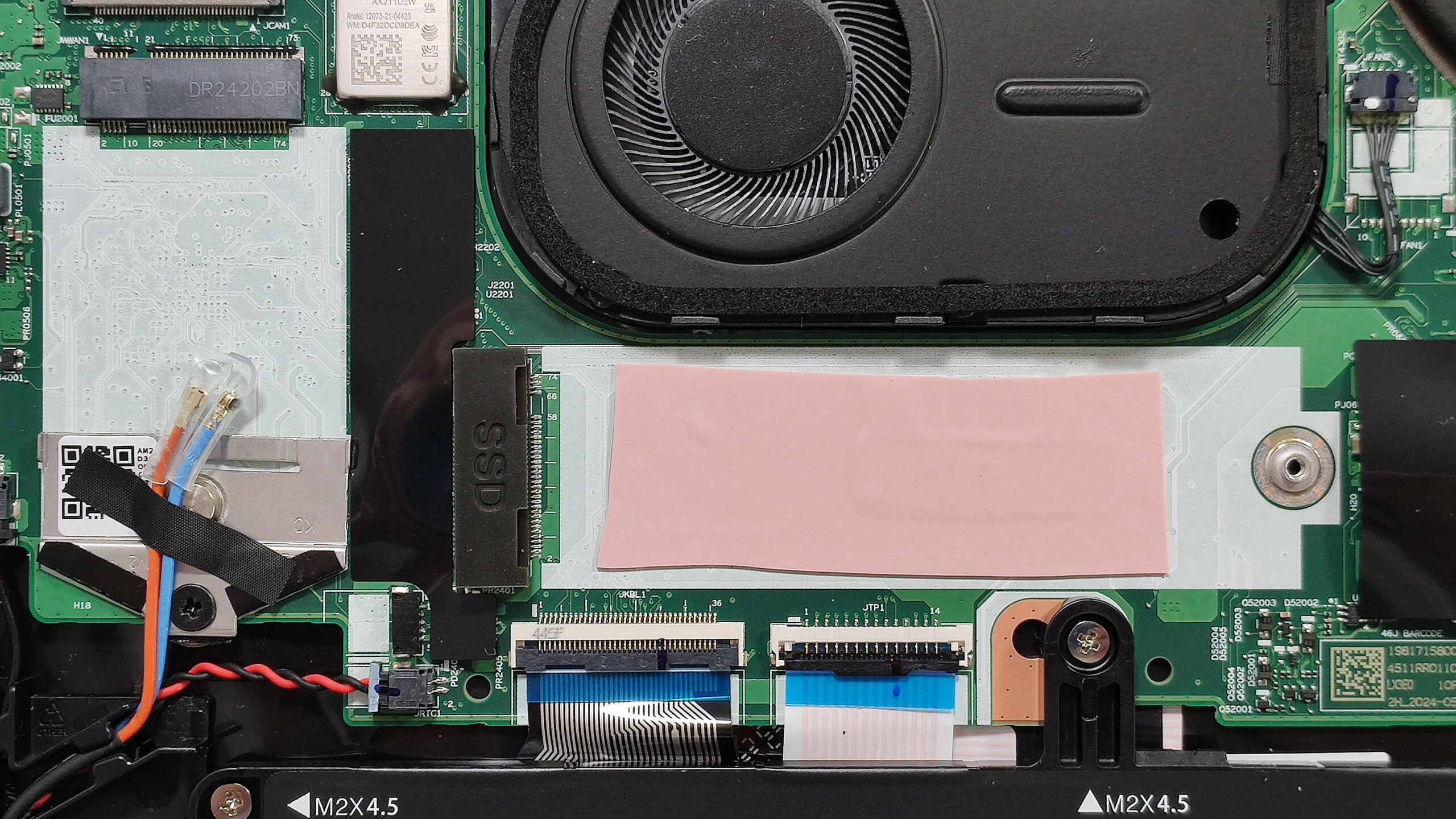
The WWAN slot for optional LTE connectivity and the Wi-Fi card are on the left of the cooling.
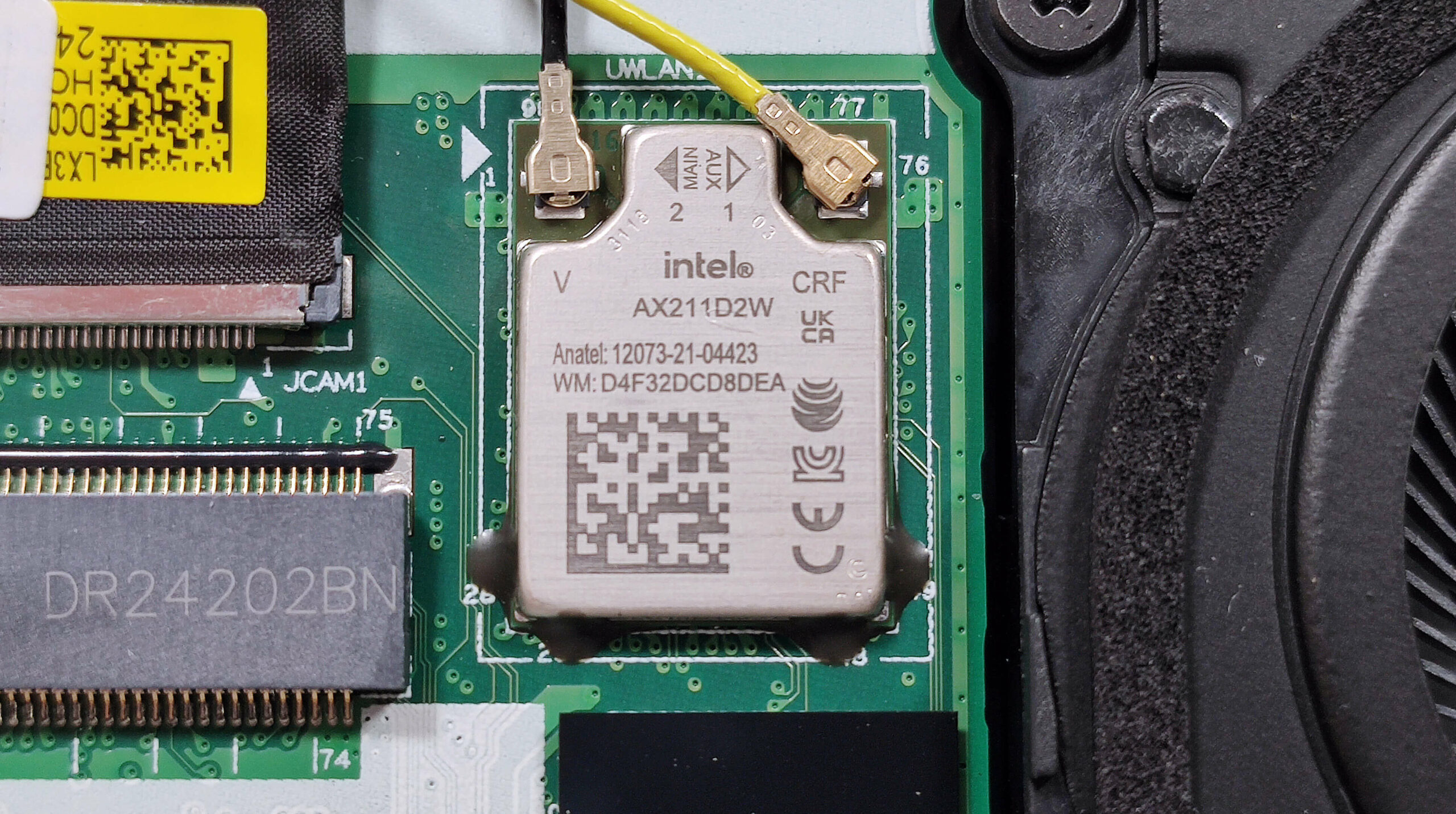
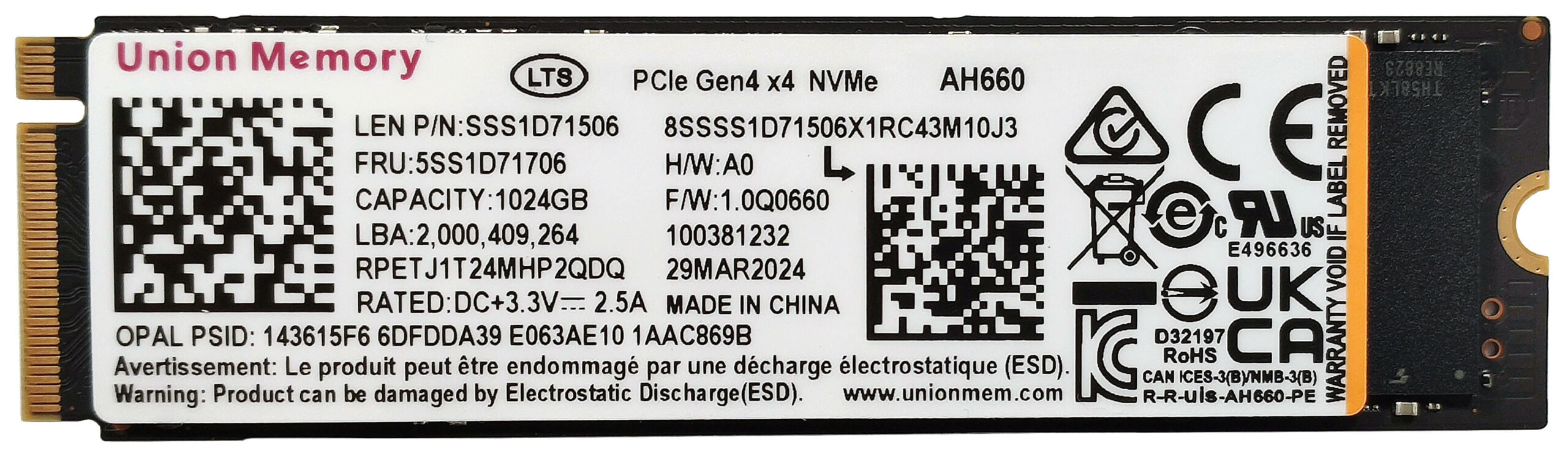
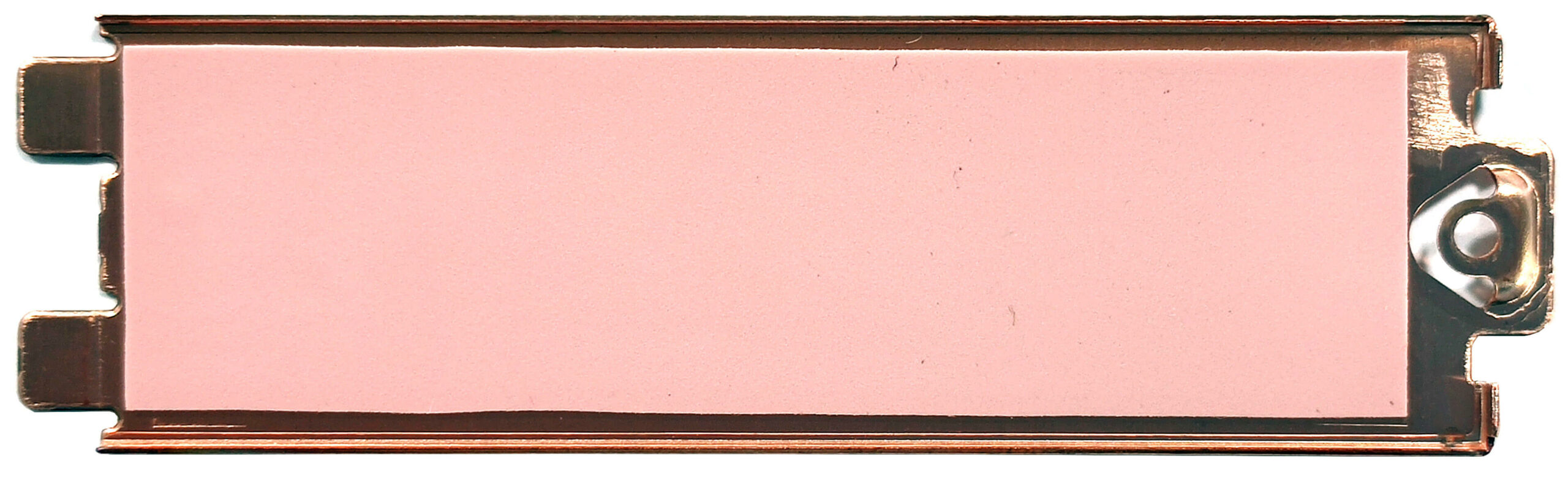
The thermal system looks modest. It has a single small fan, a heat pipe, one top-mounted heat sink, and a heat spreader.
Verdict
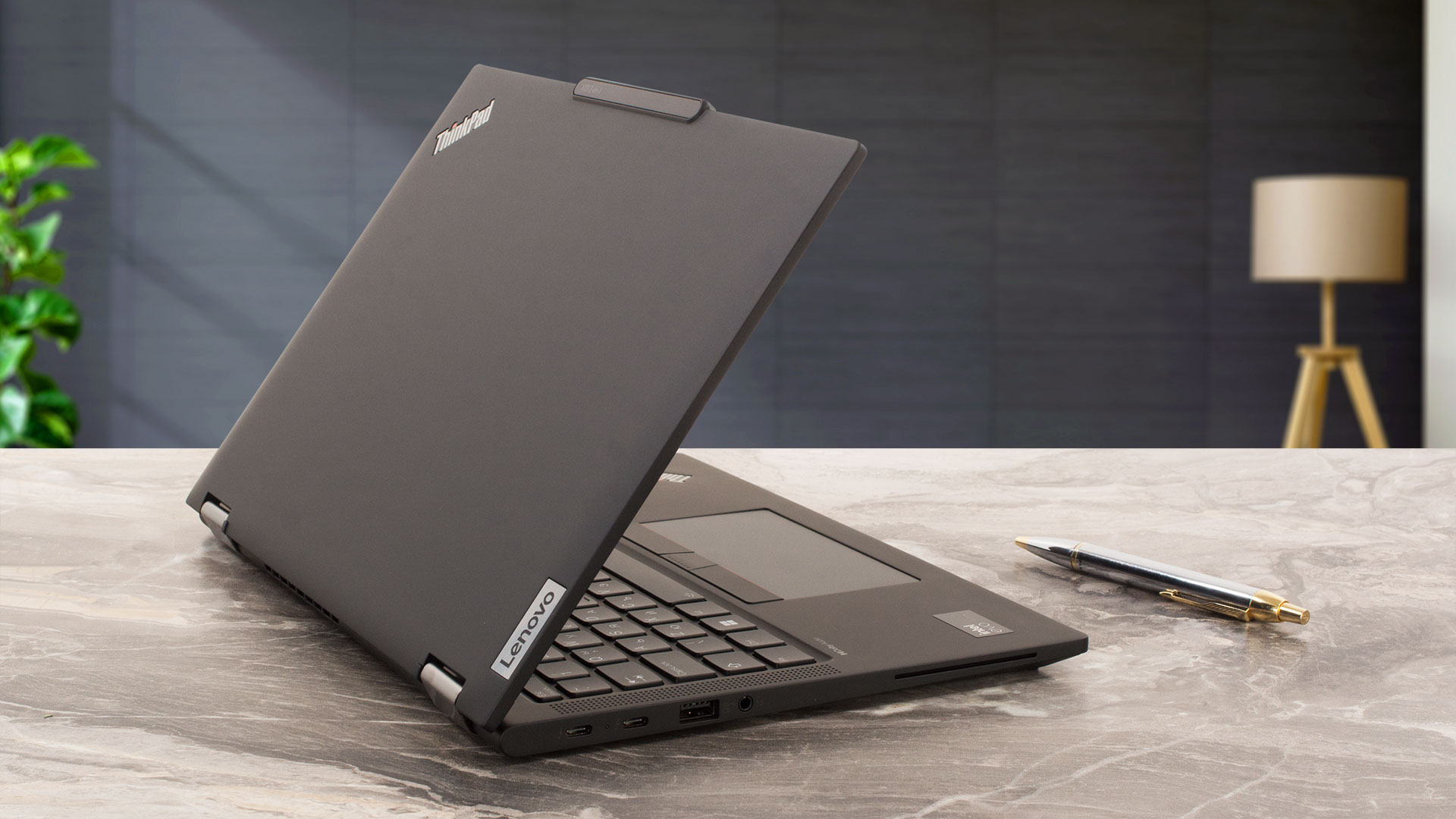 The Lenovo ThinkPad X13 2-in-1 Gen 5 is almost a perfect laptop for business users who are seeking portability, power, and efficiency. The magnesium build is light and it feels premium to the touch with its rubberized-like finish. The performance is always there because the CPU can maintain high clocks in short and medium loads (which should be the main playground for such a laptop) and the frequencies remain decent even in longer stress. The fan should be a quality one because, despite its fast rotating speed, the noise is low even when the processor is pushed to its limits. In this scenario, the keyboard feels warm to the touch, but not hot. Yep, the comfort under max loads is very good.
The 1200p IPS panel (BOE NV133WUM-N67 (LEN41AE)) is suitable even for professional photo and video editing because of the 94% sRGB coverage and the good color accuracy that is possible when our “Design and Gaming” profile is applied. The max brightness of this PWM-free panel is pretty good (389 nits) and with an impressively low screen reflectance value of just 17.1 GU, this unit offers excellent reflection handling.
The rest also look fine – four USB ports and up to 64GB of soldered memory. Well, one of the cons of this gadget is the limited storage upgradability. This 2-in-1 notebook also boasts a very long battery life – more than 14 hours of videos on a single charge. Overall, the ThinkPad X13 2-in-1 Gen 5 is a potent business transformer with a color-accurate IPS panel, long battery life, good portability, and premium build quality.
You can check the prices and configurations in our Specs System: https://laptopmedia.com/series/lenovo-thinkpad-x13-2-in-1-gen-5/
Pros
- Solid magnesium build
- Great portability
- The fan is almost quiet during full CPU loads in “Best Performance” mode
- PWM-free panel with 389 nits of max brightness (LEN41AE)
- Comfortable viewing angles + 16:10 aspect ratio (LEN41AE)
- 94% sRGB coverage + accurate color with our “Design and Gaming” profile (LEN41AE)
- Excellent reflection handling (LEN41AE)
- Good audio quality
- Type-C charging
- 5MP camera with a privacy shutter
- Modern port selection with two Type-C ports
- The CPU can sustain high P-core clocks in short and medium loads (~3.50 GHz – 3.00 GHz)
- Great backlit keyboard + accurate touchpad
- 360-degree hinge that supports laptop, tent, stand, and tablet modes
- Optional Lenovo Pen
- Up to 64GB LPDDR5x RAM
- LTE, NFC, fingerprint reader, Smart Card reader, vPro CPU, Intel Evo certification, and IR Web camera (all are optional)
Cons
- Soldered memory and just one M.2 slot
- High price
- Too many optional features
 Author: Nikolay Palaozov
 Author: eng. Kroum NikolovHead of Engineering at LaptopMedia.com, inventor and innovator with 40+ years of experience in electronics and high technology.
TOP 100 GAMING LAPTOPS



TOP LAPTOP RATINGS
HIGHLIGHTS view more
![[June 2026] Best-Selling Laptop Brands on Amazon Global – Apple’s Unrivaled Dominance in Units and Revenue](https://laptopmedia.com/wp-content/uploads/2026/07/GLOBAL-Best-Brands-400x225.jpg)
[June 2026] Best-Selling Laptop Brands on Amazon Global – Apple’s Unrivaled Dominance in Units and Revenue
Jul 06, 2026![[June 2026] Amazon Global: Top 10 Best-Selling Laptops – Apple’s New MacBook Neo Storms to #1, Reshaping the Market with Affordability](https://laptopmedia.com/wp-content/uploads/2026/07/Best-Selling-Laptops-GLOBAL-Top-10-400x225.jpg)
[June 2026] Amazon Global: Top 10 Best-Selling Laptops – Apple’s New MacBook Neo Storms to #1, Reshaping the Market with Affordability
Jul 06, 2026![[June 2026] Amazon Global: Top 10 Best-Selling Gaming Laptops – Acer’s Nitro V 16S AI Dominates Sales, While ASUS Leads Overall Revenue](https://laptopmedia.com/wp-content/uploads/2026/07/Best-Selling-Gaming-Laptops-GLOBAL-Top-10-400x225.jpg)
[June 2026] Amazon Global: Top 10 Best-Selling Gaming Laptops – Acer’s Nitro V 16S AI Dominates Sales, While ASUS Leads Overall Revenue
Jul 06, 2026![[June 2026] Global Ranking of Best-Selling Laptop GPUs on Amazon – NVIDIA RTX 5060 is the Top-Selling Dedicated GPU](https://laptopmedia.com/wp-content/uploads/2026/07/Best-Selling-GPUs-GLOBAL-Top-10-400x225.jpg)
[June 2026] Global Ranking of Best-Selling Laptop GPUs on Amazon – NVIDIA RTX 5060 is the Top-Selling Dedicated GPU
Jul 05, 2026![[June 2026] Global Ranking of Best-Selling Laptop CPUs on Amazon – Apple M5 Dominates, AMD Ryzen 7 260 Gets Solid Premium Share](https://laptopmedia.com/wp-content/uploads/2026/07/Best-Selling-CPUs-GLOBAL-Top-10-400x225.jpg)
[June 2026] Global Ranking of Best-Selling Laptop CPUs on Amazon – Apple M5 Dominates, AMD Ryzen 7 260 Gets Solid Premium Share
Jul 05, 2026
REVIEWS view more

Acer Nitro V 15 (ANV15-A31) review – A Practical Budget Gamer with One Major Catch
Aug 13, 2026Lenovo IdeaPad Slim 5a (16″, Gen 11) review – 2.8K OLED, Ryzen AI 7 450, and Rare Upgradeability
Aug 09, 2026HP OmniBook 5 16 (16-bc1000) review – Big Screen, Solid CPU, Limited Upgrades
Aug 06, 2026Lenovo ThinkPad X1 Carbon Gen 14 Aura Edition review – The Ultimate Business Laptop Gets Modular
Aug 03, 2026ASUS ExpertBook Ultra (B9406) review – Core Ultra X7 & Tandem OLED Tested
Jul 28, 2026