LaptopMedia’s Display Profiles 3.0 – Design & Office, Gaming & Movies, and Health-Guard
Here you will find information about the 3rd generation Display Profiles created by LaptopMedia.
At LaptopMedia, we established a computer research center where, over the past 15 years, we have tested almost every new model released on the market. Today, it is one of the most advanced computer testing laboratories in the world.
One of the challenges we faced was maximizing the potential of their displays by creating special profiles tailored to each screen model, enhancing colors, making the image clearer, and protecting users’ health.
Design and Office
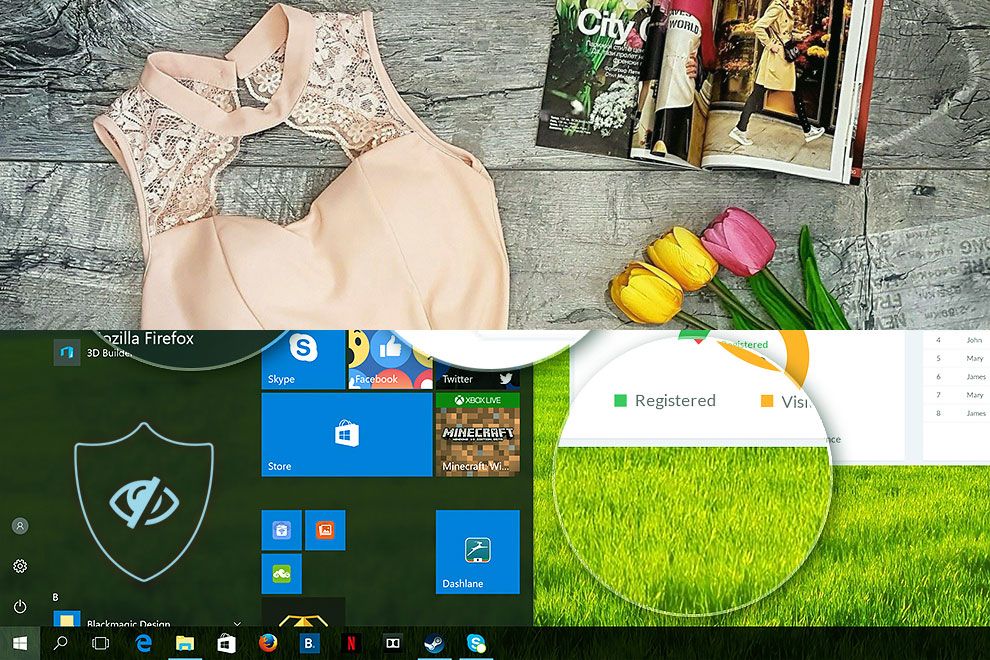
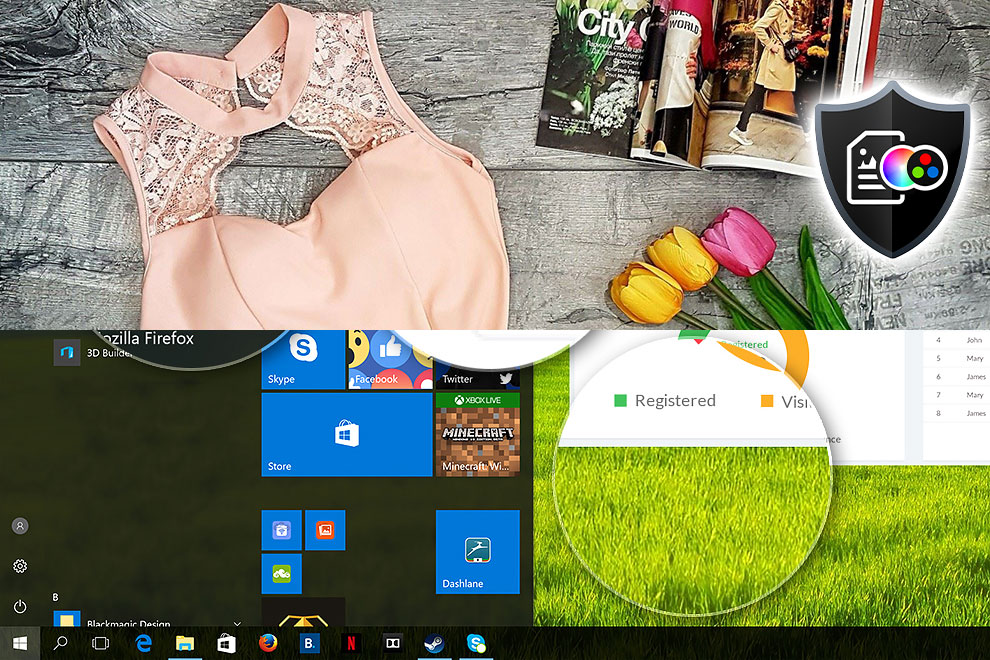
 The Design and Office profile makes display colors as close to real as possible.
For professionals, this profile is essential, but it is also immensely beneficial for everyday users. Have you ever purchased a beige item of clothing online, only to find it looks brown upon delivery? The reason lies in the fact that most screens have a high deviation from real colors (dE) – an issue solved by our Design and Office profile, created specifically for your screen panel model.
📌 For professionals:
The Design and Office profile targets the sRGB IEC 61966-2-1 standard – D65 white point and sRGB gamma curve – reducing DeltaE (2000) to the lowest possible levels, ensuring you can make full use of your panel’s potential.
Left: No Profile | Drag the slider to see the difference | Right: Design & Office Profile
Gaming and Movies
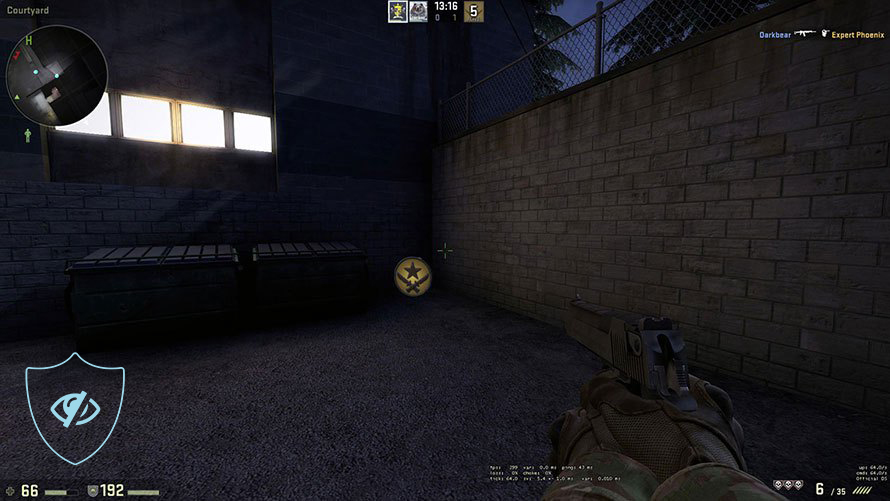
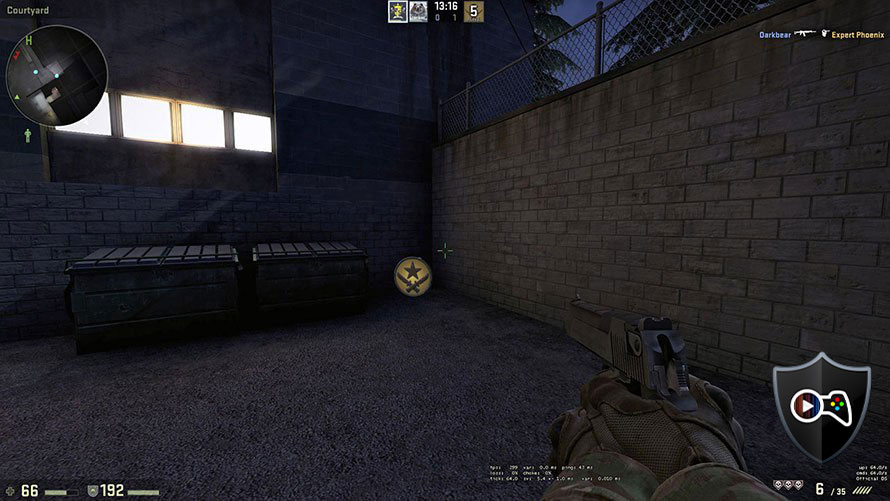
 Have you ever watched a movie where, during dark scenes, you can barely see anything? The reason is the screen’s inability to correctly reproduce the darkest parts of the picture, resulting in them blending together.
With the Gaming and Movies profile, we solve this problem by adjusting the display panel to improve its performance in low-light areas, similar to HDR technology.
The Gaming and Movies profile is also highly beneficial for gamers, as it utilizes a gamma curve that best matches human light perception. This makes your reactions faster and ensures maximum clarity in every scene!
Left: No Profile | Drag the slider to see the difference | Right: Gaming & Movies Profile
Health-Guard
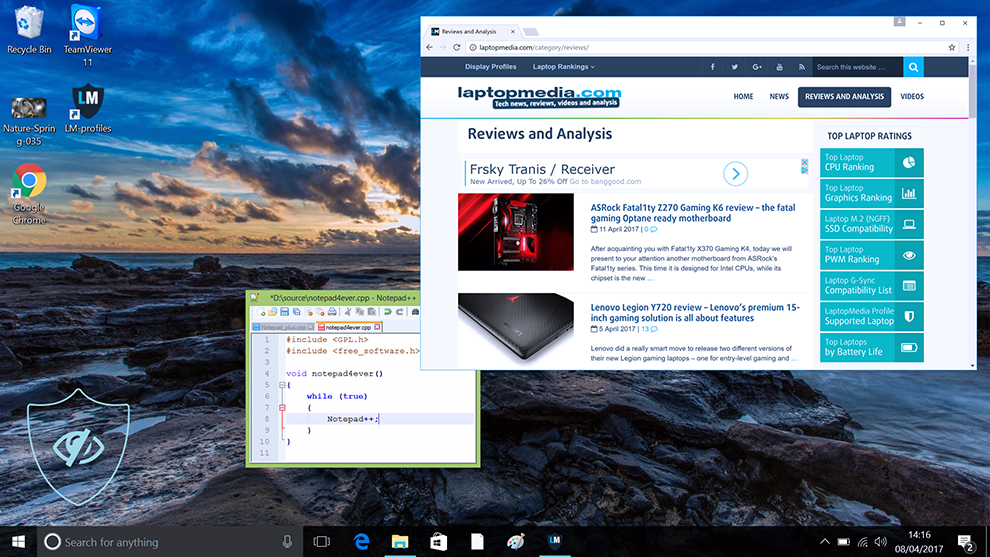
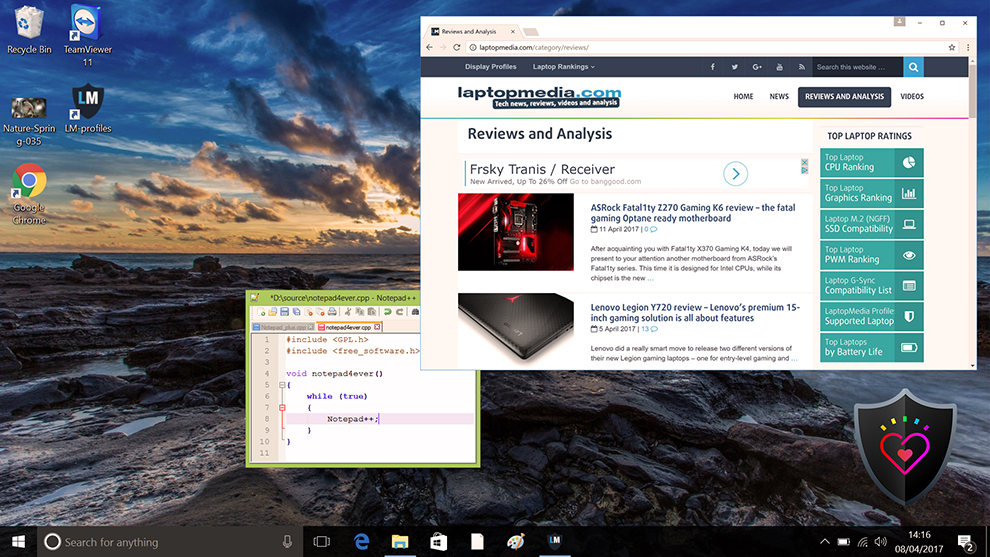
 The Health-Guard profile is the result of hundreds of studies conducted in our lab, with the aim of protecting you from the primary factors that negatively affect your vision and body.
Have you ever experienced dryness in your eyes after extended screen use? Many displays use PWM (Pulse-Width Modulation) to regulate brightness – instead of dimming the picture, they flicker at frequencies ranging from 200 to 20,000 times per second. While your brain merges the images, making it appear smooth, your eyes become strained, leading to fatigue and even headaches.
Another issue is the so-called “Blue Light”. The artificial light emitted by screens suppresses melatonin synthesis due to its intense output in the 443 nm spectrum range. The result is not just eye fatigue and difficulty falling asleep, but it may also lead to more severe health issues like cancer, diabetes, heart disease, and obesity, as proven in numerous scientific studies (1, 2).
Our Health-Guard profile addresses both problems – it eliminates PWM by enabling software-based dimming of the screen instead of using hardware backlight modulation and reduces the blue light spectrum emitted. Additionally, it uses a gamma curve that is best suited for human perception.
Left: No Profile | Drag the slider to see the difference | Right: Health-Guard Profile
How to Buy?
For every laptop that visits our lab, we create display profiles, which can be found in our detailed reviews. We also have a LaptopMedia Profiles Supported Laptops List page, where you can find all the machines for which we have created profiles over the years.
You can also place an order here. After purchasing, please send us your laptop brand, full model name, and exact panel name. We will check our profiles database and provide the exact matching profile for your machine and panel. Scroll down to see where to find the panel name.
In addition to receiving efficient and health-friendly profiles, by buying LaptopMedia's products you also support the development of our labs, where we test devices in order to produce the most objective reviews possible.
Design and Office
The Design and Office profile makes display colors as close to real as possible.Ideal not only for professionals but also for everyday users, it meets sRGB standards (D65 white point, sRGB gamma) with minimal DeltaE for precise color reproduction on your panel.

Gaming and Movies
Have you ever watched a movie where, during dark scenes, you can barely see anything? Many displays fail to distinguish dark tones properly. Our Gaming and Movies profile enhances low-light performance, like HDR tech, using a gamma curve tailored to human perception — ideal for gamers seeking faster reactions and clearer visuals.

Health-Guard
Our Health-Guard profile protects your eyes by eliminating PWM flickering, reducing strain and fatigue, and minimizing harmful Blue light exposure that can disrupt sleep and health. It uses software dimming and a gamma curve tailored to human perception for comfort and safety during screen use.
Get All The Profiles With 33% Discount!
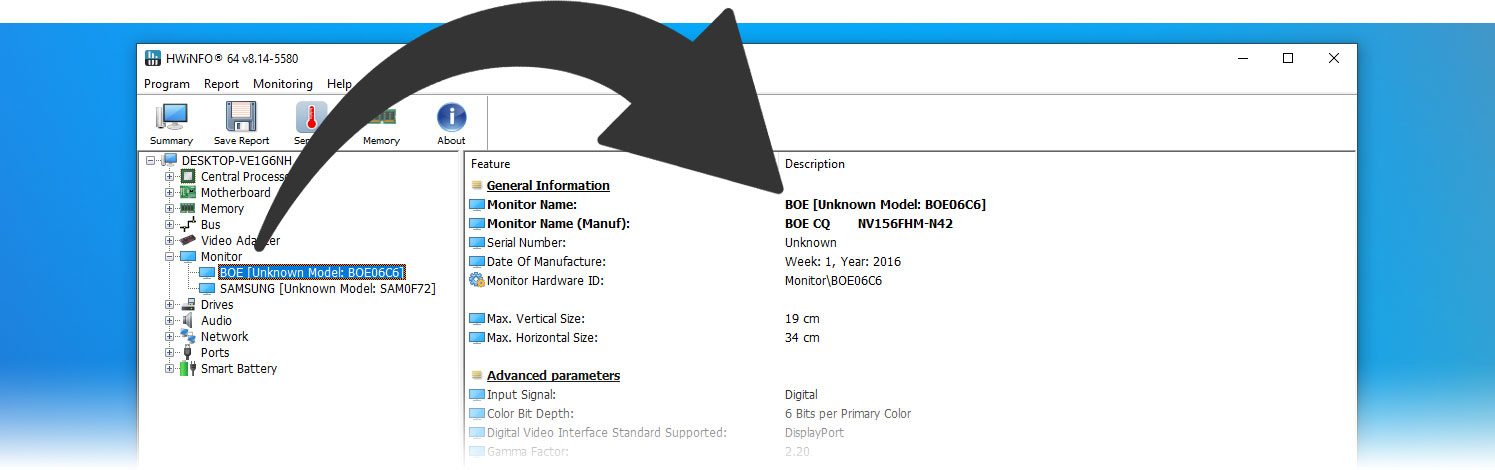
Where to find my exact panel model?
One of the best ways to do that is with an app like HWiNFO – it’s free, and its portable version doesn’t need installation:
Installation and Usage
For easy use and switching between profiles, we developed the LM Profiles 3.0 app. Just download it, then drag and drop the profiles onto the application. That’s it!
You can now effortlessly switch between modes and take advantage of the PWM-free brightness slider when the “Health-Guard” profile is activated (to ensure that PWM is eliminated, make sure the Windows brightness slider is set to maximum).
Have Questions?
Feel free to reach out to us through our Contact Us page.
 Author: Simeon NikolovEditor-in-Chief at LaptopMedia.com with 20+ years of experience in testing and analyzing laptops and mobile devices.

![[August 2026] Amazon Italy: Top 10 Best-Selling Laptops – Apple MacBook Neo Claims the Crown as Budget and Mid-Range Windows Machines Dominate Volume](https://laptopmedia.com/wp-content/uploads/2026/09/Best-Selling-Laptops-IT-Top-10-400x225.jpg)
![[August 2026] Amazon Italy: Top 7 Best-Selling Gaming Laptops – ASUS V16 Claims the #1 Spot Amid Strong Mid-Range Demand](https://laptopmedia.com/wp-content/uploads/2026/09/Best-Selling-Gaming-Laptops-IT-Top-10-400x225.jpg)
![[August 2026] Best-Selling Laptop Brands on Amazon Italy – Lenovo Dominates Market Share and Revenue Leadership](https://laptopmedia.com/wp-content/uploads/2026/09/IT-Best-Brands-400x225.jpg)
![[August 2026] Amazon India: Top 10 Best-Selling Laptops – Apple MacBook Neo Dominates the Charts with Massive Sales Lead](https://laptopmedia.com/wp-content/uploads/2026/09/Best-Selling-Laptops-IN-Top-10-400x225.jpg)
![[August 2026] Amazon India: Top 10 Best-Selling Gaming Laptops – HP Victus 15 Dominates the Market with Massive Unit Lead](https://laptopmedia.com/wp-content/uploads/2026/09/Best-Selling-Gaming-Laptops-IN-Top-10-400x225.jpg)

I recently purchased the three profile bundle. The ordering and fulfilment process was smooth, and installation on my laptop was quite straightforward
Of the three profiles, I am using the Health-Guard profile the most. When correctly configured and PC brightness at 100%, I am finding long sessions on the laptop much easier on the eyes.
Also, I had a couple of newbie enquiries and found the customer service to be prompt and helpful.
Thank you very much!
I bought the full LaptopMedia Display Profiles 3.0 package and was especially impressed with the Health-Guard profile. It completely eliminates PWM flickering, even when adjusting brightness, no more eye strain during long work sessions. Colors look warm and natural too. I also tried the Design & Office and Gaming & Movies profiles, and both improved the image clarity and color tone in noticeable ways, especially when editing documents or watching Netflix.
Highly recommended for anyone sensitive to flicker or spending long hours on a laptop!
Thanks a lot, Pete!
I recently bought the office work profile for my laptop, after installing LM 2 somewhere on the webpage and dropping the .ICC file, the app automatically deleted the file but office profile remains greyed out. What is actually wrong? Please Help
Hello, Rahardian, sorry for the late answer!
You probably has restricted access to your C:/ drive which may happen if your account is not an administrator account. That’s an easy fix for that if you still can access the drive, you just have to install the profiles manually, here’s how:
1. Rename them to:
monitor_1_gaming
monitor_1_health
monitor_1_office
2. And copy/paste them here:
C:\Users\Your Username\AppData\Local
I recently purchased the color profile for my laptop, and have been very impressed with the result. The colors now look much more natural and consistent, which is especially helpful for my design work.
I also want to note how helpful the support was – Simeon from the team personally assisted with my questions, which made the whole experience even better. It’s clear this team cares about their users.
Highly recommend these profiles to anyone looking to improve their laptop’s display accuracy!
Thank you very much, Morisa!