How to open Lenovo Legion 5a (15″, Gen 11, 15AGP11) – disassembly and upgrade options

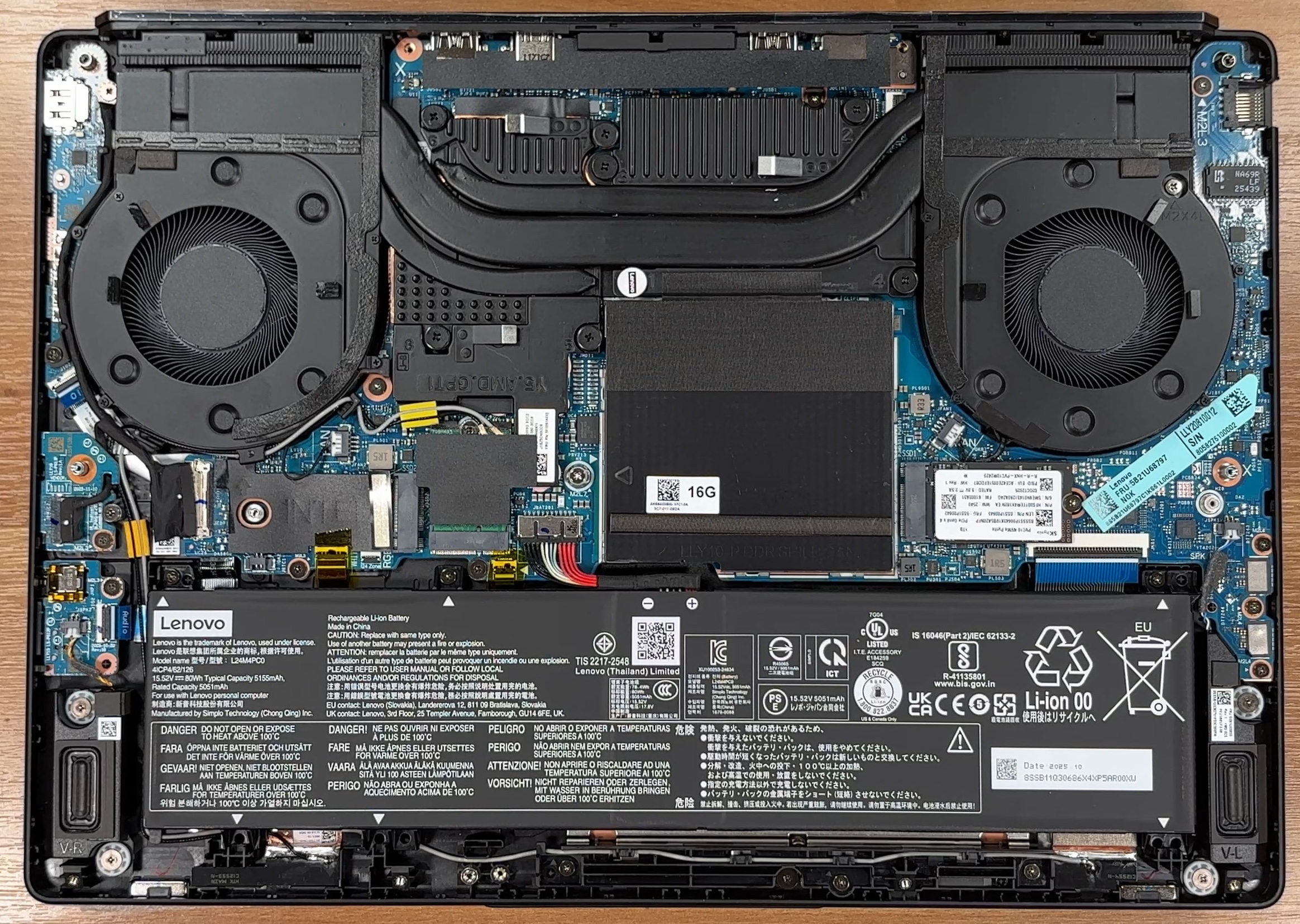
Step 1: Removing the bottom panel
- Power off the laptop and place it on a soft, clean surface.
- Undo the 10 screws securing the bottom panel.
- Use a thin plastic pry tool to carefully release the clips around the perimeter.
- Lift the bottom cover away from the chassis.
More info: Once inside, the layout is clean and easy to navigate, with the cooling hardware at the top, the battery along the front edge, the memory in the center, and the storage area positioned nearby. Lenovo has also added thermal pads on the inside of the bottom cover to help cool the SSD area.
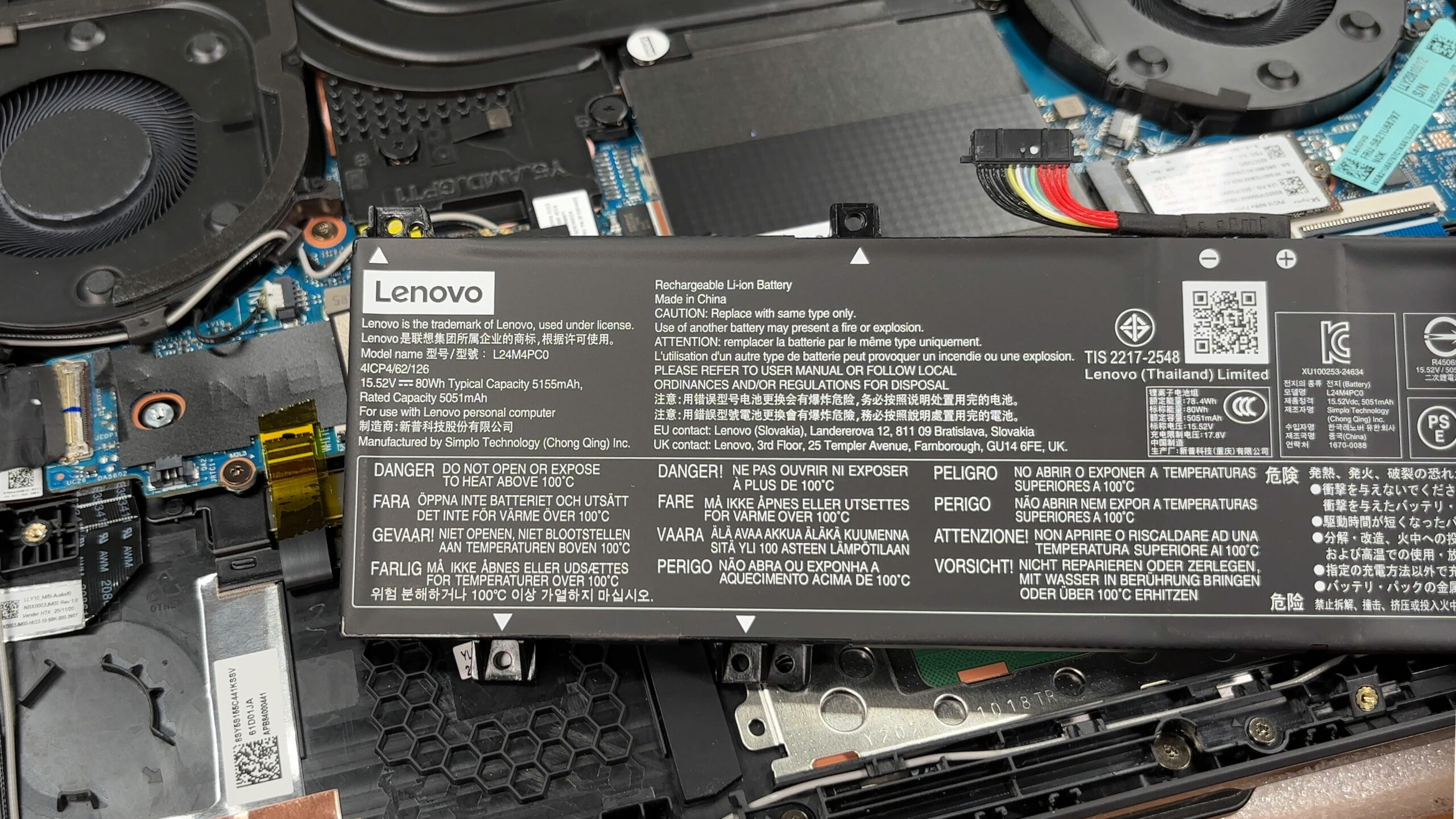
Step 2: Battery removal
- Disconnect the battery cable from the motherboard before touching any other internal component.
- Undo the screws securing the 80Wh battery pack.
- Lift the battery out of the chassis carefully.
More info: The 80Wh battery is a good fit for this class of gaming laptop and is installed in a conventional, service-friendly way.
Step 3: Memory Upgrade
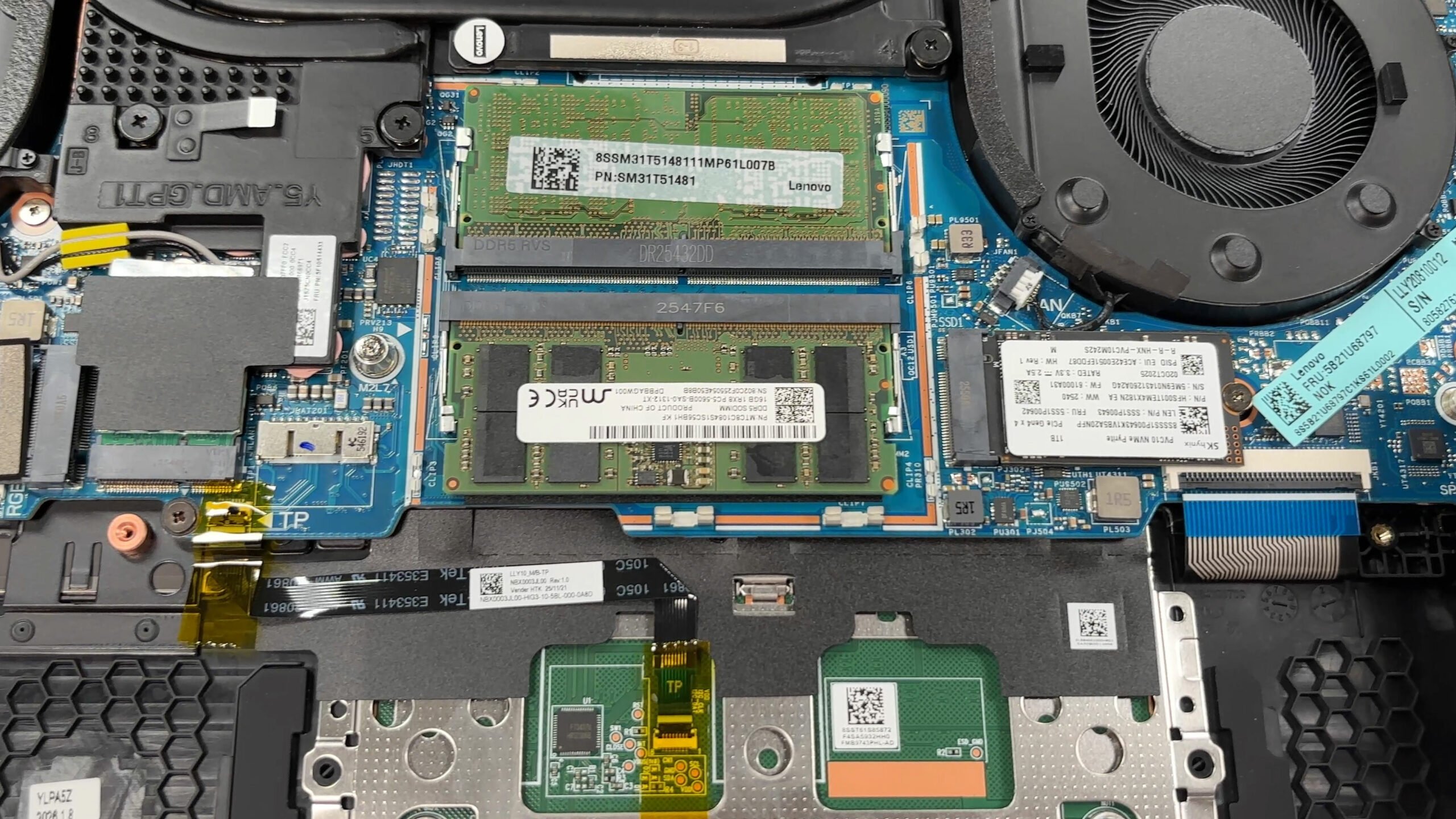
- The memory is located under a dedicated shield in the center of the motherboard.
- Remove the shield carefully to access the two DDR5 SODIMM slots.
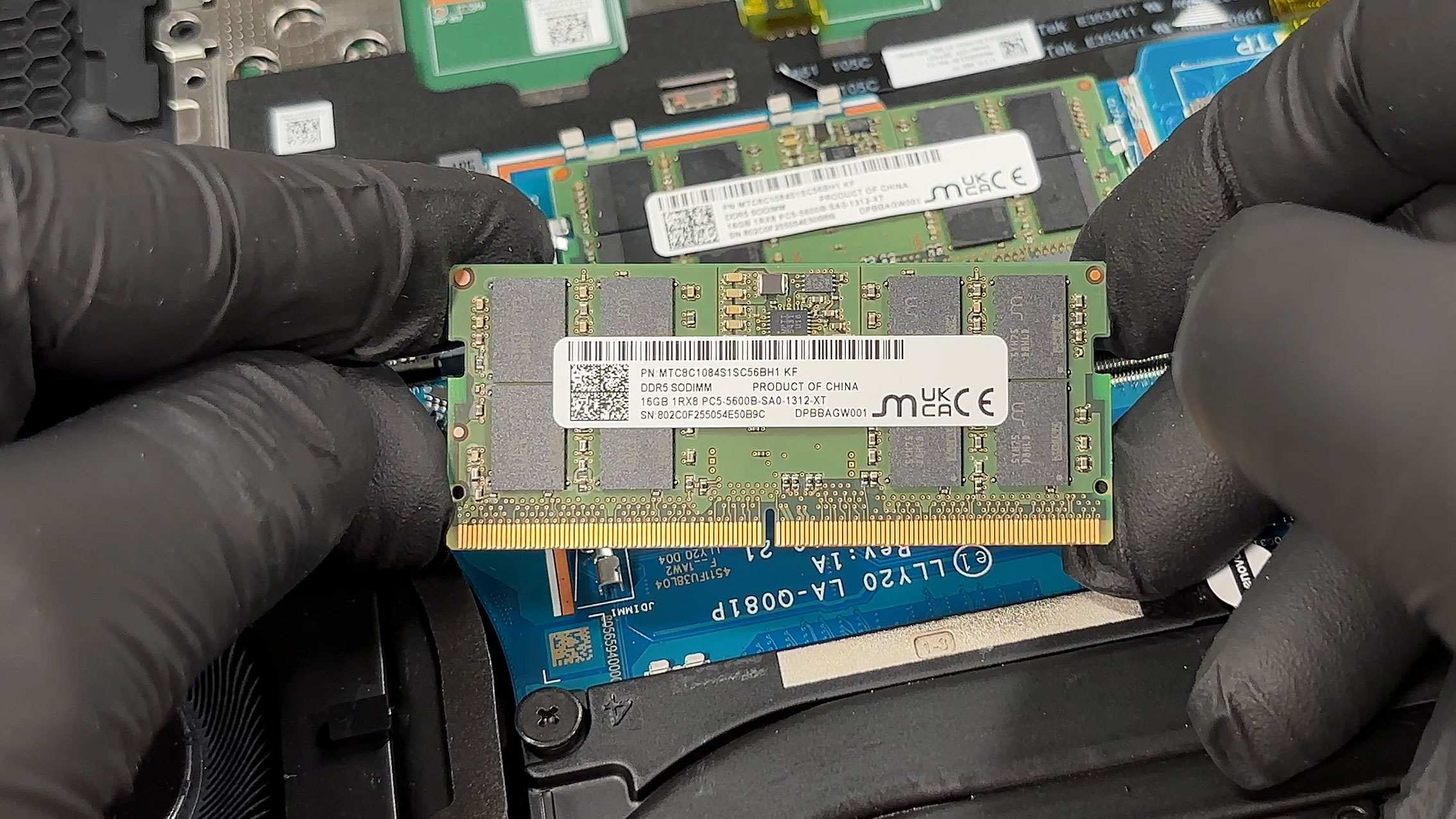
- Our unit comes with two 16GB Micron DDR5-5600 modules, so dual-channel operation is active out of the box.
- Lenovo officially lists support for up to 32GB of DDR5-5600 memory.
- Thermal pads are placed between the memory shield and the RAM modules to help with heat transfer.
- Since both slots are already populated in this configuration, upgrading means replacing the existing modules rather than simply adding another stick.
You can buy DDR5 RAM modules here: Buy from Amazon.com (#CommissionsEarned)
Step 4: Storage Upgrade
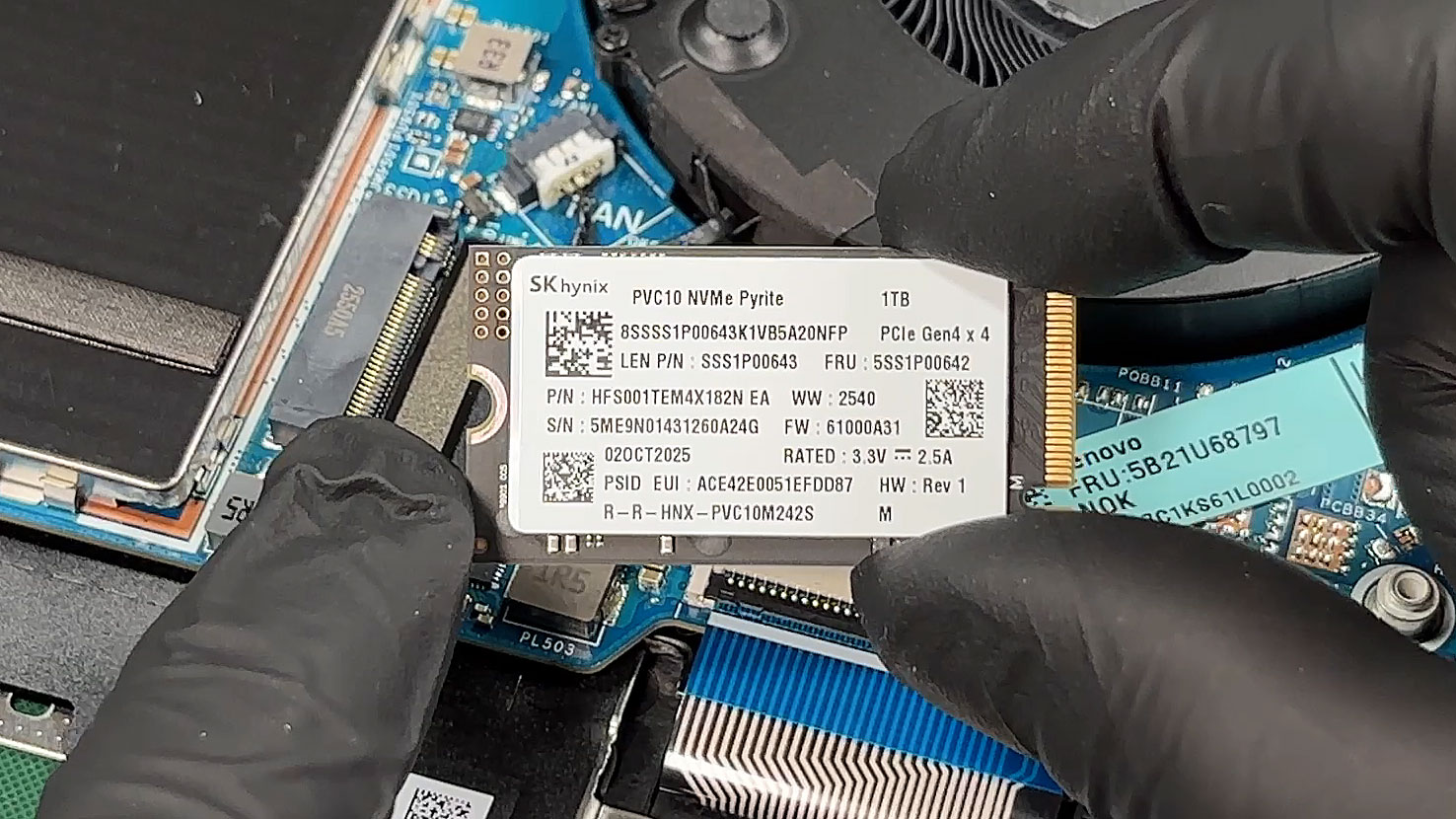
- The laptop supports up to two M.2 PCIe Gen 4 NVMe SSDs.
- Our reviewed configuration comes with a 1TB SK hynix PVC10 Pyrite SSD in a short M.2 2242 format.
- The second SSD position gives you a practical upgrade path if the factory storage is not enough.
- When installing or replacing a drive, make sure the SSD is secured properly and that the thermal pads on the bottom cover align correctly when reassembling the laptop.
You can buy Gen 4 M.2 SSDs here: Buy from Amazon.com (#CommissionsEarned)
Hint: Don’t forget to check out our Top M.2 SSDs Performance Rankings for insights on the best storage options available.
Step 5: Cooling system overview
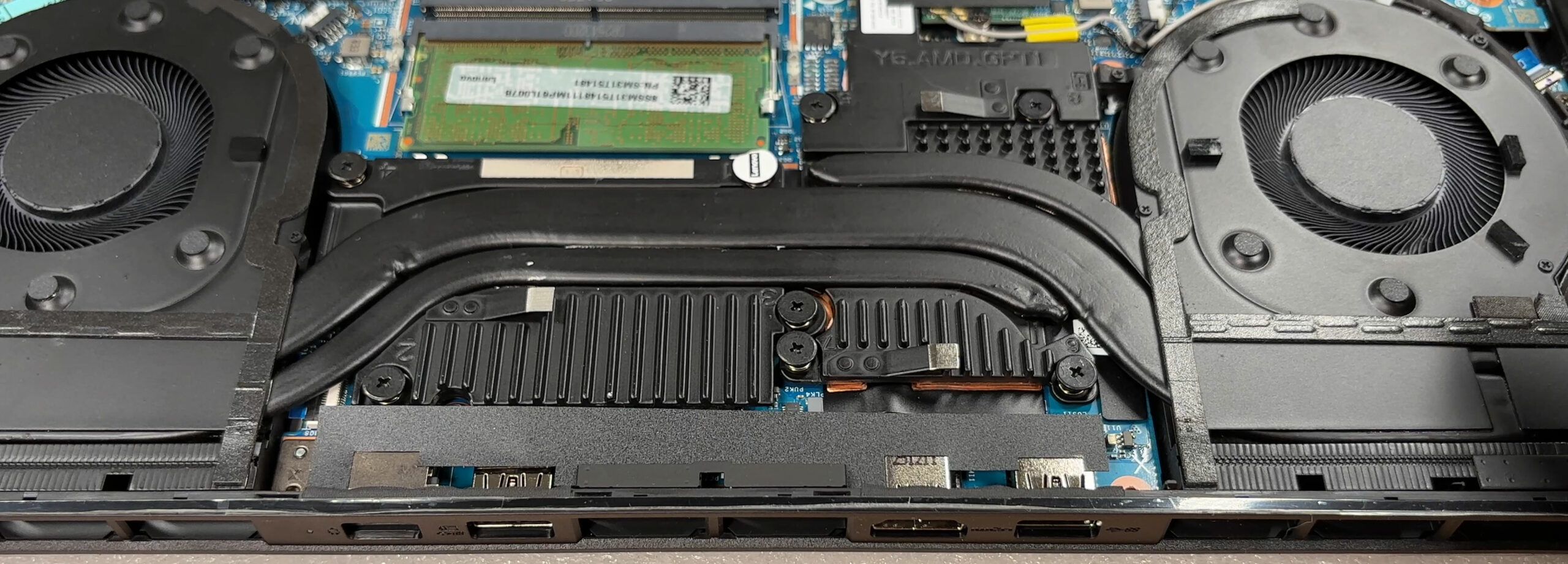
- The cooling system uses two large fans, chunky heat pipes, and a substantial heatsink section across the rear part of the chassis.
- The processor and discrete graphics chip sit under the main thermal assembly.
- The wide rear exhaust area suggests a cooling design focused on sustained gaming loads rather than short performance bursts only.
- Basic dust cleaning is straightforward once the bottom panel is removed.
More info: The wireless card is modular and can be replaced if needed. Other accessible parts include the SSDs, RAM modules, battery, and front-mounted speakers. The CPU and GPU are soldered, so the practical upgrade path focuses on memory, storage, Wi-Fi, and battery service.
More info: Overall, the Lenovo Legion 5a (15″, Gen 11, 15AGP11) is well organized internally and offers useful upgrade paths, making it a solid option for long-term ownership and maintenance.
Lenovo Legion 5a (15AGP11, Gen 11) in-depth review
At first glance, Lenovo Legion 5a's sleek, understated "Eclipse Black" chassis and premium metal lid suggest a high-end business workstation, perfectly suited for the boardroom. But beneath this professional exterior beats the heart of a ferocious gaming machine. Packing the latest AMD Ryzen AI 9 processor and an NVIDIA RTX 5060, it promises top-tier performance hidden in a surprisingly portable sub-2kg frame. In our testing, this stealthy approach yielded some incredible results, shattering records for its class. But does this relentless pursuit of power in a slim chassis come at too high[...]

Pros
- Stunning 165Hz QHD+ OLED display with perfect colors
- Class-leading RTX 5060 gaming performance for a 15-inch laptop
- Excellent GPU thermal management keeps the system stable
- Sleek, professional design with a fingerprint-resistant finish
- Great keyboard layout featuring full-sized arrow keys
- Future-proof connectivity with two USB4 ports
Cons
- Extremely poor battery life (just over 3 hours)
- CPU runs hot under sustained heavy load
- Highly reflective glossy OLED screen
- No biometric login options (fingerprint or IR)
 Author: Dimitar Stalev

![[June 2026] Best-Selling Laptop Brands on Amazon Global – Apple’s Unrivaled Dominance in Units and Revenue](https://laptopmedia.com/wp-content/uploads/2026/07/GLOBAL-Best-Brands-400x225.jpg)
![[June 2026] Amazon Global: Top 10 Best-Selling Laptops – Apple’s New MacBook Neo Storms to #1, Reshaping the Market with Affordability](https://laptopmedia.com/wp-content/uploads/2026/07/Best-Selling-Laptops-GLOBAL-Top-10-400x225.jpg)
![[June 2026] Amazon Global: Top 10 Best-Selling Gaming Laptops – Acer’s Nitro V 16S AI Dominates Sales, While ASUS Leads Overall Revenue](https://laptopmedia.com/wp-content/uploads/2026/07/Best-Selling-Gaming-Laptops-GLOBAL-Top-10-400x225.jpg)
![[June 2026] Global Ranking of Best-Selling Laptop GPUs on Amazon – NVIDIA RTX 5060 is the Top-Selling Dedicated GPU](https://laptopmedia.com/wp-content/uploads/2026/07/Best-Selling-GPUs-GLOBAL-Top-10-400x225.jpg)
![[June 2026] Global Ranking of Best-Selling Laptop CPUs on Amazon – Apple M5 Dominates, AMD Ryzen 7 260 Gets Solid Premium Share](https://laptopmedia.com/wp-content/uploads/2026/07/Best-Selling-CPUs-GLOBAL-Top-10-400x225.jpg)