How to open Acer Aspire 5 (A514-56M) – disassembly and upgrade options

Step 1: Accessing the Internal Components
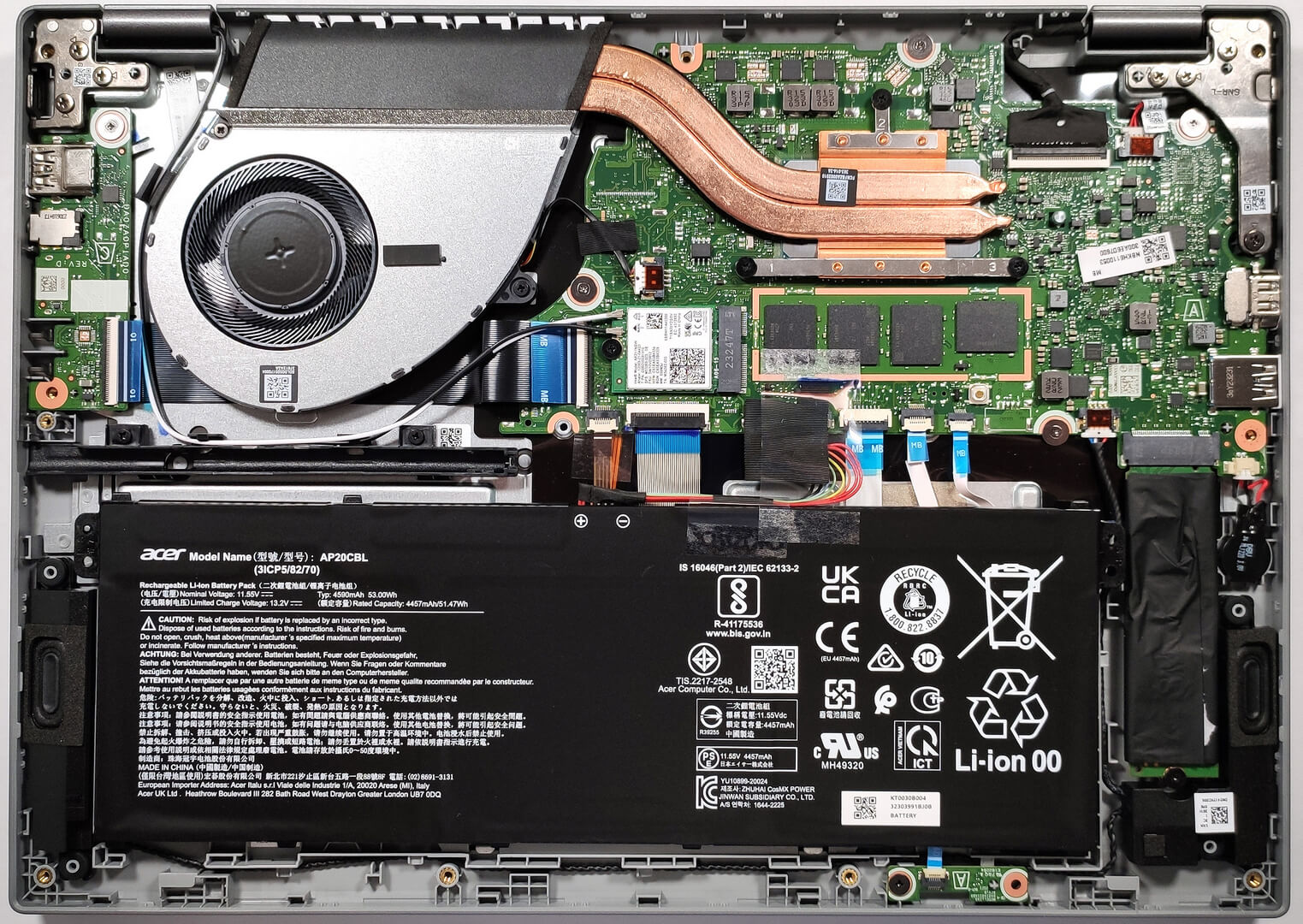
- Ensure the Acer Aspire 5 (A514-56M) is powered off and placed on a soft, clean surface to prevent scratches or damage.
- Remove the 10 Phillips-head screws from the bottom of the laptop.
- Use a plastic tool to gently pry the bottom plate off, starting from one of the upper two corners.
Hint: Proceed with caution to avoid damaging the internal clips or the laptop casing.
Step 2: Removing the Battery
- Disconnect the battery by pulling out its connector from the motherboard.
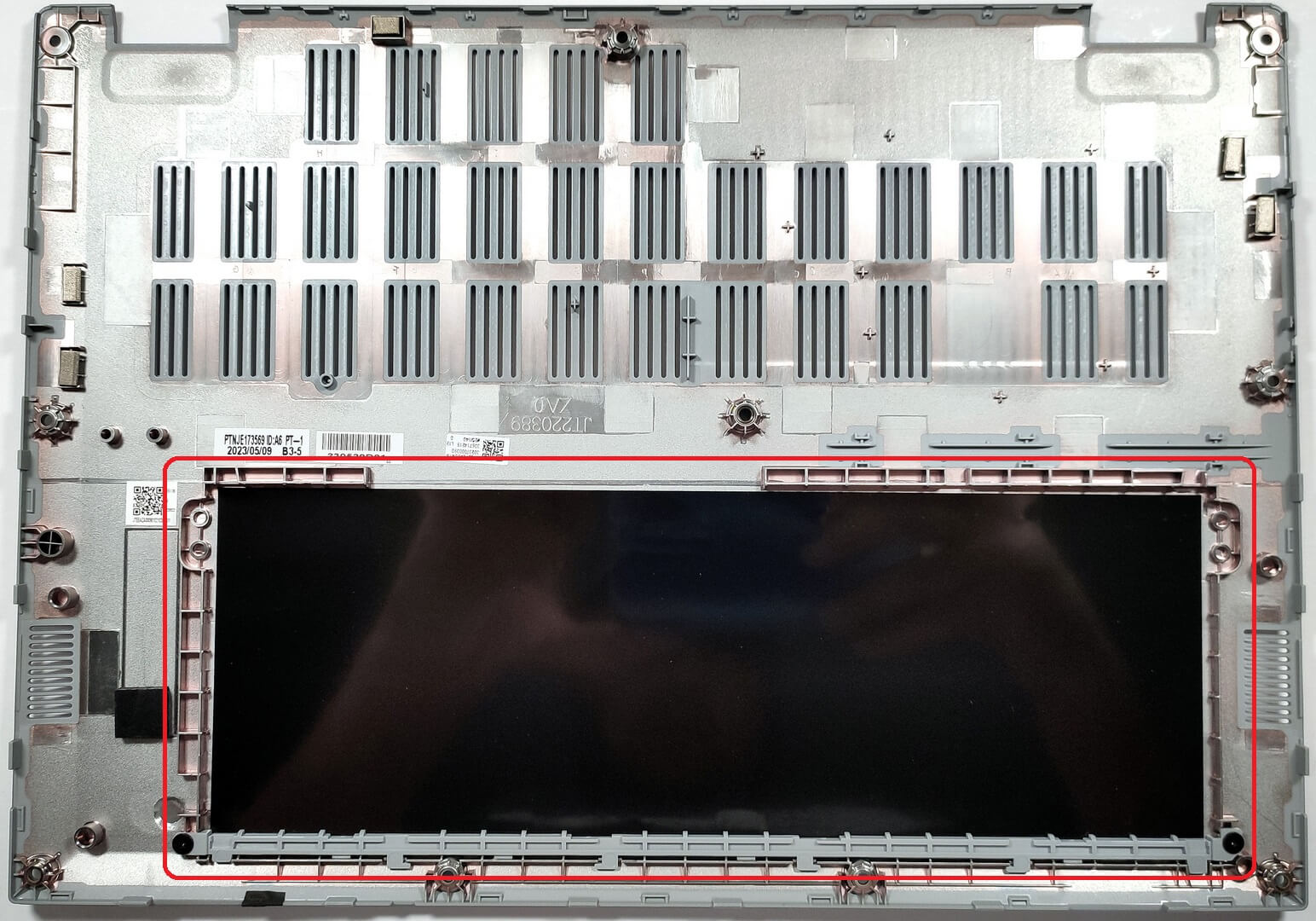
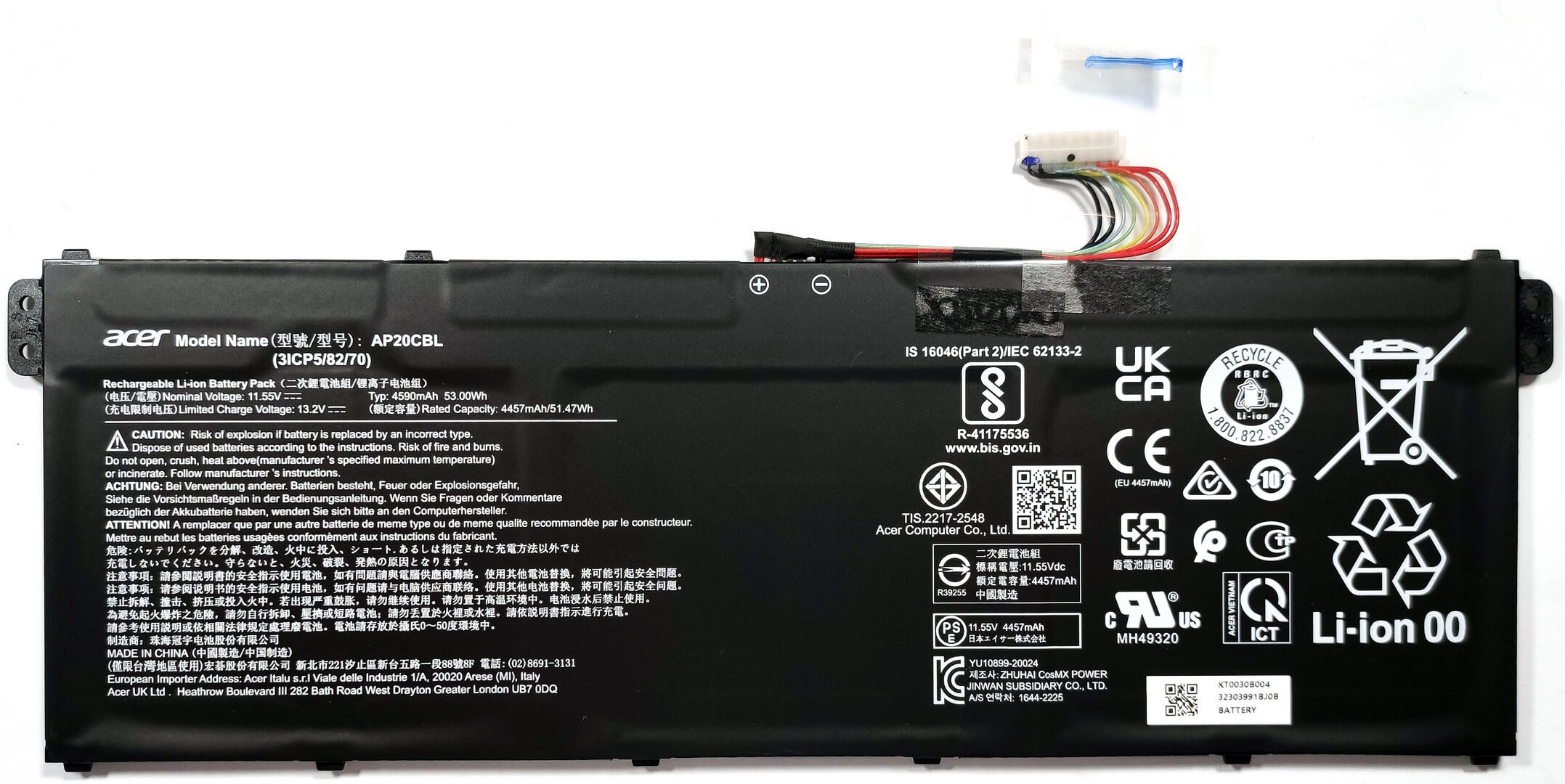
- Lift the 53Wh battery away from the device, noting that it is not fixed with screws but held in place by a dedicated socket inside the bottom plate.
Caution: Handle the battery carefully to avoid any damage.
More info: The 53Wh battery provides up to 11 hours and 7 minutes of web browsing or video playback, offering satisfactory battery life for daily activities.
Memory
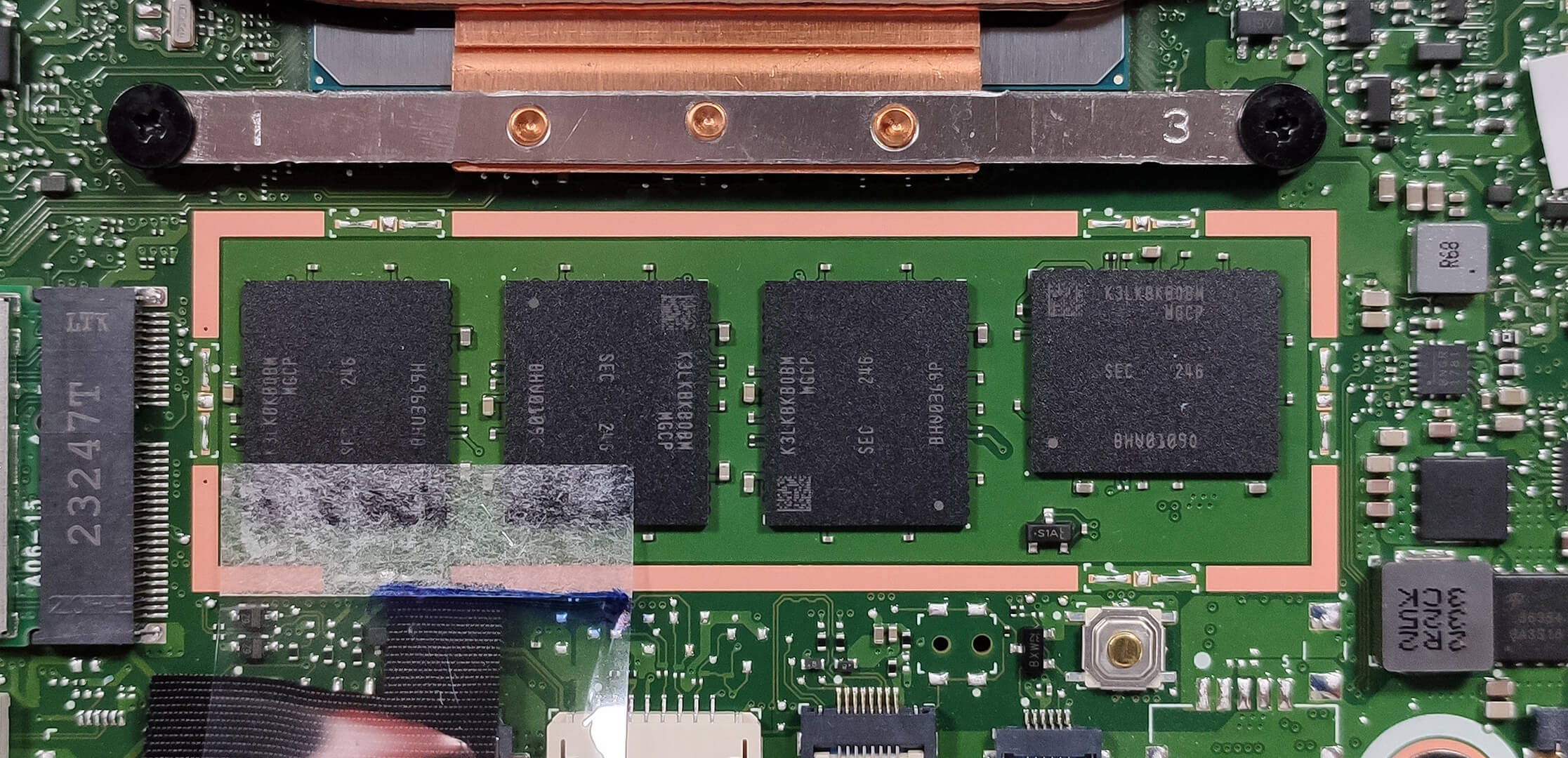
The laptop features soldered 32GB of LPDDR5-6400MHz RAM in dual-channel mode, providing ample memory for future requirements.
Storage Upgrade
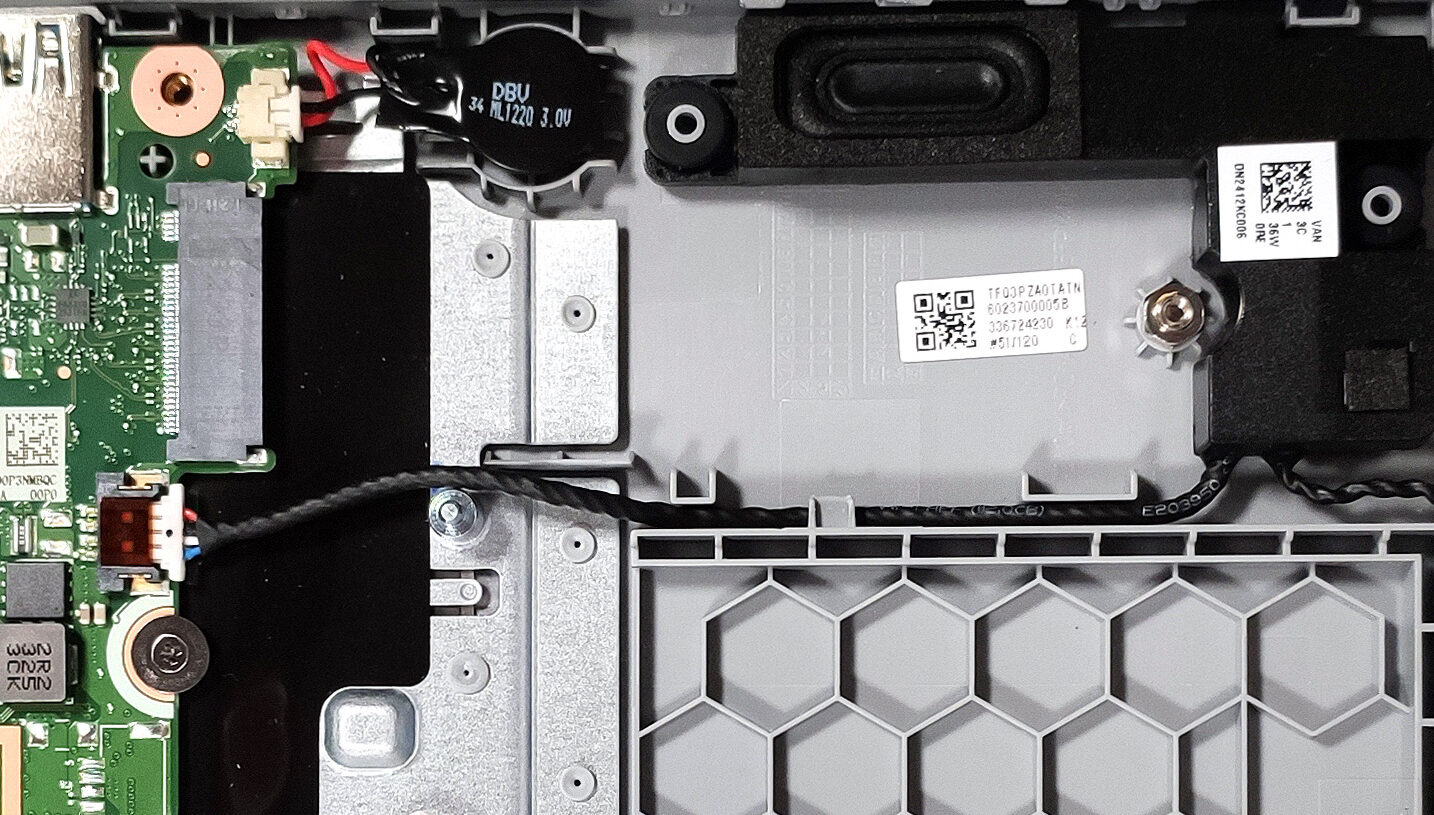
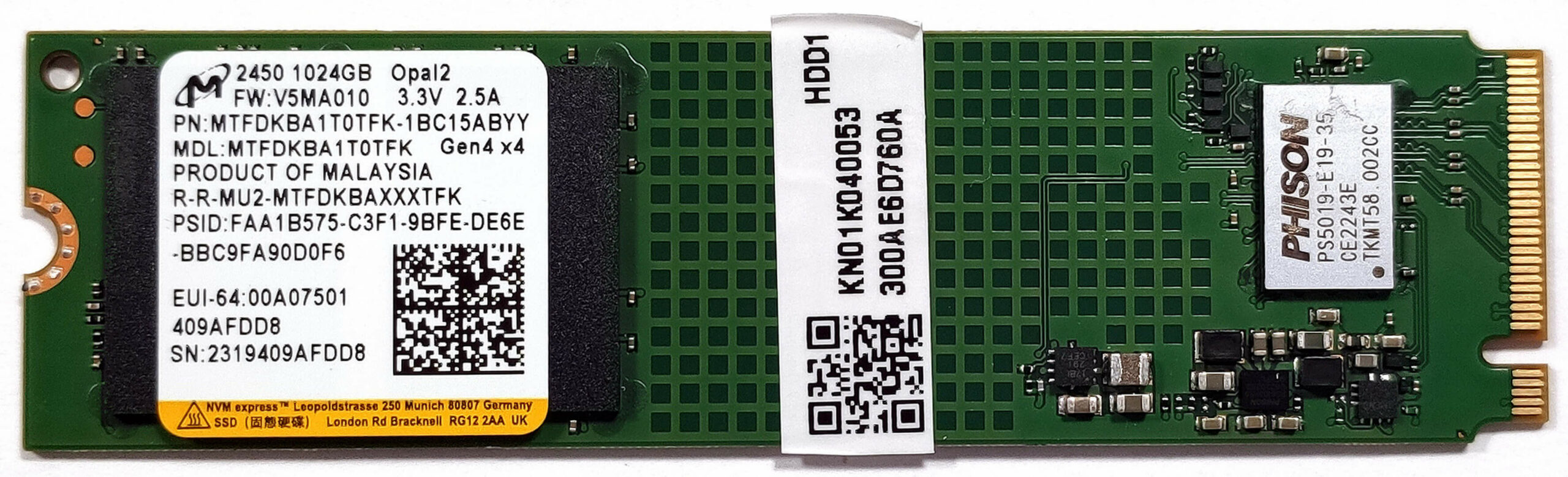
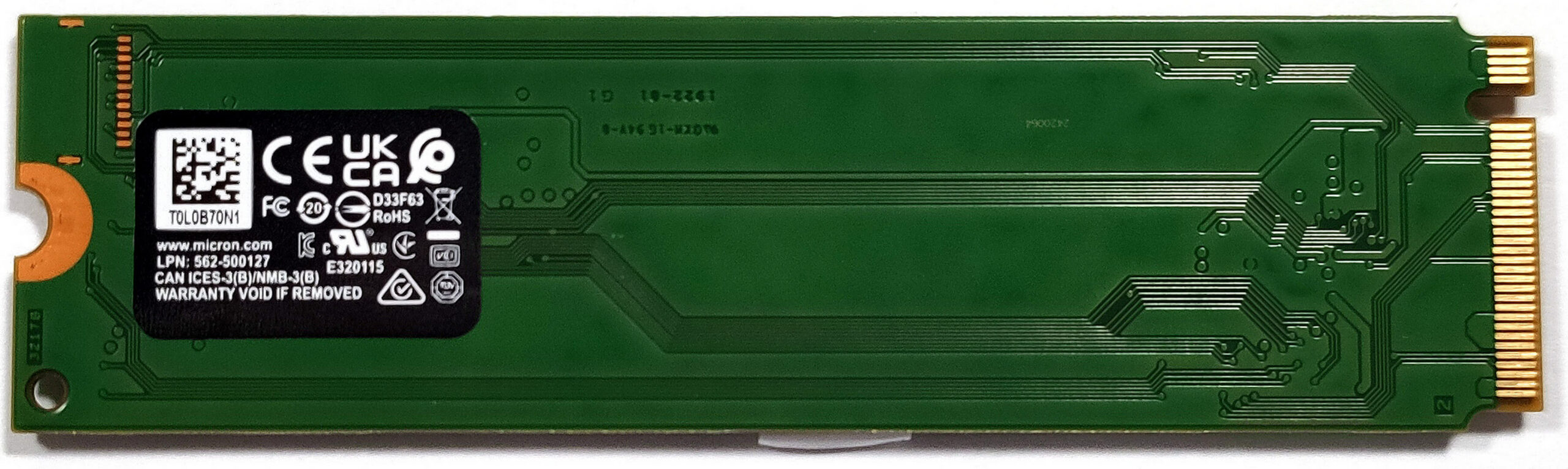
- Identify the single M.2 slot compatible with Gen 4 SSDs for storage upgrades.
- Consider upgrading the storage with a new NVMe SSD to enhance the laptop’s storage capacity and speed.
Hint: Don’t forget to check out our Top M.2 SSDs Performance Rankings to choose and purchase a new drive when needed.
You can buy Gen 4 M.2 SSD modules here: Buy from Amazon.com (#CommissionsEarned)
Examining the Cooling System
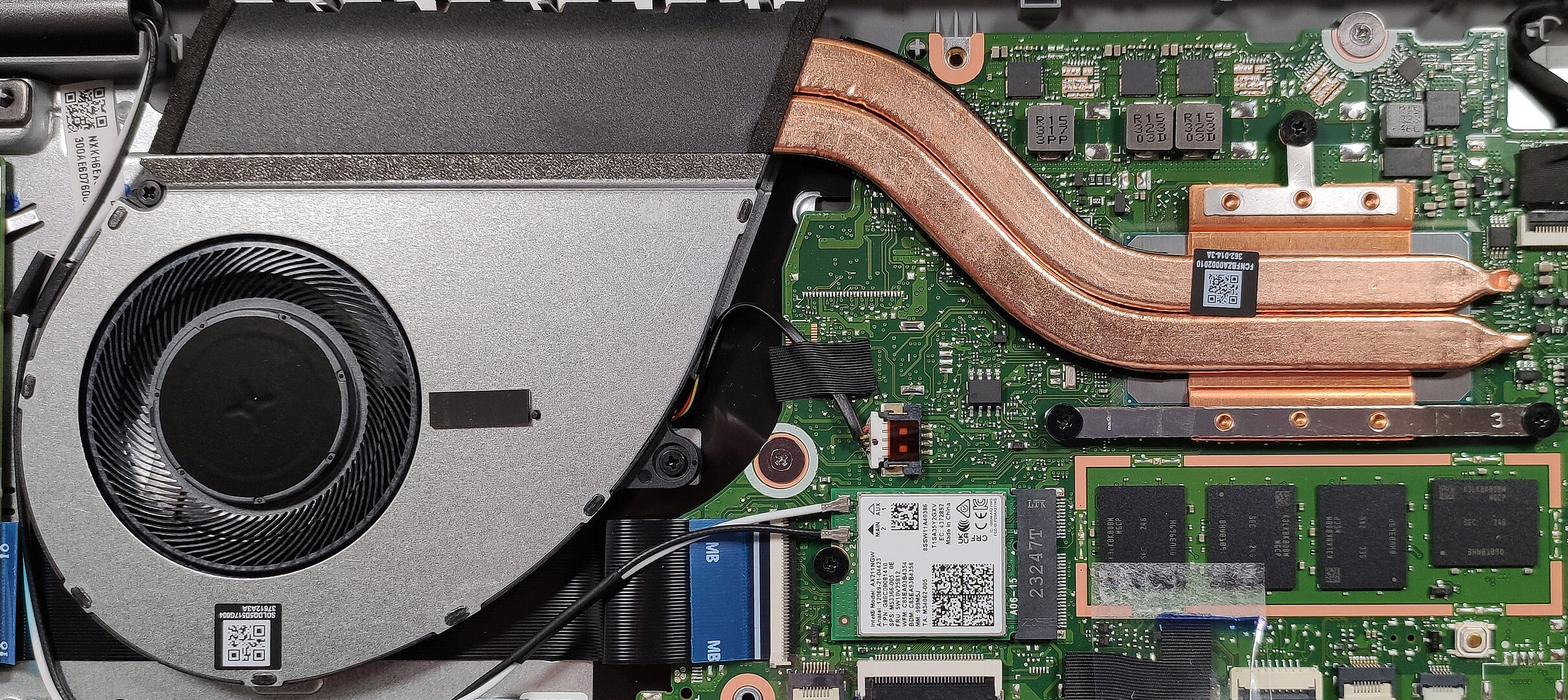
Review the cooling system, which includes one fan, two heat pipes, one heat sink, and a heat spreader, designed to efficiently manage the thermal output of the device.
 Author: Anna Iorgova

![[August 2026] Amazon Italy: Top 10 Best-Selling Laptops – Apple MacBook Neo Claims the Crown as Budget and Mid-Range Windows Machines Dominate Volume](https://laptopmedia.com/wp-content/uploads/2026/09/Best-Selling-Laptops-IT-Top-10-400x225.jpg)
![[August 2026] Amazon Italy: Top 7 Best-Selling Gaming Laptops – ASUS V16 Claims the #1 Spot Amid Strong Mid-Range Demand](https://laptopmedia.com/wp-content/uploads/2026/09/Best-Selling-Gaming-Laptops-IT-Top-10-400x225.jpg)
![[August 2026] Best-Selling Laptop Brands on Amazon Italy – Lenovo Dominates Market Share and Revenue Leadership](https://laptopmedia.com/wp-content/uploads/2026/09/IT-Best-Brands-400x225.jpg)
![[August 2026] Amazon India: Top 10 Best-Selling Laptops – Apple MacBook Neo Dominates the Charts with Massive Sales Lead](https://laptopmedia.com/wp-content/uploads/2026/09/Best-Selling-Laptops-IN-Top-10-400x225.jpg)
![[August 2026] Amazon India: Top 10 Best-Selling Gaming Laptops – HP Victus 15 Dominates the Market with Massive Unit Lead](https://laptopmedia.com/wp-content/uploads/2026/09/Best-Selling-Gaming-Laptops-IN-Top-10-400x225.jpg)

J’ai aussi un portable ACER. Il y a une semaine, il s’est éteint sans aucune action de ma part. Ecran noir. Je pensais qu’il était mort (écran, alim, RAM… ou autre) mais je viens de lire votre article. Etant curieux, j’ai ouvert le capot et, surprise, l’écran s’est allumé sur une application que je n’ai pas eu le temps d’identifier puisqu’il s’est éteint presqu’immédiatement. J’ai appuyé en vain sur les diverses touches du clavier ans succès. D’après vos explications il est donc possible que la panne provienne d’un mauvais contact quelque part. J’espère qu’un spécialiste va pouvoir repérer le contact… Read more »