How to open Acer Extensa 15 (EX215-55) – disassembly and upgrade options
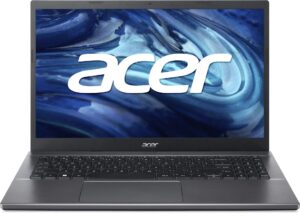
Step 1: Opening the Acer Extensa 15 (EX215-55)
- Power off the laptop and place it on a stable, static-free surface.
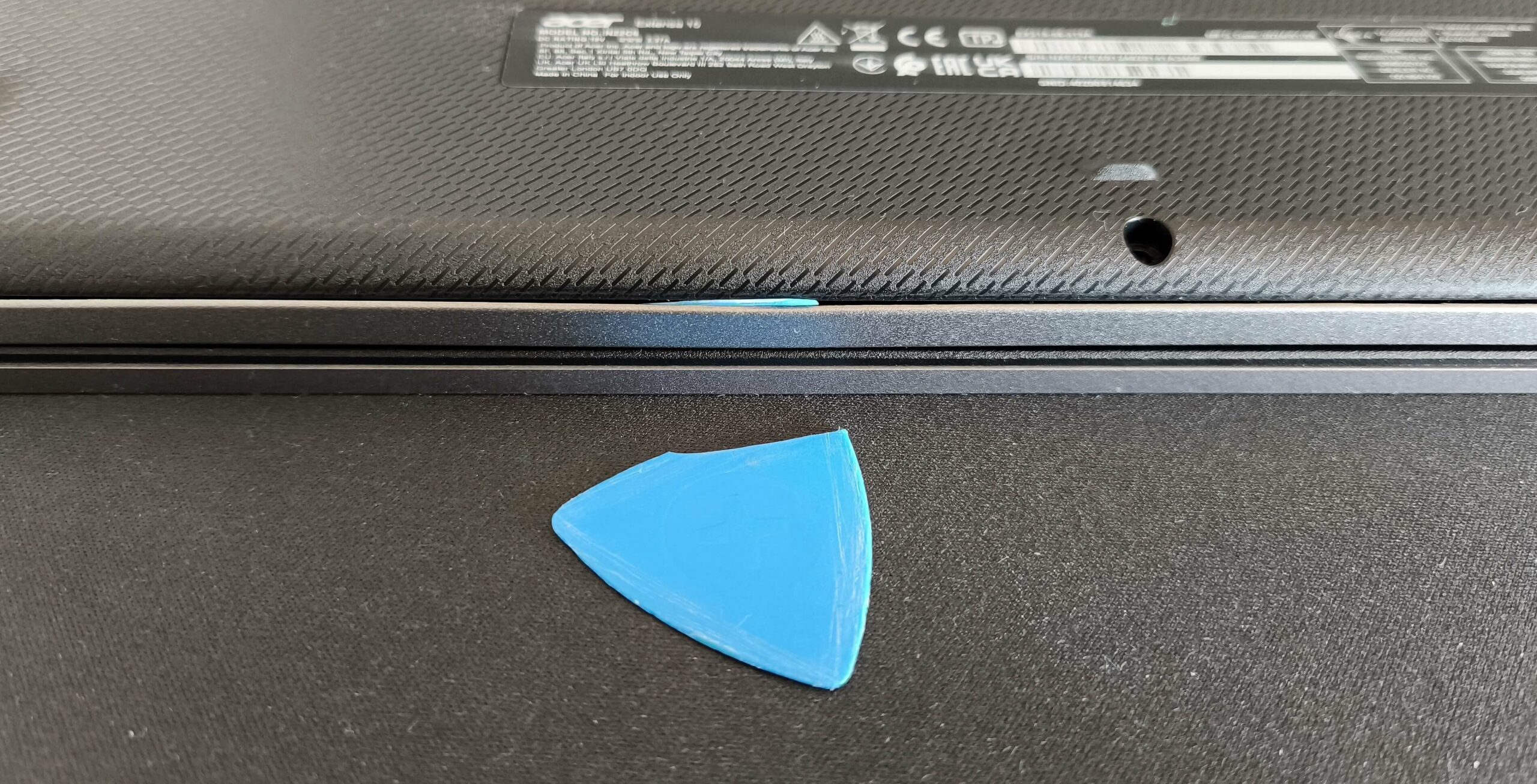
- Undo the ten Phillips-head screws securing the bottom plate.
- Using a thin plastic pry tool, pop the areas behind the hinges and the top edges to create a gap.
- Fully pry the back of the panel, then work your way around the sides and the front to release the clips.
- Note: The front clips are particularly stiff, and there is no gap between the plate and chassis, so exercise patience and care to avoid damage.
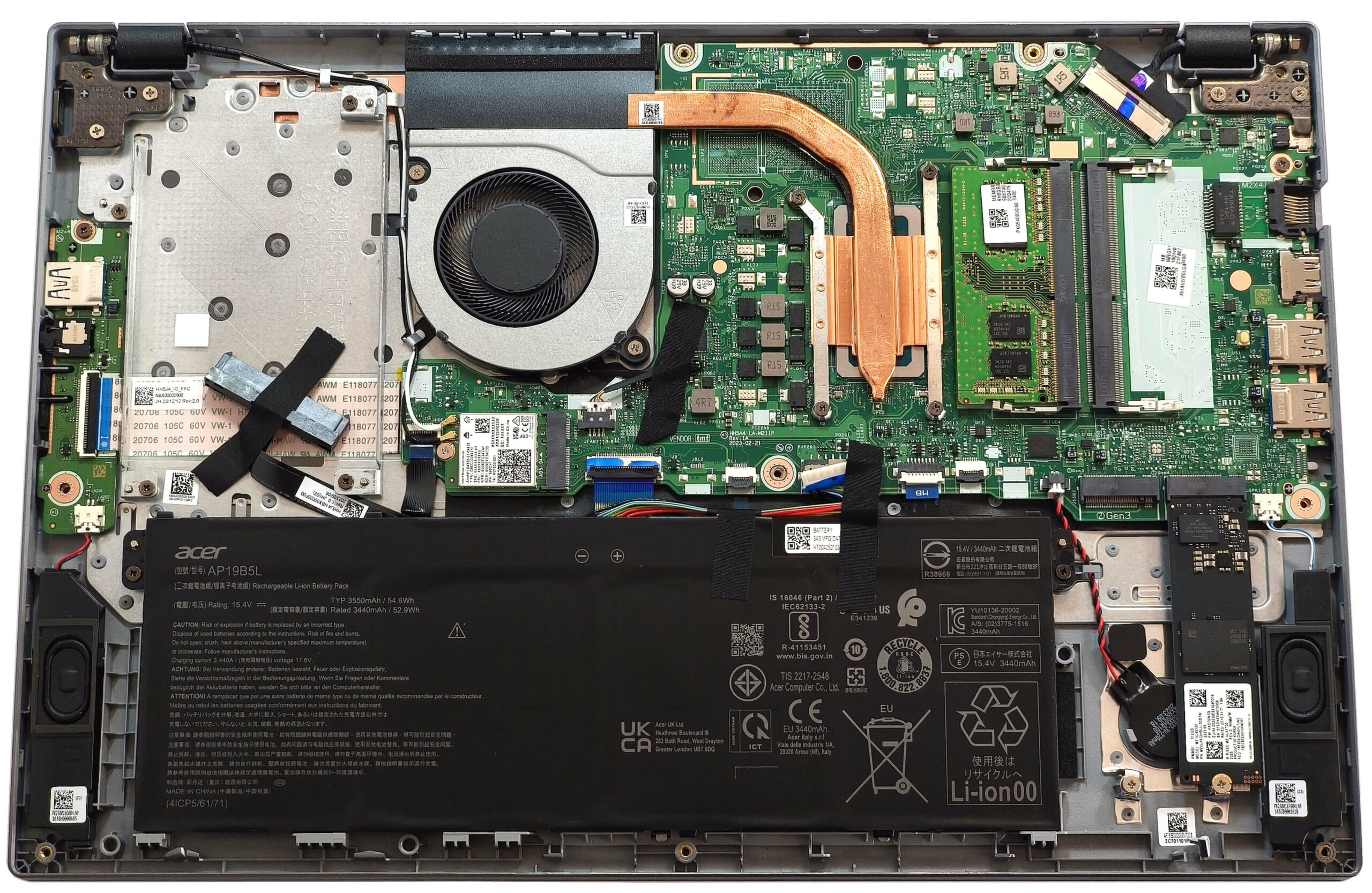
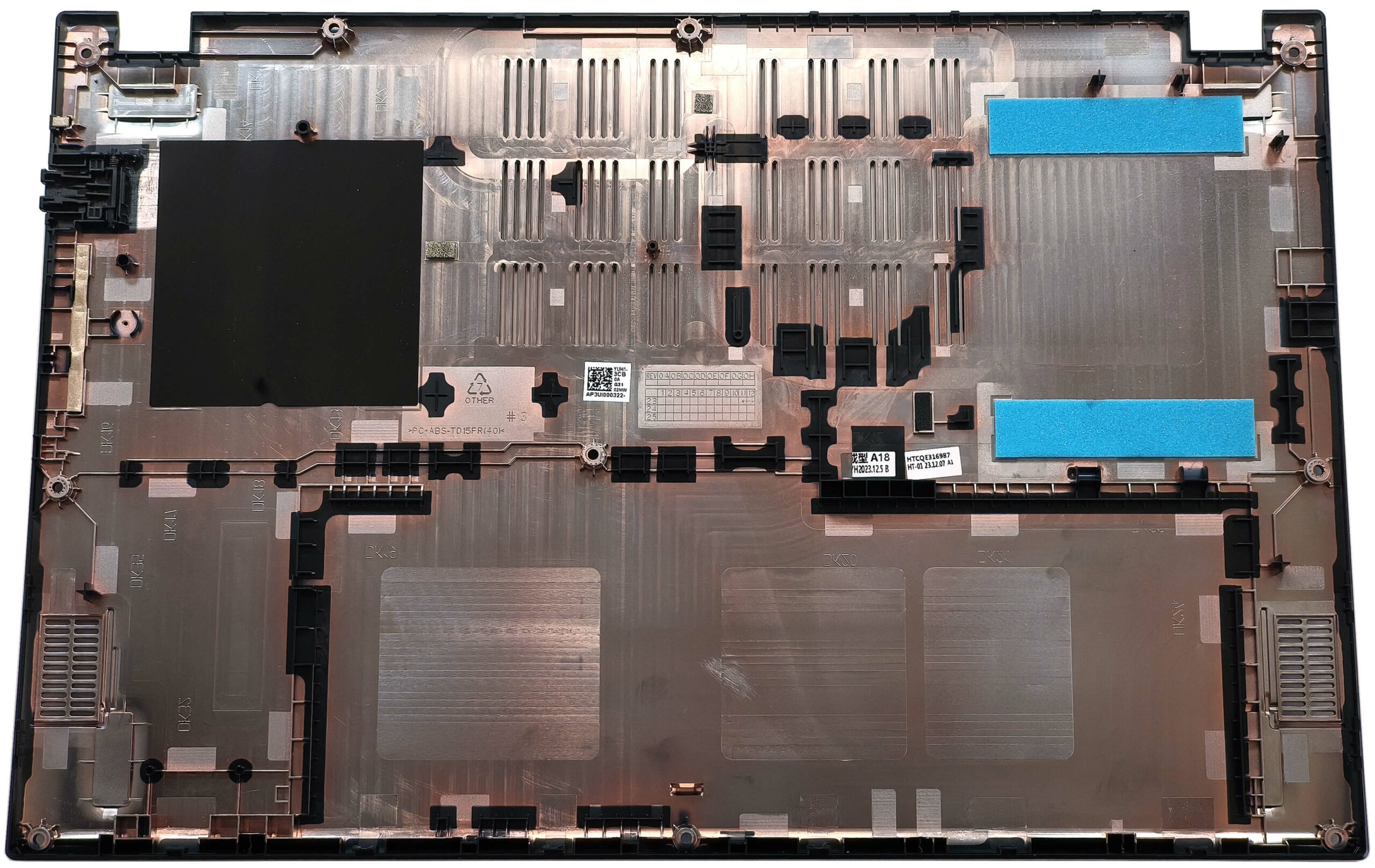
More info: The internal layout is neatly organized, and the bottom plate includes standoffs beneath the SSD slots to prevent potential drive bending.
Battery Removal and Replacement
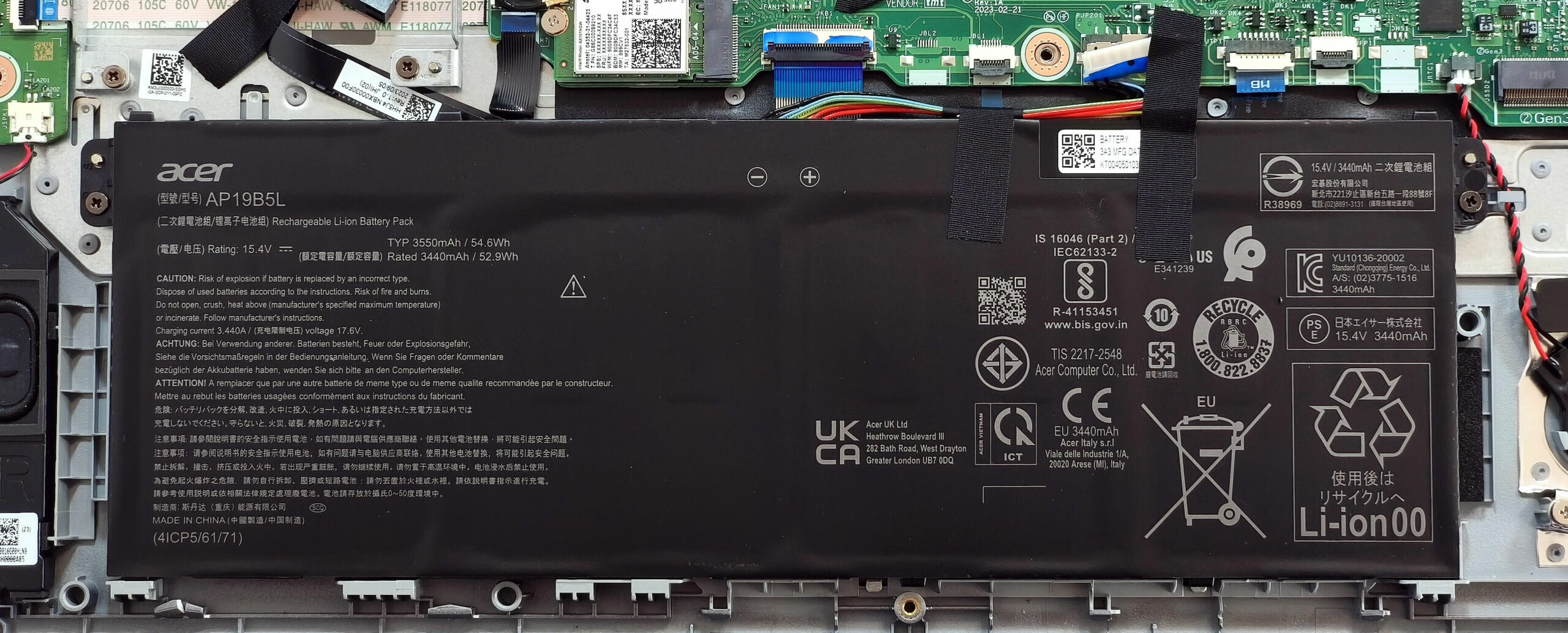
- This model features the optional 55Wh battery (base models come with a 40Wh version).
- Detach the battery connector from the motherboard by carefully pulling it towards the battery.
- Undo the two Phillips-head screws securing the battery and lift the unit out.
- The battery provides approximately 7 hours of video playback on a single charge.
Memory Upgrade
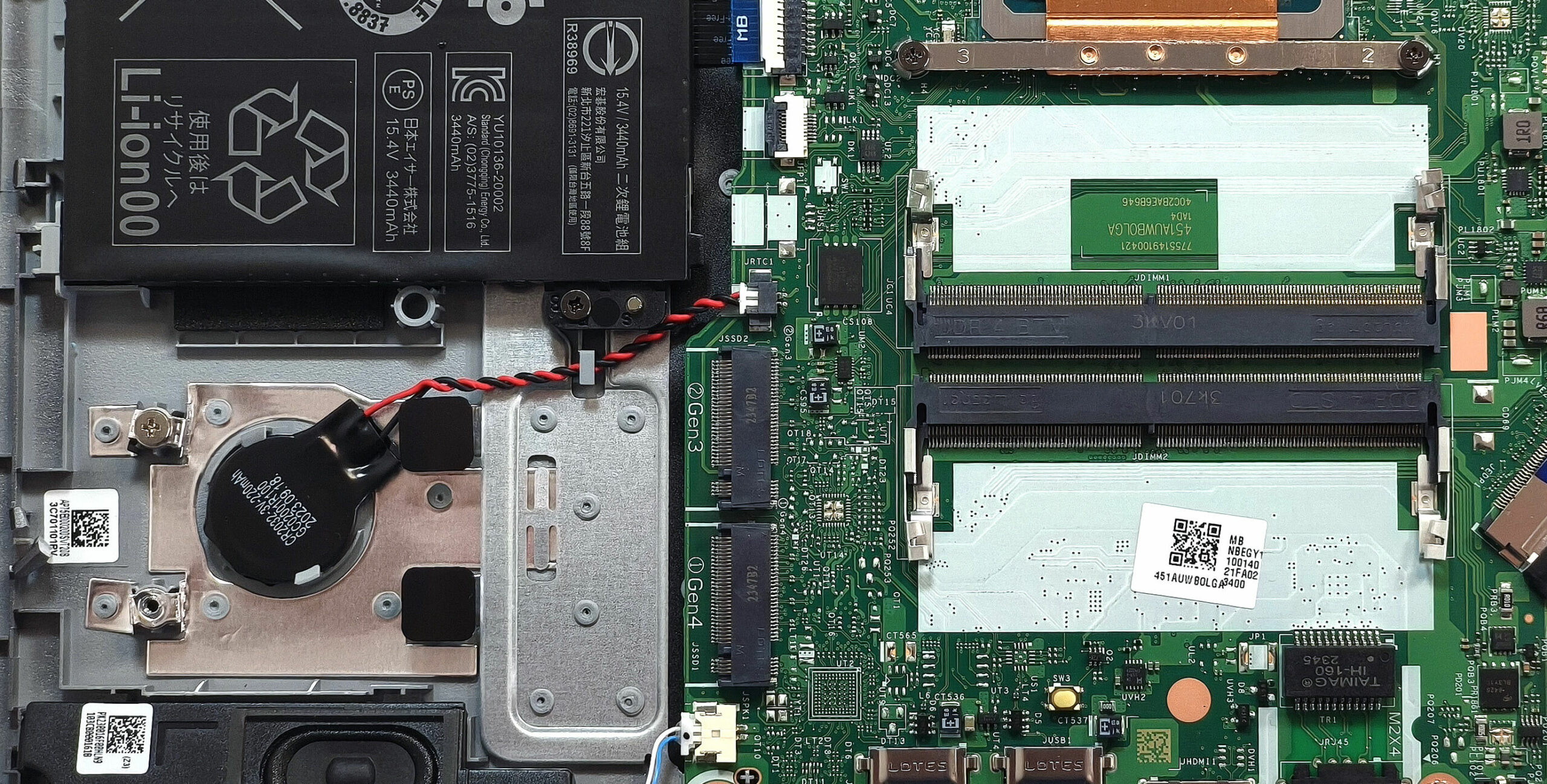
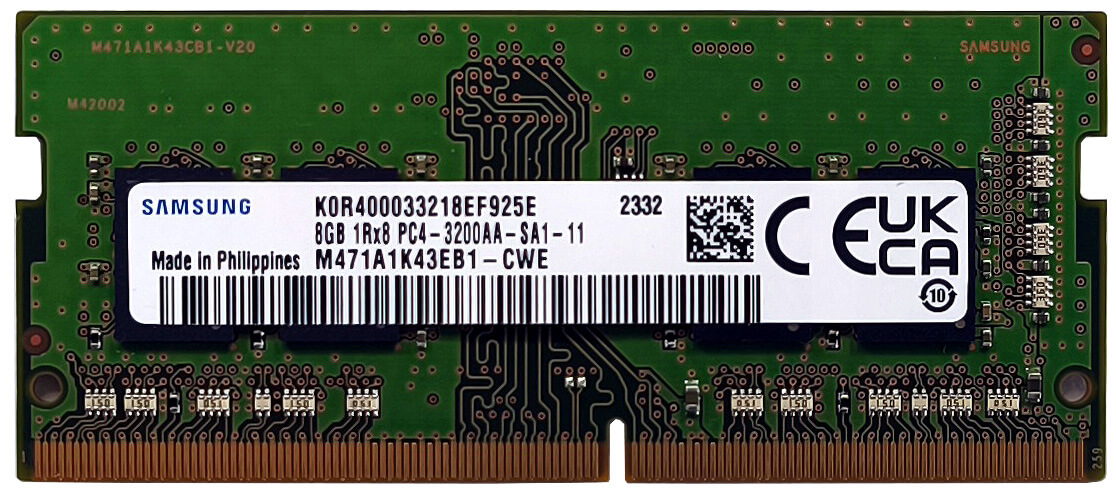
- The laptop features two SODIMM slots supporting up to 32GB of DDR4-3200MHz RAM in dual-channel mode, as per Acer’s specs.
- However, since the CPU supports up to 64GB, larger capacities than officially specified may still function properly.
You can buy DDR4 RAM modules here: Buy from Amazon.com (#CommissionsEarned)
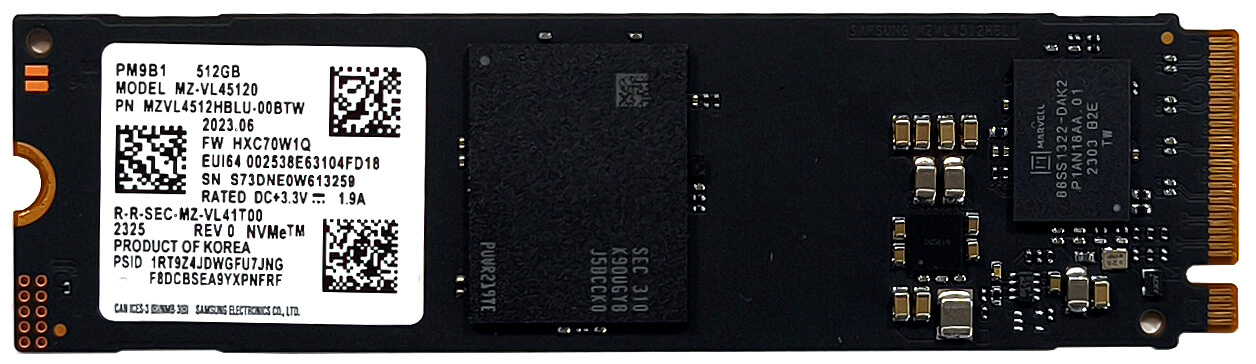
Storage Upgrade
- There are two M.2 slots – one supports Gen 4 SSDs and the other Gen 3 SSDs.
- The standoffs below the M.2 slots help prevent flexing or bending of installed SSDs.
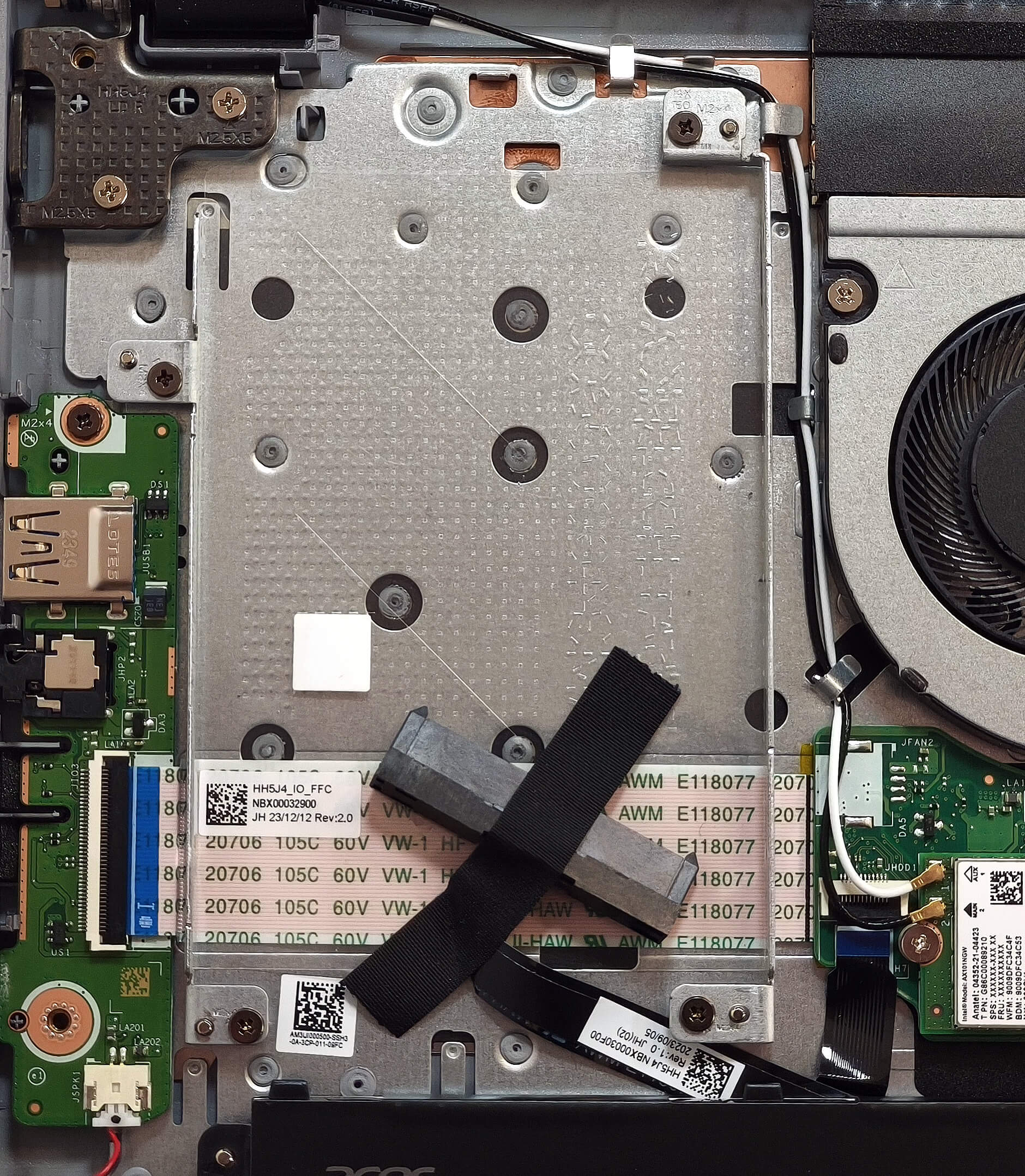
- There is also a SATA slot on the left side for installing a traditional 2.5-inch HDD or SATA SSD.
Hint: Don’t forget to check out our Top M.2 SSDs Performance Rankings for insights on the best storage options available.
You can buy Gen 3 or Gen 4 NVMe SSDs here: Buy from Amazon.com (#CommissionsEarned)
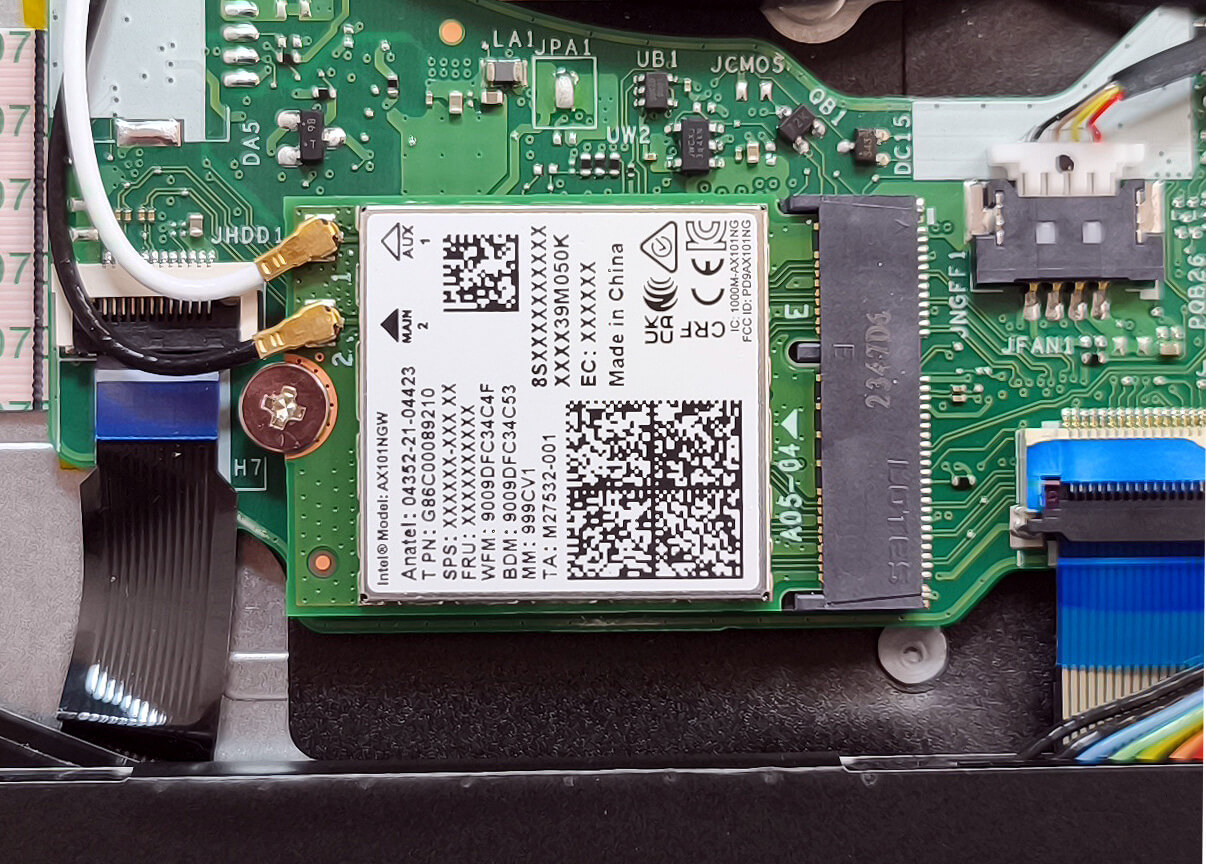
Wireless Module
- The Wi-Fi 5 card is replaceable and located below the cooling fan, allowing for easy upgrades to newer wireless standards if needed.
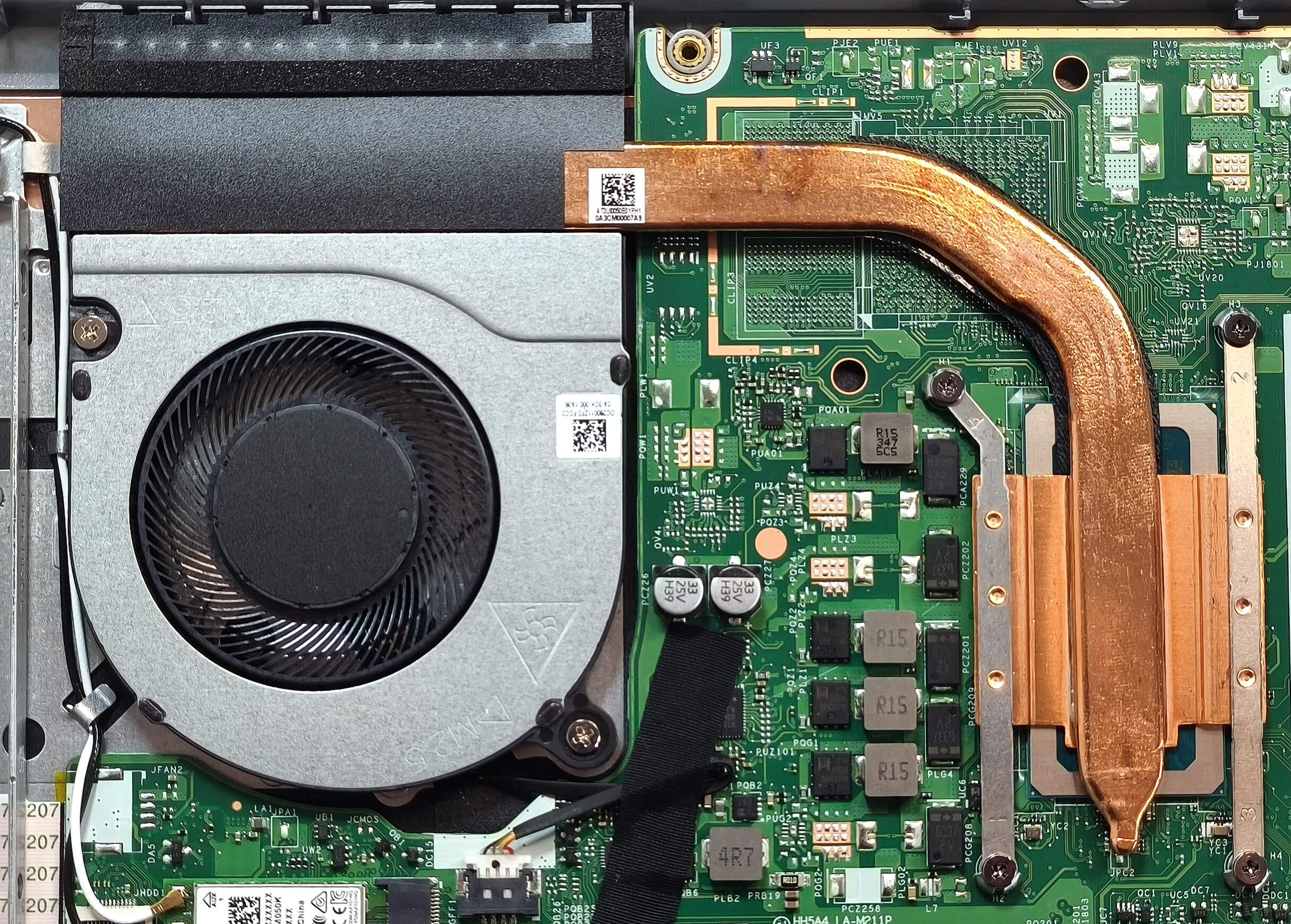
Cooling System Overview
- The cooling system is basic yet effective for the Extensa 15’s hardware, consisting of one fan, a single heat pipe, a heat sink, and a heat spreader to maintain temperatures under control during light and moderate workloads.
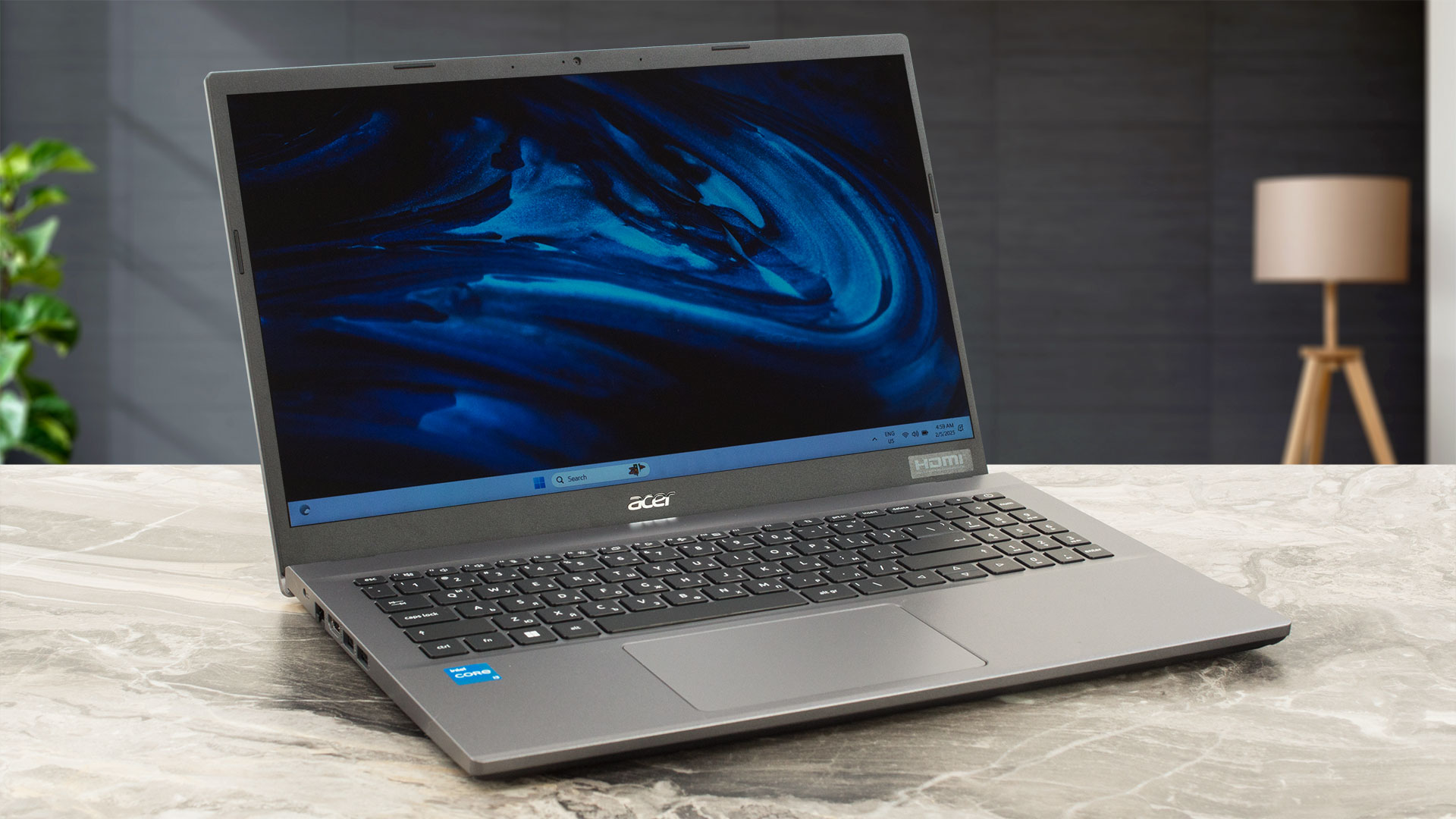
Acer Extensa 15 (EX215-55) in-depth review
The Acer Extensa 15 (EX215-55) has some advantages over the Extensa 15 (EX215-33) that we have already tested in depth. The EX215-55 model has a pair of DDR4 SODIMMs, an additional M.2 slot, and even a SATA slot for normal SSDs or 2.5" SSDs. It's also powered by more punchy Alder Lake CPUs with P cores. Still, it lacks Type-C connectors, while the EX215-33 at least has one. Overall, these are the most notable differences between the two siblings.Unfortunately, we didn't find a laptop with the top-end 1080p IPS screen so we settled for a TN unit with the same resolution. The only pro of the[...]
Pros
- Decent battery life given the modest 55Wh battery ~ 7 hours of videos
- Well-priced
- Lid with a lever design
- PWM-free (AUO61ED)
- Decent port selection for the price - 3x USB ports + HDMI 2.1 + LAN
- The fan isn't too loud during full loads
- The Core i3-1215U maintains ~3.12 GHz / 2.38 GHz P and E core clock in long CPU stress
- Decently fast SSD (SAMSUNG PM9B1)
- Optional 1080p IPS display
- 2x SODIMMs + 2x M.2 slots + SATA slot
- Upgradable Wi-Fi card
Cons
- Plastic build
- No Type-C ports
- Low sRGB coverage and contrast ratio (AUO61ED)
- Uncomfortable viewing angles (AUO61ED)
 Author: Dimitar Stalev

![[August 2026] Amazon Italy: Top 10 Best-Selling Laptops – Apple MacBook Neo Claims the Crown as Budget and Mid-Range Windows Machines Dominate Volume](https://laptopmedia.com/wp-content/uploads/2026/09/Best-Selling-Laptops-IT-Top-10-400x225.jpg)
![[August 2026] Amazon Italy: Top 7 Best-Selling Gaming Laptops – ASUS V16 Claims the #1 Spot Amid Strong Mid-Range Demand](https://laptopmedia.com/wp-content/uploads/2026/09/Best-Selling-Gaming-Laptops-IT-Top-10-400x225.jpg)
![[August 2026] Best-Selling Laptop Brands on Amazon Italy – Lenovo Dominates Market Share and Revenue Leadership](https://laptopmedia.com/wp-content/uploads/2026/09/IT-Best-Brands-400x225.jpg)
![[August 2026] Amazon India: Top 10 Best-Selling Laptops – Apple MacBook Neo Dominates the Charts with Massive Sales Lead](https://laptopmedia.com/wp-content/uploads/2026/09/Best-Selling-Laptops-IN-Top-10-400x225.jpg)
![[August 2026] Amazon India: Top 10 Best-Selling Gaming Laptops – HP Victus 15 Dominates the Market with Massive Unit Lead](https://laptopmedia.com/wp-content/uploads/2026/09/Best-Selling-Gaming-Laptops-IN-Top-10-400x225.jpg)
