How to open Acer Swift 14 AI (SF14-61T) – disassembly and upgrade options
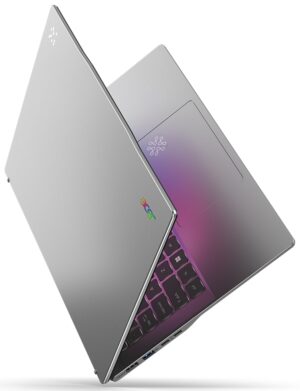
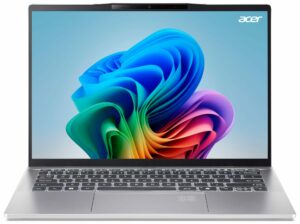
Step 1: Opening the Acer Swift 14 AI (SF14-61T)
- Shut down the laptop and place it on a stable surface.
- Undo the ten Torx-head screws securing the bottom panel.
- Pop the two areas behind the hinges using a thin plastic tool to create a gap.
- Carefully pry the top corners and the back, then work your way around the sides and the front to release the bottom panel.
- Lift the panel away to reveal the internals.
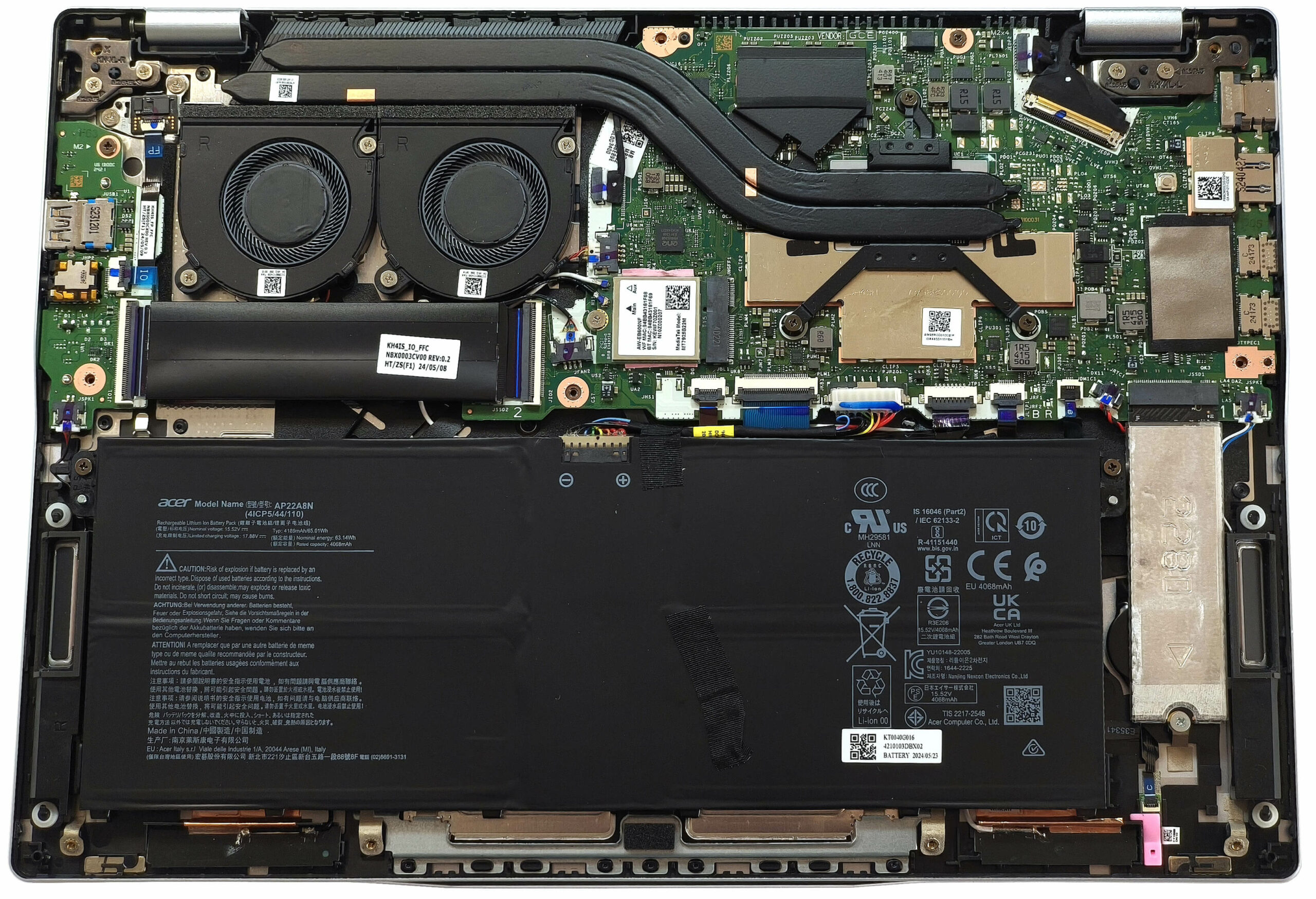
More info: A large dust filter is integrated into the inside of the bottom plate, covering the ventilation grill to reduce dust ingress.
Battery Removal and Replacement
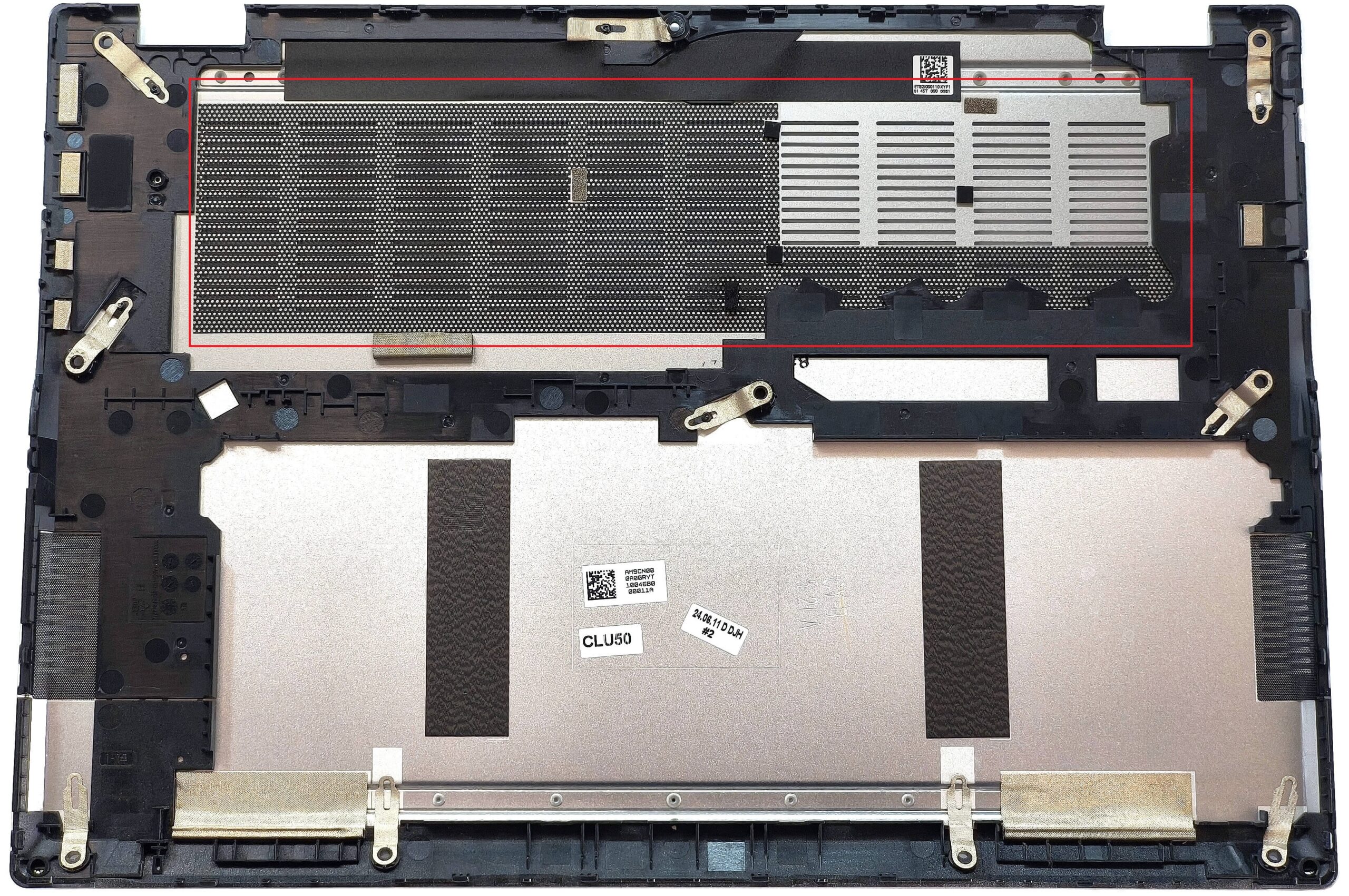
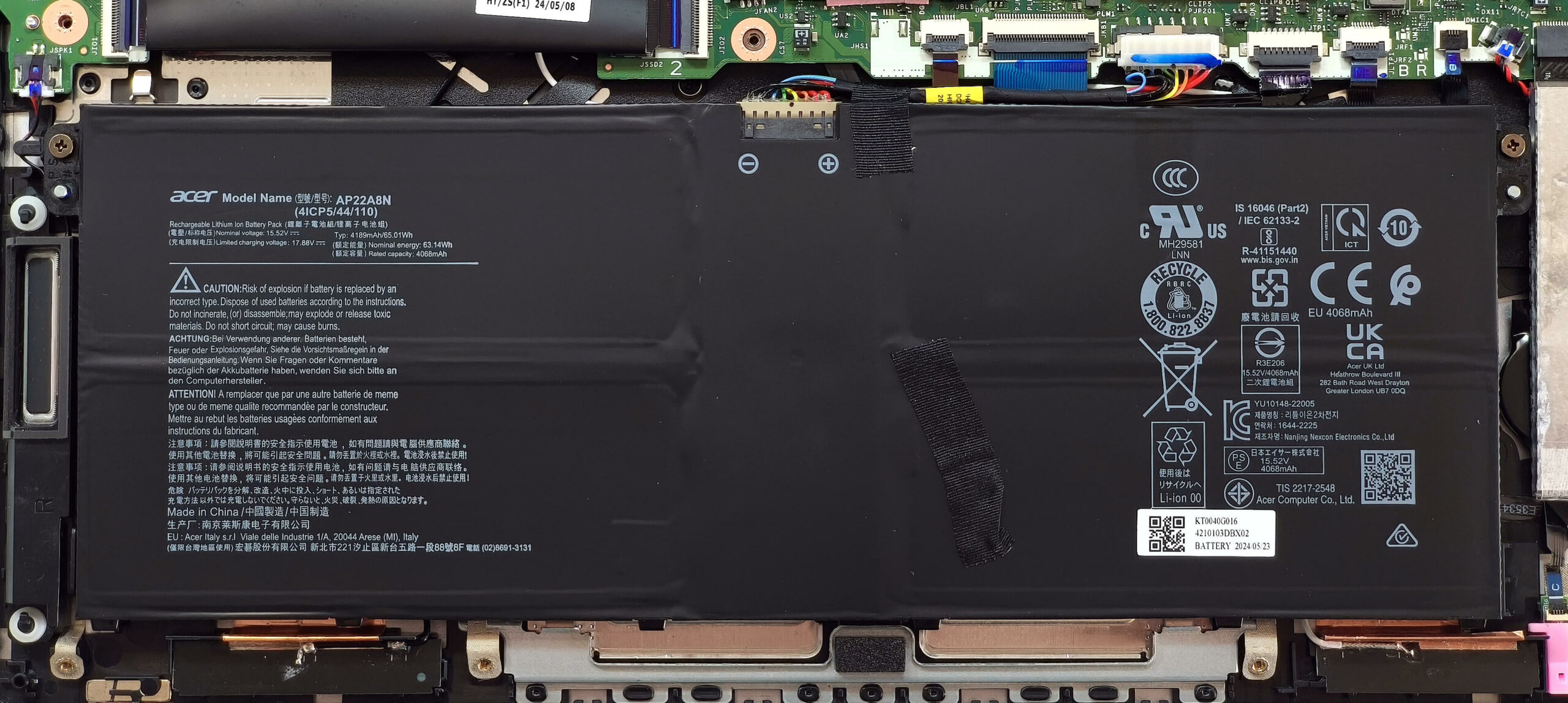
- The laptop in this configuration has a 65Wh battery, though a 75Wh variant is available for extended battery life.
- To remove the battery, carefully pull the connector towards the battery unit.
- Undo the two Phillips-head screws that secure the battery to the chassis and lift the unit out.
- This battery provides approximately 14 hours of video playback on a single charge.
Memory Upgrade
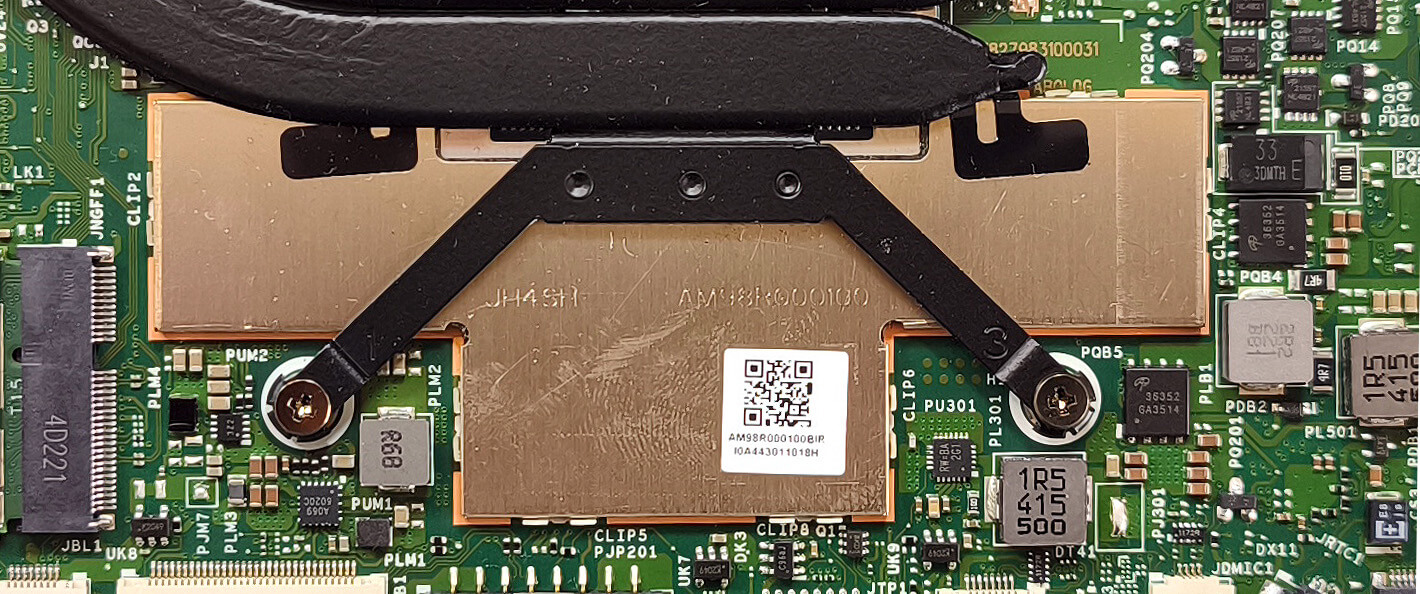
- The RAM is soldered beneath a metal cap positioned below the cooling’s heat spreader, making upgrades impossible.
- The laptop comes with either 16GB or 32GB of LPDDR5x-7500MHz RAM in dual-channel mode, suitable for everyday tasks and light productivity workloads.
Storage Upgrade
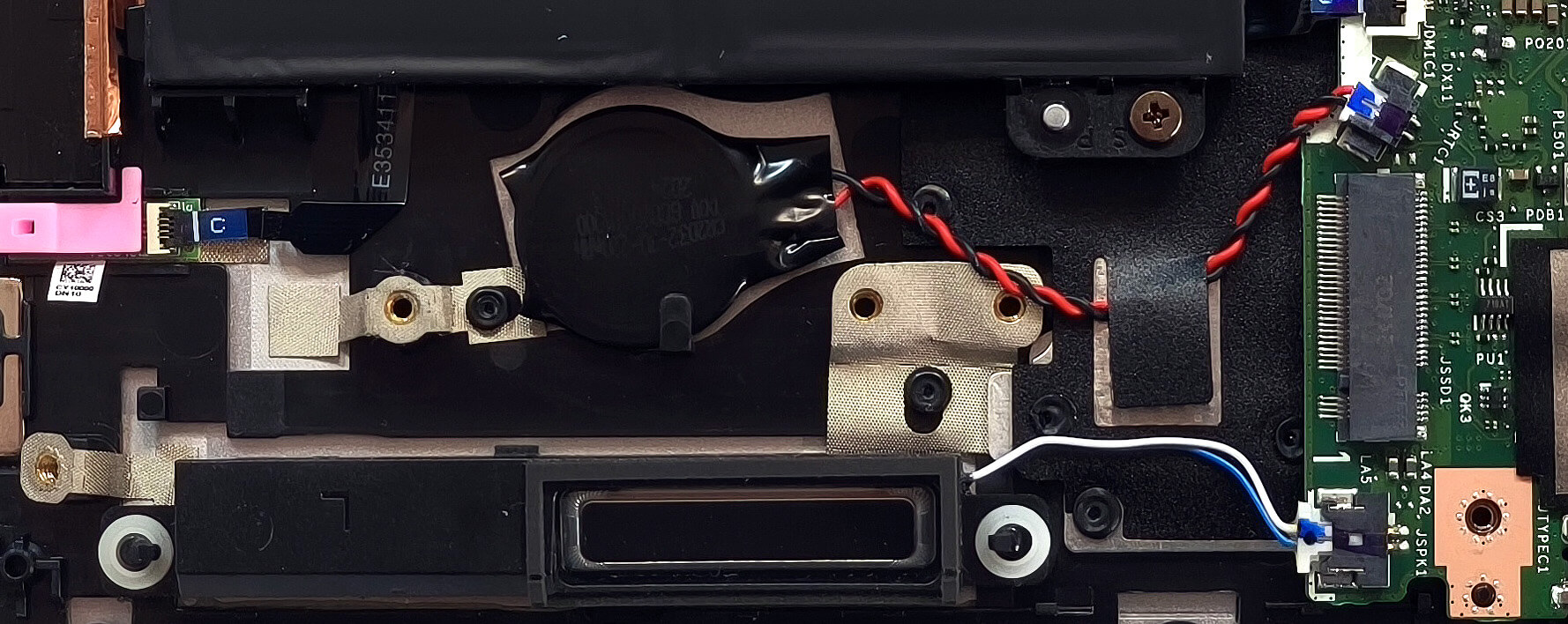
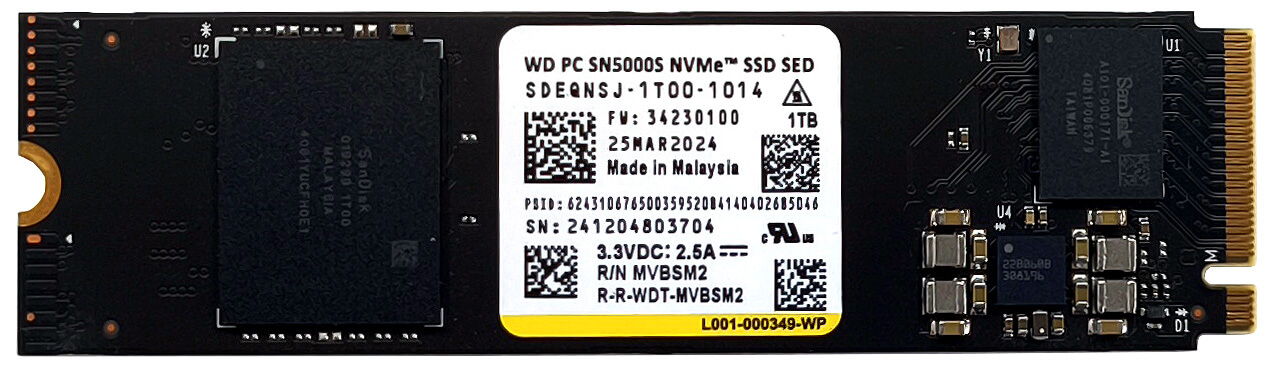
- This model includes a single M.2 slot for 2280 Gen 4 NVMe SSDs.
- The installed SSD is covered by a heat shield for better thermal management.
- Note that some Acer Swift 14 AI configurations may offer two SSD slots instead of one.
Hint: Don’t forget to check out our Top M.2 SSDs Performance Rankings for insights on the best storage options available.
You can buy Gen 4 NVMe SSDs here: Buy from Amazon.com (#CommissionsEarned)
Wireless Module
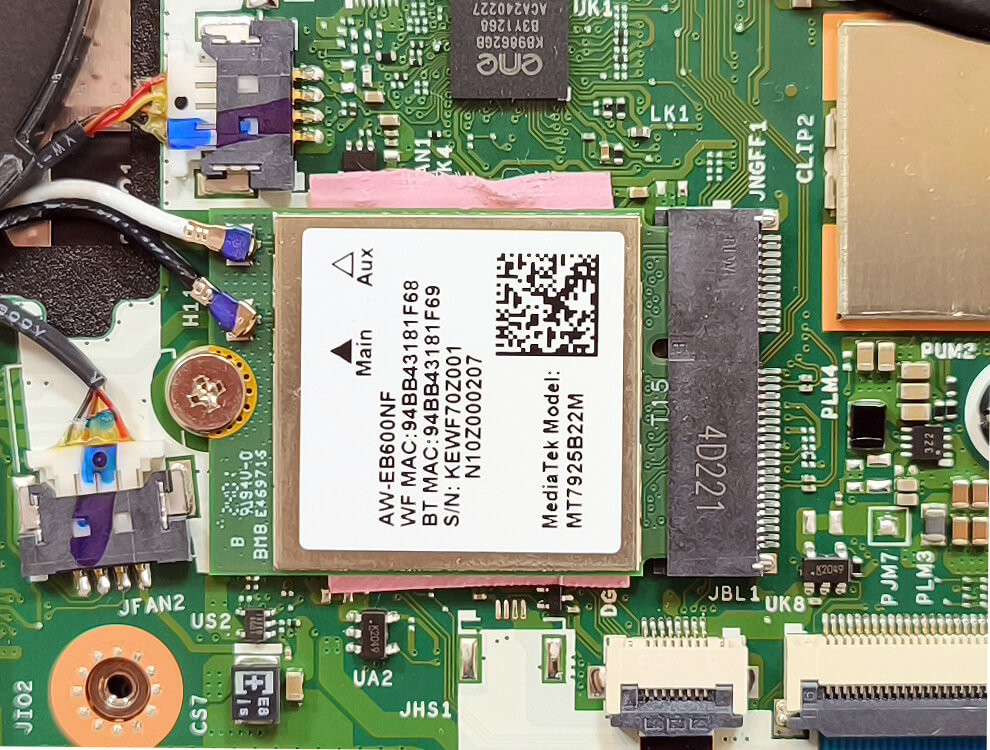
- The Wi-Fi 7 card is replaceable, giving you the option to upgrade to newer standards in the future.
Cooling System Overview
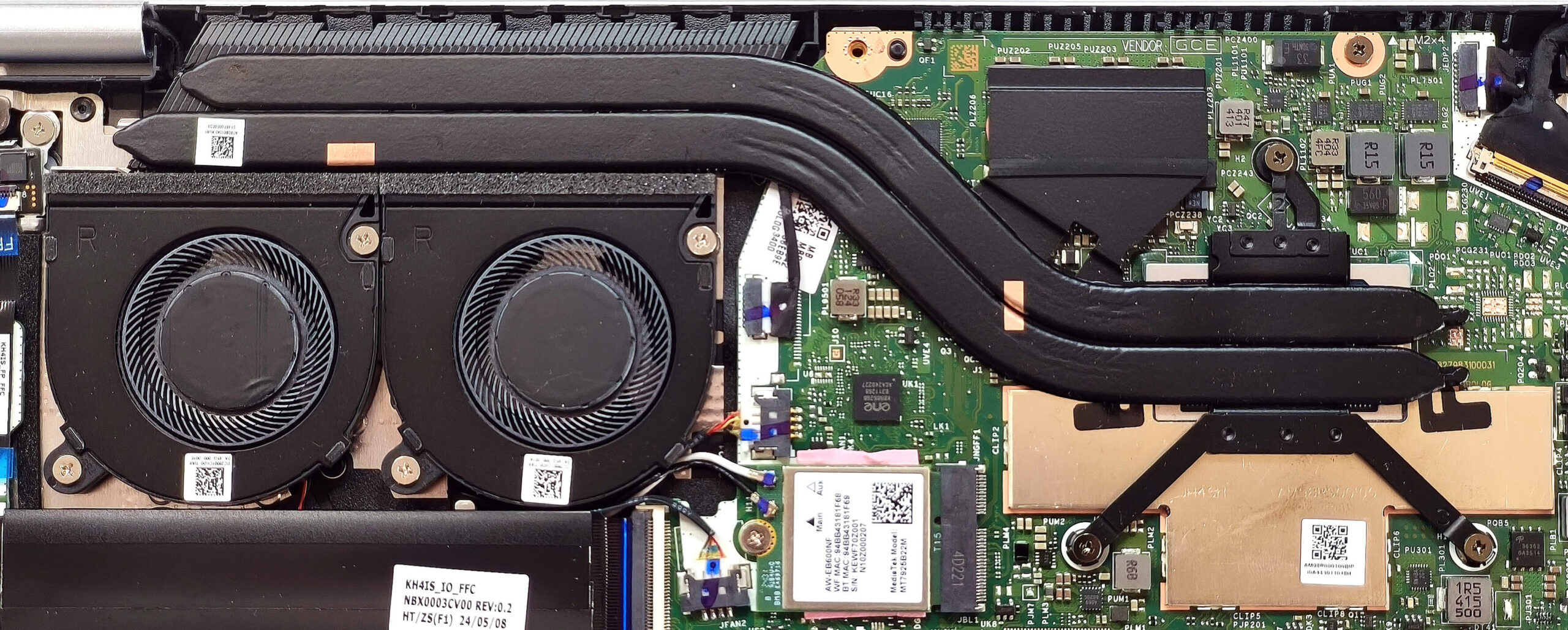
- The cooling setup seems adequate for an iGPU-only system. It features two fans, a pair of long heat pipes, a large top-mounted heat sink, and two small heat spreaders for effective thermal management.
Acer Swift 14 AI (SF14-61 / SF14-61T) in-depth review
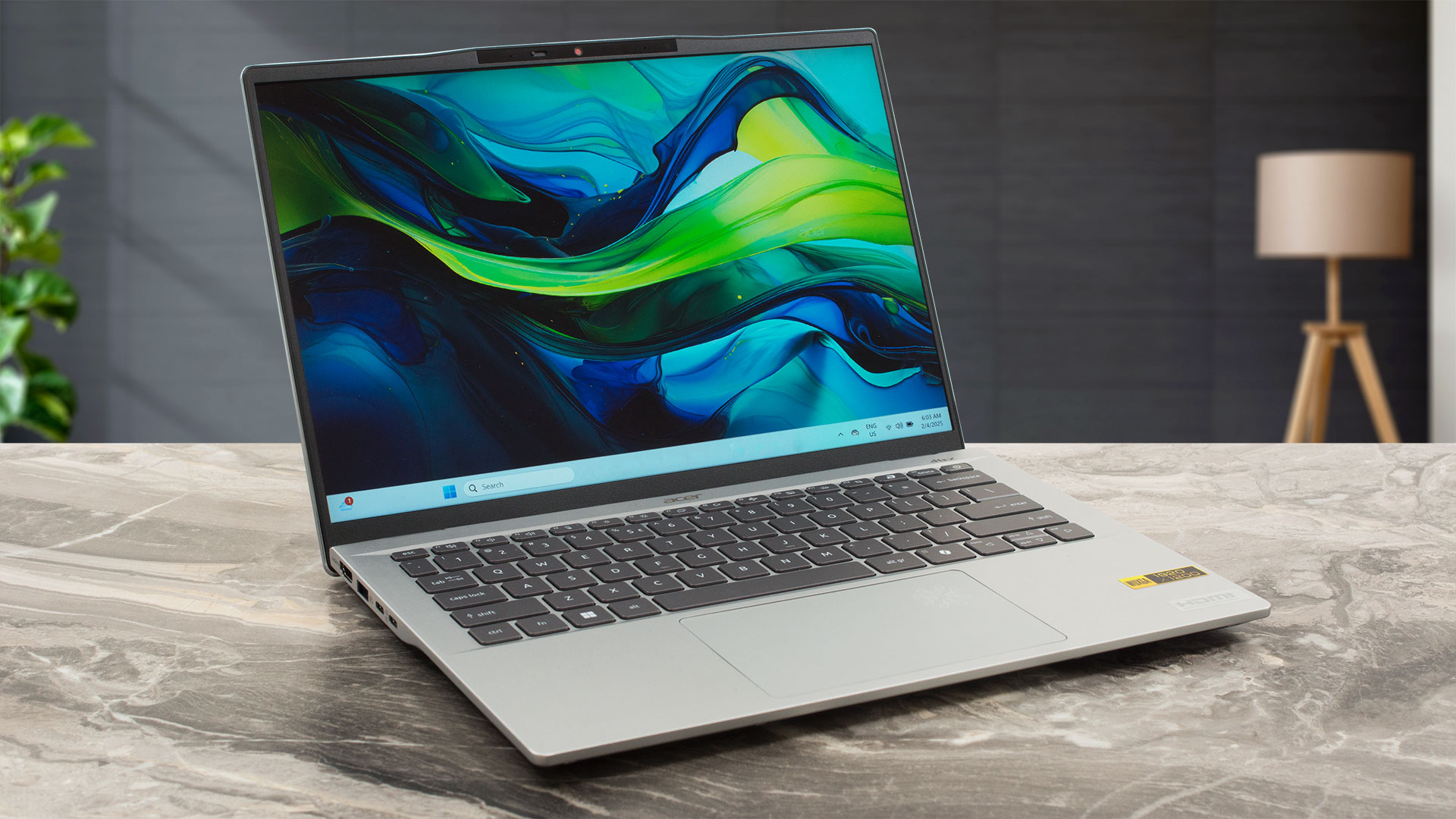
In 2025, laptops with AI features can be found in every price class. The Swift 14 AI (SF14-61T) is a small device that is powered by mighty Strix Point Zen 5 CPUs which offer pretty potent iGPUs and up to 50 TOPS of NPU power. The device is thin and light, and that's why we aren't surprised by the soldered memory. Actually, the max amount of 32GB LPDDR5x memory is quite generous for daily or office work. The connectivity is up to date thanks to the soldered Wi-Fi 7 card. The port selection is also rich, we like the presence of two full-function USB4 connectors.Our machine is equipped with [...]
Pros
- Long battery life even with the default 65Wh unit ~ 14 hours of videos
- Light and thin (1.32 kg / 10 - 17.9 mm)
- Aluminum build
- The anodized finish seems fingerprint-proof
- PWM-free touchscreen (CMN1459)
- Wide viewing angles + 16:10 aspect ratio (CMN1459)
- 419 nits of max brightness + 1650:1 contrast ratio (CMN1459)
- 98% sRGB coverage and great color accuracy when our "Design and Office" profile is applied (CMN1459)
- Wi-Fi 7 + Bluetooth 5.4
- Good comfort during full system loads
- The Ryzen AI 9 HX 370 maintains ~ 3.30 GHz / 2.41 GHz in longer stress
- Up to 32GB LPDDR5x
- You can pop the bottom plate pretty easily
- Modern port selection with 2x USB4s and 2x Type-As
- Pluton Security Processor + privacy shutter + fingerprint reader
- 1440p IR Web camera
- Great touchpad
- Lid with a lever design
- Impressive CPU and iGPU performance for a 14-incher
- Keybaord with antibacterial treatment
- Copilot+ PC
Cons
- Limited upgradability
- The keyboard could be better
- 91°C CPU temperature in longer loads
- No eSIM, SD Card slot, or NFC functionality
 Author: Dimitar Stalev

![[August 2026] Amazon USA: Top 10 Best-Selling Laptops – Apple MacBook Neo Dominates the Market with Massive Unit Sales!](https://laptopmedia.com/wp-content/uploads/2026/09/Best-Selling-Laptops-COM-Top-10-400x225.jpg)
![[August 2026] Amazon USA: Top 10 Best-Selling Gaming Laptops – ASUS ROG Strix G16 Dominates the Market with Massive Unit Sales](https://laptopmedia.com/wp-content/uploads/2026/09/Best-Selling-Gaming-Laptops-COM-Top-10-400x225.jpg)
![[July 2026] Amazon Global: Top 10 Best-Selling Laptops – Apple MacBook Neo Dominates the Charts as Budget and Premium Notebooks Split the Market](https://laptopmedia.com/wp-content/uploads/2026/08/Best-Selling-Laptops-GLOBAL-Top-10-400x225.jpg)
![[July 2026] Amazon Global: Top 10 Best-Selling Gaming Laptops – ASUS ROG Strix G16 Dominates the Global Market with Record-Breaking Unit Sales](https://laptopmedia.com/wp-content/uploads/2026/08/Best-Selling-Gaming-Laptops-GLOBAL-Top-10-400x225.jpg)
![[July 2026] Global Ranking of Best-Selling Laptop GPUs on Amazon – RTX 5060 Dominate Premium, Intel Still Rules Budget](https://laptopmedia.com/wp-content/uploads/2026/08/Best-Selling-GPUs-GLOBAL-Top-10-400x225.jpg)

2nd SSD slot should be under the ribbon cable.