How to open ASUS TUF Gaming A16 (FA608, 2025) – disassembly and upgrade options
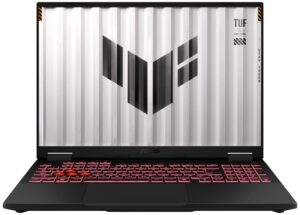
Before you start: Shut the laptop down completely, disconnect the charger and all peripherals, and hold the power button for a few seconds to discharge residual power. Work on a clean, non-conductive surface and, if possible, use an anti-static wrist strap.
Opening the bottom panel
- Place the laptop upside down with the rear vents facing away from you.
- Undo all visible Phillips-head screws that secure the bottom panel to the chassis. Keep track of their positions for easier reassembly.
- Insert a thin plastic pry tool between the bottom panel and the chassis near one of the side edges.
- Gently twist the tool to release the first clip, then slide along the perimeter to disengage the clips on the sides and the front edge.
- Finish by popping the clips near the hinge area. Once all clips are released, lift the bottom panel away and set it aside.
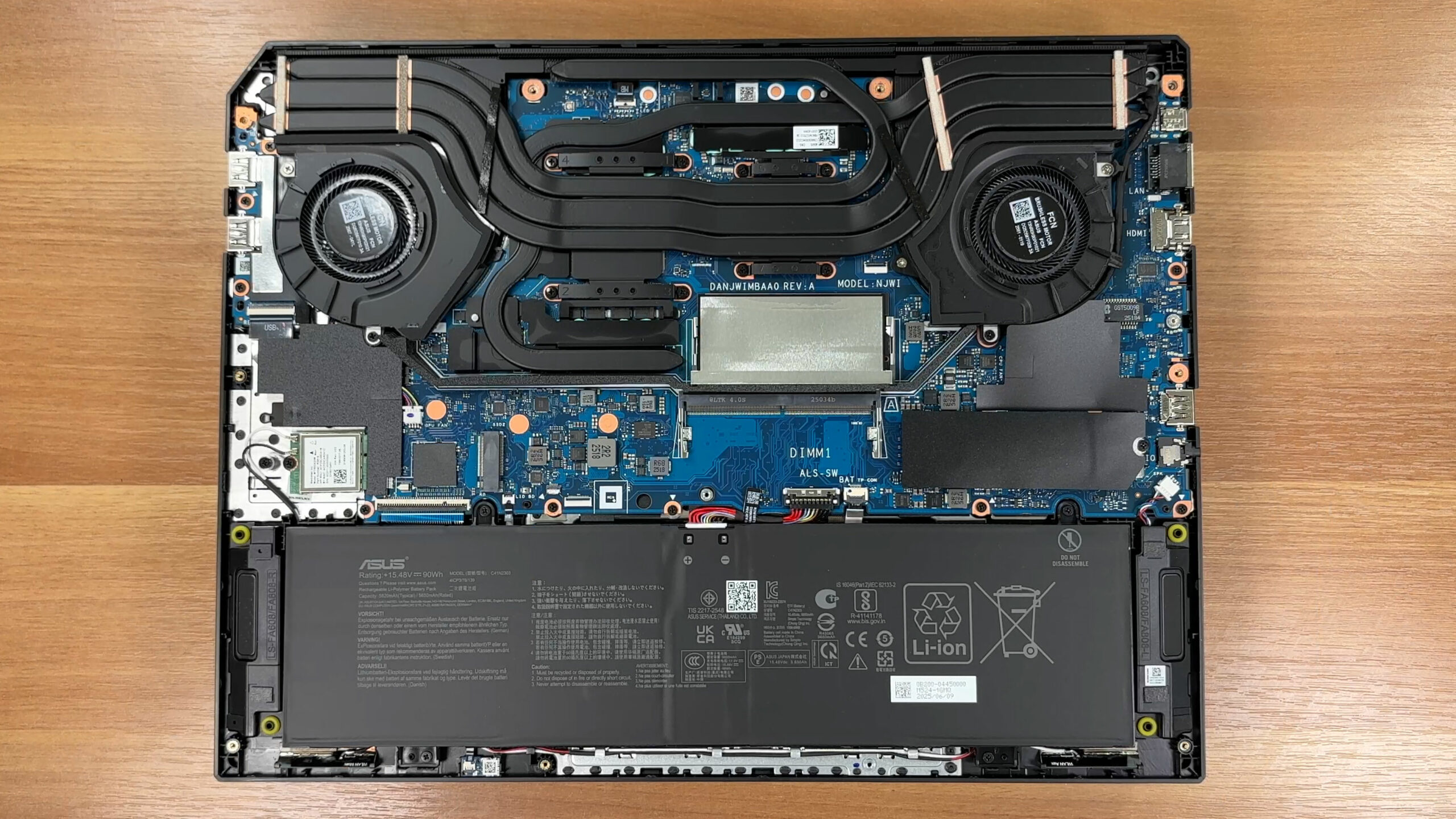
Caution: Avoid metal tools and do not bend the bottom plate excessively – the clips can crack if you force them.
Battery removal
- Locate the long 90Wh 4-cell Li-ion battery pack along the bottom edge of the chassis.
- Before touching any other components, disconnect the battery by pulling the cable connector straight out of its socket in the middle of the board. Grip the plastic housing, not the wires.
- Undo the Phillips-head screws that secure the battery to the chassis.
- Lift the battery evenly from its bay, making sure you don’t snag any speaker or Wi-Fi antenna cables that may run nearby.
- When reinstalling, place the pack back in its tray, tighten all screws, and reconnect the battery cable firmly.
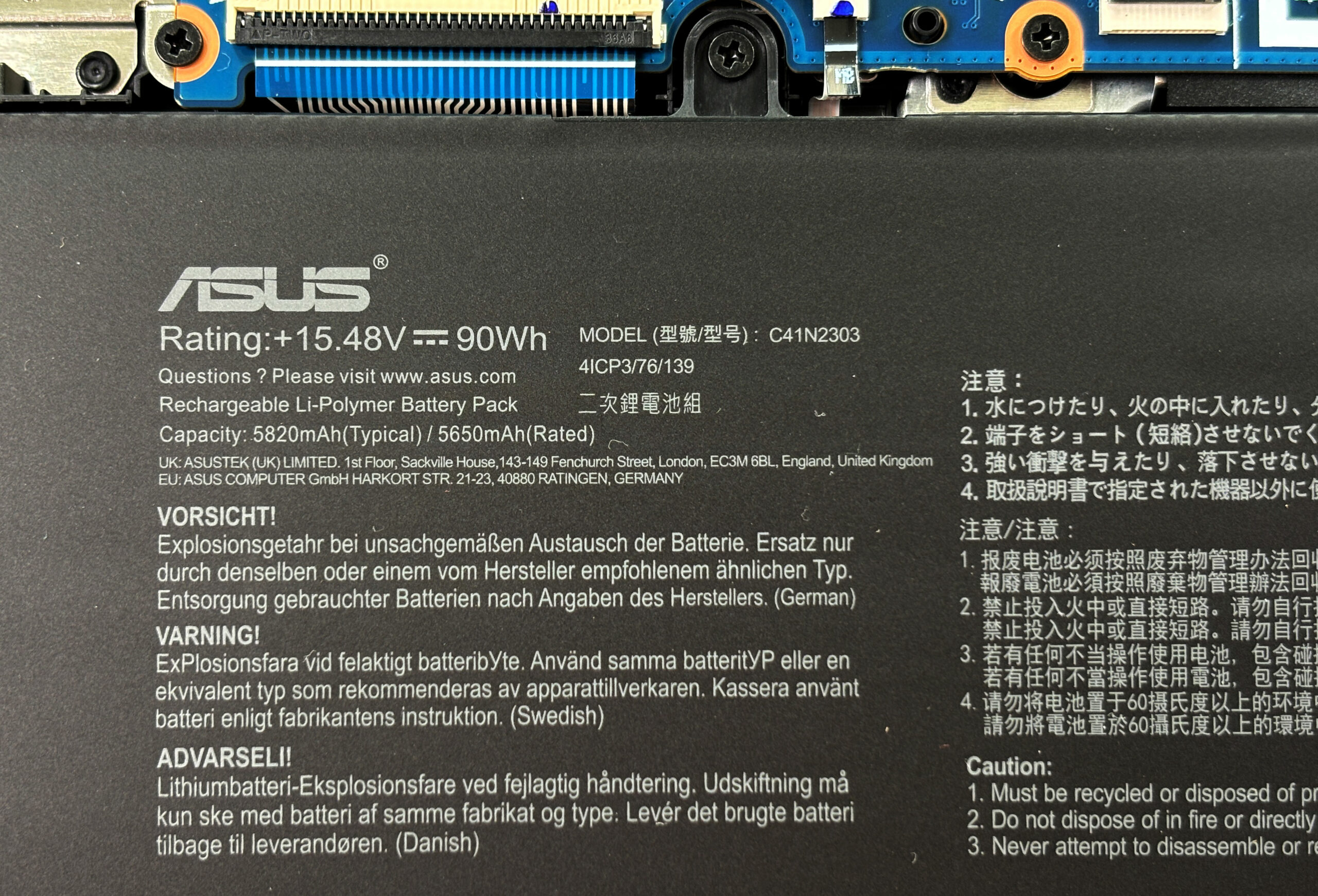
Note: The 90Wh pack (15.48V, ~5820mAh typical) is very serviceable – it can be replaced in the future with only basic tools.
Memory (RAM) upgrade options
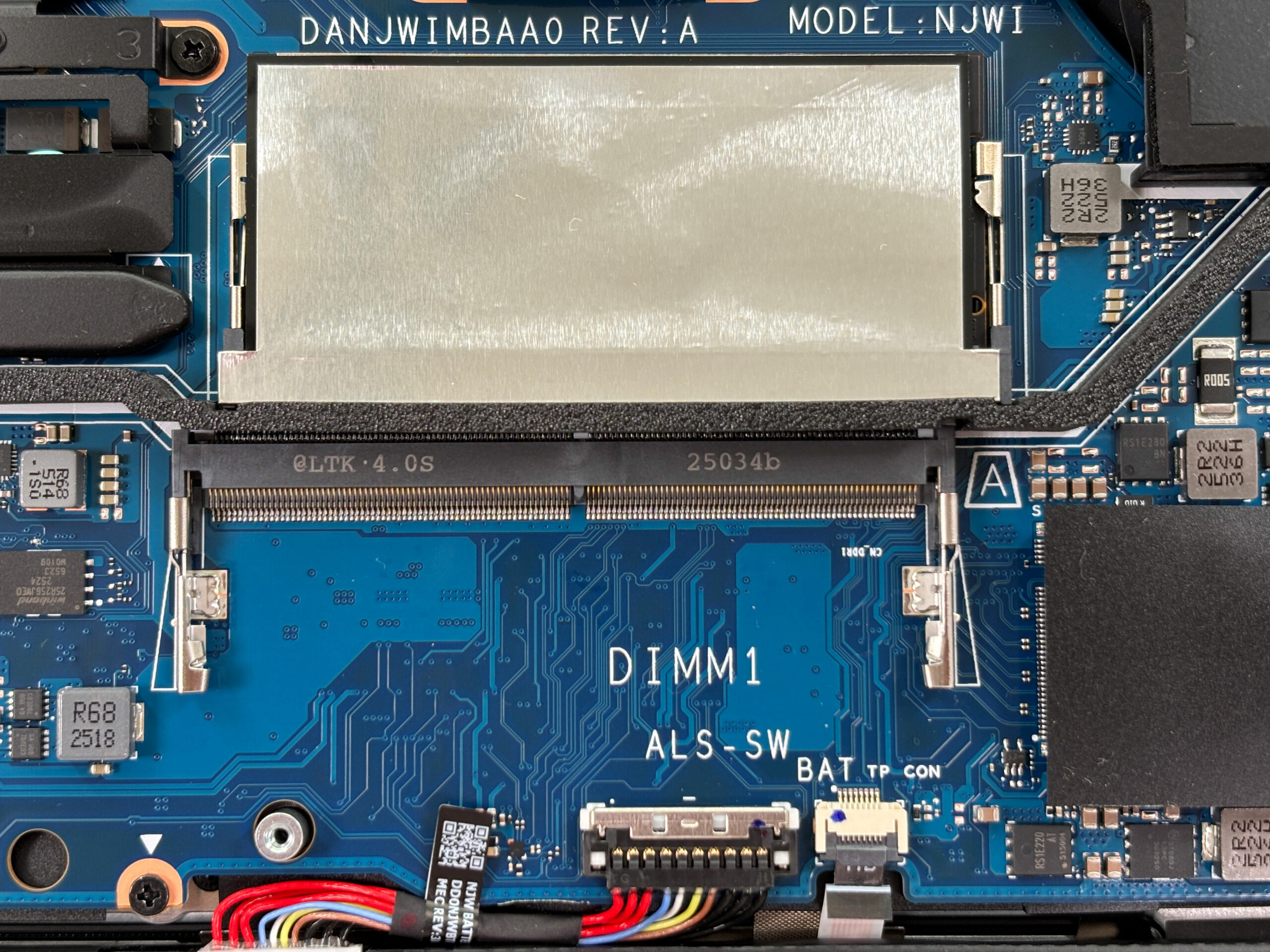
- The ASUS TUF Gaming A16 FA608 uses standard DDR5 SODIMM modules. Two slots are available in the central area of the motherboard.
- Carefully peel back the metalized tape or shielding above the memory slots to expose the SODIMMs. Try not to stretch or tear it so it can be reapplied later.
- According to ASUS, the platform officially supports DDR5-5200 or DDR5-5600 memory, up to 64GB in dual-channel mode.
- To remove a module, push both side retention clips outward until the SODIMM pops up at an angle, then slide it straight out of the slot.
- Insert the new DDR5 SODIMM at the same angle, push it fully into the connector, then press it down until the side clips click into place and the module sits flat.
- Reposition the shielding tape or plates over the RAM so they make good contact and do not interfere with nearby components.
You can buy DDR5 RAM modules here: Buy from Amazon.com (#CommissionsEarned)
Storage upgrade options
- The TUF Gaming A16 FA608 offers two M.2 PCIe slots for NVMe SSDs.
- The primary SSD bay sits under an aluminium shield with an integrated thermal pad. Remove its retaining screw, lift the shield away, and keep the pad clean for reuse.
- Undo the SSD’s single mounting screw. The drive will spring up at a shallow angle.
- Slide the SSD straight out of the connector. To install a new drive, insert it at the same angle, push it fully into the socket, then press it down and secure it with the screw.
- The secondary M.2 slot is located just above the wireless card near the left side of the machine. Access it in the same way: remove any shield, undo the screw, swap the SSD, and reinstall the screw and shield.
- Ensure any thermal pads on the covers make firm contact with the SSDs when you reinstall them to help with heat dissipation.
You can buy NVMe SSDs here: Buy from Amazon.com (#CommissionsEarned)
Hint: Consider reviewing our Top M.2 SSDs Performance Rankings to select the best storage solution for your needs.
Note: The secondary SSD slot sits close to the Wi-Fi card. If you notice wireless instability after adding a second drive, check that the SSD shield and Wi-Fi antennas are seated correctly and not pressing against each other.
Wireless card (Wi-Fi)
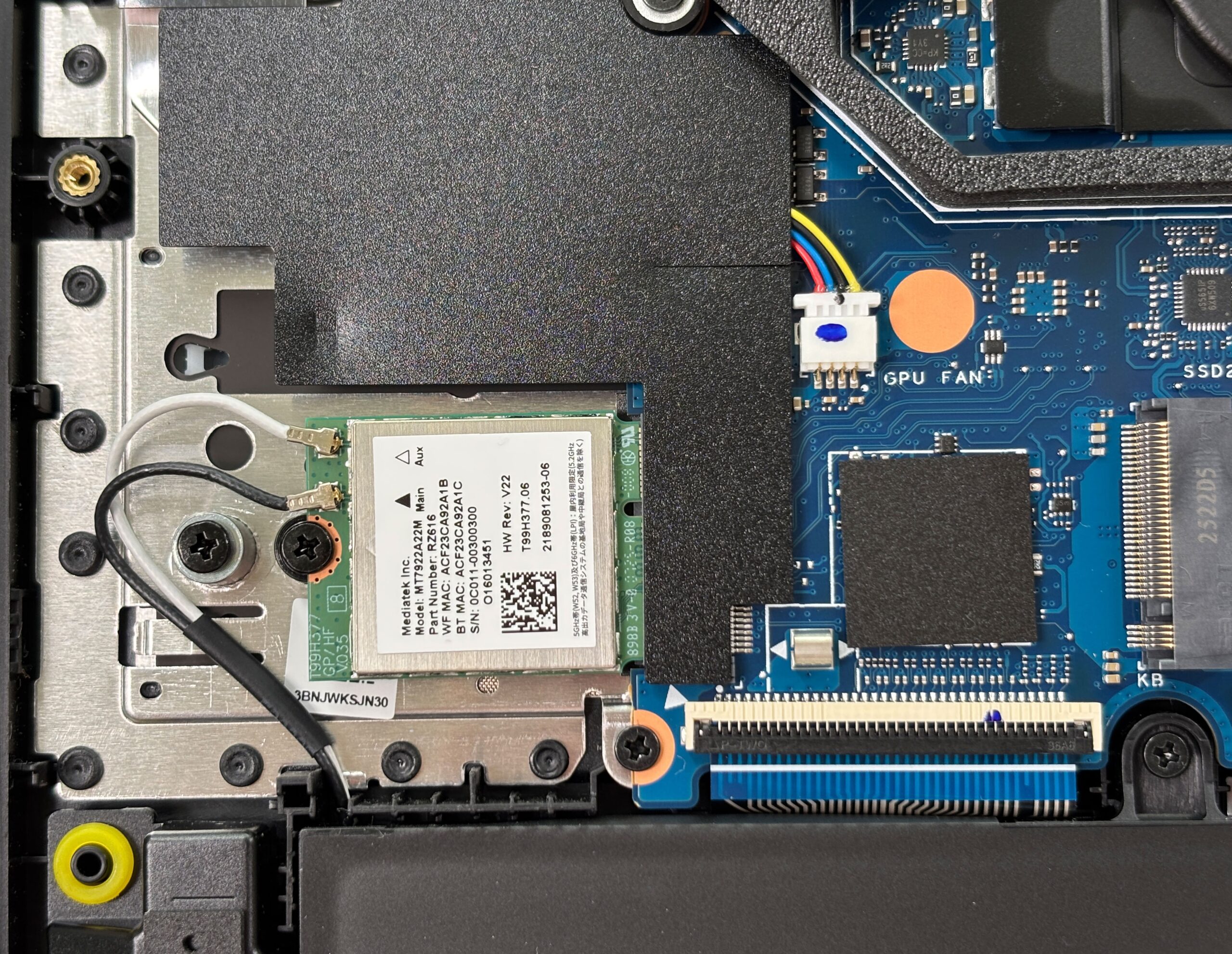
- Wireless connectivity is handled by a MediaTek MT7922A22M (RZ616) module in an M.2 slot near the lower-left corner of the chassis.
- To remove it, first disconnect the two antenna leads by lifting them straight up from the “Main” and “Aux” posts with a plastic tool.
- Undo the single screw that secures the Wi-Fi card. The module will tilt upward.
- Slide the card out of the M.2 slot. To install a replacement, insert it at an angle, press it down, and secure it with the screw.
- Reconnect the antenna wires to their matching terminals, making sure each snaps firmly into place.
Cooling system and maintenance
- The cooling system uses two radial fans and multiple heatpipes that span both the CPU and discrete GPU, branching out to fin stacks on both sides. Smaller metal plates cover the power delivery (VRM) areas.
- For routine cleaning, ensure the battery is disconnected. Hold each fan in place with a finger to prevent overspinning, then use short bursts of compressed air through the vents to blow dust out of the fins.
- Visually check the foam seals and metal plates around the heatsinks to confirm they sit flat and are not folded or displaced – this helps maintain proper airflow.
- If a fan needs replacement, disconnect its cable from the motherboard, remove the mounting screws, lift the fan out, and drop in the new unit in the same orientation before reconnecting the cable.
Reassembly tips
- Before closing the laptop, verify that the battery is reconnected, all RAM modules and SSDs are fully seated and screwed down, and all cables (fans, Wi-Fi, speakers, etc.) are plugged in.
- Place the bottom panel back on the chassis, aligning the edges and port cutouts.
- Press gently around the perimeter until all clips snap into place.
- Retighten all bottom screws. Do not overtighten to avoid stripping the threads or deforming the panel.
- Power on the laptop and check that it boots normally and that any new RAM or storage is detected in BIOS/Windows.
More info: The ASUS TUF Gaming A16 (FA608, 2025) is built with upgrades in mind – you get two DDR5 SODIMM slots (up to 64GB officially), two NVMe SSD bays, a replaceable Wi-Fi 6E card, and a large 90Wh battery that’s easy to swap. The clean internal layout and clearly labeled connectors make the machine friendly even for users opening a gaming laptop for the first time.
ASUS TUF Gaming A16 (FA608, 2025) in-depth review
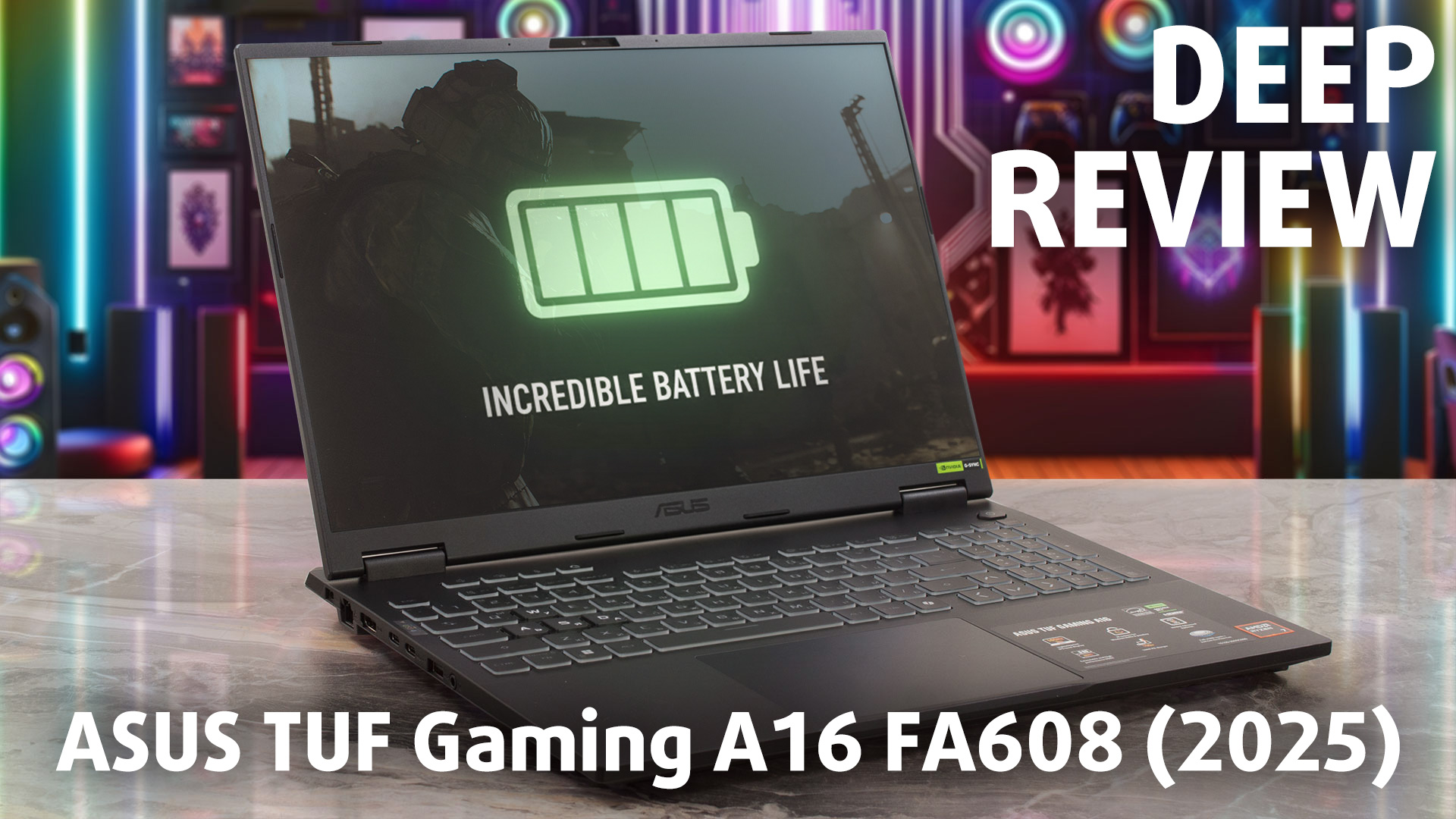
For years, the "gaming laptop" has come with an unwritten rule: great power, terrible battery life. You could have one, but not both. The ASUS TUF Gaming A16 (FA608, 2025) doesn't just bend that rule; it shatters it. Delivering over 14 hours of battery life in our tests, it redefines what's possible for an unplugged gaming experience, crushing its competitors and setting a new benchmark for endurance. But this isn't just an endurance champion. It's also a performance beast, with the fastest implementation of its GPU that we've ever tested and a cooling system to match. The question then be[...]
Pros
- Class-leading, best-in-class GPU performance
- Phenomenal, category-defining battery life (14+ hours)
- Excellent thermal management for both CPU and GPU
- Fast, color-accurate, and PWM-free 165Hz display
- Great keyboard with full-sized arrow keys
- Fantastic upgradeability with two RAM and two M.2 slots
Cons
- Secondary M.2 slot is awkwardly placed over the Wi-Fi card
- SSD can run hot under load
- Includes a slow USB 2.0 port
- No physical privacy shutter for the webcam
 Author: Dimitar Stalev

![[August 2026] Amazon Italy: Top 10 Best-Selling Laptops – Apple MacBook Neo Claims the Crown as Budget and Mid-Range Windows Machines Dominate Volume](https://laptopmedia.com/wp-content/uploads/2026/09/Best-Selling-Laptops-IT-Top-10-400x225.jpg)
![[August 2026] Amazon Italy: Top 7 Best-Selling Gaming Laptops – ASUS V16 Claims the #1 Spot Amid Strong Mid-Range Demand](https://laptopmedia.com/wp-content/uploads/2026/09/Best-Selling-Gaming-Laptops-IT-Top-10-400x225.jpg)
![[August 2026] Best-Selling Laptop Brands on Amazon Italy – Lenovo Dominates Market Share and Revenue Leadership](https://laptopmedia.com/wp-content/uploads/2026/09/IT-Best-Brands-400x225.jpg)
![[August 2026] Amazon India: Top 10 Best-Selling Laptops – Apple MacBook Neo Dominates the Charts with Massive Sales Lead](https://laptopmedia.com/wp-content/uploads/2026/09/Best-Selling-Laptops-IN-Top-10-400x225.jpg)
![[August 2026] Amazon India: Top 10 Best-Selling Gaming Laptops – HP Victus 15 Dominates the Market with Massive Unit Lead](https://laptopmedia.com/wp-content/uploads/2026/09/Best-Selling-Gaming-Laptops-IN-Top-10-400x225.jpg)

The second RAM module slot does not have the silver tape,.do I need to buy it separately? I appreciate your help in this matter.