How to open Dell Precision 3590 – disassembly and upgrade options
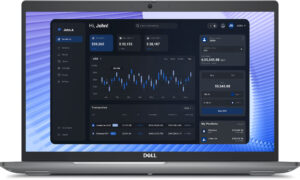
Opening the Device
- Undo the 8 captive Phillips-head screws securing the bottom panel.
- Use a lever tool to pry the zones behind the hinges. This will pop the whole rear section and part of the sides.
- Fully pry the sides and the front with a thin plastic tool to remove the bottom panel.
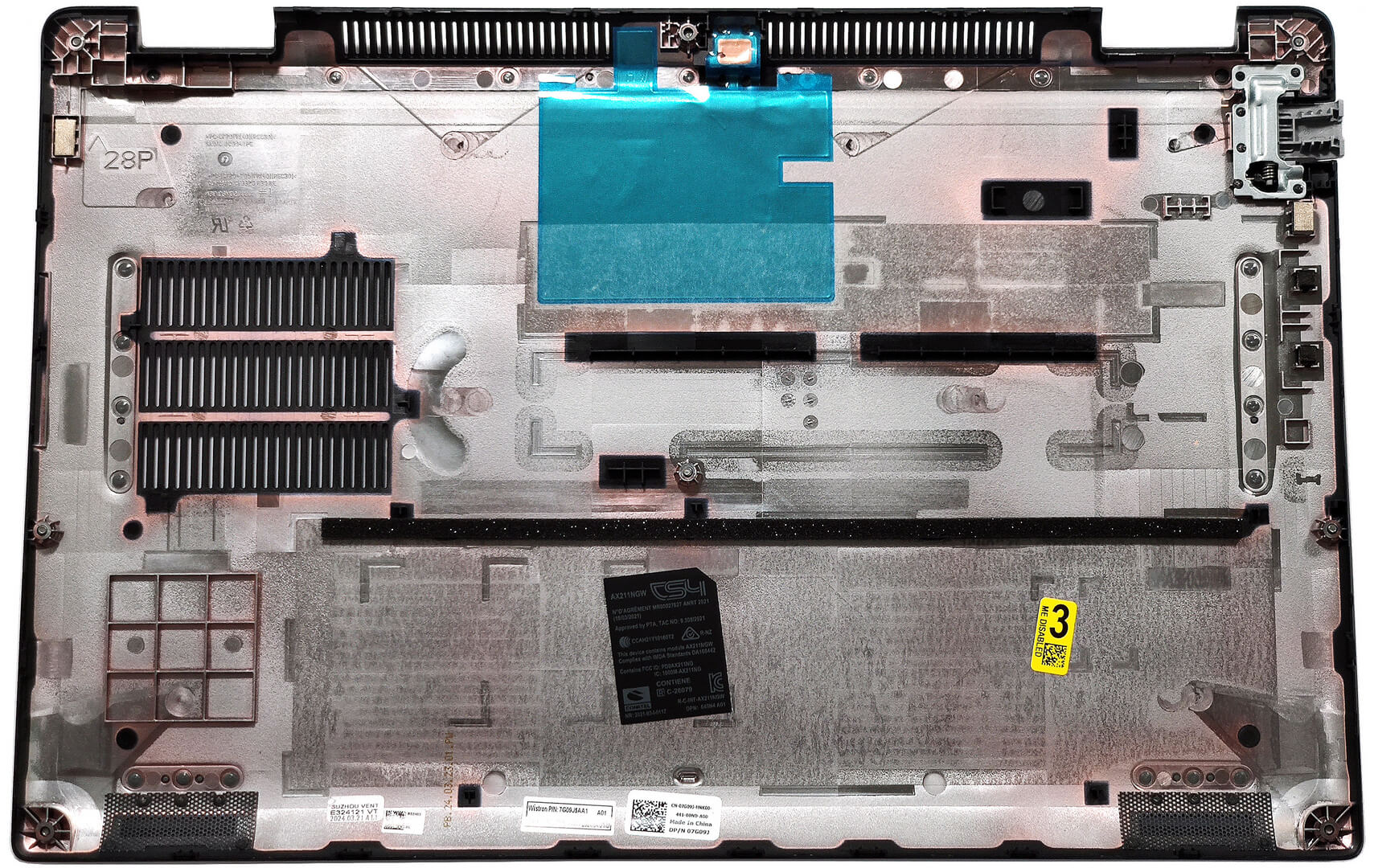
More info: Here’s how the bottom plate looks on the inside.
Battery Removal
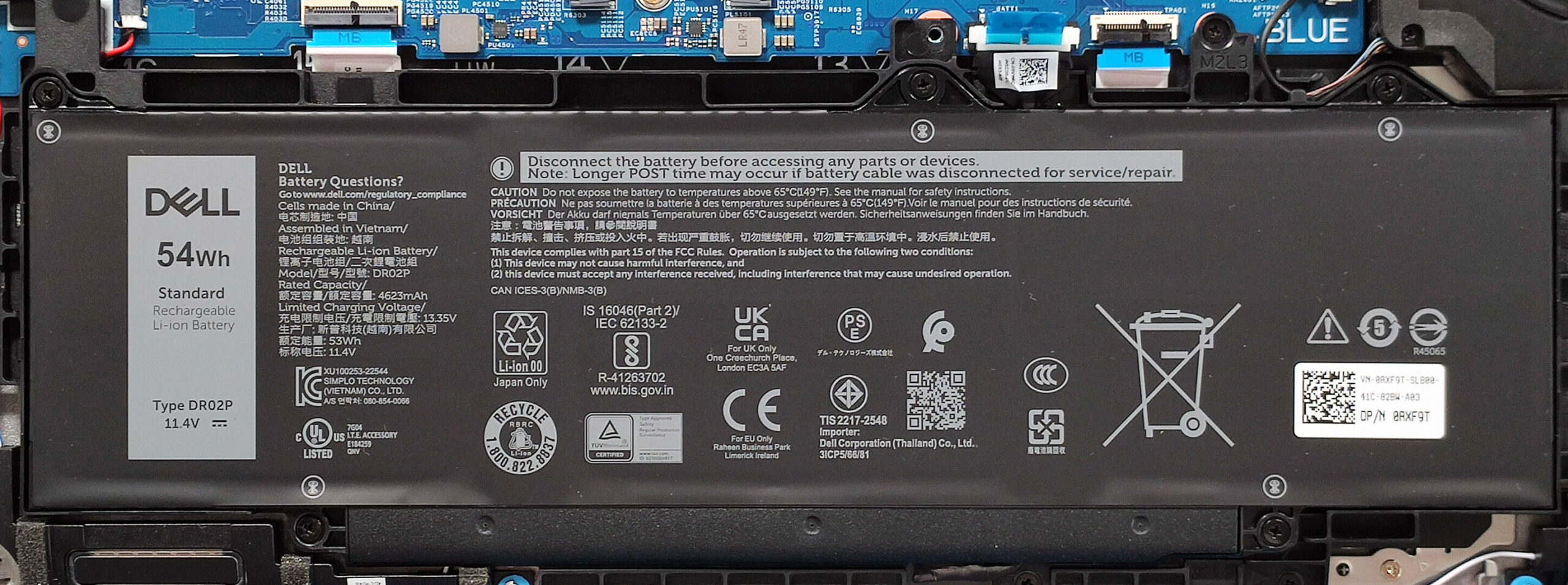
- Unplug the battery connector from the motherboard.
- Undo the 5 Phillips-head screws securing the battery.
- Lift the battery to remove it from the device.
Note: Our device has the optional 54Wh battery, providing approximately 7 hours of video playback. The base model has a 42Wh battery.
Memory Information
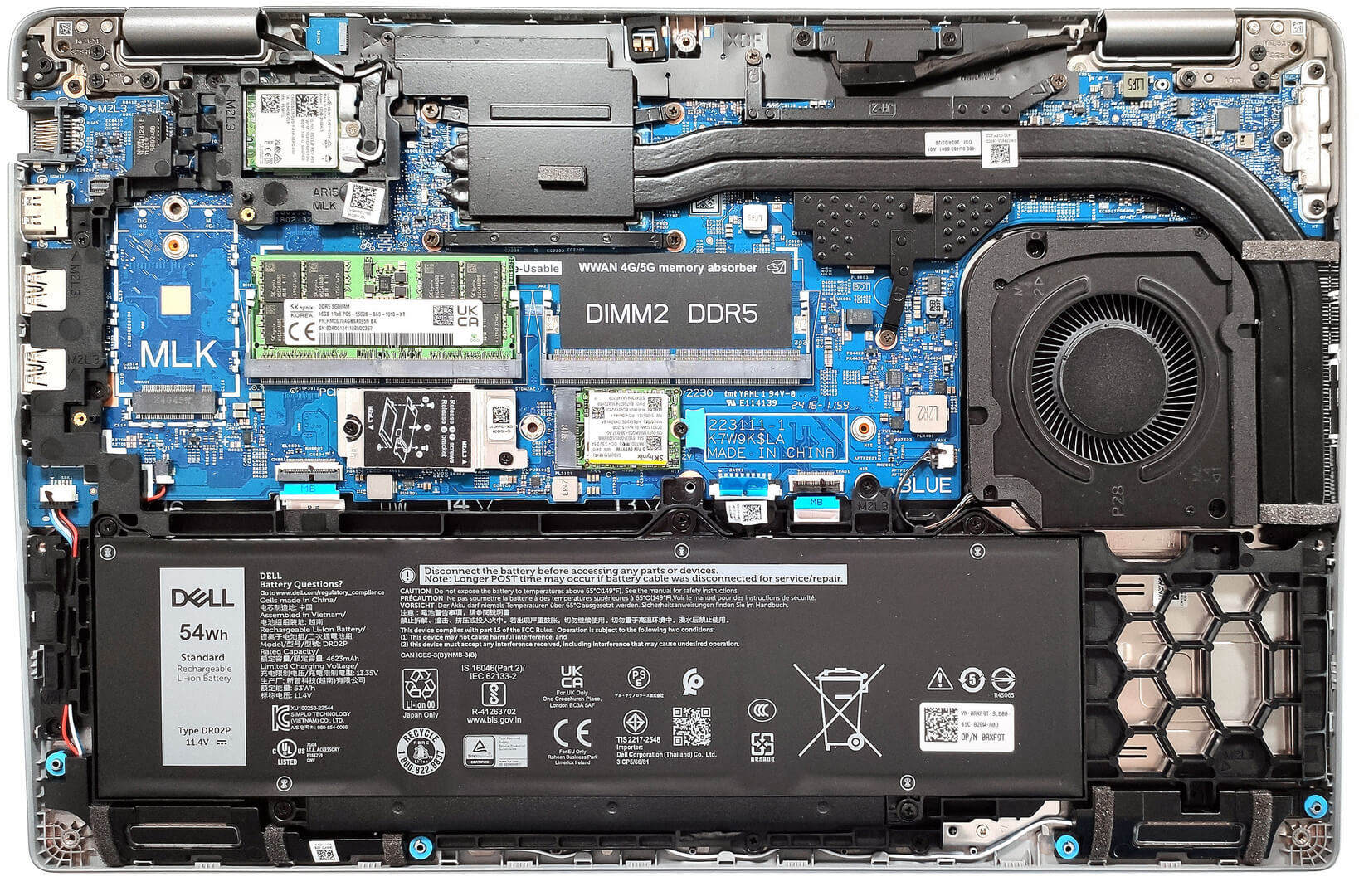
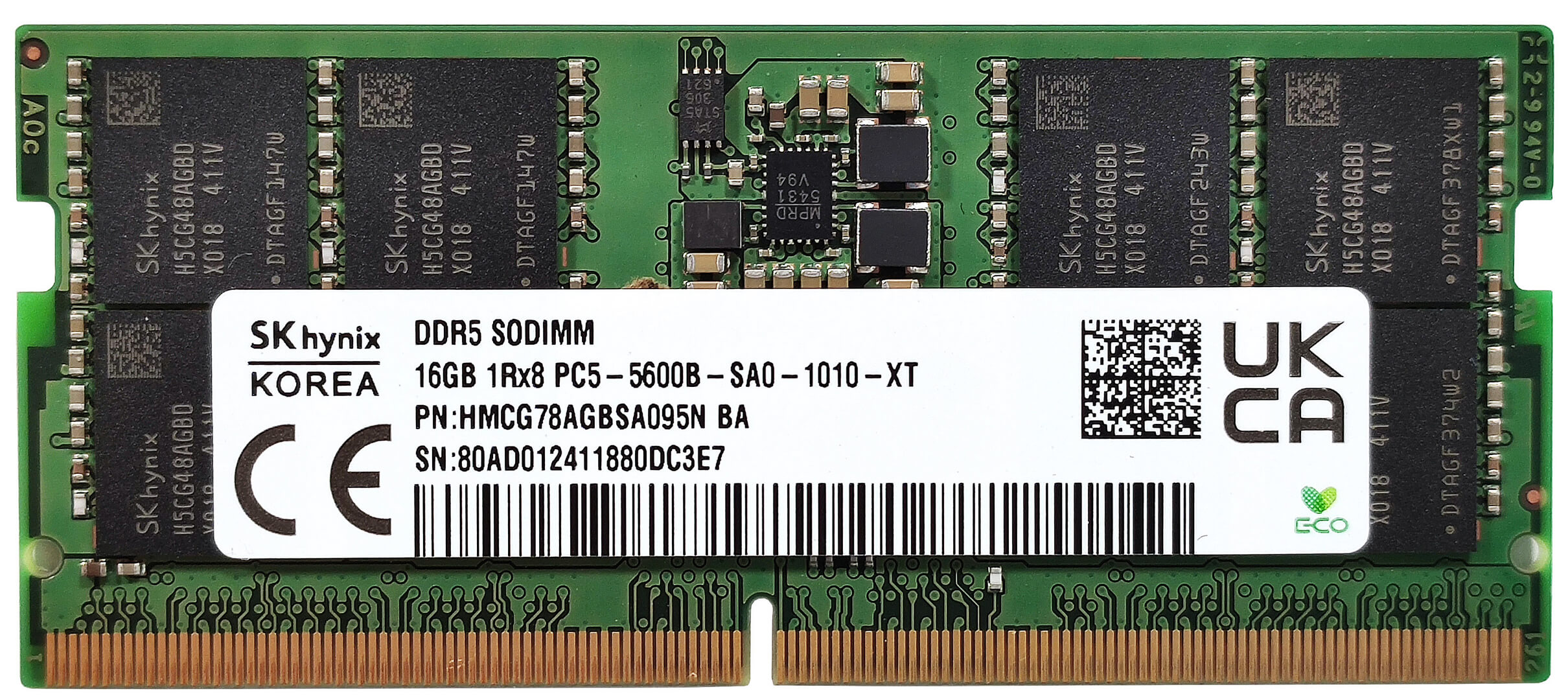
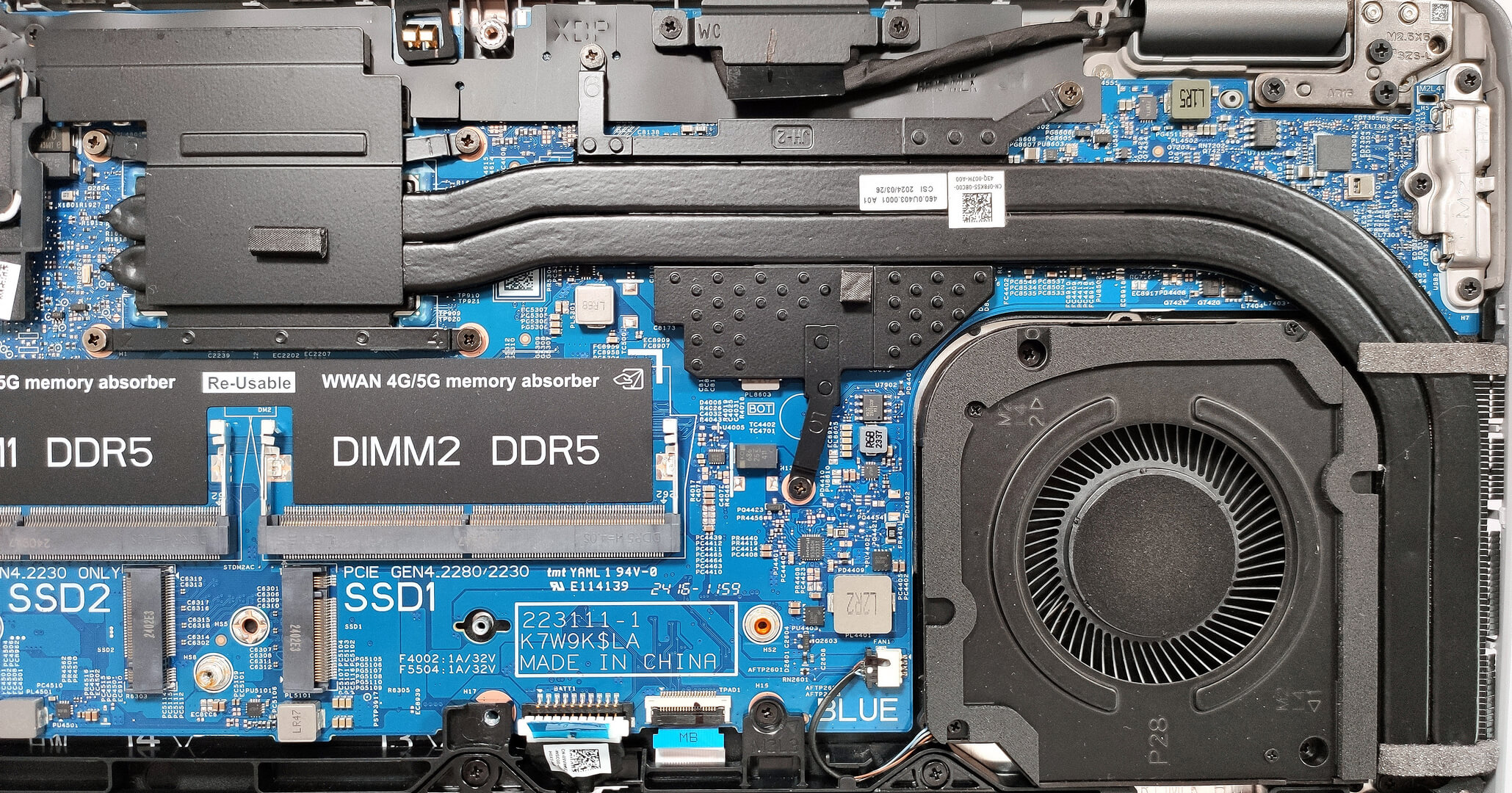
Note: The two SODIMMs officially support up to 64GB of DDR5-5600MHz RAM in dual-channel mode. The CPU supports up to 96GB, so the laptop likely wouldn’t have issues running more than the official manufacturer’s specified limit.
You can buy compatible RAM modules here: Buy from Amazon.com (#CommissionsEarned)
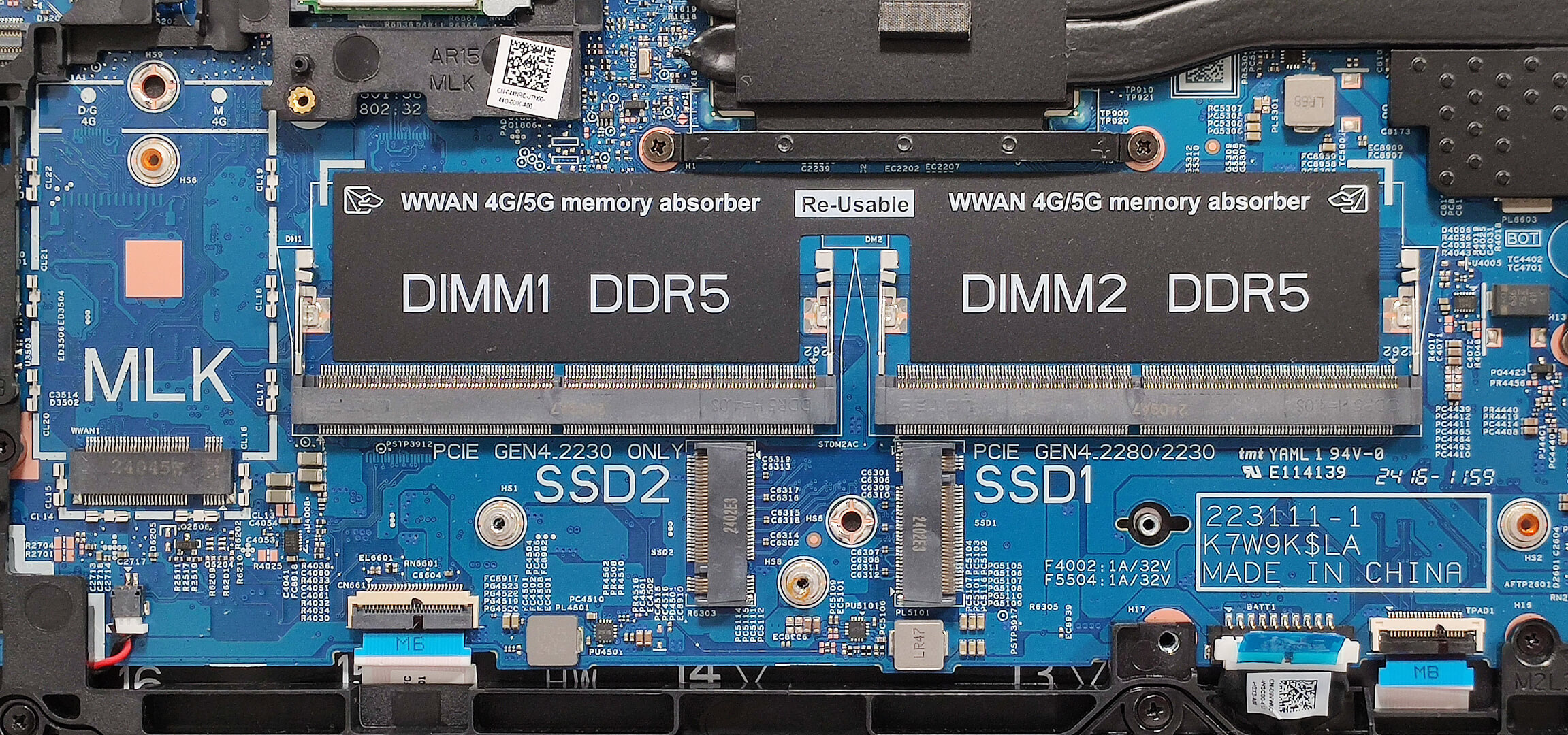
WWAN Slot
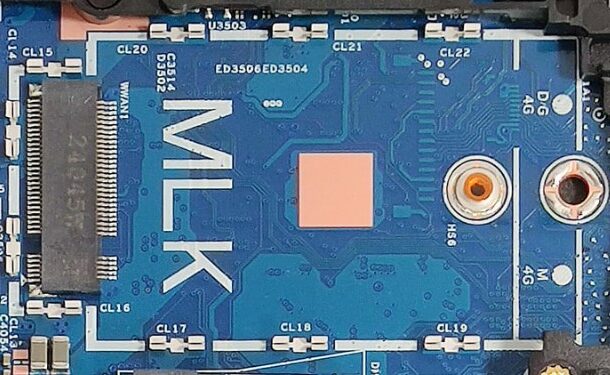
The WWAN slot for optional LTE or 5G connectivity is located to the left of the memory slots.
Storage Upgrade
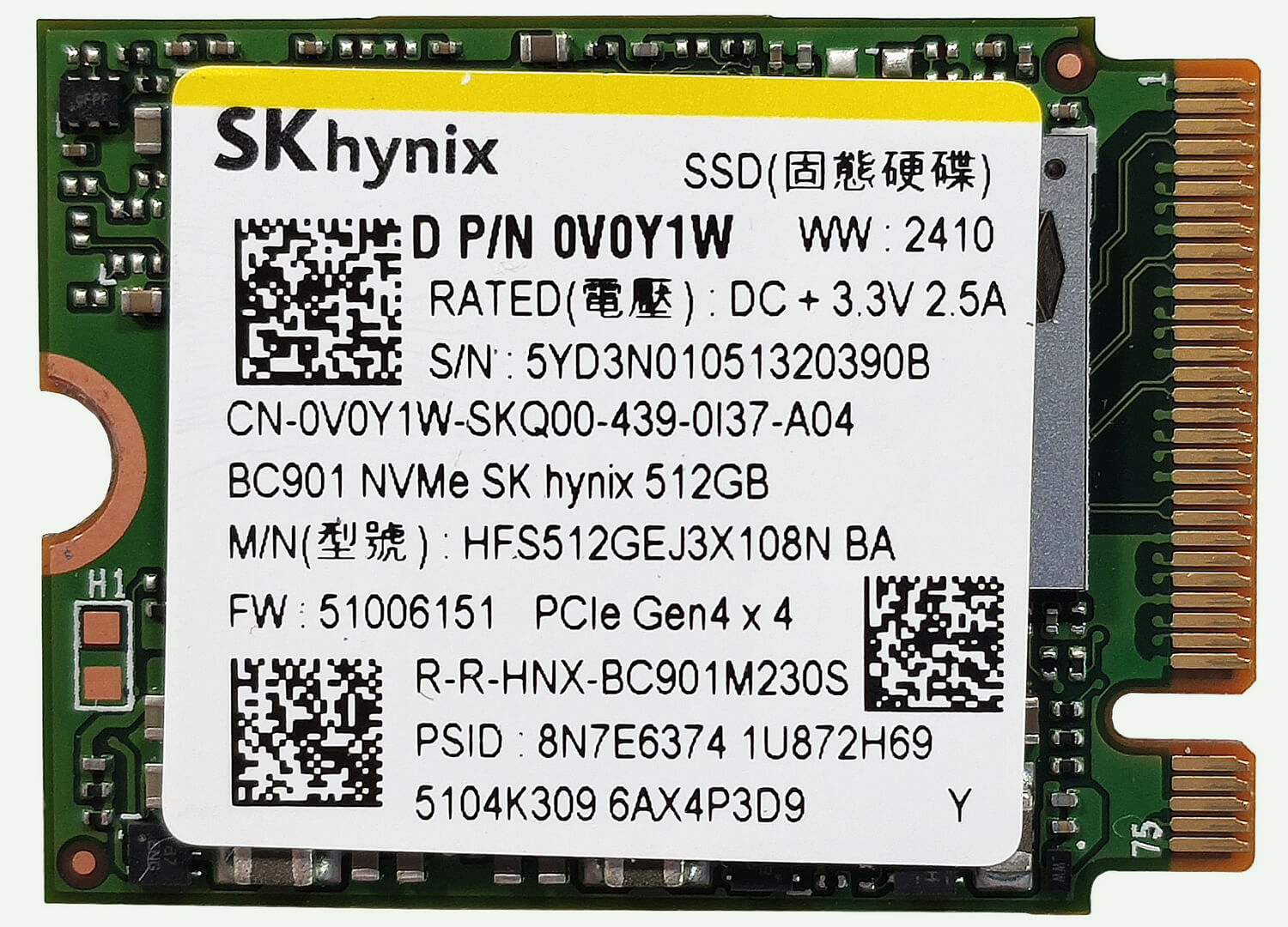
- Locate the two M.2 slots compatible with Gen 4 NVMe drives – one for 2230 or 2280 and one for the shorter 2230 SSDs.
- The slot on the left has a metal cap on top held in place by two Phillips-head screws.
- Remove the metal shroud to access the small thermal pad below.
- Install the new SSD in the appropriate slot.
Hint: Don’t forget to check out our Top M.2 SSDs Performance Rankings for insights on the best storage options available.
You can buy compatible SSDs here: Buy from Amazon.com (#CommissionsEarned)

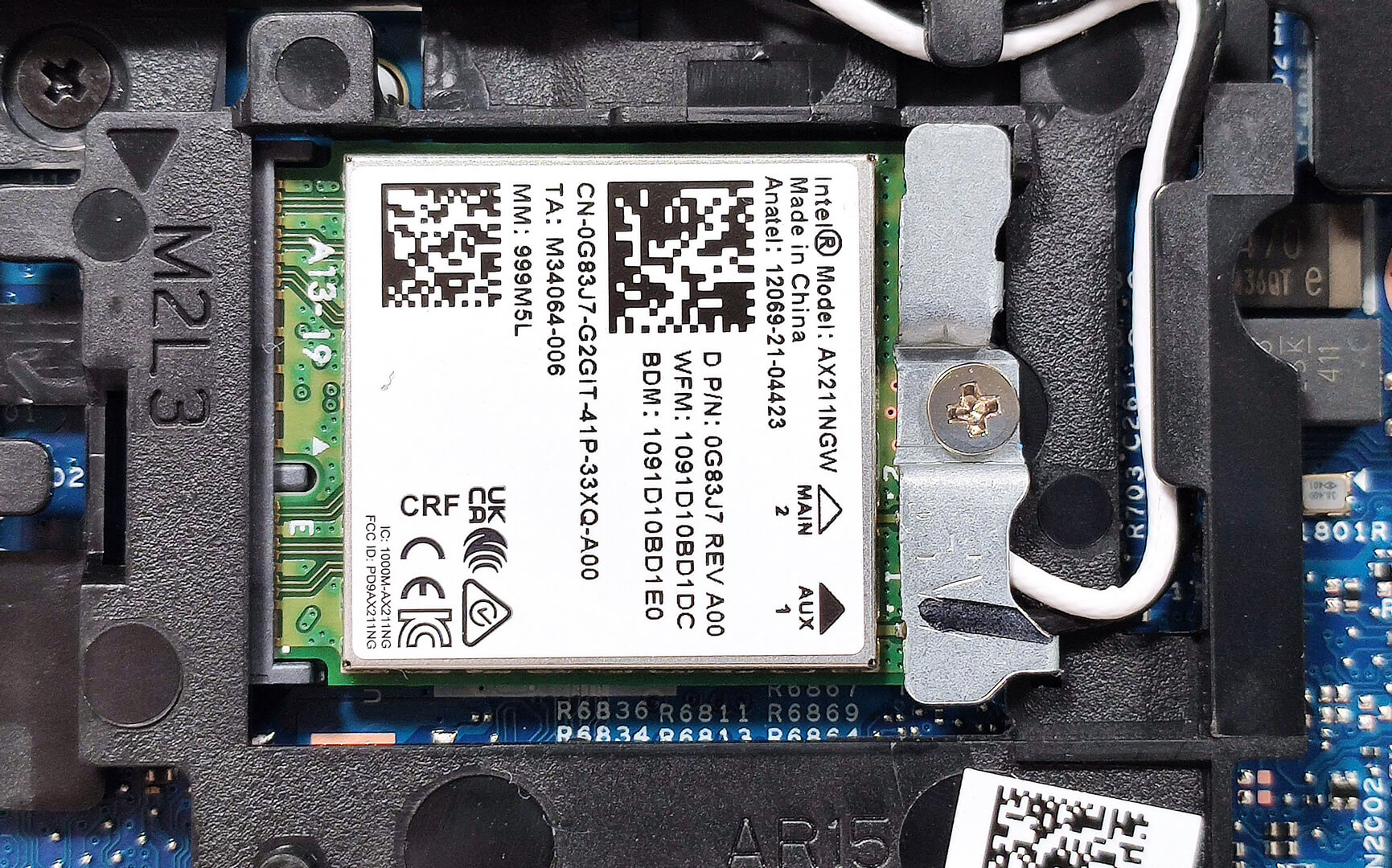
Wi-Fi Card
The Wi-Fi card is located to the left of the cooling system.
Cooling System Overview
- The cooling system includes one big fan, two long heat pipes, one side-mounted heatsink, and two heat spreaders.
- Ensure all cooling components are clean and free of dust for optimal performance.
Dell Precision 15 3590 in-depth review
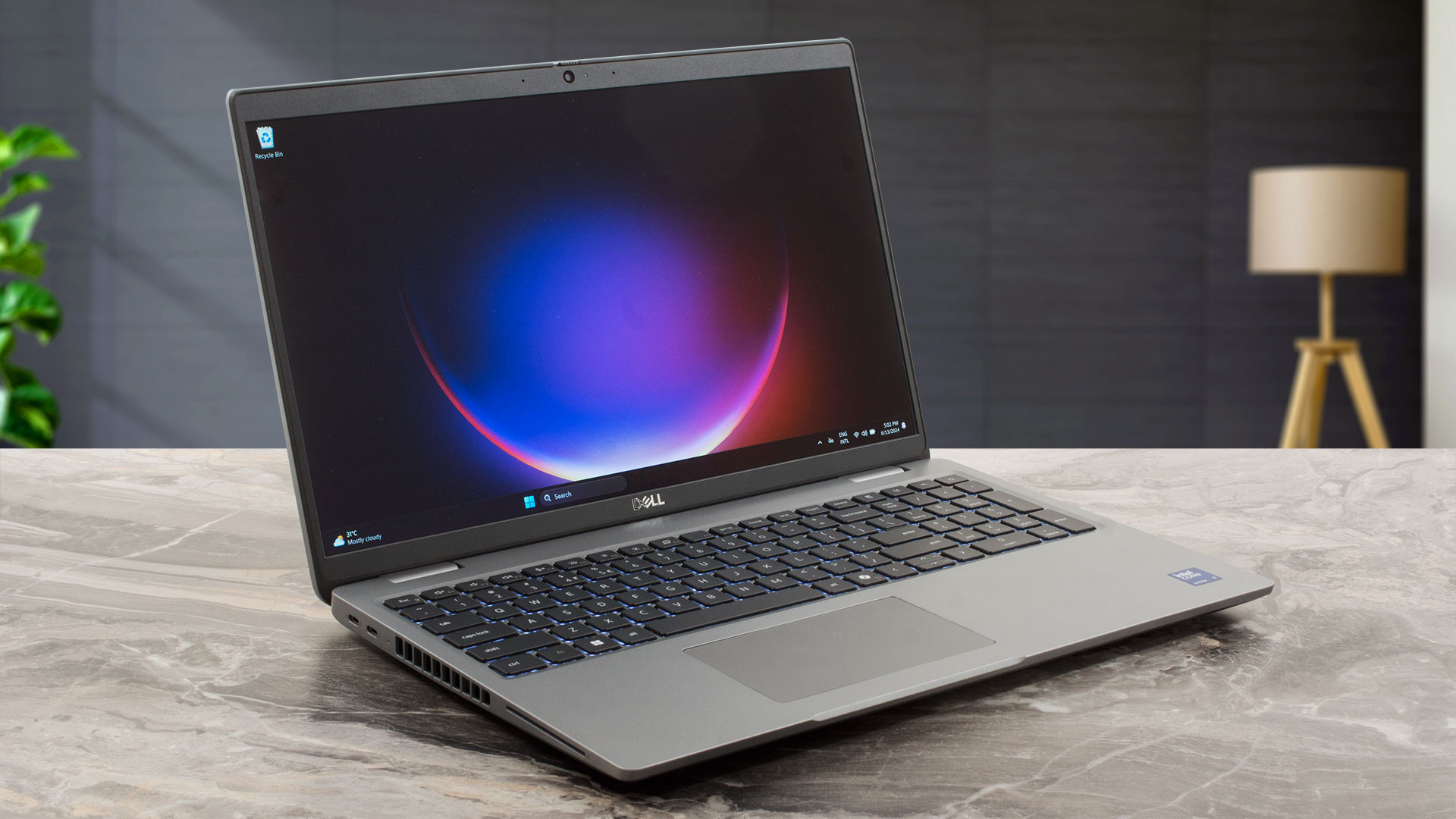
The Dell Precision 15 3590 is a standard-looking workstation that can be found with 15W or 28W Intel Meteor Lake U or H-series CPUs. You know the drill, pick a laptop with a U chip for better battery life, or get a device with an H chip for more processing power. The Intel vPro platform is optional. The processor is complemented by DDR5 RAM that can work in dual-channel mode. Yep, the upgradeability and port selection are good, which is very important for such a business workhorse. For graphics-heavy tasks, you can opt for a 35W dGPU.The Precision 3590 is offered with three IPS 1080p 60Hz [...]
Pros
- The fan isn't too noisy during long CPU loads
- Decent build quality
- Comfortable keyboard
- PWM-free (LGD0764)
- Wide viewing angles (LGD0764)
- 2x SODIMMs + 2x Gen 4 M.2 slots
- Modern port selection with 2x Thunderbolt 4 ports + HDMI 2.1 and a MicroSD card slot
- Decent battery life
- Web camera with a privacy shutter
- Fingerprint reader, IR camera, keyboard backlight, NFC, Nano SIM slot (all are optional)
- Good comfort under max CPU loads
- The CPU can sustain decently high clocks in longer loads - 2.15 GHz for the P cores
- The bottom panel can be easily opened
- The 512GB SK Hynix BC901 is surprisingly fast for a 2230 SSD
Cons
- Pricey
- The NVMe gets hot during benchmarking - 79°C
- Too many optional goodies
 Author: Severin Kolakov

![[August 2026] Best-Selling Laptop Brands on Amazon Japan – Apple Dominates Market Share and Revenue Led by Strong Unit Sales](https://laptopmedia.com/wp-content/uploads/2026/09/CO.JP-Best-Brands-1-400x225.jpg)
![[August 2026] Best-Selling Laptop Brands on Amazon USA – Apple Dominates Market Revenue and Volume Despite Lower Model Diversity](https://laptopmedia.com/wp-content/uploads/2026/09/COM-Best-Brands-1-400x225.jpg)
![[August 2026] Amazon Germany: Top 8 Best-Selling Gaming Laptops – Acer Dominates the Market as the Premium Nitro V 17 AI Takes the #1 Spot](https://laptopmedia.com/wp-content/uploads/2026/09/Best-Selling-Gaming-Laptops-DE-Top-10-1-400x225.jpg)
![[August 2026] Best-Selling Laptop Brands on Amazon France – Apple Dominates Revenue Despite Lenovo and HP Leading in Catalog Breadth and Volume](https://laptopmedia.com/wp-content/uploads/2026/09/FR-Best-Brands-1-400x225.jpg)
![[August 2026] Amazon Italy: Top 10 Best-Selling Laptops – Apple MacBook Neo Claims the Crown as Budget and Mid-Range Windows Machines Dominate Volume](https://laptopmedia.com/wp-content/uploads/2026/09/Best-Selling-Laptops-IT-Top-10-400x225.jpg)
