How to open Dell Precision 5690 – disassembly and upgrade options
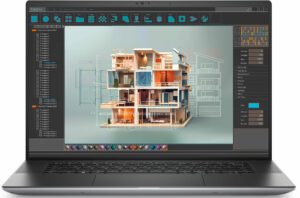
Opening the Dell Precision 5690
Hint: Ensure the laptop is completely powered off and unplugged before starting.
- Undo the eight Torx-head screws on the bottom panel of the laptop.
- Since there are no gaps between the plate and the base, you’ll need to create some. Insert a lever tool into the rear exhaust near the top edges.
- Gently lift the tool to open a gap in the nearest corner and insert a thin plastic tool into the gap.
- Place another plastic tool horizontally along the side between the panel and the chassis.
- Push and slide the tool to release the stiff internal clips along the sides and front.
- Once the sides and front are loosened, use a lever tool to carefully pop the back panel step by step.
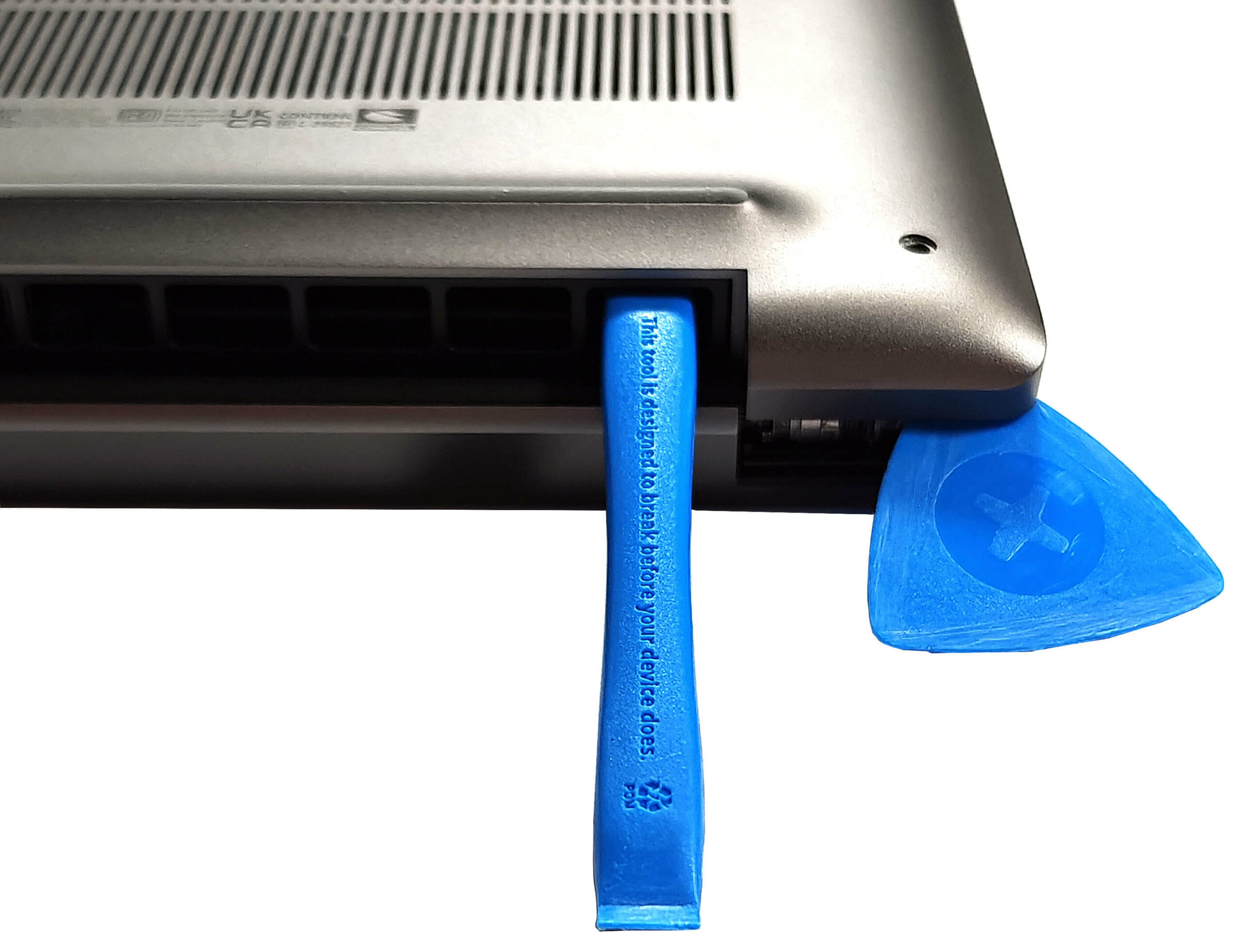

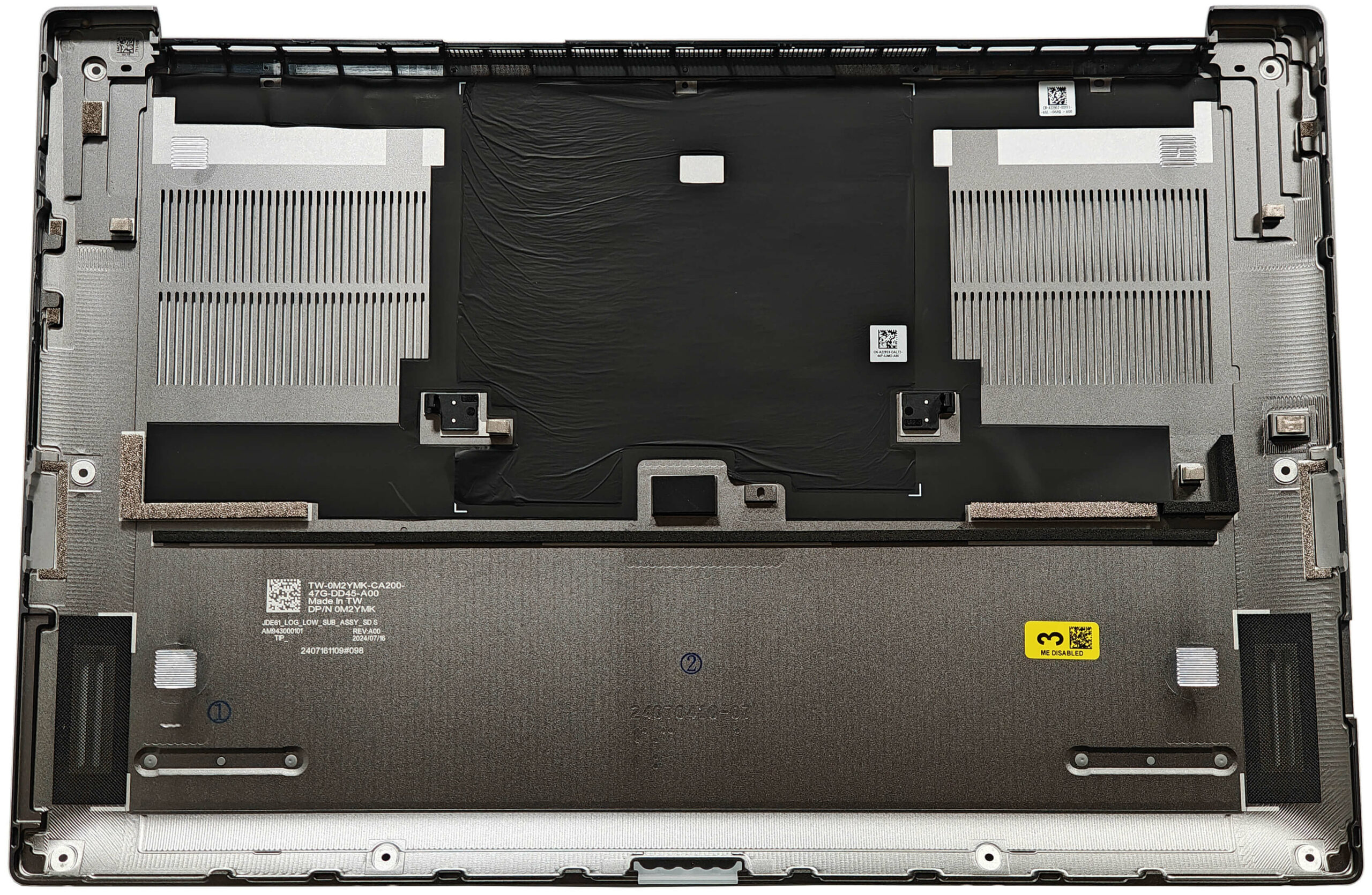
More info: The bottom plate is tightly secured, so patience is required to avoid damaging the clips or the chassis.
Battery Removal
Caution: Handle the battery carefully to avoid damage or electrical hazards.
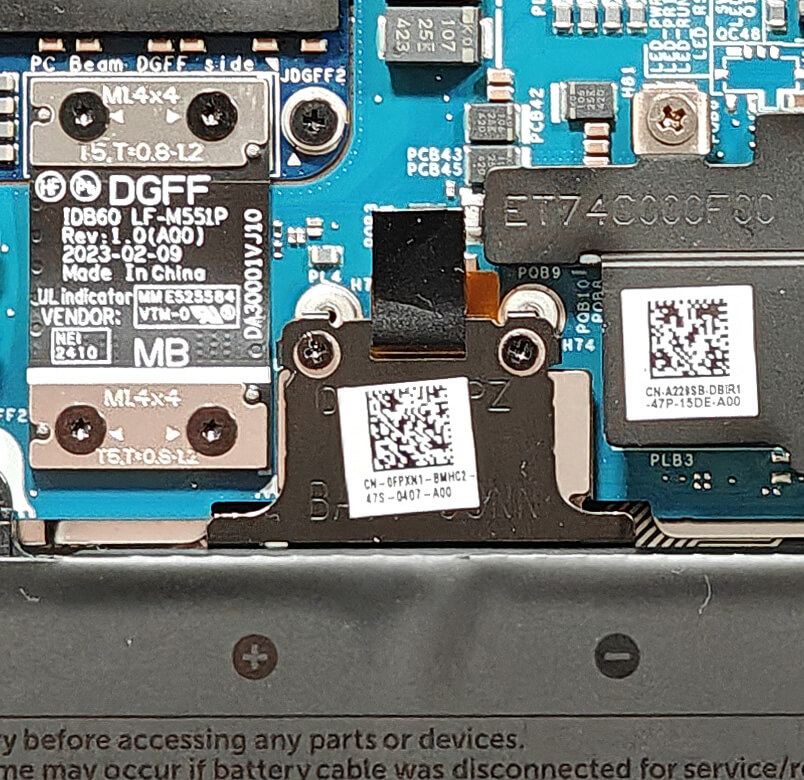
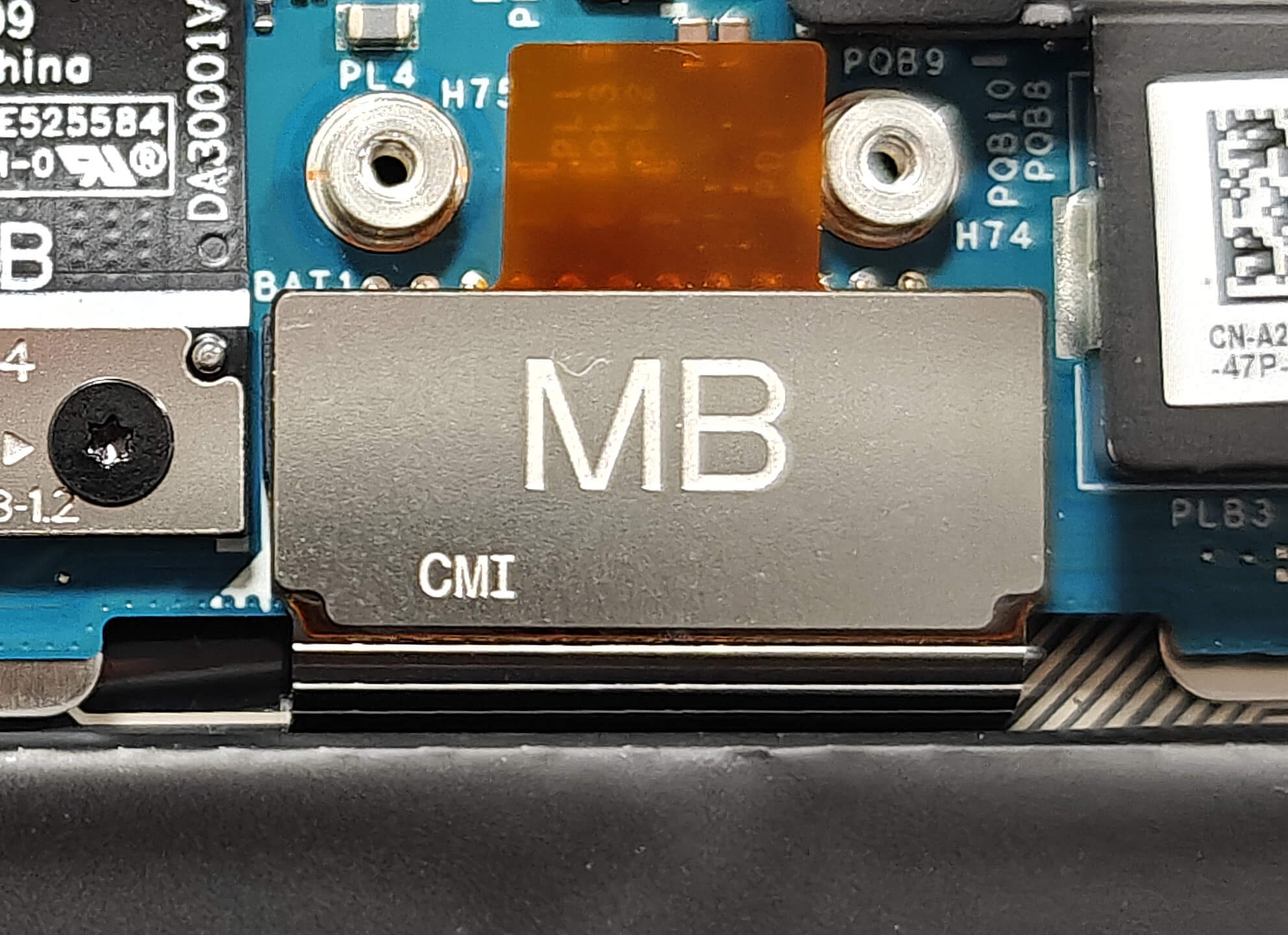
- The battery connector is hidden beneath a small plate secured by two small captive screws. Undo these screws to access the connector.
- Detach the battery connector by pulling it upwards, using the plastic handle on top.
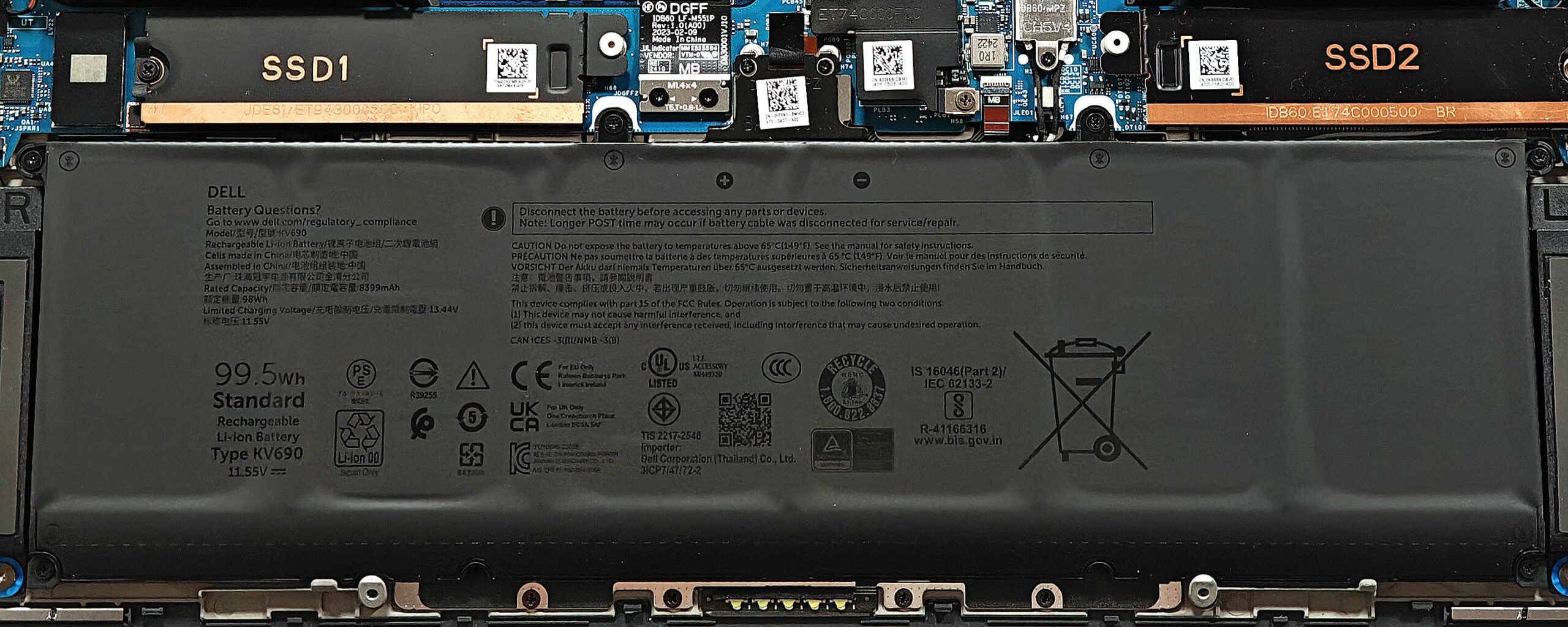
- Undo the six Phillips-head screws holding the battery in place.
- Carefully lift and remove the battery from the chassis.
More info: The 99.5Wh battery provides approximately 13 hours of video playback; the base version comes with a 66Wh battery.
You can find compatible batteries here: Buy from Amazon.com (#CommissionsEarned)
Memory Upgrade
Note: The memory (RAM) is soldered onto the motherboard and is not user-upgradeable.
More info: The laptop can be configured with up to 64GB of LPDDR5x-7467 MHz RAM in dual-channel mode when purchased. Since the RAM is soldered, consider your future memory needs when selecting a configuration.
Storage Upgrade
Hint: Handle SSD components carefully to avoid data loss or damage.
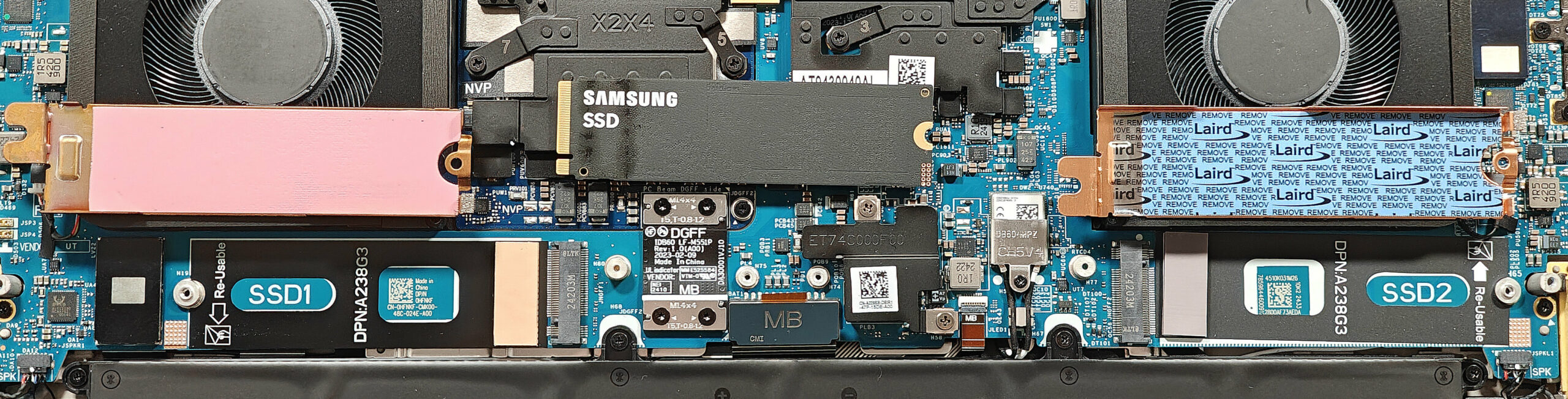
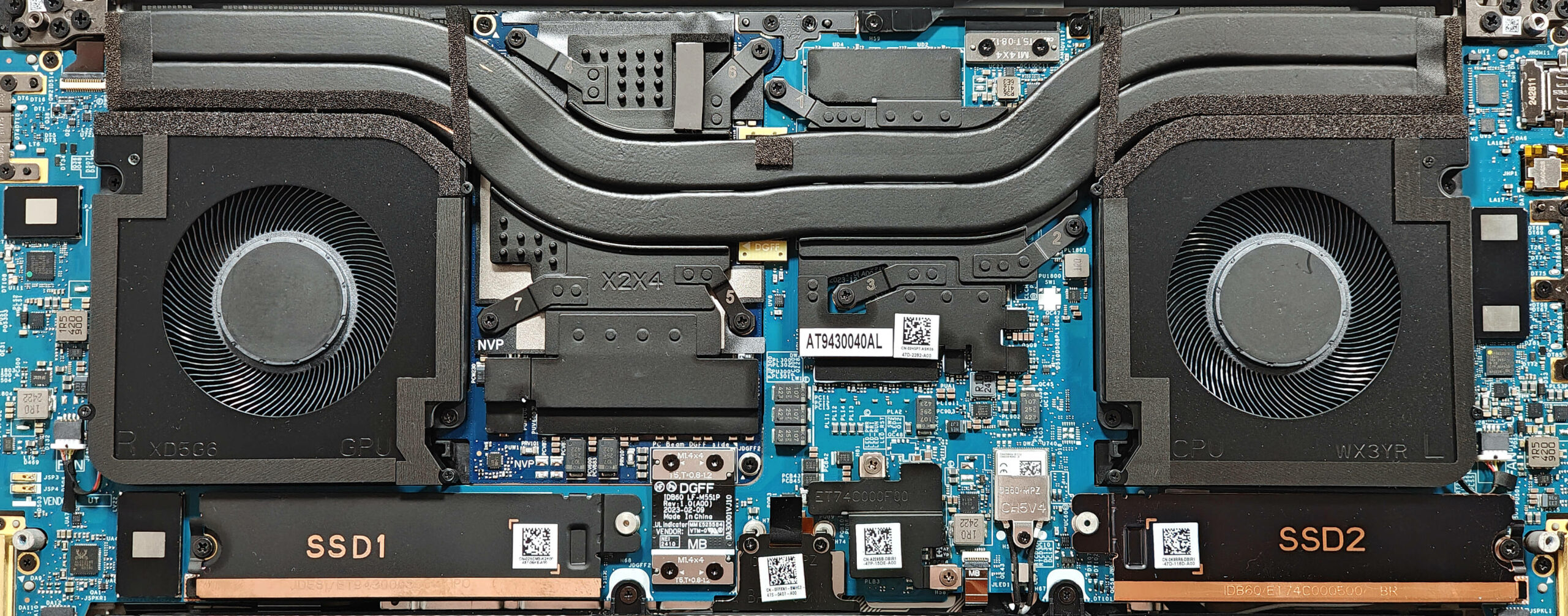
- Locate the two M.2 slots compatible with 2230 or 2280 Gen 4 SSDs.
- Each slot is covered with a metal plate secured by a single screw. Undo the screw to remove the plate.
- Slide the metal shield to the left or right, depending on the slot’s position.
- Note the long cooling pad inside the metal cap and the small pre-applied thermal pad in front of the slots.
- Insert your new M.2 SSD into the slot at an angle, ensuring it’s fully seated.
- Secure the SSD with the screw and replace the metal shield, ensuring the thermal pads make good contact for cooling.
More info: The thermal pads aid in heat dissipation, enhancing the performance and longevity of the SSDs.
You can find compatible SSDs here: Buy from Amazon.com (#CommissionsEarned)

Wi-Fi Card
More Info: The soldered Wi-Fi 7 card is close to the right fan.

Cooling System Overview
More info: The cooling system of the Dell Precision 5690 is robust, designed to handle demanding workloads.
- The system includes two sizable fans for efficient airflow.
- Two long, thick heat pipes are shared between the CPU and GPU for effective heat transfer.
- There are two heatsinks and two metal plates that assist in dissipating heat away from critical components.
- Inspect the fans and heat pipes for dust accumulation and clean if necessary to maintain optimal cooling performance.
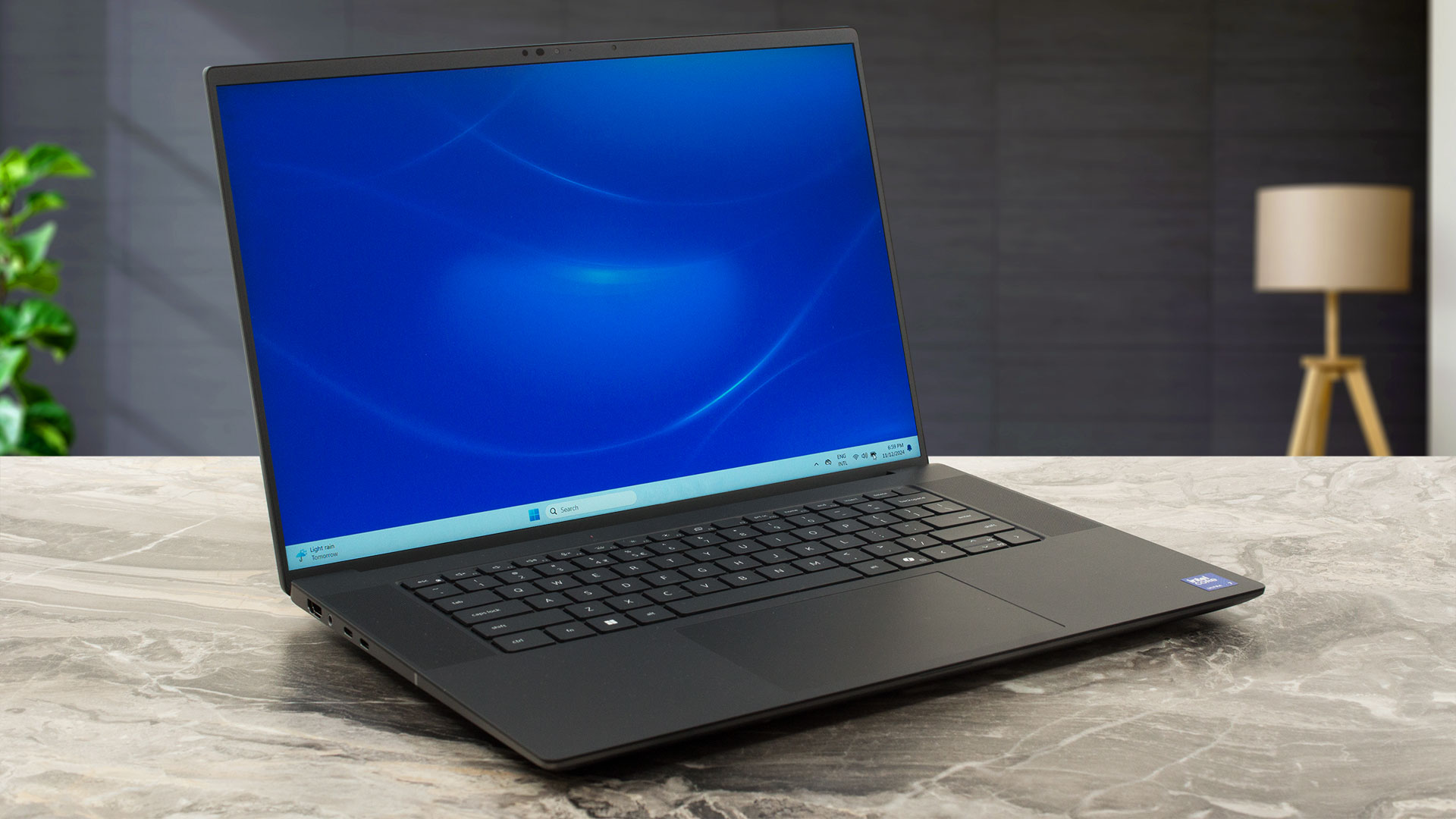
Dell Precision 16 5690 in-depth review
For users who need a capable workstation for serious work, Dell offers the Precision 5690. The manufacturer mentions that the device is "Dell's smallest footprint 16" mobile workstation". It's not as thin as a premium office machine but this laptop is compact for such a powerhouse. Speaking of which, you can choose from four Meteor Lake CPUs and five NVIDIA RTX Ada Generation GPUs. The maxed-out configurations rely on a 45W Core Ultra 9 185H and a 16GB RTX 5000 Ada Generation at the price of an arm and a leg. The memory is soldered - yep, SODIMMs take more space. Still, the storage upgradabili[...]
Pros
- Compact and light for a 16-inch workstation (2.03 kg / 20.50 - 22.17 mm)
- Built like a tank
- Superb keyboard and touchpad
- PWM-free (AUO31A6)
- 100% sRGB and 98% DCI-P3 coverage + accurate color with our "Design and Gaming" profile (AUO31A6)
- Wide viewing angles and a high max brightness of 506 nits (AUO31A6)
- 3x Type-C ports
- Very long battery life given the powerful hardware (more than 13 hours of videos)
- HDR 1080p IR Web camera
- Fingerprint reader
- NFC, Smart card reader, SD card reader (all are optional)
- The CPU can maintain ~3.06 GHz / 2.50 GHz P and E core clock in long loads
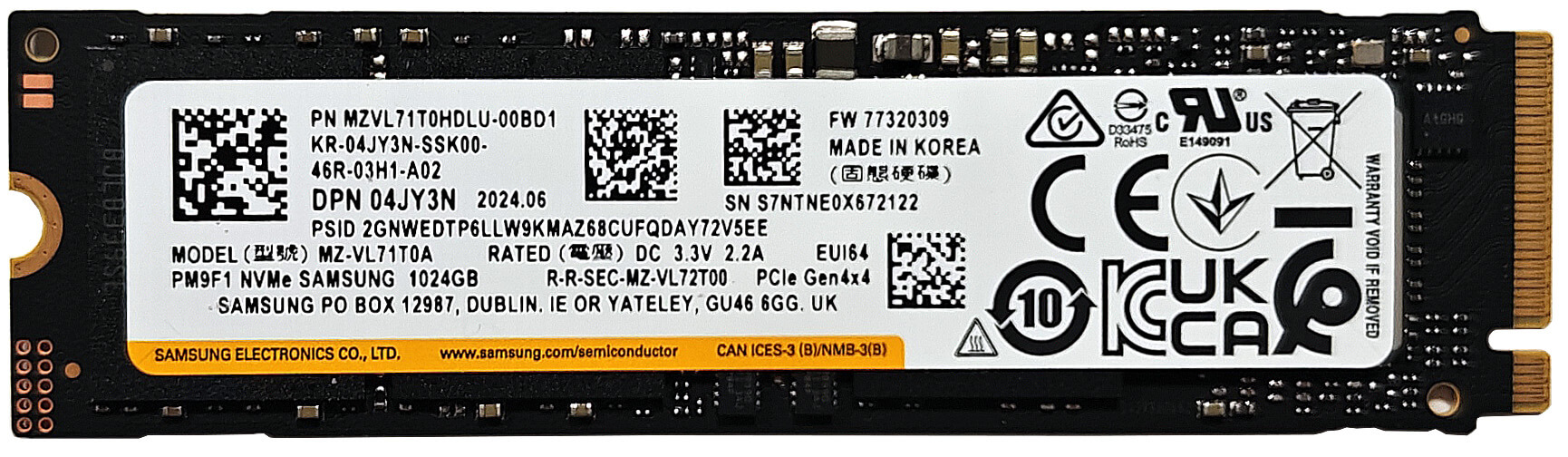
- Fast and well-cooled SSD (Samsung PM9F)
- Up to 64GB of LPDDR5x-7467 MHz RAM in dual-channel mode
- The NVIDIA RTX 2000 Ada Generation sustains ~ 90W
- 2x M.2 slots
- The fans are almost quiet during heavy loads in "Ultra Performance" mode
- Wi-Fi 7 + Bluetooth 5.4
Cons
- Soldered memory
- High price
- No Type-A ports
- 91°C CPU temperature in medium loads
 Author: Dimitar Stalev

![[August 2026] Amazon Italy: Top 10 Best-Selling Laptops – Apple MacBook Neo Claims the Crown as Budget and Mid-Range Windows Machines Dominate Volume](https://laptopmedia.com/wp-content/uploads/2026/09/Best-Selling-Laptops-IT-Top-10-400x225.jpg)
![[August 2026] Amazon Italy: Top 7 Best-Selling Gaming Laptops – ASUS V16 Claims the #1 Spot Amid Strong Mid-Range Demand](https://laptopmedia.com/wp-content/uploads/2026/09/Best-Selling-Gaming-Laptops-IT-Top-10-400x225.jpg)
![[August 2026] Best-Selling Laptop Brands on Amazon Italy – Lenovo Dominates Market Share and Revenue Leadership](https://laptopmedia.com/wp-content/uploads/2026/09/IT-Best-Brands-400x225.jpg)
![[August 2026] Amazon India: Top 10 Best-Selling Laptops – Apple MacBook Neo Dominates the Charts with Massive Sales Lead](https://laptopmedia.com/wp-content/uploads/2026/09/Best-Selling-Laptops-IN-Top-10-400x225.jpg)
![[August 2026] Amazon India: Top 10 Best-Selling Gaming Laptops – HP Victus 15 Dominates the Market with Massive Unit Lead](https://laptopmedia.com/wp-content/uploads/2026/09/Best-Selling-Gaming-Laptops-IN-Top-10-400x225.jpg)
