How to open Dell Pro 14 (PC14250) – disassembly and upgrade options
Opening the device
Hint: The nine Phillips-head screws are captive, so they won’t fall out when loosened.
- Unscrew all nine Phillips-head captive screws from the bottom panel.
- Use a plastic pick to gently pry along the edges of the panel.
- Lift the panel off to reveal the internals.
Battery removal
Caution: Always disconnect the battery before servicing or upgrading components.
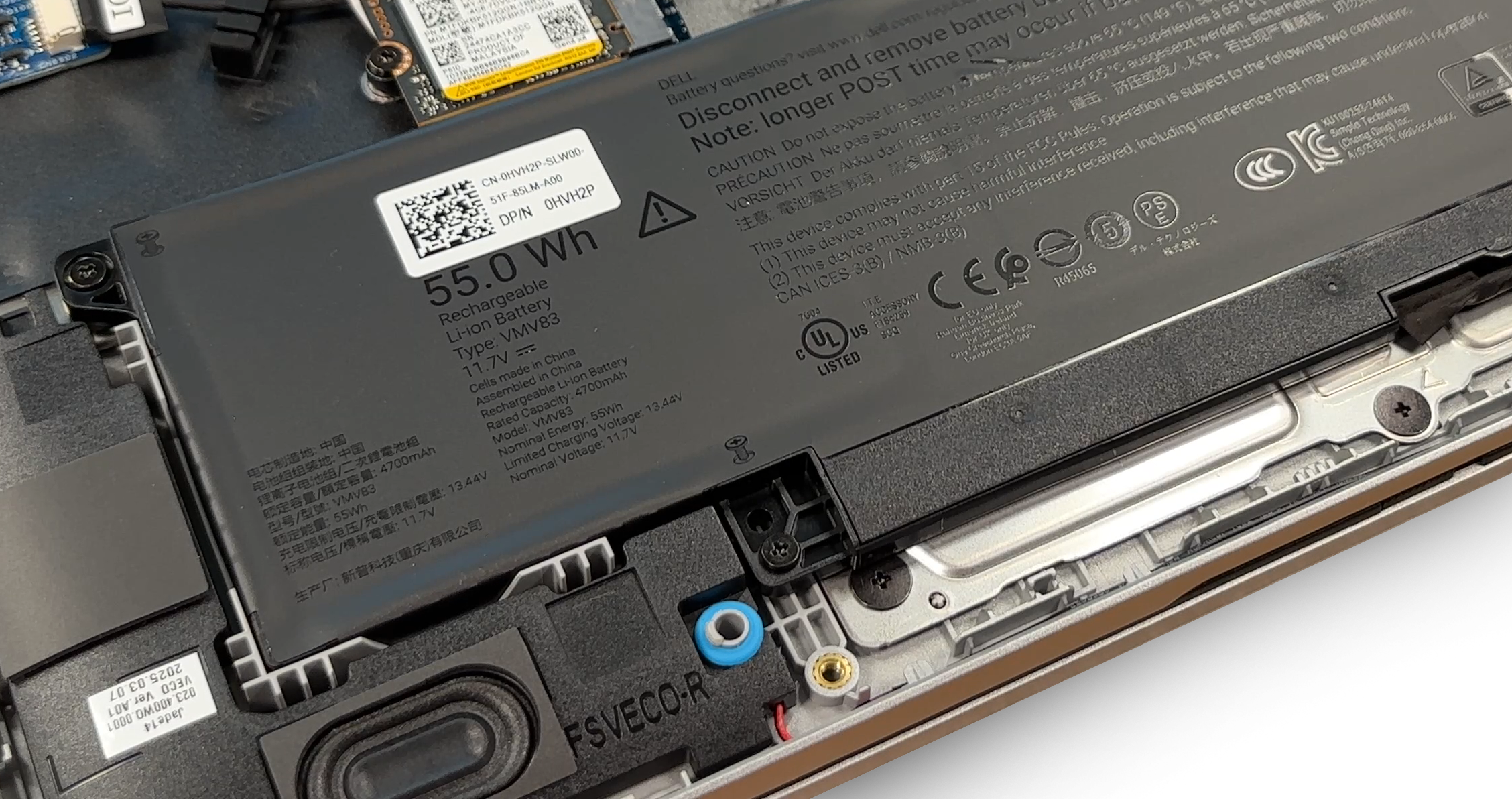
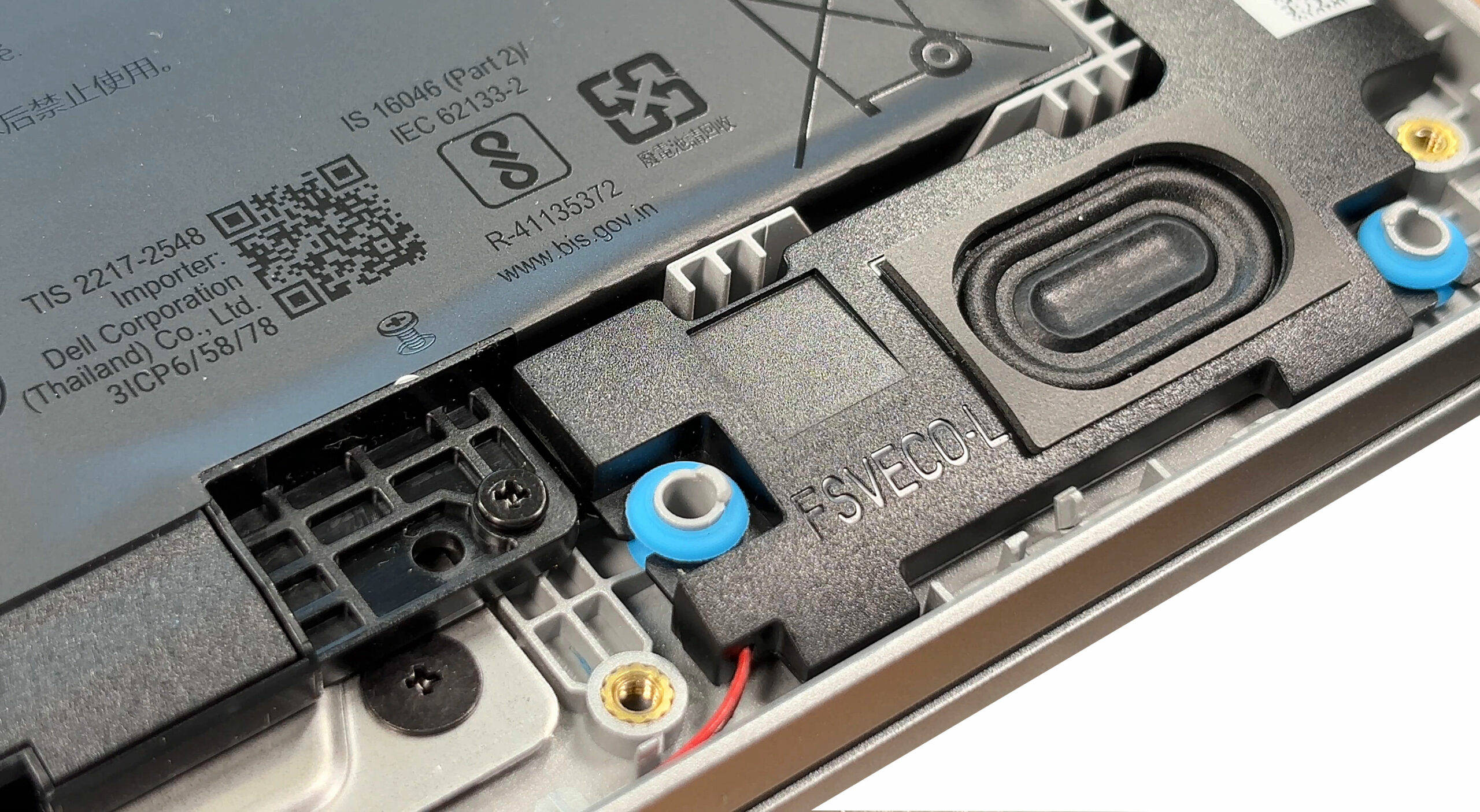
- Locate the 55 Wh battery pack secured by five captive screws.
- Loosen the screws and carefully disconnect the battery cable from the motherboard.
- Lift the battery out of its compartment.
More info: A smaller 45 Wh option is used in some lower-priced models—check your configuration before ordering a replacement.
Memory upgrade
Hint: For best performance, install two identical modules to enable dual-channel mode.
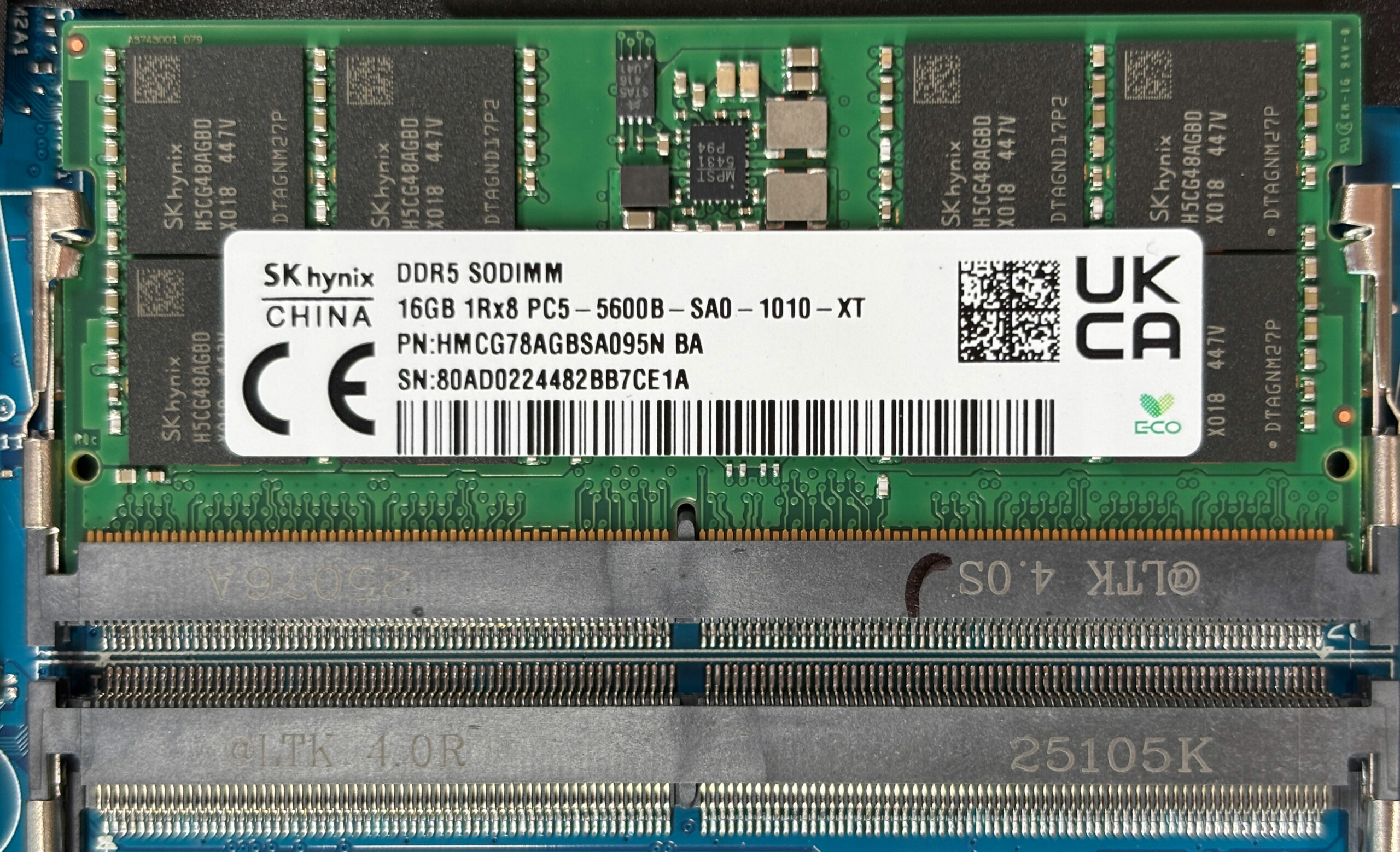
- Locate the two DDR5 SO-DIMM slots under the thin protective film.
- Release the side clips to remove any existing module.
- Insert the new RAM module at an angle, then press down until it clicks.
More info:
• Supports up to DDR5-5600 with Core Ultra CPUs
• Supports DDR5-5200 with regular CPUs
You can buy compatible RAM modules here: Buy from Amazon.com (#CommissionsEarned)
Storage upgrade
Hint: Don’t forget to check out our Top M.2 SSDs Performance Rankings for insights on the best storage options available.
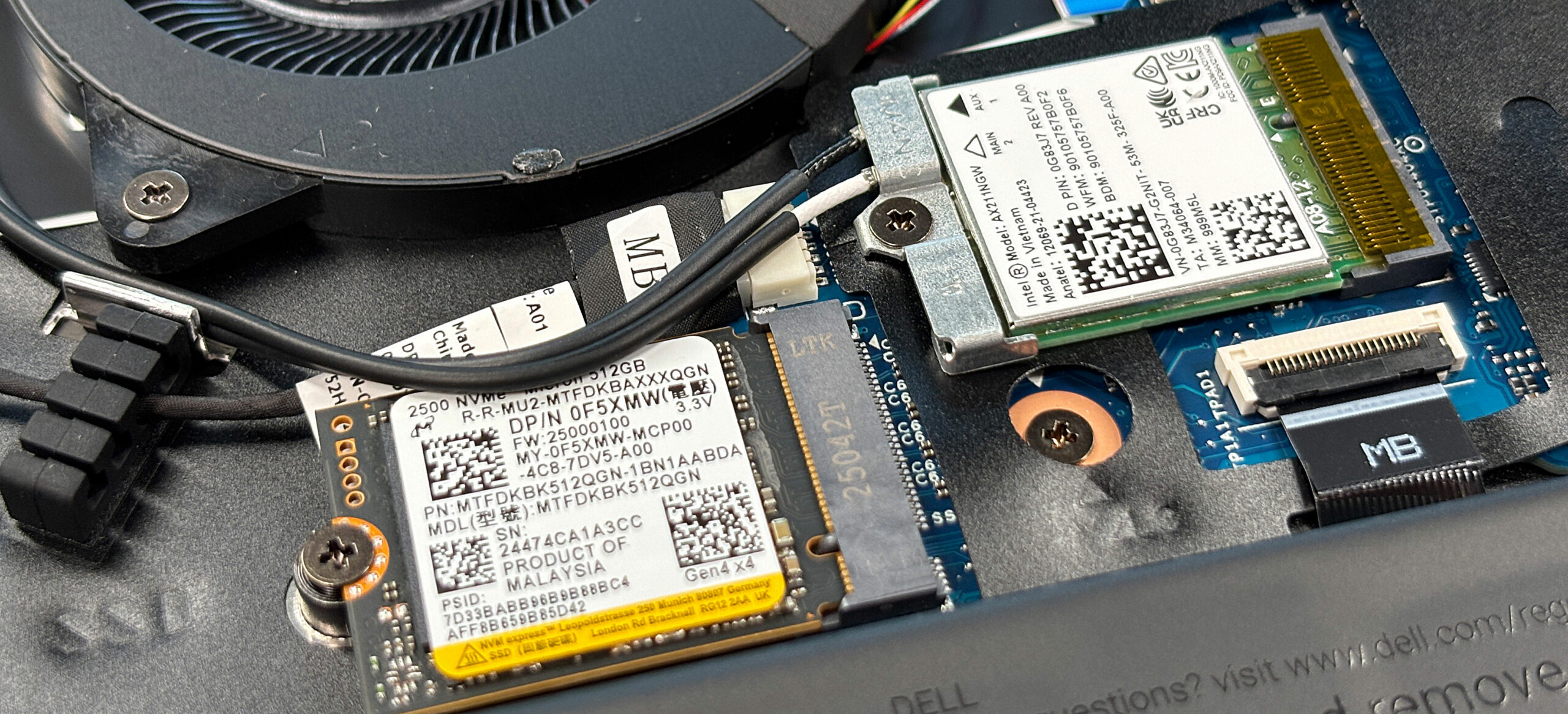
- Locate the single M.2 2230 PCIe Gen4 slot.
- Remove the retaining screw holding the current SSD.
- Insert the new SSD at a slight angle, then secure it with the screw.
More info: Only 2230-sized modules fit—2280 drives are not compatible.
You can buy compatible SSDs here: Buy from Amazon.com (#CommissionsEarned)
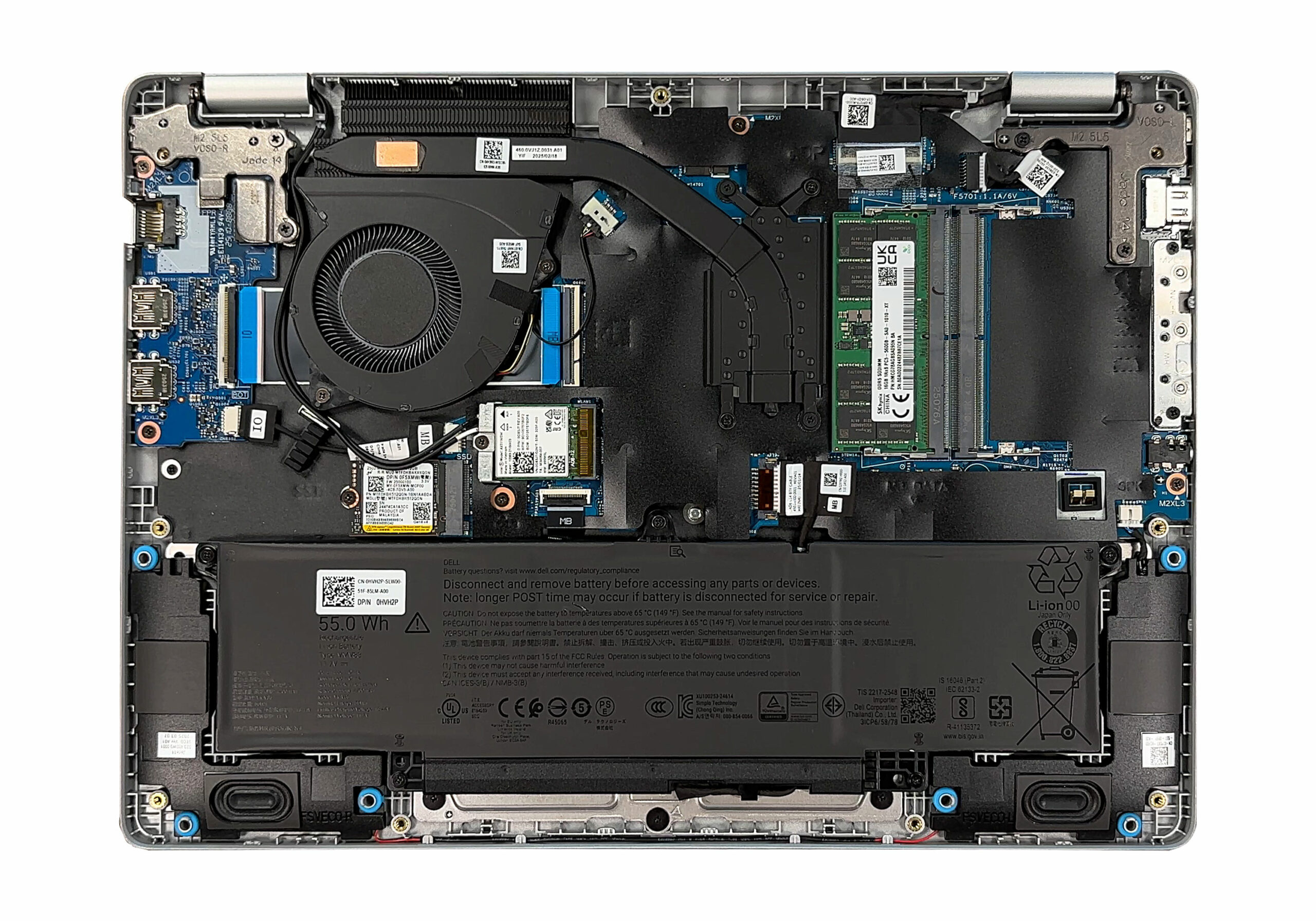
Cooling system overview
The cooling system consists of:
- A single fan pulling air from the bottom and expelling it through the rear vent.
- Two heat pipes carrying heat from the CPU and GPU.
- A dense fin stack located at the rear.
Hint: Avoid blocking the rear exhaust when using the laptop on soft surfaces.
More info: The Intel AX211 Wi-Fi 6E card, stereo speakers, and the cooling assembly are all modular and replaceable. Reinforced hinge brackets ensure durability of the display mechanism.
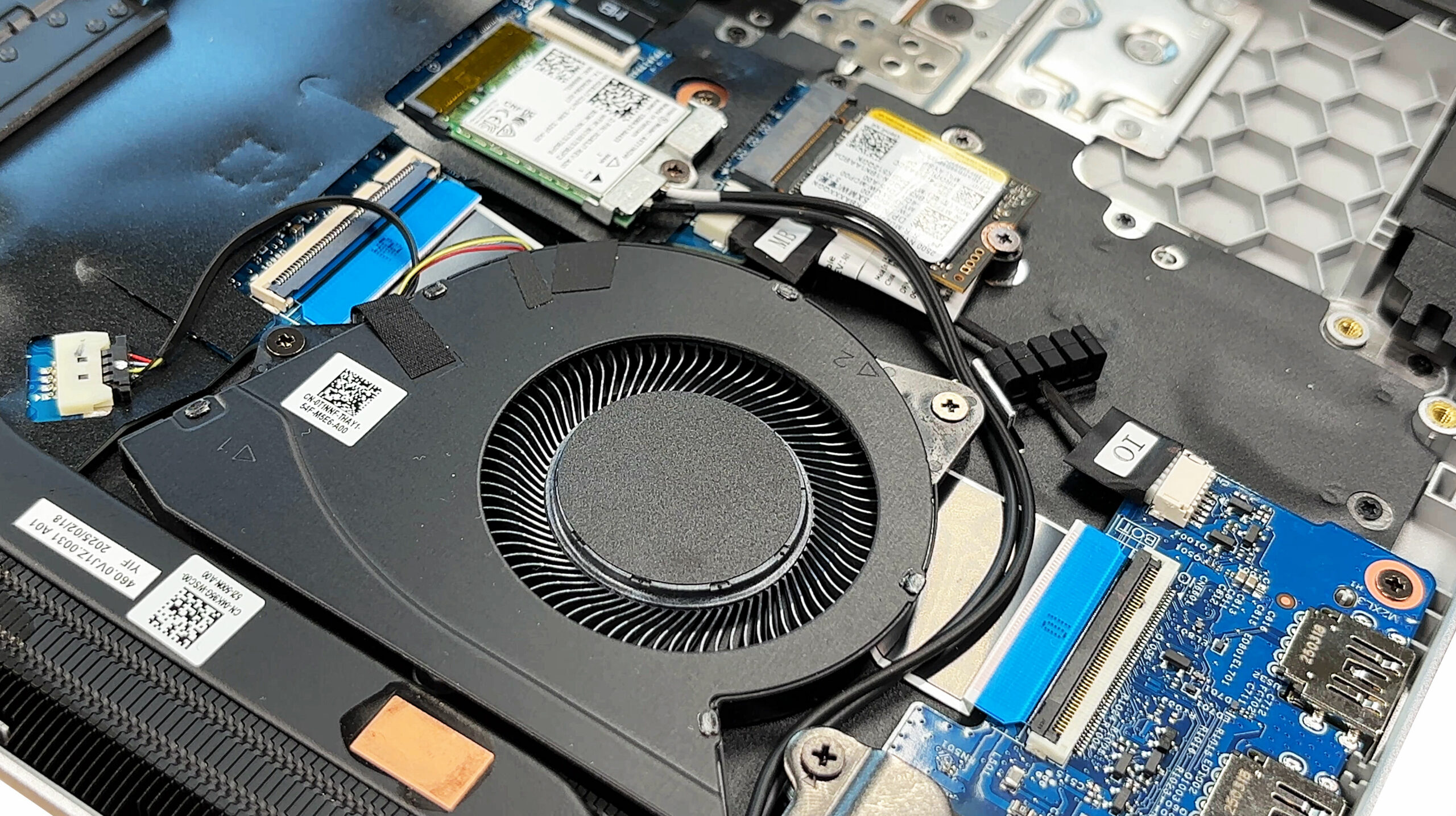
Overall, the Pro 14 offers above‑average serviceability – once the captive screws are out, every key component is right there for cleaning or upgrades. A minor disappointment is the small-sized SSD – 2280 drives don’t fit.
Dell Pro 14 (PC14250) in-depth review
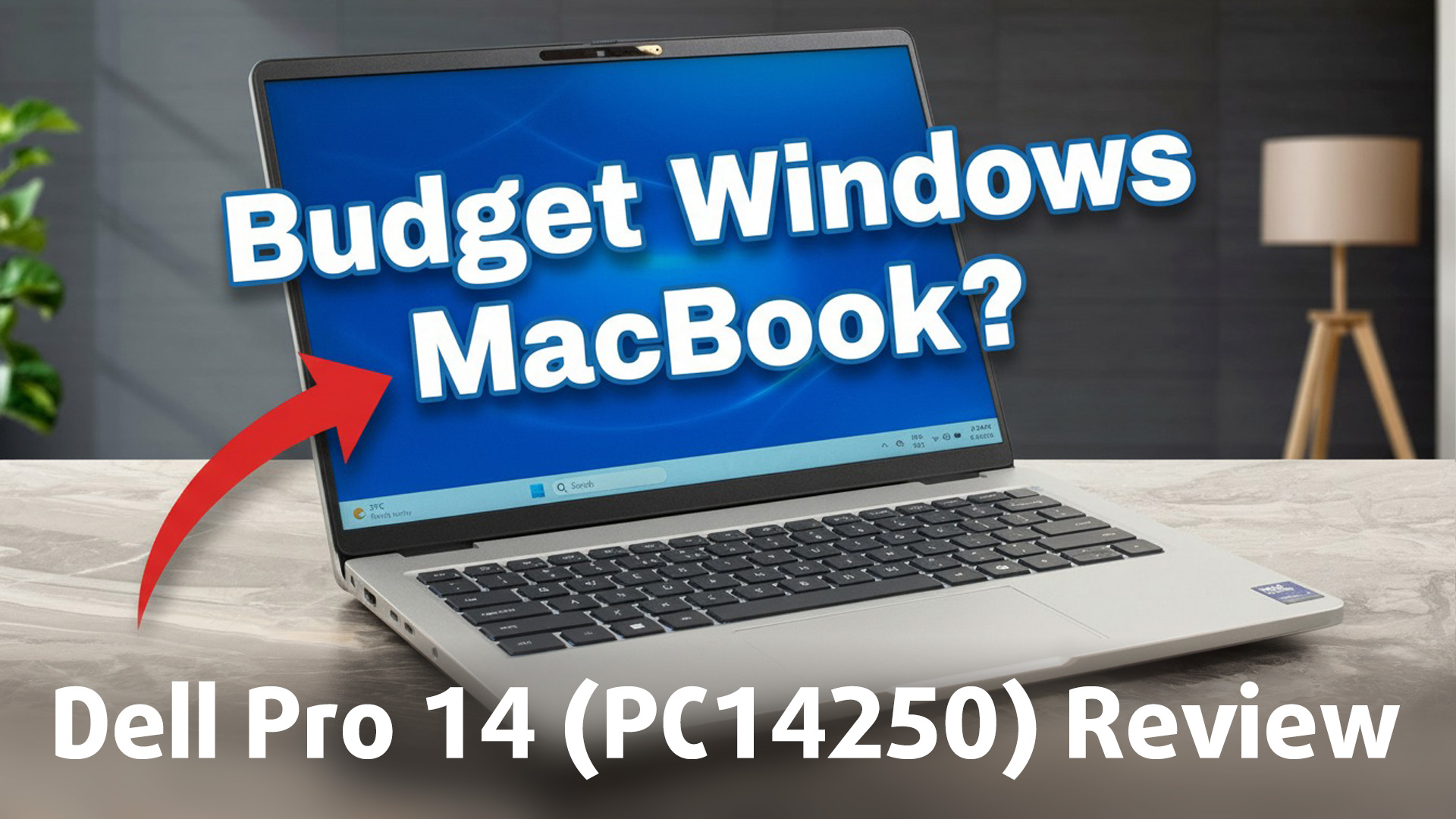
The Dell Pro 14 (PC14250) arrives as the successor to the workhorse Latitude 3450, but with a design that, at first glance, looks a lot like a MacBook Pro. However, this premium aesthetic is a clever disguise. As part of Dell's base "C" line (indicated by the second letter in its model number), this is a machine built for practicality first. It packs a fantastic suite of business-ready ports and user-serviceable RAM into a portable 14-inch chassis.But this functional core is paired with some significant compromises, including a hot-running processor and a truly disappointing base-model[...]
Pros
- Good RAM upgradeability with two SODIMM slots
- Great port selection for business, including Thunderbolt 4 and Ethernet
- PWM-free display is exceptionally comfortable for the eyes
- Good battery life for all-day use
- Physical privacy shutter and fingerprint reader for security
- Good serviceability for key components
Cons
- Base model display has very poor color coverage (51% sRGB)
- CPU runs extremely hot and throttles under load
- Storage is limited to a single, small M.2 2230 slot
 Author: Dimitar Stalev

![[August 2026] Amazon Italy: Top 10 Best-Selling Laptops – Apple MacBook Neo Claims the Crown as Budget and Mid-Range Windows Machines Dominate Volume](https://laptopmedia.com/wp-content/uploads/2026/09/Best-Selling-Laptops-IT-Top-10-400x225.jpg)
![[August 2026] Amazon Italy: Top 7 Best-Selling Gaming Laptops – ASUS V16 Claims the #1 Spot Amid Strong Mid-Range Demand](https://laptopmedia.com/wp-content/uploads/2026/09/Best-Selling-Gaming-Laptops-IT-Top-10-400x225.jpg)
![[August 2026] Best-Selling Laptop Brands on Amazon Italy – Lenovo Dominates Market Share and Revenue Leadership](https://laptopmedia.com/wp-content/uploads/2026/09/IT-Best-Brands-400x225.jpg)
![[August 2026] Amazon India: Top 10 Best-Selling Laptops – Apple MacBook Neo Dominates the Charts with Massive Sales Lead](https://laptopmedia.com/wp-content/uploads/2026/09/Best-Selling-Laptops-IN-Top-10-400x225.jpg)
![[August 2026] Amazon India: Top 10 Best-Selling Gaming Laptops – HP Victus 15 Dominates the Market with Massive Unit Lead](https://laptopmedia.com/wp-content/uploads/2026/09/Best-Selling-Gaming-Laptops-IN-Top-10-400x225.jpg)
