How to open Dell XPS 13 9350 (Core Ultra) – disassembly and upgrade options

Opening the Dell XPS 13 9350 (Core Ultra)
Hint: Use a Torx T5 screwdriver for the bottom screws and a plastic tool to prevent scratches.
- Remove the six Torx T5 screws from the bottom cover.
- Use a plastic tool to release the clips along the edges.
- Lift the aluminum bottom panel away to expose the internals.
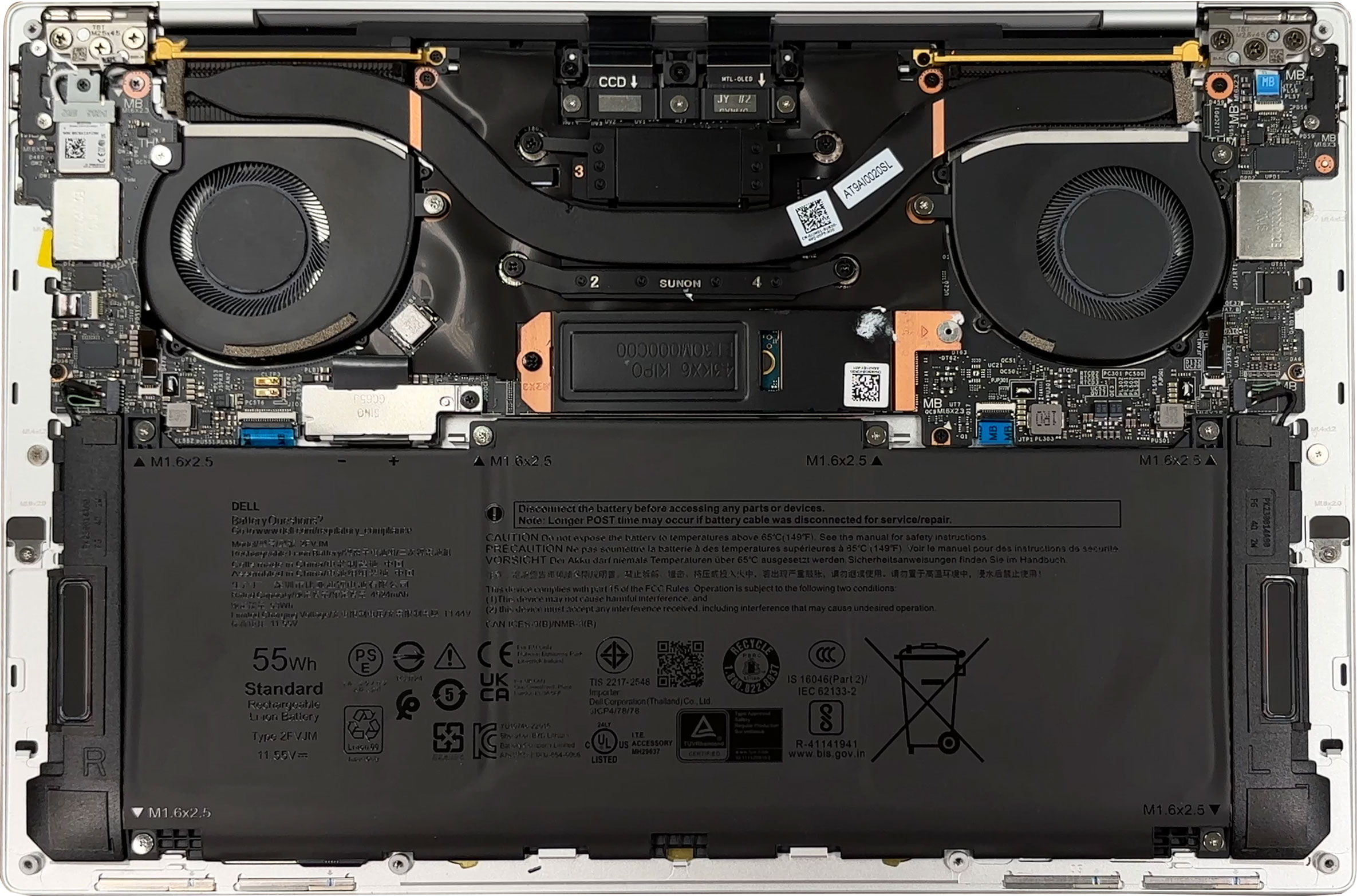
Battery removal
Caution: Always disconnect the battery before performing upgrades or cleaning.
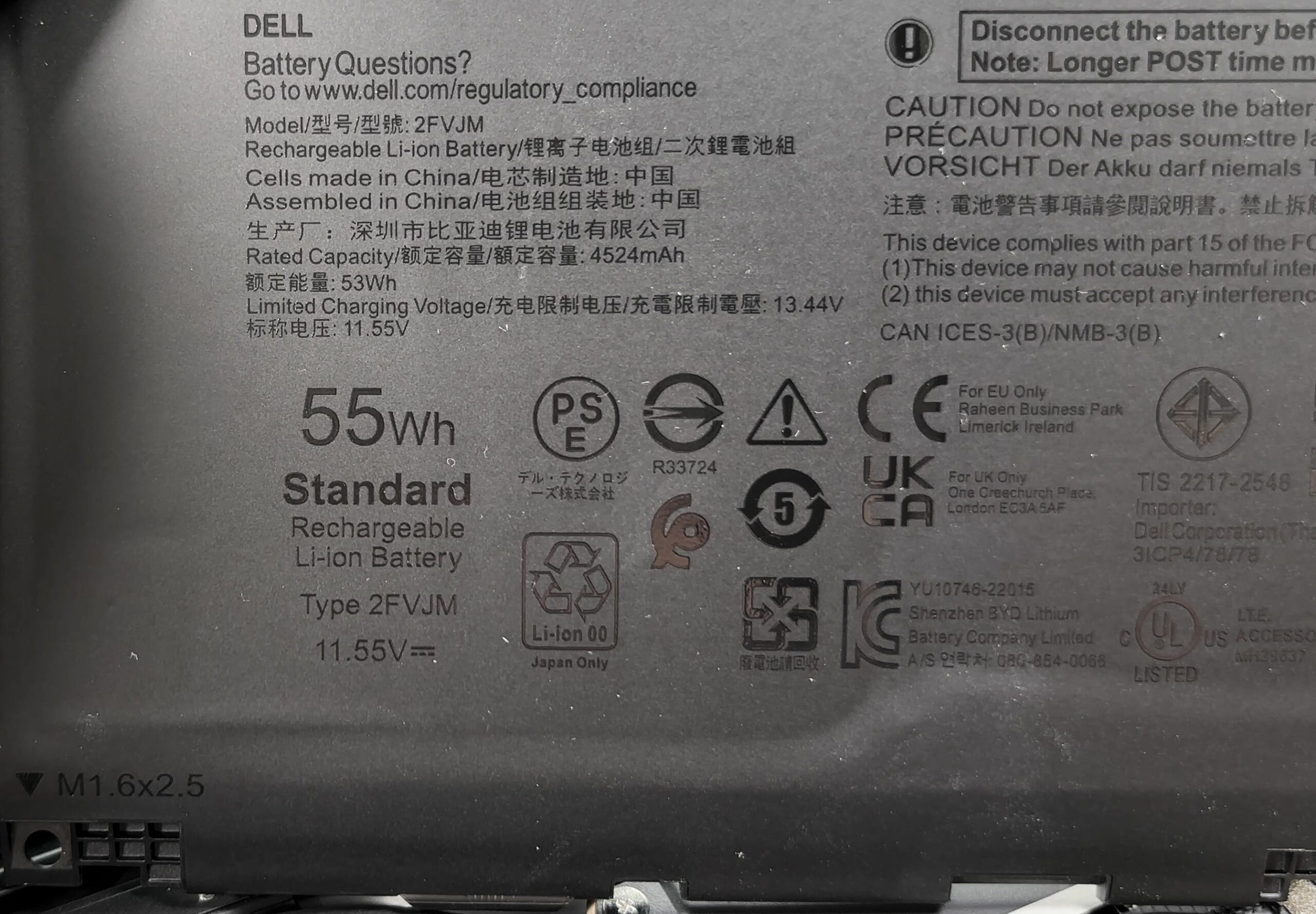
- Locate the 55 Wh three-cell lithium-ion battery.
- Remove the six Phillips screws securing the battery.
- Disconnect the battery cable by pulling it straight up from the connector.
- Lift the battery out of the chassis.
Memory upgrade
More info: Memory is soldered onto the motherboard. The XPS 13 9350 comes with either 16 GB or 32 GB of LPDDR5x memory running at 8533 MT/s. No SO-DIMM slots are available, so upgrades are not possible.
Storage upgrade
Hint: Don’t forget to check out our Top M.2 SSDs Performance Rankings for insights on the best storage options available.
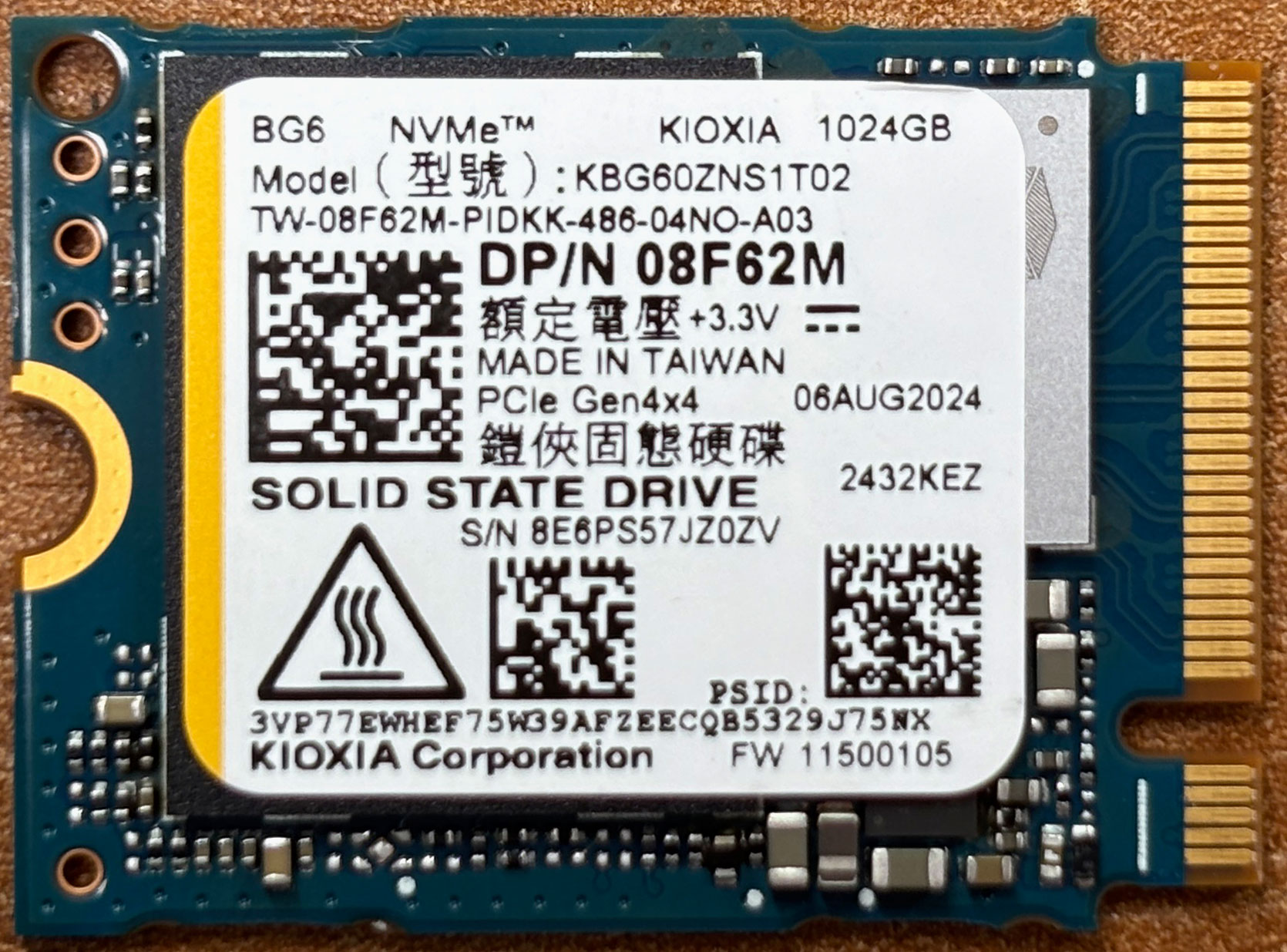
- Locate the single M.2 PCIe Gen4 x4 slot.
- Remove the screw holding the installed SSD.
- Insert the new SSD (2230 or 2280 length supported) at an angle.
- Secure it with the retention screw.
More info: The factory configuration includes a 2230-sized Kioxia BG6 drive, but the adjustable standoff allows installation of full-size 2280 drives.
You can buy compatible SSDs here: Buy from Amazon.com (#CommissionsEarned)
Cooling system overview
The cooling setup consists of:
- Two fans for balanced airflow.
- Twin flattened heat pipes spanning across the CPU.
- Slim fin stacks on both sides for exhaust.
- Thermal pads connecting VRMs and the SSD for additional heat dissipation.
More info: The wireless card (Intel BE201 with Wi-Fi 7 and Bluetooth 5.4) is socketed and replaceable. Both stereo speakers are also serviceable, each secured by two screws.
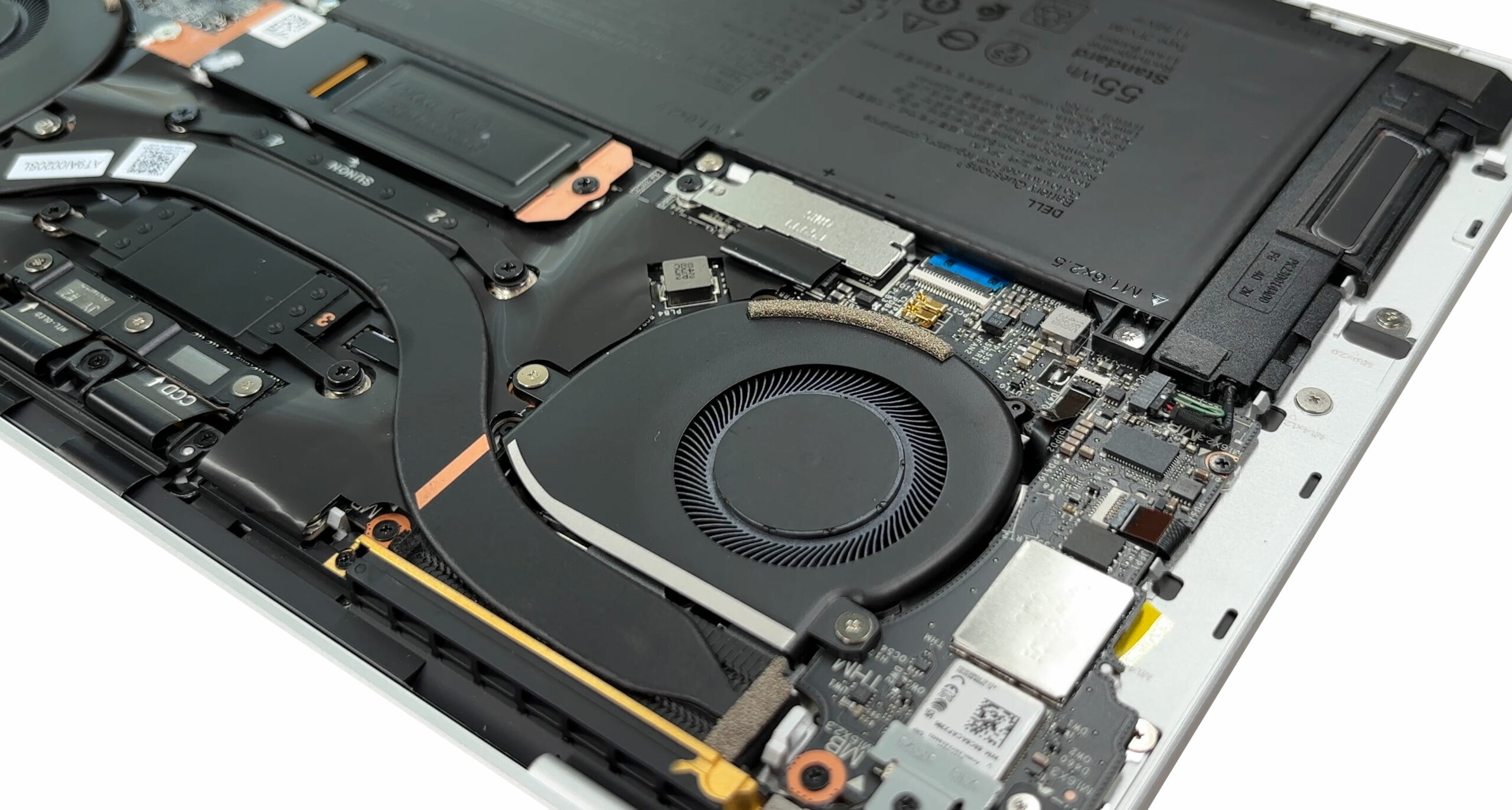
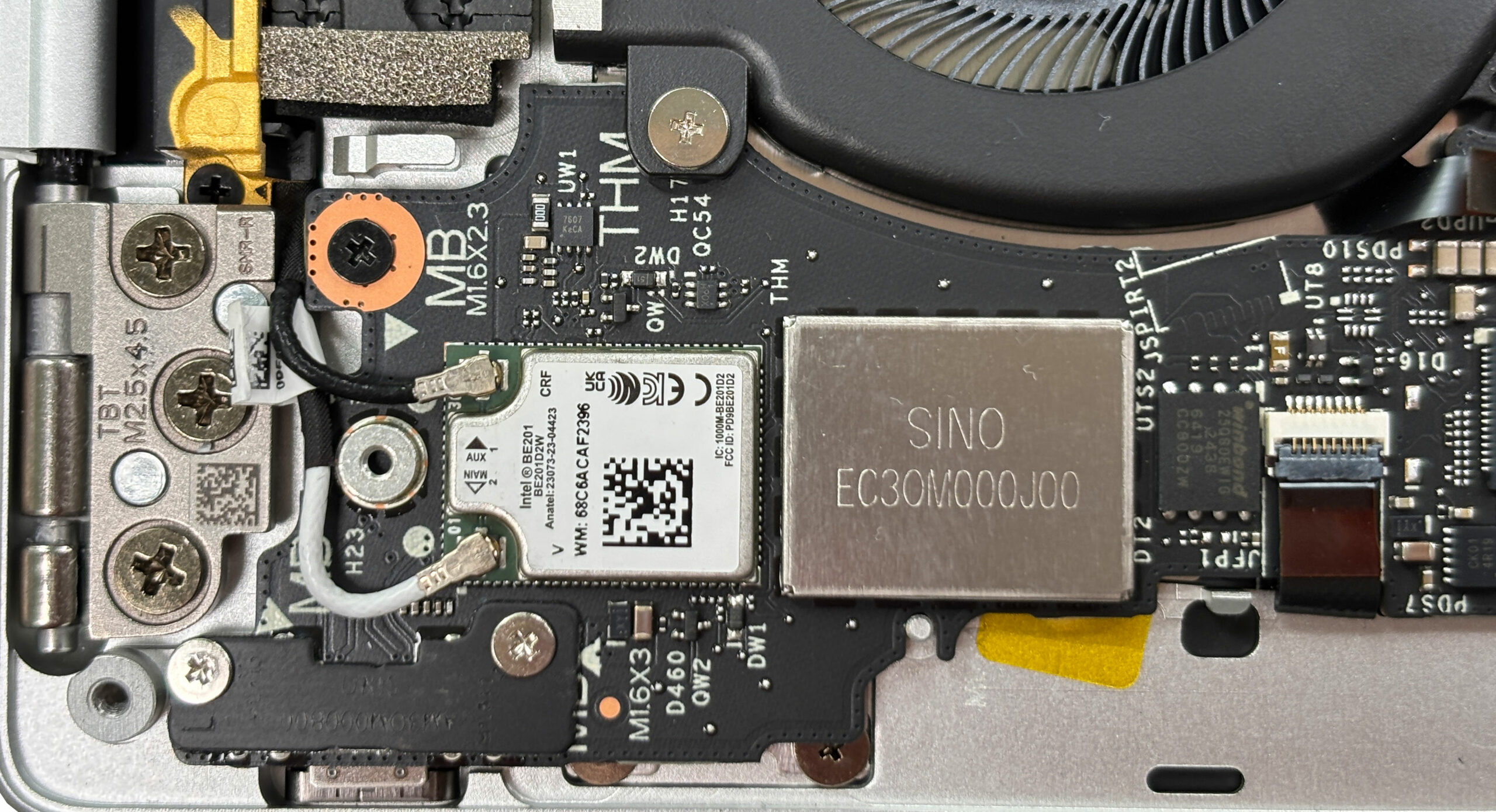
Overall, the XPS 13 9350 isn’t upgradable on the memory side, but storage, wireless, battery, and speakers are easy enough to swap, so routine maintenance scores above average for an ultra‑slim laptop.
Dell XPS 13 9350 (2024) in-depth review
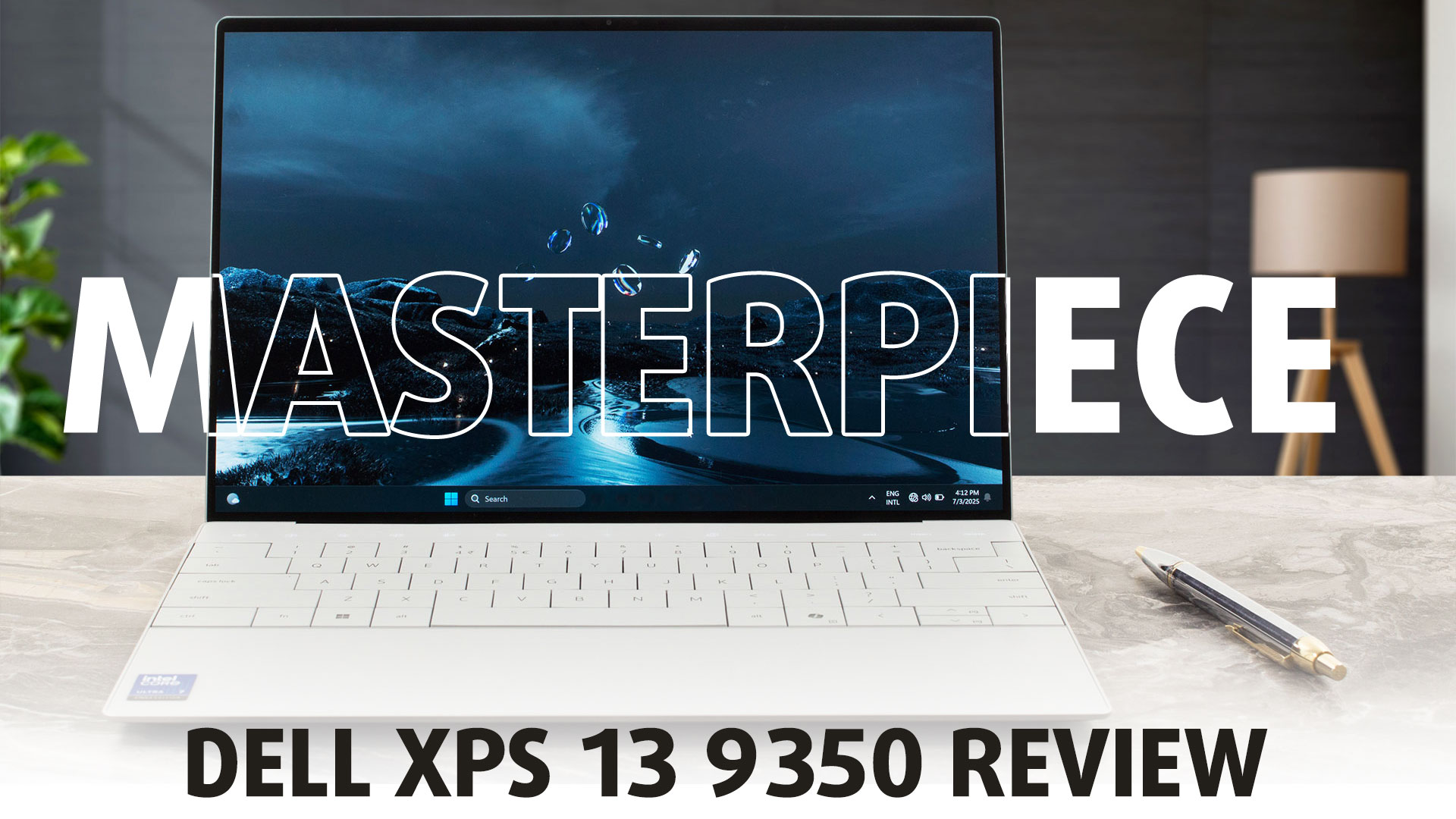
The Dell XPS 13 9350 is a bold declaration about the future of laptop design. It feels less like an iterative update and more like a concept car brought to life, with its seamless glass palm rest, invisible trackpad, and capacitive touch function row. It is, without a doubt, a stunning piece of industrial art, meticulously crafted to be as thin, light, and minimalist as possible. But this relentless pursuit of aesthetic perfection comes at a steep price, forcing major, user-hostile compromises in upgradeability and practicality. Is this a glimpse of a brilliant future, or a design experiment[...]
Pros
- Stunning and exquisitely crafted CNC aluminium design
- Gorgeous 2.8K OLED display with 100% DCI-P3 coverage
- Very good battery life for an ultrabook
- Extremely thin, light, and portable
- Future-proof connectivity with Wi-Fi 7 and Thunderbolt 4
- Comfortable keyboard and unique invisible haptic trackpad
Cons
- Soldered RAM with no upgrade options
- Extremely limited port selection (only two USB-C)
- CPU runs hot and throttles under load
- OLED display is only a 60Hz panel
 Author: Dimitar Stalev

![[June 2026] Best-Selling Laptop Brands on Amazon Global – Apple’s Unrivaled Dominance in Units and Revenue](https://laptopmedia.com/wp-content/uploads/2026/07/GLOBAL-Best-Brands-400x225.jpg)
![[June 2026] Amazon Global: Top 10 Best-Selling Laptops – Apple’s New MacBook Neo Storms to #1, Reshaping the Market with Affordability](https://laptopmedia.com/wp-content/uploads/2026/07/Best-Selling-Laptops-GLOBAL-Top-10-400x225.jpg)
![[June 2026] Amazon Global: Top 10 Best-Selling Gaming Laptops – Acer’s Nitro V 16S AI Dominates Sales, While ASUS Leads Overall Revenue](https://laptopmedia.com/wp-content/uploads/2026/07/Best-Selling-Gaming-Laptops-GLOBAL-Top-10-400x225.jpg)
![[June 2026] Global Ranking of Best-Selling Laptop GPUs on Amazon – NVIDIA RTX 5060 is the Top-Selling Dedicated GPU](https://laptopmedia.com/wp-content/uploads/2026/07/Best-Selling-GPUs-GLOBAL-Top-10-400x225.jpg)
![[June 2026] Global Ranking of Best-Selling Laptop CPUs on Amazon – Apple M5 Dominates, AMD Ryzen 7 260 Gets Solid Premium Share](https://laptopmedia.com/wp-content/uploads/2026/07/Best-Selling-CPUs-GLOBAL-Top-10-400x225.jpg)
