How to open HP OMEN 16 (16-xd0000) – disassembly and upgrade options
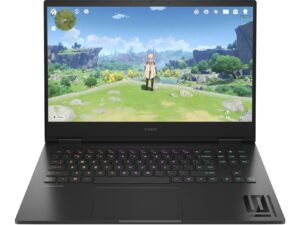
Opening the HP OMEN 16 (16-xd0000)
Hint: Ensure the laptop is powered off and unplugged before starting.
- Undo the eight Phillips-head screws securing the bottom panel of the laptop.
- Identify the slight gaps around the edges of the laptop, which serve as good starting points for disassembly.
- Use a thin plastic tool to begin prying the panel open, starting from either the front or back.
- Carefully pop the internal clips along the sides, which are not overly stiff, until the panel is fully released.
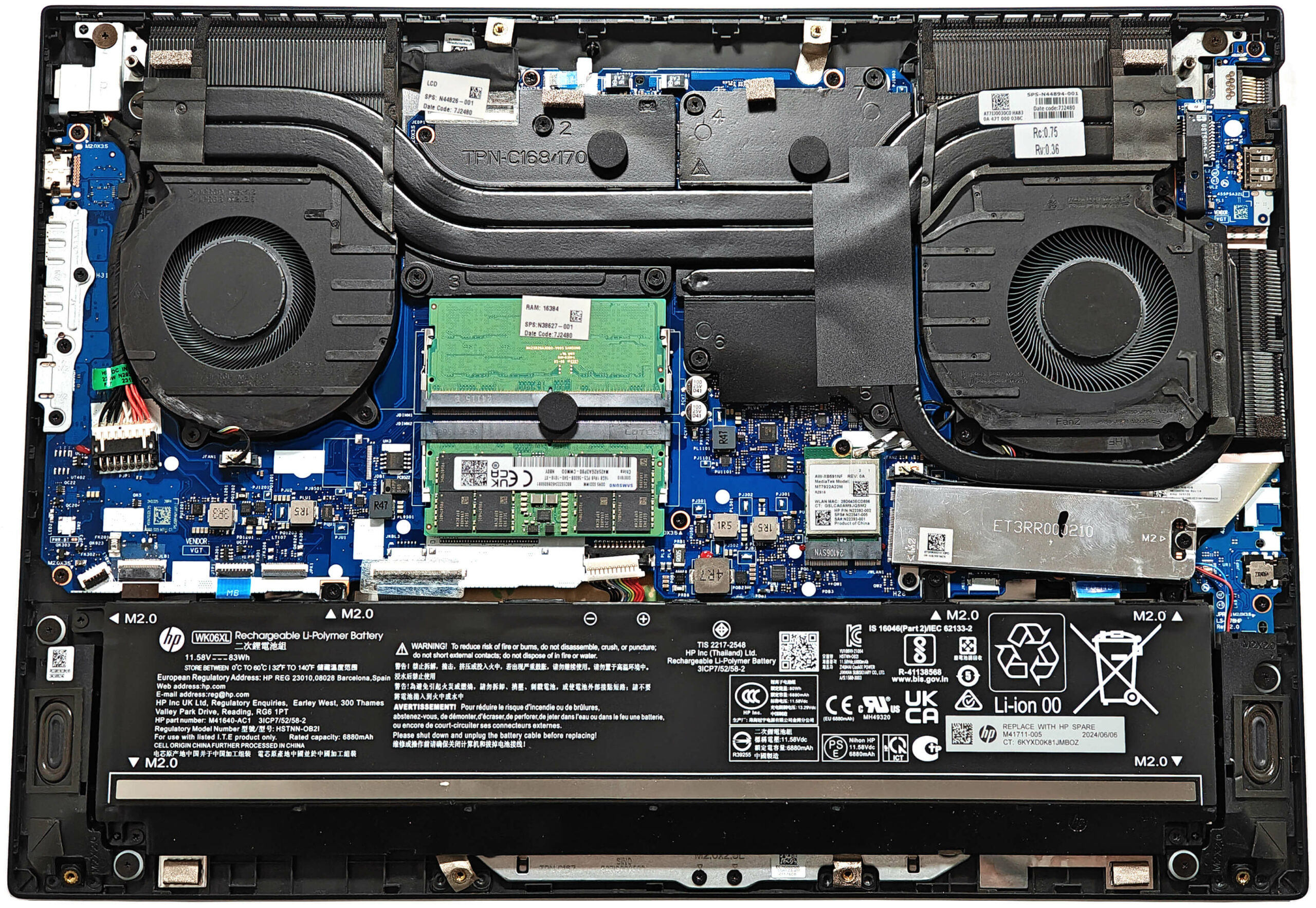
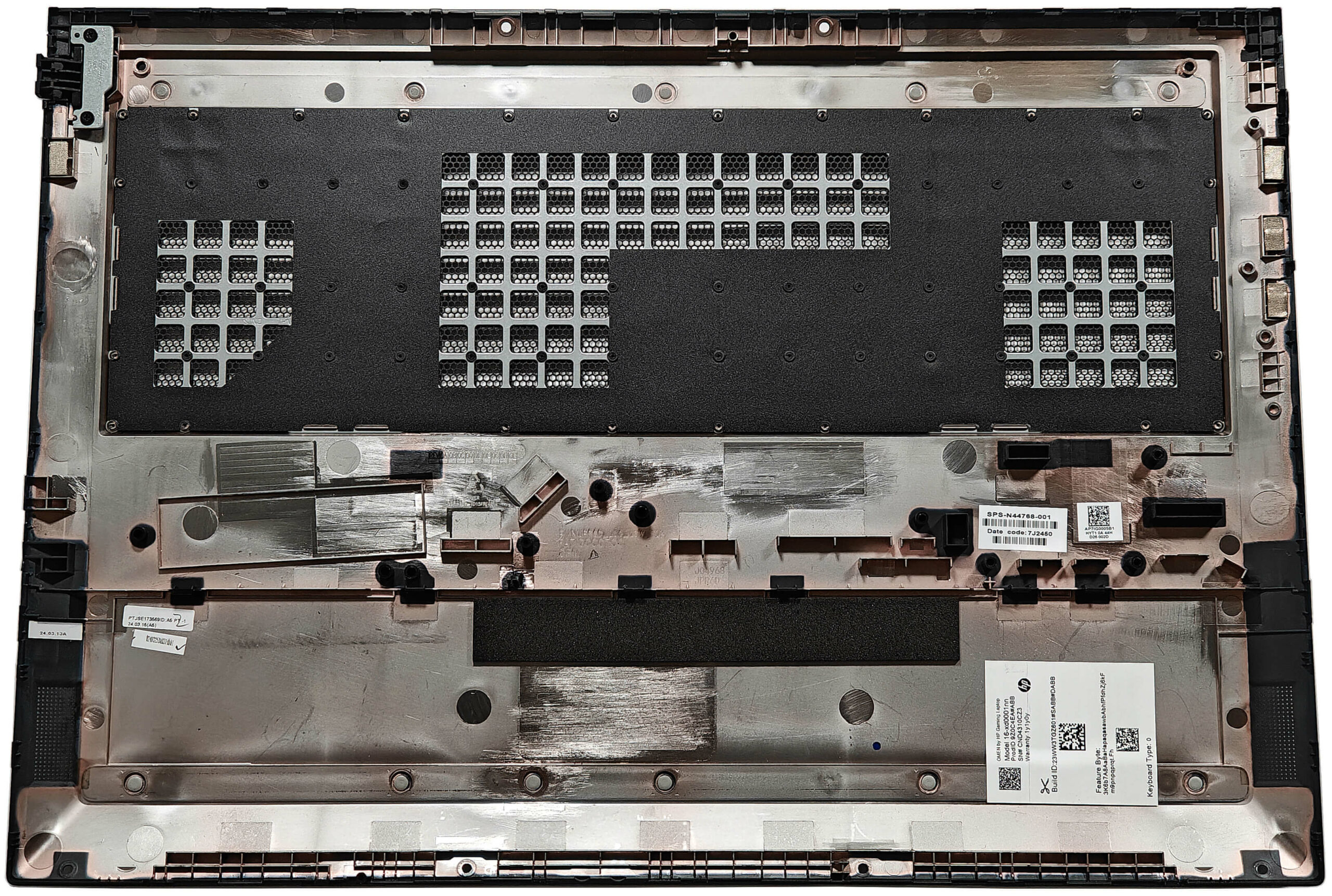
More info: The inside of the bottom plate reveals the internal components and cooling system layout.
Battery Removal
Caution: Handle the battery carefully to avoid damage or electrical hazards.
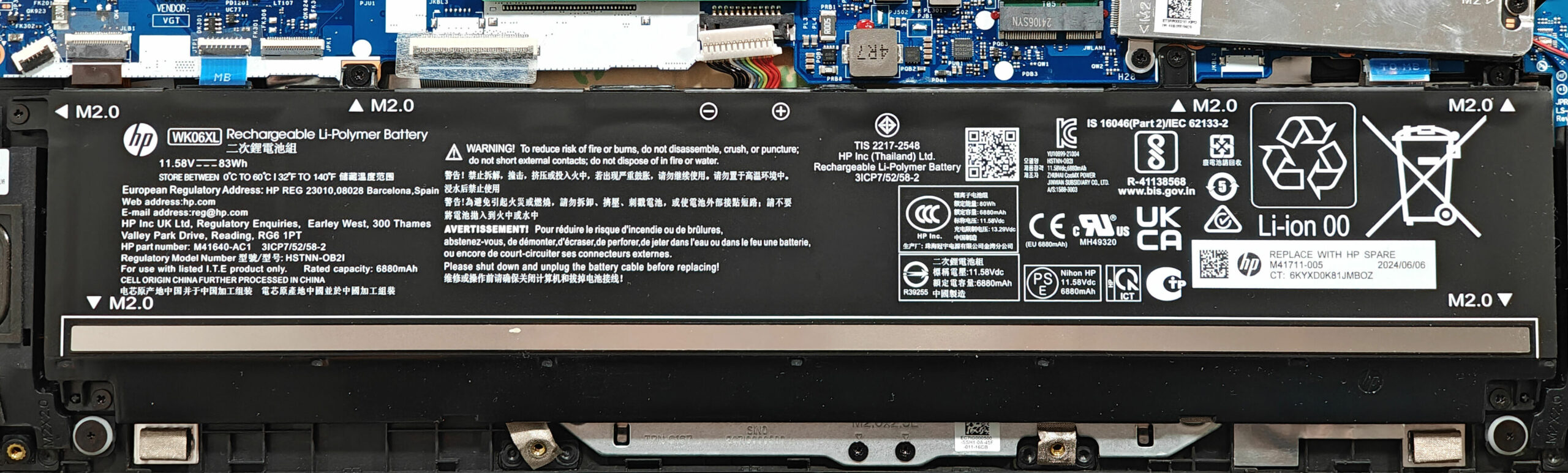
- Disconnect the battery by pulling the connector gently toward the battery.
- Undo the six Phillips-head screws securing the battery to the chassis.
- Lift the 83Wh battery out of the laptop. The base model includes a 70Wh battery.
More info: The optional 83Wh battery provides approximately 10 hours of video playback, making it a solid choice for extended use.
You can find compatible batteries here: Buy from Amazon.com (#CommissionsEarned)
Memory Upgrade
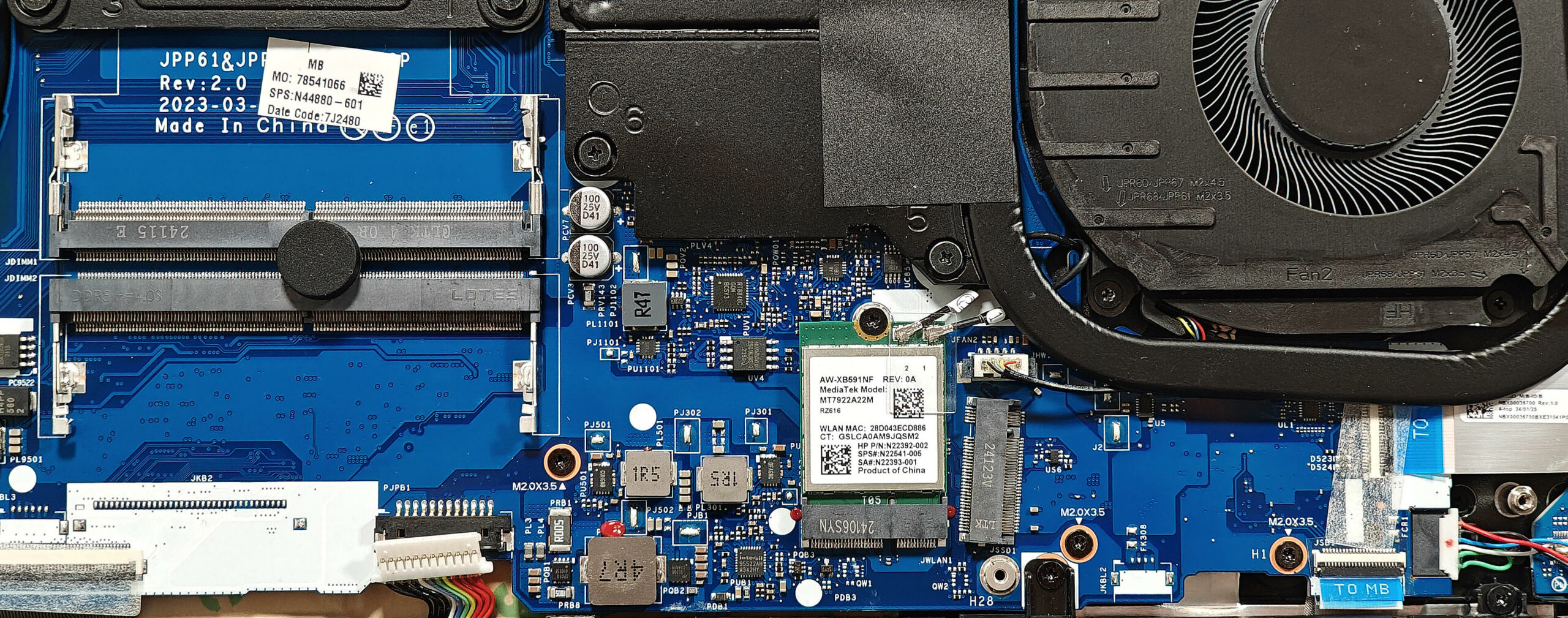
Note: The memory slots are easily accessible and support dual-channel mode.
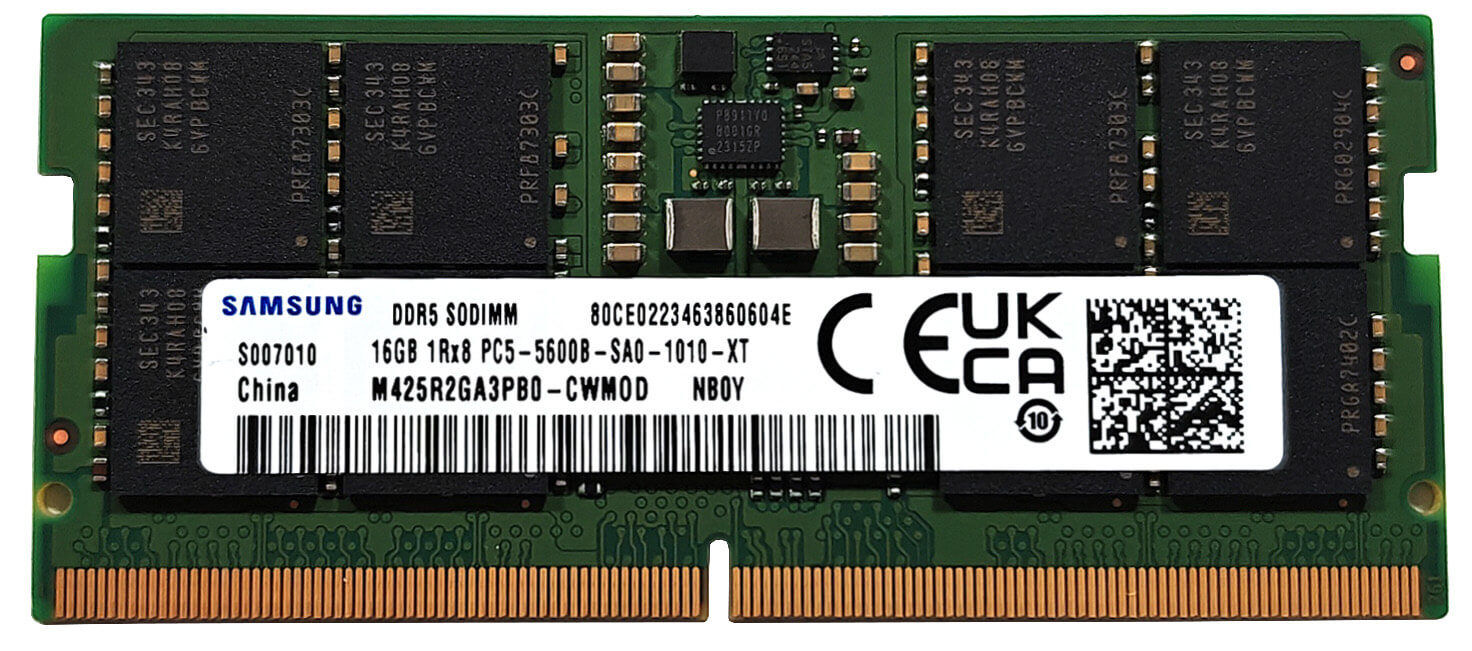
- Locate the two SODIMM slots, which are compatible with DDR5-5600 MHz RAM.
- Insert the RAM modules into the slots at a slight angle, pressing down gently until they click into place.
More info: This laptop supports up to 32GB of DDR5-5600 MHz RAM according to HP, but the CPU can handle up to 256GB, making higher capacities possible with additional upgrades.
You can find compatible RAM here: Buy from Amazon.com (#CommissionsEarned)
Storage Upgrade
Hint: Handle SSD components carefully to avoid damage or data loss.
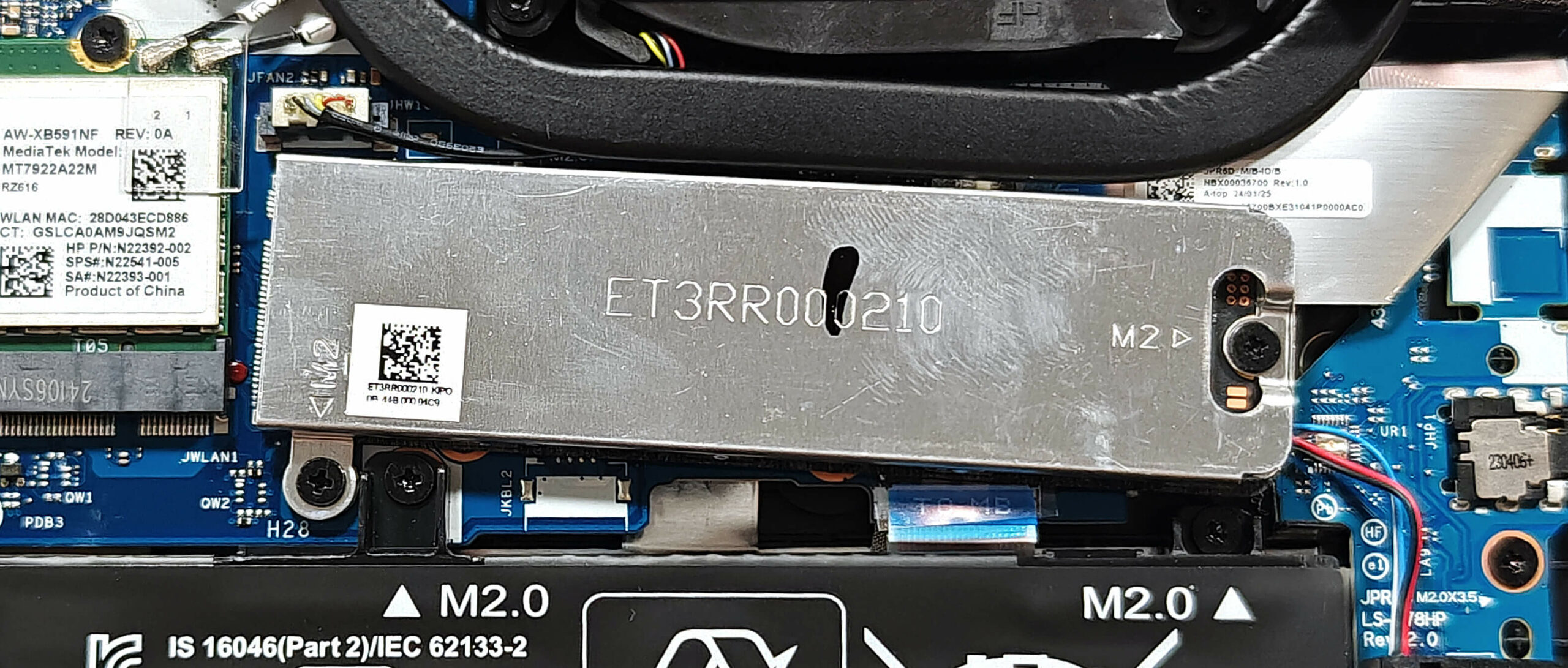
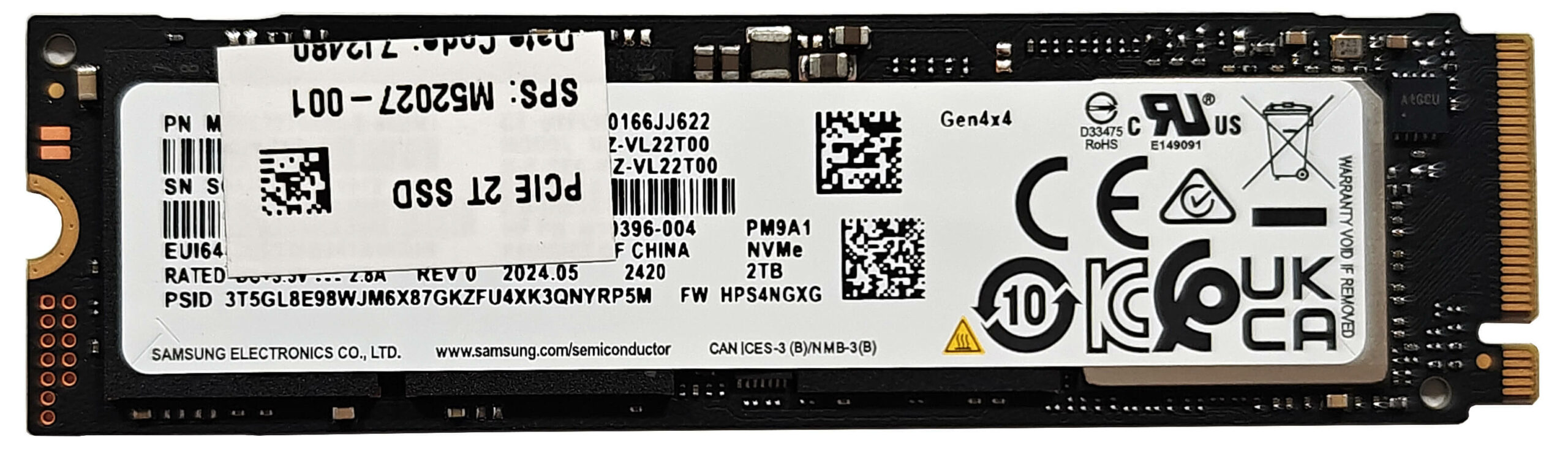
- Locate the single M.2 slot, which is compatible with 2280 Gen 4 SSDs.
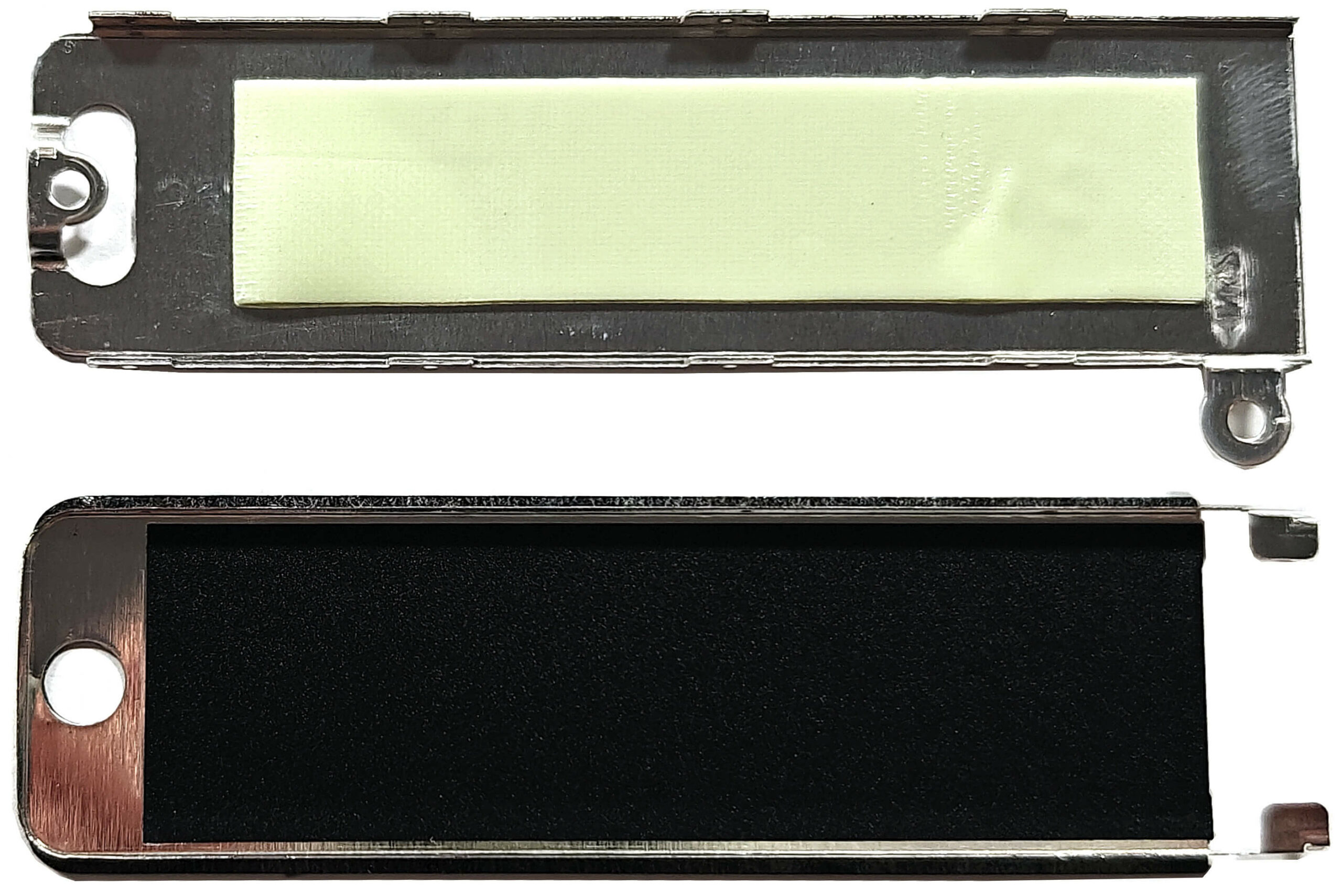
- Remove the two screws securing the metal brackets that hold the NVMe drive in place.
- Lift the metal brackets and replace or upgrade the SSD.
- Secure the new SSD with the metal brackets and screws.
More info: The M.2 slot includes a metal plate with a long thermal pad on the inside for optimal heat dissipation.
You can find compatible SSDs here: Buy from Amazon.com (#CommissionsEarned)
Wi-Fi Card
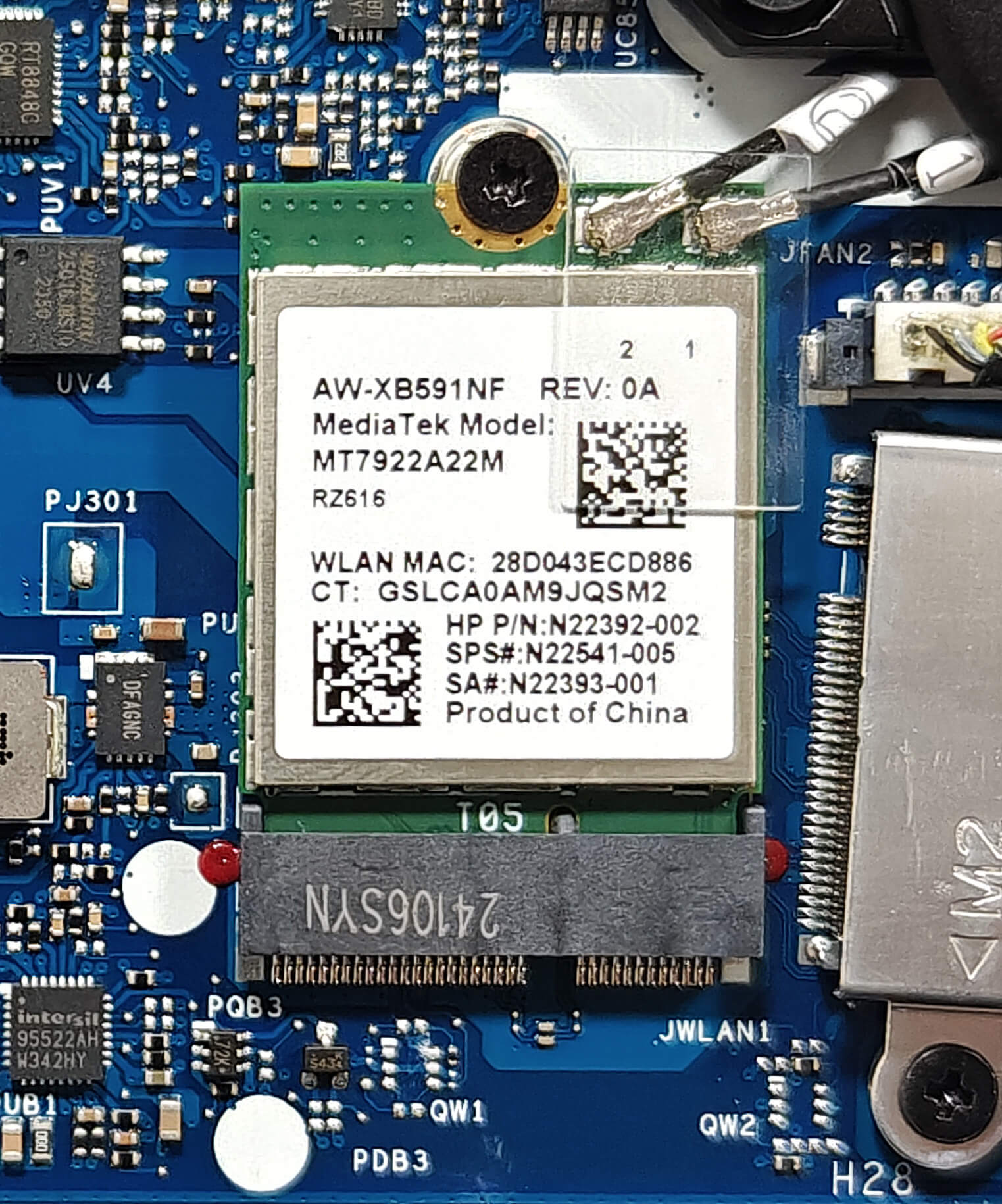
More Info: The Wi-Fi 6E card is positioned close to the storage slot.
Cooling System Overview
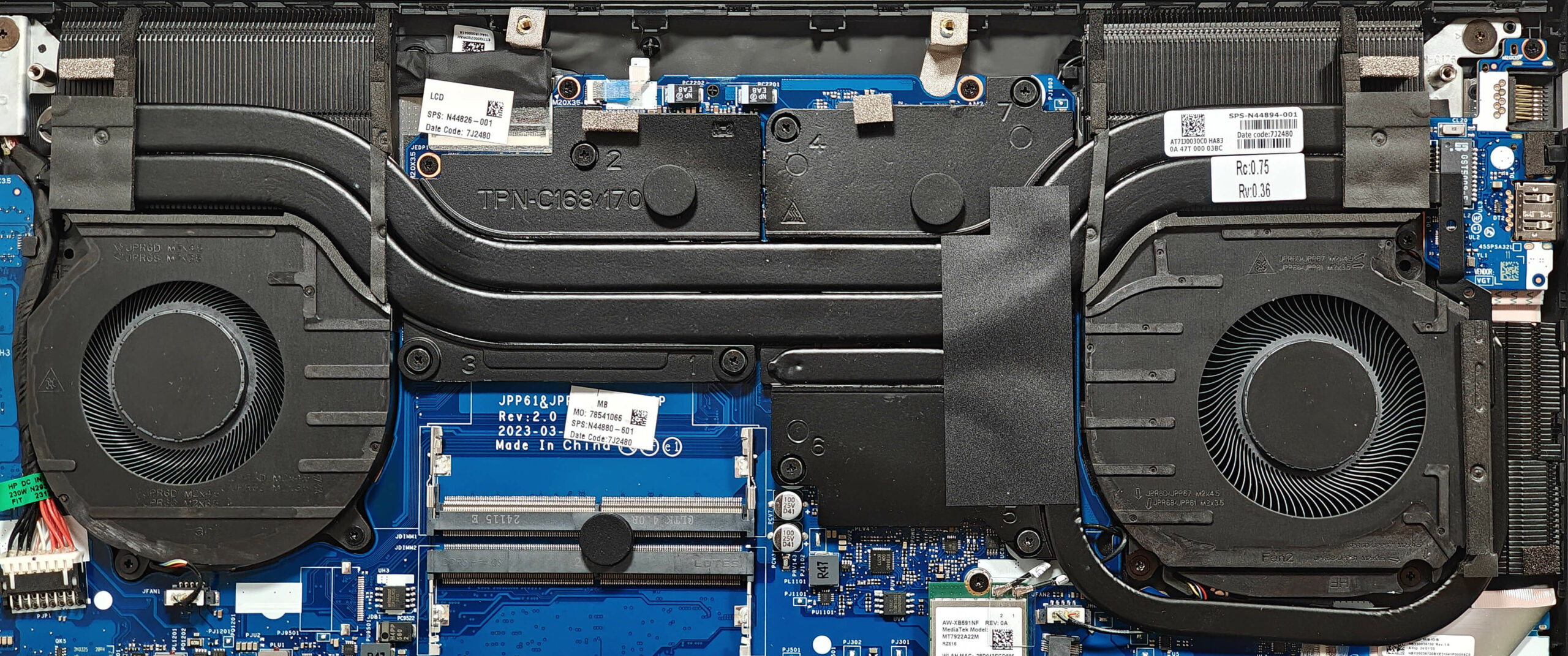
More info: The cooling system of the HP OMEN 16 is well-suited for handling gaming and intensive workloads.
- Inspect the two large fans to ensure they are clean and free of dust for optimal performance.
- Check the two long, thick heat pipes shared between the CPU and GPU for any signs of obstruction or wear.
- Examine the additional heat pipe dedicated to the GPU and the three large heat sinks for proper placement and condition.
- Inspect the sizable cooling plates, particularly the larger one on the GPU side, to confirm they are unobstructed.
HP OMEN 16 (16-xd0000, 2023) in-depth review
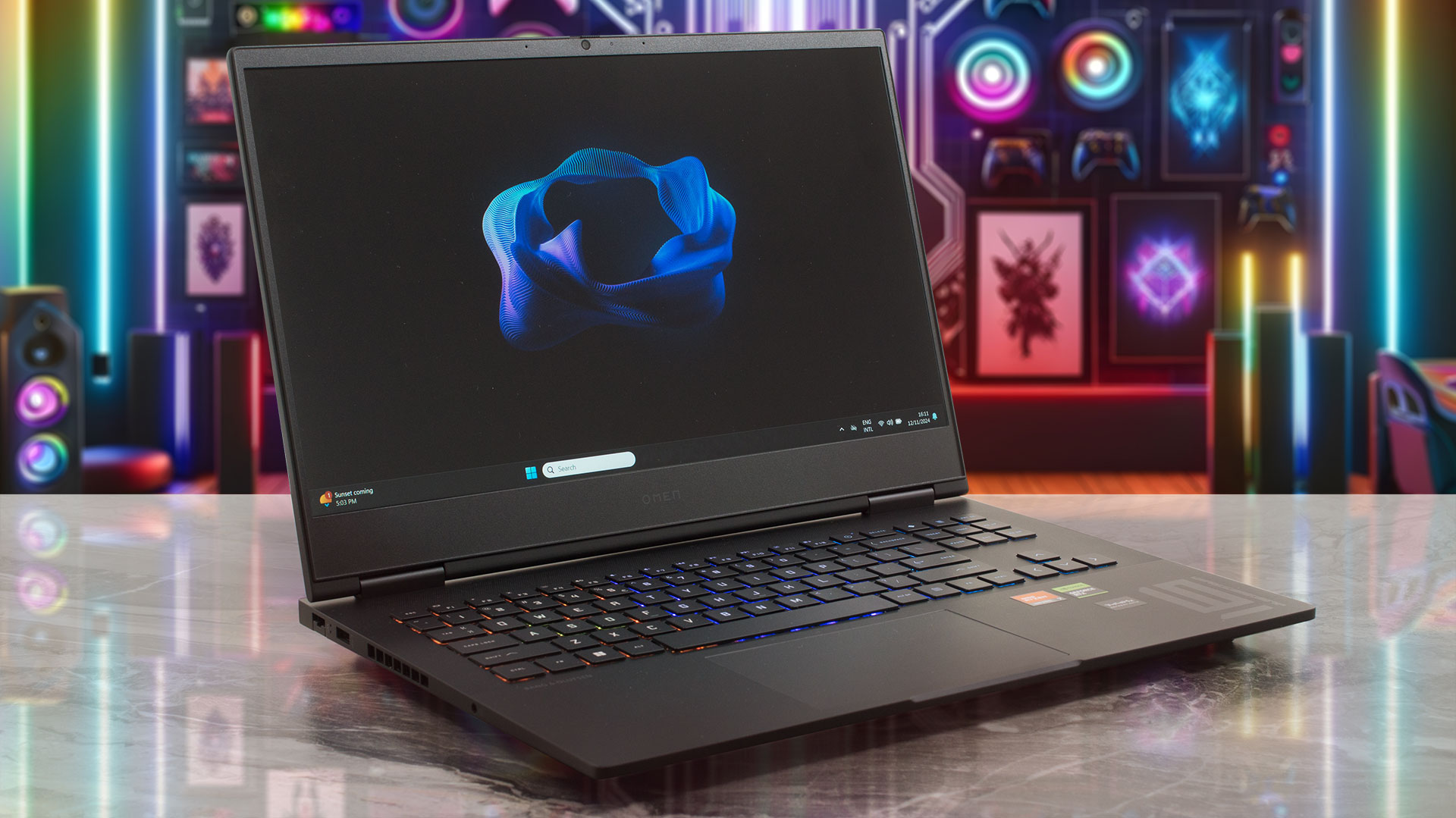
There are sub-classes in every laptop segment. The HP OMEN 16 (16-xd0000) is not as high-end as other OMEN models like the Transcend 16 (u1000) or the 17-ck2000 variant. However, 16-inch machine in front of us still packs a punch thanks to the 35W AMD Zen 4 CPU options and the 120W RTX graphics cards. The upgradability seems good. The only thing that we are missing is another SSD slot. You also get four USB ports and Wi-Fi 6E + Bluetooth 5.3 for connectivity.You can choose between two IPS displays both with a 1080p resolution. The base one is a 144Hz unit while the optional screen has a 16[...]
Pros
- Decently solid build
- Wide viewing angles and good contrast ratio of 1580:1 (CMN162E)
- PWM-free (CMN162E)
- 2x SODIMMs
- Comfortable input devices
- 4x USB ports
- Good battery life given the powerful hardware (10+ hours of videos)
- The Omen Gaming Hub app is full of useful extras
- dGPU-only mode
- Privacy shutter
- Quality audio by Bang & Olufsen
- Good "Balanced" mode with less aggressive fans + a 3.80 GHz CPU clock and a 90W GPU TGP
- Low CPU and GPU temperatures
- The RTX 4060 maintains ~ 2565 MHz and 104W TGP in "Performance" mode
- Pretty snappy and well-cooled NVMe (SAMSUNG MZVL22T0HBLB-00BH1)
Cons
- Just one M.2 slot
- The CPU clocks under max load are just meh
- Noisy fans during gaming in "Performance" mode
- All ports are rated at 5 Gbps
- Only 1080p display options
- Low sRGB coverage and max brightness (CMN162E)
 Author: Dimitar Stalev

![[June 2026] Best-Selling Laptop Brands on Amazon Global – Apple’s Unrivaled Dominance in Units and Revenue](https://laptopmedia.com/wp-content/uploads/2026/07/GLOBAL-Best-Brands-400x225.jpg)
![[June 2026] Amazon Global: Top 10 Best-Selling Laptops – Apple’s New MacBook Neo Storms to #1, Reshaping the Market with Affordability](https://laptopmedia.com/wp-content/uploads/2026/07/Best-Selling-Laptops-GLOBAL-Top-10-400x225.jpg)
![[June 2026] Amazon Global: Top 10 Best-Selling Gaming Laptops – Acer’s Nitro V 16S AI Dominates Sales, While ASUS Leads Overall Revenue](https://laptopmedia.com/wp-content/uploads/2026/07/Best-Selling-Gaming-Laptops-GLOBAL-Top-10-400x225.jpg)
![[June 2026] Global Ranking of Best-Selling Laptop GPUs on Amazon – NVIDIA RTX 5060 is the Top-Selling Dedicated GPU](https://laptopmedia.com/wp-content/uploads/2026/07/Best-Selling-GPUs-GLOBAL-Top-10-400x225.jpg)
![[June 2026] Global Ranking of Best-Selling Laptop CPUs on Amazon – Apple M5 Dominates, AMD Ryzen 7 260 Gets Solid Premium Share](https://laptopmedia.com/wp-content/uploads/2026/07/Best-Selling-CPUs-GLOBAL-Top-10-400x225.jpg)