How to open HP OMEN MAX 16 (AMD, 16-ak0000) – disassembly and upgrade options

Before you start: Power the laptop off, unplug the charger and peripherals, and hold the power button for a few seconds to discharge residual power. Work on a clean, non-conductive surface and use ESD protection if available.
Opening the bottom panel
- Place the laptop upside down on a soft surface to avoid scratching the lid.
- Undo the six bottom screws.
- Insert a thin plastic pry tool between the bottom panel and the chassis and release the first clip.
- Work your way around the perimeter, popping the remaining clips step by step.
- Lift the bottom cover away and set it aside.
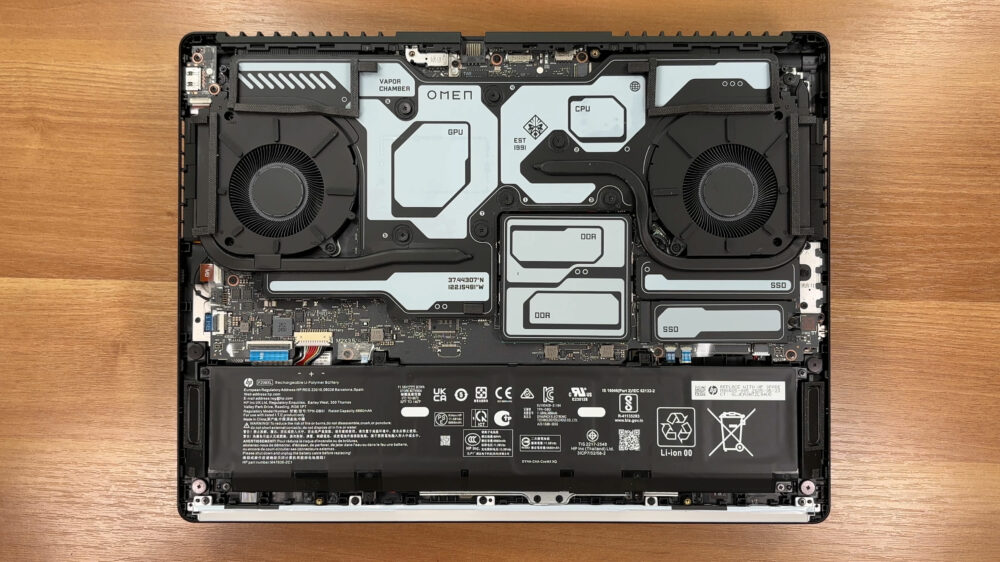
Internal layout overview
- Once inside, the design is easy to follow: a large thermal assembly dominates the upper half, while memory and storage sit closer to the center for service access.
- Disconnect the battery before touching RAM, SSDs, or the wireless card.
Cooling system and cleaning
- Cooling is handled by two fans working with a vapor chamber that spreads heat across a wide area of the motherboard.
- HP uses liquid metal as the primary thermal interface, which helps thermals but makes cooler removal and repasting an advanced service task.
- For routine maintenance, focus on dust: use short bursts of compressed air through the fin stacks while gently holding the fan blades to prevent overspin.
- If you ever lift the vapor chamber, you must reinstall the original thermal materials correctly. Attempting this without the proper compounds and pads can cause overheating after reassembly.
Battery removal and replacement
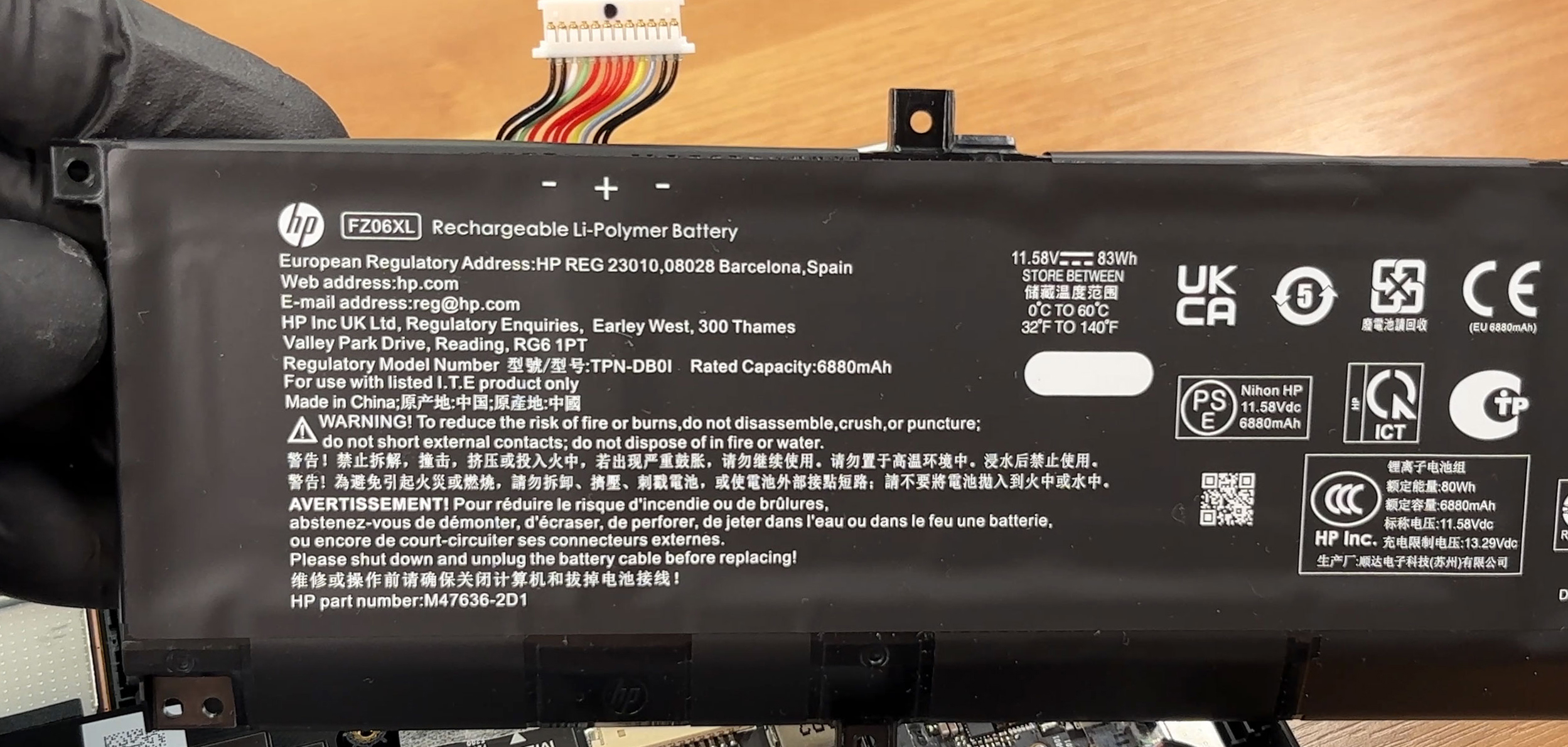
- The laptop uses an 83Wh Li-Polymer pack (11.58V) secured with screws.
- Disconnect the battery cable from the motherboard by pulling the connector straight out of its socket.
- Undo the battery’s mounting screws.
- Lift the battery out of the chassis.
- Reinstall by placing the pack back in position, tightening screws evenly, and reconnecting the cable firmly.
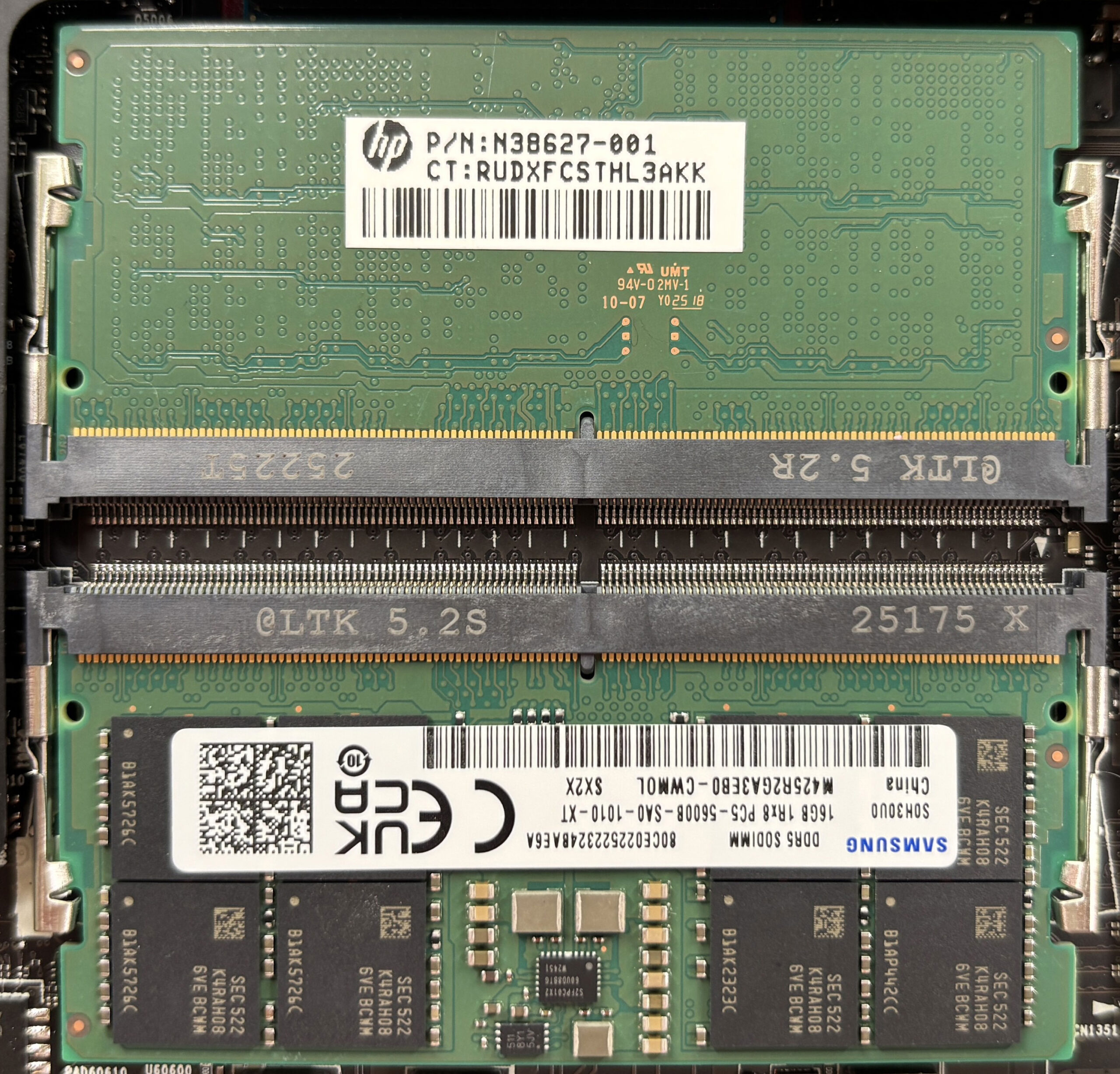
Memory upgrade
- Memory is fully upgradeable via two DDR5 SO-DIMM slots.
- HP lists support for up to 64GB total (2x32GB) at up to DDR5-5600 MT/s.
- To replace or add RAM, spread the side clips, slide the module out at an angle, insert the new SO-DIMM at the same angle, then press it down until both clips lock.
- For best performance, use matched modules and run a dual-channel setup when possible.
Storage upgrade
- Depending on the exact configuration, the chassis can be laid out for one or two M.2 NVMe SSD slots.
- In two-slot layouts, one SSD position sits under the vapor chamber area alongside nearby power components, while the other slot is more accessible for quick upgrades.
- HP lists support up to 2TB PCIe Gen4 NVMe “Performance” SSDs, and up to 1TB PCIe Gen5 NVMe “Performance” SSDs in supported configurations.
- When upgrading, use the easy-access M.2 slot if available, because reaching the covered slot can require removing the vapor chamber, which is an advanced job due to the liquid metal interface.
- To replace an SSD in an accessible bay, remove any shield/heatsink, undo the retaining screw, slide the drive out, insert the new SSD, secure it with the screw, and reinstall the thermal interface/shield.
Hint: Consider reviewing our Top M.2 SSDs Performance Rankings to select the best storage solution for your needs.
You can buy PCIe Gen4 NVMe SSDs here: Buy from Amazon.com (#CommissionsEarned)
You can buy PCIe Gen5 NVMe SSDs here: Buy from Amazon.com (#CommissionsEarned)
Wireless card upgrade
- The wireless module is replaceable and configuration-dependent.
- HP lists Intel Wi-Fi 7 BE200 (2×2) with Bluetooth 5.4 or Intel Wi-Fi 6E AX211 (2×2) with Bluetooth 5.3 as common options.
- To replace the card, disconnect the antenna leads by lifting them straight up from their posts, undo the single retaining screw, slide the card out, then reverse the process with the new module.
Serviceability notes and upgrade limits
- Realistic upgrades include RAM, at least one SSD bay (depending on configuration), the Wi-Fi module, and the battery.
- Work that requires removing the vapor chamber is advanced and should only be done if you have the correct thermal materials and experience handling liquid metal.
- The CPU and GPU are not user-replaceable.
Reassembly checklist
- Confirm RAM modules are fully latched and seated.
- Confirm SSD retention screws and any shields/heatsinks are reinstalled correctly.
- Reconnect Wi-Fi antennas securely and route cables exactly as before.
- Reconnect the battery last.
- Press the bottom cover around the perimeter until all clips engage, then reinstall the screws evenly.
Summary: In terms of replaceable parts, you can realistically service and upgrade the SSDs, memory, and the battery, while the core chips sit under the main cooling hardware and aren’t user-upgradable. Overall, the OMEN MAX 16 offers good upgradeability for RAM and storage, with moderate service effort due to the vapor chamber coverage.
HP OMEN MAX 16 (16-ab0000, ak0000) in-depth review
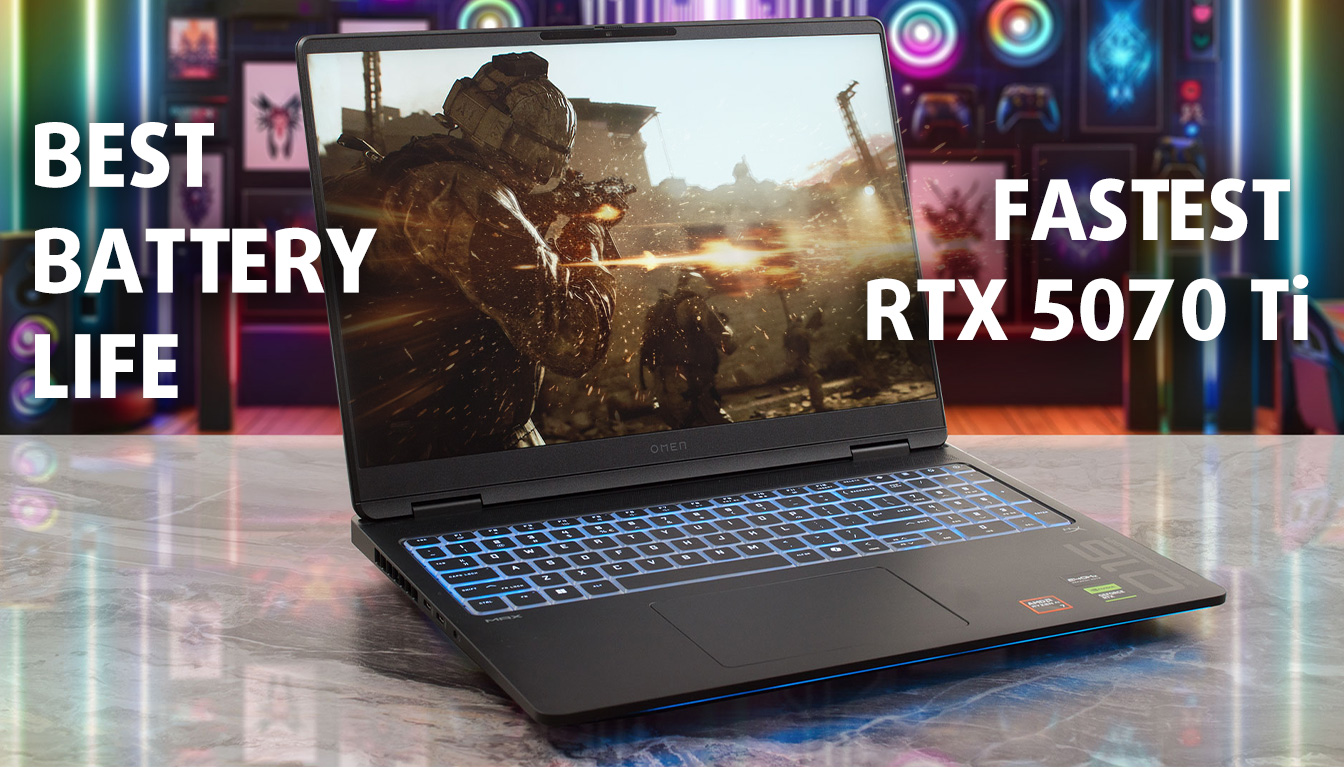
The HP OMEN MAX 16 arrives with a mission: to prove that you don't need a loud, aggressive design to house record-breaking performance. It wraps some of the most powerful mobile hardware available (including top-tier AMD Ryzen AI processors and NVIDIA RTX 50-series GPUs) inside a sleek, understated chassis that looks as much at home in a boardroom as it does in a battlestation. But this isn't just a "sleeper" hit; it's a statement. With benchmark-crushing graphics scores and battery life that puts its rivals to shame, the OMEN MAX 16 challenges the very idea of what a high-performance gami[...]
Pros
- Record-breaking GPU performance (fastest RTX 5070 Ti tested)
- Phenomenal battery life (over 10 hours)
- Excellent thermal management for both CPU and GPU
- PWM-free display is great for eye comfort
- Great upgradeability with two RAM slots and Gen5 SSD support
- Sleek, understated design suitable for any environment
Cons
- Display color coverage (90% sRGB) is lower than advertised (100%)
- Half-height arrow keys are not ideal for gaming
- Primary SSD slot is difficult to access (under vapor chamber)
 Author: Dimitar Stalev

![[August 2026] Amazon Italy: Top 10 Best-Selling Laptops – Apple MacBook Neo Claims the Crown as Budget and Mid-Range Windows Machines Dominate Volume](https://laptopmedia.com/wp-content/uploads/2026/09/Best-Selling-Laptops-IT-Top-10-400x225.jpg)
![[August 2026] Amazon Italy: Top 7 Best-Selling Gaming Laptops – ASUS V16 Claims the #1 Spot Amid Strong Mid-Range Demand](https://laptopmedia.com/wp-content/uploads/2026/09/Best-Selling-Gaming-Laptops-IT-Top-10-400x225.jpg)
![[August 2026] Best-Selling Laptop Brands on Amazon Italy – Lenovo Dominates Market Share and Revenue Leadership](https://laptopmedia.com/wp-content/uploads/2026/09/IT-Best-Brands-400x225.jpg)
![[August 2026] Amazon India: Top 10 Best-Selling Laptops – Apple MacBook Neo Dominates the Charts with Massive Sales Lead](https://laptopmedia.com/wp-content/uploads/2026/09/Best-Selling-Laptops-IN-Top-10-400x225.jpg)
![[August 2026] Amazon India: Top 10 Best-Selling Gaming Laptops – HP Victus 15 Dominates the Market with Massive Unit Lead](https://laptopmedia.com/wp-content/uploads/2026/09/Best-Selling-Gaming-Laptops-IN-Top-10-400x225.jpg)
