How to open HP ZBook Firefly 16 G11 – disassembly and upgrade options

Opening the Device
Hint: Ensure the laptop is powered off and disconnected from any power source before starting.
- Undo the five captive Phillips-head screws on the bottom panel of the laptop.
- Use a lever tool to pop the two areas close to the top two corners, creating gaps in these sections.
- Insert a thin plastic tool to gently pop the edges. Be cautious as the hinge cover feels spongy; press with a finger where the spudger is to stabilize.
- Fully pry the rear panel using the thin plastic tool, ensuring you do not snap any internal clips.
- Proceed to pop the sides and the front by inserting the thin plastic tool at a 45-degree angle. Pry carefully to avoid damaging the internal clips.
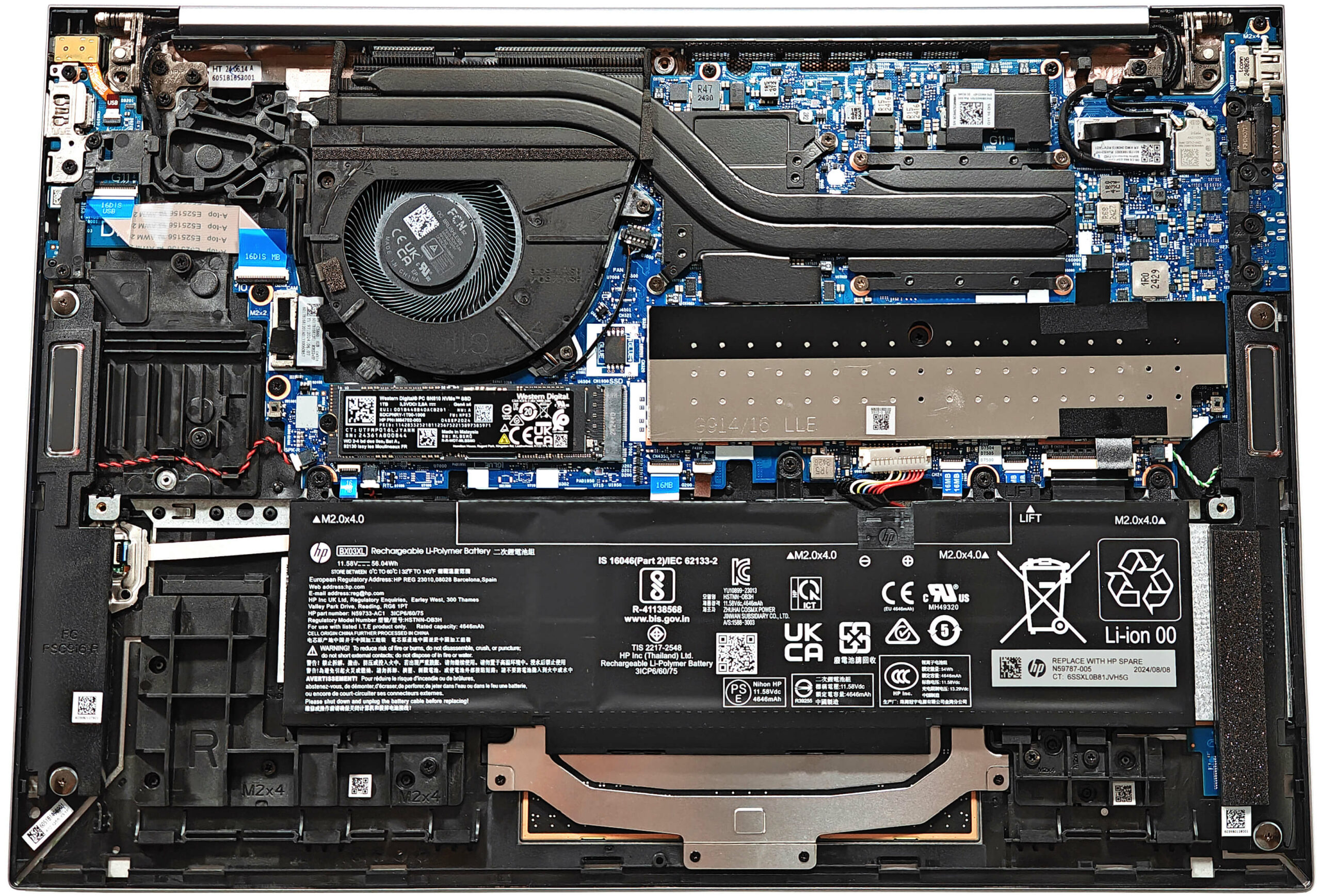
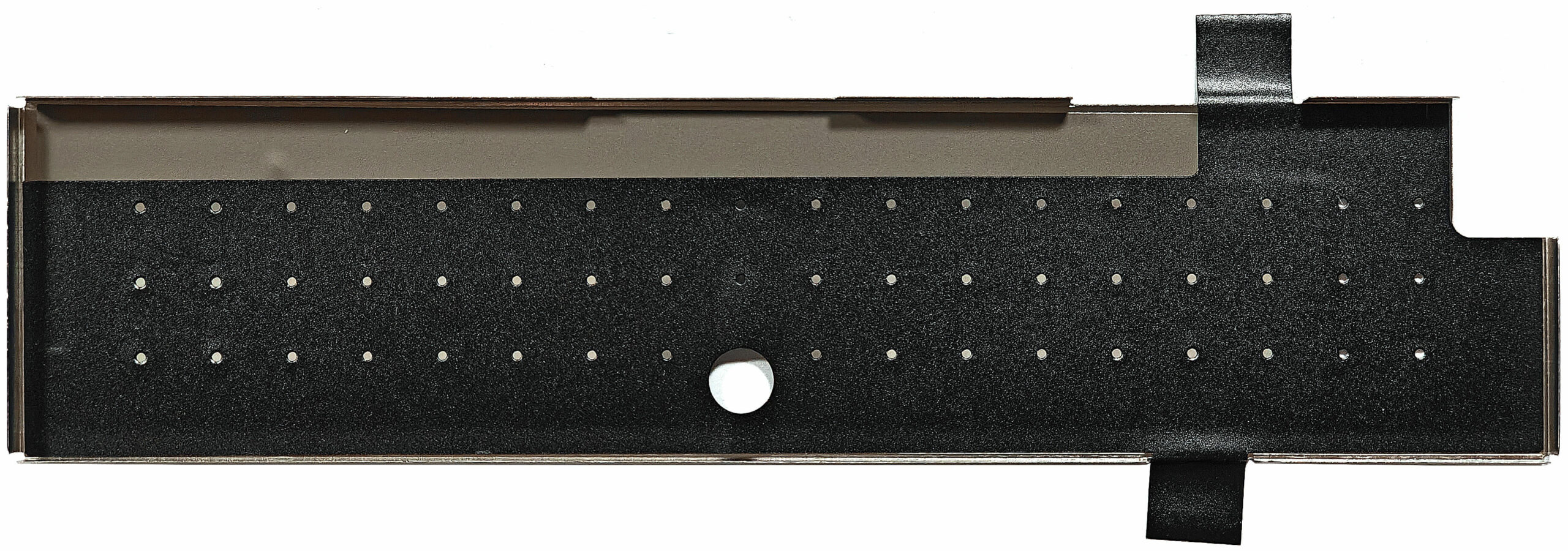
More info: The inside of the bottom plate features a large cooling pad for the WWAN slot, enhancing thermal management and supporting optional 5G or 4G LTE connectivity.
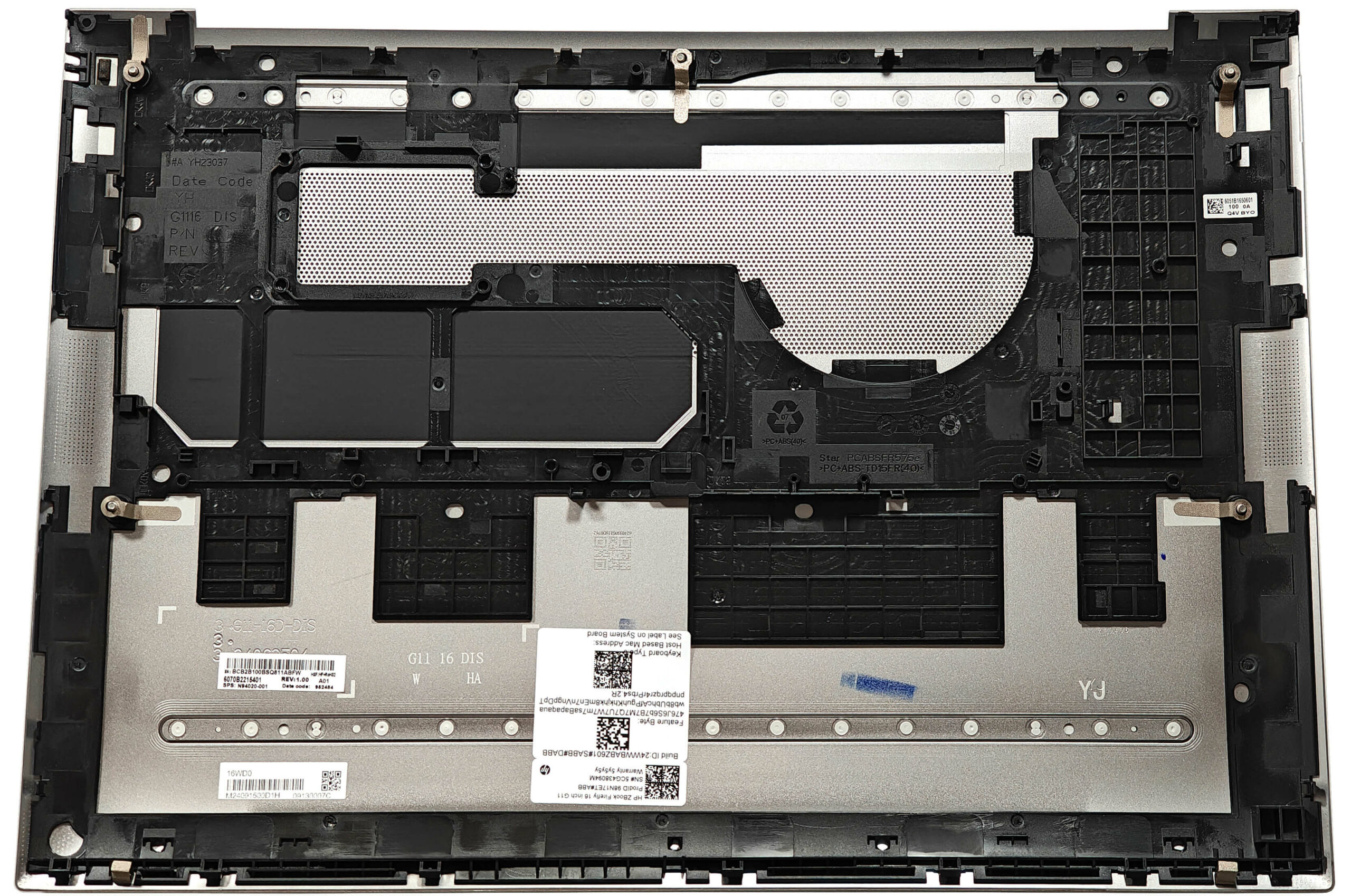
Battery Removal
Caution: Handle the battery with care to avoid damage or injury. Wear gloves to prevent short circuits.
- Slide up the small metal shroud on the top side that covers the battery connector.
- Unplug the battery connector from the motherboard by pulling it to the left with a plastic tool.
- Undo the four Phillips-head screws that secure the 60Wh battery unit to the chassis.
- Carefully detach the battery unit from the laptop, ensuring not to bend it as the touchpad is positioned directly below.
More info: The laptop is equipped with a 60Wh battery, providing approximately 13 and a half hours of video playback.
You can buy compatible batteries here: Buy from Amazon.com (#CommissionsEarned)
Memory Upgrade
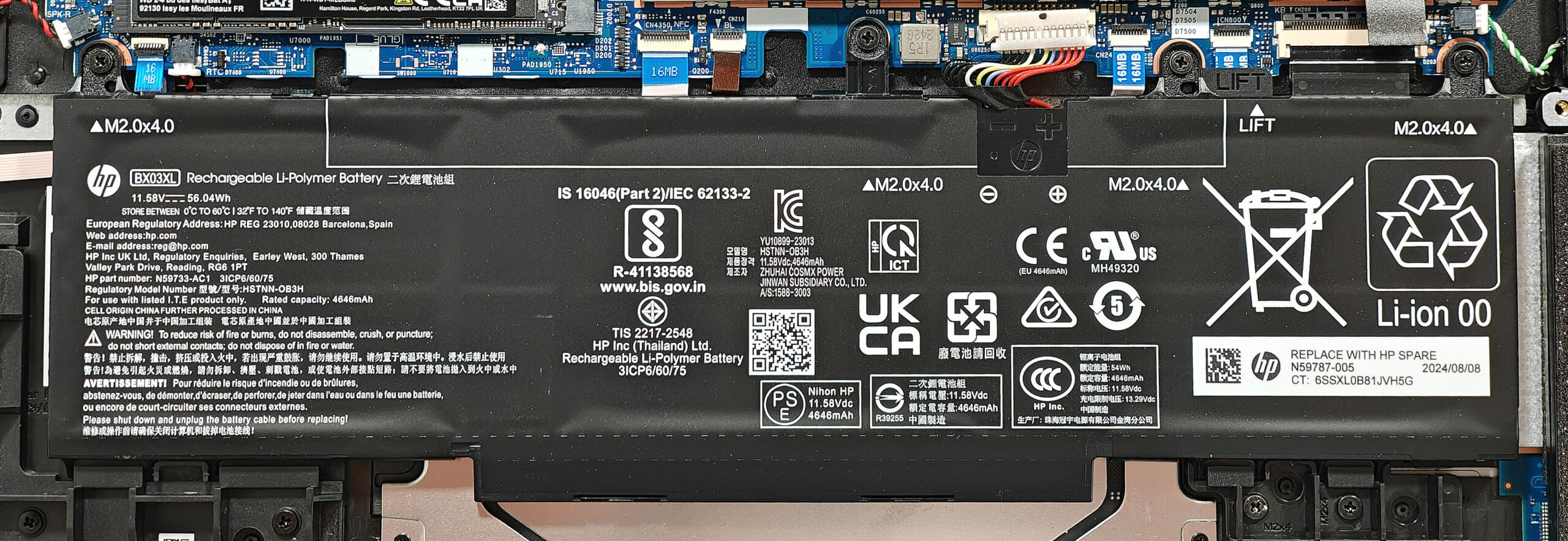
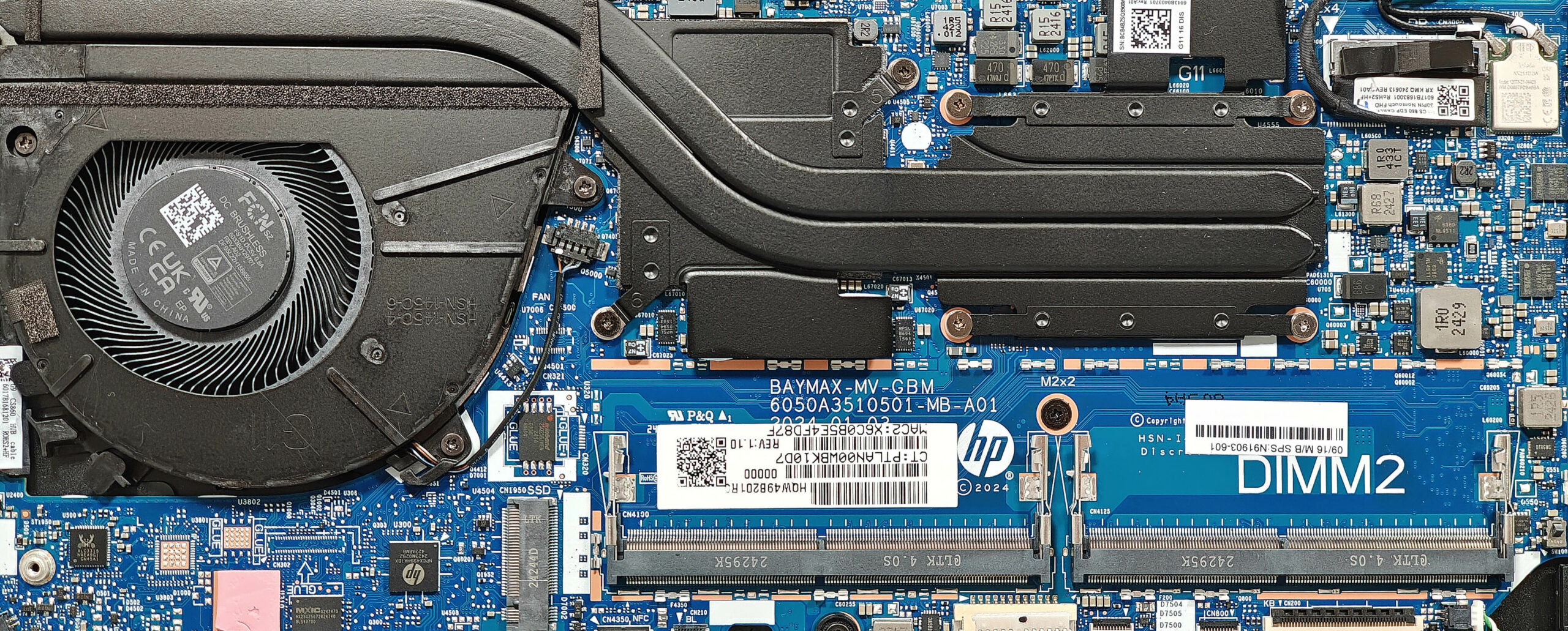
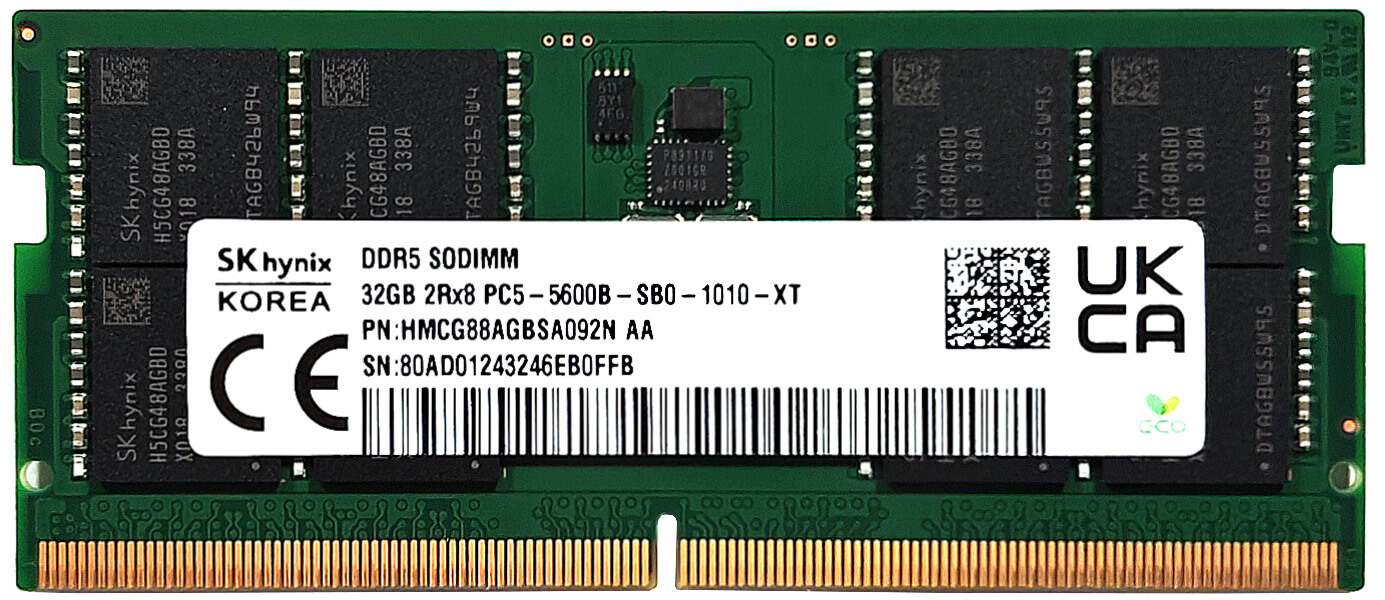
Note: The memory is soldered and not user-upgradable.
More info: This laptop comes with up to 32GB of LPDDR5x-6400MHz memory in dual-channel mode, which should be sufficient for normal home or office tasks. Although the CPU can support up to 96GB, the memory is soldered and cannot be upgraded beyond the factory-installed capacity.
Storage Upgrade
Hint: Handle the SSD with care to avoid any data loss or damage during installation.
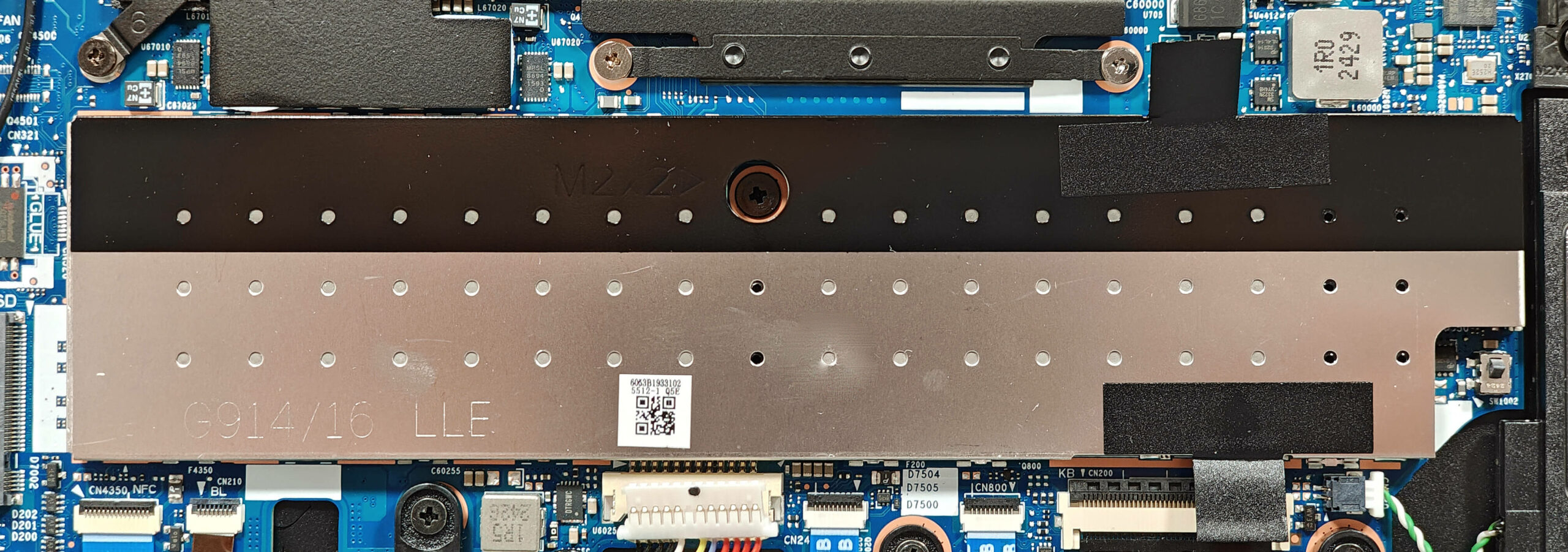
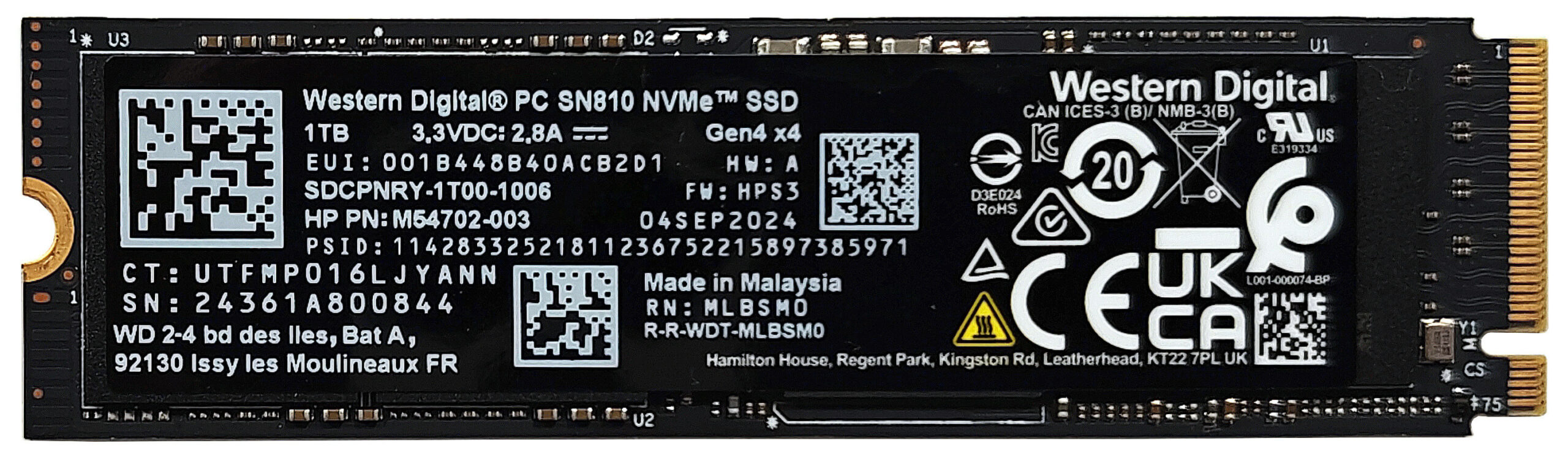
- Locate the single M.2 slot compatible with 2280 Gen 4 SSDs.
- Remove the metal shield covering the SSD by undoing the single Phillips-head screw.
- Lift the rubber element on the right to access the screw securing the SSD.
- Undo the single screw that holds the NVMe SSD unit fixed to the base.
- Slide the metal shield to the left and lift it away from the chassis.
- Insert the new Gen 4 M.2 SSD into the slot and secure it with the screw.
More info: The laptop includes one M.2 slot compatible with 2280 Gen 4 SSDs. The preinstalled NVMe SSD is covered with a heat shield and cooled by a small thermal pad on top. Although the cooling pad below the preinstalled NVMe isn’t optimally placed, it can be easily fixed.
Hint: Don’t forget to check out our Top M.2 SSDs Performance Rankings for insights on the best storage options available.
You can buy compatible SSDs here: Buy from Amazon.com (#CommissionsEarned)
Wi-Fi Card
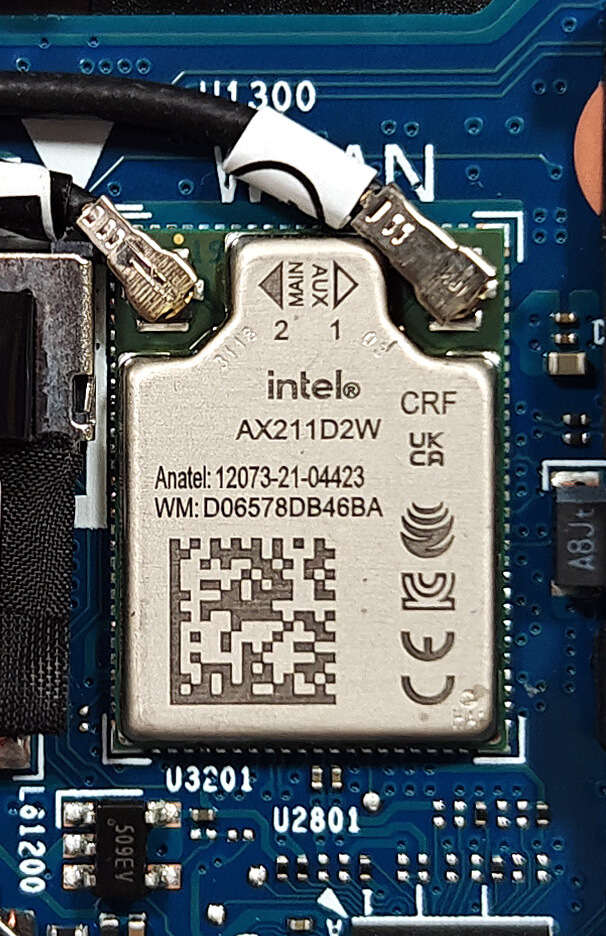
More Info: The soldered Wi-Fi 6E card is placed in the top right part of the mainboard.
Cooling System Overview
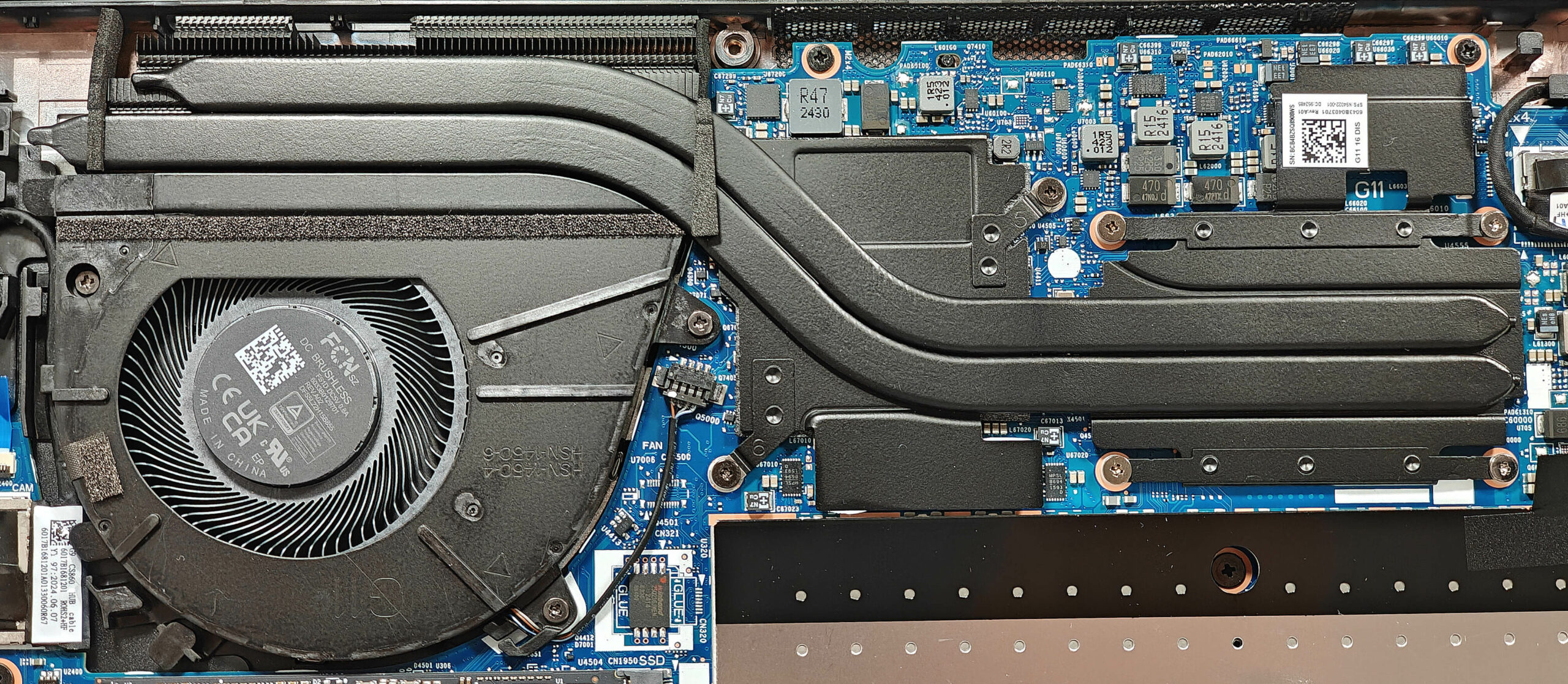
More info: The cooling system is modest, comprising one large fan, two long heat pipes shared between the CPU and the GPU alongside a heatsink, and two heat spreaders to ensure effective thermal management.
- Inspect the large fan to ensure it is free of dust and debris.
- Check the two long heat pipes shared between the CPU and GPU for any signs of wear or damage.
- Verify that the top-mounted heat sink is properly seated and unobstructed.
- Ensure that the two heat spreaders are securely in place to maintain optimal cooling performance.
HP ZBook Firefly 16 G11 in-depth review
While the ZBook Firefly 16 G11 lacks the big cooling system and powerful professional-grade GPUs of the ZBook Power 16 G11, it offers a lighter design and similar Meteor Lake CPU options. Unlike its "Power" counterpart, the Firefly 16 G11 has fewer dedicated GPU choices, with the 35W NVIDIA RTX A500 being the only optional graphics card.The main question that remains is whether this machine can handle long heavy workloads, given its single-fan, dual-heat-pipe cooling system. While it's not a basic system, we hoped for a more robust thermal solution.Still, you get a device with a good p[...]

Pros
- All-metal chassis
- Feels snappy for normal home or office tasks
- Good comfort during long loads
- The matte finish is almost smudge-proof
- The Core Ultra 7 155H sustains ~ 2.92 GHz / 2.42 GHz P and E core clocks in short loads
- Wide viewing angles + 16:10 aspect ratio (BOE0C31)
- 327 nits of max brightness (BOE0C31)
- PWM-free (BOE0C31)
- Comfortable spill-resistant keyboard
- Smooth glass touchpad
- 2x Thunderbolt 4 + 2x Type-A ports
- The fans are quiet in "High Performance" mode during max CPU stress
- Long battery battery life given the H-series CPU and the modest 56Wh capacity (~11 hours and a half of videos)
- 5MP Web camera with a privacy shutter
- Fast NVMe (WD PC SN810 SDCPNRY-1T00-1006)
- Lid with a lever design
- LPWAN (Low-power WAN)
- SmartCard reader, NFC, fingerprint reader, IR Web camera, vPro, Intel Evo, Nano SIM card slot, backlit keyboard (all are optional)
Cons
- Seems too expensive for what it is
- No Wi-Fi 7
- Lid with a lever design that lacks rubber feet
- Just one M.2 slot
- The CPU clocks in long loads are too low for a workstation (1.75 GHz / 1.01 GHz for the P and E cores)
 Author: Dimitar Stalev

![[August 2026] Amazon Italy: Top 10 Best-Selling Laptops – Apple MacBook Neo Claims the Crown as Budget and Mid-Range Windows Machines Dominate Volume](https://laptopmedia.com/wp-content/uploads/2026/09/Best-Selling-Laptops-IT-Top-10-400x225.jpg)
![[August 2026] Amazon Italy: Top 7 Best-Selling Gaming Laptops – ASUS V16 Claims the #1 Spot Amid Strong Mid-Range Demand](https://laptopmedia.com/wp-content/uploads/2026/09/Best-Selling-Gaming-Laptops-IT-Top-10-400x225.jpg)
![[August 2026] Best-Selling Laptop Brands on Amazon Italy – Lenovo Dominates Market Share and Revenue Leadership](https://laptopmedia.com/wp-content/uploads/2026/09/IT-Best-Brands-400x225.jpg)
![[August 2026] Amazon India: Top 10 Best-Selling Laptops – Apple MacBook Neo Dominates the Charts with Massive Sales Lead](https://laptopmedia.com/wp-content/uploads/2026/09/Best-Selling-Laptops-IN-Top-10-400x225.jpg)
![[August 2026] Amazon India: Top 10 Best-Selling Gaming Laptops – HP Victus 15 Dominates the Market with Massive Unit Lead](https://laptopmedia.com/wp-content/uploads/2026/09/Best-Selling-Gaming-Laptops-IN-Top-10-400x225.jpg)
