How to open MSI Vector 16 HX A13V – disassembly and upgrade options

Step 1: Opening the MSI Vector 16 HX A13V
- Ensure the laptop is powered off and placed on a clean, flat surface.
- Remove the 13 Phillips-head screws from the bottom of the laptop.
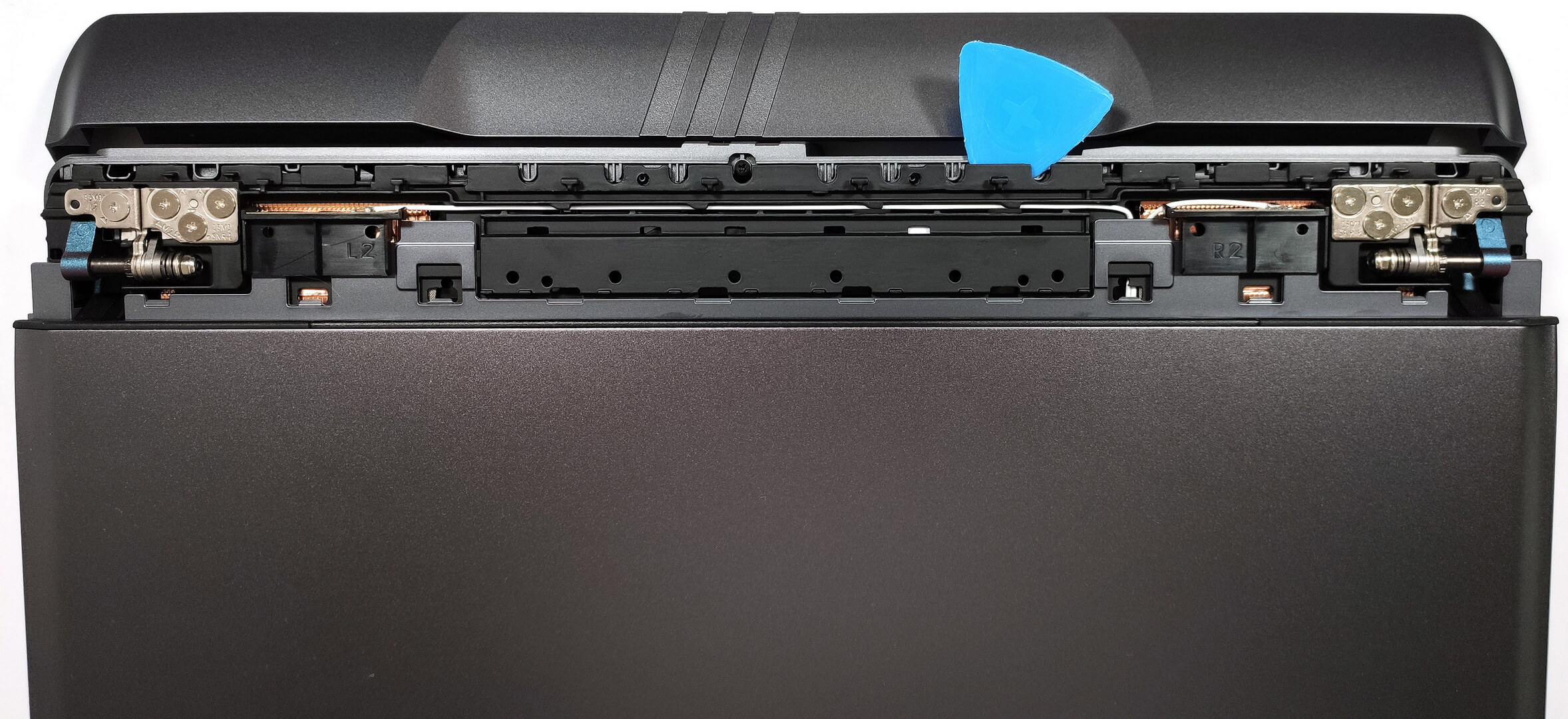
- Use a thin plastic tool to pry the sides of the hinge cover, then use a lever tool to pop the front of the cap.
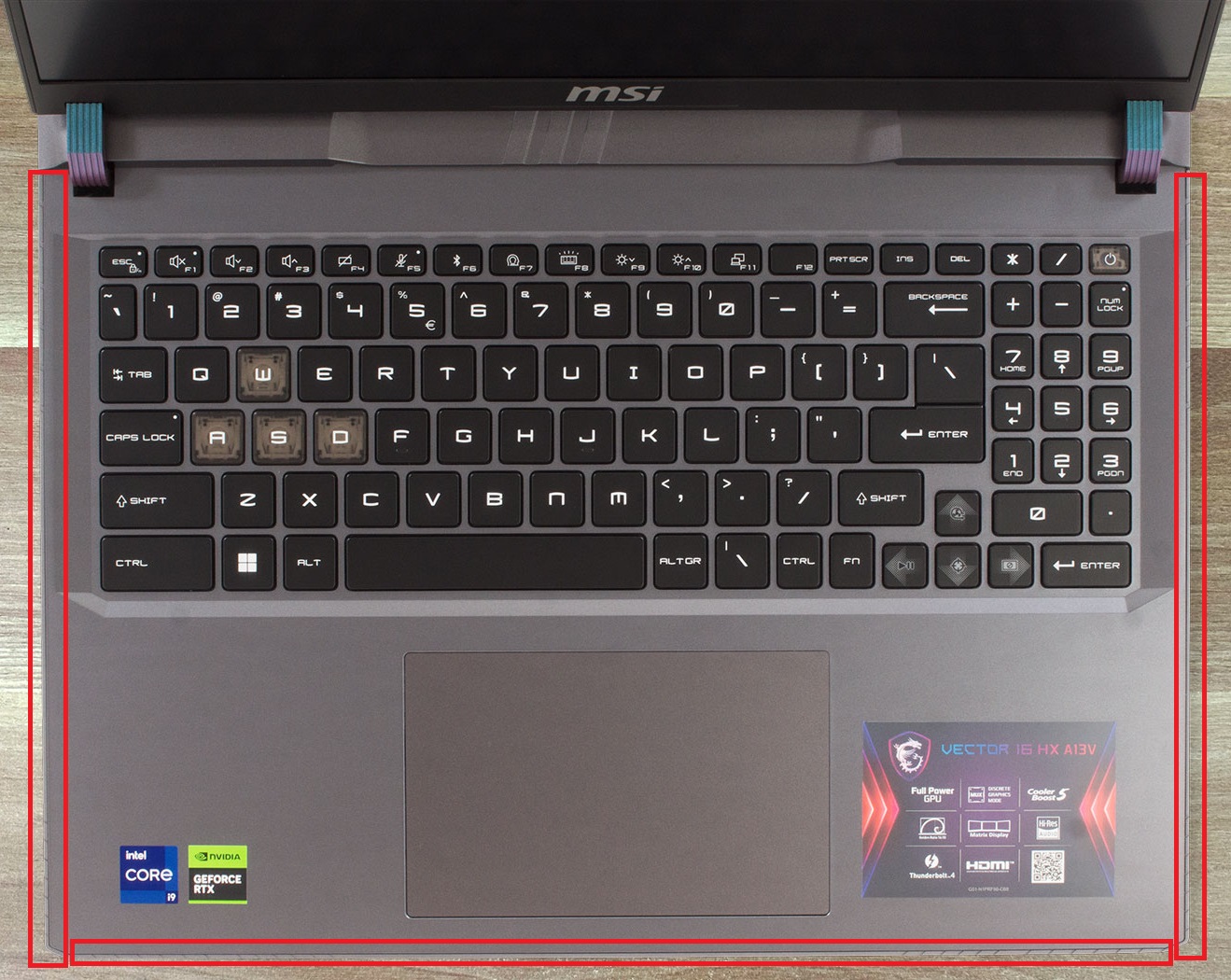
- Open the laptop lid to ease the removal of the bottom shield. Carefully lift the left side and slide the panel to the right to avoid the audio jack.


Step 2: Battery Removal
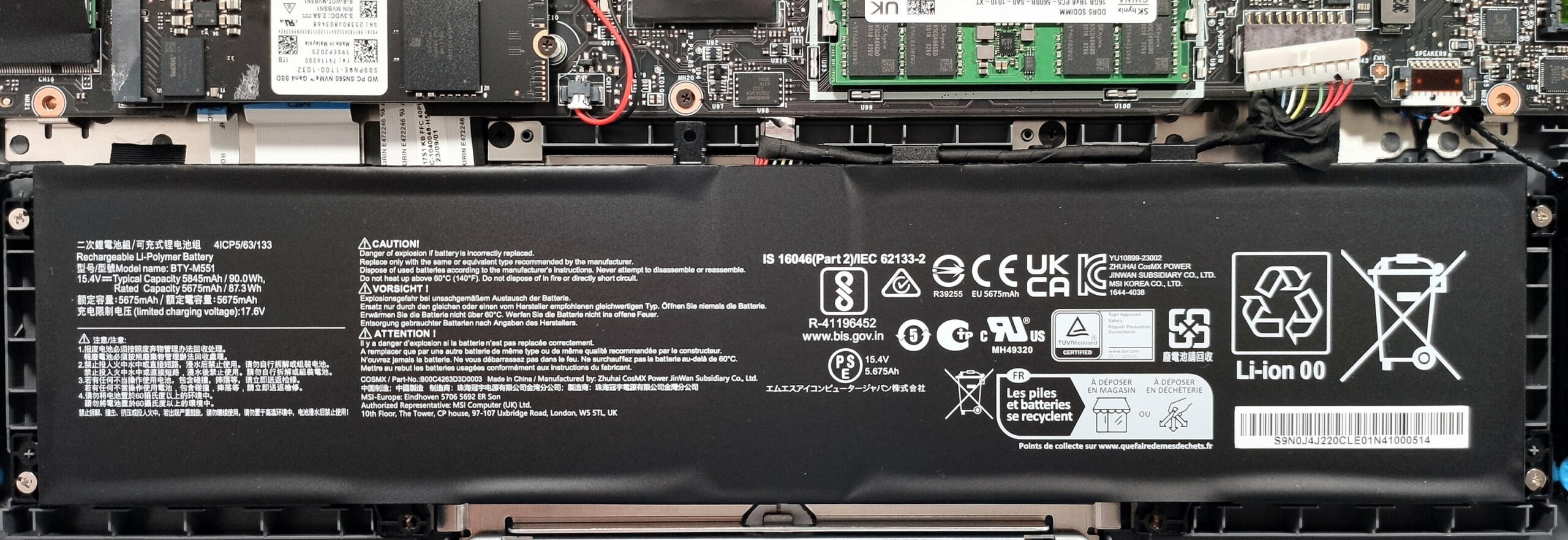
- Disconnect the battery by detaching its connector from the motherboard.
- Remove the four Phillips-head screws and lift the battery out of the chassis.
More info: The 90Wh battery provides around 7 hours of Web browsing or 6 hours of video playback.
Memory Upgrade
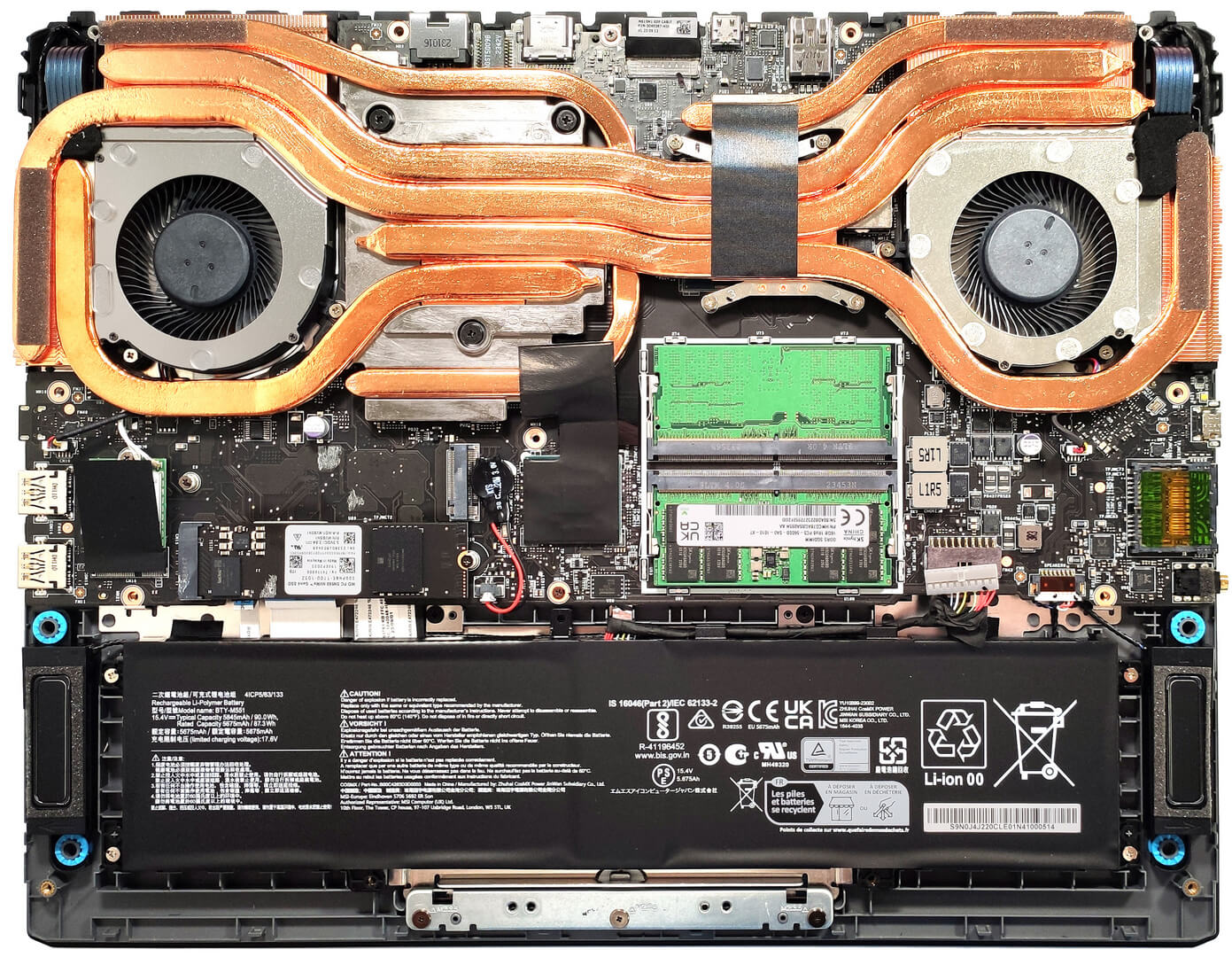
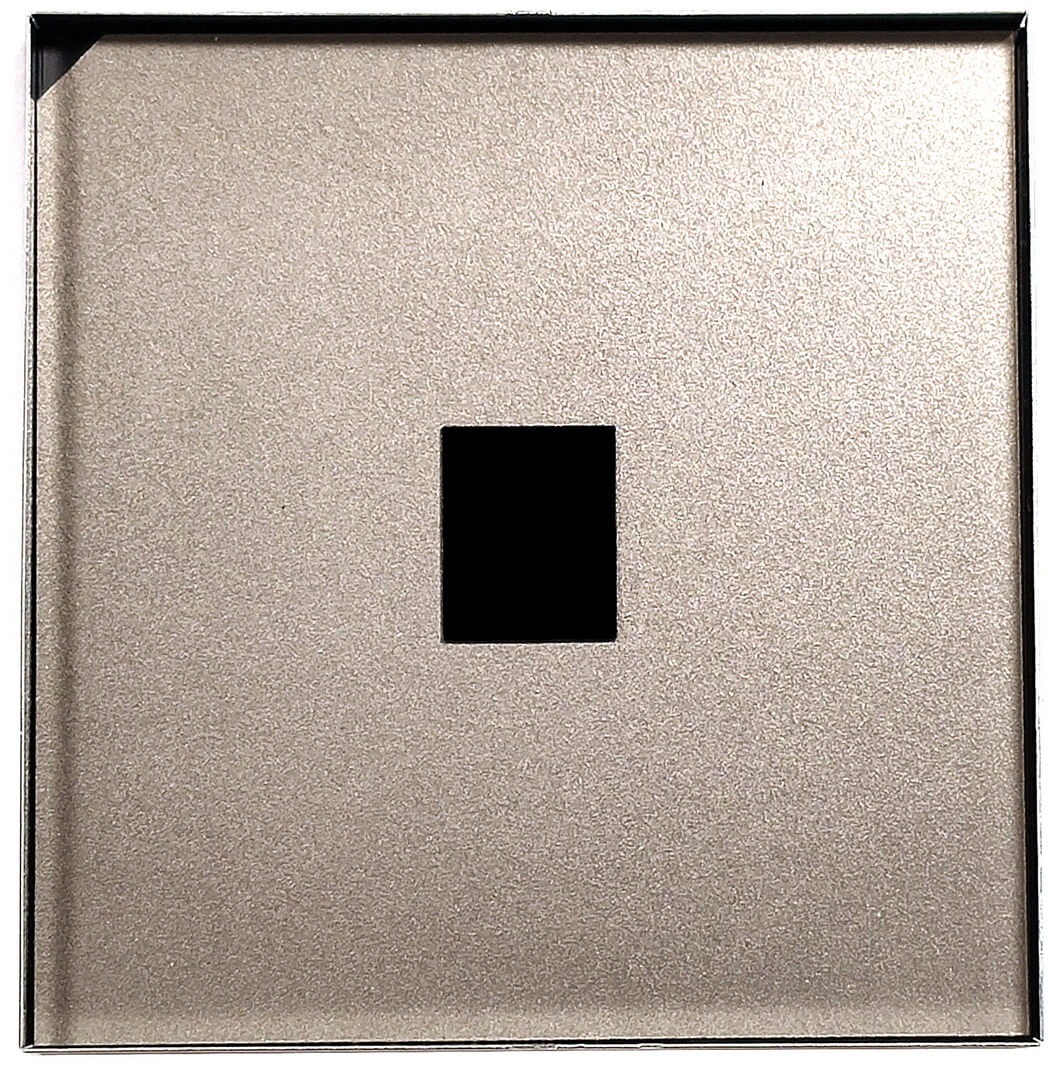
- Locate the RAM zone, which is covered by a metal cap glued to the plastic shrouds.
- Gently pry off the metal cap, being careful not to damage the thermal pad adhering it to the shrouds.
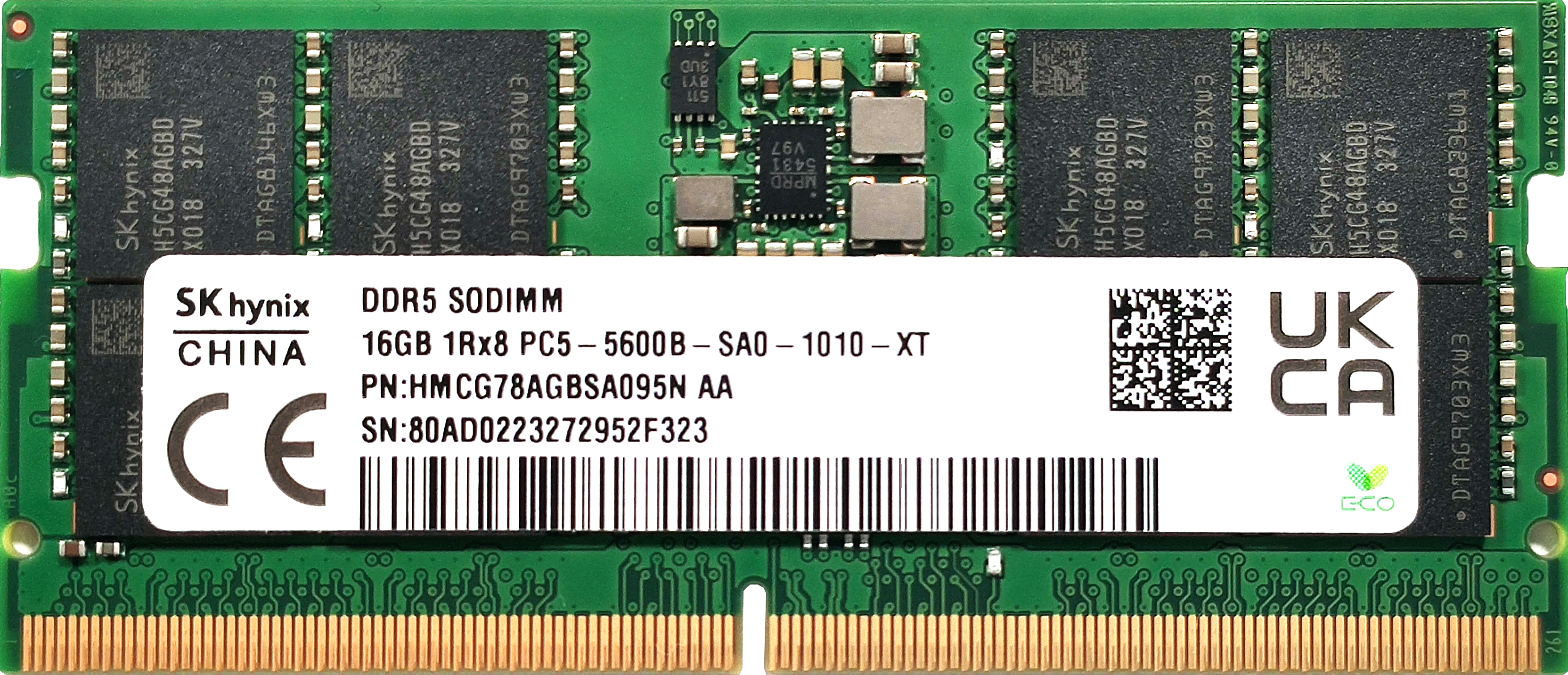
More info: Officially supports up to 64GB of DDR5-5600MHz RAM but capable of handling up to 192GB due to CPU compatibility.
You can buy DDR5 RAM modules here: Buy from Amazon.com (#CommissionsEarned)
Hint: Don’t forget to check out our Top M.2 SSDs Performance Rankings for insights on the best storage options available.

Storage Upgrade
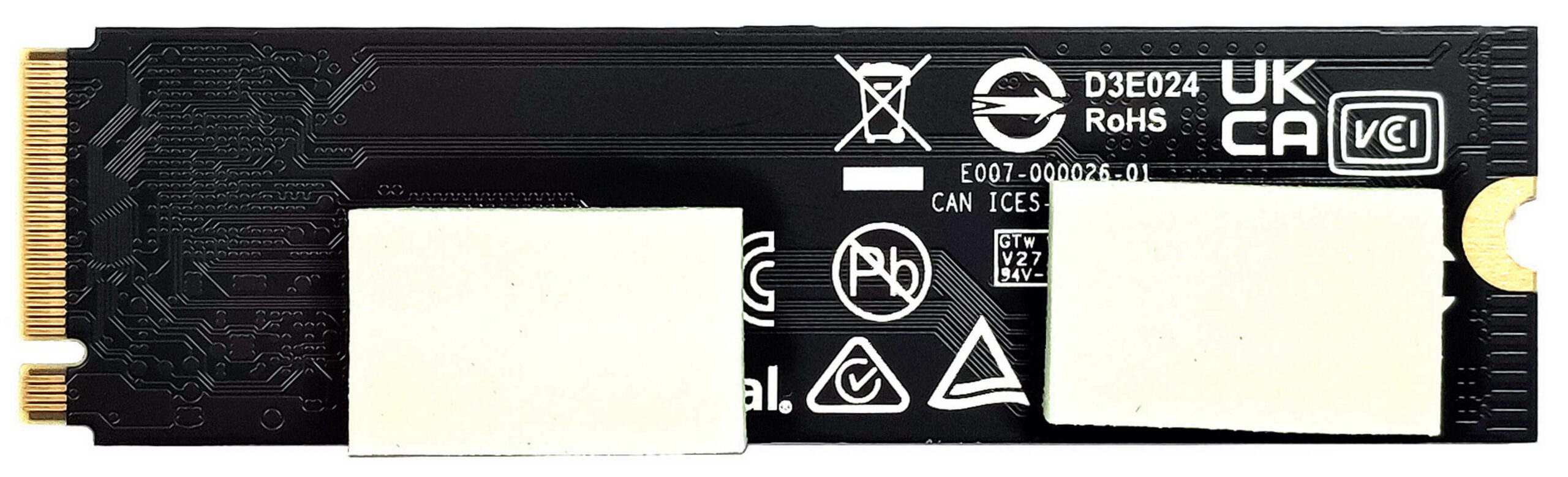
- Identify the two M.2 slots, compatible with Gen 4 and Gen 5 SSDs.
- Observe the thermal pads below the preinstalled NVMe drives for better cooling performance.
You can buy Gen 5 M.2 SSD modules here: Buy from Amazon.com (#CommissionsEarned)

Step 3: Cooling System Overview
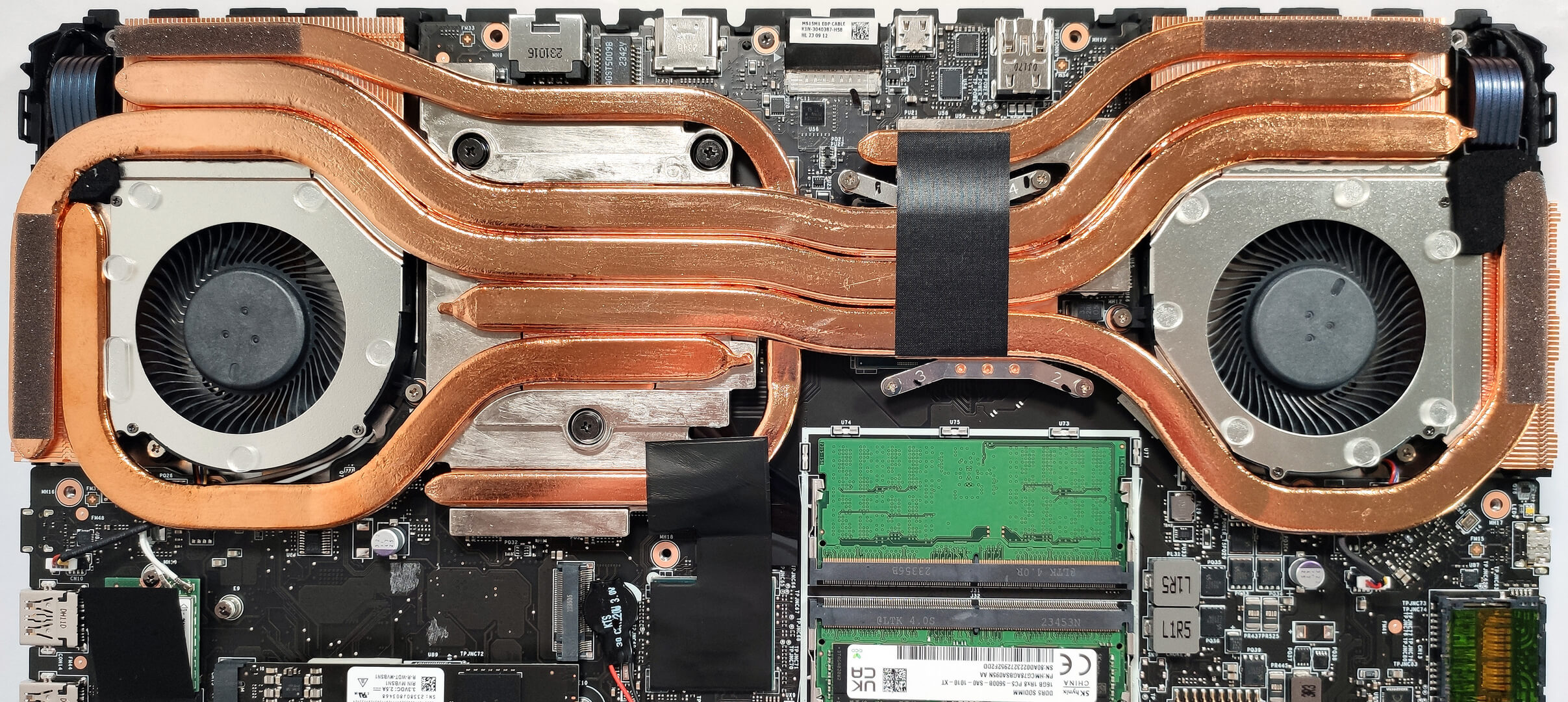
- Inspect the Cooler Boost 5 system, which includes two fans and multiple heat pipes.
- Note the extra heat pipes dedicated to the processor and GPU’s VRMs and memory, ensuring efficient heat management.
More info: The advanced cooling design is crucial for maintaining performance under heavy computational loads.
MSI Vector 16 HX (A13Vx / A14Vx) in-depth review
Nowadays, you can find a lot of high-end devices in a 17-inch or 18-inch form factor. On the other hand, if you want a smaller machine with top-end hardware, your choice is fairly limited. Still, with the aid of Vector 16 HX A13V, MSI tries to prove that a 16-incher can perform as well as some of its bigger siblings with larger displays. Specs-wise, the device is a true monster. You get a choice of Intel Raptor Lake HX CPUs with tons of cores and the latest and greatest NVIDIA Ada Lovelace GPUs with the highest possible power limits.Display-wise, there are two IPS variants. The base one is[...]
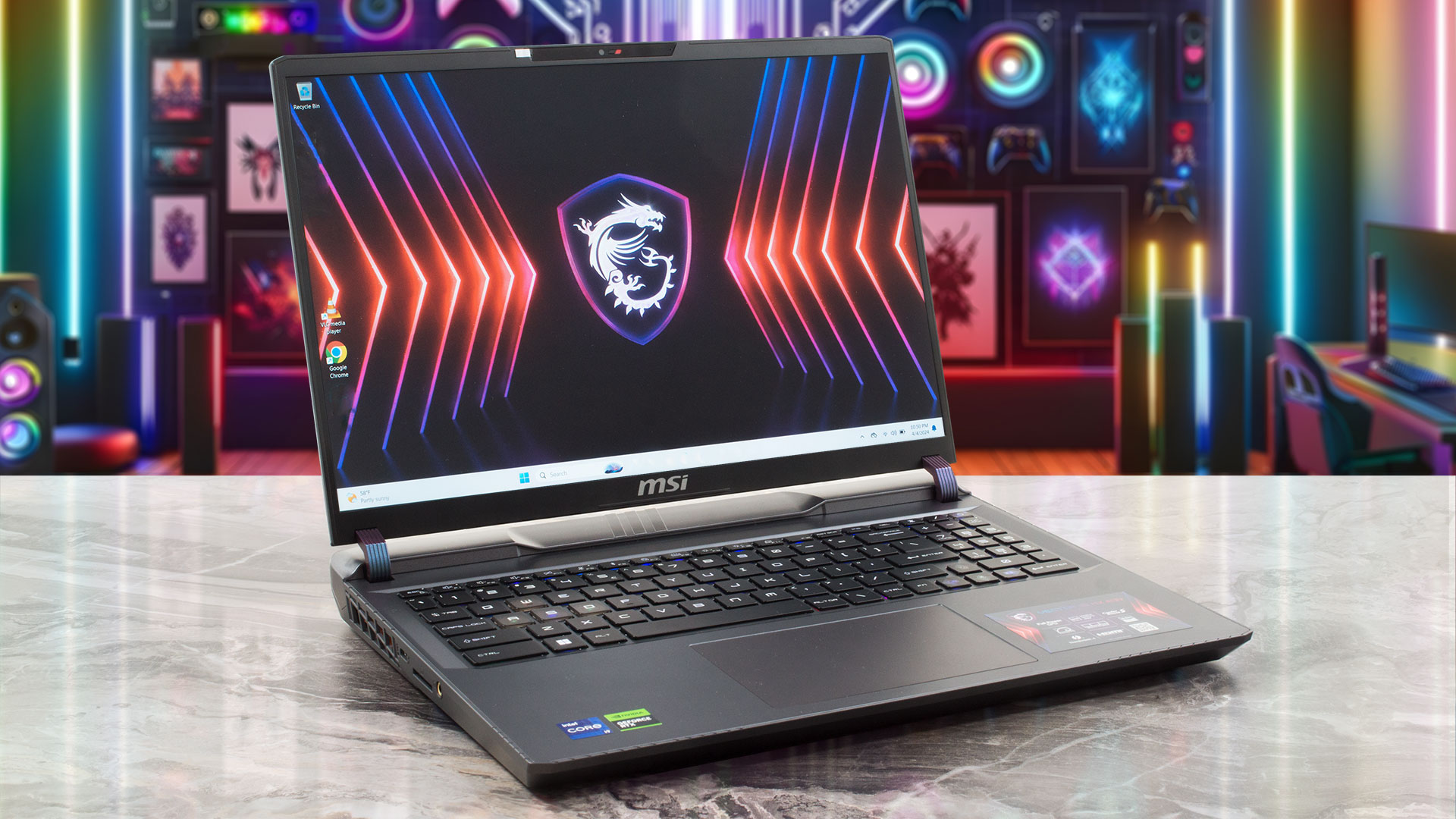
Pros
- Great performance for a 16-inch machine
- 2x SODIMMs + 2x M.2 slot (one is for Gen 5 SSDs)
- 144Hz refresh rate (Innolux N160JME-GTK (CMN1621))
- PWM-free + very good contrast ratio (Innolux N160JME-GTK (CMN1621))
- Superb SteelSeries keyboard
- Solid build quality
- High CPU and GPU clocks under heavy loads or gaming
- The MSI Center offers plenty of customizations
- Modern port selection + SD Express Card Reader
- Decent battery life
- Quality audio
Cons
- Bulky and heavy
- Low sRGB coverage (Innolux N160JME-GTK (CMN1621))
- Plastic base
- No G-Sync support
 Author: Severin Kolakov

![[August 2026] Amazon Global: Top 10 Best-Selling Laptops – Apple MacBook Neo Dominates the Charts as Budget and Mid-Range Windows Portables Fight for Volume](https://laptopmedia.com/wp-content/uploads/2026/09/Best-Selling-Laptops-GLOBAL-Top-10-400x225.jpg)
![[August 2026] Best-Selling Laptop Brands on Amazon Global – Apple Dominates Revenue While HP Leads in Model Variety](https://laptopmedia.com/wp-content/uploads/2026/09/GLOBAL-Best-Brands-400x225.jpg)
![[August 2026] Amazon Global: Top 10 Best-Selling Gaming Laptops – HP Victus 15 Captures the Crown as Budget-Friendly Models Dominate the Charts](https://laptopmedia.com/wp-content/uploads/2026/09/Best-Selling-Gaming-Laptops-GLOBAL-Top-10-400x225.jpg)
![[August 2026] Best-Selling Laptop Brands on Amazon USA – Apple Dominates Market Revenue and Volume Despite Lower Model Diversity](https://laptopmedia.com/wp-content/uploads/2026/09/COM-Best-Brands-1-400x225.jpg)
![[August 2026] Amazon USA: Top 10 Best-Selling Laptops – Apple MacBook Neo Dominates the Market with Massive Unit Sales!](https://laptopmedia.com/wp-content/uploads/2026/09/Best-Selling-Laptops-COM-Top-10-400x225.jpg)

Which one is the Gen5 Slot?
Got pic to remove the screen bezel? Im wanting to change out that garbage 1200p 144hz panel
I really don’t recommend it. After only one day of use, I connected a monitor via HDMI, watched Amazon Prime for two hours without playing any games, and it froze, restarted, and displayed error 43 in Device Manager.