Lenovo IdeaPad Slim 5
- Date Published: 24 Dec 2025
- AMD Ryzen 7 8845HS
- AMD Radeon 780M
- 16.0”, WUXGA (1920 x 1200), IPS
- 512GB SSD
- 16GB RAM
- 1.79 kg (3.9 lbs)
Review
Lenovo IdeaPad Slim 5 in-depth review
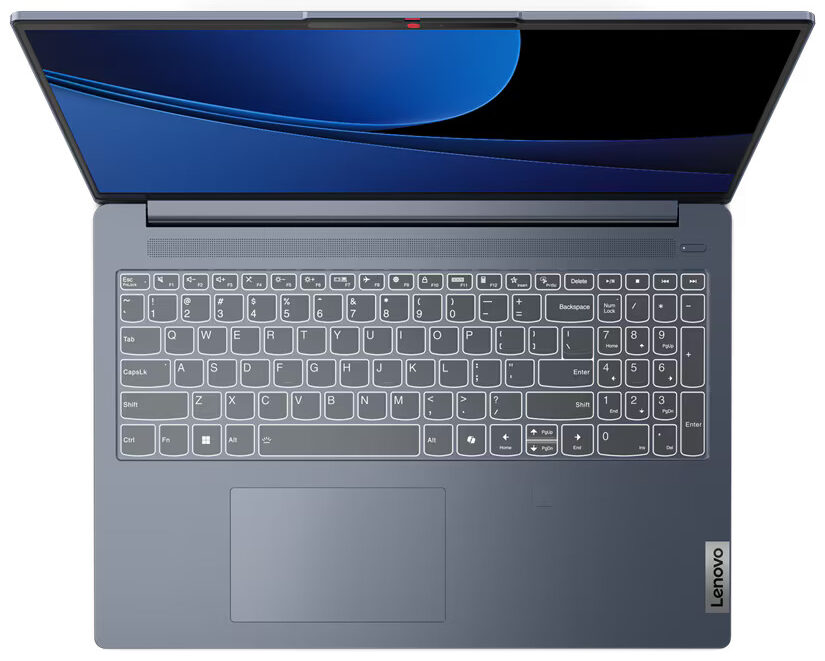
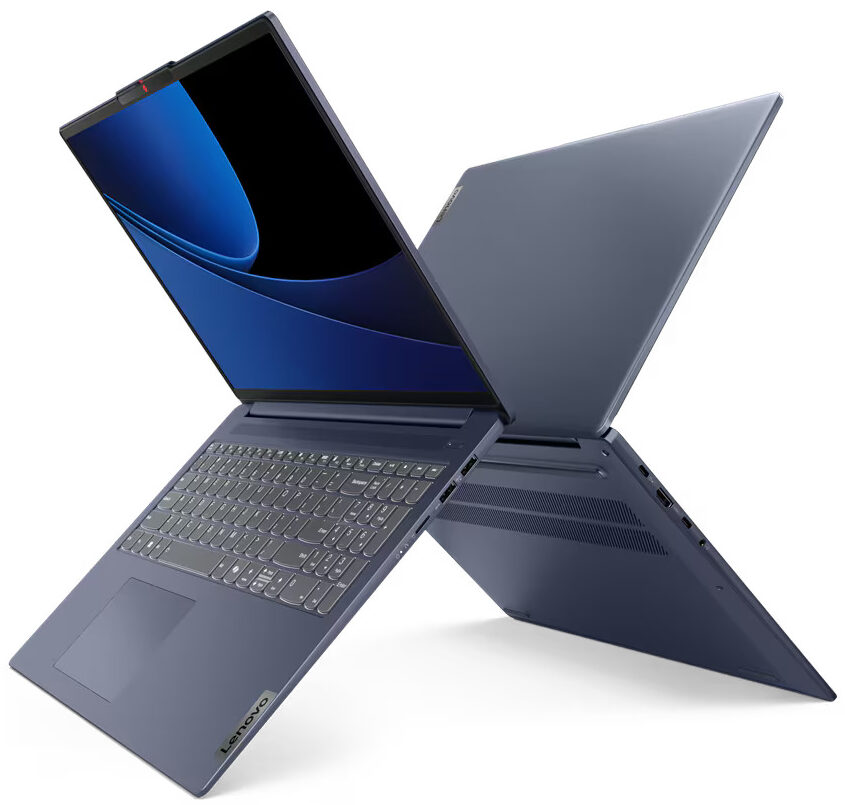
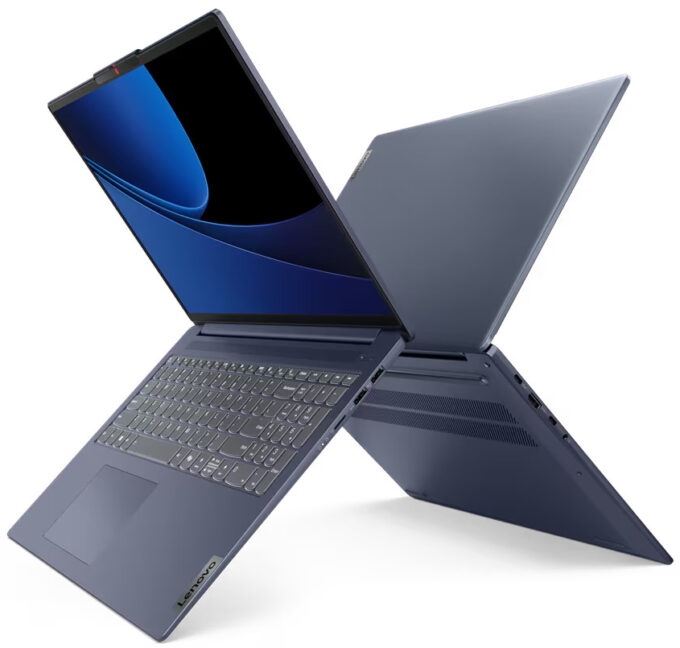
The Lenovo IdeaPad Slim 5 (16″ AMD) is the bigger version of the IdeaPad Slim 5 Gen 9 (14″ AMD). Both devices are pretty similar and of course, the main differences are the display options, the keyboard, and the cooling. By the way, the laptop that we are about to show you today is also known as IdeaPad Slim 5 16AHP9. Just like the smaller sibling, the 16-incher relies on 45W AMD Zen 4 Hawk Point-HS processors and AMD 760M or 780M for graphics. Again, the RAM is soldered and you get a lot of USB ports.This Lenovo machine is offered with four display models - three 60Hz 1200p IPS units (one of them is a touchscreen) and the top dog is a 2048x1280 OLED with a 120Hz refresh rate and HDR support. We pick a notebook with the latter and this thing is impressive in terms of color coverage. [...]
Read the full review
Pros
- Optional fingerprint reader and IR Web camera
- Thin, light, and solid aluminum chassis
- Infinite contrast ratio + 120Hz refresh rate (LEN8ABC)
- Wide viewing angles + 403 nits max brightness (LEN8ABC)
- 100% sRGB and DCI-P3 coverage (LEN8ABC)
- MicroSD card slot and 4x USB ports
- Feels snappy for work
- Long battery life
- The fan isn't noisy during long full CPU loads
- Comfortable keyboard with a NumPad
- Quality speakers
- Snappy iGPU
- 45W Zen 4 CPU options
Cons
- Soldered memory and just one M.2 slot
- PWM usage (LEN8ABC)
- All ports are rated at 5 Gbps
- The Ryzen 7 8845HS struggles to reach its base clock in long loads
Disassembly, maintenance and upgrade options
Opening the DeviceUndo the nine Torx-head screws securing the bottom panel. Use a lever tool to pop the back behind the hinge cover in the zones close to the top two corners. Pry the sides and the front with a thin plastic tool. Fully pry the back to remove the bottom panel.More info: Here's how the bottom panel looks on the inside.Battery RemovalPull out the battery connector from the motherboard. Undo the 4 Phillips-head screws securing the battery. Lift the battery to remove it from the device.Note: Our notebook has an optional 57Wh battery[...]
Read more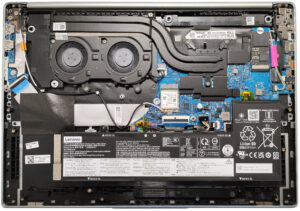


![[June 2026] Best-Selling Laptop Brands on Amazon Global – Apple’s Unrivaled Dominance in Units and Revenue](https://laptopmedia.com/wp-content/uploads/2026/07/GLOBAL-Best-Brands-400x225.jpg)
![[June 2026] Amazon Global: Top 10 Best-Selling Laptops – Apple’s New MacBook Neo Storms to #1, Reshaping the Market with Affordability](https://laptopmedia.com/wp-content/uploads/2026/07/Best-Selling-Laptops-GLOBAL-Top-10-400x225.jpg)
![[June 2026] Amazon Global: Top 10 Best-Selling Gaming Laptops – Acer’s Nitro V 16S AI Dominates Sales, While ASUS Leads Overall Revenue](https://laptopmedia.com/wp-content/uploads/2026/07/Best-Selling-Gaming-Laptops-GLOBAL-Top-10-400x225.jpg)
![[June 2026] Global Ranking of Best-Selling Laptop GPUs on Amazon – NVIDIA RTX 5060 is the Top-Selling Dedicated GPU](https://laptopmedia.com/wp-content/uploads/2026/07/Best-Selling-GPUs-GLOBAL-Top-10-400x225.jpg)
![[June 2026] Global Ranking of Best-Selling Laptop CPUs on Amazon – Apple M5 Dominates, AMD Ryzen 7 260 Gets Solid Premium Share](https://laptopmedia.com/wp-content/uploads/2026/07/Best-Selling-CPUs-GLOBAL-Top-10-400x225.jpg)
