Alienware 16 Aurora (AC16250) review – Great Battery and CPU, Disappointing GPU
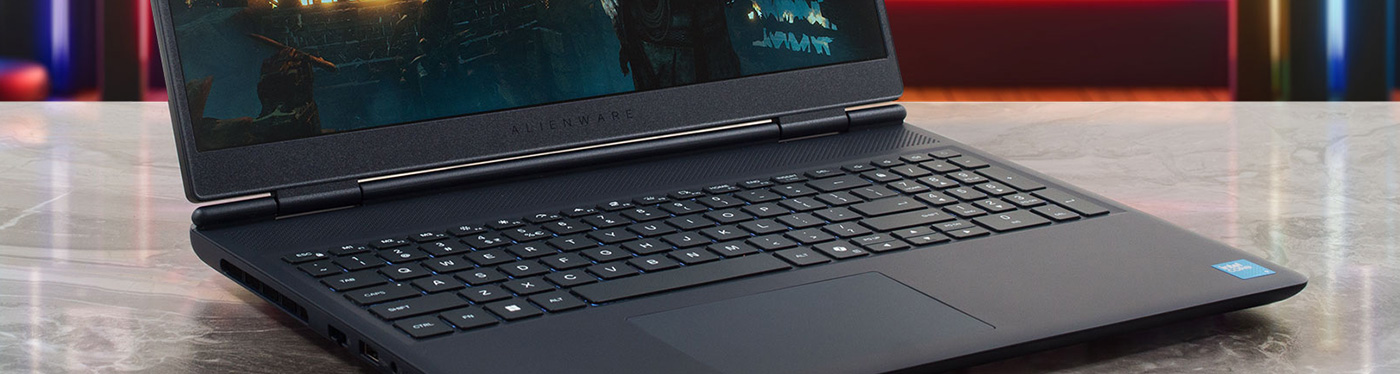
The Alienware 16 Aurora (AC16250) arrives with a mission to redefine what an Alienware laptop can be. Shedding the aggressive, sci-fi aesthetic of its predecessors, it opts for a sleek, understated “Interstellar Indigo” design that could almost pass for a business workstation. It promises a refined experience with a beautiful screen and exceptional battery life for a gaming machine. But in its quest for elegance, has it sacrificed too much of the raw power that defines the Alienware brand? We found a laptop of stark contradictions: one that excels in endurance and build quality but stumbles significantly when it comes to keeping its cool and delivering top-tier performance.
You can check the prices and configurations in our Specs System: https://laptopmedia.com/series/alienware-16-aurora-ac1620/

Contents
Specs, Drivers, What’s in the box
Alienware 16 Aurora (AC16250) - Specs

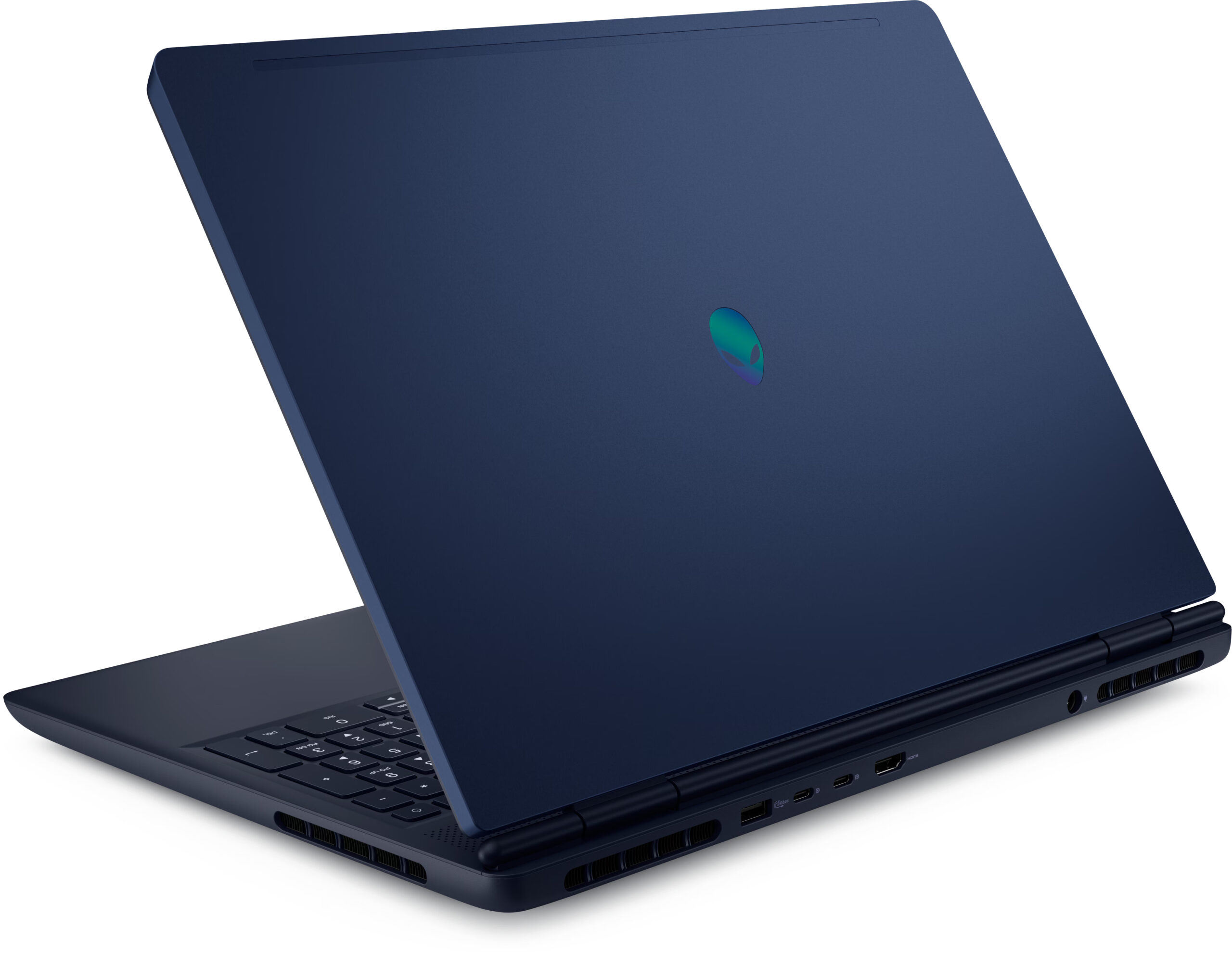

- HDD/SSD
- up to 8000GB SSD
- M.2 Slot
- 2x 2280 M.2 NVMe PCIe 4.0 x4 See photo
- RAM
- up to 64GB
- OS
- Windows 11 Home, Windows 11 Pro, Windows 10 Pro, Windows 10 Home
- Battery
- 96Wh
- Body material
- Plastic / Polycarbonate, Aluminum
- Dimensions
- 356.98 x 265.43 x 15.20 - 18.61 mm (14.05" x 10.45" x 0.60")
- Weight
- 2.49 kg (5.5 lbs)
- Ports and connectivity
- 2x USB Type-A
- 3.2 Gen 1 (5 Gbps)
- 1x USB Type-C
- 3.2 Gen 2 (10 Gbps), DisplayPort
- 1x USB Type-C
- 3.2 Gen 2 (10 Gbps), Power Delivery (PD), DisplayPort
- HDMI
- 2.1
- Card reader
- Ethernet LAN
- 10, 100, 1000 Mbit/s
- Wi-Fi
- Wi-Fi 7
- Bluetooth
- 5.4
- Audio jack
- 3.5mm Combo Jack
- Features
- Fingerprint reader
- Web camera
- HD
- Backlit keyboard
- optional
- Microphone
- Digital Array Microphones
- Speakers
- 2x 2.5W Stereo Speakers
- Security Lock slot
All Alienware 16 Aurora (AC16250) configurations
Drivers
All drivers and utilities for this notebook can be found here: https://www.dell.com/support/product-details/en-us/product/alienware-aurora-ac16250-gaming-laptop/drivers
What’s in the box?
Inside the package you’ll find the Alienware 16 Aurora (AC16250) itself along with the included power adapter, which varies depending on the GPU configuration:
- 130W power adapter – used with systems configured with GeForce RTX 3050 or RTX 4050
Weight: 1.15 lb (0.52 kg) - 180W power adapter – used with systems configured with GeForce RTX 5070
Weight: 1.25 lb (0.58 kg)
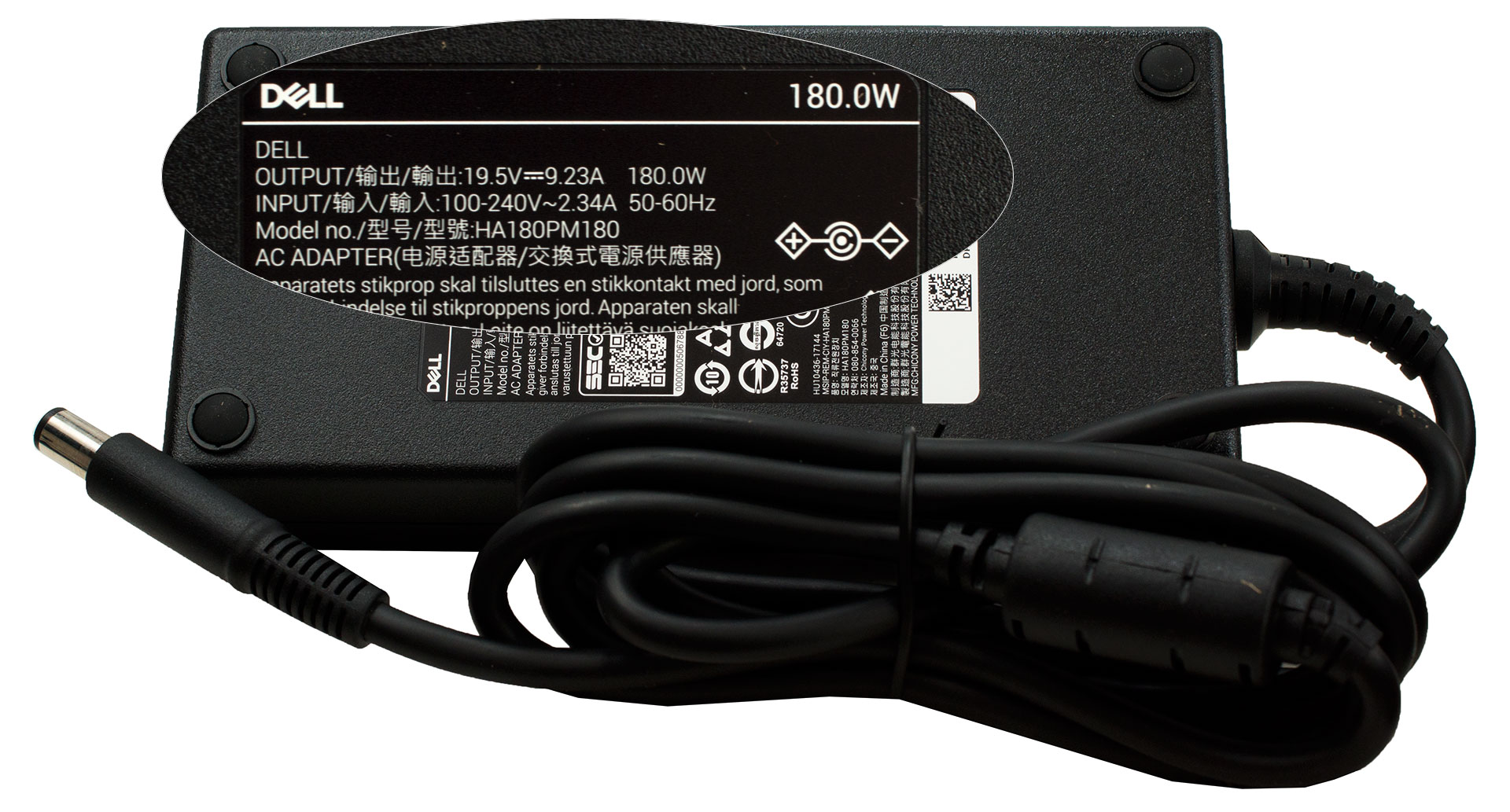
That’s the core bundle – no unexpected extras beyond the essentials. A small cosmetic gripe: the charger is branded Dell rather than Alienware. Functionally it makes no difference, but for a premium product it slightly undercuts the otherwise cohesive design language. It’s a bit like buying a Porsche and noticing a VW badge on one of the key components – technically accurate given the corporate relationship, but not what enthusiasts really want to see.
Design and construction
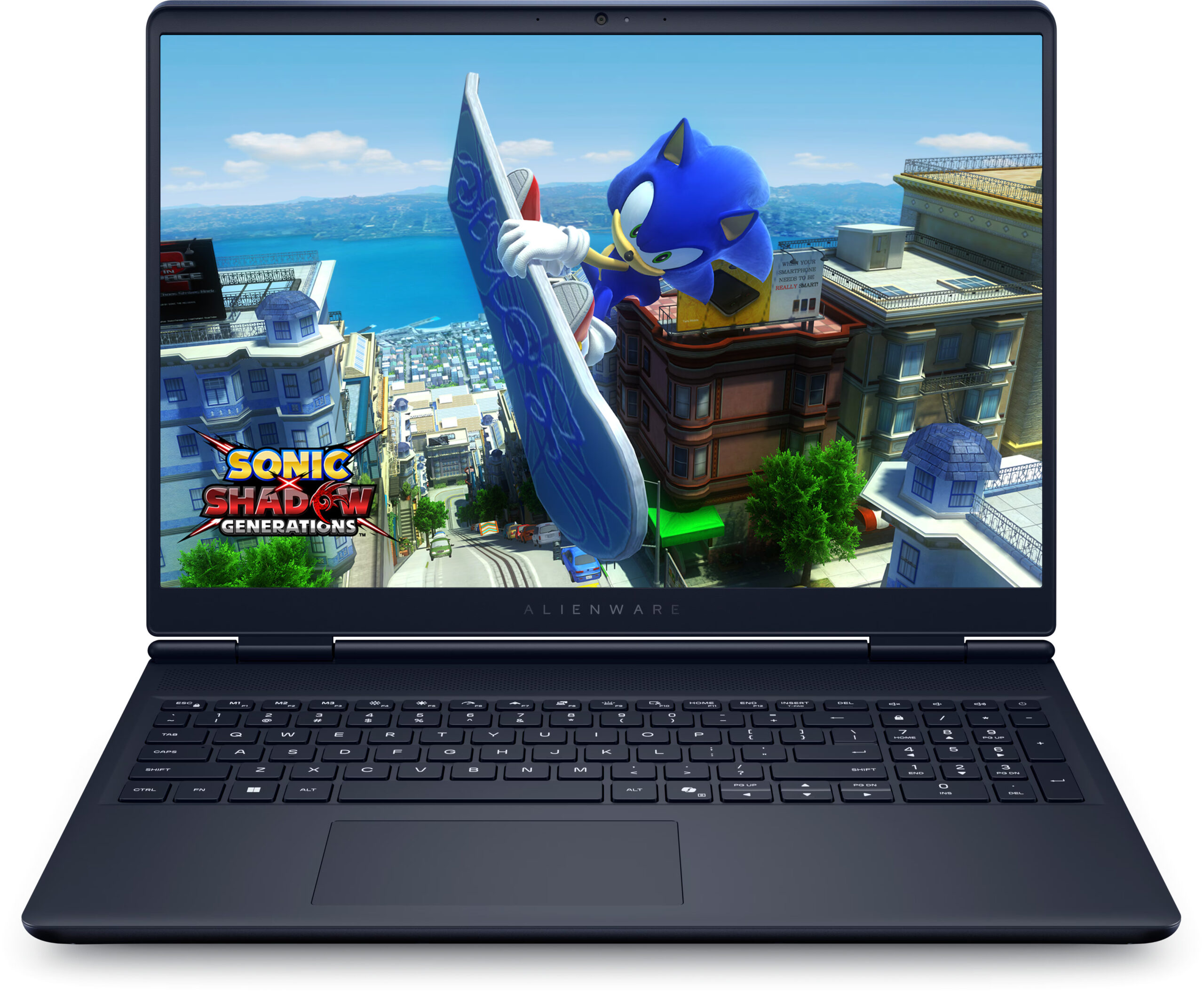
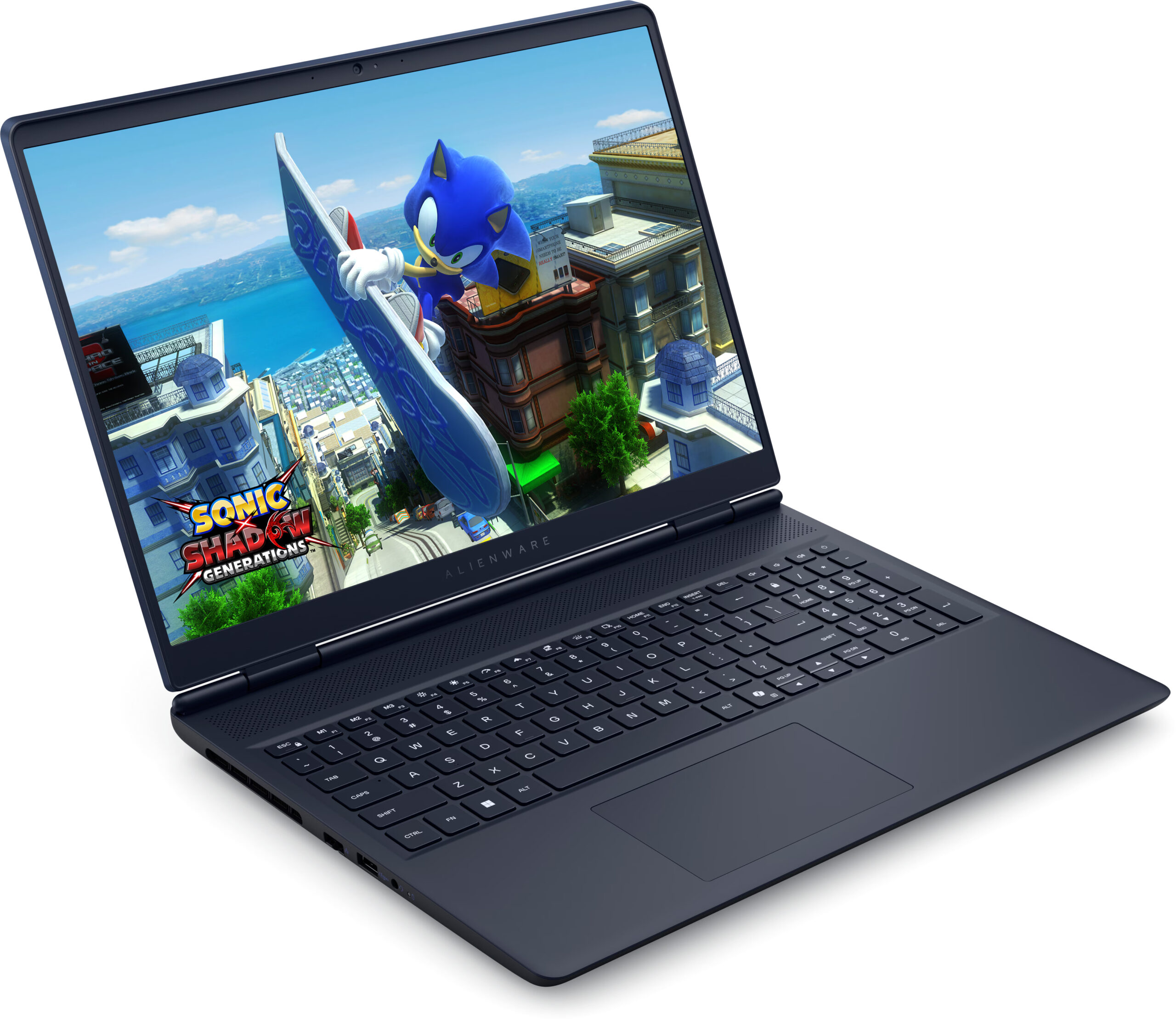
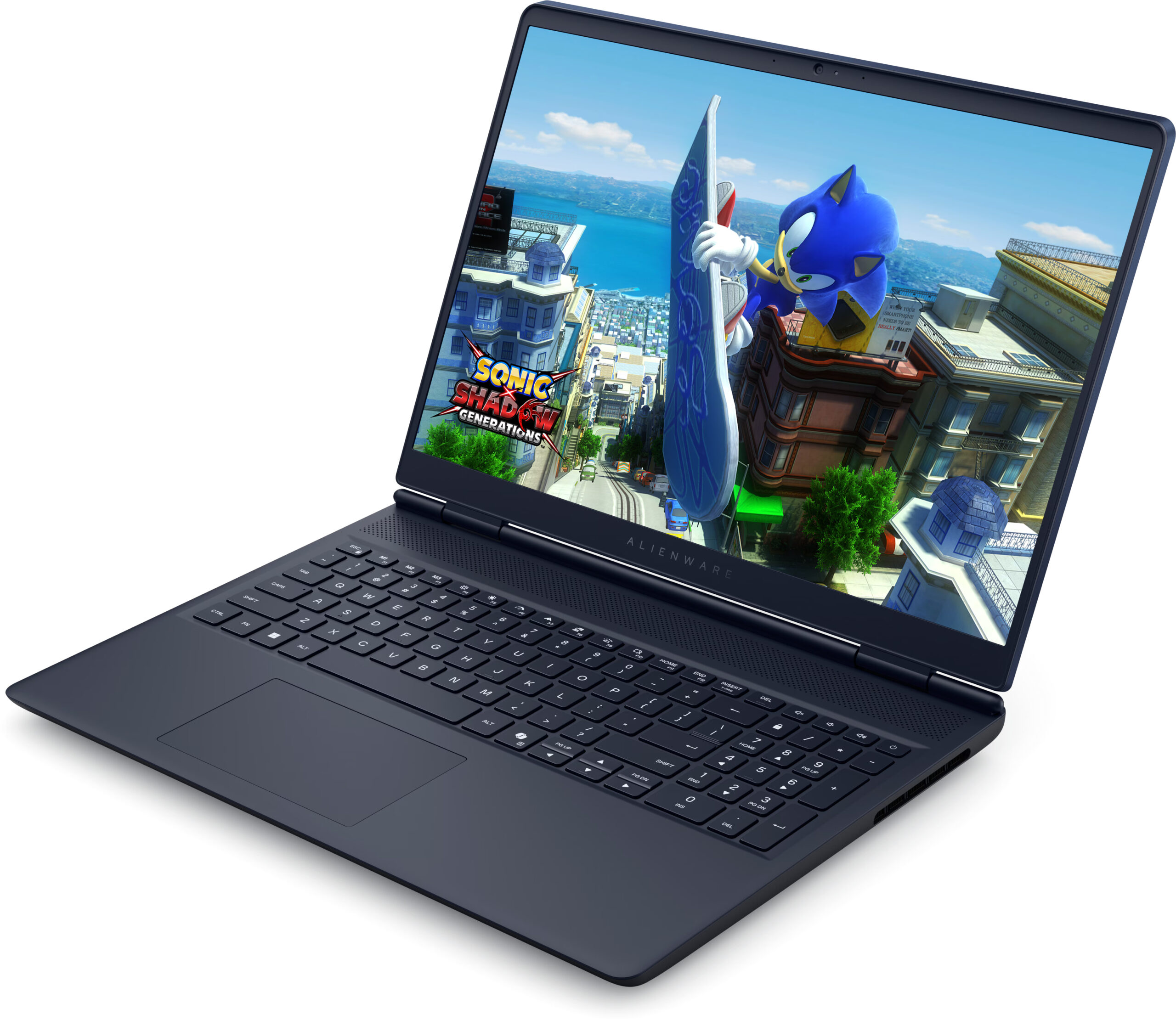
The Alienware 16 Aurora (AC16250) marks a continued shift in Alienware’s aesthetic philosophy. Gone are the days of aggressively angular, “look at me” designs; this machine opts for a much more elegant, low-key look. If you can overlook the iconic alien head logo on the lid, you could easily open this up in a coffee shop to get some work done without drawing unwanted attention.
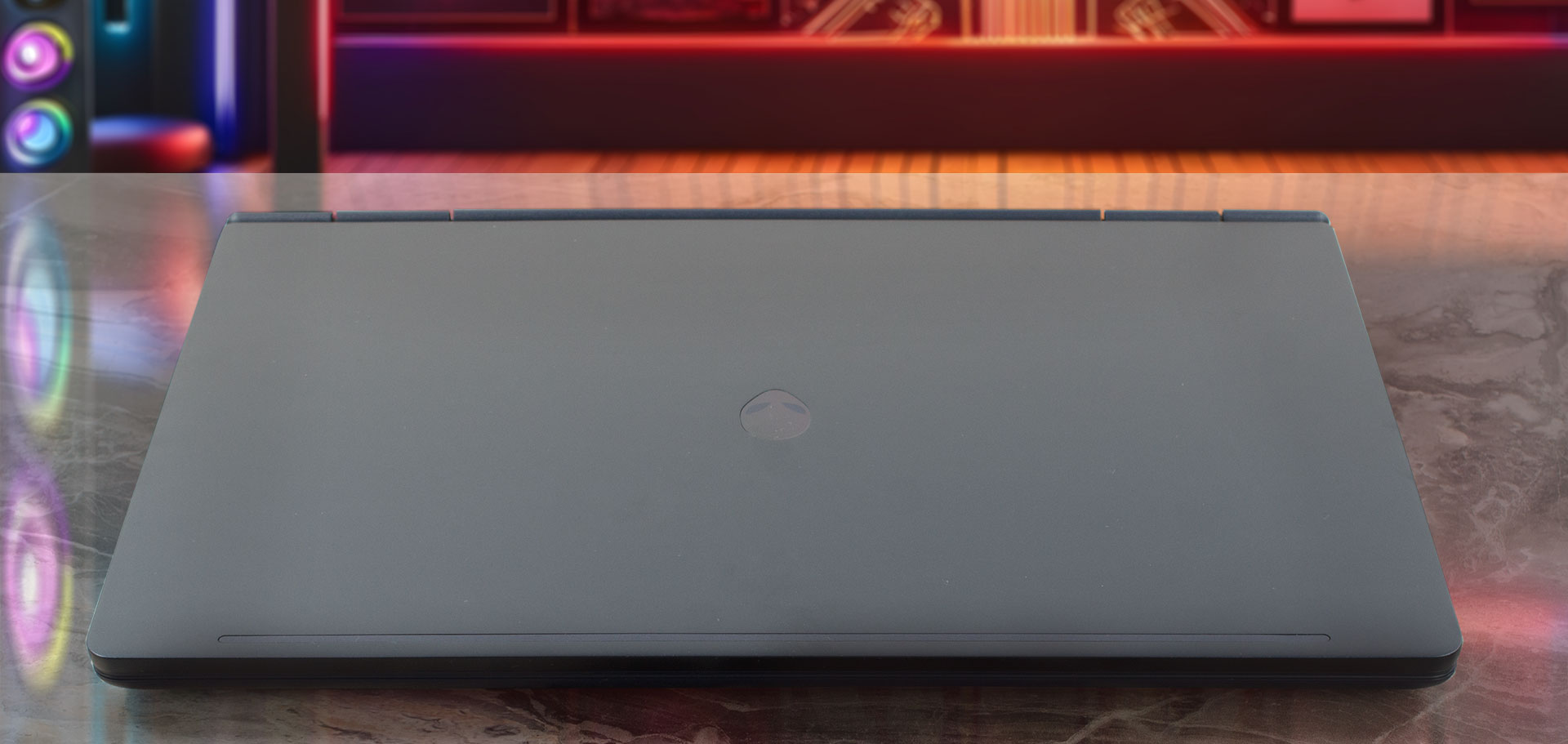
It comes in a single, stunning colour called “Interstellar Indigo,” a deep, beautiful blue with a sophisticated satin finish. While the lid is crafted from anodized aluminium for a premium touch, the rest of the chassis, including the keyboard deck and bottom panel, is made of plastic. This is a key difference from its sibling, the 16X Aurora (AC16251), which features an aluminium bottom as well. Despite the plastic exterior, the build feels reassuringly sturdy thanks to an internal magnesium alloy frame that provides a rigid “skeleton” for the device. The satin finish does pick up some fingerprints, but they are generally only visible at certain angles.
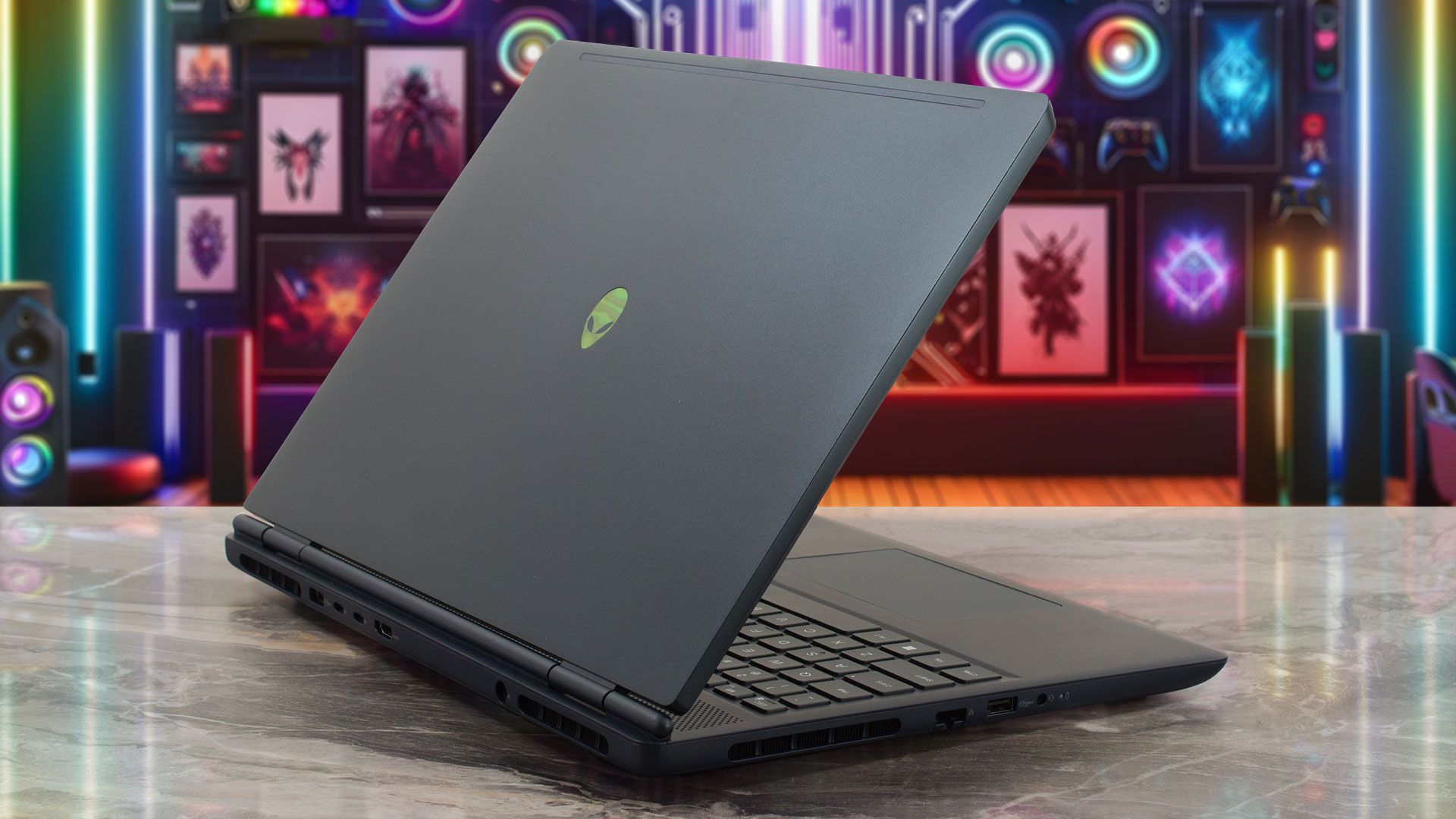
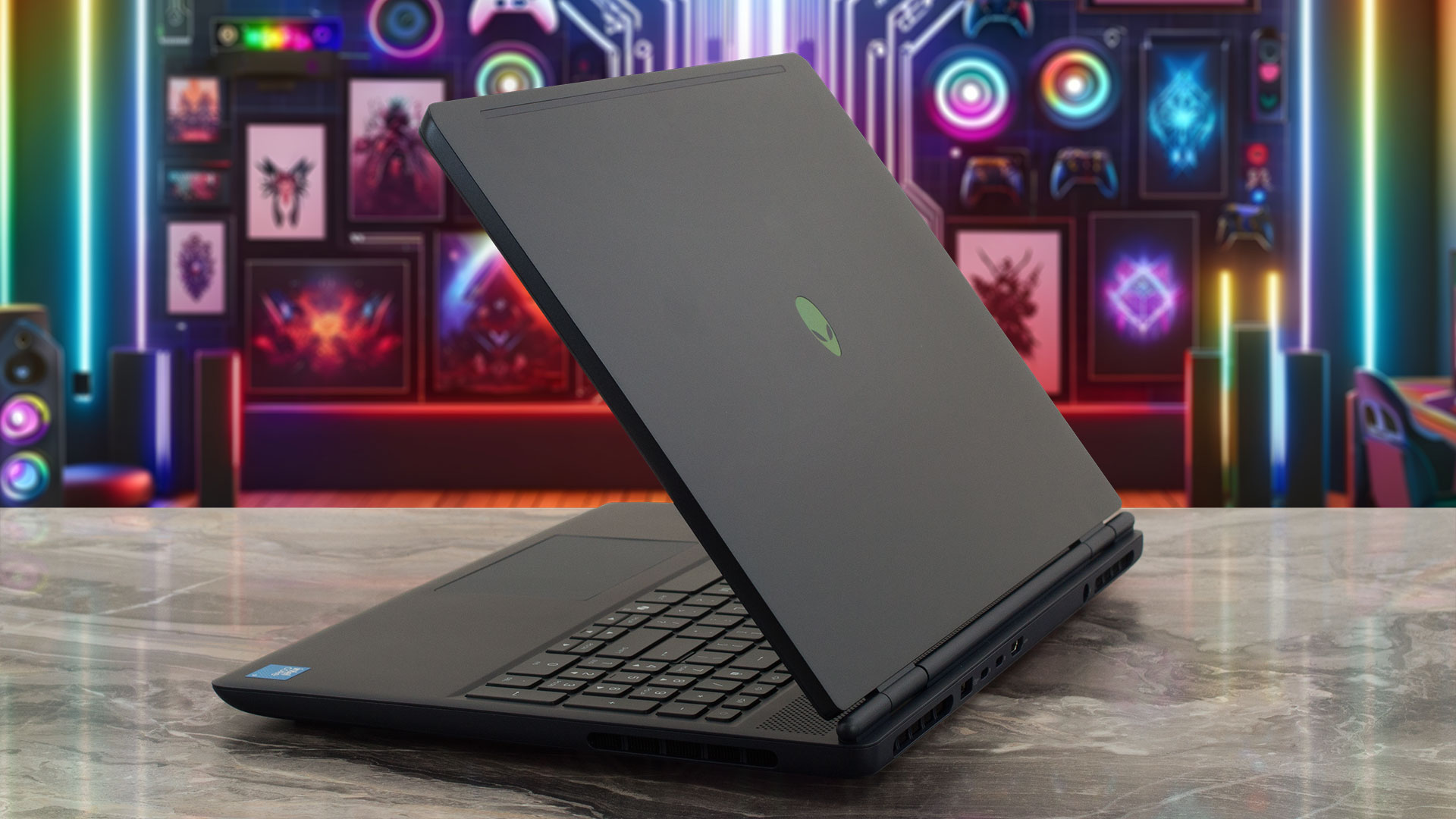
In terms of dimensions, the Aurora 16 has a tapered profile, ranging from 15.20 mm at the rear to 22.70 mm at its peak thickness (approx. 0.60 – 0.89 inches), with a starting weight of 2.49 kg (5.49 lbs). The hinge is versatile, allowing the screen to open a full 180 degrees to lay flat, a nice feature even without a touchscreen.
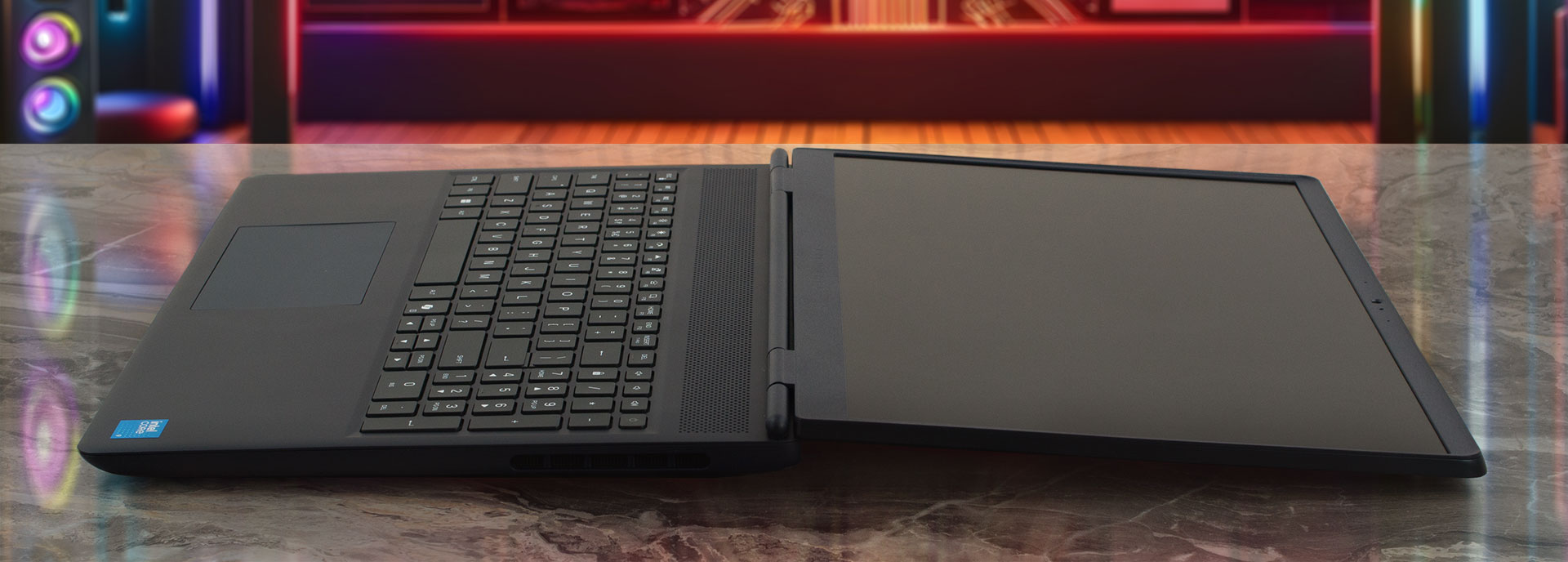
The display is flanked by slim 6.5 mm (approx. 0.26 inches) side bezels, while the top bezel is a more substantial 15 mm (approx. 0.59 inches). This thicker top bezel houses a basic 720p HD camera and dual-microphone array. Unfortunately, a physical privacy shutter for the camera is notably absent.
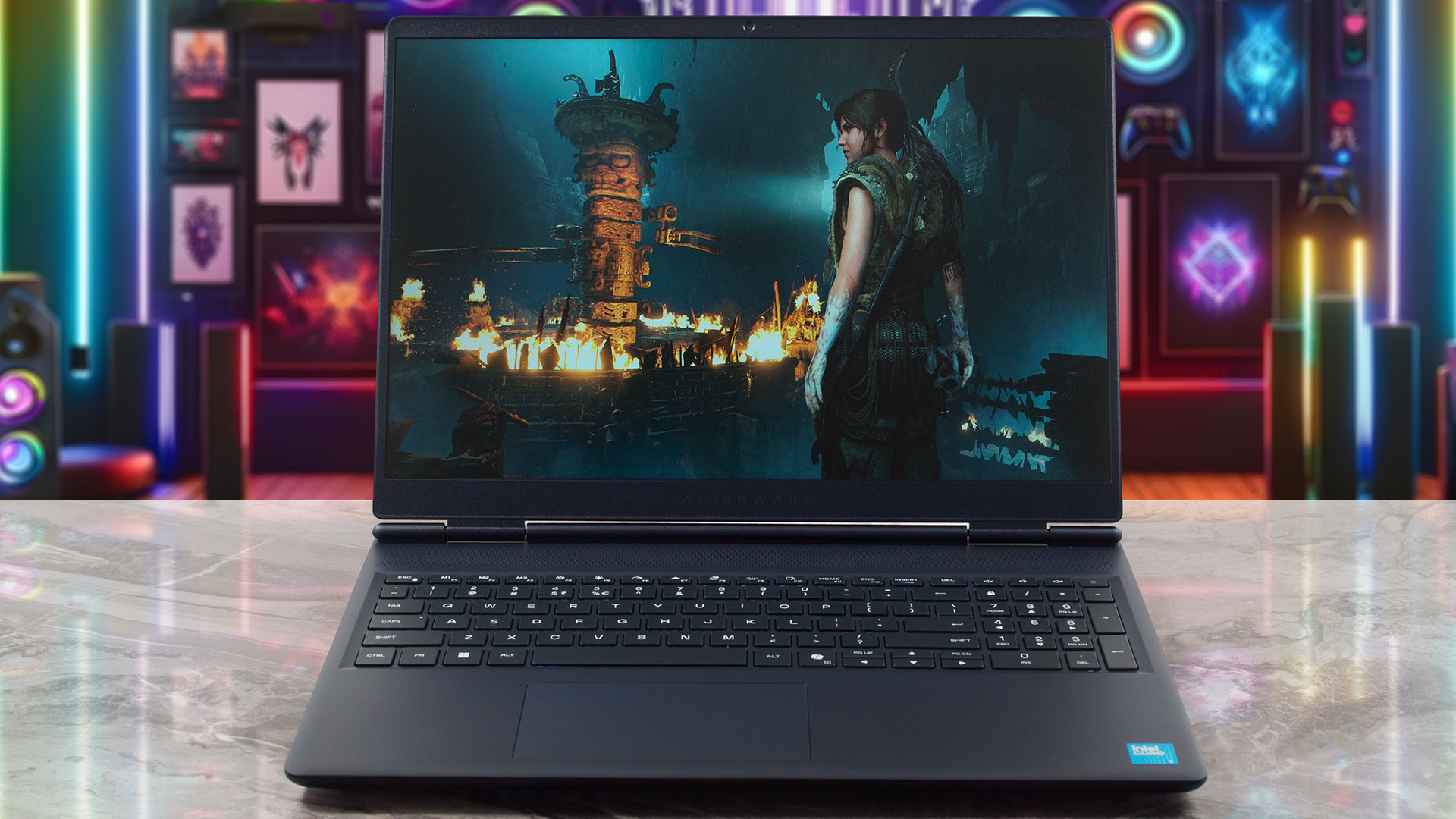
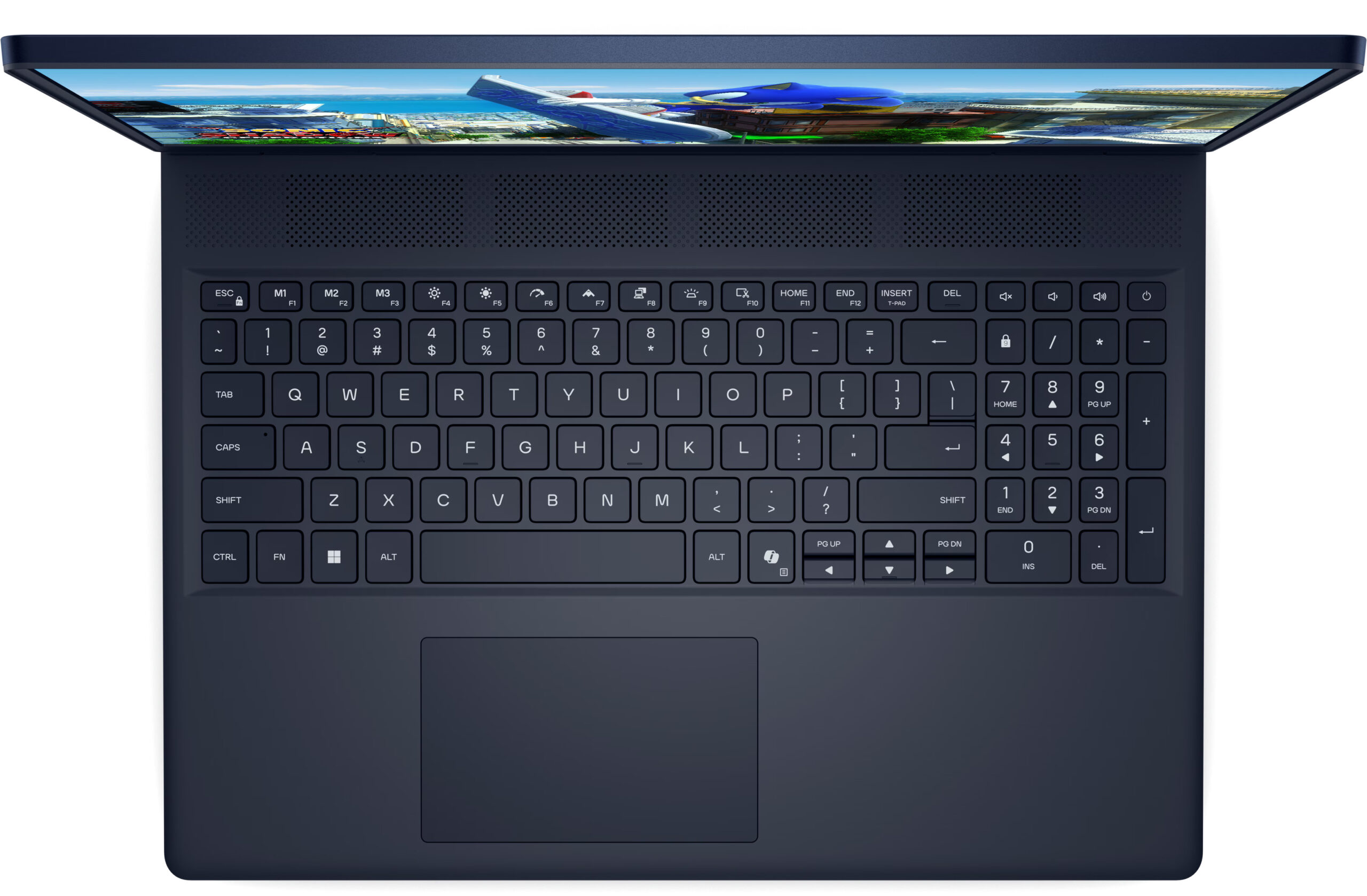
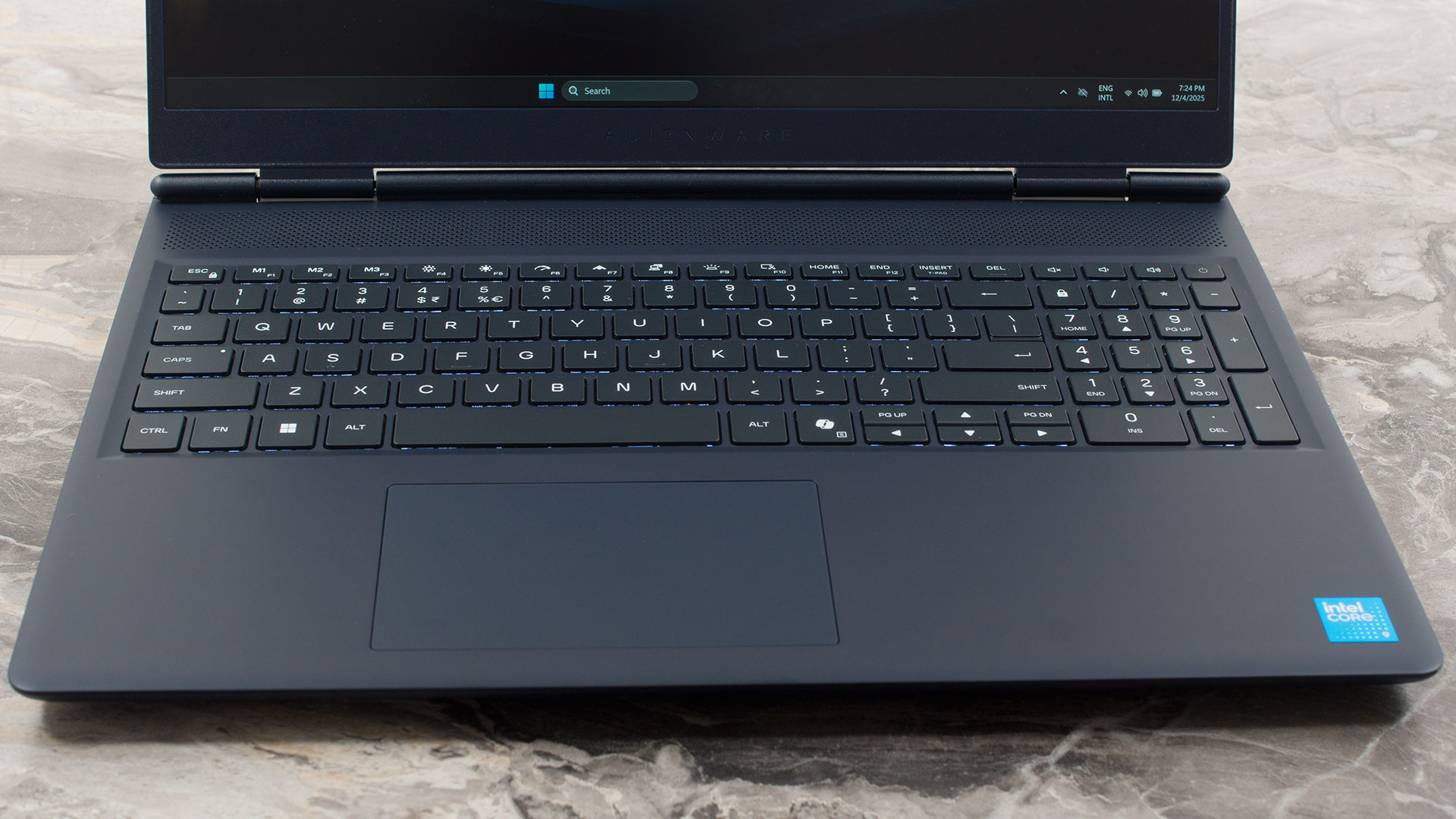
The keyboard deck utilizes the available space to include a NumPad, though its keys are slightly smaller than the main set. Unlike some of the flashier gaming models, the keyboard on the AC16250 features a simple, clean white backlight (no RGB here). The typing experience is comfortable, but gamers might be disappointed by the arrow keys; the Up and Down keys are half-height and crammed into the main layout without separation, which isn’t ideal for precise control. Biometric security is also missing entirely – there is no fingerprint reader and no IR camera for Windows Hello.
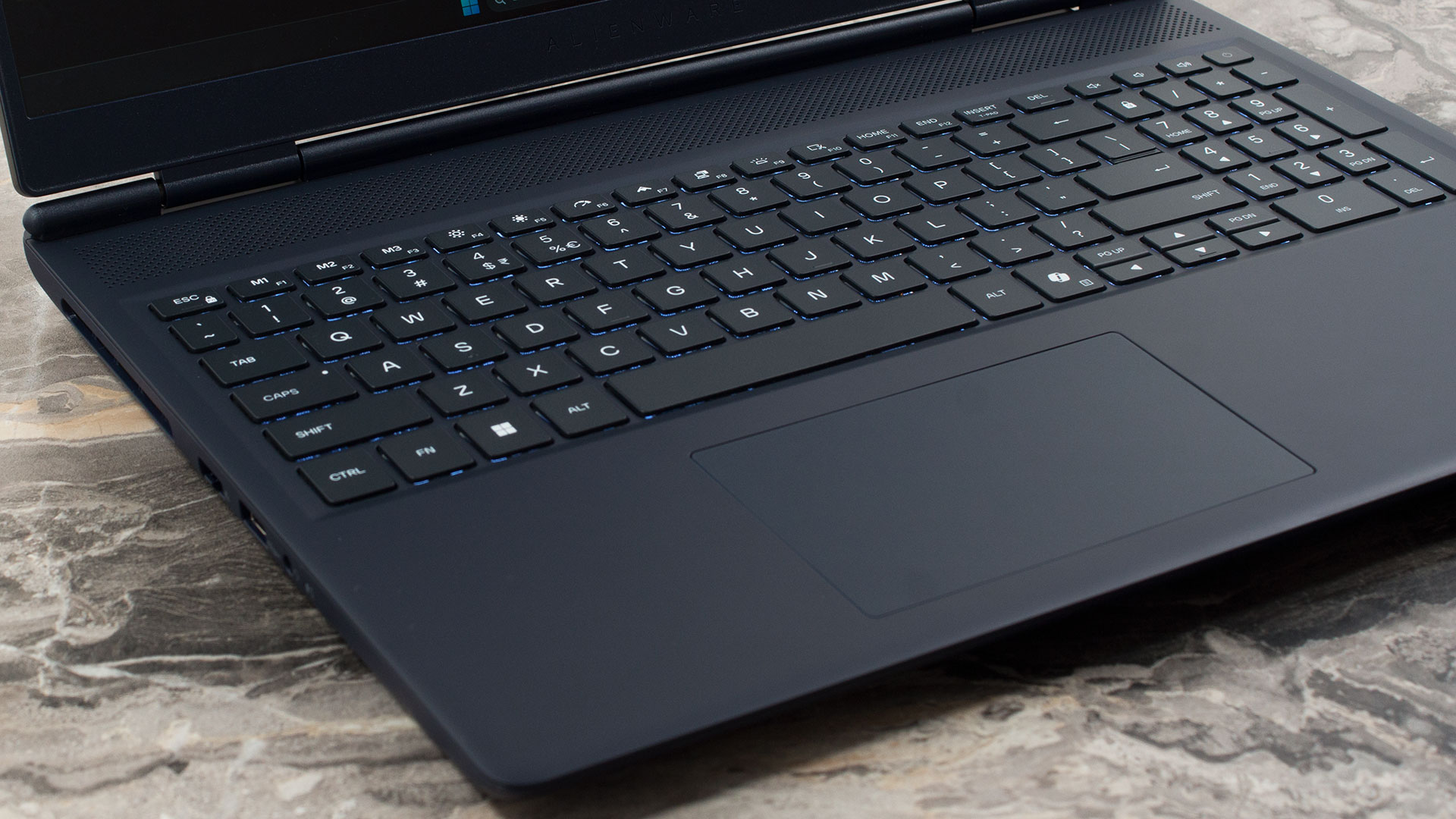
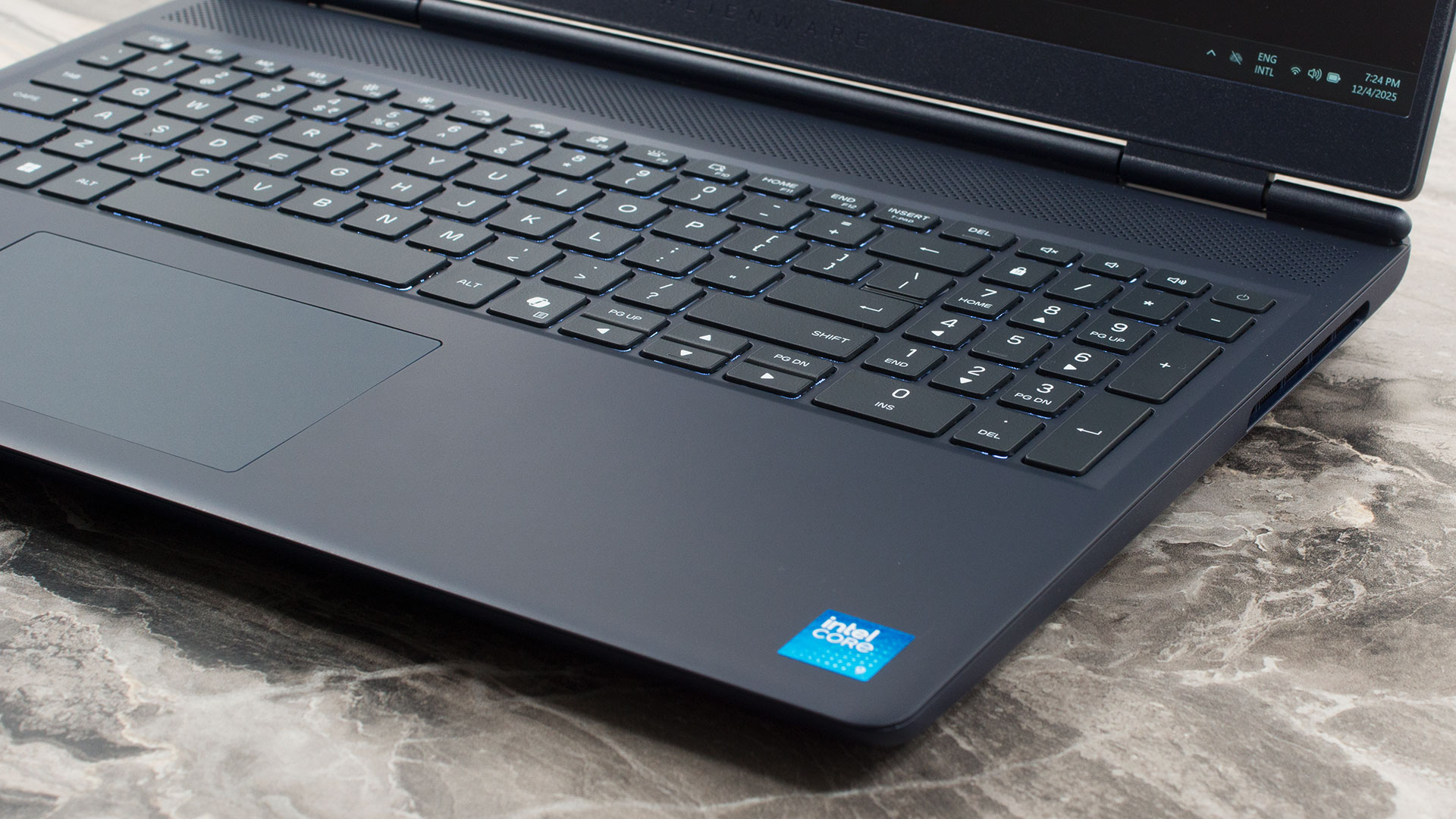
Below the keyboard sits a trackpad measuring 115 x 70 mm (approx. 4.53 x 2.76 inches). While not the largest on the market, we found it to be responsive and comfortable for daily use.
Ports and Connectivity
The Alienware 16 Aurora (AC16250) features a thoughtful port layout designed to keep cables out of the way during intense gaming sessions. The left side houses an air exhaust vent alongside an RJ45 Ethernet port for stable 1GbE wired networking. Also present are a USB 3.2 Gen 1 Type-A port (5 Gbps) and a universal 3.5mm audio jack for headsets.

Notably, the right side is completely devoid of ports, featuring only an air exhaust vent; this “clean” flank ensures that right-handed mouse users have unrestricted movement without cables interfering.

The majority of the connectivity is strategically placed on the rear of the chassis. This includes the dedicated power adapter port and a second USB 3.2 Gen 1 Type-A port. For display output, there is an HDMI 2.1 port that connects directly to the discrete graphics controller for optimal performance. Two USB-C ports are also located here, both operating at 10 Gbps (USB 3.2 Gen 2). However, they serve slightly different functions: one supports DisplayPort 1.4a for video, while the other features Power Delivery capabilities.

Wireless connectivity is cutting-edge, with the laptop equipped with a MediaTek MT7925 Wi-Fi 7 card. This supports the latest 802.11be standard with a 2×2 antenna configuration and MU-MIMO technology, ensuring top-tier wireless speeds and low latency. Bluetooth 5.4 is also integrated for robust connections with modern wireless peripherals.
Display and Sound Quality, Display Profiles
This is the only display option for Alienware 16 Aurora, there are no other choices.
| Alienware 16 Aurora (AC16250) | AUO B160QAN-HV93J (AUODBB5) |
| Diagonal | 16.0 inches (40.6 cm) |
| Panel Type | IPS |
| Resolution | 2560 x 1600 pixels |
| Max Refresh Rate | 120 Hz |
| Aspect Ratio | 16:10 |
| Pixel Density | 189 PPI |
| ‘Retina’ Distance | Greater than or equal to 46 cm |
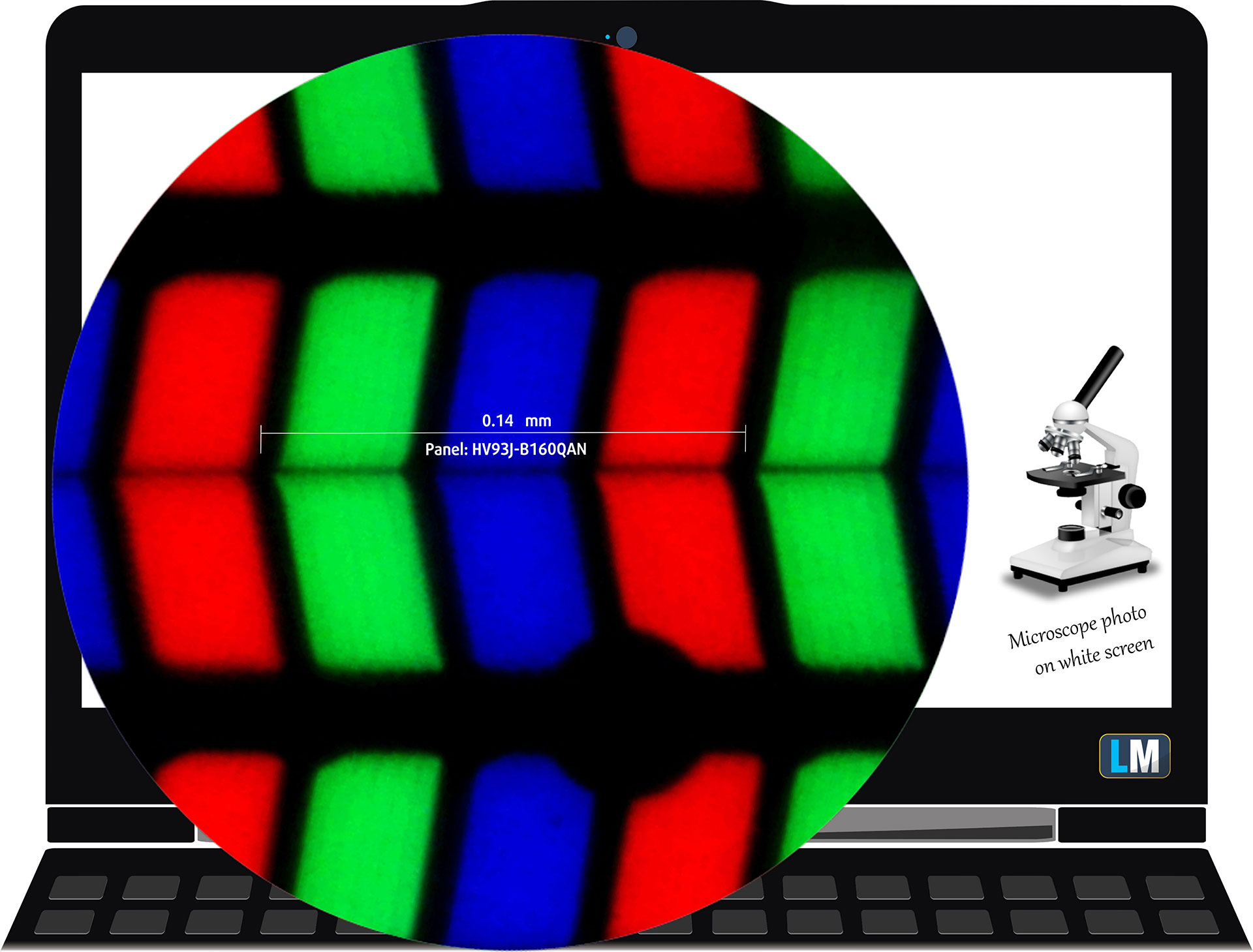 The WQXGA (2560 × 1600), 120 Hz, IPS display variant under our microscope
Viewing Angles
Viewing angles are good. We take photos from different angles to evaluate the quality.
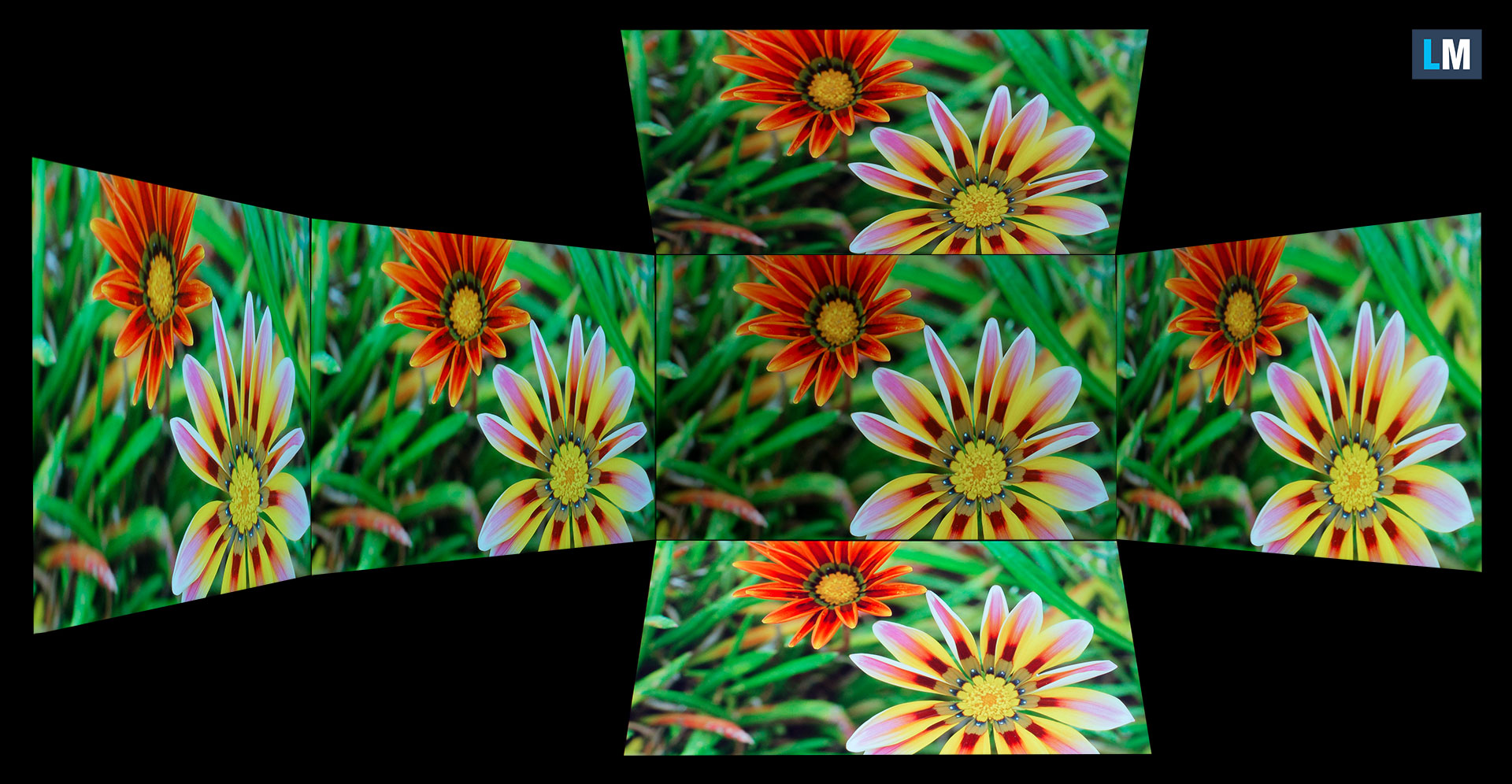
Also, a video with locked focus and exposure.
Color Coverage
The whole “sail-shaped” map below (Fig. 1) consists of all the colors we can see, while the black crooked line shows all the colors from real-world scenes and nature around us.
Then, we’ve drawn some of the most important and interesting color spaces, compared to the colors the panel of Alienware 16 Aurora (AC16250) can show:
Standard/For Web: sRGB – widely used color space for most consumer devices, ideal for Web design and development
For Print: AdobeRGB – used in professional photo editing, graphic design, and print
For Photographers/Video Editors: DCI-P3 – used in high-end film production, post-production, and digital cinema
Premium HDR: Rec.2020 – the widest consumer ITU color standard, covering a massive 75.8% of the visible spectrum, a benchmark for premium HDR content.
Alienware 16 Aurora (AC16250): the yellow dashed triangle (– – – – – –) represents the range of colors this display can show.
In our tests, we calculated the total color coverage of the display at 95% of the sRGB color gamut and 76% of the DCI-P3 color gamut.
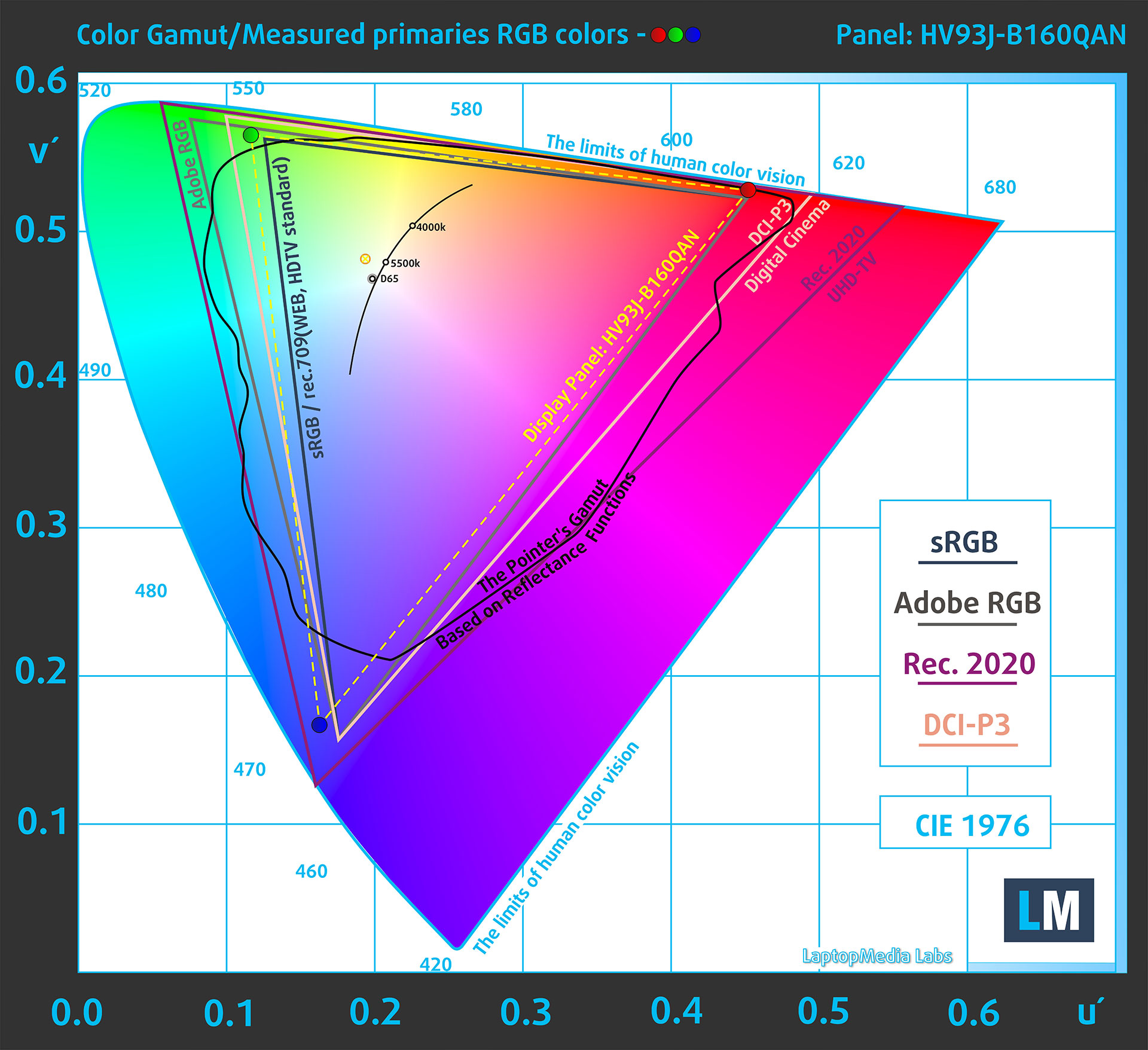
(Fig.1) Acer Nitro V 16 (ANV16-72) covers 95% of the sRGB gamut
Brightness and Contrast
The maximum brightness in SDR mode is 314 cd/m² in the center of the screen and 303 cd/m² averaged across the surface with a maximum deviation of 7%.
The Correlated Color Temperature (CCT) on a white screen at maximum brightness is 6130K.
The contrast ratio is 1420:1.

Uniformity: Luminance, Contrast, and Color Deviation
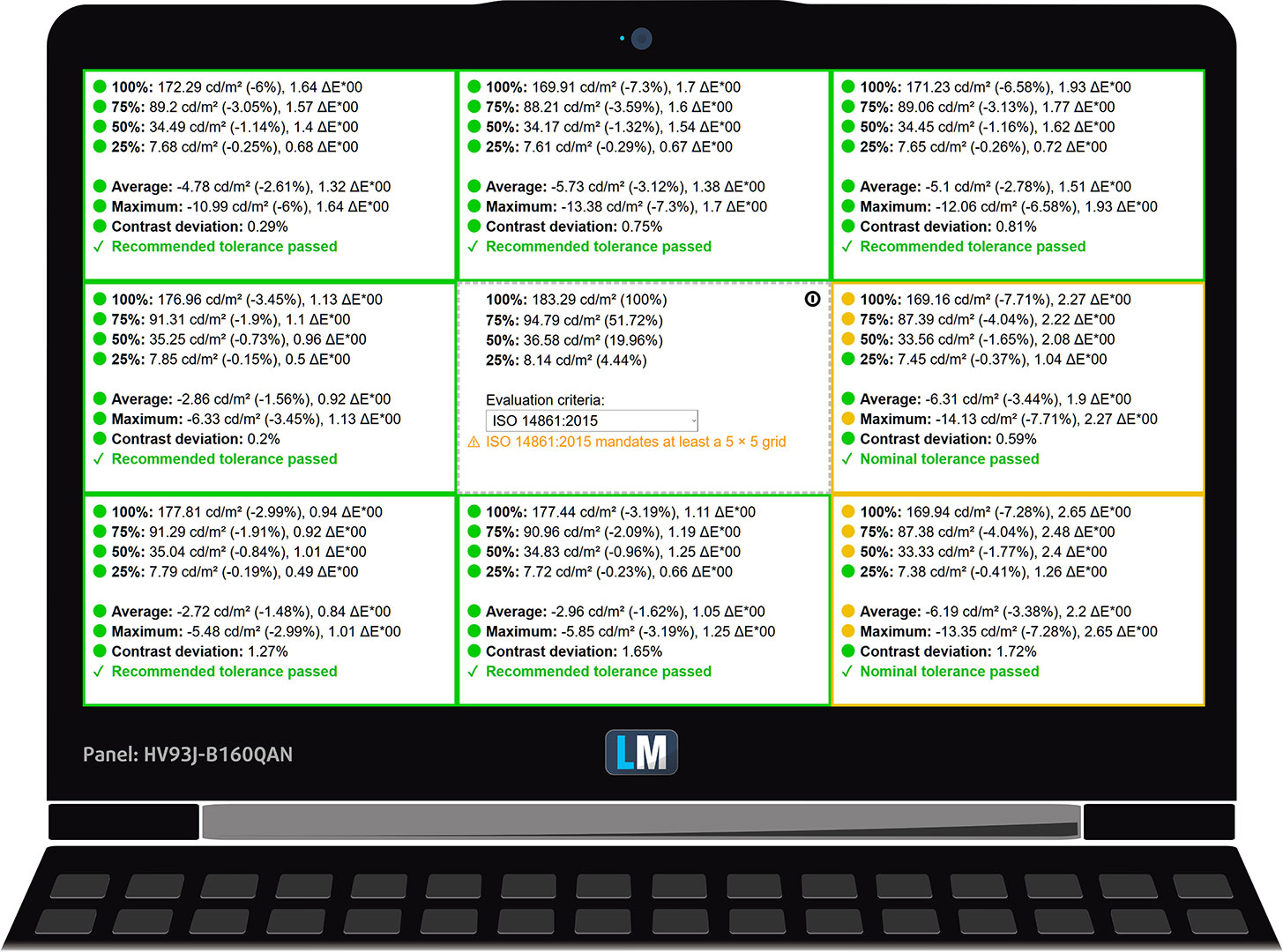
The figure below shows the results from our uniformity test across different sections of the screen. It’s measured at 183 nits (Windows slider = 72%) – a brightness level we consider typical for standard working conditions.
DeltaE values below 4.0 are acceptable for regular users. For those working with colors, screens with DeltaE values no higher than 2.0 are recommended.
Color Accuracy
Let’s check the difference between real colors and those you’ll see on the Alienware 16 Aurora (AC16250). We measure that distance in DeltaE – the higher the number, the more different they look.
Values below 4.0 are acceptable for regular users, while values below 2.0 are suitable for color-sensitive work. A value below 1.0 means the difference is indistinguishable to the naked eye.
For the next graph, we’ve selected 24 common colors, including dark/light skin, blue sky, green grass, etc.
Before our calibration of the Alienware 16 Aurora (AC16250), the Average color accuracy was 4.8 dE (Fig. 2), and with our Design and Office profile, it lowered to 1.7 dE (Fig. 3). Incredible improvement.
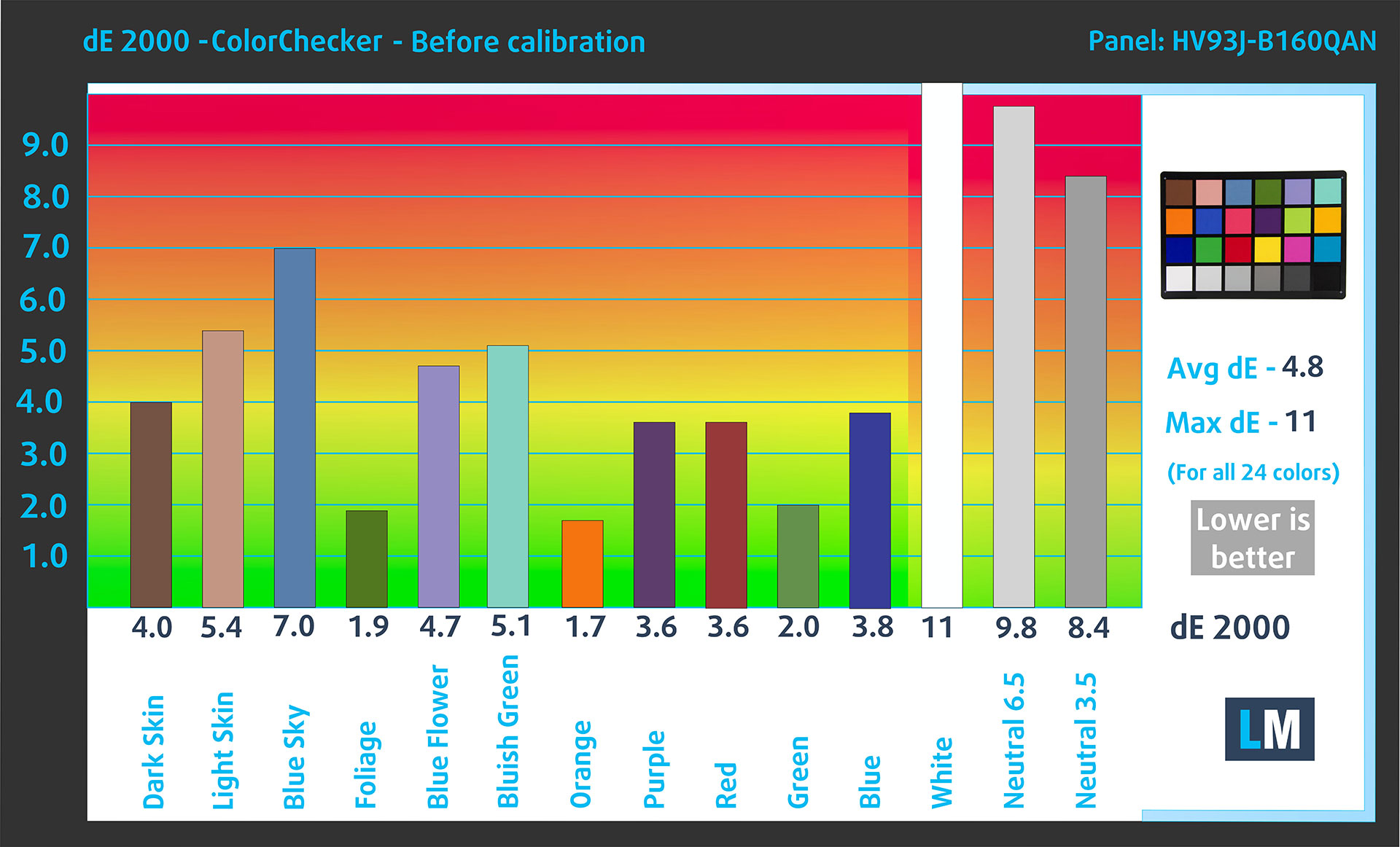
(Fig. 2) Alienware 16 Aurora (AC16250) in its factory condition
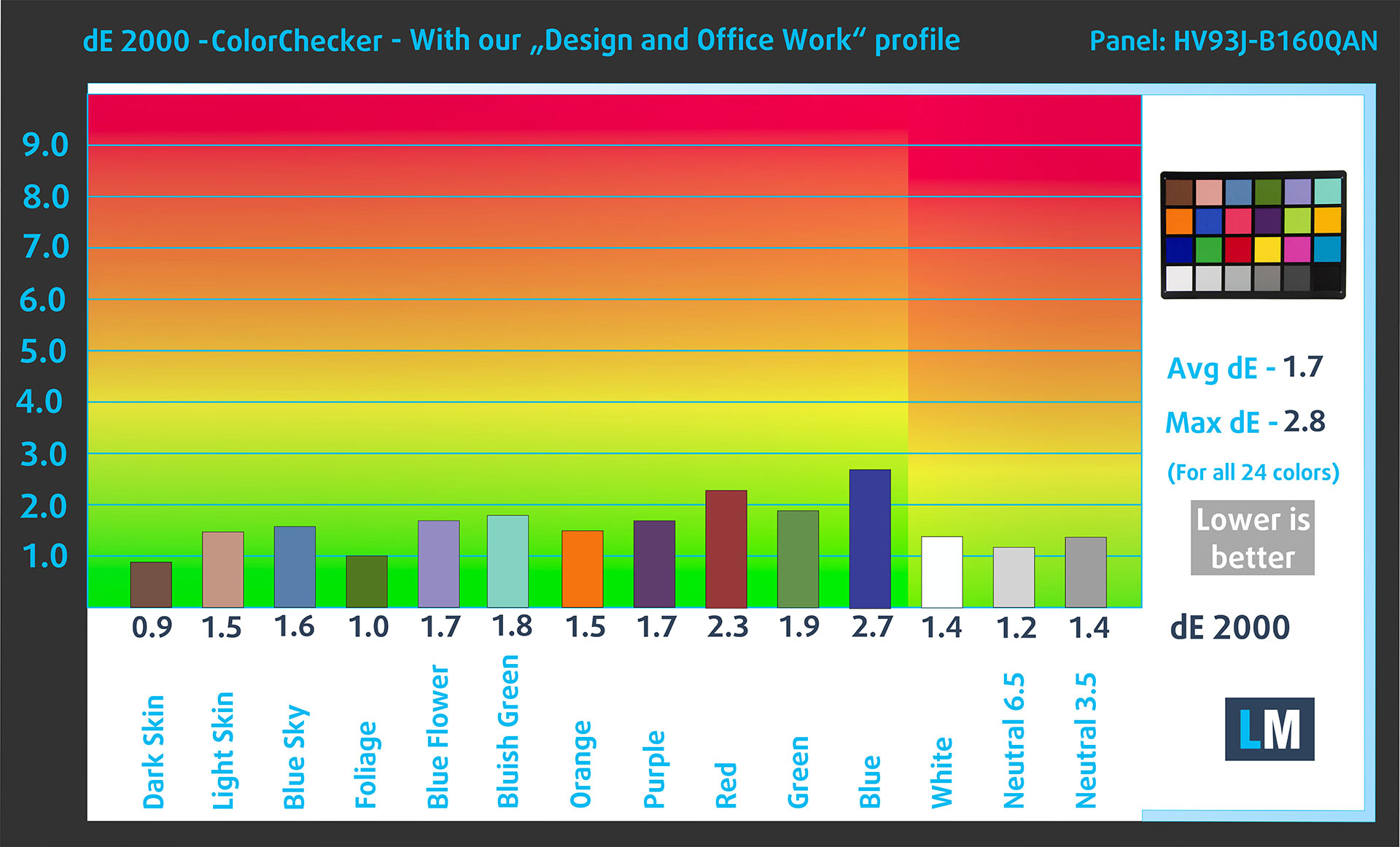
(Fig. 3) Alienware 16 Aurora (AC16250) with our display profile
Comparison in the sRGB color space.
Here’s an illustration of what the Design and Office profile aims to deliver:
Left: No Profile | Drag the slider to see the difference | Right: Design & Office Profile


Visibility in dark scenes
Have you ever watched a movie with dark scenes where you could barely see anything? This often happens because many display panels struggle to differentiate the darkest nuances, making them appear the same.
The next figure illustrates how well the display reproduces these dark nuances. The left side of the image shows the display with stock settings, and the right side shows it with our Gaming and movies profile activated.
On the horizontal axis are the grayscale levels, and on the vertical axis – the corresponding display brightness.
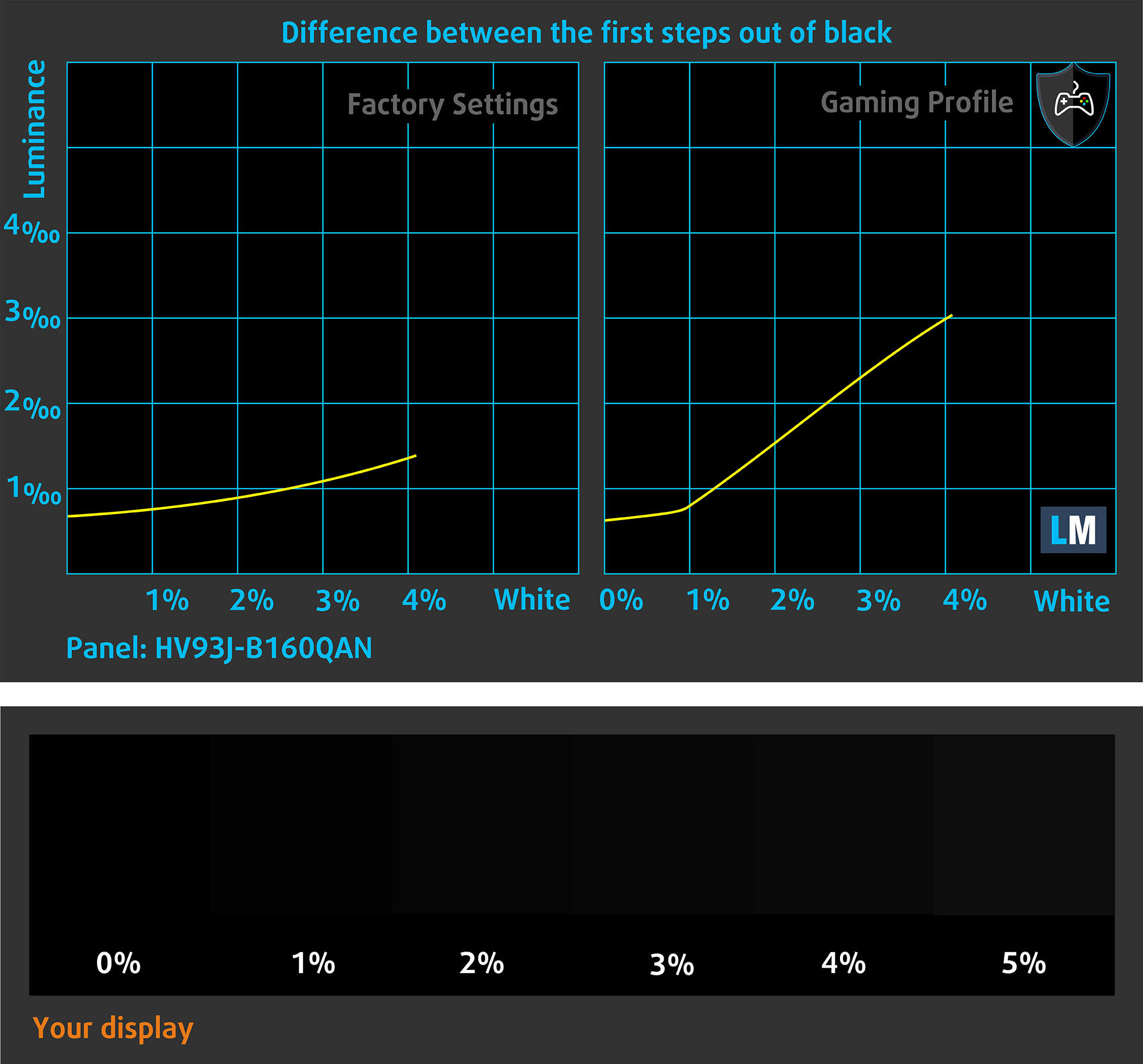
You can also check how your display handles the darkest nuances but keep in mind that this also depends on the settings of your current display and the surrounding light conditions.
Response time (Gaming capabilities)
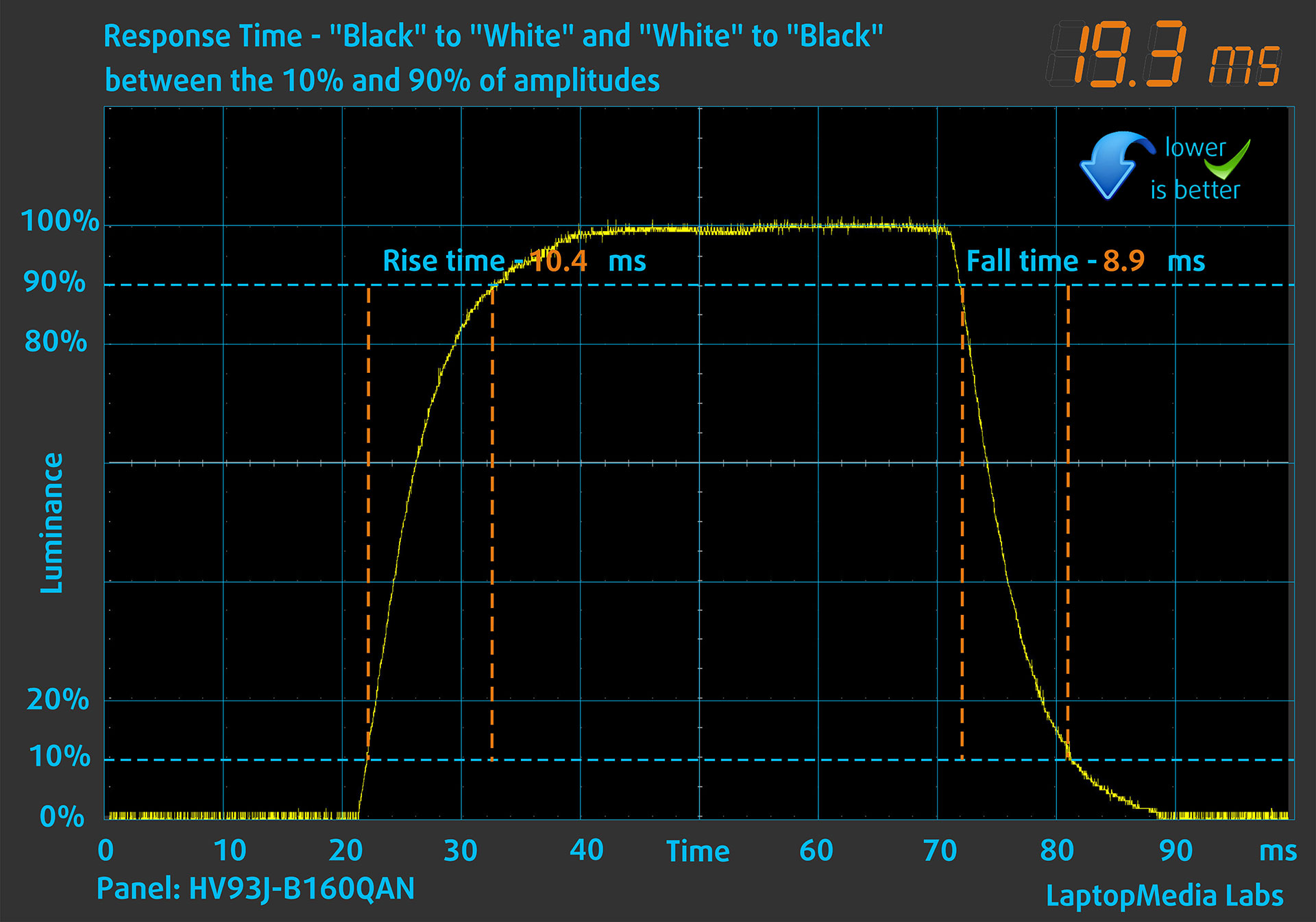
We test the reaction time of the pixels with the usual “black-to-white” and “white-to-black” method from 10% to 90% and vice versa.
We recorded Fall Time + Rise Time = 19.3 ms.
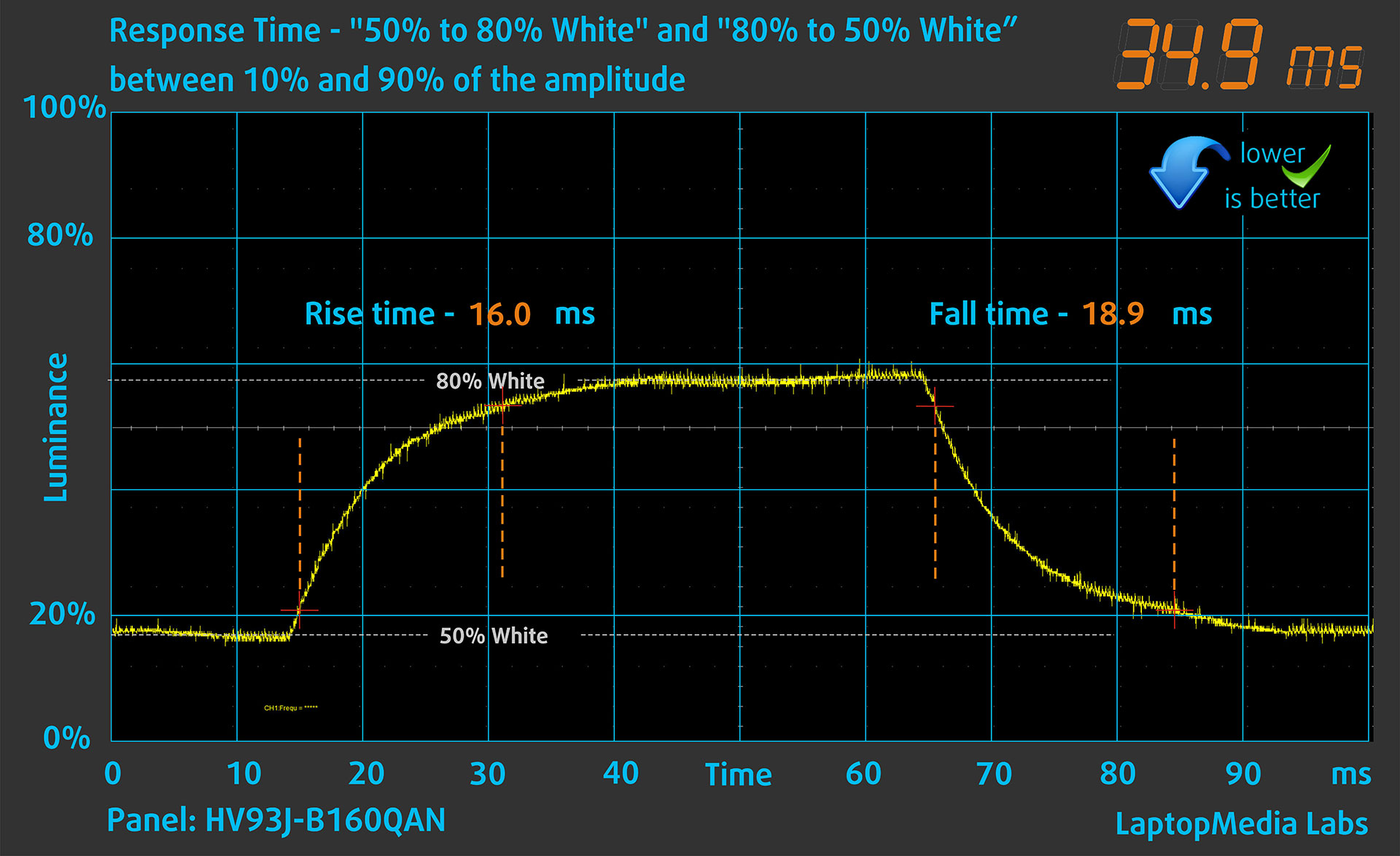
After that, we test the reaction time of the pixels with the usual “Gray-to-Gray” method from 50% White to 80% White and vice versa between 10% and 90% of the amplitude.
Health Impact: PWM (Screen flickering)
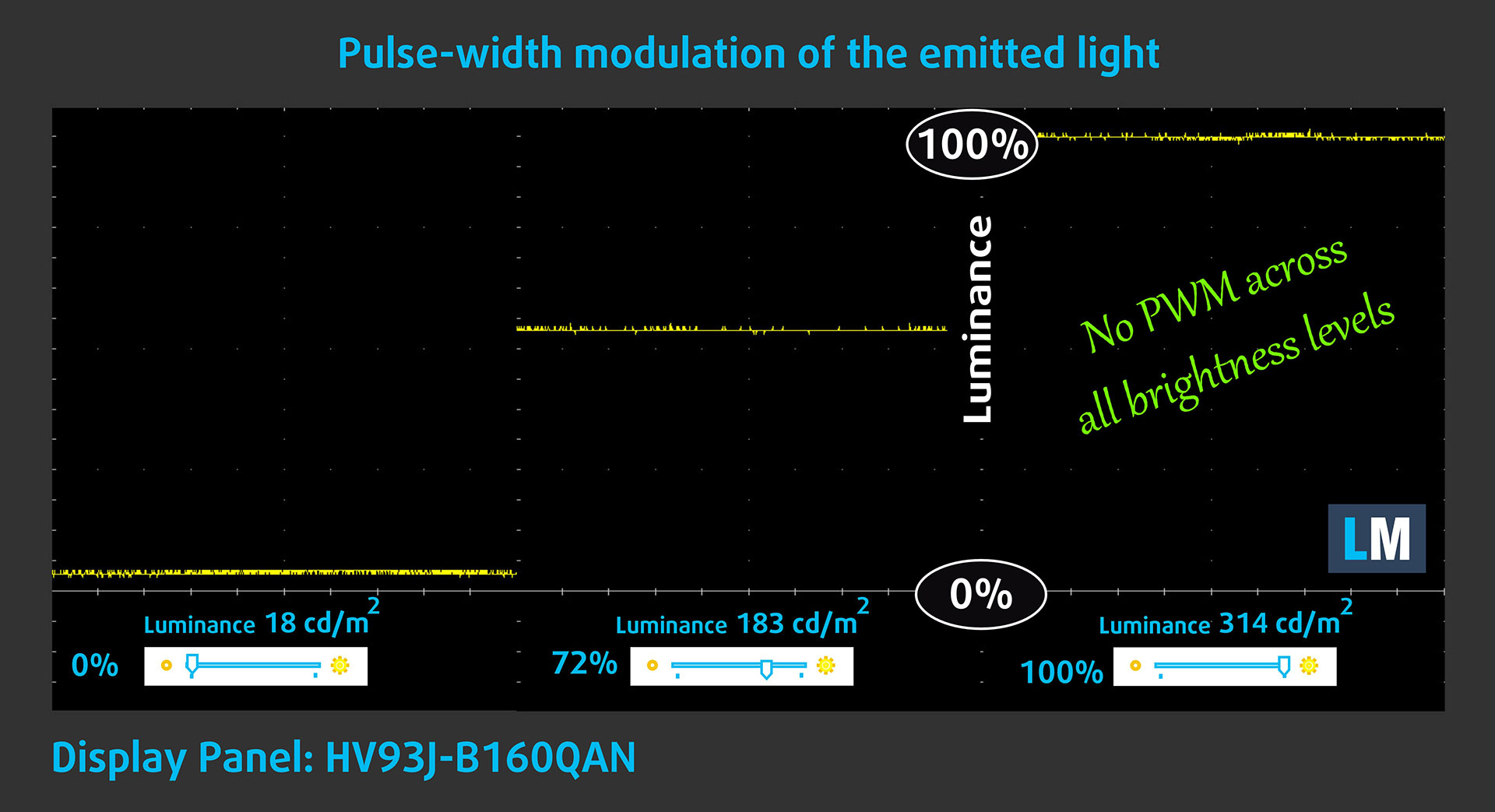
Some use PWM to regulate their brightness, which means that instead of reducing the light intensity, they pulse or flicker. Our brain merges the image, so it appears darker, but this strains both it and our vision, especially when the frequency of the pulses is low. You can read more about that in our dedicated article on PWM.
In the graph below, you see the intensity of light at different brightness levels—on the vertical axis is the brightness of the emitted light, and on the horizontal axis—time.
The light from the backlight of the Alienware 16 Aurora (AC16250) display is not pulse-width modulated, providing visual comfort in the discussed aspect.
Health Impact: Blue light emissions
Installing our Health-Guard profile reduces harmful Blue Light emissions while keeping the colors of the screen perceptually accurate.
If you’re not familiar with the Blue light, the TL;DR version is – emissions that negatively affect your eyes, skin, and your whole body. You can find more information about that in our dedicated article on Blue Light.
Health Impact: Screen Reflectance
Glossy-coated displays can cause eye fatigue in high ambient light conditions due to reflections. We measure the level of screen reflection with the display turned off, at a 60° angle.
The reflectance of the Alienware 16 Aurora (AC16250)’s screen is 52.4 GU. Good result.
High Gloss: >70 GU
Medium Gloss: 30 – 70 GU
Low Gloss: <30 GU
Get our profiles
Since our profiles are tailored for each individual display model, this article and its respective profile package are meant for Alienware 16 Aurora (AC16250) configurations with AUO B160QAN-HV93J (AUODBB5), 2560 x 1600, IPS panel.
*Should you have problems with downloading the purchased file, try using a different browser to open the link you’ll receive via e-mail. If the download target is a .php file instead of an archive, change the file extension to .zip or contact us at [email protected].
Read more about the profiles HERE.
In addition to receiving efficient and health-friendly profiles, by buying LaptopMedia's products you also support the development of our labs, where we test devices in order to produce the most objective reviews possible.

Design and Office
The Design and Office profile makes display colors as close to real as possible.Ideal not only for professionals but also for everyday users, it meets sRGB standards (D65 white point, sRGB gamma) with minimal DeltaE for precise color reproduction on your panel.

Gaming and Movies
Have you ever watched a movie where, during dark scenes, you can barely see anything? Many displays fail to distinguish dark tones properly. Our Gaming and Movies profile enhances low-light performance, like HDR tech, using a gamma curve tailored to human perception — ideal for gamers seeking faster reactions and clearer visuals.

Health-Guard
Our Health-Guard profile protects your eyes by eliminating PWM flickering, reducing strain and fatigue, and minimizing harmful Blue light exposure that can disrupt sleep and health. It uses software dimming and a gamma curve tailored to human perception for comfort and safety during screen use.
Get All The Profiles With 33% Discount!

Sound
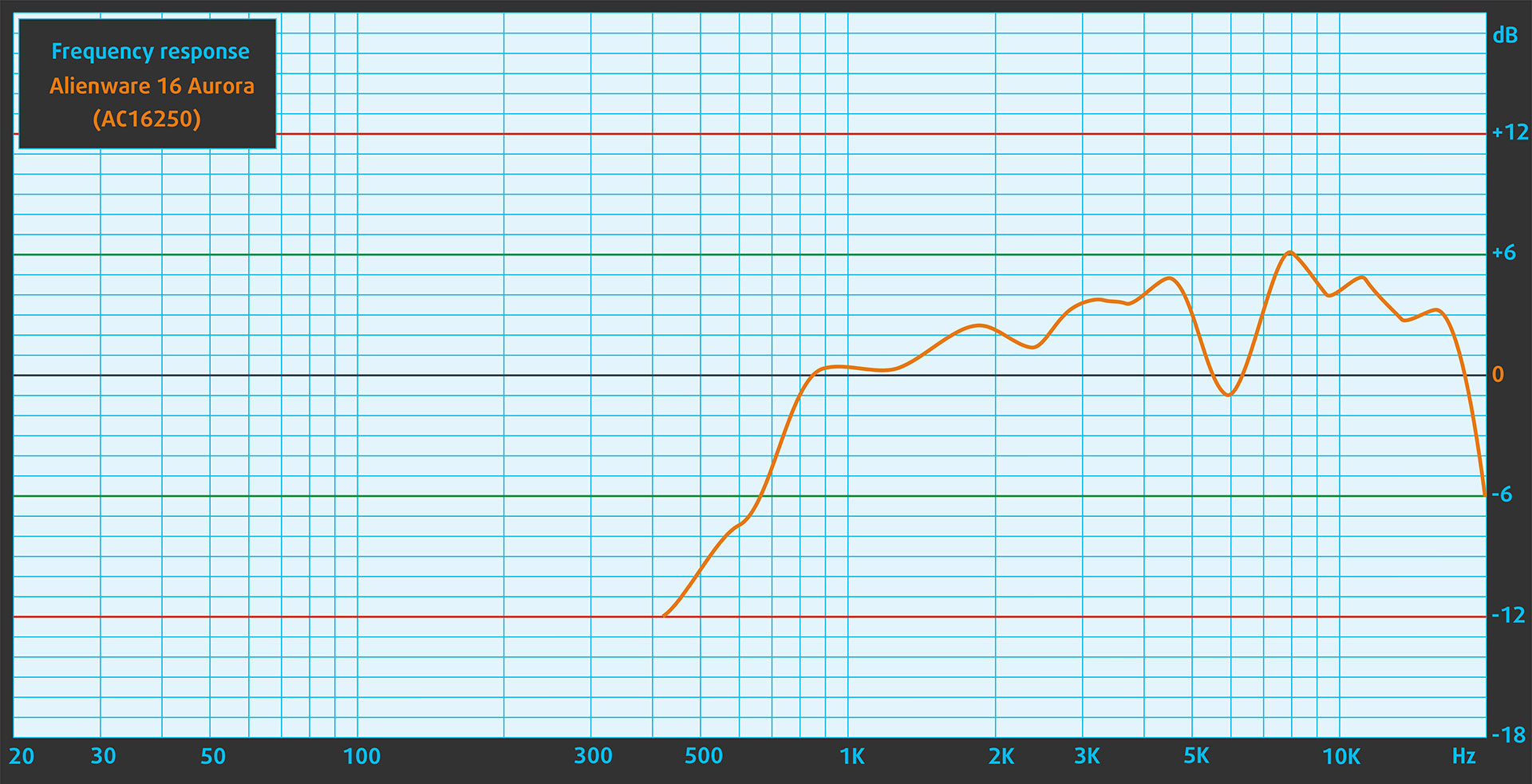
When we subjectively listen to a sound file through the built-in speakers, the sound quality offered by the Alienware 16 Aurora (AC16250) is very good. The low, mid, and high frequencies are clear.
Work Performance: CPU, Storage, AI
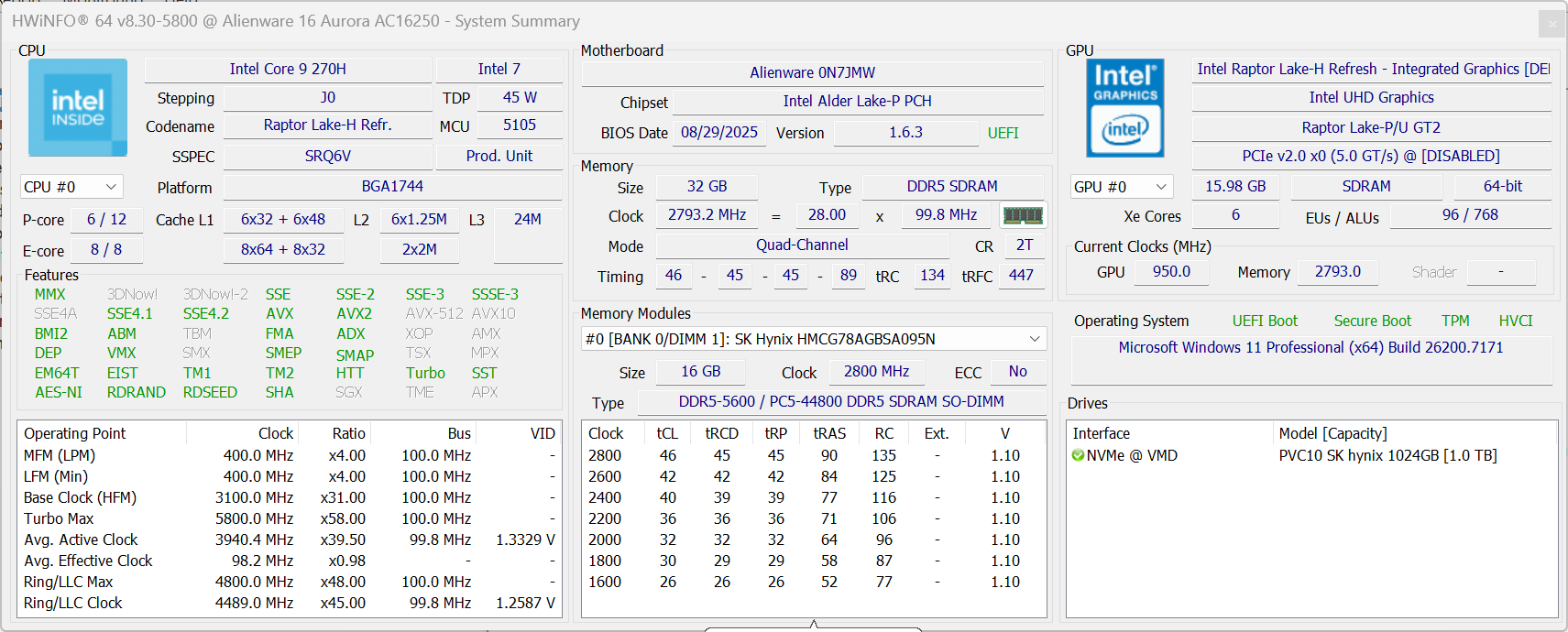
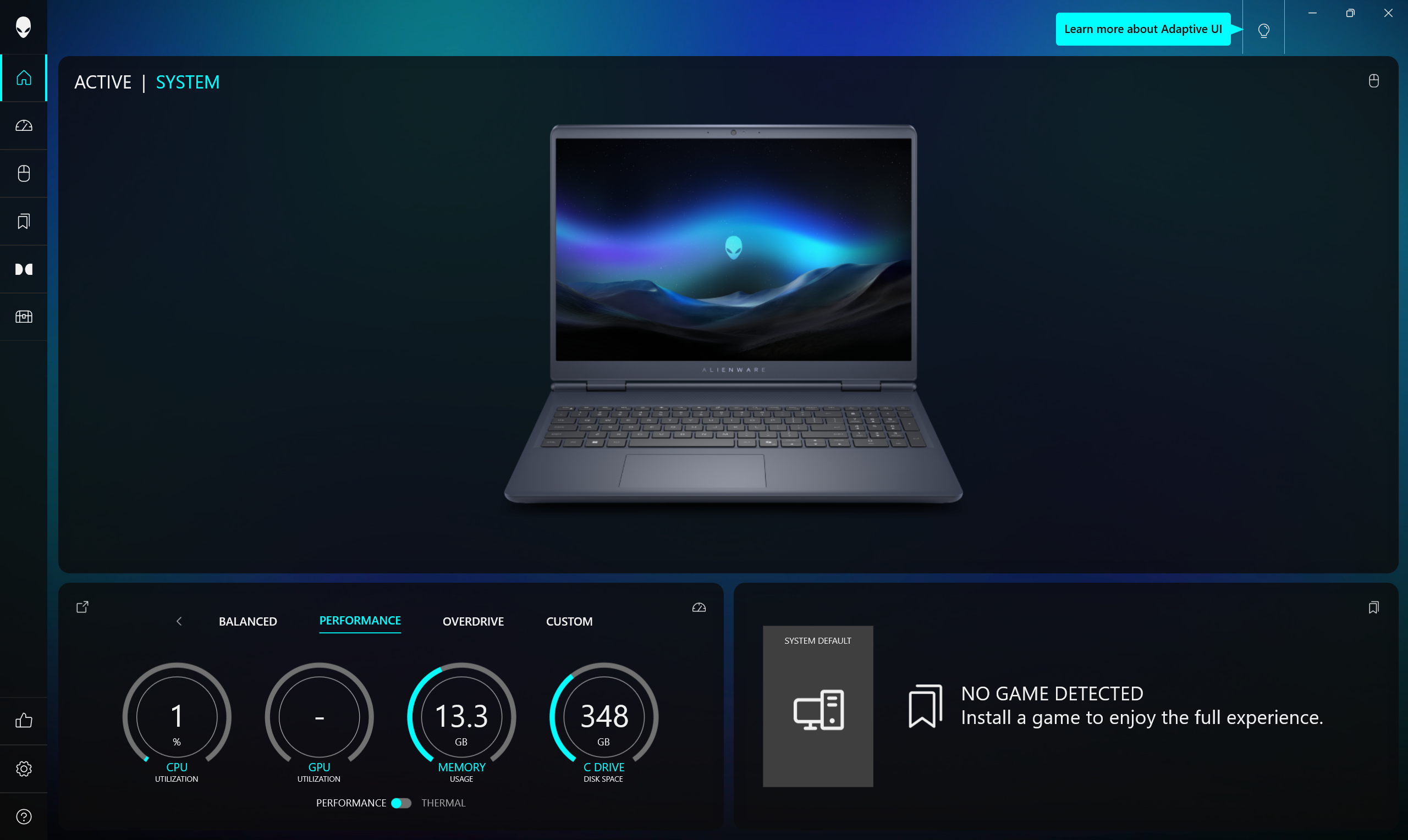
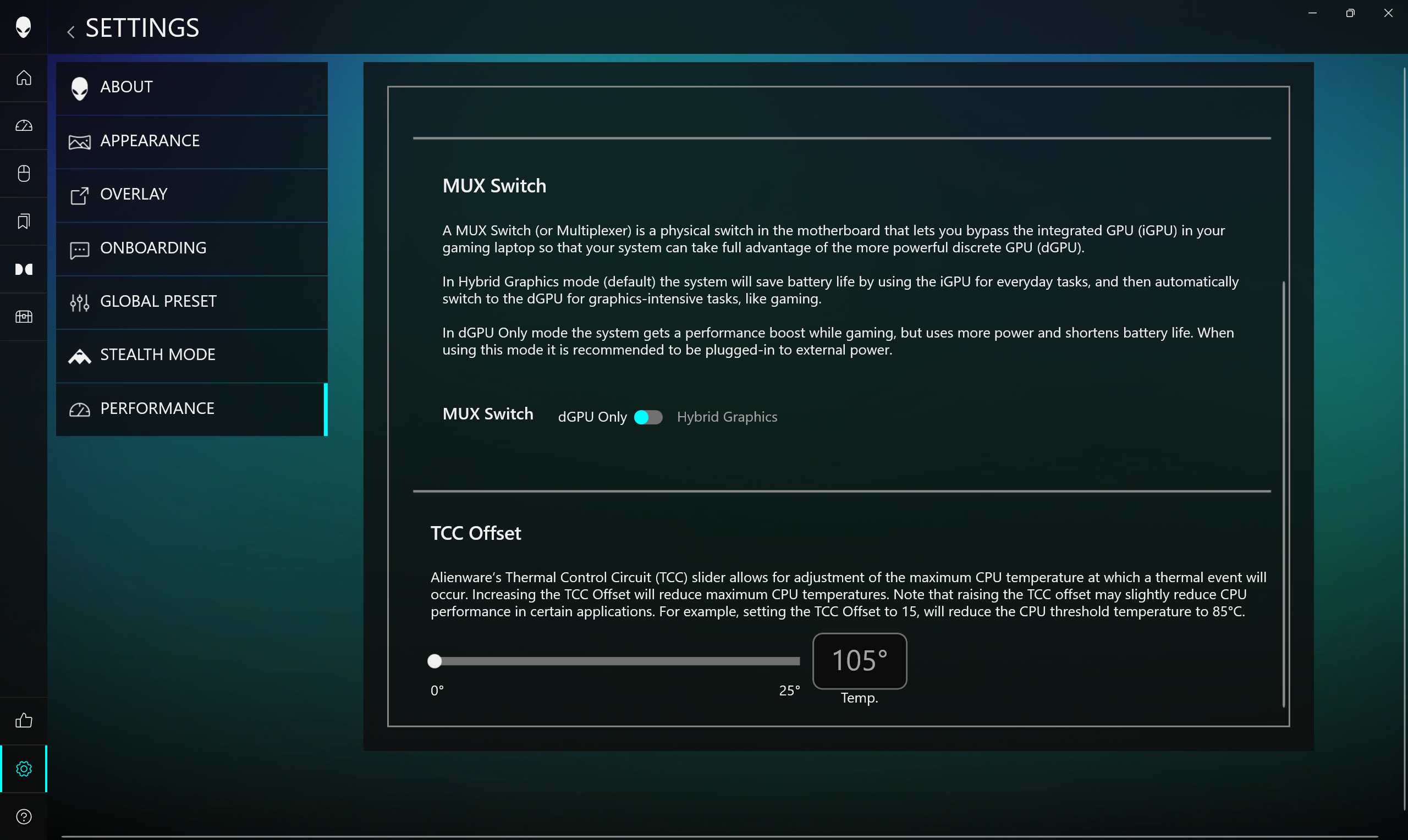
All performance and temperature tests are conducted with Performance / dGPU mode activated in Alienware Command Center:
CPU and Work Performance
The Alienware 16 Aurora (AC16250) supports a selection of Intel processors aimed at a range of performance needs. At the higher end, the Intel Core 9 270H sits at #33 in our Top Laptop CPU Ranking, offering strong multi-core performance for gaming and demanding workloads. More affordable configurations include the Core 7 240H (#90) and Core 5 210H (#104), giving you options that balance performance and price depending on your use case and budget.
Intel Core 9 270H shows solid performance in Alienware 16 Aurora which is a good surprise. It’s more than 30% faster than the same processor in Acer Nitro V 16 ANV16-72 (detailed review) in the multi-core Geekbench test!
Single-core performance ensures smooth operation and responsiveness in operating systems, providing a better user experience.
Results are from the Geekbench 6 Single-Core test (higher is better)

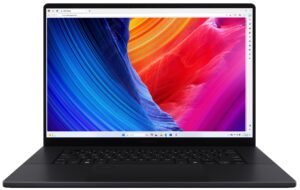
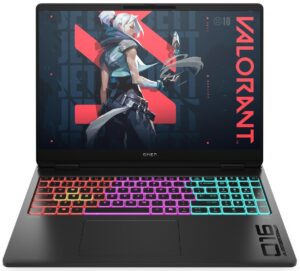
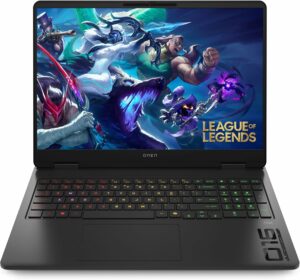
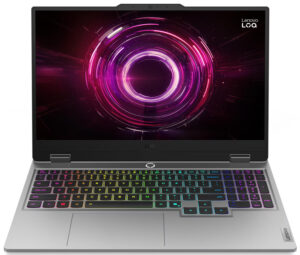
Multi-core performance is essential for handling complex and demanding tasks, such as Video editing, CAD, and Scientific simulations.
Results are from the Geekbench 6 Multi-Core test (higher is better)
Here, we evaluate the CPU's performance using a real-world 3D rendering task, assessing its ability to handle complex computations and rendering workloads efficiently.
Results are from the Cinebench 2024 Multi-Core test (higher is better)
Storage Performance
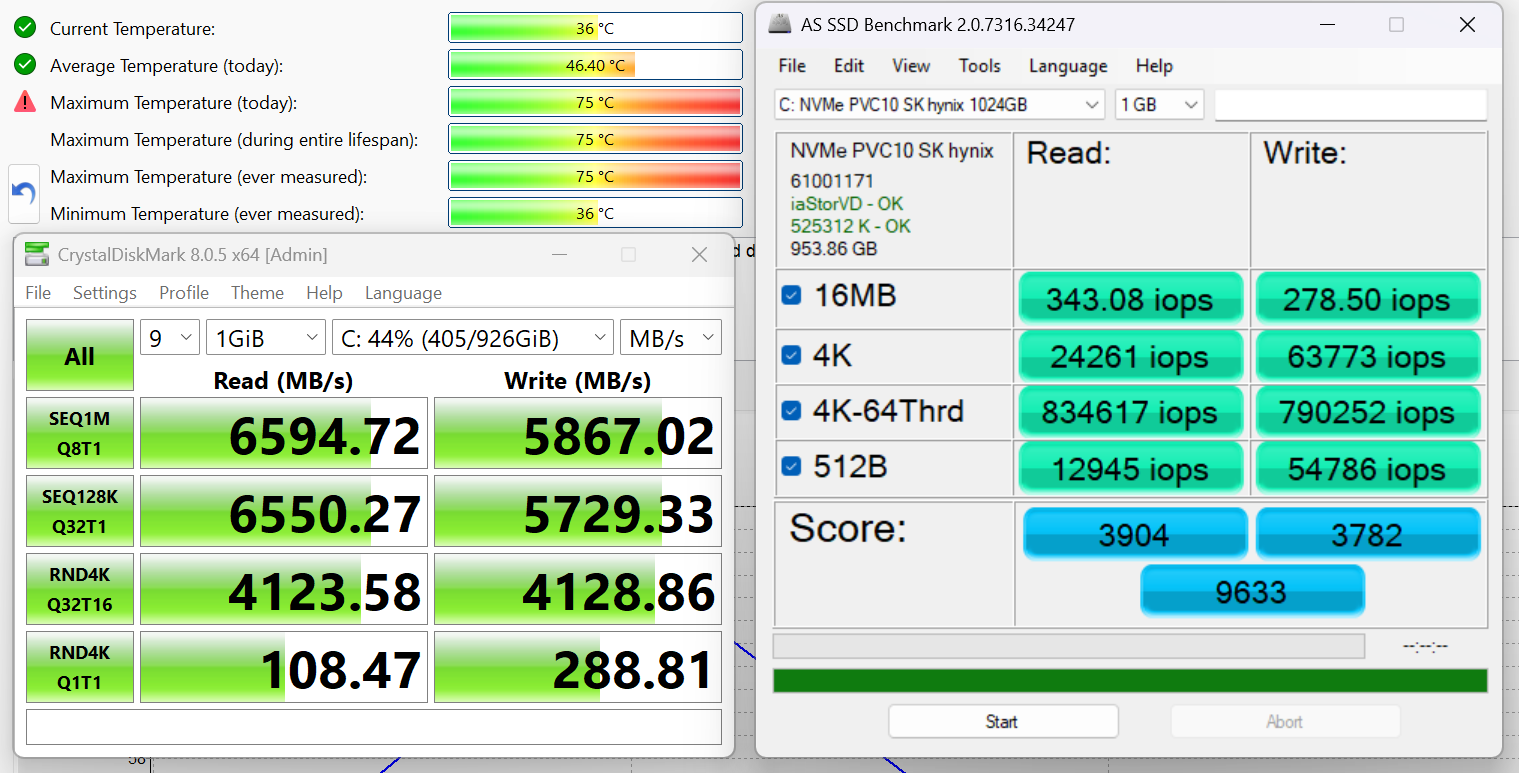
We ordered a configuration with 1TB of storage and the Alienware 16 Aurora arrived with SK Hynix PVC10.
It’s a small-sized (M.2 2230) but rather fast PCIe 4.0 NVMe drive, reaching 6.6GB/sec sequential read and 5.9GB/sec sequential write speeds in our benchmark, while keeping the temperatures at acceptable levels – up to 75ºC .
AI Performance
Here you can see the position of the GPUs and CPUs (NPUs) found within the Alienware 16 Aurora (AC16250) in our AI Hardware Performance Rankings based on their AI processing power, measured in TOPS (Tera Operations Per Second) - a critical metric indicating the computational throughput, particularly for AI tasks.
The first column shows peak performance for INT8/FP8 precision, which is the most widespread metric for evaluating AI inference capabilities. We exclude Sparsity to provide a more accurate reflection of AI performance in dense computation scenarios where sparsity optimizations may not be applicable. The second and third columns show the performance with Sparsity, and FP4 TFLOPS, when supported.
For SoCs, the results reflect the peak performance of the integrated NPU. Additionally, it’s important to note that, according to Microsoft, a NPU must have at least 40 TOPS of AI computing power for the PC to be considered “AI-capable.”
| # | GPU / CPU (NPU) | TOPS INT8/FP8 No Sparsity | TOPS INT8/FP8 Sparsity | TFLOPS FP4 Sparsity |
|---|---|---|---|---|
| 849. | NVIDIA GeForce RTX 5070 (Laptop, 8GB GDDR7) | 173 | 346 | 692 |
| 1015. | NVIDIA GeForce RTX 5060 (Laptop) | 133 | 266 | 532 |
| 1282. | NVIDIA GeForce RTX 4050 (Laptop) | 97 | 194 | — |
GPU and Gaming Performance
Graphics options for the Alienware 16 Aurora cover several NVIDIA laptop GPUs, from the GeForce RTX 5070 (Laptop) at #27 in our Top Laptop Graphics Ranking, to the RTX 5060 (#60), RTX 5050 (#85), and the RTX 3050 (Laptop, 6 GB) at #186. There’s also a configuration with the RTX 4050 (Laptop) for a balance of performance and efficiency. This range of GPUs ensures you can tailor the system for higher-end gaming or more mainstream 1080p performance based on your needs.
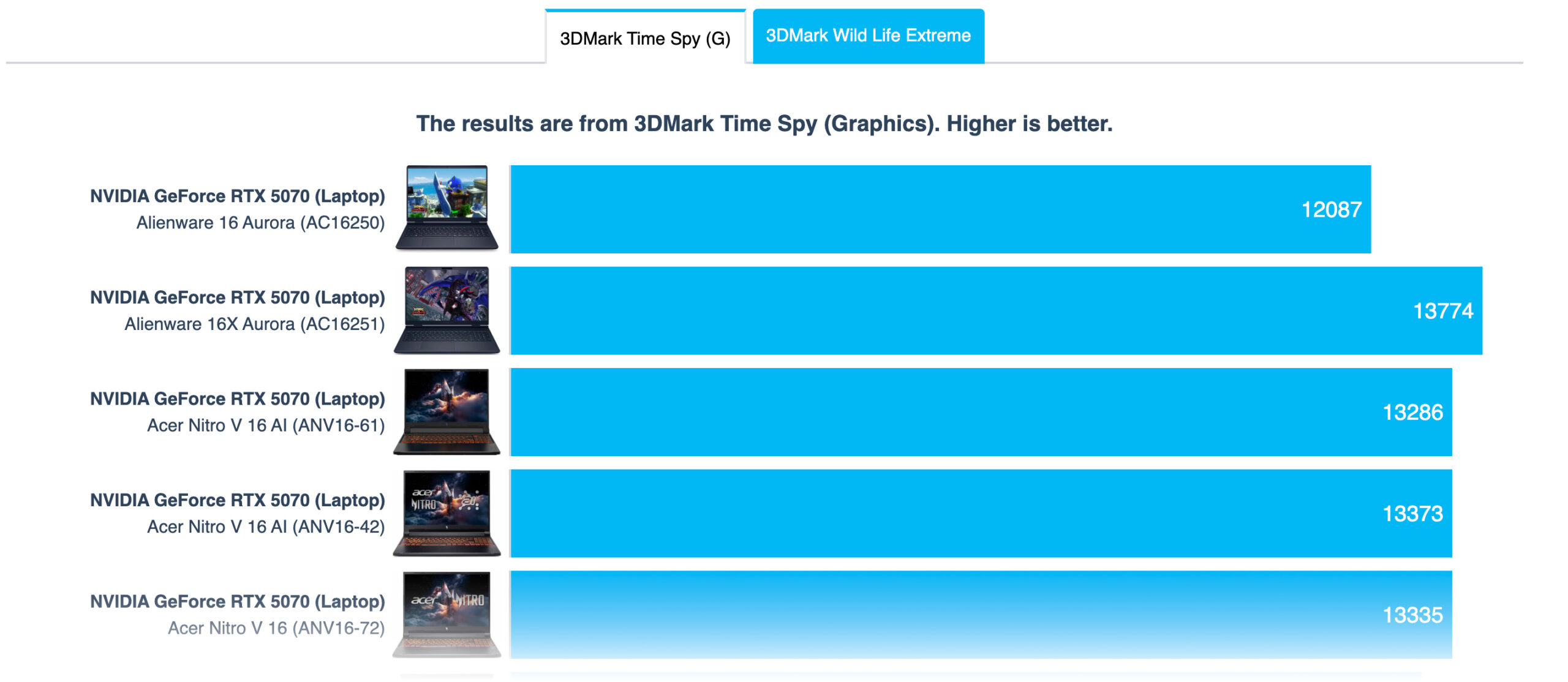
As you can see, this is the weakest RTX 5070 laptop we’ve ever tested, in therms of GPU performance.
The results are from 3DMark Time Spy (Graphics). Higher is better.
The results are from 3DMark Wild Life Extreme Unlimited. Higher is better.
Alienware 16 Aurora (AC16250) GPU variants
Here you can see an approximate comparison between the GPUs that can be found in the Alienware 16 Aurora (AC16250) models on the market. This way you can decide for yourself which Alienware 16 Aurora (AC16250) model is the best bang for your buck.
Note: The chart shows the cheapest different GPU configurations so you should check what the other specifications of these laptops are by clicking on the laptop’s name / GPU.
The results are from 3DMark Time Spy (Graphics). Higher is better.
Results are from the 3DMark: Wild Life (Graphics) benchmark (higher the score, the better)
Gaming tests

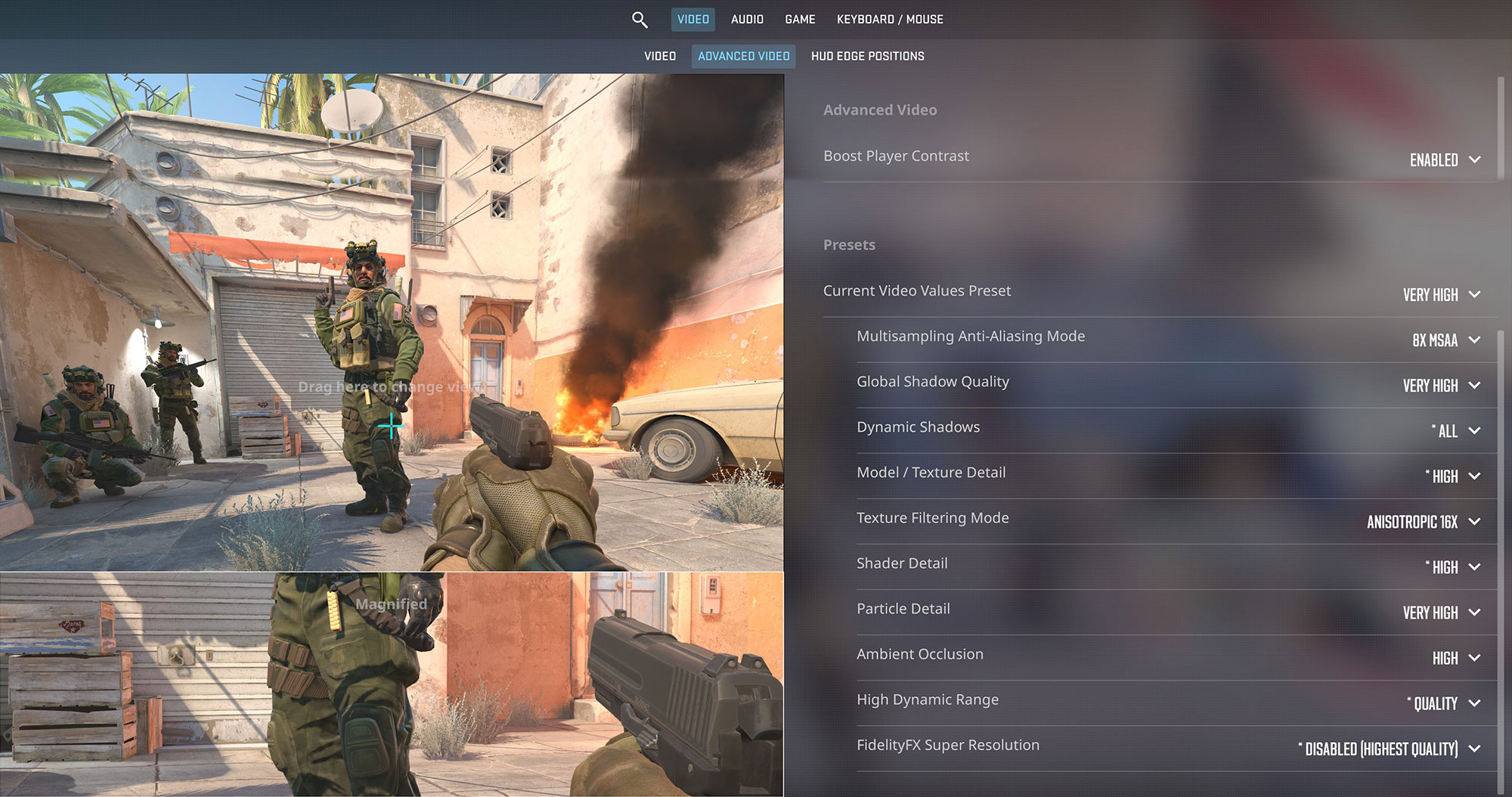
The Alienware 16 Aurora utilizes its RTX 5070 effectively in esports. In Counter-Strike 2, it achieves 143 FPS at the native 1600p resolution on Very High settings, comfortably saturating the 120Hz display for smooth gameplay.
| Counter Strike 2 | 1600p, Very High (Check settings) |
| Average FPS | 143 FPS |

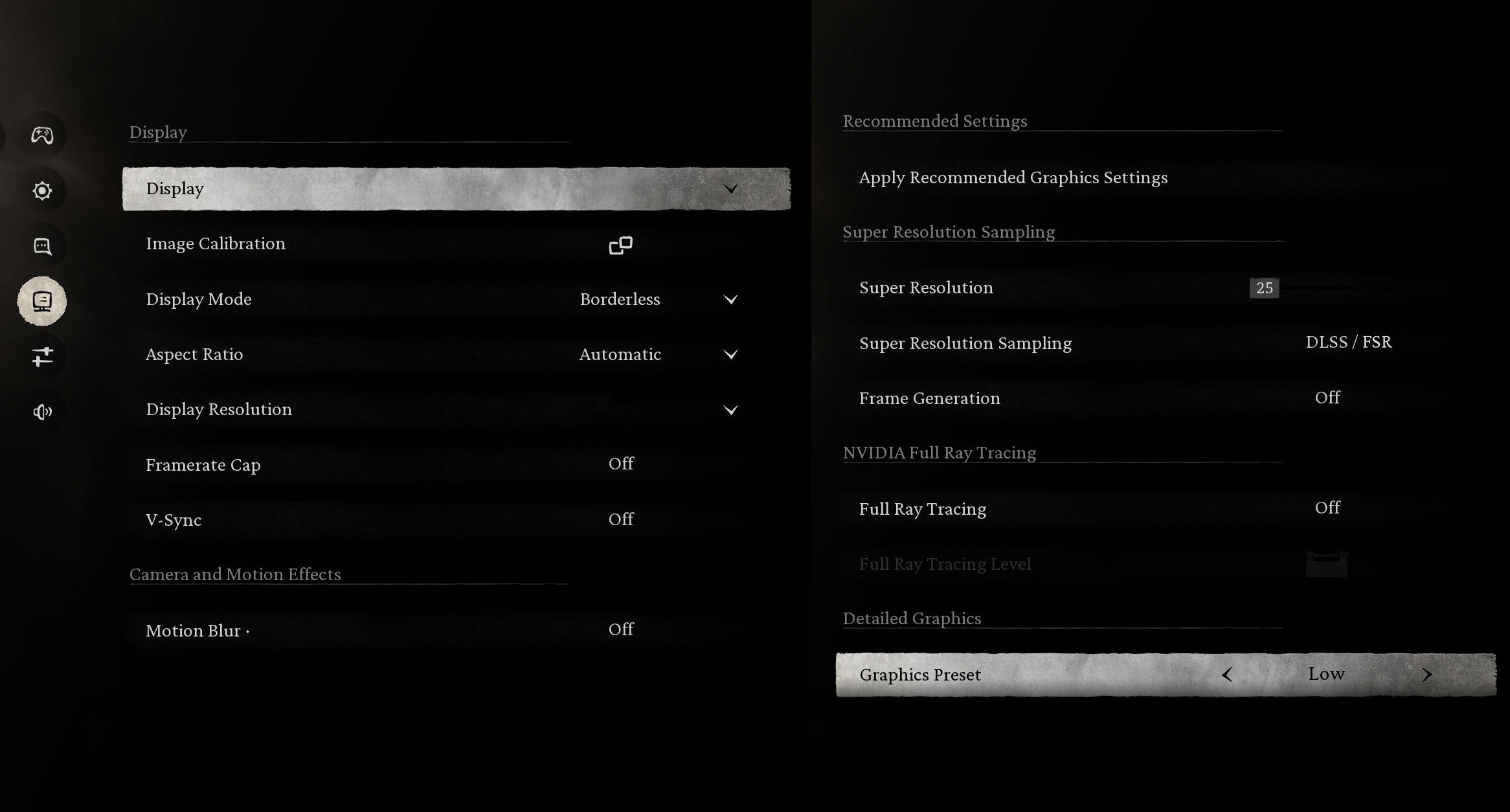
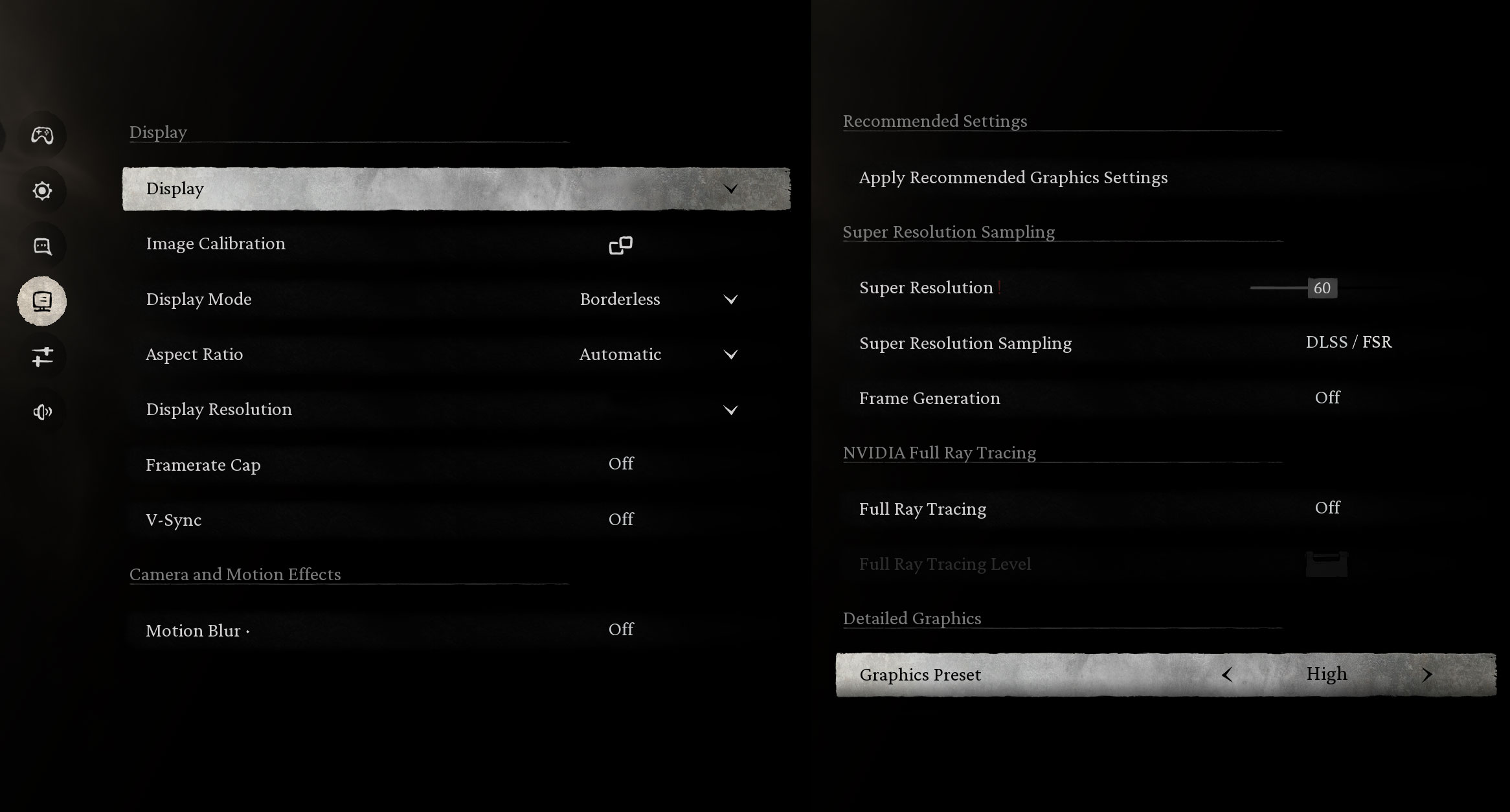
In Black Myth: Wukong, the laptop demonstrates strong performance at 1600p. It pushes 159 FPS on Low settings, and maintains a very playable 74 FPS on High settings, allowing you to enjoy the game’s visuals at native resolution.
| Black Myth: Wukong | 1600p, Low (Check settings) | 1600p, High (Check settings) |
| Average FPS | 159 FPS | 74 FPS |

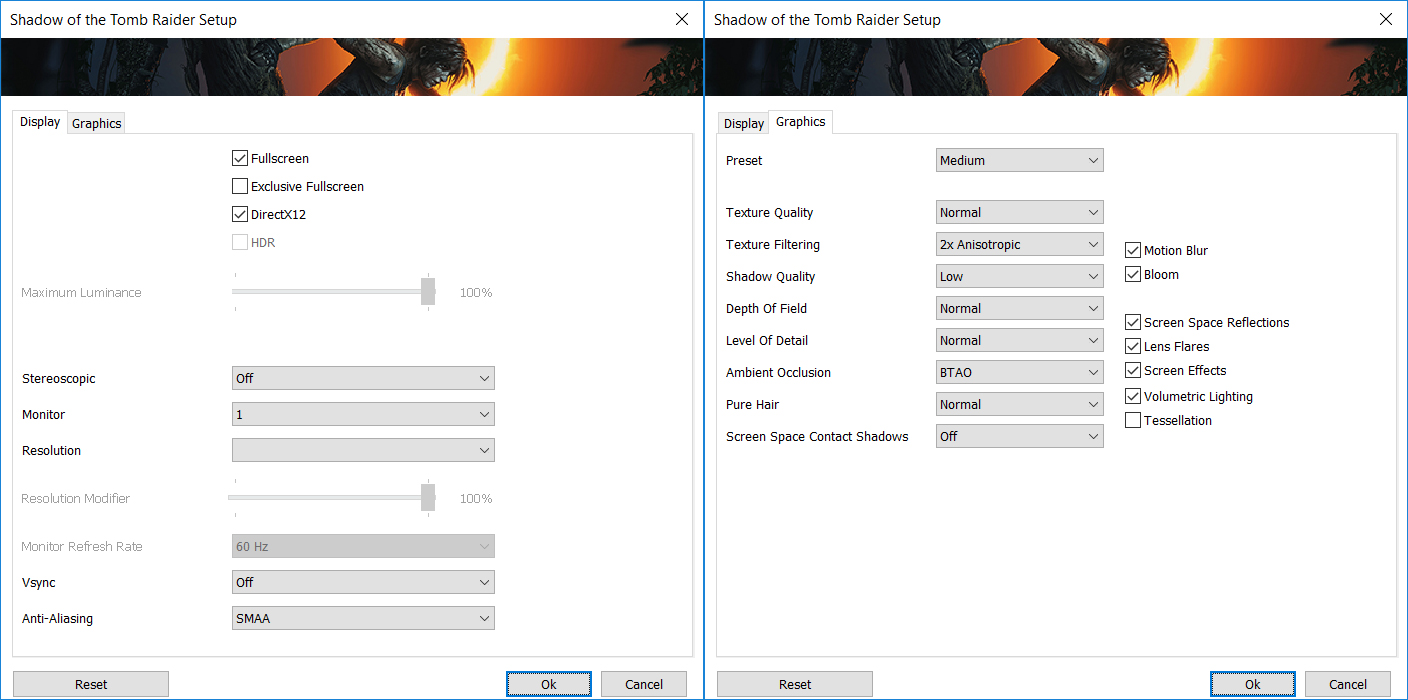
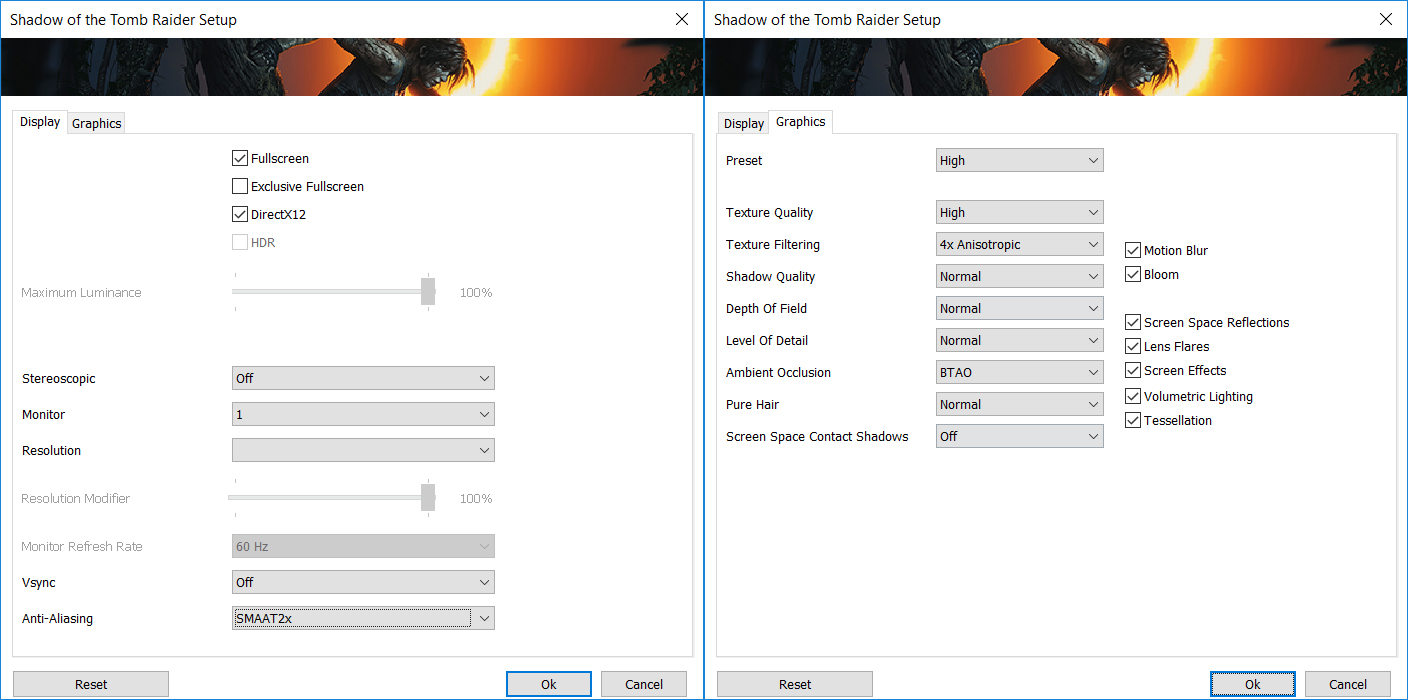
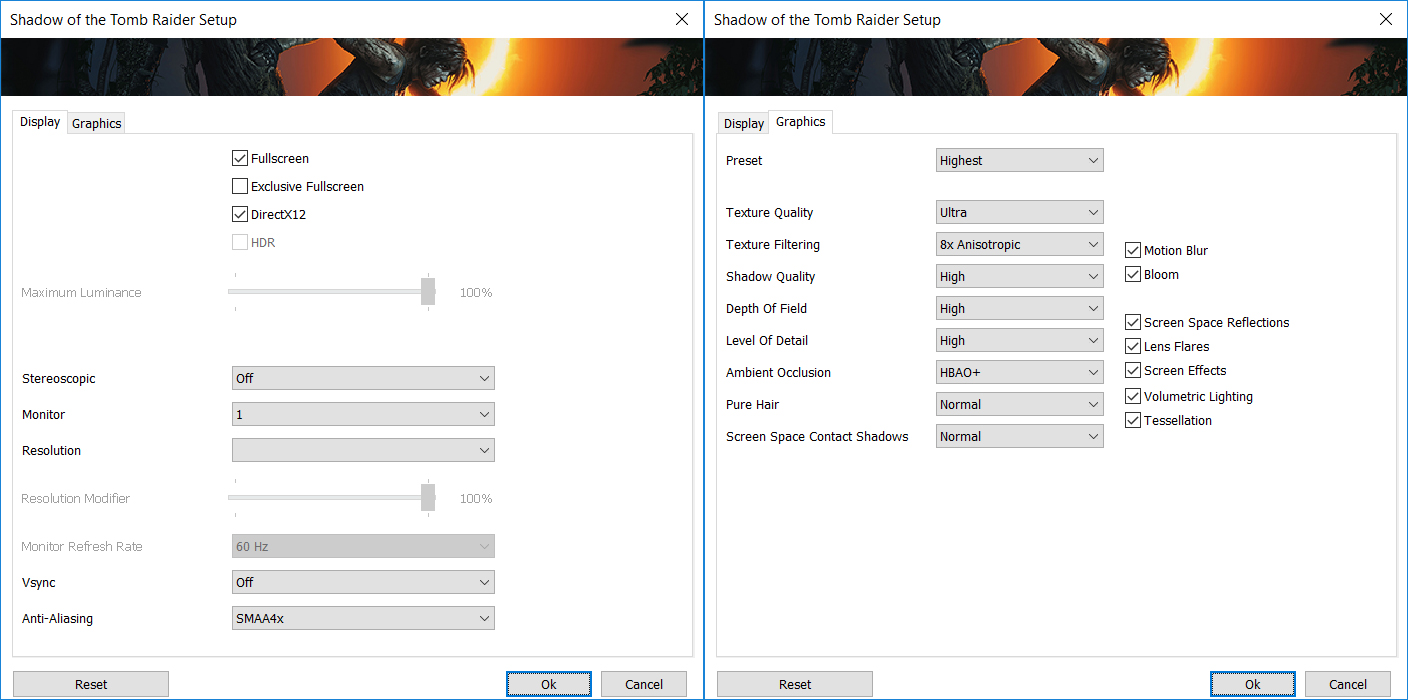
Shadow of the Tomb Raider runs beautifully across various settings. It hits 115 FPS on Medium, 107 FPS on High, and keeps a solid 69 FPS on the Highest preset at 1600p, ensuring a fluid experience regardless of your visual preference.
| Shadow of the Tomb Raider | 1600p, Medium (Check settings) | 1600p, High (Check settings) | 1600p, Highest (Check settings) |
| Average FPS | 115 FPS | 107 FPS | 69 FPS |

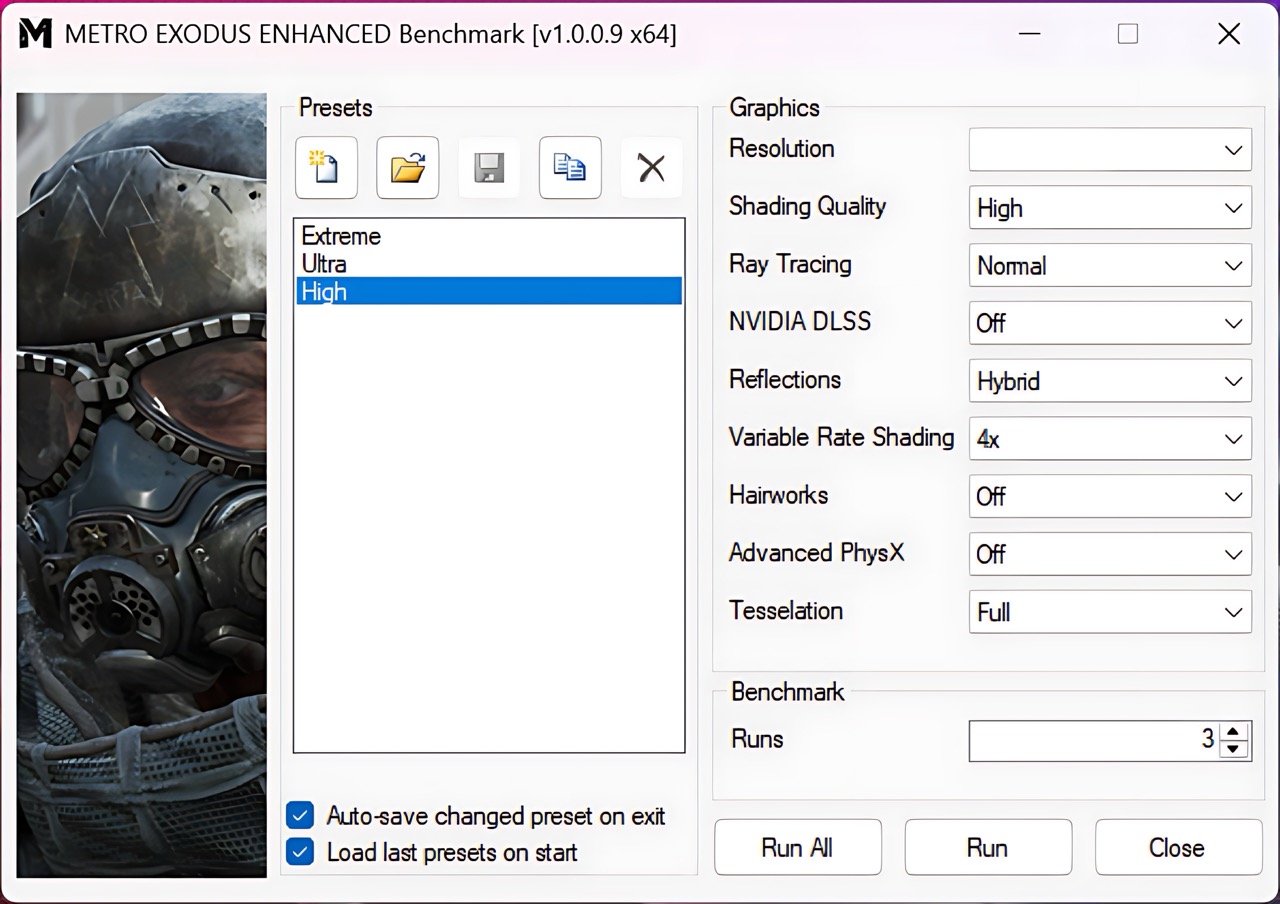
For ray-tracing enthusiasts, the laptop handles Metro Exodus Enhanced Edition competently. It achieves a stable 66 FPS at 1600p on High settings, staying above the 60 FPS sweet spot for smooth gameplay.
| Metro Exodus Enhanced Edition | 1600p, High (Check settings) |
| Average FPS | 66 FPS |
Temperatures and Comfort, Stability
At idle, the CPU package of the Alienware 16 Aurora (AC16250) maintains a rather high temperature of 62ºC.
Office Work, Web Development, Design
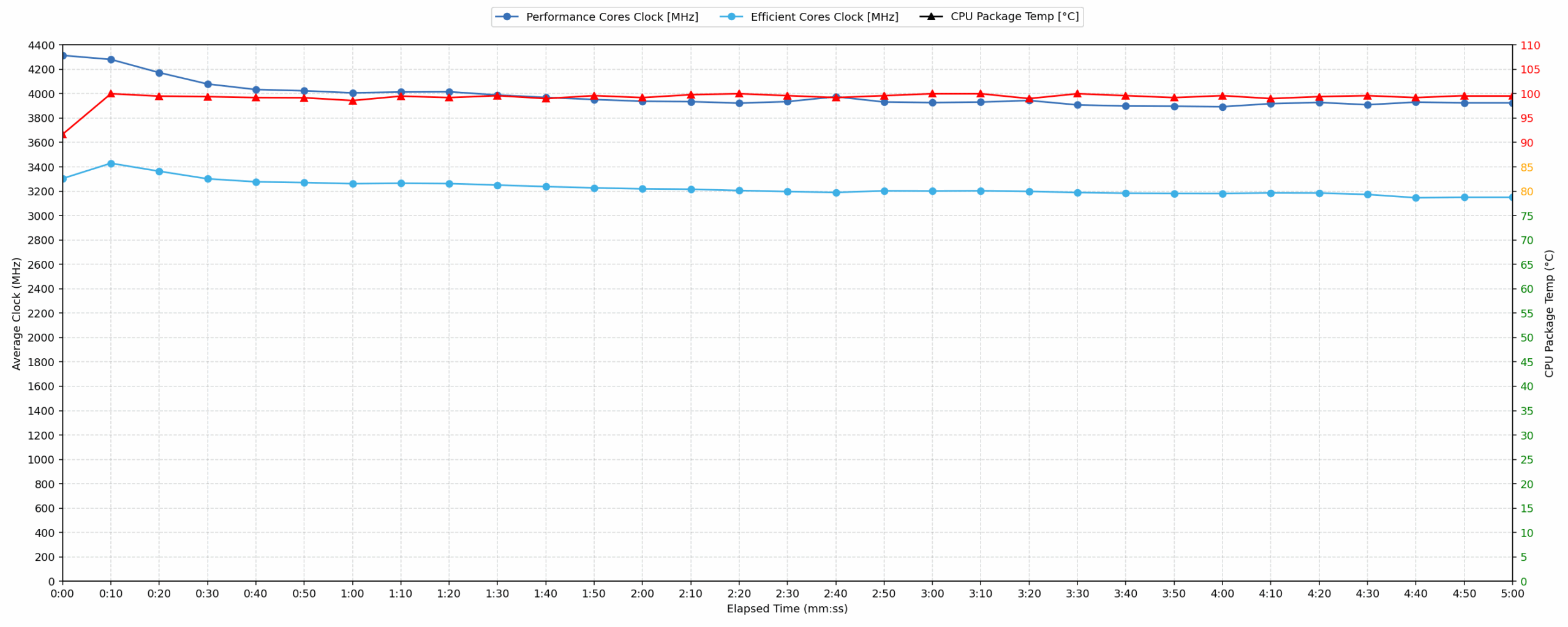
Short periods (0:00 – 0:10 s) of 100 % CPU load
This test shows the CPU behavior during short periods of serious load. It’s important for users who are looking for laptops suitable for tasks like Web Design and Programming.
| Intel Core 9 270H | Avg. P-Core Clock | Avg. CPU Temp. | Avg. CPU Power |
| Alienware 16 Aurora (AC16250) | 4314 MHz | 91 °C | 116 W |
| Acer Nitro V 16 (ANV16-72) | 3965 MHz | 99 °C | 88 W |
The Alienware 16 demonstrates strong initial burst performance, averaging 4314 MHz during the 10-second test while drawing a high average power of 116 W. This clockspeed is significantly higher than the 3965 MHz achieved by the comparable Acer Nitro V 16, indicating superior responsiveness under short load bursts.
Video editing, Scientific computing, Software compilation, 3D rendering
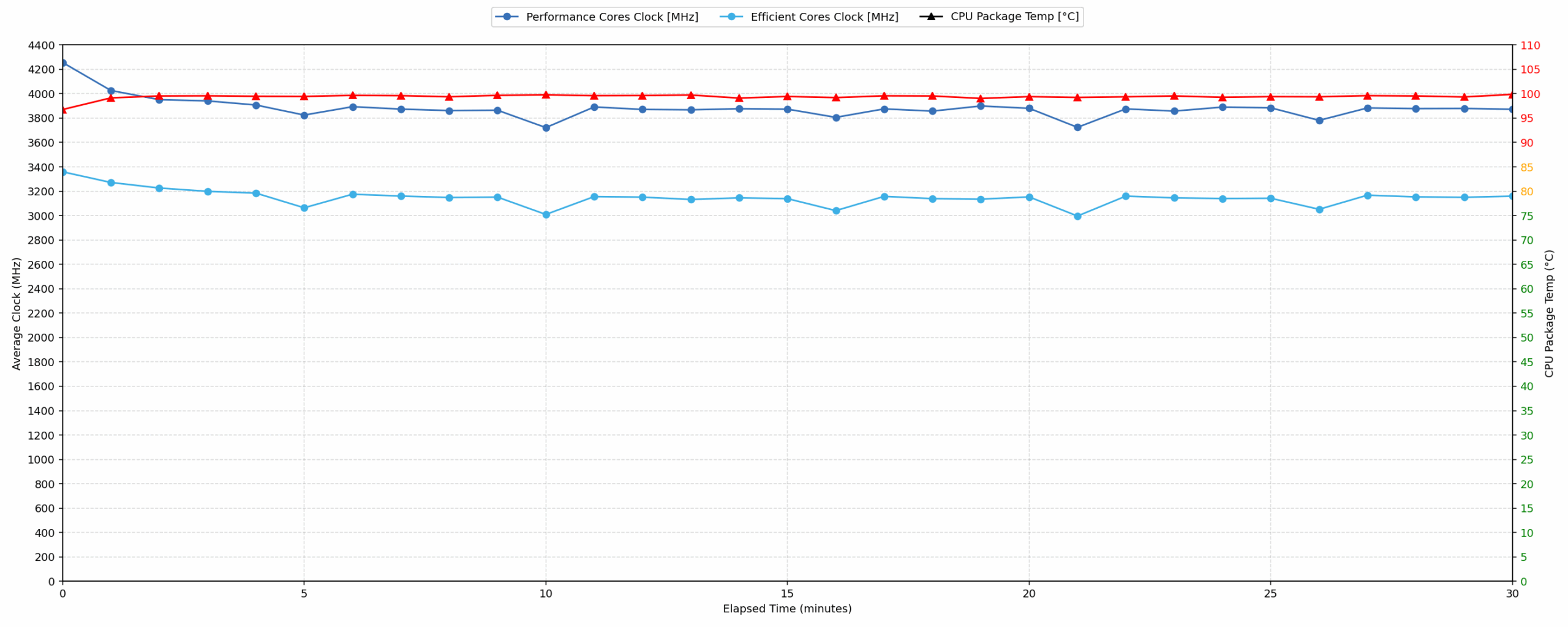
Long periods (0:00 – 30:00 min) of 100 % CPU load
This test shows the CPU behavior during long periods of serious load. It’s important for users who are looking for laptops suitable for tasks like Video Editing and 3D Rendering.
| Intel Core 9 270H | Avg. P-Core Clock | Avg. CPU Temp. | Avg. CPU Power |
| Alienware 16 Aurora (AC16250) | 3876 MHz | 99 °C | 87 W |
| Acer Nitro V 16 (ANV16-72) | 3720 MHz | 98 °C | 70 W |
During the 30-minute sustained CPU load, the Alienware 16 maintains an average clock speed of 3876 MHz while consuming 87 W. This sustained performance is notable, registering 156 MHz higher than the 3720 MHz achieved by the Acer Nitro V 16 using the same processor. However, the system struggles immensely with thermal management under prolonged stress. The average CPU temperature remained extremely high at 99 °C (≥90 °C), indicating significant thermal throttling to maintain the 87 W power limit. While performance is competitive compared to the Nitro V 16, the system runs at critical thermal limits throughout the entire long-term workload.
Gaming Stability
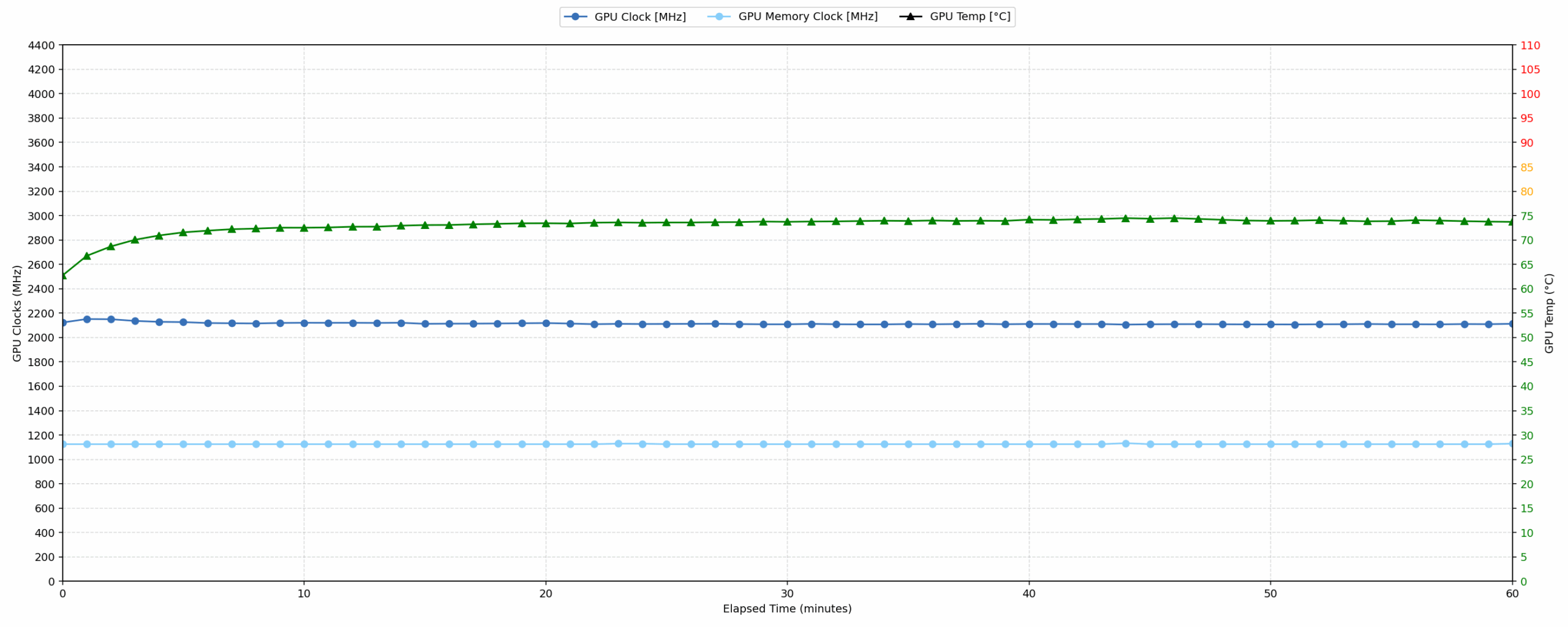
Continuous gaming (1-hour test)
This test evaluates the laptop’s performance under sustained GPU load and high CPU usage.
| NVIDIA GeForce RTX 5070 | Avg. GPU Clock | Avg. GPU Temp. | Avg. Memory Clock | Avg. GPU Mem Temp. | Avg. GPU Power |
| Acer Nitro 18 AI (AN18-61) | 2588 MHz | 79 °C | 1125 MHz | 75 °C | 113 W |
| ASUS ProArt P16 H7606 (2025) | 2553 MHz | 84 °C | 1125 MHz | 83 °C | 102 W |
| Alienware 16X Aurora (AC16251) | 2528 MHz | 86 °C | 1125 MHz | 81 °C | 111 W |
| HP OMEN 16 (16-ap0000) | 2510 MHz | 77 °C | 1125 MHz | 69 °C | 113 W |
| Acer Nitro V 17 AI (ANV17-41) | 2489 MHz | 82 °C | 1093 MHz | 77 °C | 93 W |
| Acer Nitro V 16 (ANV16-72) | 2460 MHz | 78 °C | 1125 MHz | 75 °C | 93 W |
| MSI Katana 17 HX B14W | 2452 MHz | 85 °C | 1125 MHz | 83 °C | 106 W |
| Lenovo Legion 7i (16”, Gen 10 / 16IAX10) | 2441 MHz | 83 °C | 1125 MHz | 75 °C | 104 W |
| MSI Katana 15 HX B14W | 2376 MHz | 85 °C | 1500 MHz | 85 °C | 112 W |
| Alienware 16 Aurora (AC16250) | 2114 MHz | 73 °C | 1125 MHz | 72 °C | 74 W |
The Alienware 16 exhibits exceptional GPU thermal control during the 60-minute gaming test, with average core and memory temperatures held at 73 °C and 72 °C respectively. Both are well within the good thermal limits. However, the sustained GPU performance is significantly low relative to other laptops equipped with the RTX 5070. The average clock speed was only 2114 MHz at 74 W, placing it last among all tested peers. For context, the highest peer achieved 2588 MHz. This indicates severe power or frequency limits are imposed on the GPU, prioritizing low temperatures over competitive graphical performance in this configuration.
Battery Life
The battery of the Alienware 16 Aurora (AC16250) is a 6-cell Li-ion, model PMT8K. Its nominal voltage is 11.7V and stores 96 Wh of electrical energy.
We tested the battery life with “Battery” mdoe activated in Alienware Command Center.
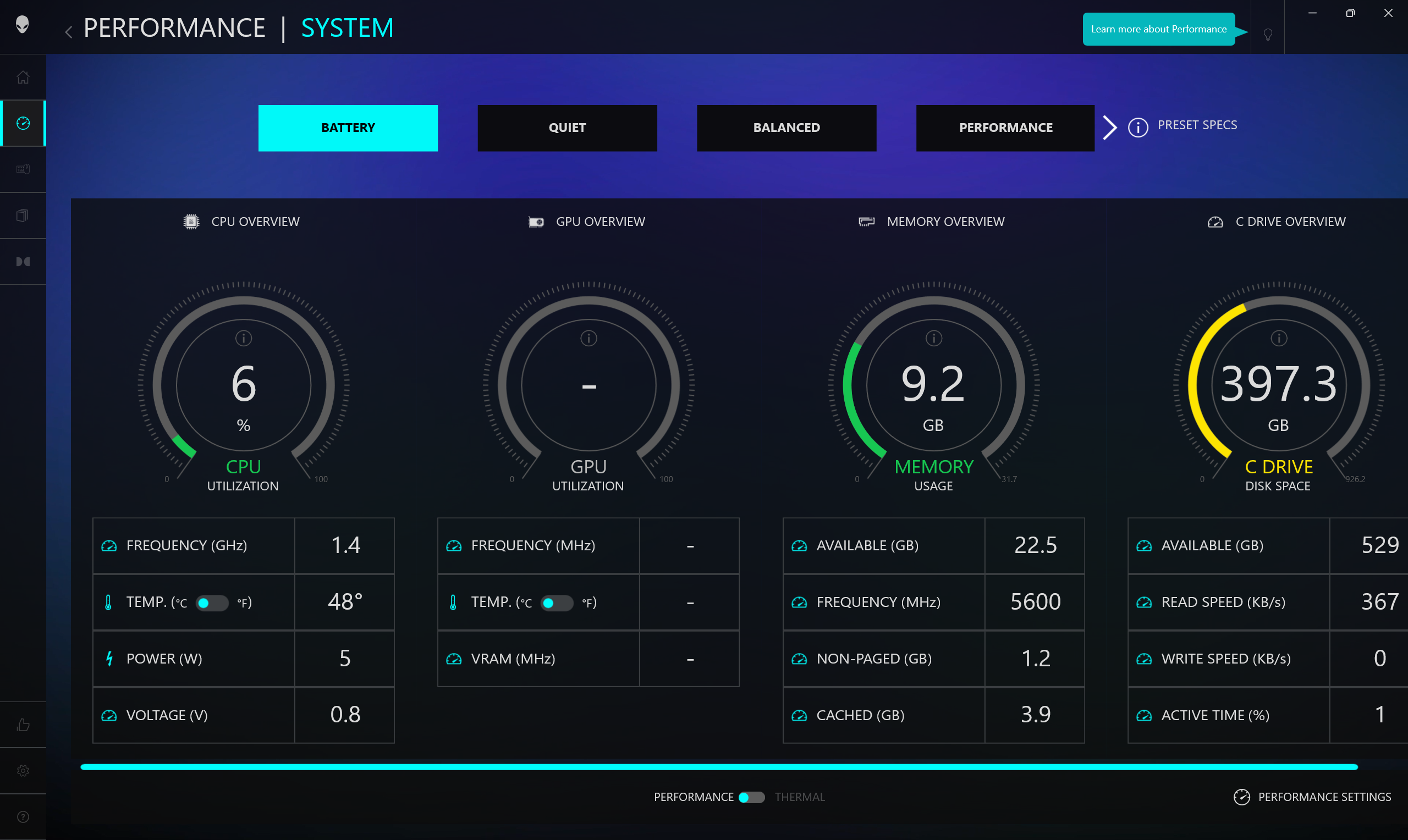
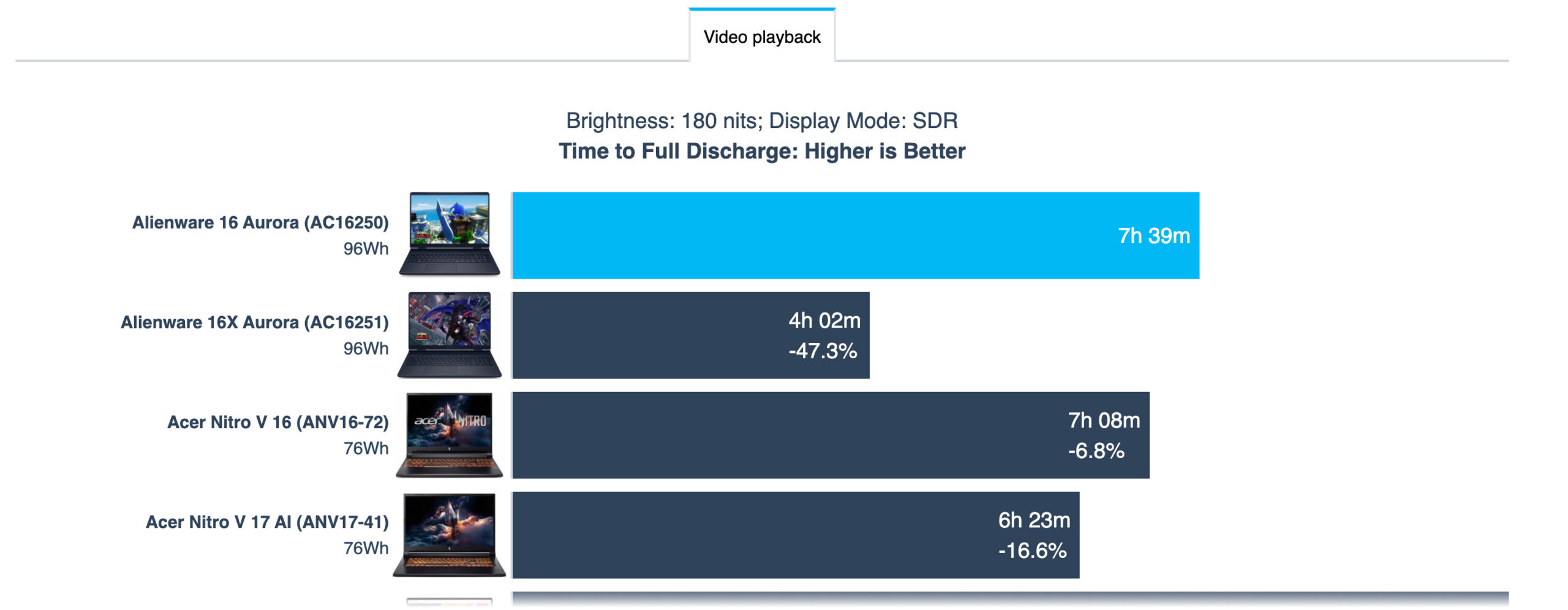
The Alienware 16 Aurora (AC16250) really excels in terms of battery life, thanks to its huge capacity. The 7 hours and 39 minutes of endurance is the second-best result in all our tested RTX 5070 laptops, only behind the ASUS ProArt P16 H7606 (detailed review).
Brightness: 180 nits; Display Mode: SDR
Time to Full Discharge: Higher is Better
Disassembly, Upgrade options, and Maintenance
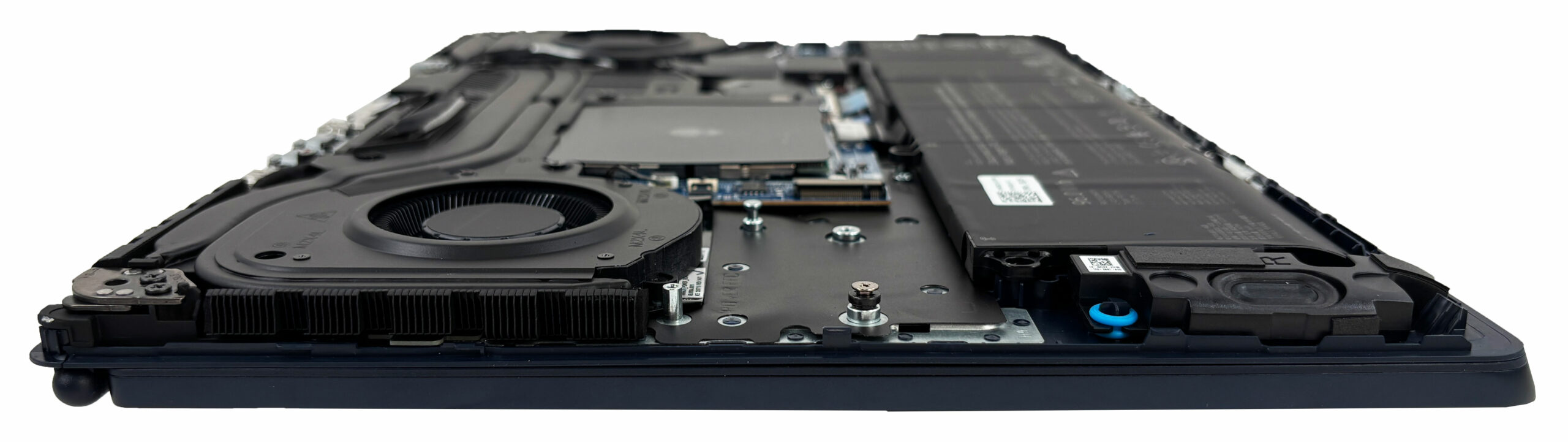
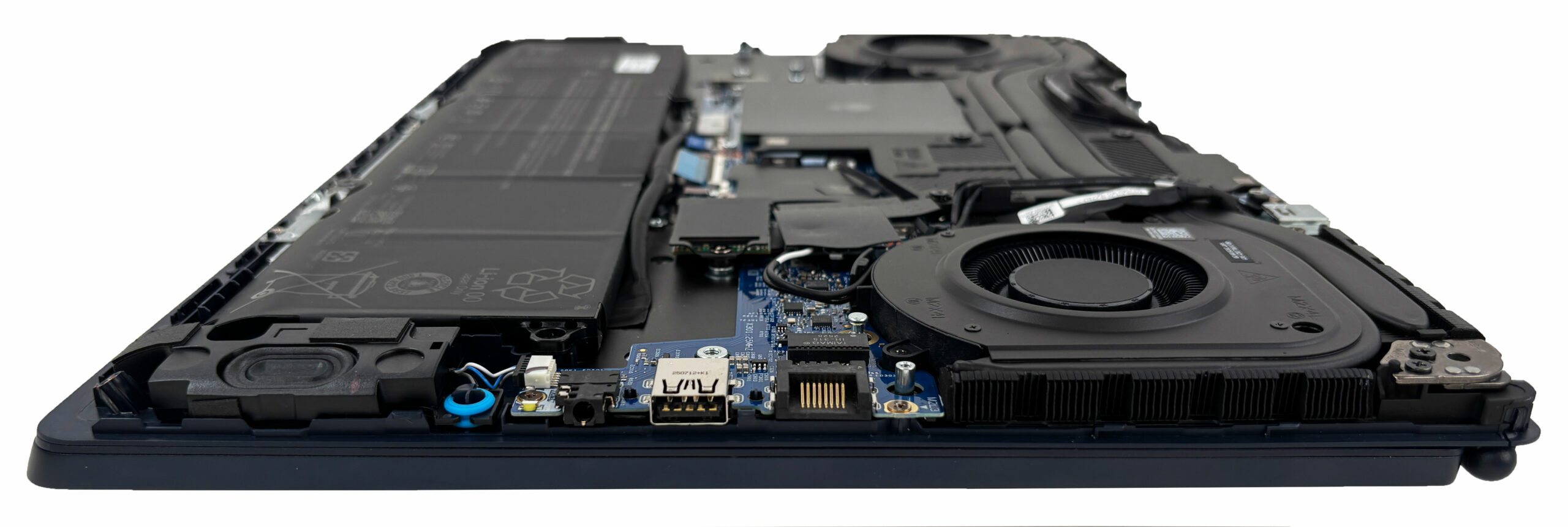
Access to the internals starts with removing the bottom panel, revealing a clean, service-friendly layout with the battery along the front edge, dual cooling fans up top, and the upgradeable components clustered around the center and right side.
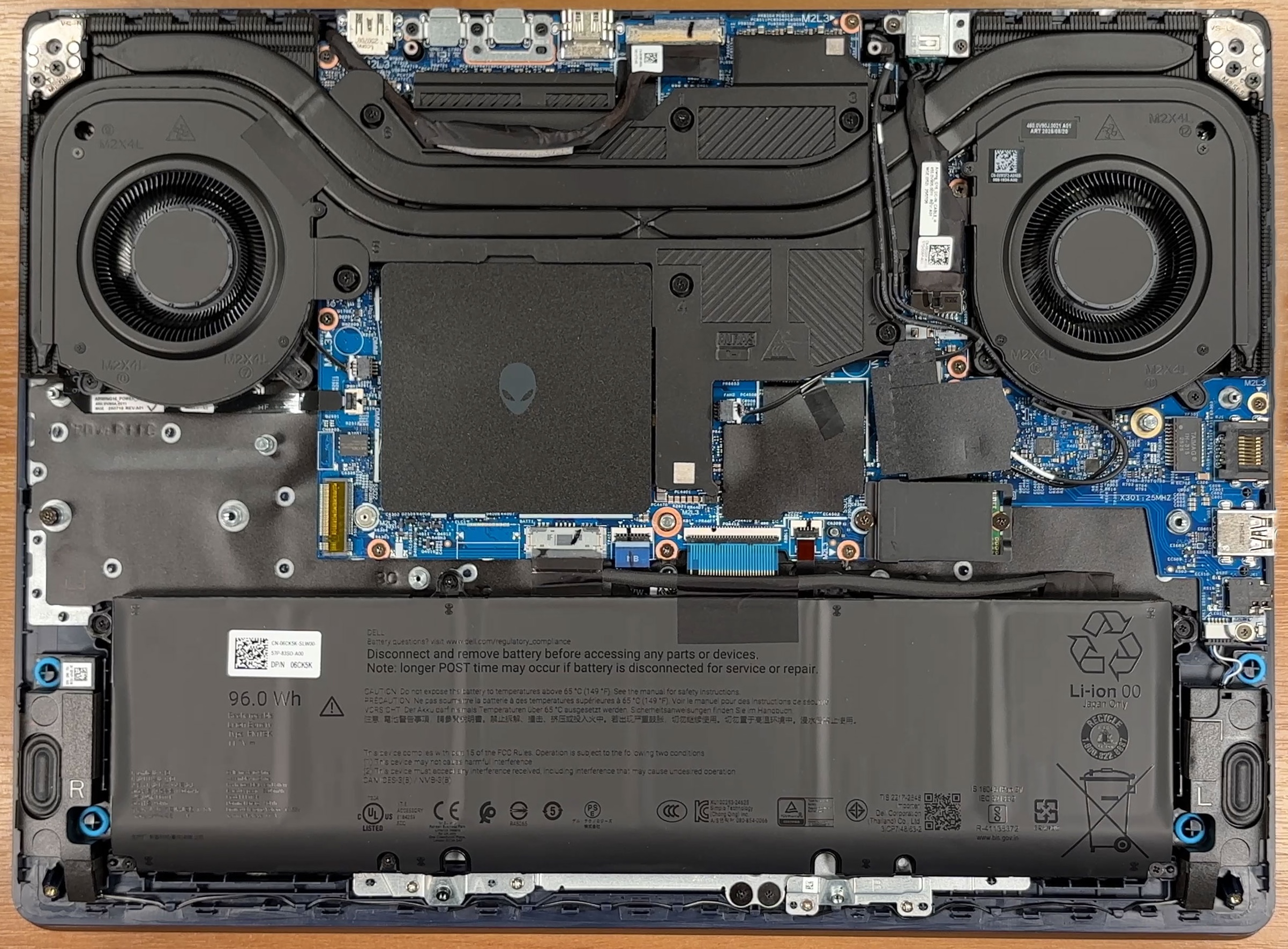
Cooling is handled by a dual-fan setup with large fin stacks and multiple heat pipes running across the top half of the chassis. The heatsinks sit close to the rear edge, so it’s worth taking extra care when lifting and maneuvering the bottom panel around that area.
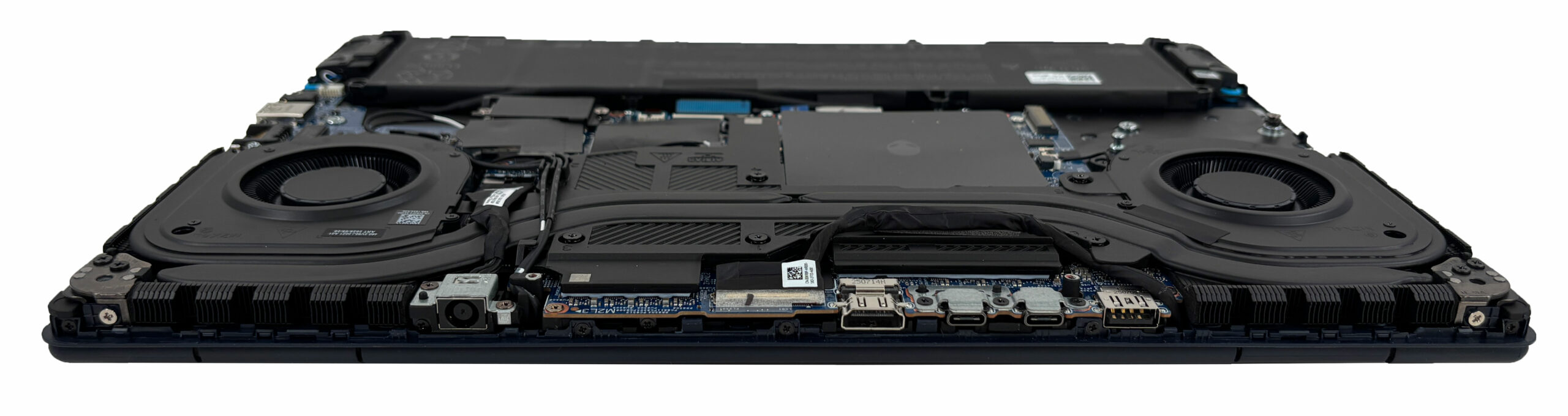
The laptop is powered by a large 96 Wh, 6-cell lithium-ion battery. It’s secured with screws and connects to the motherboard via a plug-style connector with a locking mechanism, which makes the pack straightforward to remove and replace when needed.
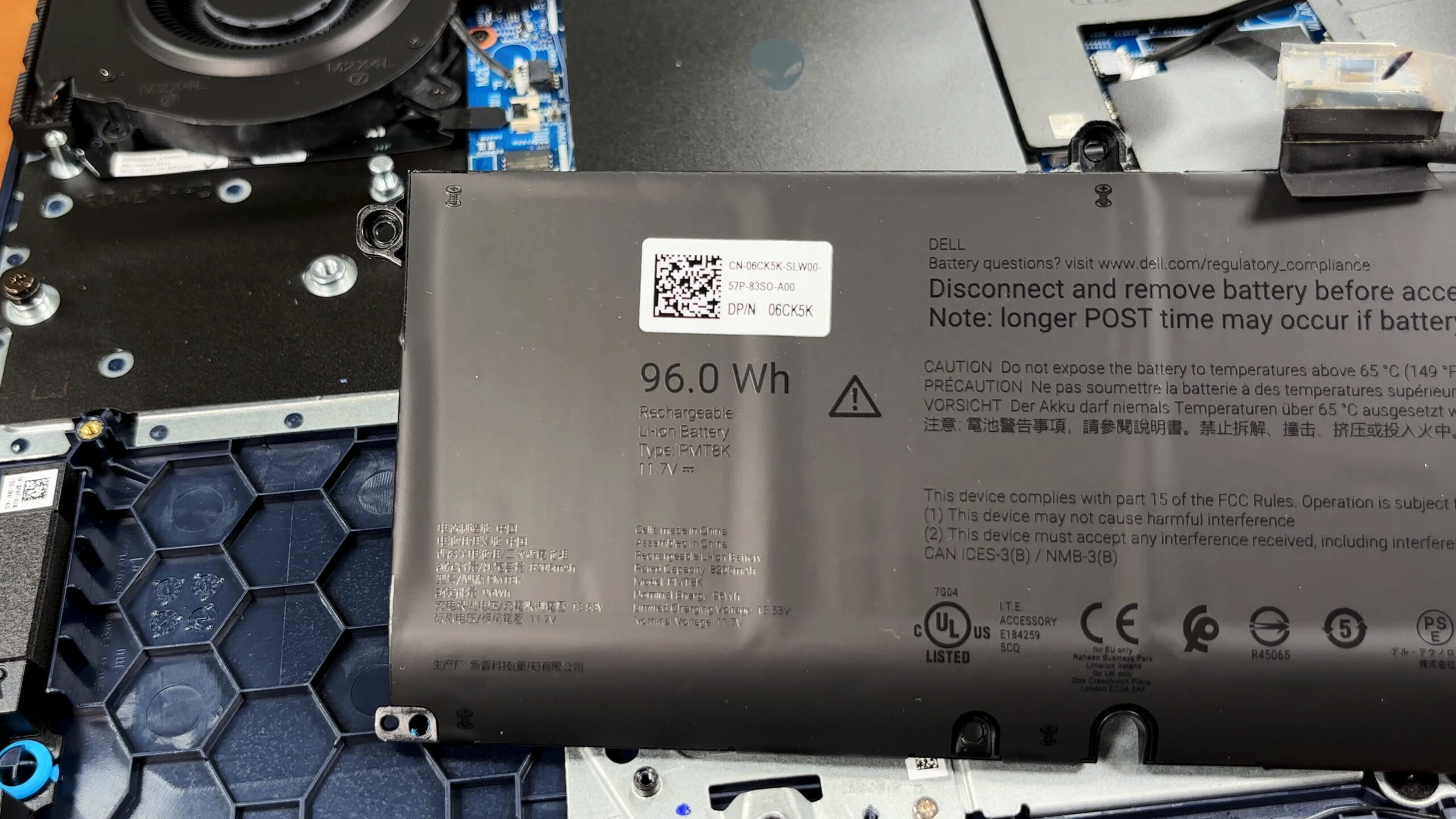
For storage, the Alienware 16 Aurora uses two M.2 2230 PCIe 4.0 x4 NVMe slots, which is good for expansion but does mean you’ll need the shorter 2230 form factor rather than the more common 2280 drives. One of the slots is occupied in our configuration, and the second slot is available for a future upgrade; officially, Dell lists support for up to 1 TB per slot.
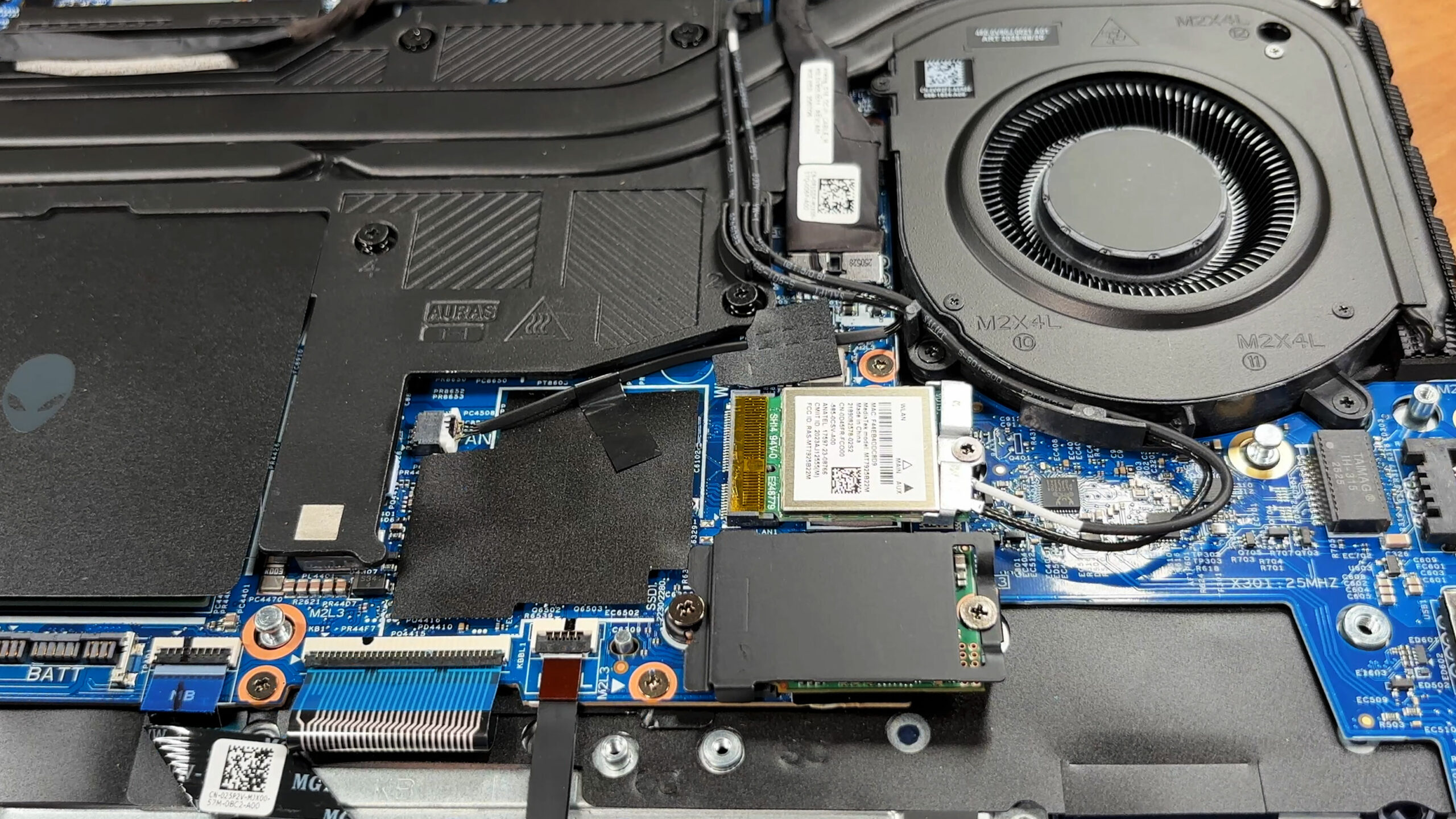
The primary SSD is covered by an EMI shield that also works as a heat spreader, paired with a thermal pad to help control temperatures. Our unit comes with an SK hynix 1 TB NVMe drive installed.
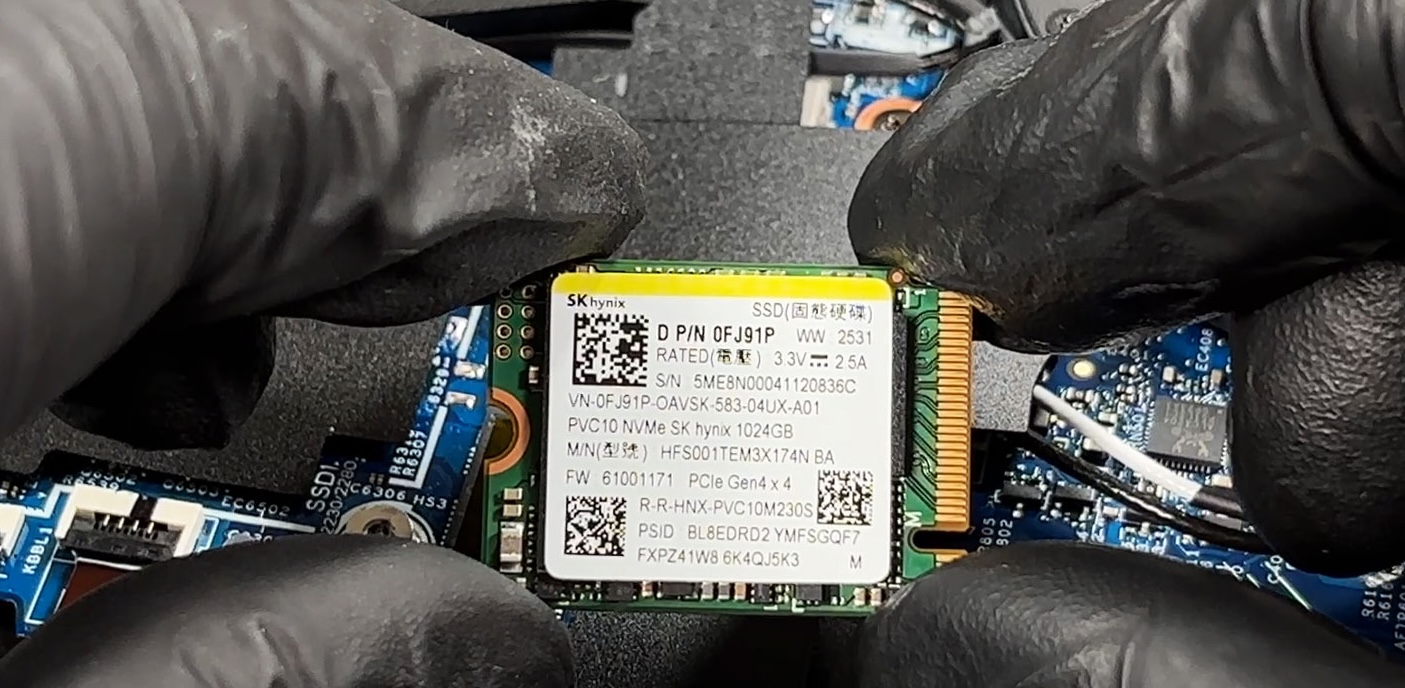
Wireless connectivity is handled by a replaceable MediaTek MT7925B22M Wi-Fi card, connected with two antenna leads. If it ever fails or you want to service it, it’s a standard module that can be removed with a single retaining screw.
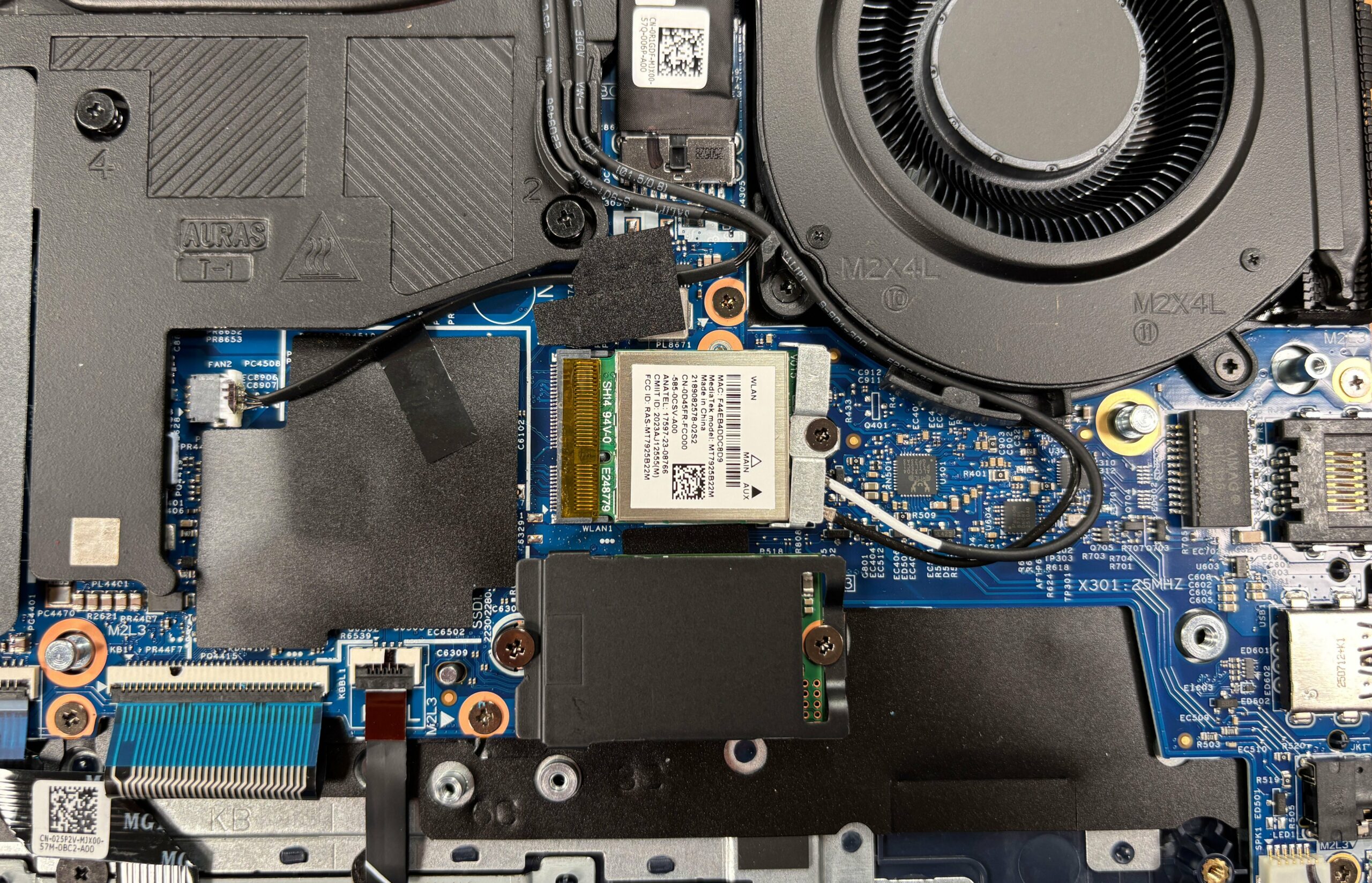
Memory upgradeability is a highlight here: you get two DDR5 SO-DIMM slots instead of soldered RAM. Depending on the configuration, the platform runs DDR5-5600 or DDR5-5200, and our reviewed unit uses two DDR5-5600 modules. Officially, Dell lists a maximum of 32 GB total memory for this model.
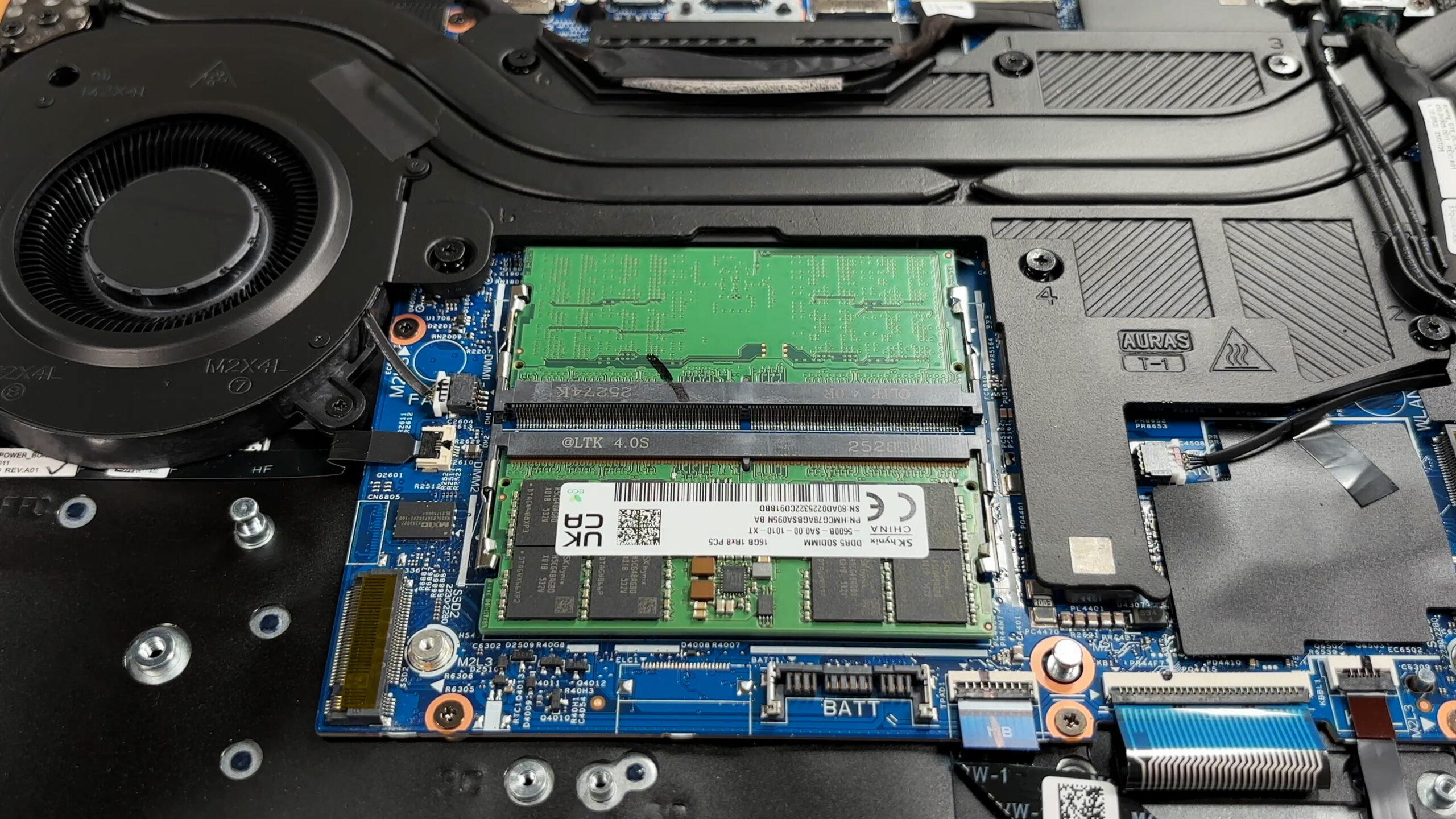
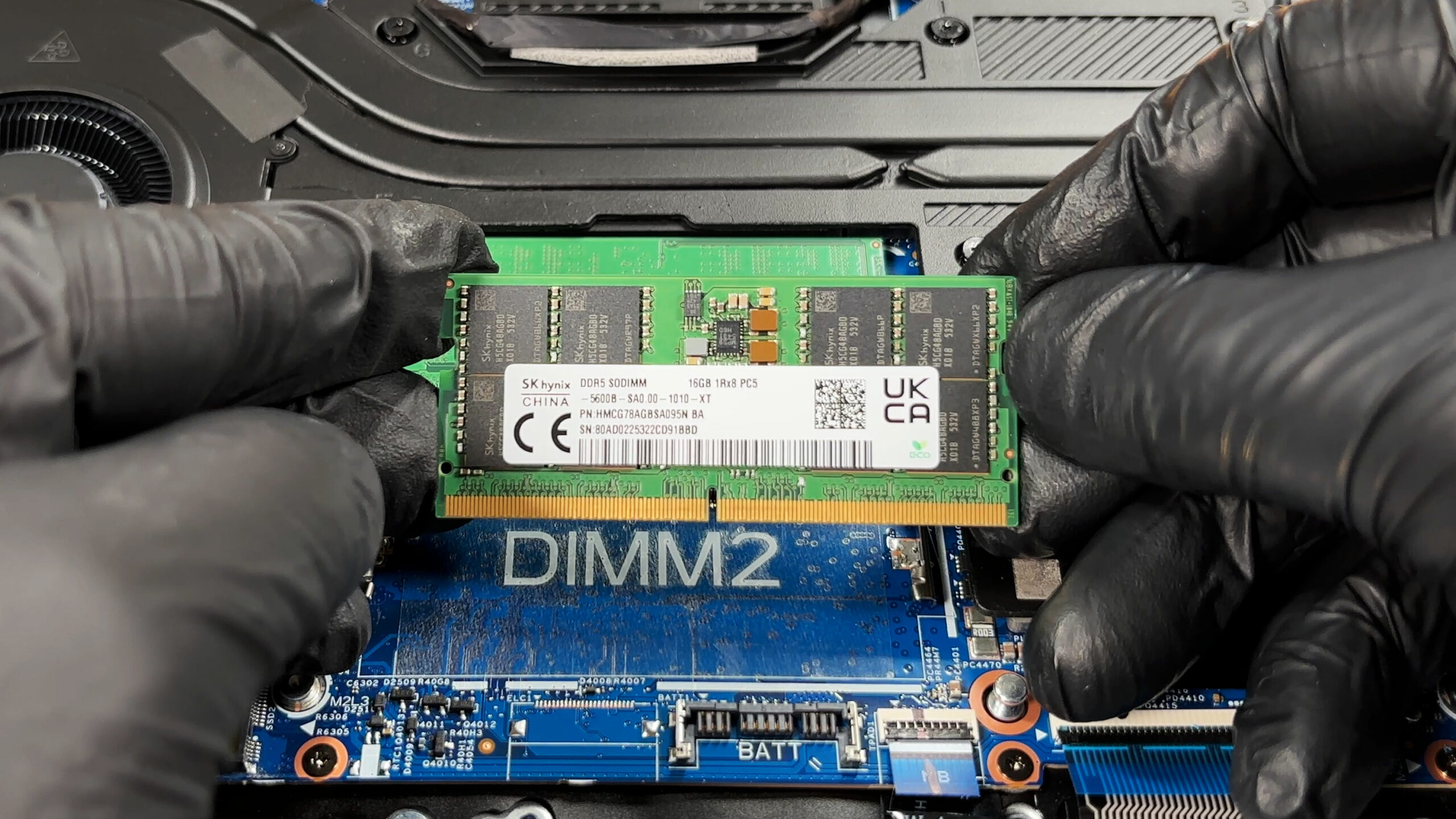
Beyond the main upgrades, you can also service replaceable parts like the speakers, battery, storage drives, and the Wi-Fi module, while the cooling assembly is accessible for cleaning and repasting if required.
Verdict
The Alienware 16 Aurora (AC16250) is a gaming laptop that tries to balance sleek, office-friendly aesthetics with gaming capability, but ultimately finds itself caught in an awkward middle ground. It sheds the aggressive “gamer” look for a sophisticated, understated design that feels surprisingly premium, making it a viable option for professionals who game on the side.
However, beneath the stylish exterior lies a series of frustrating compromises. While it excels in battery life and display quality, its performance is held back by conservative tuning and severe thermal issues, making it hard to recommend over more balanced competitors.
You can check the prices and configurations in our Specs System: https://laptopmedia.com/series/alienware-16-aurora-ac1620/
✅ The Good
 The biggest strength of this laptop is its excellent battery life. Thanks to a massive 96Wh battery, it lasts over 7.5 hours, which is fantastic for a gaming machine and makes it genuinely usable away from a plug. The display is another highlight; the 120Hz QHD+ IPS panel offers great color accuracy with our profile, nearly full sRGB coverage, and is completely PWM-free, ensuring a comfortable viewing experience.
We also appreciate the robust build quality, with a magnesium alloy frame that makes the chassis feel sturdy. The upgradeability is decent, featuring two accessible RAM slots and two M.2 slots (albeit limited to the smaller 2230 size), and the port selection is practical, with rear-facing connections to keep your desk tidy.
For gamers who prioritize silence over raw power, the GPU runs exceptionally cool, albeit at lower clock speeds, ensuring a quieter gaming experience.
❌ The Bad
 The most critical flaw is the CPU thermal management. The processor runs dangerously hot, averaging 99°C under sustained load, which forces it to throttle and raises concerns about long-term reliability. Despite these high temperatures, the GPU performance is disappointing; it is the slowest RTX 5070 laptop we have tested, significantly underperforming compared to rivals due to aggressive power limits.
The storage situation is also frustrating, as both M.2 slots are limited to the smaller, less common 2230 form factor, restricting your SSD choices. Additionally, the keyboard layout suffers from half-height arrow keys, there is no physical privacy shutter for the webcam, and biometric login options are completely absent.
🆚 The Competitors
When compared to its more premium sibling, the Alienware 16X Aurora AC16251 (detailed review), the standard Aurora actually wins on battery life but loses significantly on screen refresh rate and gaming performance. The 16X offers a faster 240Hz screen and a more powerful GPU implementation, albeit with much worse battery endurance.
Against a balanced competitor like the Acer Nitro V 16 ANV16-72 (detailed review), the Alienware struggles to justify its price. The Acer offers better cooling, higher GPU clock speeds, and support for standard-sized SSDs, making it a more practical choice for pure gamers. The Alienware’s main advantage remains its superior battery life and more understated, premium-feeling chassis.
Pros
- Excellent battery life for a gaming laptop (7.5+ hours)
- Great color-accurate, PWM-free QHD+ display
- Sturdy build quality with magnesium alloy frame
- Two user-accessible RAM slots
- Rear port layout for clean cable management
- Sleek, understated design suitable for work
Cons
- CPU runs extremely hot (99°C) under load
- Lowest RTX 5070 performance in its class
- Storage limited to small M.2 2230 SSDs
- No physical privacy shutter or biometric login
- Half-height arrow keys
 Author: Simeon NikolovEditor-in-Chief at LaptopMedia.com with 20+ years of experience in testing and analyzing laptops and mobile devices.
 Author: eng. Kroum NikolovHead of Engineering at LaptopMedia.com, inventor and innovator with 40+ years of experience in electronics and high technology.

![[August 2026] Amazon Italy: Top 10 Best-Selling Laptops – Apple MacBook Neo Claims the Crown as Budget and Mid-Range Windows Machines Dominate Volume](https://laptopmedia.com/wp-content/uploads/2026/09/Best-Selling-Laptops-IT-Top-10-400x225.jpg)
![[August 2026] Amazon Italy: Top 7 Best-Selling Gaming Laptops – ASUS V16 Claims the #1 Spot Amid Strong Mid-Range Demand](https://laptopmedia.com/wp-content/uploads/2026/09/Best-Selling-Gaming-Laptops-IT-Top-10-400x225.jpg)
![[August 2026] Best-Selling Laptop Brands on Amazon Italy – Lenovo Dominates Market Share and Revenue Leadership](https://laptopmedia.com/wp-content/uploads/2026/09/IT-Best-Brands-400x225.jpg)
![[August 2026] Amazon India: Top 10 Best-Selling Laptops – Apple MacBook Neo Dominates the Charts with Massive Sales Lead](https://laptopmedia.com/wp-content/uploads/2026/09/Best-Selling-Laptops-IN-Top-10-400x225.jpg)
![[August 2026] Amazon India: Top 10 Best-Selling Gaming Laptops – HP Victus 15 Dominates the Market with Massive Unit Lead](https://laptopmedia.com/wp-content/uploads/2026/09/Best-Selling-Gaming-Laptops-IN-Top-10-400x225.jpg)