ASUS TUF Gaming VG249Q1A quick review – Soooo many features
Contents
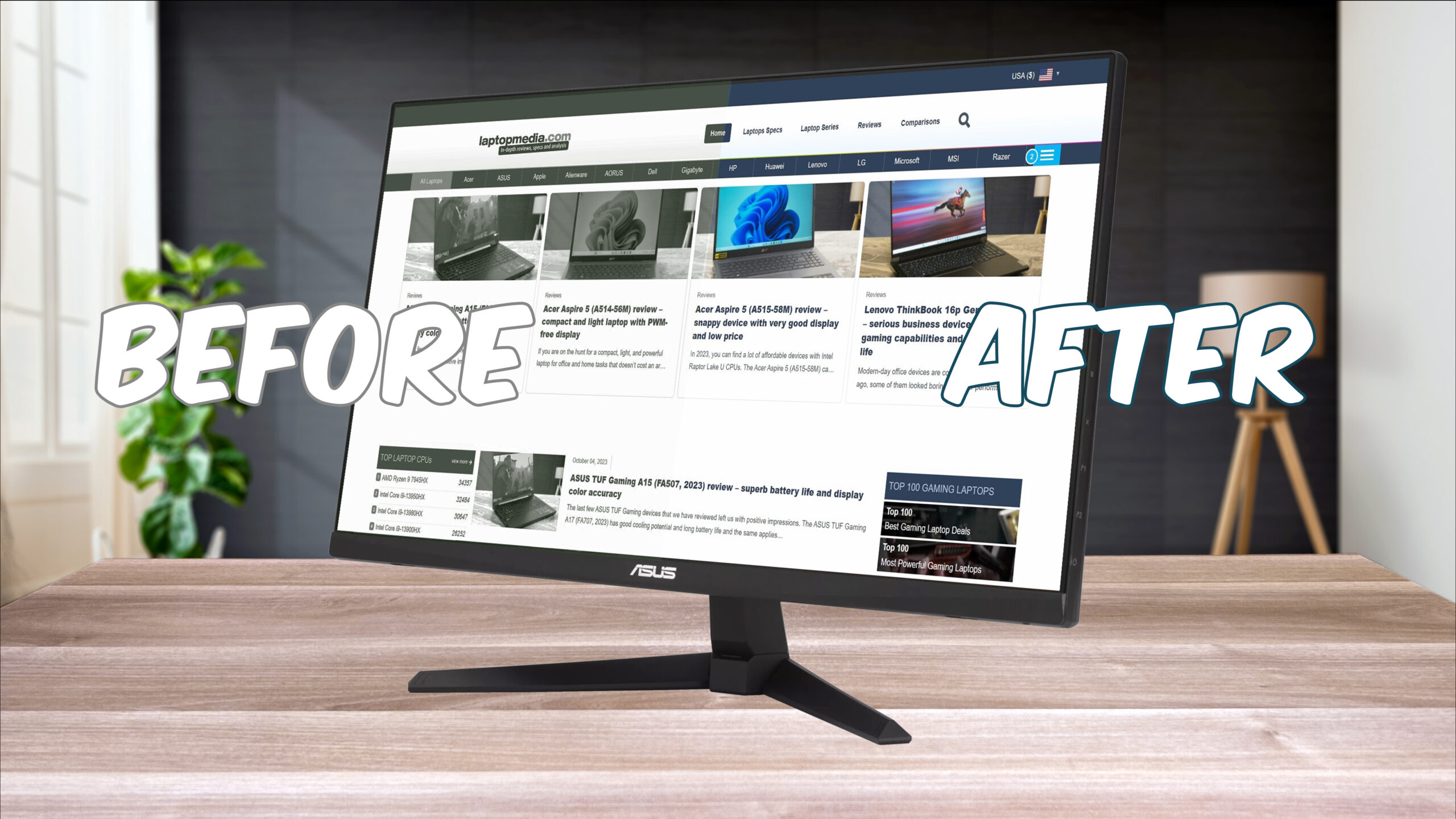 ASUS’s TUF Gaming quickly became a very sought-after budget and mid-range brand, offering laptops, peripherals, PC components, and even monitors. Basically, we’re pretty sure you can build an entire Gaming setup mostly out of TUF components. Also, our experience with their laptops has been more than pleasant, bringing good value and excellent performance. Today we’ve got their VG249Q1A monitor, with a Full HD resolution and an IPS panel. The latter means great colors suitable for color work and design, as well as making your games look pretty darn good. As this is a gaming monitor, it’s got plenty of features for controlling the colors, putting a permanent crosshair in the middle, as well as a dedicated MOBA mode, which is crazy to use and might actually put you at a disadvantage.
As we always do, we’ll also check out how much we can improve the display with our display profiles, which you can purchase right here. The profile selection covers office work, web design, gaming, and movies, and can even protect your eyes, so don’t sleep on them.
With that said, let’s take a quick look around the monitor and dive into its design and colors.
You can check the current price of the ASUS TUF Gaming VG249Q1A here: Buy from Amazon.com (#CommissionsEarned)
Specs sheet, What’s in the box?, Drivers, Design, Connectivity, OSD menu
| Screen size | 23.8 inch (59.94 cm) |
|---|---|
| Refresh rate | 165Hz |
| Response time | 1ms |
| Panel type | IPS |
| Backlight type | LED |
| Screen finish | Matte |
| Resolution | 1920 x 1080 (Full HD) |
| Technologies |
|
| I/O |
|
What’s in the box?
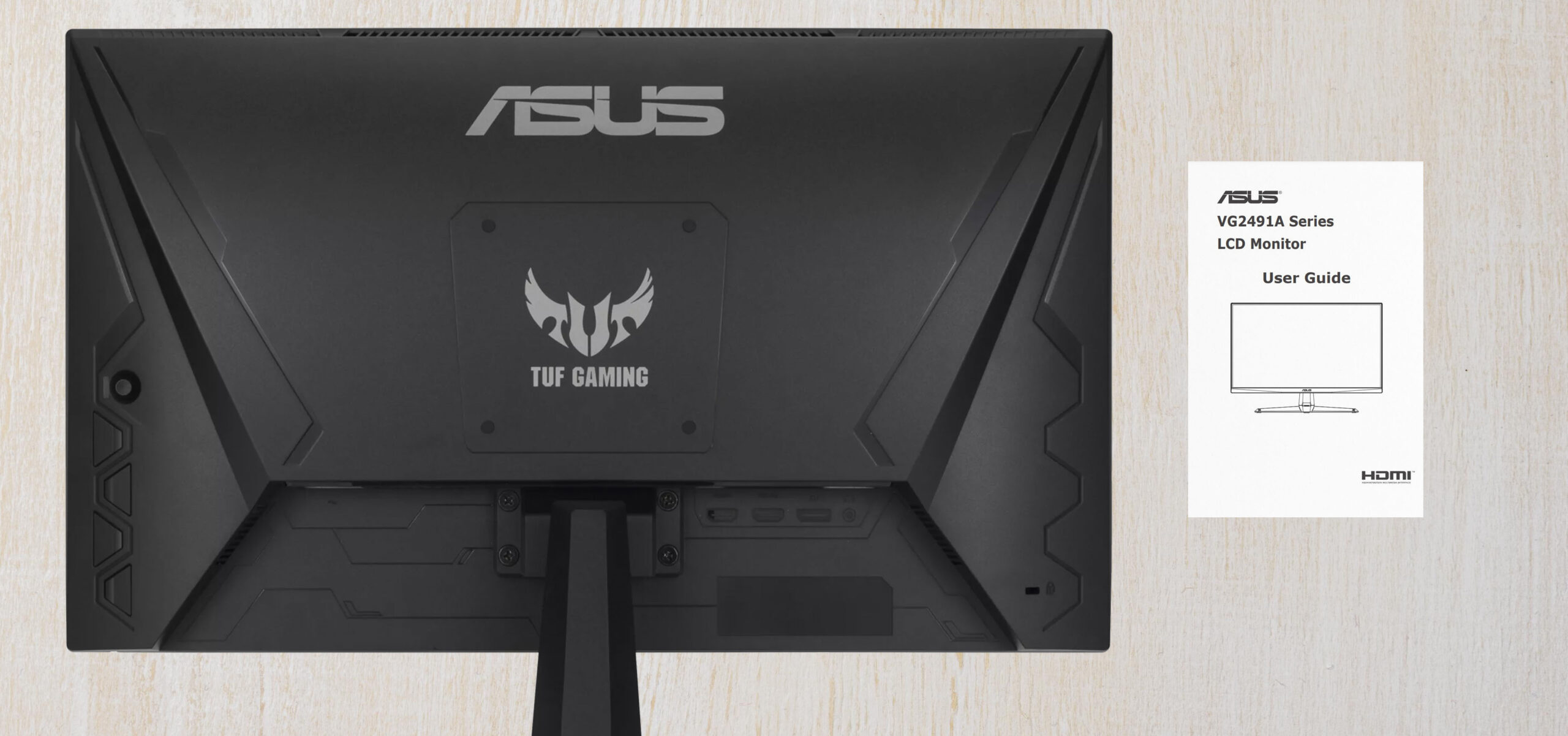
Inside the monitor box, you have the panel itself, with the stand coming pre-bolted onto the back (you can remove it, of course, using a Phillips-head screwdriver). The base still needs to be attached. You also get a regular power cord. In some regions, the package might include HDMI and DisplayPort cables.
Drivers and Software
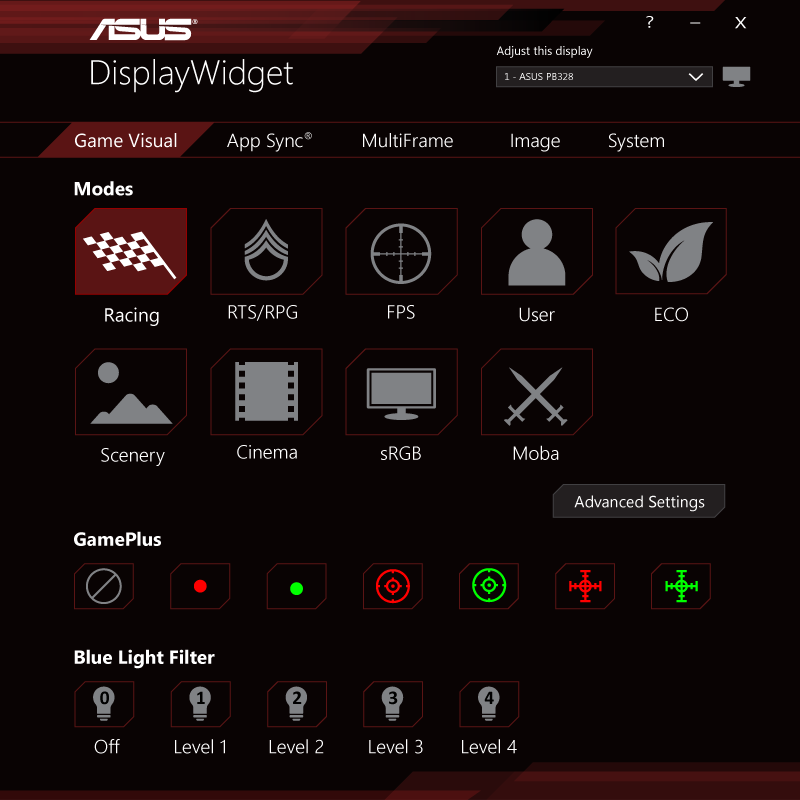
You can find all the available downloads for this monitor right here, including the DisplayWidget app, which makes the OSD controls accessible through Windows itself, so you can better access them using your mouse and keyboard, instead of playing with the nibble on the back, which can get annoying.
DisplayWidget app
The DisplayWidget has all sorts of controls, including different color settings in the GameVisual panel. There are a total of 7 presets, but we’d like to highlight what we feel are the more important ones. The User preset is customizable to your liking if you want to get a unique look out of the monitor.
- Racing mode: A little more toned-down image that also makes the black colors seem more visible. Overall great for all scenarios
- RTS/RPG mode: Similar to scenery, albeit with lower brightness
- FPS mode: By far the most saturated, for ultimate visibility
- Scenery mode: Very vibrant with poppy and punchy colors
- Cinema mode: Made for movies (duh), increased saturation and darker blacks
- sRGB mode: Very neutral colors, sticks to the sRGB color gamut as much as possible
- MOBA mode: Gives you greyscale on all colors except the Reds and Greens, so you can spot health bars in games more easily
The GamePlus section is there to give you an overlay if you’re playing a shooter, putting a bright Red or Green crosshair in the middle of the screen, with a total of three options. As for the Blue Light Filter, it’s pretty self-explanatory. Every level reduces the blue colors (and light) by more.
Design and connectivity
From the outside, you can easily figure out the monitor sits in the budget segment, due to the black plastic exterior. On the back, there’s a VESA 100×100 mm mounting holes, while the stand can be detached from the back too, so as to not interfere if you decide to save some space on your desk and use a wall mount.
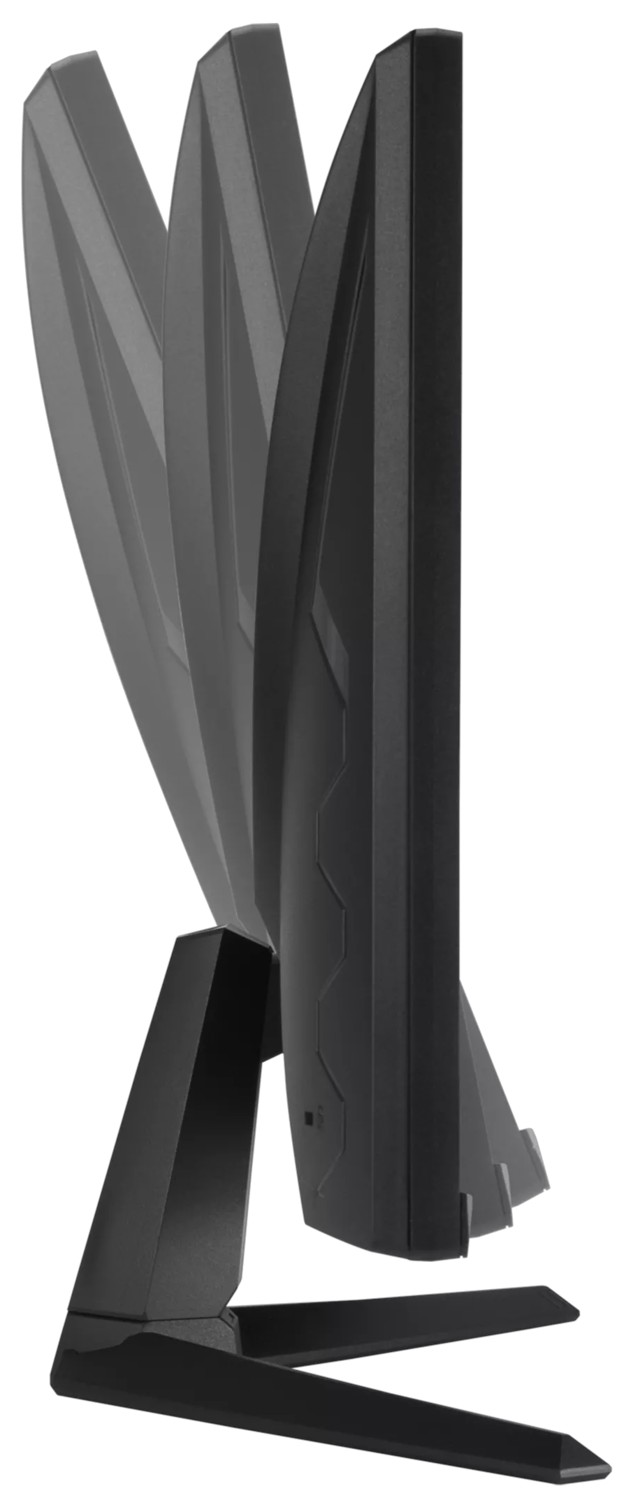
The stand itself isn’t very versatile, with only a tilt mechanism for changing the viewing angles.
In terms of ports, you have two HDMI 1.4 ports, which are locked at 120 Hz, so you can’t take advantage of the 165Hz refresh rate of the monitor. For that, you have to use the DisplayPort 1.2. There’s also an audio jack for using the onboard speakers.
The monitor supports FreeSync Premium, which gives you a tear-free image, but you need an AMD GPU or APU from the 200-series or higher, or an NVIDIA GPU from the 10-series or higher.
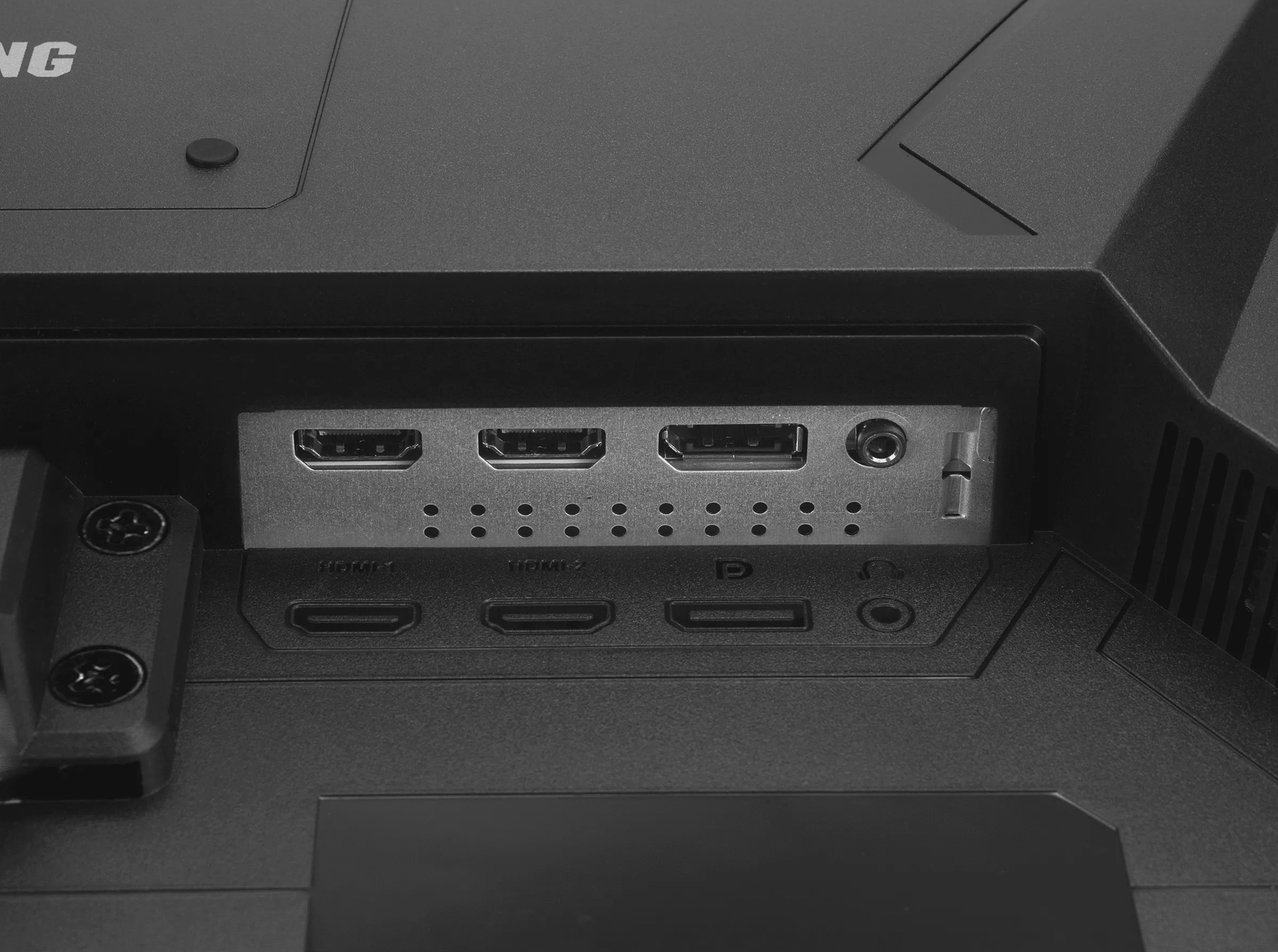
OSD menu
If you’d like to go the traditional route and utilize the nibble joystick on the back, here’s a quick look at all the options inside the OSD menu.
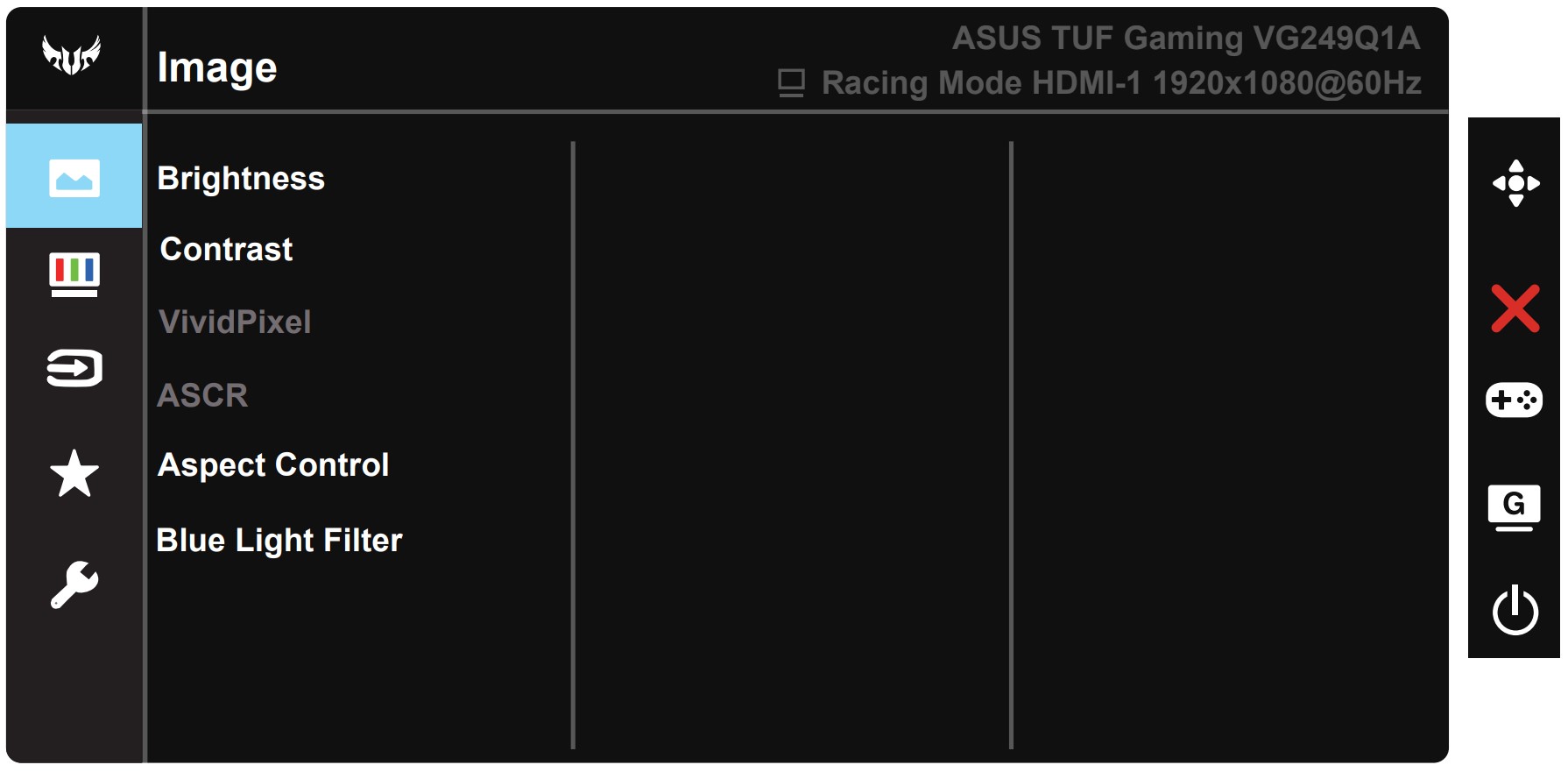

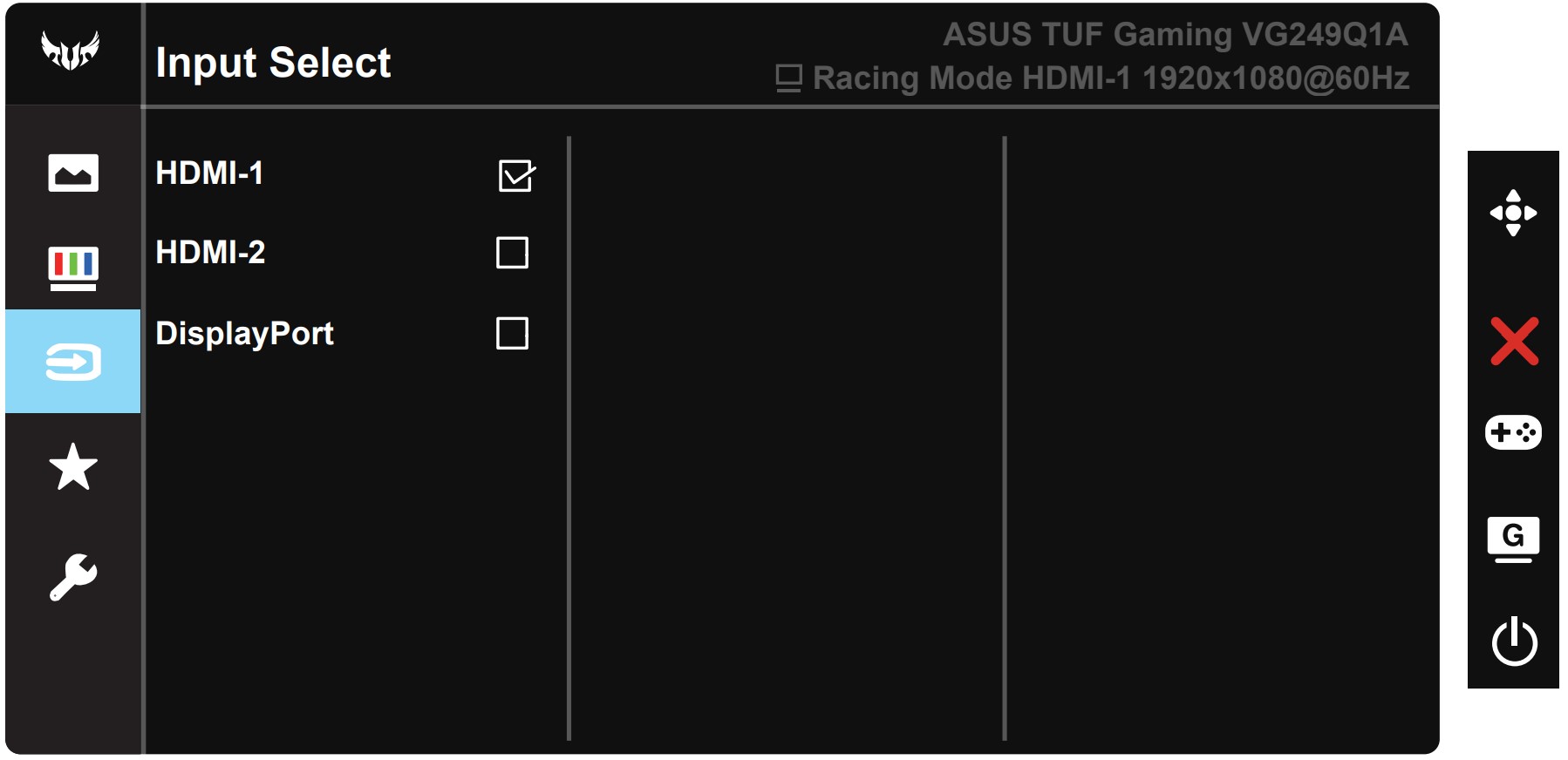
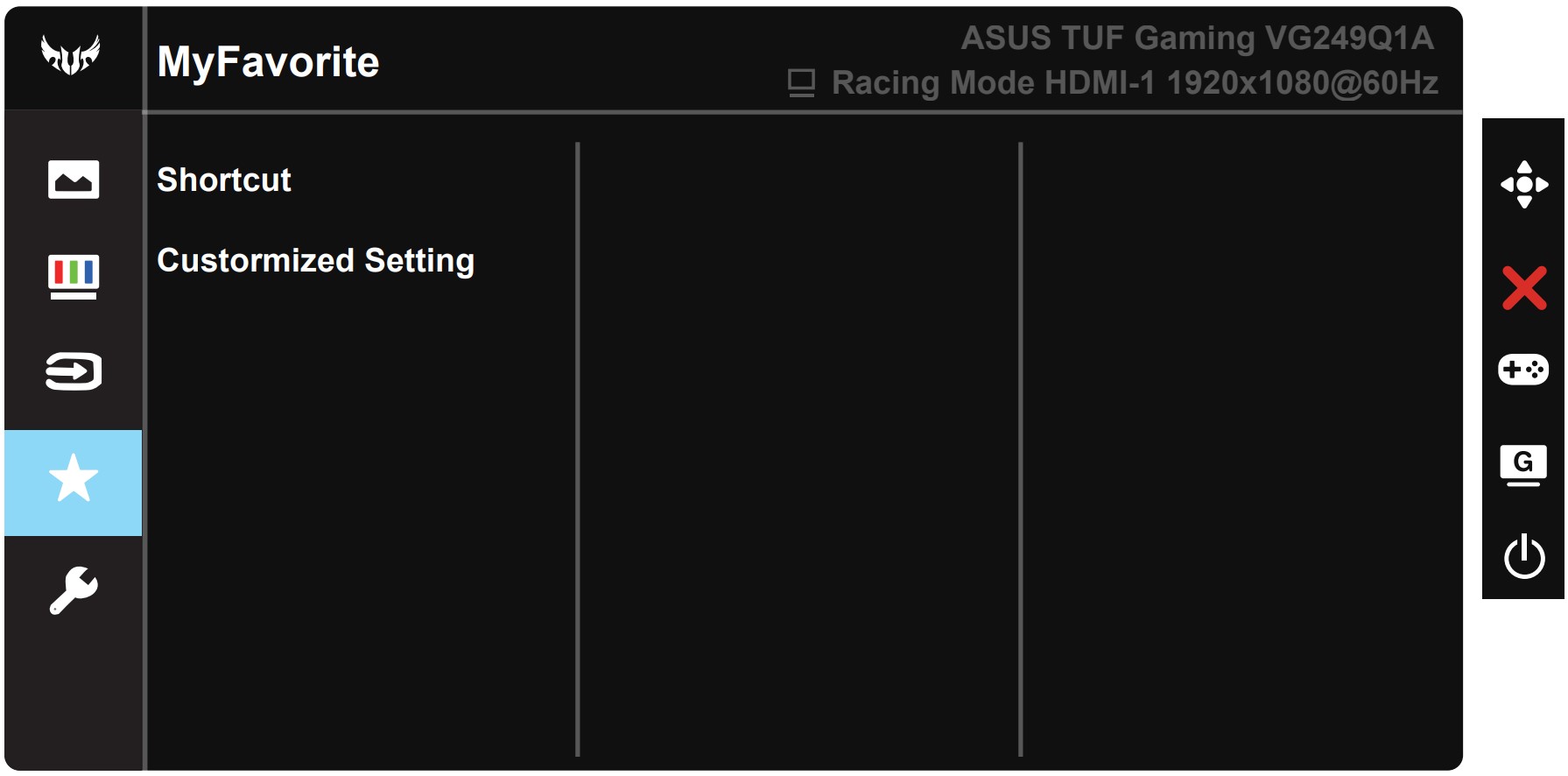
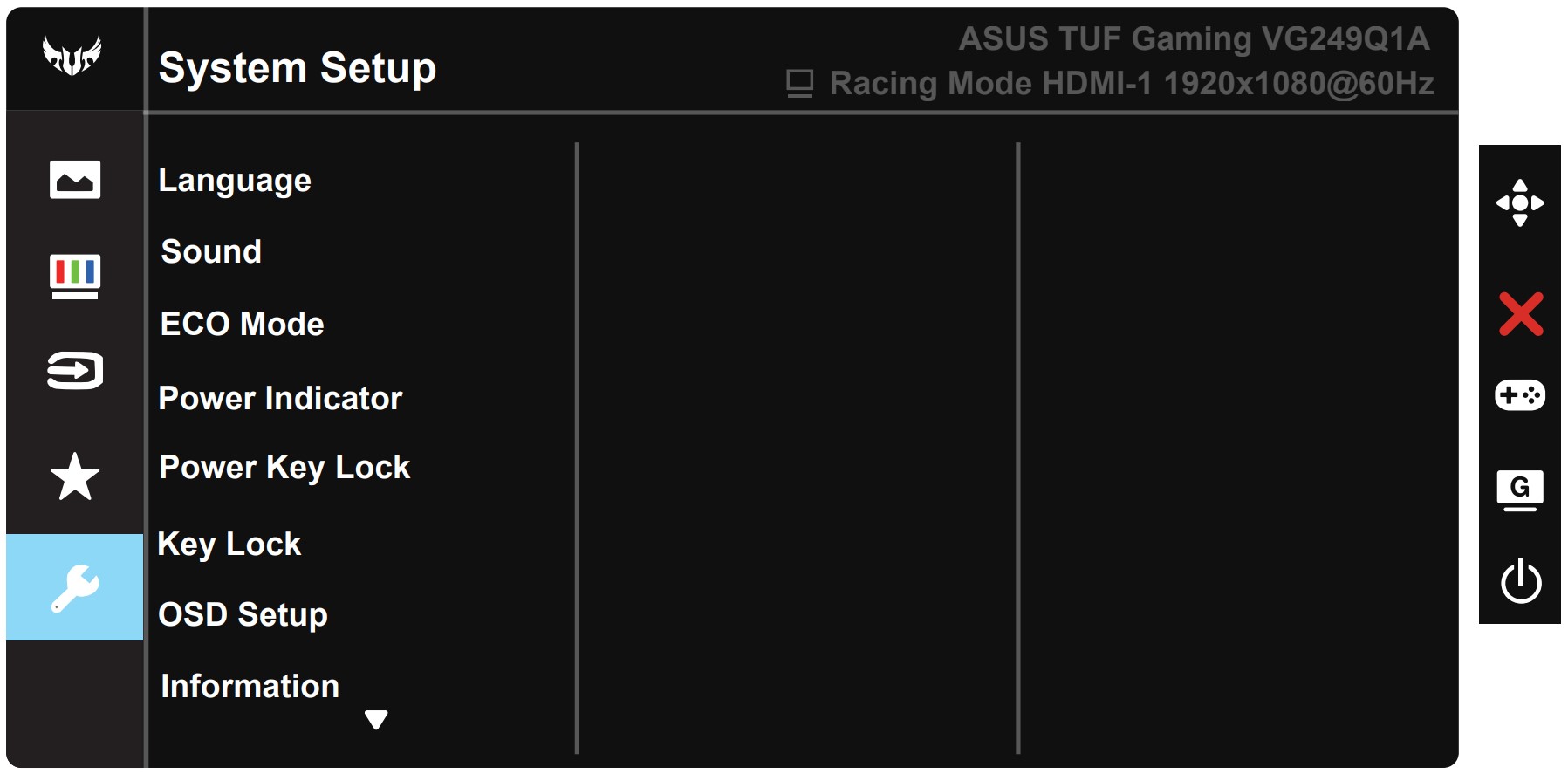
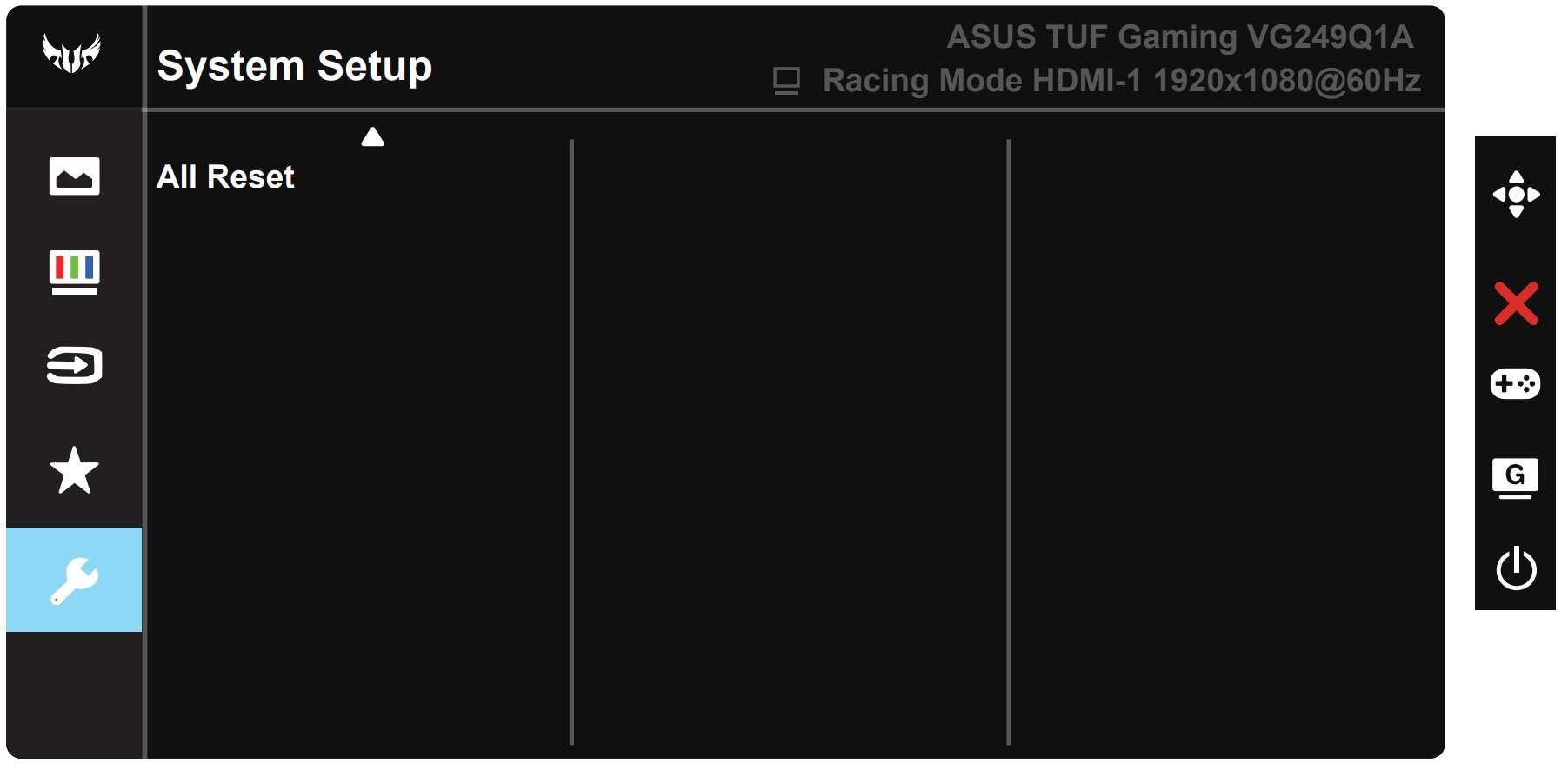
 Author: Severin Kolakov

![[June 2026] Best-Selling Laptop Brands on Amazon Global – Apple’s Unrivaled Dominance in Units and Revenue](https://laptopmedia.com/wp-content/uploads/2026/07/GLOBAL-Best-Brands-400x225.jpg)
![[June 2026] Amazon Global: Top 10 Best-Selling Laptops – Apple’s New MacBook Neo Storms to #1, Reshaping the Market with Affordability](https://laptopmedia.com/wp-content/uploads/2026/07/Best-Selling-Laptops-GLOBAL-Top-10-400x225.jpg)
![[June 2026] Amazon Global: Top 10 Best-Selling Gaming Laptops – Acer’s Nitro V 16S AI Dominates Sales, While ASUS Leads Overall Revenue](https://laptopmedia.com/wp-content/uploads/2026/07/Best-Selling-Gaming-Laptops-GLOBAL-Top-10-400x225.jpg)
![[June 2026] Global Ranking of Best-Selling Laptop GPUs on Amazon – NVIDIA RTX 5060 is the Top-Selling Dedicated GPU](https://laptopmedia.com/wp-content/uploads/2026/07/Best-Selling-GPUs-GLOBAL-Top-10-400x225.jpg)
![[June 2026] Global Ranking of Best-Selling Laptop CPUs on Amazon – Apple M5 Dominates, AMD Ryzen 7 260 Gets Solid Premium Share](https://laptopmedia.com/wp-content/uploads/2026/07/Best-Selling-CPUs-GLOBAL-Top-10-400x225.jpg)
No min. brightness reading, no measured pixel response times, and no PWM test ? Bit generous to call this a review