ASUS Vivobook 17 F1704 (X1704) review – it’s comfortable during load and has big 17.3-inch panel
Temperatures and comfort, Battery Life
Max CPU load
In this test we use 100% on the CPU cores, monitoring their frequencies and chip temperature. The first column shows a computer’s reaction to a short load (2-10 seconds), the second column simulates a serious task (between 15 and 30 seconds), and the third column is a good indicator of how good the laptop is for long loads such as video rendering.
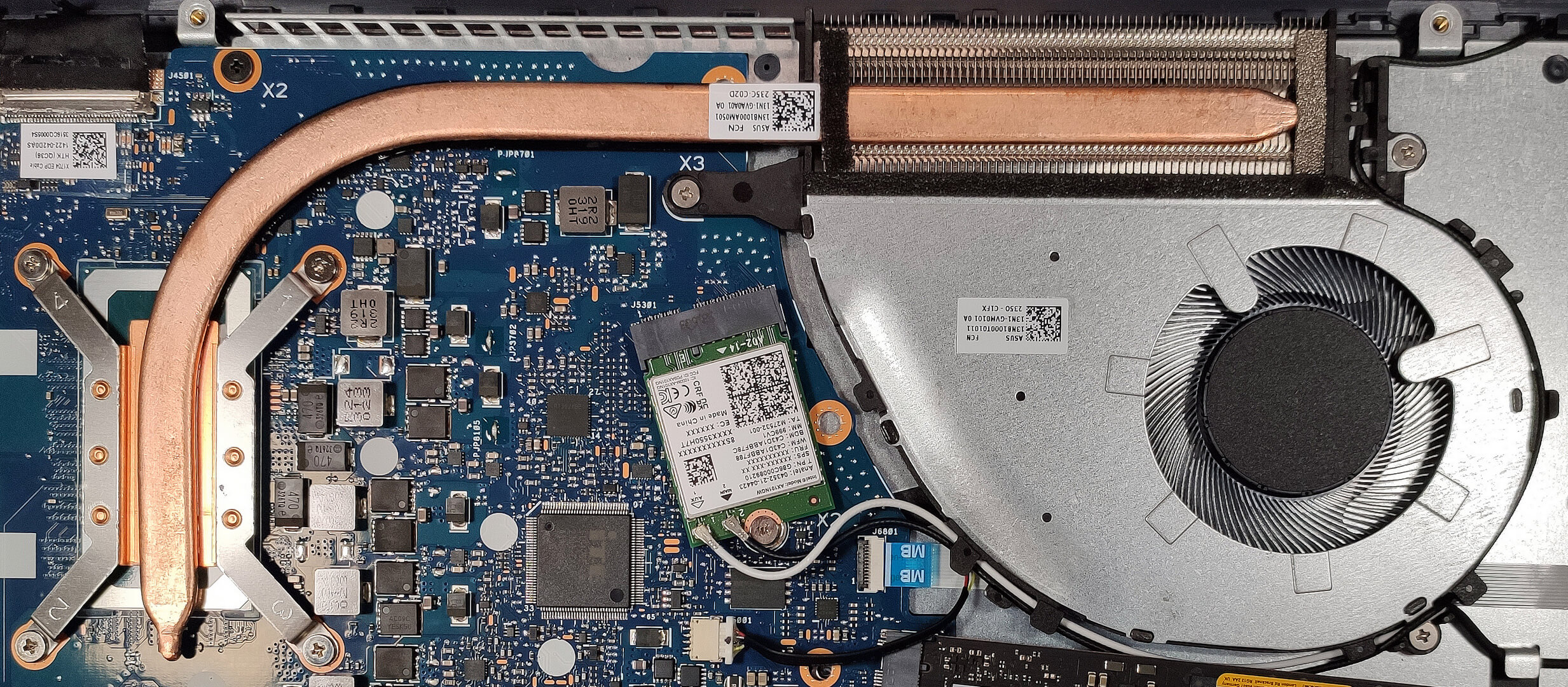
Average P-core frequency; Average E-core frequency; CPU temp.; Package Power
| Intel Core i5-1335U (15W TDP) | 0:02 – 0:10 sec | 0:15 – 0:30 sec | 10:00 – 15:00 min |
|---|---|---|---|
| ASUS Vivobook 17 F1704 (X1704) | 3.10 GHz @ 2.14 GHz @ 71°C @ 30W | 3.09 GHz @ 2.16 GHz @ 89°C @ 30W | 1.97 GHz @ 1.67 GHz @ 70°C @ 18W |
| ASUS Vivobook 15 F1504 (X1504) | 2.99 GHz @ 2.07 GHz @ 66°C @ 28W | 2.94 GHz @ 2.07 GHz @ 81°C @ 28W | 2.02 GHz @ 1.68 GHz @ 75°C @ 18W |
| Acer Aspire 5 (A515-58M) | 2.05 GHz @ 2.74 GHz @ 61°C @ 47W | 1.81 GHz @ 2.54 GHz @ 64°C @ 40W | 1.22 GHz @ 2.23 GHz @ 61°C @ 28W |
| HP ProBook 440 G10 | 2.39 GHz @ 2.93 GHz @ 93°C @ 50W | 1.51 GHz @ 2.29 GHz @ 92°C @ 30W | 0.94 GHz @ 1.87 GHz @ 72°C @ 19W |
| HP ProBook 450 G10 | 3.41 GHz @ 2.79 GHz @ 94°C @ 48W | 2.80 GHz @ 2.17 GHz @ 94°C @ 31W | 1.87 GHz @ 2.04 GHz @ 81°C @ 23W |
| Acer Swift Go 16 (SFG16-71) | 3.29 GHz @ 2.46 GHz @ 65°C @ 45W | 3.06 GHz @ 2.37 GHz @ 71°C @ 42W | 1.80 GHz @ 1.98 GHz @ 61°C @ 28W |
| Lenovo ThinkBook 14s Yoga Gen 3 | 1.91 GHz @ 1.20 GHz @ 63°C @ 19W | 1.86 GHz @ 0.90 GHz @ 74°C @ 14W | 1.83 GHz @ 0.90 GHz @ 60°C @ 13W |
The Core i5-1335U inside of the ASUS Vivobook 17 F1704 (X1704) can maintain a bit higher frequencies (but the temperature is higher as well) in short and medium loads compared to its sibling – the ASUS Vivobook 15 F1504 (X1504). The chip can sustain ~2.00 GHz P core clock and 70°C in long periods of 100% stress which is a good result.
Comfort during full load
The single fan is surprisingly (almost) quiet in “Performance mode”. If the processor is heavily stressed, you can hear the fan’s revolving but the noise levels aren’t high at all. Still, in the “Whisper mode,” the fan spins at a very low speed and this preset is suitable for people who prefer to work in a quiet environment. The WASD zone and the two palm rest areas are relatively cool when the CPU is under heavy load. The central and the right side of the keyboard aren’t scorching hot in this scenario.

The fan stops under light load or when the laptop is idle condition. If you are watching a video or you have opened ~10 tabs on your Web browser, the fans spin with ~2400-300 RPM. In 100% CPU stress, we detect ~4900 RPM.



Battery
Now, we conduct the battery tests with the Windows Better performance setting turned on, screen brightness adjusted to 120 nits and all other programs turned off except for the one we are testing the notebook with. The 50Wh battery model has enough juice for 7 hours and 9 minutes of either Web browsing or video playback.
Brightness: 180 nits; Display Mode: SDR
Time to Full Discharge: Higher is Better
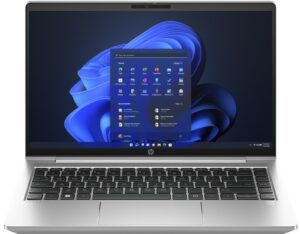
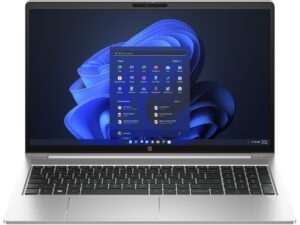
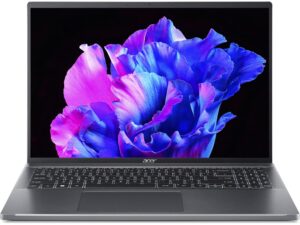
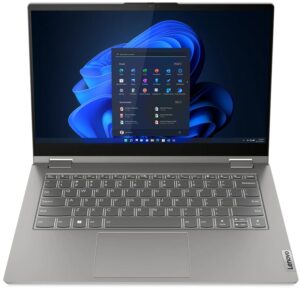
In order to simulate real-life conditions, we used our own script for automatic web browsing through over 70 websites.
 Author: Nikolay Palaozov
 Author: eng. Kroum NikolovHead of Engineering at LaptopMedia.com, inventor and innovator with 40+ years of experience in electronics and high technology.

![[August 2026] Amazon Italy: Top 10 Best-Selling Laptops – Apple MacBook Neo Claims the Crown as Budget and Mid-Range Windows Machines Dominate Volume](https://laptopmedia.com/wp-content/uploads/2026/09/Best-Selling-Laptops-IT-Top-10-400x225.jpg)
![[August 2026] Amazon Italy: Top 7 Best-Selling Gaming Laptops – ASUS V16 Claims the #1 Spot Amid Strong Mid-Range Demand](https://laptopmedia.com/wp-content/uploads/2026/09/Best-Selling-Gaming-Laptops-IT-Top-10-400x225.jpg)
![[August 2026] Best-Selling Laptop Brands on Amazon Italy – Lenovo Dominates Market Share and Revenue Leadership](https://laptopmedia.com/wp-content/uploads/2026/09/IT-Best-Brands-400x225.jpg)
![[August 2026] Amazon India: Top 10 Best-Selling Laptops – Apple MacBook Neo Dominates the Charts with Massive Sales Lead](https://laptopmedia.com/wp-content/uploads/2026/09/Best-Selling-Laptops-IN-Top-10-400x225.jpg)
![[August 2026] Amazon India: Top 10 Best-Selling Gaming Laptops – HP Victus 15 Dominates the Market with Massive Unit Lead](https://laptopmedia.com/wp-content/uploads/2026/09/Best-Selling-Gaming-Laptops-IN-Top-10-400x225.jpg)


