Alienware AW2523HF monitor – Specs, Pros / Cons: The Esports Champ
 Alienware has been leading the charge when it comes to refresh rate. Year by year, they keep releasing monitors that reach new heights. Today we have the Alienware AW2523HF, a monitor that lives and breathes gaming. It’s made with the esports crowd in mind, including pro players, esports training facilities (Alienware sponsors two of them already), and even esports tournaments, as these screens pretty much reach the peak of responsiveness.
Specs-wise, the Alienware AW2523HF offers a 24.5-inch Full HD IPS panel. For the screen size, the resolution is perfect, especially once you factor in the 360Hz refresh rate. This means that each pixel needs to be updated 360 times per second, so a higher res panel with the same refresh rate would require much more GPU resources, as well as consume a lot more power, and generate more heat. There’s also a 0.5 ms response time and AMD FreeSync Premium + VESA Adaptive Sync support, which are pretty much identical. How good will the monitor be at content creation though? Today we’ll check that out, so read on.
You can check the current price of the Alienware AW2523HF here: Buy from Amazon.com (#CommissionsEarned)
Contents
Specs sheet, Drivers, OSD Menu, Design, Connectivity
| Screen size | 24.5 inch (62.23 cm) |
|---|---|
| Refresh rate | 360Hz |
| Response time | 0.5ms |
| Panel type | IPS |
| Backlight type | LED |
| Screen finish | Matte |
| Resolution | 1920 x 1080 (FHD) |
| Technologies |
|
| I/O |
|
What’s in the box? Assembly

OSD Menu
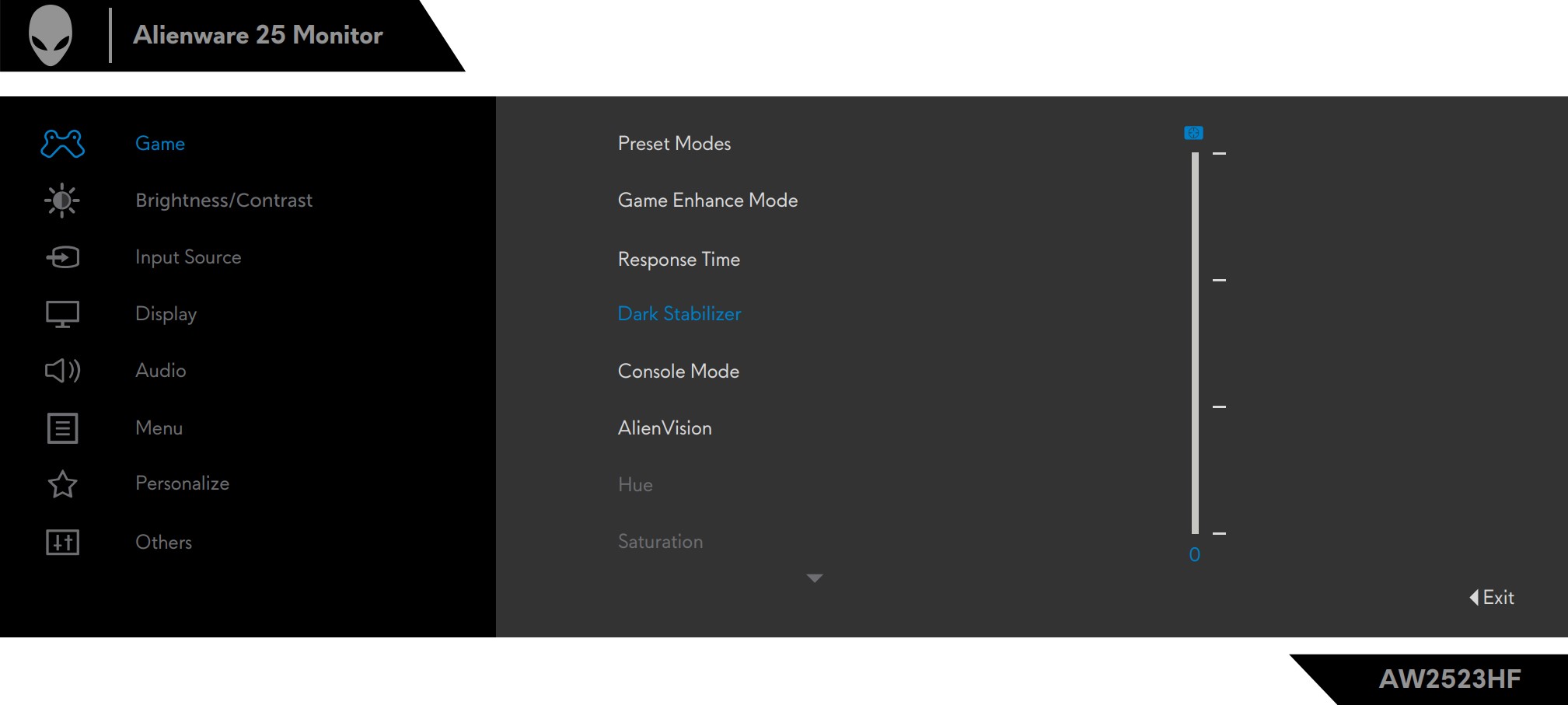
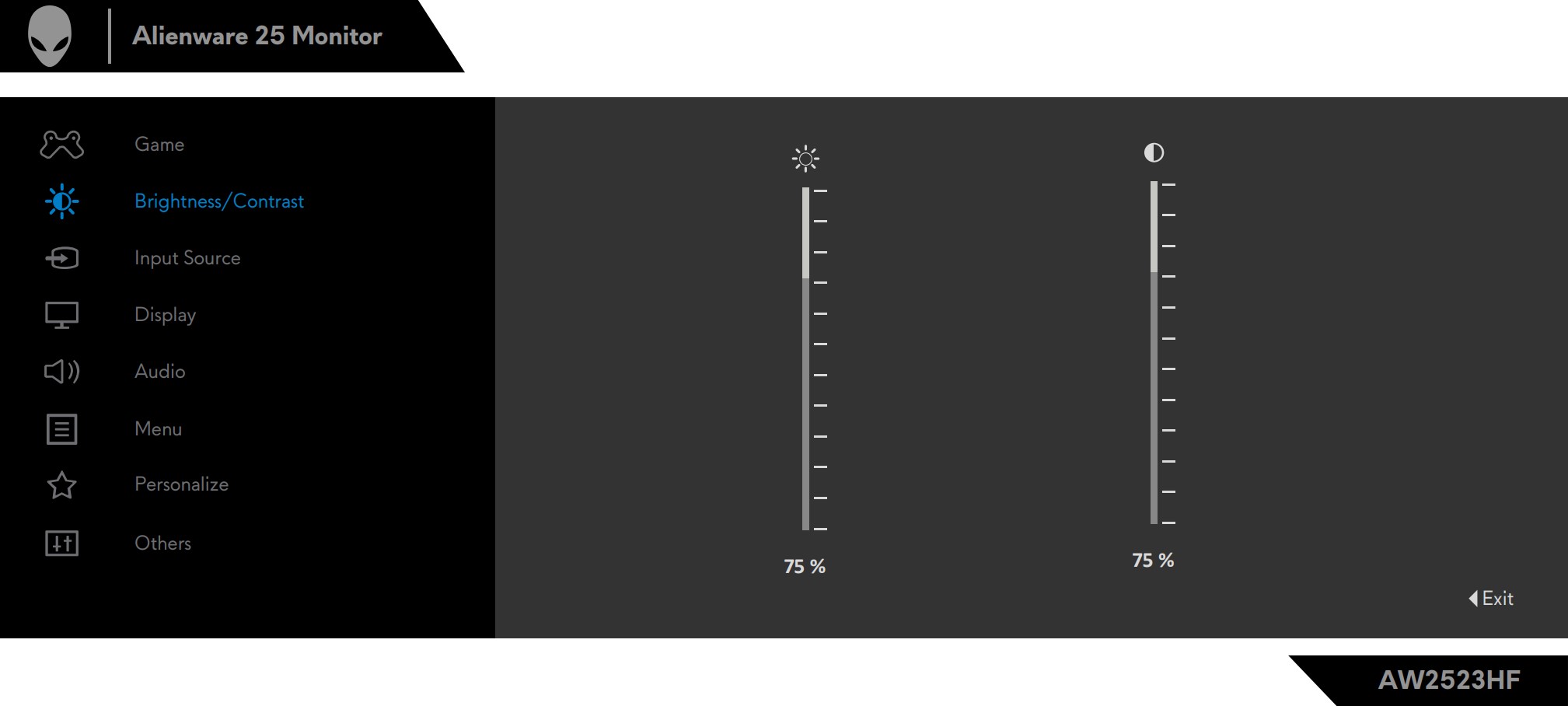
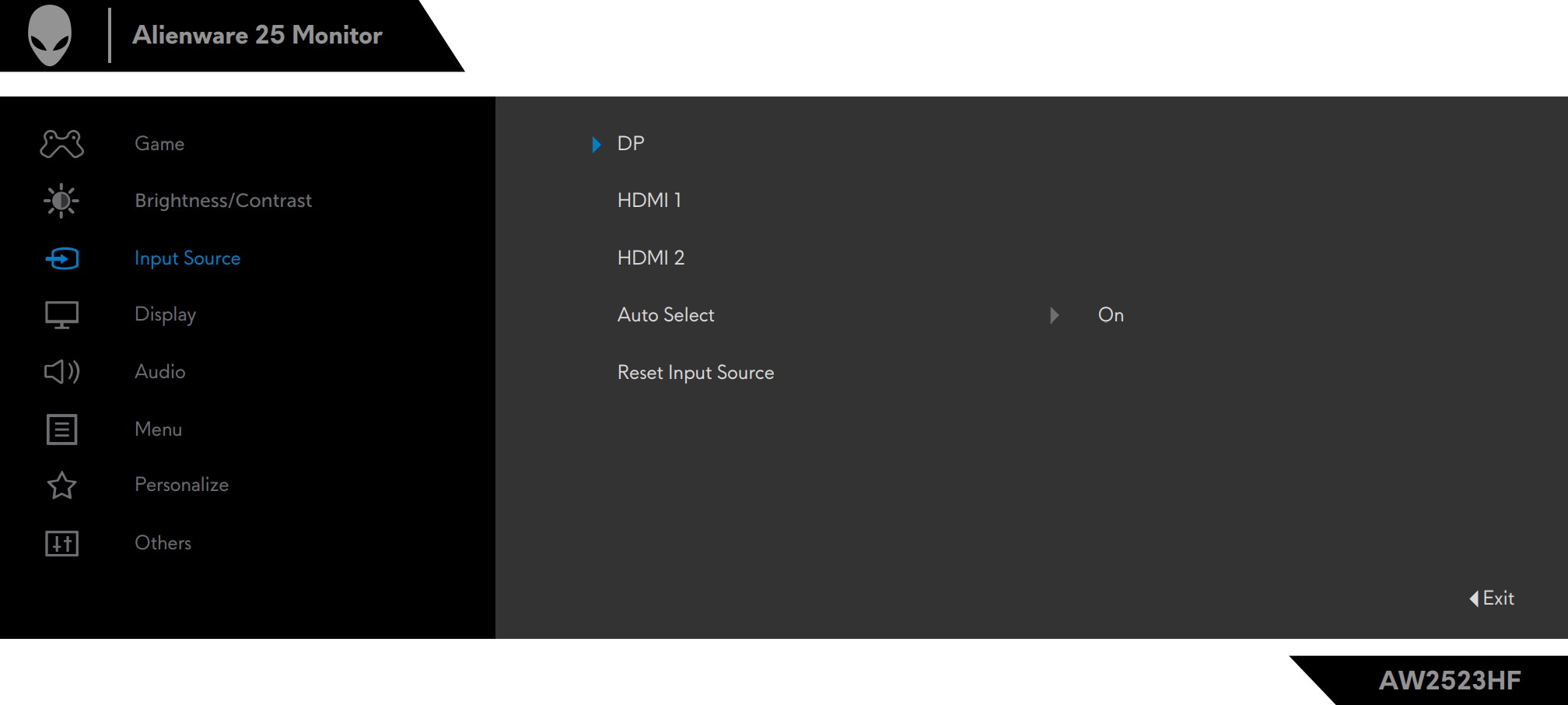
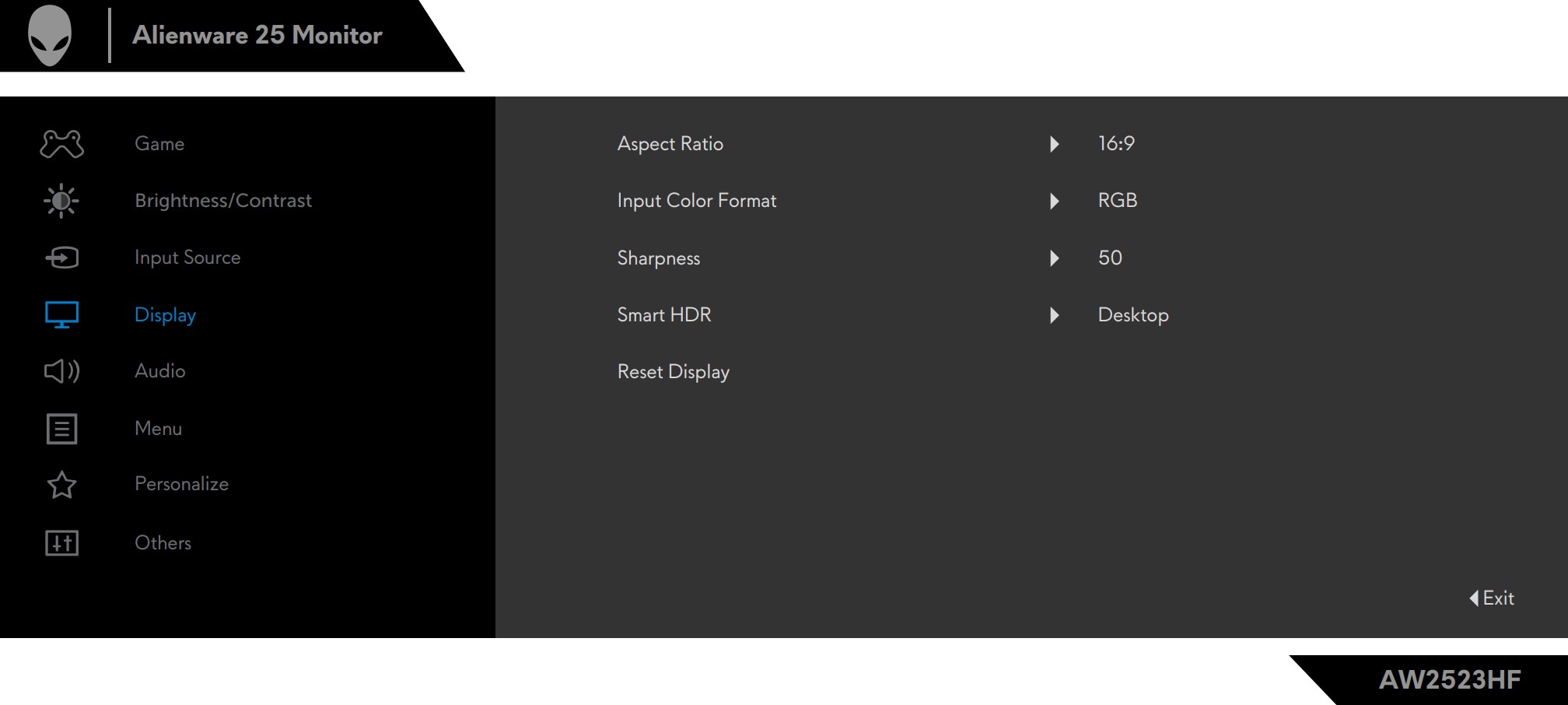
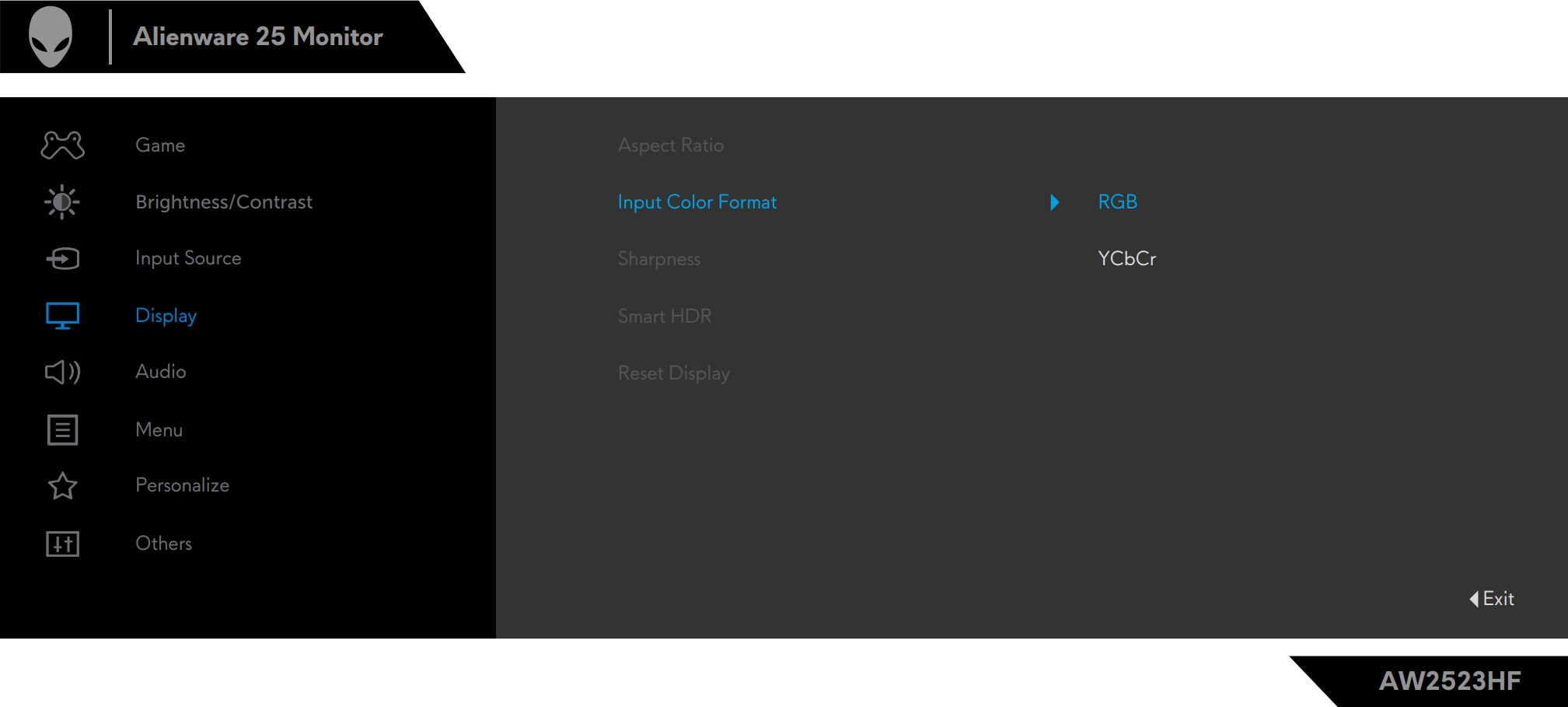
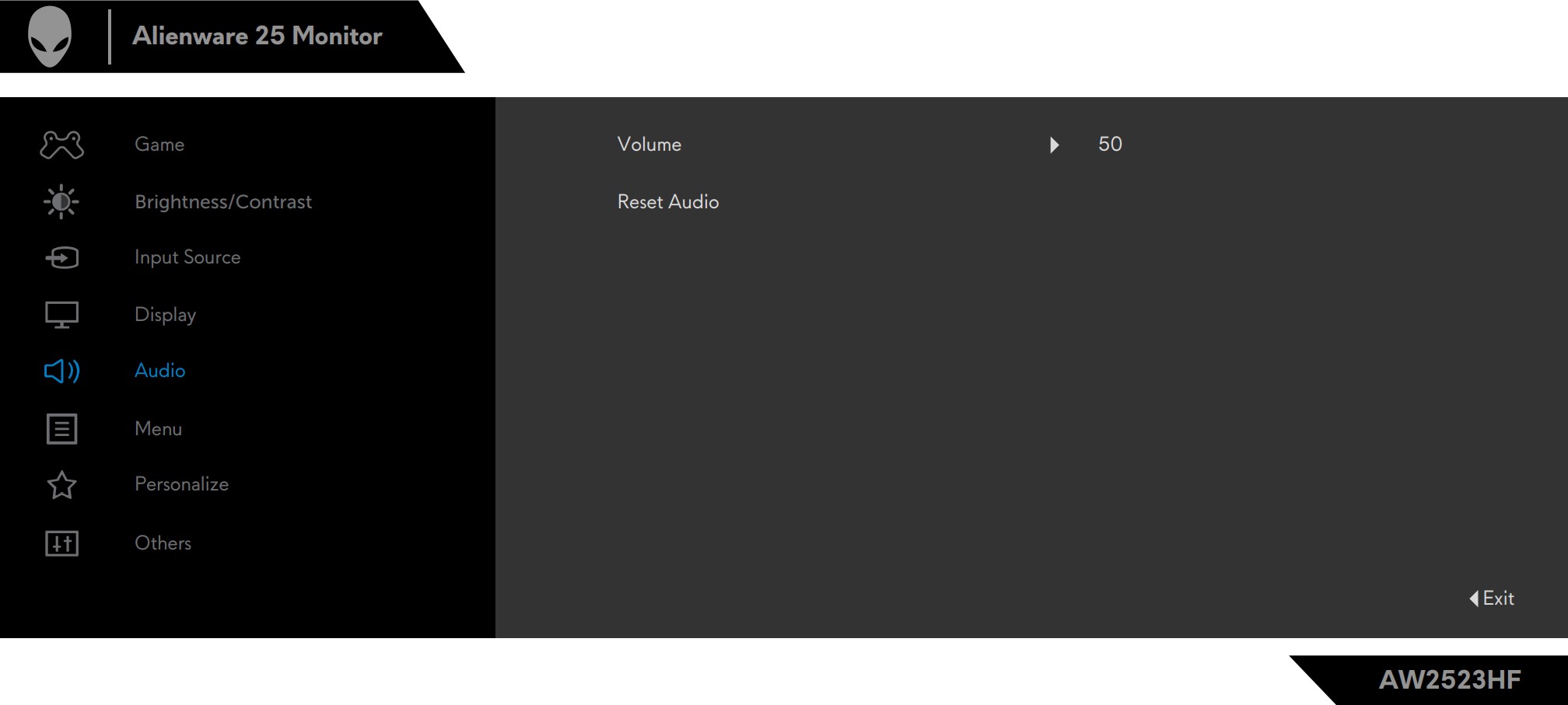
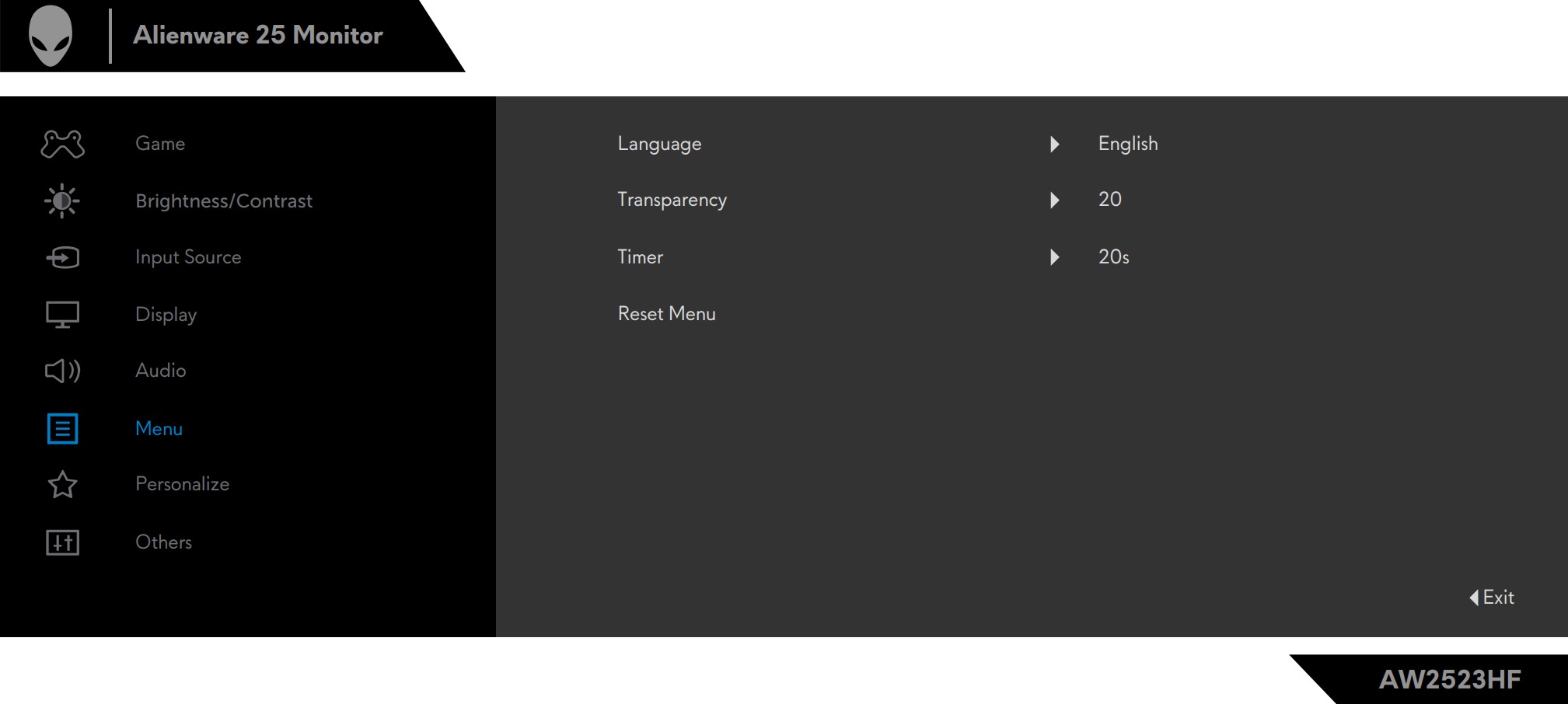
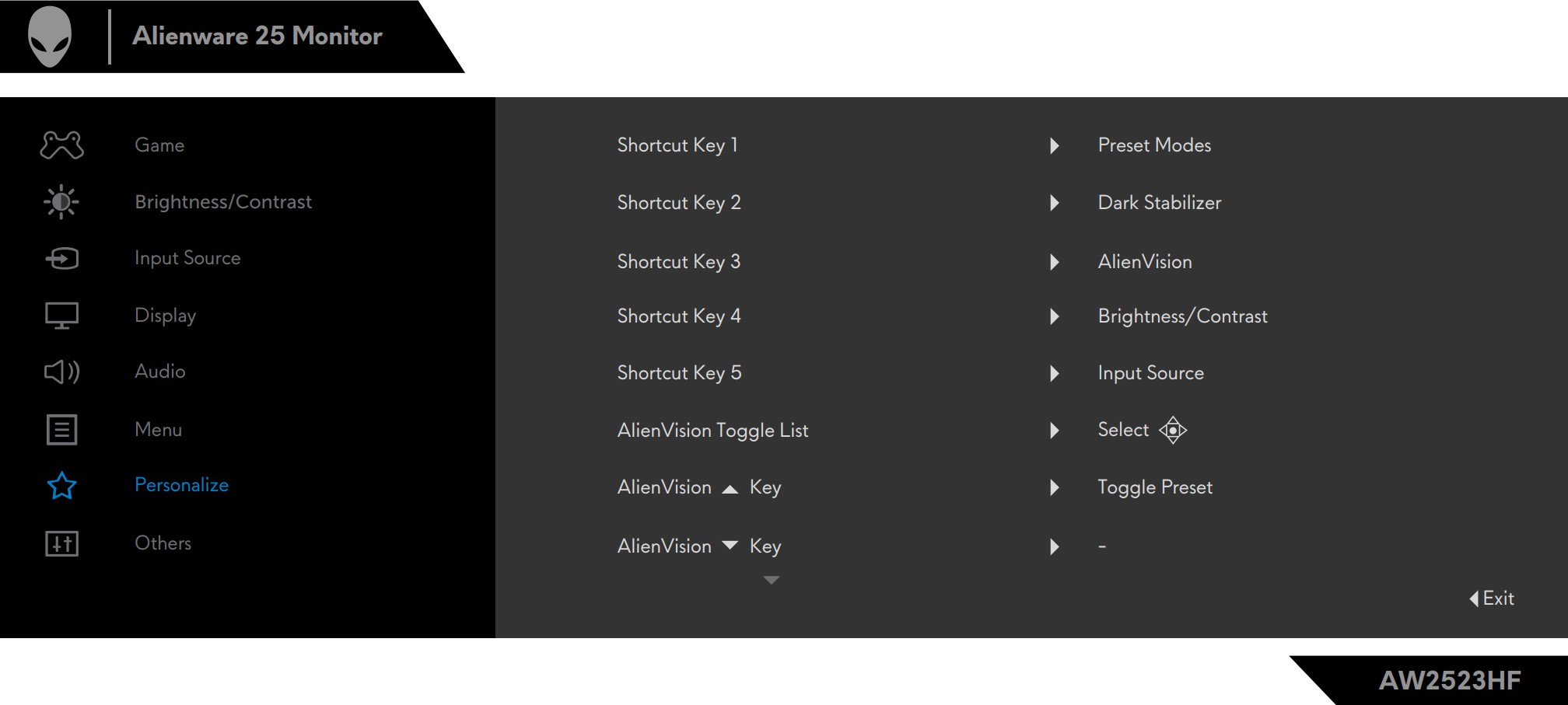
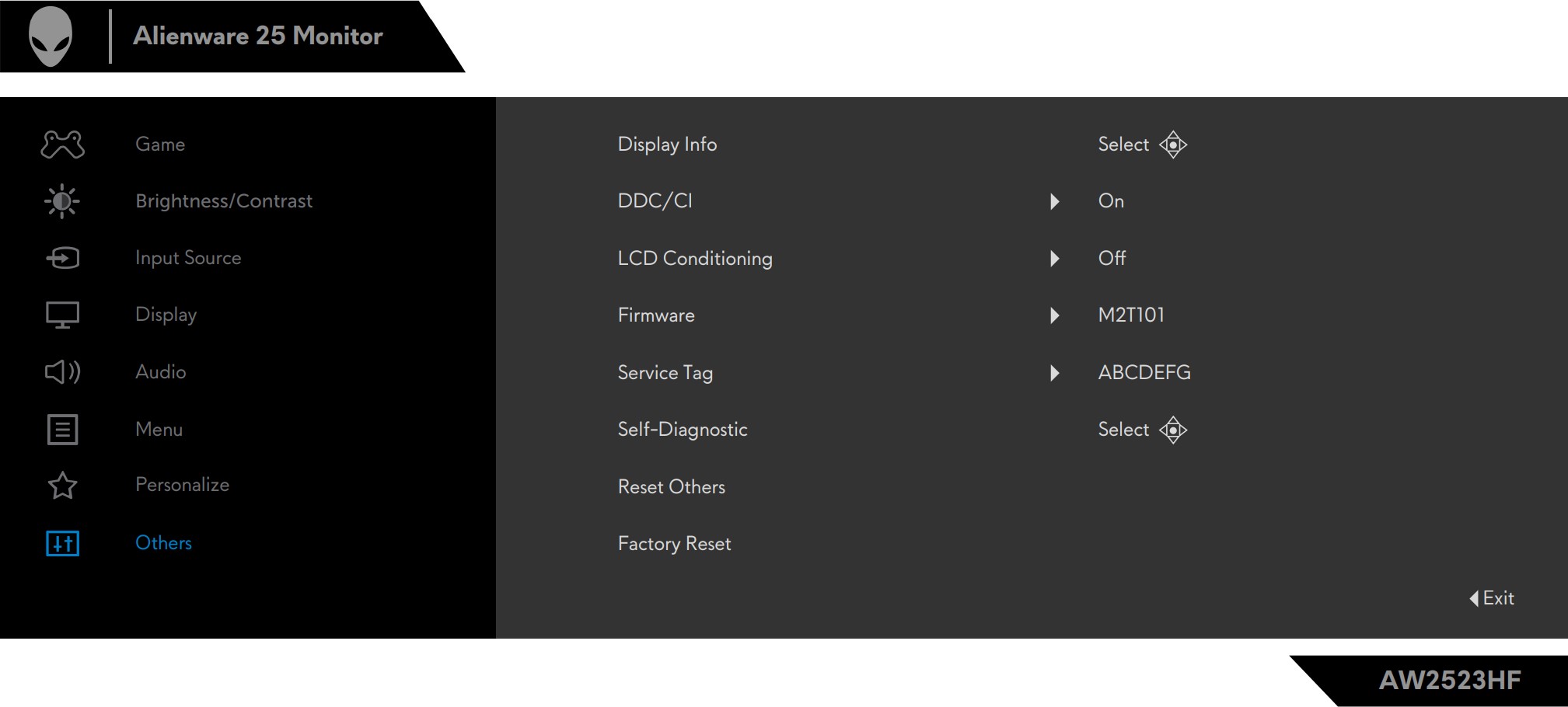
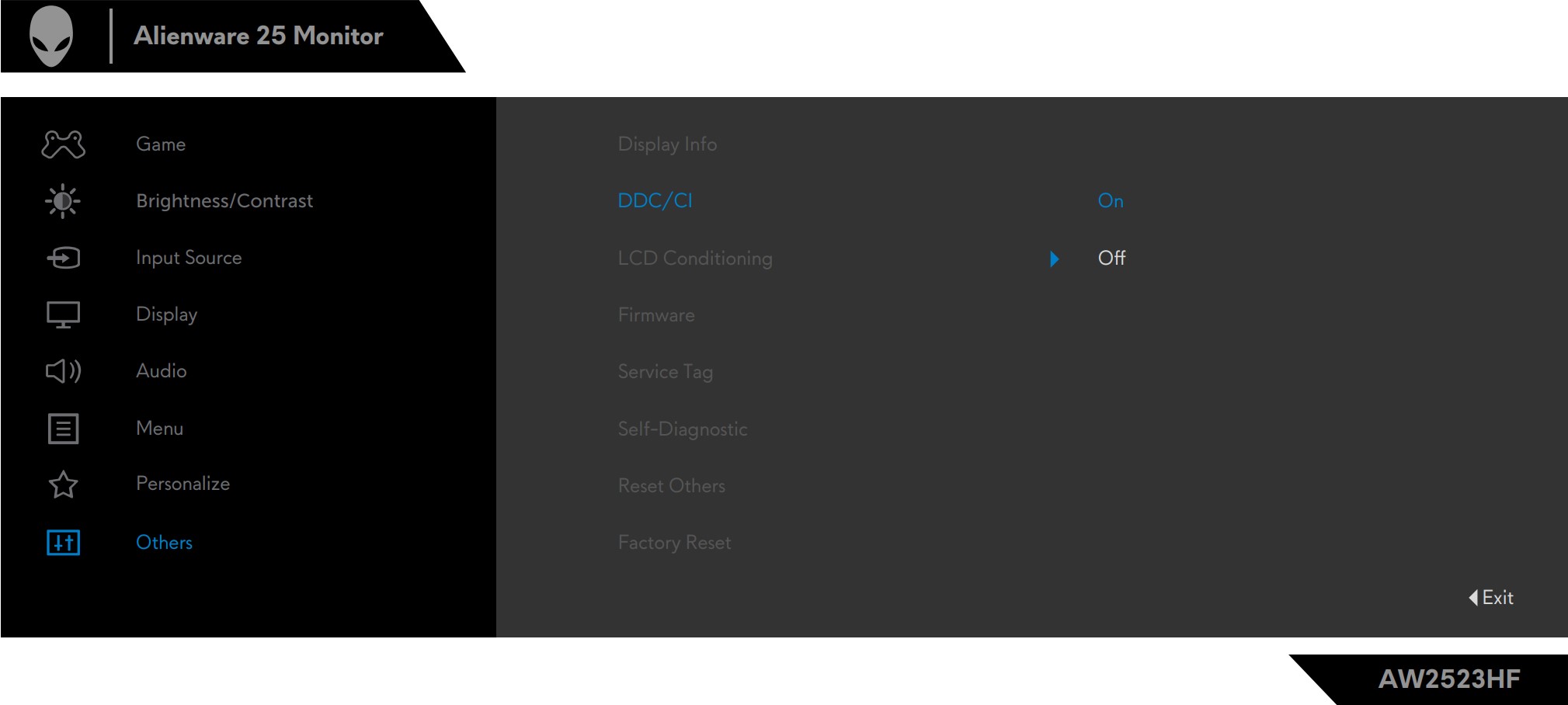
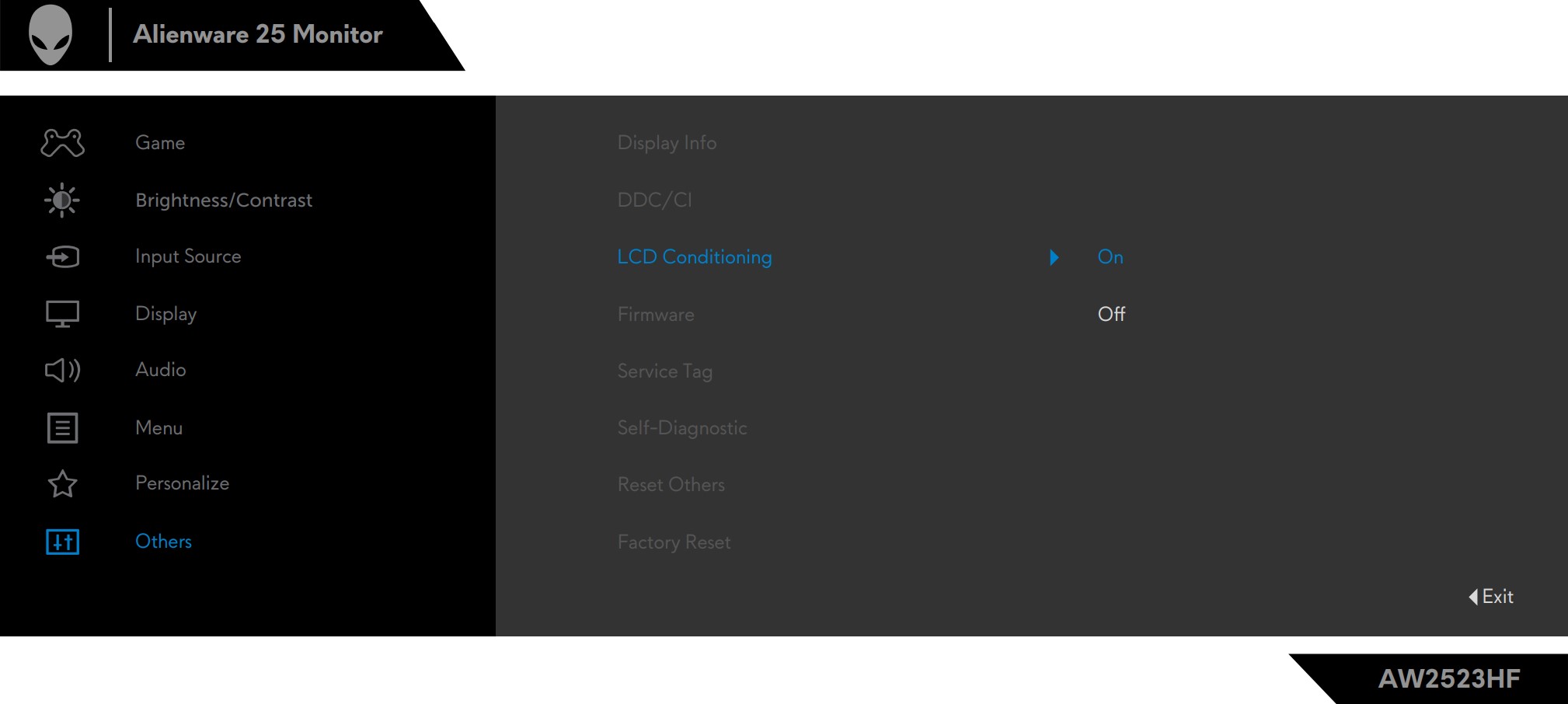
Drivers and Software
There are tons of downloads on Dell’s Support Website (Alienware is a Dell subsidiary, for those who don’t know), some of which are labeled critical, like the firmware update tool and the Alienware Command Center. You can also download the Dell Display Manager, which gives you OSD-level control over the monitor through the OS, which includes mouse and keyboard support.
Design and Connectivity
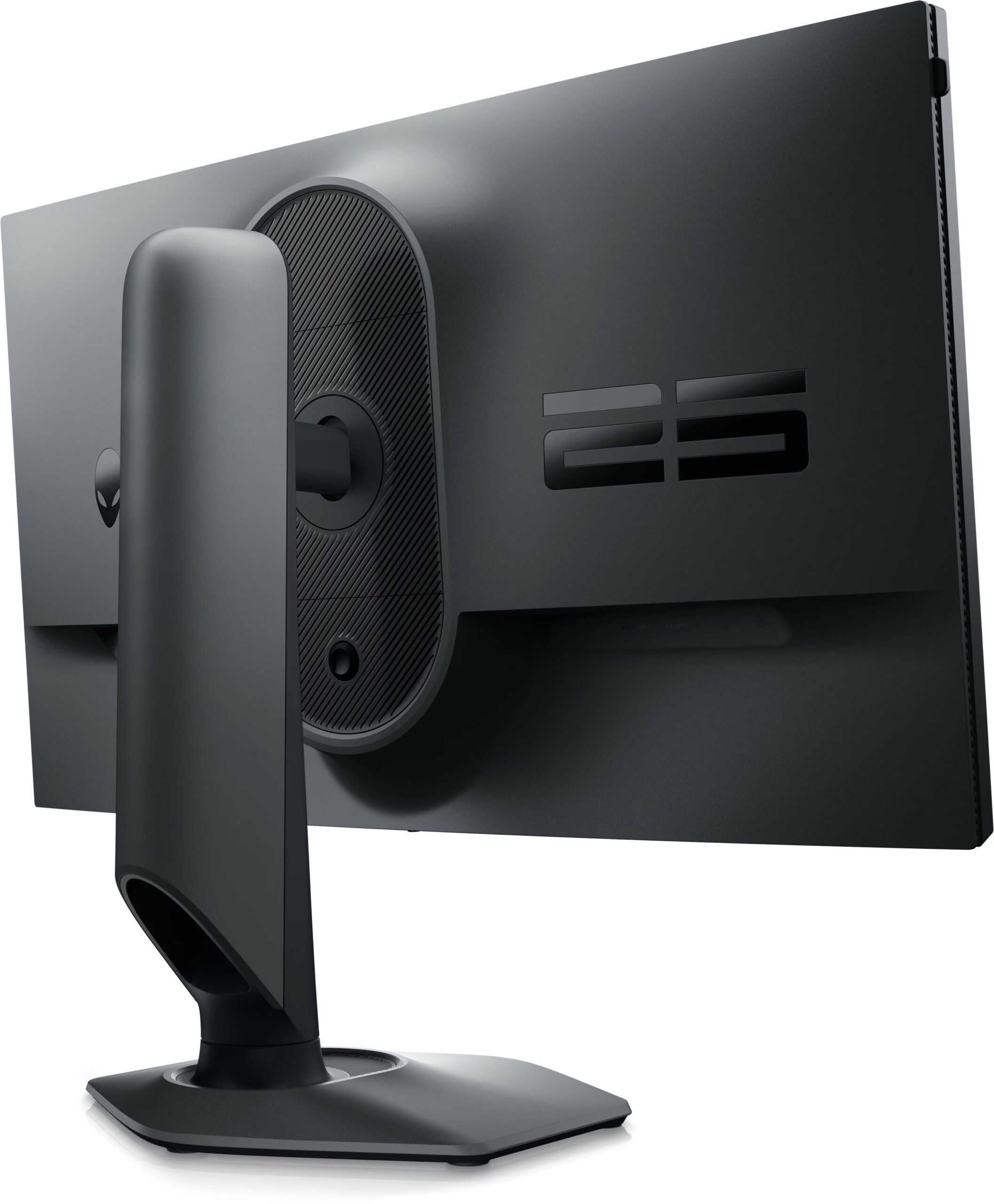
Alienware’s design language has been kept largely the same, with some tweaks throughout its inception. The Alienware AW2523HF features a hexagonal base, giving you a stable platform that won’t get your cables stuck like rectangle bases do. The monitor has a matte black plastic finish with a 25 on the back, along with Alienware logos and wordmarks on the back and front. There’s an integrated headphones hanger, which extends, giving you a neat place to store your headset. The stand is robust and heavy, bringing with it tons of adjustments, including height, Tilt, Pivot, and Swivel.
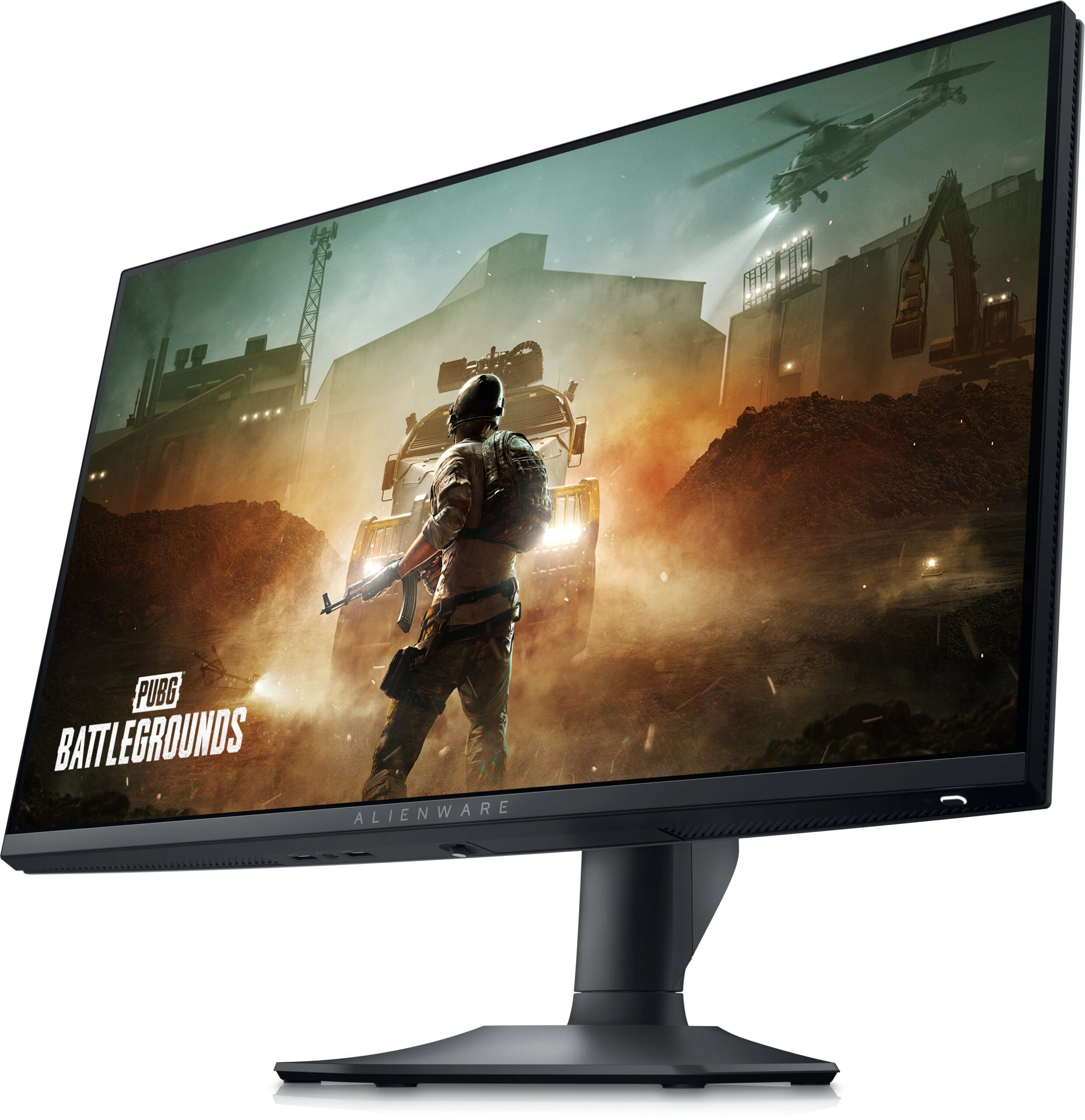
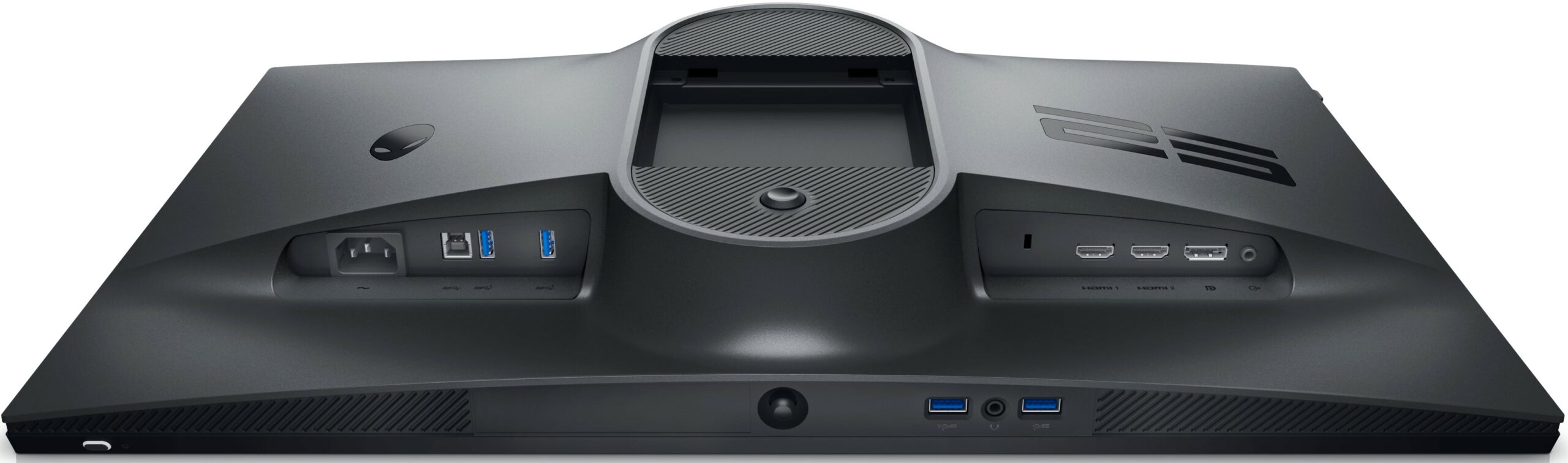
The port selection here is more than impressive, considering this is a gaming monitor. You’ve got two HDMI 2.0 ports, one DisplayPort 1.4, a total of four USB Type-A 3.2 Gen. 1 ports, along with one Type-B port of the same speed, which is used to connect the rest to your PC. There’s also a headphone jack, as well as a Line-out jack for speakers.
Display quality, Buy our profiles, Verdict
The Alienware AW2523HF brings a 24.5-inch Full HD screen (1920 x 1080), which calculates to a pixel density of 89.91 PPI, a pitch of 0.2825 x 0.2825 mm, and a Retina distance of 38.24 inches or 97.12 cm. From this distance, the human eye can’t distinguish individual pixels.
The correlated color temperature on a white screen after a Factory Reset in sRGB mode is 6320 K (Luminance 150 cd/m2 at 20% Brightness). The average gamma value is 2.18.
Color coverage
Here’s an illustration (Fig. 1). The whole “sail-shaped” map below consists of all the colors we can see, while the black crooked line shows all the colors from real-world scenes and nature around us.
Then, we’ve drawn some of the most important and interesting color spaces, compared to the colors the panel of Alienware AW2523HF can show:
Standard/For Web: sRGB – widely used color space for most consumer devices, ideal for Web design and development
For Print: AdobeRGB – used in professional photo editing, graphic design, and print
For Photographers/Video Editors: DCI-P3 – used in high-end film production, post-production, and digital cinema
Premium HDR: Rec.2020 – the widest consumer ITU color standard, covering a massive 75.8% of the visible spectrum, a benchmark for premium HDR content
Alienware AW2523HF: the yellow dashed triangle (– – – – – –) represents the range of colors this monitor can display. In our tests, we calculated the total color coverage of the monitor at 96% of the sRGB color gamut and 81% of the DCI-P3 color gamut.
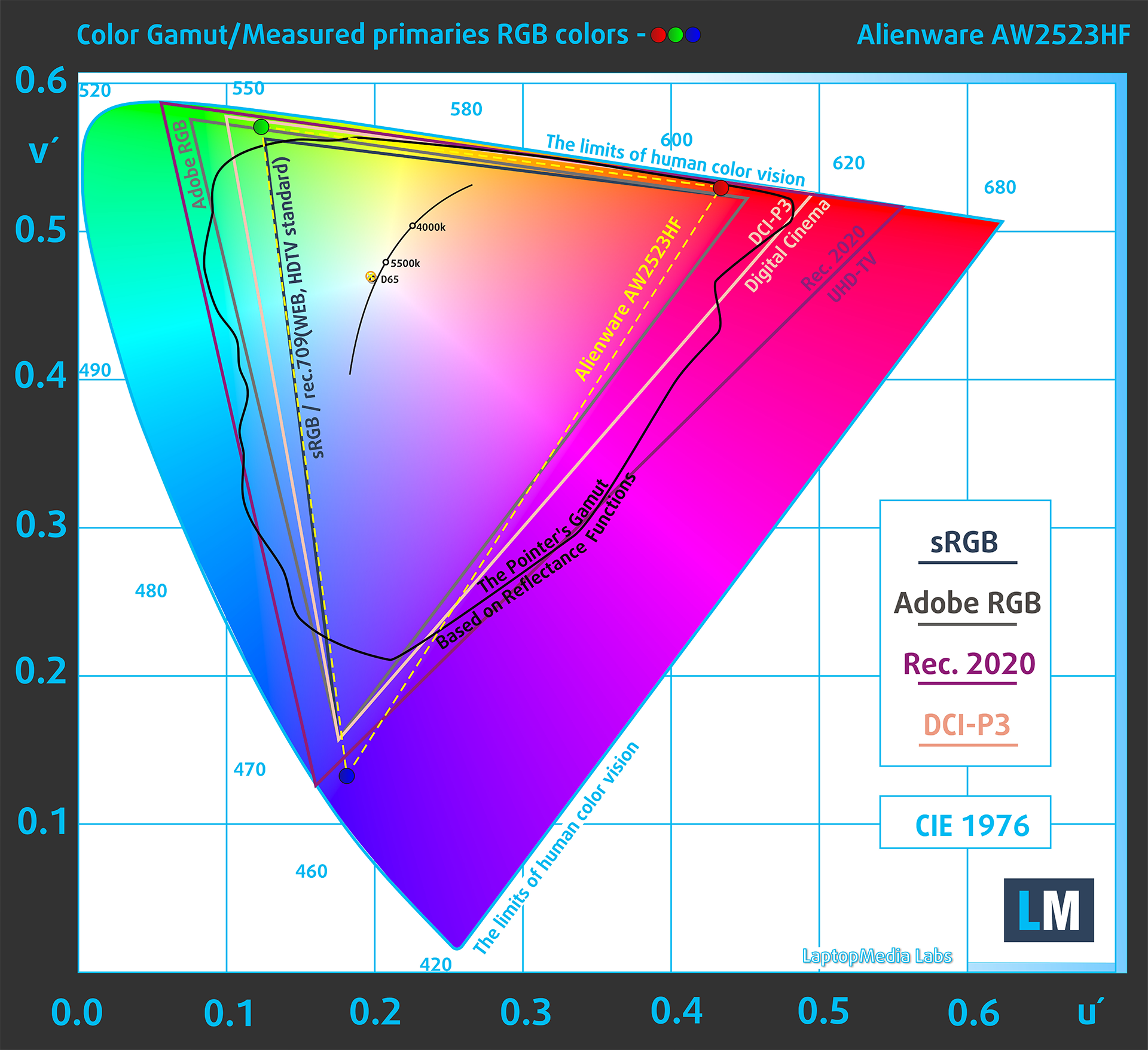
(Fig.1) Alienware AW2523HF covers 96% of the Web colors (sRGB)
This means that if the Alienware AW2523HF tries to show any color outside of its triangle, it will show the closest color to it that’s inside the triangle.
Color accuracy
Now let’s see how big is the difference between the real colors and the one you’ll see on the Alienware AW2523HF. We measure that distance in DeltaE – the bigger the number, the more different they look.
For the next illustration, we’ve chosen 24 common colors like dark and light skin, blue sky, green grass, etc.
Values below 2.0 are considered suitable for color-sensitive work. Before our calibration of the Alienware AW2523HF, the Average color accuracy was 2.2 dE (Fig. 2), and with our Web Design and Office Work profile, it lowered to 1.7 dE (Fig. 3). Even without the profile, the monitor is pretty close to being accurate for professional work. Still, the profile brings it that extra punch that it needs, increasing the accuracy by around 30%.
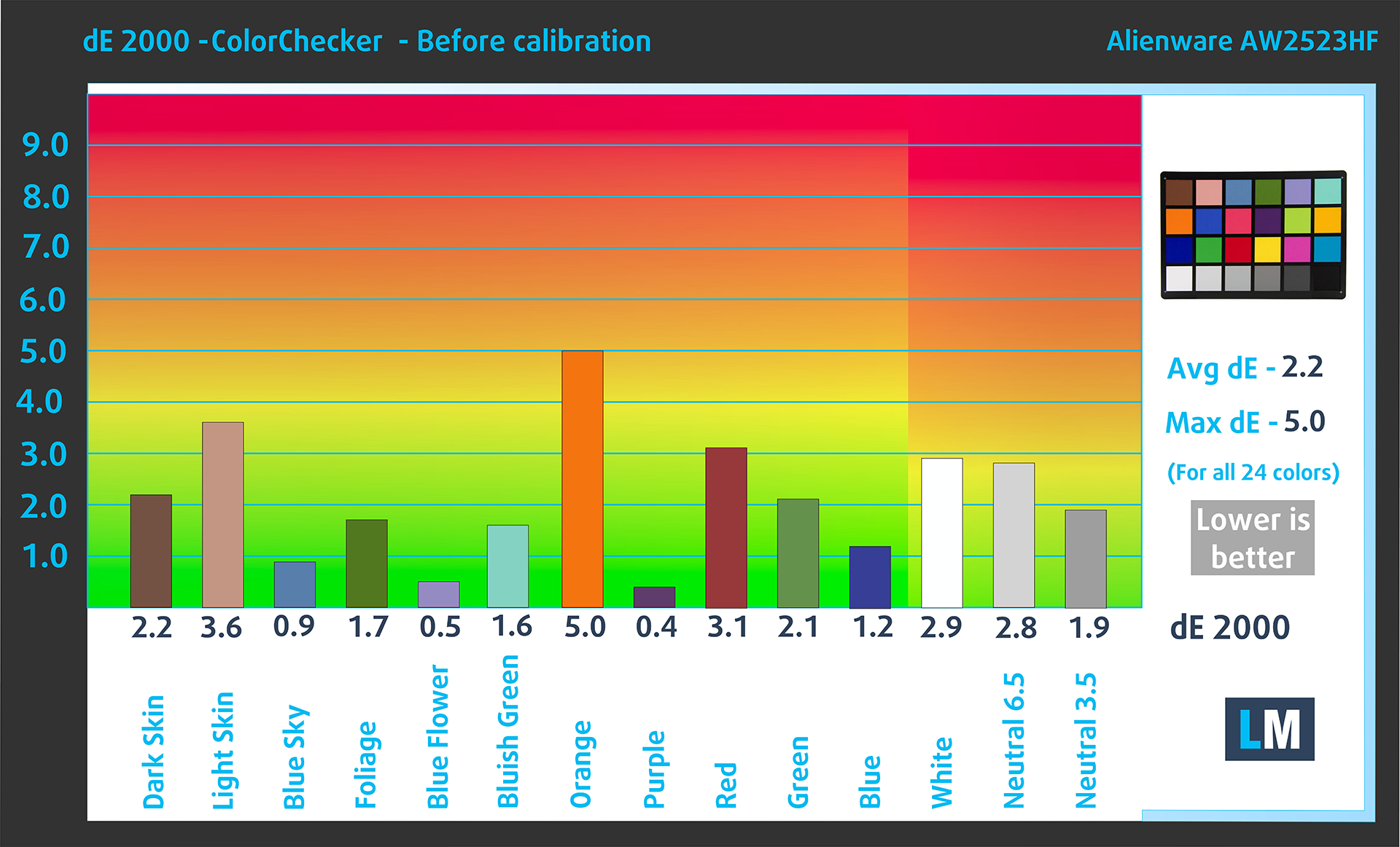 (Fig. 2) Alienware AW2523HF in its factory condition
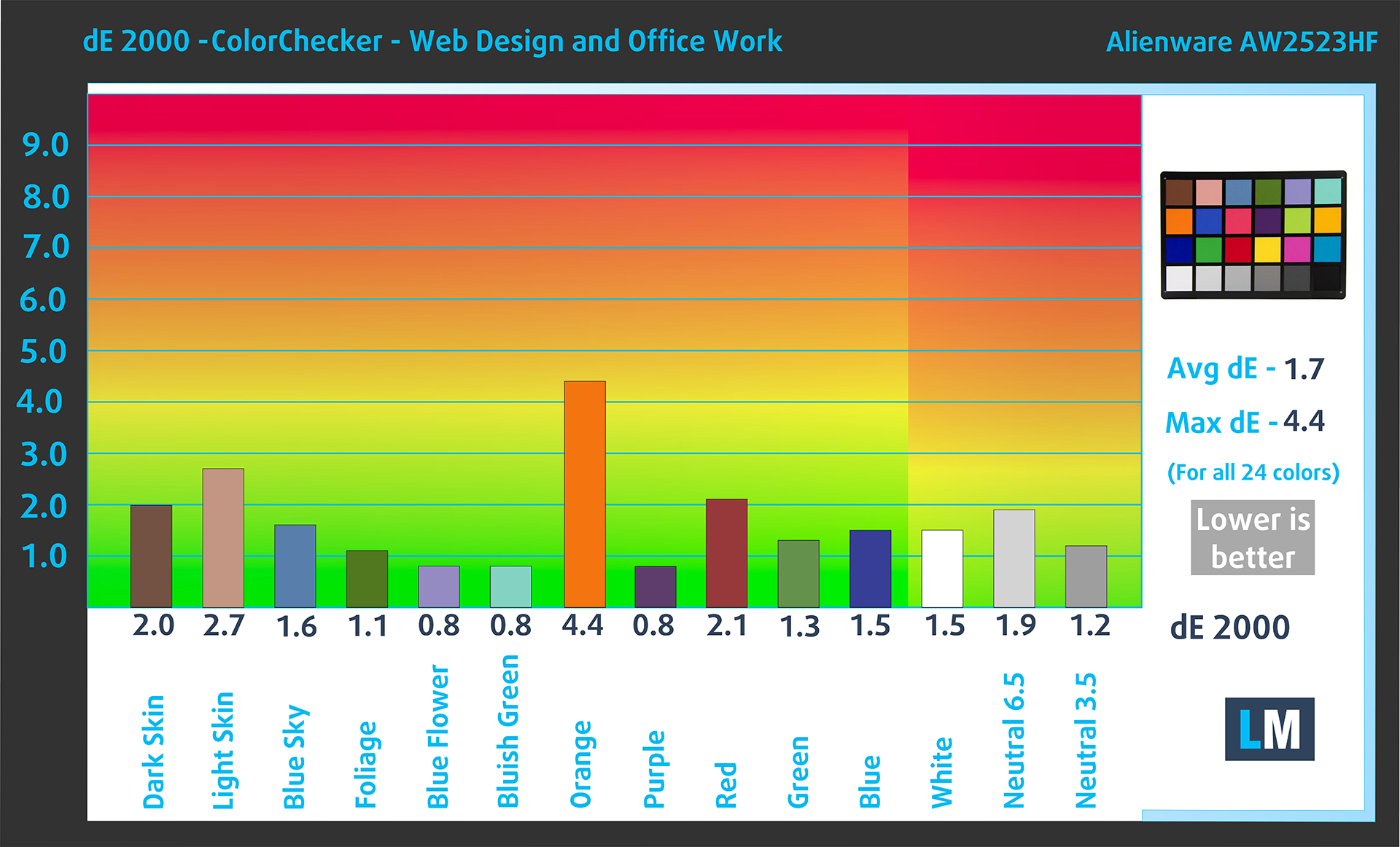 (Fig. 3) Alienware AW2523HF with our display profiles
Comparison in the sRGB color space (primaries and D65 white point specified in ITU-R BT.709, sRGB encoding curve).
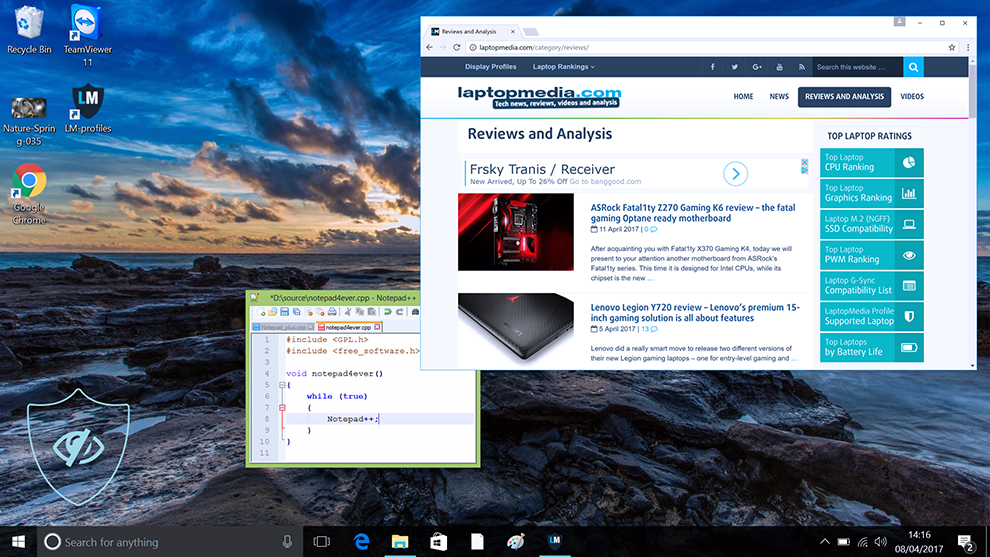
Left: No Profile | Drag the slider to see the difference | Right: Design & Gaming Profile


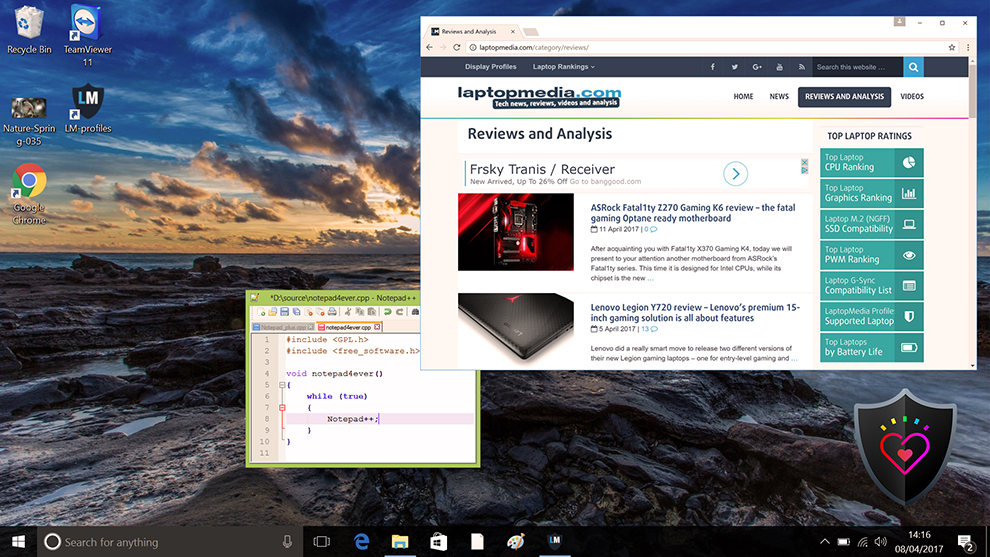
Health-Guard eliminates the harmful Pulse-Width Modulation (PWM) and reduces the negative Blue Light which affects our eyes and body. Since it’s custom-tailored for every panel, it manages to keep the colors perceptually accurate (they may seem strange at first but after a few minutes our brain will start recognizing them as accurate ones – that’s how Health-Guard differs from alternatives like f.lux).
Pro Tip: As the Health-Guard profile simulates paper and has as accurate as possible colors, it could be a great tool for prepress designers!
Left: No Profile | Drag the slider to see the difference | Right: Health-Guard Profile
Gaming and Movies
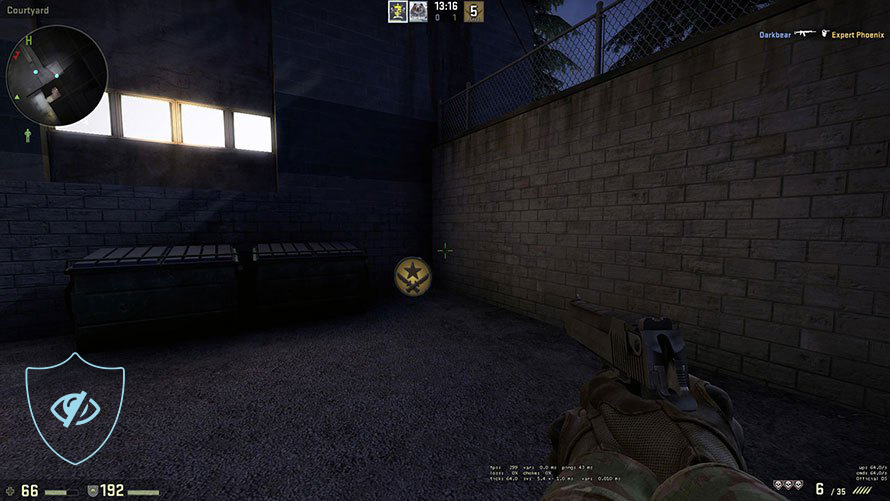
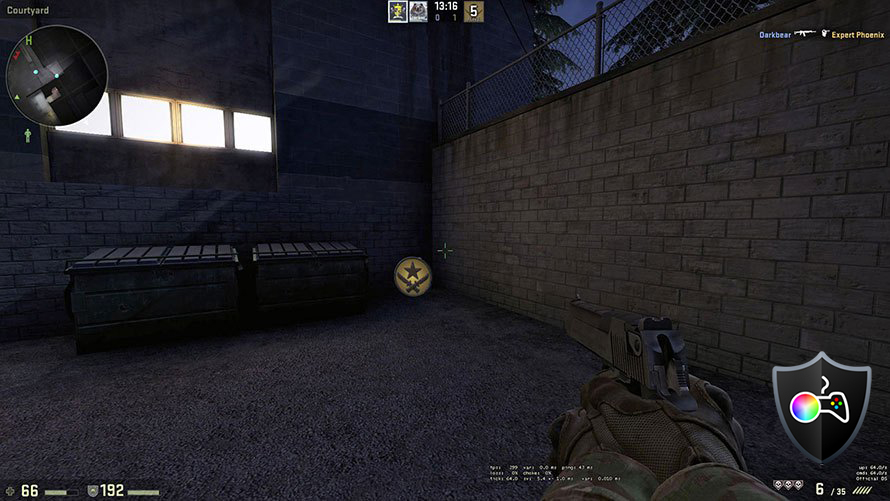
We also have a third Gaming and Movies profile, which regulates the black colors, making dark areas in games and movies appear more visible, thus giving you a better viewing experience. Shooting at your opponent first can be a make-or-break moment, so make sure you’re best prepared with our profile.
Left: No Profile | Drag the slider to see the difference | Right: Design & Gaming Profile
BUY OUR DISPLAY PROFILES
Since our profiles are tailored for each individual display model, this article and its respective profile package are meant for the Alienware AW2523HF.
*Should you have problems with downloading the purchased file, try using a different browser to open the link you’ll receive via e-mail. If the download target is a .php file instead of an archive, change the file extension to .zip or contact us at [email protected].
Read more about the profiles HERE.
Here’s how to prepare thе monitor for our profiles:
1. Open the OSD menu (On-Screen Display)
2. Reset Settings: Go to Menu ➡️ Others ➡️ Factory Reset, and click ‘Yes’.
3. Brightness: Navigate to Brightness/Contrast ➡️ Brightness and set it to 78% for optimal viewing.
In addition to receiving efficient and health-friendly profiles, by buying LaptopMedia's products you also support the development of our labs, where we test devices in order to produce the most objective reviews possible.
Design and Office
The Design and Office profile makes display colors as close to real as possible.Ideal not only for professionals but also for everyday users, it meets sRGB standards (D65 white point, sRGB gamma) with minimal DeltaE for precise color reproduction on your panel.

Gaming and Movies
Have you ever watched a movie where, during dark scenes, you can barely see anything? Many displays fail to distinguish dark tones properly. Our Gaming and Movies profile enhances low-light performance, like HDR tech, using a gamma curve tailored to human perception — ideal for gamers seeking faster reactions and clearer visuals.

Health-Guard
Our Health-Guard profile protects your eyes by eliminating PWM flickering, reducing strain and fatigue, and minimizing harmful Blue light exposure that can disrupt sleep and health. It uses software dimming and a gamma curve tailored to human perception for comfort and safety during screen use.
Get All The Profiles With 33% Discount!

Verdict
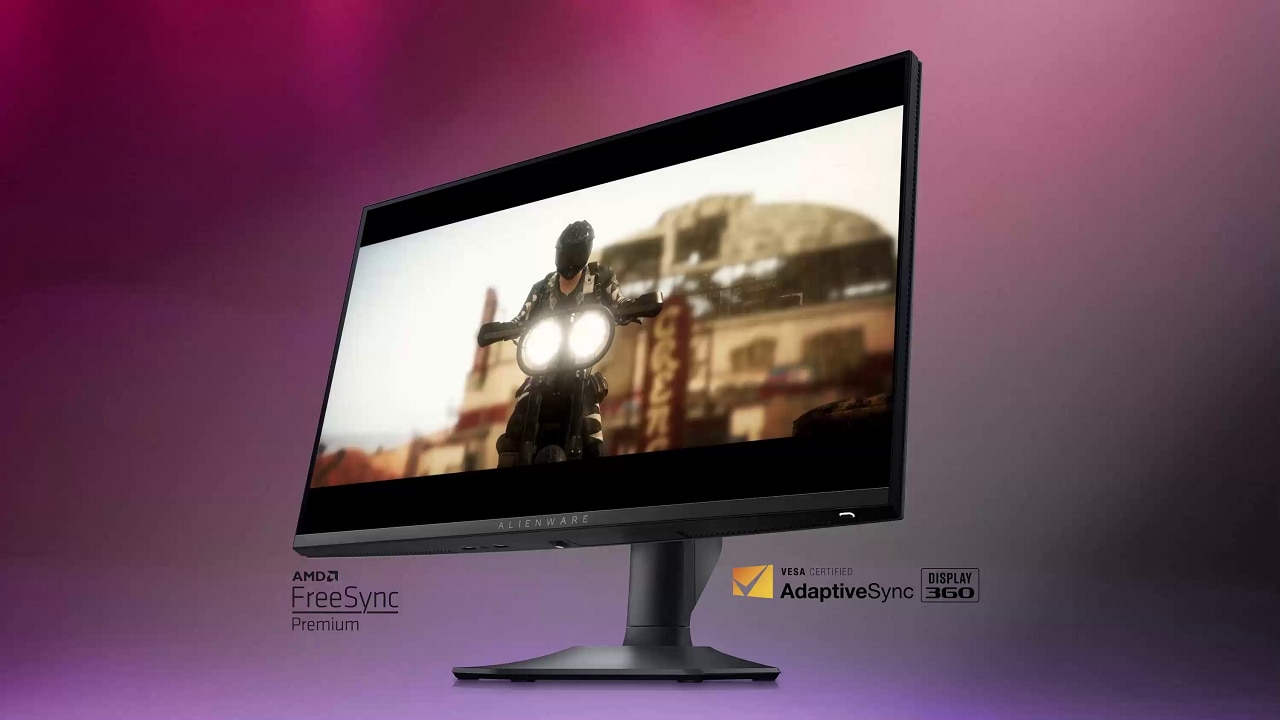 The Alienware AW2523HF has a very specific purpose: to give high-level pro gamers the best possible tool for achieving victory in their games and becoming the best in their craft. And let us tell you, the monitor more than fulfills that purpose. The deadly-fast 360Hz refresh rate, 0.5 ms response time, and FreeSync Premium support make it perfect for any fast-paced multiplayer game, where you need to be on your toes at all times.
Moreover, the resolution fits the screen size perfectly, as while the monitor refreshes quickly, you also need a PC suitable for pushing 360+ FPS in all those games. Suddenly, a Full HD monitor feels right in place, as most gaming laptops and PCs can run esports titles at these framerates at this resolution.
For an even bigger edge in games, check out the Gaming and Movies profile, which stabilizes the black colors, thus ensuring better visibility in dark game environments and shadowy scenes in movies.
The design of the monitor is smart, innovative, and modern. The full-black aesthetic looks good, but the more important things are hidden in the construction itself. The stand includes all types of adjustments that you’ll ever need, while the integrated headphones hanger is the first time we’ve seen something like this. There are also tons of ports, so you can include all types of
Outside of the gaming realm, the Alienware AW2523HF can be a pretty good monitor for Creators too, especially if you’re a gamer who likes to edit and upload their gameplay. It covers 96% of the sRGB color gamut, which is enough for pretty much all web-based design and color work. More importantly, it gains a dE value of 1.7, once we include our Web Design and Office Work profile in the picture.
The last profile in our bundle is the most important one of the bunch, as health is always #1. The Health Guard minimizes Blue Light emissions, as well as limits PWM (Flickering), both of which are harmful to your eyes and body in their own way.
You can check the current price of the Alienware AW2523HF: Buy from Amazon.com (#CommissionsEarned)
Pros
- Excellent design (adjustable stand + headphone hanger)
- Wide port selection
- 96% sRGB coverage and dE of 1.7 with our Web Design and Office Work profile
- 360Hz refresh rate, 0.5 ms response time, AMD FreeSync Premium support
Cons
- It’s pricey
 Author: Severin Kolakov

![[August 2026] Amazon Global: Top 10 Best-Selling Laptops – Apple MacBook Neo Dominates the Charts as Budget and Mid-Range Windows Portables Fight for Volume](https://laptopmedia.com/wp-content/uploads/2026/09/Best-Selling-Laptops-GLOBAL-Top-10-400x225.jpg)
![[August 2026] Best-Selling Laptop Brands on Amazon Global – Apple Dominates Revenue While HP Leads in Model Variety](https://laptopmedia.com/wp-content/uploads/2026/09/GLOBAL-Best-Brands-400x225.jpg)
![[August 2026] Amazon Global: Top 10 Best-Selling Gaming Laptops – HP Victus 15 Captures the Crown as Budget-Friendly Models Dominate the Charts](https://laptopmedia.com/wp-content/uploads/2026/09/Best-Selling-Gaming-Laptops-GLOBAL-Top-10-400x225.jpg)
![[August 2026] Best-Selling Laptop Brands on Amazon Japan – Apple Dominates Market Share and Revenue Led by Strong Unit Sales](https://laptopmedia.com/wp-content/uploads/2026/09/CO.JP-Best-Brands-1-400x225.jpg)
![[August 2026] Best-Selling Laptop Brands on Amazon USA – Apple Dominates Market Revenue and Volume Despite Lower Model Diversity](https://laptopmedia.com/wp-content/uploads/2026/09/COM-Best-Brands-1-400x225.jpg)
