How to open Acer Predator Helios 18 AI (PH18-I71) – disassembly and upgrade options

Step 1: Removing the bottom panel
- Power off the laptop and place it on a soft, clean surface.
- Undo the 10 Torx T6 screws securing the bottom panel. All screws are the same length, which makes reassembly easier.
- Use a thin plastic pry tool to carefully release the clips around the perimeter.
- Keep the tool shallow while prying, so it does not slide too far inside and touch the motherboard or internal cables.
- Lift the bottom cover away from the chassis.
More info: The bottom cover has thermal pads and copper plates for the SSD area, including the empty upgrade positions, so make sure they stay correctly aligned during reassembly.
Step 2: Battery removal
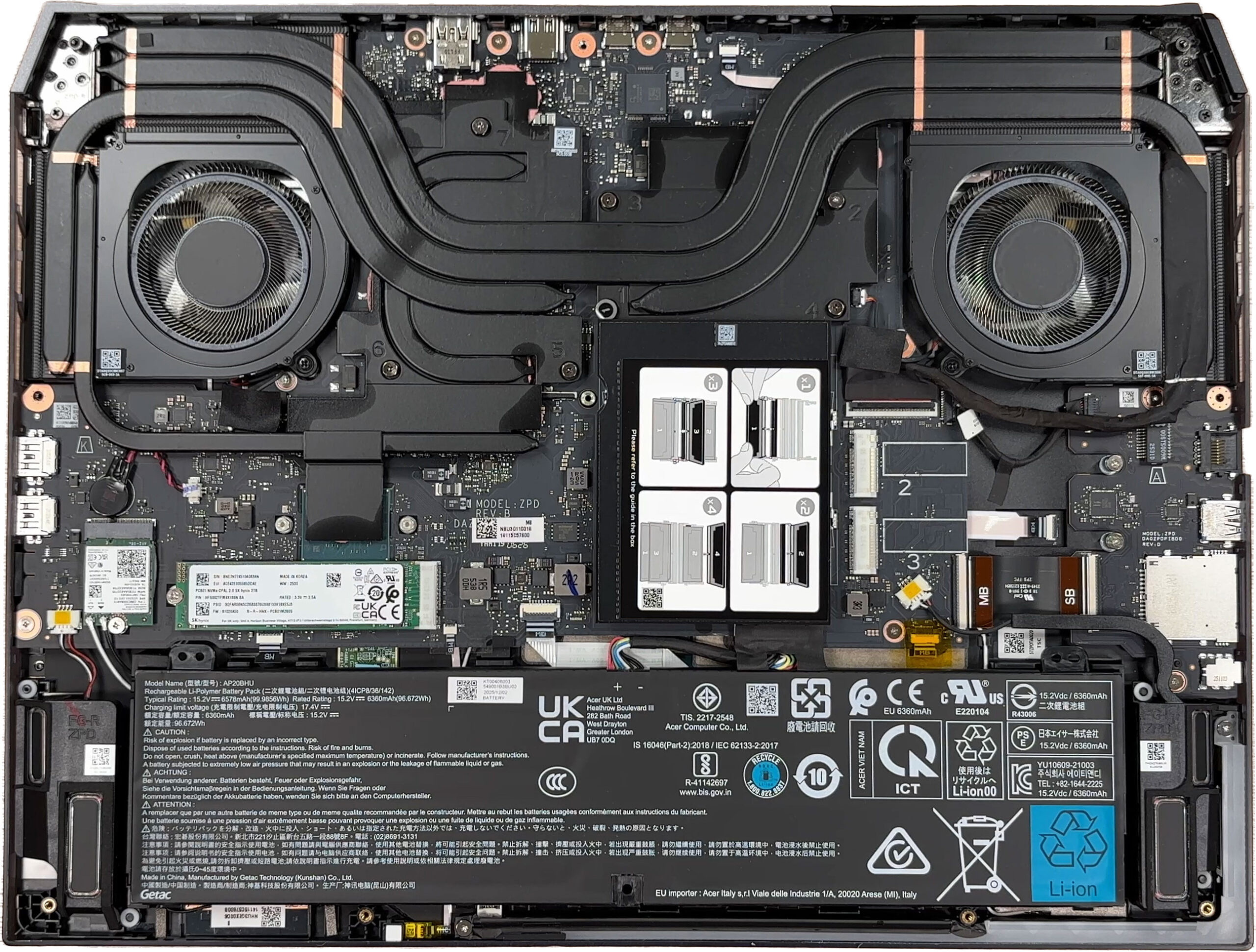
- Disconnect the battery connector from the motherboard before touching the SSDs, memory, Wi-Fi card, or cooling system.
- The battery is not fixed with screws, so handle the laptop carefully once the bottom cover is removed.
- Lift the battery out of the chassis carefully if replacement is needed.
More info: The laptop uses a large 4-cell lithium-ion Acer AP20BHU battery. Acer lists it as a 99.98Wh unit, while the label shows 99.9856Wh typical capacity and 96.672Wh rated capacity. Since the pack is not screwed down, do not flip the laptop over while it is open.
Step 3: Memory Upgrade
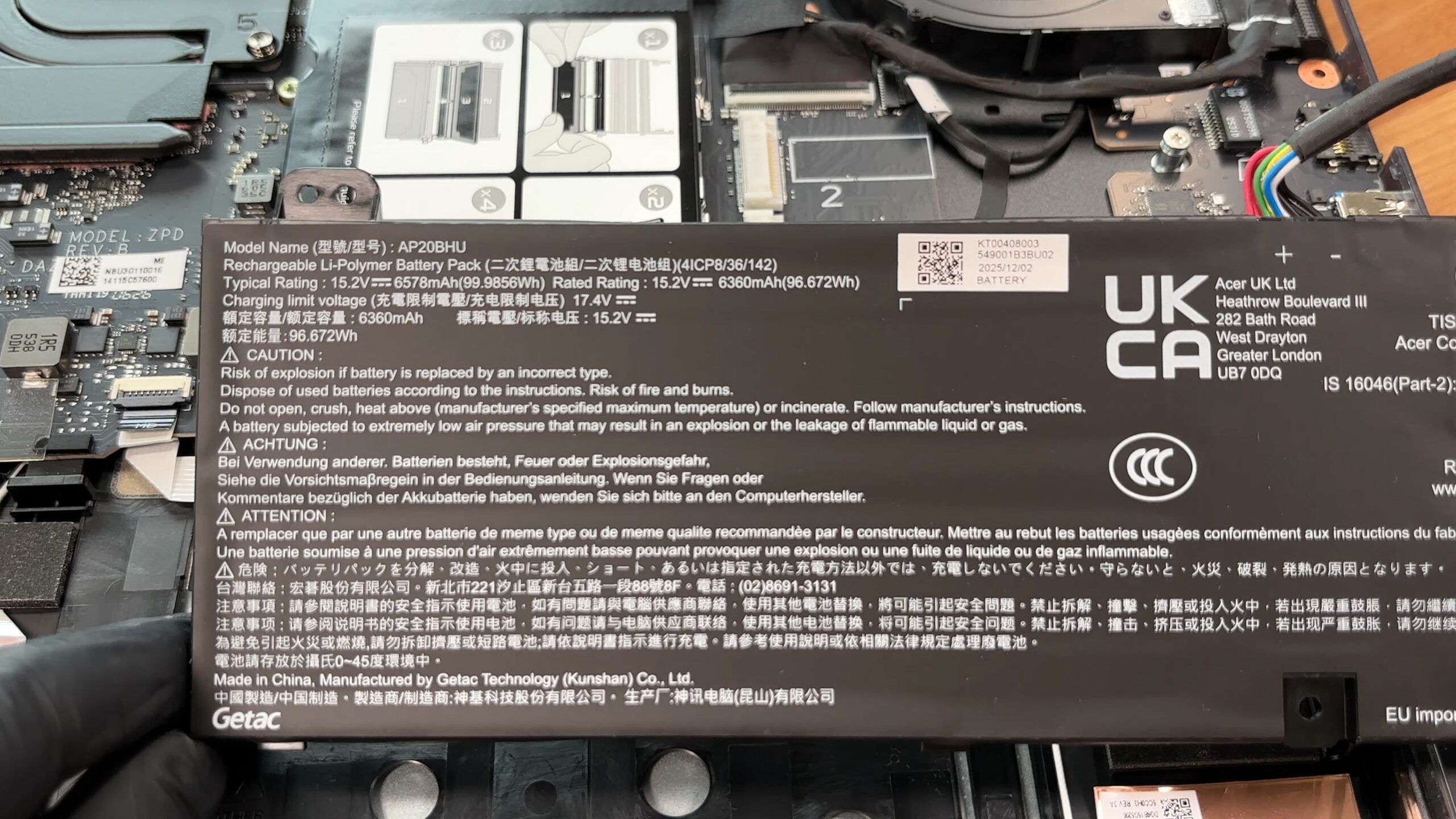
- The memory area is covered by a protective shield.
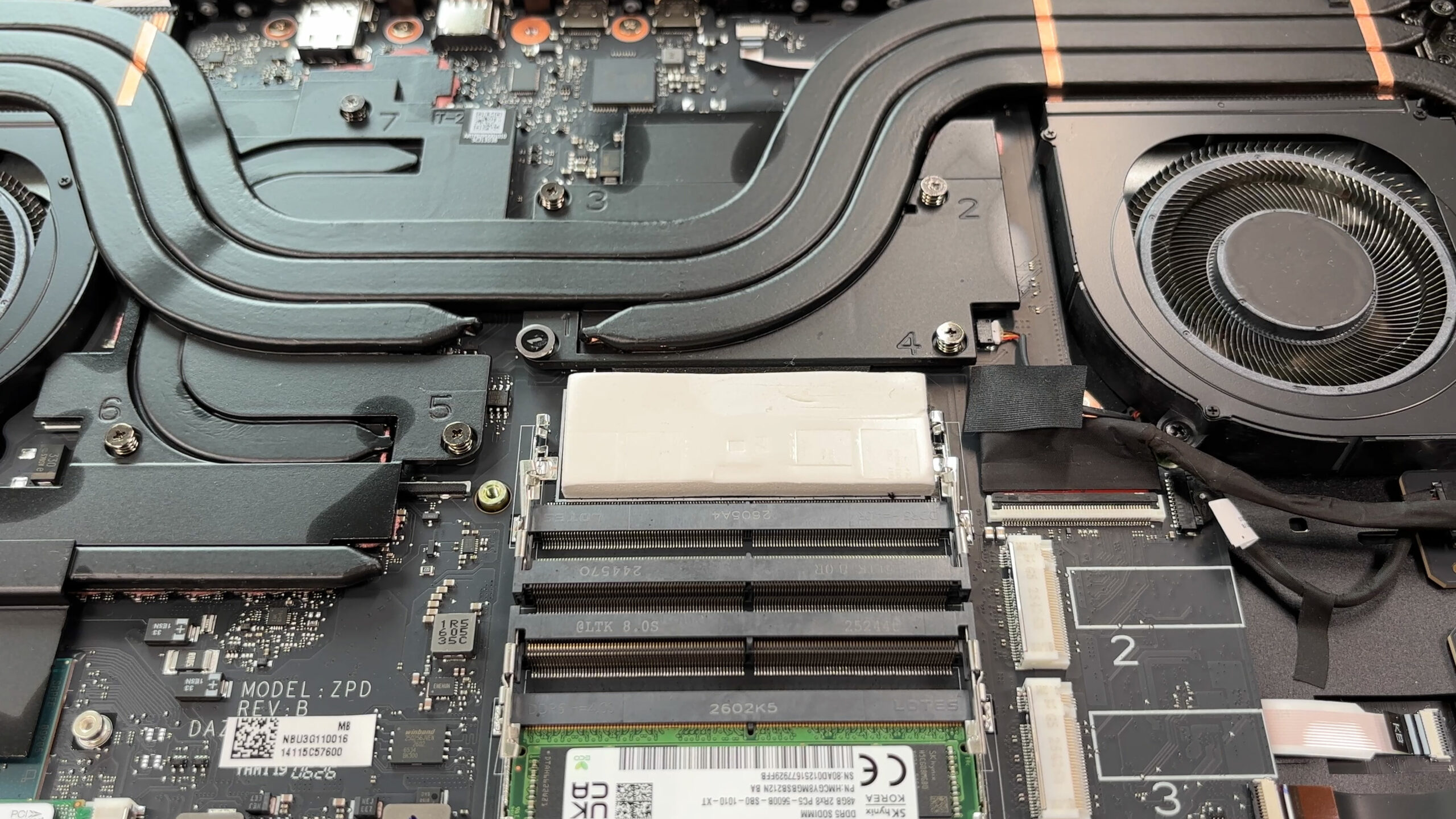
- Remove the shield carefully to access the four DDR5 SO-DIMM slots.
- Our configuration comes with 96GB of RAM installed as two 48GB SK hynix DDR5-5600 modules.
- In this configuration, the memory operates at 4400 MT/s.
- Acer officially lists support for up to 256GB of DDR5 memory across four SO-DIMM modules.
- According to Acer’s specification, one- and two-module configurations default to 4400 MT/s, while four-module configurations are listed at 4000 MT/s.
- Memory overclocking has to be enabled manually in the BIOS.
More info: Acer includes a memory thermal upgrade kit in the box, which is useful if you plan to change or expand the RAM configuration later.
You can buy DDR5 RAM modules here: Buy from Amazon.com (#CommissionsEarned)
Step 4: Storage Upgrade
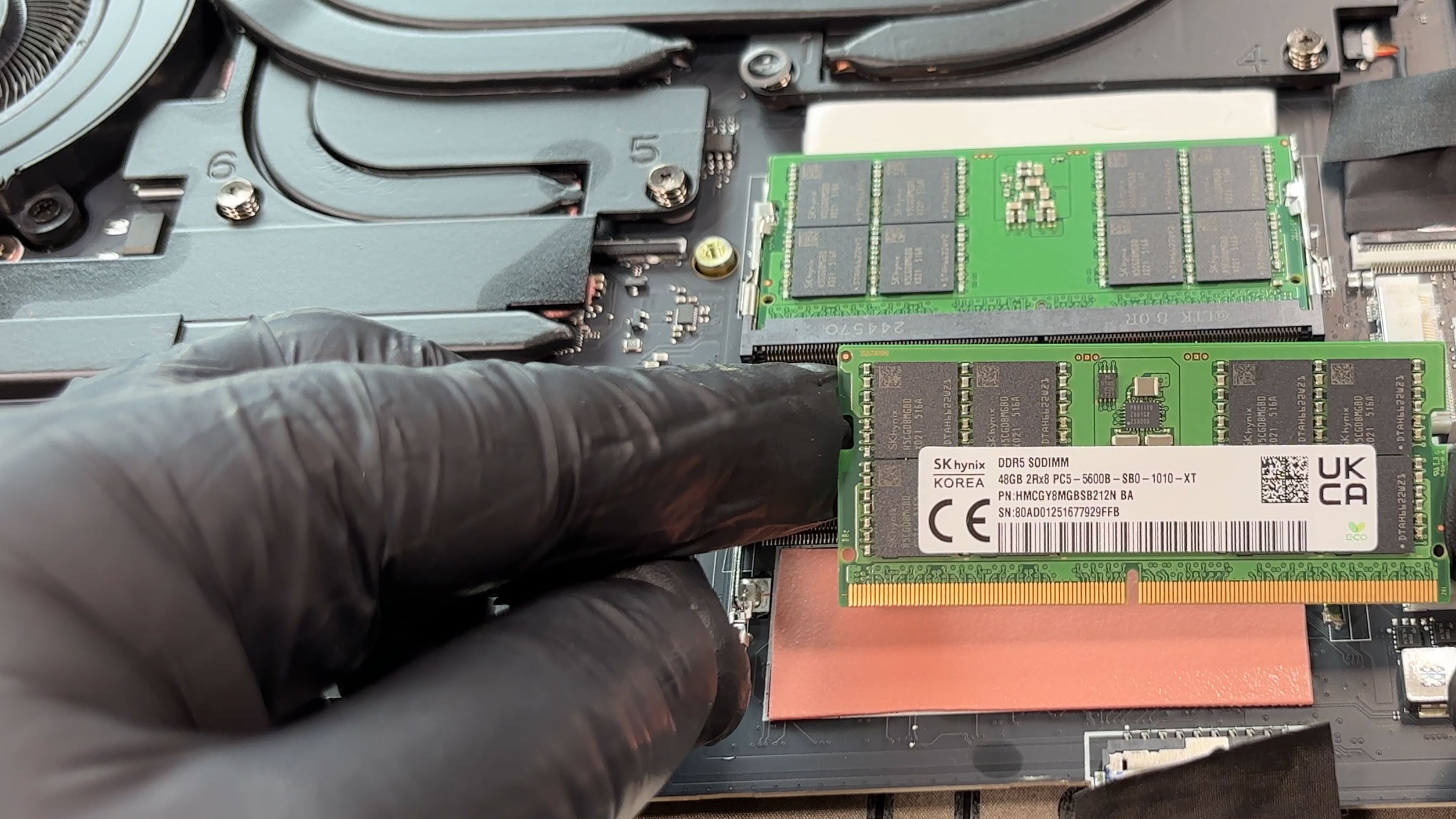
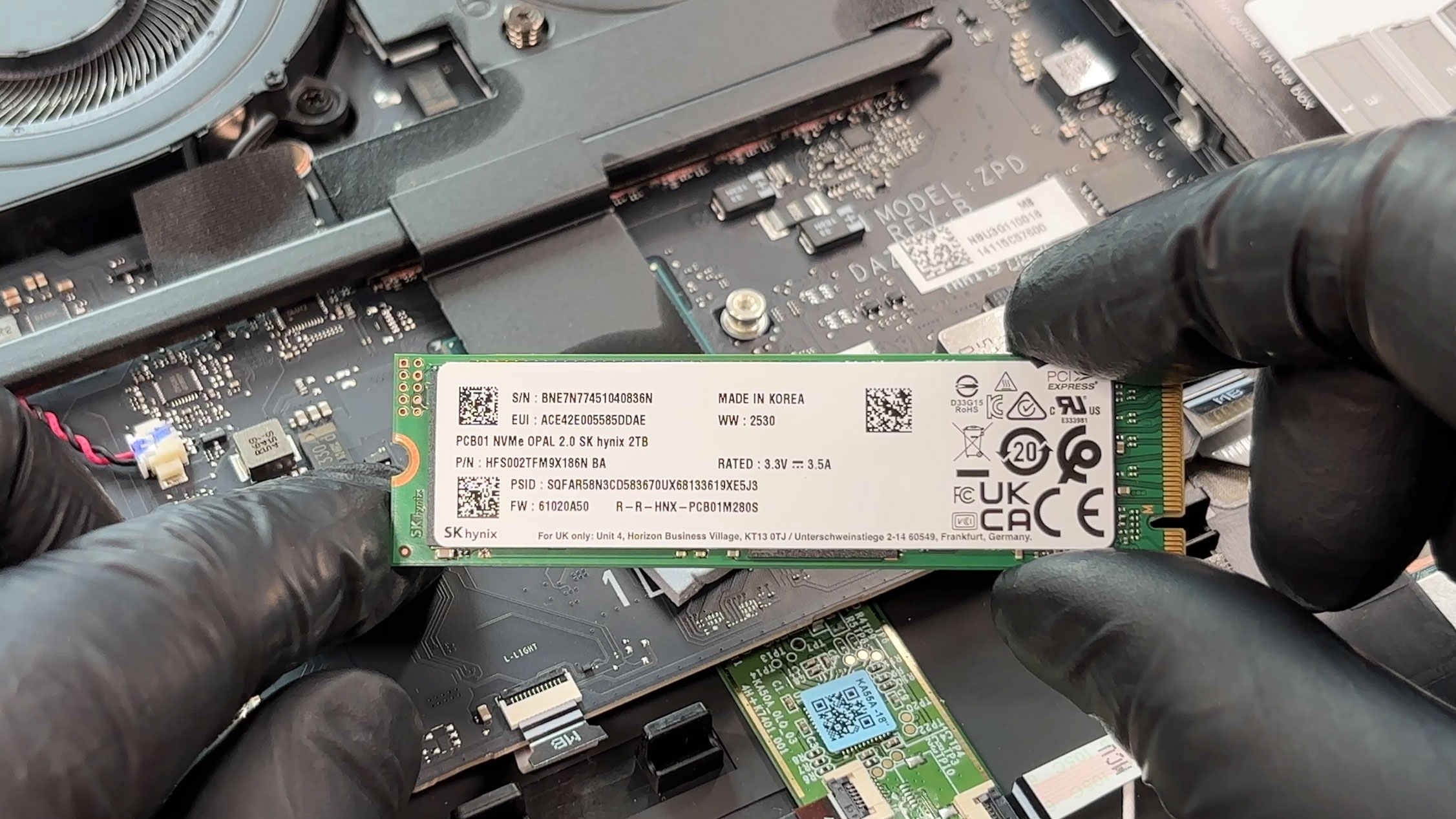
- The laptop has three M.2 2280 SSD slots in total.
- Our machine ships with a 2TB SK hynix NVMe SSD installed in the main M.2 2280 slot.
- Acer documents the primary slot as PCIe Gen 5.
- The other two M.2 2280 slots are PCIe Gen 4 and are listed with up to 1TB support each in the official specifications.
- The empty SSD positions already have thermal pads and copper contact plates on the bottom cover, which is excellent for future storage upgrades.
You can buy Gen 5 M.2 SSDs here: Buy from Amazon.com (#CommissionsEarned)
You can buy Gen 4 M.2 SSDs here: Buy from Amazon.com (#CommissionsEarned)
Hint: Don’t forget to check out our Top M.2 SSDs Performance Rankings for insights on the best storage options available.
Step 5: Cooling system overview
- The cooling system uses a large shared thermal module with two big fans and several heat pipes.
- The heat pipes cover the CPU and dedicated GPU area.
- Our configuration is equipped with the NVIDIA GeForce RTX 5090 Laptop GPU, while Acer also offers RTX 5080 versions of this model.
- Basic dust cleaning is possible once the bottom cover is removed, but repasting requires removing the large shared cooling assembly.
More info: The Wi-Fi card is replaceable. Our laptop uses a Killer Wi-Fi 7 BE1750x 320MHz module based on the BE200NGW platform, with official Wi-Fi 7 support over 2.4GHz, 5GHz, and 6GHz bands, plus Bluetooth 5.4 or newer.
More info: The RAM, SSDs, Wi-Fi card, battery, and cooling-related service items are accessible once the bottom cover is removed. The CPU and GPU are soldered, so choosing between the RTX 5080 and RTX 5090 configurations has to be done at purchase time.
More info: Overall, the Acer Predator Helios 18 AI (PH18-I71) is very service-friendly for an 18-inch flagship gaming laptop, with strong memory and storage expansion, a replaceable Wi-Fi card, and only the expected limitations from soldered core components.
Acer Predator Helios 18 AI (PH18-I71) in-depth review
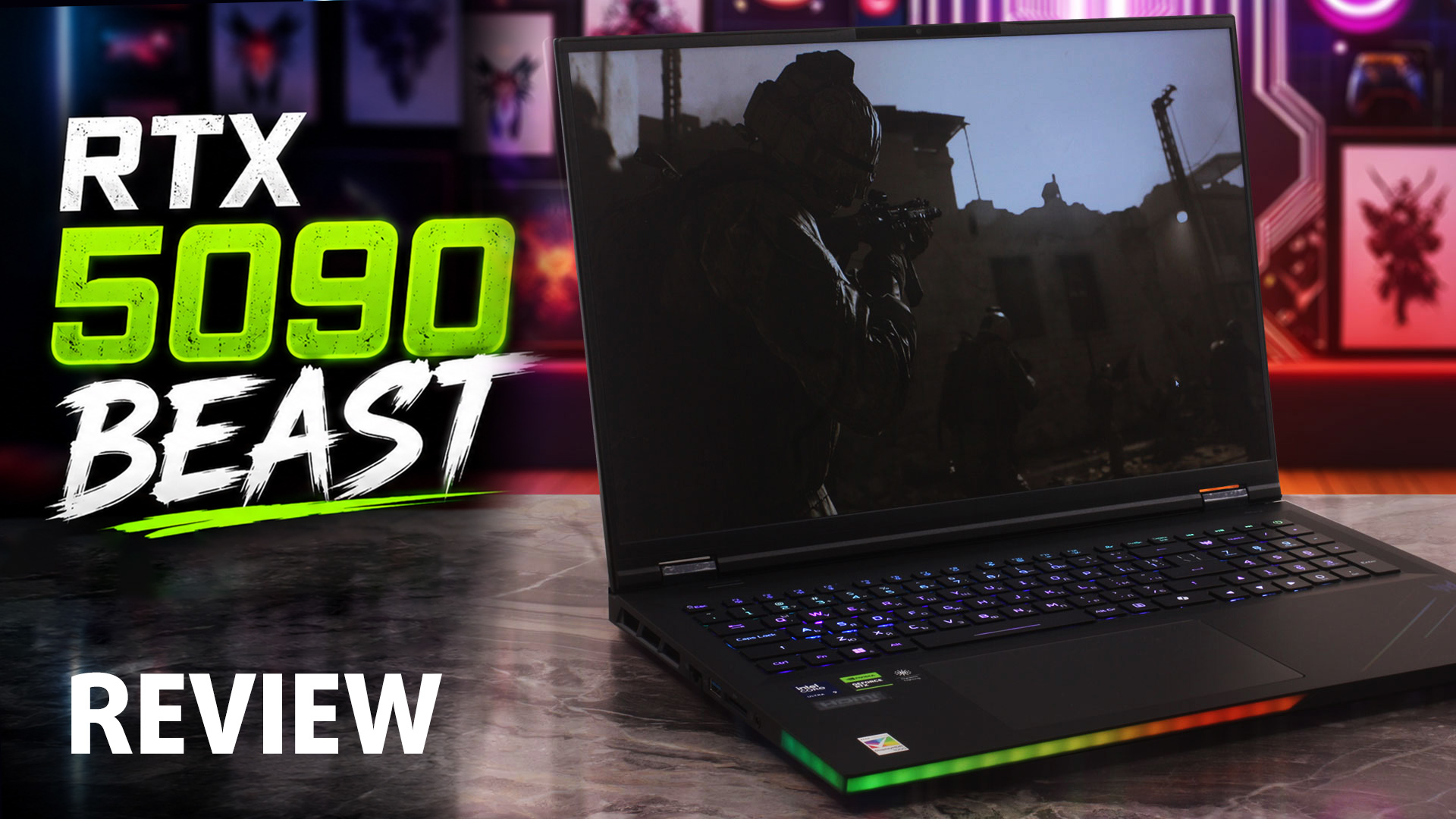
The Acer Predator Helios 18 AI (PH18-I71) is an ultra-premium, desktop-replacement behemoth engineered for hardcore gamers, creators, and extreme power users. The very first thing that strikes you is its colossal footprint, immediately followed by the stunning 18-inch Mini LED display - in our configuration, a razor-sharp 3840 × 2400 panel that can also switch to 1920 × 1200 at 240Hz when speed matters more than pixel density.During our review, we were absolutely blown away by its staggering upgradeability: four RAM slots supporting up to 256GB and three M.2 slots, including one Gen 5 sl[...]
Pros
- Extremely bright 18-inch WQUXGA Mini LED display with HDR 1000 support
- Dual-mode panel: 3840 x 2400 at 120Hz or 1920 x 1200 at 240Hz
- Excellent RTX 5090 gaming performance after driver update
- Stable GPU thermals during long gaming sessions
- Exceptional upgradeability: 4x RAM slots and 3x M.2 SSD slots
- Supports up to 256GB DDR5 memory
- Strong connectivity: dual Thunderbolt 5, HDMI 2.1, 5GbE LAN, Wi-Fi 7, full-size SD card reader
- Very good keyboard with deep travel, per-key RGB, full-sized arrow keys, and MagKey caps
- Large and comfortable glass touchpad
- Good six-speaker audio system
Cons
- CPU runs extremely hot under sustained heavy load
- Fans can be clearly audible even at idle in the tested high-performance profile
- Aggressive PWM flickering may bother sensitive users
- Very large and heavy chassis (+ 1kg/2lbs adapter)
- No physical privacy shutter for the webcam
 Author: Dimitar Stalev

![[June 2026] Best-Selling Laptop Brands on Amazon Global – Apple’s Unrivaled Dominance in Units and Revenue](https://laptopmedia.com/wp-content/uploads/2026/07/GLOBAL-Best-Brands-400x225.jpg)
![[June 2026] Amazon Global: Top 10 Best-Selling Laptops – Apple’s New MacBook Neo Storms to #1, Reshaping the Market with Affordability](https://laptopmedia.com/wp-content/uploads/2026/07/Best-Selling-Laptops-GLOBAL-Top-10-400x225.jpg)
![[June 2026] Amazon Global: Top 10 Best-Selling Gaming Laptops – Acer’s Nitro V 16S AI Dominates Sales, While ASUS Leads Overall Revenue](https://laptopmedia.com/wp-content/uploads/2026/07/Best-Selling-Gaming-Laptops-GLOBAL-Top-10-400x225.jpg)
![[June 2026] Global Ranking of Best-Selling Laptop GPUs on Amazon – NVIDIA RTX 5060 is the Top-Selling Dedicated GPU](https://laptopmedia.com/wp-content/uploads/2026/07/Best-Selling-GPUs-GLOBAL-Top-10-400x225.jpg)
![[June 2026] Global Ranking of Best-Selling Laptop CPUs on Amazon – Apple M5 Dominates, AMD Ryzen 7 260 Gets Solid Premium Share](https://laptopmedia.com/wp-content/uploads/2026/07/Best-Selling-CPUs-GLOBAL-Top-10-400x225.jpg)