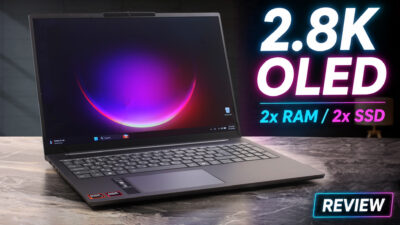
How to open Lenovo Yoga Slim 7a (14″, Gen 11) – disassembly and upgrade options
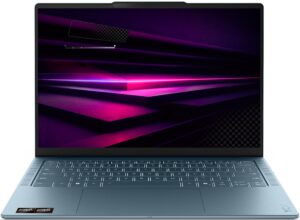
Step 1: Removing the bottom panel
- Power off the laptop and place it on a soft, clean surface.
- Loosen the 4 Torx T5 captive screws securing the bottom panel. They remain attached to the cover, so there is no risk of mixing them up.
- Use a thin plastic pry tool to release the clips around the perimeter.
- Be careful with the extra retaining clip near the center, and do not force the cover upward before the surrounding clips are fully released.
- Lift the bottom cover away from the chassis.
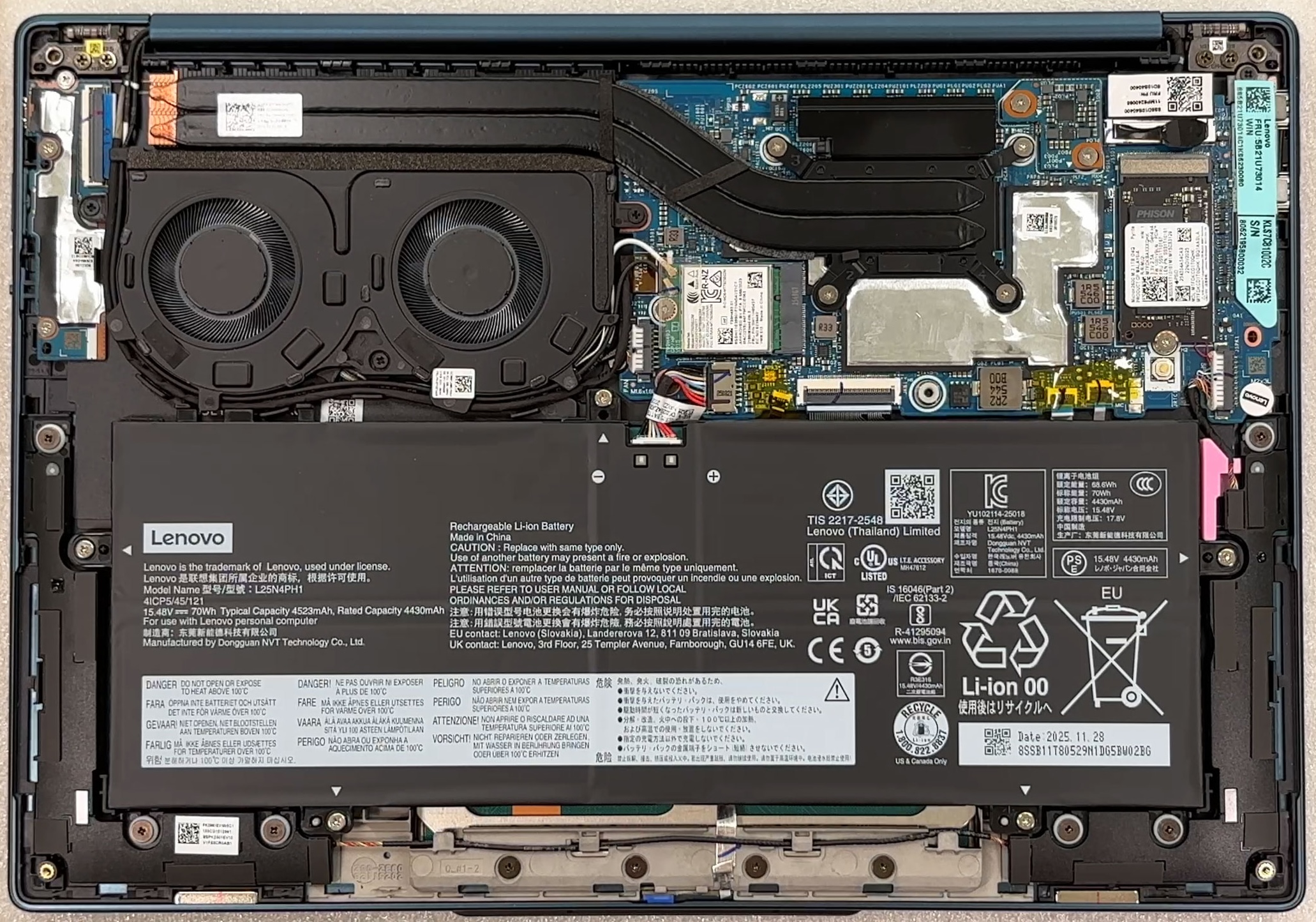
More info: The internal layout is very compact but neatly arranged. The large battery takes up most of the front half, while the cooling system, SSD, and Wi-Fi card are positioned toward the rear and sides.
Step 2: Battery removal
- Disconnect the battery connector from the motherboard before touching any other internal component.
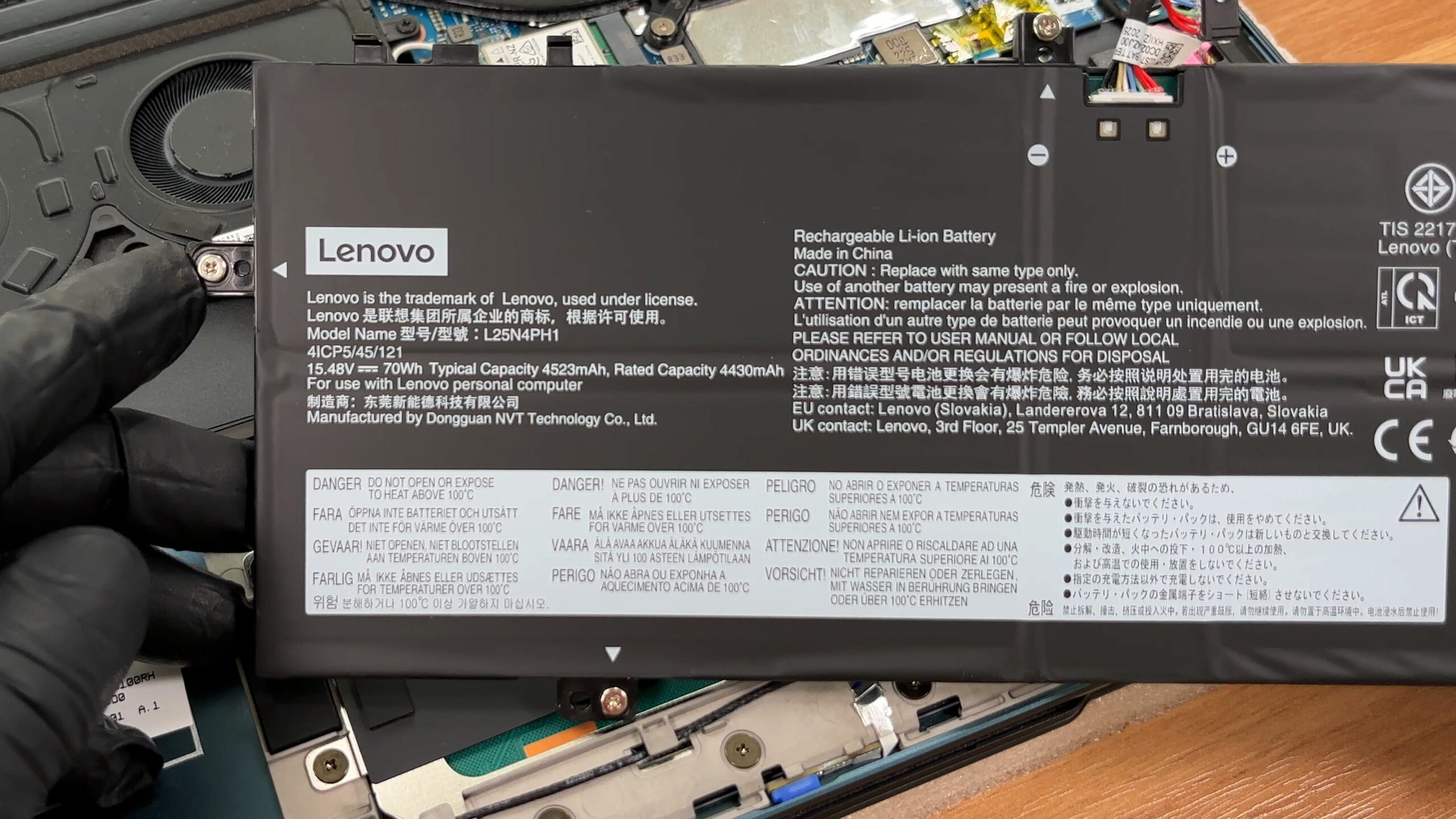
- Loosen the captive screws securing the 70Wh Lenovo L25N4PH1 battery pack.
- Lift the battery slowly and evenly, as the pack can resist slightly when removed.
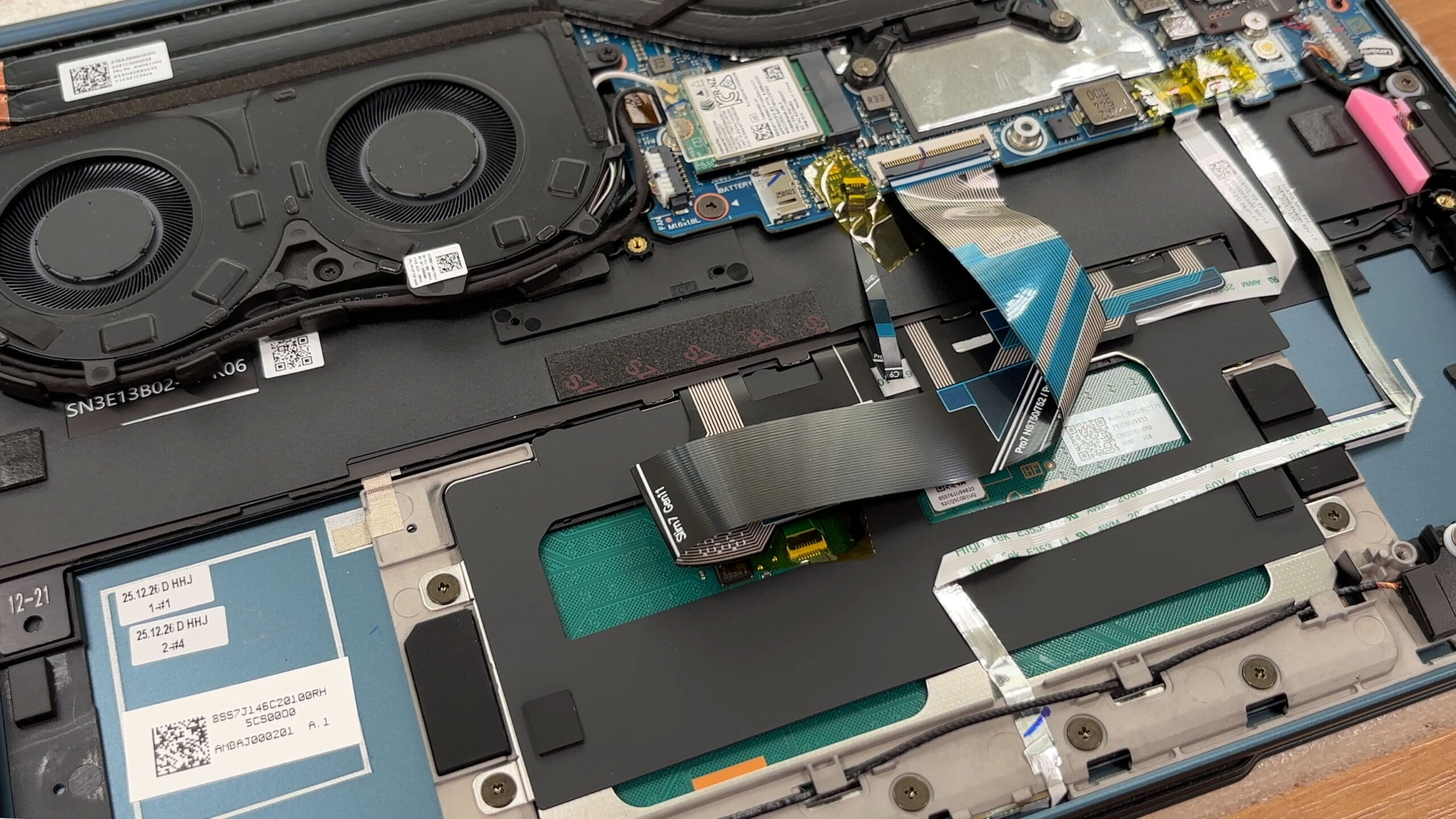
More info: With the battery removed, the touchpad area and several ribbon cables become visible. This is useful for servicing, but it also means deeper disassembly should be done carefully.
Step 3: Memory Upgrade
- The memory is soldered directly to the motherboard.
- There are no RAM slots, so memory upgrades are not possible after purchase.
- The series is available with 16GB or 32GB of LPDDR5X-8000 memory.
- We ordered a configuration with 32GB of RAM.
More info: If you plan to keep the laptop for several years, the 32GB configuration is the safer choice, because the memory capacity is permanent.
Step 4: Storage Upgrade
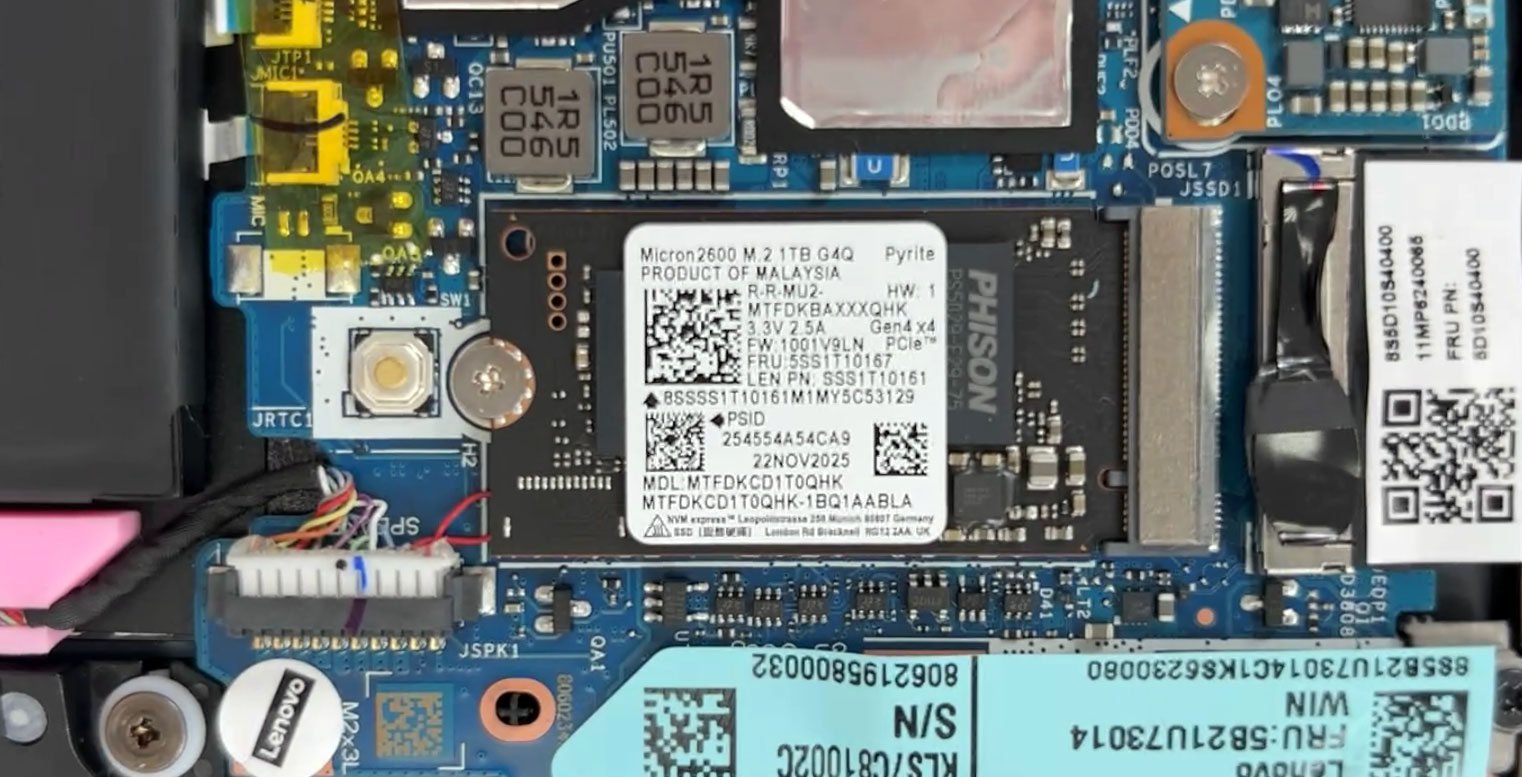
- The laptop has a single M.2 2242 slot with PCIe 4.0 x4 support.
- Our configuration comes with a 1TB Micron 2600 NVMe SSD installed.
- The drive uses a thermal pad for heat transfer, so make sure it is properly aligned during reassembly.
- There is no second M.2 slot, so storage upgrades require replacing the installed SSD rather than adding another one.
You can buy M.2 2242 NVMe SSDs here: Buy from Amazon.com (#CommissionsEarned)
Hint: Don’t forget to check out our Top M.2 SSDs Performance Rankings for insights on the best storage options available.
Step 5: Cooling system overview
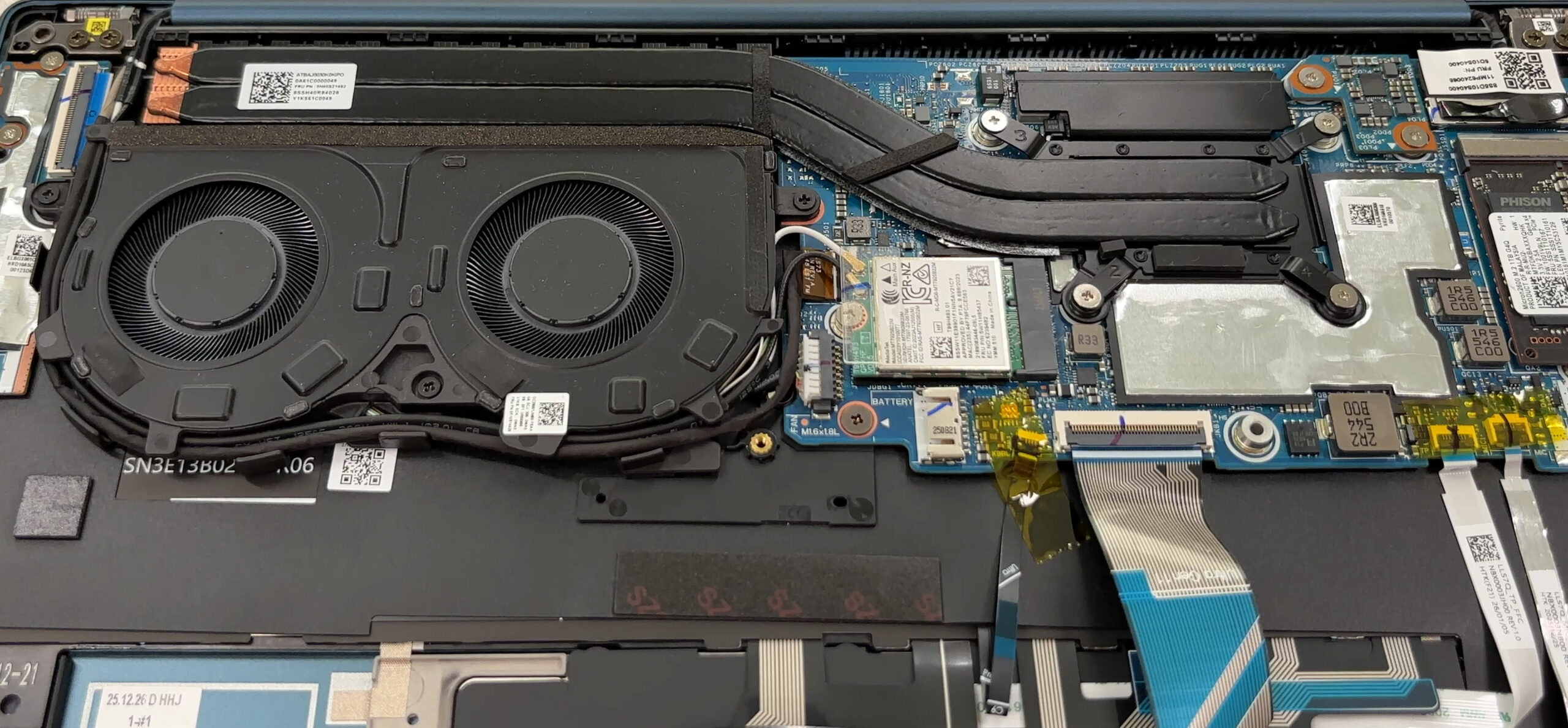
- The cooling system uses two fans and a shared heat-pipe assembly covering the processor area.
- For a 14-inch ultraportable, this is a serious-looking cooling setup.
- The fans and heatsink are easy to access once the bottom cover is removed, making routine dust cleaning straightforward.
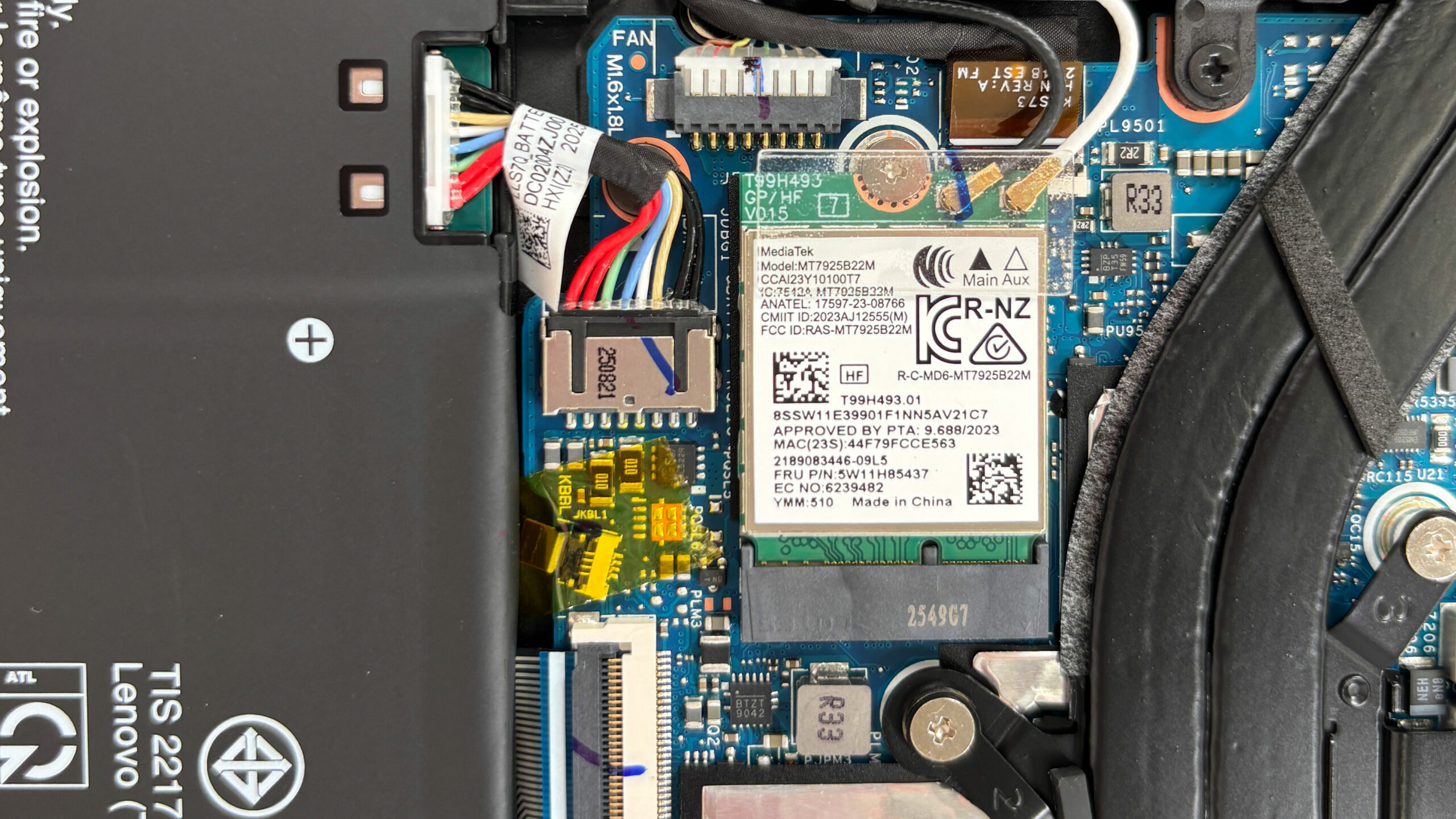
More info: The Wi-Fi card is replaceable. Our unit uses a MediaTek MT7925B22M module, marketed as a Wi-Fi 7 card. Bluetooth 5.4 support depends on the platform configuration, drivers, and regional setup.
More info: The SSD, Wi-Fi card, battery, fans, and cooling assembly are accessible for servicing. The main upgrade limits are the soldered memory and the single M.2 2242 storage slot, so the Lenovo Yoga Slim 7a 14AGP11 is straightforward to maintain but limited mainly to SSD and wireless card replacement.
Lenovo Yoga Slim 7a (14", Gen 11) in-depth review
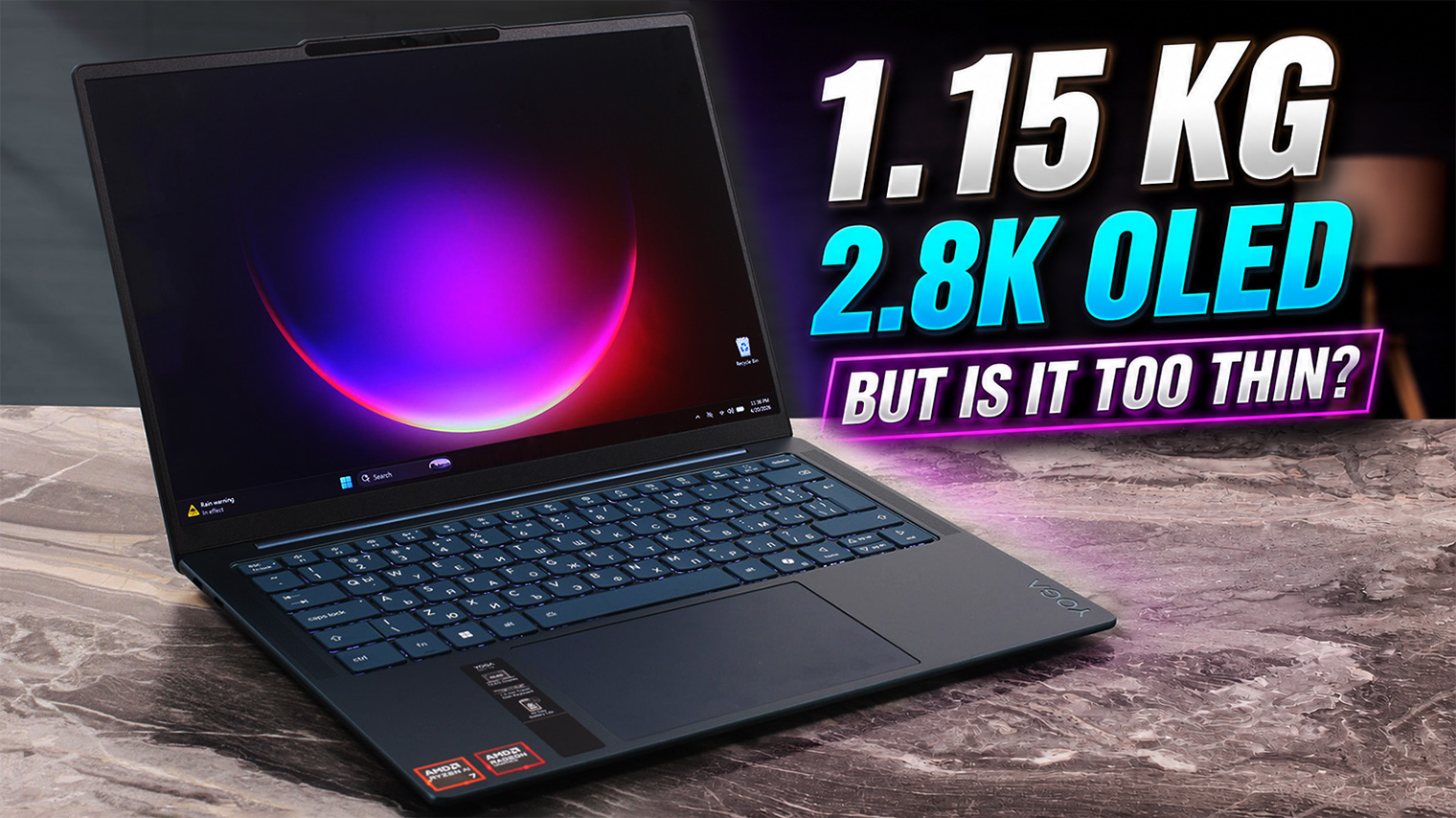
The Lenovo Yoga Slim 7a (14", Gen 11) is built for users who want a premium ultraportable for work, travel, media consumption, and light creative tasks — not for serious gaming or workstation-class workloads. The first thing that grabs your attention is how thin and light it feels, especially in the elegant Tidal Teal aluminum chassis, but the 2.8K 120Hz OLED display quickly becomes the real star of the show. We were pleasantly surprised by the laptop’s snappy short-load performance, quiet behavior, and excellent color accuracy, making it feel much faster and more refined than its tiny foo[...]
Pros
- Excellent 2.8K 120Hz OLED display with accurate colors
- 100% sRGB and 100% DCI-P3 color coverage
- Premium, rigid, and very light aluminum chassis
- Very snappy responsiveness in short everyday workloads
- Cool and quiet behavior under light and moderate use
- Massive, smooth glass touchpad
- Modern connectivity with dual USB4 and Wi-Fi 7
- Replaceable Wi-Fi card
Cons
- Soldered RAM with no upgrade option
- Only one M.2 2242 SSD slot
- Lower sustained performance than thicker laptops with similar CPUs
- Highly reflective glossy OLED screen
- No USB-A, HDMI, card reader, Ethernet, or 3.5mm audio jack
- Integrated Radeon 840M is suitable only for light gaming
 Author: Dimitar Stalev

![[June 2026] Best-Selling Laptop Brands on Amazon Global – Apple’s Unrivaled Dominance in Units and Revenue](https://laptopmedia.com/wp-content/uploads/2026/07/GLOBAL-Best-Brands-400x225.jpg)
![[June 2026] Amazon Global: Top 10 Best-Selling Laptops – Apple’s New MacBook Neo Storms to #1, Reshaping the Market with Affordability](https://laptopmedia.com/wp-content/uploads/2026/07/Best-Selling-Laptops-GLOBAL-Top-10-400x225.jpg)
![[June 2026] Amazon Global: Top 10 Best-Selling Gaming Laptops – Acer’s Nitro V 16S AI Dominates Sales, While ASUS Leads Overall Revenue](https://laptopmedia.com/wp-content/uploads/2026/07/Best-Selling-Gaming-Laptops-GLOBAL-Top-10-400x225.jpg)
![[June 2026] Global Ranking of Best-Selling Laptop GPUs on Amazon – NVIDIA RTX 5060 is the Top-Selling Dedicated GPU](https://laptopmedia.com/wp-content/uploads/2026/07/Best-Selling-GPUs-GLOBAL-Top-10-400x225.jpg)
![[June 2026] Global Ranking of Best-Selling Laptop CPUs on Amazon – Apple M5 Dominates, AMD Ryzen 7 260 Gets Solid Premium Share](https://laptopmedia.com/wp-content/uploads/2026/07/Best-Selling-CPUs-GLOBAL-Top-10-400x225.jpg)