How to open HP EliteBook 1040 G9 – disassembly and upgrade options
Accessing this laptop’s internals is extremely easy. Moreover, the upgrade options are on point, making this a notebook for the future.
Check out all HP EliteBook 1040 G9 prices and configurations in our Specs System, or read more in our In-Depth review.
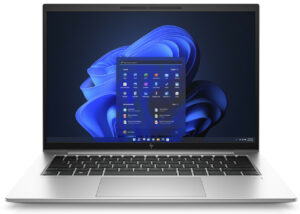
1. Remove the bottom plate
To get inside this notebook, you need to undo a total of 5 captive Phillips-head screws. Then, pry the bottom panel with a plastic tool, starting from the back.
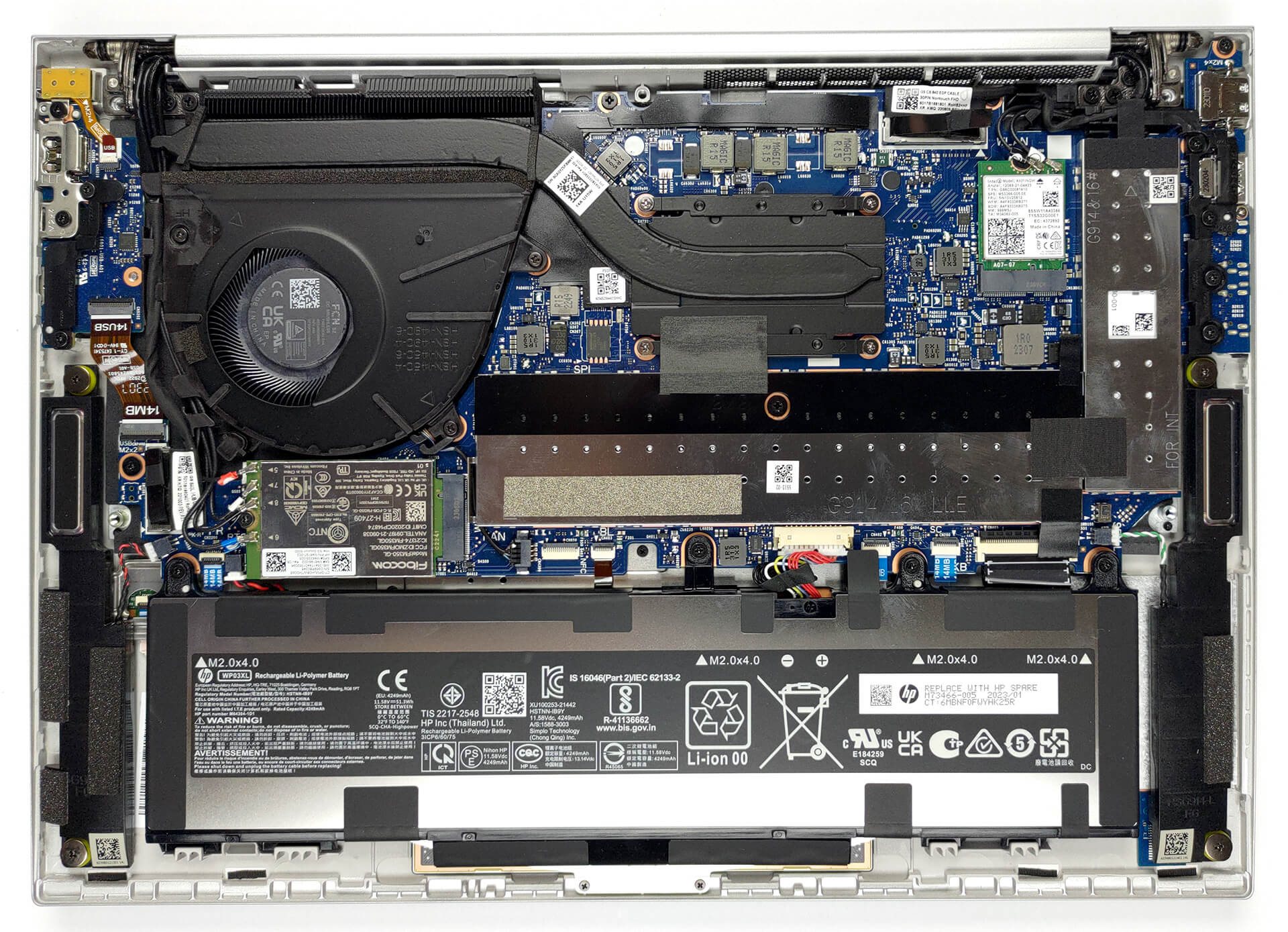
2. Remove the battery
Inside, we find a 51.3Wh battery pack. To take it out, unplug the battery from the motherboard, and undo the four Phillips-head screws, that keep it to the device.
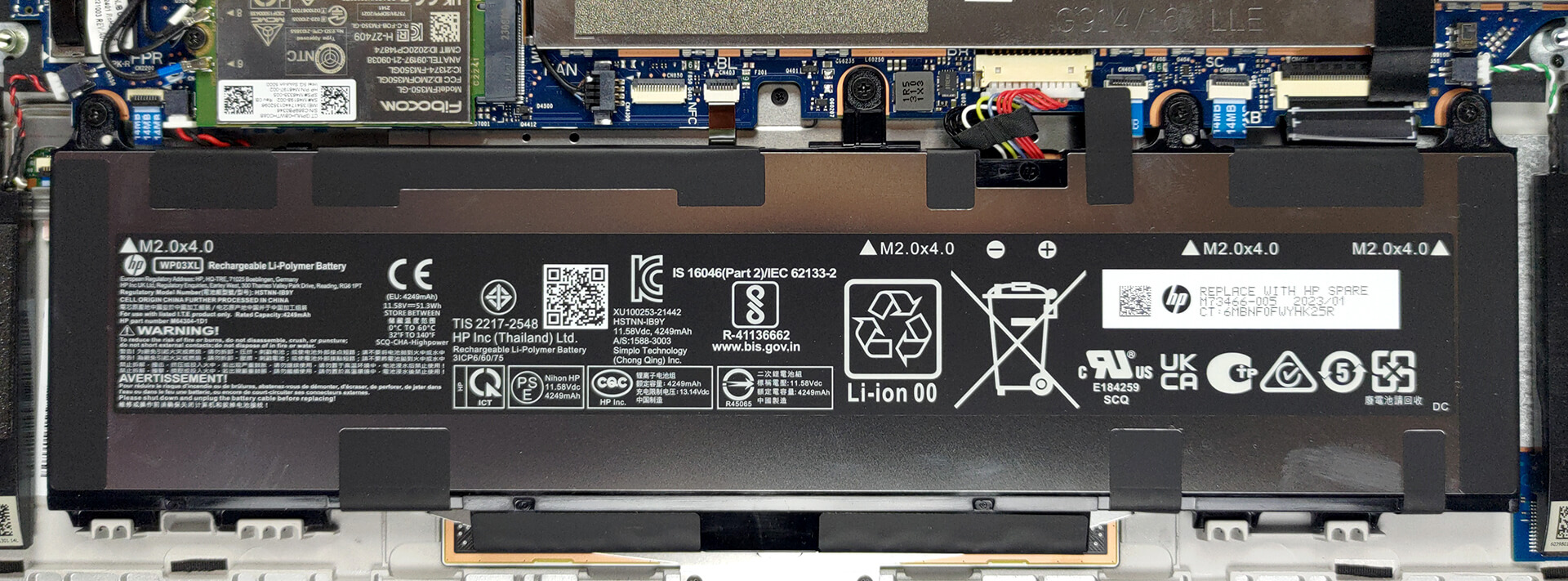
3. Upgrade memory and storage
The memory here is hidden beneath a metal bracket. It comprises two SODIMM slots for up to 64GB of DDR5 RAM in total. Likewise, the single M.2 PCIe x4 Gen 4 storage slot is protected by a similar bracket.
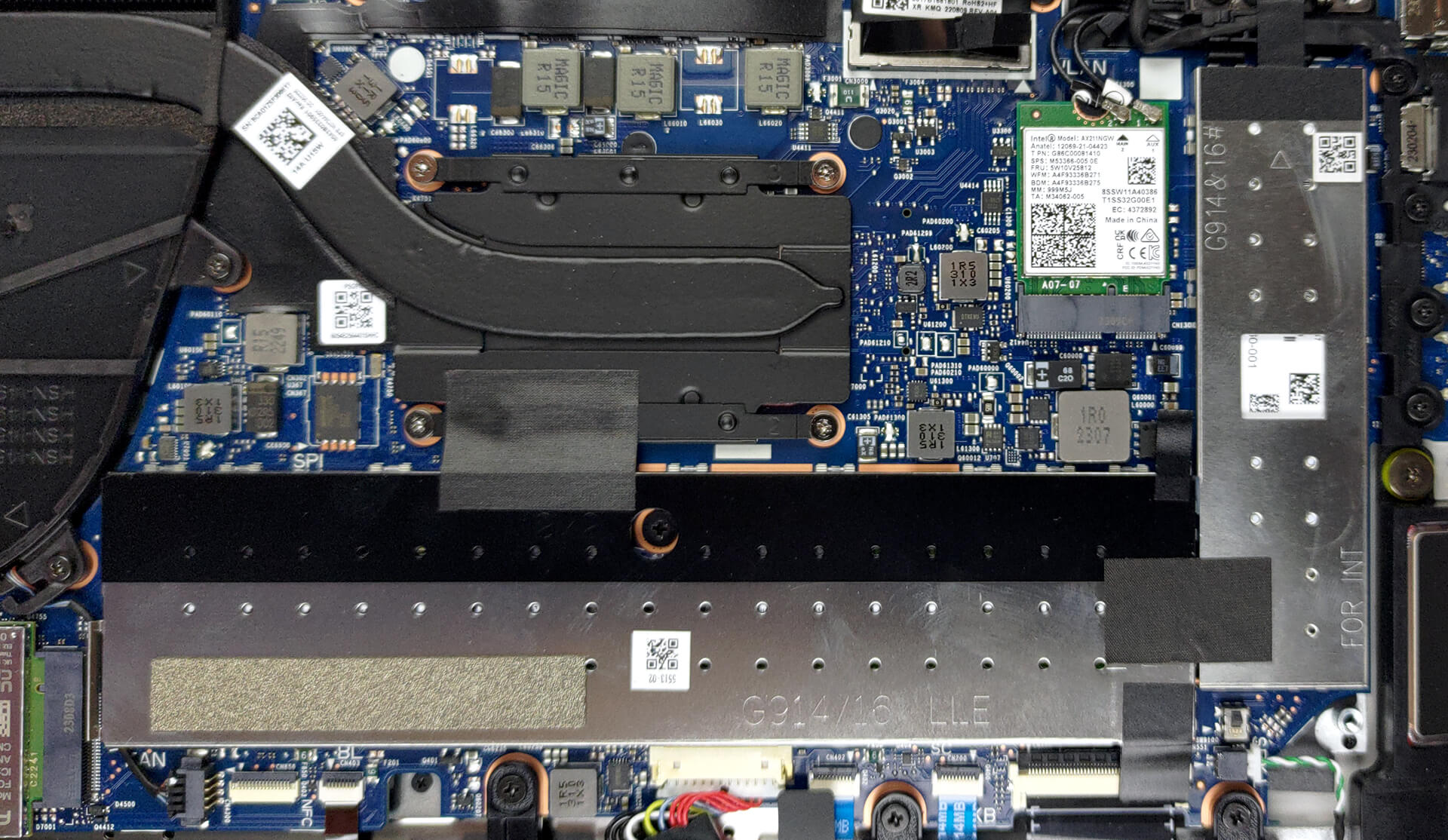
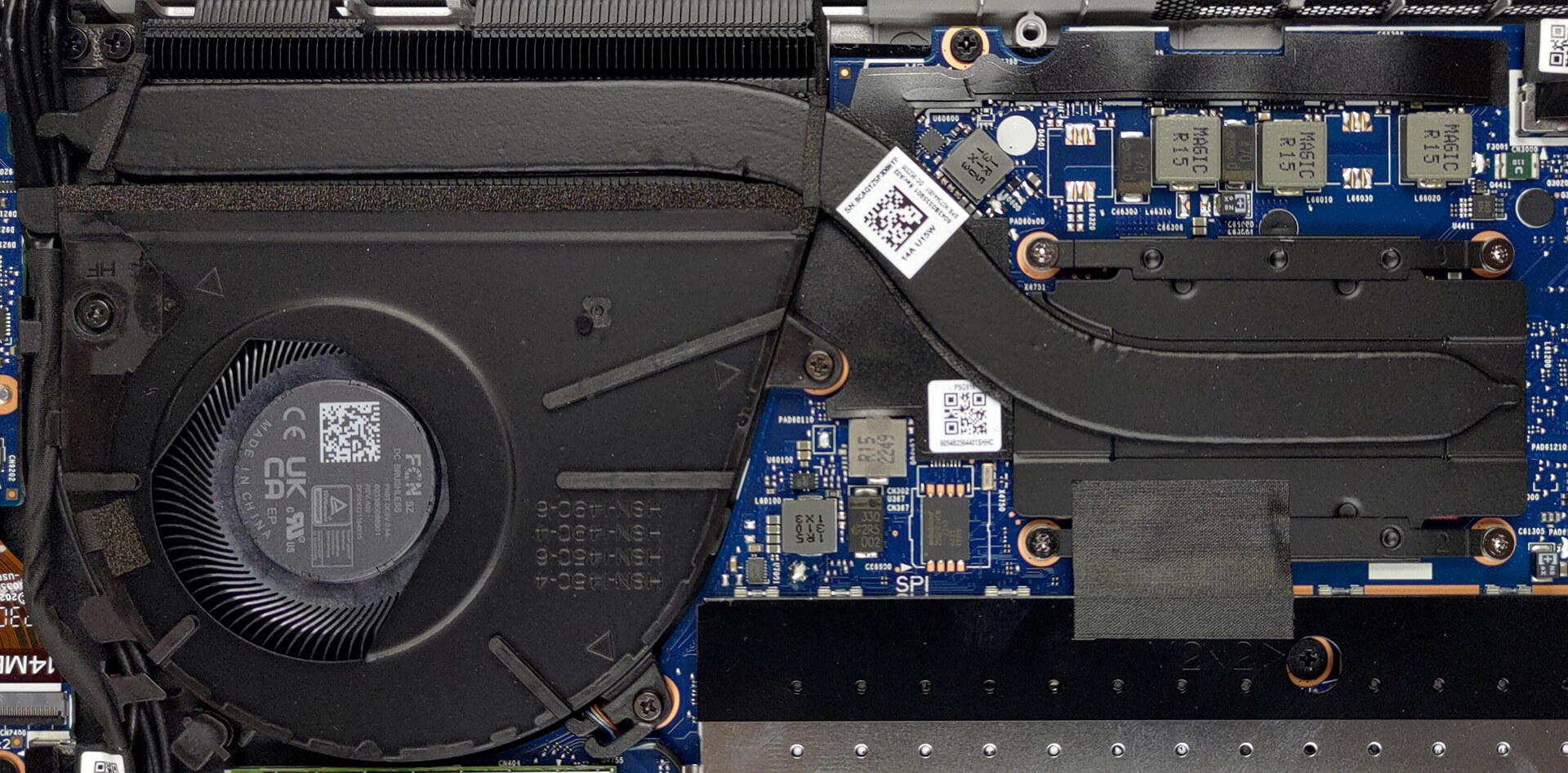
4. Cooling system
Cooling-wise, you get one heat pipe, a heat sink, and a fan.
Check out all HP EliteBook 1040 G9 prices and configurations in our Specs System, or read more in our In-Depth review.
HP EliteBook 1040 G9 in-depth review
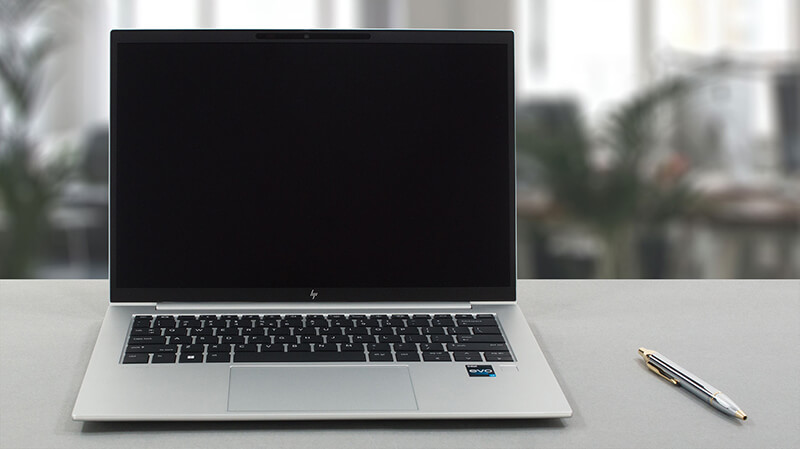
One of the more stylish business brands on the market, the EliteBook series now gets more and more popular due to its ever-increasing roster of notebooks. The machine that we're going to review today is not a rethink of the concept of business computers, but more like a refinement.It is called the HP EliteBook 1040 G9. Naturally, it is a premium device, which has a 14-inch display with a 16:10 aspect ratio, which will allow you to get more work done thanks to the increased vertical space.The hardware inside is quite standard for office/productivity machines. We are talking about Intel[...]
Pros
- Good battery life
- PCIe x4 Gen 4 support + 64GB of DDR5 memory in dual-channel
- Two Thunderbolt 4 connectors, Wi-Fi 6, and optional 5G support
- 99% of sRGB coverage and great color accuracy with our Gaming and Web design profile (AUO AUOA49A)
- No PWM (AUO AUOA49A)
- Spill-resistant keyboard that is great for typing
- IR face recognition and fingerprint reader
- Optional ambient light and ambient color sensors
- Very lightweight chassis
Cons
- No SD card reader
- Crippled performance in long runs
 Author: Alex Iliev

![[June 2026] Best-Selling Laptop Brands on Amazon Global – Apple’s Unrivaled Dominance in Units and Revenue](https://laptopmedia.com/wp-content/uploads/2026/07/GLOBAL-Best-Brands-400x225.jpg)
![[June 2026] Amazon Global: Top 10 Best-Selling Laptops – Apple’s New MacBook Neo Storms to #1, Reshaping the Market with Affordability](https://laptopmedia.com/wp-content/uploads/2026/07/Best-Selling-Laptops-GLOBAL-Top-10-400x225.jpg)
![[June 2026] Amazon Global: Top 10 Best-Selling Gaming Laptops – Acer’s Nitro V 16S AI Dominates Sales, While ASUS Leads Overall Revenue](https://laptopmedia.com/wp-content/uploads/2026/07/Best-Selling-Gaming-Laptops-GLOBAL-Top-10-400x225.jpg)
![[June 2026] Global Ranking of Best-Selling Laptop GPUs on Amazon – NVIDIA RTX 5060 is the Top-Selling Dedicated GPU](https://laptopmedia.com/wp-content/uploads/2026/07/Best-Selling-GPUs-GLOBAL-Top-10-400x225.jpg)
![[June 2026] Global Ranking of Best-Selling Laptop CPUs on Amazon – Apple M5 Dominates, AMD Ryzen 7 260 Gets Solid Premium Share](https://laptopmedia.com/wp-content/uploads/2026/07/Best-Selling-CPUs-GLOBAL-Top-10-400x225.jpg)
