Inside Acer Chromebook 314 (C933) – disassembly and upgrade options
Chromebooks usually use proprietory hardware, and you can rarely see upgradability options with them.
Check out all Acer Chromebook 314 (C933) prices and configurations in our Specs System or read more in our In-Depth review.
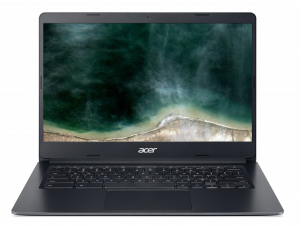
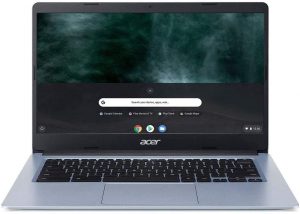
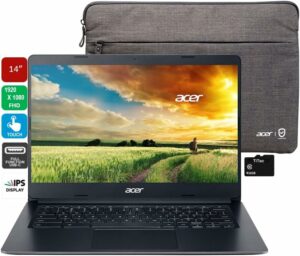
1. Remove the bottom plate
To get inside of this notebook, you need to undo 10 Phillips-head screws. After that, prying the bottom panel is rather easy, using a plastic tool.
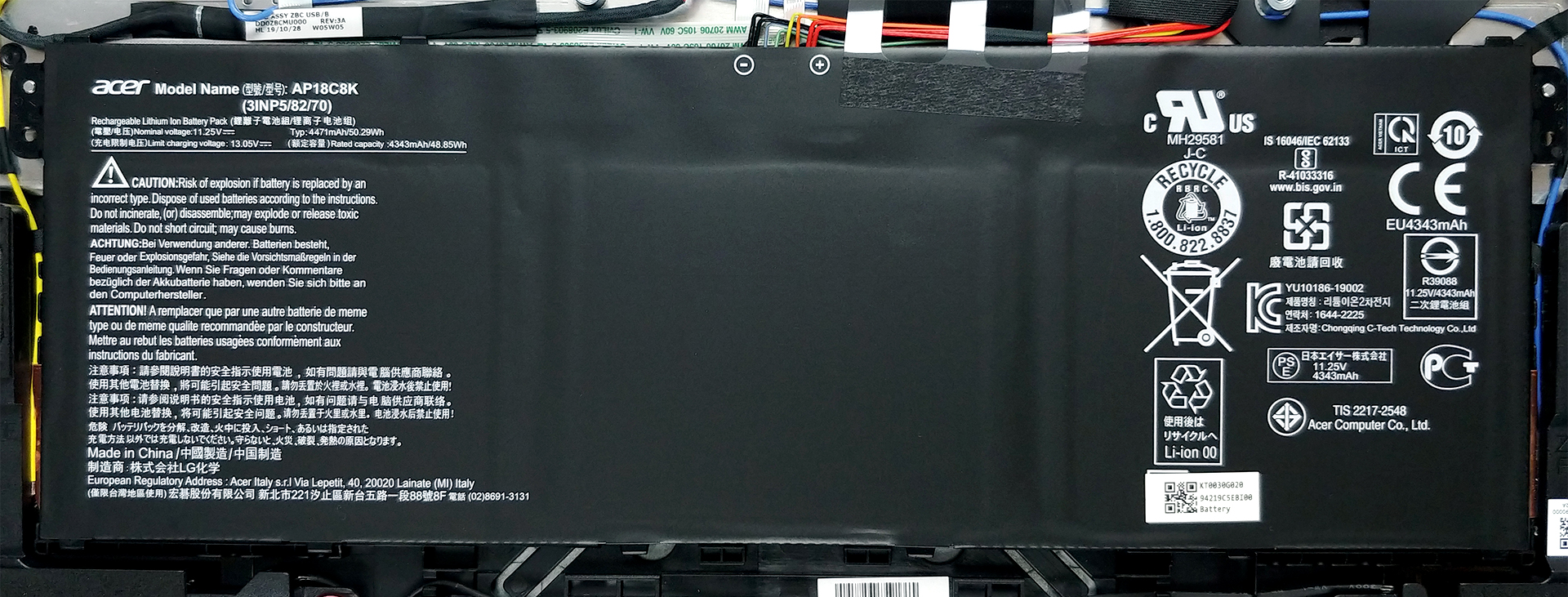
2. Battery
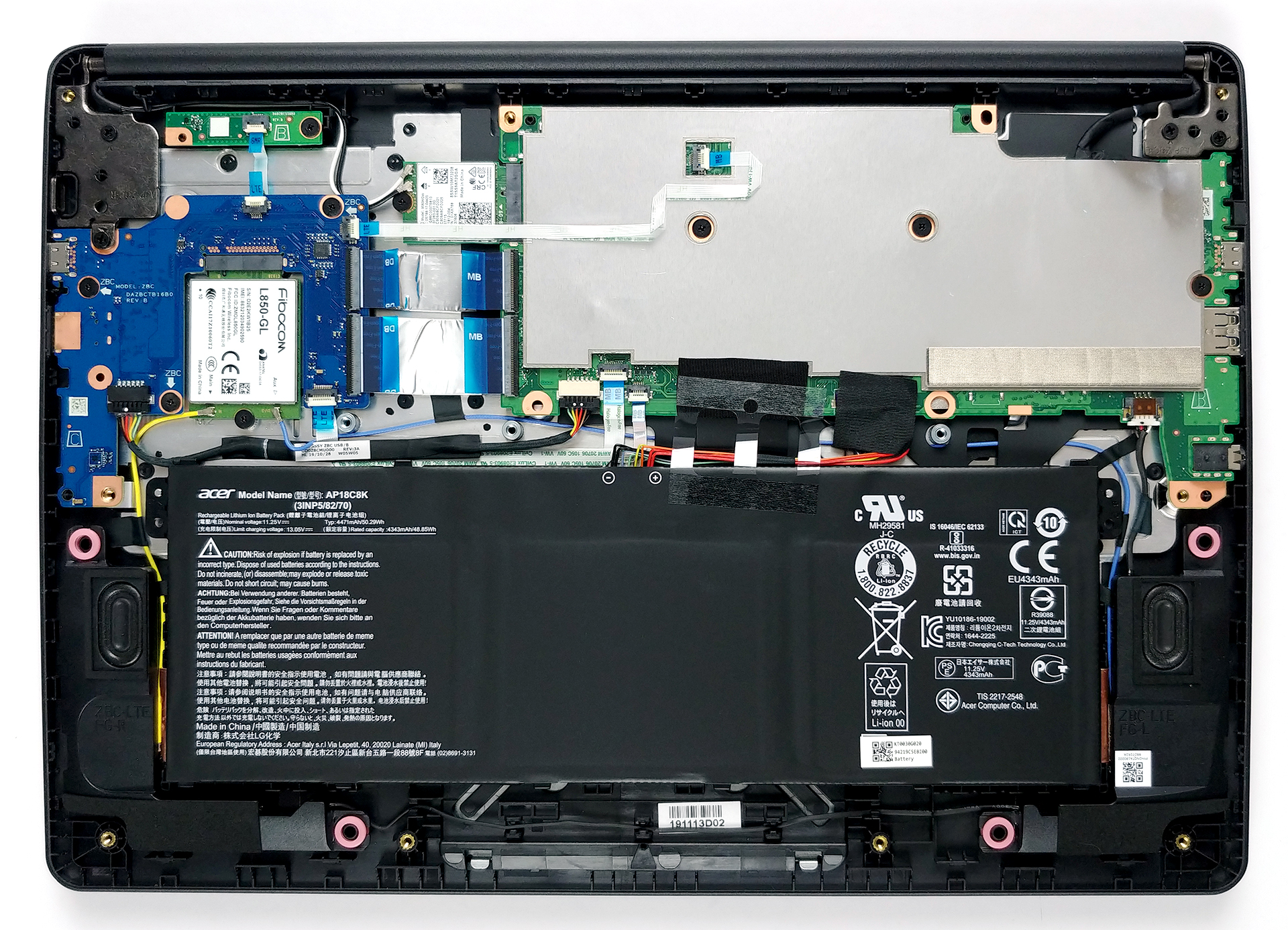
As of the battery, the Chromebook 314 (C933) features a hefty 50.29Wh unit.
3. Memory and storage
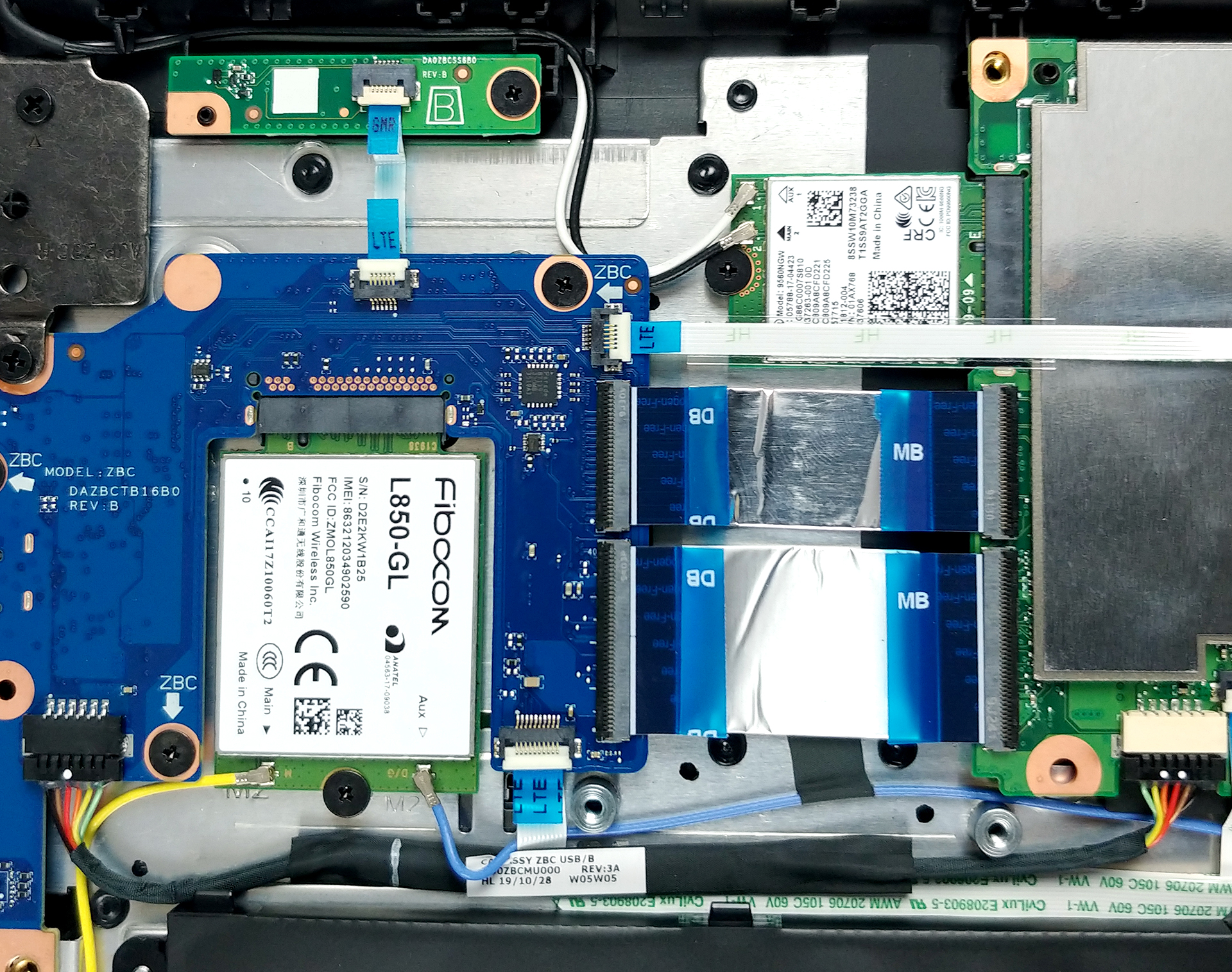
Sadly, both memory and storage are soldered to the motherboard. Our unit is equipped with 8GB of LPDDR4 memory modules, while the 64GB storage is in the form of an eMMC flash drive. Thankfully, you can expand it via the MicroSD card slot. Moreover, this unit is equipped with an LTE card (the large one, next to the WiFi card).
4. Cooling system
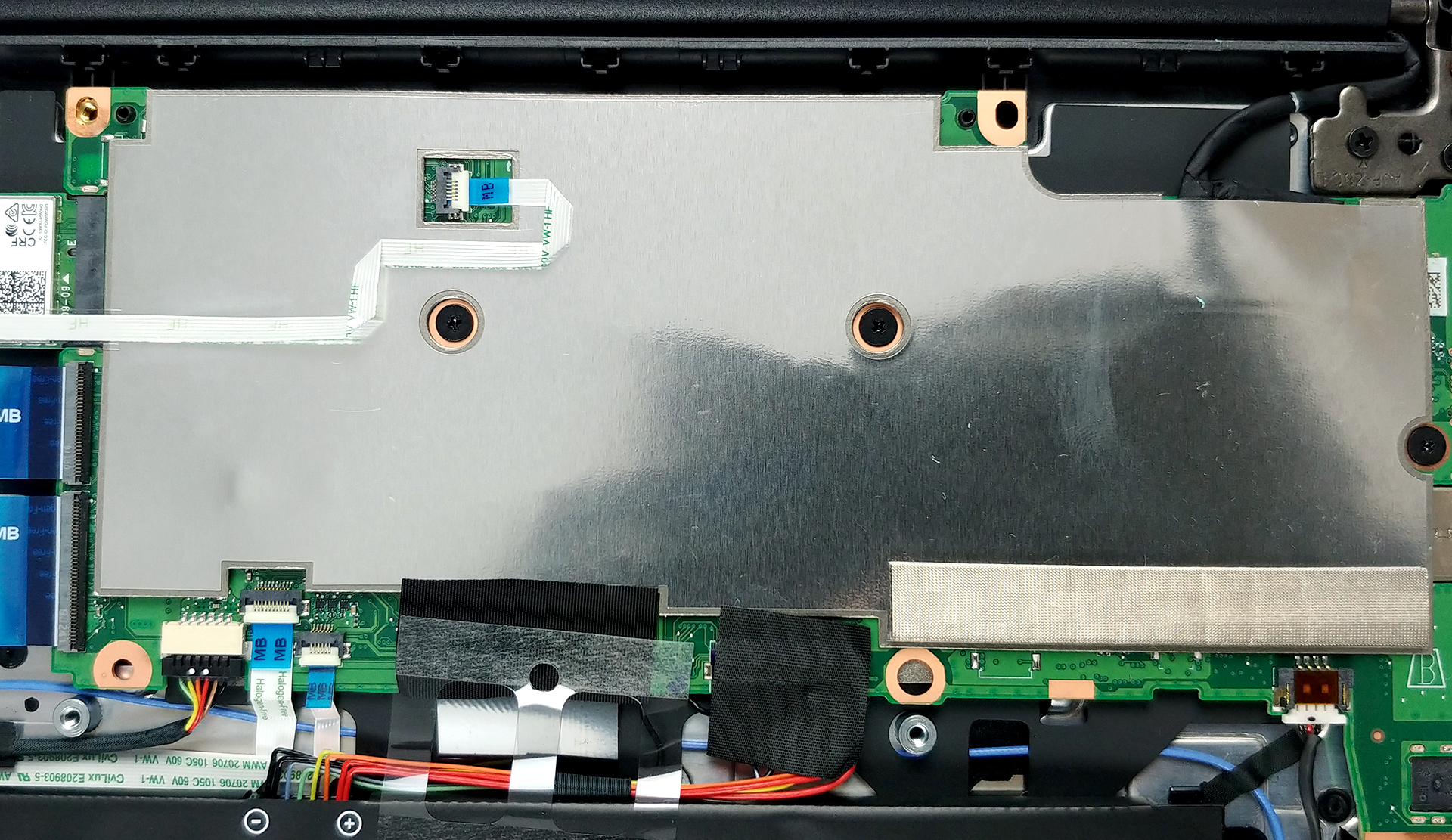
As you can see, the motherboard is pretty small and it has a non-conductive protective layer. Its cooling is passive, as it lacks a fan, and since the motherboard is turned upside down, you’ll need to remove it in order to access the chip.
Check out all Acer Chromebook 314 (C933) prices and configurations in our Specs System or read more in our In-Depth review.
 Author: Alex Iliev

![[August 2026] Best-Selling Laptop Brands on Amazon Japan – Apple Dominates Market Share and Revenue Led by Strong Unit Sales](https://laptopmedia.com/wp-content/uploads/2026/09/CO.JP-Best-Brands-1-400x225.jpg)
![[August 2026] Best-Selling Laptop Brands on Amazon USA – Apple Dominates Market Revenue and Volume Despite Lower Model Diversity](https://laptopmedia.com/wp-content/uploads/2026/09/COM-Best-Brands-1-400x225.jpg)
![[August 2026] Amazon Germany: Top 8 Best-Selling Gaming Laptops – Acer Dominates the Market as the Premium Nitro V 17 AI Takes the #1 Spot](https://laptopmedia.com/wp-content/uploads/2026/09/Best-Selling-Gaming-Laptops-DE-Top-10-1-400x225.jpg)
![[August 2026] Best-Selling Laptop Brands on Amazon France – Apple Dominates Revenue Despite Lenovo and HP Leading in Catalog Breadth and Volume](https://laptopmedia.com/wp-content/uploads/2026/09/FR-Best-Brands-1-400x225.jpg)
![[August 2026] Amazon Italy: Top 10 Best-Selling Laptops – Apple MacBook Neo Claims the Crown as Budget and Mid-Range Windows Machines Dominate Volume](https://laptopmedia.com/wp-content/uploads/2026/09/Best-Selling-Laptops-IT-Top-10-400x225.jpg)

Can you remove the write protection screw?