Lenovo LOQ 15 (15IPH11, Gen 11)
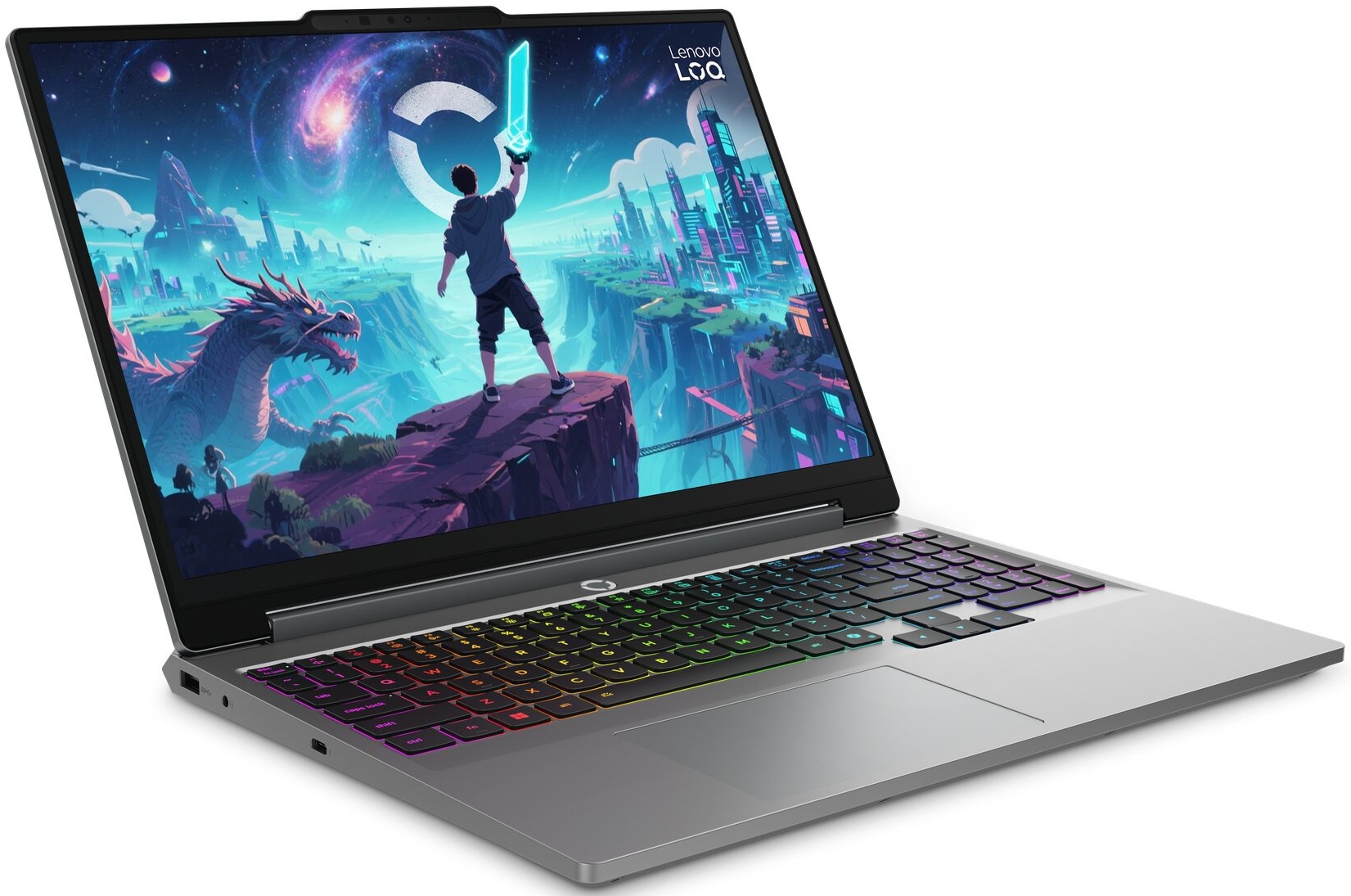
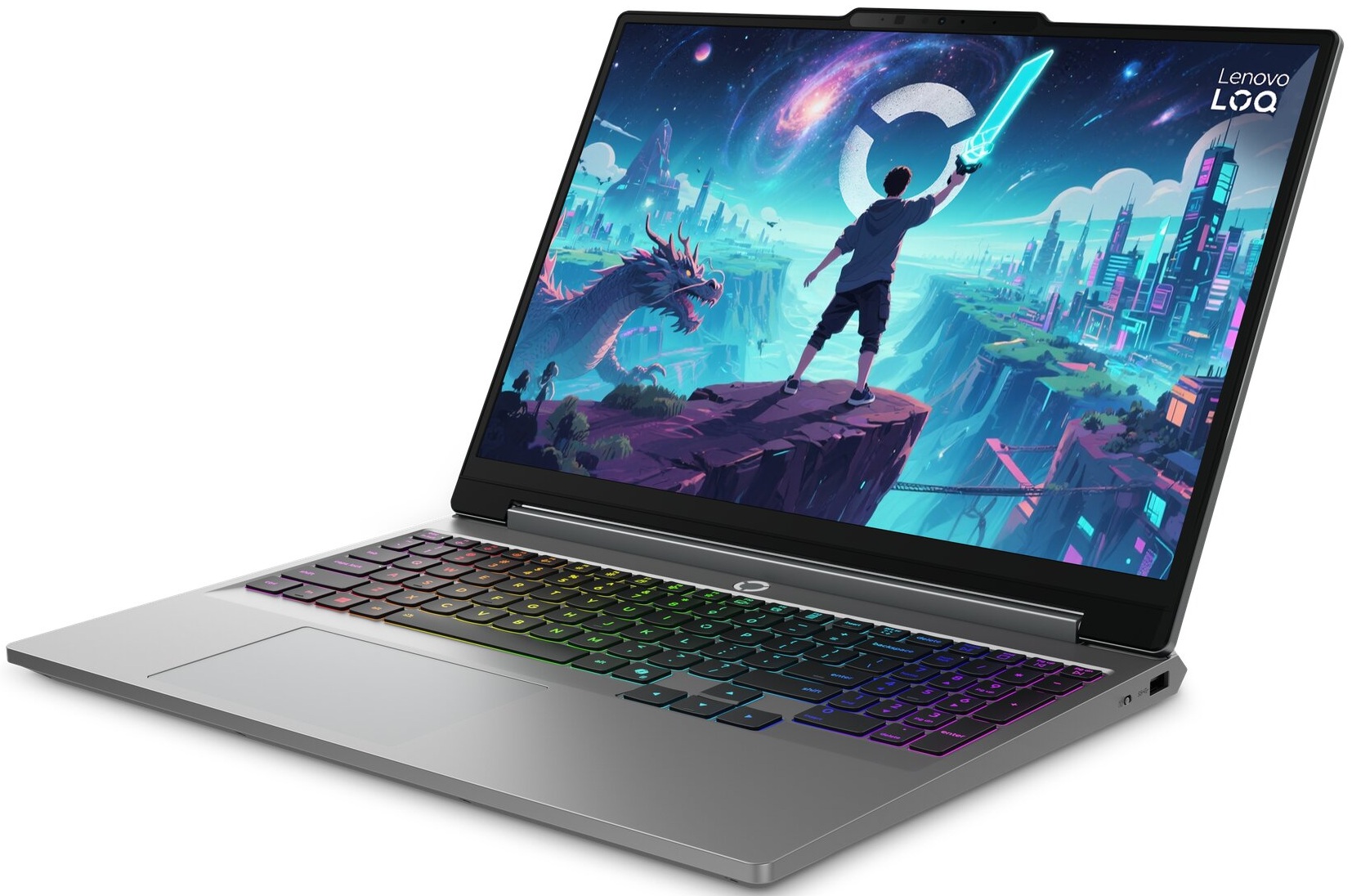
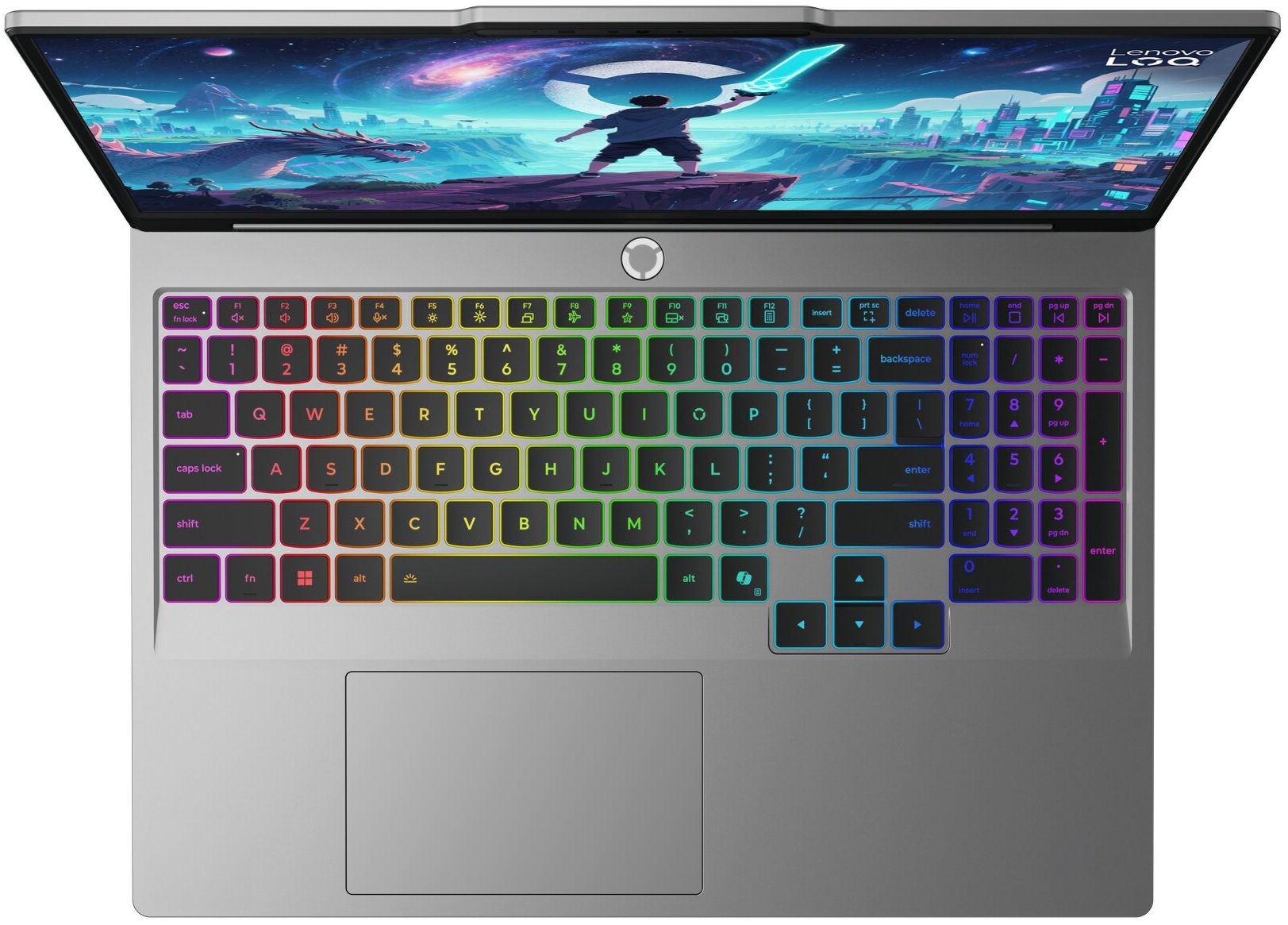
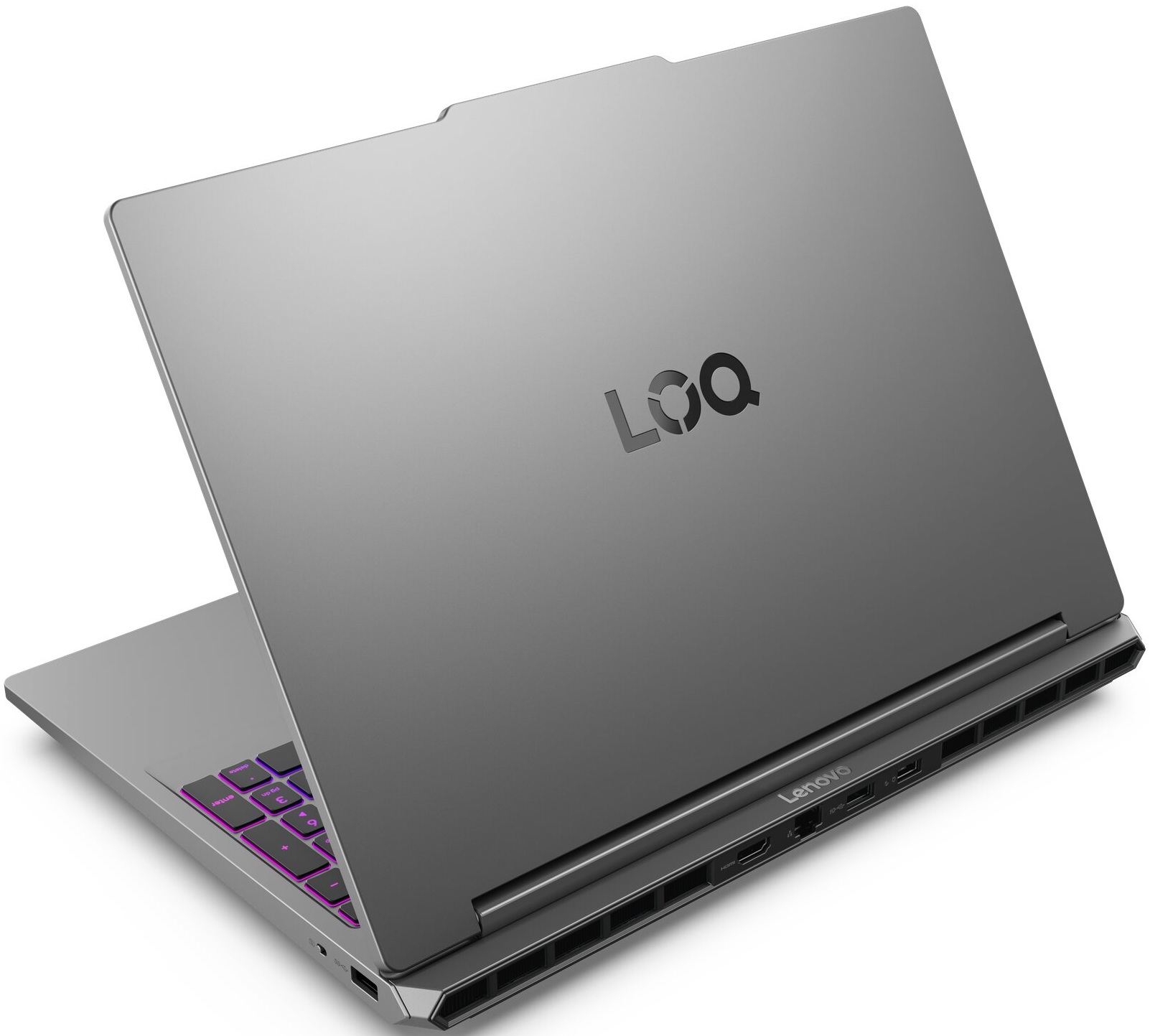
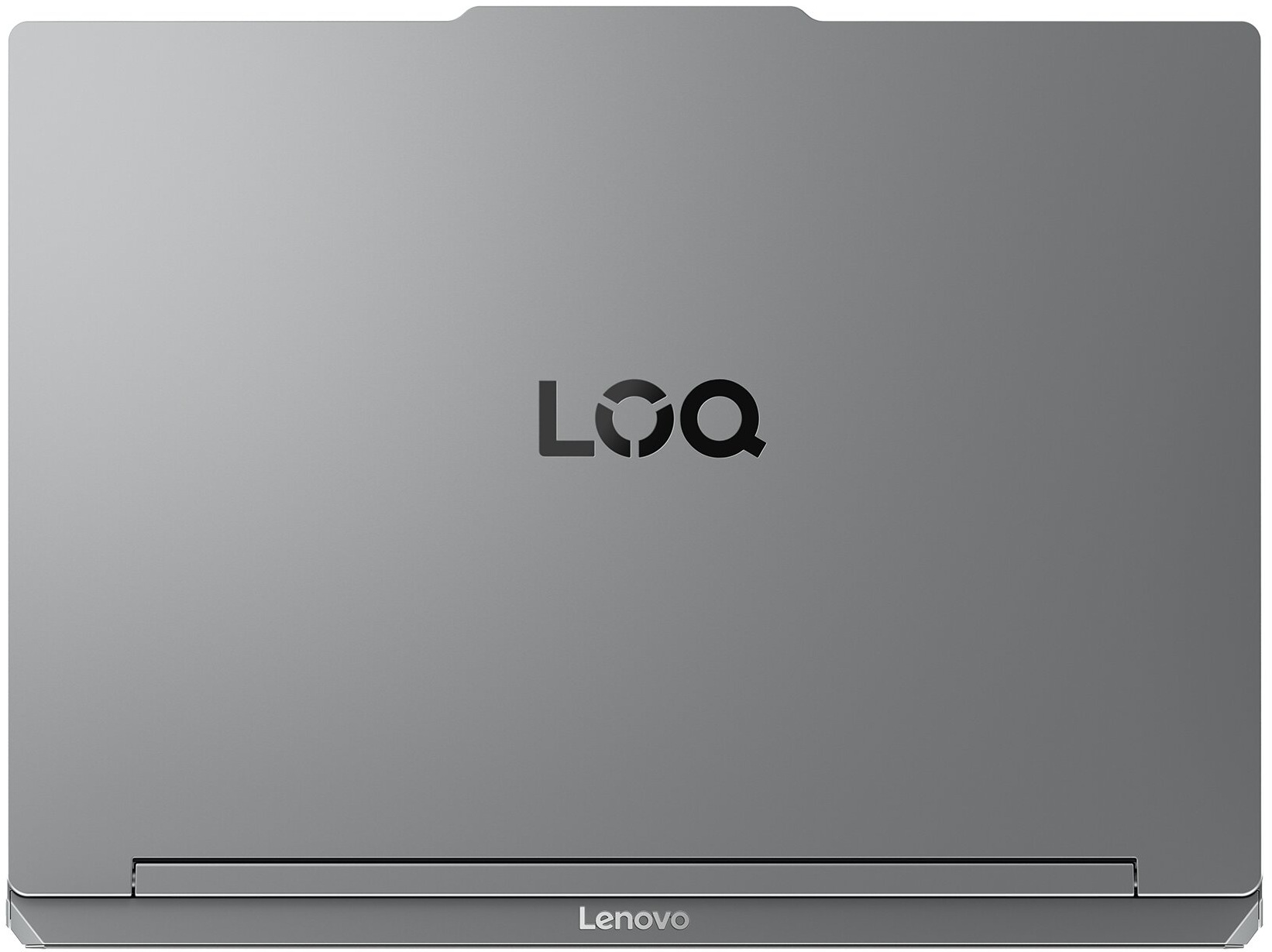
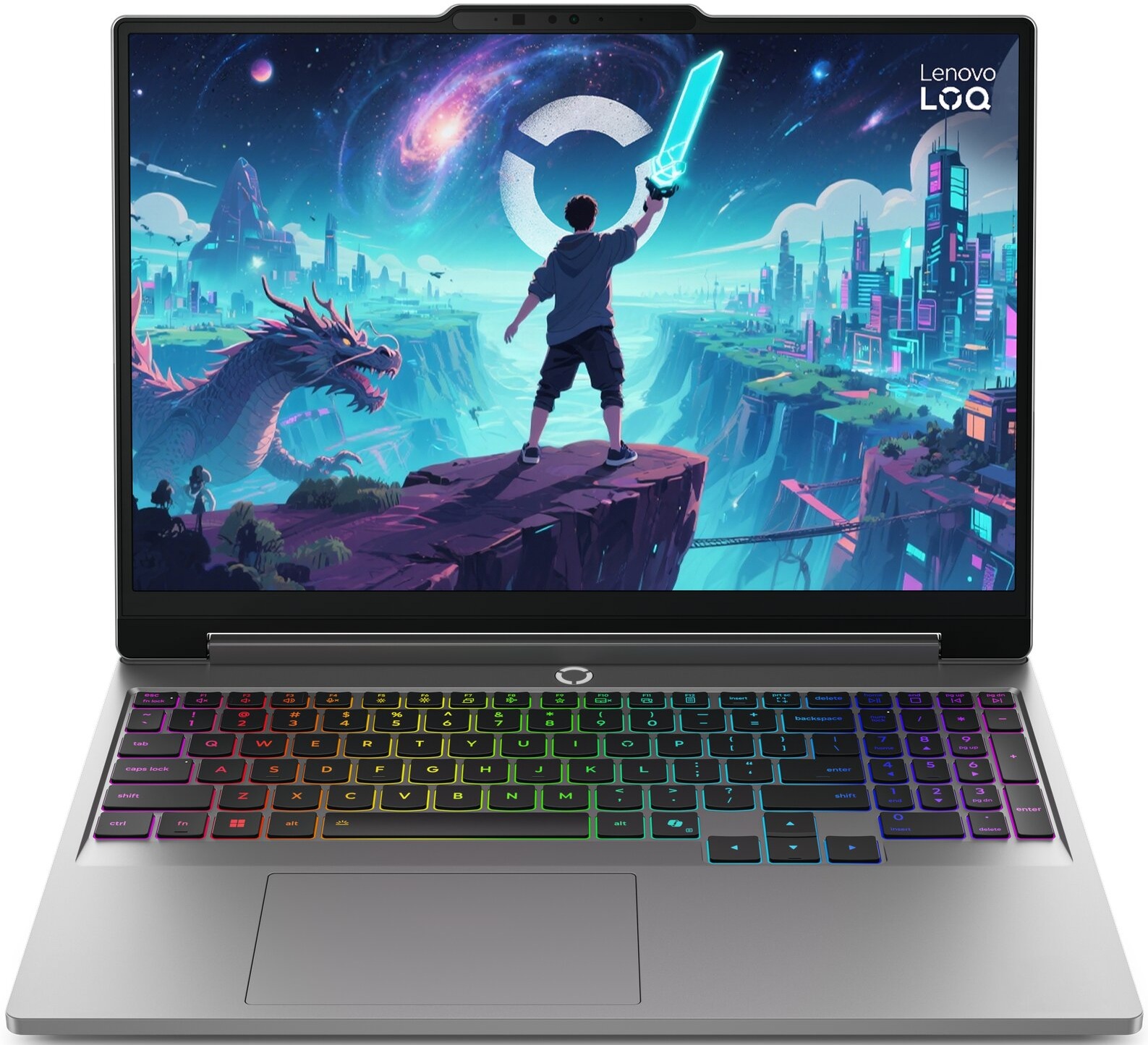
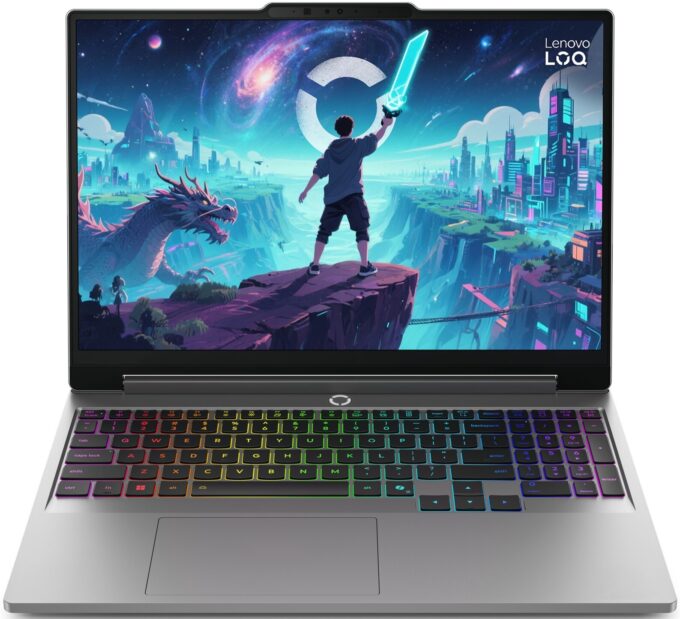
- Date Published: 22 Jun 2026
- Intel Core Ultra 7 355
- NVIDIA GeForce RTX 5050 (Laptop)
- 15.3”, WUXGA (1920 x 1200), 165 Hz, IPS
- 512GB SSD
- 16GB RAM
- 2.10 kg (4.6 lbs)
Review
Lenovo LOQ 15 (15IPH11, Gen 11) in-depth review
The budget gaming laptop market is usually a minefield of hot, loud, and plasticky machines, but the Lenovo LOQ 15 (Gen 11, 15IPH11) wants to change that narrative.Aimed squarely at budget-conscious gamers who also need a reliable daily driver for school or work, this entry-level machine makes a stellar first impression with its mature, stealthy "Luna Grey" chassis that completely avoids aggressive gaming clichés. But what truly surprised us during our lab tests was the astonishingly cool thermals. The cooling system is so incredibly effective that the CPU and GPU barely break a sweat under heavy gaming load, allowing for highly stable, throttling-free frame rates. Combine that with a fantastic, eye-friendly 165Hz PWM-free display, and it’s deeply impressive.However, it’s not witho[...]
Read the full review
Pros
- Excellent CPU and GPU temperatures under heavy load
- High-wattage RTX 5050 implementation with strong sustained gaming performance
- PWM-free 165Hz IPS display with 99% sRGB coverage
- Very good color accuracy with our Design and Office profile
- Comfortable keyboard with full-sized, separated arrow keys and a NumPad
- Practical rear-port layout with Thunderbolt 4
- Solid-feeling plastic chassis that resists fingerprints well
- Two user-accessible RAM slots and two M.2 SSD slots
Cons
- Secondary M.2 SSD slot is limited to PCIe 4.0 x2 speeds
- Core Ultra 7 355 is not ideal for heavy multi-core workloads
- No fingerprint reader; IR camera availability depends on the configuration
- Wi-Fi 6 only, with no Wi-Fi 6E or Wi-Fi 7 support
Disassembly, maintenance and upgrade options
Step 1: Removing the bottom panelPower off the laptop and place it on a soft, clean surface. Undo the 10 screws securing the bottom panel. Keep the first four screws separated, because they are shorter than the rest. Use a thin plastic pry tool to carefully release the clips around the perimeter. Work patiently and avoid pushing the tool too deeply inside the chassis, as the clips are tight and internal components sit close to the cover. Lift the bottom panel away from the laptop.More info: Once inside, the layout is easy to understand, with the battery along the fr[...]
Read more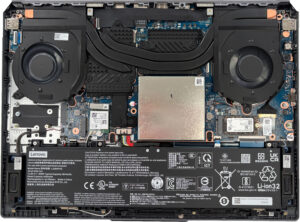


![[June 2026] Best-Selling Laptop Brands on Amazon Global – Apple’s Unrivaled Dominance in Units and Revenue](https://laptopmedia.com/wp-content/uploads/2026/07/GLOBAL-Best-Brands-400x225.jpg)
![[June 2026] Amazon Global: Top 10 Best-Selling Laptops – Apple’s New MacBook Neo Storms to #1, Reshaping the Market with Affordability](https://laptopmedia.com/wp-content/uploads/2026/07/Best-Selling-Laptops-GLOBAL-Top-10-400x225.jpg)
![[June 2026] Amazon Global: Top 10 Best-Selling Gaming Laptops – Acer’s Nitro V 16S AI Dominates Sales, While ASUS Leads Overall Revenue](https://laptopmedia.com/wp-content/uploads/2026/07/Best-Selling-Gaming-Laptops-GLOBAL-Top-10-400x225.jpg)
![[June 2026] Global Ranking of Best-Selling Laptop GPUs on Amazon – NVIDIA RTX 5060 is the Top-Selling Dedicated GPU](https://laptopmedia.com/wp-content/uploads/2026/07/Best-Selling-GPUs-GLOBAL-Top-10-400x225.jpg)
![[June 2026] Global Ranking of Best-Selling Laptop CPUs on Amazon – Apple M5 Dominates, AMD Ryzen 7 260 Gets Solid Premium Share](https://laptopmedia.com/wp-content/uploads/2026/07/Best-Selling-CPUs-GLOBAL-Top-10-400x225.jpg)
