ASUS Vivobook Pro 15 OLED (N6506) review – Killer Display, Lasting Battery, Minor Compromises
Display quality, Health impact (PWM), Sound
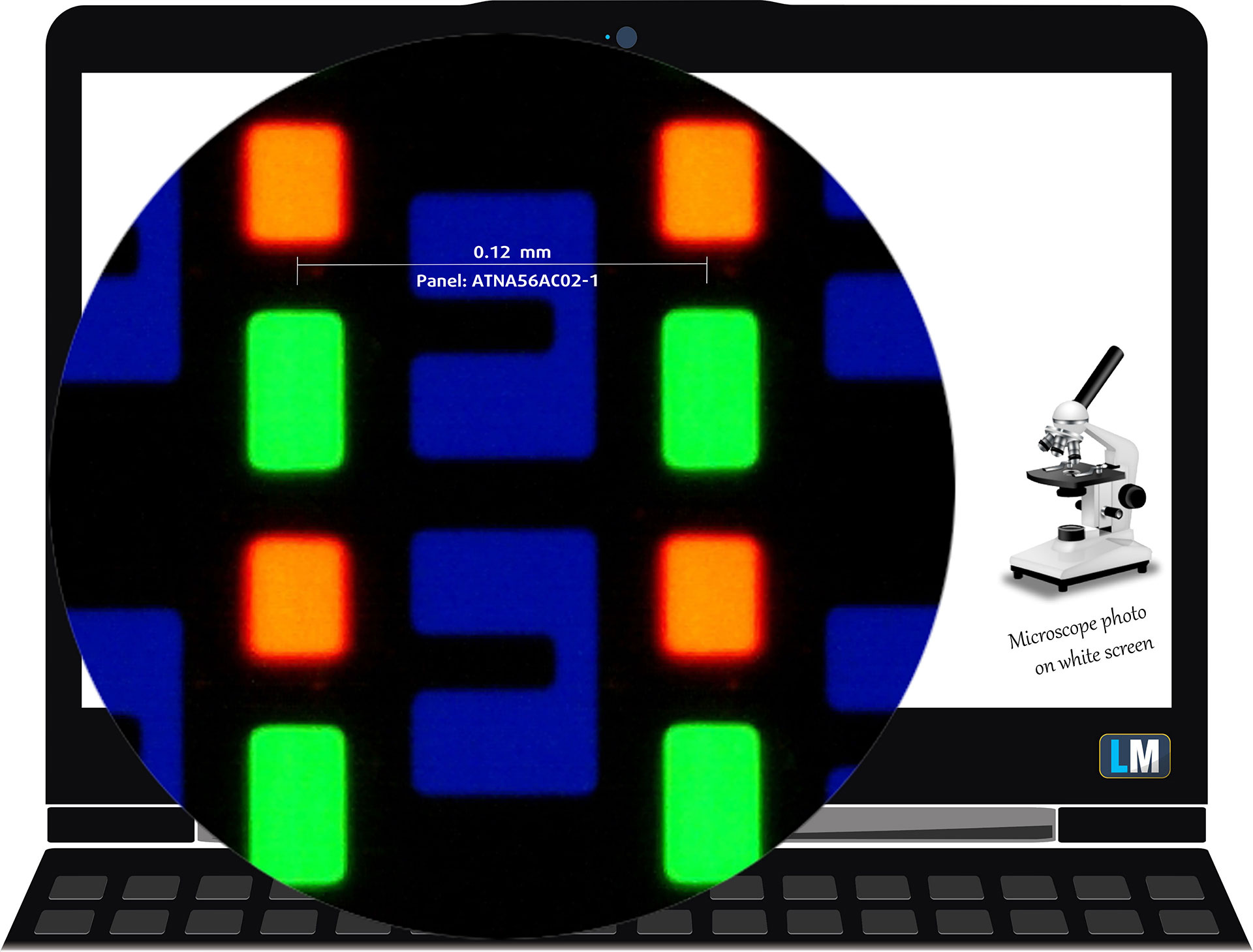
ASUS Vivobook Pro 15 OLED (N6506) is equipped with an OLED panel, model number Samsung ATNA56AC02-1 (SDC4180). It comes with a 120Hz refresh rate and 10-bit color support (10-bit color depth). Its diagonal is 15.6″ (39.6 cm), and the resolution – 2880 x 1620p. Additionally, the screen ratio is 16:9, the pixel density – 212 ppi, and their pitch – 0.12 x 0.12 mm. The screen can be considered Retina when viewed from at least 40 cm which is excellent for a laptop (from this distance, the average human eye can’t see the individual pixels).
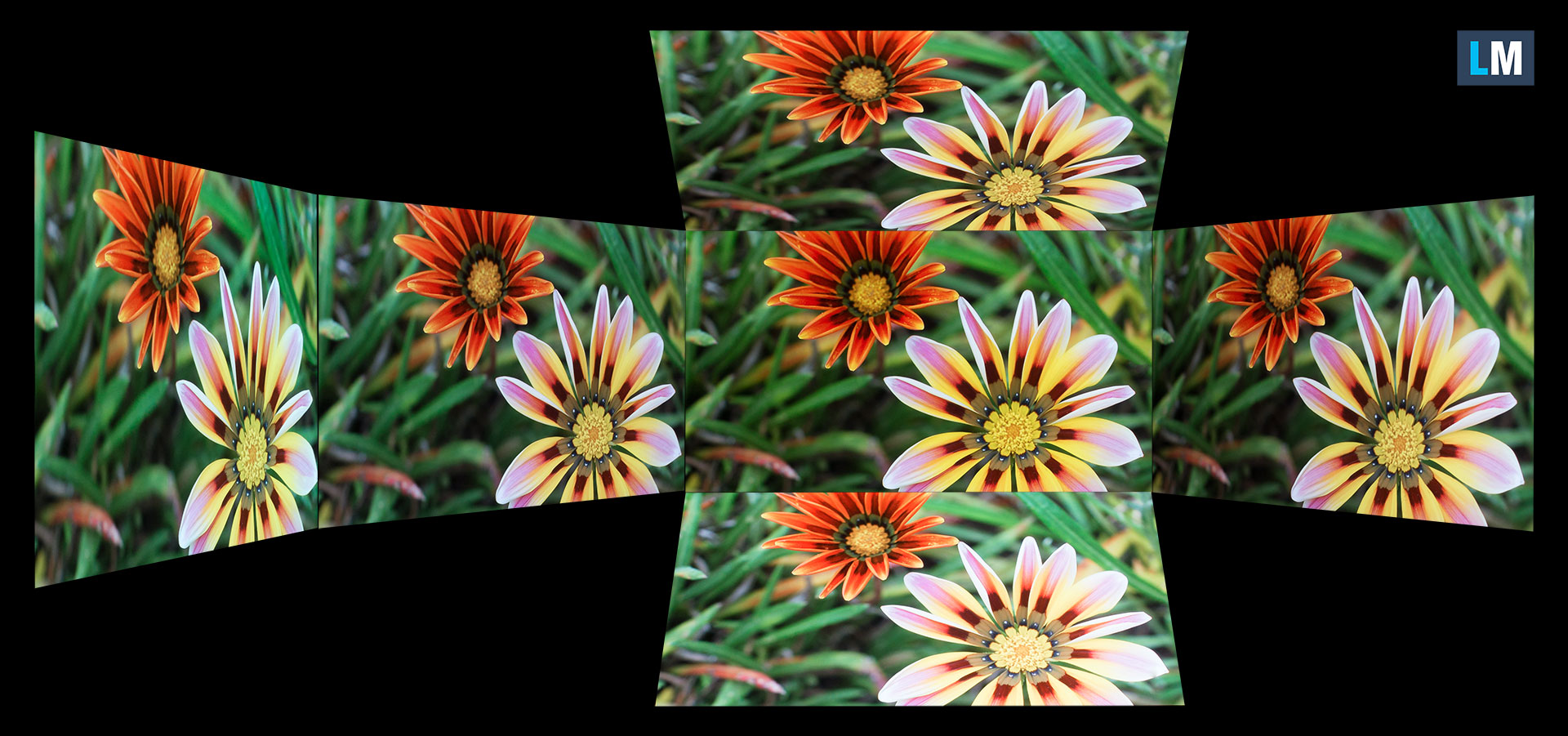
Viewing angles are good. We offer images at different angles to evaluate the quality.
Also, a video with locked focus and exposure.
The maximum measured brightness is 397 nits (cd/m2) in the middle of the screen (HDR off) and 394 nits (cd/m2) average across the surface with a maximum deviation of 3%. The Correlated Color Temperature on a white screen and at maximum brightness is 6480K („Splendid“ – „Native“ ;„Normal“ mode in „MyASUS“ app).
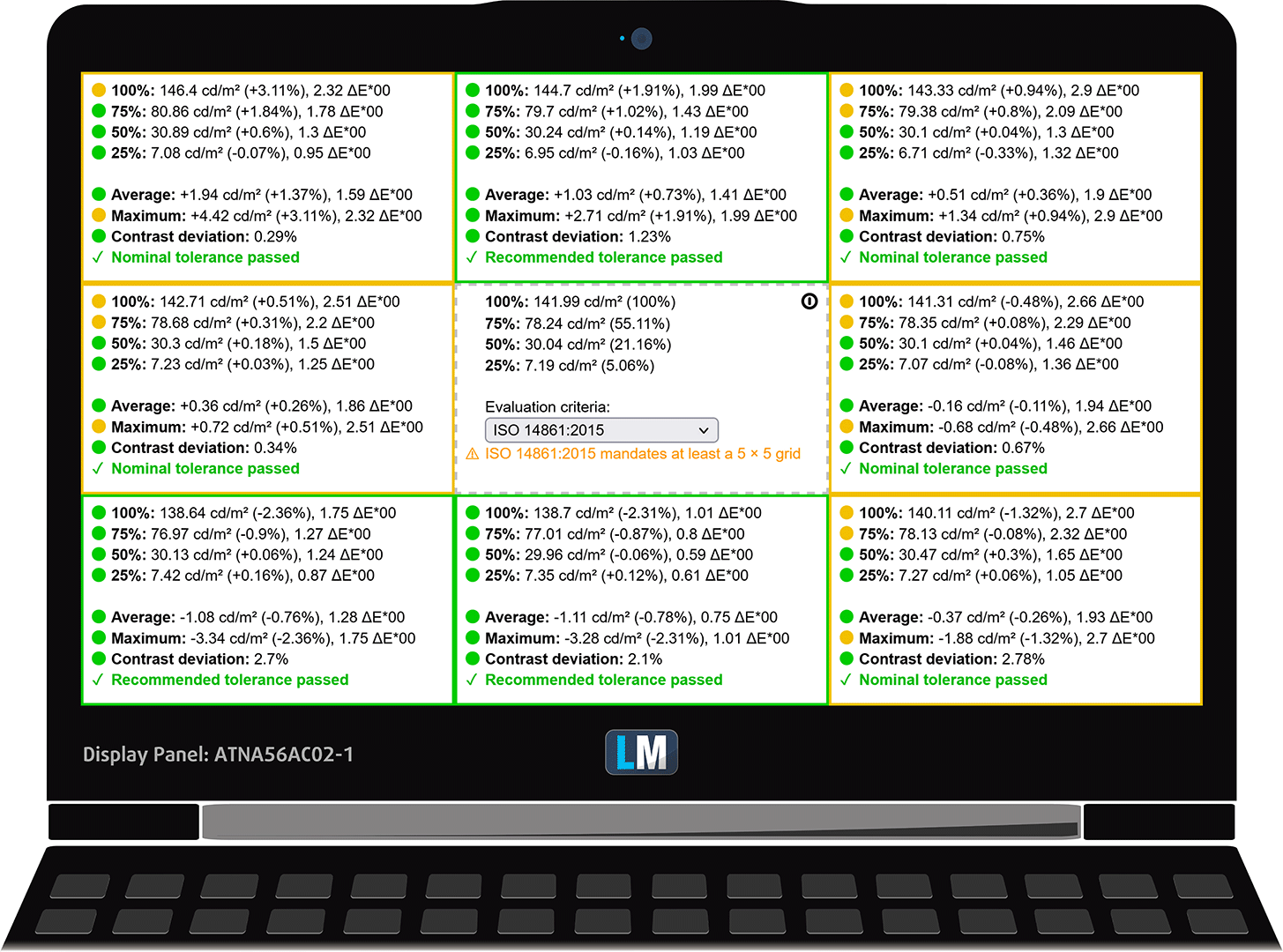
In the illustration below you can see how the display performs from a uniformity perspective. The illustration below shows how matters are for operational brightness levels (approximately 140 nits).
Values of dE2000 over 4.0 should not occur, and this parameter is one of the first you should check if you intend to use the laptop for color-sensitive work (a maximum tolerance of 2.0 ). The contrast ratio of OLED panels is practically infinite, due to their ability to turn off black pixels entirely.
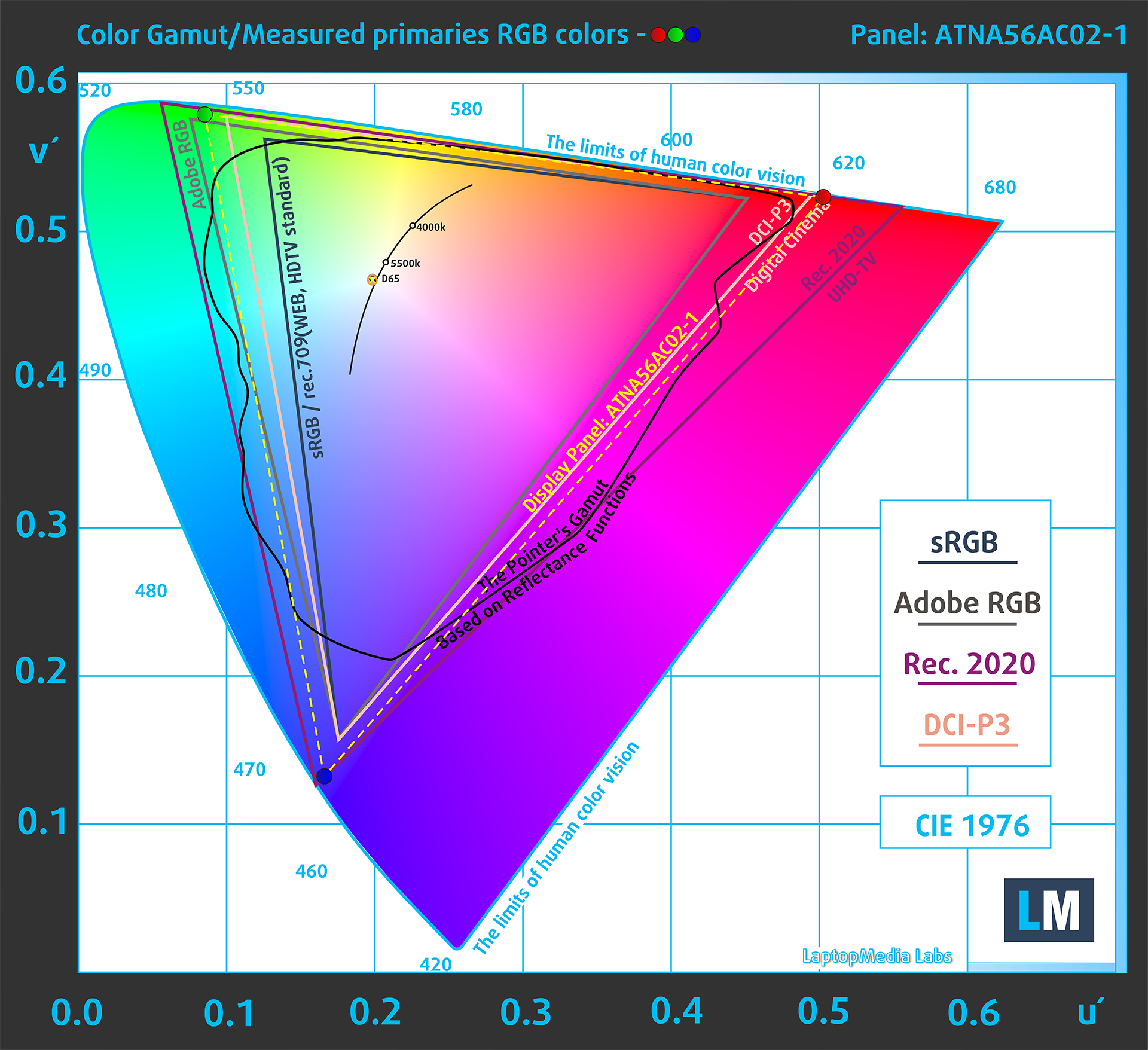
To make sure we are on the same page, we would like to give you a little introduction to the sRGB color gamut and the Adobe RGB. To start, there’s the CIE 1976 Uniform Chromaticity Diagram that represents the visible specter of colors by the human eye, giving you a better perception of the color gamut coverage and the color accuracy.
Inside the black triangle, you will see the standard color gamut (sRGB) that is being used by millions of people on HDTV and on the web. As for the Adobe RGB, this is used in professional cameras, monitors, etc for printing. Basically, colors inside the black triangle are used by everyone and this is the essential part of the color quality and color accuracy of a mainstream notebook.
Still, we’ve included other color spaces like the famous DCI-P3 standard used by movie studios, as well as the digital UHD Rec.2020 standard. Rec.2020, however, is still a thing of the future and it’s difficult for today’s displays to cover that well. We’ve also included the so-called Michael Pointer gamut, or Pointer’s gamut, which represents the colors that naturally occur around us every day.
The yellow dotted line shows ASUS Vivobook Pro 15 OLED (N6506)’s color gamut coverage.
Its display covers 100% of the sRGB/ITU-R BT.709 (web/HDTV standard) in CIE1976, and 100% of DCI-P3, ensuring a super vibrant and attractive picture.
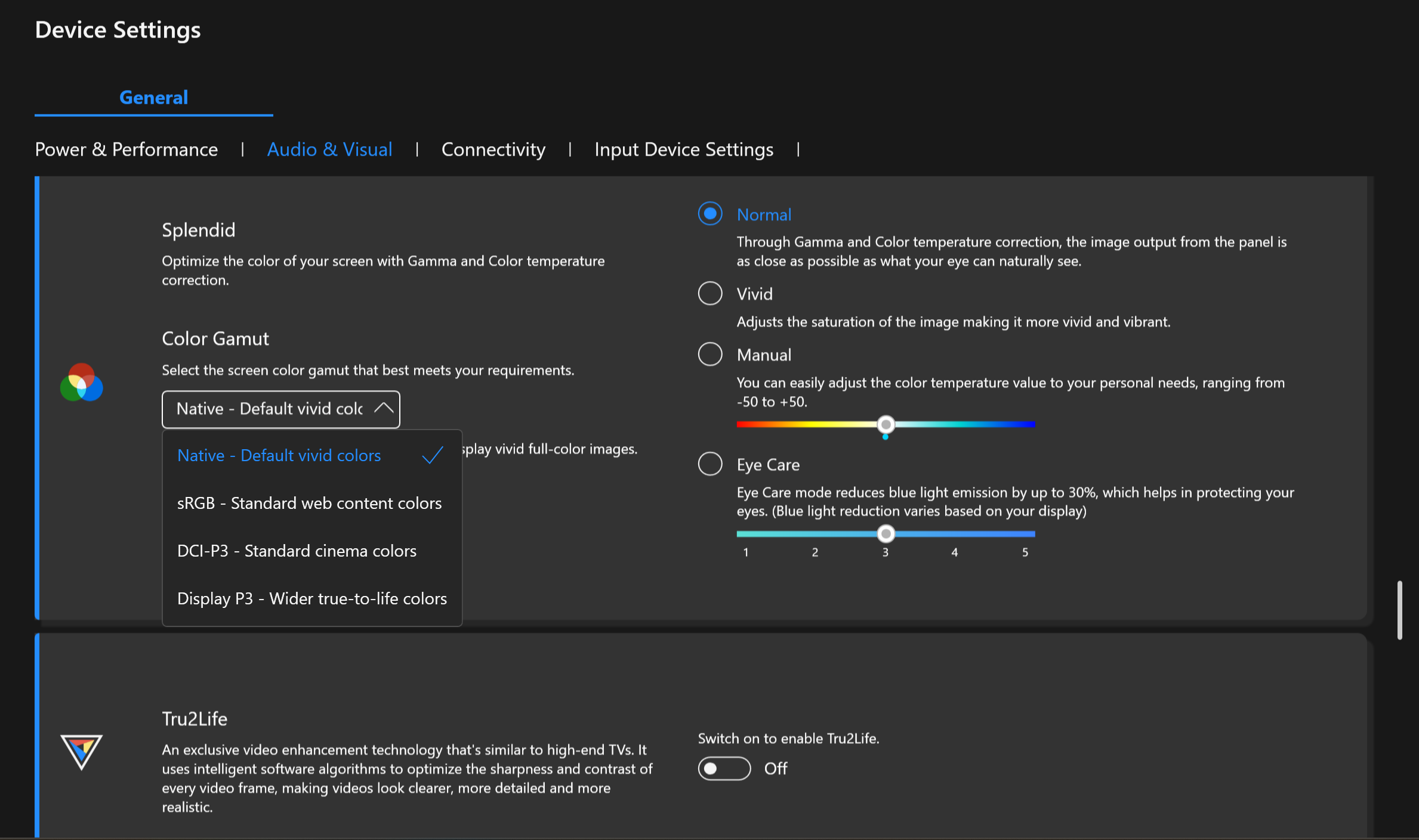
The “MyASUS” app also emulates the DCI-P3 and the sRGB color spaces.
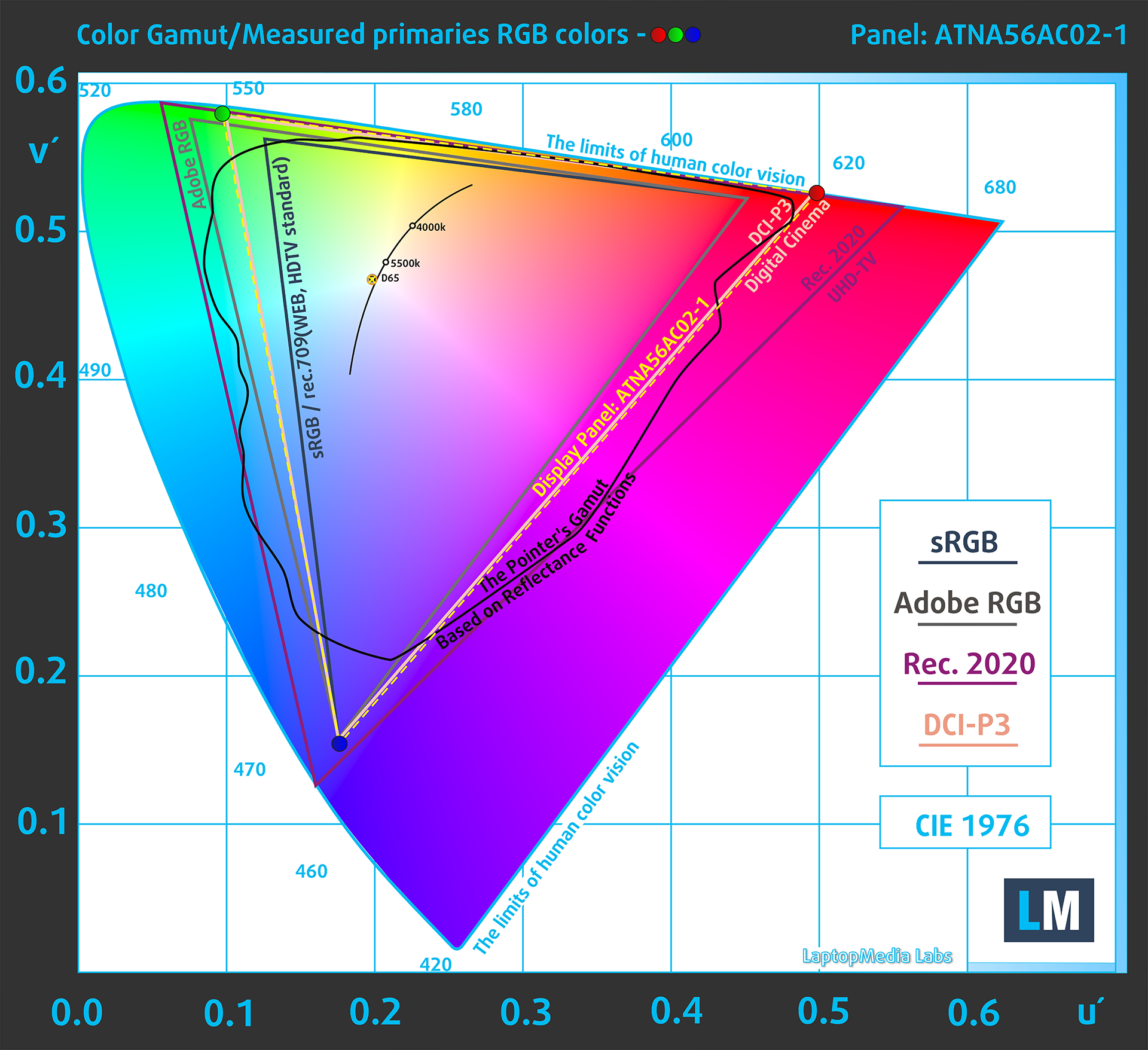
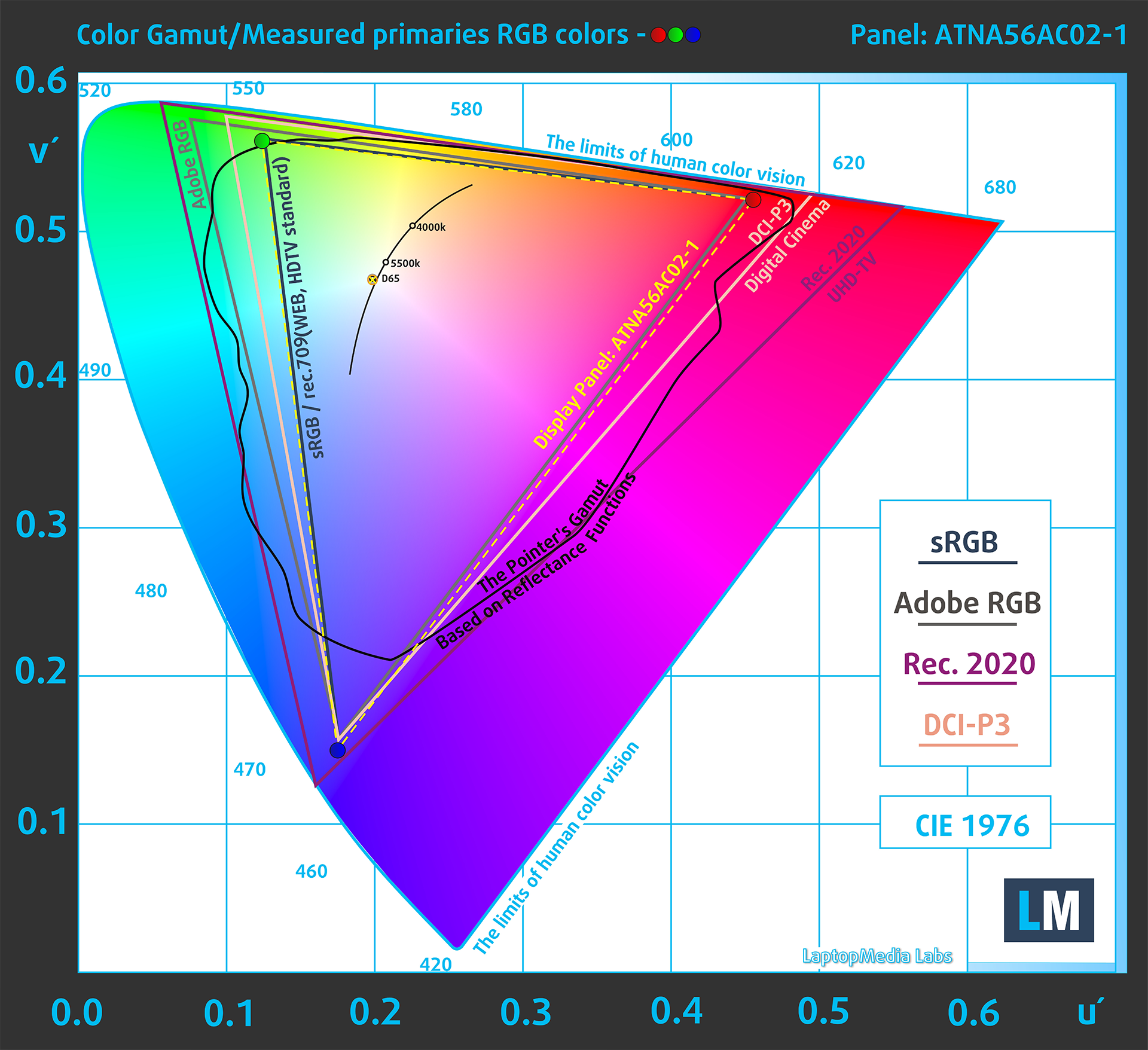
We tested the accuracy of the display with 24 commonly used colors like light and dark human skin, blue sky, green grass, orange, etc.
Below you can compare the scores of the ASUS Vivobook Pro 15 OLED (N6506) with the default settings – HDR off, „Splendid“ – Color Gamut: „Display P3“, „Normal“ mode compared to P3-D65 (Display) color space.
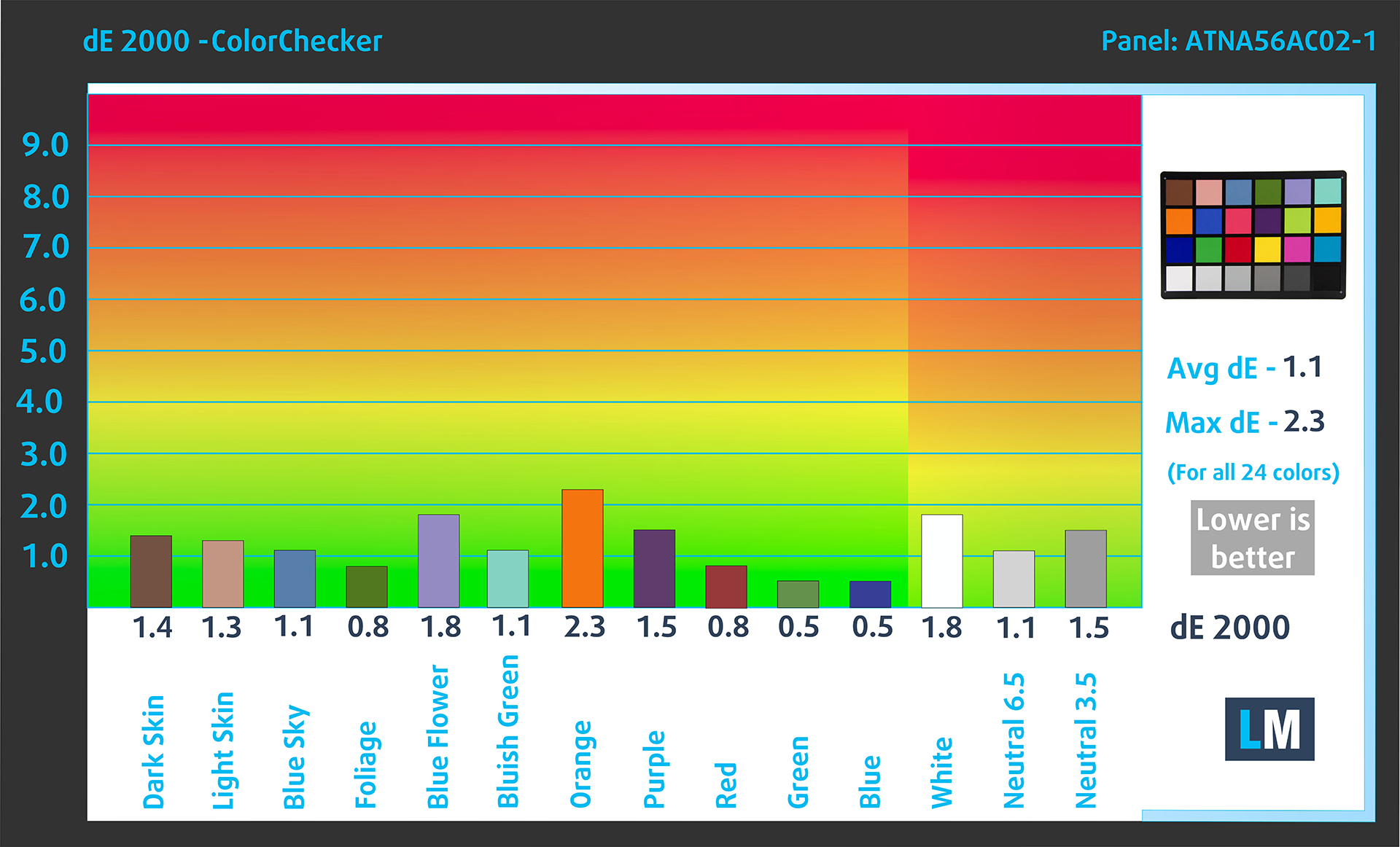
Also, you can see the sRGB accuracy results (HDR off, „Splendid“ – Color Gamut: „sRGB“, „Normal“ mode).
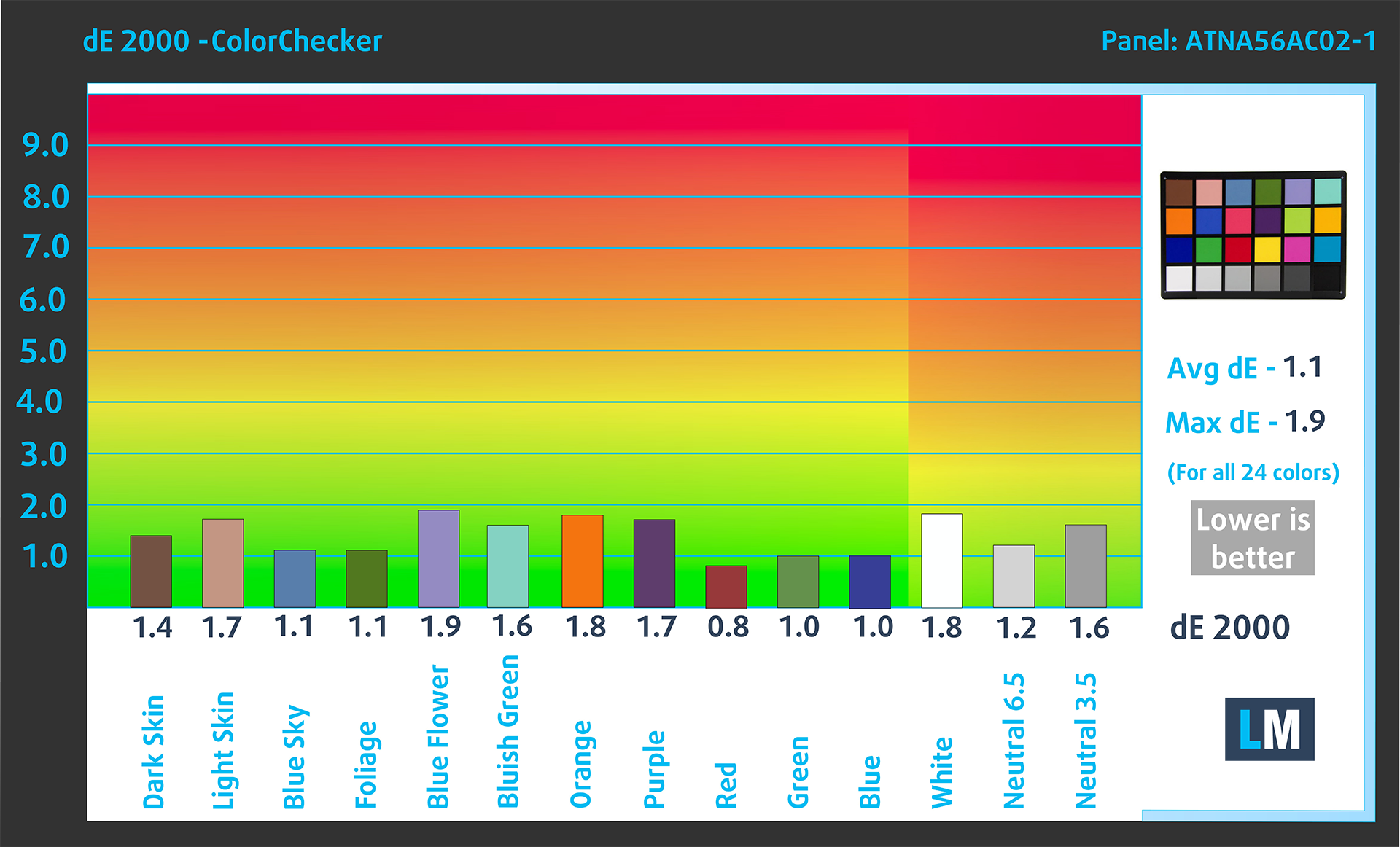
ASUS engineers have successfully enhanced the display capabilities of ASUS Vivobook Pro 15 OLED (N6506), making it suitable for various use cases such as Web design, pre-press design, video editing, etc.
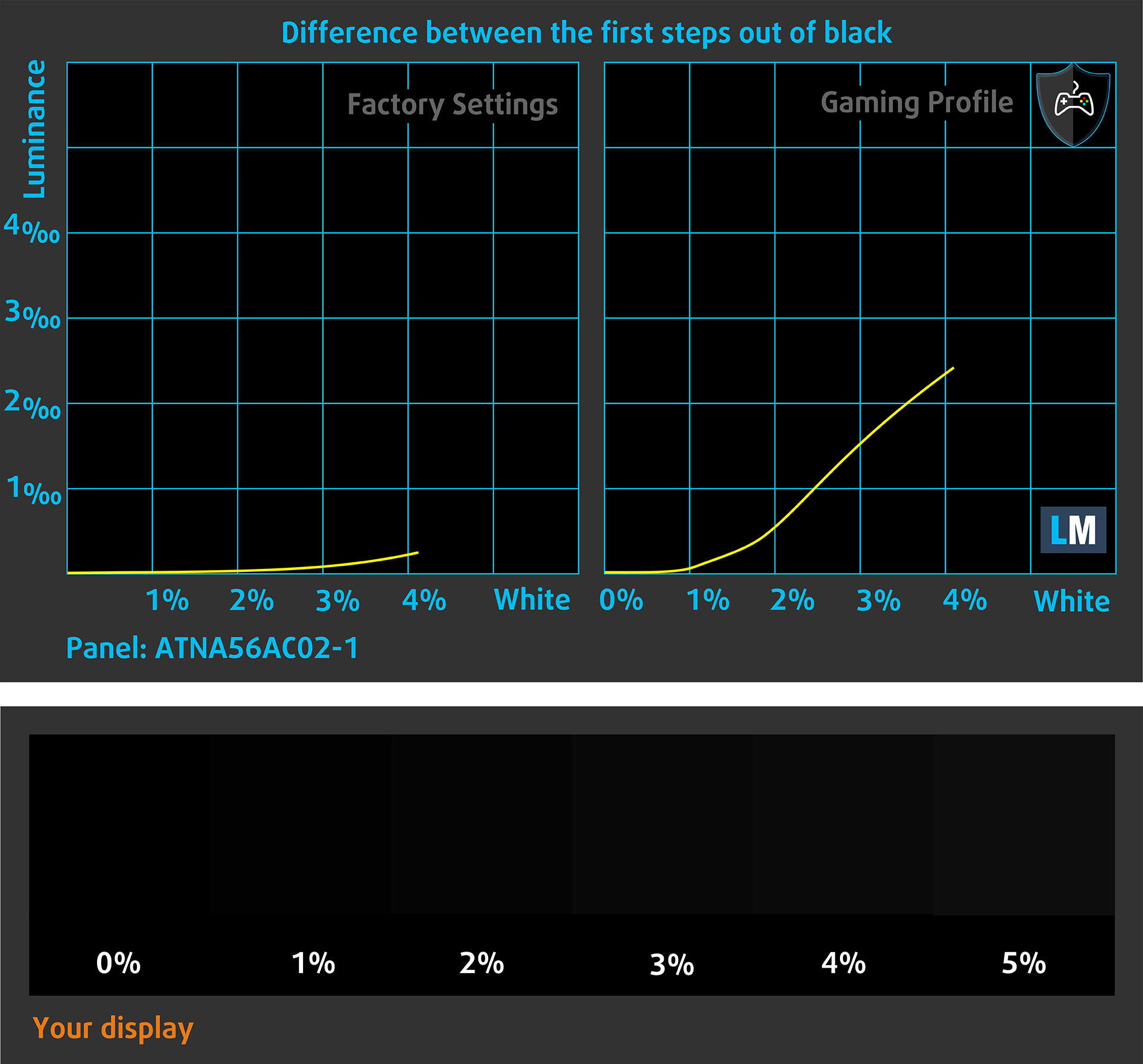
The next figure shows how well the display is able to reproduce really dark parts of an image, which is essential when watching movies or playing games in low ambient light. (HDR Off)
The left side of the image represents the display with stock settings, while the right one is with the “Gaming and Web Design” profile activated. On the horizontal axis, you will find the grayscale, and on the vertical axis – the luminance of the display. On the two graphs below you can easily check for yourself how your display handles the darkest nuances but keep in mind that this also depends on the settings of your current display, the calibration, the viewing angle, and the surrounding light conditions.
Health Impact: PWM (Screen flickering)
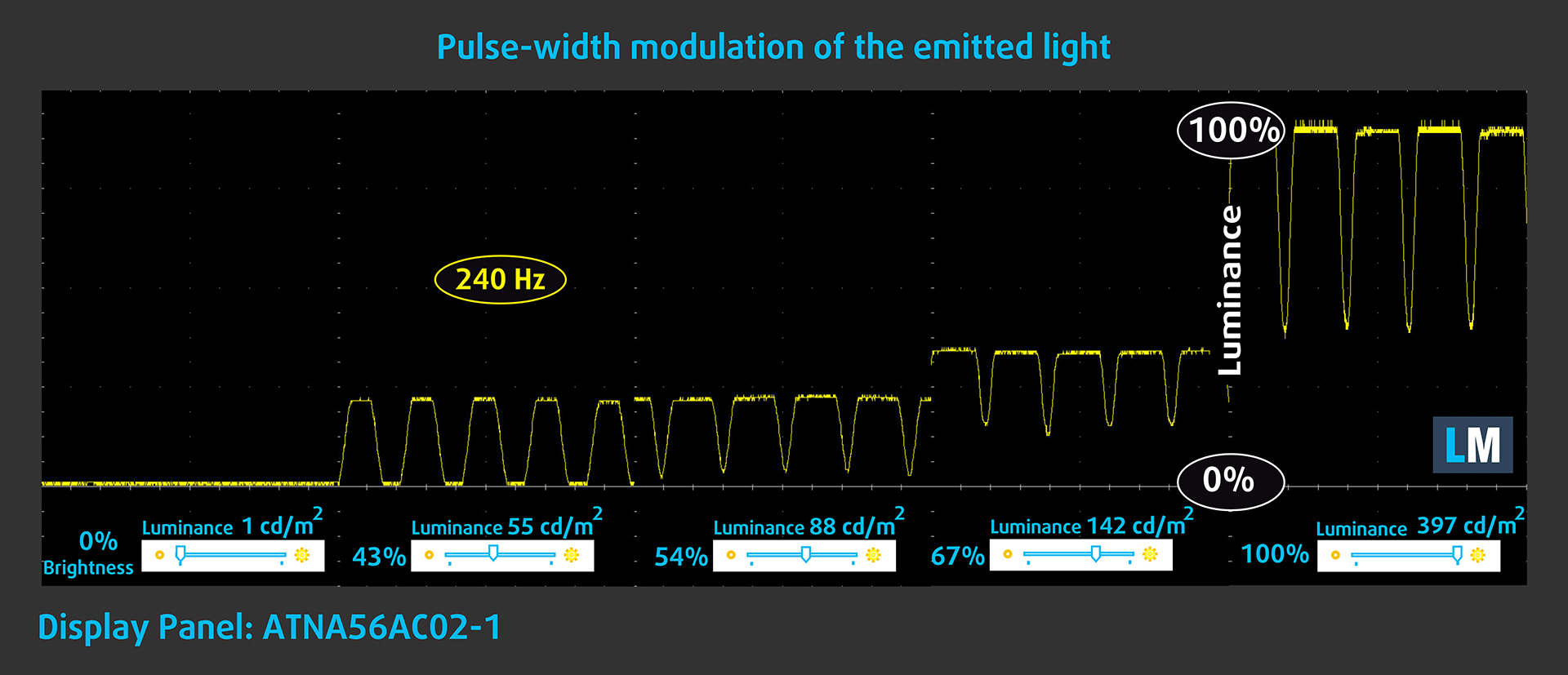
Pulse-width modulation (PWM) is an easy way to control monitor brightness. When you lower the brightness, the light intensity of the display is not lowered, but instead turned off and on by the electronics with a frequency indistinguishable to the human eye. In these light impulses, the light/no-light time ratio varies, while brightness remains unchanged, which is harmful to your eyes. You can read more about that in our dedicated article on PWM.
ASUS Vivobook Pro 15 OLED (N6506)’s display uses PWM up until only 90 nits. Above that, we see pulsations with limited amplitude (the “Flicker-Free Dimming” function in the MyASUS app eliminates the issue). This makes the panel relatively comfortable to use in this aspect.
Health Impact: Blue light emissions
Installing our Health-Guard profile not only eliminates PWM but also reduces the harmful Blue Light emissions while keeping the colors of the screen perceptually accurate. If you’re not familiar with the Blue light, the TL;DR version is – emissions that negatively affect your eyes, skin, and your whole body. You can find more information about that in our dedicated article on Blue Light.
Health Impact: Gloss-level measurement
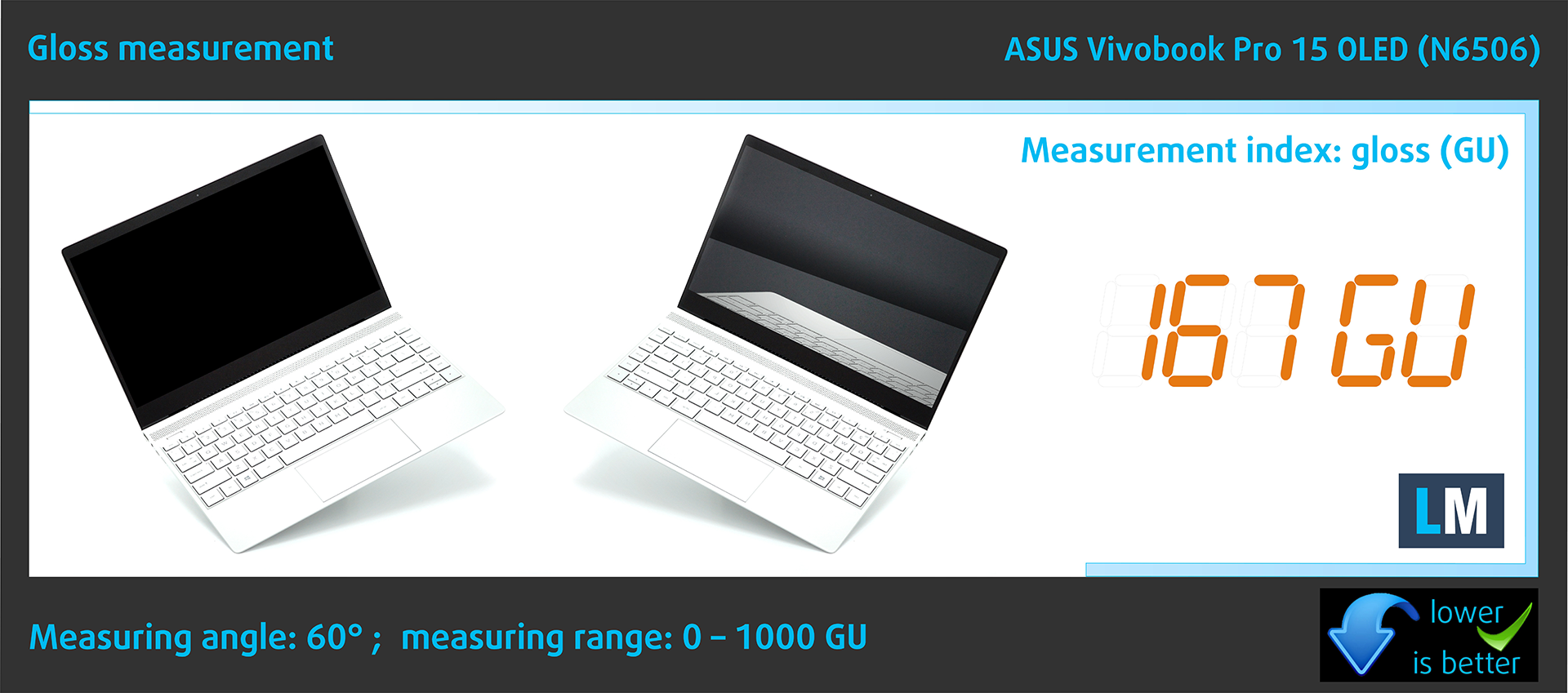
Glossy-coated displays are sometimes inconvenient in high ambient light conditions. We show the level of reflection on the screen for the respective laptop when the display is turned off and the measurement angle is 60° (in this case, the result is 167 GU).
Sound
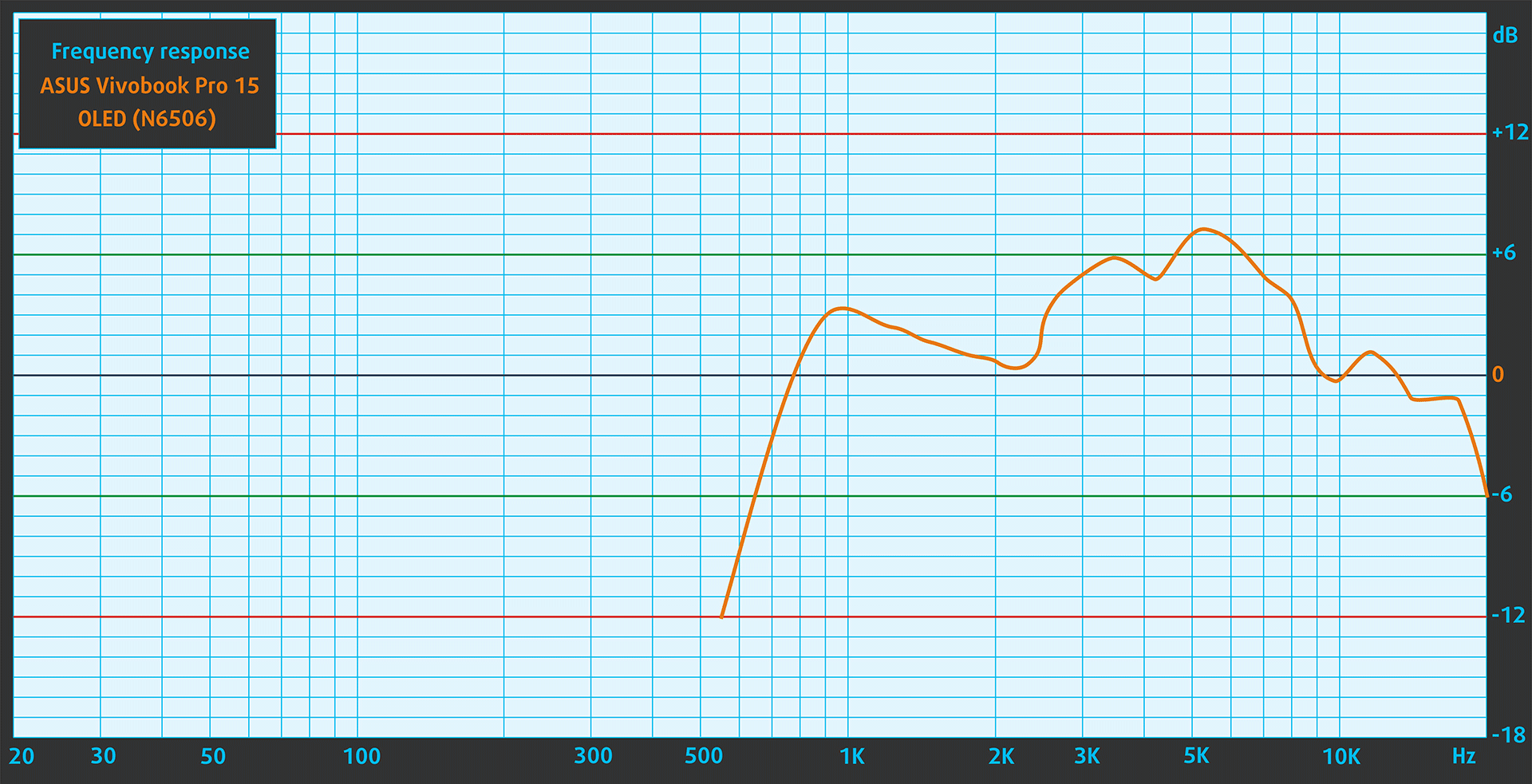
ASUS Vivobook Pro 15 OLED (N6506)’s “Harman Kardon” speakers produce a sound of very good quality. Furthermore, the low, mid, and high tones are clear of deviations.
 Author: Nikolay Palaozov
 Author: eng. Kroum NikolovHead of Engineering at LaptopMedia.com, inventor and innovator with 40+ years of experience in electronics and high technology.

![[June 2026] Best-Selling Laptop Brands on Amazon Global – Apple’s Unrivaled Dominance in Units and Revenue](https://laptopmedia.com/wp-content/uploads/2026/07/GLOBAL-Best-Brands-400x225.jpg)
![[June 2026] Amazon Global: Top 10 Best-Selling Laptops – Apple’s New MacBook Neo Storms to #1, Reshaping the Market with Affordability](https://laptopmedia.com/wp-content/uploads/2026/07/Best-Selling-Laptops-GLOBAL-Top-10-400x225.jpg)
![[June 2026] Amazon Global: Top 10 Best-Selling Gaming Laptops – Acer’s Nitro V 16S AI Dominates Sales, While ASUS Leads Overall Revenue](https://laptopmedia.com/wp-content/uploads/2026/07/Best-Selling-Gaming-Laptops-GLOBAL-Top-10-400x225.jpg)
![[June 2026] Global Ranking of Best-Selling Laptop GPUs on Amazon – NVIDIA RTX 5060 is the Top-Selling Dedicated GPU](https://laptopmedia.com/wp-content/uploads/2026/07/Best-Selling-GPUs-GLOBAL-Top-10-400x225.jpg)
![[June 2026] Global Ranking of Best-Selling Laptop CPUs on Amazon – Apple M5 Dominates, AMD Ryzen 7 260 Gets Solid Premium Share](https://laptopmedia.com/wp-content/uploads/2026/07/Best-Selling-CPUs-GLOBAL-Top-10-400x225.jpg)

Does the laptop support the installing of a 32GB stick of memory in the sodimm slot or intalling it results in the system not booting up, not recognize the memory or behave strangely? On the zephyrus g14 2022 Asus claims a maximum memory of 32GB but I knew of people reaching 48GB with no problem changing the 16GB stick with a 32GB one.
Thank you in advance.
According to ASUS, the maximum amount of RAM supported is 24GB. However, since the CPU can support up to 96GB, the Vivobook Pro 15 OLED likely wouldn’t have issues running with up to 56GB of DDR5-5600MHz RAM (8GB soldered + 48GB in the SODIMM slot).
Yes. But 32GB is a 2 rank memory, so the frequency will be lowered to 4800 and the total speed will be around 40GB/s.
Thank you for such a comprehensive review. I would really appreciate if you could incorporate the fan noise for a normal workload – web browsing, movies, etc. This is often left out in favor of fan noise at full load, which is seldom relevant.
How would you categorize the fan noise under normal office work, please?
It’s basically silent, occasionally there is some fan noise but it’s very quiet. Does get very loud sometimes during intensive workloads, but silent mode should do the trick in most cases.
Is the GPU eco mode disabled when the laptop is connected via the power brick? 🙁
With my current asus laptop I usually always have eco mode on even when connected to power to keep my laptop cool (often have it my lap or chest)
For the display what is the max brightness in HDR (small window and full screen)? Also what is the colour accuracy like in HDR?
Measuring color accuracy in HDR mode is more complex and influenced by various external and internal factors, which is why our current measurements are limited to SDR mode. Additionally, manufacturers typically prioritize more attractive picture over color accuracy in HDR. If you aim for the most realistic colors, working in SDR mode is the better option.
Regarding the size of the white window when measuring screen brightness, we’ve conducted tests with both 10% fill and fullscreen fill. In both cases, the max brightness was similar, just below 400 nits.
Did you really get 25 hours of browser time or is that a mistake?
I have this laptop at idle on minimum brightness consumes about 9 watts, that is about 8 hours of idle time with no applications running.
Any activity increases the consumption and the actual browser time is about 6 hours.
But I have a second module 32 GB, maybe the reason is this, or the drivers are not installed correctly. Installed different Windows builds several times, different drivers – nothing helps.
Hi,
I have this laptop, and with browsing on chrome, I only get 2-3 hours. Could you tell me what settings you are using?
Even though they said 25 hours, 6 hours is still better than the 3 hours that I’m getting.
I’m on silent mode, and it’s fairly new. I usually just use google docs and some other websites like amazon, makerworld, but nothing super power intensive.
Thank you!!
Just use Optimal Operation mode to disconnect Nvidia from the battery (this is crucial) and Standard or Quiet cooler mode.
If only 2-3 hours in this case as well,
1. Look in Task Manager to see which applications are loading the CPU and/or graphics card
2. Install drivers for your laptop from the official Asus website, because other, even newer drivers not from Asus may not work correctly.
Thank you so much for your helpful response! I looked in the Task Manager and found that a few background apps like steam were using a lot of resources, so I just closed out of them, and with a few chrome tabs, I also let MyASUS auto install some drivers, and I’m getting much better battery life! (Nvidia was already disconnected and quiet mode was on before.)
Thanks for your help! I’m getting around an estimate of around 5 hours, seeing that I lost around 50 percent after 3 hours.
Hi,
Please tell me how you got it to 25 hours of battery life!!! I can’t even get 3 hours on this thing and I’m just doing basic web browsing with google docs!
Anything helps!!
Thank you so much!