ASUS Vivobook Pro 15 OLED (N6506) review – Killer Display, Lasting Battery, Minor Compromises
Temperatures and comfort, Battery Life, Performance presets comparison
Max CPU load
In this test we use 100% on the CPU cores, monitoring their frequencies and chip temperature. The first column shows a computer’s reaction to a short load (2-10 seconds), the second column simulates a serious task (between 15 and 30 seconds), and the third column is a good indicator of how good the laptop is for long loads such as video rendering.
Average P-core frequency; Average E-core frequency; Average LP E-core frequency; CPU temp.; Package Power
| Intel Core Ultra 9 185H (28W Base Power) | 0:02 – 0:10 sec | 0:15 – 0:30 sec | 10:00 – 15:00 min |
|---|---|---|---|
| ASUS Vivobook Pro 15 OLED (N6506) “Full-speed fan mode” | 3.79 GHz @ 3.25 GHz @ 2.16 GHz @ 91°C @ 114W | 3.16 GHz @ 2.85 GHz @ 2.49 GHz @ 95°C @ 86W | 3.26 GHz @ 2.57 GHz @ 1.70 GHz @ 73°C @ 65W |
| ASUS Vivobook Pro 15 OLED (N6506) “Performance fan mode” | 3.74 GHz @ 3.08 GHz @ 1.88 GHz @ 82°C @ 114W | 3.47 GHz @ 3.22 GHz @ 2.41 GHz @ 94°C @ 106W | 3.02 GHz @ 2.35 GHz @ 1.59 GHz @ 72°C @ 60W |
| ASUS Zenbook DUO (UX8406) | 3.13 GHz @ 2.54 GHz @ 1.68 GHz @ 78°C @ 64W | 2.55 GHz @ 2.25 GHz @ 1.39 GHz @ 90°C @ 53W | 2.09 GHz @ 1.88 GHz @ 1.00 GHz @ 78°C @ 35W |
The optional Core Ultra 9 185H can maintain very high clocks in short loads. Interestingly, in medium loads, the frequencies of the P and E cores are higher in “Performance fan mode” compared to the “Full-speed” preset. The temperature in this case is above the 90°C mark but all looks good in the long run – 3.26 GHz for the P cores and 73°C temperature which is a very good result.
Real-life gaming
| NVIDIA GeForce RTX 4060 | GPU frequency/ Core temp (after 2 min) | GPU frequency/ Core temp (after 30 min) |
|---|---|---|
| ASUS Vivobook Pro 15 OLED (N6506) “Full-speed fan mode” | 2540 MHz @ 84°C @ 109W | 2564 MHz @ 82°C @ 108W |
| ASUS Vivobook Pro 15 OLED (N6506) “Performance fan mode” | 2247 MHz @ 76°C @ 85W | 2306 MHz @ 76°C @ 89W |
| Lenovo Legion 5i (16, Gen 9) | 2715 MHz @ 73°C @ 111W | 2715 MHz @ 71°C @ 110W |
| Acer Nitro 16 (AN16-41) | 2580 MHz @ 68°C @ 102W | 2595 MHz @ 66°C @ 102W |
| Acer Nitro 17 (AN17-51) “Turbo” preset | 2520 MHz @ 78°C @ 112W | 2520 MHz @ 81°C @ 111W |
| Acer Nitro 17 (AN17-51) “Performance” preset | 2490 MHz @ 73°C @ 108W | 2490 MHz @ 73°C @ 108W |
| ASUS TUF Gaming A15 (FA507, 2023) | 2520 MHz @ 78°C @ 112W | 2520 MHz @ 81°C @ 111W |
| Lenovo ThinkBook 16p Gen 4 | 2475 MHz @ 76°C @ 107W | 2475 MHz @ 77°C @ 108W |
| HP Victus 16 (16-r0000) | 2520 MHz @ 77°C @ 107W | 2520 MHz @ 76°C @ 107W |
After half an hour of gaming, the GeForce RTX 4060 sustains ~2564MHz core clock and 108W TGP. The frequency is fine given the power limit. Sure, some machines in the table above boast higher frequencies but most of them are gaming devices while the Vivobook Pro 15 OLED (N6506) is meant for content creation and its fans aren’t super noisy.
Let’s have a quick look at the table below which shows a comparison between the two top fan modes that also directly affect the device’s power. As you can see, the difference between the two presets isn’t significant.
| 3DMark Time Spy Graphics score | 3DMark Time Spy CPU score | 3DMark Fire Strike Graphics score | Unigine Superposition score | Cinebench R23 Multi Core result | Cinebench R24 Multi Core result | Photoshop (lower is better) | |
|---|---|---|---|---|---|---|---|
| “Full-speed fan mode” | 10645 (+6%) | 11845 (+1%) | 26489 (+2%) | 6215 (+7%) | 19611 (+2%) | 1028 | 4.60 sec (-1%) |
| “Performance fan mode” | 10010 | 11702 | 25877 | 5828 | 19279 | 1025 | 4.63 sec |
Gaming comfort
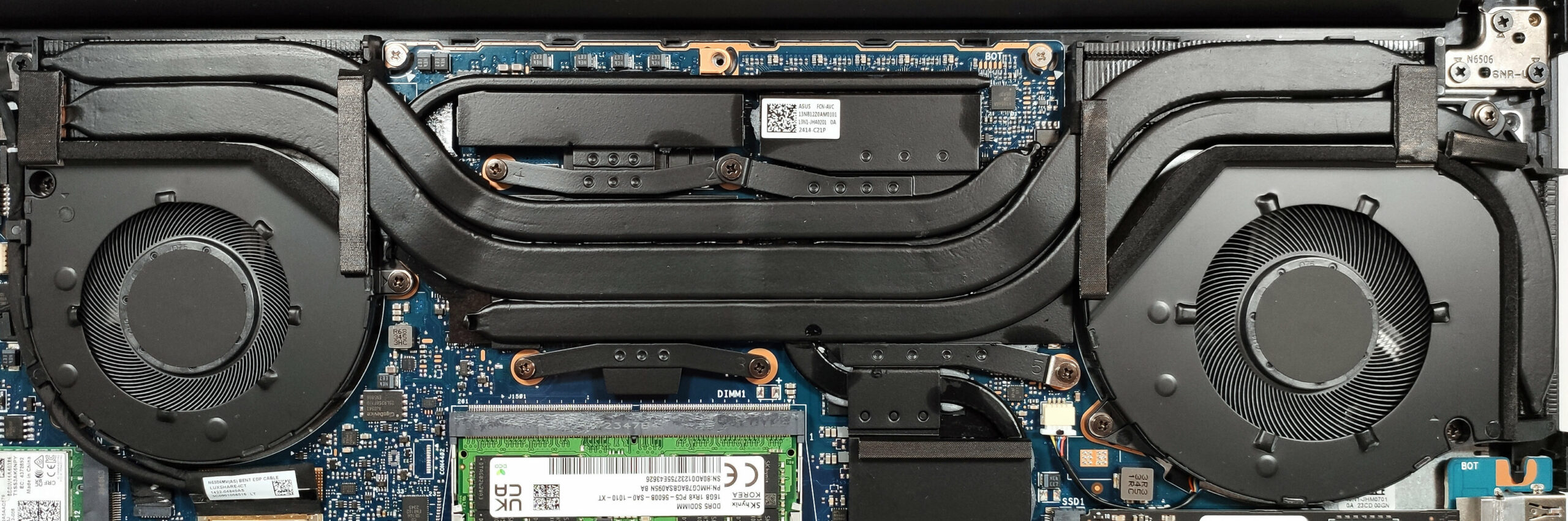
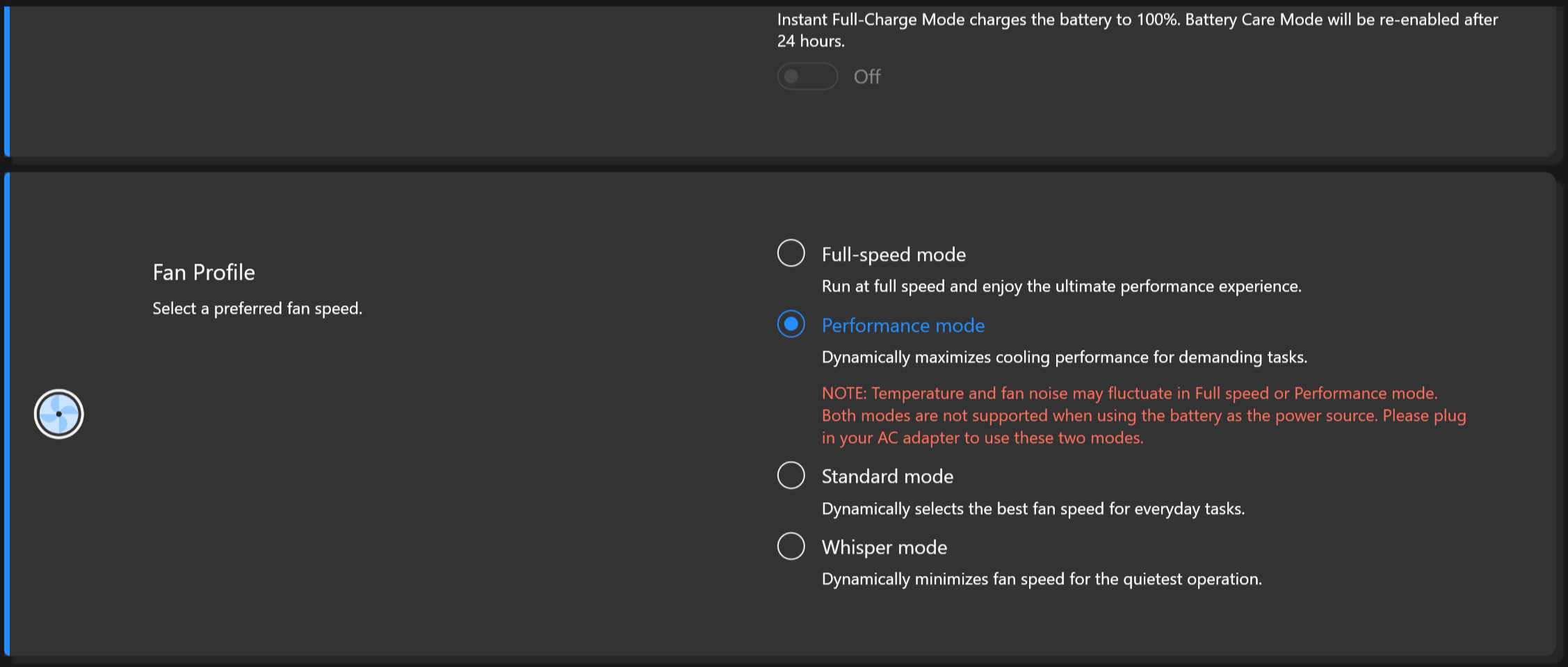
The keyboard deck feels a bit warm when the internals are stressed at max. Still, the board doesn’t become too hot and which is comfortable for work. The fan noise is fine in “Performance mode” but if you want the best possible performance, you have to select the “Full-speed” fan profile. Then, the noise is above average but let’s say that most gaming laptops are even louder. The “Whisper” preset is the right choice for daily usage.
Battery
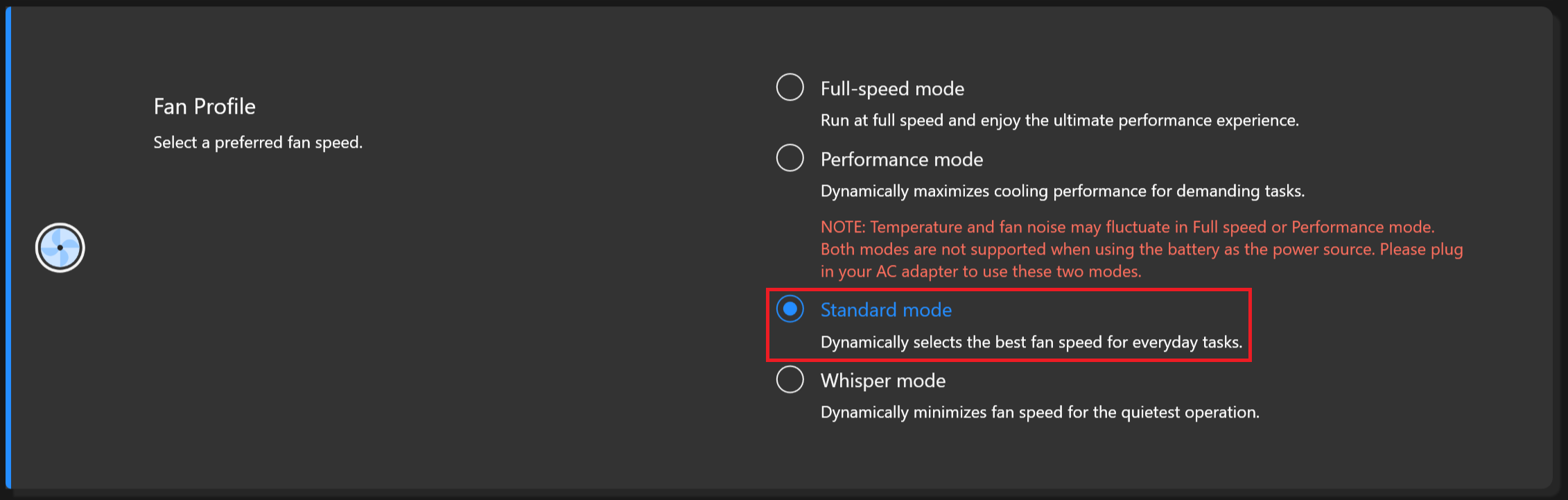
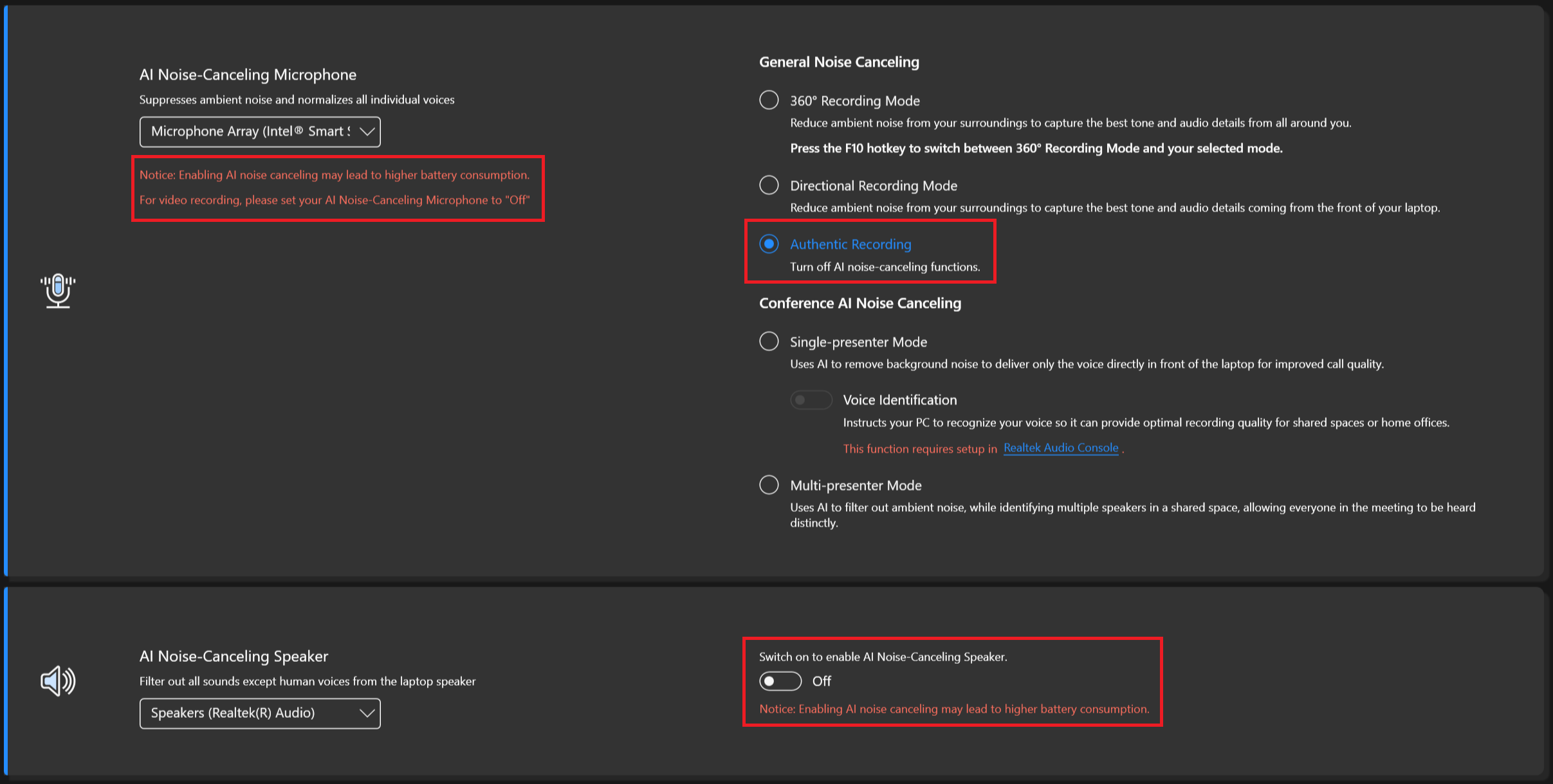
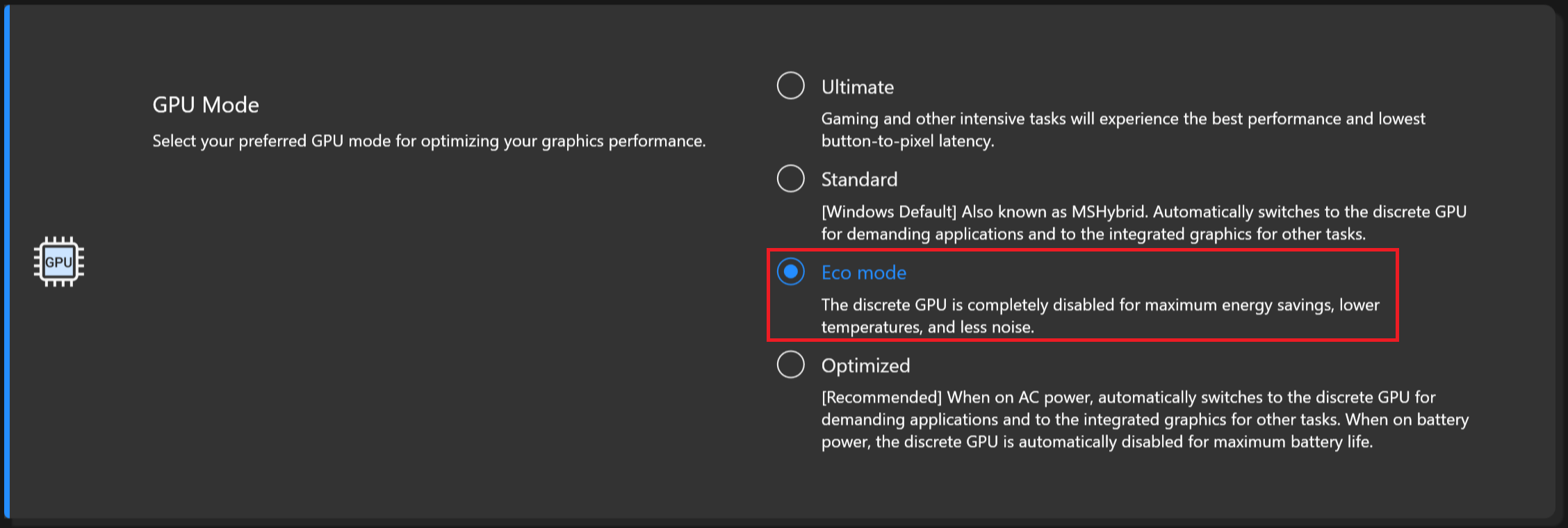
Now, we conduct the battery tests with the Windows Better performance setting turned on, screen brightness adjusted to 120 nits and all other programs turned off except for the one we are testing the notebook with. The 75Wh battery pack lasts for 25 hours of Web browsing or 6 hours and 40 minutes of video playback. That’s a very good result! To achieve that, you have to apply the “Balanced” preset in the Windows “Power & Battery” menu, select the “Standard fan mode, turn off Noise Cancelling completely, use the “Dynamic refresh rate” option and select the “Eco mode” for the GPU in the MyASUS app.

Brightness: 180 nits; Display Mode: SDR
Time to Full Discharge: Higher is Better

In order to simulate real-life conditions, we used our own script for automatic web browsing through over 70 websites.
 Author: Nikolay Palaozov
 Author: eng. Kroum NikolovHead of Engineering at LaptopMedia.com, inventor and innovator with 40+ years of experience in electronics and high technology.

![[June 2026] Best-Selling Laptop Brands on Amazon Global – Apple’s Unrivaled Dominance in Units and Revenue](https://laptopmedia.com/wp-content/uploads/2026/07/GLOBAL-Best-Brands-400x225.jpg)
![[June 2026] Amazon Global: Top 10 Best-Selling Laptops – Apple’s New MacBook Neo Storms to #1, Reshaping the Market with Affordability](https://laptopmedia.com/wp-content/uploads/2026/07/Best-Selling-Laptops-GLOBAL-Top-10-400x225.jpg)
![[June 2026] Amazon Global: Top 10 Best-Selling Gaming Laptops – Acer’s Nitro V 16S AI Dominates Sales, While ASUS Leads Overall Revenue](https://laptopmedia.com/wp-content/uploads/2026/07/Best-Selling-Gaming-Laptops-GLOBAL-Top-10-400x225.jpg)
![[June 2026] Global Ranking of Best-Selling Laptop GPUs on Amazon – NVIDIA RTX 5060 is the Top-Selling Dedicated GPU](https://laptopmedia.com/wp-content/uploads/2026/07/Best-Selling-GPUs-GLOBAL-Top-10-400x225.jpg)
![[June 2026] Global Ranking of Best-Selling Laptop CPUs on Amazon – Apple M5 Dominates, AMD Ryzen 7 260 Gets Solid Premium Share](https://laptopmedia.com/wp-content/uploads/2026/07/Best-Selling-CPUs-GLOBAL-Top-10-400x225.jpg)

Does the laptop support the installing of a 32GB stick of memory in the sodimm slot or intalling it results in the system not booting up, not recognize the memory or behave strangely? On the zephyrus g14 2022 Asus claims a maximum memory of 32GB but I knew of people reaching 48GB with no problem changing the 16GB stick with a 32GB one.
Thank you in advance.
According to ASUS, the maximum amount of RAM supported is 24GB. However, since the CPU can support up to 96GB, the Vivobook Pro 15 OLED likely wouldn’t have issues running with up to 56GB of DDR5-5600MHz RAM (8GB soldered + 48GB in the SODIMM slot).
Yes. But 32GB is a 2 rank memory, so the frequency will be lowered to 4800 and the total speed will be around 40GB/s.
Thank you for such a comprehensive review. I would really appreciate if you could incorporate the fan noise for a normal workload – web browsing, movies, etc. This is often left out in favor of fan noise at full load, which is seldom relevant.
How would you categorize the fan noise under normal office work, please?
It’s basically silent, occasionally there is some fan noise but it’s very quiet. Does get very loud sometimes during intensive workloads, but silent mode should do the trick in most cases.
Is the GPU eco mode disabled when the laptop is connected via the power brick? 🙁
With my current asus laptop I usually always have eco mode on even when connected to power to keep my laptop cool (often have it my lap or chest)
For the display what is the max brightness in HDR (small window and full screen)? Also what is the colour accuracy like in HDR?
Measuring color accuracy in HDR mode is more complex and influenced by various external and internal factors, which is why our current measurements are limited to SDR mode. Additionally, manufacturers typically prioritize more attractive picture over color accuracy in HDR. If you aim for the most realistic colors, working in SDR mode is the better option.
Regarding the size of the white window when measuring screen brightness, we’ve conducted tests with both 10% fill and fullscreen fill. In both cases, the max brightness was similar, just below 400 nits.
Did you really get 25 hours of browser time or is that a mistake?
I have this laptop at idle on minimum brightness consumes about 9 watts, that is about 8 hours of idle time with no applications running.
Any activity increases the consumption and the actual browser time is about 6 hours.
But I have a second module 32 GB, maybe the reason is this, or the drivers are not installed correctly. Installed different Windows builds several times, different drivers – nothing helps.
Hi,
I have this laptop, and with browsing on chrome, I only get 2-3 hours. Could you tell me what settings you are using?
Even though they said 25 hours, 6 hours is still better than the 3 hours that I’m getting.
I’m on silent mode, and it’s fairly new. I usually just use google docs and some other websites like amazon, makerworld, but nothing super power intensive.
Thank you!!
Just use Optimal Operation mode to disconnect Nvidia from the battery (this is crucial) and Standard or Quiet cooler mode.
If only 2-3 hours in this case as well,
1. Look in Task Manager to see which applications are loading the CPU and/or graphics card
2. Install drivers for your laptop from the official Asus website, because other, even newer drivers not from Asus may not work correctly.
Thank you so much for your helpful response! I looked in the Task Manager and found that a few background apps like steam were using a lot of resources, so I just closed out of them, and with a few chrome tabs, I also let MyASUS auto install some drivers, and I’m getting much better battery life! (Nvidia was already disconnected and quiet mode was on before.)
Thanks for your help! I’m getting around an estimate of around 5 hours, seeing that I lost around 50 percent after 3 hours.
Hi,
Please tell me how you got it to 25 hours of battery life!!! I can’t even get 3 hours on this thing and I’m just doing basic web browsing with google docs!
Anything helps!!
Thank you so much!