Dell Latitude 15 3540 Review – Not for Designers but Here’s How to Make It an Office MVP
Disassembly, Upgrade options, and Maintenance
To open this laptop, you have to undo 9 captive Phillips-head screws. Raise the bottom panel close to one of the top two corners to create a gap. After that, you can pop the plate with a thin plastic tool starting from the sides. Then, you can work your way around the front and the back.
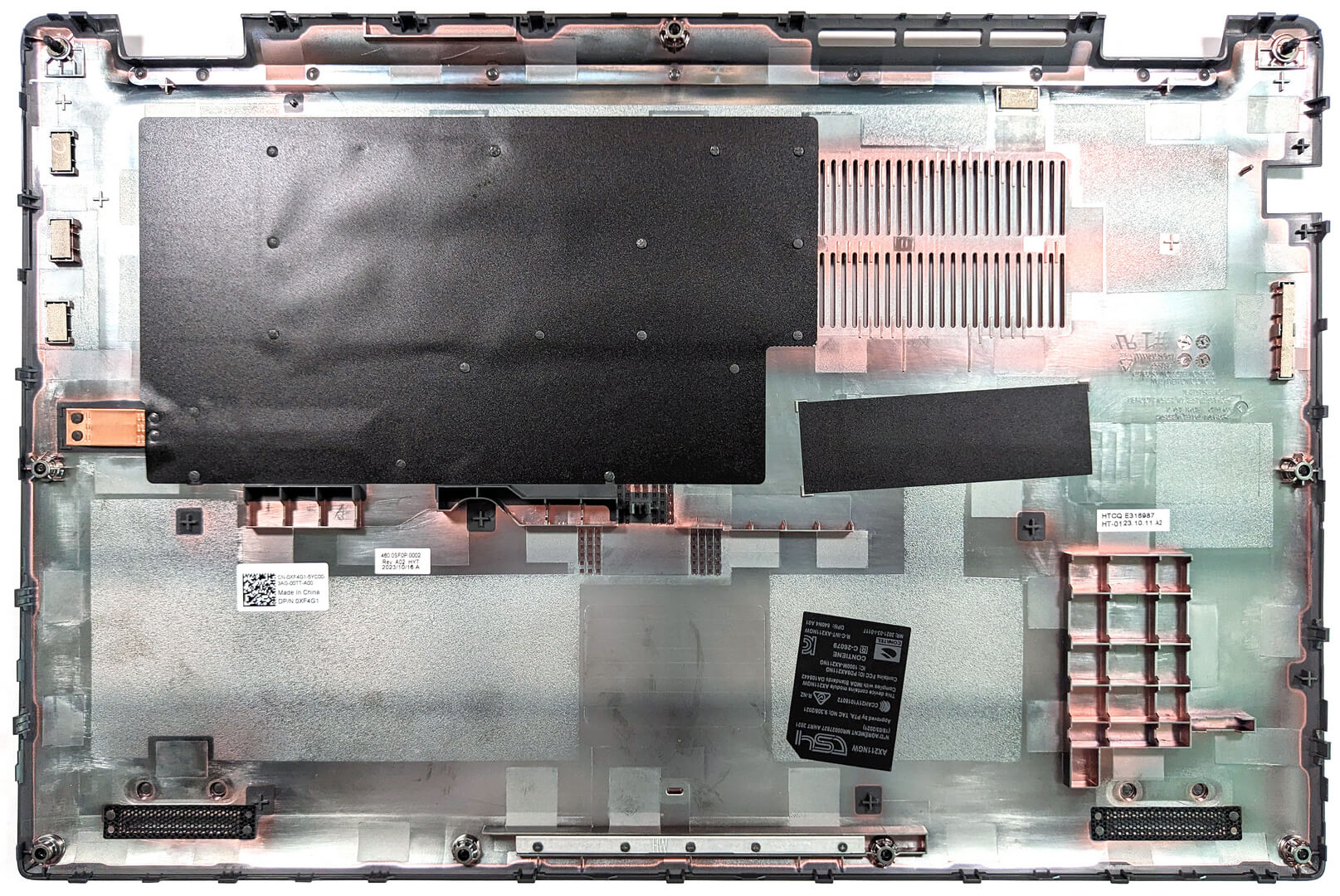
Here’s how the bottom plate looks on the inside.
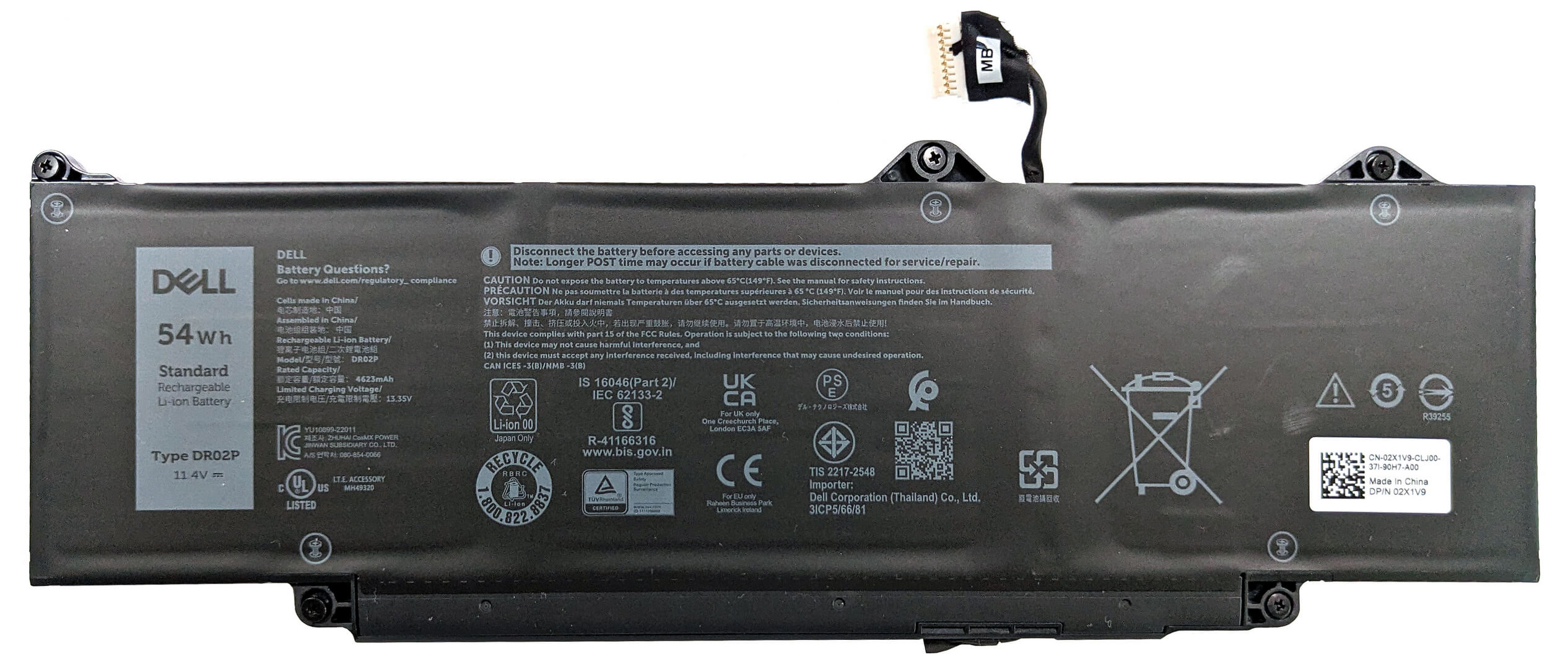
Our laptop has the optional 54Wh battery, the default version is a 42Wh variant. To remove it, pull out the connector from the motherboard, and undo the 5 Phillips-head screws that fix the unit to the base. The optional capacity lasts for 9 hours and 5 minutes of Web browsing, or 8 hours and 20 minutes of video playback.
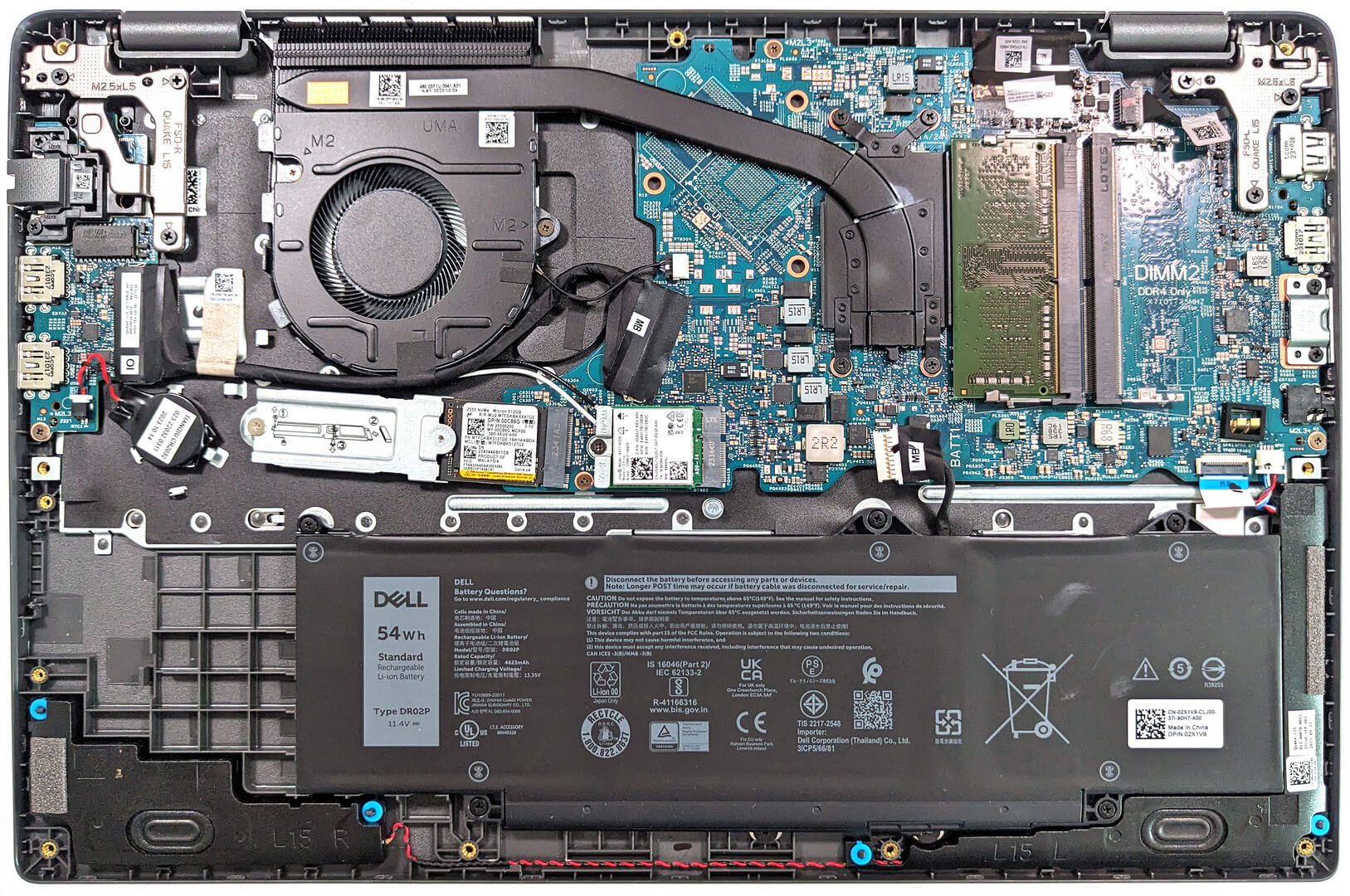
You can rely on two SODIMMs that fit up to 64GB of DDR4-3200MHz RAM in dual-channel mode.


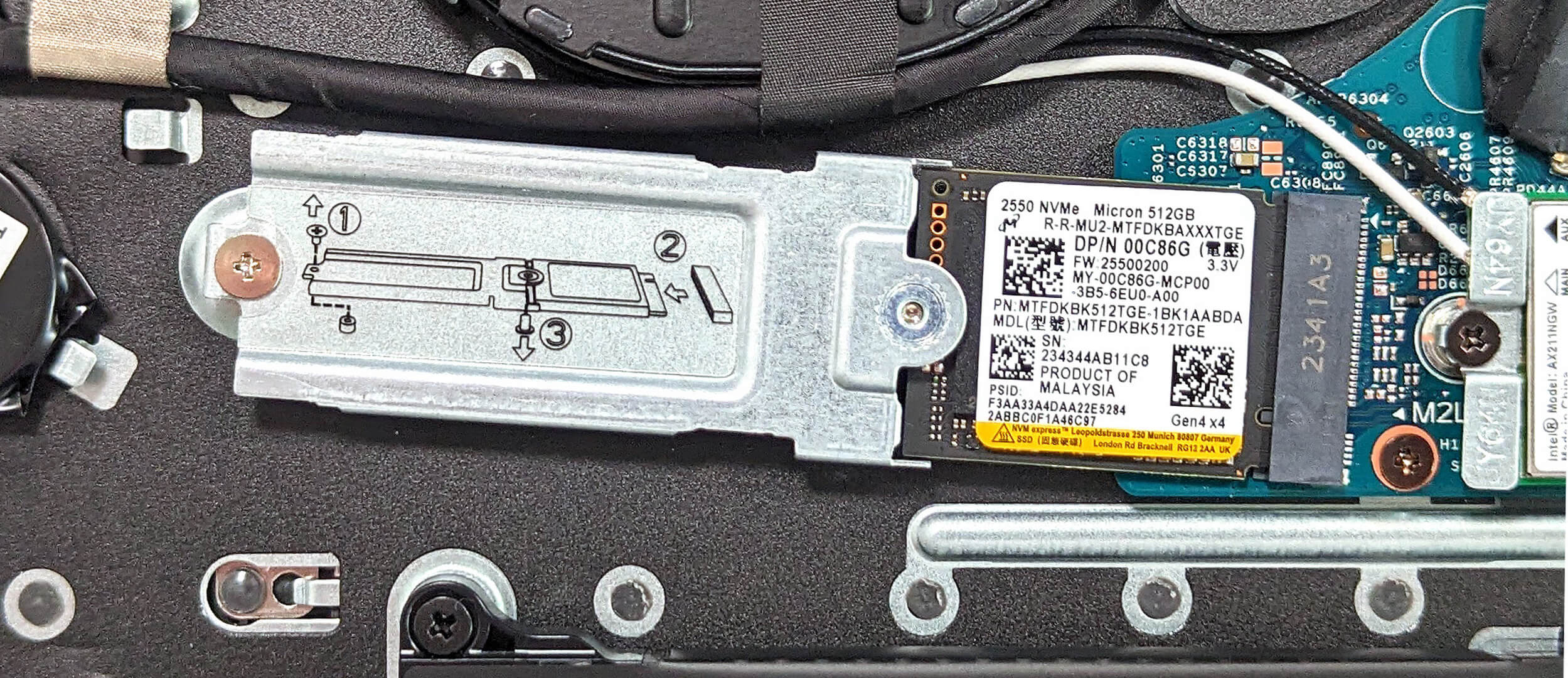
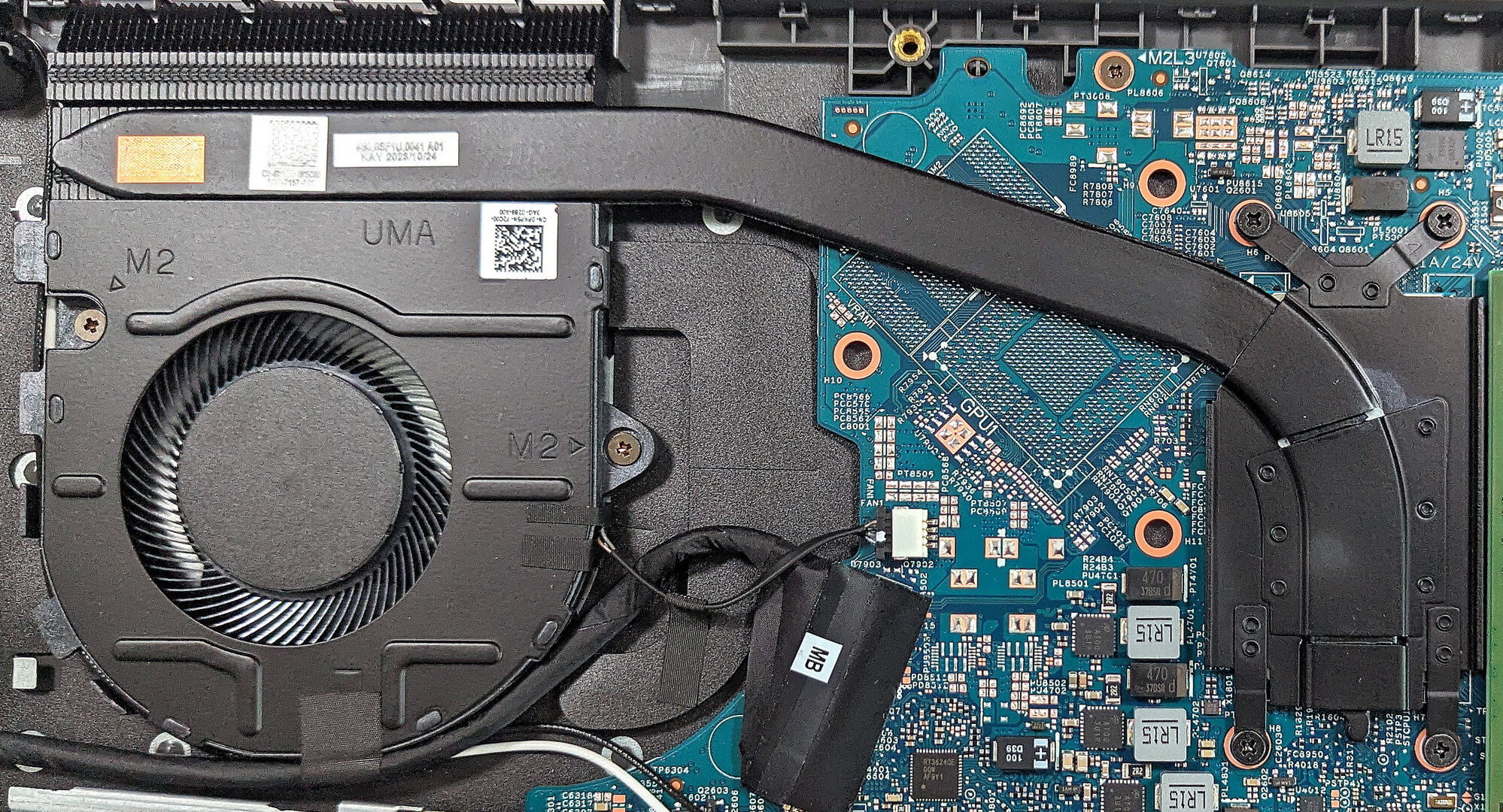
Below the cooling fan is placed the single M.2 slot for 2280 or 2230 Gen 4 SSDs. Beneath the NVMe, there are two small thermal pads.

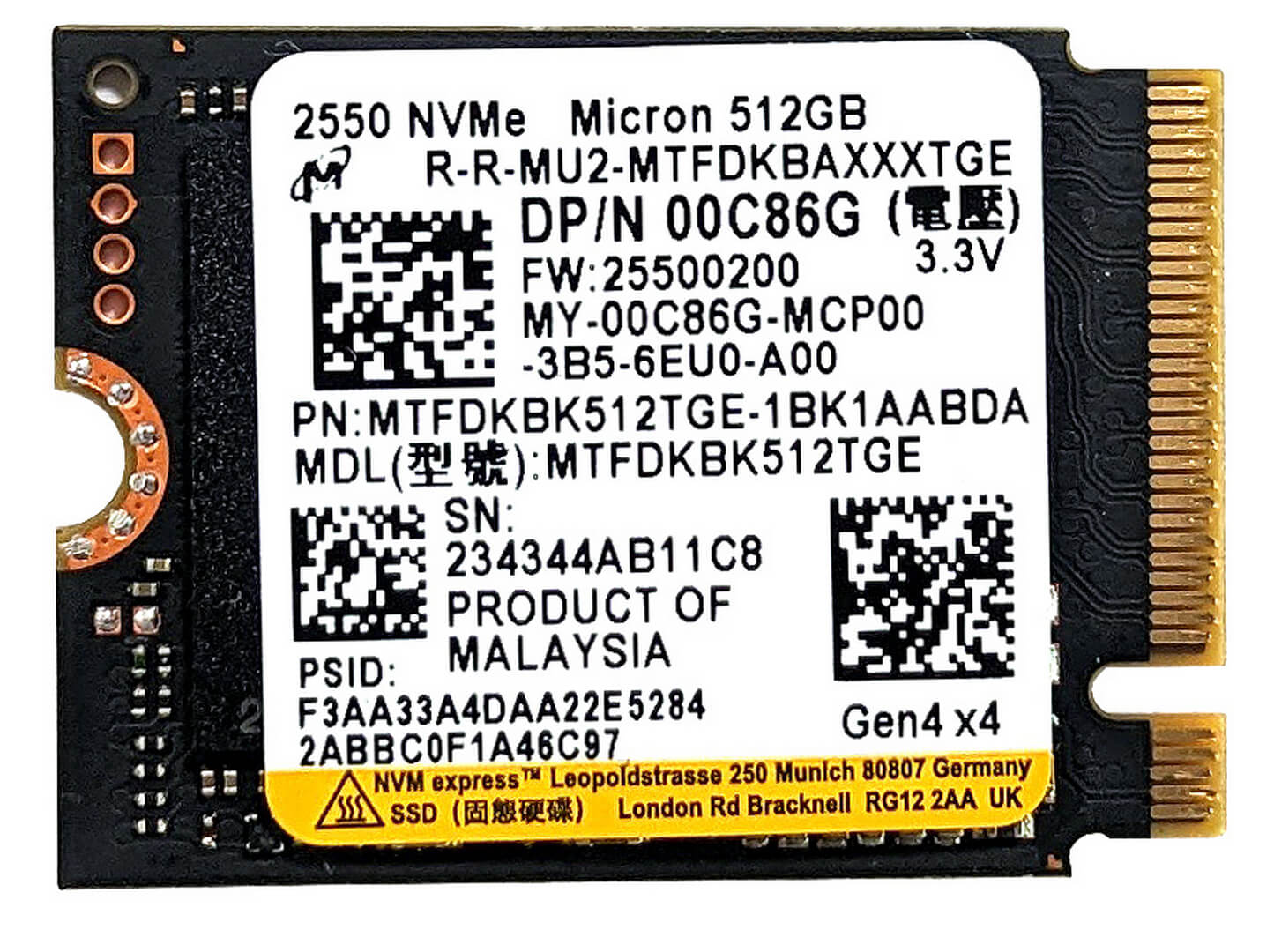
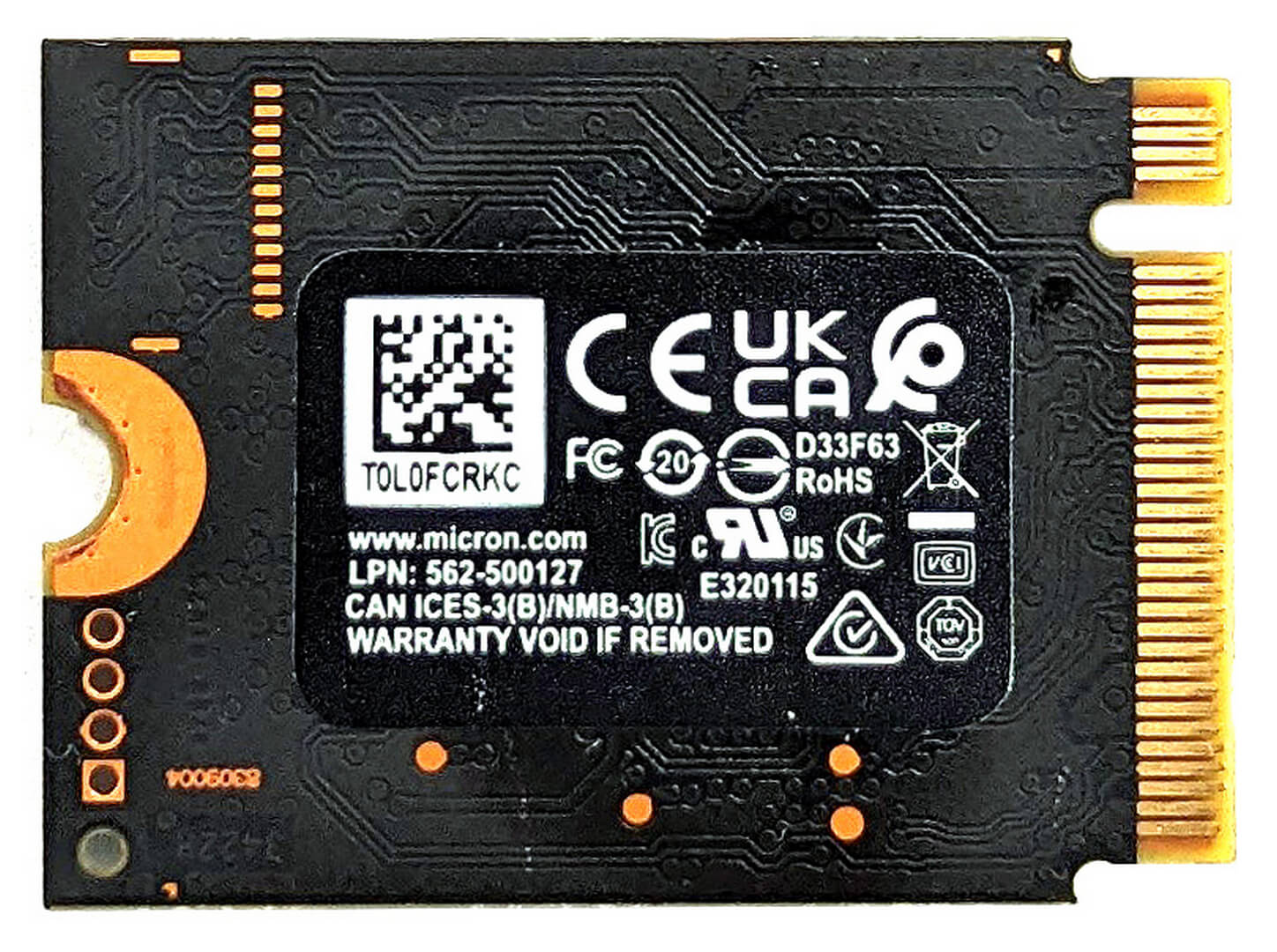
The cooling system has a single fan, one heat pipe, a heat sink, and a heat spreader.
 Author: Nikolay Palaozov
 Author: eng. Kroum NikolovHead of Engineering at LaptopMedia.com, inventor and innovator with 40+ years of experience in electronics and high technology.

![[August 2026] Amazon Italy: Top 10 Best-Selling Laptops – Apple MacBook Neo Claims the Crown as Budget and Mid-Range Windows Machines Dominate Volume](https://laptopmedia.com/wp-content/uploads/2026/09/Best-Selling-Laptops-IT-Top-10-400x225.jpg)
![[August 2026] Amazon Italy: Top 7 Best-Selling Gaming Laptops – ASUS V16 Claims the #1 Spot Amid Strong Mid-Range Demand](https://laptopmedia.com/wp-content/uploads/2026/09/Best-Selling-Gaming-Laptops-IT-Top-10-400x225.jpg)
![[August 2026] Best-Selling Laptop Brands on Amazon Italy – Lenovo Dominates Market Share and Revenue Leadership](https://laptopmedia.com/wp-content/uploads/2026/09/IT-Best-Brands-400x225.jpg)
![[August 2026] Amazon India: Top 10 Best-Selling Laptops – Apple MacBook Neo Dominates the Charts with Massive Sales Lead](https://laptopmedia.com/wp-content/uploads/2026/09/Best-Selling-Laptops-IN-Top-10-400x225.jpg)
![[August 2026] Amazon India: Top 10 Best-Selling Gaming Laptops – HP Victus 15 Dominates the Market with Massive Unit Lead](https://laptopmedia.com/wp-content/uploads/2026/09/Best-Selling-Gaming-Laptops-IN-Top-10-400x225.jpg)

I have used a 3540 with a Intel 1335u and 16Gb RAM for about a year now. Its not disappointing in any way, but it does not excel at anything either. Its a basic business laptop that has the basic down pretty good. It looks bland and cheap like a Inspiron does at the base models. Decent selection of ports, battery life good but not great, could have used a bigger capacity battery. Performance is good but it produces more heat then I would expect for a low powered CPU. Fan ramps up pretty good with multiple apps running. With… Read more »