Dell Latitude 5450 review – Small but Fast
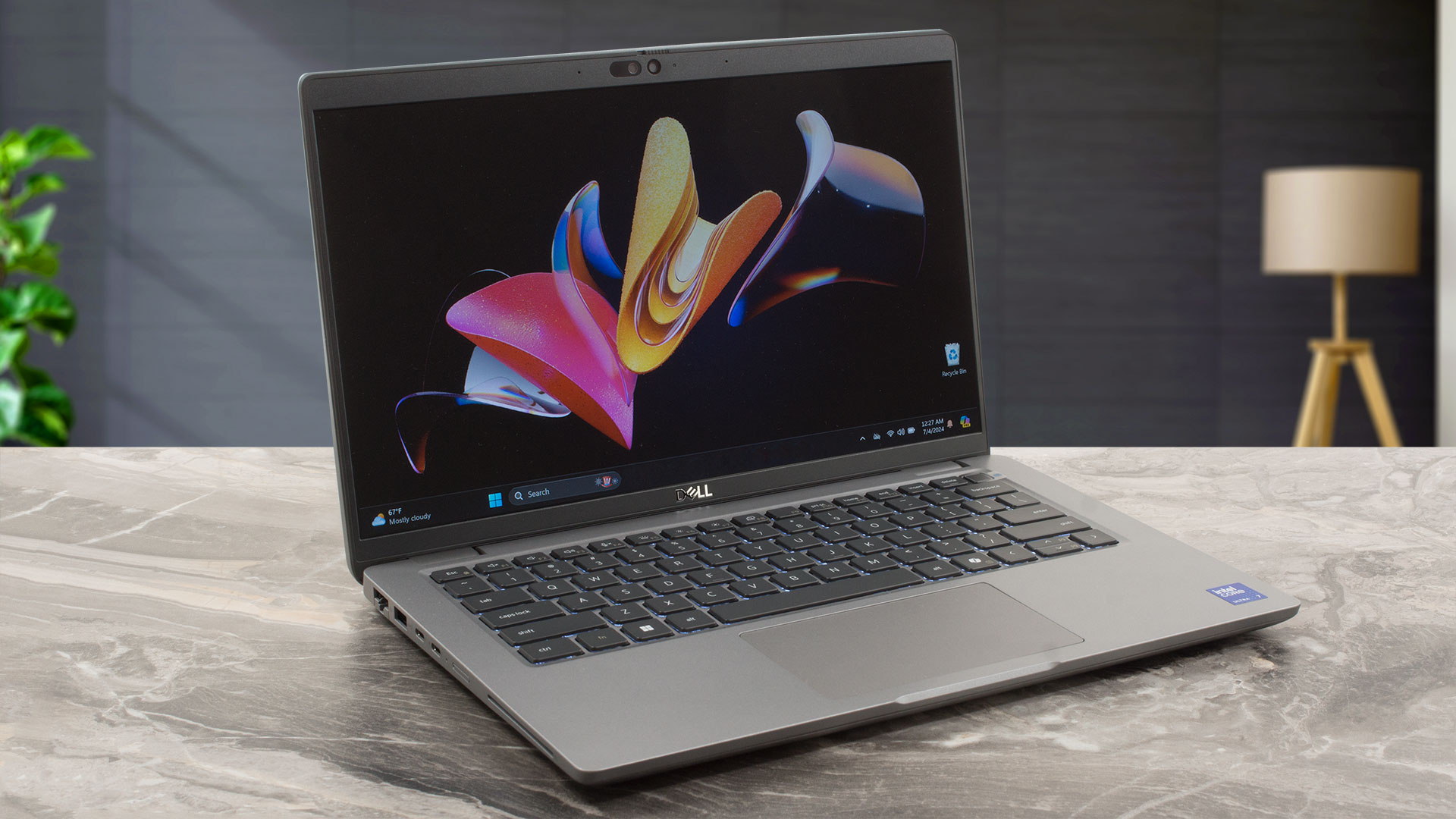 It’s interesting to see that part of the small office machines can offer higher performance than some of their bigger siblings. That’s the case with the Dell Latitude 14 5450 which is faster compared to 15-inch Latitude 5550. That’s because the latter is tuned for comfort while the former is meant for professionals who are often on the go but also seeking for max power when the adapter is plugged in.
Given the naming scheme of the two laptops, the 5450 is very similar to the 5550, at least in terms of specs. The CPU and GPU options are the same – 15W / 28W Meteor Lake or 15W 13th gen Intel processors and optional GeForce RTX 2050. The storage configuration of the 14-incher is a bit limited and this laptop also isn’t offered with a MicroSD card slot. The rest isn’t that different – three 1080p IPS display variants, great port selection, privacy shutter, and dTPM 2.0 chip. If you configure this device with all optional extras, the end price becomes hefty.
You can check the prices and configurations in our Specs System: https://laptopmedia.com/series/dell-latitude-14-5450/
Contents
Specs, Drivers, What’s in the box
Dell Latitude 14 5450 - Specs
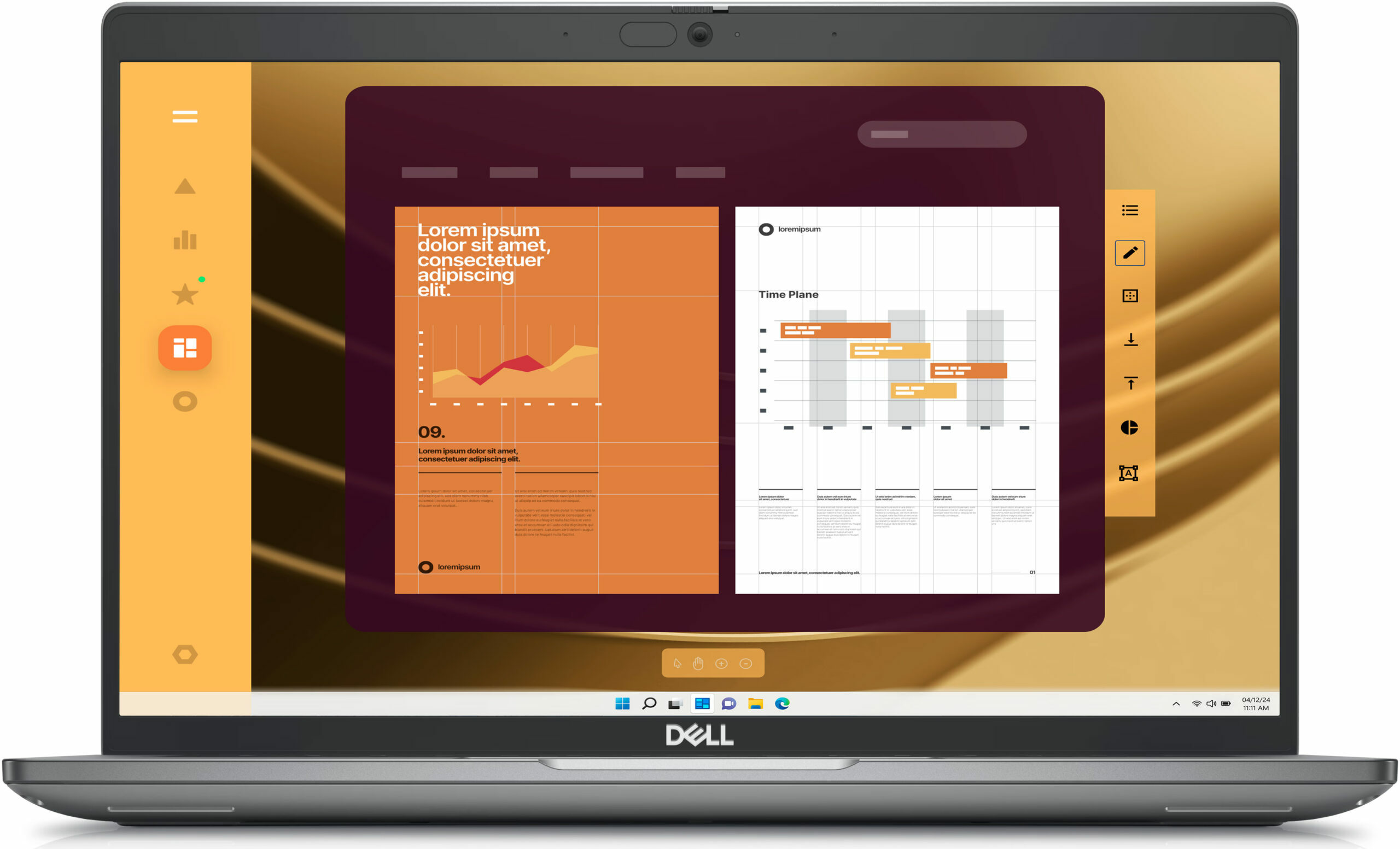
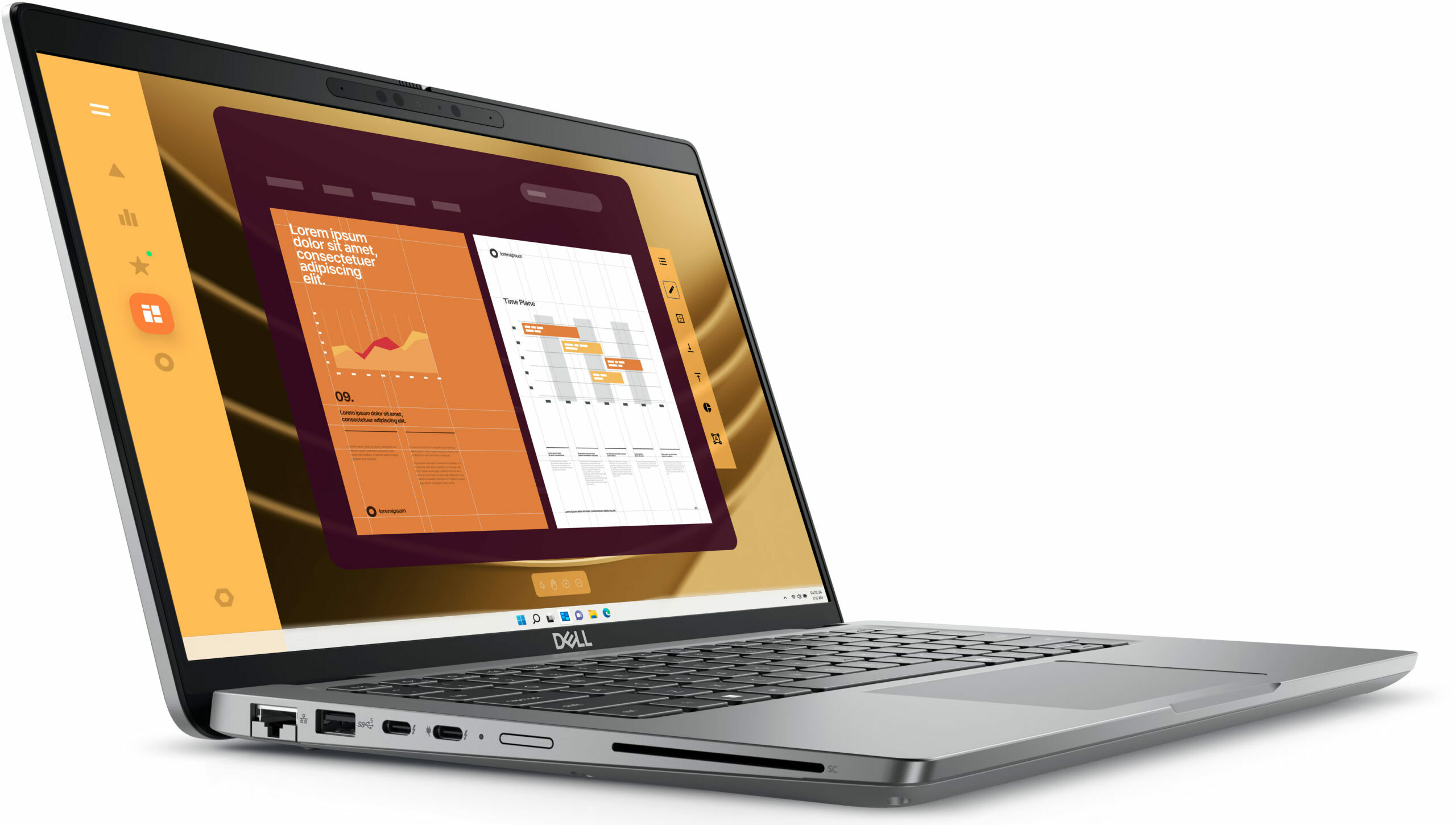
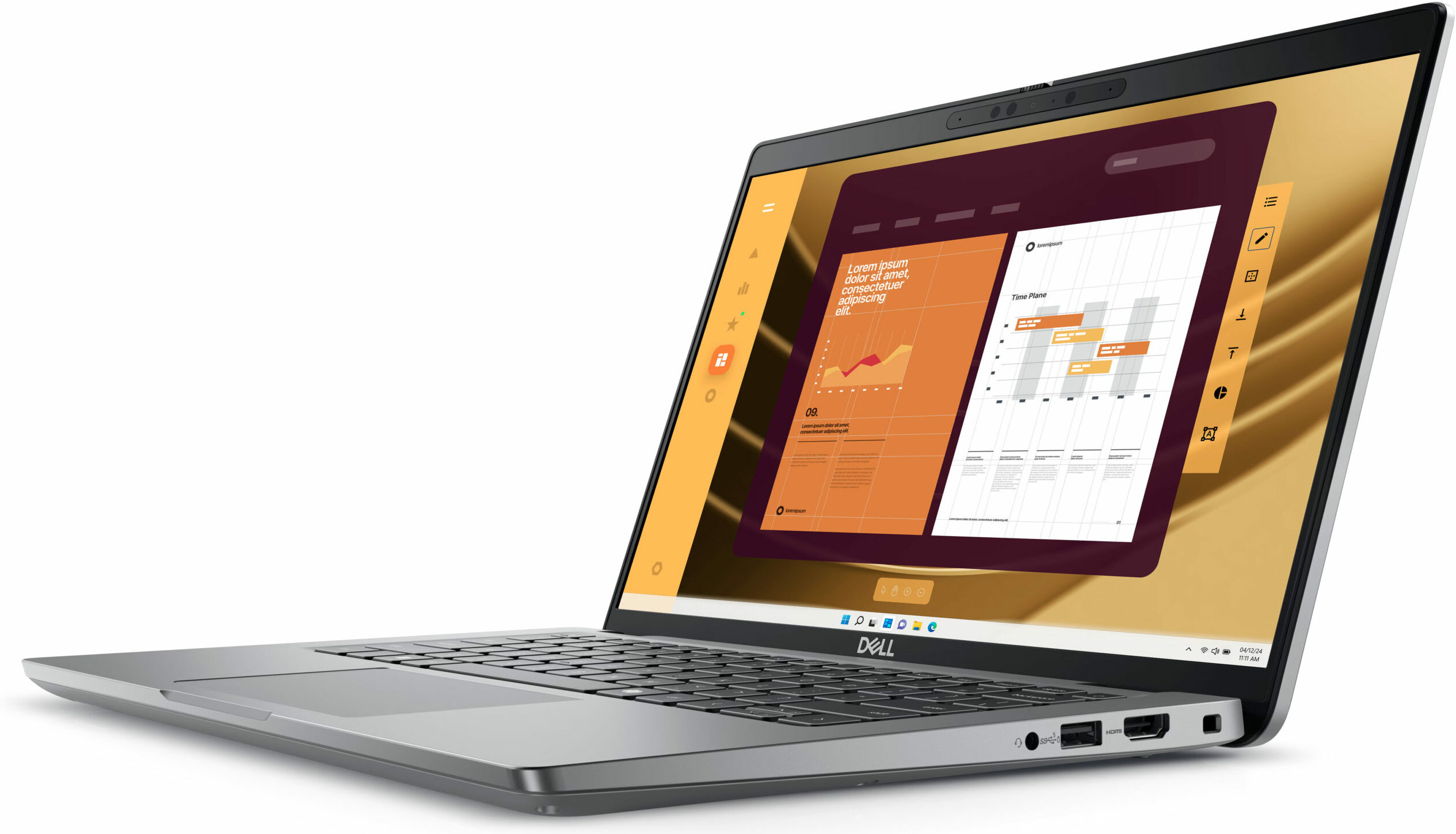
- CPU
- Intel Core i7-1365U #167 in Top CPUs Intel Core i7-1355U #175 in Top CPUs Intel Core i5-1345U #191 in Top CPUs Intel Core i5-1335U #183 in Top CPUs Intel Core i3-1315U #196 in Top CPUs Intel Core Ultra 7 165U #153 in Top CPUs Intel Core Ultra 7 165H #72 in Top CPUs Intel Core Ultra 7 155U #168 in Top CPUs Intel Core Ultra 7 155H #87 in Top CPUs Intel Core Ultra 5 135H #97 in Top CPUs Intel Core Ultra 5 125U #164 in Top CPUs Intel Core Ultra 5 125H #115 in Top CPUsIntel Core Ultra 5 135U
- GPU
- NVIDIA GeForce RTX 2050 (Laptop) #204 in Top GPUs Intel UHD Graphics (Alder Lake, 64EU) #315 in Top GPUs Intel Iris Xe Graphics G7 (96EU) #323 in Top GPUs Intel Iris Xe Graphics G7 (80EU) #318 in Top GPUs Intel Graphics (4-Cores) #290 in Top GPUs Intel Arc (8-Cores) #247 in Top GPUs Intel Arc (7-Cores) #219 in Top GPUs

- HDD/SSD
- up to 4000GB SSD
- M.2 Slot
- 1x 2230 M.2 NVMe PCIe 4.0 x4 See photo
- RAM
- up to 64GB
- OS
- Windows 11 Pro, Windows 11 Home, Windows 10 Pro, No OS, Chrome OS, Linux
- Battery
- 54Wh, 3-cel, 54Wh, 3-cell, 42Wh, 3-cell
- Body material
- Plastic / Polycarbonate, Carbon
- Dimensions
- 321.35 x 212.00 x 19.06 - 21.04 mm (12.65" x 8.35" x 0.75")
- Weight
- 1.40 kg (3.1 lbs)
- Ports and connectivity
- 1x USB Type-A
- 3.2 Gen 1 (5 Gbps)
- 1x USB Type-A
- 3.2 Gen 1 (5 Gbps), Sleep and Charge
- 2x USB Type-C
- 4.0, Thunderbolt 4, Power Delivery (PD), DisplayPort
- HDMI
- 2.1
- Card reader
- microSD (microSD, microSDHC, microSDXC)
- Ethernet LAN
- 10, 100, 1000 Mbit/s
- Wi-Fi
- Wi-Fi 6E
- Bluetooth
- 5.3
- Audio jack
- 3.5mm Combo Jack
- Features
- Fingerprint reader
- optional
- Web camera
- FHD IR
- Backlit keyboard
- optional
- Microphone
- Digital Array Microphones
- Speakers
- 2x 2.5W Stereo Speakers
- Optical drive
- Security Lock slot
- Wedge Lock
All Dell Latitude 14 5450 configurations
Drivers
All drivers and utilities for this notebook can be found here: https://www.dell.com/support/home/en-us/product-support/product/latitude-14-5450-laptop/drivers
What’s in the box?
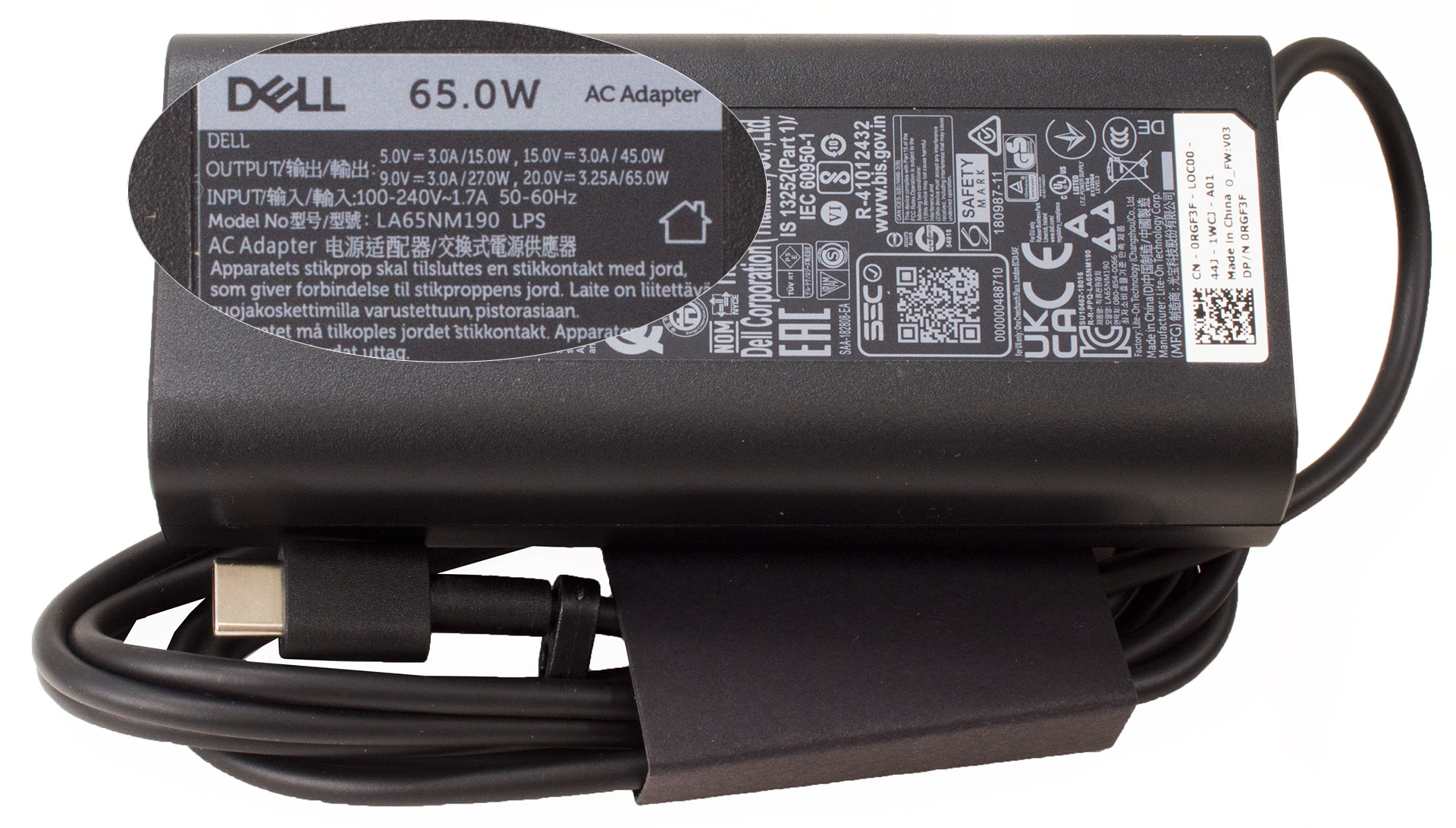
The box contains some manuals and the laptop itself. Depending on the CPU and GPU configuration, you get a 60W, 65W, or 100W Type-C charger.
Design and construction
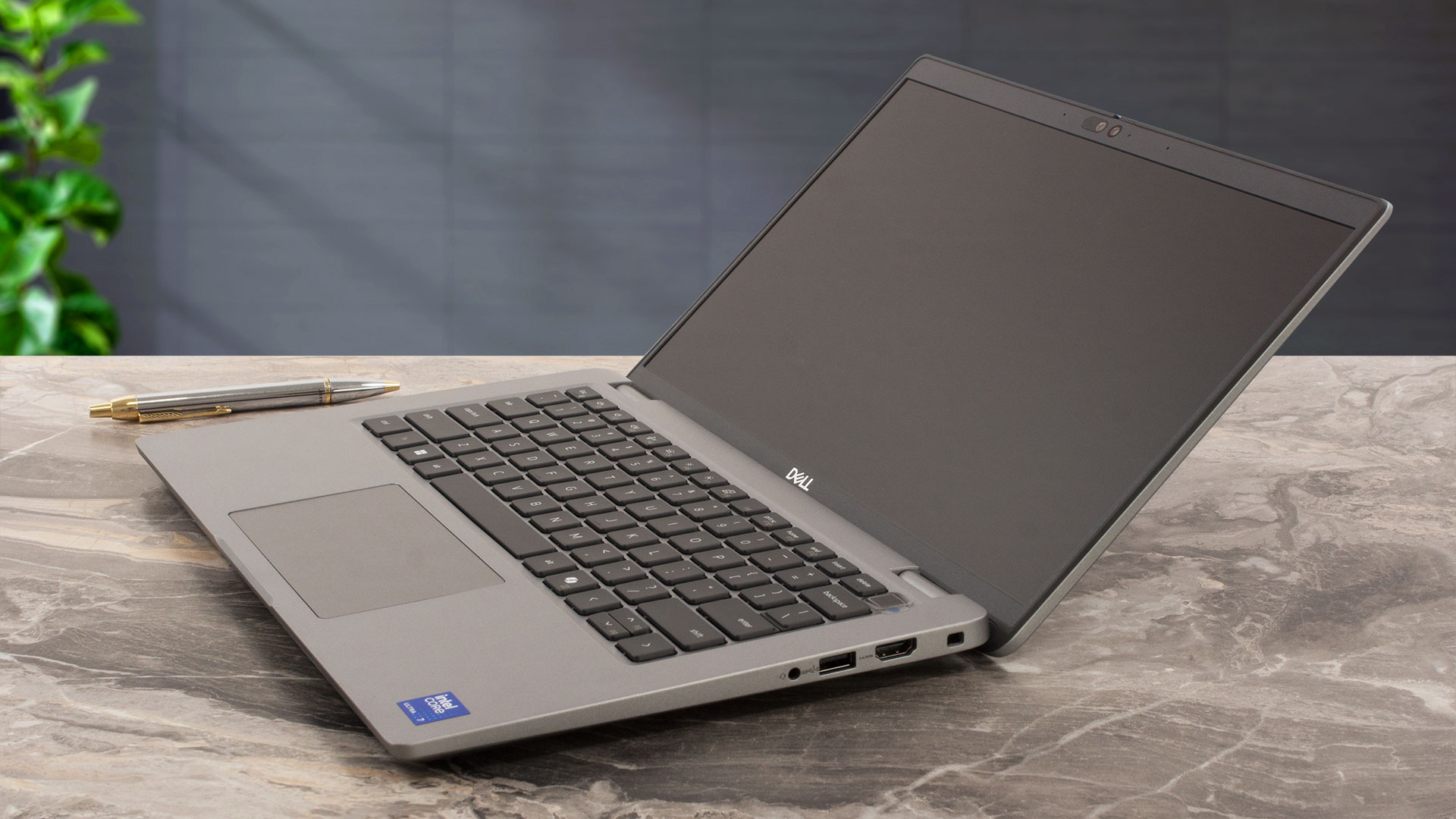
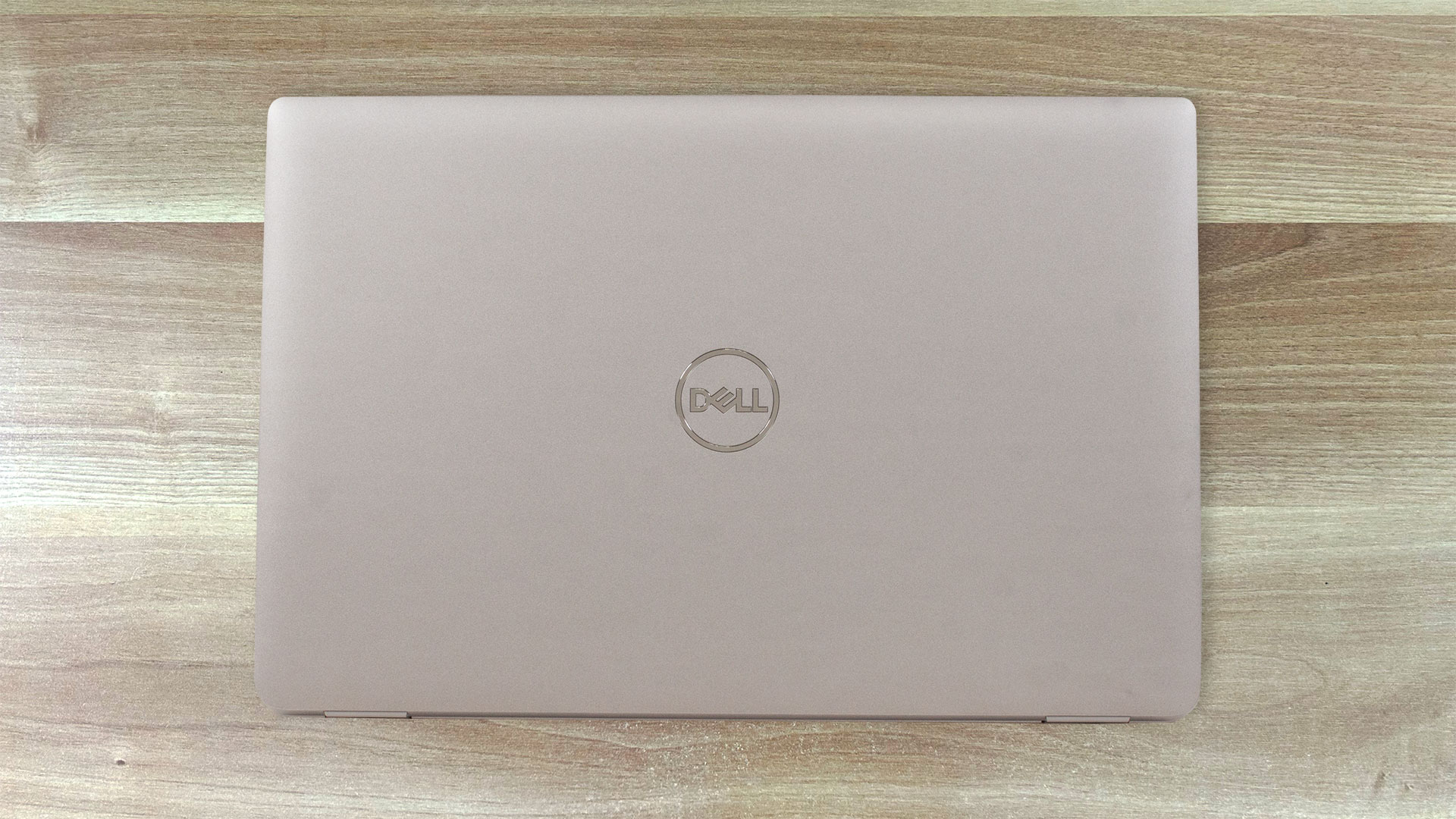
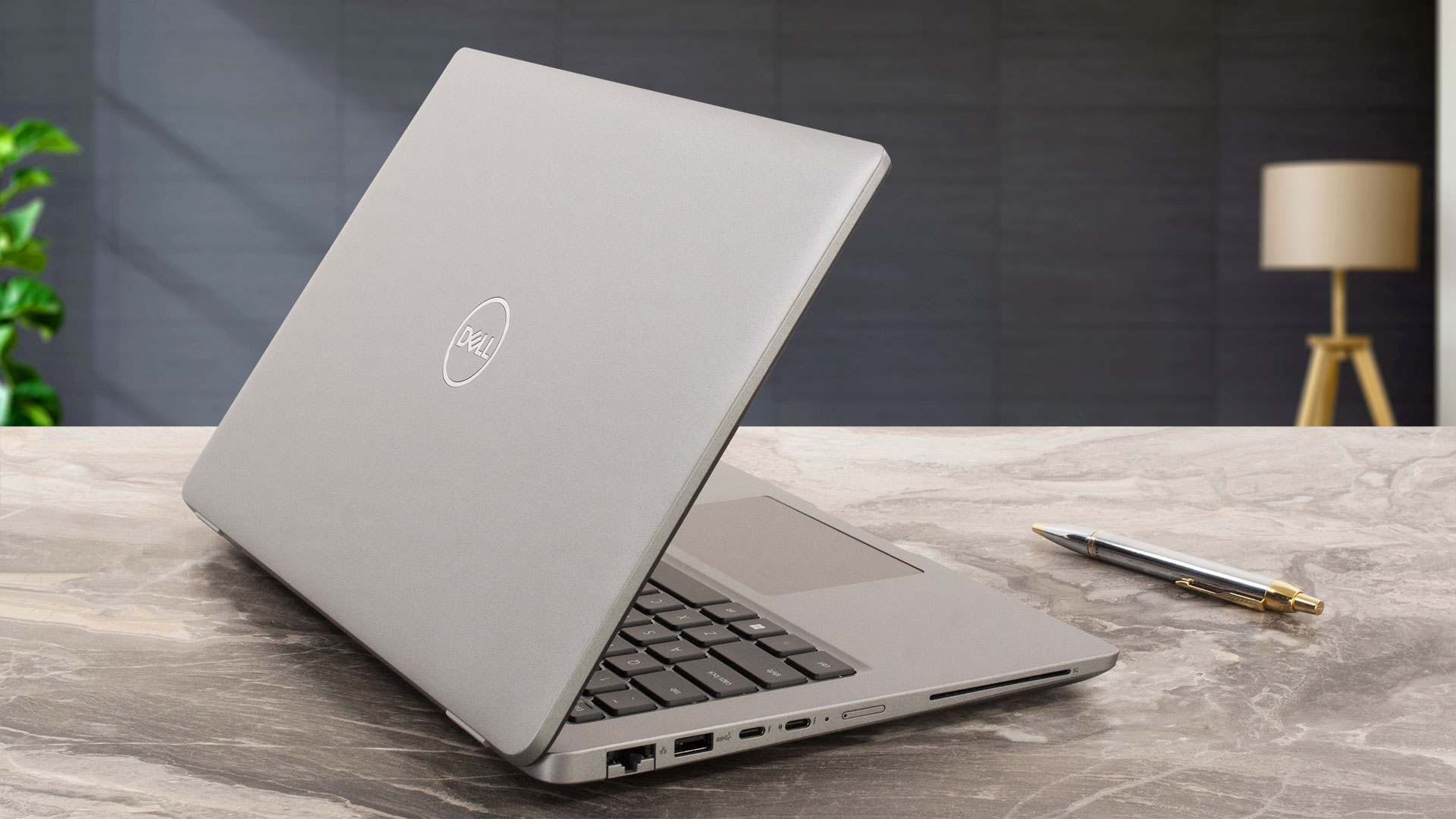
The Dell Latitude 14 5450 has the same design aesthetic as the Latitude 5550 but in a more compact 14-inch form factor. Again, the chassis is made of a mixture of plastic and carbon fiber. That’s why this device is pretty light with a starting weight of just 1.40 kilos. The profile isn’t that thin – 19.06 – 21.04 mm.
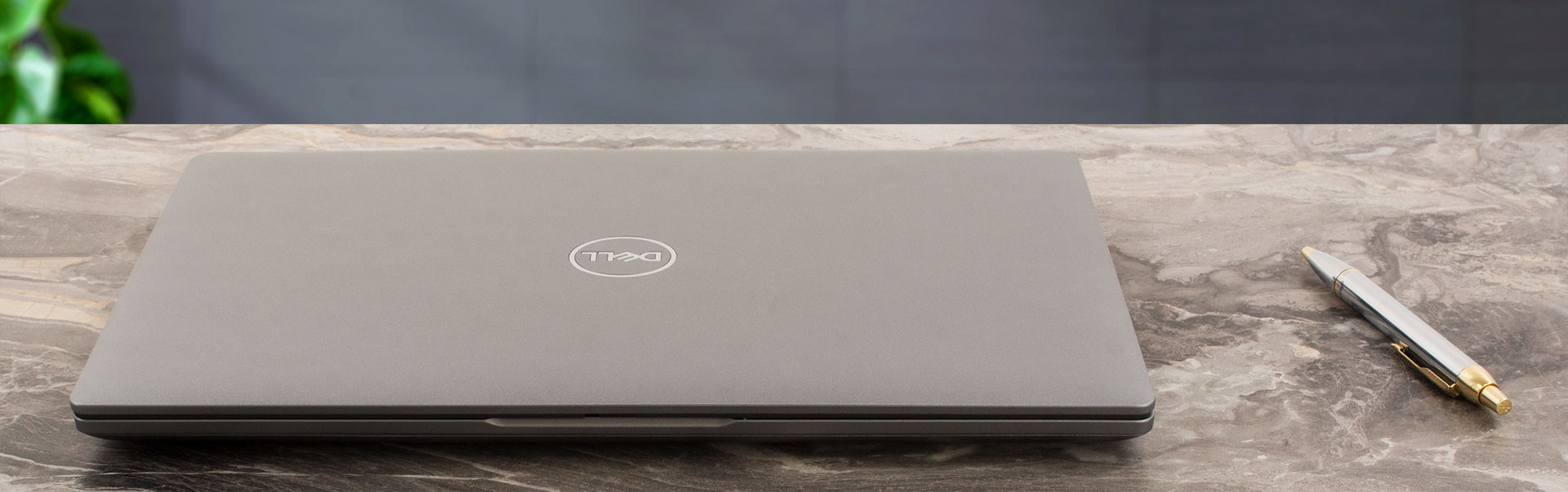
Opening the lid with a single hand isn’t possible. The unit feels solid when we tried to twist it and the same applies to the base – nice!
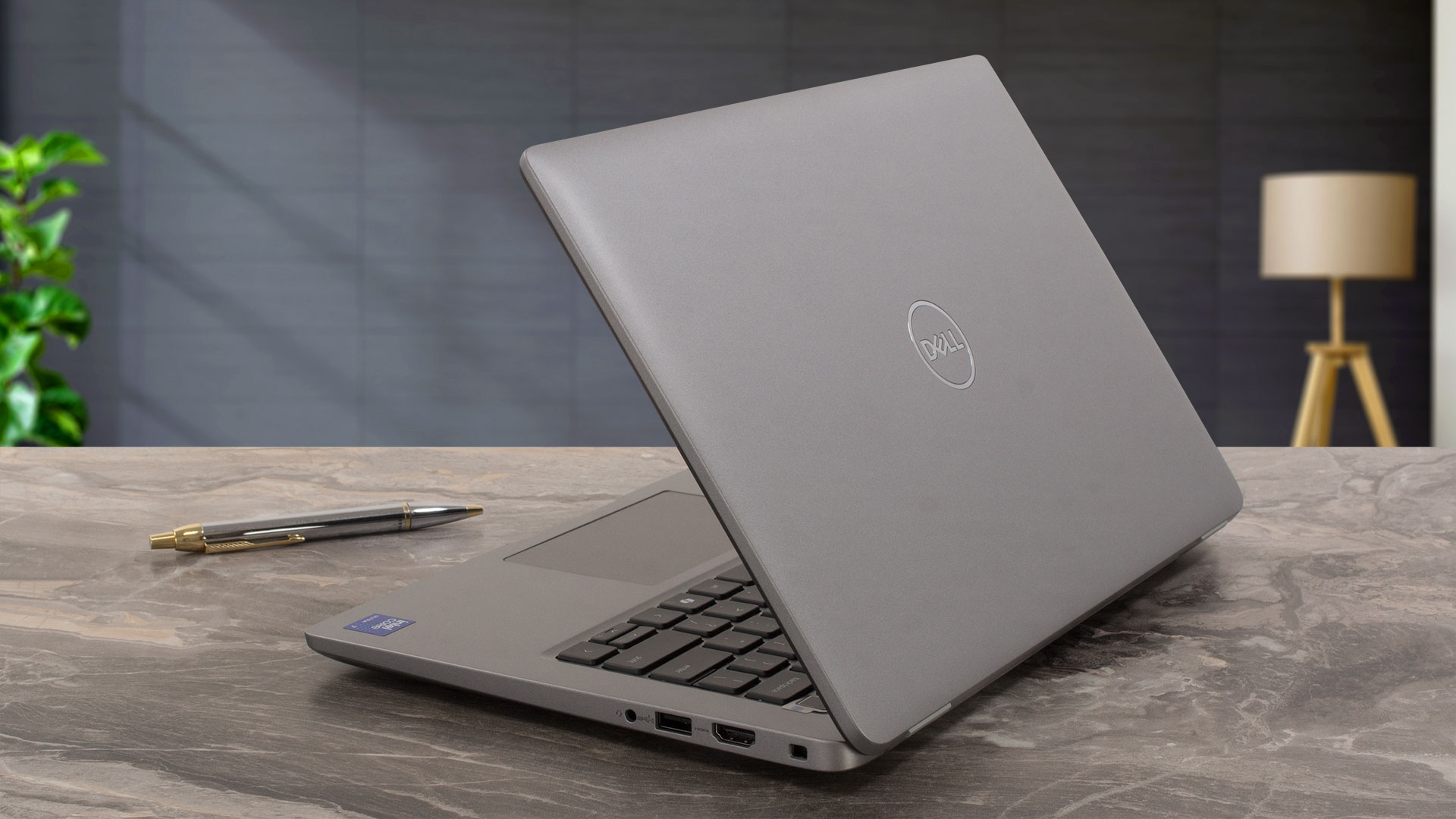
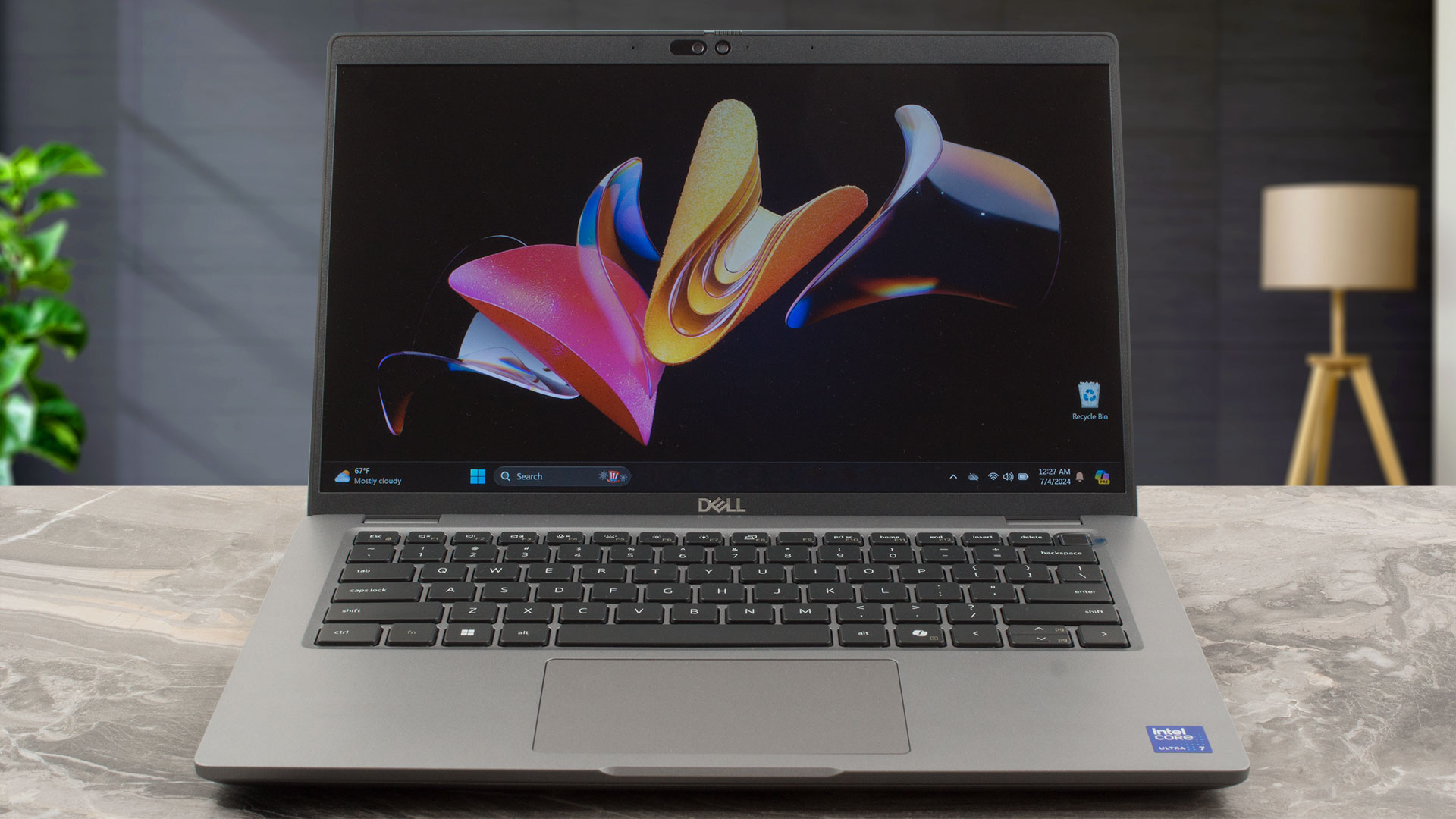
The side bezels and the bottom one are thin.
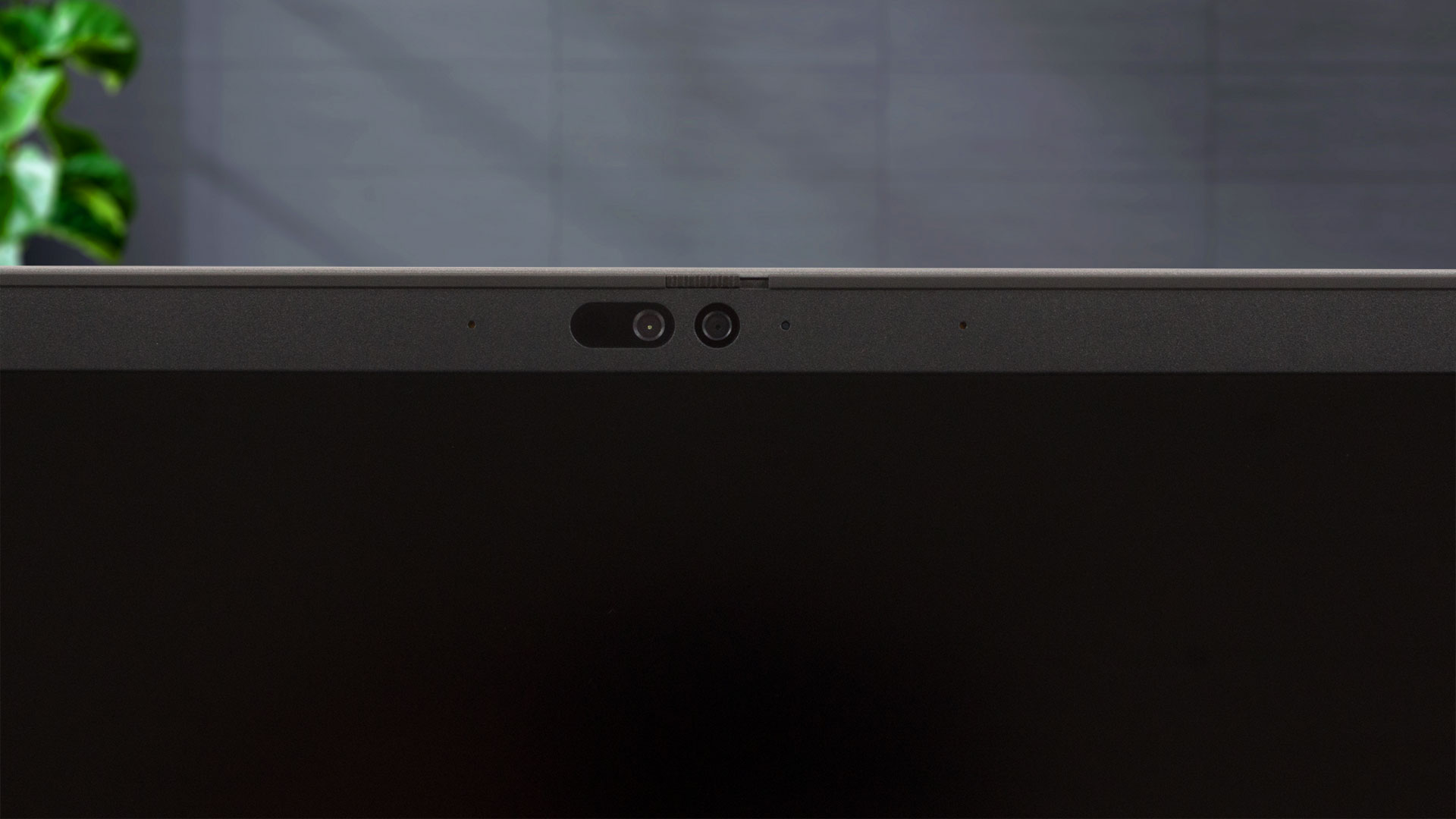
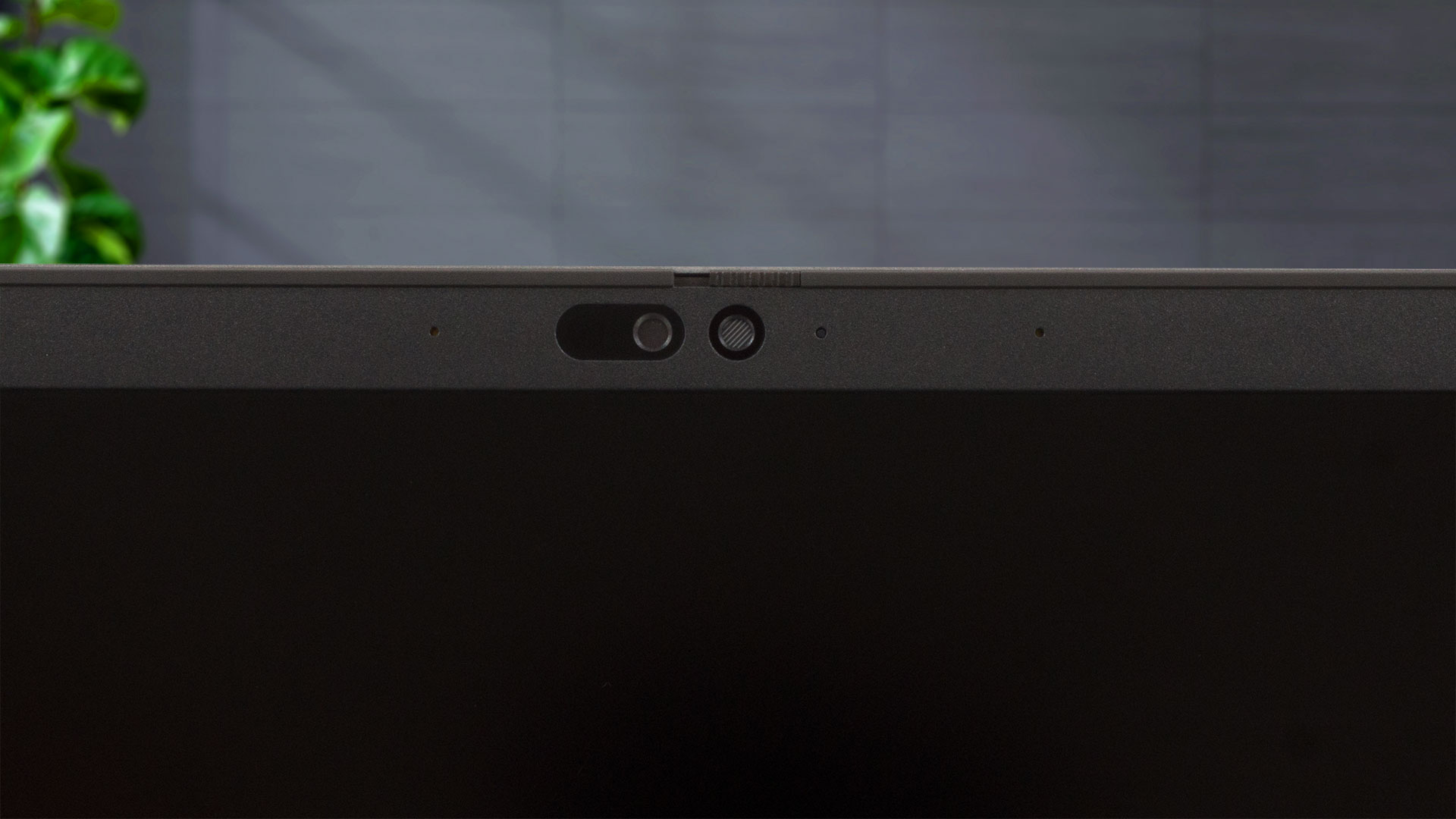
The top bezel is notably taller than the others because it houses a 1080p Web camera that has a privacy shutter. There is an optional IR version with the same resolution. This one also offers goodies such as Onlooker Detection (you’ll be notified if someone is having a sneak peek at the onscreen info) and Look Away Dim (the display becomes dimmed if you don’t look at it).
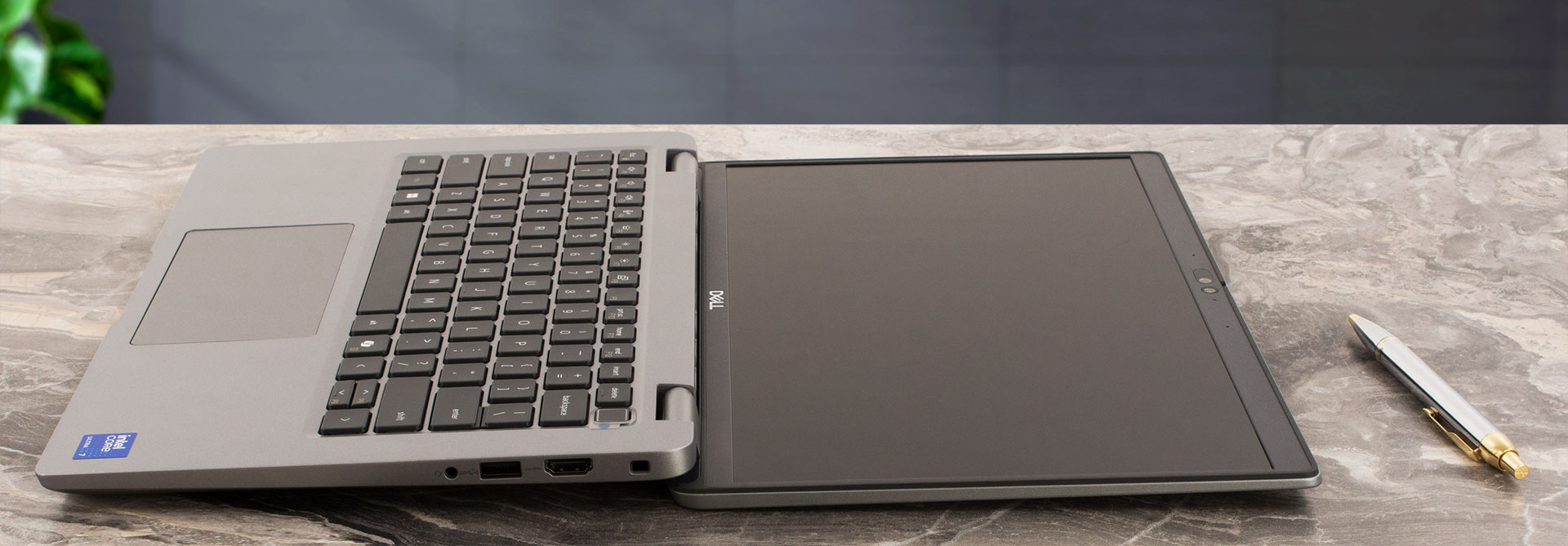
The lid acts as a lever. Its lower side with two rubber feet raises the back of the main body when the angle of the opening is way bigger than 90 degrees. This panel position can be uncomfortable for some users since it’s not optimal for work. Still, when the chassis is raised, the cooling capabilities of the laptop are enhanced. As you can see from the pictures below, you get a 180-degree hinge.
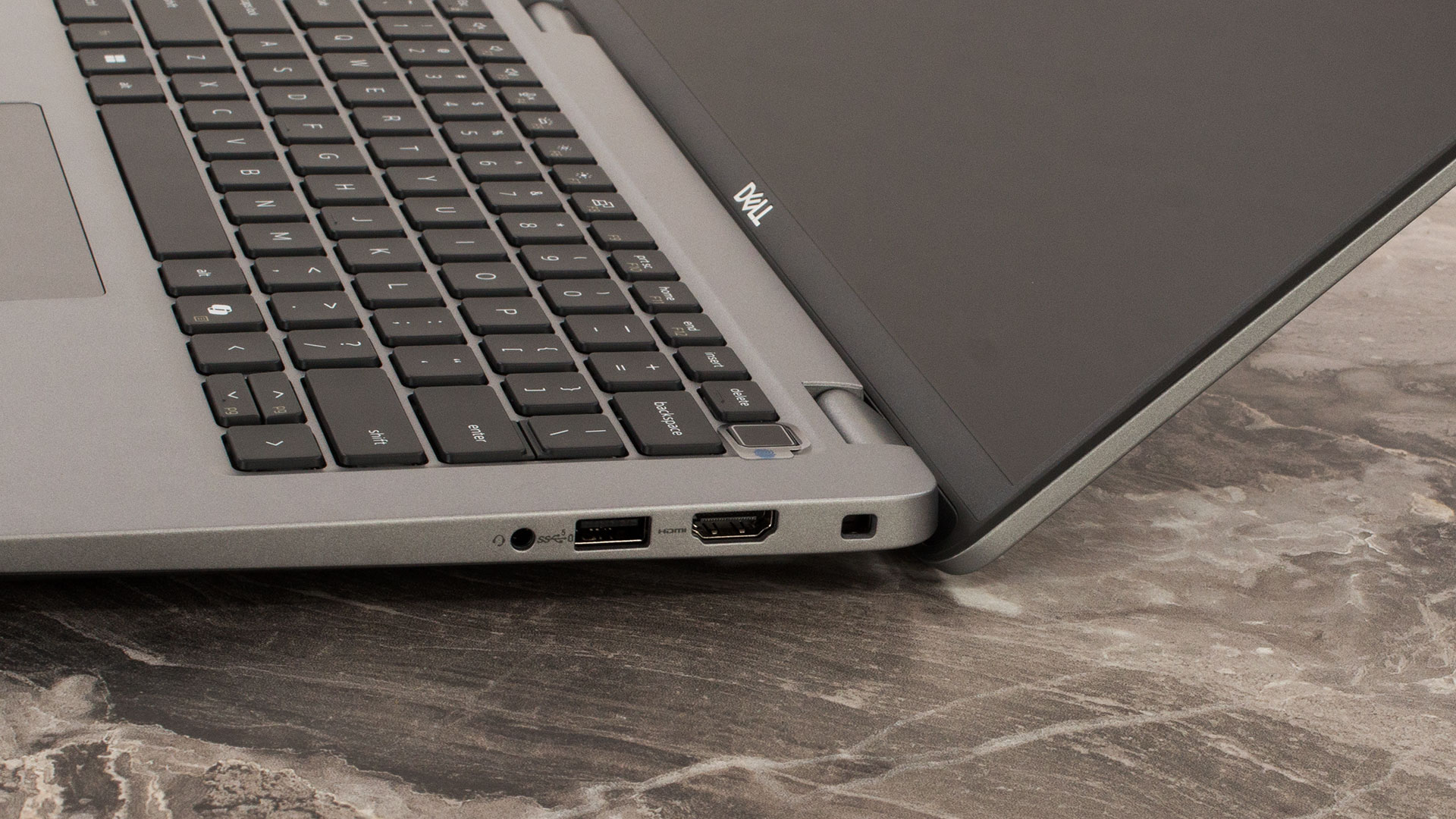
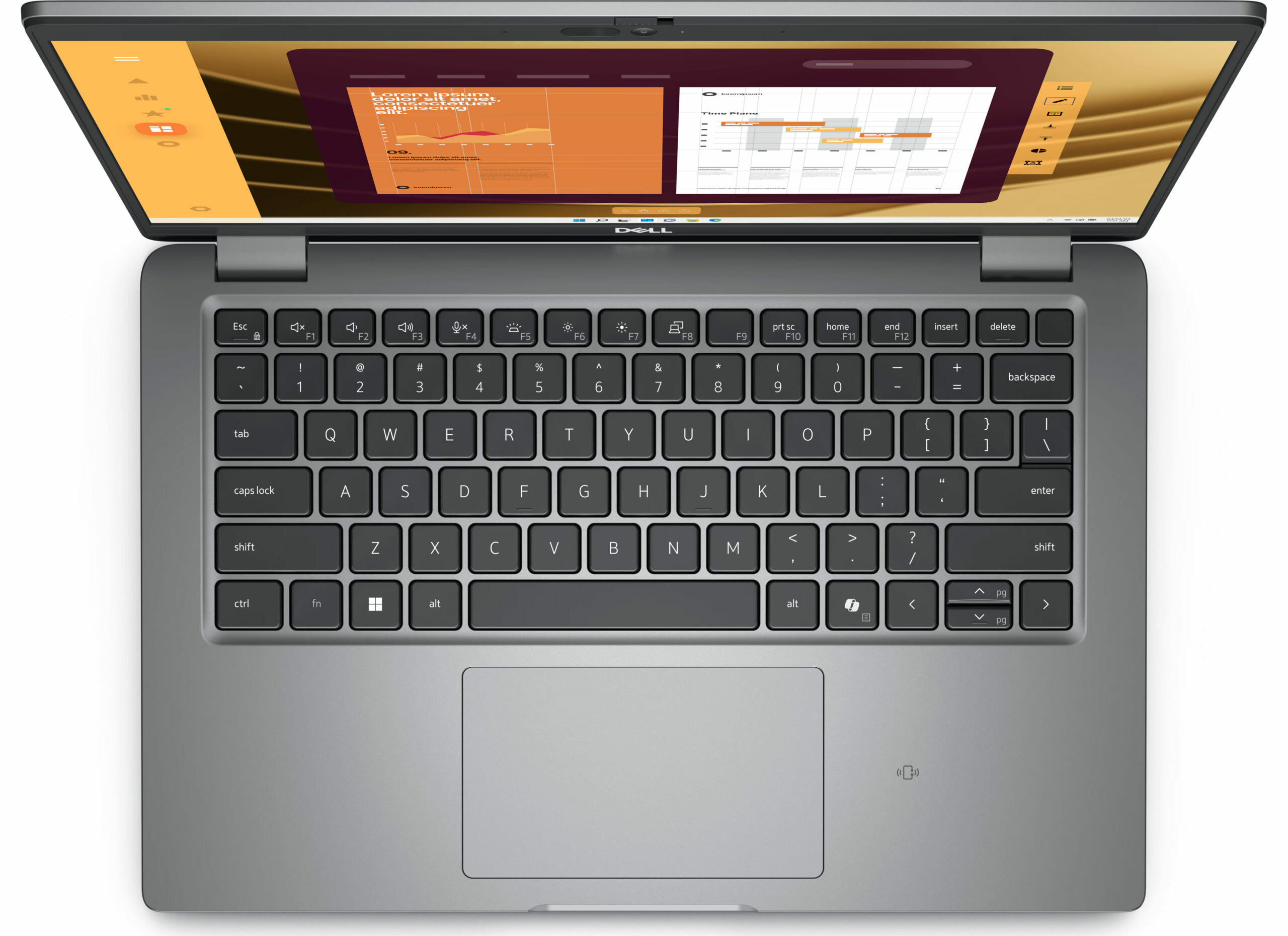
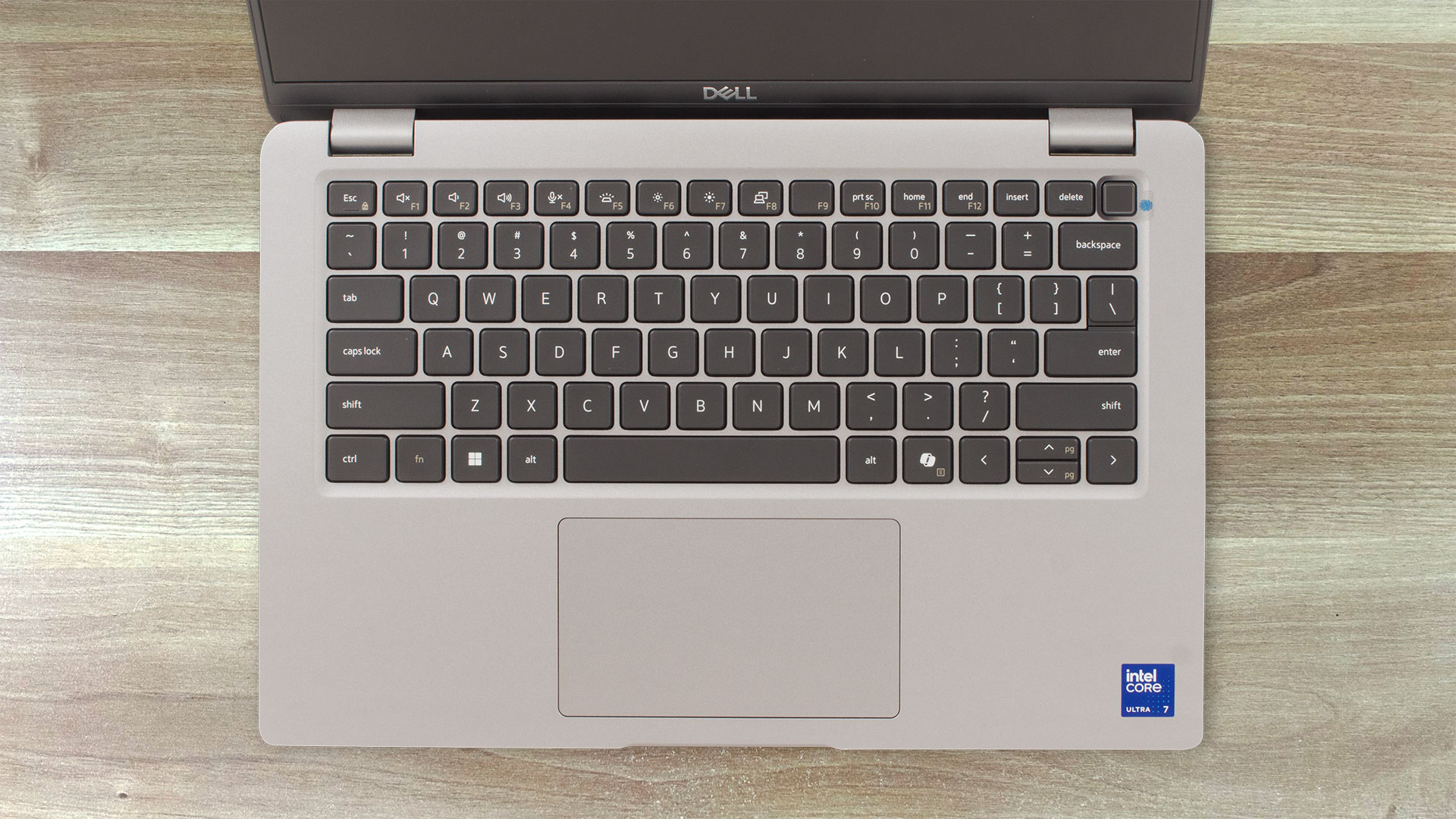
The keyboard is very good. It has big and grippy keycaps with long travel and clicky feedback. The Power button doubles as an optional fingerprint reader. Speaking of which, the backlight will also cost you an additional amount of money. The tiny “Up” and “Down” Arrow keys may be the only con of this board.
The touchpad is decently-sized for a 14-inch – 115 x 67 mm. The pad isn’t among the most accurate units we’ve tested, but its surface is smooth and the clicking mechanism is quiet.
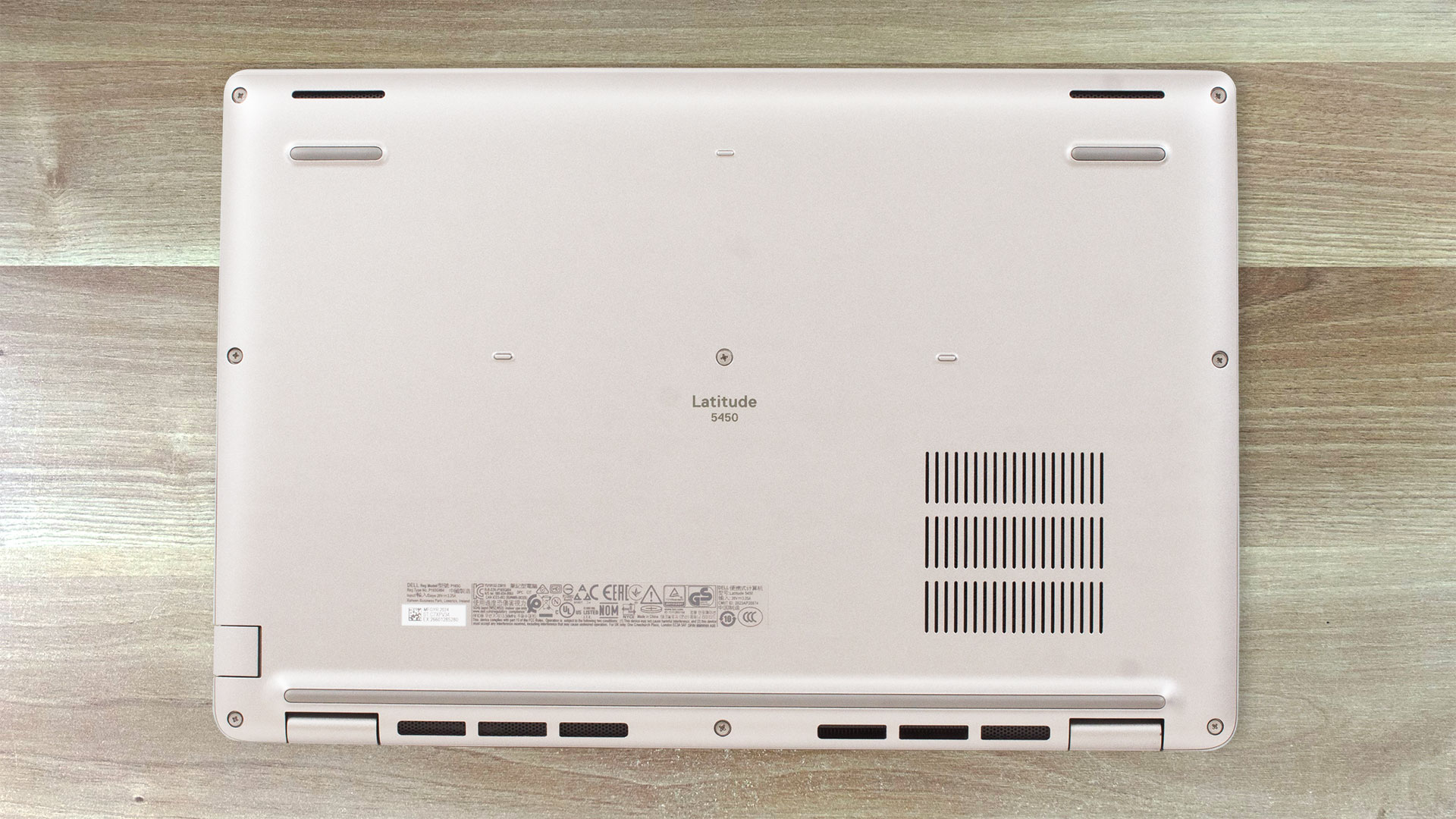
The bottom plate looks standard – a small ventilation grill placed above the fan, three rubber feet, and two speaker cutouts. The heat is being exhausted via a two-row vent on the back.

Ports
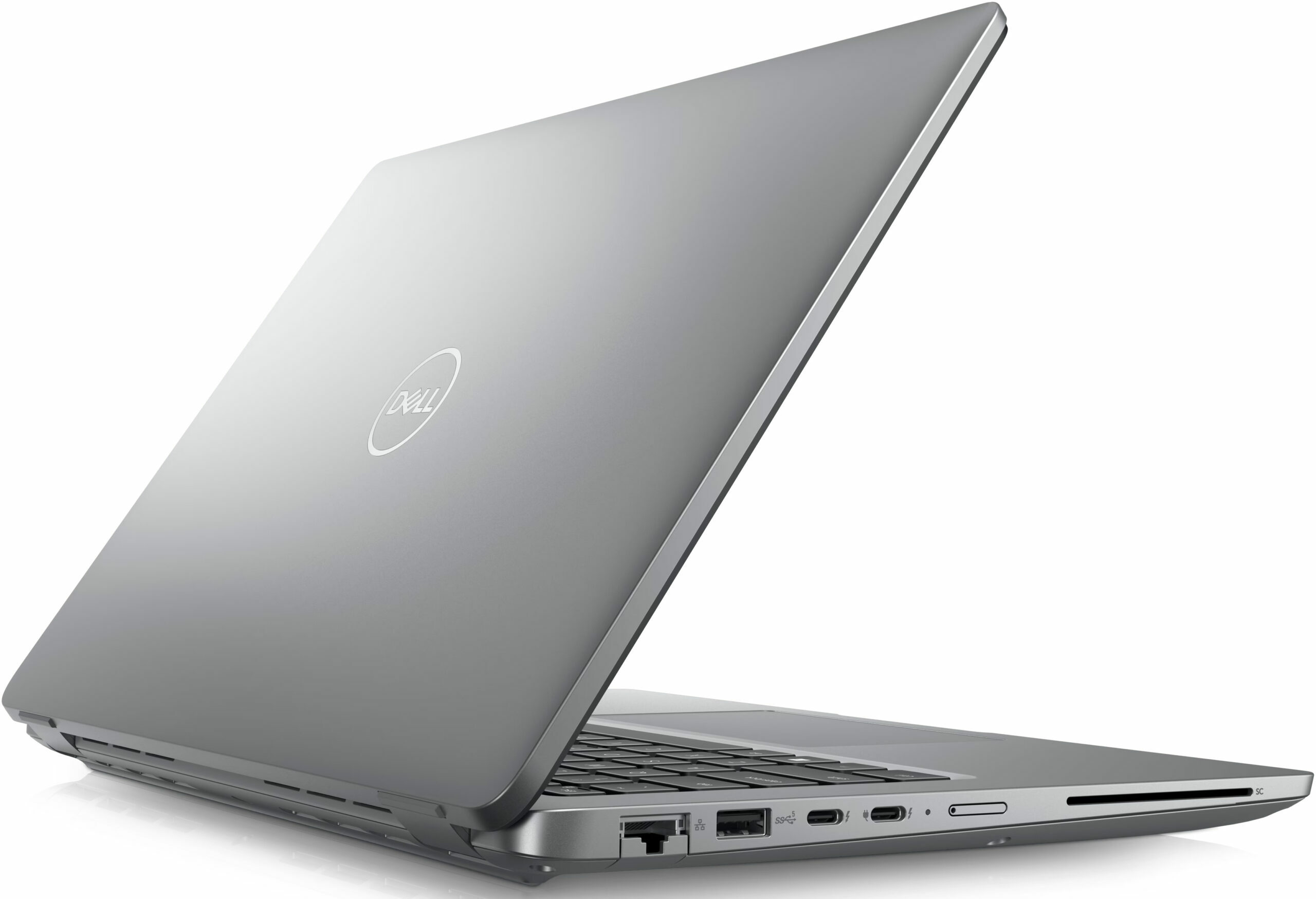
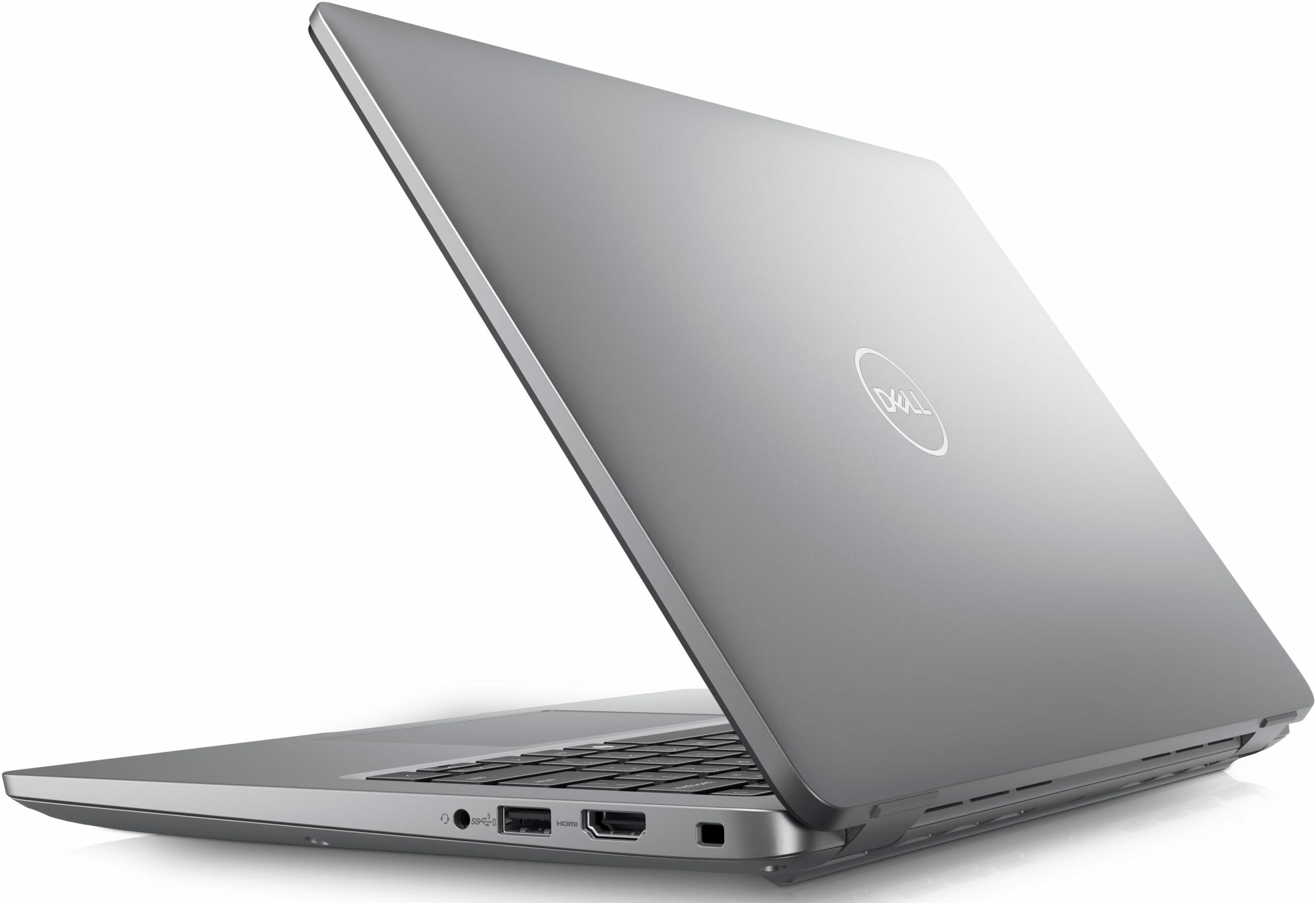
On the left side, you get a LAN, a 5 Gbps USB Type-A 3.2 (Gen. 1) port, followed by two 40 Gbps Thunderbolt 4 / USB4 ports with DisplayPort 2.1 and Power Delivery capabilities, an optional nano-SIM slot, and a SmartCard reader (option). The right side offers a security lock slot, an HDMI 2.1 TMDS, a 5 Gbps USB Type-A 3.2 (Gen. 1) port with PowerShare function, and an Audio combo jack.


Display and Sound Quality, Get our Profiles
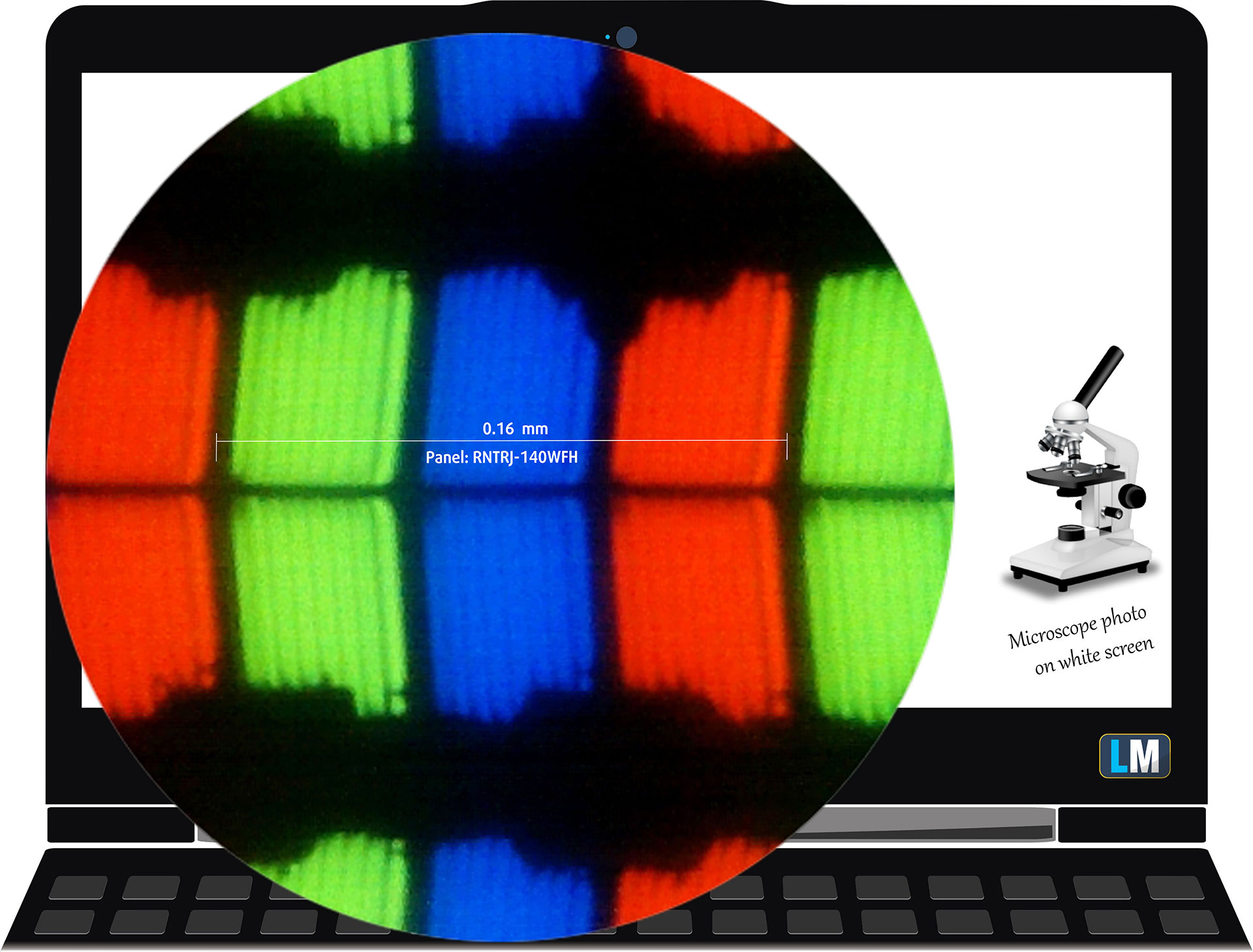
Dell Latitude 14 5450 is equipped with a Full HD IPS panel, model number LG Display RNTRJ-140WFH (LGD0753). It comes with a 60Hz refresh rate. Its diagonal is 14.0″ (35.5 cm), and the resolution – 1920 x 1080p. Additionally, the screen ratio is 16:9, the pixel density – 157 ppi, and their pitch – 0.16 x 0.16 mm. The screen can be considered Retina when viewed from at least 56 cm (this is based on the pixel density and the typical viewing distance at which individual pixels cannot be distinguished by the human eye).
Viewing angles are good. We offer images at different angles to evaluate the quality.
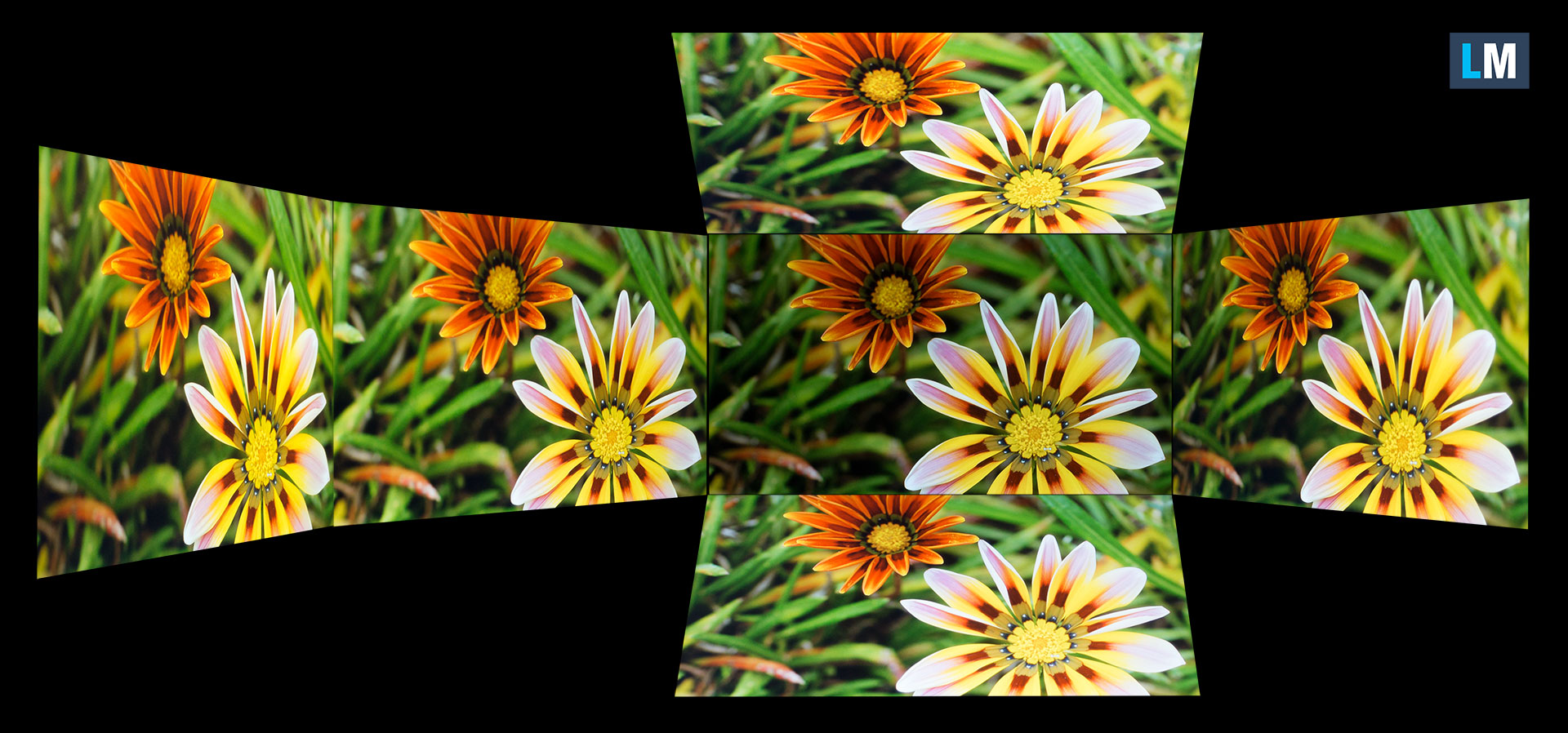
Also, a video with locked focus and exposure.
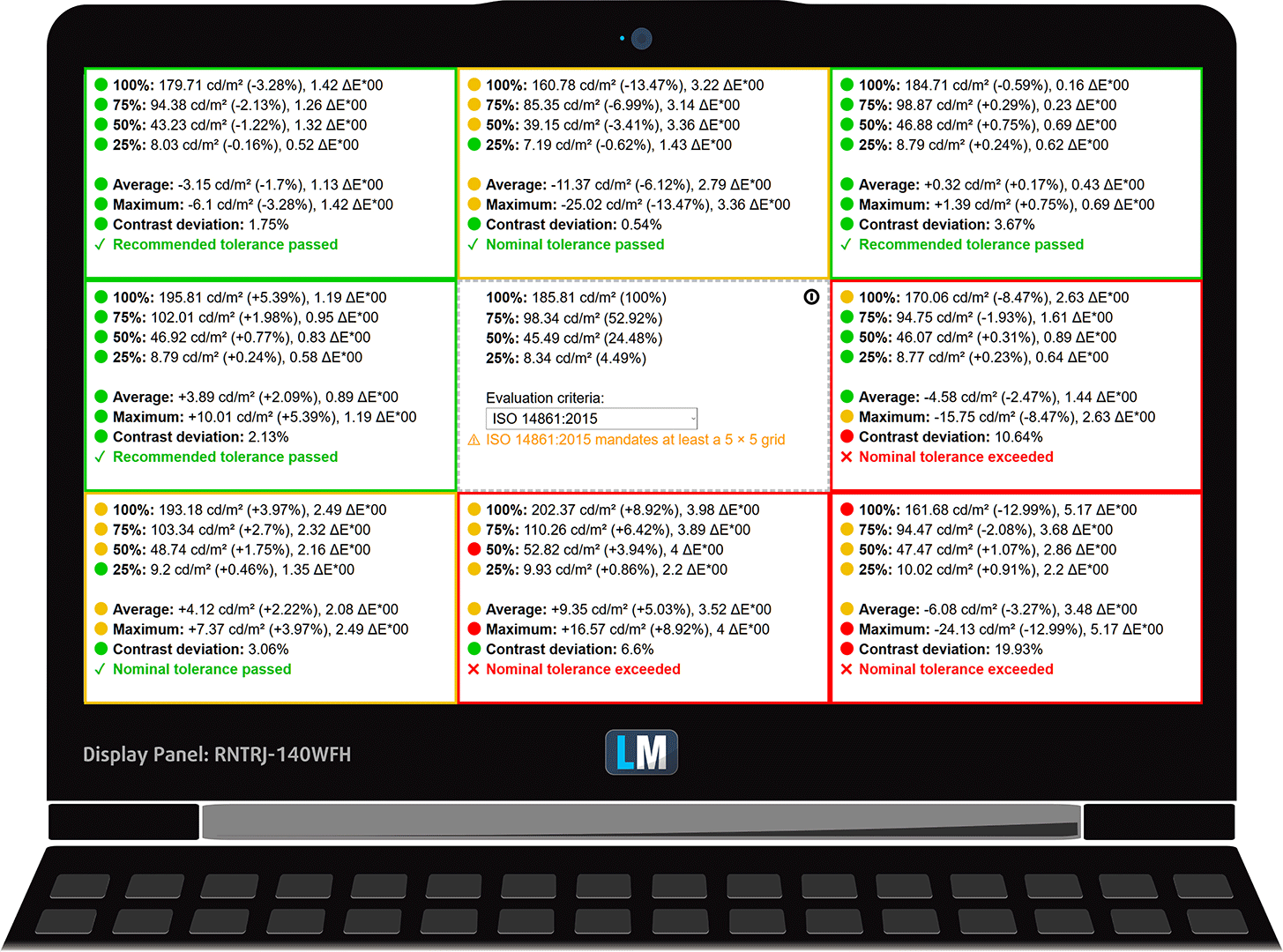
The maximum measured brightness is 238 nits (cd/m2) in the middle of the screen and 231 nits (cd/m2) average across the surface with a maximum deviation of just 14%. The Correlated Color Temperature on a white screen and at maximum brightness is 7020К.
In the illustration below you can see how the display performs from a uniformity perspective. The illustration below shows how matters are for operational brightness levels (approximately 180 nits) – in this particular case at 77% Brightness (White level = 182 cd/m2, Black level = 0.17 cd/m2).
Values of dE2000 over 4.0 should not occur, and this parameter is one of the first you should check if you intend to use the laptop for color-sensitive work (a maximum tolerance of 2.0). We measured a good contrast ratio – 1090:1.
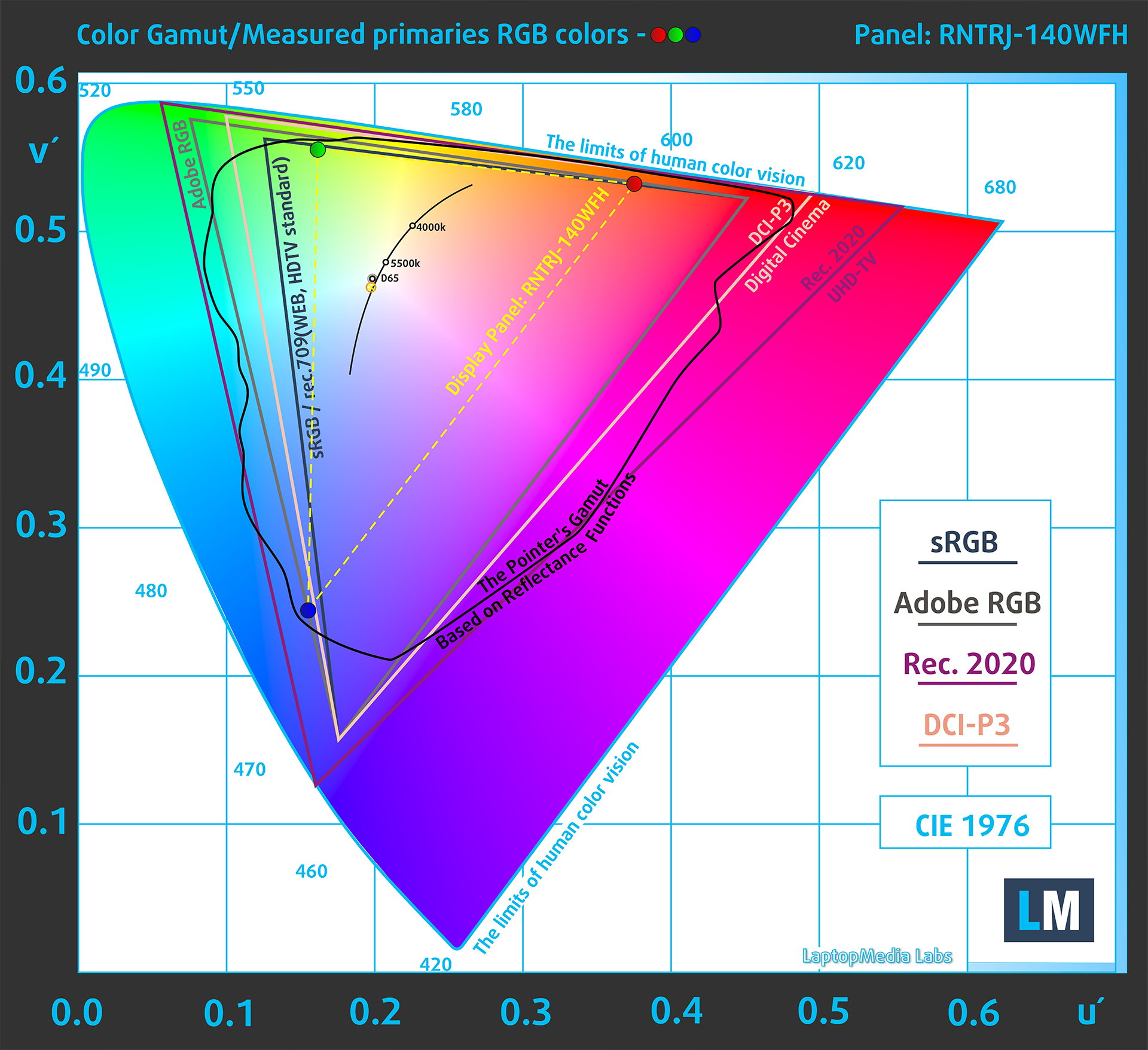
To make sure we are on the same page, we would like to give you a little introduction to the sRGB color gamut and the Adobe RGB. To start, there’s the CIE 1976 Uniform Chromaticity Diagram that represents the visible specter of colors by the human eye, giving you a better perception of the color gamut coverage and the color accuracy.
Inside the black triangle, you will see the standard color gamut (sRGB) that is being used by millions of people on HDTV and on the web. As for the Adobe RGB, this is used in professional cameras, monitors, etc for printing. Basically, colors inside the black triangle are used by everyone and this is the essential part of the color quality and color accuracy of a mainstream notebook.
Still, we’ve included other color spaces like the famous DCI-P3 standard used by movie studios, as well as the digital UHD Rec.2020 standard. Rec.2020, however, is still a thing of the future and it’s difficult for today’s displays to cover that well. We’ve also included the so-called Michael Pointer gamut, or Pointer’s gamut, which represents the colors that naturally occur around us every day.
The yellow dotted line shows Dell Latitude 14 5450’s color gamut coverage.
Its display covers 52% of the sRGB/ITU-R BT.709 (web/HDTV standard) in CIE1976, and 41% of DCI-P3.
Our “Design and Gaming” profile delivers optimal color temperature at 180 cd/m2 luminance (Illuminant white point – D65), sRGB encoding curve.
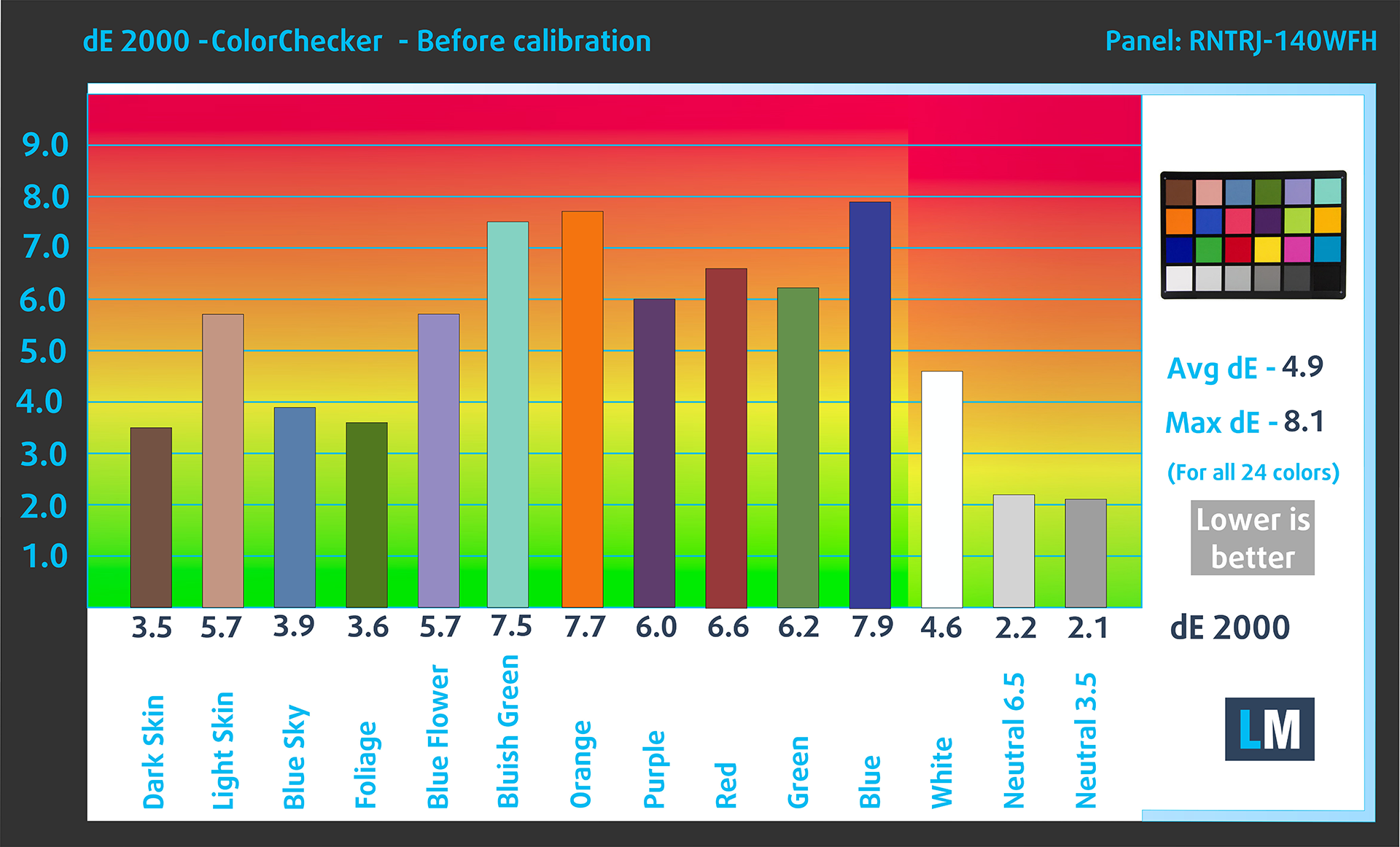
We tested the accuracy of the display with 24 commonly used colors like light and dark human skin, blue sky, green grass, orange, etc.
Below you can compare the scores of the Dell Latitude 14 5450 with the default settings (left), and with the “Gaming and Web design” profile (right).
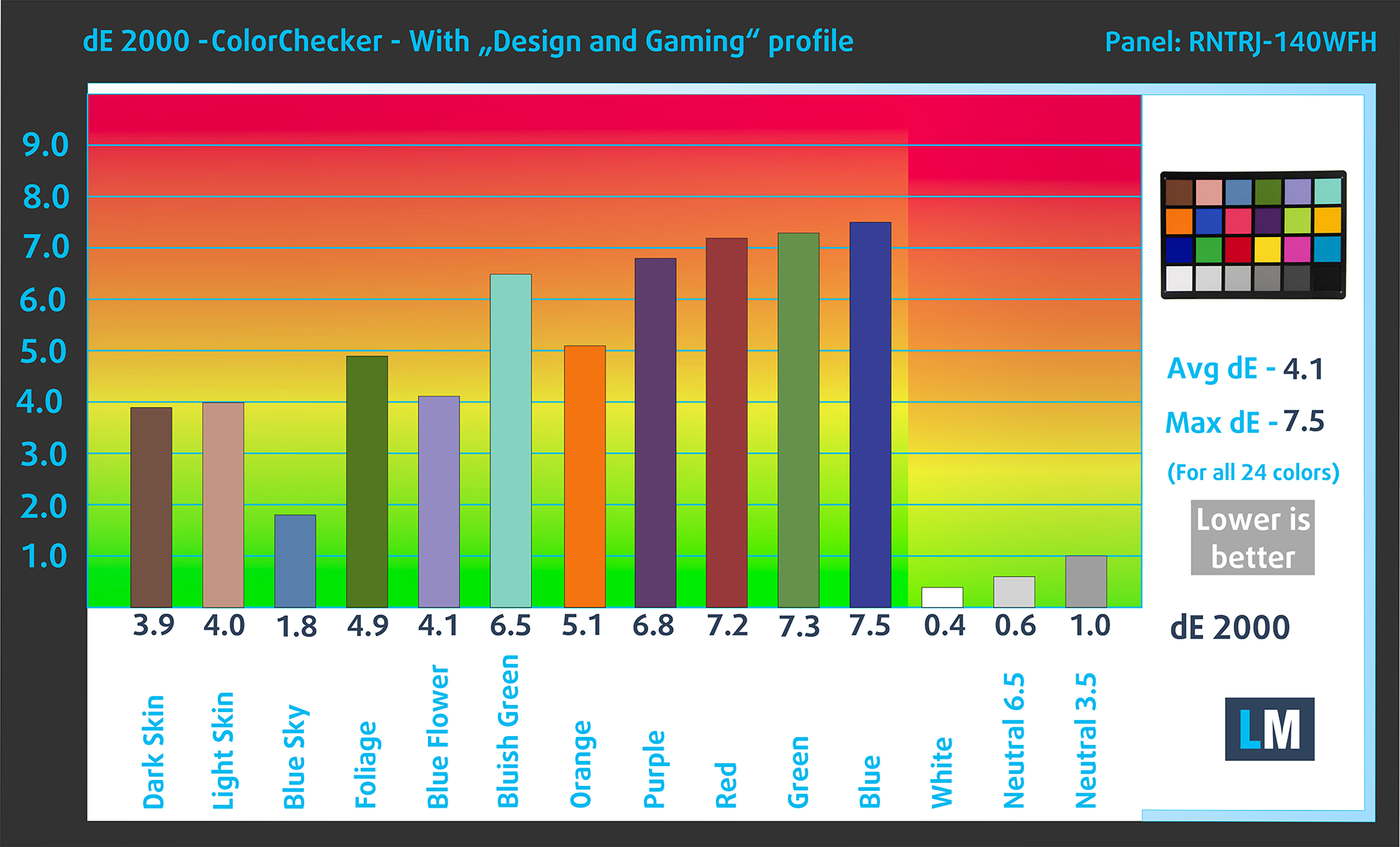
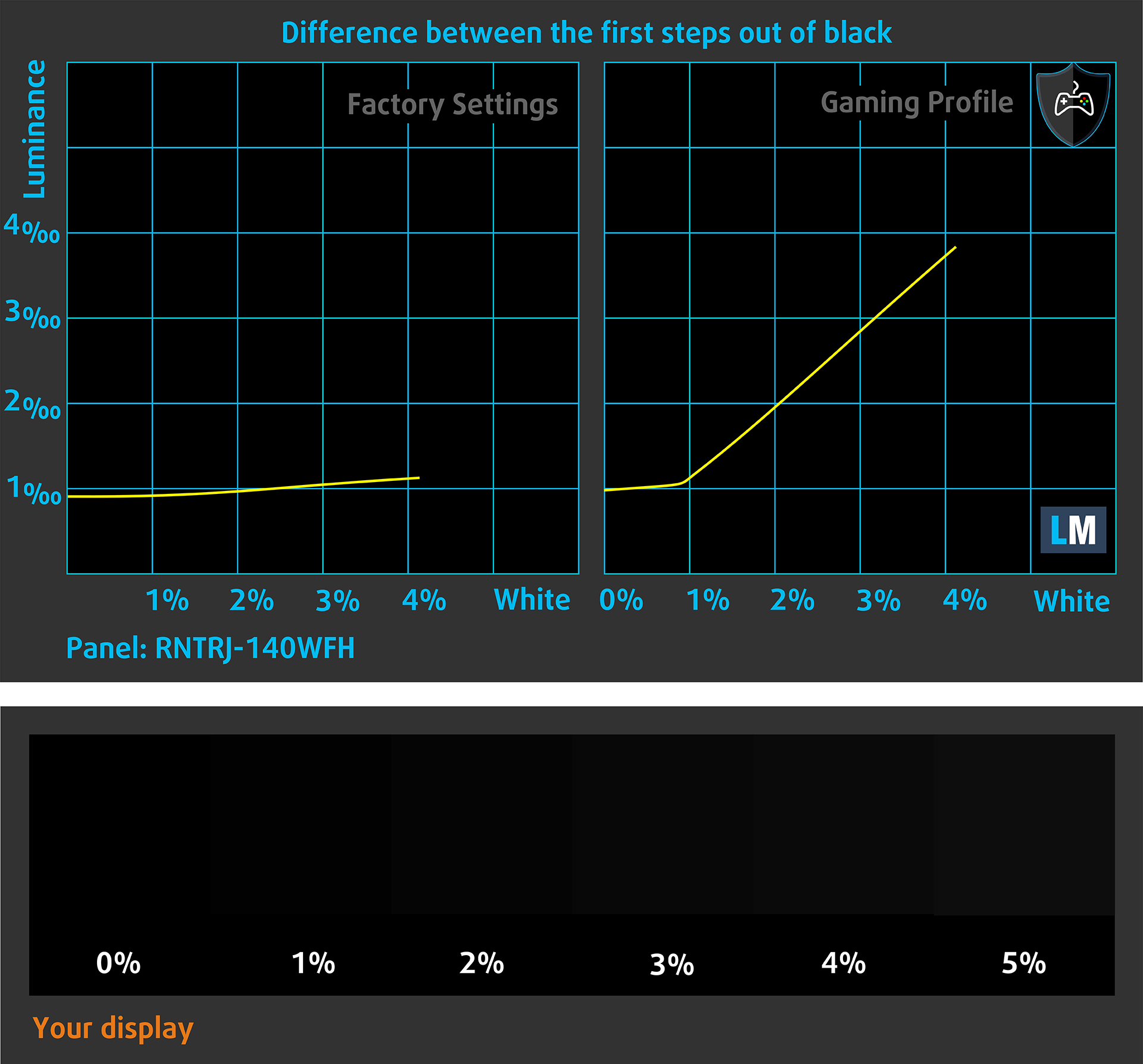
The next figure shows how well the display is able to reproduce really dark parts of an image, which is essential when watching movies or playing games in low ambient light.
The left side of the image represents the display with stock settings, while the right one is enhanced with the “Gaming and Web Design” profile activated. On the horizontal axis, you will find the grayscale, and on the vertical axis – the luminance of the display. On the two graphs below you can easily check for yourself how your display handles the darkest nuances but keep in mind that this also depends on the settings of your current display, the calibration, the viewing angle, and the surrounding light conditions.
Response time (Gaming capabilities)
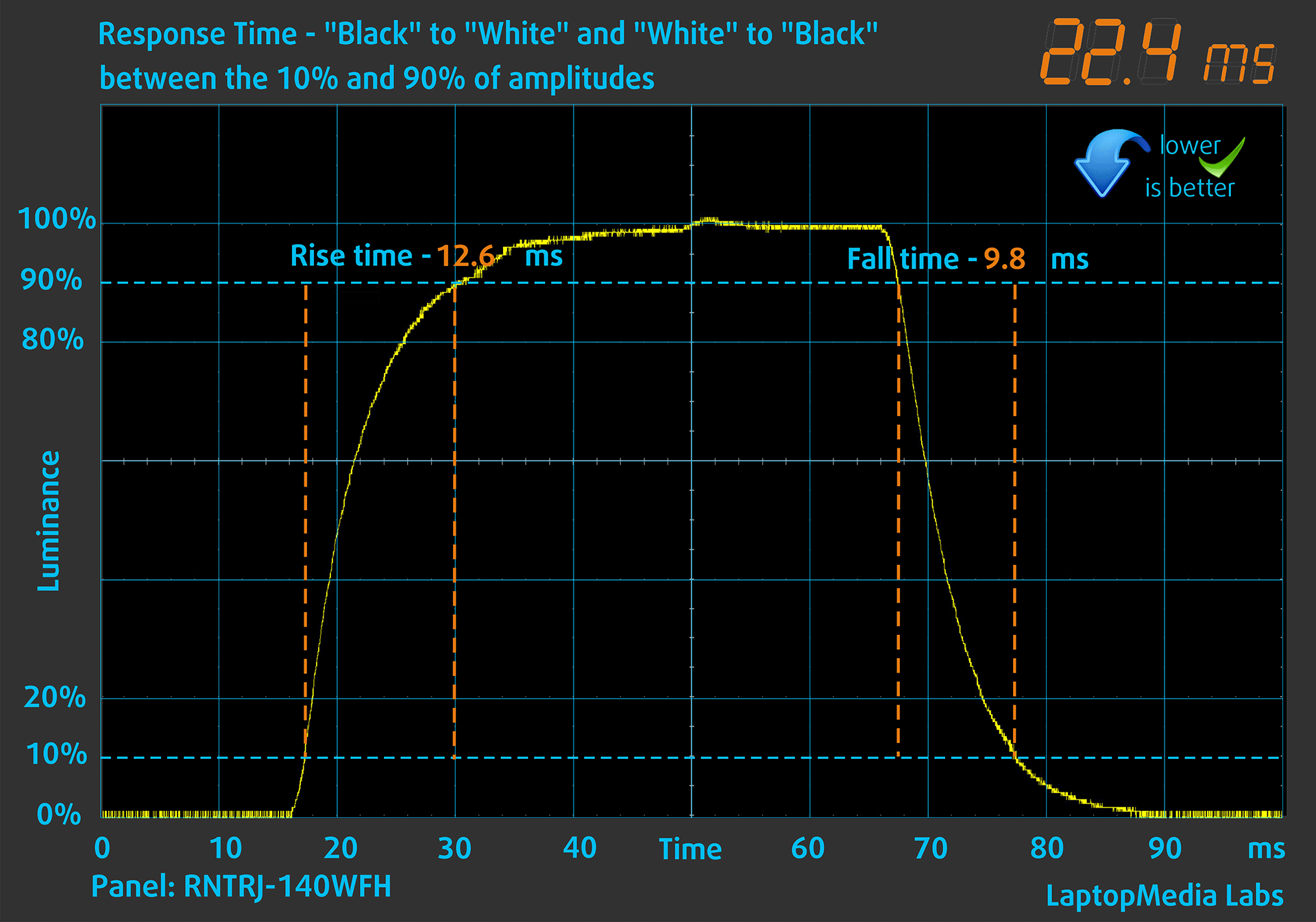
We test the reaction time of the pixels with the usual “black-to-white” and “white-to-black” method from 10% to 90% and vice versa (these terms refer to the time it takes for pixels to change from one color to another (black to white and back to black in this case), a shorter time reduces picture blur with fast moving images).
We recorded Fall Time + Rise Time = 22 ms.
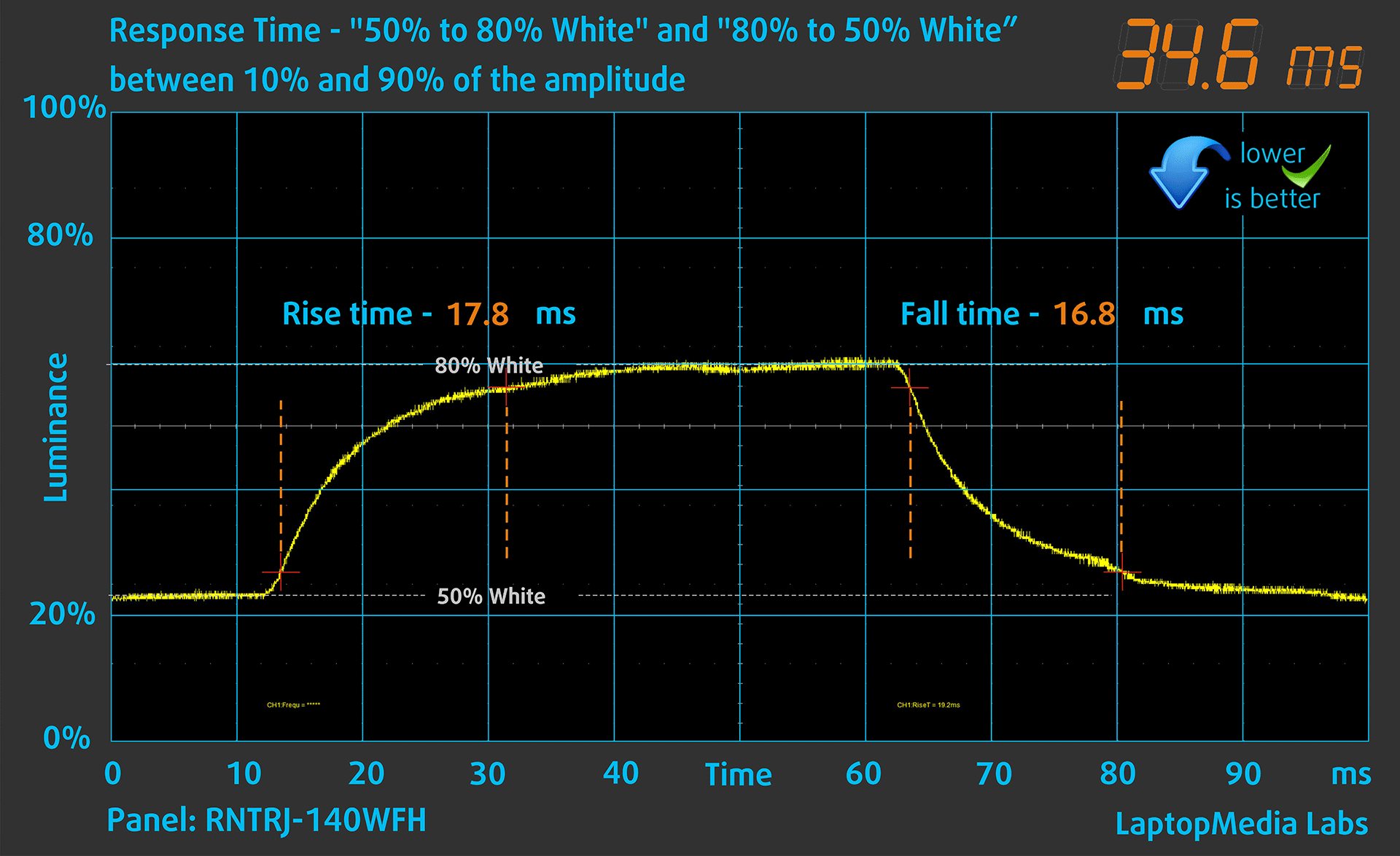
After that, we test the reaction time of the pixels with the usual “Gray-to-Gray” method from 50% White to 80% White and vice versa between 10% and 90% of the amplitude.
Health Impact: PWM (Screen flickering)
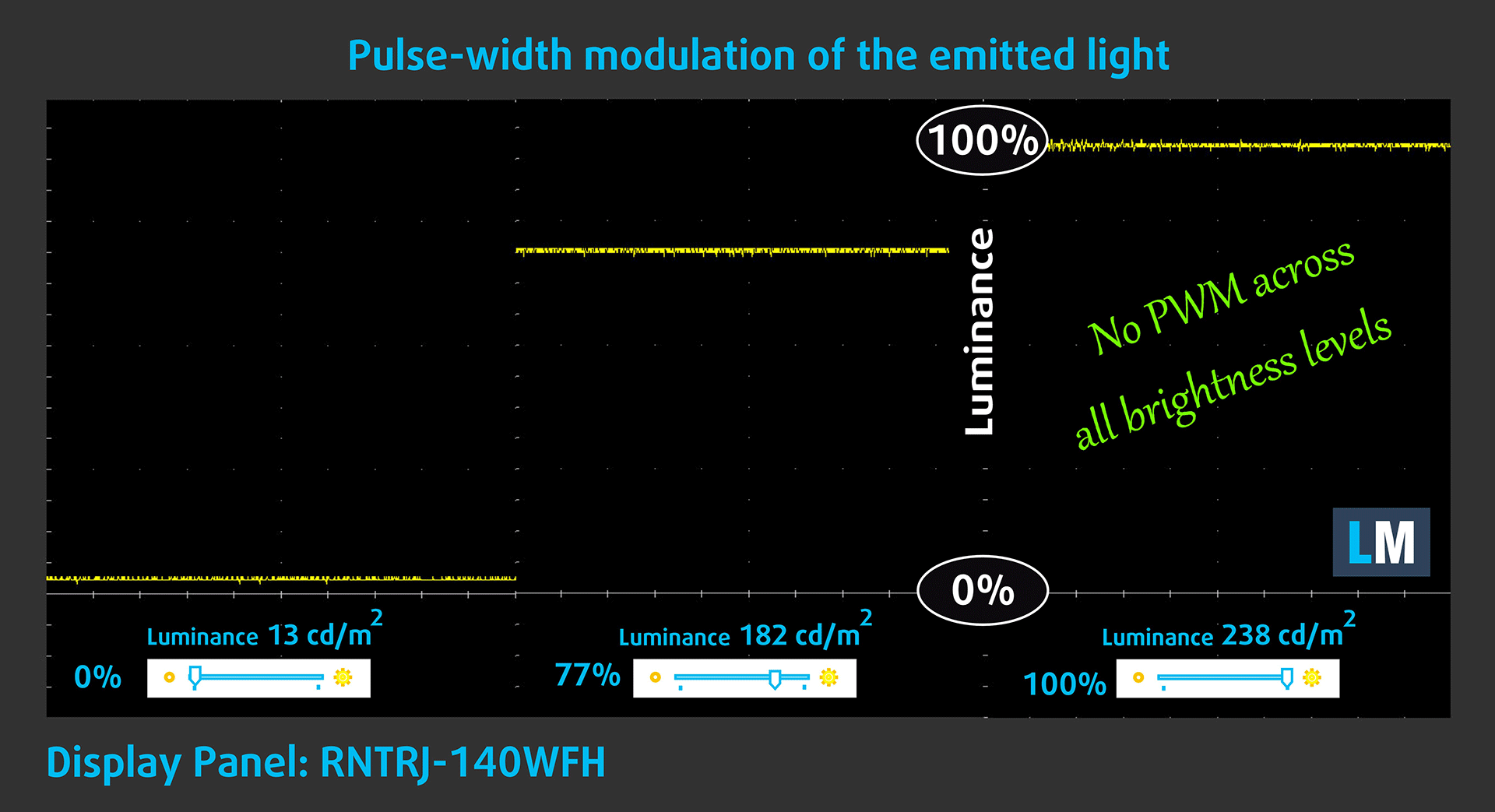
Pulse-width modulation (PWM) is an easy way to control monitor brightness. When you lower the brightness, the light intensity of the display is not lowered, but instead turned off and on by the electronics with a frequency indistinguishable to the human eye. In these light impulses, the light/no-light time ratio varies, while brightness remains unchanged, which is harmful to your eyes. You can read more about that in our dedicated article on PWM.
Dell Latitude 14 5450’s display doesn’t use PWM for brightness adjustment. This makes the screen pretty comfortable for long periods of use.
Health Impact: Blue light emissions
Installing our Health-Guard profile not only eliminates PWM but also reduces the harmful Blue Light emissions while keeping the colors of the screen perceptually accurate. If you’re not familiar with the Blue light, the TL;DR version is – emissions that negatively affect your eyes, skin, and your whole body. You can find more information about that in our dedicated article on Blue Light.
Health Impact: Screen Reflectance
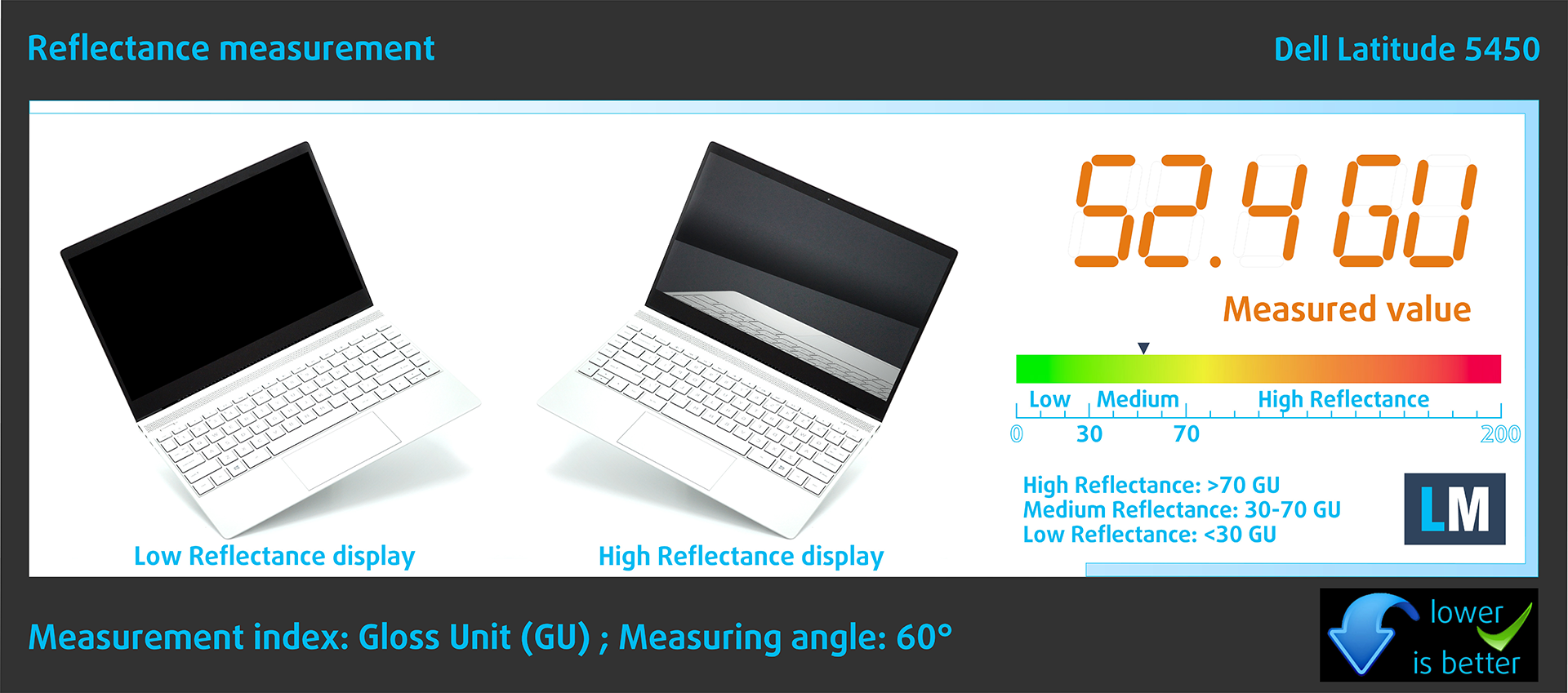
Glossy-coated displays can be inconvenient in high ambient light conditions due to reflections. We measure the screen reflection level for each laptop when the display is turned off and the measurement angle is set at 60°.
The reflectance of the Dell’s screen is 52.4 GU.
High Gloss: >70 GU
Medium Gloss: 30 – 70 GU
Low Gloss: <30 GU
Sound
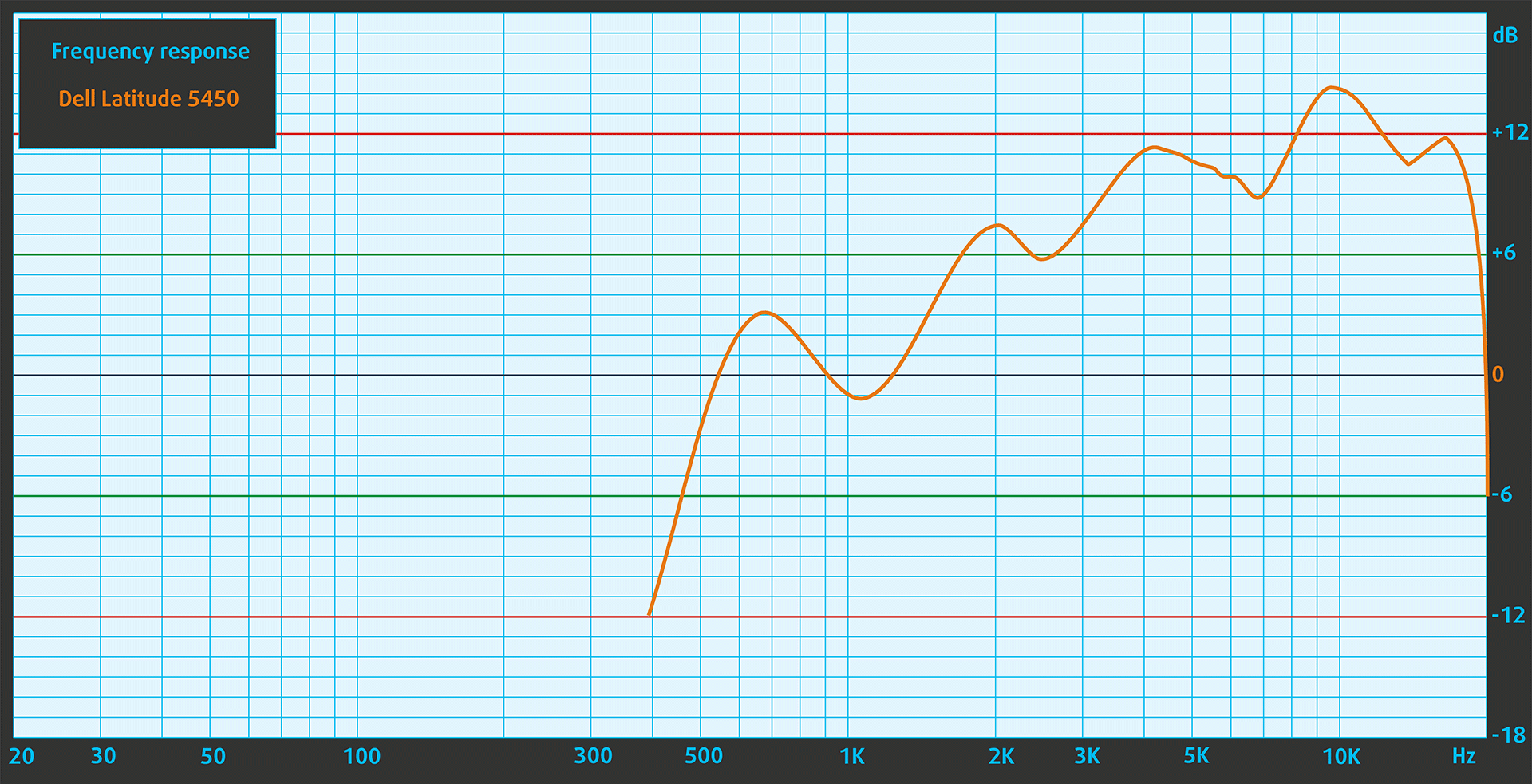
Dell Latitude 14 5450’s speakers produce a sound of relatively good quality. However, the low, mid, and high tones all have some slight deviations from clarity.
Buy our profiles
Since our profiles are tailored for each individual display model, this article and its respective profile package are meant for Dell Latitude 14 5450 configuration with 14.0″ LG Display RNTRJ-140WFH (LGD0753) (1920×1080) IPS.
*Should you have problems with downloading the purchased file, try using a different browser to open the link you’ll receive via e-mail. If the download target is a .php file instead of an archive, change the file extension to .zip or contact us at [email protected].
Read more about the profiles HERE.
In addition to receiving efficient and health-friendly profiles, by buying LaptopMedia's products you also support the development of our labs, where we test devices in order to produce the most objective reviews possible.

Office Work
Office Work should be used mostly by users who spend most of the time looking at pieces of text, tables or just surfing. This profile aims to deliver better distinctness and clarity by keeping a flat gamma curve (2.20), native color temperature and perceptually accurate colors.

Design and Gaming
This profile is aimed at designers who work with colors professionally, and for games and movies as well. Design and Gaming takes display panels to their limits, making them as accurate as possible in the sRGB IEC61966-2-1 standard for Web and HDTV, at white point D65.

Health-Guard
Health-Guard eliminates the harmful Pulse-Width Modulation (PWM) and reduces the negative Blue Light which affects our eyes and body. Since it’s custom tailored for every panel, it manages to keep the colors perceptually accurate. Health-Guard simulates paper so the pressure on the eyes is greatly reduced.
Get all 3 profiles with 33% discount

Performance: CPU, GPU, Storage
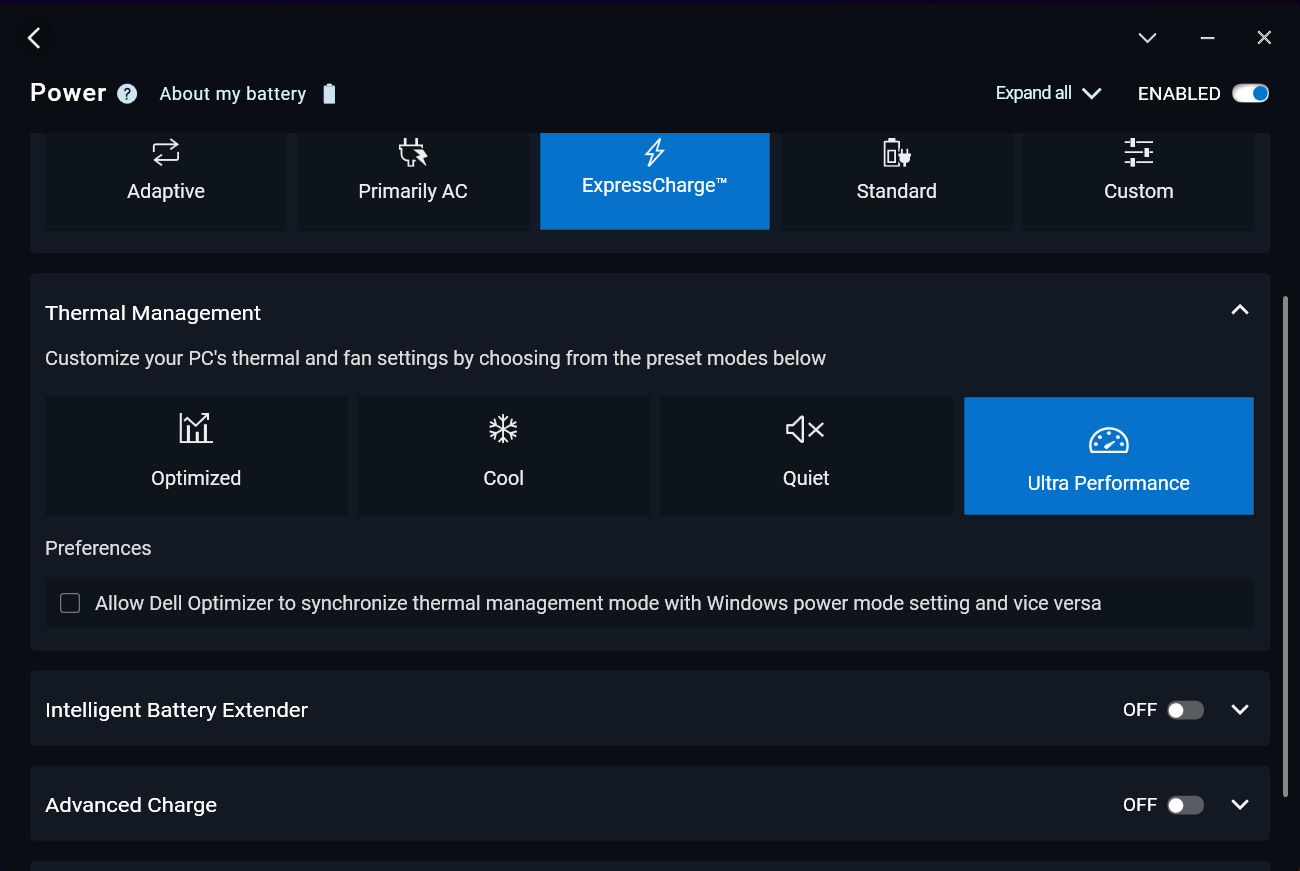
All benchmarks and tests were conducted with the “Best performance” preset activated in the Windows “Power & Battery” menu. Also, the “Ultra Performance” mode is enabled in the Dell Optimizer app.

CPU options
This machine is offered with Core i3-1315U, Core i5-1335U, Core i5-1345U vPro, Core i7-1355U, Core i7-1365U vPro, Core Ultra 5 125U, Core Ultra 5 135U vPro, Core Ultra 5 125H, Core Ultra 5 135H vPro, Core Ultra 7 155U, Core Ultra 7 165U vPro, or Core Ultra 7 165H vPro.
Our notebook has a 155U chip.
Single-core performance ensures smooth operation and responsiveness in operating systems, providing a better user experience.
Results are from the Geekbench 6 Single-Core test (higher is better)
Multi-core performance is essential for handling complex and demanding tasks, such as Video editing, CAD, and Scientific simulations.
Results are from the Geekbench 6 Multi-Core test (higher is better)
Here, we evaluate the CPU's performance using a real-world 3D rendering task, assessing its ability to handle complex computations and rendering workloads efficiently.
Results are from the Cinebench 2024 Multi-Core test (higher is better)
GPU options
Most of the devices of this Dell series are iGPU-only laptops. For graphics-heavy tasks, you can pick the optional NVIDIA GeForce RTX 2050.
Our gadget relies on an Intel Graphics (4-Cores).
The results are from 3DMark Time Spy (Graphics). Higher is better.
The results are from 3DMark Wild Life Extreme Unlimited. Higher is better.
Dell Latitude 14 5450 GPU variants
Here you can see an approximate comparison between the GPUs that can be found in the Dell Latitude 14 5450 models on the market. This way you can decide for yourself which Dell Latitude 14 5450 model is the best bang for your buck.
Note: The chart shows the cheapest different GPU configurations so you should check what the other specifications of these laptops are by clicking on the laptop’s name / GPU.
The results are from 3DMark Time Spy (Graphics). Higher is better.
Results are from the 3DMark: Fire Strike (Graphics) benchmark (higher the score, the better)
Results are from the 3DMark: Wild Life (Graphics) benchmark (higher the score, the better)
Results are from the Unigine Superposition benchmark (higher the score, the better)
Gaming tests
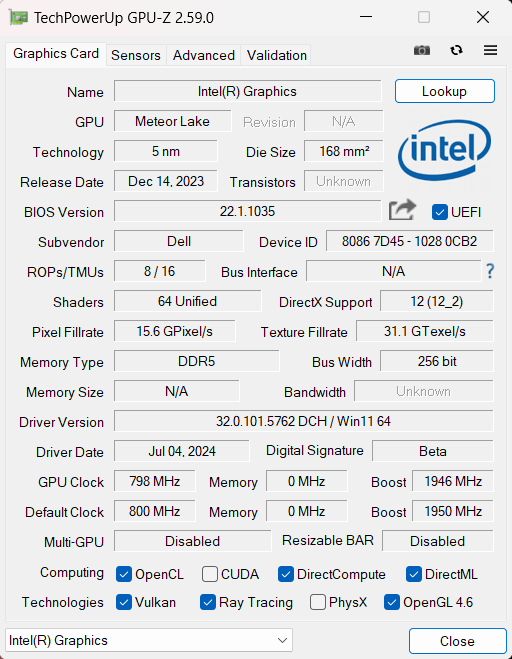

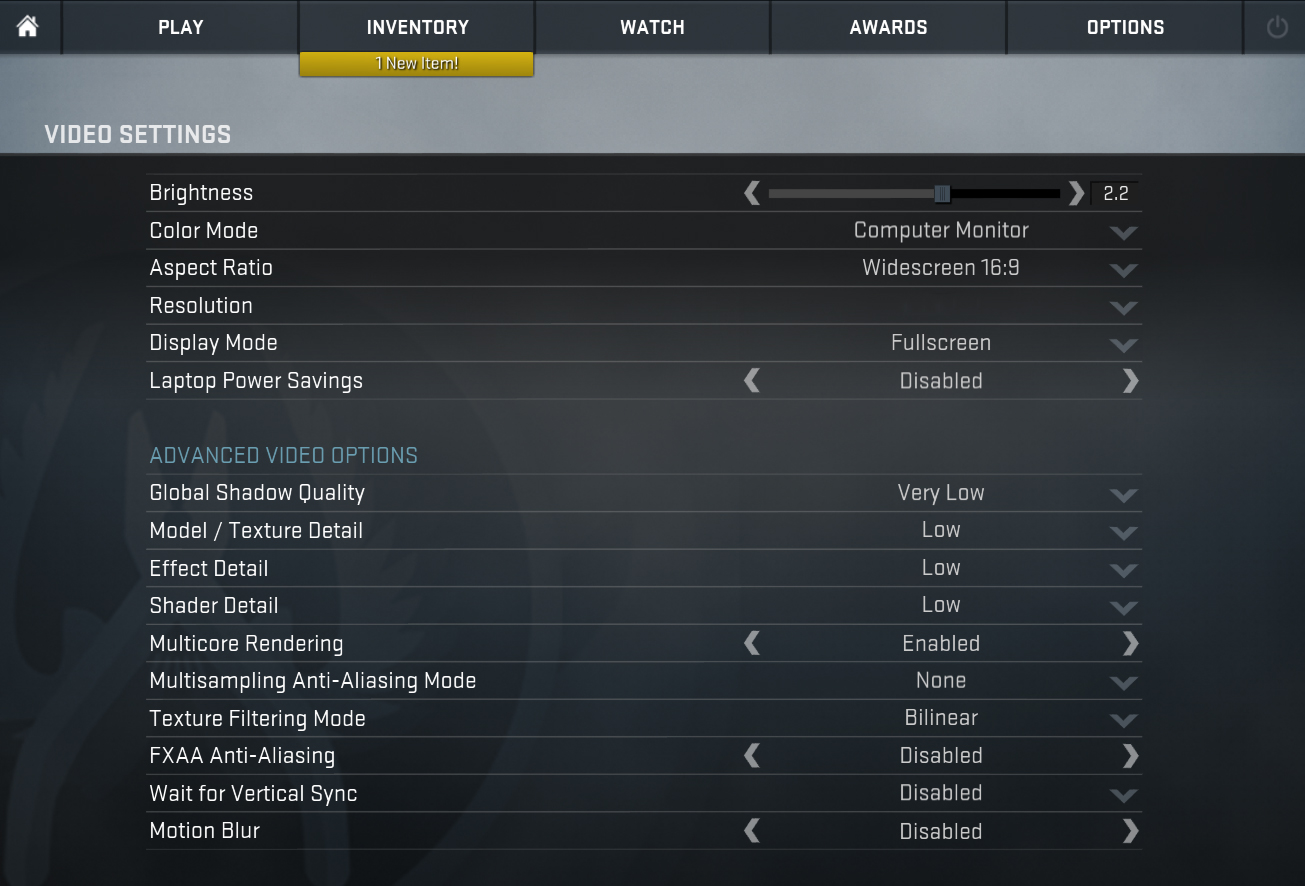
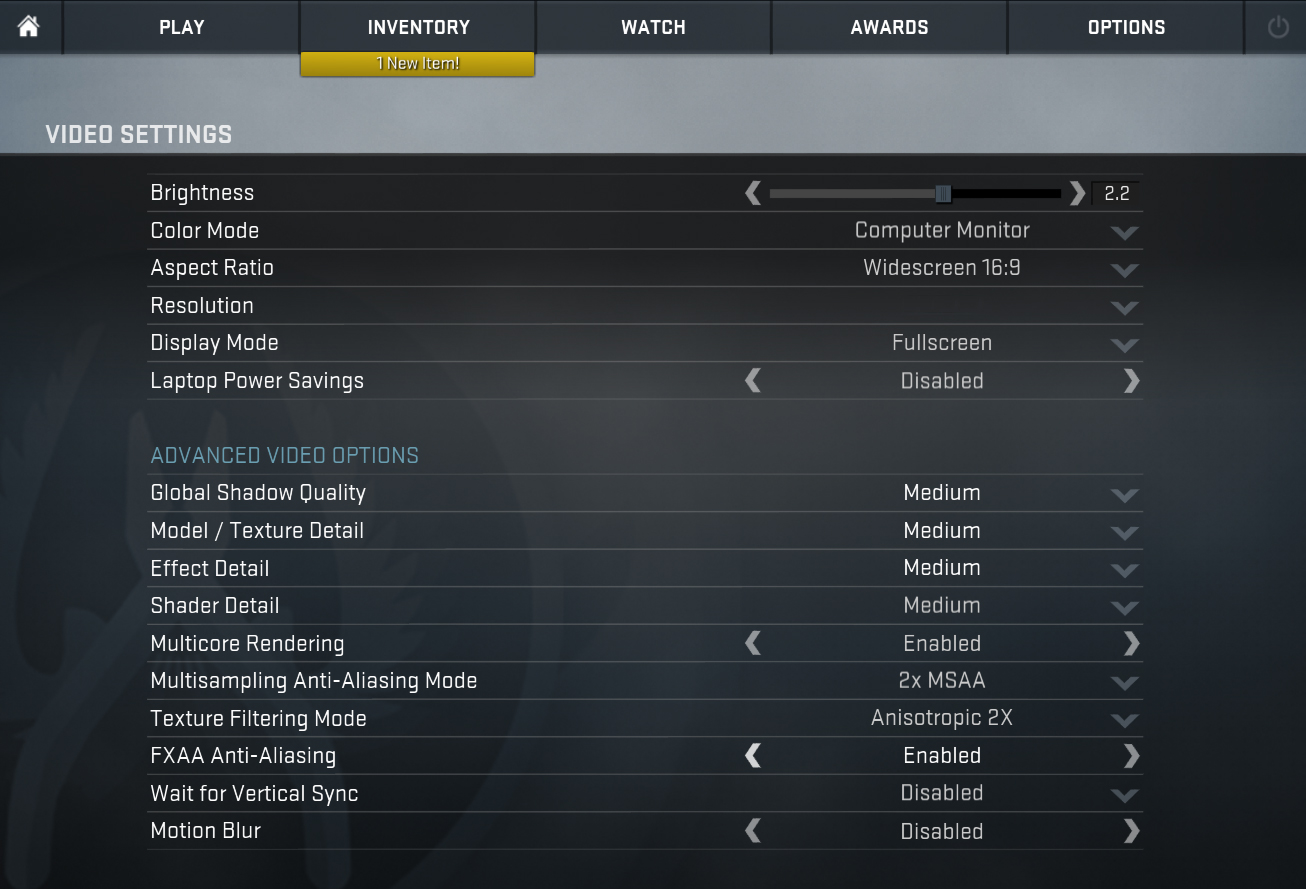
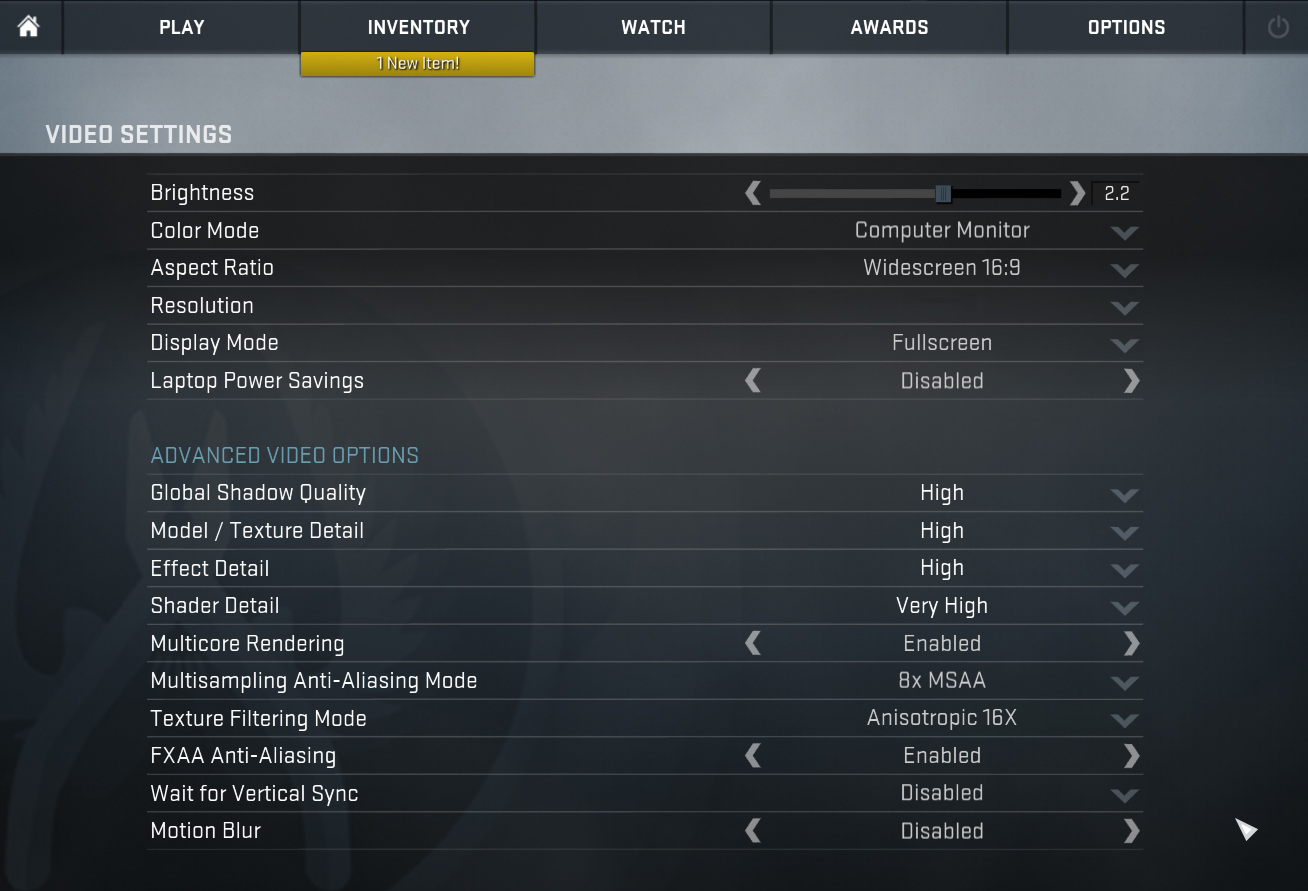
| CS:GO | HD 1080p, Low (Check settings) | HD 1080p, Medium (Check settings) | HD 1080p, MAX (Check settings) |
|---|---|---|---|
| Average FPS | 226 fps | 133 fps | 74 fps |

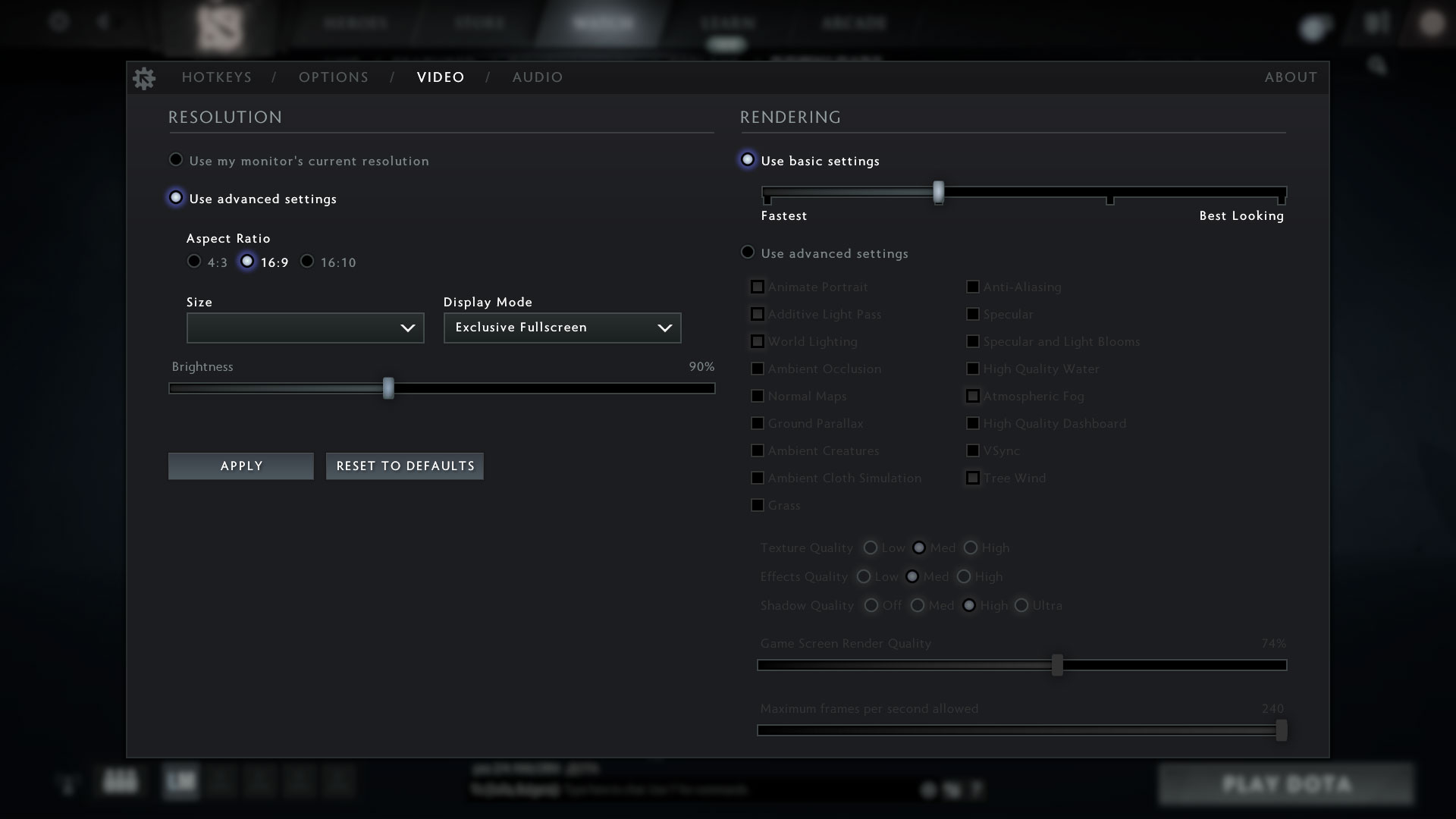
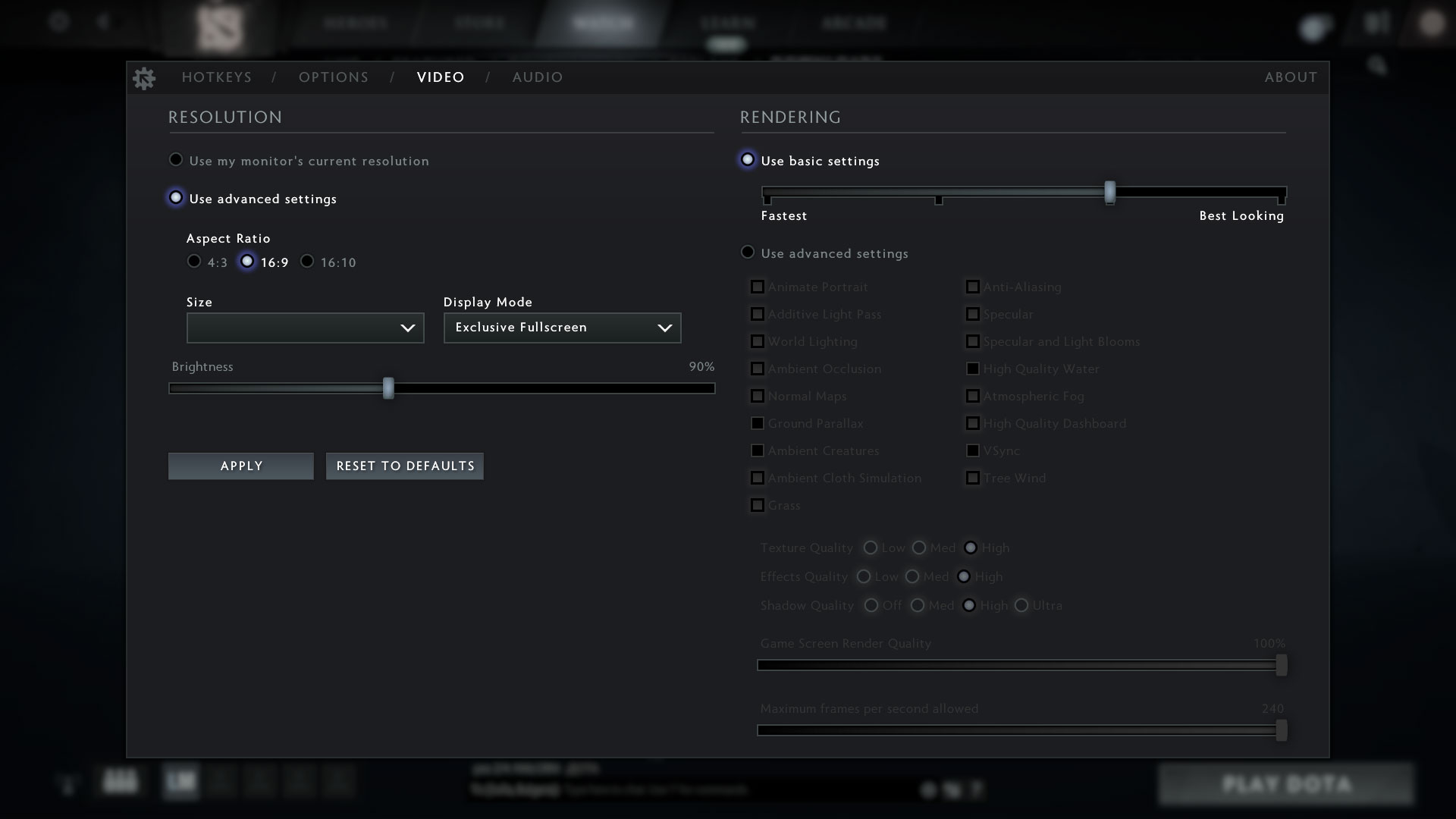
| DOTA 2 | HD 1080p, Low (Check settings) | HD 1080p, Normal (Check settings) | HD 1080p, High (Check settings) |
|---|---|---|---|
| Average FPS | 101 fps | 91 fps | 62 fps |
Storage performance
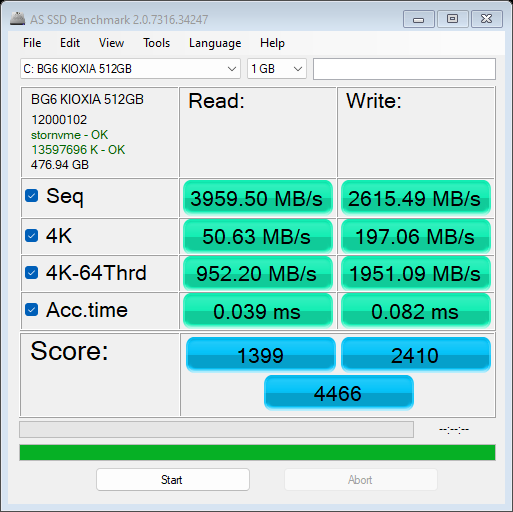
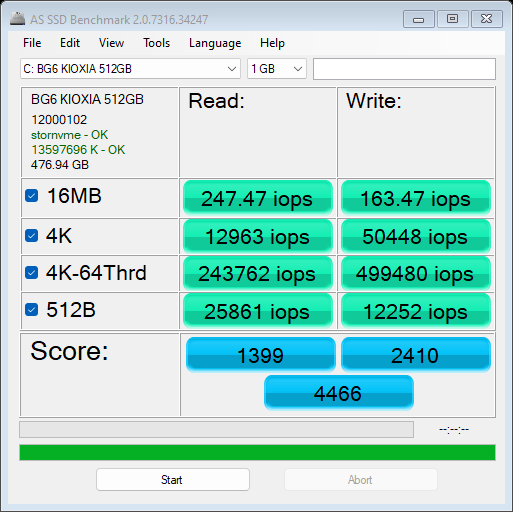
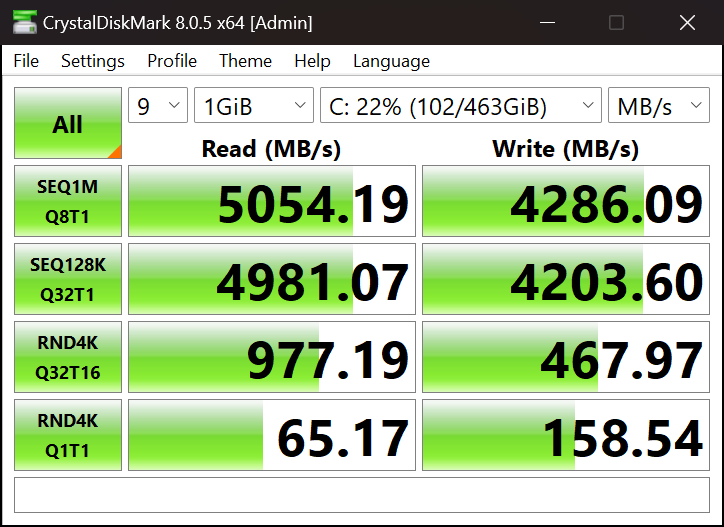
The SSD of our laptop is a KIOXIA BG6 512GB SSD. This Gen 4 NVMe drive is decently fast but it also gets hot during benchmarking reaching temperatures of 78°C. On the bright side, you can only see similar thermals when pounding the SSD with long linear write and read loads.

[eBook Guide + Tools] How to MAX OUT Your Laptop
You can make your laptop Faster. LaptopMedia has tested thousands of models in the last 15 years, and we have yet to see a notebook that couldn't be made more powerful through modifications.
That's why we decided to bundle everything we know about how to achieve this in an Easy-to-Follow, Step-by-Step, and Laboratory-Tested, all in one project.
Read more about it here:
[eBook Guide + Tools] How to MAX OUT Your Laptop
🛠️ GPU Modifications: vBIOS, Overclocking, Undervolting
⚙️ Building Fast/Reliable RAID configuration
💻 Hardware upgrade tips for best results
🖼 Display enhancing
💾 OS Optimization for best performance
Temperatures and comfort, Battery Life
Max CPU load
In this test we use 100% on the CPU cores, monitoring their frequencies and chip temperature. The first column shows a computer’s reaction to a short load (2-10 seconds), the second column simulates a serious task (between 15 and 30 seconds), and the third column is a good indicator of how good the laptop is for long loads such as video rendering.
Average P-core frequency; Average E-core frequency; Average LP E-core frequency; CPU temp.; Package Power
| Intel Core Ultra 7 155U (15W Base Power) | 0:02 – 0:10 sec | 0:15 – 0:30 sec | 10:00 – 15:00 min |
|---|---|---|---|
| Dell Latitude 14 5450 | 3.97 GHz @ 3.29 GHz @ 1.77 GHz @ 88°C @ 56W | 3.30 GHz @ 3.01 GHz @ 2.10 GHz @ 98°C @ 49W | 2.52 GHz @ 2.37 GHz @ 1.21 GHz @ 78°C @ 25W |
| Dell Latitude 15 5550 | 4.09 GHz @ 3.39 GHz @ 1.88 GHz @ 70°C @ 57W | 2.74 GHz @ 2.35 GHz @ 1.20 GHz @ 66°C @ 26W | 2.15 GHz @ 1.87 GHz @ 1.10 GHz @ 66°C @ 20W |
Well, well, the smaller Latitude 5450 outperforms the bigger Latitude 5550 (with the same Core Ultra 7 155U) in medium and long loads. The higher clocks also lead to increased temperatures.
Comfort during full load
When the processor is stressed at max for a long time in “Ultra Performance” mode, the fan noise is average which is actually pretty good considering the high chip frequencies.
In this case, we measured around 45°C in the middle of the keyboard and 49°C between the “5” and “6” keys (which is where the hot spot is). That still doesn’t feel unpleasantly hot to the touch. The right zone of the lower screen bezel that is close to the back exhaust vent reaches 53°C.
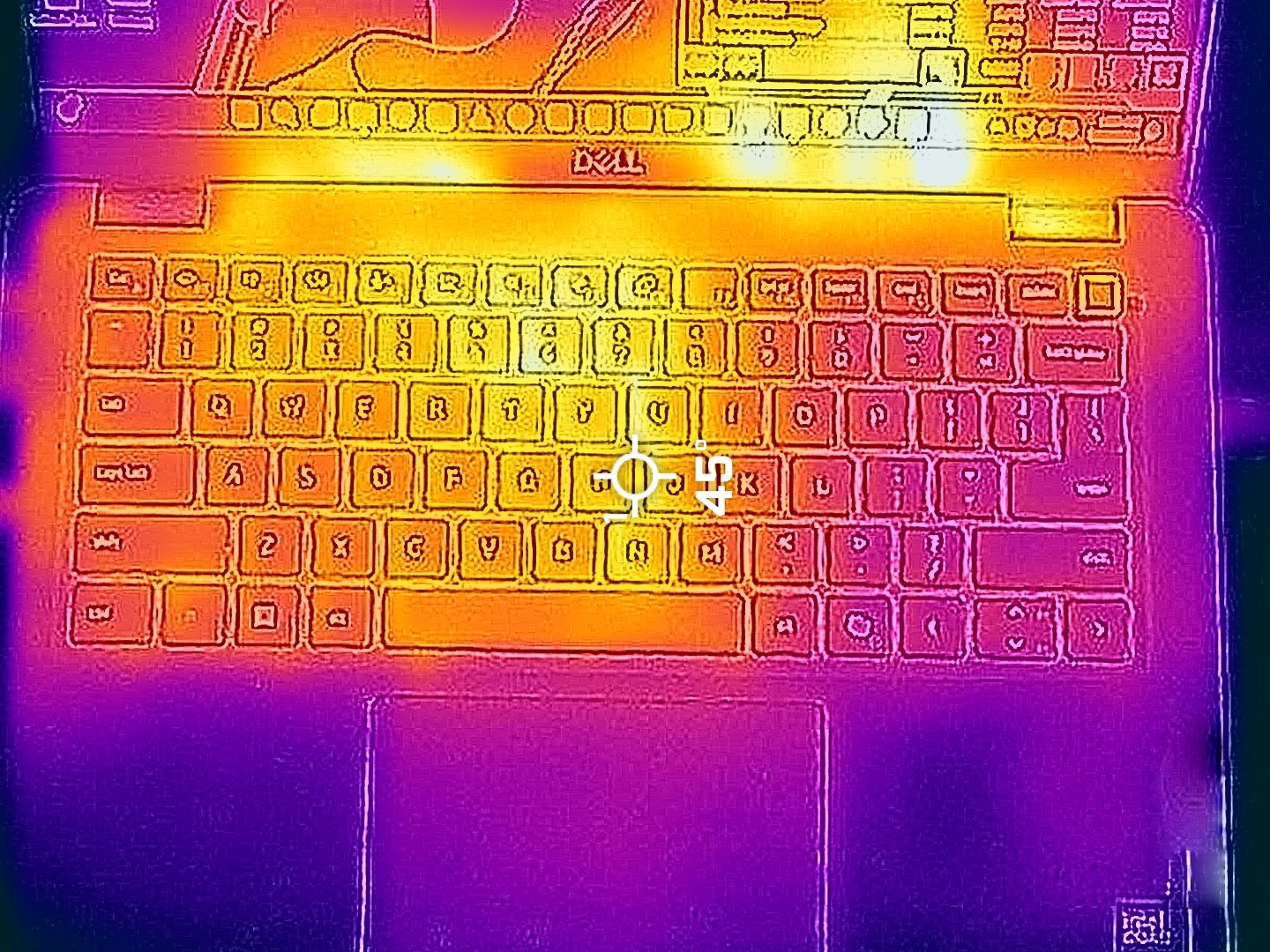
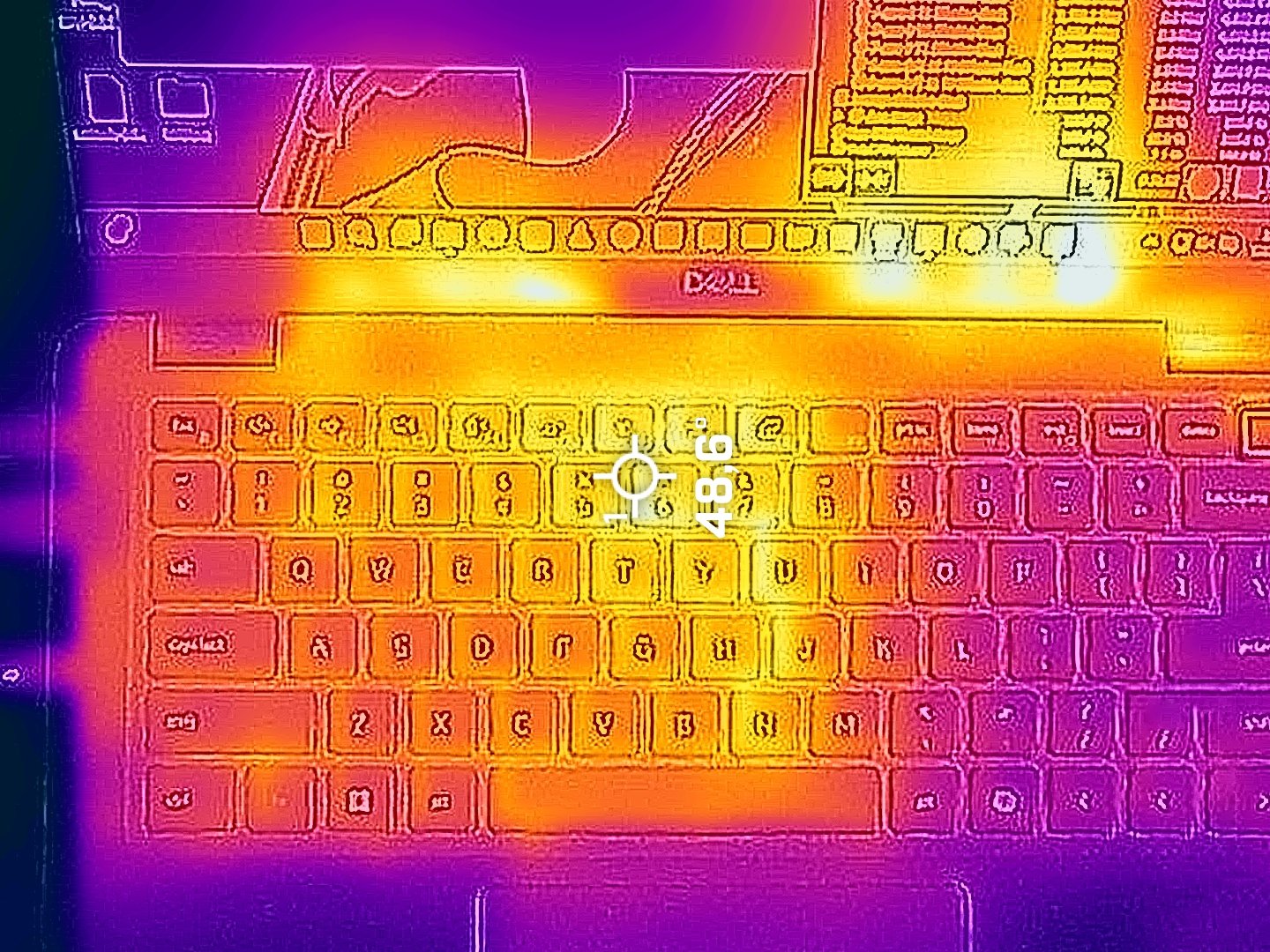
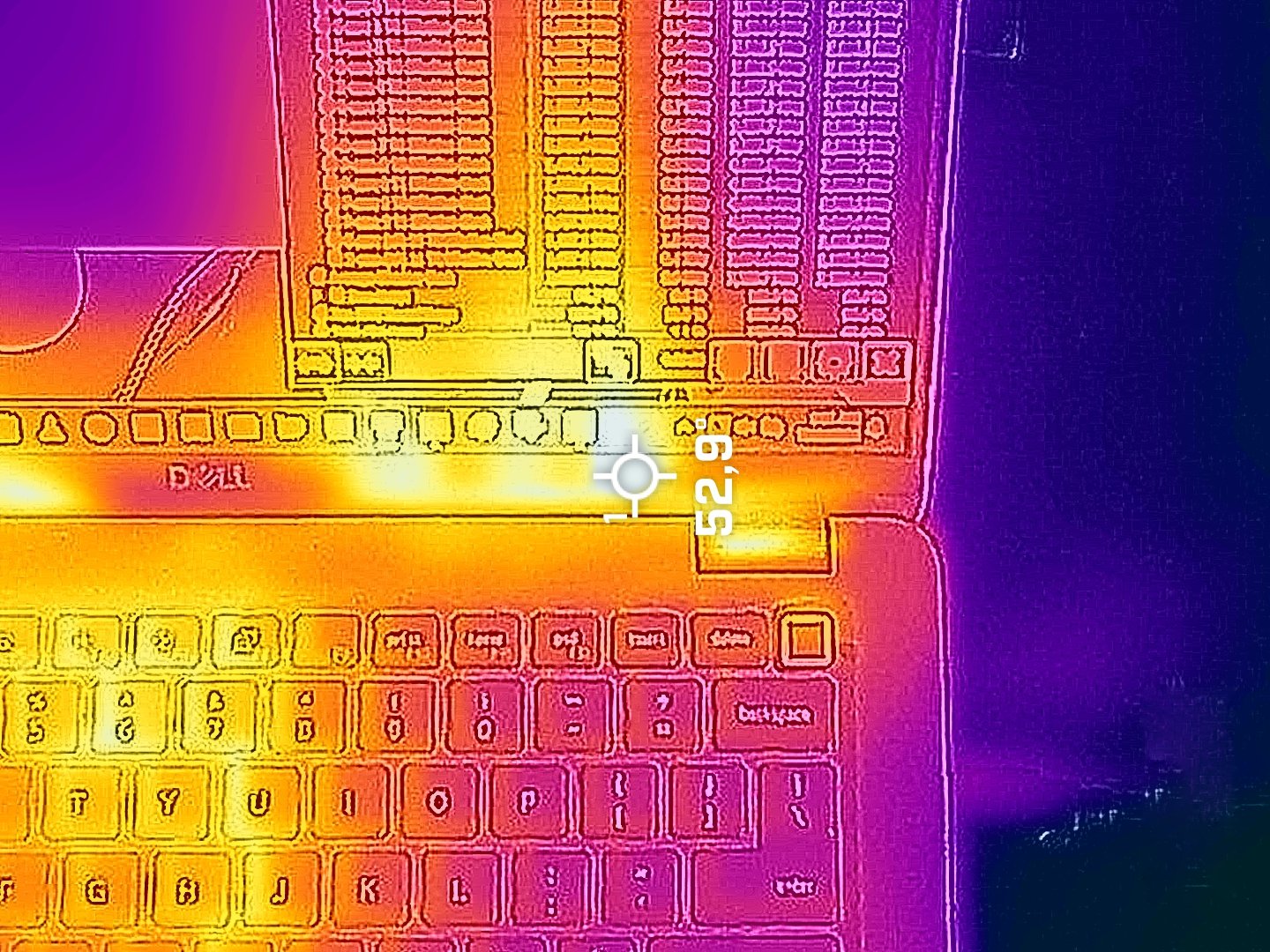
You can lower the fan noise by switching to the “Optimized” mode but that also comes at a price – lower clocks than the ones of the “Ultra Performance” preset.
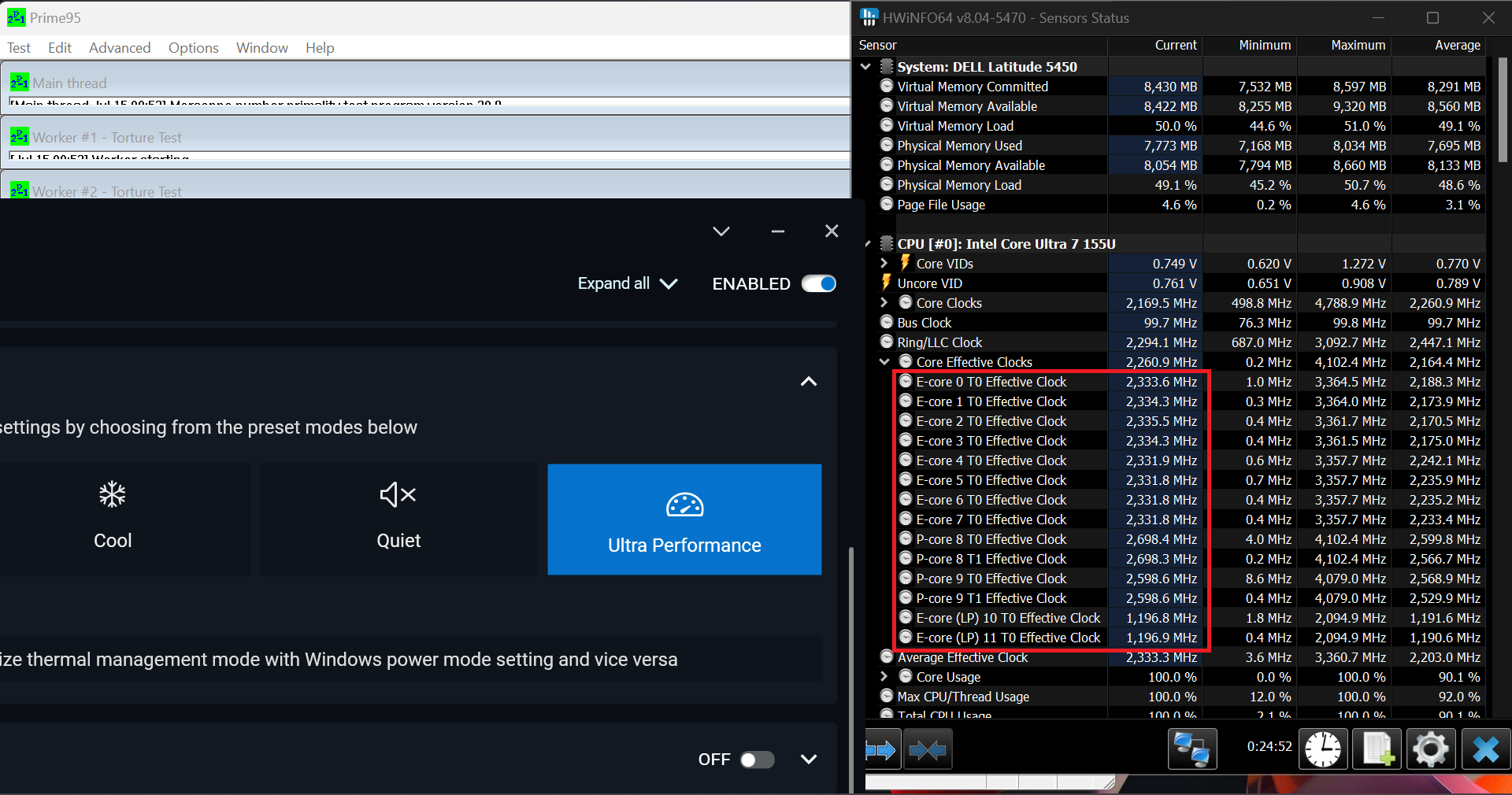 “Ultra Performance”
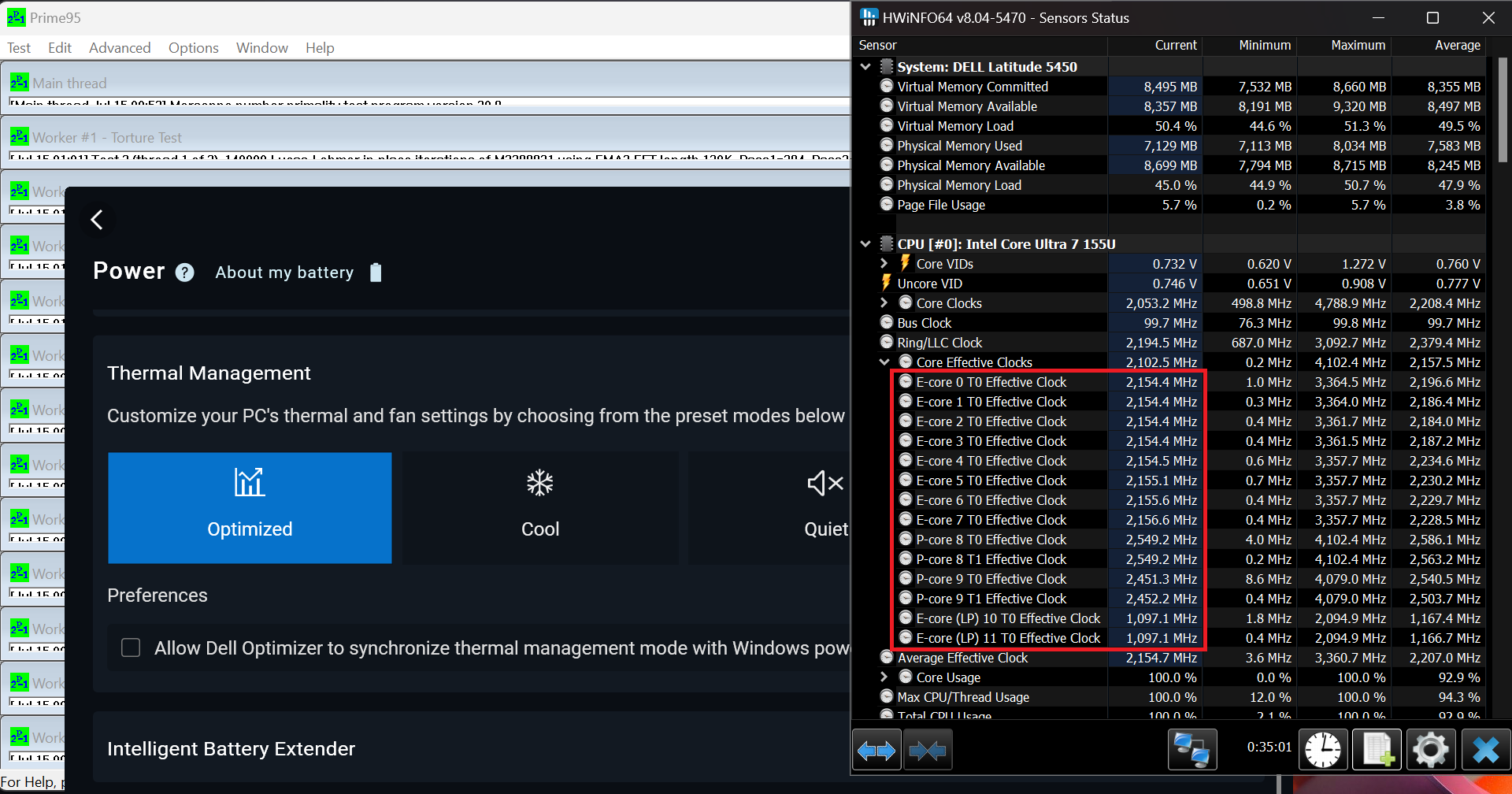 “Optimized”
Battery
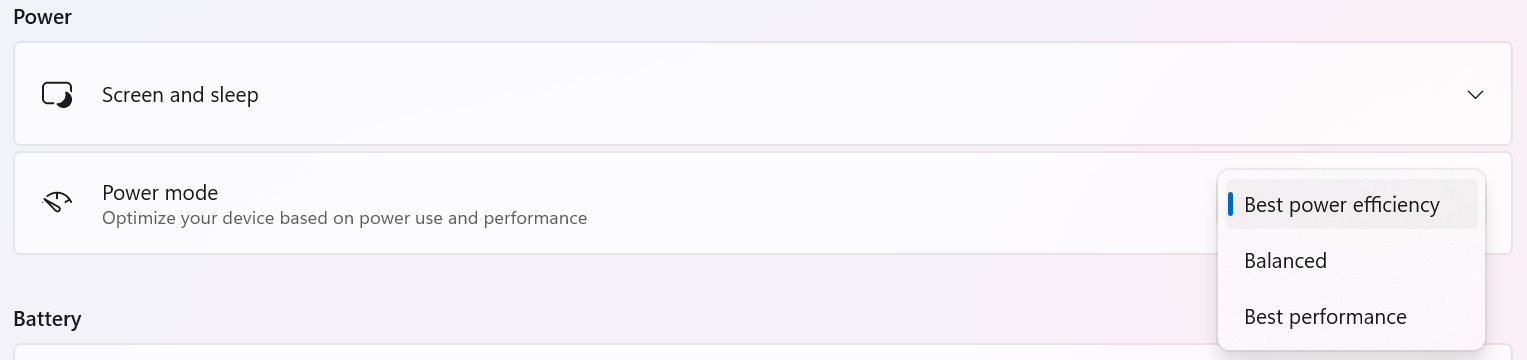
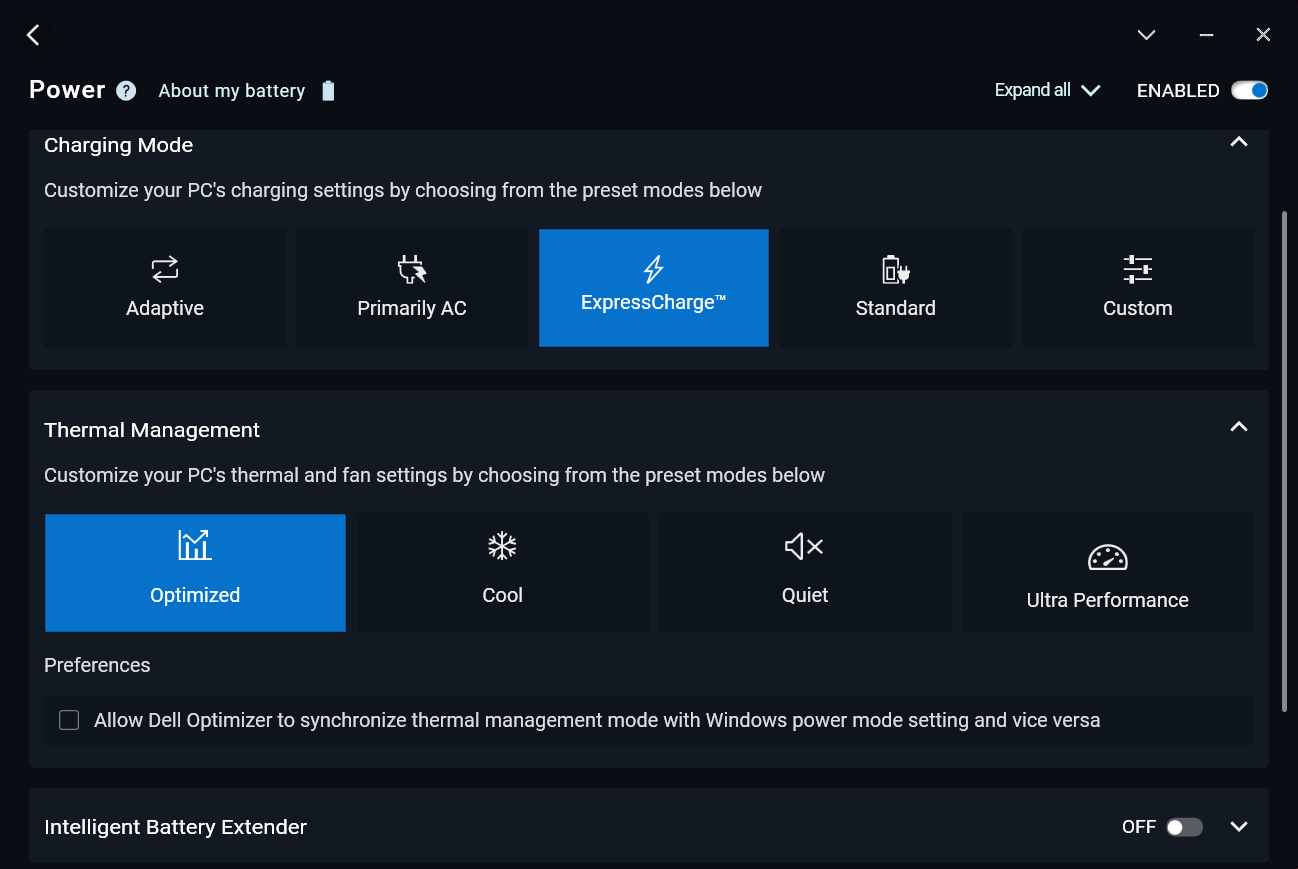
Now, we conduct the battery tests with the Windows Best Power Efficiency setting turned on, screen brightness adjusted to 180 nits and all other programs turned off except for the one we are testing the notebook with. The 54Wh battery lasts for around 9 hours of video playback. To achieve that, you have to apply the “Best Power Efficiency” preset in the Windows “Power & Battery” menu and select the “Optimized” power plan in the Dell Optimizer app.
Brightness: 180 nits; Display Mode: SDR
Time to Full Discharge: Higher is Better


Disassembly, Upgrade options, and Maintenance
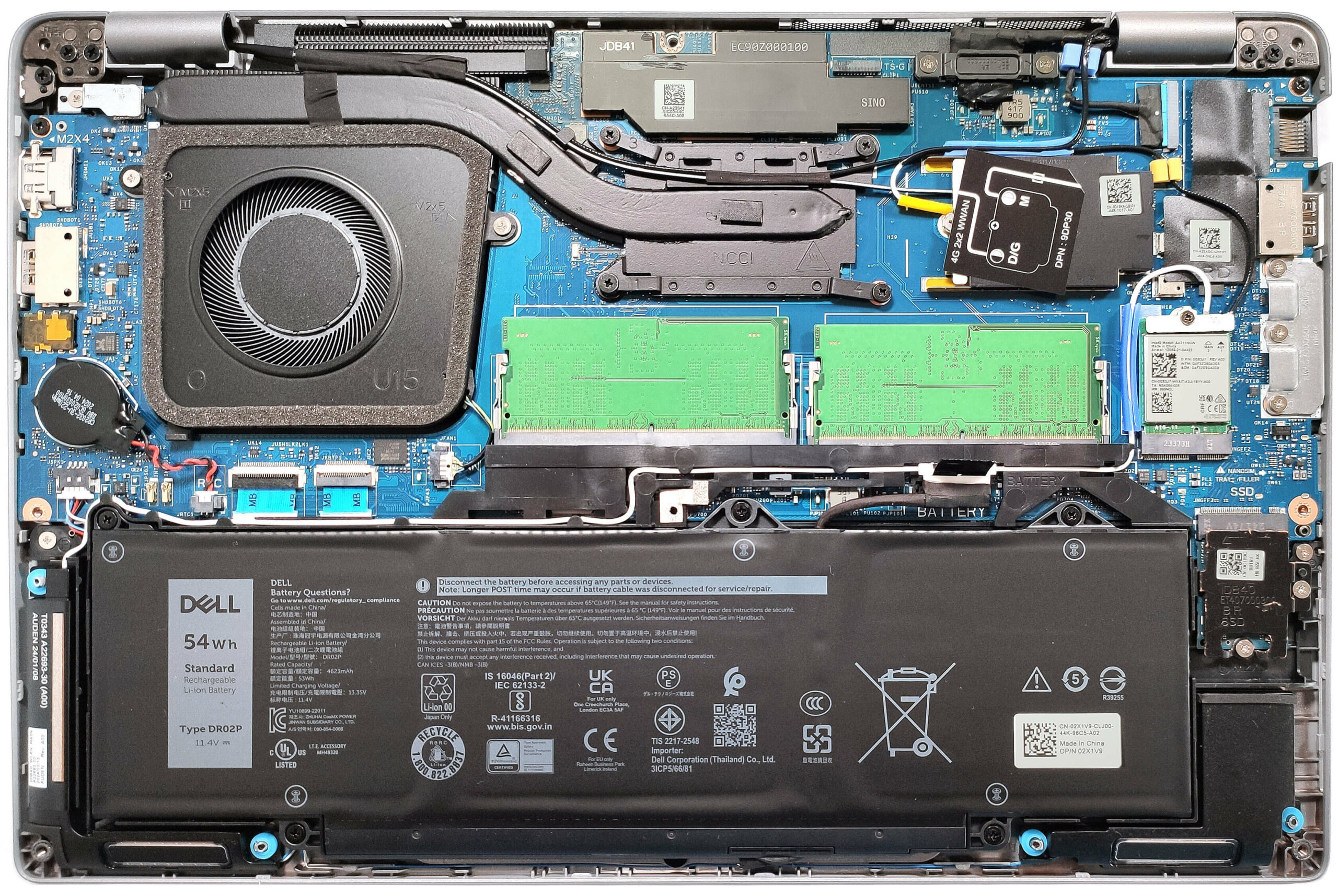
To see the internals, you have to undo 8 captive Phillips-head screws. Use a lever tool to lift the zones behind the hinges. After that, fully pry the back, the sides, and the front.
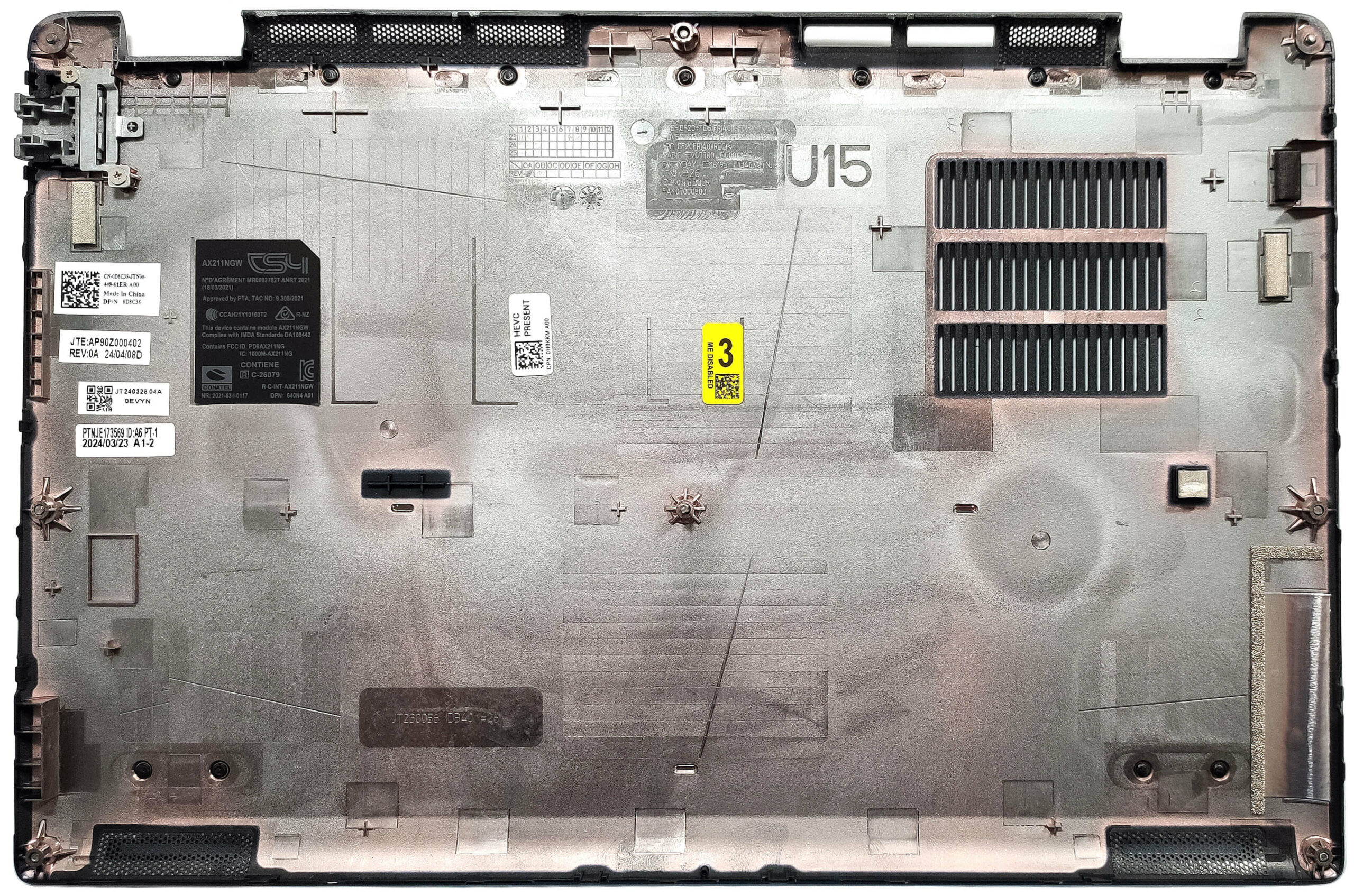
Here’s how the bottom plate looks on the inside.
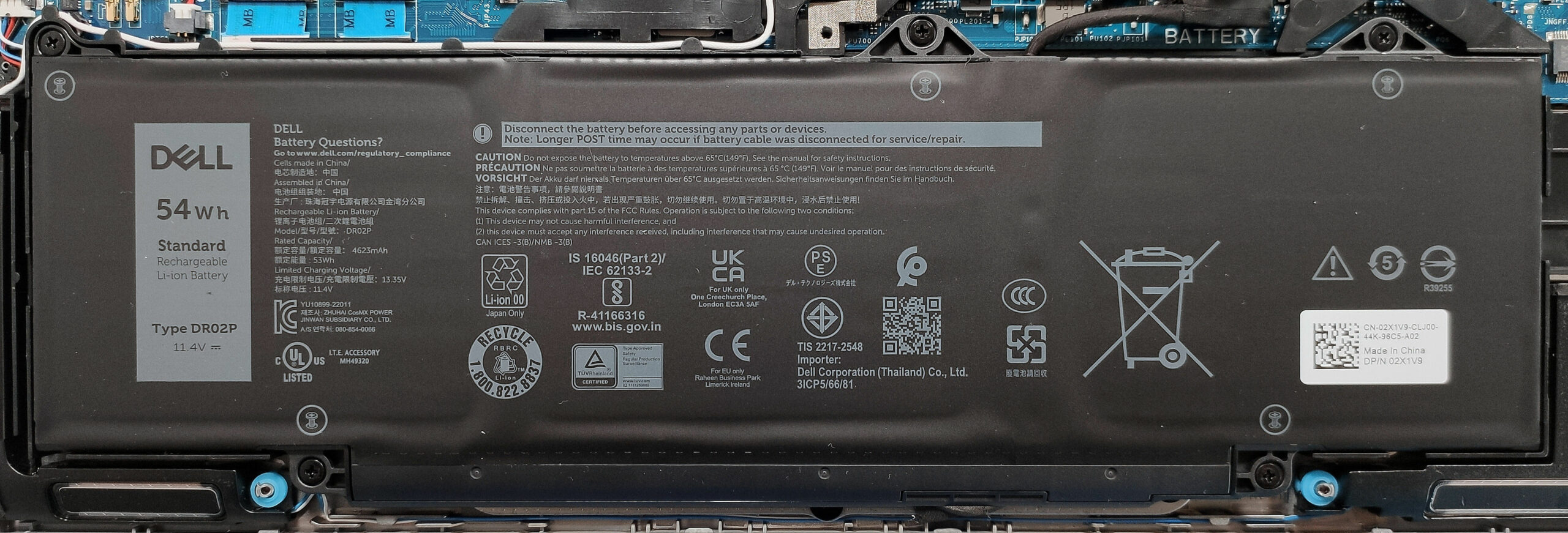
This device has the optional 54Wh battery. The base model is a 42Wh variant. To take it out, pull out the connector from the motherboard and undo the 5 Phillips-head screws that secure the unit in place. The optional capacity is enough for around 9 hours of video playback.
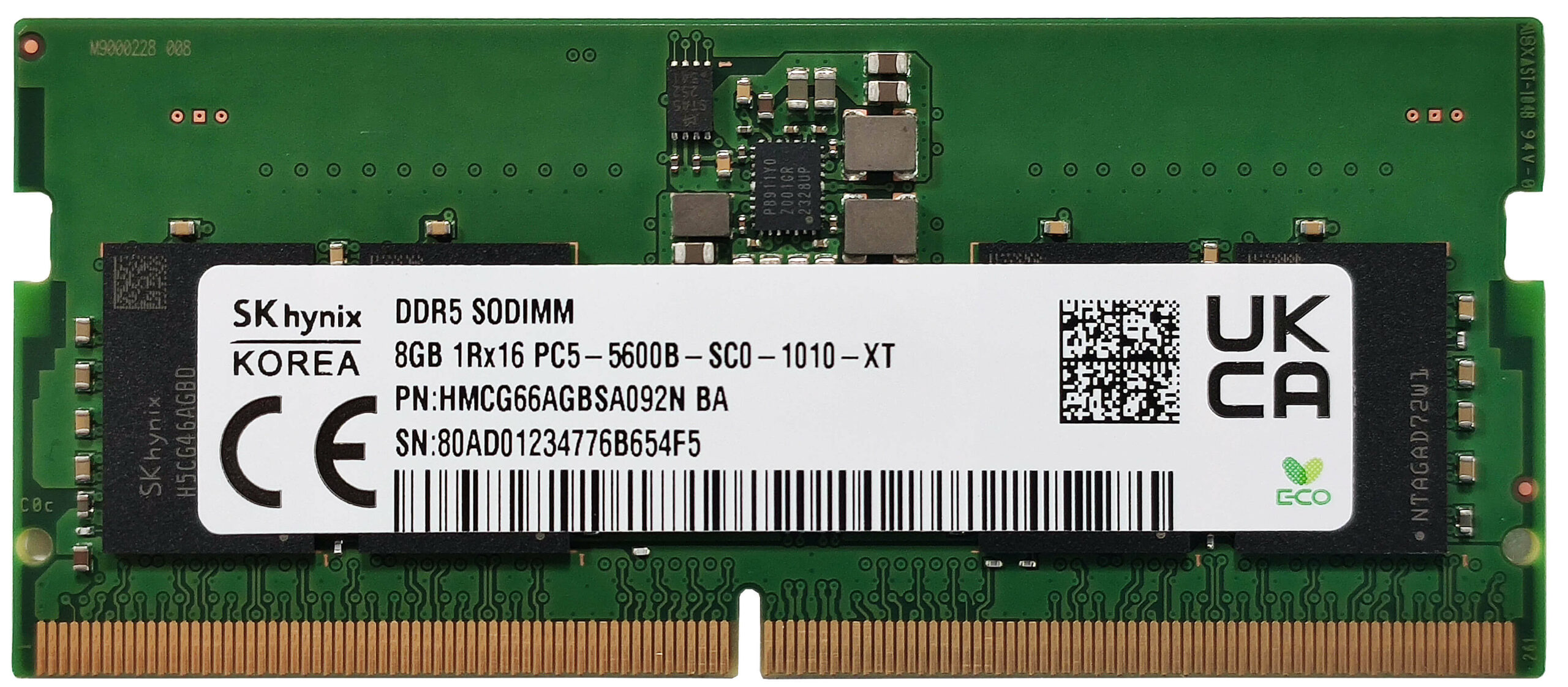
According to Dell, the two SODIMMs can handle up to 64GB of DDR5 RAM in dual-channel mode. However, since the CPU can support up to 96GB, this laptop likely wouldn’t have issues running a larger amount of memory than the official manufacturer’s specified limit. The devices with Core Ultra processors boast 5600 MHz modules while the ones with 13th Gen chips rely on 5200 MHz sticks. The WWAN slot that is for optional LTE or 5G connectivity can be seen next to the cooling. The Wi-Fi card is on the right of the SODIMMs.
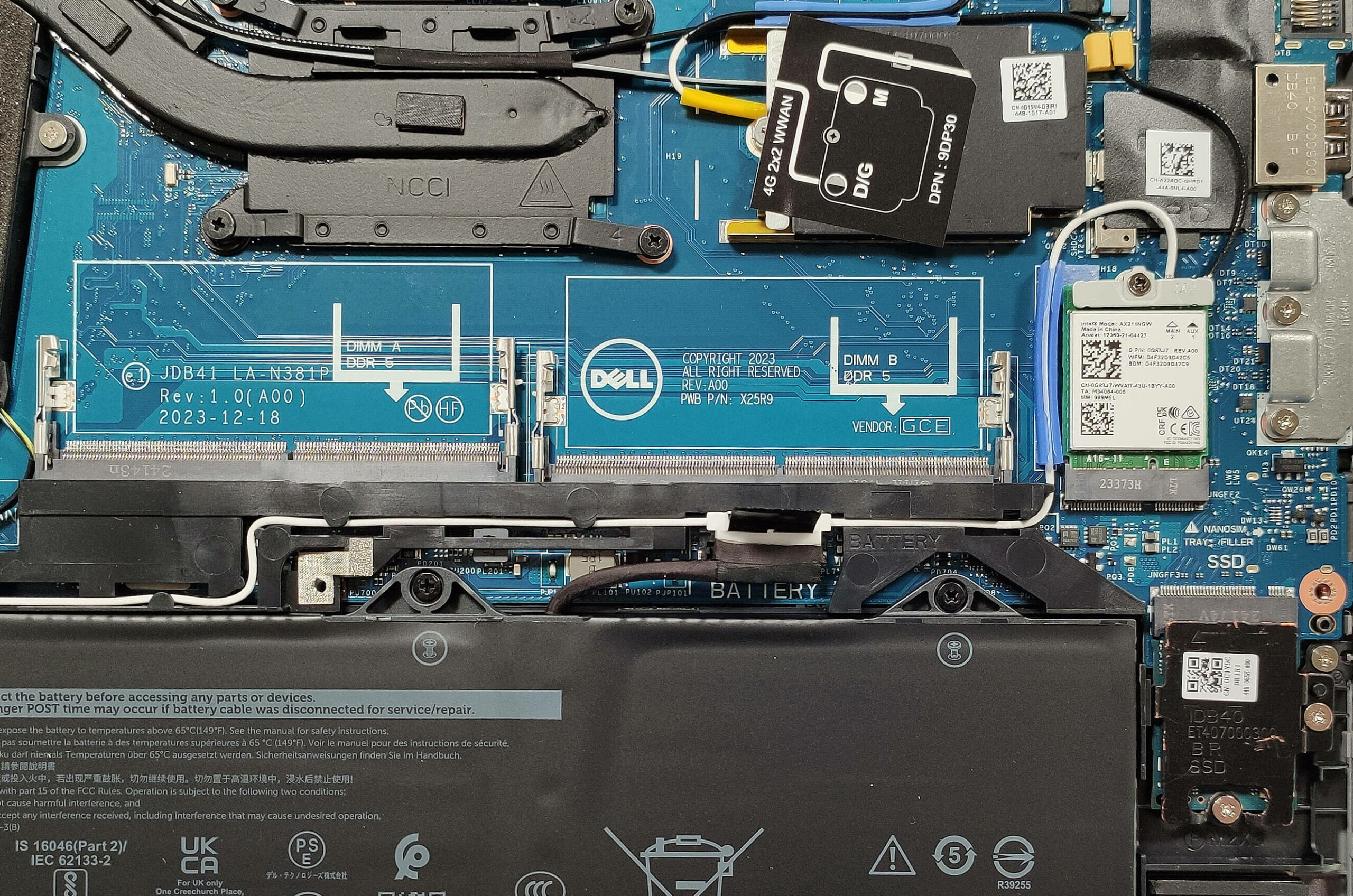
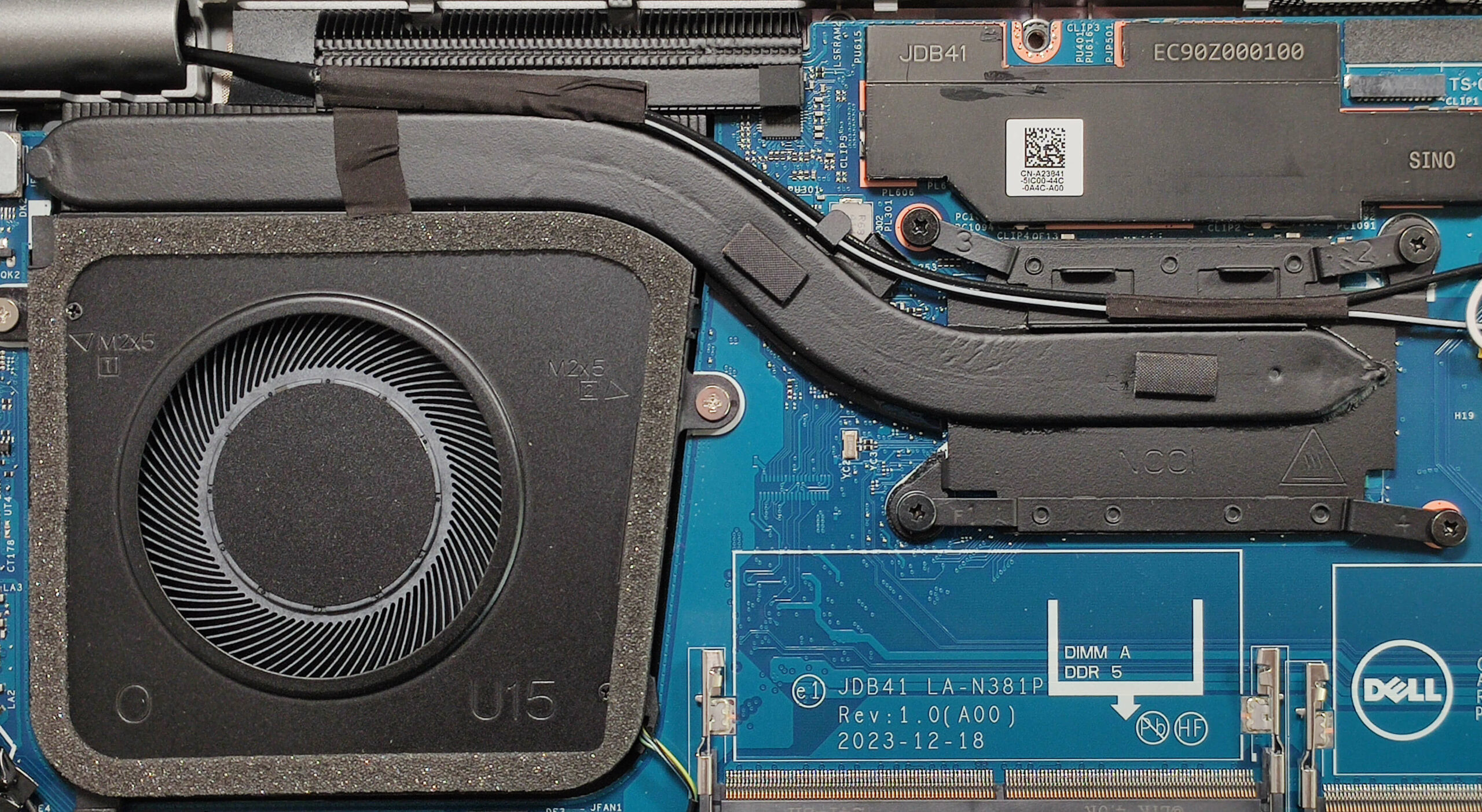
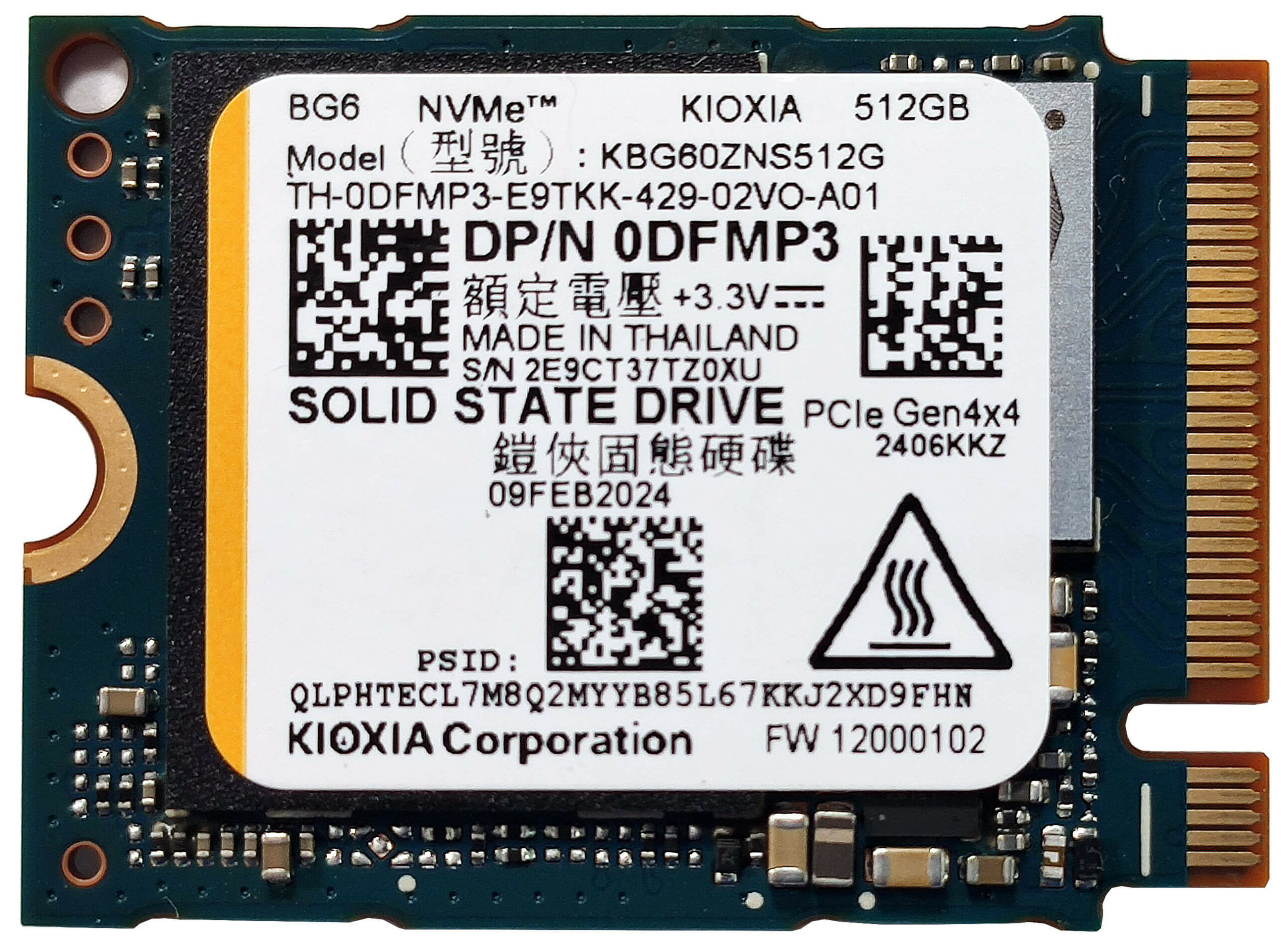
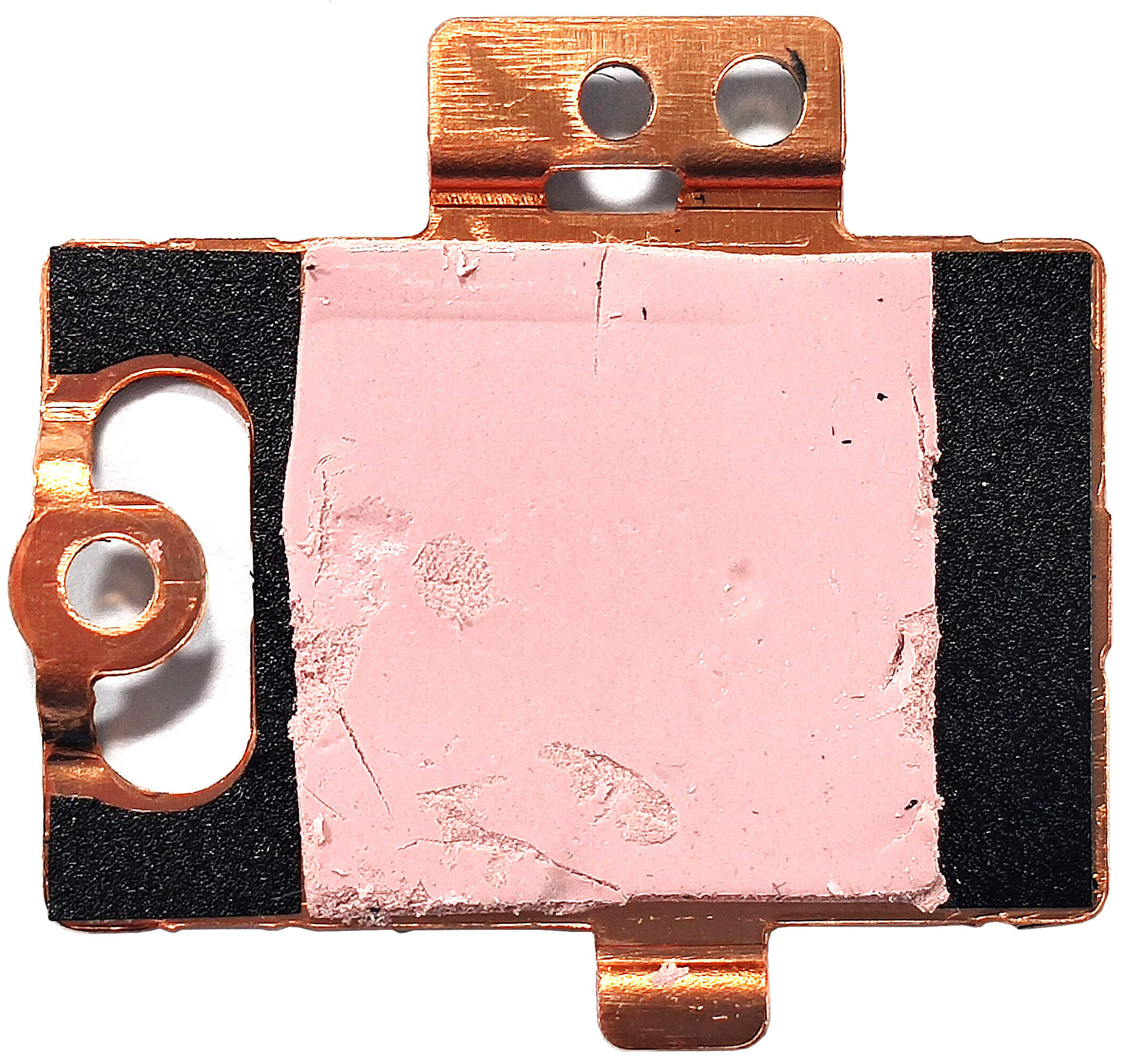
For storage, you can rely on a single M.2 slot compatible with the shortest 2230 Gen 4 SSDs. The NVMe drive is protected by a metal cap that is secured in place by two Phillips-head screws. We found a small thermal pad on the inside of the metal plate.
The cooling seems simple. It has one large fan, a single heat pipe, a pair of heat sinks, and a heat spreader.
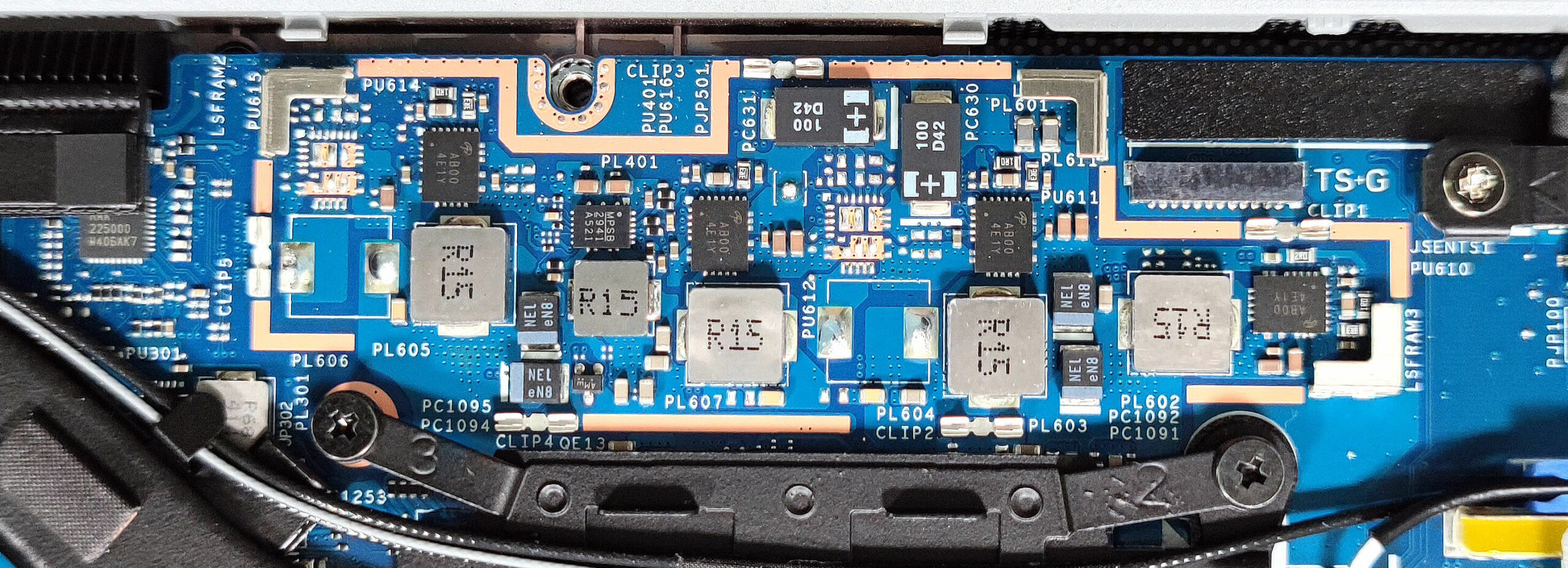
The cap above it covers the motherboard’s VRMs.
Verdict
 The Dell Latitude 5450 is a snappy small office device that surprises us with its performance. Despite the modest-looking thermal system with just one fan and a single heat pipe, the Core Ultra 7 155U can sustain higher clocks in medium and long loads than the bigger Latitude 5550 with the same chip. Expectedly, the fan here is more audible but it’s not noisy.
The keyboard is also warmer to the touch than the one of the 5550 version but it’s not scorching hot so we can call it a day. The battery life with the same 54Wh capacity is similar to the bigger “cousin” – around 9 hours of videos. Even the port selection is near equivalent – two Thunderbolt 4s and a pair of Type As (but the 14-incher doesn’t offer a MicroSD slot). You still get two SODIMMs but the storage is hindered to just one slot for 2230 NVMe drives.
If you aren’t too pretentious, the 1080p 60Hz IPS panel (LG Display RNTRJ-140WFH (LGD0753) will do the job. The screen is PWM-free and boasts wide viewing angles – all you need for normal office work. The downsides of the panel are the narrow color coverage and the low max brightness.
The Latitude 5450 impresses with compact dimensions, high performance for its size, a PWM-free panel, and a nice keyboard.
You can check the prices and configurations in our Specs System: https://laptopmedia.com/series/dell-latitude-14-5450/
Pros
- The fan isn’t noisy under long 100% CPU loads in “Ultra Performance” mode
- Decent build quality
- Comfortable keyboard
- No PWM (LGD0753)
- Wide viewing angles (LGD0753)
- 2x DDR5 SODIMMs
- Up-to-date port selection with 2x Thunderbolt 4 ports + HDMI 2.1 and a LAN
- Good battery life
- Web camera with a privacy shutter
- Fingerprint reader, IR camera, SmartCard reader, NFC, Nano SIM slot (all are optional)
- Decent comfort under max CPU stress
- The CPU can sustain high frequencies in longer stress – 2.52 / 2.37 GHz for the P and E cores
- The bottom panel can be easily popped
Cons
- Hefty price if you order the notebook with all optional features
- The NVMe gets toasty during benchmarking – 78°C
- Too many optional extras
- Low 52% sRGB coverage and 238 cd/m2 max brightness
 Author: Nikolay Palaozov
 Author: eng. Kroum NikolovHead of Engineering at LaptopMedia.com, inventor and innovator with 40+ years of experience in electronics and high technology.
TOP 100 GAMING LAPTOPS



TOP LAPTOP RATINGS
HIGHLIGHTS view more
![[June 2026] Best-Selling Laptop Brands on Amazon Global – Apple’s Unrivaled Dominance in Units and Revenue](https://laptopmedia.com/wp-content/uploads/2026/07/GLOBAL-Best-Brands-400x225.jpg)
[June 2026] Best-Selling Laptop Brands on Amazon Global – Apple’s Unrivaled Dominance in Units and Revenue
Jul 06, 2026![[June 2026] Amazon Global: Top 10 Best-Selling Laptops – Apple’s New MacBook Neo Storms to #1, Reshaping the Market with Affordability](https://laptopmedia.com/wp-content/uploads/2026/07/Best-Selling-Laptops-GLOBAL-Top-10-400x225.jpg)
[June 2026] Amazon Global: Top 10 Best-Selling Laptops – Apple’s New MacBook Neo Storms to #1, Reshaping the Market with Affordability
Jul 06, 2026![[June 2026] Amazon Global: Top 10 Best-Selling Gaming Laptops – Acer’s Nitro V 16S AI Dominates Sales, While ASUS Leads Overall Revenue](https://laptopmedia.com/wp-content/uploads/2026/07/Best-Selling-Gaming-Laptops-GLOBAL-Top-10-400x225.jpg)
[June 2026] Amazon Global: Top 10 Best-Selling Gaming Laptops – Acer’s Nitro V 16S AI Dominates Sales, While ASUS Leads Overall Revenue
Jul 06, 2026![[June 2026] Global Ranking of Best-Selling Laptop GPUs on Amazon – NVIDIA RTX 5060 is the Top-Selling Dedicated GPU](https://laptopmedia.com/wp-content/uploads/2026/07/Best-Selling-GPUs-GLOBAL-Top-10-400x225.jpg)
[June 2026] Global Ranking of Best-Selling Laptop GPUs on Amazon – NVIDIA RTX 5060 is the Top-Selling Dedicated GPU
Jul 05, 2026![[June 2026] Global Ranking of Best-Selling Laptop CPUs on Amazon – Apple M5 Dominates, AMD Ryzen 7 260 Gets Solid Premium Share](https://laptopmedia.com/wp-content/uploads/2026/07/Best-Selling-CPUs-GLOBAL-Top-10-400x225.jpg)
[June 2026] Global Ranking of Best-Selling Laptop CPUs on Amazon – Apple M5 Dominates, AMD Ryzen 7 260 Gets Solid Premium Share
Jul 05, 2026
REVIEWS view more
Lenovo IdeaPad Slim 5a (16″, Gen 11) review – 2.8K OLED, Ryzen AI 7 450, and Rare Upgradeability
Aug 09, 2026HP OmniBook 5 16 (16-bc1000) review – Big Screen, Solid CPU, Limited Upgrades
Aug 06, 2026Lenovo ThinkPad X1 Carbon Gen 14 Aura Edition review – The Ultimate Business Laptop Gets Modular
Aug 03, 2026ASUS ExpertBook Ultra (B9406) review – Core Ultra X7 & Tandem OLED Tested
Jul 28, 2026Acer Predator Helios Neo 16 (PHN16-I31) review – Stable RTX 5060 Gaming
Jul 20, 2026
I have one of these and can’t stand it. The keyboard is spongey. The power button is in the worst spot and I had to change Windows power settings to “do nothing” when pressed because it’s so easy to hit when using backspace or delete. The trackpad is frequently unresponsive and inconsistently interprets gestures or clicks. The Core Ultra 5 135U seems to lack power when multitasking The base 42WH battery doesn’t last long The machine has slightly less fan noise compared to other laptops I’ve used. The screen isn’t terrible but I’d consider it average. I’ve had better viewing… Read more »
I also have it but with 100% sRGB display and Core 5 135H. The keyboard, build, touchpad is worse than previous series Latitude. There’s also no option to get sd card slot! Laptop come with copilot garbage key which can’t be changed to normal CTRL key. There’s no deep sleep mode, laptop in suspend takes around 3% of battery per hour which is huge compared to previous series Latitude. Overall no more Dell unless they’ll get back to the old good track.