MSI Vector 16 HX A13V review – Titan Performance in a 16-inch Package
Temperatures and comfort, Battery Life
Max CPU load
In this test we use 100% on the CPU cores, monitoring their frequencies and chip temperature. The first column shows a computer’s reaction to a short load (2-10 seconds), the second column simulates a serious task (between 15 and 30 seconds), and the third column is a good indicator of how good the laptop is for long loads such as video rendering.
Average P-core frequency; Average E-core frequency; CPU temp.; Package Power
| Intel Core i9-13980HX (55W TDP) | 0:02 – 0:10 sec | 0:15 – 0:30 sec | 10:00 – 15:00 min |
|---|---|---|---|
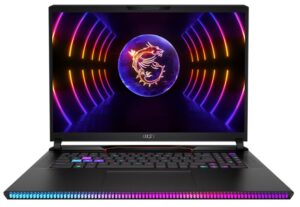
| MSI Vector 16 HX A13V | 4.07 GHz @ 2.36 GHz @ 73°C @ 185W | 4.30 GHz @ 2.54 GHz @ 85°C @ 196W | 3.61 GHz @ 2.28GHz @ 84°C @ 131W |
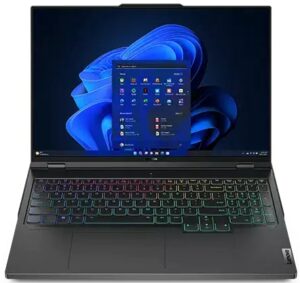
| Lenovo Legion 9i Gen 8 (16″ Intel) | 3.68 GHz @ 2.96 GHz @ 74°C @ 165W | 3.64 GHz @ 2.99 GHz @ 83°C @ 165W | 3.16 GHz @ 2.57 GHz @ 89°C @ 122W |
| MSI Vector GP78 HX (13V) “Extreme Performance” preset | 4.61 GHz @ 2.58 GHz @ 77°C @ 220W | 4.45 GHz @ 2.52 GHz @ 83°C @ 203W | 3.86 GHz @ 2.41 GHz @ 83°C @ 148W |
| MSI Vector GP78 HX (13V) “Balanced” preset | 4.48 GHz @ 2.51 GHz @ 78°C @ 215W | 4.34 GHz @ 2.49 GHz @ 82°C @ 195W | 3.77 GHz @ 2.35 GHz @ 83°C @ 139W |
| ASUS ROG Strix SCAR 18 (G834, 2023) | 3.53 GHz @ 2.96 GHz @ 76°C @ 147W | 3.46 GHz @ 2.91 GHz @ 82°C @ 142W | 3.35 GHz @ 2.81 GHz @ 84°C @ 133W |
It’s great to see that the MSI Vector 16 HX A13V with a Core i9-13980HX can maintain almost the same clocks in medium and long loads as its bigger sibling, the MSI Vector GP78 HX (13V).
Real-life gaming
| NVIDIA GeForce RTX 4080 | GPU frequency/ Core temp (after 2 min) | GPU frequency/ Core temp (after 30 min) |
|---|---|---|
| MSI Vector 16 HX A13V | 2400 MHz @ 78°C @ 174W | 2364 MHz @ 83°C @ 174W |
| Acer Predator Helios 3D 15 SpartialLabs Edition (PH3D15-71) “Turbo” preset | 2227 MHz @ 79°C @ 173W | 2208 MHz @ 83°C @ 174W |
| Acer Predator Helios 3D 15 SpartialLabs Edition (PH3D15-71) “Performance” preset | 1886 MHz @ 73°C @ 139W | 1868 MHz @ 77°C @ 140W |
The mighty GeForce RTX 4080 is well-cooled and it can sustain a stable ~175W TGP after half an hour of gaming.
Gaming comfort
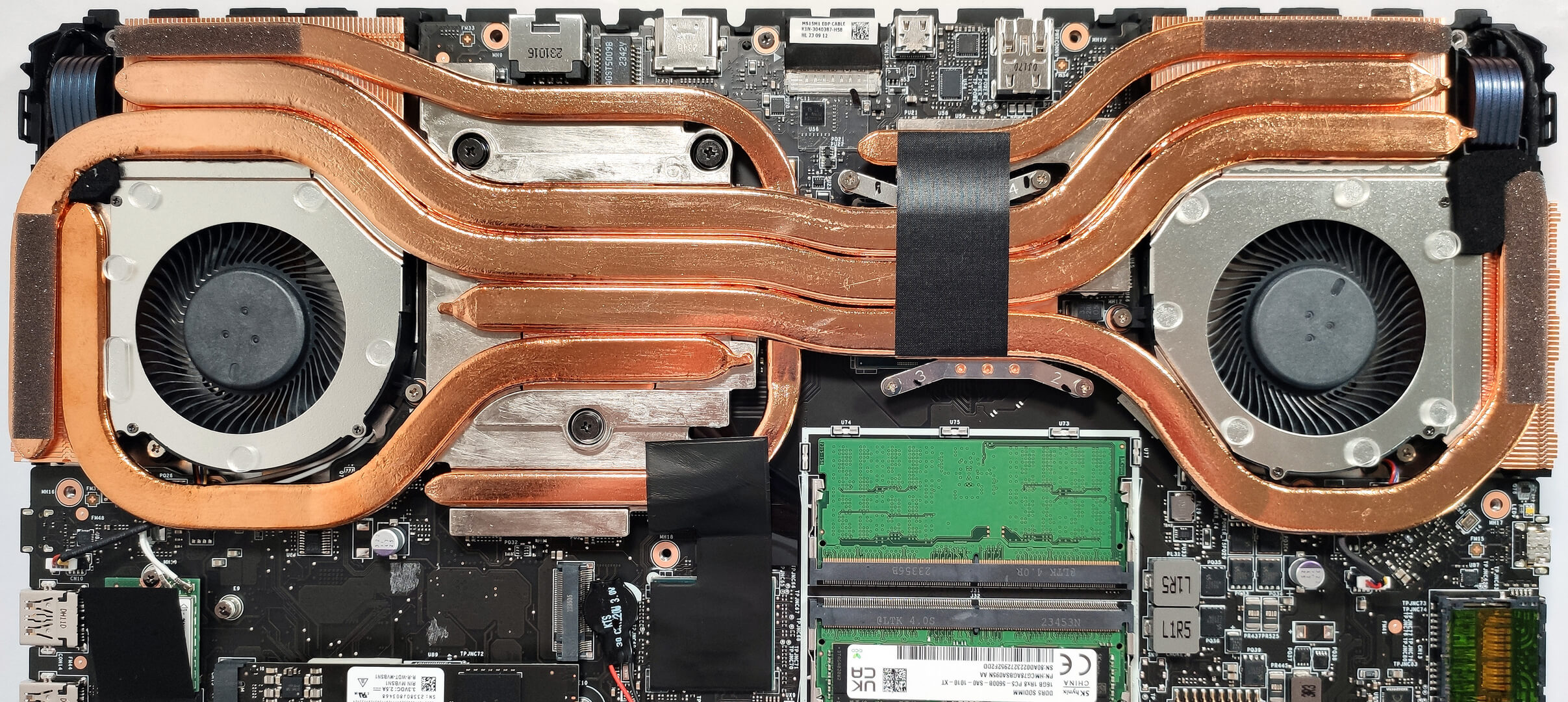
As always, the five performance presets can be found in the MSI Center app. If you don’t like to switch between the power modes, just apply the “MSI AI Engine” that will tune the CPU and GPU clocks and power limits depending on the current load. You can also leave the fans on “Auto” or set a custom fan curve. Expectedly, the noise during gaming is high, especially in “Extreme performance” mode. On the bright side, the keyboard deck and the palm rest areas aren’t too hot to the touch during gaming and you can use the device comfortably without sensing a big amount of heat beneath your fingers.


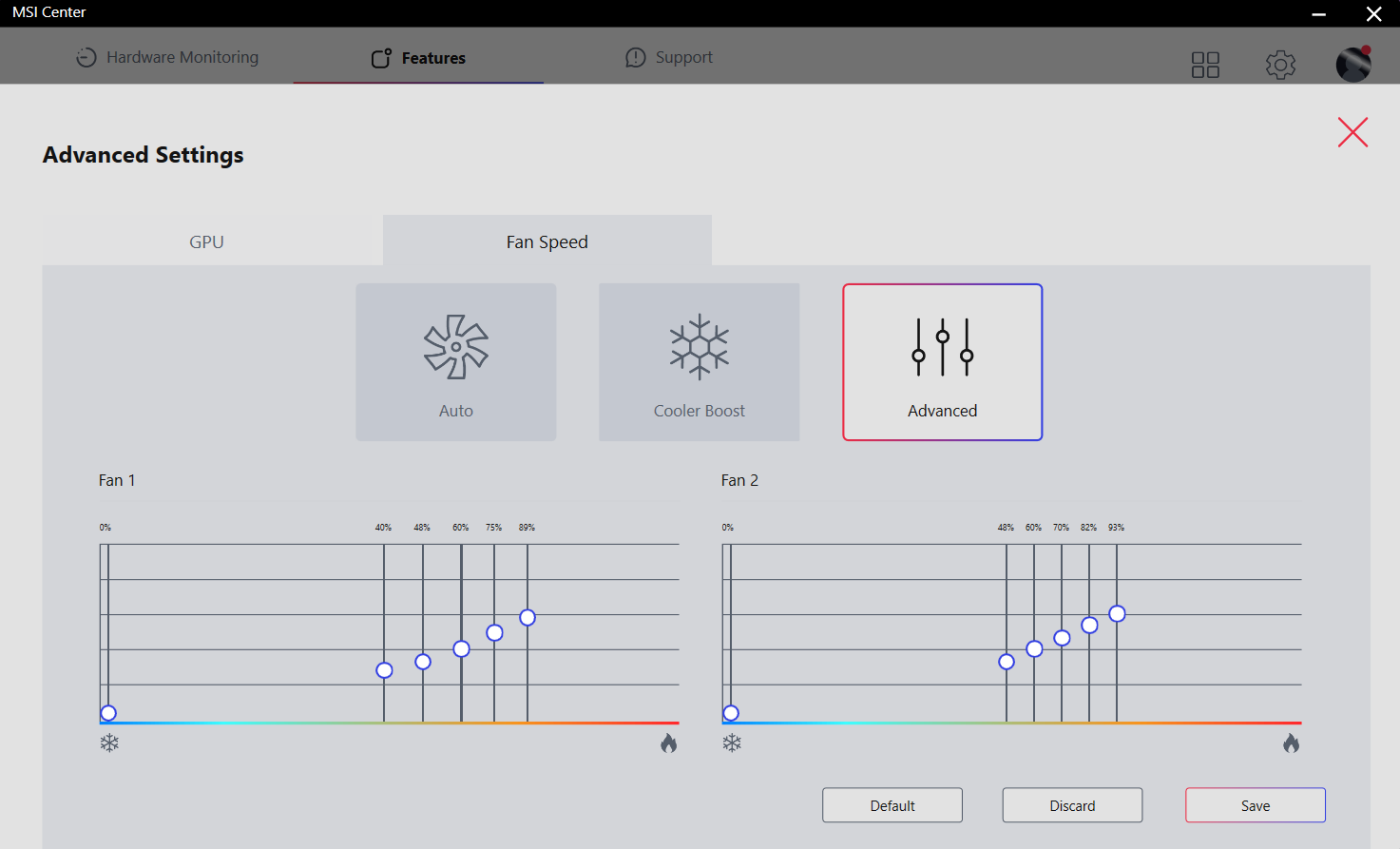
The two fans are turned off if the CPU temperature is below the 45°C mark. Above this limit, the CPU fan starts to spin at around 2000 RPM. The Cooler Boost options bump the fan speed above 6000 RPM which is super noisy.
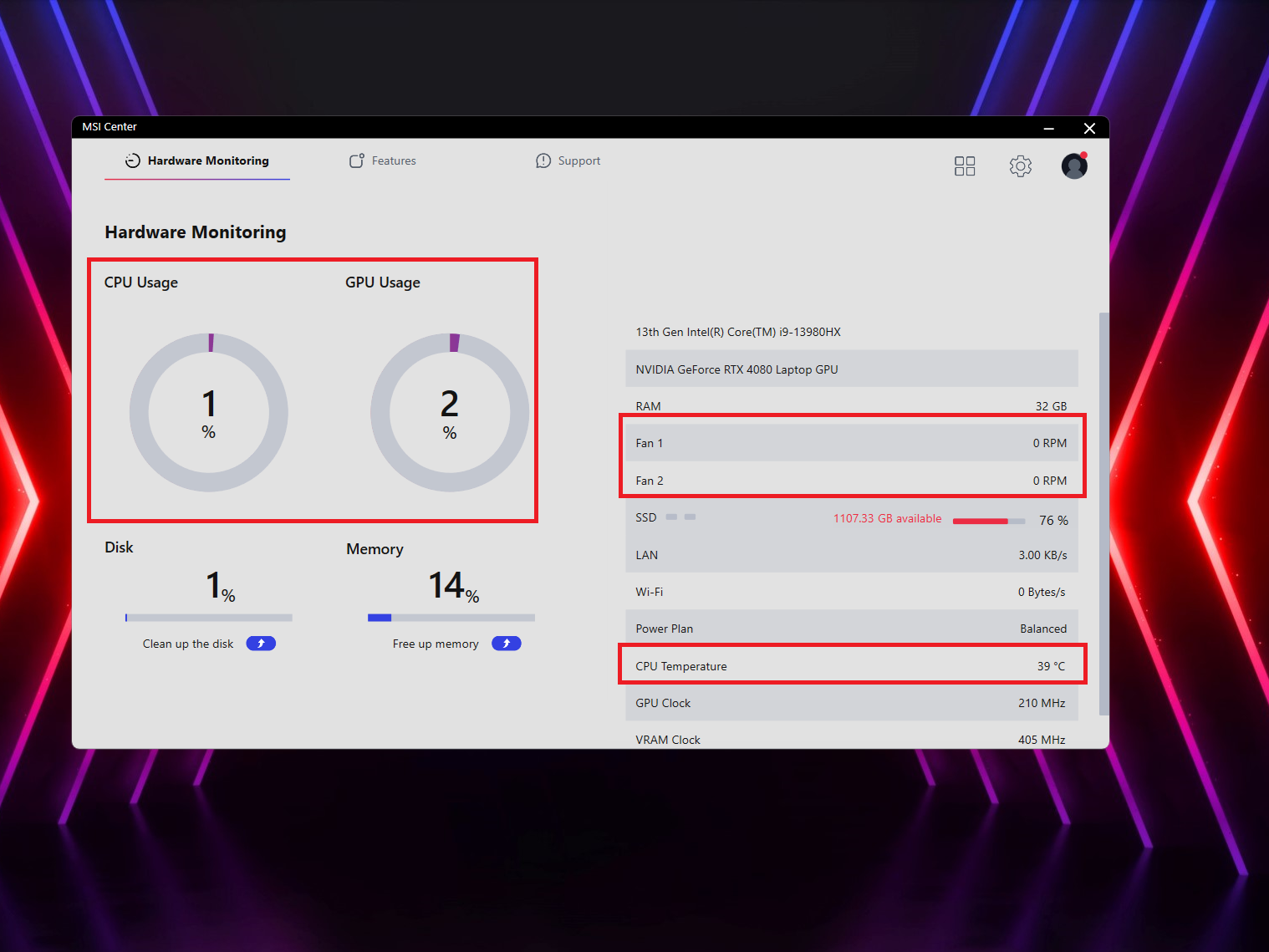 Idle fan off
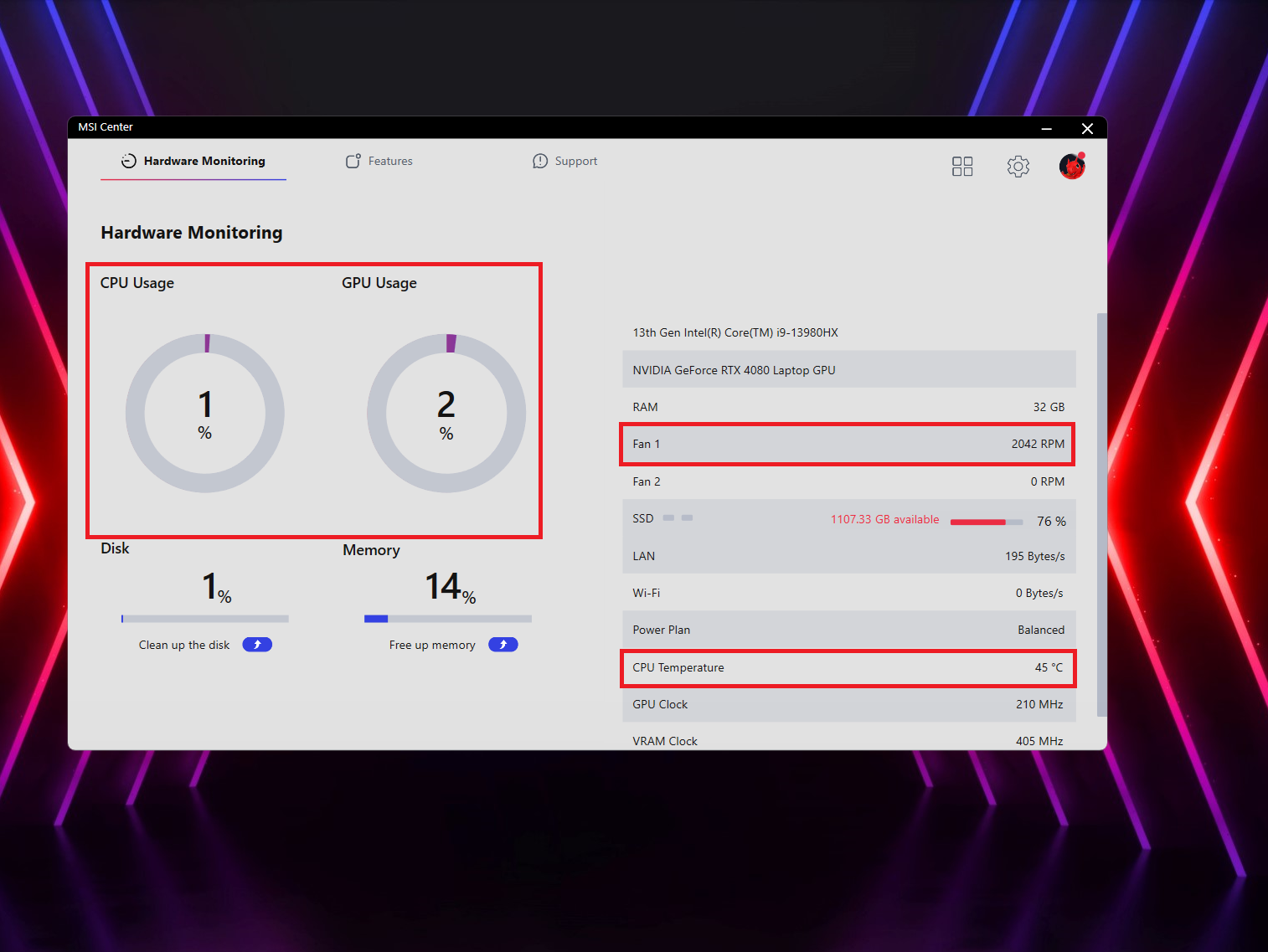 Idle fan on
 Max fan speed
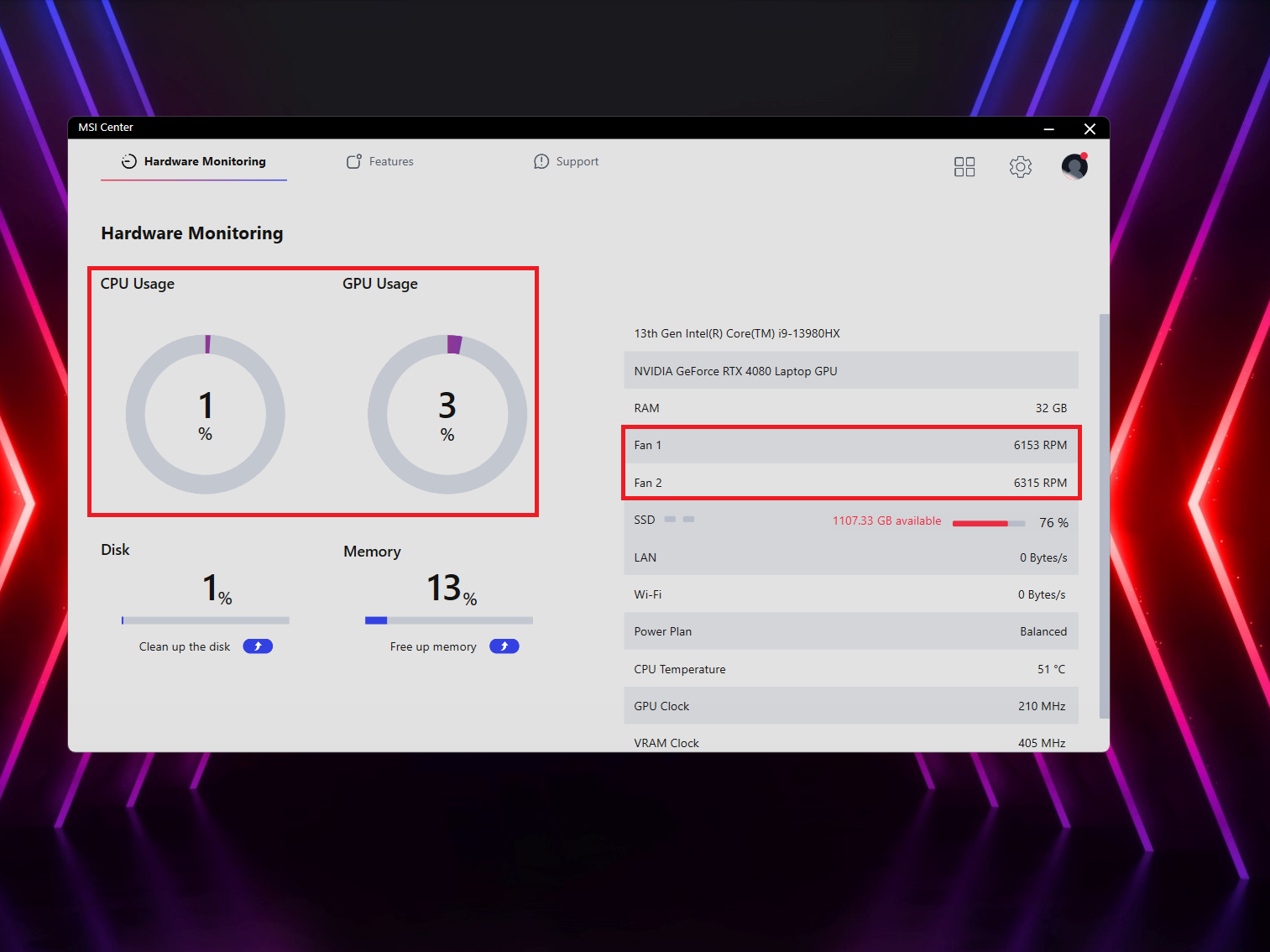
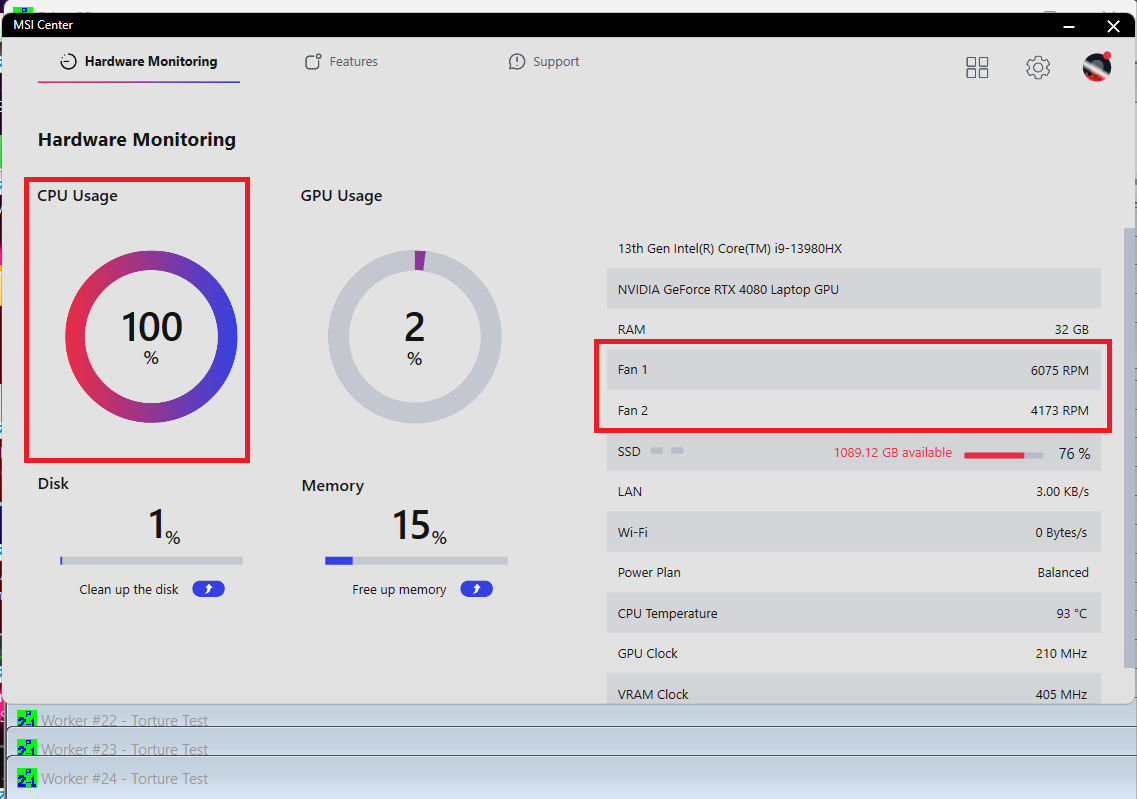
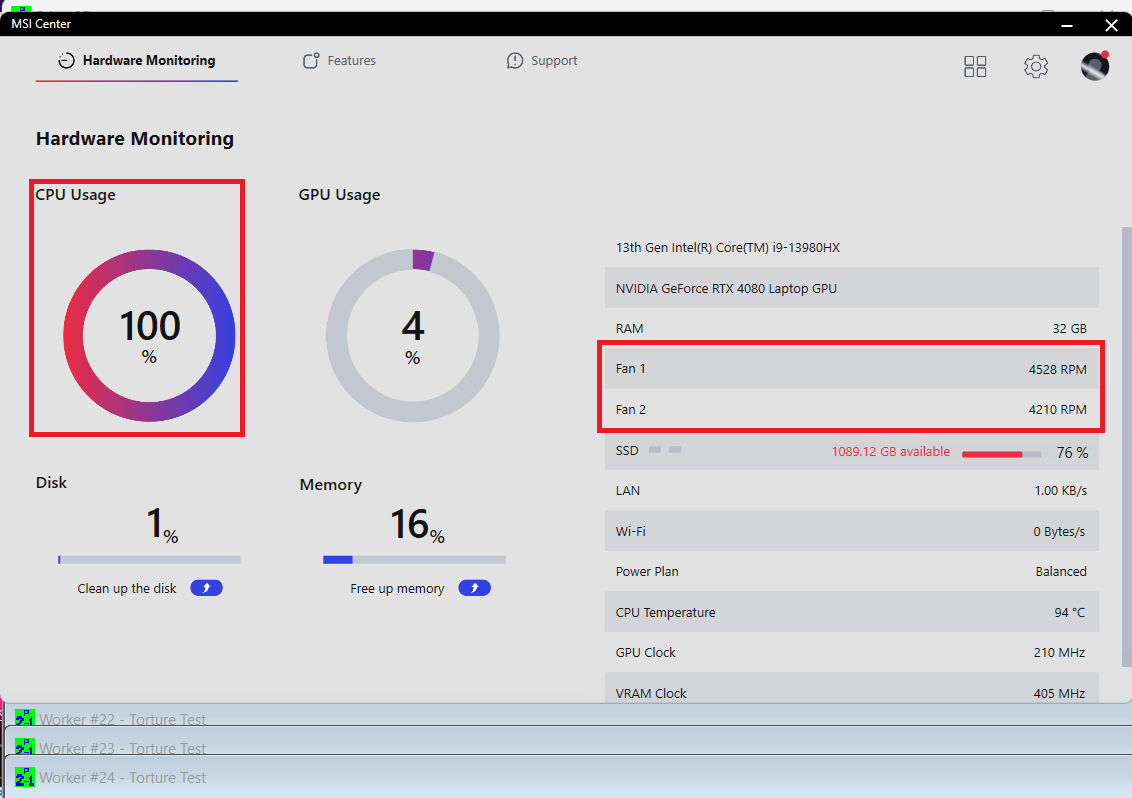
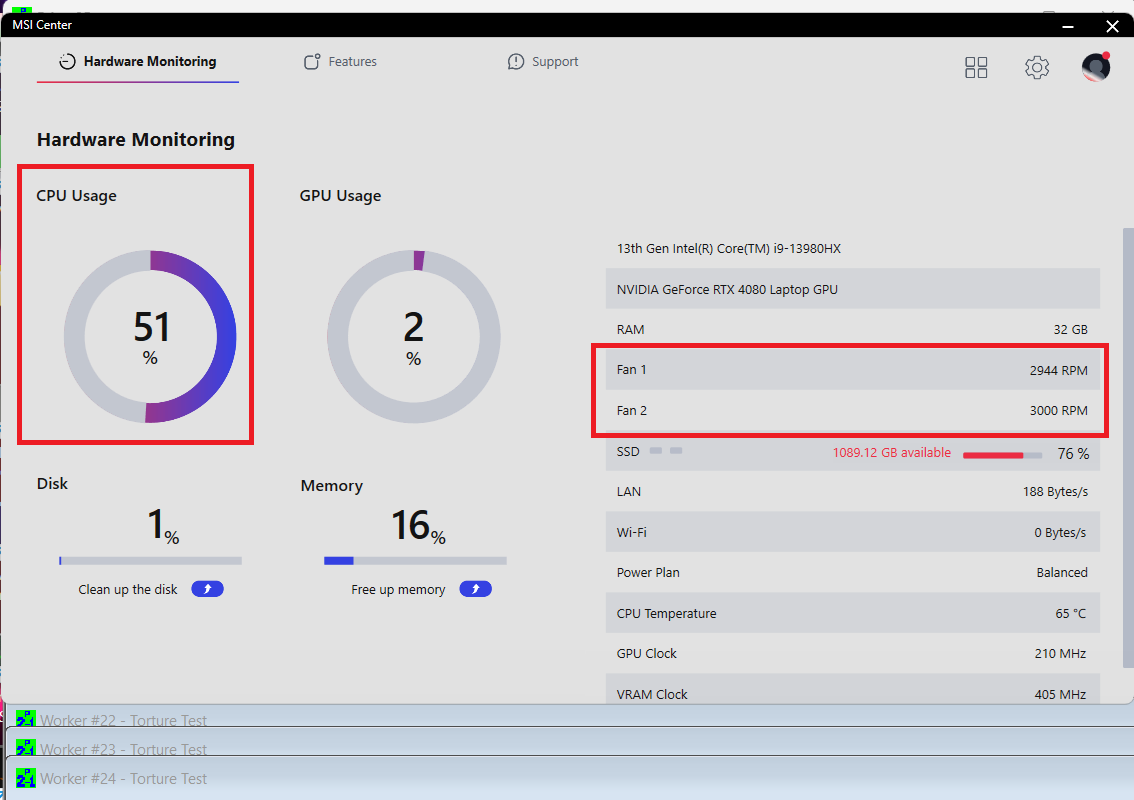
Under 100% processor loads, you can expect ~ 6000 / 4000 RPM in “Extreme Performance” mode – that’s loud. The “Balanced” preset with its ~4000 RPM is more suitable for work or gaming since the noise levels are acceptable. Curiously, applying one of the other two presets resulted in a 51% CPU load even though Prime95 was running in the background.
 Max CPU Load “Extreme performance”
 Max CPU Load “Balanced”
 Max CPU Load “Silent”
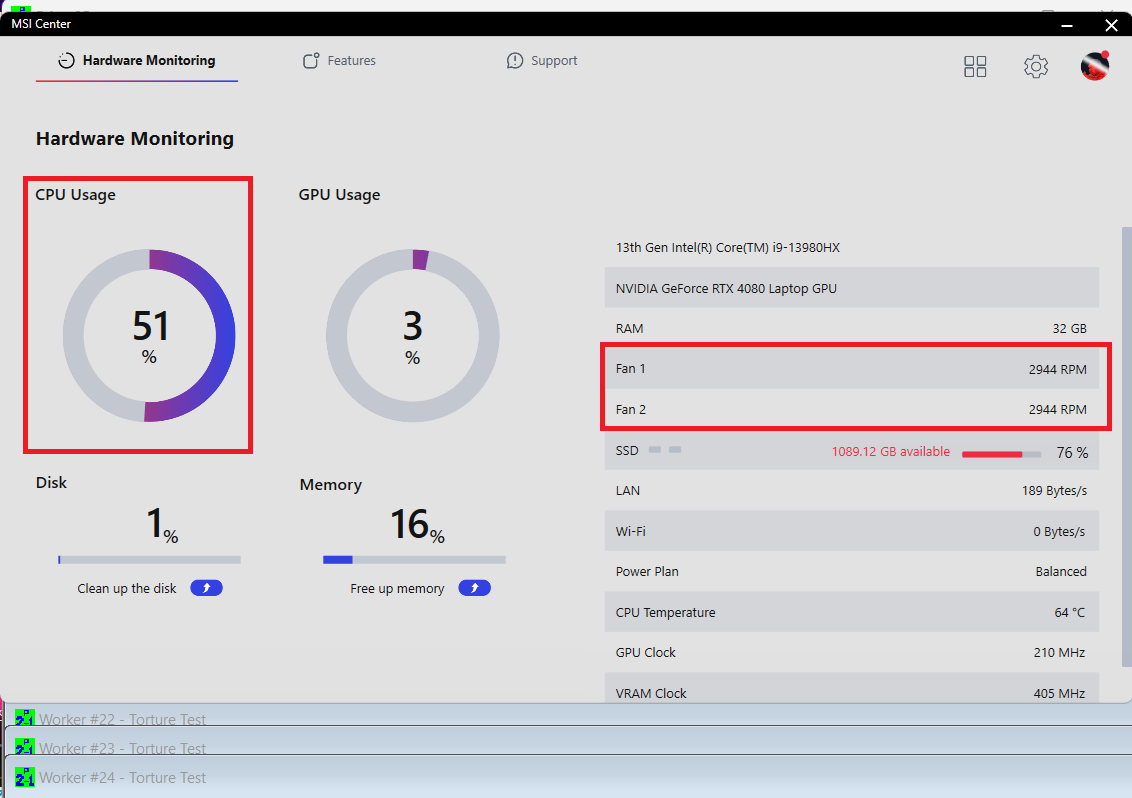 Max CPU Load “Super Battery”
When it comes to gaming, the “Extreme Performance” mode offers ~175W TGP and loud fans. The noise isn’t an issue if the “Balanced” preset is selected but GPU TGP is decreased to 120W. The “Silent” and the “Super Battery” presets aren’t suitable for heavy gaming because of the 60W power limit.
 Gaming “Extreme performance”
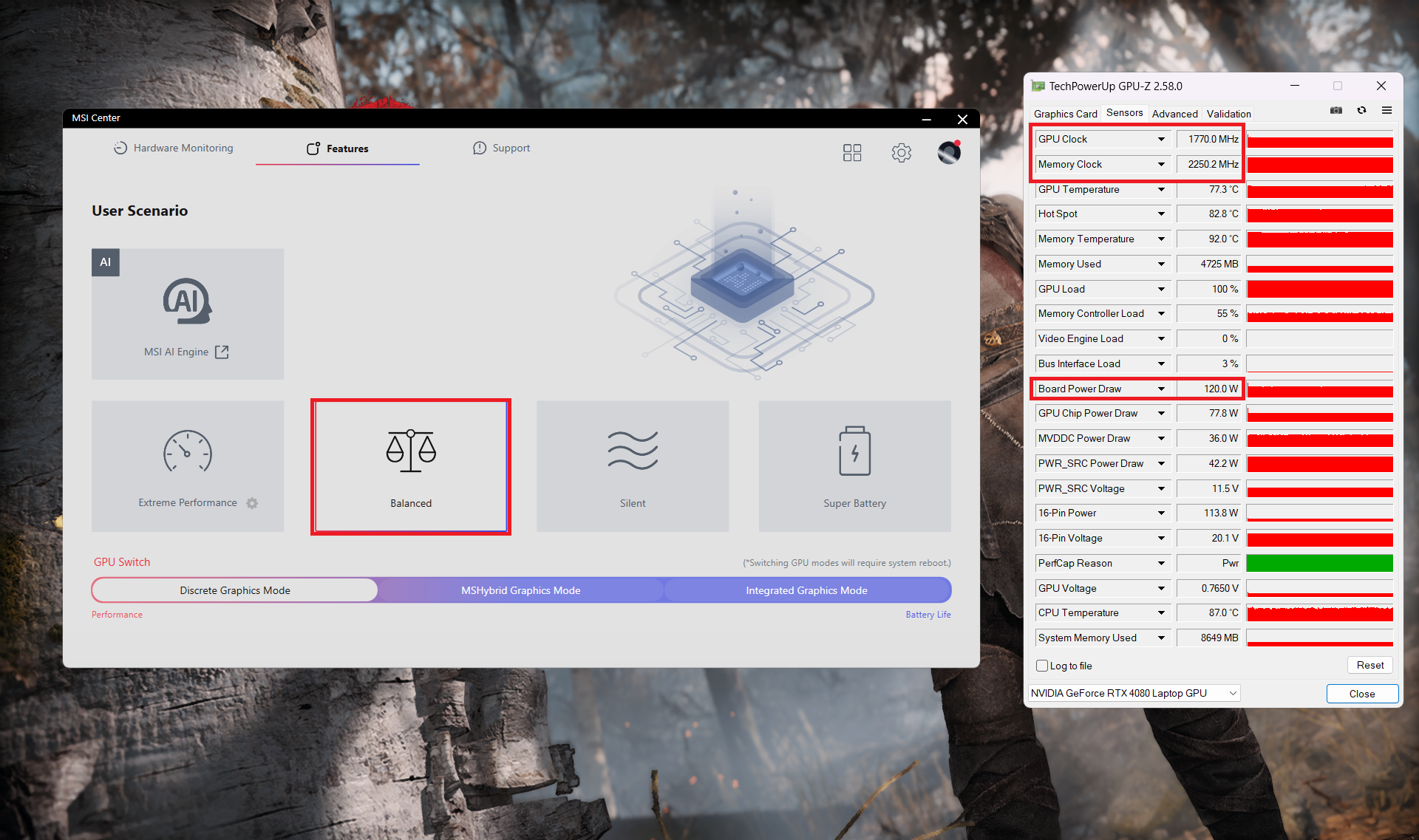 Gaming “Balanced”
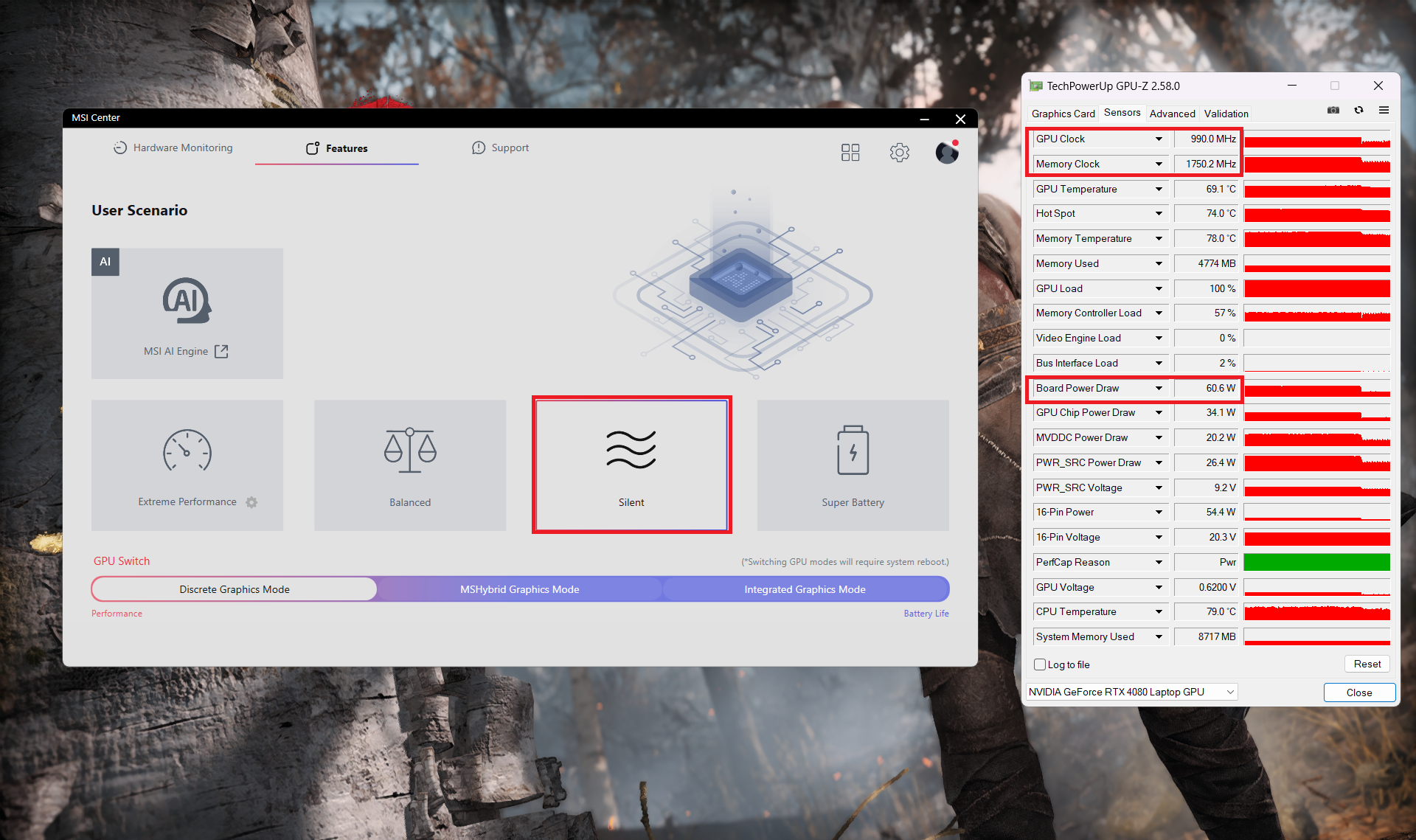 Gaming “Silent”
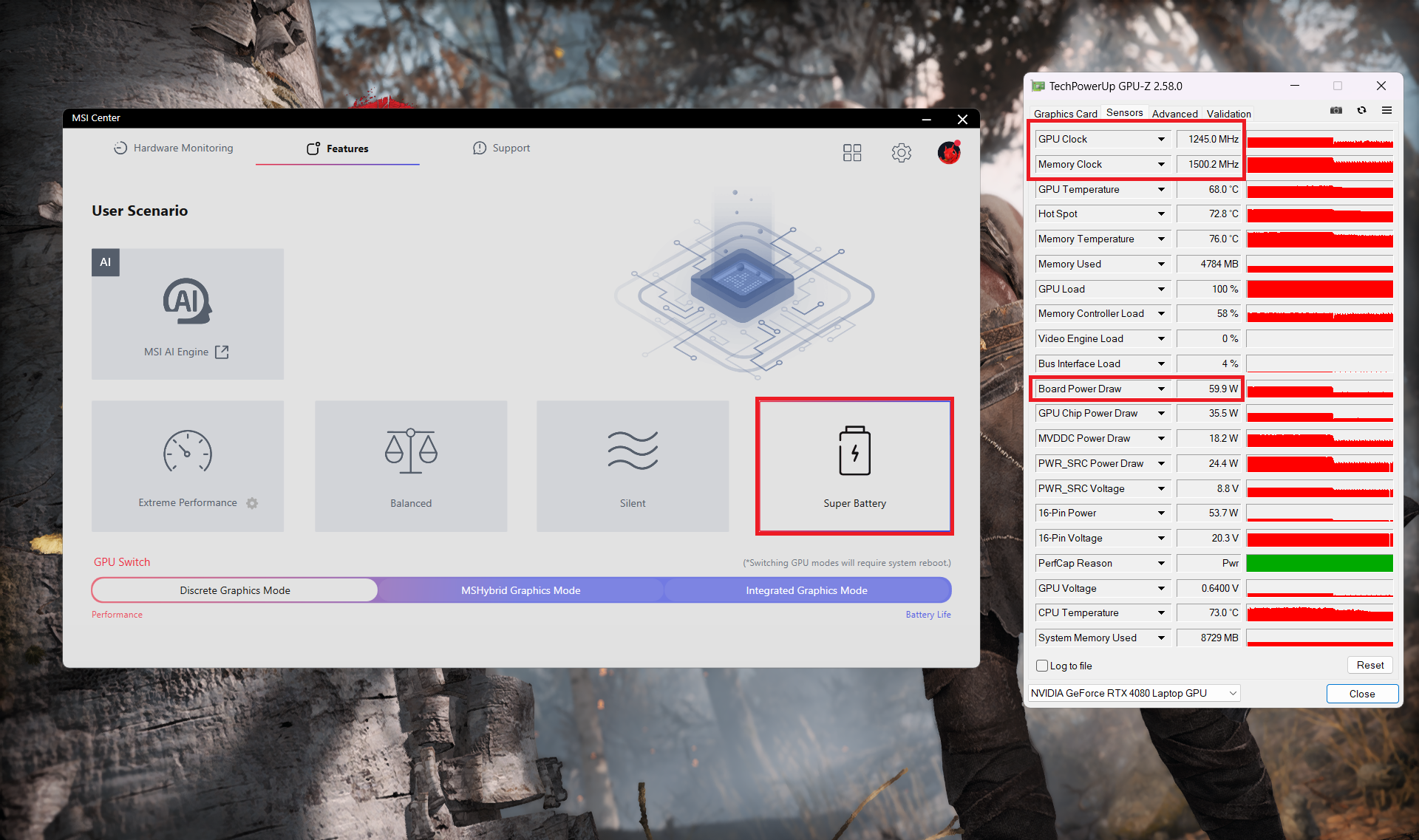 Gaming “Super Battery”
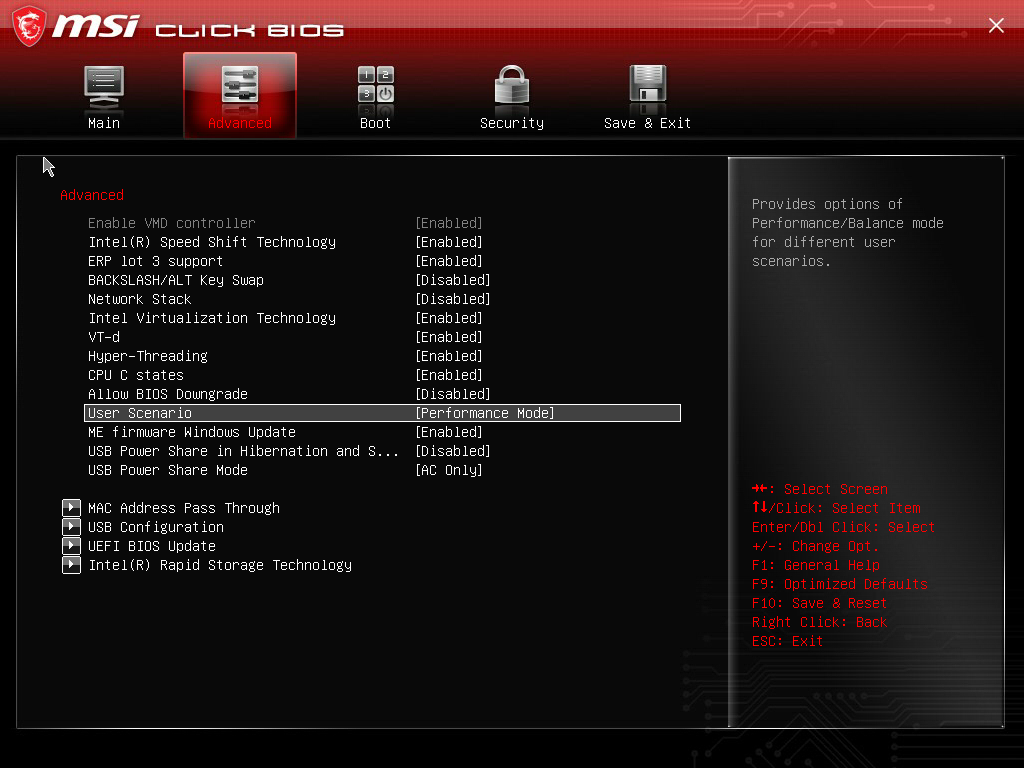
You can also have a look at the main menu of the BIOS.
Battery
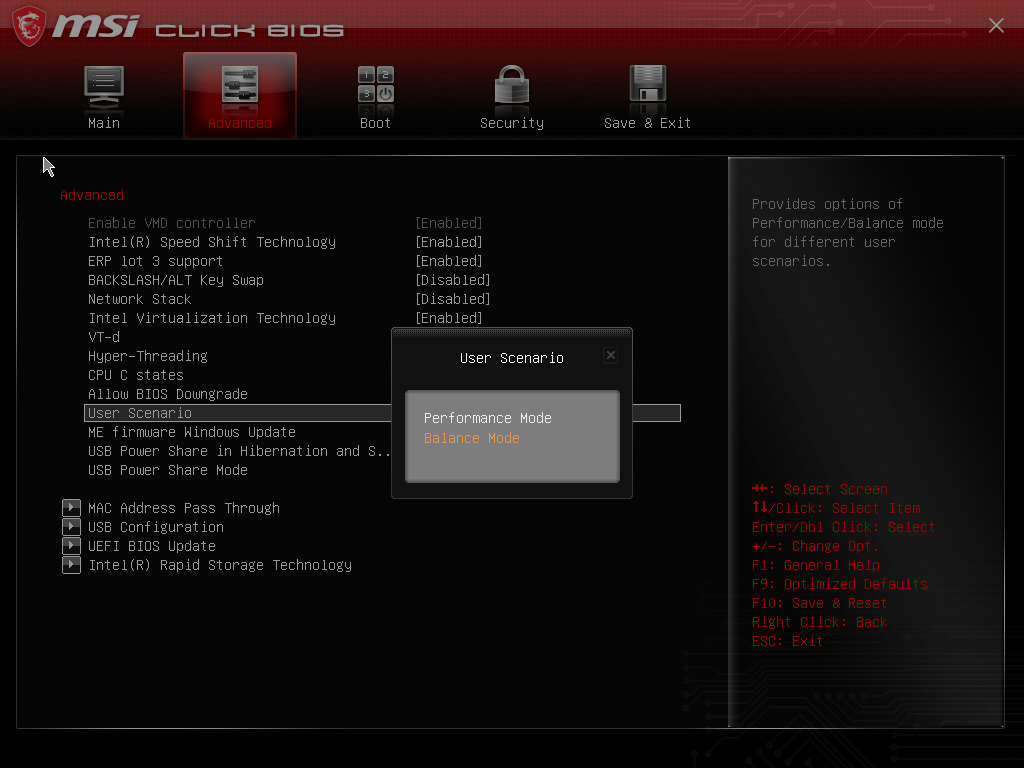
Now, we conduct the battery tests with the Windows Better performance setting turned on, screen brightness adjusted to 120 nits and all other programs turned off except for the one we are testing the notebook with. This notebook’s 90Wh battery lasts for around 7 hours of Web browsing or 6 hours of video playback. Not bad given the powerful hardware and the high refresh rate display. To achieve that, you have to apply the “Balanced” preset in the MSI Center. Also, the “Integrated Graphics Mode” has to be turned on (in order to use the iGPU) and the “Balance” mode should be selected in the BIOS in the “User Scenario” section. The “Balanced” preset is also activated in the Windows “Power & Battery” menu.


Brightness: 180 nits; Display Mode: SDR
Time to Full Discharge: Higher is Better
In order to simulate real-life conditions, we used our own script for automatic web browsing through over 70 websites.
 Author: Nikolay Palaozov
 Author: eng. Kroum NikolovHead of Engineering at LaptopMedia.com, inventor and innovator with 40+ years of experience in electronics and high technology.

![[June 2026] Best-Selling Laptop Brands on Amazon Global – Apple’s Unrivaled Dominance in Units and Revenue](https://laptopmedia.com/wp-content/uploads/2026/07/GLOBAL-Best-Brands-400x225.jpg)
![[June 2026] Amazon Global: Top 10 Best-Selling Laptops – Apple’s New MacBook Neo Storms to #1, Reshaping the Market with Affordability](https://laptopmedia.com/wp-content/uploads/2026/07/Best-Selling-Laptops-GLOBAL-Top-10-400x225.jpg)
![[June 2026] Amazon Global: Top 10 Best-Selling Gaming Laptops – Acer’s Nitro V 16S AI Dominates Sales, While ASUS Leads Overall Revenue](https://laptopmedia.com/wp-content/uploads/2026/07/Best-Selling-Gaming-Laptops-GLOBAL-Top-10-400x225.jpg)
![[June 2026] Global Ranking of Best-Selling Laptop GPUs on Amazon – NVIDIA RTX 5060 is the Top-Selling Dedicated GPU](https://laptopmedia.com/wp-content/uploads/2026/07/Best-Selling-GPUs-GLOBAL-Top-10-400x225.jpg)
![[June 2026] Global Ranking of Best-Selling Laptop CPUs on Amazon – Apple M5 Dominates, AMD Ryzen 7 260 Gets Solid Premium Share](https://laptopmedia.com/wp-content/uploads/2026/07/Best-Selling-CPUs-GLOBAL-Top-10-400x225.jpg)

Hello! Which M.2 slot is Gen 4 and which is Gen 5?
Hye bro, top is Gen 5, bottom is Gen 4. No documentation. I heard this from multiple youtubers.
Cheers!