Acer Nitro 16 (AN16-72) Review – Surprises With Hidden Gems for Gamers and Designers
Temperatures and comfort, Battery Life, Performance presets comparison
Max CPU load
In this test we use 100% on the CPU cores, monitoring their frequencies and chip temperature. The first column shows a computer’s reaction to a short load (2-10 seconds), the second column simulates a serious task (between 15 and 30 seconds), and the third column is a good indicator of how good the laptop is for long loads such as video rendering.

Average P-core frequency; Average E-core frequency; CPU temp.; Package Power
| Intel Core i7-14700HX (55W TDP) | 0:02 – 0:10 sec | 0:15 – 0:30 sec | 10:00 – 15:00 min |
|---|---|---|---|
| Acer Nitro 16 (AN16-72) | 3.73 GHz @ 3.09 GHz @ 72°C @ 157W | 3.69 GHz @ 3.04 GHz @ 85°C @ 157W | 3.24 GHz @ 2.68 GHz @ 74°C @ 100W |
The 28-thread Core i7-14700HX is a serious challenge for every laptop cooling. The thermal system of the Acer Nitro 16 (AN16-72) is doing a great job here – the processor can sustain very high CPU clocks and power limits no matter the load.
Real-life gaming
| NVIDIA GeForce RTX 4050 | GPU frequency/ Core temp (after 2 min) | GPU frequency/ Core temp (after 30 min) |
|---|---|---|
| Acer Nitro 16 (AN16-72) | 2655 MHz @ 67°C @ 92W | 2655 MHz @ 67°C @ 92W |
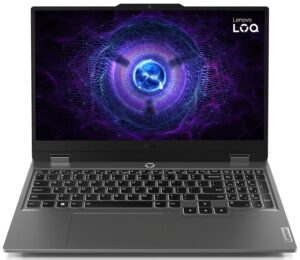
| Lenovo LOQ 15i (Gen 9) | 2580 MHz @ 70°C @ 87W | 2580 MHz @ 71°C @ 86W |
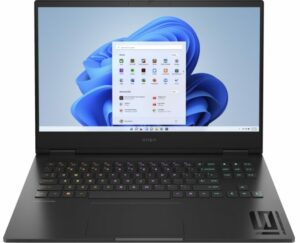
| HP Omen 16 (16-wd0000) | 2565 MHz @ 72°C @ 92W | 2565 MHz @ 70°C @ 91W |
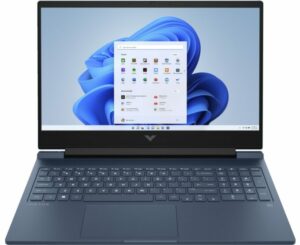
| HP Victus 16 (16-s0000) | 2565 MHz @ 68°C @ 92W | 2550 MHz @ 69°C @ 92W |
| Acer Swift Edge (SFX16-61G) | 2550 MHz @ 78°C @ 95W | 2548 MHz @ 81°C @ 96W |
| ASUS ROG Zephyrus G14 GA402 (2023) Turbo mode | 2565 MHz @ 77°C @ 101W | 2565 MHz @ 82°C @ 104W |
| ASUS ROG Zephyrus G14 GA402 (2023) Performance mode | 2364 MHz @ 78°C @ 86W | 2325 MHz @ 83°C @ 86W |
| Acer Nitro 16 (AN16-51) | 2520 MHz @ 67°C @ 92W | 2520 MHz @ 67°C @ 91W |
| MSI Thin GF63 (12V) | 1735 MHz @ 69°C @ 45W | 1729 MHz @ 70°C @ 45W |
The optional GeForce RTX 4050 can maintain rock solid 2655 MHz frequency alongside 67°C core temperature.
Gaming comfort
The center of the keyboard feels a bit warm during heavy CPU loads when the “Turbo” mode is applied. You can manually bump the fan speed to the maximum value of around 4800RPM which is a surprisingly low speed for a “Nitro” laptop. The fans are rotating with ~3000RPM in idle which is too high for normal work – just switch down to “Balanced” or “Quiet” and the fans will be tamed. The noise during gaming is alright for such a device (but can be on the limit for some of you).
 Presets
 Max fan speed
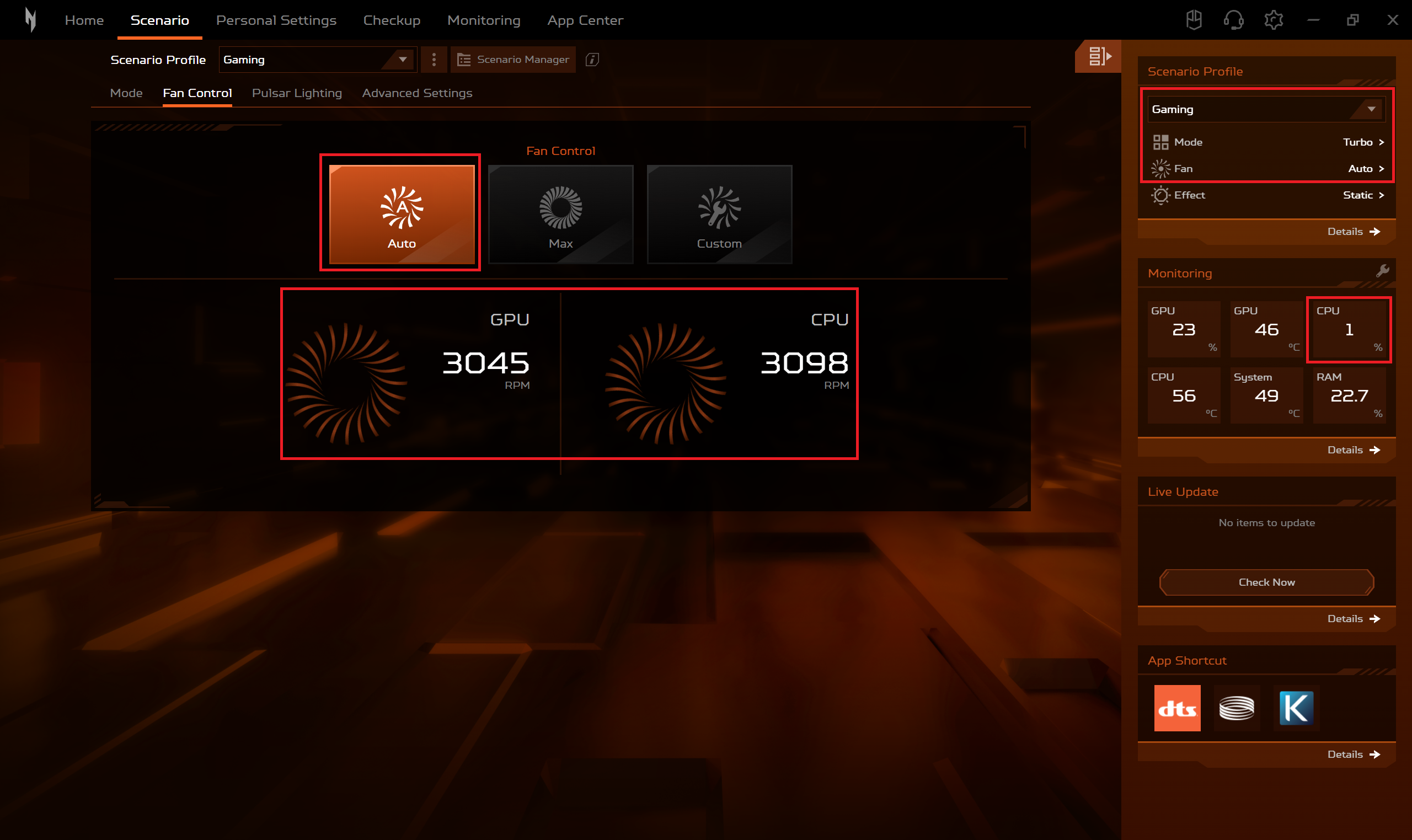 Idle fan speed in Turbo mode
The “Balanced” and the “Performance” modes offer decent noise levels and close TGP values to the “Turbo” preset.
 Gaming “Turbo”
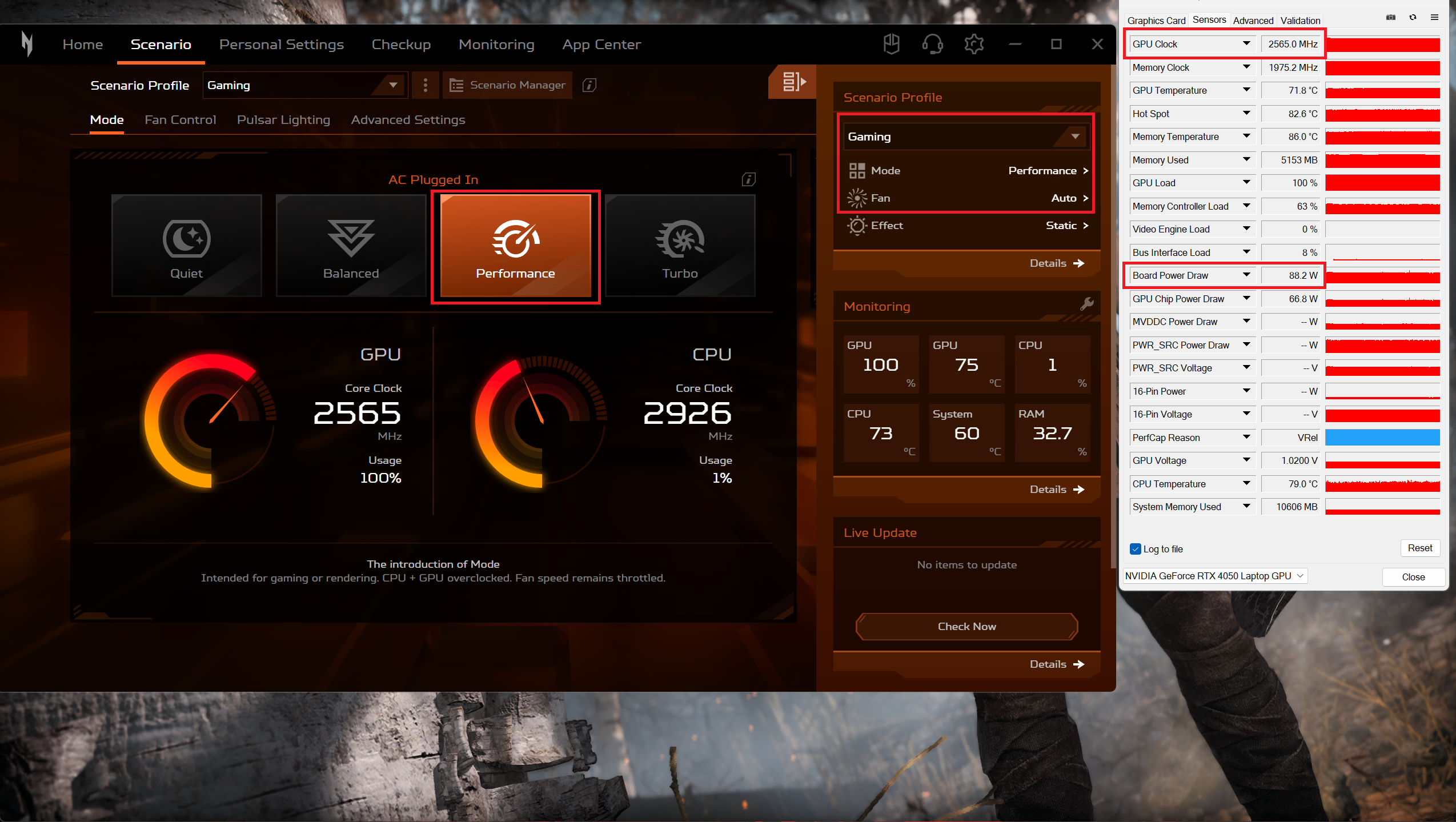 Gaming “Performance”
 Gaming “Balanced”
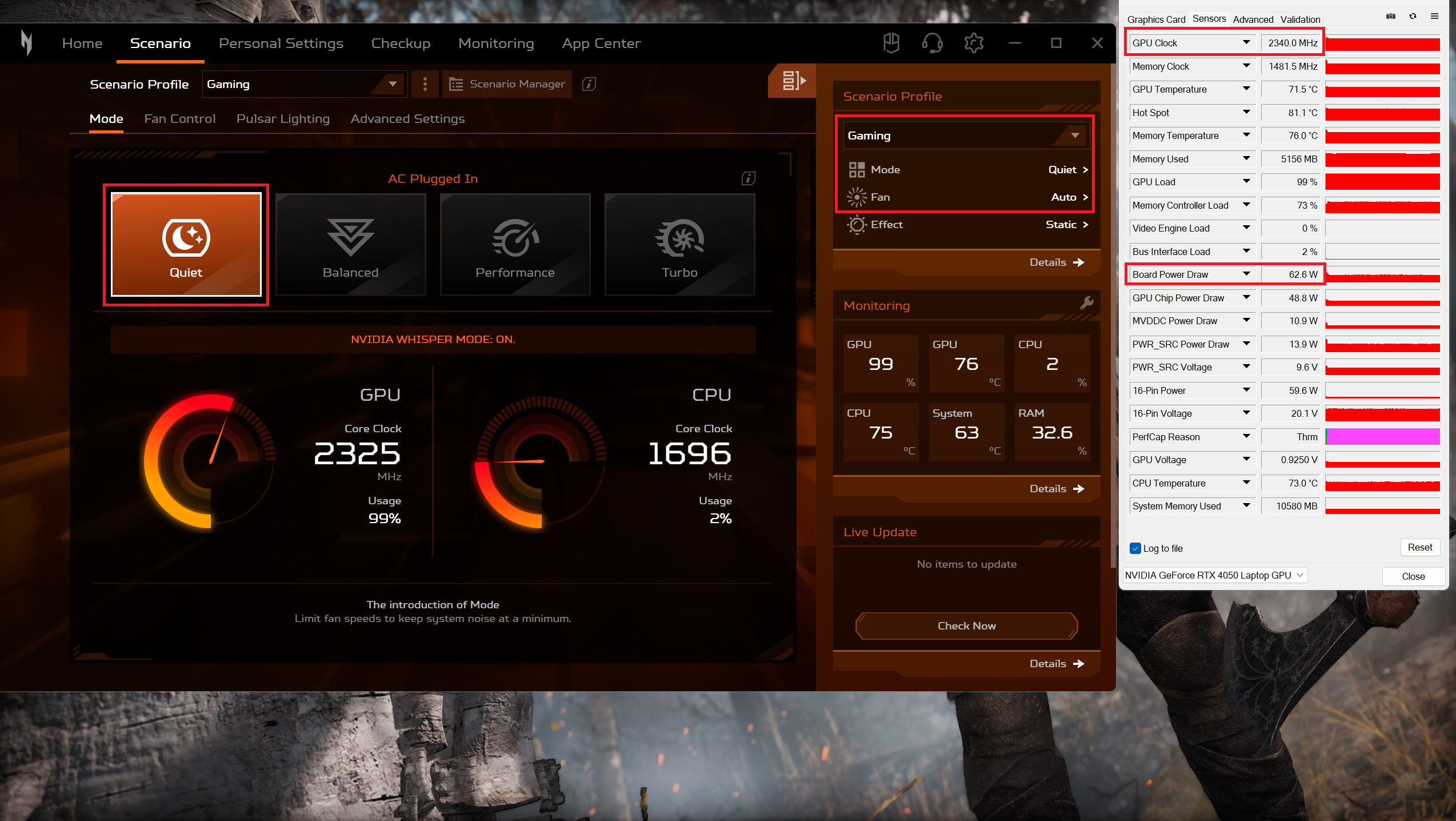 Gaming “Quiet”
Battery
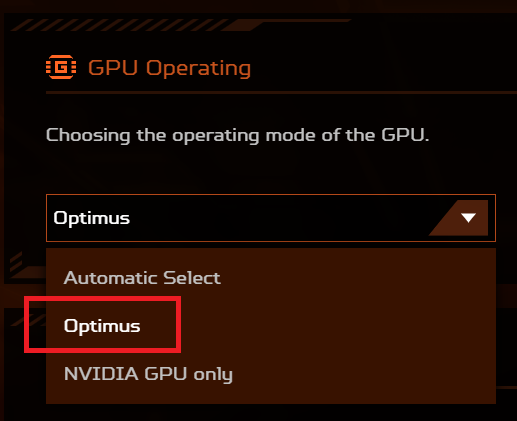
Now, we conduct the battery tests with the Windows Better performance setting turned on, screen brightness adjusted to 120 nits and all other programs turned off except for the one we are testing the notebook with. This machine’s 90.61Wh battery lasts 7 hours and 9 minutes of Web browsing or 5 hours and 53 minutes of video playback. To achieve that, you have to apply the “Balanced” preset in the Windows “Power & Battery” menu and select the “Balanced” and Optimus modes in the Acer Nitro Sense app.


Brightness: 180 nits; Display Mode: SDR
Time to Full Discharge: Higher is Better
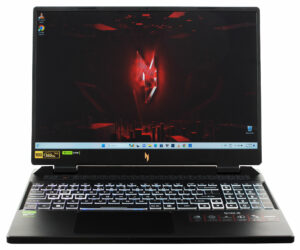
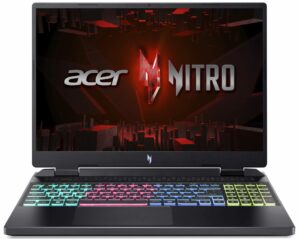
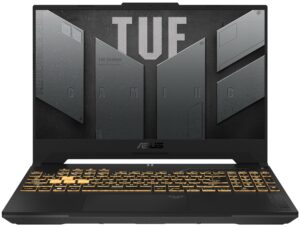
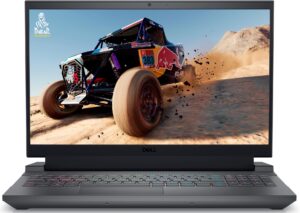
In order to simulate real-life conditions, we used our own script for automatic web browsing through over 70 websites.
 Author: Nikolay Palaozov
 Author: eng. Kroum NikolovHead of Engineering at LaptopMedia.com, inventor and innovator with 40+ years of experience in electronics and high technology.

![[August 2026] Best-Selling Laptop Brands on Amazon Japan – Apple Dominates Market Share and Revenue Led by Strong Unit Sales](https://laptopmedia.com/wp-content/uploads/2026/09/CO.JP-Best-Brands-1-400x225.jpg)
![[August 2026] Best-Selling Laptop Brands on Amazon USA – Apple Dominates Market Revenue and Volume Despite Lower Model Diversity](https://laptopmedia.com/wp-content/uploads/2026/09/COM-Best-Brands-1-400x225.jpg)
![[August 2026] Amazon Germany: Top 8 Best-Selling Gaming Laptops – Acer Dominates the Market as the Premium Nitro V 17 AI Takes the #1 Spot](https://laptopmedia.com/wp-content/uploads/2026/09/Best-Selling-Gaming-Laptops-DE-Top-10-1-400x225.jpg)
![[August 2026] Best-Selling Laptop Brands on Amazon France – Apple Dominates Revenue Despite Lenovo and HP Leading in Catalog Breadth and Volume](https://laptopmedia.com/wp-content/uploads/2026/09/FR-Best-Brands-1-400x225.jpg)
![[August 2026] Amazon Italy: Top 10 Best-Selling Laptops – Apple MacBook Neo Claims the Crown as Budget and Mid-Range Windows Machines Dominate Volume](https://laptopmedia.com/wp-content/uploads/2026/09/Best-Selling-Laptops-IT-Top-10-400x225.jpg)
