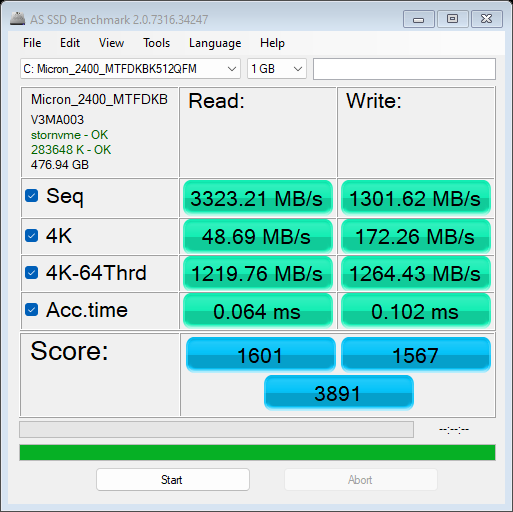
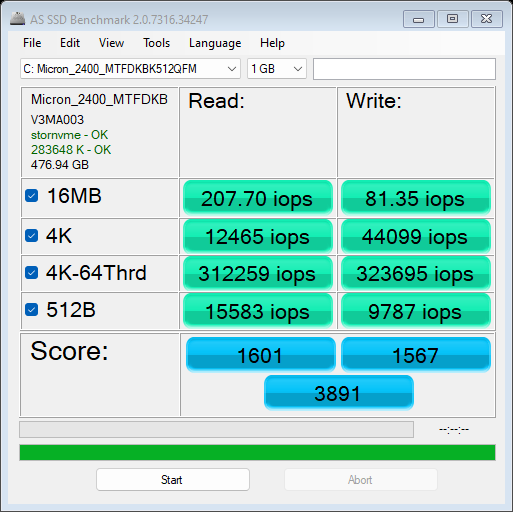
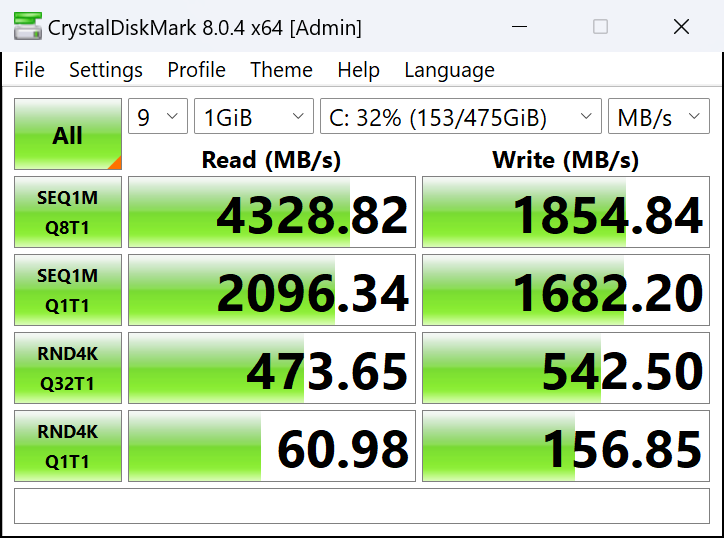
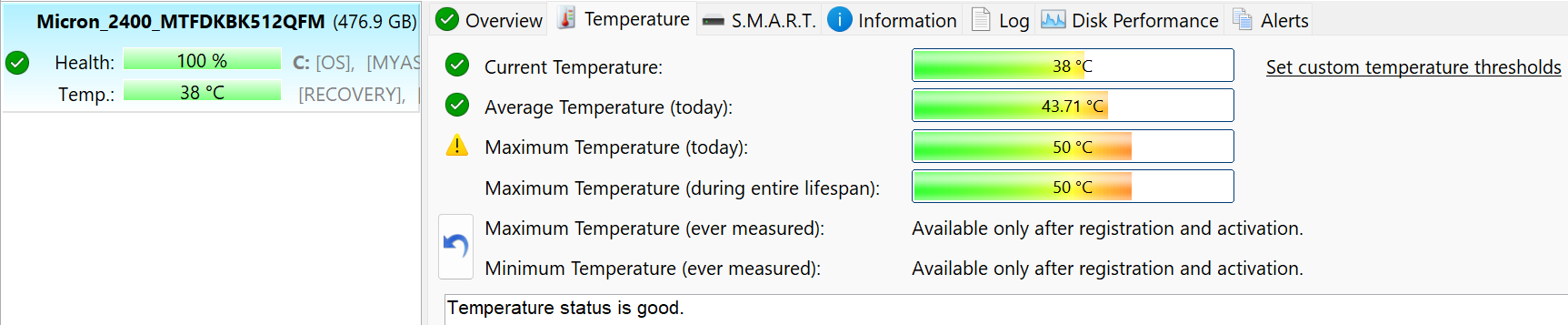
The gaming handhelds are getting better and better. Nintendo Switch and Valve Steam Deck are probably the top dogs in this specific market. On the other hand, the new ASUS ROG Ally (2023) has some tricks up in its sleeve. It uses a full-blown version of Windows 11 so you aren't limited to just one store for buying games. You can get the newest titles via Steam, Windows Store, Ubisoft, GOG, etc. You can install standard MS apps that you are using on your desktop PC or laptop. The second big advantage of this gadget is its display. It's a 7" IPS panel with 1080p resolution, 120Hz refresh rate, and FreeSync Premium support. Everything on it looks crisp, sharp, and smooth. For example, Steam Deck has a 60Hz 800p LCD or 90Hz OLED display while the OLED version of Nintendo Switch offers a 720p panel. The ASUS console has the upper hand when it comes to hardware. The Zen 4 Ryzen Z1 Extreme-based device features a CPU that is almost the same as the AMD Ryzen 7 7840U. Ergo, it has 8 cores, 16 threads, and 16MB L3 cache. The iGPU is the AMD Radeon 780M which is one of the most powerful integrated solutions on the market. You can check the prices and configurations in our Specs System: https://laptopmedia.com/series/asus-rog-ally-2023/ Specs, Drivers, What's in the box Drivers All drivers and utilities for this console can be found here: https://rog.asus.com/gaming-handhelds/rog-ally/rog-ally-2023/helpdesk_download/ What's in the box? The box is very sturdy so the device is well protected. Inside, you'll find a 65W Type-C charger and a couple of manuals. This is (almost) the same adapter that can be found in the package of some ASUS laptops like the ASUS Zenbook 15 OLED (UM3504) or ASUS Zenbook 14 (UM3402). The cable is long, but it's stiff and it's a bit uncomfortable to use the machine when the charger is plugged in. Design and construction Since it's a compact gaming console, the controls are on the sides of the display. Actually, the gadget looks stunning in white color and contrasting black buttons and pads. The weight is 608 grams which is pretty good given the display and the hardware under the bonnet. The profile thickness is 21.2 - 32.4 mm. The matte texture on the front feels smooth while the plastic on the back is grippier. The two Dolby Atmos speakers are front-firing. The ABXY buttons have enough travel and you can move with ease the two joysticks. Their coating feels nice to the touch but it could be a bit more grippy. The rings around the joysticks have a backlight that can be synced with the CPU temperature (or with your favorite music tracks) - cool! The D-pad on the left side seems big enough for usage and it's suitable even for people with bigger hands. However, its glossy finish is a fingerprint magnet. There are two pairs of small buttons around the upper side of the display. On the left are the "View" and the "Command Center" buttons and you get the "Menu" and "Armoury Crate SE" switches on the other side. On the top, you can see two duos of bumper and trigger buttons. The feedback for all is clicky and the travel of the trigger is longer. They have an interesting texture with numerous small triangles. There is nothing on the bottom of the console but we would like to see the power connector there, not on the top. On the back, you can spot the two decently-sized air vents - the one on the right is shaped like the ROG logo. The two black Macro buttons can be assigned to an in-game function but we found them to be kind of uncomfortable for usage. You can also press them unintentionally during gaming. Ports All the ports are on the top - a Power button with a built-in fingerprint reader, Volume controls, a USB Type-C 3.2 (Gen. 2) port with DisplayPort 1.4 functionality and charging capabilities, an ROG XG Mobile connector, a MicroSD card slot, and an Audio combo jack. Display quality, Health impact (PWM), Sound ASUS ROG Ally (2023) is equipped with a 1080p IPS panel, model number TIANMA TL070FVXS01-0 (TMX0002). It comes with a 120Hz refresh rate. Its diagonal is 7" (17.8 cm), and the resolution - 1920 x 1080p. Additionally, the screen ratio is 16:9, the pixel density – 315 ppi, and their pitch – 0.08 x 0.08 mm. The screen can be considered Retina when viewed from at least 28 cm (from this distance, the average human eye can’t see the individual pixels). Viewing angles are good. We offer images at different angles to evaluate the quality. Also, a video with locked focus and exposure. The panel manufacturer Tianma presents two technologies - SFT (Super Fine TFT) and EVT that are significantly improving the image quality, in particular the viewing angles and readability of the display in direct sunlight. https://www.tianma.eu/technologies/ The maximum measured brightness is 476 nits (cd/m2) in the middle of the screen and 470 nits (cd/m2) average across the surface with a maximum deviation of 7%. The Correlated Color Temperature on a white screen and at maximum brightness is 7300K. In the illustration below you can see how the display performs from a uniformity perspective. The illustration below shows how matters are for operational brightness levels (approximately 140 nits) – in this particular case at 39% Brightness (White level = 144 cd/m2, Black level = 0.11 cd/m2). Values of dE2000 over 4.0 should not occur, and this parameter is one of the first you should check if you intend to use the laptop for color-sensitive work (a maximum tolerance of 2.0 ). The contrast ratio is good – 1280:1. To make sure we are on the same page, we would like to give you a little introduction to the sRGB color gamut and the Adobe RGB. To start, there’s the CIE 1976 Uniform Chromaticity Diagram that represents the visible specter of colors by the human eye, giving you a better perception of the color gamut coverage and the color accuracy. Inside the black triangle, you will see the standard color gamut (sRGB) that is being used by millions of people on HDTV and on the web. As for the Adobe RGB, this is used in professional cameras, monitors, etc for printing. Basically, colors inside the black triangle are used by everyone and this is the essential part of the color quality and color accuracy of a mainstream notebook. Still, we’ve included other color spaces like the famous DCI-P3 standard used by movie studios, as well as the digital UHD Rec.2020 standard. Rec.2020, however, is still a thing of the future and it’s difficult for today’s displays to cover that well. We’ve also included the so-called Michael Pointer gamut, or Pointer’s gamut, which represents the colors that naturally occur around us every day. The yellow dotted line shows ASUS ROG Ally (2023)'s color gamut coverage. Its display covers 90% of the sRGB/ITU-R BT.709 (web/HDTV standard) in CIE1976, and 74% of DCI-P3. We tested the accuracy of the display with 24 commonly used colors like light and dark human skin, blue sky, green grass, orange, etc. Below you can compare the scores of the ASUS ROG Ally (2023) with the default settings (left), and with the “Gaming and Web design” profile (right). The next figure shows how well the display is able to reproduce really dark parts of an image, which is essential when watching movies or playing games in low ambient light. The left side of the image represents the display with stock settings, while the right one is with the “Gaming and Web Design” profile activated. On the horizontal axis, you will find the grayscale, and on the vertical axis – the luminance of the display. On the two graphs below you can easily check for yourself how your display handles the darkest nuances but keep in mind that this also depends on the settings of your current display, the calibration, the viewing angle, and the surrounding light conditions. The first five levels of Grey (1%-5% White) are demonstrated by the five squares in the bottom part of the chart. Whether you can see it or not, depends on the display on which you’re reading this article right now, its calibration, your vision, the ambient light, and the viewing angle. Response time (Gaming capabilities) We test the reaction time of the pixels with the usual “black-to-white” and “white-to-black” method from 10% to 90% and vice versa. We recorded Fall Time + Rise Time = 7.5 ms. The short pixel response time is a prerequisite for a clear picture in dynamic scenes. Health Impact: PWM (Screen flickering) Pulse-width modulation (PWM) is an easy way to control monitor brightness. When you lower the brightness, the light intensity of the display is not lowered, but instead turned off and on by the electronics with a frequency indistinguishable to the human eye. In these light impulses, the light/no-light time ratio varies, while brightness remains unchanged, which is harmful to your eyes. You can read more about that in our dedicated article on PWM. ASUS ROG Ally (2023) display doesn’t flicker at any brightness level. This makes the screen pretty comfortable for long periods of use. Health Impact: Blue light emissions Installing our Health-Guard profile not only eliminates PWM but also reduces the harmful Blue Light emissions while keeping the colors of the screen perceptually accurate. If you’re not familiar with the Blue light, the TL;DR version is – emissions that negatively affect your eyes, skin, and your whole body. You can find more information about that in our dedicated article on Blue Light. Sound ASUS ROG Ally (2023)'s speakers produce a sound of very good quality. Its low, mid, and high tones are clear of deviations. Buy our profiles Since our profiles are tailored for each individual display model, this article and its respective profile package are meant for ASUS ROG Ally (2023) configuration with 7.4" TIANMA TL070FVXS01-0 (TMX0002) (1920x1080) IPS panel. *Should you have problems with downloading the purchased file, try using a different browser to open the link you’ll receive via e-mail. If the download target is a .php file instead of an archive, change the file extension to .zip or contact us at bg.laptopmedia@gmail.com. Read more about the profiles HERE. Performance: CPU, GPU, Gaming Tests All benchmarks and tests were conducted with the "Turbo" profile activated in the Armoury Crate. Also, the assaigned RAM to the iGPU is 4GB (which is the default value). CPU options You can find this handheld device with AMD Ryzen Z1 or AMD Ryzen Z1 Extreme. GPU options Depending on the CPU version, you get AMD Radeon 740M or AMD Radeon 780M. Gaming tests Far Cry 6 Full HD, Low (Check settings) Full HD, High (Check settings) Full HD, Ultra (Check settings) Average FPS 57 fps 42 fps 36 fps Gears 5 Full HD, Low (Check settings) Full HD, Medium (Check settings) Full HD, High (Check settings) Full HD, Ultra (Check settings) Average FPS 83 fps 54 fps 44 fps 35 fps CS:GO HD 1080p, Low (Check settings) HD 1080p, Medium (Check settings) HD 1080p, MAX (Check settings) Average FPS 210 fps - - DOTA 2 HD 1080p, Low (Check settings) HD 1080p, Normal (Check settings) HD 1080p, High (Check settings) Average FPS 139 fps 103 fps 78 fps The AMD Radeon 780M is a powerful iGPU and you can assign up to 8GB of the system memory to integrated graphics. We left the buffer to its default value which is 4GB - more than enough such a video card. You can play light games such as Dota 2 or CS:GO with high FPS on Low, or you can bump the visuals and the FPS will be still within reasonable limits. Heavier titles such as Far Cry 6 or Gears 5 can be played on Low or maybe Medium details. Temperatures and comfort, Battery Life Max CPU load In this test we use 100% on the CPU cores, monitoring their frequencies and chip temperature. The first column shows a computer’s reaction to a short load (2-10 seconds), the second column simulates a serious task (between 15 and 30 seconds), and the third column is a good indicator of how good the laptop is for long loads such as video rendering. Average core frequency (base frequency + X); CPU temp. AMD Ryzen Z1 Extreme 0:02 - 0:10 sec 0:15 - 0:30 sec 10:00 - 15:00 min ASUS ROG Ally (2023) 4.08 GHz @ 64°C @ 48W 3.66 GHz @ 94°C @ 41W 3.19 GHz @ 80°C @ 30W In short and medium loads, the CPU can maintain frequencies that are above the official base clock of 3.30 GHz. The processor gets toasty after 30 seconds of max load, and that way the clock settles at ~3.20 GHz in longer usage. This time around, the temperature is okay for such a small machine - 80°C. Comfort during full load In idle, the two fans are rotating with ~2800-3000 RPM and it's even hard to hear them. The cooling dissipates well the heat so the chassis doesn't feel too hot in prolonged periods of gaming. Battery Now, we conduct the battery tests with the Windows Better performance setting turned on, screen brightness adjusted to 120 nits and all other programs turned off except for the one we are testing the notebook with. This device's 40Wh battery lasts for 10 hours of either Web browsing or video playback. Disassembly, Upgrade options, and Maintenance If you want to have a sneak peek at the internals, you have to undo six Phillips-head screws. Some of them are captive. The bottom screw in the middle will slightly raise the bottom panel so you can begin the prying process from there. You can start from the front, then, work your way around the sides and on the backside. Here's how the bottom plate looks on the inside. The battery is a 40Wh model. If you have to take it out, unplug the connector from the motherboard. Then, you have to undo the four Phillips-head screws that are fixing the unit to the chassis. The capacity is enough for 10 hours of either Web browsing or video playback. Not bad, given the high refresh rate display. Expectedly, the memory is soldered. You get 16GB of LPDDR5-6400MHz RAM in dual-channel mode. For storage, there is one M.2 slot for 2230 Gen 4 SSDs. The cooling comprises two fans, one heat pipe, two heat sinks, and a heat spreader. You can also remove the cooling system if you have to change the thermal paste. You need to undo six Phillips-head screws. Two of them are holding the fans while the other four are securing in place the heat spreader above the APU chip. Storage performance Our gadget is equipped with a 512GB Micron 2400 MTFDKBK512QFM. This is a Gen 4 NVMe with QLC memory. Its temperature under load is normal - 50°C. Armoury Crate SE The Armoury Crate SE app should be your main playground when it comes to tweaking settings and choosing performance modes. The interface is very similar to the desktop and laptop versions of the software. Let's see what kind of thing you'll find there. The Game Library is the fastest and most convenient way to start a certain game. Of course, you can manually open Steam for example, and browse the library of your owned titles, but that takes more time. You can choose between two control modes - Gamepad or Desktop Mode. The Gamepad mode is the way to go if you want to play games. The Desktop Mode is useful when using the device for Web browsing or maybe watching videos. The Command Center has a dedicated button that brings quick on-screen controls (you can edit them as well). You can tune the backlight or turn it off. You have three power presets at your disposal, as well as a manual one and you can also set a custom fan curve for each fan. The rest is more or less standard for a ROG device - update section, ASUS Aura Sync, different visual modes for the display, and system stats monitoring. Verdict The ASUS ROG Ally (2023) is an interesting handheld gaming console. It's well-built, the design is fresh and distinctive, and the control buttons and pads are comfortably placed except for the ones on the back. The device isn't too big and heavy and that's why you can use it for long hours of gaming. The only downside here is the stiff cable of the charger which will always stick out on the top of the machine if you want the full power of the device. The implementation of the Armoury Crate SE skin is good, and using it feels convenient. Just like any other ROG device, you can apply the Turbo preset for full power during gaming or you can use the Silent mode if you want to preserve some battery juice. The ASUS software is rich in options and you even get a Manual mode to fine-tune the console's power. The ROG Ally feels snappy even if you want to use it as a normal Windows device for Web browsing or watching videos. In our case, we connected a USB Type-C splitter to the gadget and we hooked up dongles for the wireless mouse and keyboard. Aside from the smaller screen, it felt like we were using a normal laptop with an iGPU. The cooling is doing a good job of keeping the internals and the shell cool enough for comfortable usage during gaming. Speaking of which, the hardware is capable of showing high FPS in light games such as Dota 2 or CS:GO. You can even play Far Cry 6 on Low with 57 FPS which isn't bad at all considering the size of the console. AMD FSR is also available if you want to bump the visuals without sacrificing the FPS. You can assign up to 8GB of the system memory to the iGPU so you can experiment with which amount will be the sweet spot for your favorite games. The upgrade options are almost non-existent but hey, that's not a laptop or a PC, right? Still, you can change the NVMe. Also, opening the device isn't complicated, you need a Phillips-head screwdriver and a thin prying tool - that's all. The main con of the device is the fact that it has just one Type-C port that is also used for charging. You can use a mouse and keyboard with an adapter if the charger isn't plugged in. However, if you want to connect additional peripherals and charge the device at the same time, you are forced to buy the expensive ASUS XG Mobile external station or you can look for a third-party solution but finding the right one can be a Russian roulette. The ASUS ROG Ally (2023) is a small but powerful Windows 11-based gaming console that has a great 120 Hz display and software that offers tons of customization. You can check the prices and configurations in our Specs System: https://laptopmedia.com/series/asus-rog-ally-2023/