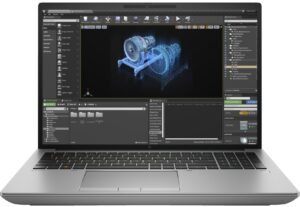
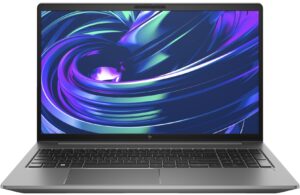
HP ZBook Fury 16 G10 review – near-silent powerful workstation that is built like a tank
Temperatures and comfort, Battery Life
Max CPU load
In this test we use 100% on the CPU cores, monitoring their frequencies and chip temperature. The first column shows a computer’s reaction to a short load (2-10 seconds), the second column simulates a serious task (between 15 and 30 seconds), and the third column is a good indicator of how good the laptop is for long loads such as video rendering.
Average P-core frequency; Average E-core frequency; CPU temp.; Package Power
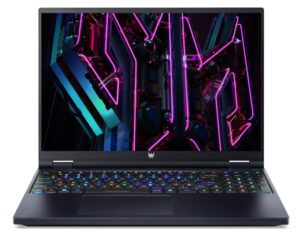
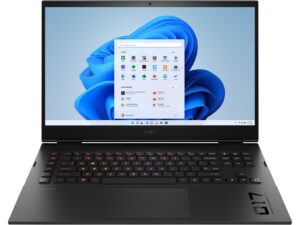
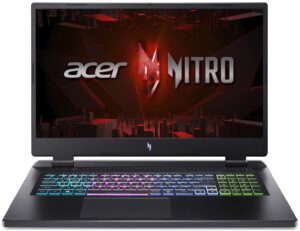
| Intel Core i7-13700HX (55W TDP) | 0:02 – 0:10 sec | 0:15 – 0:30 sec | 10:00 – 15:00 min |
|---|---|---|---|
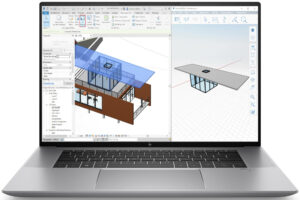
| HP ZBook Fury 16 G10 | 3.10 GHz @ 2.41 GHz @ 60°C @ 96W | 3.09 GHz @ 2.39 GHz @ 68°C @ 96W | 2.34 GHz @ 1.88 GHz @ 71°C @ 60W |
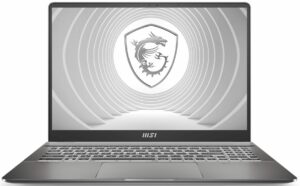
| MSI Creator Z16 HX Studio (A13V) | 4.36 GHz @ 2.55 GHz @ 87°C @ 159W | 4.07 GHz @ 2.44 GHz @ 88°C @ 135W | 3.79 GHz @ 2.34 GHz @ 88°C @ 115W |
| Acer Nitro 17 (AN17-71) | 3.78 GHz @ 3.01 GHz @ 76°C @ 157W | 3.75 GHz @ 3.01 GHz @ 85°C @ 157W | 3.12 GHz @ 2.48 GHz @ 68°C @ 100W |
| Acer Predator Helios 16 (PH16-71) | 2.16 GHz @ 3.66 GHz @ 85°C @ 157W | 2.38 GHz @ 3.47 GHz @ 94°C @ 156W | 1.30 GHz @ 3.62 GHz @ 75°C @ 115W |
| HP Omen 17 (2023, 17-ck2000) | 3.49 GHz @ 2.86 GHz @ 66°C @ 130W | 3.48 GHz @ 2.80 GHz @ 74°C @ 130W | 3.10 GHz @ 2.44 GHz @ 76°C @ 100W |
It looks like HP is trying to find the right balance between temperatures and frequencies. The Core i7-13700HX inside this machine can sustain decent clocks and low temperatures under any kind of load. The notebook always feel snappy.
Real-life gaming
| NVIDIA RTX 2000 Ada Generation | GPU frequency/ Core temp (after 2 min) | GPU frequency/ Core temp (after 30 min) |
|---|---|---|
| HP ZBook Fury 16 G10 | 1791 MHz @ 65°C @ 65W | 1782 MHz @ 66°C @ 65W |
The 65W NVIDIA RTX 2000 Ada Generation is also well-cooled. It can maintain a 1782 MHz core clock and a stable 65W TGP after half an hour of gaming.
Comfort during full load
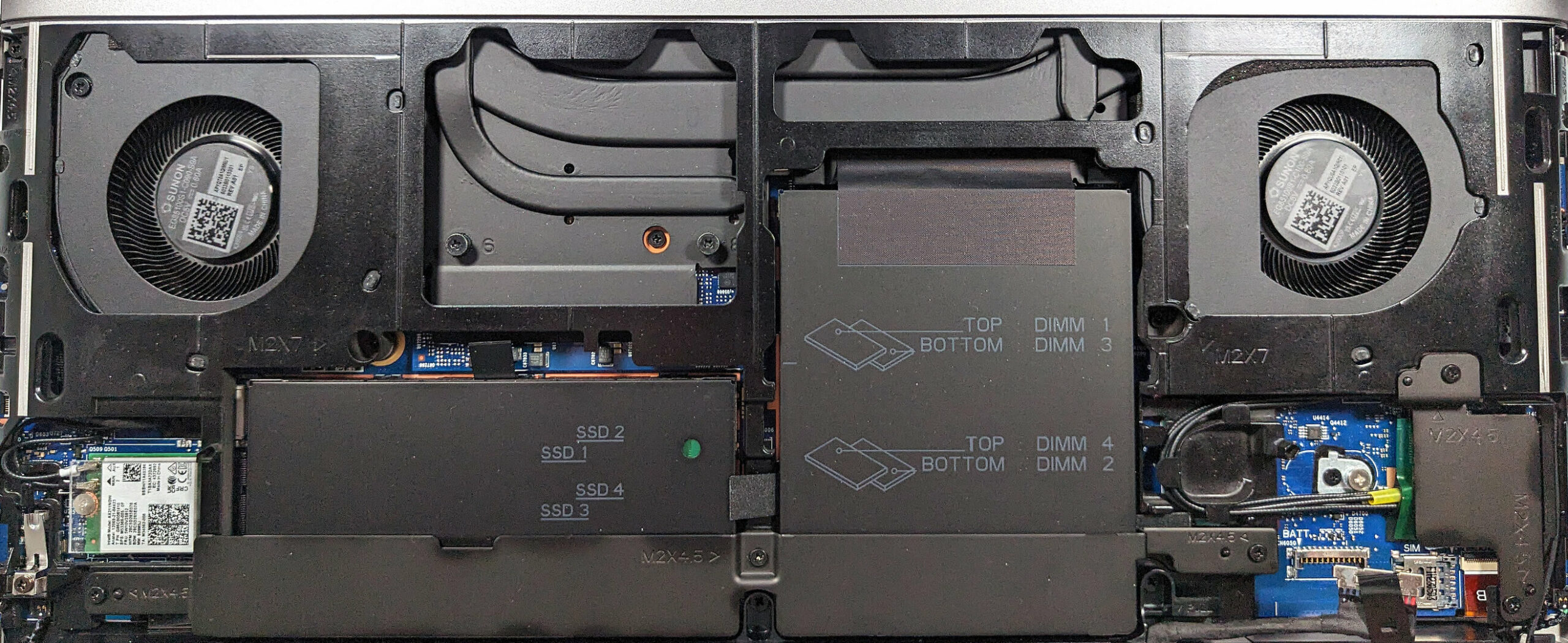
For starters, we can say that the two fans of the HP ZBook Fury 16 G10 are near-silent in CPU-intensive tasks. That’s a true achievement since we have a 55W Raptor Lake HX CPU under the hood. All other Core i7-13700HX-based devices that we have tested up to date are noticeably noisier than this HP machine. Interestingly, in graphics-heavy loads like gaming, the fans are more audible but not noisy at all. Luckily, the keyboard becomes slightly warm in the middle when the internals are stressed at max. In this case, the board doesn’t feel hot to the touch so you can use the workstation comfortably.
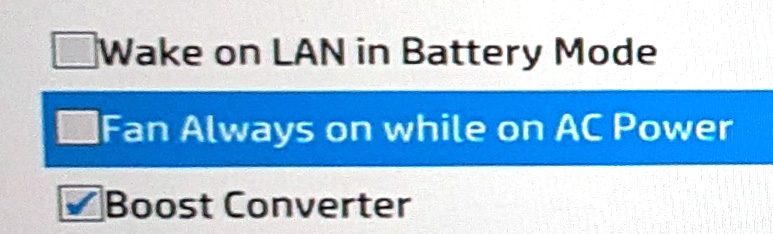
You have four presets at your disposal. “Performance” seems like the way to go no matter the load. Still, if you deselect the “Fan Always on while on AC Power” option in the BIOS, the fans will be turned off in idle or in light system usage. If you want this device to be always as silent as possible, the “Quiet” mode is the right one for this kind of preference.

The GPU has no problems maintaining its official max TGP of 65W when the “Performance” preset is applied. The power limit is lowered to around 55W in “Cool” mode and to ~35W when you select the “Quiet” power plan.
 Performance
 Quiet
Quiet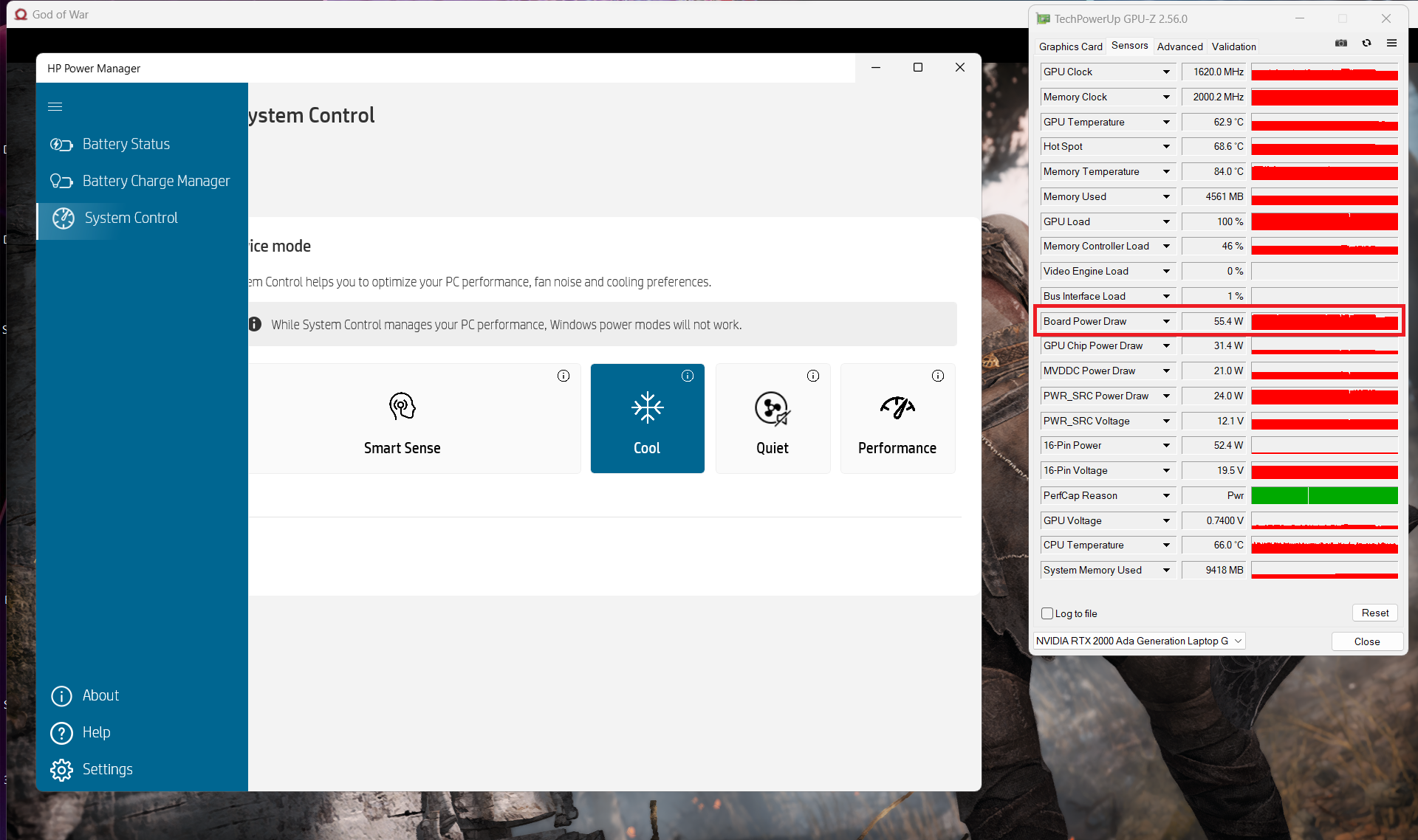 Cool
CoolBattery
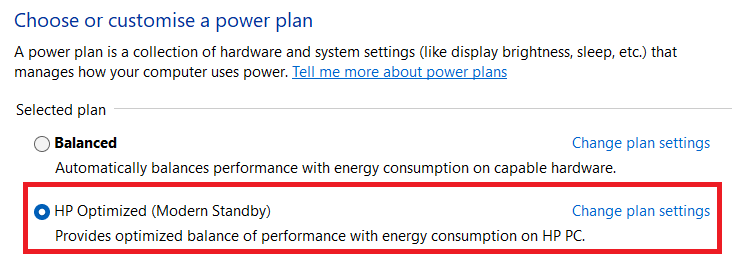
Now, we conduct the battery tests with the Windows Better performance setting turned on, screen brightness adjusted to 120 nits, and all other programs turned off except for the one we are testing the notebook with. The 95Wh battery capacity is enough for 16 hours and 40 minutes of Web browsing or about 12 hours and 30 minutes of video playback. That’s a mind-blowing result for a device with a thirty HX-series CPU and professional NVIDIA Ada Generation GPU! To achieve that, you have to select the “HP Optimized (Modern Standby)” power plan that can be found in the Control Panel’s Power Options sub-menu. You also have to apply the “Quiet” preset in the HP Power Manager app. The last step is to choose the “Hybrid Graphics” mode in the BIOS in order to use the iGPU.


Brightness: 180 nits; Display Mode: SDR
Time to Full Discharge: Higher is Better
In order to simulate real-life conditions, we used our own script for automatic web browsing through over 70 websites.
 Author: Nikolay Palaozov
 Author: eng. Kroum NikolovHead of Engineering at LaptopMedia.com, inventor and innovator with 40+ years of experience in electronics and high technology.

![[August 2026] Amazon Italy: Top 10 Best-Selling Laptops – Apple MacBook Neo Claims the Crown as Budget and Mid-Range Windows Machines Dominate Volume](https://laptopmedia.com/wp-content/uploads/2026/09/Best-Selling-Laptops-IT-Top-10-400x225.jpg)
![[August 2026] Amazon Italy: Top 7 Best-Selling Gaming Laptops – ASUS V16 Claims the #1 Spot Amid Strong Mid-Range Demand](https://laptopmedia.com/wp-content/uploads/2026/09/Best-Selling-Gaming-Laptops-IT-Top-10-400x225.jpg)
![[August 2026] Best-Selling Laptop Brands on Amazon Italy – Lenovo Dominates Market Share and Revenue Leadership](https://laptopmedia.com/wp-content/uploads/2026/09/IT-Best-Brands-400x225.jpg)
![[August 2026] Amazon India: Top 10 Best-Selling Laptops – Apple MacBook Neo Dominates the Charts with Massive Sales Lead](https://laptopmedia.com/wp-content/uploads/2026/09/Best-Selling-Laptops-IN-Top-10-400x225.jpg)
![[August 2026] Amazon India: Top 10 Best-Selling Gaming Laptops – HP Victus 15 Dominates the Market with Massive Unit Lead](https://laptopmedia.com/wp-content/uploads/2026/09/Best-Selling-Gaming-Laptops-IN-Top-10-400x225.jpg)

Thanks for the comprehensive review, it’s one of the few quality reviews out there. I’m glad HP kept the physical touchpad buttons. I suppose the laptop designers have no idea how IMPORTANT these physical buttons can be to the design & engineering industries (e.g. architectural and urban design, and perhaps the entire creative industry). We need the middle button to quickly pan/rotate views in 3D modelling / simulation software, and the physical left/right keys for fast, precise clicking without any sluggishness / accidental clicking and dragging. Not everyone wants to carry around a mouse and separate keyboard. After all, this is… Read more »
I don´t think people are doing 3d modeling at a café or in a plane, and need full control of the camera all the time. They have a standard usb mouse or a 3d connexion if they need that feature. I get it, I’use middle mouse drag and even more complex gestures in SideFX Houdini, but when you’re on your laptop on the go, you do with what you have.