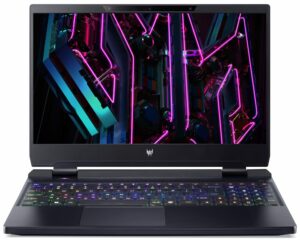
Acer Predator Helios 18 (PH18-72) review – Desktop Performance in a Mini LED Laptop
Temperatures and comfort, Battery Life, Performance presets comparison
Max CPU load
In this test we use 100% on the CPU cores, monitoring their frequencies and chip temperature. The first column shows a computer’s reaction to a short load (2-10 seconds), the second column simulates a serious task (between 15 and 30 seconds), and the third column is a good indicator of how good the laptop is for long loads such as video rendering.
Average P-core frequency; Average E-core frequency; CPU temp.; Package Power
| Intel Core i9-14900HX (55W Base Power) | 0:02 – 0:10 sec | 0:15 – 0:30 sec | 10:00 – 15:00 min |
|---|---|---|---|
| Acer Predator Helios 18 (PH18-72) “Turbo” preset | 3.56 GHz @ 3.07 GHz @ 80°C @ 157W | 3.55 GHz @ 3.00 GHz @ 90°C @ 157W | 3.32 GHz @ 2.81 GHz @ 86°C @ 136W |
| Acer Predator Helios 18 (PH18-72) “Performance” preset | 3.22 GHz @ 3.04 GHz @ 76°C @ 157W | 3.17 GHz @ 3.02 GHz @ 88°C @ 157W | 2.59 GHz @ 2.47 GHz @ 81°C @ 95W |
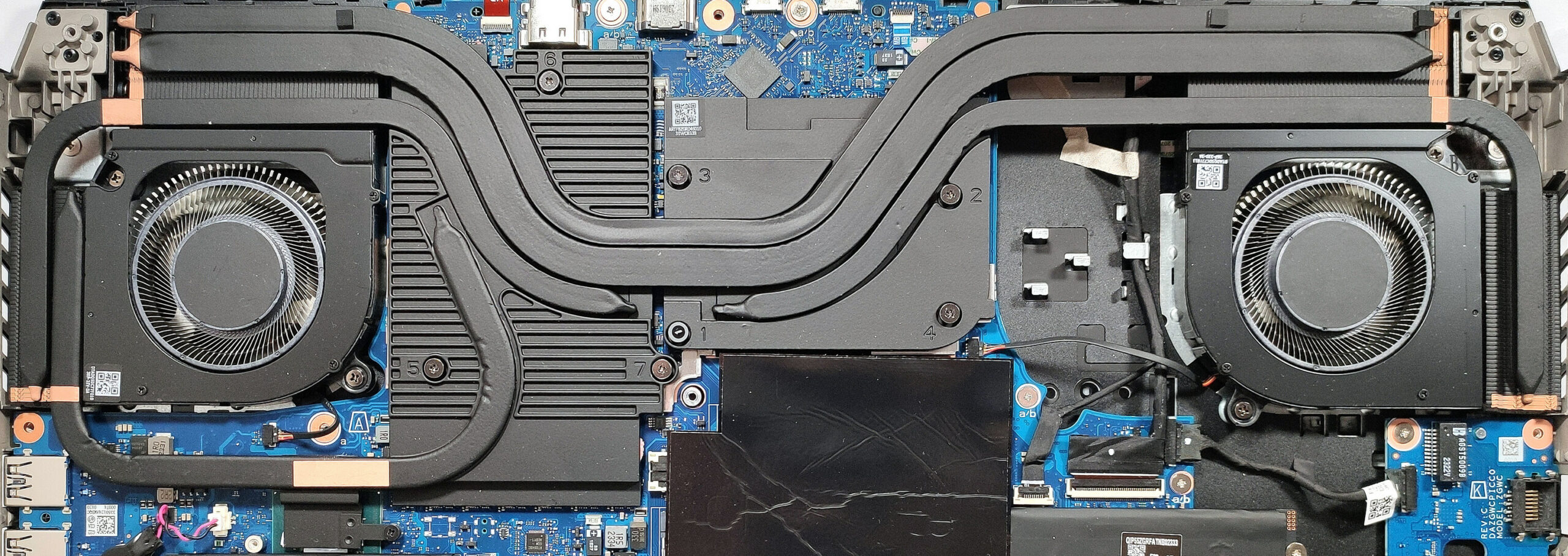
The Core i9-14900HX is a 24-core CPU monstrosity with 32 threads. That’s why the manufacturer has equipped this laptop with capable cooling. That’s why the CPU can maintain high P and E core clocks even in longer loads when the “Turbo” mode is activated. The temperatures are on the high side. Choosing the “Performance” preset leads to more than adequate frequencies in short and medium loads. In the long run, you can expect 2.59 GHz for the P cores and 2.47 GHz for the E cores when the Team Blue chip is fully stressed which is a decent result.
Real-life gaming
| NVIDIA GeForce RTX 4090 | GPU frequency/ Core temp (after 2 min) | GPU frequency/ Core temp (after 30 min) |
|---|---|---|
| Acer Predator Helios 18 (PH18-72) “Turbo” preset | 1988 MHz @ 76°C @ 172W | 1972 MHz @ 80°C @ 172W |
| Acer Predator Helios 18 (PH18-72) “Performance” preset | 1628 MHz @ 77°C @ 139W | 1600 MHz @ 81°C @ 140W |
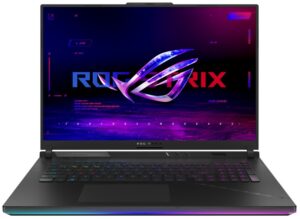
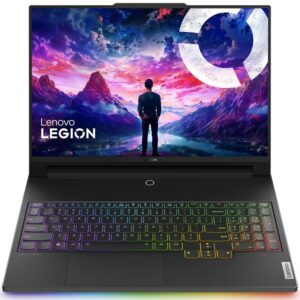
| Lenovo Legion 9i Gen 8 (16″ Intel) | 1835 MHz @ 76°C @ 174W | 1832 MHz @ 78°C @ 174W |
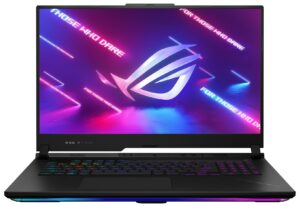
| ASUS ROG Strix SCAR 17 G733 (2023) | 1871 MHz @ 70°C @ 172W | 1881 MHz @ 74°C @ 172W |
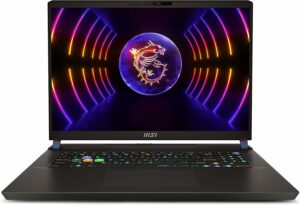
| MSI Vector GP78 HX (13V) “Extreme Performance” preset | 1955 MHz @ 71°C @ 168W | 1950 MHz @ 73°C @ 168W |
| MSI Vector GP78 HX (13V) “Balanced” preset | 1719 MHz @ 70°C @ 155W | 1705 MHz @ 74°C @ 154W |
The optional GeForce RTX 4090 can sustain a 1972MHz core frequency and a 172W TGP after half an hour of gaming. That’s the highest clock we’ve seen from an RTX 4090 – good job Acer!
Gaming comfort
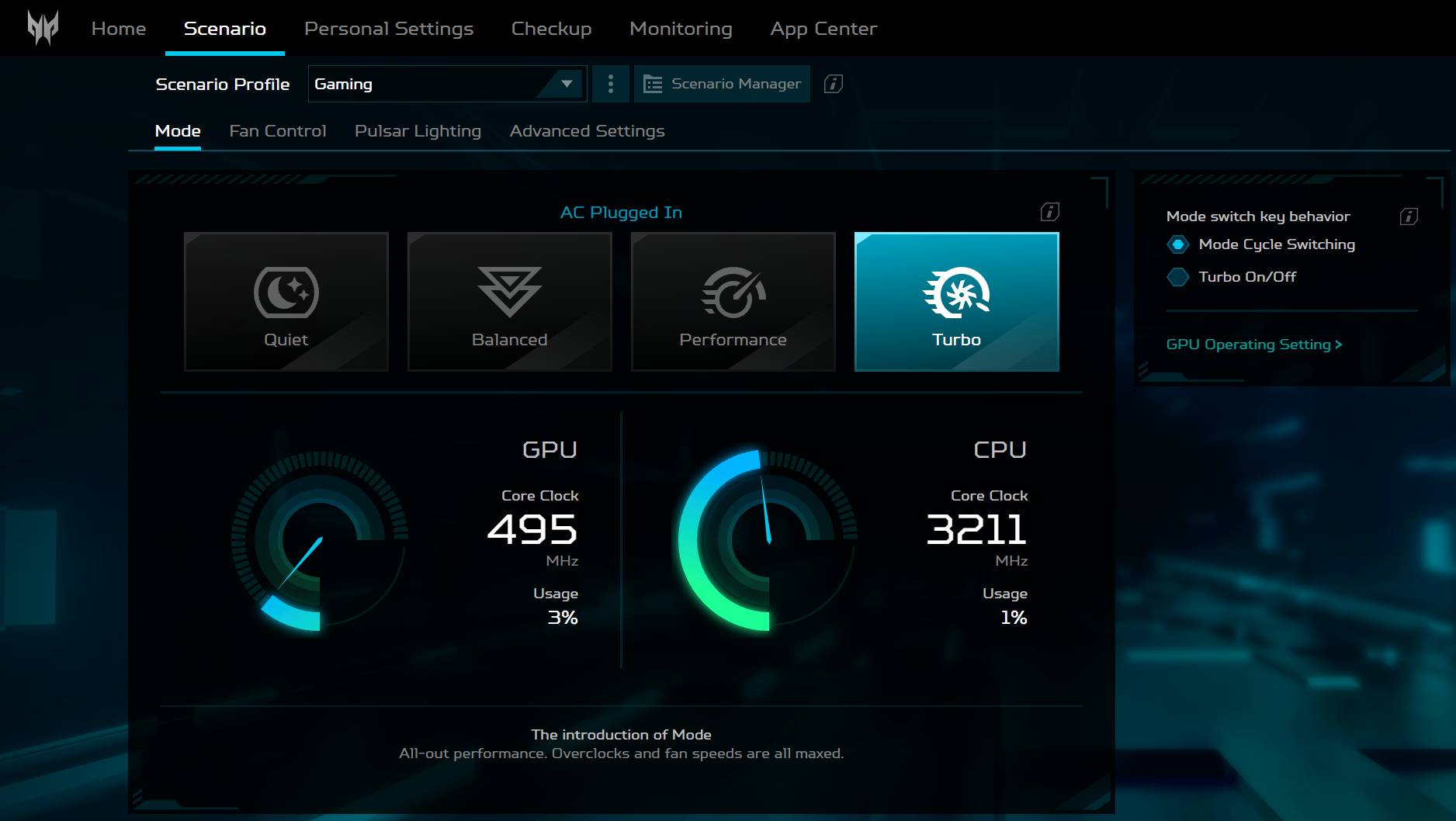
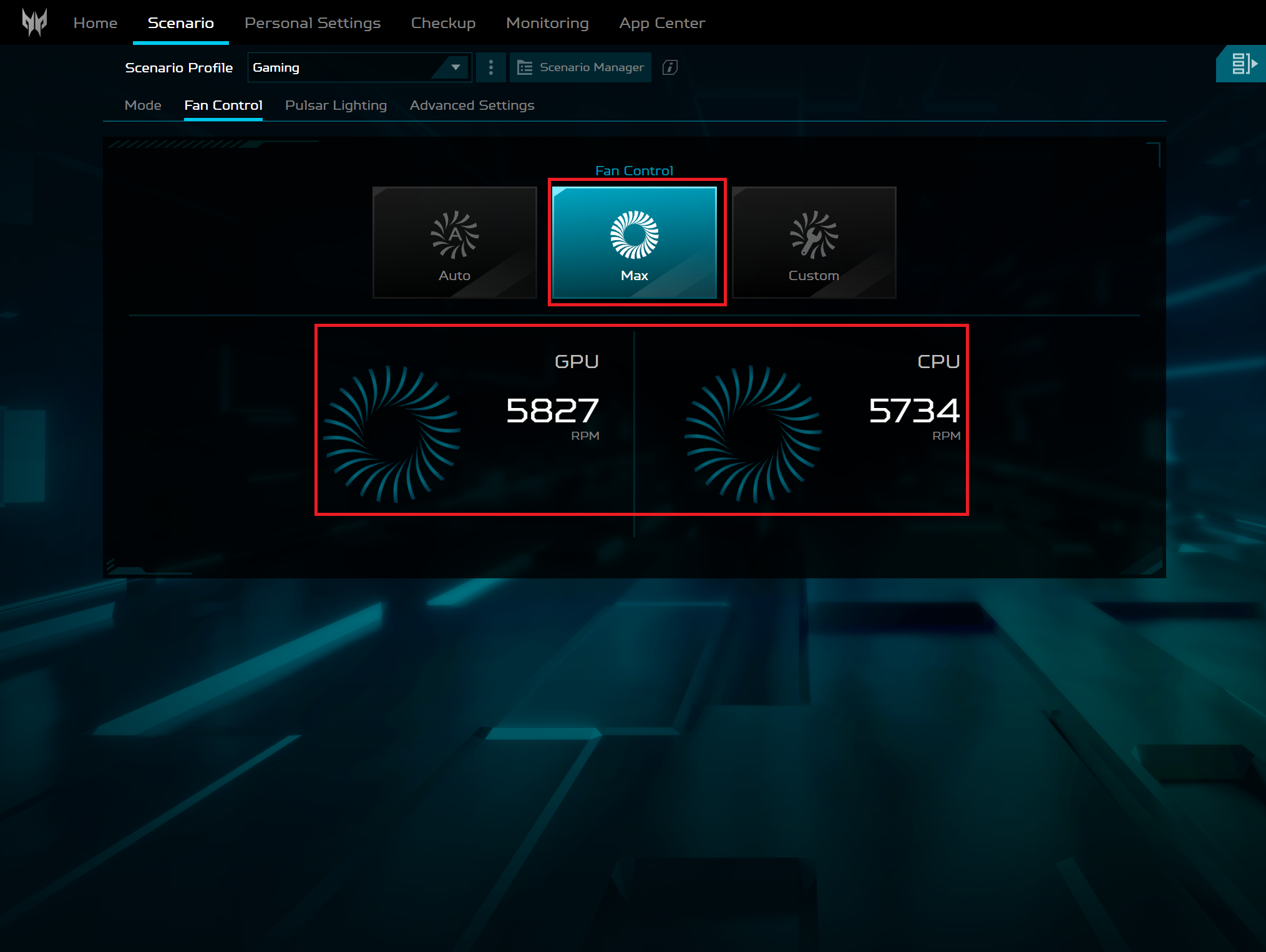
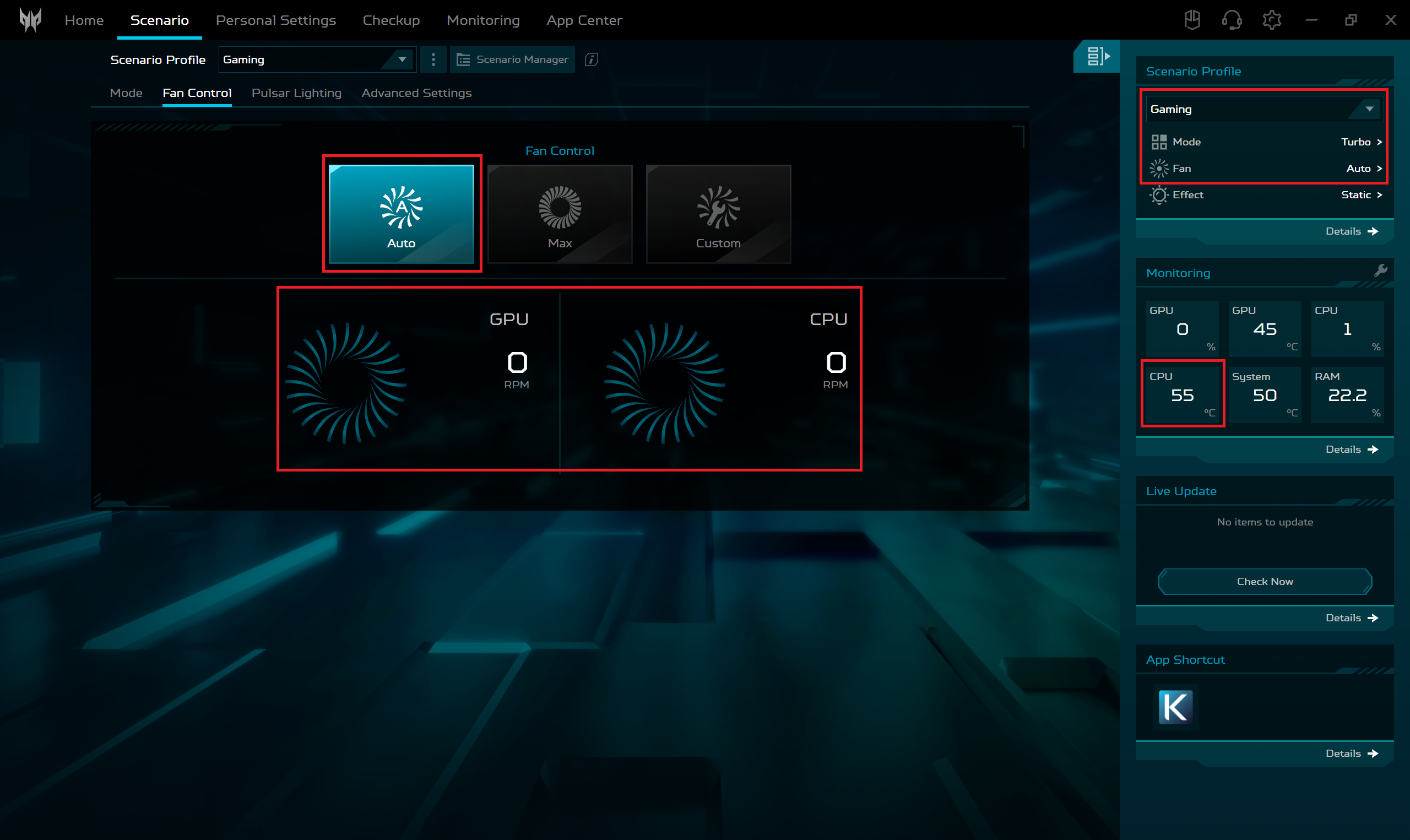
The keyboard doesn’t feel scorching hot to the touch even when the system is pushed to its limits. As always, you have four power presets for controlling the device’s performance. You can manually bump fans to their max speed of ~5800 RPM. Even in “Turbo mode”, the two fans aren’t spinning if the CPU temperature is below 56°C. Above this value (again, in idle), the fans don’t spin too aggressively (~2100 RPM).
 Presets
 Max fan speed
 Idle “Turbo” fan off
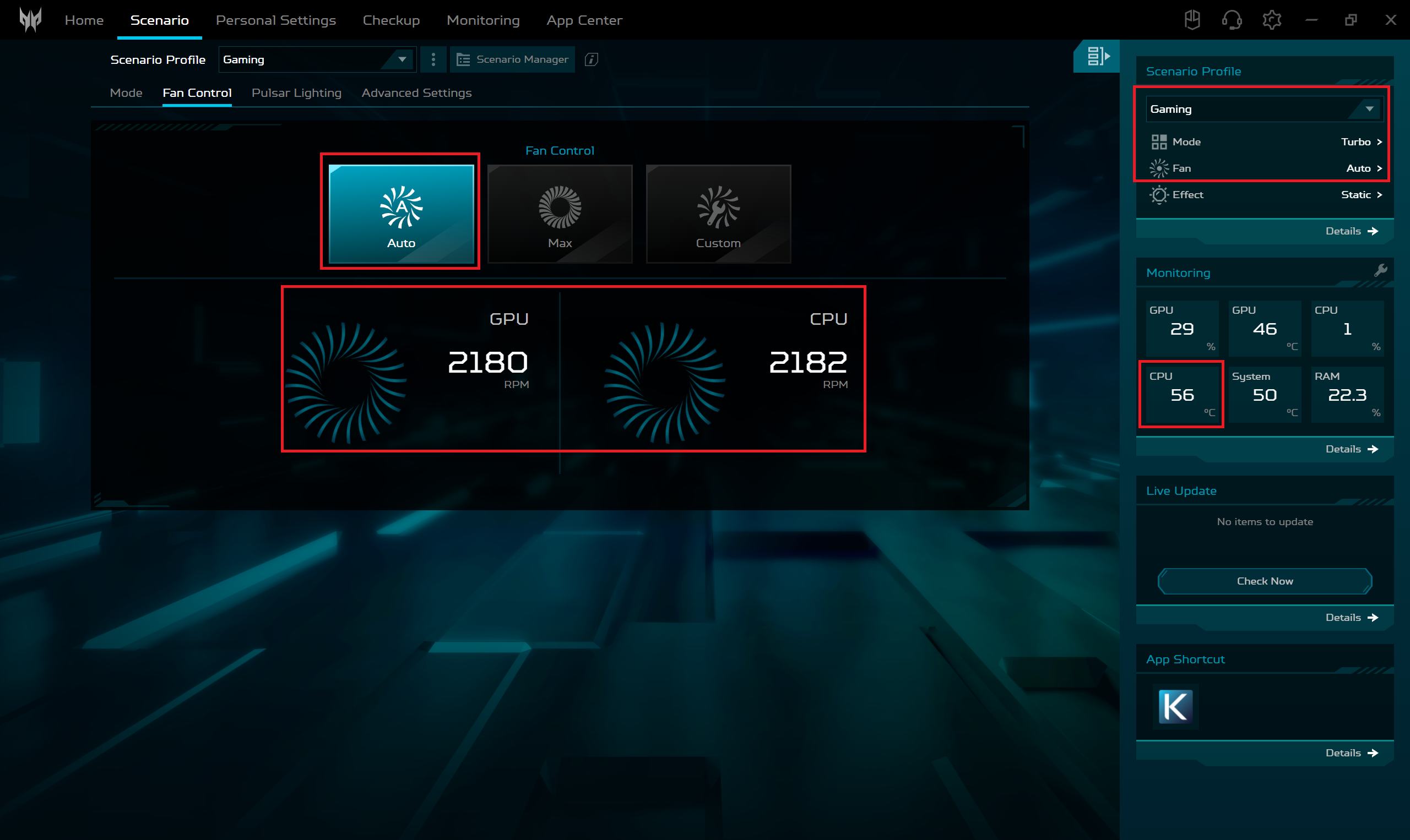 Idle “Turbo” fan speed
When the CPU is doing the heavy lifting, the fans are loud because they are automatically set to their maximum RPM. We observed ~3500 RPM in “Performance” and ~2800 RPM in “Balanced” modes. These two presets offer acceptable noise levels and performance for all kinds of tasks. Unfortunately, if you need the full power of the device, your ears have to be prepared for the “full noise”. Still, the fans of the MSI Vector GP78 HX (13V) produce even more noise (with the “Extreme Performance” profile activated) than the Acer laptop in front of us.
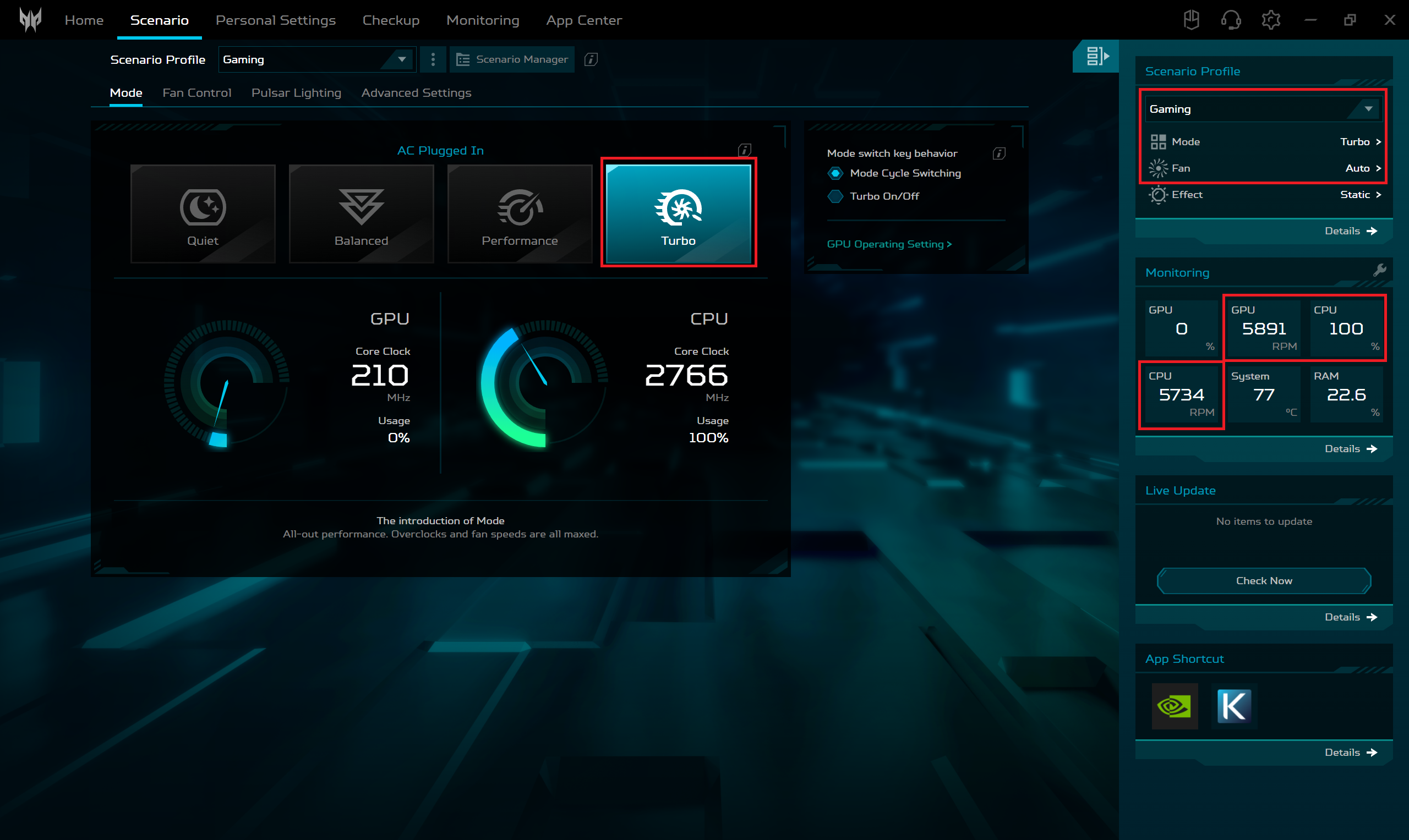 Max CPU load “Turbo”
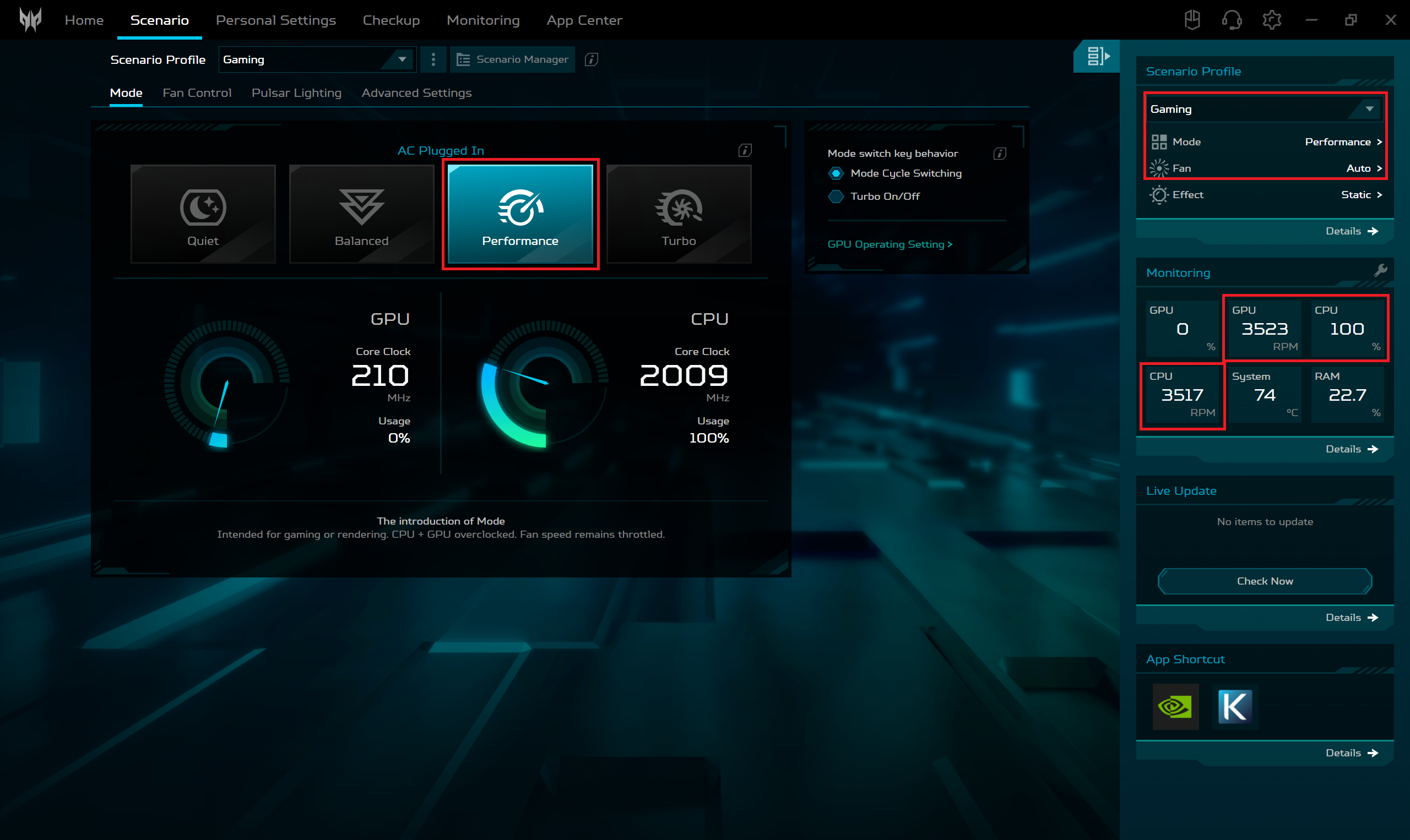 Max CPU load “Performance”
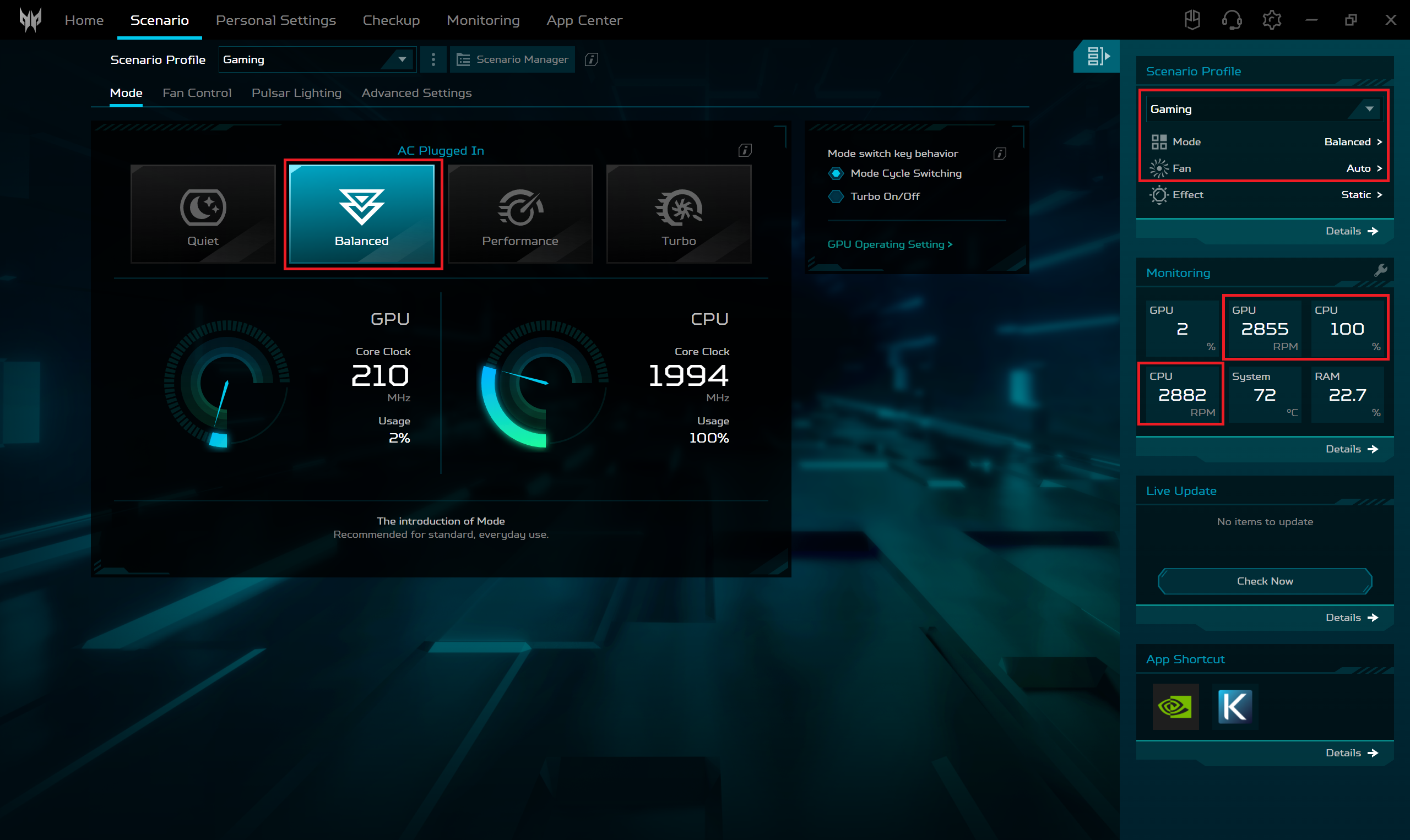 Max CPU load “Balanced”
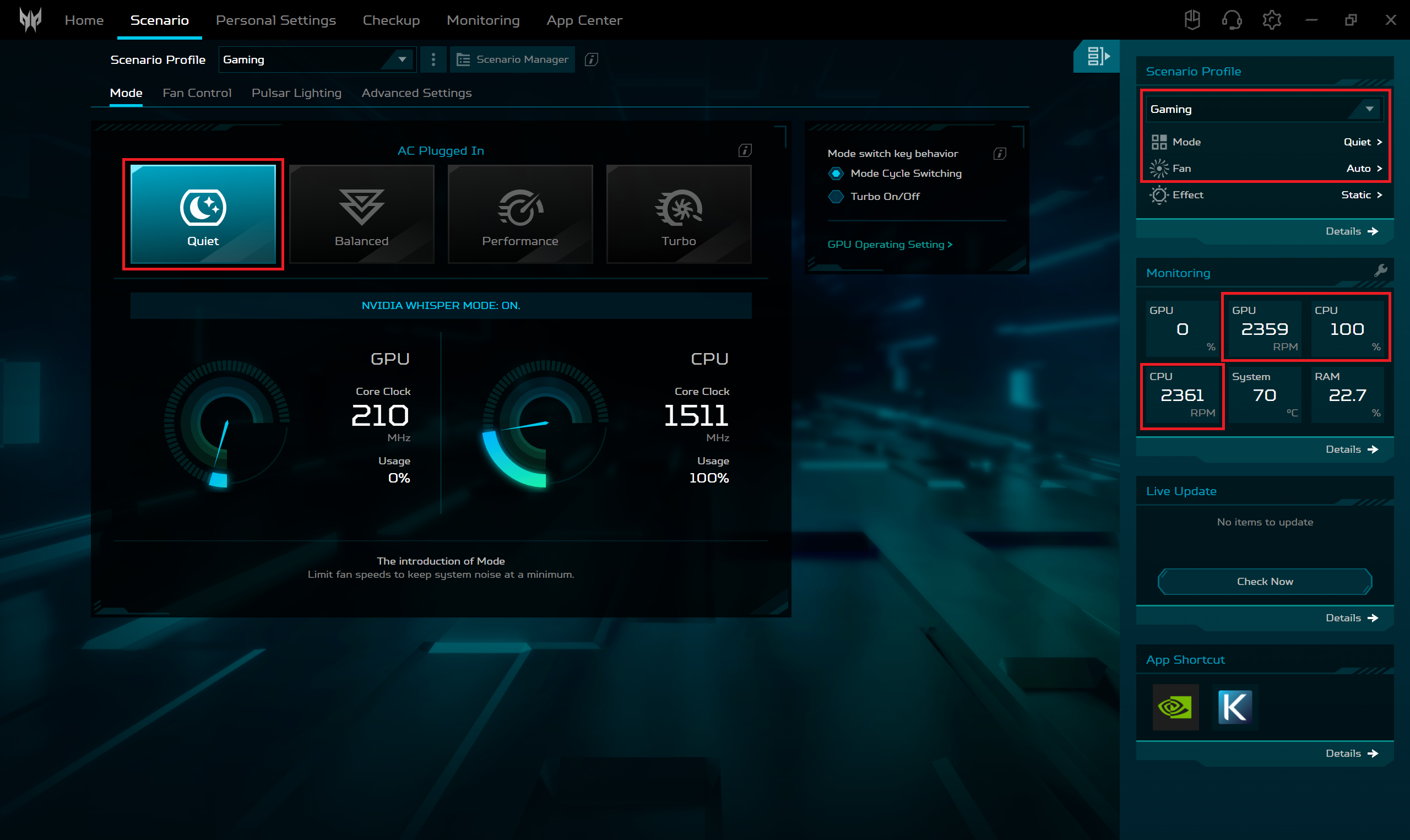 Max CPU load “Quiet”
Let’s check some GPU stats during gaming. The “Turbo” preset offers ~175W TGP. The “Performance” mode is the sweet spot between noise and snappines (140W TGP and ~ 3900 RPM). The power limit of the GPU is decreased to around 105W in the “Balanced” and ~75W in the “Quiet” preset.
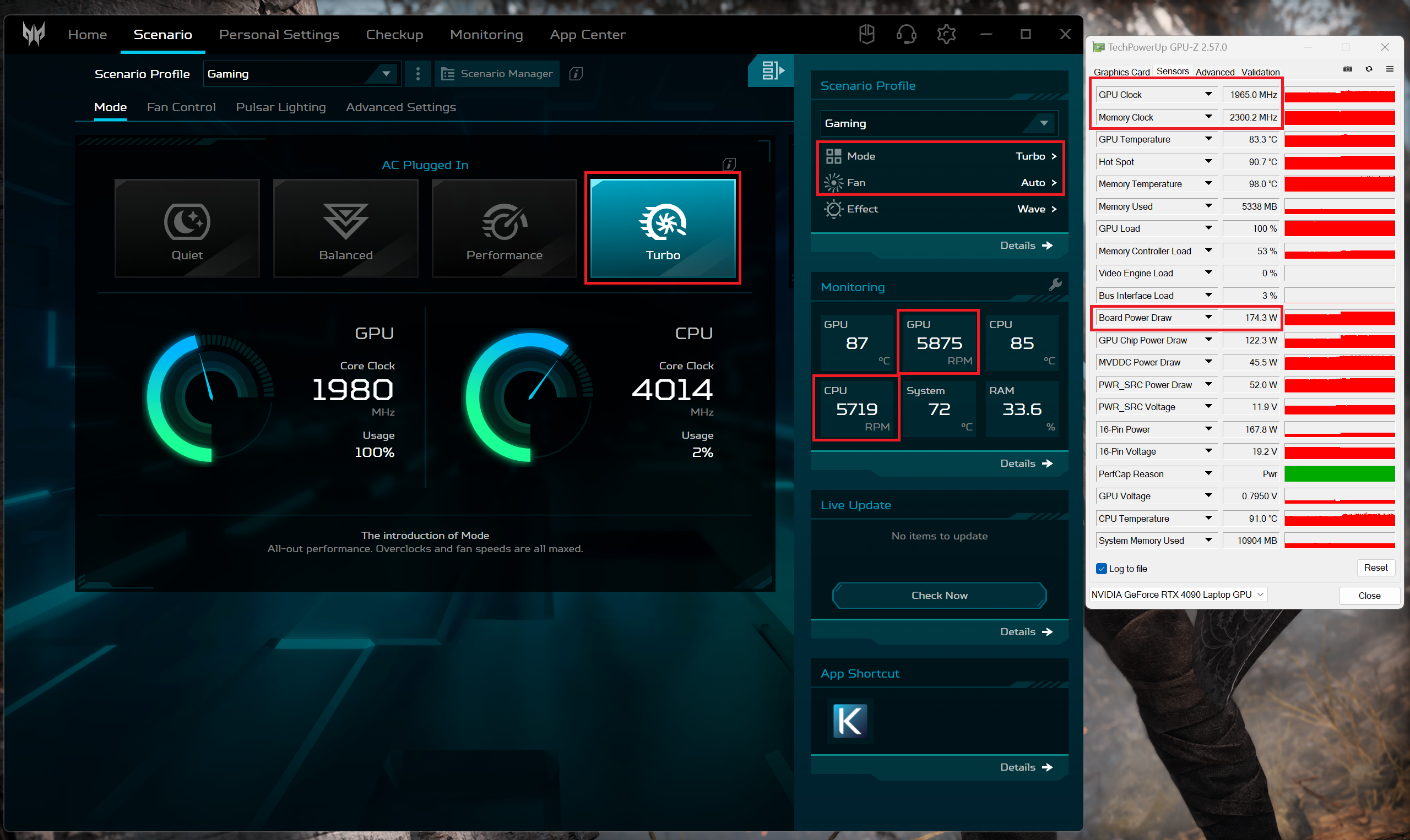 Gaming “Turbo”
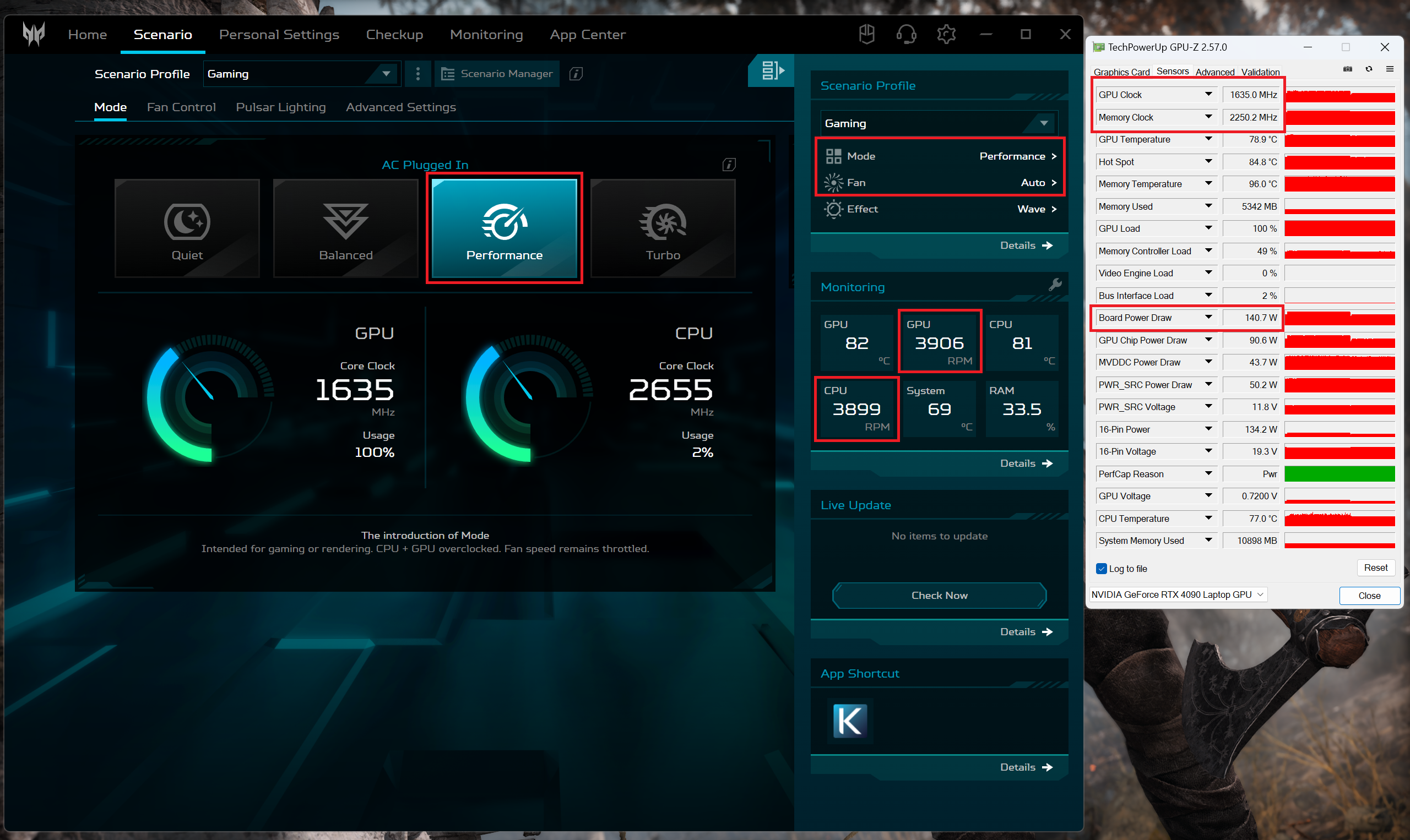 Gaming “Performance”
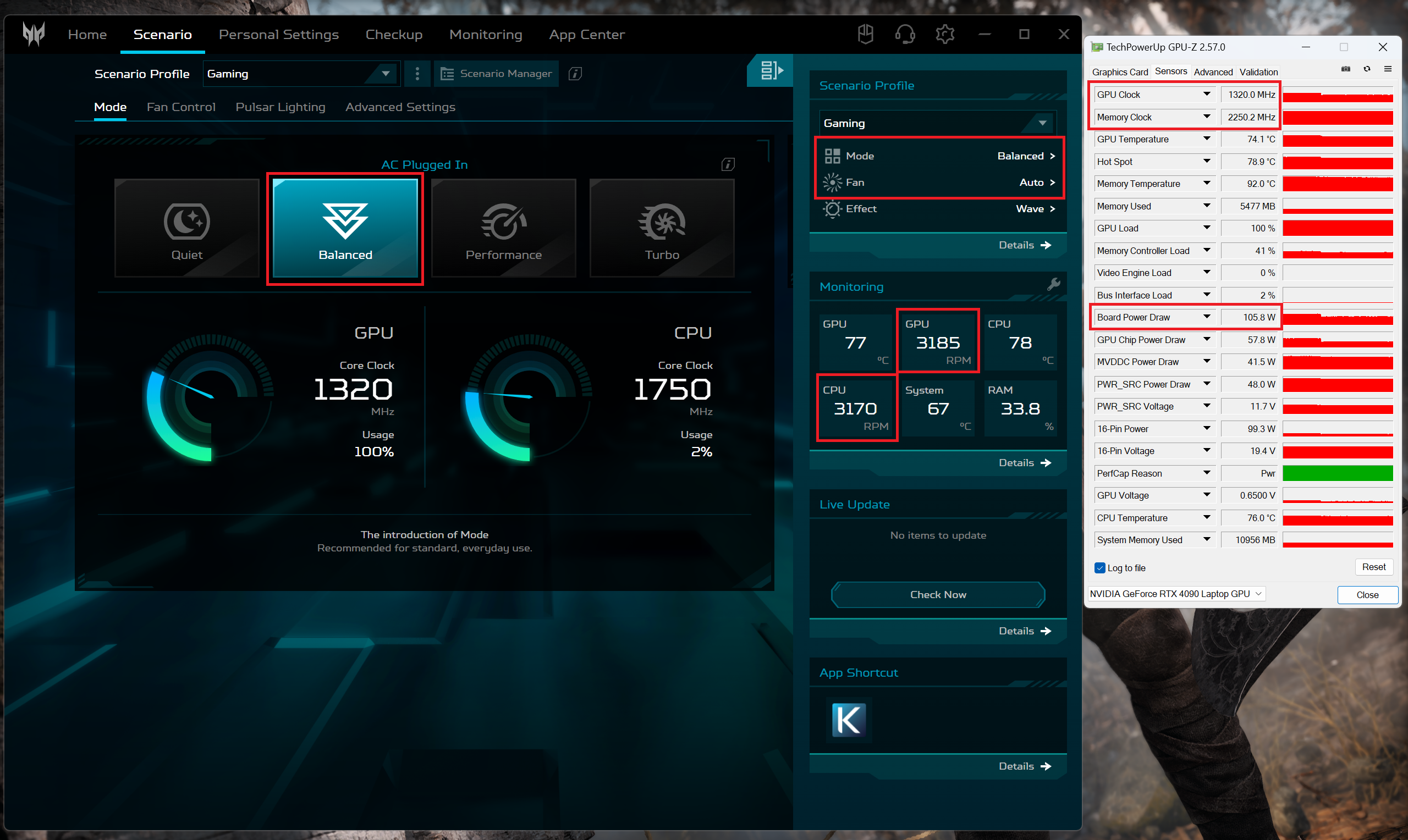 Gaming “Balanced”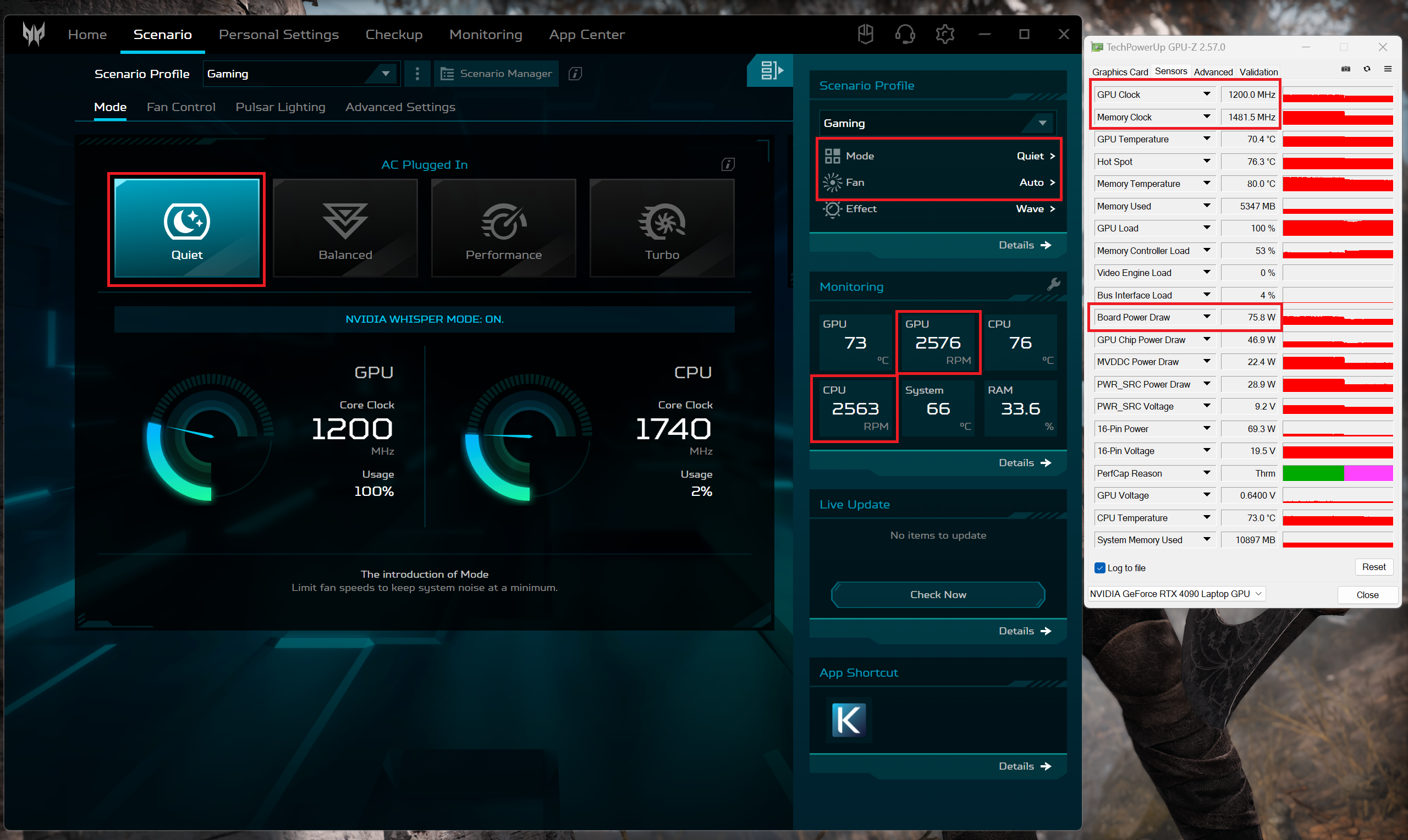
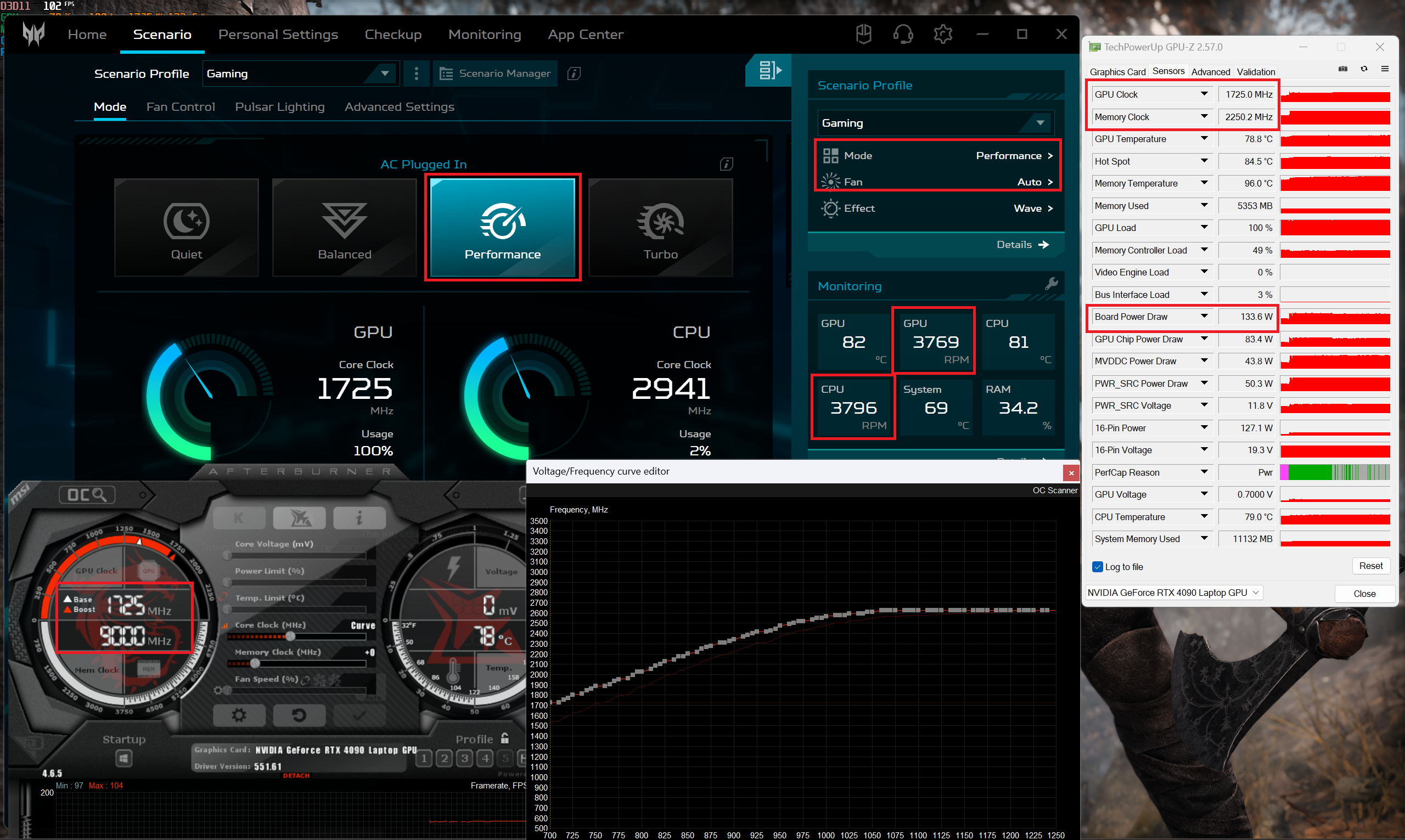
We also tried some GPU undervolting with the “Performance” preset applied. We set the core clock to 1725MHz and the voltage to 0.700V which is the lowest possible value in MSI Afterburner. We gained a few FPS and also the power consumption and the fan RPM are a bit lower as well.
Battery
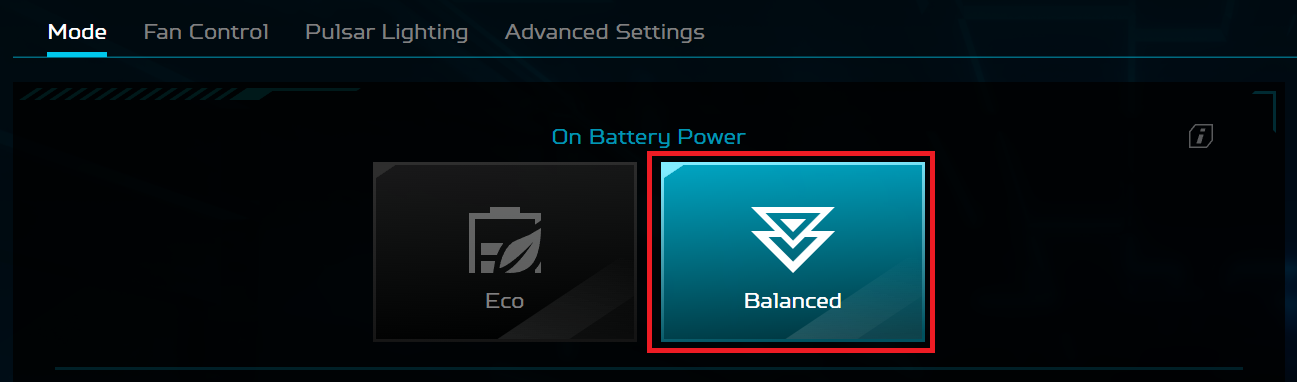
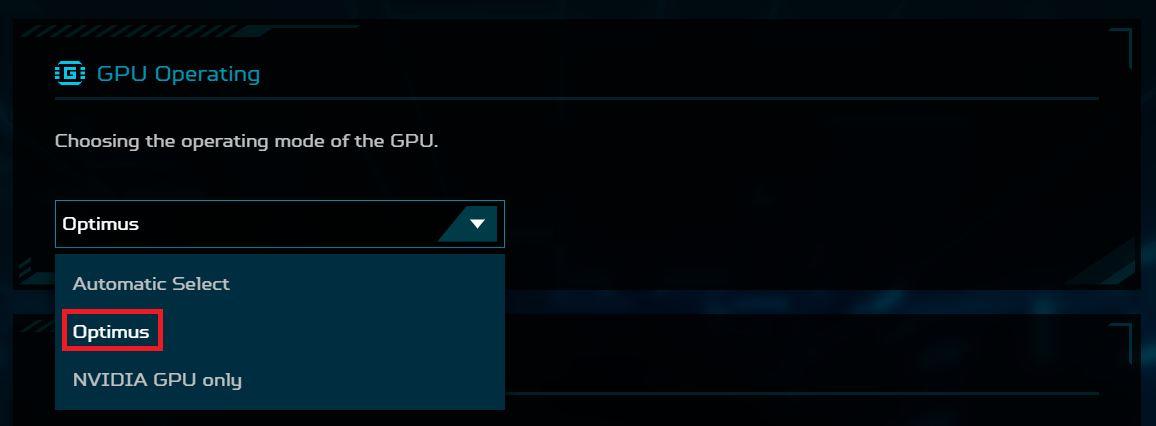
Now, we conduct the battery tests with the Windows Better performance setting turned on, screen brightness adjusted to 120 nits and all other programs turned off except for the one we are testing the notebook with. This notebook’s 90Wh battery lasts for 4 hours and 46 minutes of Web browsing or 4 hours and 33 minutes of video playback. To achieve that, you have to apply the “Balanced” preset in the Windows “Power & Battery” menu and select the “Balanced” and “Optimus” modes in the Acer PredatorSense app.

Brightness: 180 nits; Display Mode: SDR
Time to Full Discharge: Higher is Better

In order to simulate real-life conditions, we used our own script for automatic web browsing through over 70 websites.
 Author: Nikolay Palaozov
 Author: eng. Kroum NikolovHead of Engineering at LaptopMedia.com, inventor and innovator with 40+ years of experience in electronics and high technology.

![[June 2026] Best-Selling Laptop Brands on Amazon Global – Apple’s Unrivaled Dominance in Units and Revenue](https://laptopmedia.com/wp-content/uploads/2026/07/GLOBAL-Best-Brands-400x225.jpg)
![[June 2026] Amazon Global: Top 10 Best-Selling Laptops – Apple’s New MacBook Neo Storms to #1, Reshaping the Market with Affordability](https://laptopmedia.com/wp-content/uploads/2026/07/Best-Selling-Laptops-GLOBAL-Top-10-400x225.jpg)
![[June 2026] Amazon Global: Top 10 Best-Selling Gaming Laptops – Acer’s Nitro V 16S AI Dominates Sales, While ASUS Leads Overall Revenue](https://laptopmedia.com/wp-content/uploads/2026/07/Best-Selling-Gaming-Laptops-GLOBAL-Top-10-400x225.jpg)
![[June 2026] Global Ranking of Best-Selling Laptop GPUs on Amazon – NVIDIA RTX 5060 is the Top-Selling Dedicated GPU](https://laptopmedia.com/wp-content/uploads/2026/07/Best-Selling-GPUs-GLOBAL-Top-10-400x225.jpg)
![[June 2026] Global Ranking of Best-Selling Laptop CPUs on Amazon – Apple M5 Dominates, AMD Ryzen 7 260 Gets Solid Premium Share](https://laptopmedia.com/wp-content/uploads/2026/07/Best-Selling-CPUs-GLOBAL-Top-10-400x225.jpg)

Is this any better than the 4080 i13? Is the cooling system better? Can you undervolt this version?
Could you tell more about RAM thermal pad?
Can thermal pads be reinstalled after being removed from RAM? Or can they not be glued back on effectively?
I would like to buy such thermal pads, but they are hard to come by
What if the lid was left closed, but the laptop didn’t go into sleep mode and got very hot while lying on the bed for 30 minutes? Could this have caused any mechanical damage to the hardware? If so, how can I check this and how can I understand whether there was any damage to the laptop?